
Helpdesk Livechat
by Viindoo
| Lines of Code | 429 |
| Technical name | viin_helpdesk_livechat |
| License | OPL-1 |
| Website | https://viindoo.com/apps/modules/19.0/viin_helpdesk_livechat |
| Read description for | v 13.0 v 14.0 v 15.0 v 16.0 v 17.0 v 18.0 |
| Required Apps | Discuss (mail) Live Chat (im_livechat) |
| Included Dependencies | Helpdesk Viindoo Base |

A chat that needs follow-up becomes a ticket, with the whole conversation on it
For support teams that answer customers in live chat and follow up in Helpdesk
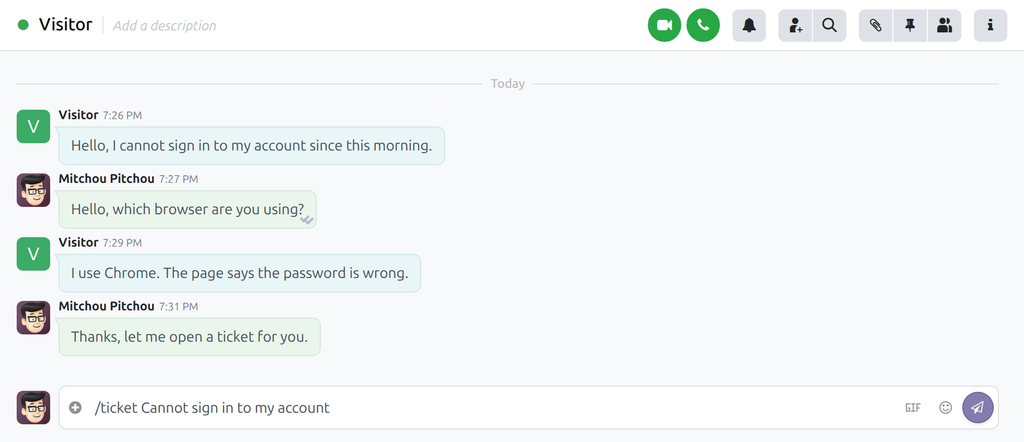
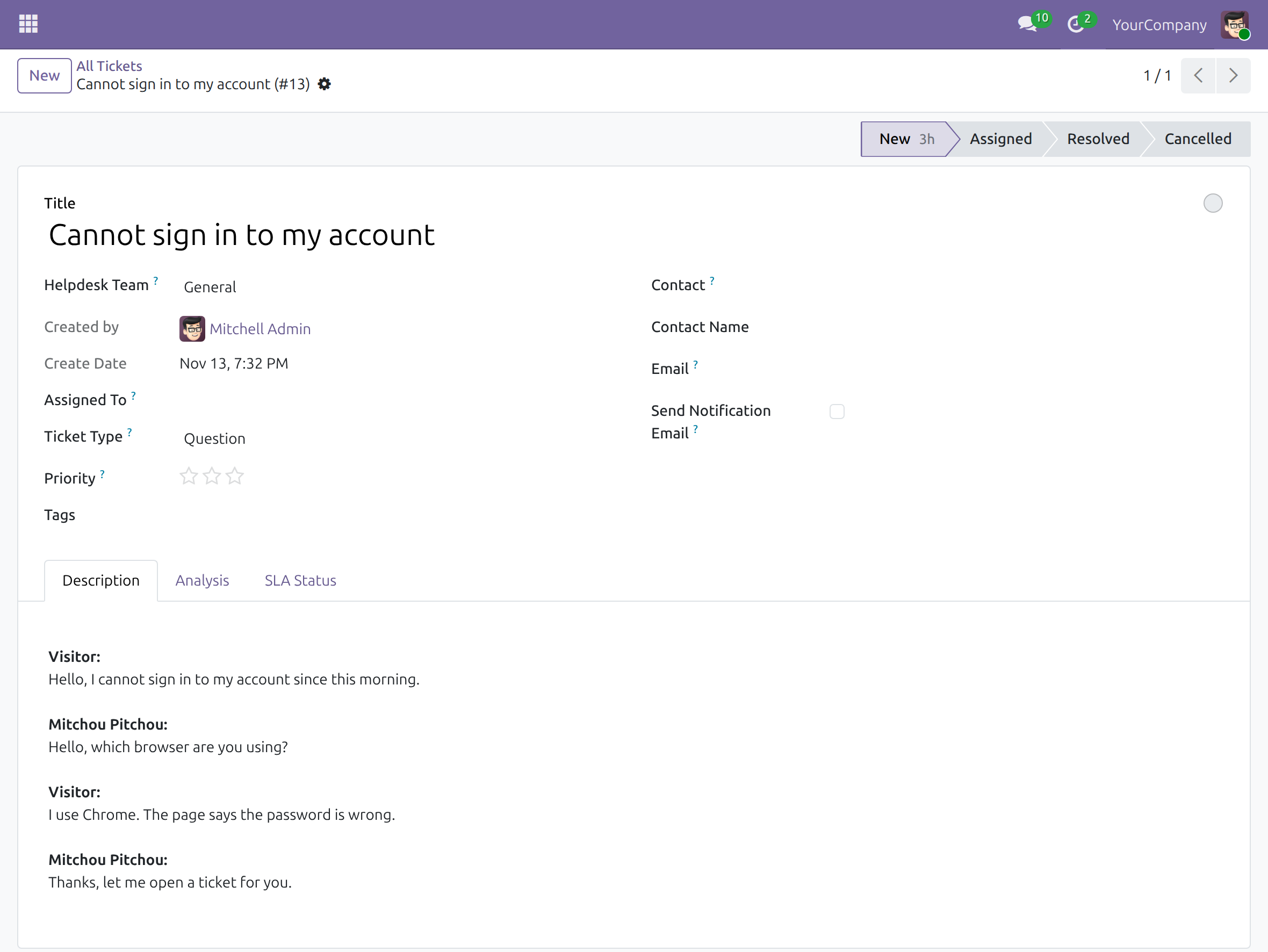
Create a new helpdesk ticket with the /ticket command in the channel.
Odoo 19.0 · Community and Enterprise · OPL-1
Extends Helpdesk: operators create its tickets from the conversations they hold in Live Chat.
What changes for your team
The ticket is created where the conversation happens
The operator opens Helpdesk in another window, creates the ticket by hand and pastes in what the customer said.
→ The operator types /ticket and a title in the message box. The ticket is created with the whole conversation as its description, and the command is never sent to the customer.
The operator gets a link back, the customer sees nothing
To check that the ticket exists, or to pass it on, the operator searches the helpdesk for it.
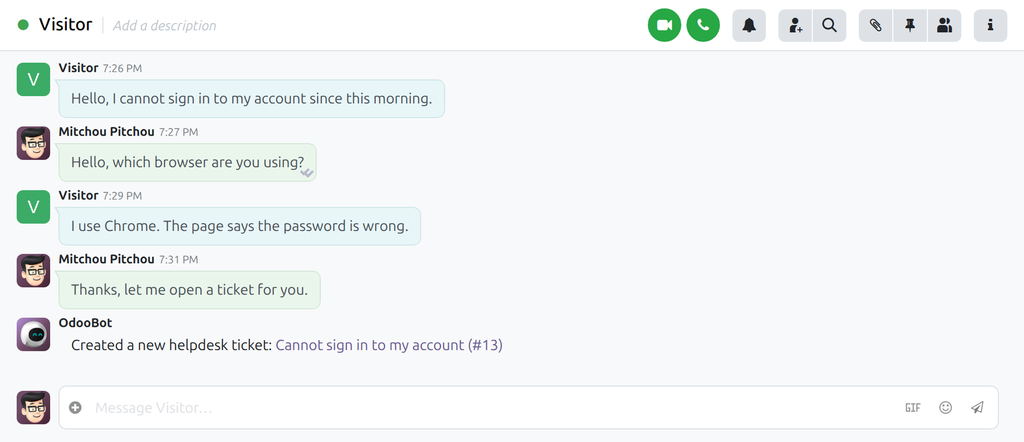
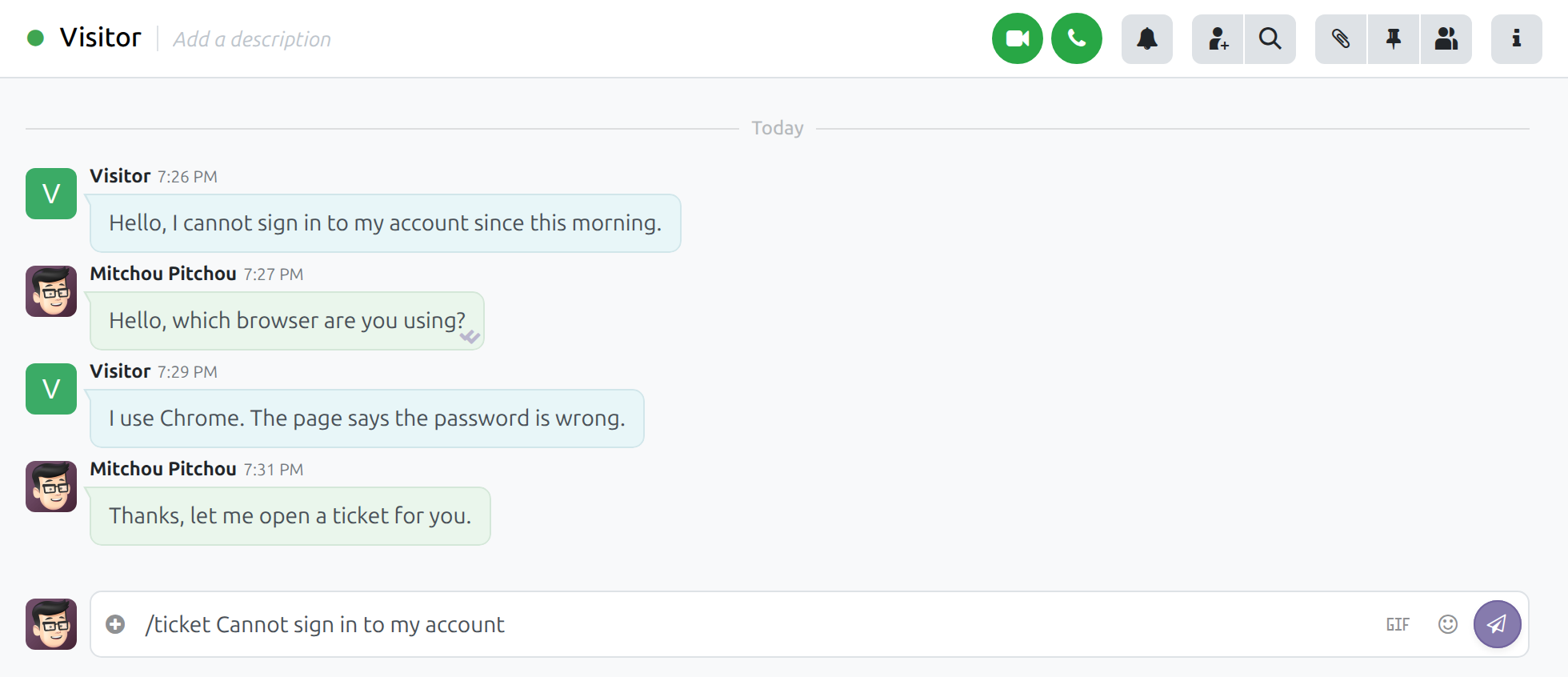
→ A confirmation that only the operator sees names the ticket and its number as a link, and opens it in one click.
Every chat ticket reaches the team you chose
Tickets from chat land wherever each operator files them, under whatever type they pick.
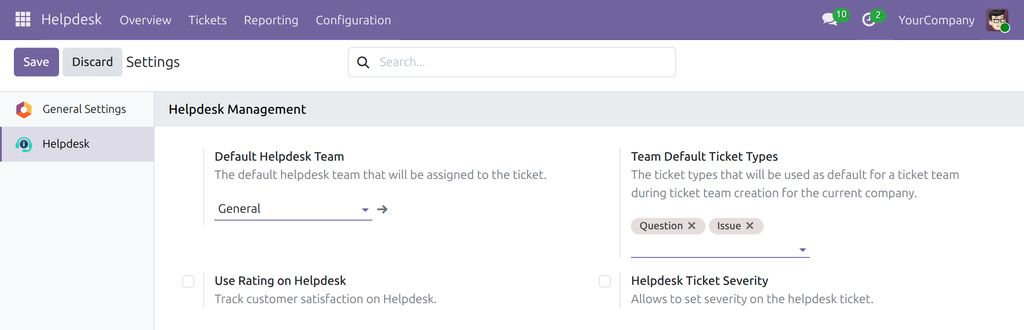
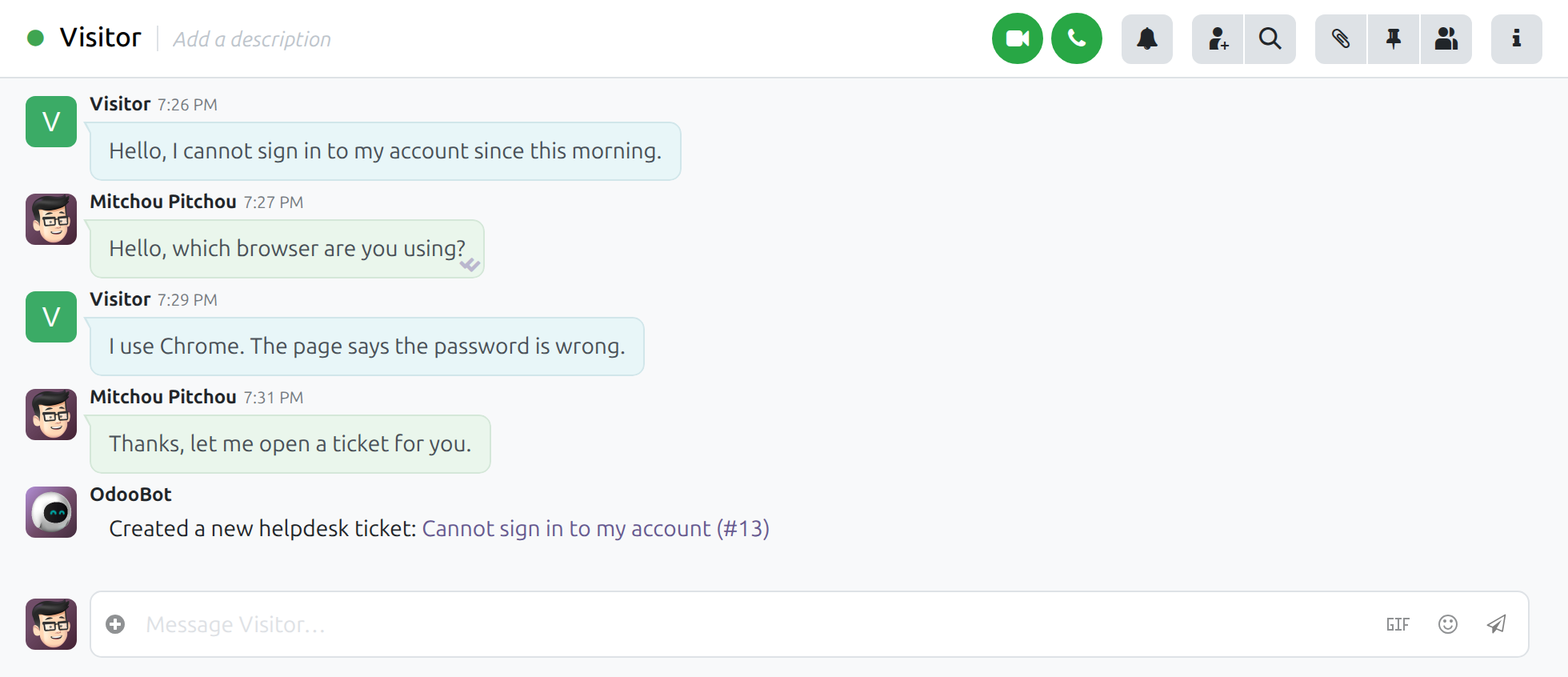
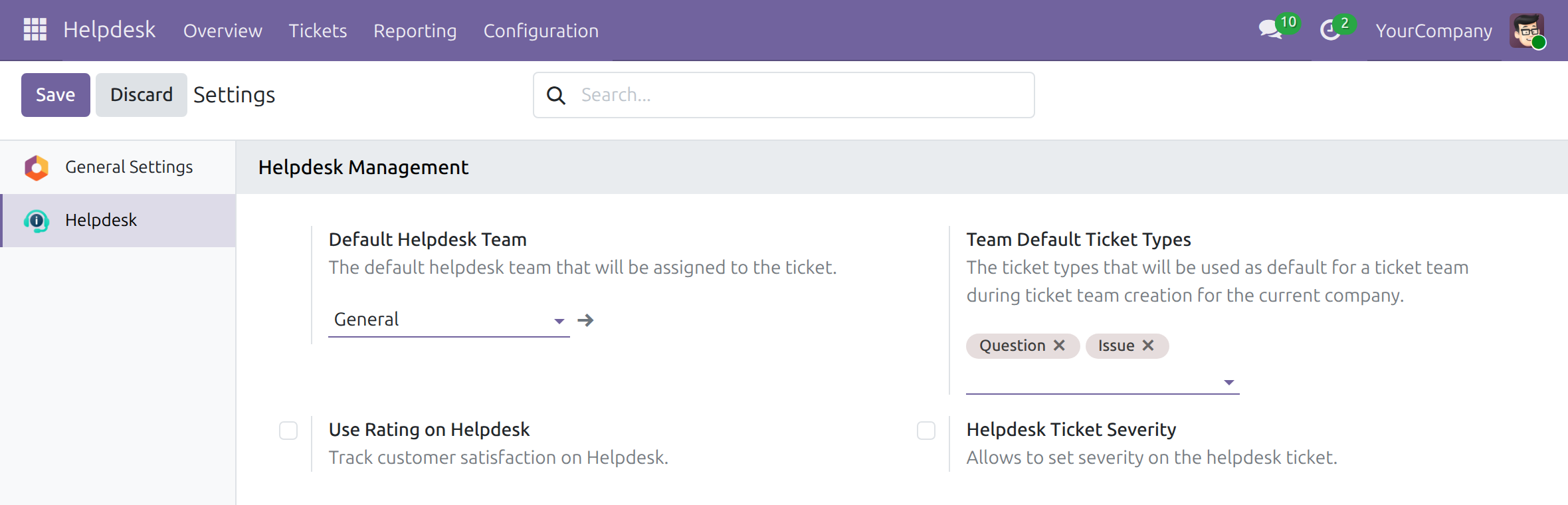
→ The company's Default Helpdesk Team receives them, typed as a Question when that team uses the Question type. From there they follow the team's usual flow.
Ready on day one
Installs itself
Once Helpdesk and Live Chat are both installed, this module is installed with them.
The command, in every conversation
/ticket is offered with a short help line in live chat and in the other Discuss conversations of your team.
Your helpdesk rights as they are
The ticket is created with the operator's own access rights; no extra group or exception to manage.
What you set up first
The Default Helpdesk Team of the company, and the operators as members of that team.
What is included
The /ticket command, the ticket built from the conversation and its contact, and the private confirmation with the link. Teams, stages, ticket types and SLA policies come from Helpdesk; the chat itself comes from Live Chat.
Before you decide
Does the customer see the command?
No. The command is not posted in the conversation, and the confirmation, or the reason a ticket was not created, is shown only to the operator who typed it.
What exactly goes into the ticket?
The title typed after /ticket, and the whole conversation in order with each speaker's name, including files, images and the chatbot's exchanges; system notifications are left out. The contact is the customer's own contact when the conversation has one; a visitor who is not signed in leaves it empty.
Who can create tickets this way?
Helpdesk users who belong to the default team, and helpdesk administrators. Anyone else is told to ask the team leader or an administrator to add them, and no ticket is created.
Can the operator choose the team?
No. Every ticket from chat goes to the company's default team, or to its first team when none is chosen. The ticket is then assigned and handled like any other ticket of Helpdesk.
Which languages does it ship?
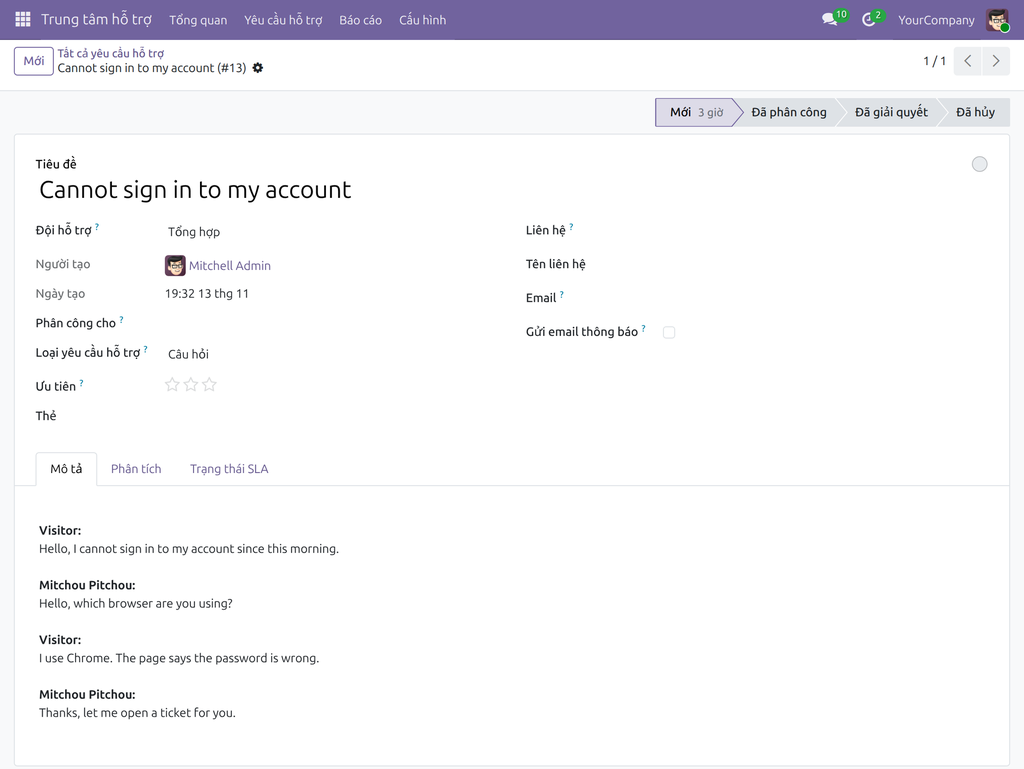
English and Vietnamese.
Try it, then ask us
The Documentation tab walks the administrator through the setup and the operator through creating a ticket from a conversation, screen by screen.
Pre-sales & partnership
viindoo.com/contactusTechnical support
viindoo.com/ticketTechnical requirements
- Odoo version: 19.0
- Editions: Community, Enterprise
- Required modules: Helpdesk, Live Chat
- License: OPL-1
- Languages: English, Vietnamese
Helpdesk Livechat
Note
This guide is for the live chat operators who talk to customers and for the administrator who installs the module. It extends Helpdesk: see the Helpdesk documentation for teams, ticket types and the rest of the ticket handling.
Overview
An operator who is chatting with a customer can turn the conversation into a helpdesk ticket without leaving the chat window. One command creates the ticket, copies the whole conversation into its description and gives the operator a link to open it.
| Role | What they do | Access right to assign |
|---|---|---|
| Administrator | Installs the module and chooses the default helpdesk team of the company. | Administration / Settings |
| Live chat operator | Answers customers in a live chat conversation and creates a ticket from it. | Helpdesk / User, and member or leader of the default helpdesk team |
Setup (for the Administrator)
Install the module
- Go to Apps.
- Search for Helpdesk Livechat.
- Press Install.
The Helpdesk and Live Chat applications are required and are installed with it.
Choose the team that receives the tickets
Every ticket created from a chat goes to the Default Helpdesk Team of the company, chosen in Helpdesk ‣ Configuration ‣ Settings. When no default team is chosen, the first team of the company receives the ticket.
The ticket is created with the access rights of the operator who types the command, so each operator must be a member or the leader of that team, or a helpdesk administrator.
The ticket type is Question when the team has this type; otherwise it is the first type of the team.
Live chat operator: create a ticket from a conversation
Create the ticket
- Open the conversation in Discuss, or in the chat window that opens when a customer writes to you.
- In the message box, type /ticket followed by the title of the ticket, for example /ticket Cannot sign in to my account. As you start typing /ticket, the command is suggested above the message box with its short help.
- Press Enter (or the send button).
The command is not sent to the customer. Only you see the answer of the system.
If you type /ticket without a title, no ticket is created and you get a reminder of the syntax.
Open the ticket
The system tells you, in the conversation, that the ticket is created and gives its title and number as a link.
Press the link to open the ticket.
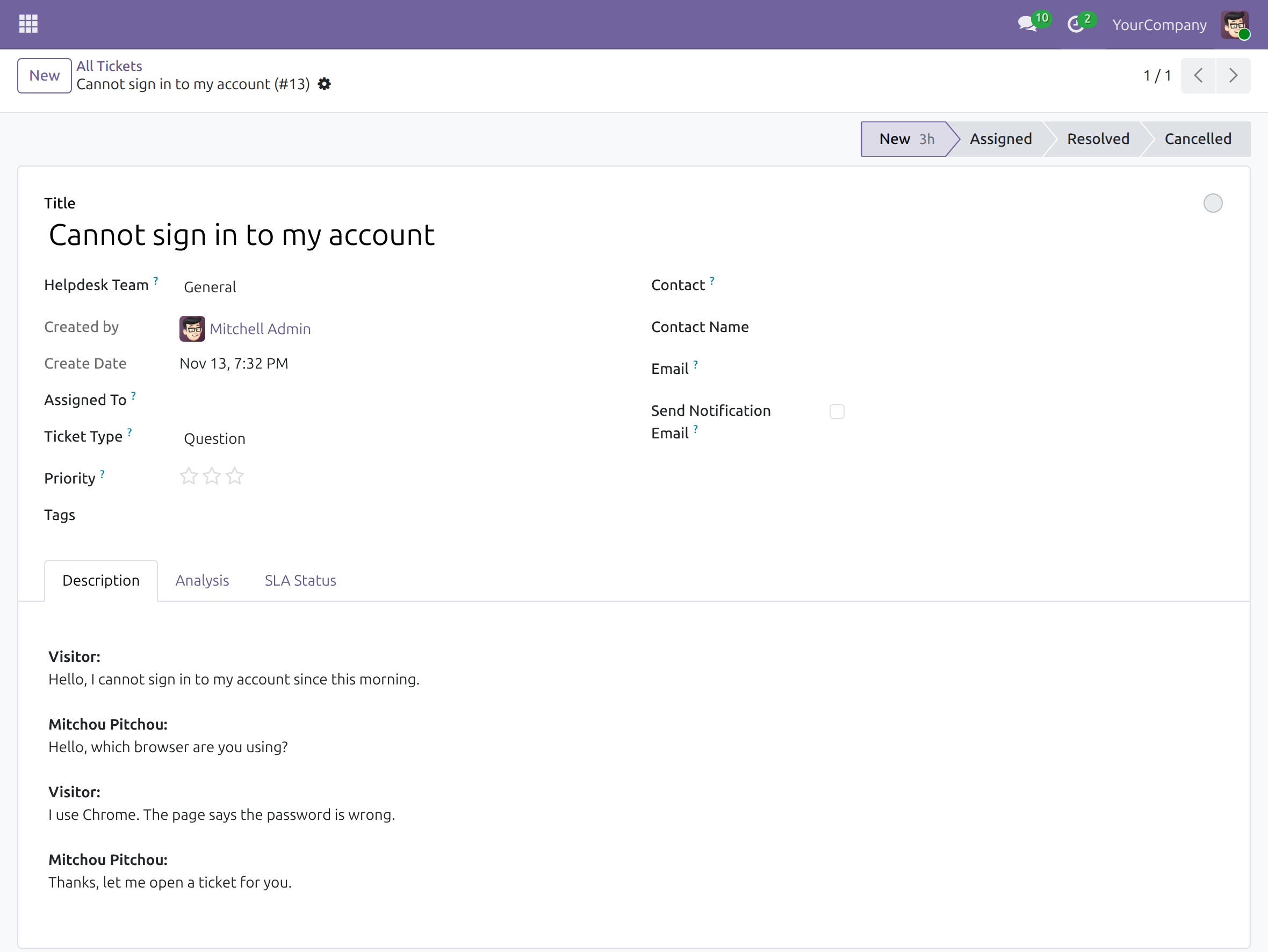
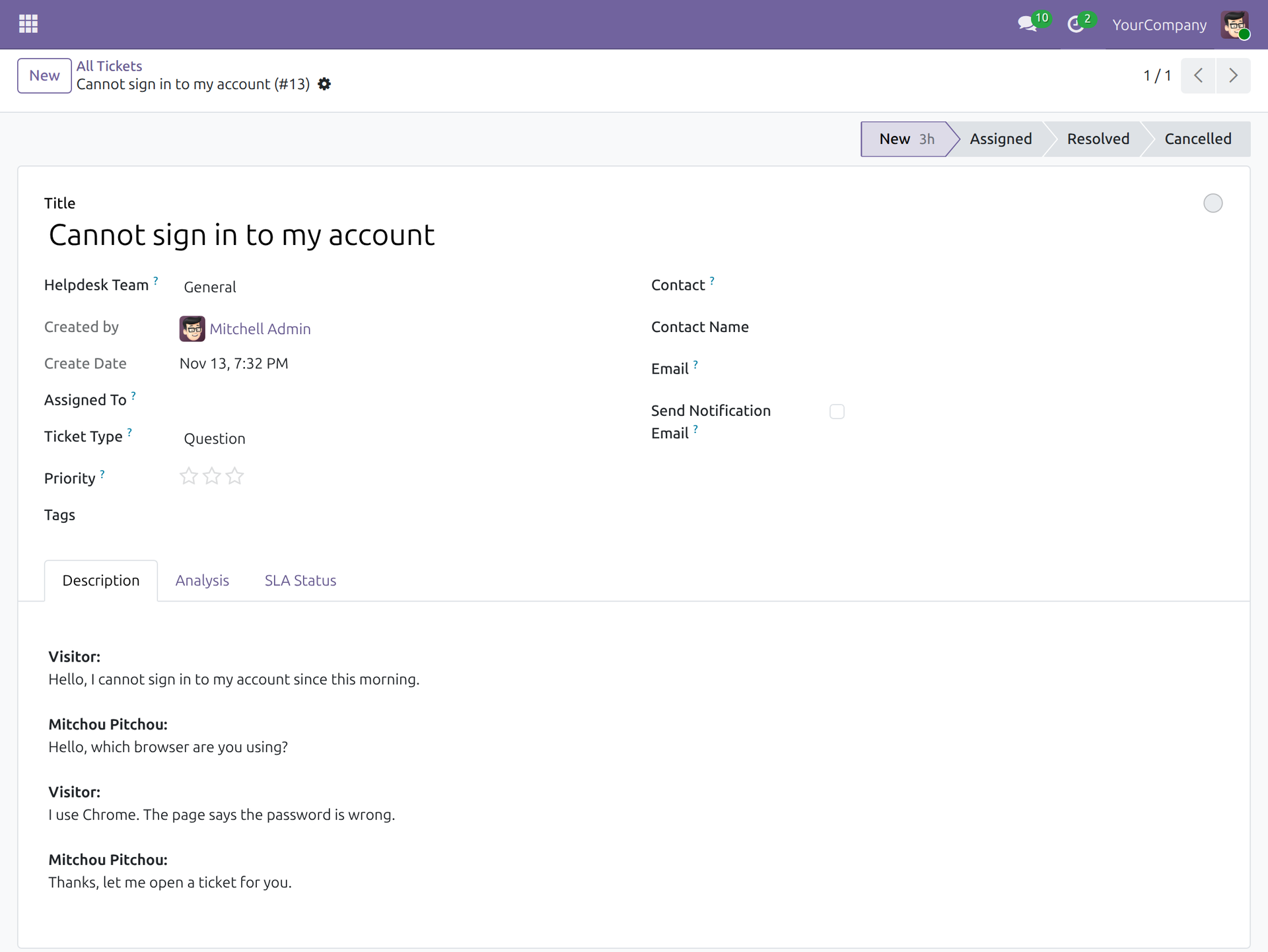
The ticket carries:
- Title: the text you typed after /ticket.
- Helpdesk Team: the default team of the company.
- Ticket Type: Question, or the first type of the team.
- Contact: the external contact of the conversation, when there is one. A visitor who is not signed in, or a conversation held only between colleagues, has no contact: fill it in on the ticket if you need it.
- Description: the whole conversation, in order, with the name of each speaker. Files and images sent in the chat are kept. System notifications and empty messages are left out. The conversation is also copied when a chatbot answered the customer before you joined.
The ticket then follows its normal path: assign it, move it through the stages and resolve it as described in the Helpdesk guide.
If you cannot create the ticket
If your access rights do not let you create a ticket for the default team, you see a message saying so and no ticket is created. Ask the team leader or a helpdesk administrator to add you to the team.
This software and associated files (the "Software") may only be used (executed, modified, executed after modifications) if you have purchased a valid license from the authors, typically via Odoo Apps, or if you have received a written agreement from the authors of the Software (see the COPYRIGHT file).
You may develop Odoo modules that use the Software as a library (typically by depending on it, importing it and using its resources), but without copying any source code or material from the Software. You may distribute those modules under the license of your choice, provided that this license is compatible with the terms of the Odoo Proprietary License (For example: LGPL, MIT, or proprietary licenses similar to this one).
It is forbidden to publish, distribute, sublicense, or sell copies of the Software or modified copies of the Software.
The above copyright notice and this permission notice must be included in all copies or substantial portions of the Software.
THE SOFTWARE IS PROVIDED "AS IS", WITHOUT WARRANTY OF ANY KIND, EXPRESS OR IMPLIED, INCLUDING BUT NOT LIMITED TO THE WARRANTIES OF MERCHANTABILITY, FITNESS FOR A PARTICULAR PURPOSE AND NONINFRINGEMENT. IN NO EVENT SHALL THE AUTHORS OR COPYRIGHT HOLDERS BE LIABLE FOR ANY CLAIM, DAMAGES OR OTHER LIABILITY, WHETHER IN AN ACTION OF CONTRACT, TORT OR OTHERWISE, ARISING FROM, OUT OF OR IN CONNECTION WITH THE SOFTWARE OR THE USE OR OTHER DEALINGS IN THE SOFTWARE.