
Helpdesk
by Viindoo
| Lines of Code | 6118 |
| Technical name | viin_helpdesk |
| License | OPL-1 |
| Website | https://viindoo.com/apps/modules/19.0/viin_helpdesk |
| Read description for | v 13.0 v 14.0 v 15.0 v 16.0 v 17.0 v 18.0 |
| Required Apps | Discuss (mail) |
| Included Dependencies | Viindoo Base |
| Extensions | Zalo Helpdesk Template Pack Website Helpdesk Integration Helpdesk Dashboard Helpdesk Livechat Helpdesk & Sale Integrator Helpdesk & Odoo Version Helpdesk & Human Resources Integration Helpdesk Project Integration Helpdesk CRM Integration Helpdesk Ticket Severity |

Every support request has an owner, a deadline and an answer
For support teams that serve customers, partners and colleagues
A ticketing-based support application for Odoo and Viindoo to help you manage and track support tickets for both employees and external partners
Odoo 19.0 · Community and Enterprise · OPL-1
What changes for your team
Customers stop chasing you for a status
Requests arrive by email and phone, and customers write again to ask where things stand.
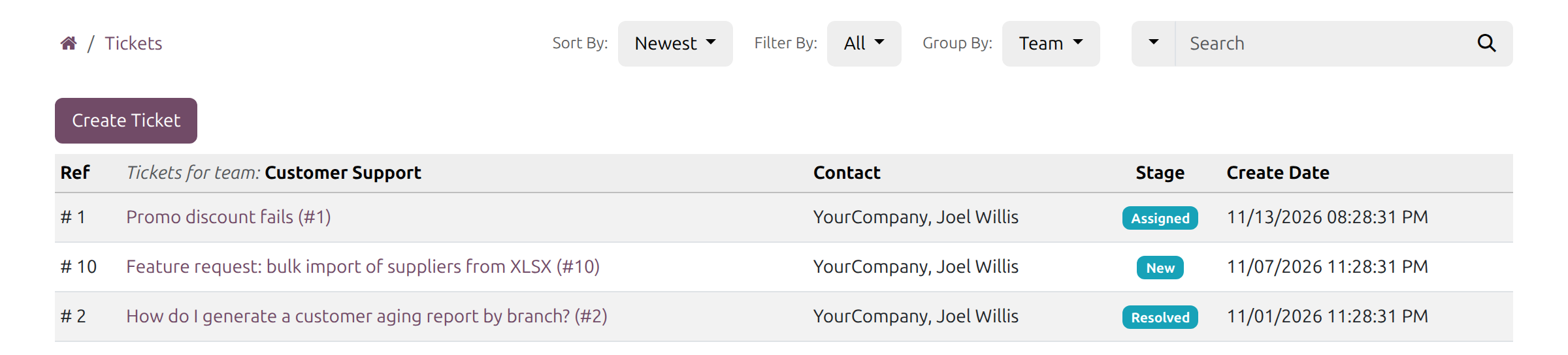
→ Customers submit a request to a team open to them on the portal, then follow its stage and conversation there. They see the tickets they raised or follow, nothing else.
Service promises you can measure
Response times are a good intention, and a slipping ticket shows up when the customer complains.
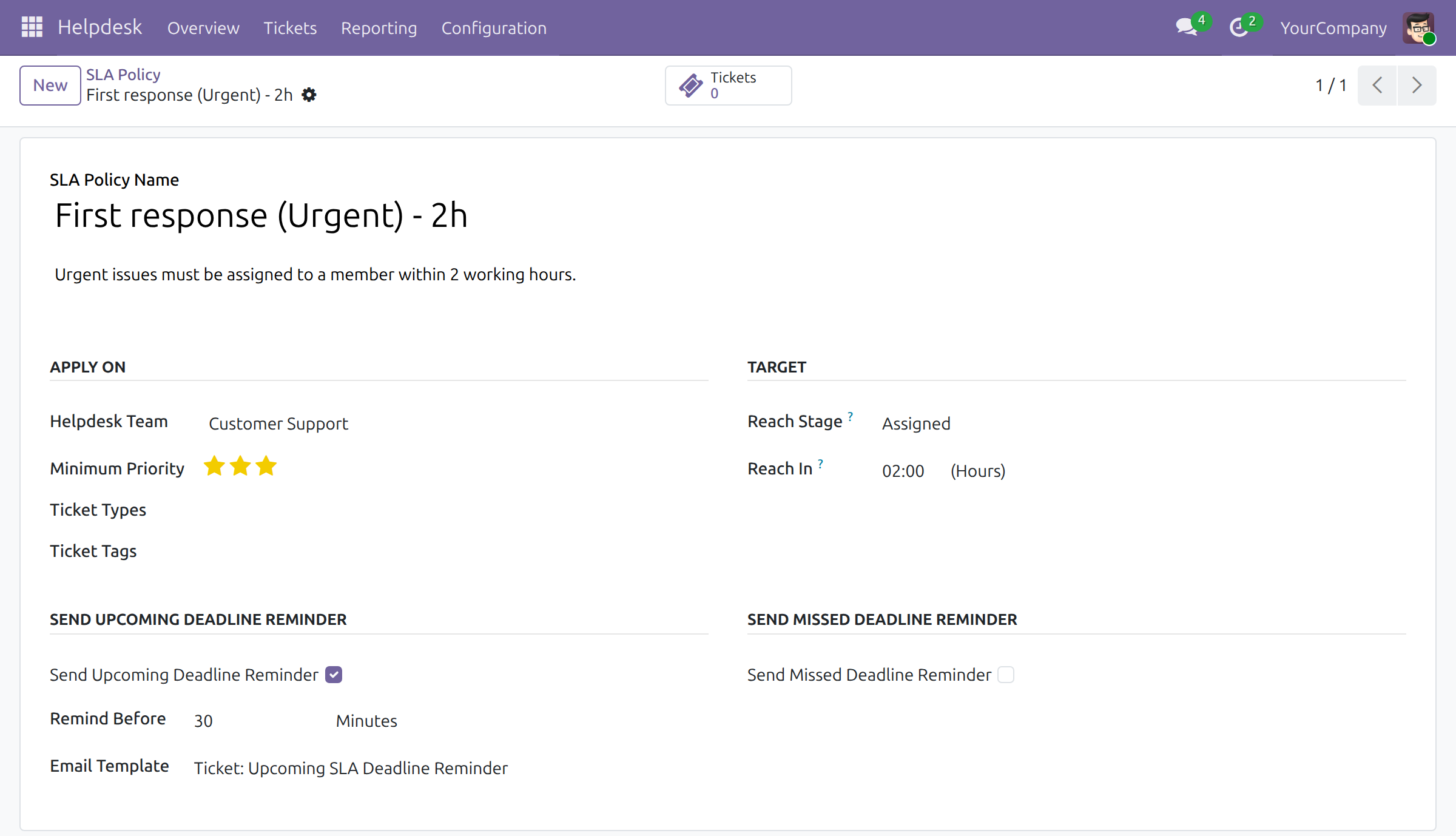
→ An SLA policy sets the stage a ticket must reach and within how many working hours. The agent, the team leader and the assigners are reminded before the deadline and after a miss.
Work reaches the right person without a dispatcher
Someone sorts the shared inbox every morning and hands out work by feel.
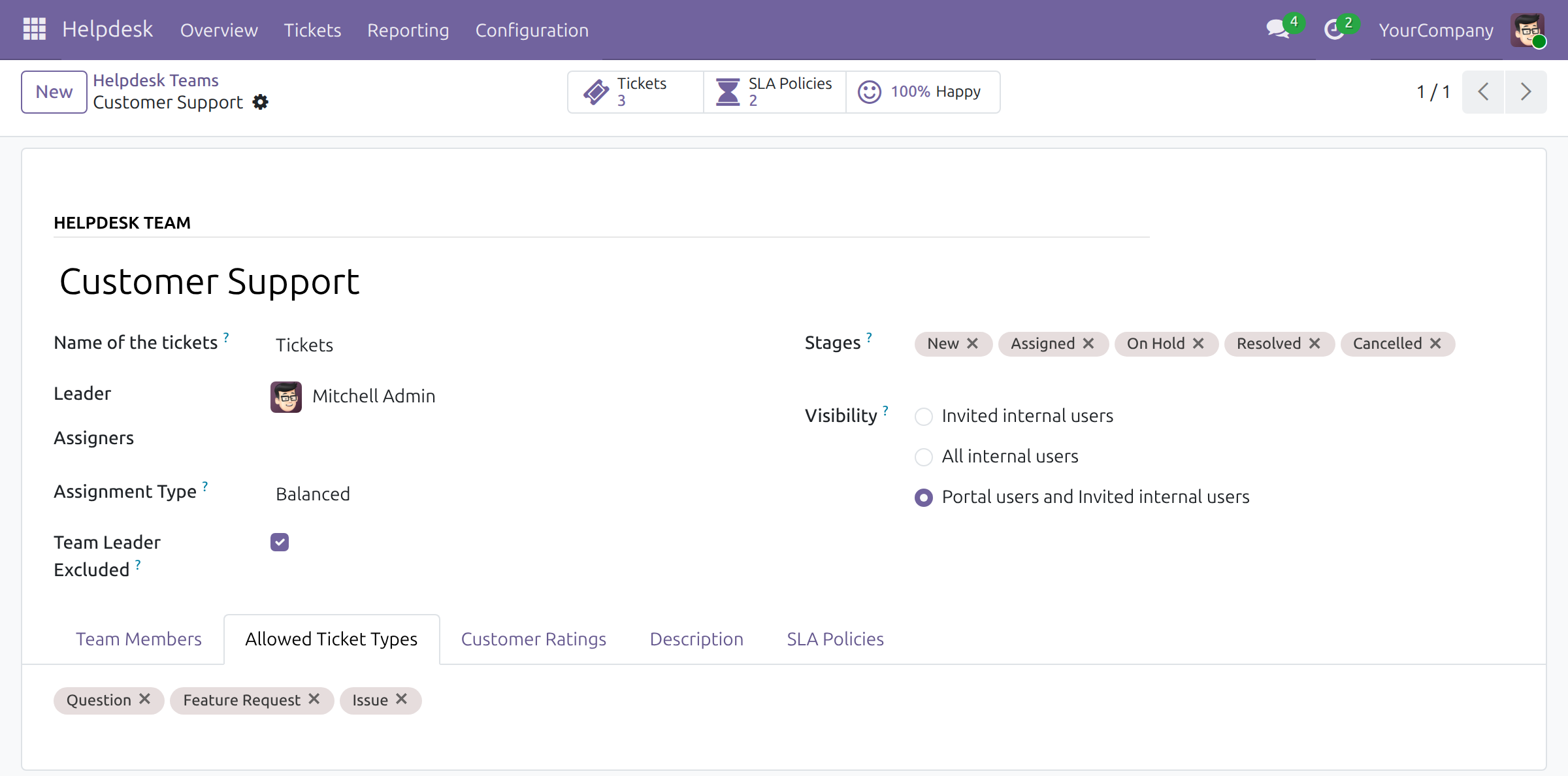
→ Each team assigns new tickets in turn, to the member with the fewest open tickets, or leaves it to the leader. The leader sees every ticket of the team.
Ready on day one
Stages with their emails
New, Assigned, On Hold, Resolved and Cancelled, with an email template for each step except On Hold.
A rating request on resolution
Switch on customer ratings and a resolved ticket asks the customer for a one-click rating and a comment.
Ticket types and a first team
Question, Issue and Feature Request, and a General team in each company.
What you set up first
Your teams, their members and visibility, the SLA policies, and incoming email so a team's address turns messages into tickets.
What is included
On its own: the back office for agents, leaders and managers, the customer portal, ratings with an optional public team page, SLA policies with reminders, ticket and SLA reports, a Tickets button on every contact and helpdesk figures in the periodic digest email.
Optional extensions
Website Helpdesk Integration
Visitors submit a ticket from your website, even without signing in.
Helpdesk Livechat
Turn a chat conversation into a ticket with the /ticket command.
Helpdesk Project Integration
Follow a ticket that turns into project work.
Helpdesk & Sale Integrator
Manage support tickets from sent quotations and sales orders.
Helpdesk CRM Integration
Follow up a ticket that turns out to be a sales opportunity.
Helpdesk Ticket Severity
Set a severity on each ticket, beside its priority.
Before you decide
Where does our data go?
Tickets, conversations and ratings stay in your own database. The app calls no outside service; emails leave through the mail server your database already uses.
Who sees which tickets?
Each team is visible to invited internal users, to all internal users, or also to customers on the portal. An agent sees the tickets they created, are assigned to or follow; a team leader sees every ticket of the team; a Helpdesk administrator sees all of them.
Are SLA deadlines counted in working hours?
Yes. A deadline is planned on the team's working hours, the company's by default, with leaves taken into account.
Can it run next to Odoo's own Helpdesk app?
No. The two apps cover the same work: uninstall Odoo's Helpdesk before installing this one.
Which languages does it ship?
English and Vietnamese. The rating page opens in the customer's own language.
Try it, then ask us
The Documentation tab walks through the setup and the daily work of each role, screen by screen.
Pre-sales & partnership
viindoo.com/contactusTechnical support
viindoo.com/ticketTechnical requirements
- Odoo version: 19.0
- Editions: Community, Enterprise
- Required modules: Discuss, Initial Setup Tools, Customer Portal, Customer Rating, KPI Digests, Resource, Viindoo Base
- License: OPL-1
- Languages: English, Vietnamese
Helpdesk
Note
This guide is for helpdesk managers who set the application up, support agents who handle tickets, team leaders who distribute the work and follow the results, and the customers who send requests from the portal.
Overview
Helpdesk turns every request from a customer or a colleague into a ticket, routes it to a team, follows it against a service level agreement (SLA) and closes it with a customer rating.
A ticket moves through these stages:
- New: a customer submits a request on the portal, or an agent creates a ticket.
- Assigned: the ticket is given to a member of the team, by the team leader or automatically.
- On Hold: the agent is waiting for something. The stage is optional.
- Resolved: the agent has solved the request. The stage is folded, so the ticket is done. The customer can be asked to rate the support.
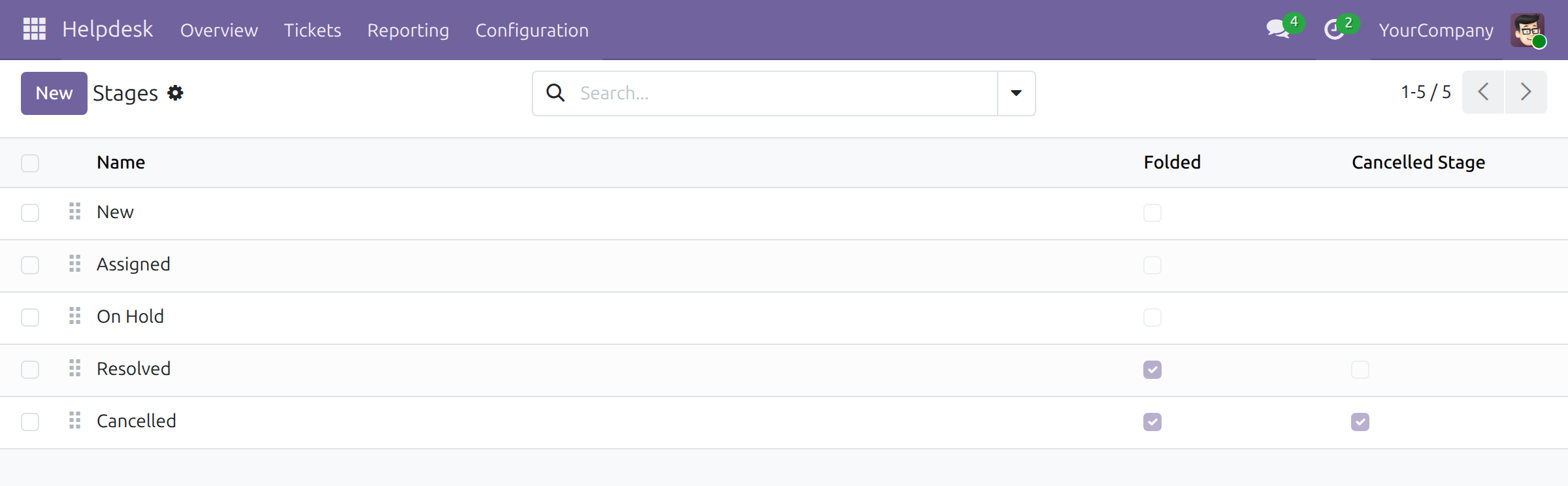
- Cancelled: the request is withdrawn or was a duplicate. The stage is folded and marked as a cancelled stage, so the ticket is cancelled.
A ticket is Open while its stage is not folded. It is Done when its stage is folded and not a cancelled stage (by default Resolved), and Cancelled when its stage is a cancelled stage. Closed means Done or Cancelled. A ticket changes status only by changing stage.
The stages are the default ones; a helpdesk manager can rename them, add others, choose which stages are folded and which are cancelled, and choose the email sent at each stage.
| Role | What they do | Access right to assign |
|---|---|---|
| Helpdesk manager | Sets up teams, stages, SLA policies and ratings, gives each person an access right, follows all tickets and the reports. | Administrator, in the Helpdesk field of the user |
| Support agent | Creates tickets, works the tickets assigned to them, changes stages and resolves tickets. | User, in the Helpdesk field of the user |
| Team leader | Sees every ticket of the team, distributes the work, follows the team's overview and customer ratings. | User, in the Helpdesk field of the user, and named as the Leader of the team |
| Customer | Sends a request on the portal, follows it and rates the support. | Portal access (no Helpdesk access right) |
Setup (for the Helpdesk manager)
Install the application
- Go to Apps.
- Search for Helpdesk.
- Press Install.
Note
If an Enterprise Helpdesk application is already installed in your database, uninstall it first so the two do not conflict.
Choose the general settings
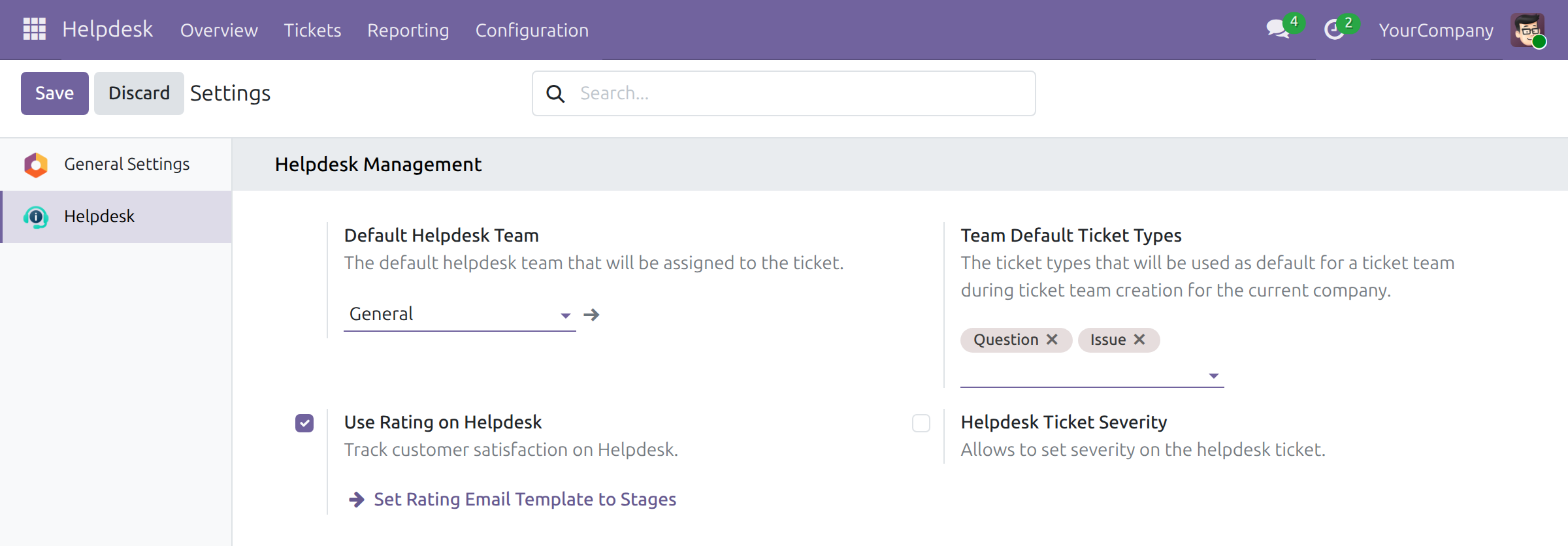
Go to Helpdesk ‣ Configuration ‣ Settings.
- Default Helpdesk Team: the team that receives a ticket when no other team is chosen.
- Team Default Ticket Types: the ticket types that every new team of the company starts with.
- Use Rating on Helpdesk: tick it to ask customers for a rating. The Set Rating Email Template to Stages link opens the stages, where you choose the rating email of each stage.
- Helpdesk Ticket Severity: tick it to add a severity to tickets (this installs an additional module).
Define the stages
Go to Helpdesk ‣ Configuration ‣ Stages. The list shows the stages in the order tickets pass through them, with a Folded column and a Cancelled Stage column. Drag a stage by its handle to reorder it.
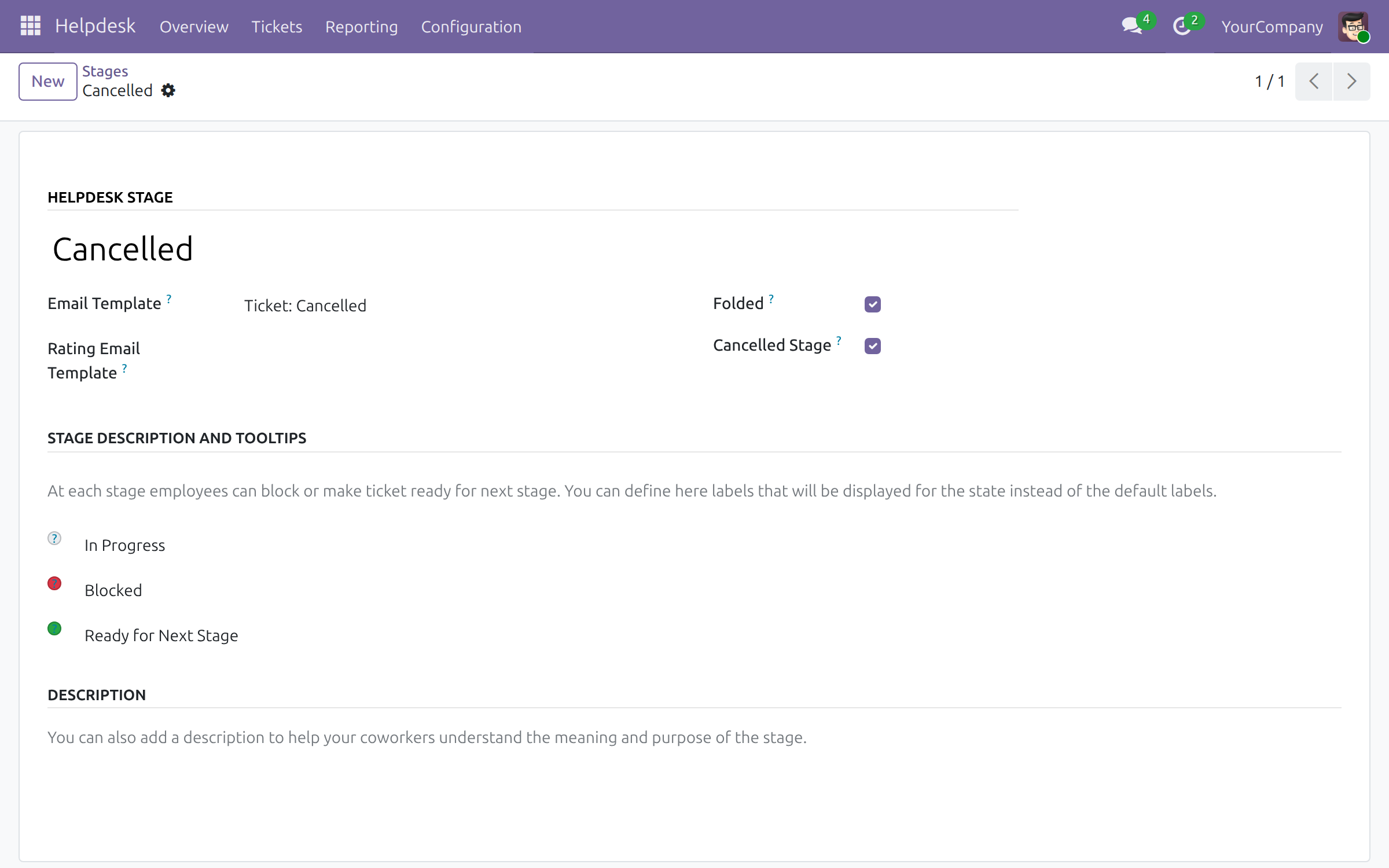
Open a stage to set:
- Email Template: the email sent when a ticket enters the stage.
- Rating Email Template: the email that asks the customer for a rating (shown when rating is on). The rating request is a setting of each stage; the Cancelled stage that comes with the application has no rating template, so cancelling a ticket sends no rating request.
- Folded: tickets in a folded stage are considered as closed. The stage is also folded on the board.
- Cancelled Stage: shown only on a folded stage. Tickets in it are cancelled: closed without being resolved.
- Automatic kanban status: shown when the stage has a rating email template.
- The three labels under Stage Description and Tooltips replace the default texts of the status circle of a ticket (in progress, blocked, ready for the next stage).
Note
On a database upgraded from an earlier version, open the Stages list and check the two columns. The stages that closed tickets are folded. The Cancelled stage that comes with the application is folded and cancelled. A stage that was folded only for display while its tickets were open is not folded. Closed tickets that had no close date have one, taken from their history.
Define the ticket types
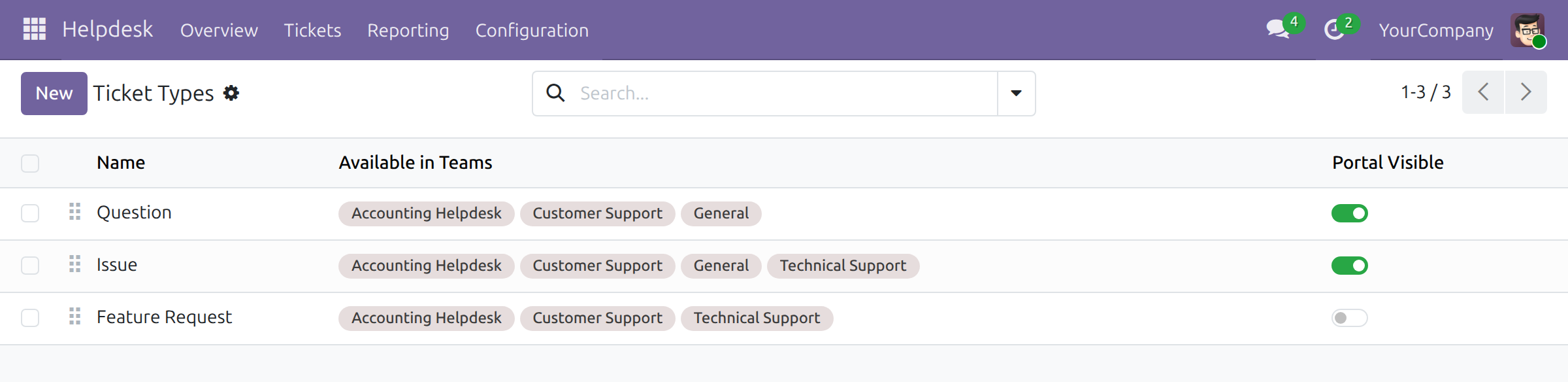
Go to Helpdesk ‣ Configuration ‣ Ticket Types. A type classifies a request (for example Question, Issue, Feature Request). Available in Teams lists the teams that can use the type. Switch Portal Visible on for the types customers may choose on the portal. The description of a type is shown to the person who creates a ticket of that type, as a hint on what to provide.
Define the tags
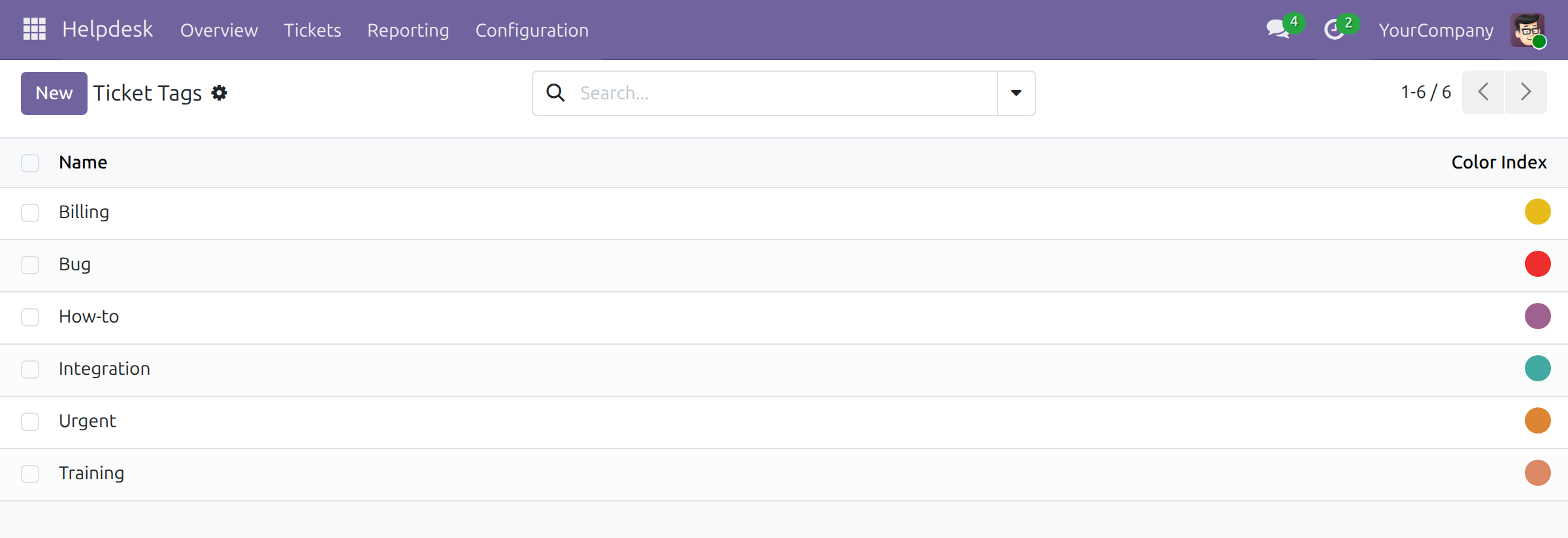
Go to Helpdesk ‣ Configuration ‣ Ticket Tags. Tags give tickets a second way of being categorised and make them easier to filter and search. Choose a colour for each tag.
Set up a team
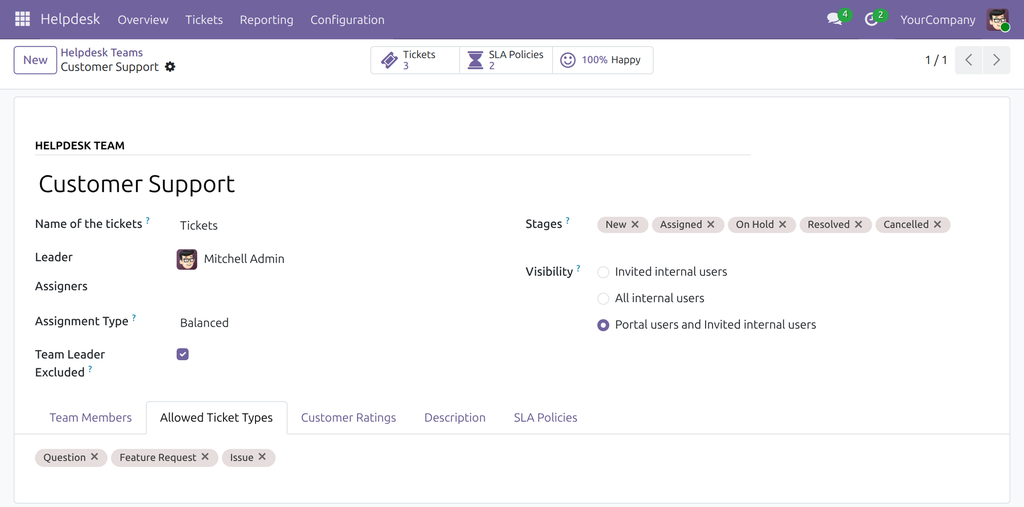
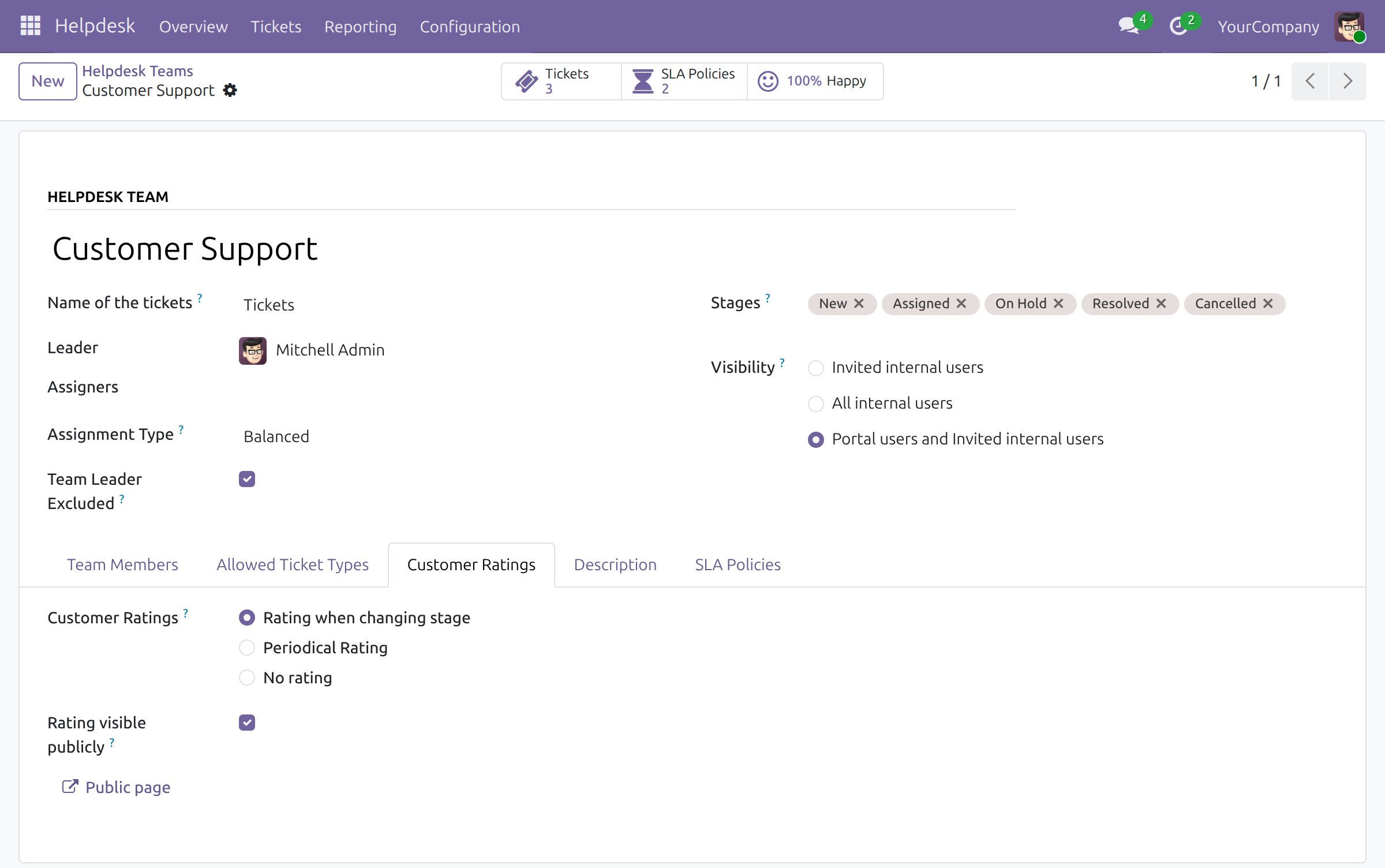
Go to Helpdesk ‣ Configuration ‣ Helpdesk Teams and open a team, or create one.
- Name of the tickets: the word the team uses for its tickets on cards and buttons. Leave the default and it reads "Tickets" in each user's language; a word you type stays as typed.
- Leader: the team leader. The leader sees every ticket of the team.
- Assigners: people who may read and edit every ticket of the team.
- Assignment Type: Manually (the leader assigns), Random (members in turn) or Balanced (the member with the fewest open tickets). Tick Team Leader Excluded to keep the leader out of automatic assignment. Changing the assignment type of a team assigns only the tickets that are open and not yet assigned.
- Stages: the stages the team's tickets pass through.
- Visibility: Invited internal users, All internal users, or Portal users and Invited internal users. Choose the last one for a team that customers write to on the portal.
- Team Members: the people who handle the team's tickets.
- Allowed Ticket Types: the types the team accepts.
- Description: shown to customers as "About the team" when they choose the team on the portal.
- SLA Policies: Apply SLA Policies is ticked as soon as the team has a policy; Working Hours is the calendar in which the hours of a policy are counted.
- Emails: when your database has an email domain, each team gets an email address; a message sent to it creates a ticket.
The buttons at the top of the form open the team's open tickets (the Open filter is on) and its SLA policies, and, when rating is on, show the percentage of satisfied customers (for example "100% Happy").
Collect customer ratings
On the Customer Ratings tab of the team choose when customers are asked to rate: Rating when changing stage (when a ticket enters a stage that has a rating email template), Periodical Rating (at the chosen frequency) or No rating. Tick Rating visible publicly to share the team's results on a public page; the Public page button then appears.
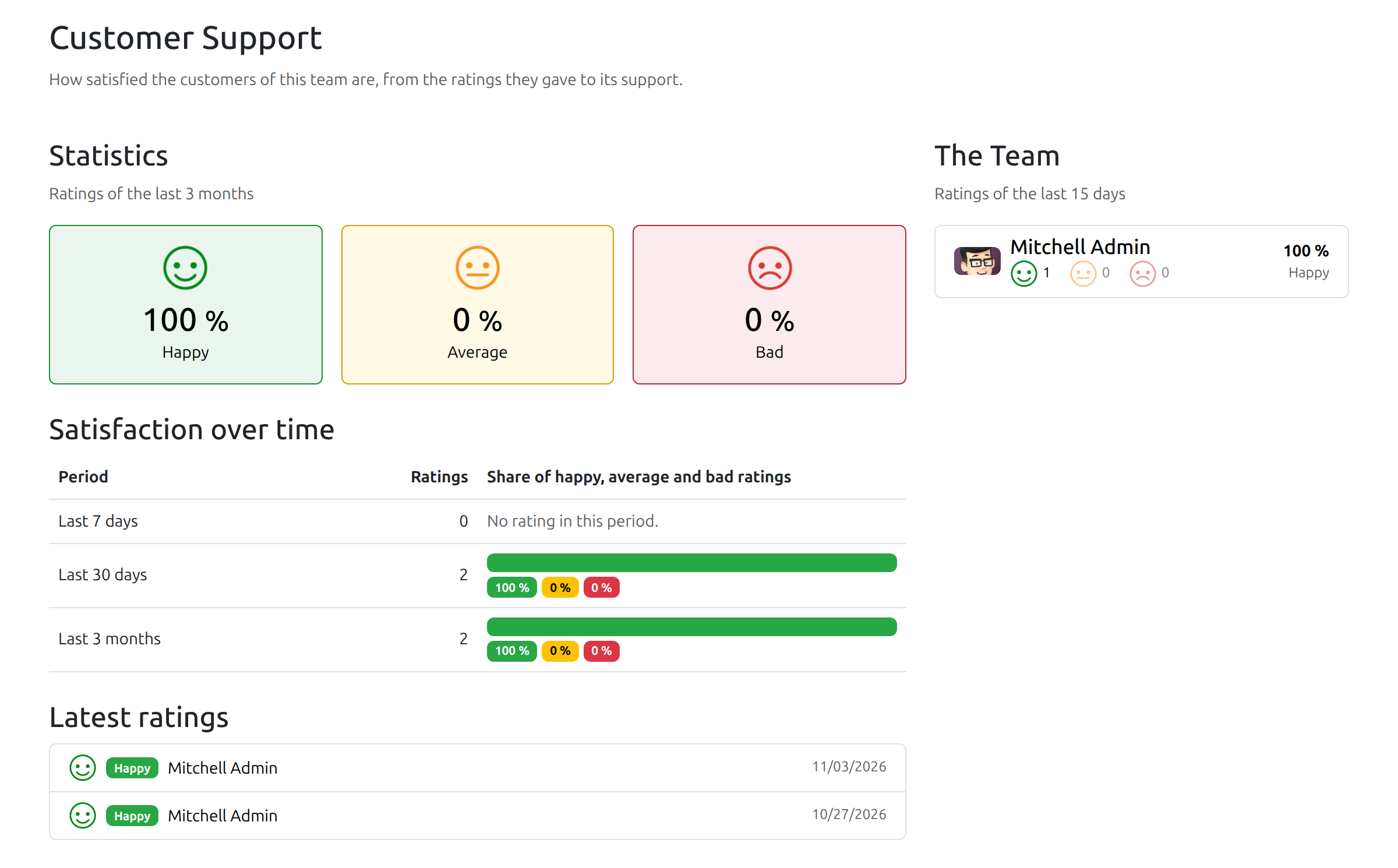
The public page is open to everyone once Rating visible publicly is ticked (a helpdesk administrator can always open it). It shows the team's name and four blocks:
- Statistics: the share of happy, average and bad ratings of the last 3 months.
- Satisfaction over time: for the last 7 days, the last 30 days and the last 3 months, the number of ratings and the share of each grade. Periods are counted in whole calendar days, UTC time.
- Latest ratings: the grade, the agent who was rated and the date of the most recent ratings.
- The Team: the agents rated in the last 15 days, with their number of happy, average and bad ratings and their share of happy ratings.
The customer's name, avatar, feedback and the ticket subject are never displayed.
The ratings of one ticket are read on the ticket itself, with the button at the top of its form.
Define the SLA policies
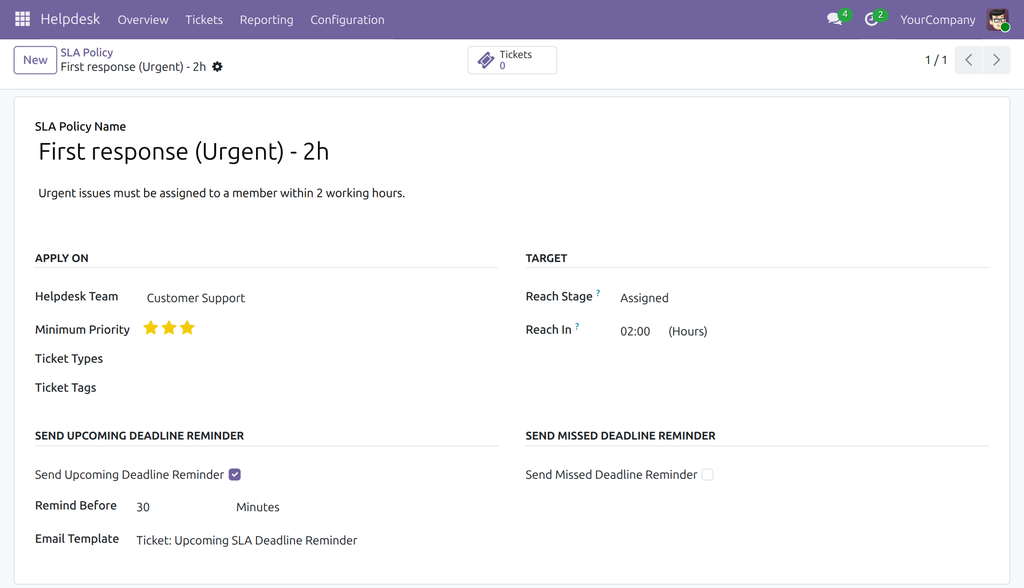
Go to Helpdesk ‣ Configuration ‣ SLA Policy. A policy states how fast a ticket must reach a stage.
- Under Apply on, choose the Helpdesk Team and, to narrow the policy, the Minimum Priority, the Ticket Types and the Ticket Tags.
- Under Target, choose the stage to reach (Reach Stage) and the time allowed in hours (Reach In). The hours are counted in the working hours of the team; a team without working hours counts clock hours from the creation of the ticket.
- Tick Send Upcoming Deadline Reminder and Send Missed Deadline Reminder to send an email before or after the deadline, and choose how long before (Remind Before) or after (Remind After) and the Email Template. Reminders are sent for open tickets only.
A line that has not been reached becomes Failed within a few minutes after its deadline. When a ticket is moved to a cancelled stage, its SLA lines are not marked as reached: a line that has not been reached and whose deadline is still ahead is removed from the ticket, and a line already past its deadline stays Failed. When the ticket is reopened its lines come back.
Give people their access right
Go to Settings ‣ Users & Companies ‣ Users, open a user and set the Helpdesk field to User or Administrator. Add a person to Team Members of a team so that they can be assigned its tickets, and name the team leader in the Leader field.
Customer: submit and follow a ticket
Customers use the portal, signed in with their portal account.
Submit a request
Open the Tickets page of your portal and press Create Ticket. The button appears only when at least one team can receive tickets.
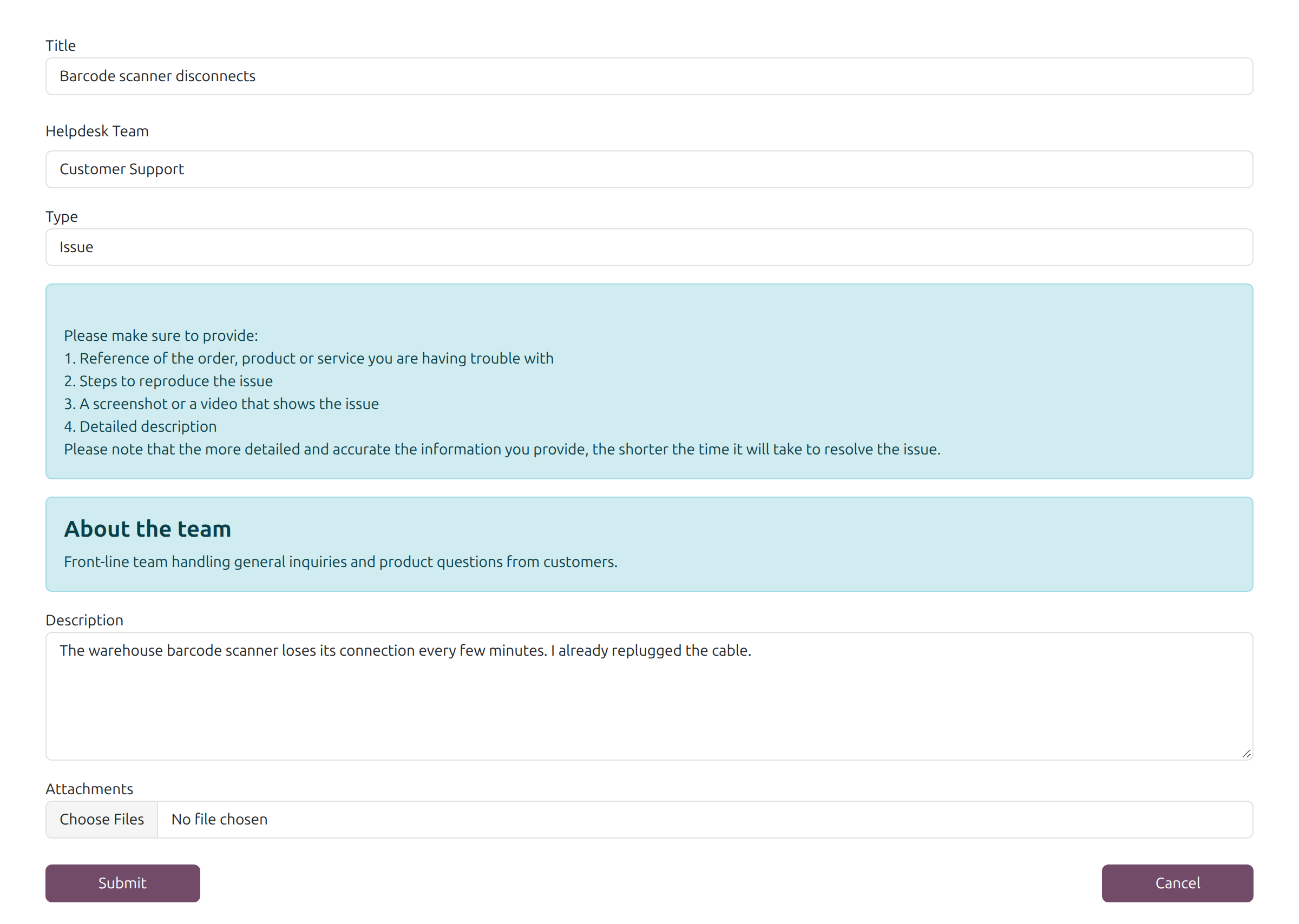
Fill in the Title and choose the Helpdesk Team and the Type. When you choose a team, the About the team box describes it, and the choice of types follows the team. A type may show a hint on what to provide.
Write the Description and, if useful, add Attachments (images, videos and PDF files).
Press Submit. The ticket page opens.
If the team cannot receive tickets when you submit, the form tells you why, keeps what you typed and shows the teams that are available. If no team is available, a notice explains it and a button leads back to your tickets.
You receive an email when the ticket reaches a stage that has an email template. Tickets sent from the portal always have the notification switched on.
Follow your tickets
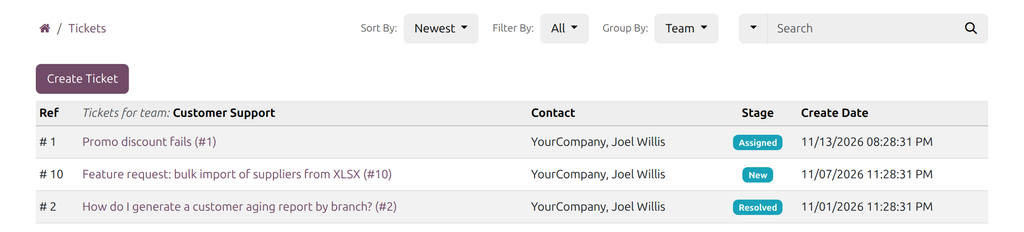
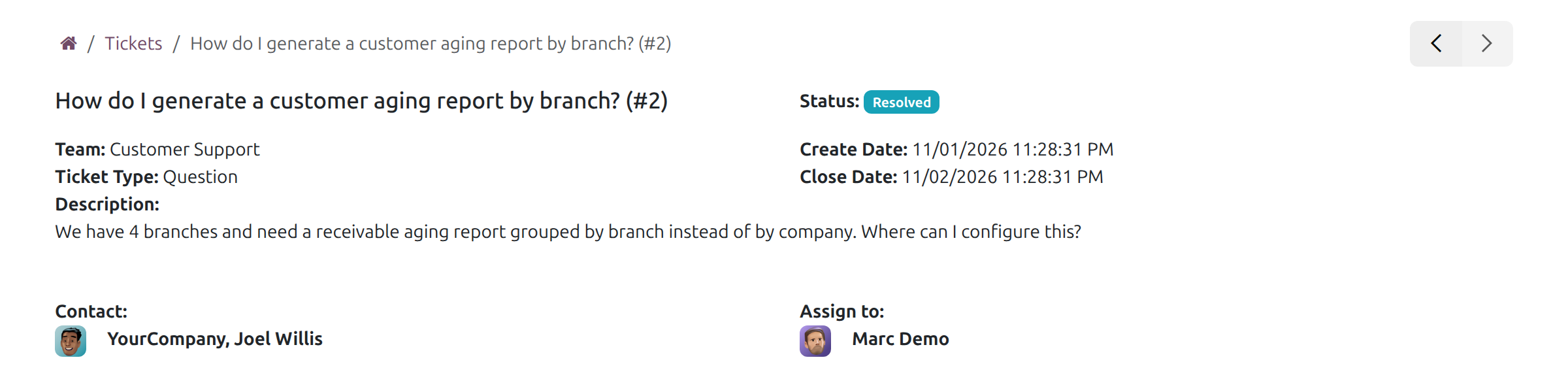
The ticket page shows the title with the ticket number, the Status, the Team, the Ticket Type, the Create Date (and the Close Date once the ticket is closed, resolved or cancelled), the Description, the Contact and the person it is assigned to (Assign to). Write a message in the box under Message and Communication history to answer the team.
On the list of tickets use Sort By, Filter By and Group By to arrange the tickets, and the search box to look for a word. Filter By offers All (the default), Assigned, Closed, Open and Unassigned; Closed lists your resolved and cancelled tickets together.
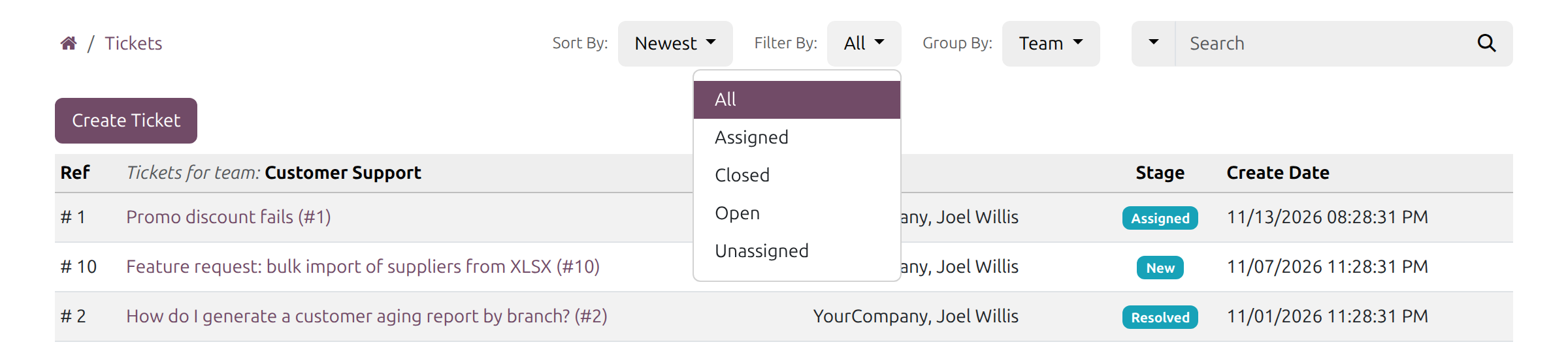
The search keeps your word and the place you chose to search in, also when you change page or sorting.

Rate the support
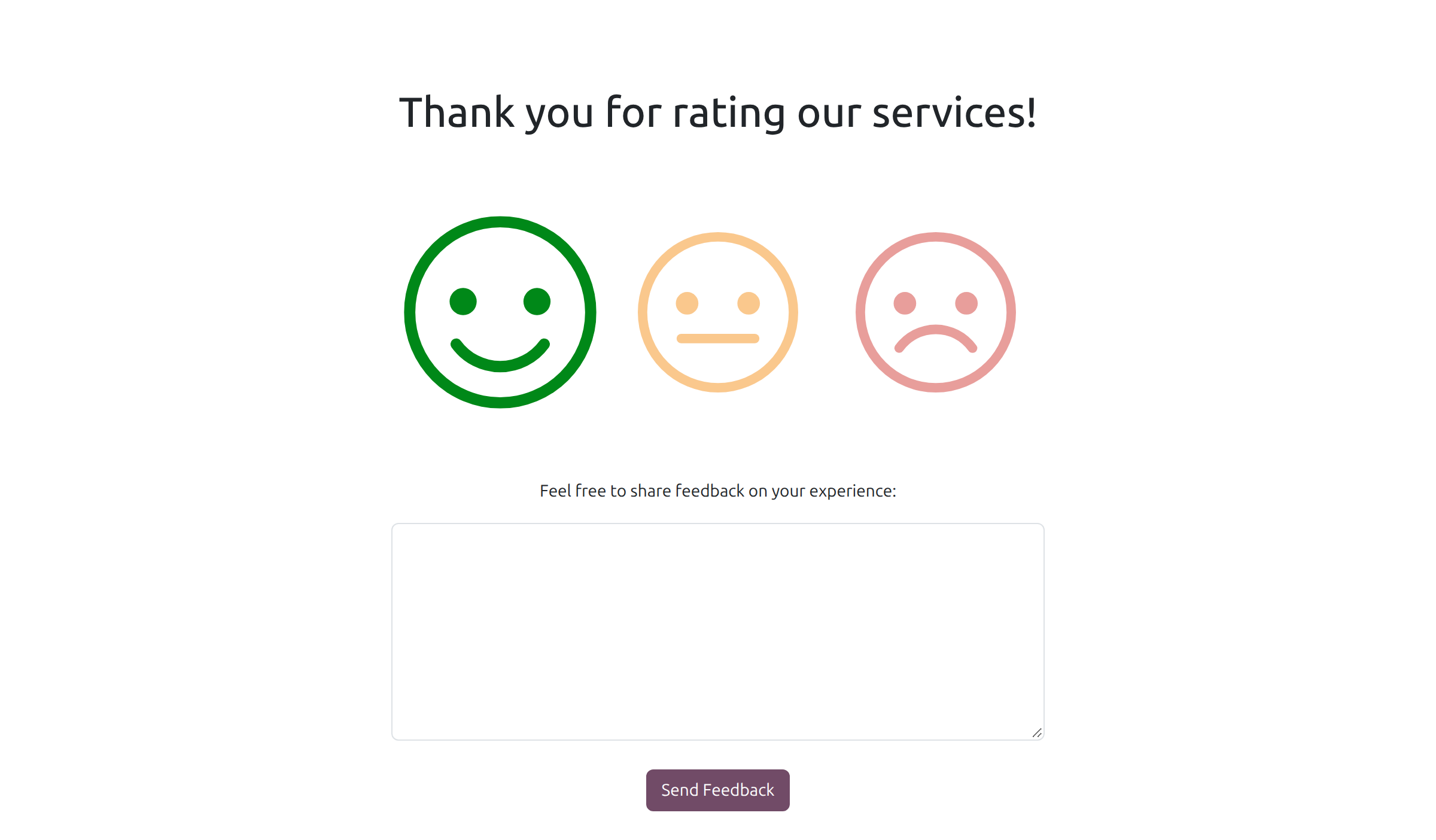
When a ticket is resolved you can receive an email asking for a rating. Click a smiley in the email, add a comment if you wish and press Send Feedback. The page is shown in your own language.
Support agent: handle tickets
Create a ticket
- Go to Helpdesk ‣ Tickets ‣ My Tickets and press New, or press Create Ticket on a team card of the Helpdesk ‣ Overview page.
- Enter the Title. The Helpdesk Team is proposed for you; change it if needed.
- Choose the Contact (the customer), the Ticket Type and the Priority, and add Tags if useful. The description of the type appears as a hint.
- Tick Send Notification Email if the customer must receive the emails of the stages. The customer, when they have an email address, then also receives a notice that the ticket has been created and will soon be assigned.
- Write the Description and press Save (the cloud icon).
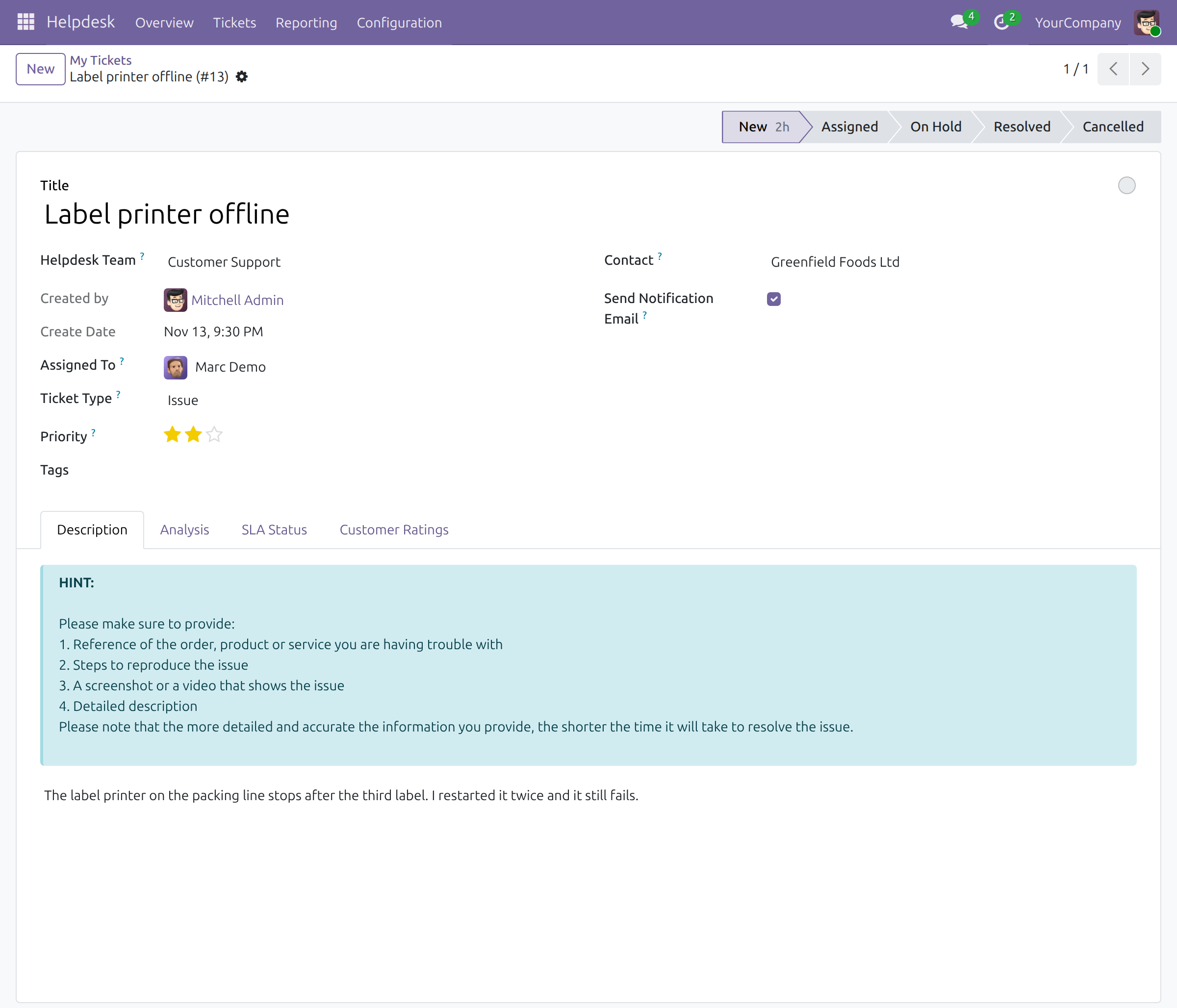
When the team assigns tickets automatically, Assigned To is filled in for you; otherwise the team leader assigns the ticket.
Find the tickets you work on
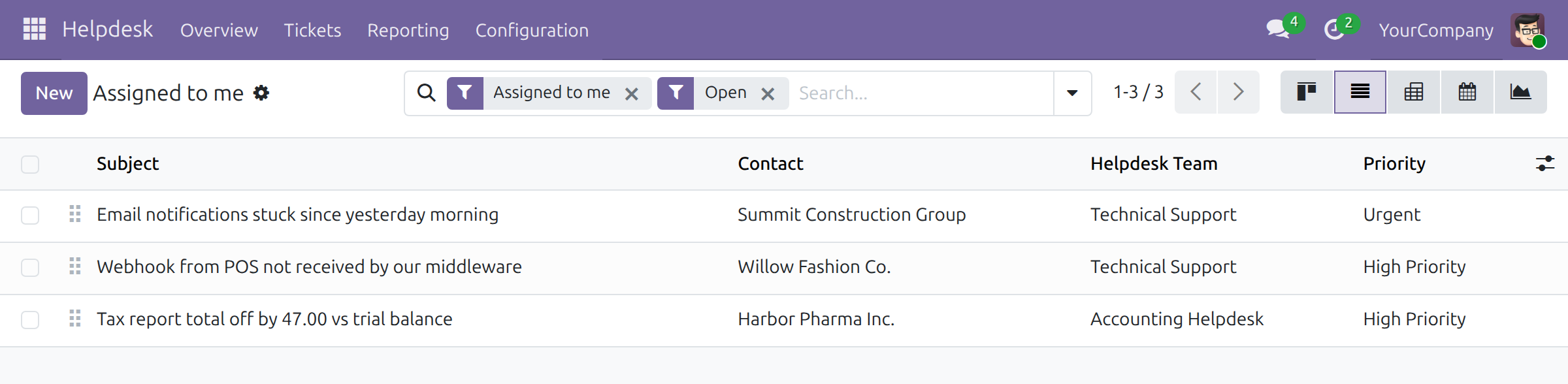
Open Helpdesk ‣ Tickets ‣ Assigned to me for the tickets assigned to you, or My Tickets for the tickets you created. Both open with the Open filter on, so they list the tickets still to work; remove the filter to see the closed ones too, or choose Closed to see only those. Switch between the board, the list and the other views with the buttons at the top right.
Work a ticket
Open the ticket. The bar at the top shows the stages; the time the ticket spent in the stages it went through (for example 30 minutes in New, 2 hours in Assigned) is shown beside their names.
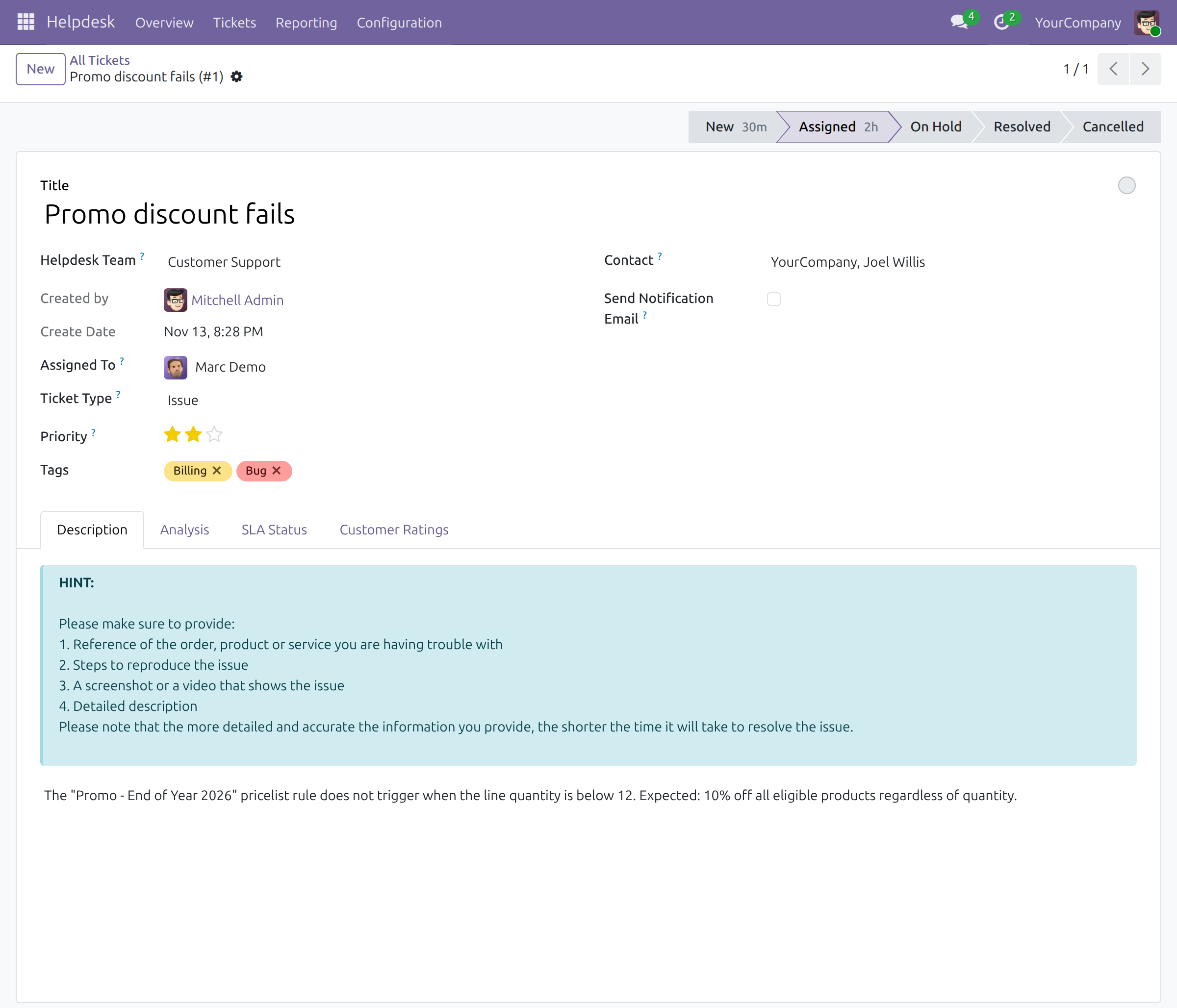
- The circle at the top right of the form marks the ticket as in progress (grey), blocked (red) or ready for the next stage (green).
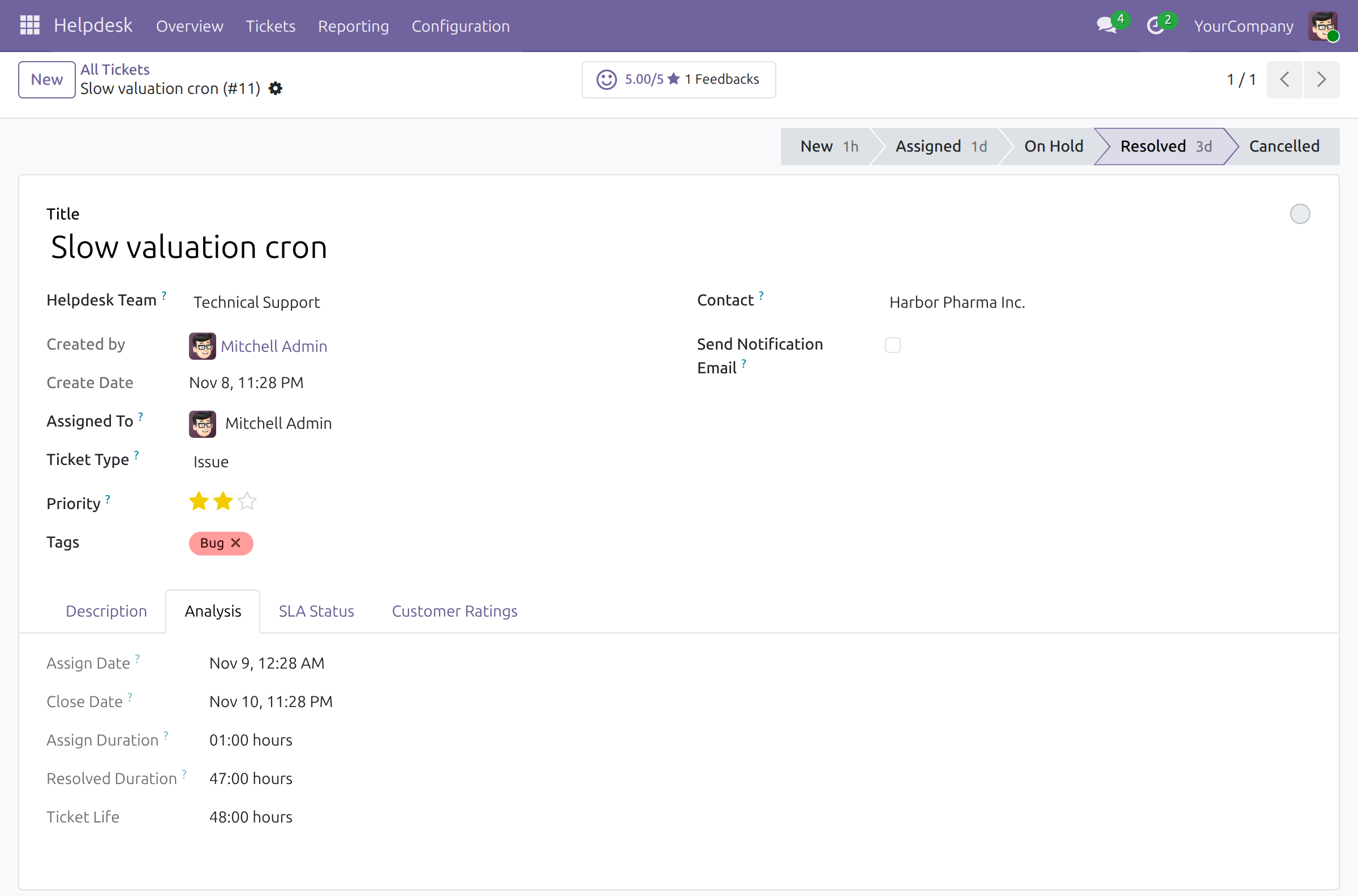
- The Analysis tab shows when the ticket was assigned and closed (Close Date) and how long each step took. Resolved Duration and Ticket Life are kept for done tickets only; a cancelled ticket has neither.
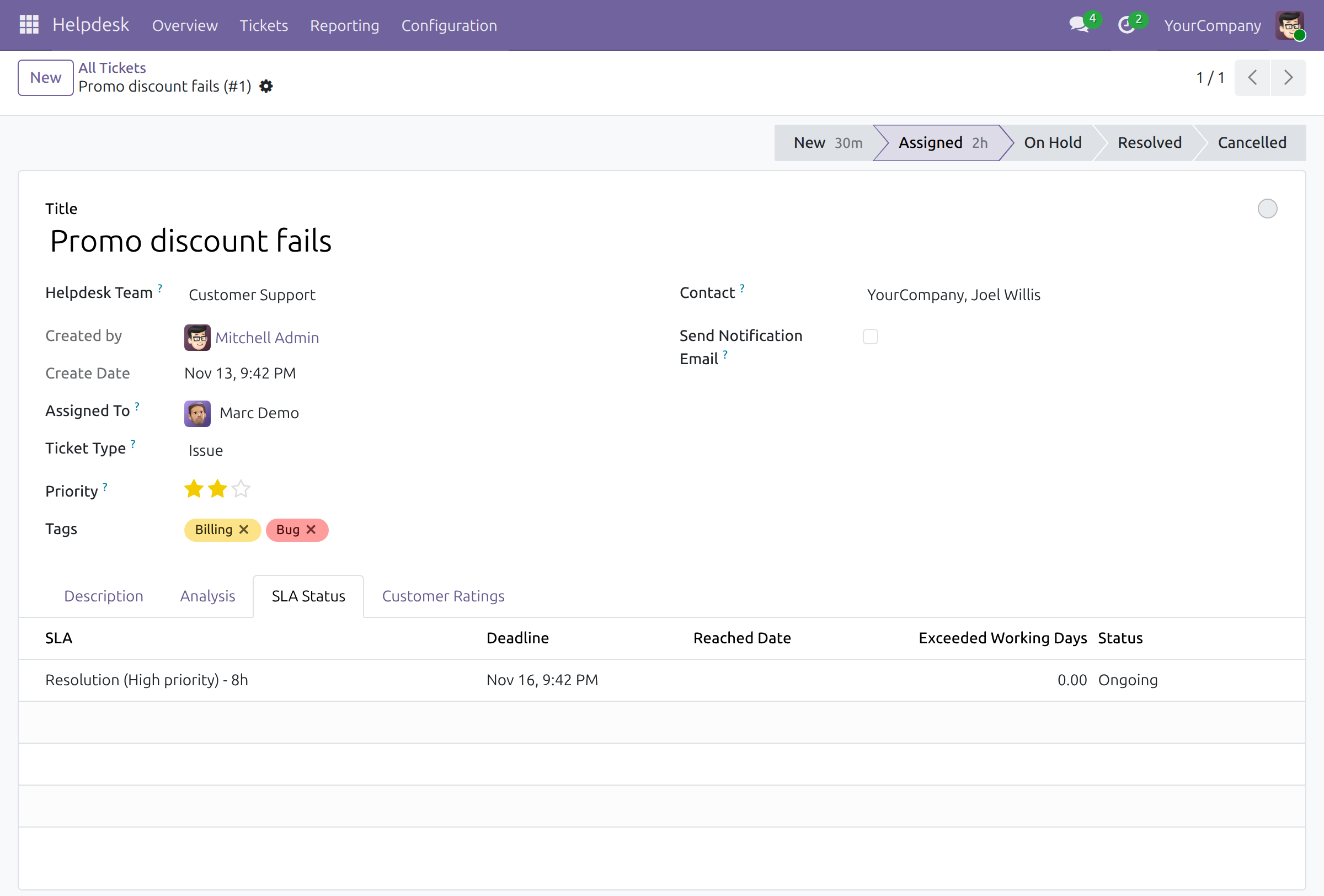
- The SLA Status tab lists each SLA policy that applies, its deadline, the date it was reached and its status: Ongoing, Reached or Failed.
- The Customer Ratings tab shows the rating settings of the ticket; once customers have rated, the button at the top of the form shows the average rating out of 5 and the number of feedbacks, and opens them.
- Use Send message to write to the customer and Log note to leave an internal note. The dated history of stage changes and emails stays in the conversation under the form.
Change the stage and resolve
Click a stage in the bar, or drag the ticket to another column of the board. A ticket that enters a folded stage is closed: Resolved closes it as done and Cancelled as cancelled.
- The Close Date is recorded when the ticket first enters a folded stage, whether it is assigned or not. It is kept when the ticket moves between two folded stages, and cleared when the ticket returns to an open stage.
- If the team asks for a rating when a stage changes and the stage has a rating email template, the customer receives the rating request. Cancelling a ticket sends none, because the Cancelled stage has no rating template.
Folding or unfolding a stage later does not change any close date. A ticket that is closed only because its stage was folded afterwards has no close date: the Closed filter lists it, but the Closed Tickets tiles of the overview do not count it.
Who is notified: the customer receives the email of a stage only when Send Notification Email is ticked on the ticket and the customer has an email address. The assigned agent and the team leader also receive the Assigned, Resolved and Cancelled emails.
See the tickets of a customer
On a contact's card, the Tickets button opens all the tickets of that contact, closed ones included.
Team leader: distribute the work and follow the team
A team leader holds the User access right in the Helpdesk field of the user and is named as Leader of the team. The leader sees every ticket of the team, not only their own.
Read the overview
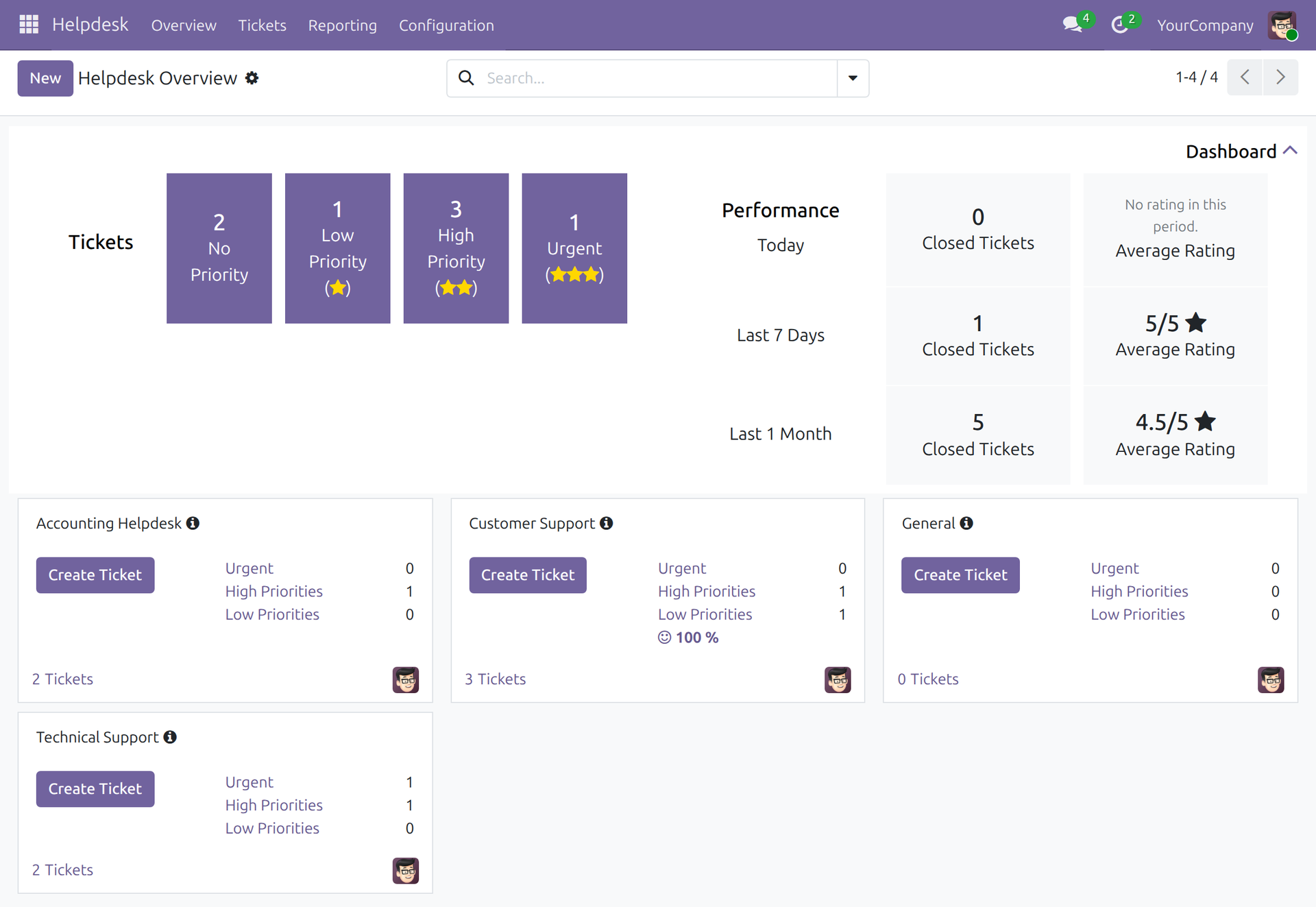
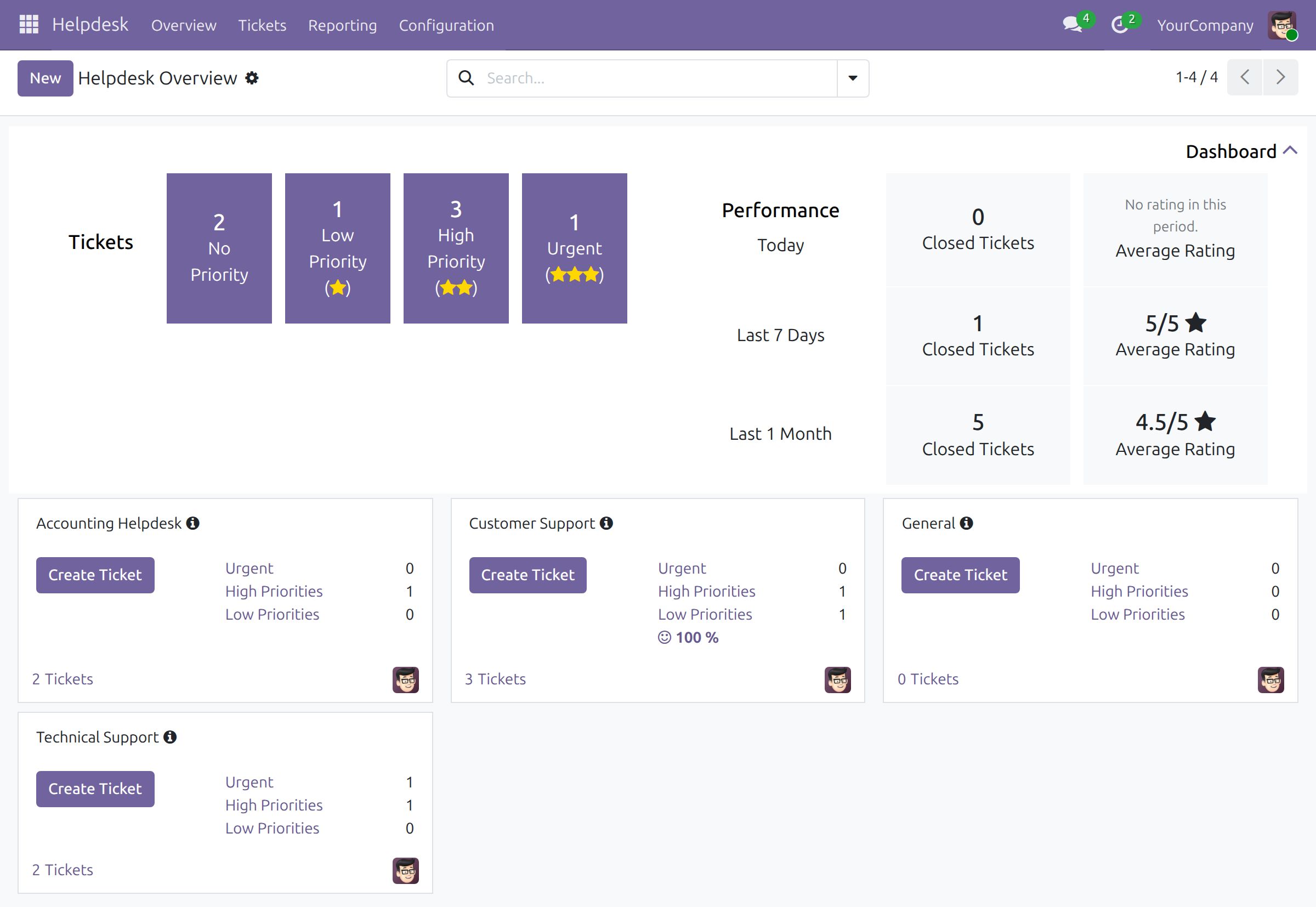
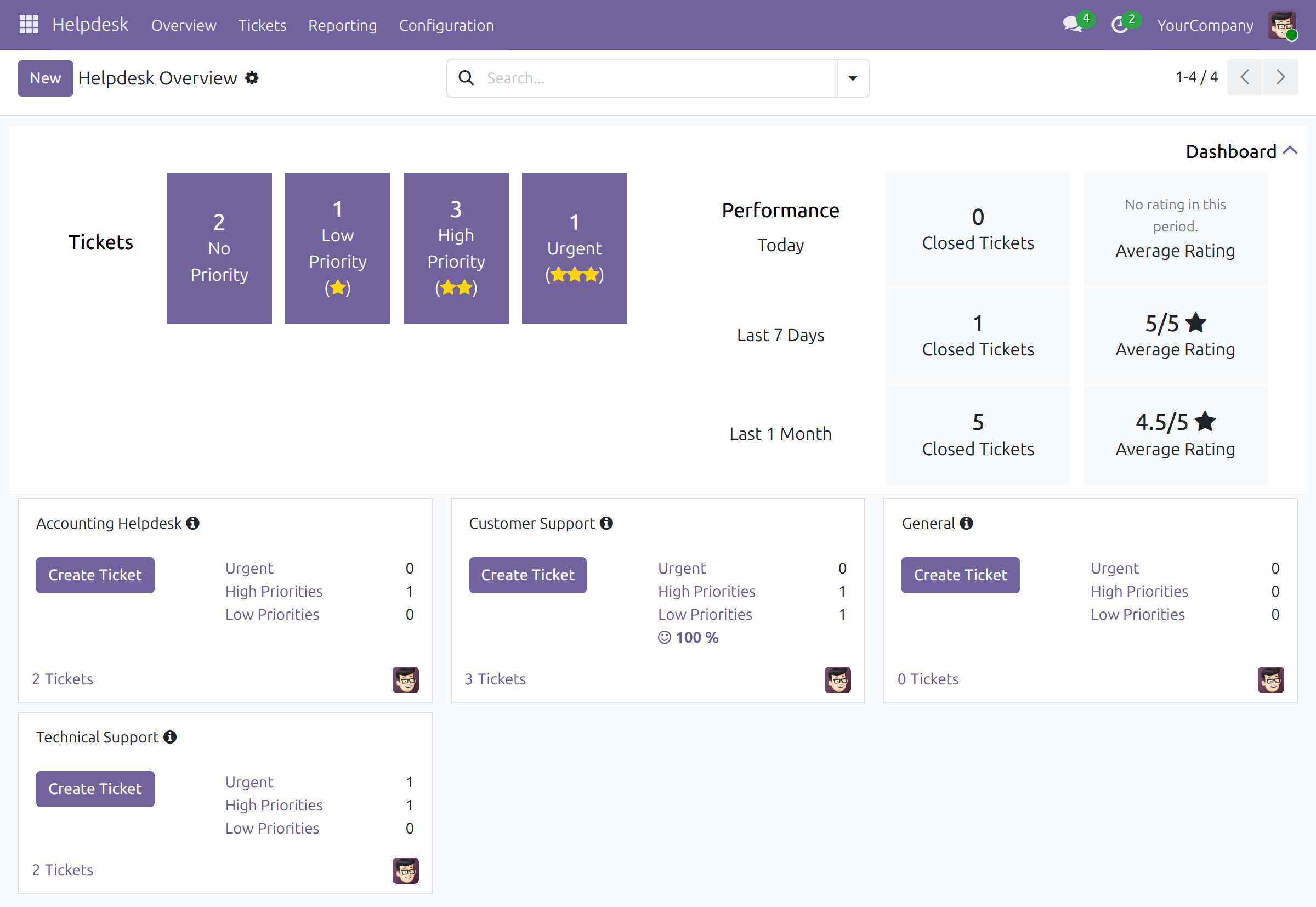
Open Helpdesk ‣ Overview. The Dashboard header shows the open tickets by priority (No Priority, Low, High and Urgent). A click on a tile opens the list of those tickets with the Open filter and the priority filter on, so the number on the tile is the number of rows. Next come the Closed Tickets (every ticket closed in the period, resolved or cancelled, counted by its close date) and the Average Rating of today, the last 7 days and the last month; the average reads "No rating in this period." when nobody rated.
Each team card lists its open urgent, high and low priority tickets, a button to create a ticket, the number of open tickets (a link that opens the team's list with Open on) and, when rating is on, the percentage of satisfied customers. When you group the team cards with the search options, the dashboard stays above the groups.
Assign tickets
If the Assignment Type of the team is Manually, open the ticket and choose the member in Assigned To. With Random or Balanced the ticket is assigned when it is created. The team leader receives the emails of the Assigned, Resolved and Cancelled stages of the tickets of the team.
Follow customer satisfaction
When rating is on, the team card and the team form show the percentage of satisfied customers; the button opens the list of ratings with each customer's comment. The Public page of the team shares the results without any customer data.
Helpdesk manager: follow every ticket and the reports
All tickets
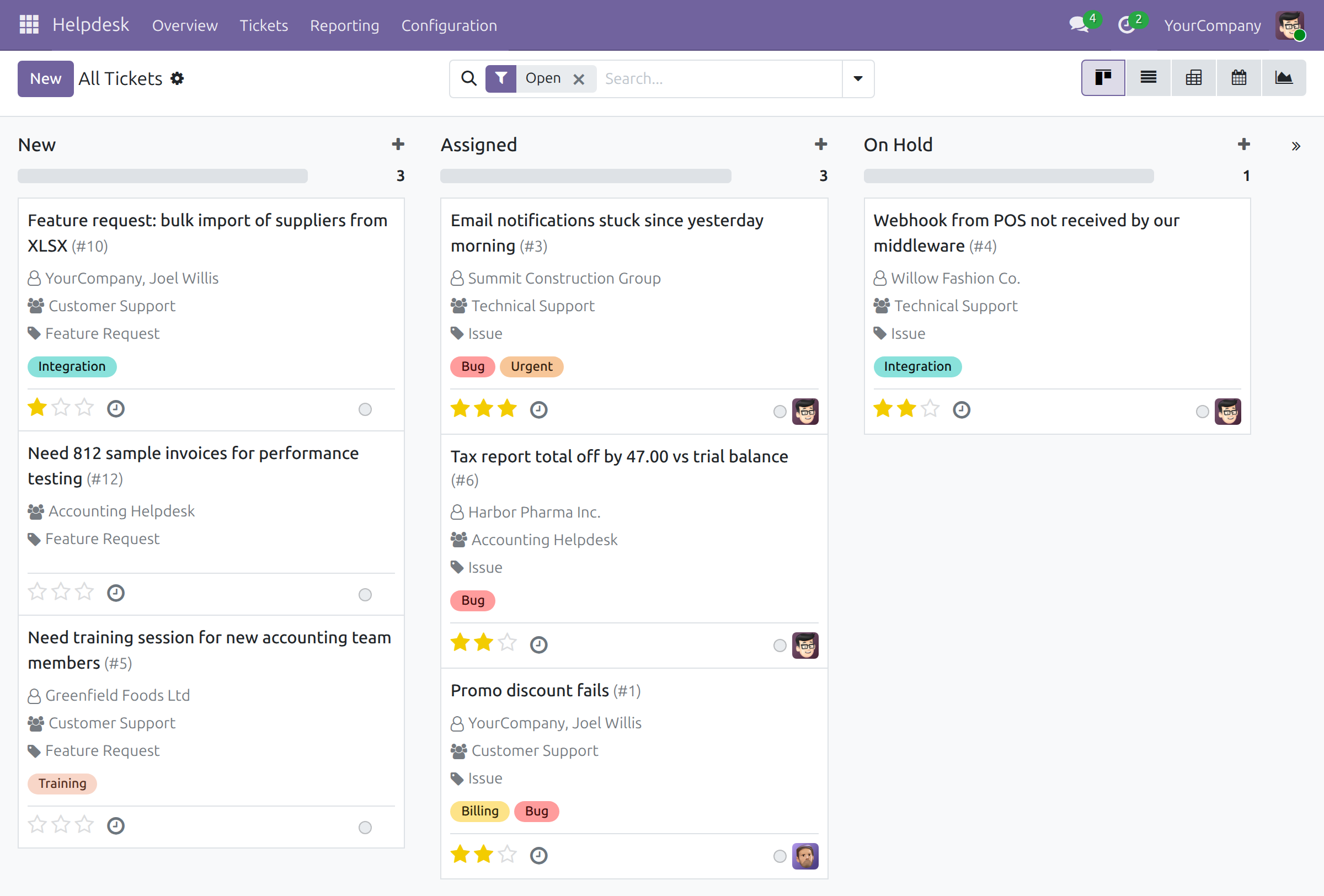
Helpdesk ‣ Tickets ‣ All Tickets shows the tickets of all teams on one board, one column per stage. The menu opens with the Open filter on, so the board shows the open tickets. A card shows the title, the contact, the team, the ticket type, the tags, the priority stars, the status circle and the assignee.
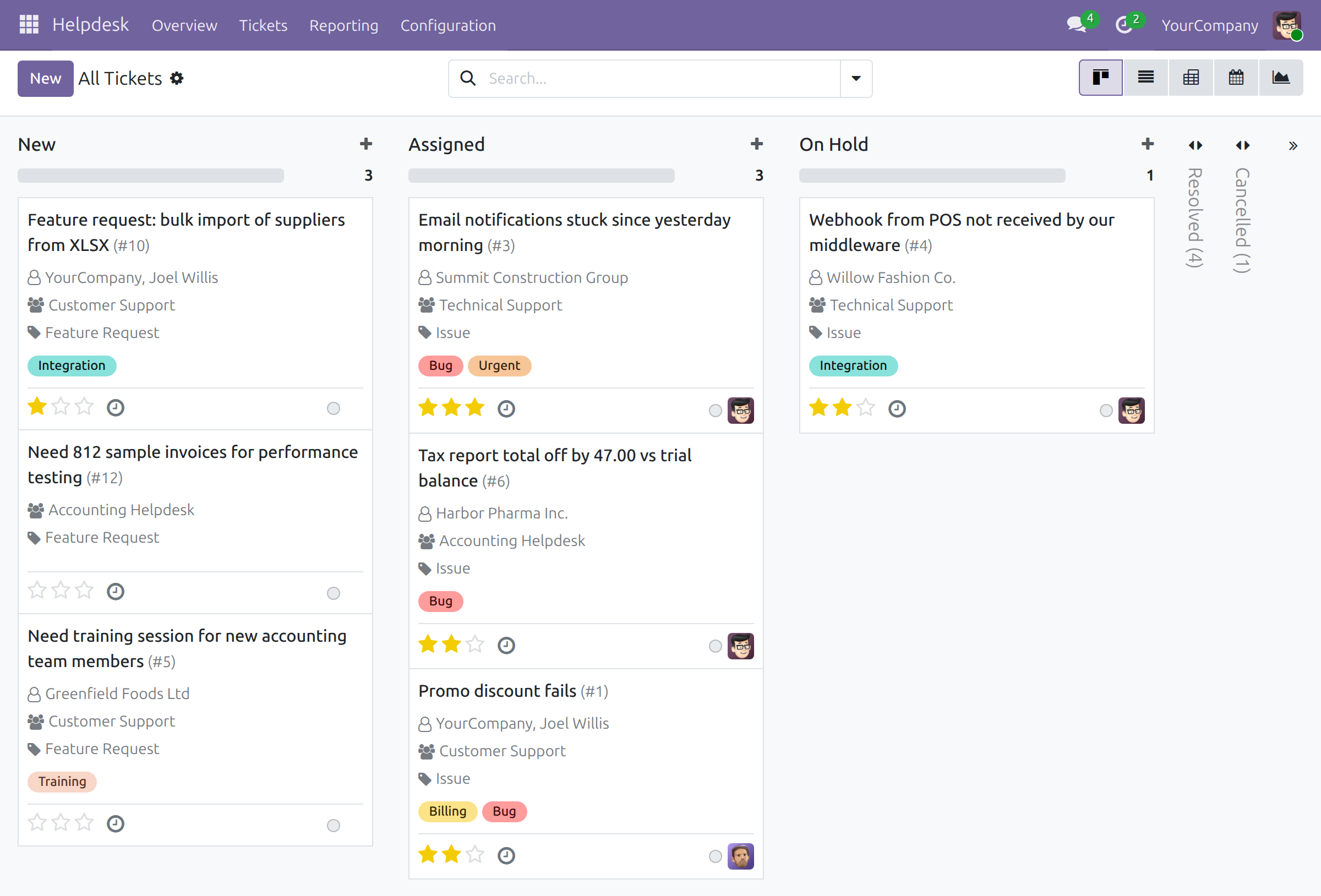
Remove the Open filter to see every ticket: the open stages stay as columns, and the Resolved and Cancelled columns are folded into narrow strips at the right of the board, each with its ticket count. Folding or unfolding a column with the board's own menu changes only what you see and closes nothing.
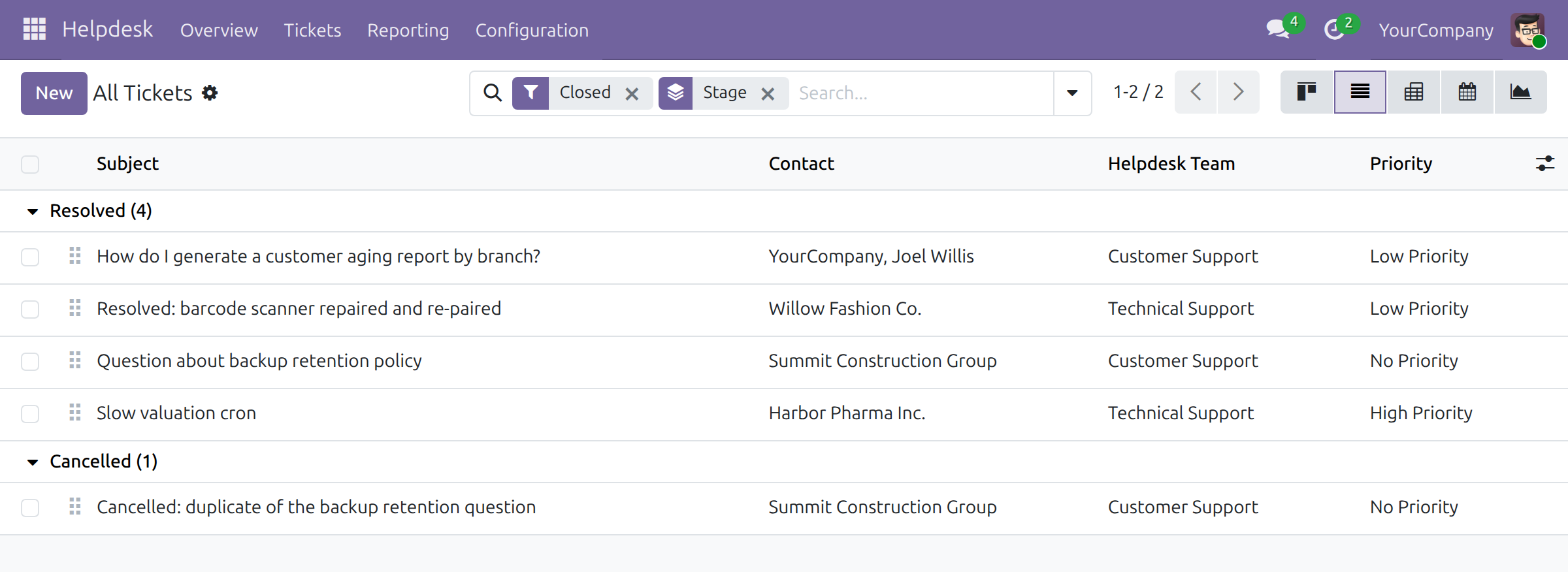
Choose Closed to list the resolved and cancelled tickets together. Switch to the list and group it by Stage to see them under Resolved and Cancelled, each with its count. On the board, a closed ticket shows a check mark with its close date, and a ticket of a team that collects ratings shows a badge with its rating once it is rated.
Use the search box to filter by team, assignee, customer, ticket type, tag, priority or SLA result, and to group the tickets by type, stage, team, priority, contact, responsible or creation date.
Tickets report
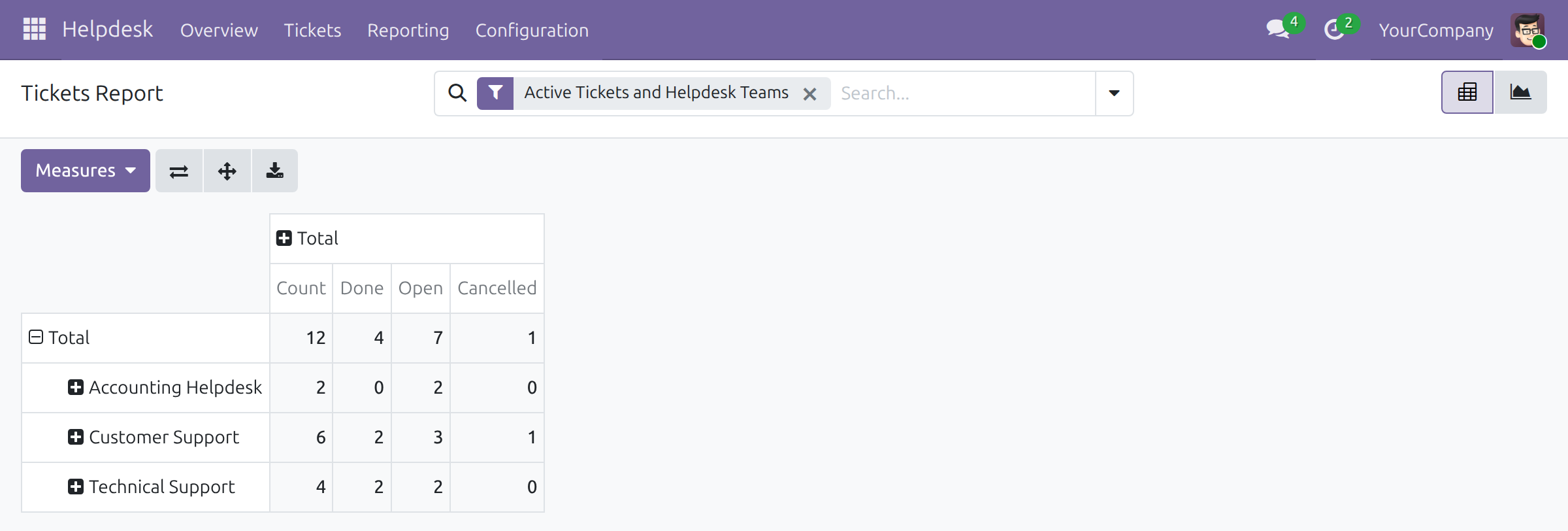
Helpdesk ‣ Reporting ‣ Tickets Report analyses the tickets as a pivot table or a chart. The measures are Count (all tickets), Open, Done and Cancelled, so the three statuses add up to the count. The average resolving duration and the ticket life are taken over done tickets. Change the measures, expand the rows or columns by team, agent or customer, and download the table.
SLA analysis
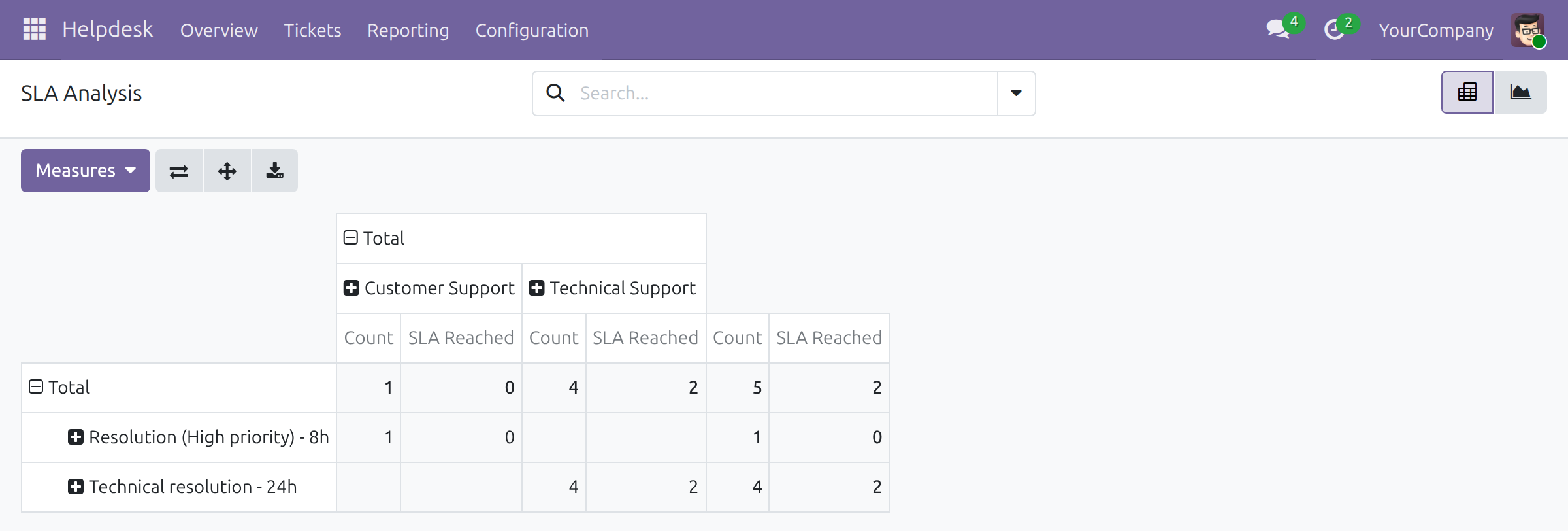
Helpdesk ‣ Reporting ‣ SLA Analysis shows, per team and per SLA policy, how many tickets reached their SLA.
This software and associated files (the "Software") may only be used (executed, modified, executed after modifications) if you have purchased a valid license from the authors, typically via Odoo Apps, or if you have received a written agreement from the authors of the Software (see the COPYRIGHT file).
You may develop Odoo modules that use the Software as a library (typically by depending on it, importing it and using its resources), but without copying any source code or material from the Software. You may distribute those modules under the license of your choice, provided that this license is compatible with the terms of the Odoo Proprietary License (For example: LGPL, MIT, or proprietary licenses similar to this one).
It is forbidden to publish, distribute, sublicense, or sell copies of the Software or modified copies of the Software.
The above copyright notice and this permission notice must be included in all copies or substantial portions of the Software.
THE SOFTWARE IS PROVIDED "AS IS", WITHOUT WARRANTY OF ANY KIND, EXPRESS OR IMPLIED, INCLUDING BUT NOT LIMITED TO THE WARRANTIES OF MERCHANTABILITY, FITNESS FOR A PARTICULAR PURPOSE AND NONINFRINGEMENT. IN NO EVENT SHALL THE AUTHORS OR COPYRIGHT HOLDERS BE LIABLE FOR ANY CLAIM, DAMAGES OR OTHER LIABILITY, WHETHER IN AN ACTION OF CONTRACT, TORT OR OTHERWISE, ARISING FROM, OUT OF OR IN CONNECTION WITH THE SOFTWARE OR THE USE OR OTHER DEALINGS IN THE SOFTWARE.