
MRP Barcode
| Lines of Code | 1420 |
| Technical name | viin_mrp_barcode |
| License | OPL-1 |
| Website | https://viindoo.com/apps/modules/18.0/viin_mrp_barcode |
| Read description for | v 10.0 v 11.0 v 12.0 v 13.0 v 14.0 v 15.0 v 16.0 v 17.0 |
| Required Apps | Manufacturing (mrp) Invoicing (account) Discuss (mail) Inventory (stock) Employees (hr) |
| Included Dependencies | Advanced MRP Accounting Stock Barcode Shop Floor Control Viindoo Manufacturing Viindoo Base Viin Warehouse Web Gantt Viin Warehouse Accounting |
Record output by scanning a label - right at the machine.
For manufacturers running work orders from the shop floor
Add barcode scanning support to manufacturing
Extends viin_mrp_workorder - see its documentation.
Extends viin_stock_barcode - see its documentation.
Is this you?
“Operators type quantities and lot numbers with gloves on, and we re-check them later.”
“A label scanned for one job ends up on another.”
“Pressing the right button on a small screen takes longer than the task itself.”
“Every new operator needs a walkthrough of the screens.”
“Our batch labels carry the lot and the weight, but the system makes us key them in again.”
What changes
“Operators type quantities and lot numbers with gloves on, and we re-check them later.”
→ Typing becomes scanning: the product, lot or serial label records the output through the shop floor's entry log, with undo.
“A label scanned for one job ends up on another.”
→ A scan always stays on the work order it was read for; a wrong product, unit or a code holding several labels is refused and nothing is recorded.
“Pressing the right button on a small screen takes longer than the task itself.”
→ Command barcodes press Start, Pause, Record output, Finish, Stop the machine and Confirm for you, on the shop floor and on the manufacturing order.
“Every new operator needs a walkthrough of the screens.”
→ A printed command sheet per screen replaces the training session: scan the code next to the action you want.
“Our batch labels carry the lot and the weight, but the system makes us key them in again.”
→ GS1 batch labels are read for product, weight and lot, and the weight follows the site's unit-of-measure precision.
How it works
Confirm
The production operator confirms the manufacturing order.
Start
The operator scans the Start code on the order or on the shop floor.
Record output
The operator scans the finished product, lot or serial label; a tracked product scanned without a lot opens Record output so the lot can be picked.
Finish
The operator scans the Finish code to close the operation.
Produce
The operator scans the Produce code to complete the order.
Key Features
Print the command sheet in one click
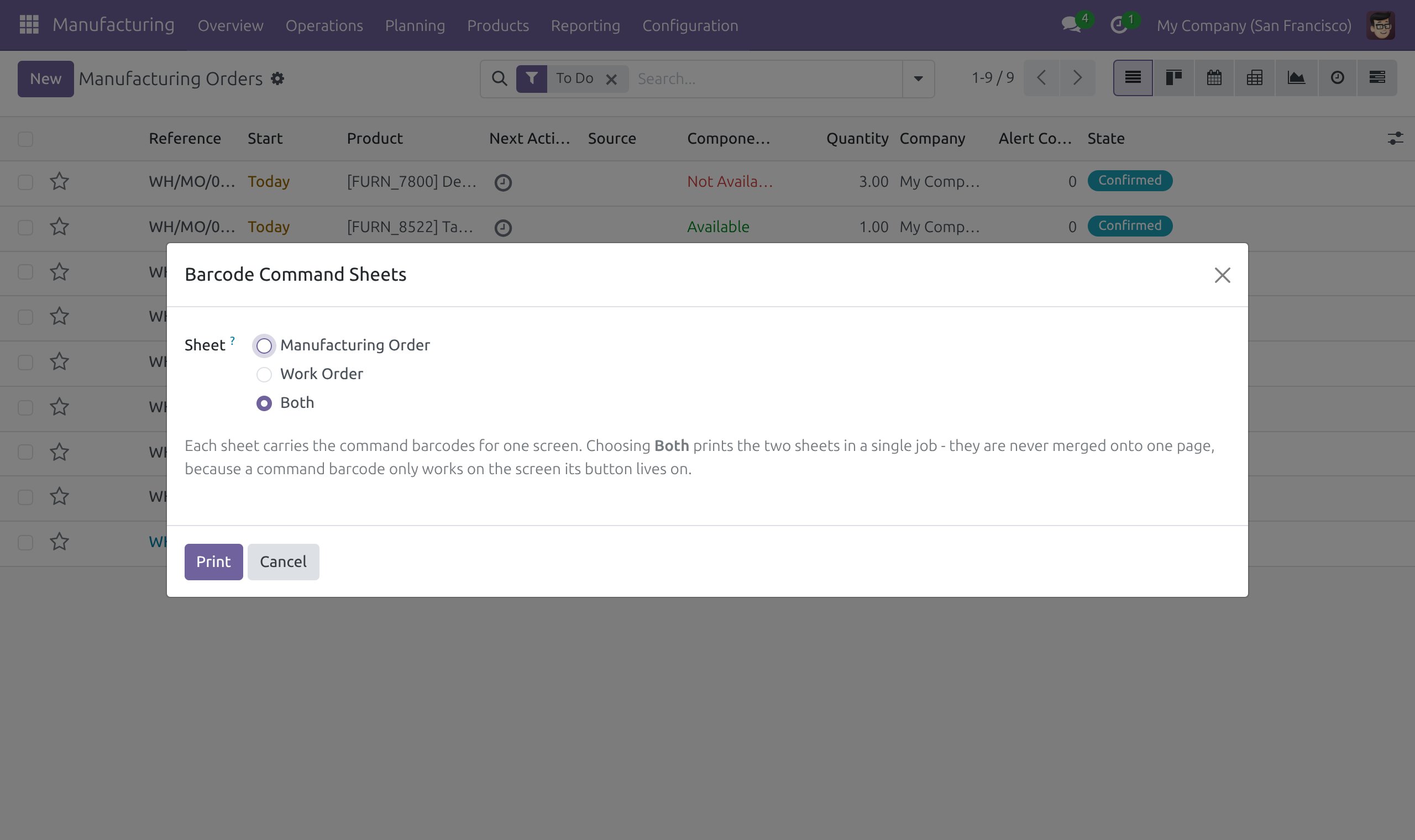
Print, in one click, the sheet of command barcodes for the manufacturing order screen, the shop floor, or both - one page per screen, listing the code and label of every pressable button.
Run a manufacturing order by scanning
Press Produce, Plan, Unplan, Start, Check availability, Unreserve and Cancel on a manufacturing order by scanning a command code.
Run a work order hands-free
Scan Start/Resume, Pause, Record output, Finish, Stop the machine, Restart the station, Generate lot and Confirm - no buttons to press.
Scan finished-product labels
Scanning a product, lot or serial label on an open work order records the output or opens Record output when the quantity or lot still needs choosing; a wrong product, unit or several labels at once are refused.
Read GS1 batch labels
The label is read with the company barcode nomenclature (GS1 included) and its quantity is converted into the order's unit, so weight and lot are not keyed in again.
Try it with ready-made demo labels
With demo data, the demo barcode sheet gains printable shop-floor sections: record output by lot, including a GS1-128 batch label, and record serial-numbered output.
Who it is for
Plant or operations director
Wants figures captured at the machine, not typed later.
Production manager
Wants operators to work hands-free and the screens self-explanatory.
Production operator
Wants to scan and move on, with gloves on.
IT / ERP administrator
Wants one module that installs with Shop Floor Control and needs no extra access groups.
Best for: plants that already run their work orders from the Viindoo shop floor.
Scan a label and the output is recorded
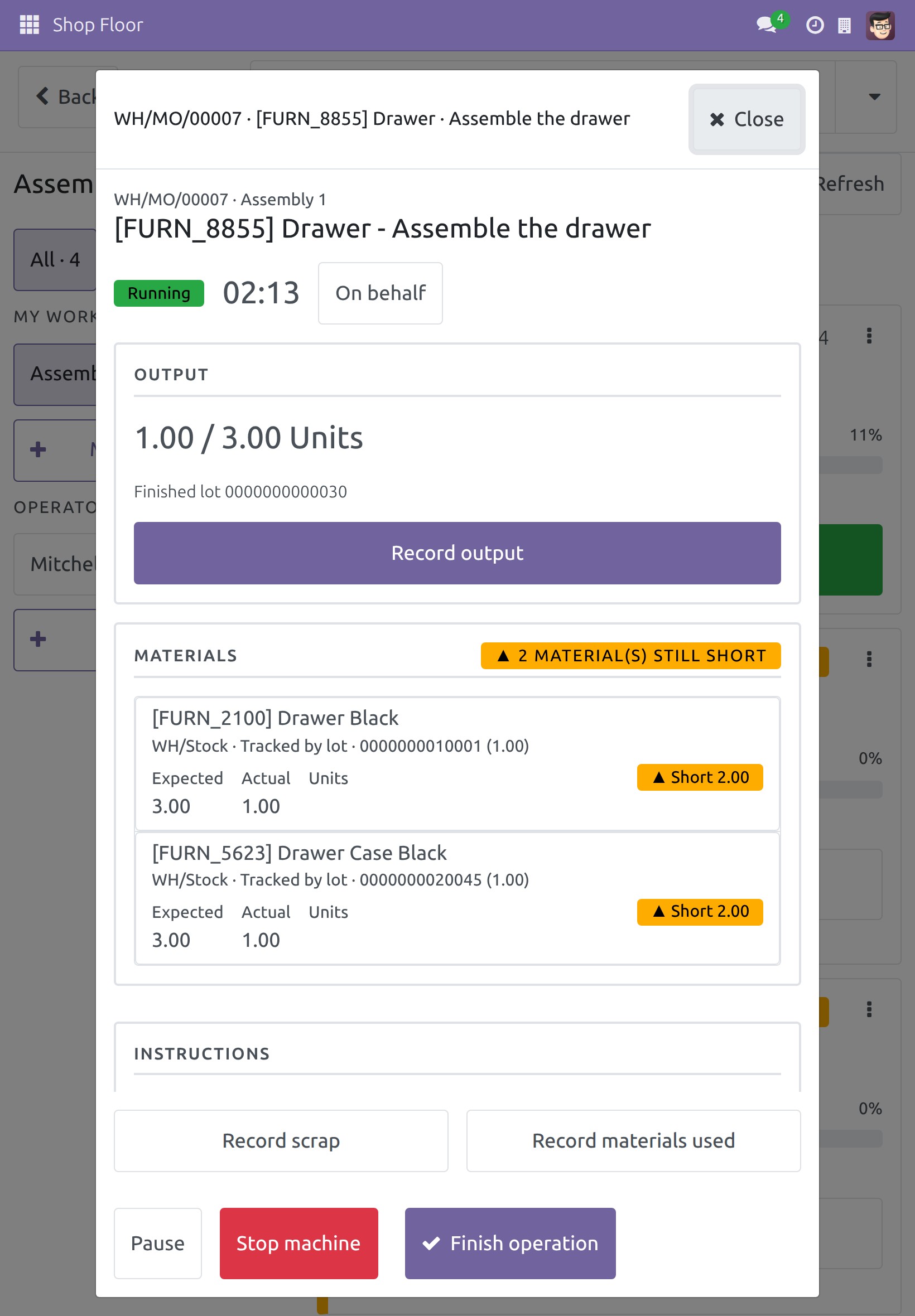
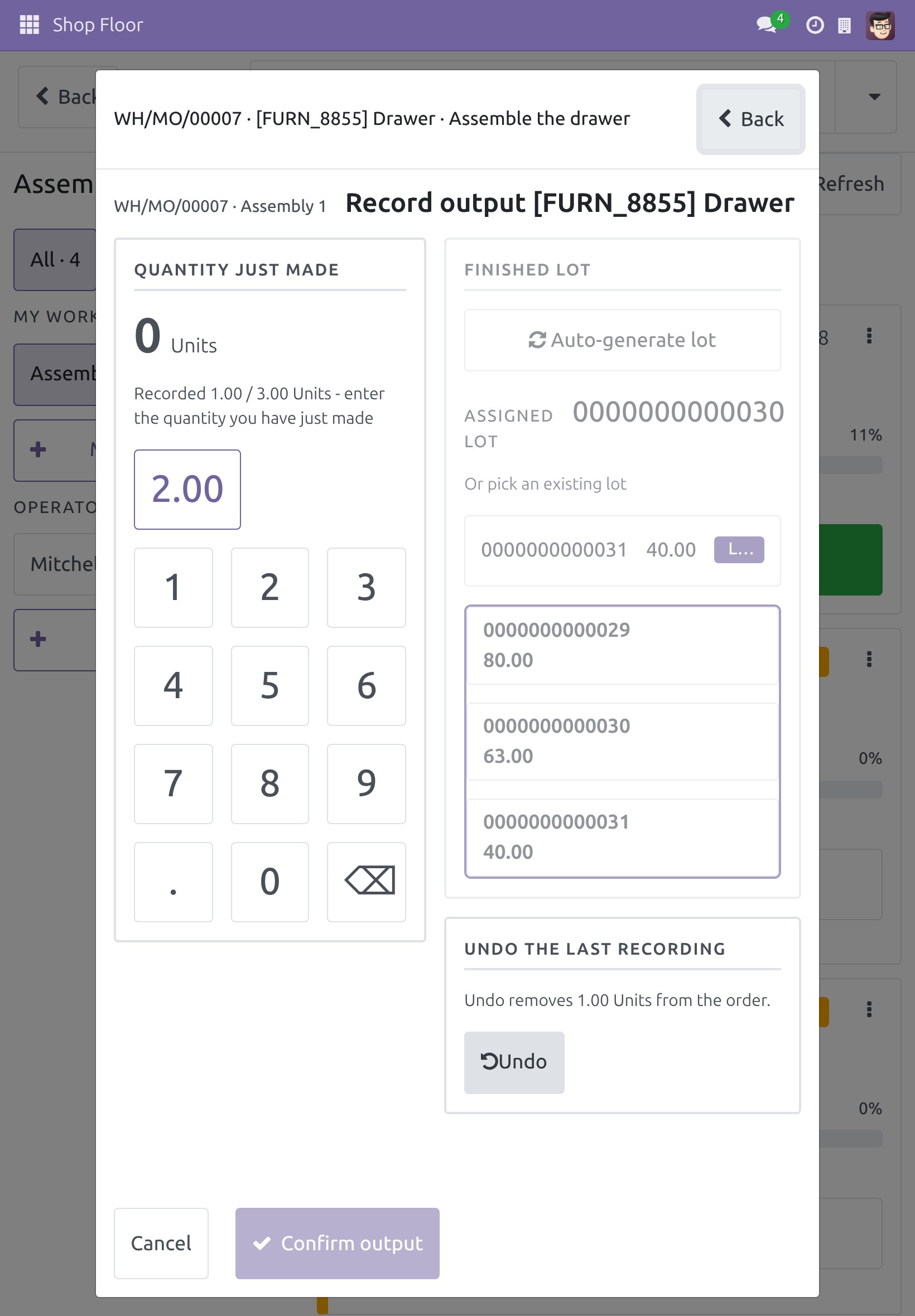
Scan a product and pick its lot
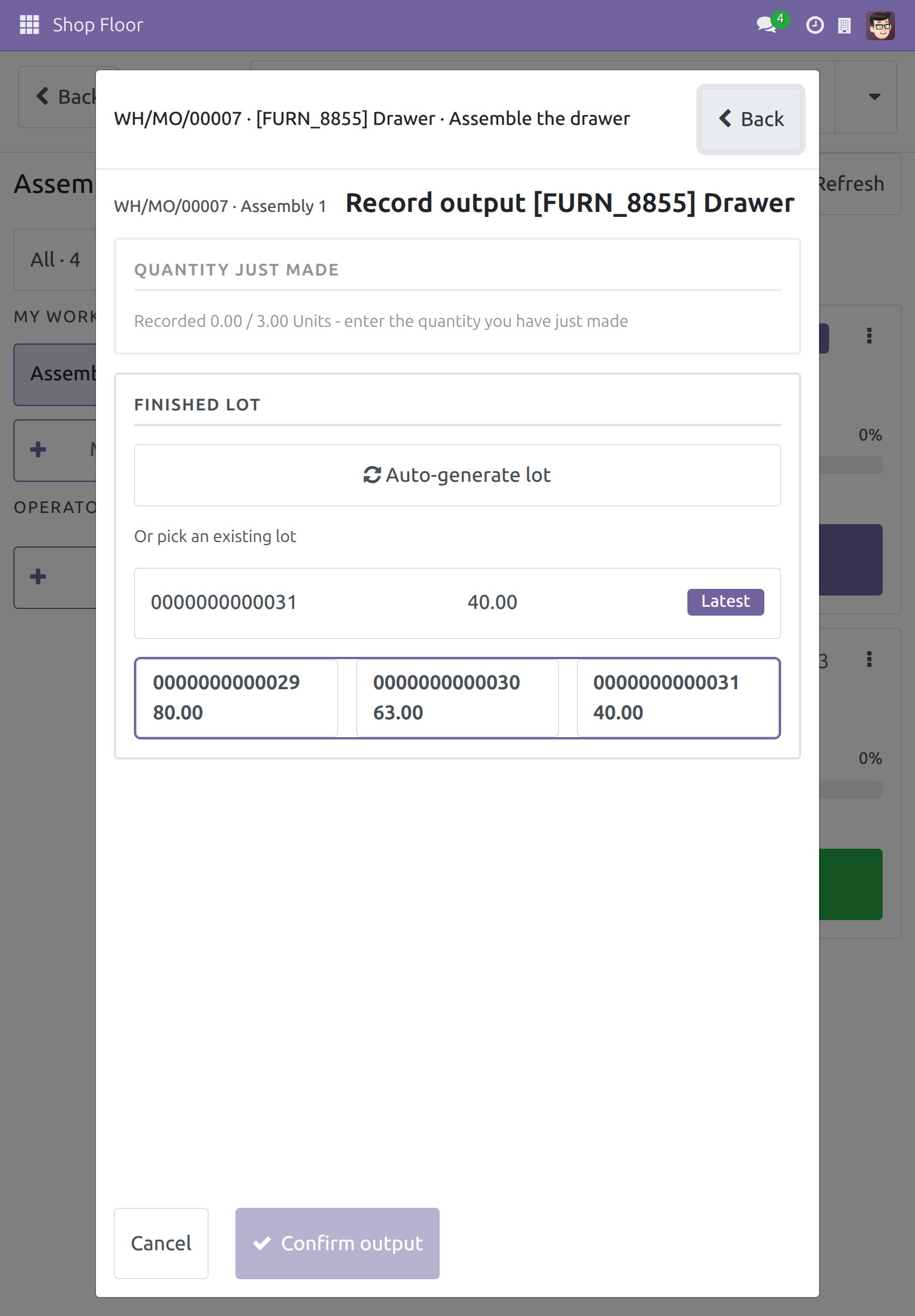
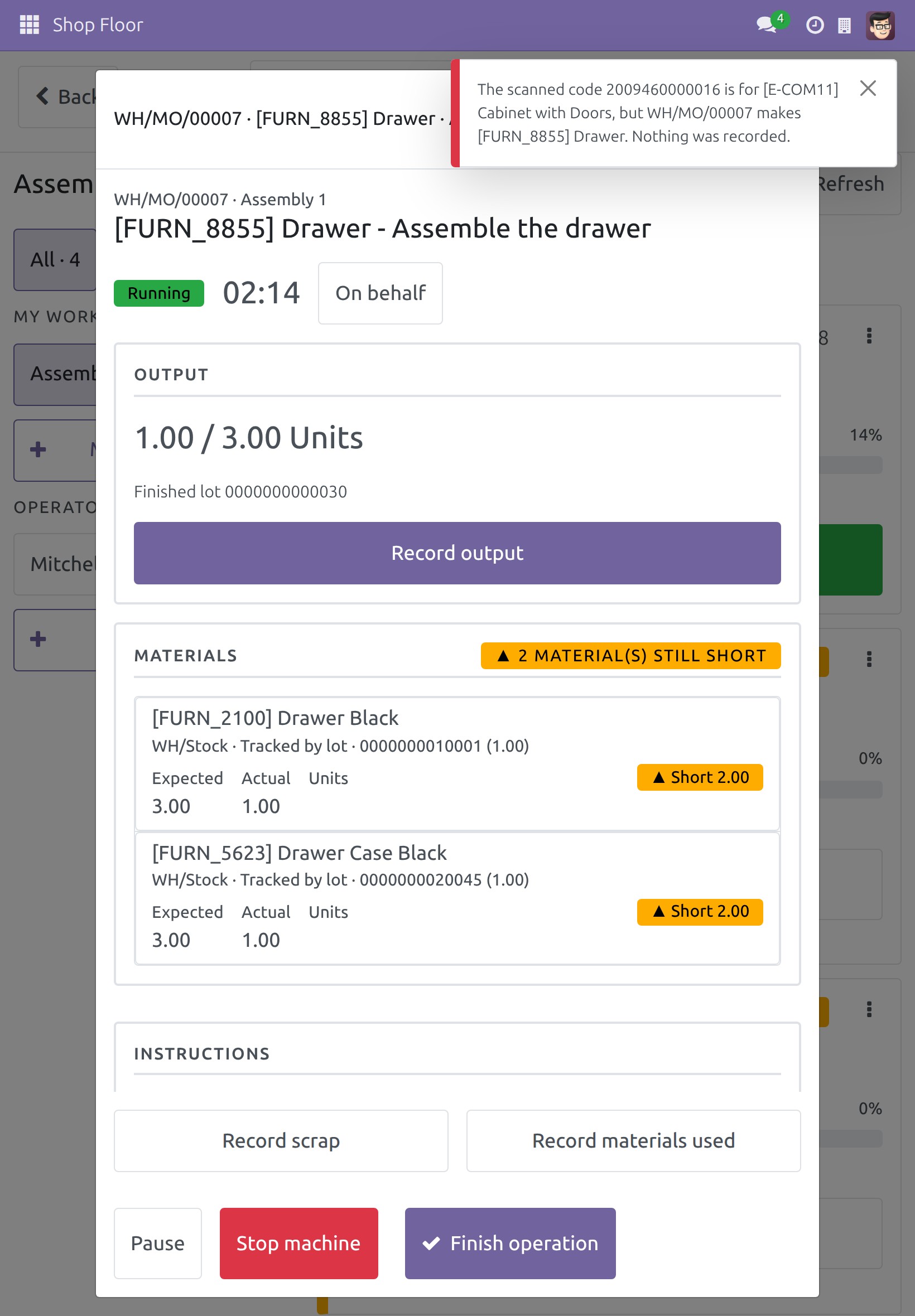
Wrong product? Refused, nothing recorded
Every scan is in the entry log, with undo
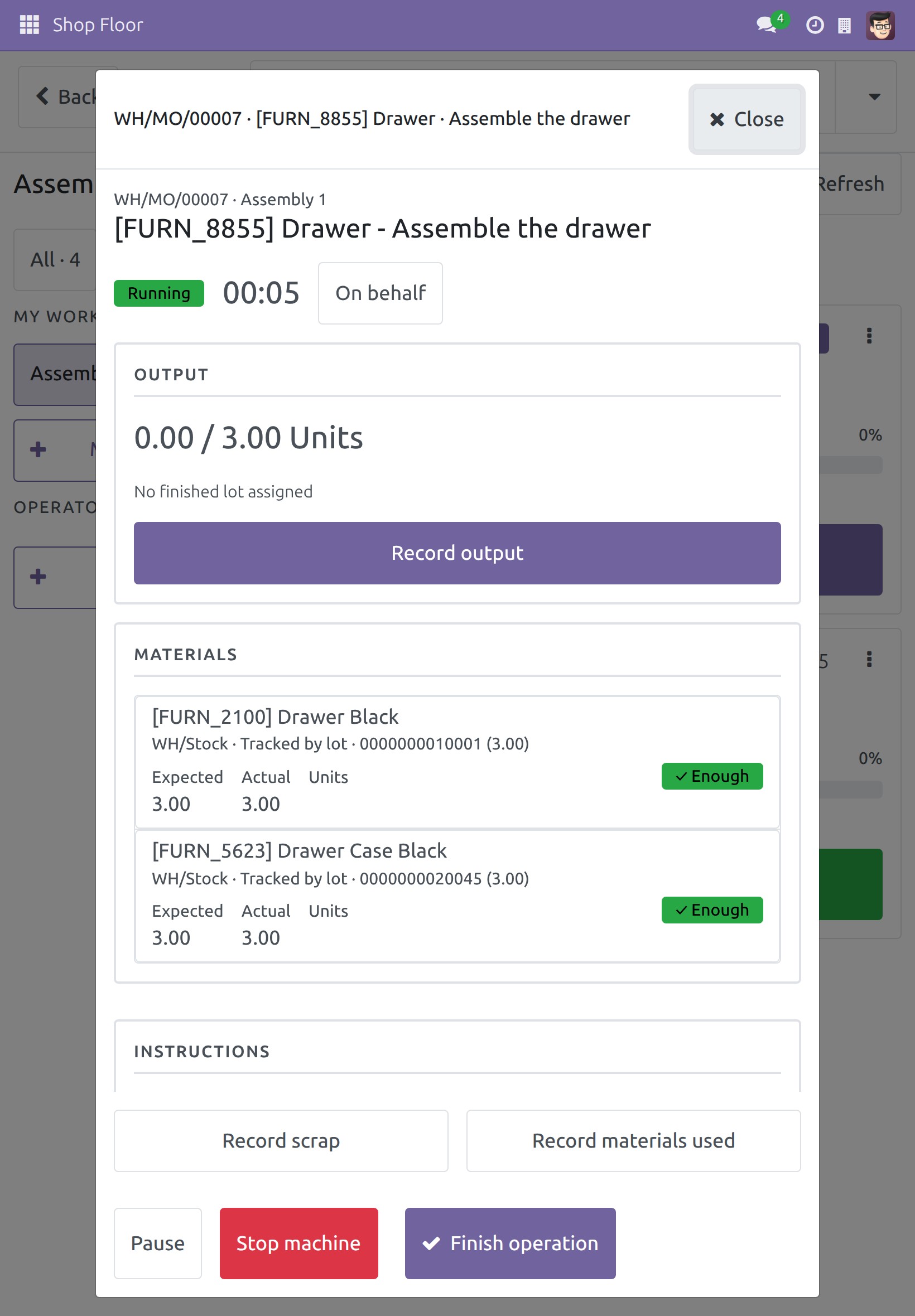
Start a work order by scanning a code
Print the command sheet in one click
One page per screen, every code beside its action
Scan on a phone at the workstation
Frequently Asked Questions
What happens if the wrong label is scanned?
Nothing is recorded. The scan is refused with a message naming the product, and it never lands on a different work order than the one it was read for.
Can a scanned entry be reversed?
Yes. Each scan is an entry in the shop-floor entry log and can be undone.
Which codes can I scan?
Product, lot and serial barcodes and GS1 labels, plus command codes for the manufacturing order (Produce, Plan, Unplan, Start, Check availability, Unreserve, Cancel) and the shop floor (Start/Resume, Pause, Record output, Finish, Stop the machine, Restart the station, Generate lot, Confirm).
How do operators get the command codes?
Print the command sheet from Manufacturing > Operations > Barcode Command Sheets, for the manufacturing order screen, the shop floor, or both.
Is it supported on Odoo Enterprise?
No. MRP Barcode is not supported on Odoo Enterprise.
What does it need?
Need help with MRP Barcode?
Technical Support
apps.support@viindoo.comTechnical Requirement
- Odoo version: 18.0
- Editions: Odoo Community, Viindoo Cloud (not supported on Odoo Enterprise)
- Required modules: Shop Floor Control, Stock Barcode
- License: OPL-1
MRP Barcode
Note
Extends viin_mrp_workorder - see its documentation.
Note
Extends viin_stock_barcode - see its documentation.
Overview
On the shop floor, hands are busy and screens are small. MRP Barcode lets operators run a manufacturing order and its work orders by scanning instead of tapping and typing. A scanned product, lot, serial number or GS1 label records the output on the work order that is open on the screen. A scanned command code presses a button for you: start, pause, finish, record output, produce and more.
This guide builds on the Shop Floor app described in the documentation of Shop Floor Control (job board, Record output screen, entry log with Undo). It does not repeat that guide: it only explains what changes when a scanner is in your hand. Barcodes of products, lots and locations are explained in the documentation of Stock Barcode.
The business process, and who acts at each stage:
- Draft - the Production Operator confirms the manufacturing order with the Confirm button. This module adds no command code for it. The order then goes to the same operator.
- Confirmed - the Production Operator starts the order or its work order, by tapping or by scanning the Start code.
- In Progress - the Production Operator scans the label of what has just been made to record the output, and scans the Finish code when the operation is done.
- To Close - the Production Operator scans the Produce code on the manufacturing order to close it.
- Done - nothing is left to scan.
Who uses this module:
| Role | What they do | Access right to assign |
|---|---|---|
| System Administrator | Installs the module and gives each person the right access | Administration / Settings |
| Production Operator | Works orders on the shop floor and manufacturing orders by scanning labels and command codes, and prints the command sheets | Manufacturing / User |
| Production Manager | Oversees manufacturing. The module adds nothing that needs more than the Production Operator's access right, except that the code that restarts a stopped station only works for someone who sees that button (see the Shop Floor Control guide) | Manufacturing / Administrator |
Setup (for the System Administrator)
Installation
- Open Apps.
- Search for MRP Barcode.
- Click Install.
The required apps are installed with it: Shop Floor Control (the Shop Floor app) and Stock Barcode. When all three are installed, the module is active at once; there is nothing else to switch on.
Configuration
- Give each operator the access right Manufacturing / User (open Settings ‣ Users & Companies ‣ Users, open the user, tab Access Rights). The menu Manufacturing ‣ Operations ‣ Barcode Command Sheets and the shop floor scanning are available to them. Give production leads Manufacturing / Administrator.
- Put the barcode on the products you make: open the product and fill in its Barcode. For products tracked by lot or serial number, the lots and serial numbers themselves are scanned by their name.
- If your company labels its goods with GS1 barcodes, the company must use the GS1 barcode nomenclature. Without it, a GS1 label is read as plain text and is not understood (see the Stock Barcode guide, ask your implementation partner to select it).
- Check the unit of measure of weighed products (for example kg): the quantity read from a weight label is rounded to the number of decimals of that unit of measure. If the unit is set to two decimals, a label of 1.234 kg records 1.23 kg.
- Print the command sheets and keep them next to the machines (see "Print the command sheets" below).
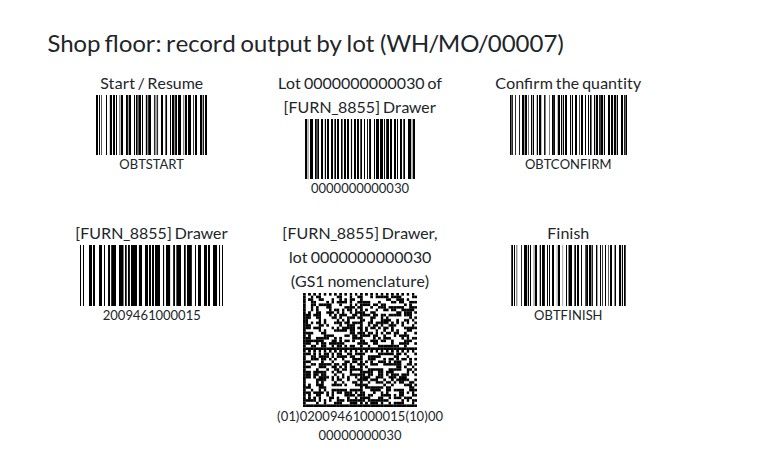
- On a database with demo data, the module works with Odoo's own demo products and orders, and adds only what they lack: the barcodes and one lot-tracked order. The product Drawer is tracked by lot (barcode 2009461000015): its confirmed order of 3 Units runs on the work center Assembly 1, operation Assemble the drawer, and the lot to scan is 0000000000030. The product Table Top is tracked by serial number (barcode 2009461000022): its confirmed order of 1 Unit runs on Assembly 1, operation Manual Assembly, and its serial number is generated with the OBTGENLOT code. The demo barcode sheet of Stock Barcode gains printable sections with the codes of these two orders.
Production Operator: scans labels and command codes
Print the command sheets
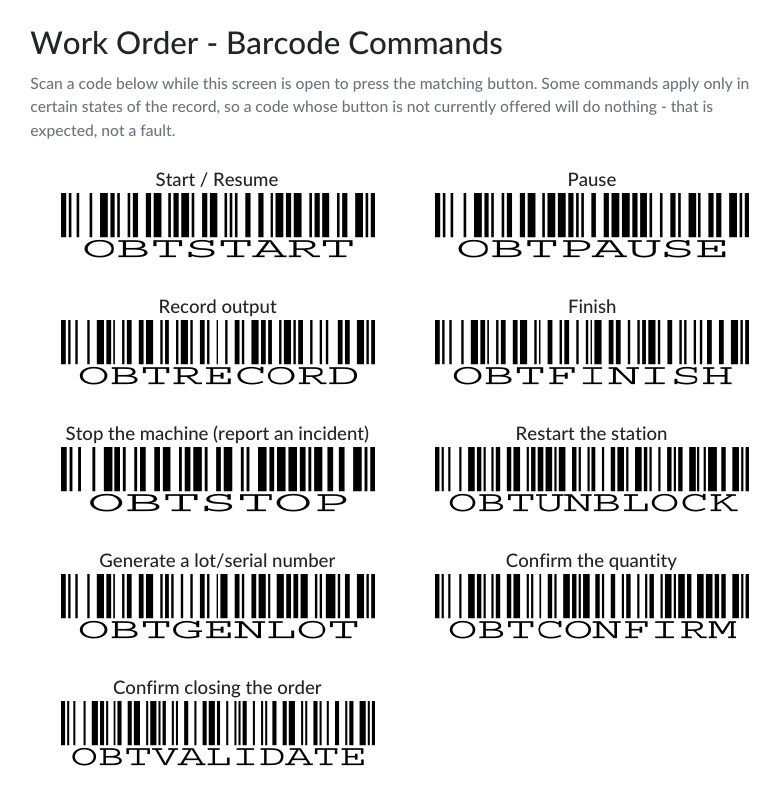
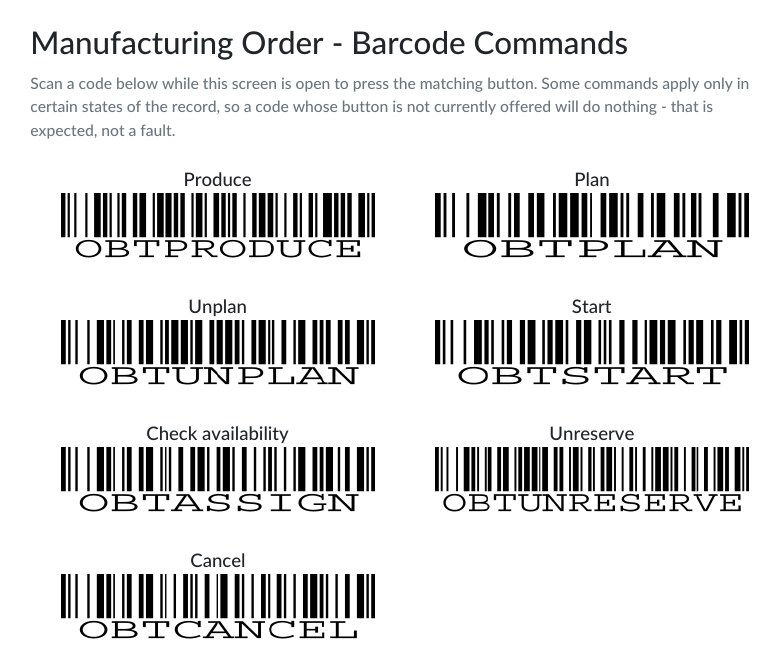
A command code is a barcode that begins with OBT followed by the name of an action, for example OBTSTART. Scanning it presses the matching button of the screen that is open. The sheets are the same for every order, so you print them once.
Open Manufacturing ‣ Operations ‣ Barcode Command Sheets.
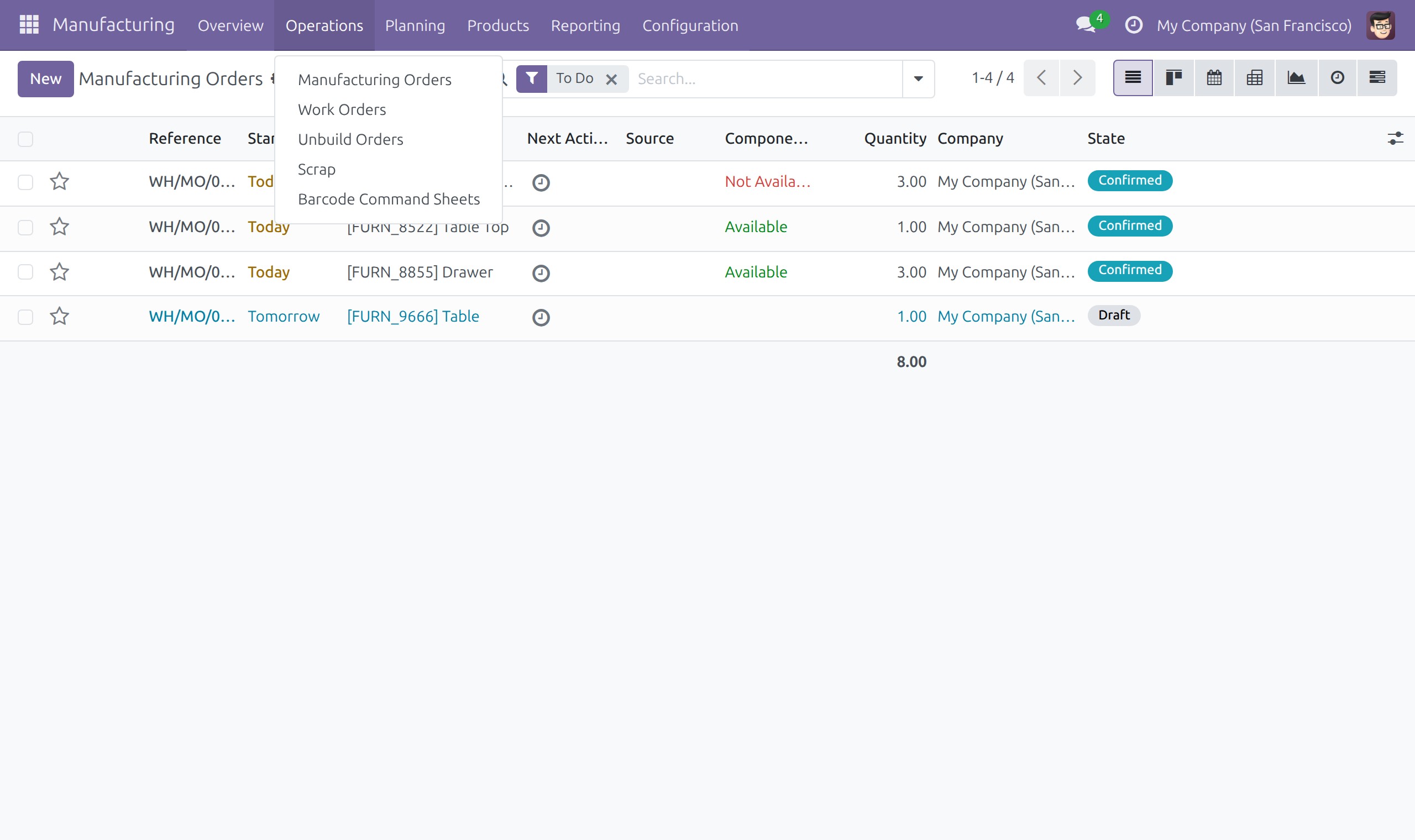
In the window, choose which Sheet to print: Manufacturing Order, Work Order or Both (the default). Then click Print.
Print the PDF. Each screen has its own page, because a code only presses a button on the screen where that button lives. The Manufacturing Order page lists Produce, Plan, Unplan, Start, Check availability, Unreserve and Cancel.
The Work Order page lists Start / Resume, Pause, Record output, Finish, Stop the machine (report an incident), Restart the station, Generate a lot/serial number, Confirm the quantity and Confirm closing the order.
Note
The manufacturing order page only lists the buttons your access right lets you see. A code whose button is not shown at that moment does nothing: this is normal. For example Start does nothing on an order that is already started.
Run a manufacturing order with command codes
Open the manufacturing order (Manufacturing ‣ Operations ‣ Manufacturing Orders). Its buttons are in the header, above the order.
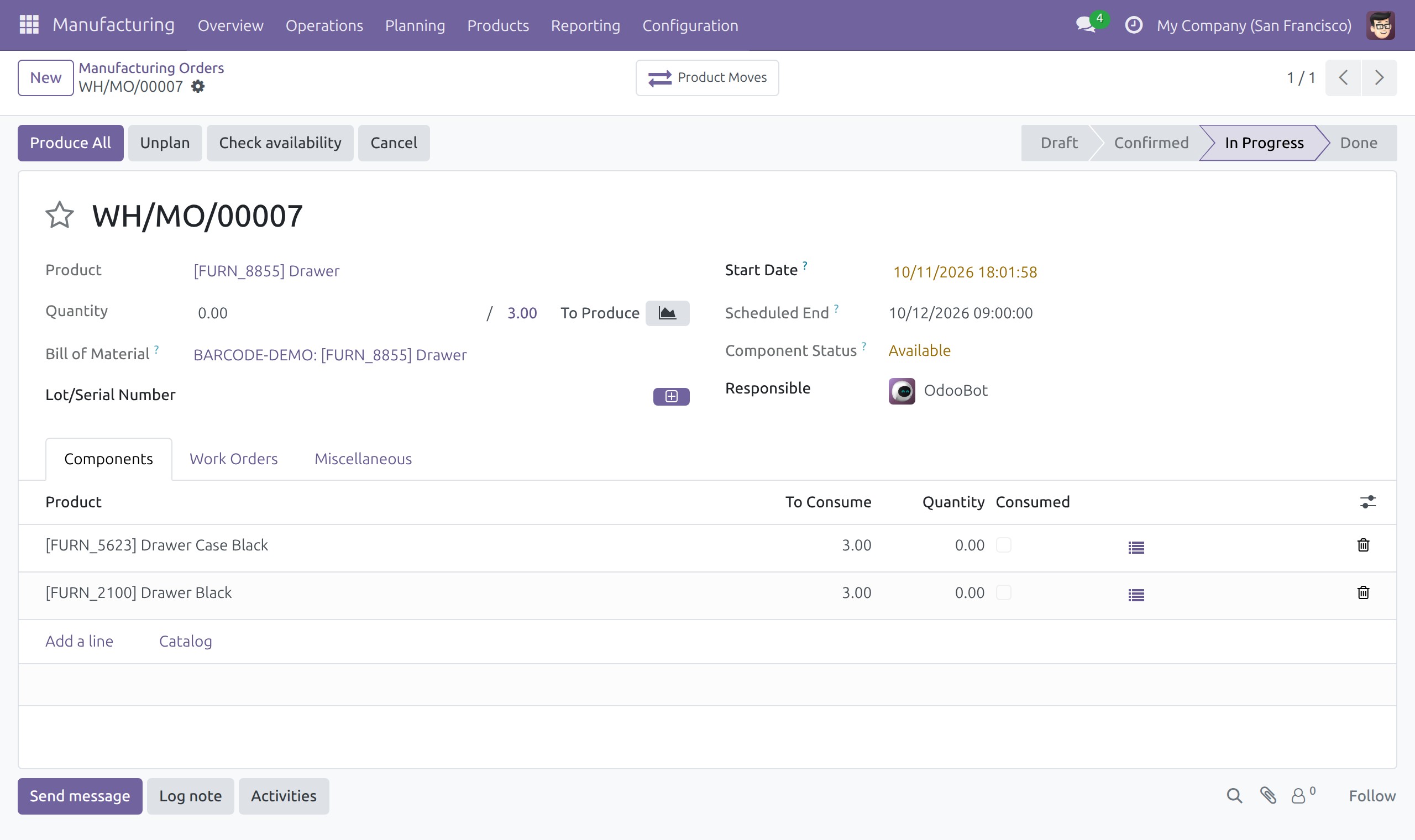
Scan the code of the button you need, for example OBTASSIGN for Check availability or OBTPRODUCE for Produce. The button is pressed as if you had clicked it. The one Produce code presses whichever of Produce or Produce All is shown.
Warning
OBTCANCEL presses Cancel on the open order. Keep the printed sheets away from casual scanning.
Find your job on the shop floor
Scanning works on the screen of an open work order (the operation screen and Record output). On the job board, a scan does nothing.
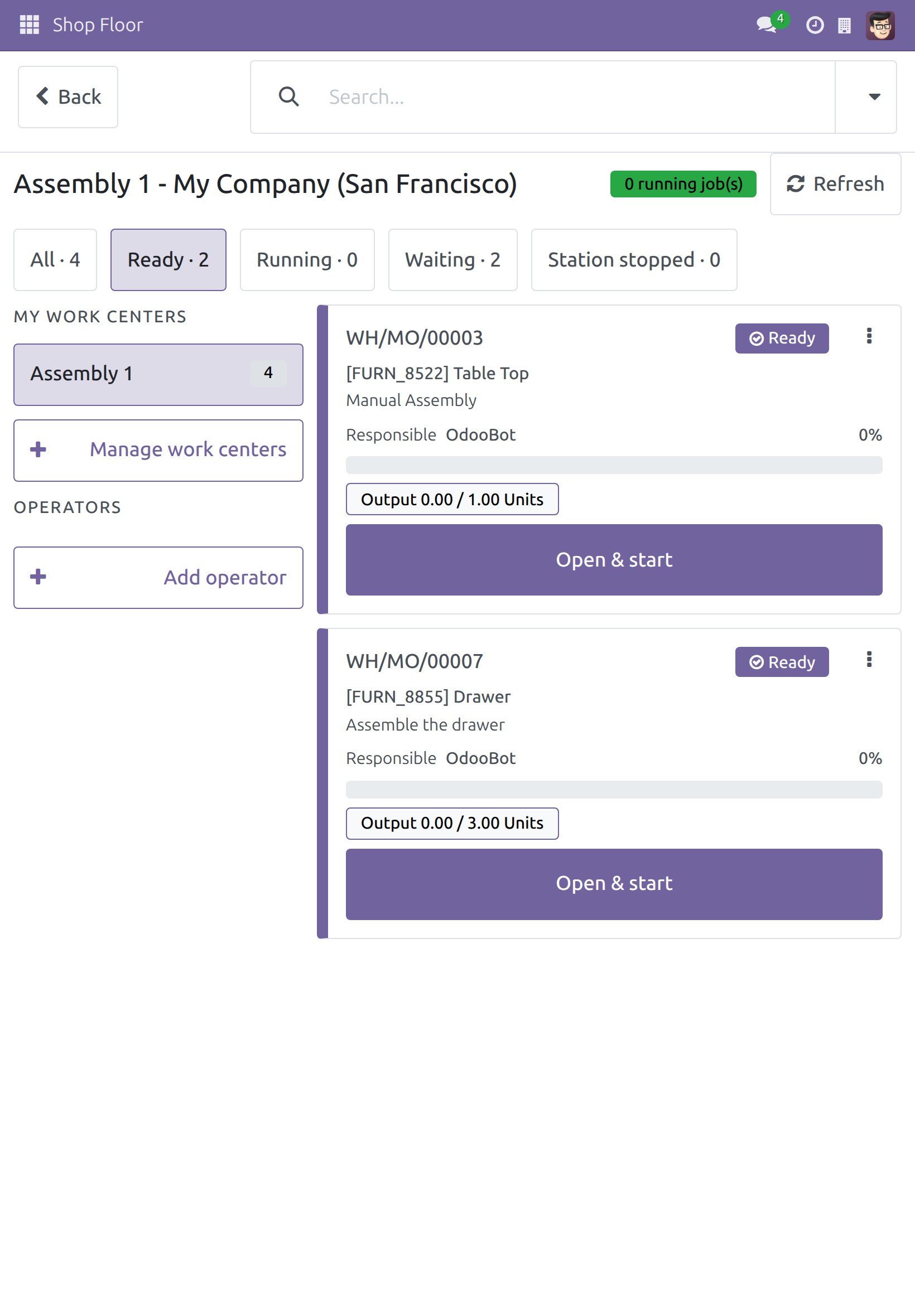
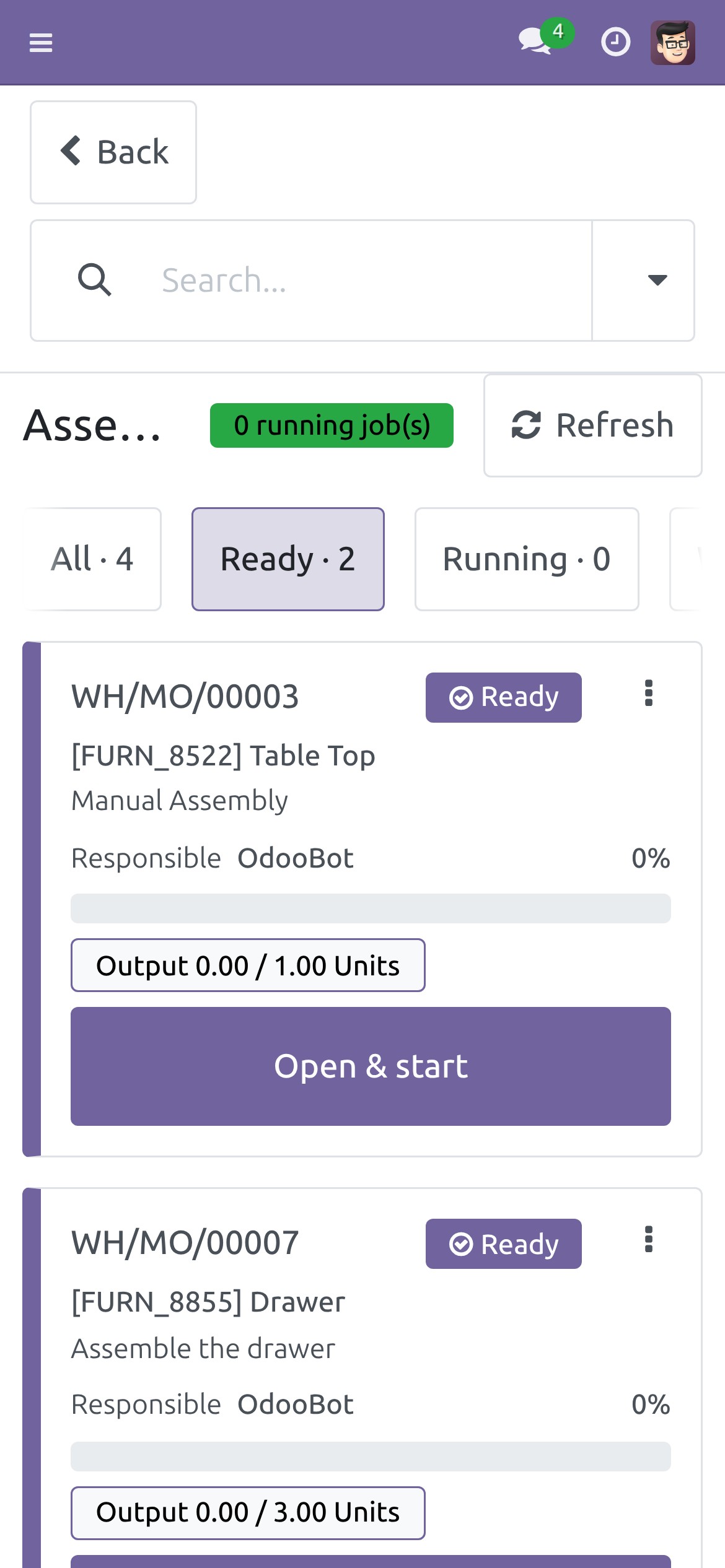
Open Shop Floor from the home menu and choose your work center, here Assembly 1.
Tap the card of your job. Tapping the card only opens the job; it does not start the clock.
For the other tasks of the job board, see the Shop Floor Control guide.
Start, pause and finish a work order by scanning
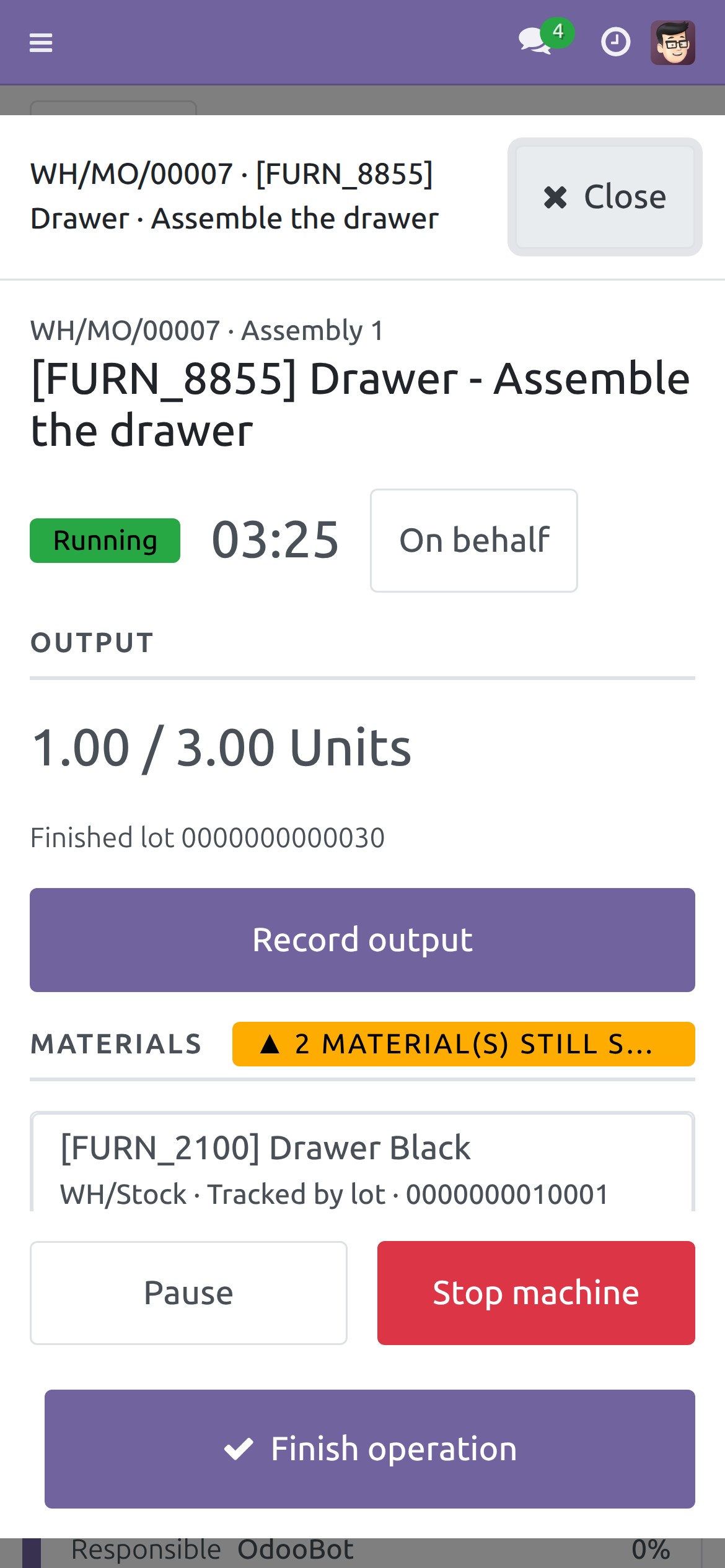
With the work order open, scan OBTSTART (Start / Resume). The state becomes Running and the timer counts.
To take a break, scan OBTPAUSE (Pause). Scan OBTSTART again to resume.
To report that the machine stopped, scan OBTSTOP (Stop the machine (report an incident)). It presses Stop machine, as a tap on the button does.
The code OBTUNBLOCK (Restart the station) only does the first step of restarting a stopped station and only for the person who sees that button (Manufacturing / Administrator). The confirmation stays a deliberate tap.
Record the output by scanning its label
Scan the label on what you have just made. What happens depends on what the label says and on the product.
| You scan | What happens |
|---|---|
| The product barcode, product not tracked | One unit (or the quantity printed on the label) is recorded at once. |
| The product barcode, product tracked by lot or serial number, no finished lot yet | Record output opens so that you choose or generate the lot and enter the quantity. Nothing is recorded yet. |
| The product barcode, finished lot already chosen for the order | One unit is recorded under that lot (one unit of the order's unit of measure, or the quantity printed on the label). |
| A lot name | Record output opens with that lot ready under LOT TO RECORD. Enter the quantity and confirm. |
| A serial number | That unit is recorded at once. |
| A GS1 label with product, weight and lot | The quantity and the lot of the label are recorded at once. |
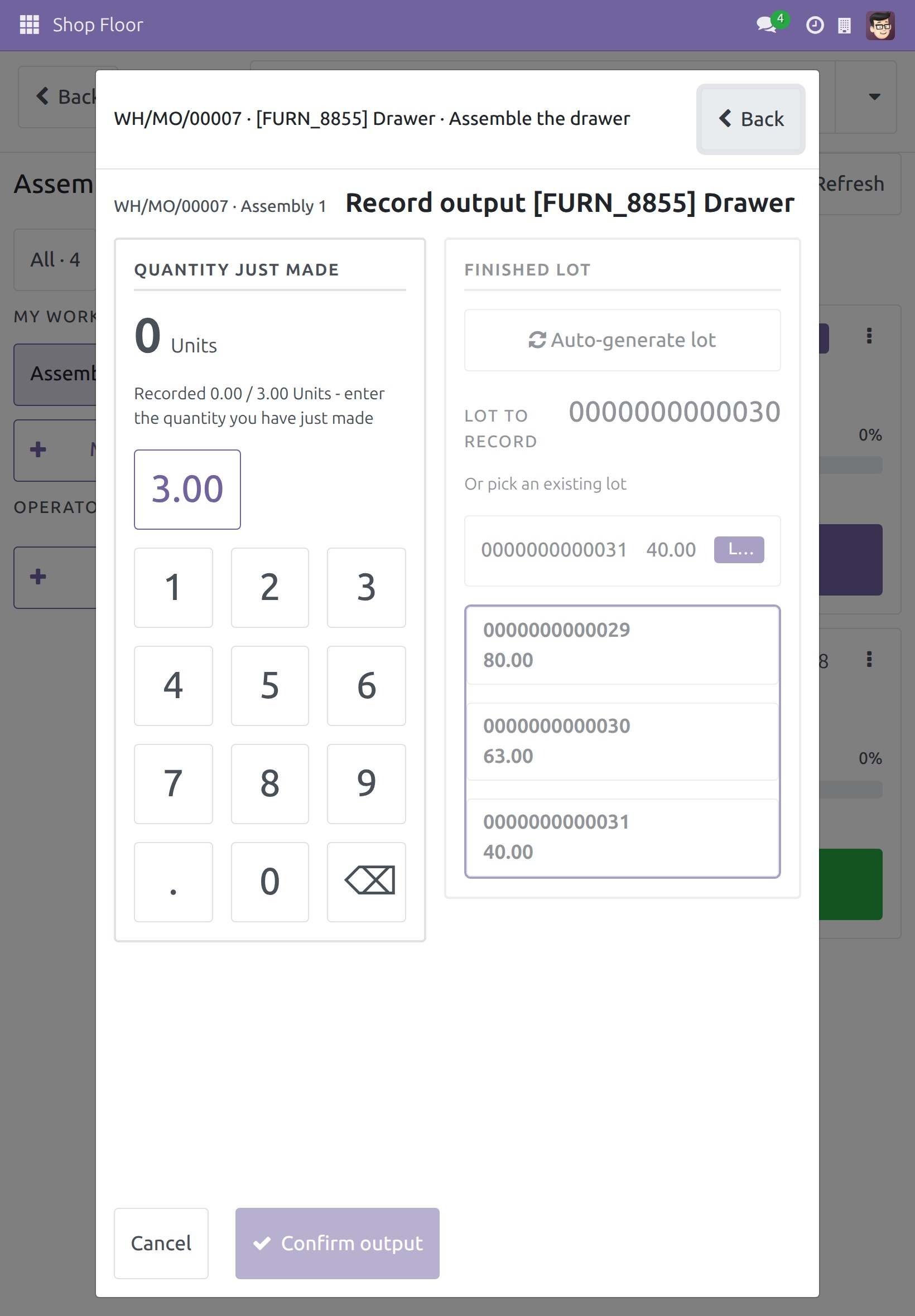
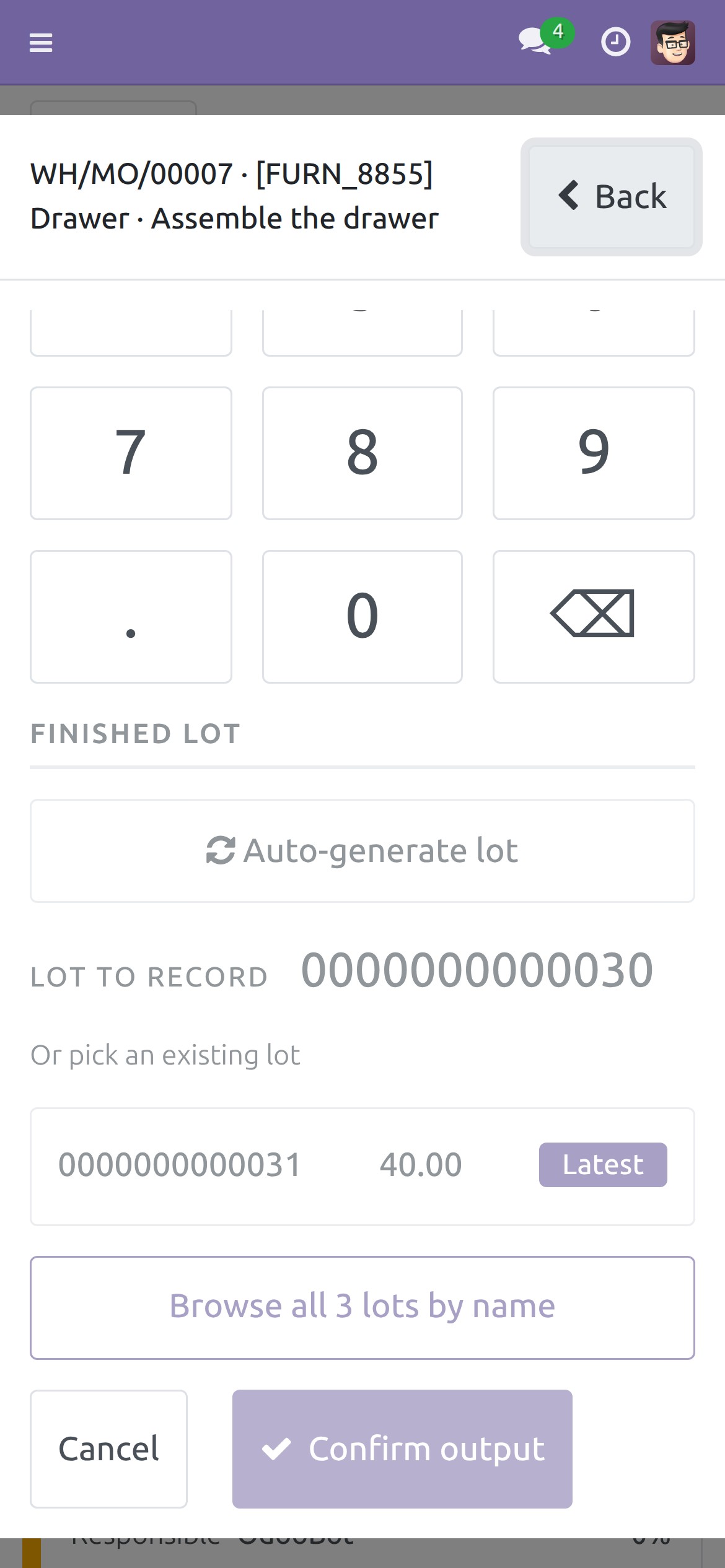
Open the work order and start it. Scan the barcode of the finished product, for example 2009461000015 (Drawer). The drawer is tracked by lot and has no lot yet, so Record output opens and asks for the FINISHED LOT.
Scan the lot, for example 0000000000030. The lot appears under LOT TO RECORD. Tap the quantity on the number pad and tap Confirm output, or scan OBTCONFIRM once the quantity is entered. The command OBTGENLOT presses Auto-generate lot when the operation type lets you create new lots.
Record the output with a GS1 label
A GS1 label carries the product and the lot in one scan. It is read when your company uses the GS1 barcode nomenclature (see Setup). The demo barcode sheet carries one for the Drawer: (01)02009461000015(10)0000000000030, the drawer of lot 0000000000030. One scan of a label with a product and a lot records one unit of that lot. A label that also carries a weight or a count (for example AI 310x or 30) records that quantity, converted to the unit of the order.
Open the work order and start it.
Scan the GS1 label. One unit is recorded at once, under the lot of the label: the OUTPUT panel shows 1.00 / 3.00 Units and the Finished lot.
The quantity of a label that carries a weight or a count is converted into the unit of the order (a label in grams for an order in kilograms, for example) and rounded to the precision of that unit of measure on your site. The demo label carries no quantity, so one unit of the order is recorded. The parts of a label that a work order does not use, such as a location or a package, are ignored and listed in a warning: Not applied from the scanned label.
Check a scan and undo it
A scan is recorded as an entry of the shop floor, exactly like a tap on Record output. To see it, tap Record output on the operation screen. The screen reads "Recorded 1.00 / 3.00 Units".
Under UNDO THE LAST RECORDING, tap Undo. It takes back exactly the latest recording.
For who may undo and until when, see the Shop Floor Control guide.
Record a serial-numbered product
A product tracked by serial number is made one unit at a time. The example is Table Top.
Open its work order and scan OBTSTART.
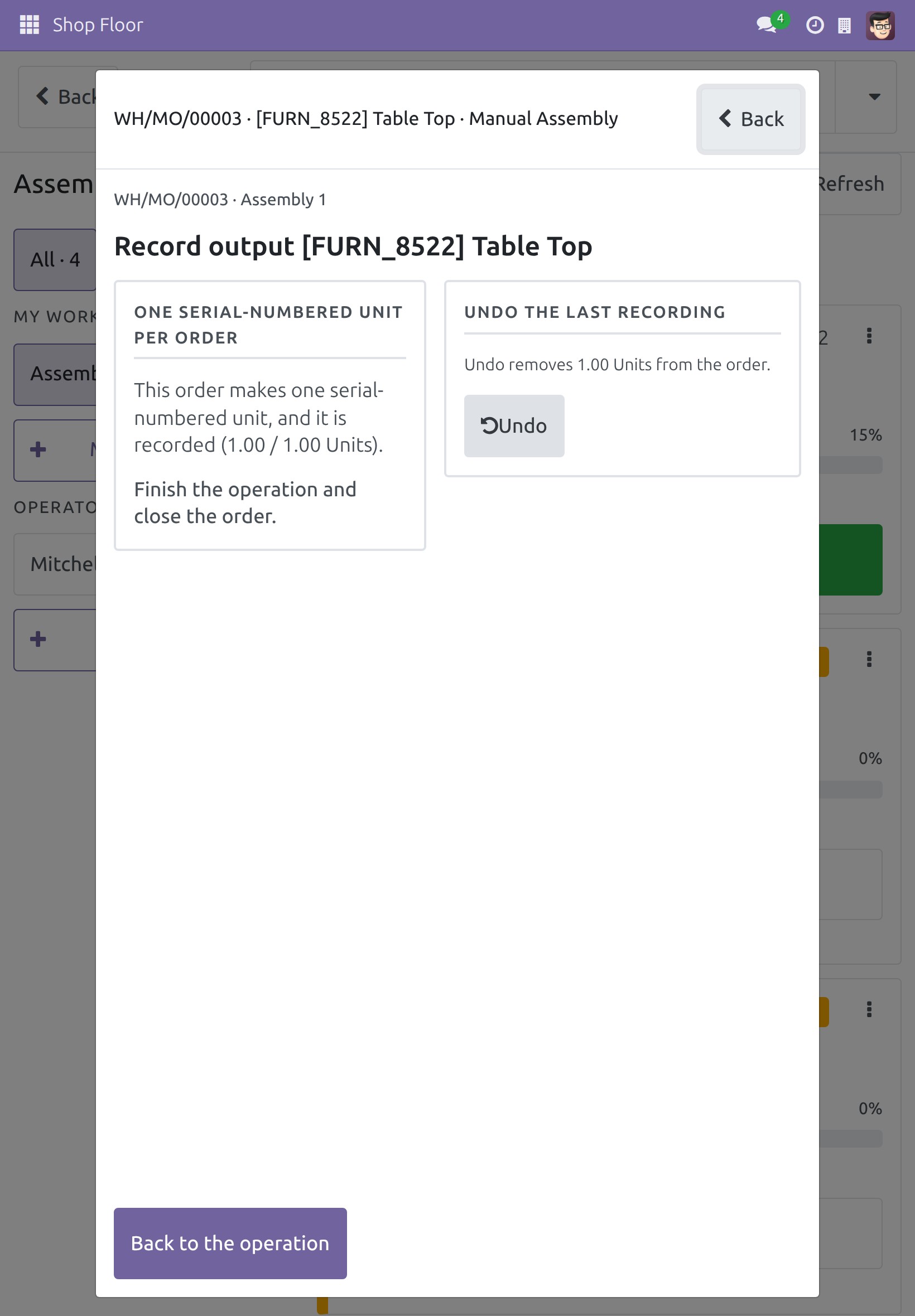
Scan the barcode of the table top, 2009461000022. Record output opens and reads "Tracked by serial number: record exactly 1 unit, once."
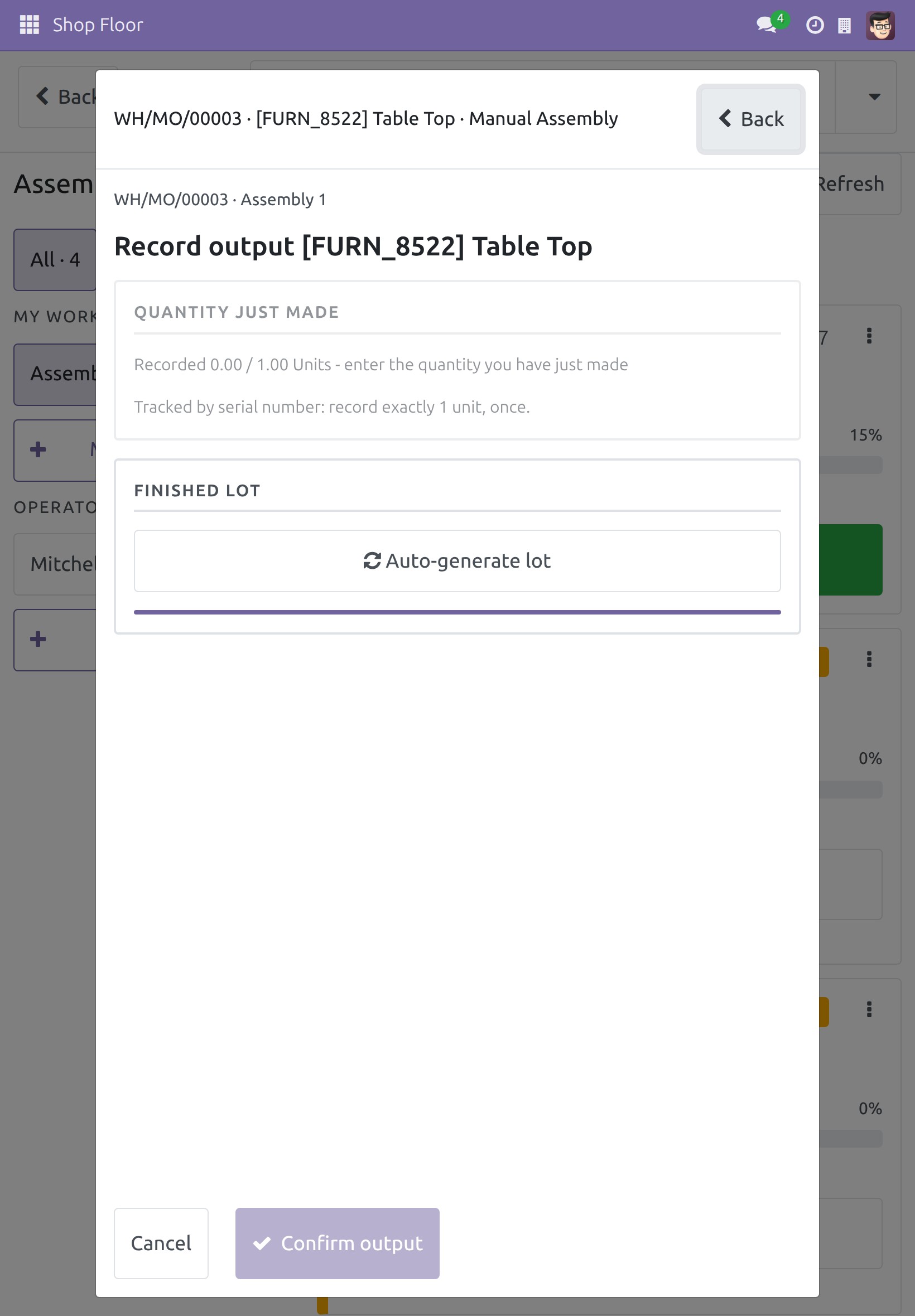
Scan OBTGENLOT (Generate a lot/serial number). The serial number appears under ASSIGNED LOT.
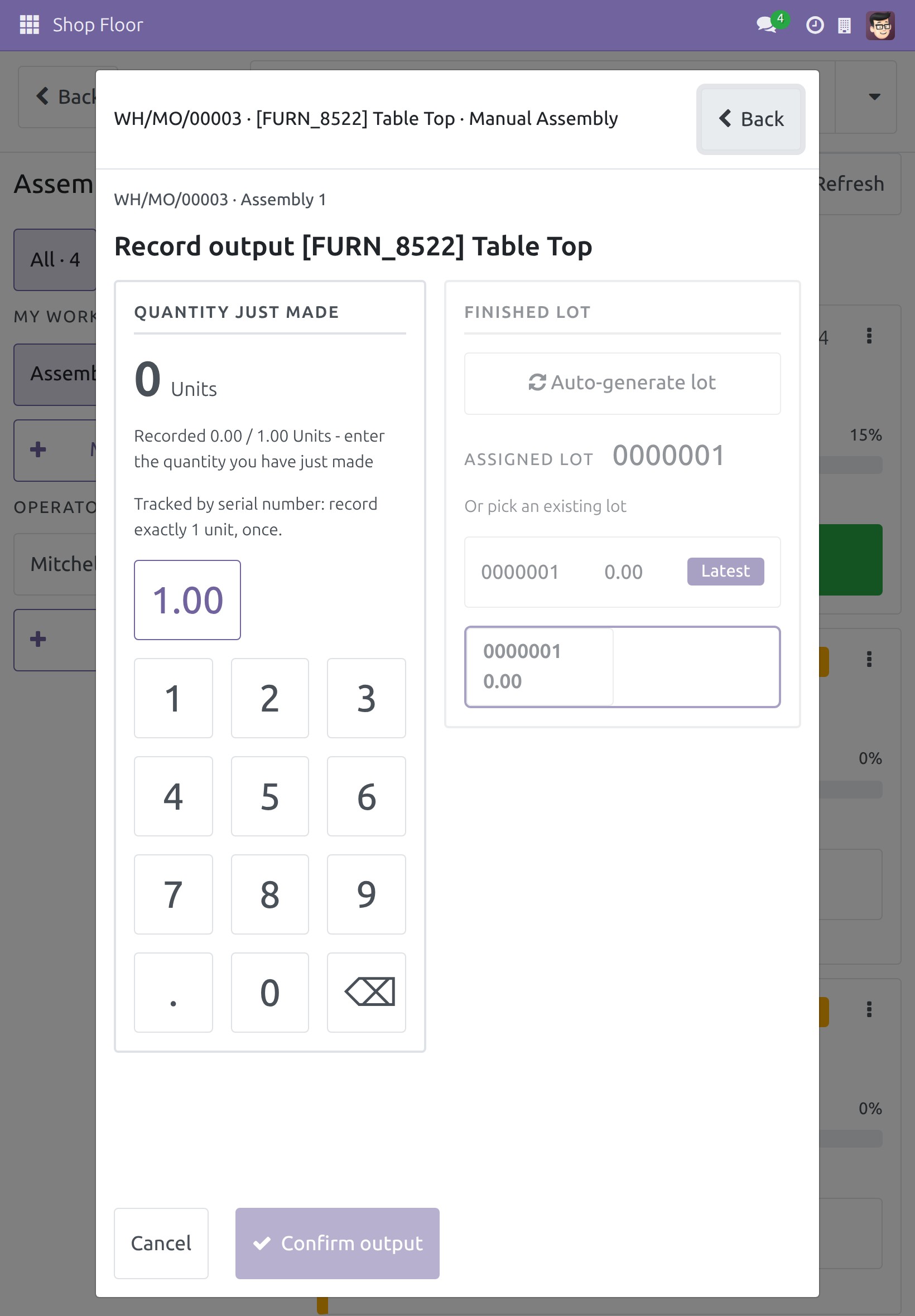
Tap 1 on the number pad, then scan OBTCONFIRM (Confirm the quantity). The screen says that the order makes one serial-numbered unit and that it is recorded.
When a scan is refused
A scan always stays on the work order it was read for, and nothing is recorded when it is refused. The red message tells you why.
Scan the barcode of another product, for example 2009460000016 (Cabinet with Doors) while the drawer order is open. The message says that the code is for the cabinet with doors, that the order makes the drawer and that nothing was recorded.
The scan is also refused when:
- the lot or serial number belongs to another product;
- the label states a quantity in a unit that cannot be converted into the unit of the order (for example a length for an order in kilograms);
- one scan holds several labels at once - scan one label at a time;
- the code is not a barcode of the product or of one of its lots, so there is nothing to record.
If you switched to another work order while the scan was being checked, nothing is recorded and a yellow warning says "That scan was for another work order. Scan it again on this one." Scan the label again on the right order.
Finish the operation and close the order
- When the quantity is recorded, scan OBTFINISH (Finish). When it is the last operation of the order, the closing screen of the order follows.
- Scan OBTVALIDATE (Confirm closing the order) to close it. If the materials differ from the bill of materials, follow the Shop Floor Control guide.
- On the manufacturing order, OBTPRODUCE (Produce) closes it in the same way.
Troubleshooting
- Nothing happens when I scan. Scanning works on an open work order (operation screen or Record output) and on the manufacturing order form. On the job board, in a text field such as a search box, or while a dialog is open, the scan is left alone. Open the order first.
- A command code does nothing. The button it presses is not shown now: for example Start on an order already running, or Restart the station for someone who is not Manufacturing / Administrator. This is expected.
- My GS1 label is taken as a lot name. The company does not use the GS1 barcode nomenclature. Ask your administrator to select it (see Setup).
- "The scanned code ... is for ..., but ... makes ...". You scanned another product. Scan the label of the product of this order.
- "The scanned code ... holds several labels. Scan one label at a time." Scan each label on its own.
- "The scan could not be checked: the connection to the server was lost." Nothing was recorded. Scan the label again when the connection is back.
- "That scan was for another work order." Nothing was recorded. Open the work order the label belongs to and scan again.
- The quantity of my weight label shows fewer decimals than the label. The quantity follows the decimals of the unit of measure of the product. Ask your administrator if you need more.
- The Confirm code does nothing. The quantity has not been entered yet. Tap the quantity first.
FAQ
Do I need a special scanner?
No. Any scanner that types the barcode characters and ends with Enter works, because it acts like a keyboard.
Does scanning replace the Shop Floor screens?
No. The screens stay as they are. Scanning only gives you a faster way to press the same buttons and to record the same output, with the same entries and the same Undo.
Can one printed sheet be used for every order?
Yes. The codes press buttons, they do not name an order. The order is the one open on the screen.
Why are there two sheets?
A code only presses a button on the screen where that button lives. The manufacturing order sheet is for the order form, the work order sheet for the shop floor.
Is this supported on Odoo Enterprise?
It is not supported on Odoo Enterprise.
This software and associated files (the "Software") may only be used (executed, modified, executed after modifications) if you have purchased a valid license from the authors, typically via Odoo Apps, or if you have received a written agreement from the authors of the Software (see the COPYRIGHT file).
You may develop Odoo modules that use the Software as a library (typically by depending on it, importing it and using its resources), but without copying any source code or material from the Software. You may distribute those modules under the license of your choice, provided that this license is compatible with the terms of the Odoo Proprietary License (For example: LGPL, MIT, or proprietary licenses similar to this one).
It is forbidden to publish, distribute, sublicense, or sell copies of the Software or modified copies of the Software.
The above copyright notice and this permission notice must be included in all copies or substantial portions of the Software.
THE SOFTWARE IS PROVIDED "AS IS", WITHOUT WARRANTY OF ANY KIND, EXPRESS OR IMPLIED, INCLUDING BUT NOT LIMITED TO THE WARRANTIES OF MERCHANTABILITY, FITNESS FOR A PARTICULAR PURPOSE AND NONINFRINGEMENT. IN NO EVENT SHALL THE AUTHORS OR COPYRIGHT HOLDERS BE LIABLE FOR ANY CLAIM, DAMAGES OR OTHER LIABILITY, WHETHER IN AN ACTION OF CONTRACT, TORT OR OTHERWISE, ARISING FROM, OUT OF OR IN CONNECTION WITH THE SOFTWARE OR THE USE OR OTHER DEALINGS IN THE SOFTWARE.