
Freight Air — Document Integration
by Viindoo
| Lines of Code | 1103 |
| Technical name | viin_document_freight_air |
| License | OPL-1 |
| Website | https://viindoo.com/apps/modules/19.0/viin_document_freight_air |
| Read description for | v 17.0 v 18.0 |
| Required Apps | Invoicing (account) Project (project) Purchase (purchase) Discuss (mail) Employees (hr) Inventory (stock) Sales (sale_management) |
| Included Dependencies | Logistics Shipment Tracking Location Route Extension Logistics Shipment Sale Integration Viindoo Unified Routing Framework Freight Air Management Logistics Package Type Freight Forwarder Management Freight Sale Tracking Location Freight Project & Operations Tasks QR Code Mixin Logistics Sales Team Viindoo Base Accounting Foundation Documents Management Project Customization Logistics Routes Integration API Request Logger Freight & Document Integration Supplier-Based Pricelist Multilingual Tracking Logistics Accounting Incoterms on Logistics Quotations Token Expiration |
| Extensions | WoWship – All-in-one Freight & Shipment Management Suite |
The House Airway Bill and the Air Delivery Order, ready exactly when an air shipment needs them
Freight Air - Document Integration adds Prepare HAWB and Issue Air D/O buttons straight onto the shipment form, on top of the Required Documents checklist you already use - and it switches itself on the moment your air freight apps are running.
At a Glance
The facts of Freight Air - Document Integration, version 0.1.0, in one place. Published by Viindoo.
Extends viin_document -
see its documentation.
Extends viin_document_freight -
see its documentation.
Get the House Airway Bill request moving without leaving the shipment
Prepare HAWB opens right from the shipment form. Fill in the HAWB number, due date and a short summary, confirm, and the module writes the number onto the shipment (when it's still blank) and files a tracked, correctly typed document request behind it. Nothing to retype in a second screen, nothing to classify by hand afterward.
The Air D/O button shows up only when there's actually a D/O to issue
Issue Air D/O appears only for import air shipments that haven't had a Delivery Order issued yet - and disappears from that shipment the moment one has. That's the module's own safeguard, not a missing feature: your team never sees a button it can't use, and never gets the chance to re-issue a D/O by mistake.
Air paperwork lands classified, in the same folder as everything else on the shipment
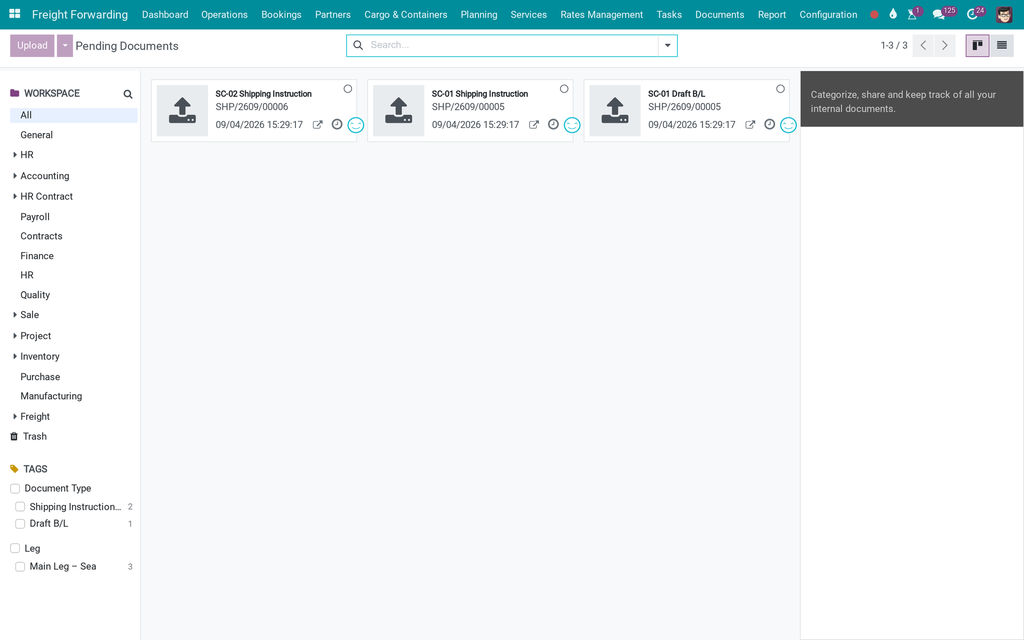
Every HAWB and Air D/O request is typed by Freight Document Type the moment you confirm the wizard, and filed straight into that shipment's own document folder, alongside its other paperwork. Nothing to sort through a shared inbox once the wizard closes.
Key Features
Prepare HAWB
Appears on air shipment forms next to the existing Prepare SI and Prepare Draft B/L buttons. Fill in the HAWB number, due date, request owner and a short summary, then confirm - the module writes the HAWB number onto the shipment if it was empty, and opens a Required Document already typed “House Airway Bill (HAWB)”. Reopening the wizard on a shipment that already has one finds and updates that same request instead of creating a duplicate. Saves a separate lookup-and-classify step for every HAWB a forwarder prepares.
Issue Air D/O
Appears only for import air shipments with no Delivery Order issued yet. Confirming it stamps the shipment as D/O-issued, writes the D/O number back if it was empty, and opens a Required Document typed “Air Delivery Order”. Once issued, the button is gone from that shipment - the built-in guard against issuing a second D/O on cargo already released.
Air-specific document classification
Two tags - “House Airway Bill (HAWB)” and “Main Leg - Air” - ship with the module, the same way “Delivery Order (DO)” ships with Freight & Document Integration for sea-freight paperwork. Every HAWB and Air D/O request is also typed by Freight Document Type the moment its wizard confirms, so air paperwork is filterable alongside your sea-freight documents from the first install.
How It Works
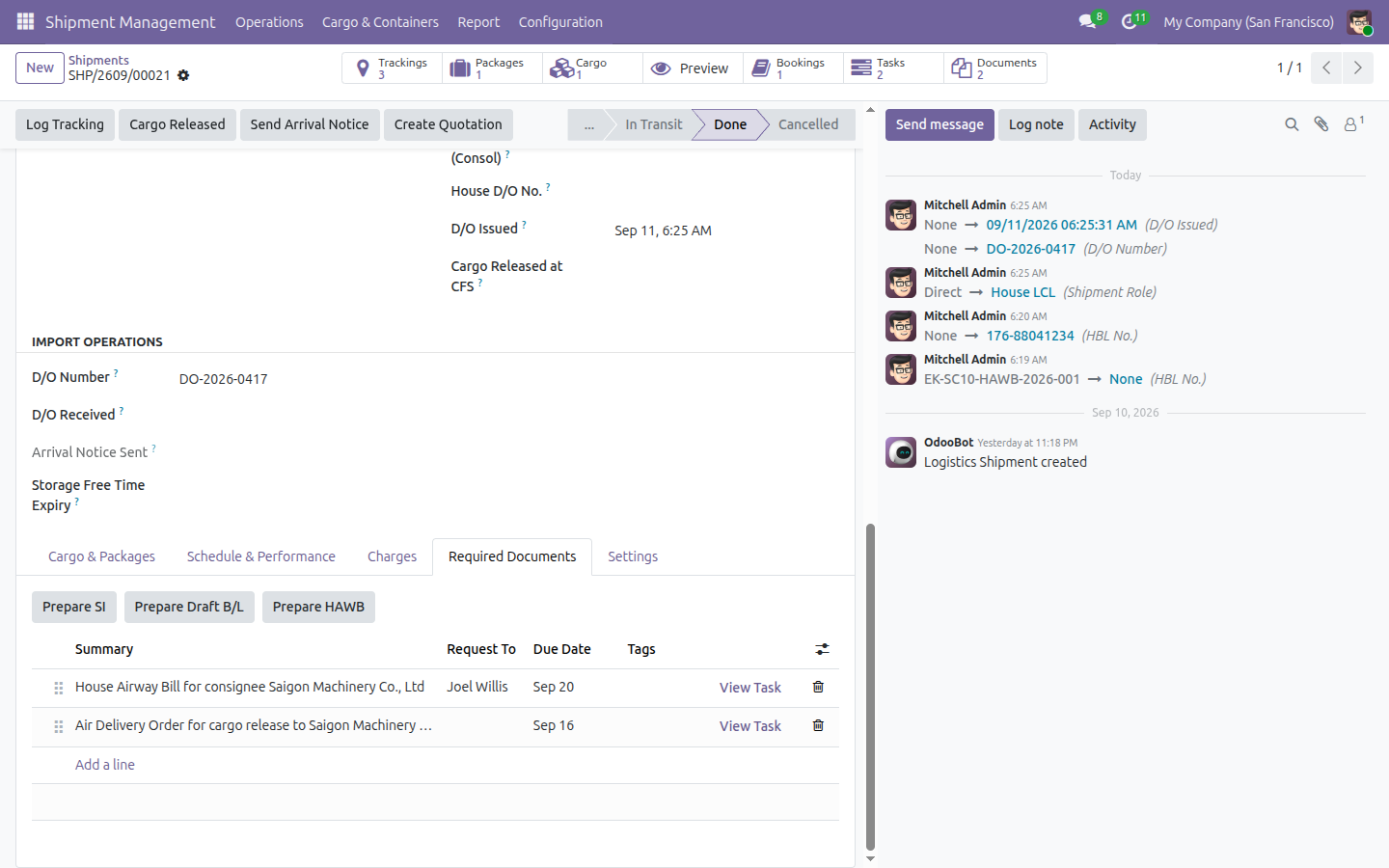
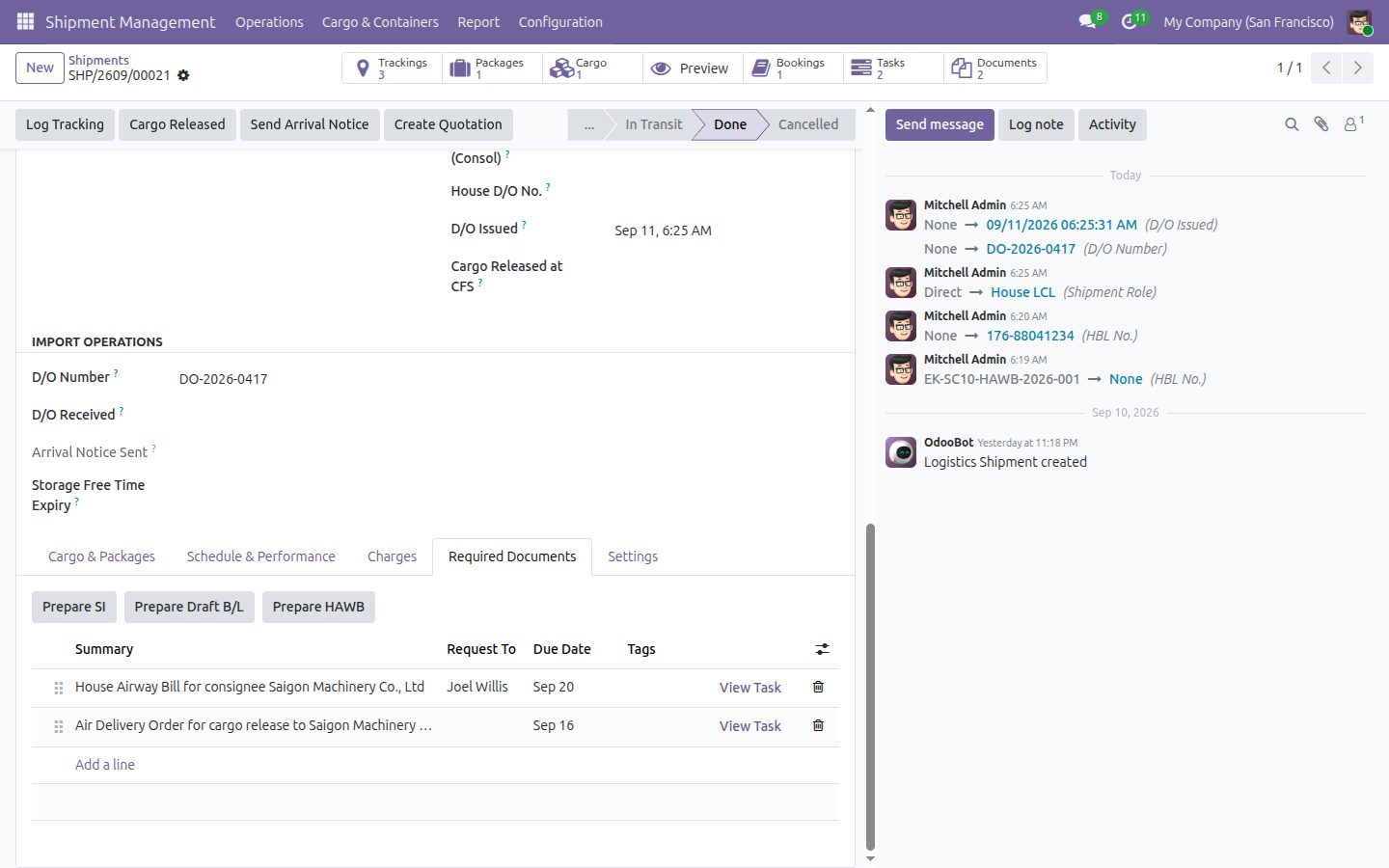
An export air shipment reaches the point where the airline needs its House Airway Bill. The coordinator opens the shipment and finds Prepare HAWB sitting right next to Prepare SI and Prepare Draft B/L - it only shows up because the shipment's Main Transport is Air. They fill in the HAWB number, the due date and a short summary, then confirm. The wizard writes the HAWB number onto the shipment, files a Required Document typed “House Airway Bill (HAWB)” into the shipment's own folder, and opens that record so the coordinator can see it landed correctly.
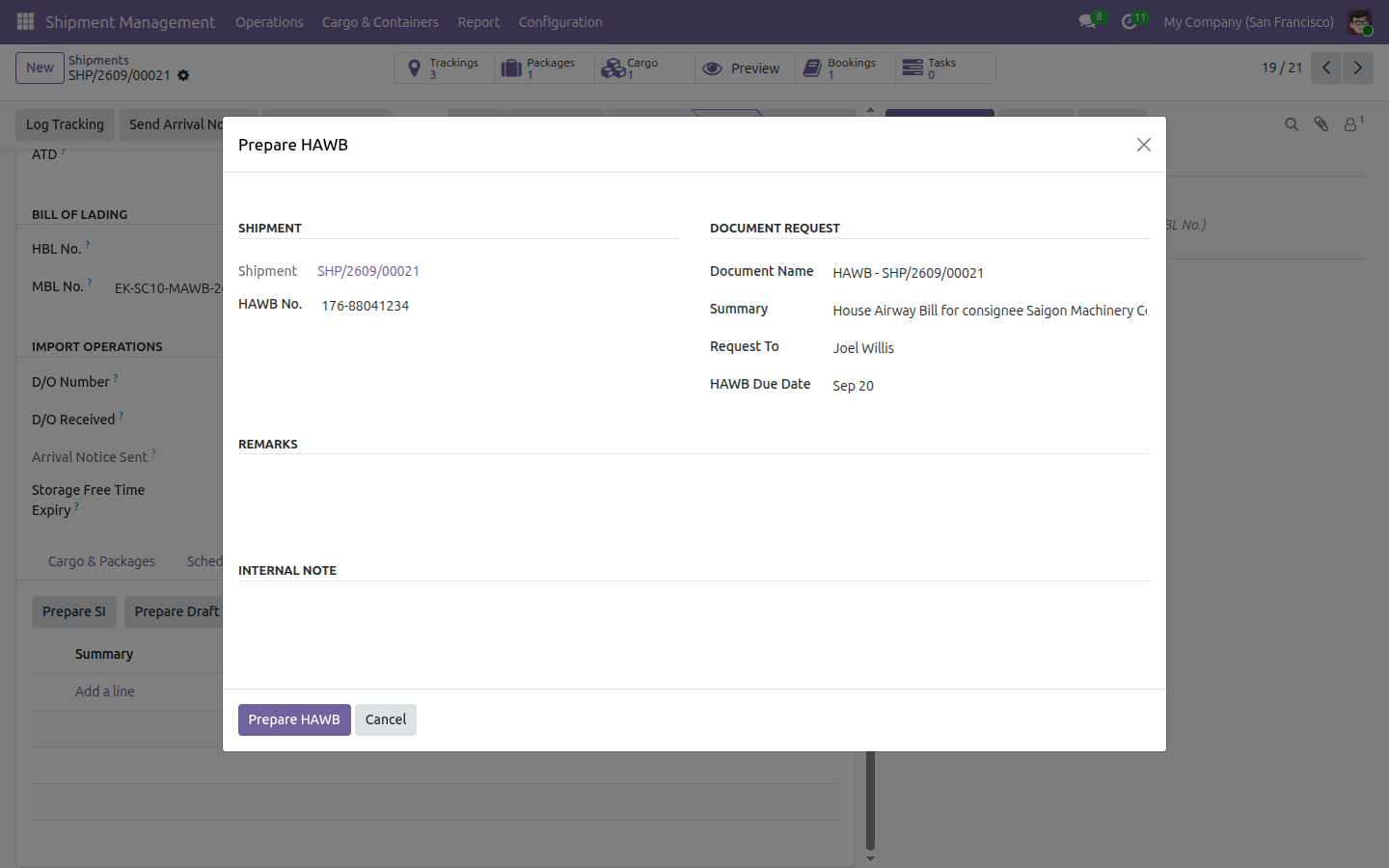
Prepare HAWB, pre-filled from the shipment
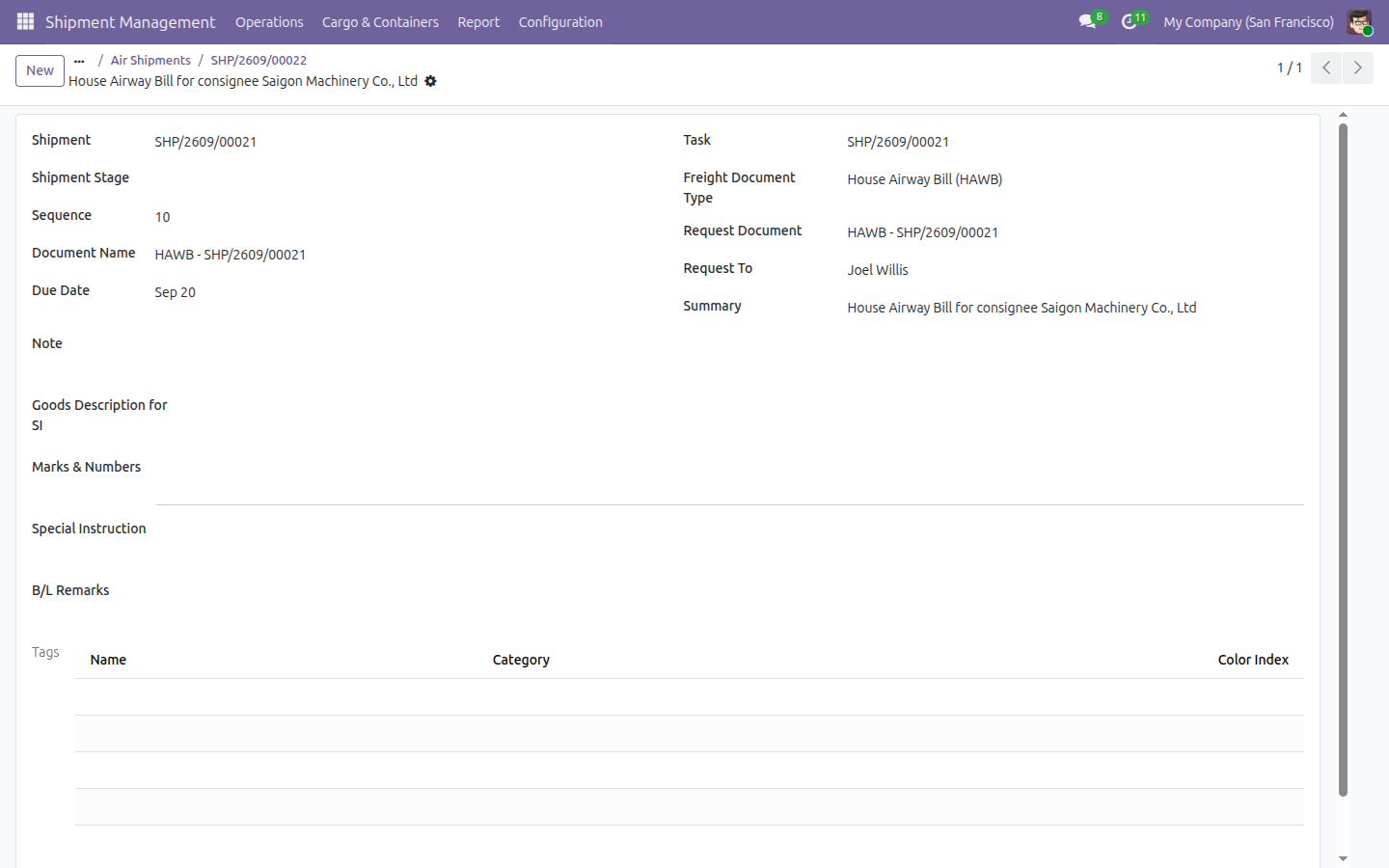
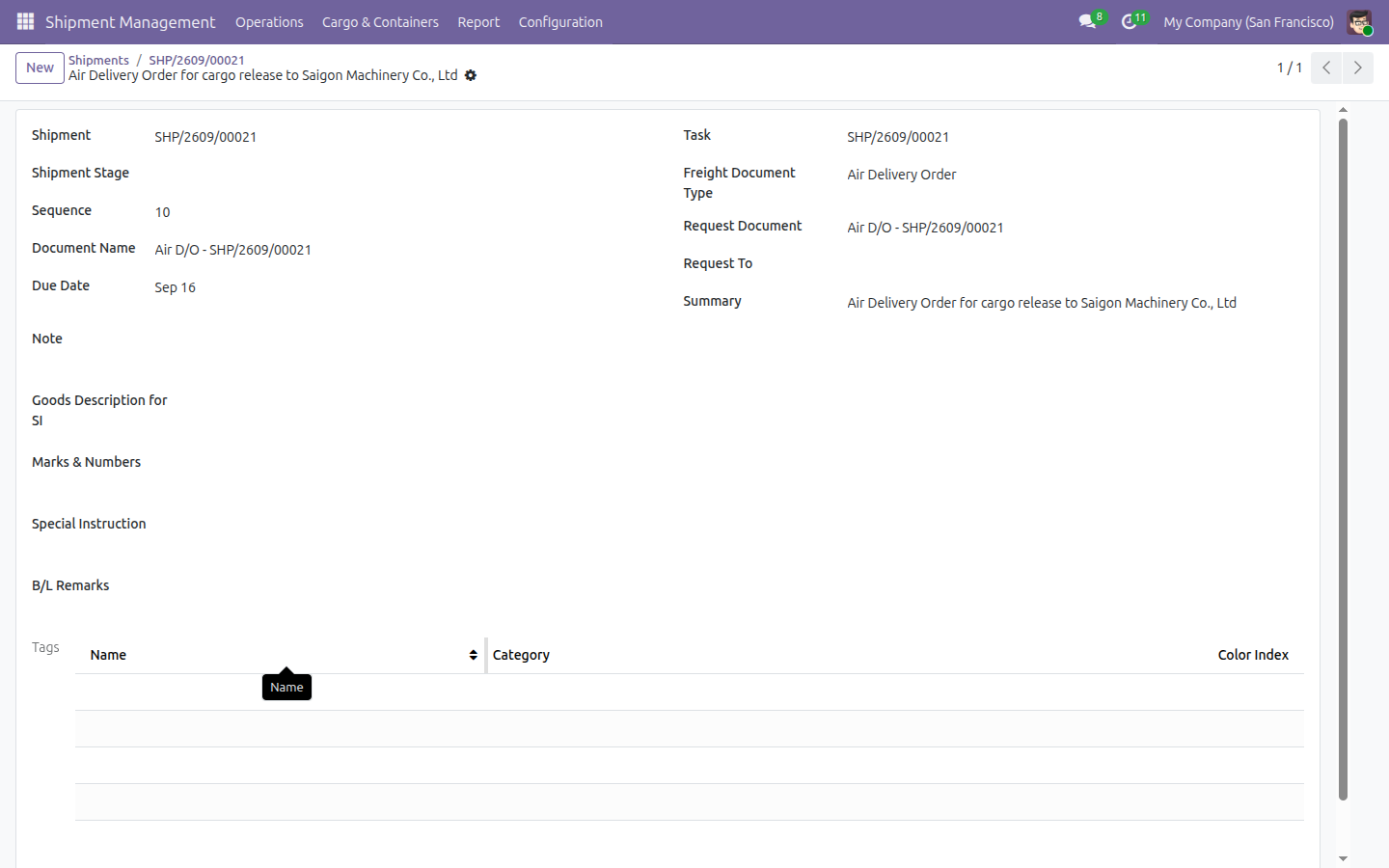
The resulting request, typed and linked to the shipment
If the airline later confirms a different HAWB number before the request is closed, reopening Prepare HAWB on the same shipment finds the existing request and updates it in place - the shipment never ends up with two HAWB rows.
An import air shipment tells a different story. Until it's actually time to release the cargo, Issue Air D/O doesn't even appear - the button only shows once the shipment is confirmed Air and Import, with no D/O issued yet. The coordinator opens that shipment, fills in the D/O number and due date, and confirms. The module stamps the shipment as D/O-issued and files a Required Document typed “Air Delivery Order” - and on any later visit to that same shipment, Issue Air D/O has quietly disappeared, because there's nothing left to issue.
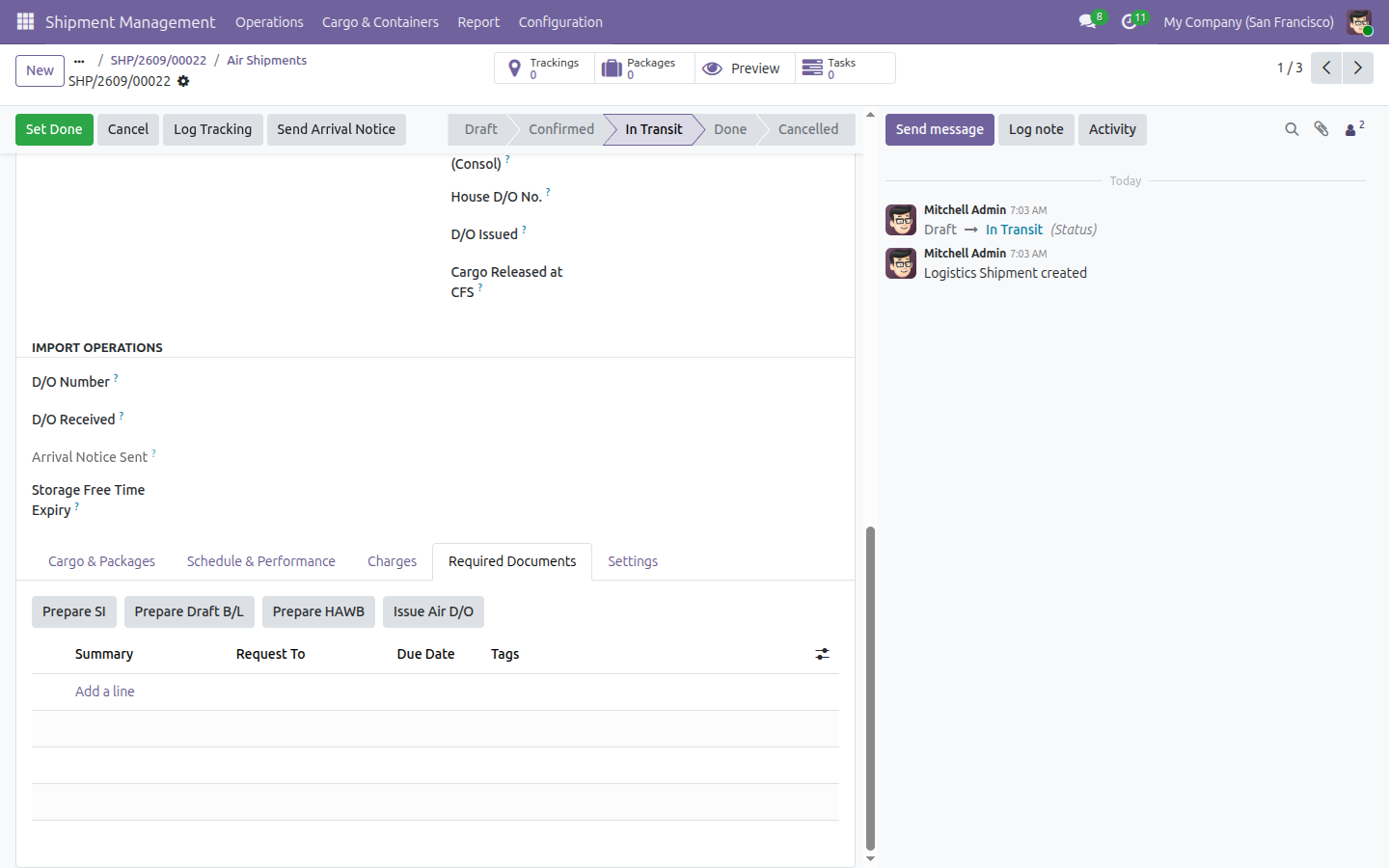
Issue Air D/O - visible only before a D/O exists
See Freight Air - Document Integration in Action
Explore the Prepare HAWB and Issue Air D/O wizards, and how each Required Document lands in the shipment's own folder, on a live database.
Try the Live DemoNeed help with Freight Air - Document Integration?
Support
apps.support@viindoo.comTechnical Requirement
- Odoo version: 19.0
- Editions: Odoo Community Edition, Viindoo SaaS
-
Required modules:
Freight & Document Integration (
viin_document_freight), Freight Air Management (viin_freight_air) - Installation: Activates automatically once both required modules are present - no separate install step.
- License: OPL-1
Frequently Asked Questions
Which Odoo edition does this need?
Community Edition or Viindoo SaaS. It does not require Odoo Enterprise.
Does it install itself, and what does it depend on?
Yes. It auto-installs the moment its two dependencies - viin_document_freight
and viin_freight_air - are both present, with no
separate install step of your own. It's one of only two modules in the Documents cluster
that behaves this way, alongside its parent Freight & Document Integration.
Will installing this add a new menu?
No. It ships no menu and no document actions of its own - Prepare HAWB and Issue Air D/O are two buttons added directly to the shipment form you already use. The Documents menu, the Required Documents checklist and the per-shipment folder all come from Freight & Document Integration, unchanged.
Why don't I see the "Issue Air D/O" button on a shipment?
It only appears for shipments that are Air mode, Import direction, and have not yet had a Delivery Order issued. Once a D/O is issued, the button disappears from that shipment - that's the module's guard against issuing a second one, not a fault to report.
Do all my freight users get full access to these wizards?
Anyone who can see a shipment can see its Required Documents. Using Prepare HAWB or Issue Air D/O needs the "All Shipments" access level, the same as the sea-freight wizards - a user limited to "Own Shipments" view access may see the button but hit an access error on clicking it. Worth checking before you assign roles.
Freight Air — Document Integration
Note
Extends viin_document - see its documentation: ../../viin_document/doc/index.rst
Note
Extends viin_document_freight - see its documentation: ../../viin_document_freight/doc/index.rst
Freight Air — Document Integration adds two guided forms to an air shipment: one to prepare its House Airway Bill (HAWB) and one to issue its Air Delivery Order. Each form writes the reference number straight back onto the shipment and creates a tracked entry on the shipment's own Required Documents checklist - the same checklist viin_document_freight already puts on every shipment.
Installation
This module activates itself - there is no Activate button to click for it directly. It turns on automatically once both of the following are installed:
- Freight & Document Integration (technical name viin_document_freight)
- Freight - Air (technical name viin_freight_air)
Installing any Freight Forwarding app that pulls in air freight brings both in automatically, and this module turns on right behind them. Open Apps, search for viin_document_freight_air, and confirm its state shows Installed.
Configuration
Nothing needs to be set up before you start using this module. It ships two document tags, ready to apply by hand:
- House Airway Bill (HAWB)
- Main Leg – Air
It does not create a document workspace, a team, or a filing rule of its own - a shipment's paperwork still files into the same per-shipment folder that viin_document_freight already creates. See that module's documentation for how that folder works and who can act on what is filed there.
Usage
Both guided forms live in the same place on the shipment.
- Open Shipment Management ‣ Operations ‣ All Shipments and open an air shipment (its Main Transport field reads Air).
- Click the Required Documents tab.
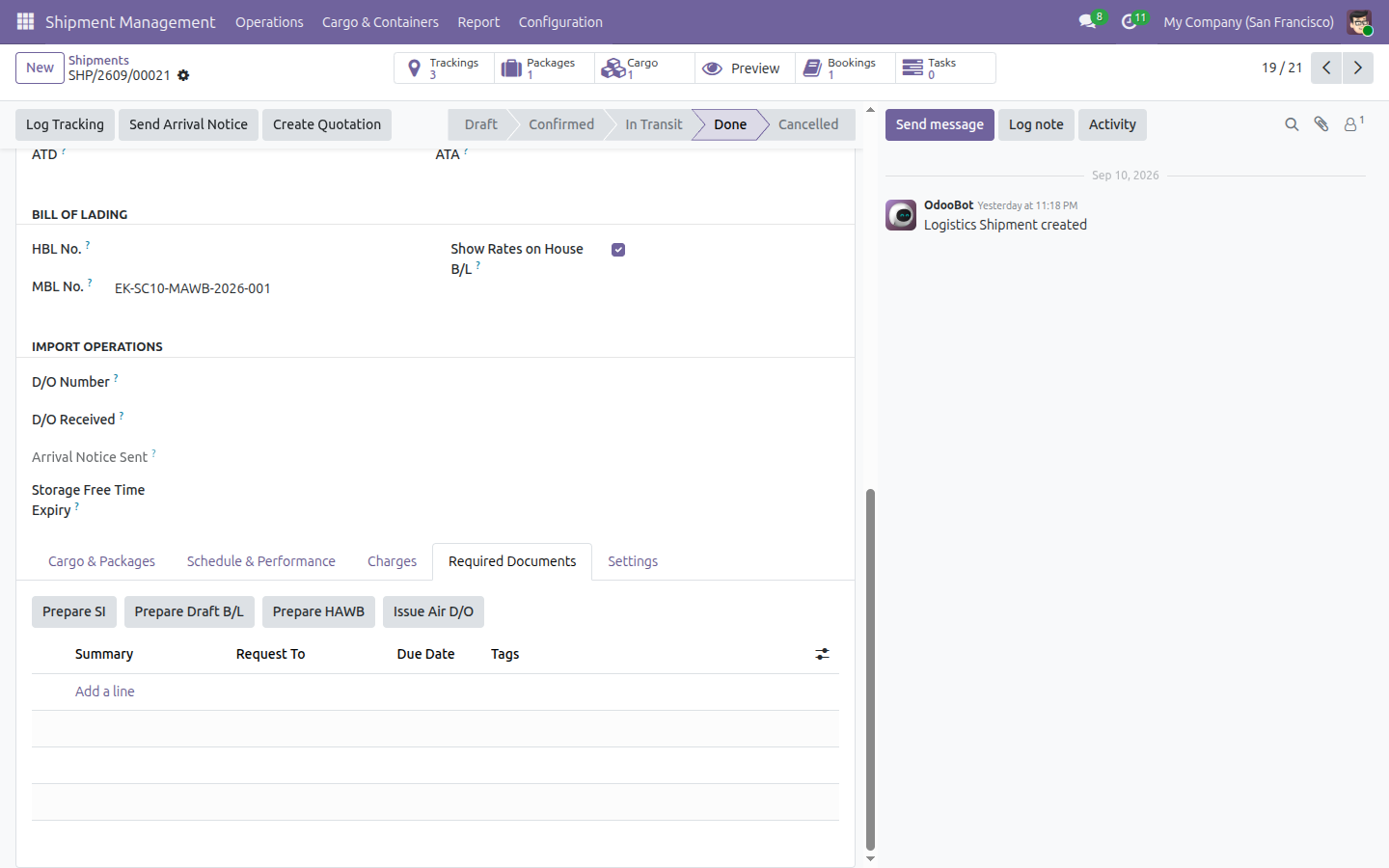
Prepare HAWB appears on every air shipment. Issue Air D/O appears only once the shipment is also an import and its D/O has not already been issued - see Troubleshooting below for a condition that button's own visibility does not check.
Prepare a House Airway Bill
- On the Required Documents tab, click Prepare HAWB.
- Fill in HAWB No. with the number the airline issued, and the required HAWB Due Date. Document Name and Summary are pre-filled and can be edited; Request To is optional.
- Click Prepare HAWB in the footer.
A Required Document record opens - Odoo's plain default form, since this checklist entry has no dedicated screen of its own - with its Freight Document Type set to House Airway Bill (HAWB). Back on the shipment, the HAWB number you typed now shows in the HBL No. field (the shipment form's own, more general label for the same number), and a Documents smart button appears in the header.
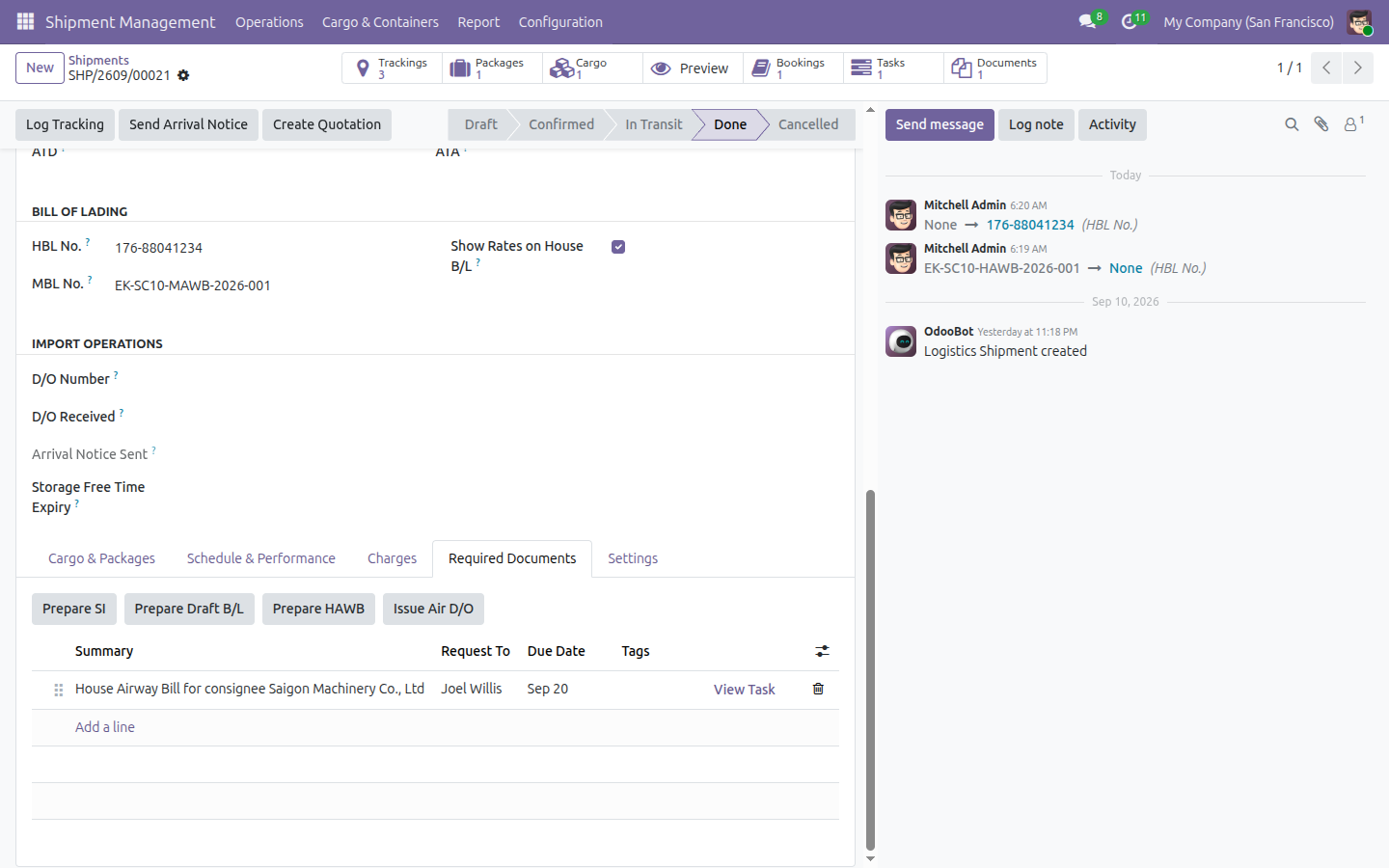
The shipment's HBL No. is written only the first time - if it already carried a number, preparing a HAWB never overwrites it.
Correct an already-requested HAWB
- Click Prepare HAWB again on the same shipment.
The form reopens with an Existing HAWB Request field pointing at the checklist entry it already created, and every other field pre-filled from that entry.
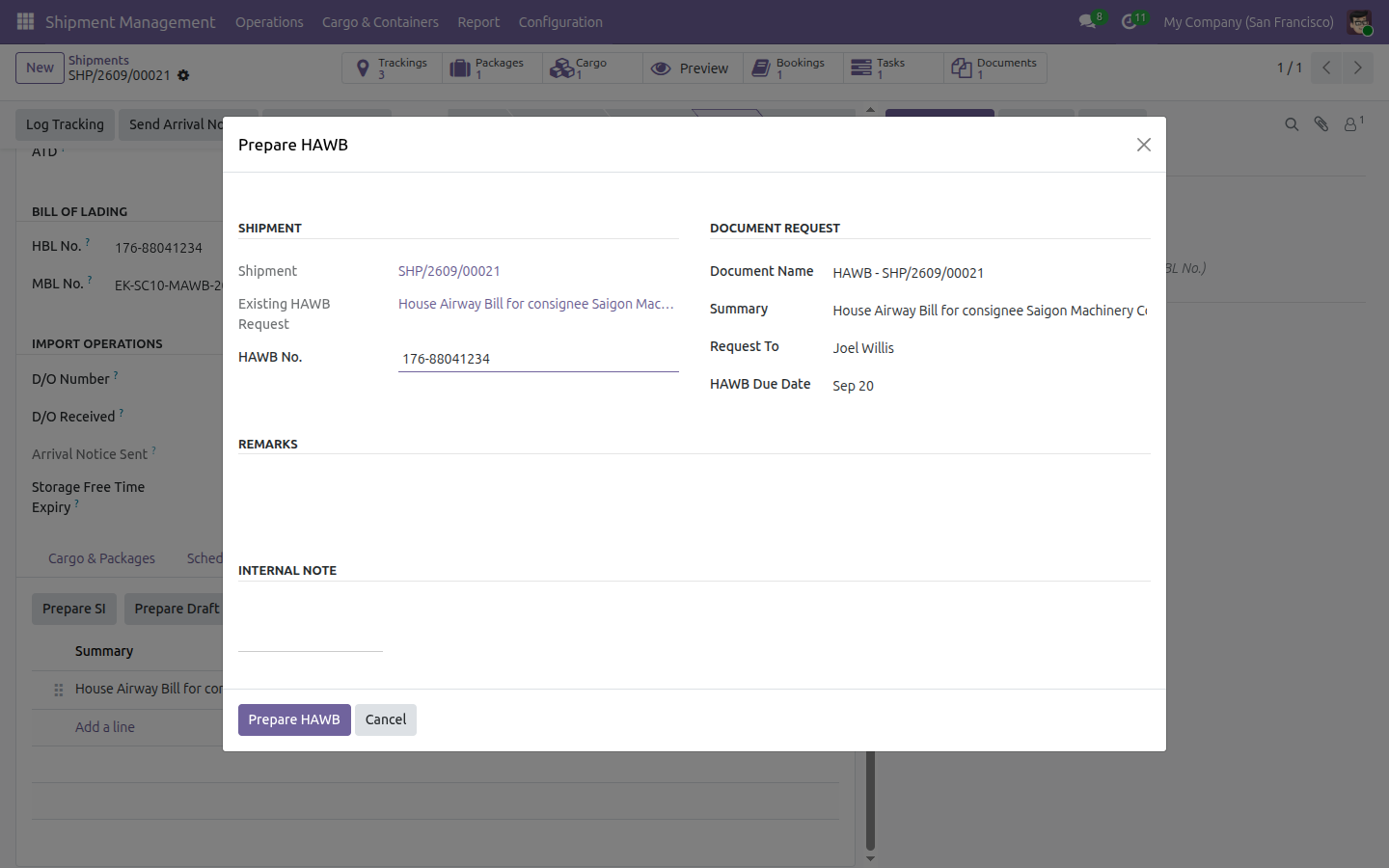
- Change what needs correcting and click Prepare HAWB again.
The same checklist entry is updated - no second row is created.
Issue the Air Delivery Order for an import shipment
Issue Air D/O runs on any air shipment whose Direction is Import, including a direct shipment, and records the issue time only once - see Troubleshooting if you get an error running it a second time.
- On the Required Documents tab of an import air shipment, click Issue Air D/O.
- Fill in D/O Number and the required D/O Due Date. Document Name and Summary are pre-filled.
- Click Issue D/O in the footer.
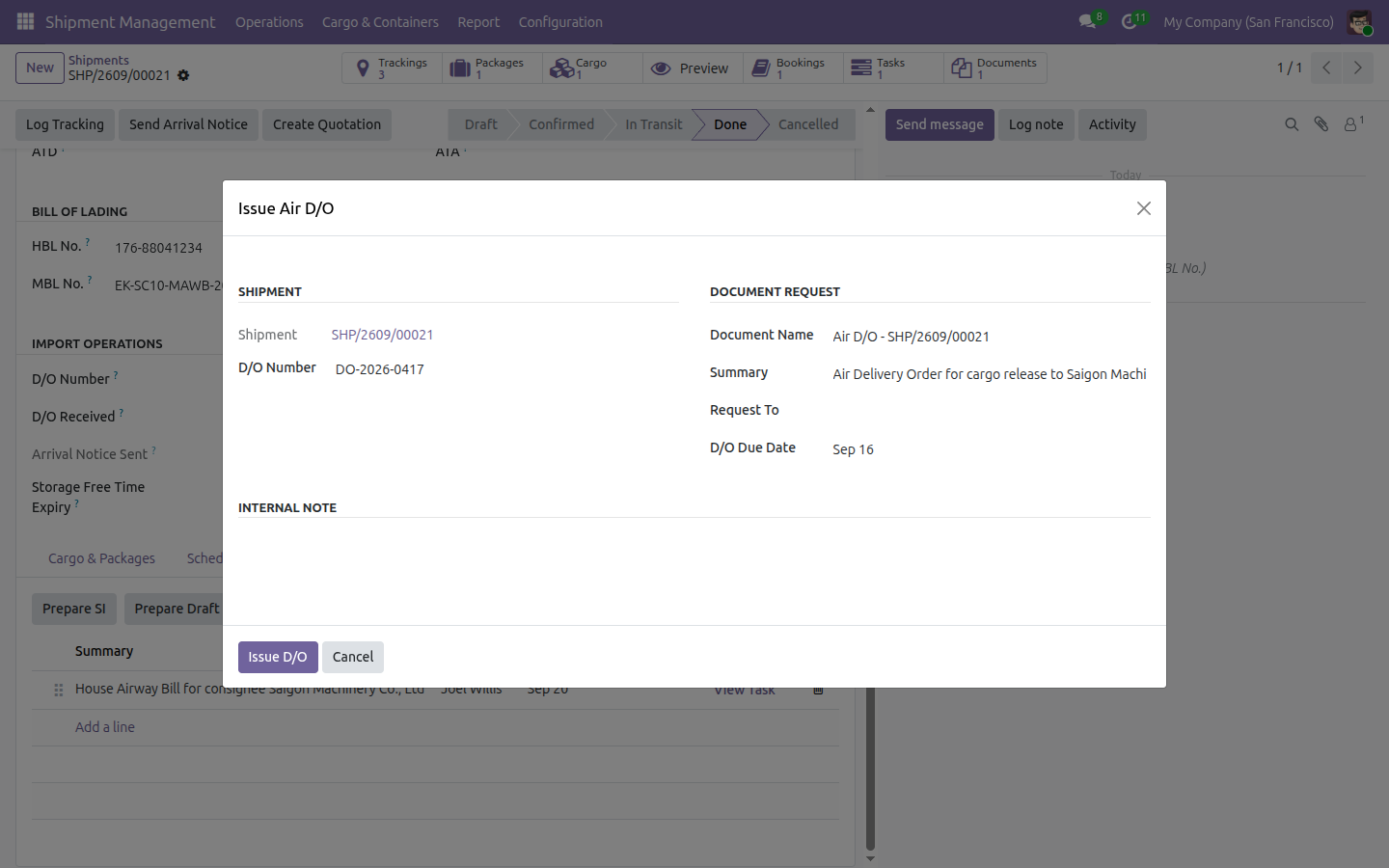
A Required Document opens with its Freight Document Type set to Air Delivery Order.
Back on the shipment, D/O Number now carries the number you typed (again, only if it was empty before) and the shipment is stamped as D/O issued - so the Issue Air D/O button disappears from the Required Documents tab, and the checklist now lists both entries.
Troubleshooting
- I clicked Issue Air D/O and got D/O has already been issued for this shipment. The D/O of a shipment is issued only once. Another user issued it while your wizard was open; reload the shipment - the button disappears once the D/O has been issued.
- I don't see Issue Air D/O on a shipment I expect it on. It only shows for an air shipment whose Direction is Import and whose D/O has not already been issued - it never appears on an export or domestic shipment, and it disappears again once a D/O has been issued.
- The HAWB or Air Delivery Order document I created does not carry the House Airway Bill (HAWB) or Main Leg – Air tag. Apply the tag yourself from the Required Document's own Tags field (or from the document's info panel in the Documents app) - preparing a HAWB or issuing a D/O does not tag the resulting document automatically.
- I don't see Prepare HAWB or Issue Air D/O anywhere on the shipment. Both buttons sit inside the Required Documents tab, not the main button row at the top of the form.
FAQ
- Does every air shipment get an Issue Air D/O button?
- No. Only an import air shipment whose D/O has not already been issued shows the button, whatever its shipment role.
- Do I need to tag the HAWB or D/O document myself?
- Yes. The module ships the House Airway Bill (HAWB) and Main Leg – Air tags ready to use, but they are not applied to the document automatically - add them from the document's own Tags field.
- Does preparing a HAWB overwrite a number already on the shipment?
- No. The shipment's HBL No. (and, for a D/O, its D/O Number) is written only when that field was empty; running the wizard again on an already-numbered shipment keeps the original number.
- Do I need to install this module myself?
- No. It installs itself once viin_document_freight and viin_freight_air are both present.
- Does this need Odoo Enterprise?
- No - it runs on Odoo Community.
This software and associated files (the "Software") may only be used (executed, modified, executed after modifications) if you have purchased a valid license from the authors, typically via Odoo Apps, or if you have received a written agreement from the authors of the Software (see the COPYRIGHT file).
You may develop Odoo modules that use the Software as a library (typically by depending on it, importing it and using its resources), but without copying any source code or material from the Software. You may distribute those modules under the license of your choice, provided that this license is compatible with the terms of the Odoo Proprietary License (For example: LGPL, MIT, or proprietary licenses similar to this one).
It is forbidden to publish, distribute, sublicense, or sell copies of the Software or modified copies of the Software.
The above copyright notice and this permission notice must be included in all copies or substantial portions of the Software.
THE SOFTWARE IS PROVIDED "AS IS", WITHOUT WARRANTY OF ANY KIND, EXPRESS OR IMPLIED, INCLUDING BUT NOT LIMITED TO THE WARRANTIES OF MERCHANTABILITY, FITNESS FOR A PARTICULAR PURPOSE AND NONINFRINGEMENT. IN NO EVENT SHALL THE AUTHORS OR COPYRIGHT HOLDERS BE LIABLE FOR ANY CLAIM, DAMAGES OR OTHER LIABILITY, WHETHER IN AN ACTION OF CONTRACT, TORT OR OTHERWISE, ARISING FROM, OUT OF OR IN CONNECTION WITH THE SOFTWARE OR THE USE OR OTHER DEALINGS IN THE SOFTWARE.