
Overtime
by Viindoo
| Lines of Code | 3709 |
| Technical name | viin_hr_overtime |
| License | OPL-1 |
| Website | https://viindoo.com/apps/modules/19.0/viin_hr_overtime |
| Read description for | v 13.0 v 14.0 v 15.0 v 16.0 v 17.0 v 18.0 |
| Required Apps | Discuss (mail) Employees (hr) |
| Included Dependencies | Viindoo Base Advanced HR Management HR Contracts (Viindoo) Work Entry Work Entry - Contract Base Addendum Viindoo Holiday & WorkDay Manager Safe IR Metadata Proxies |
| Extensions | Overtime Payroll OmniApproval™ - Overtime Approvals Overtime Timesheet Overtime Attendance Overtime - Compensatory Time Off Vietnam - Overtime |

Plan overtime first. Pay it by rule. See the cost as it builds.
For HR teams, overtime officers and line managers who approve extra hours before they are worked
Overtime that is planned before it is paid
Is this you?
Overtime is agreed in a chat or on paper, then reconstructed at the end of the month.
Nobody is quite sure which rate an evening, a weekend or a holiday hour should get.
A contract changes mid-month and earlier overtime is still priced on the old terms - unnoticed.
Payroll asks where an overtime figure came from, and the answer is a spreadsheet.
Management sees what overtime cost only after it has been paid.
What changes
Overtime is agreed in a chat or on paper, then reconstructed at the end of the month.
→ Record each plan per employee and day, with a reason - one employee at a time or a whole team at once.
Nobody is quite sure which rate an evening, a weekend or a holiday hour should get.
→ Day-and-hour rules pick the overtime code, and each code carries its own dated pay rates.
A contract changes mid-month and earlier overtime is still priced on the old terms - unnoticed.
→ Every plan is priced on the contract in force on its date. Plans that drift from their contract are flagged and re-attached in one action.
Payroll asks where an overtime figure came from, and the answer is a spreadsheet.
→ Each plan line shows its hours, the rule that matched, the rate and the pay - and becomes a work entry for payroll.
Management sees what overtime cost only after it has been paid.
→ Compare planned and actual hours and pay by employee and month before the payslips are run.
Key Features
Overtime plans per employee and day
Plan overtime for one employee, or with Mass Schedule for several employees, a department or a company at once. Each plan is priced on the employee's contract in force on that date.
Contract mismatch, caught and fixed
When an adjustment is confirmed or contract dates change, affected plans are flagged, can be filtered, and are re-attached to the right contract with one action.
Dated pay rates
Pay rates are dated lines per overtime code. A future rate applies from its date, and a company rate that falls below the shared rate is saved and flagged, not blocked.
Day and hour-band rules
Rules match planned hours to an overtime code by day of the week, hour band and holiday. A company in a country without a localization starts with none and sets its own.
Work entries for payroll
Each plan line gives an overtime work entry dated on its day, which follows its plan and cannot be cancelled or deleted on its own.
Planned against actual
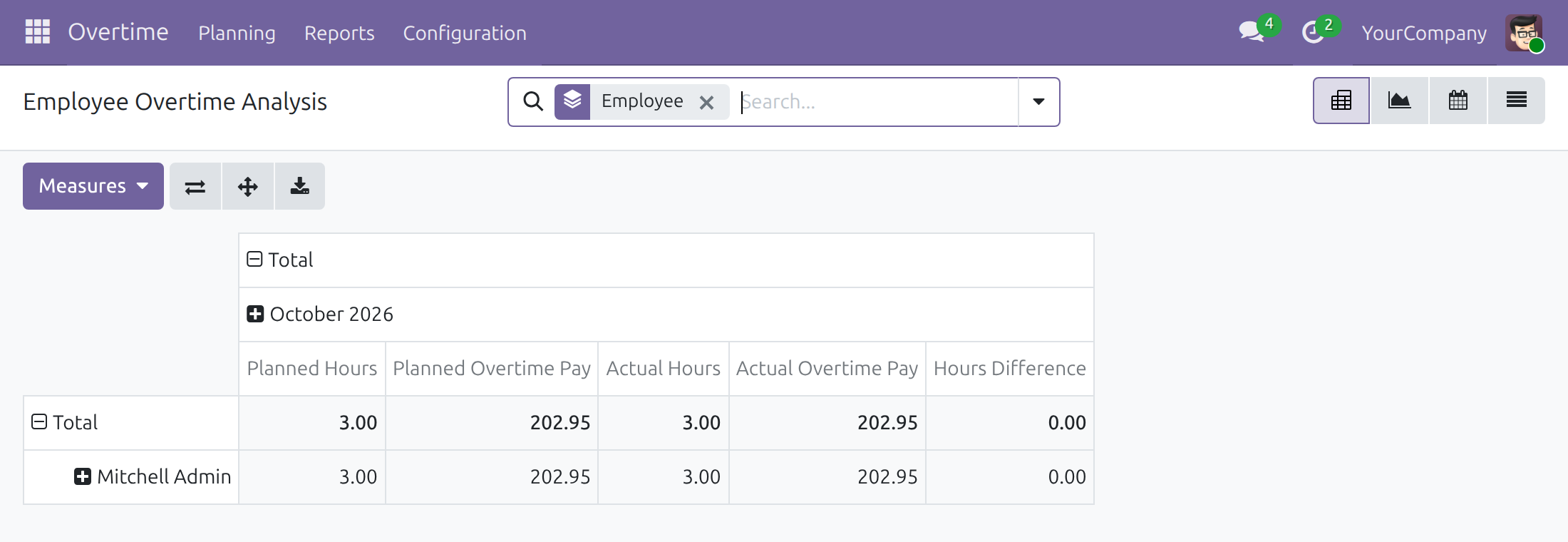
The Overtime Analysis report compares planned and actual overtime hours and pay by employee and month.
Who it is for
Team leads
Plan overtime for the people they manage, one day and one reason at a time.
Overtime officers
Plan for anyone in the allowed companies, resolve contract mismatches and read the analysis.
Overtime administrators
Set up codes, dated rates and day-and-hour rules once and keep them current.
HR administrators
Read the pay figures of each plan, which are restricted to this role.
Best for: companies that approve overtime before it is worked and want it paid by written rule.
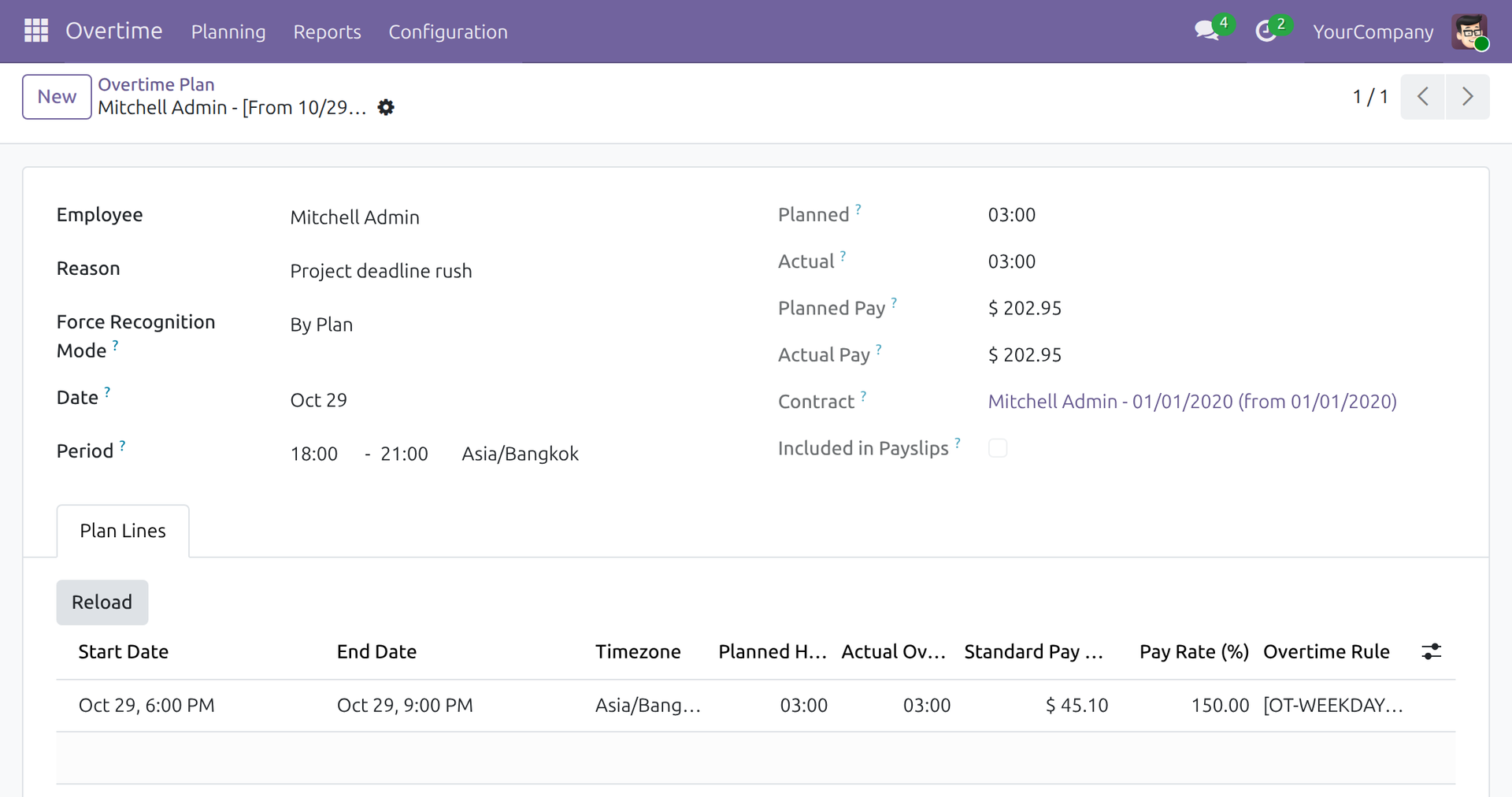
An overtime plan, priced on the contract in force
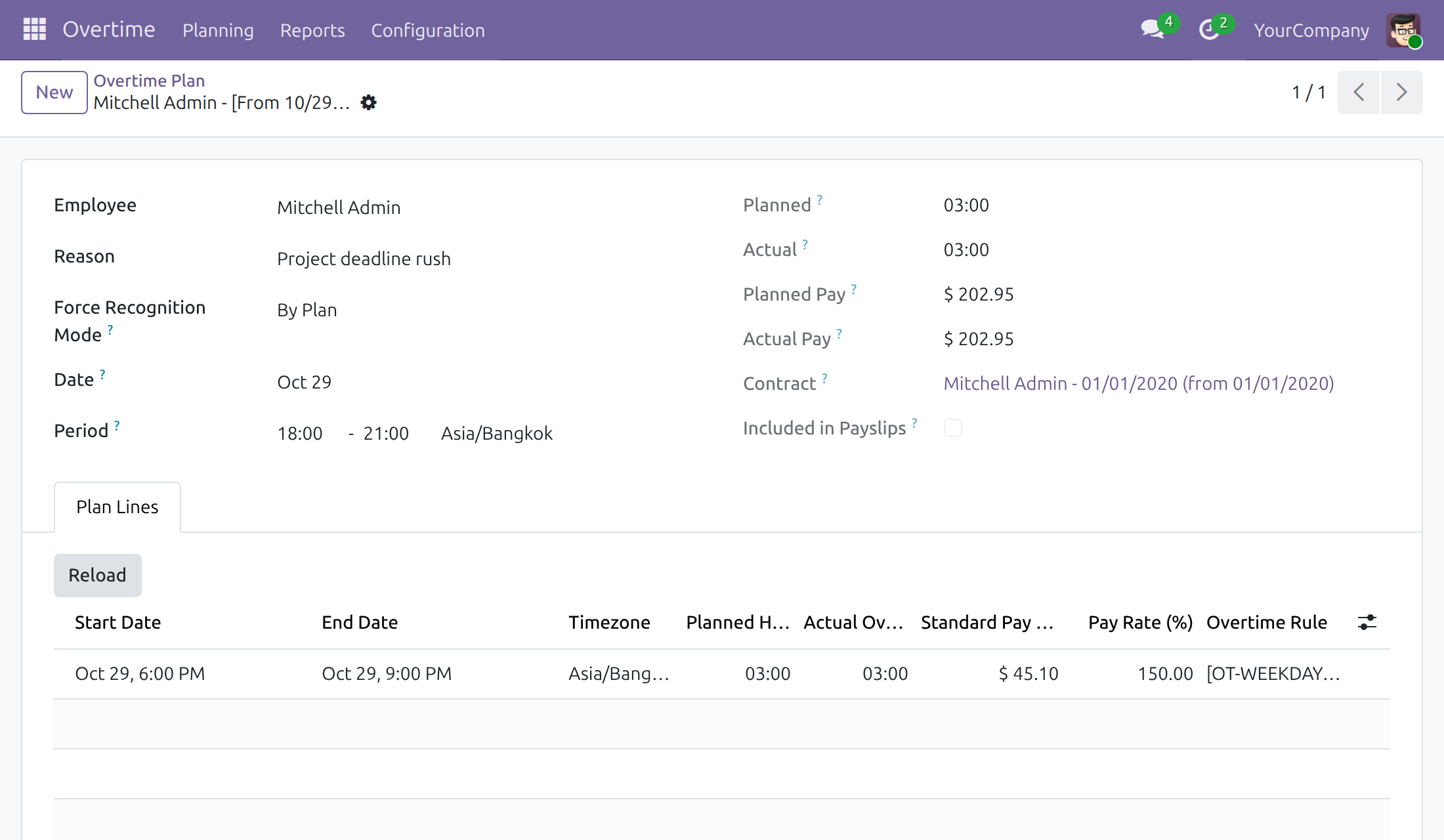
Pay rates as dated lines
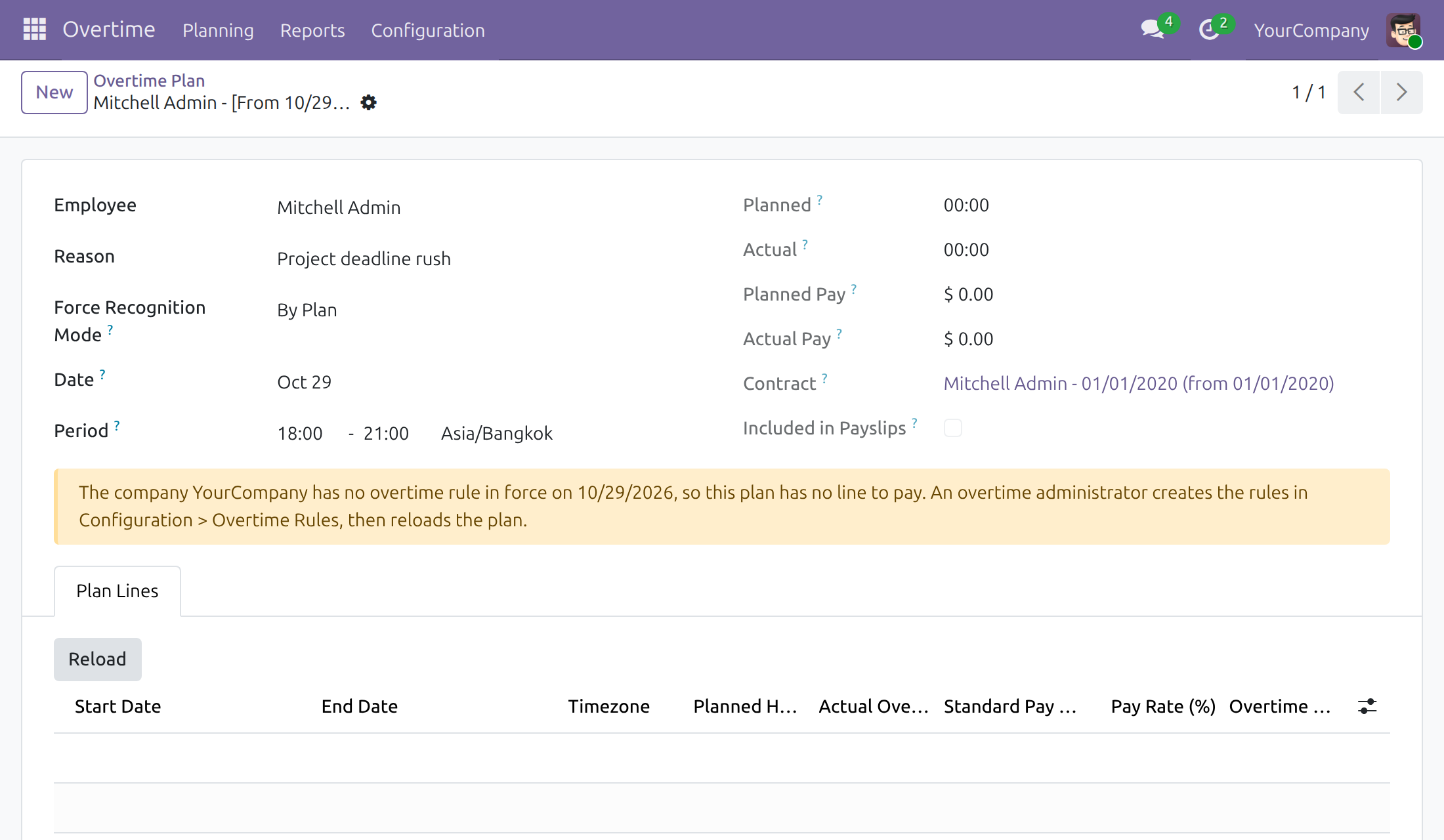
A clear prompt when no rule is set up yet
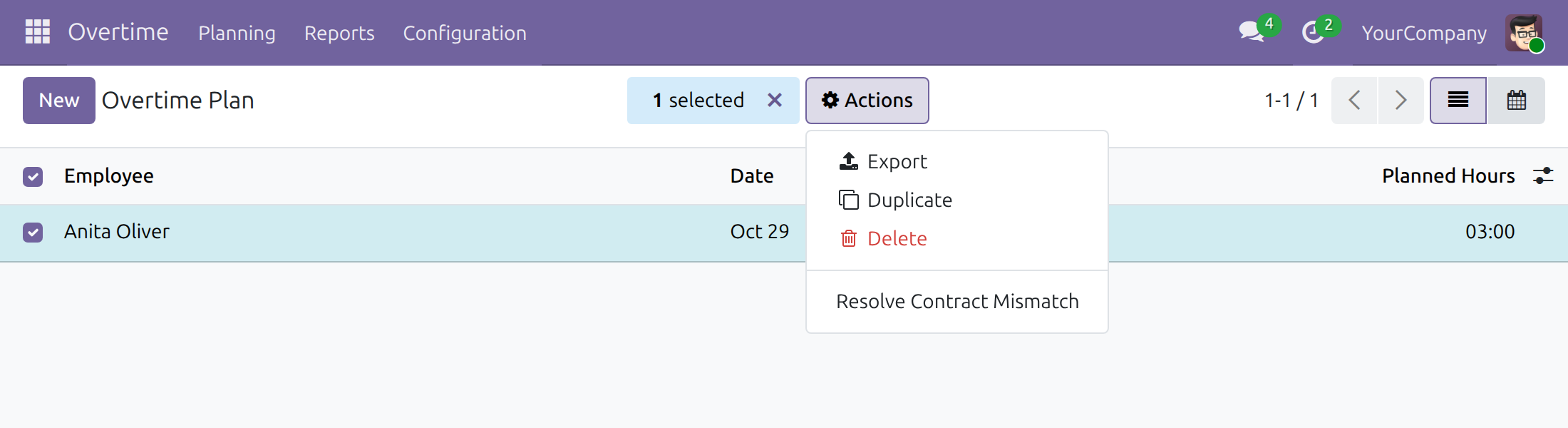
Re-attach plans to the right contract in one action
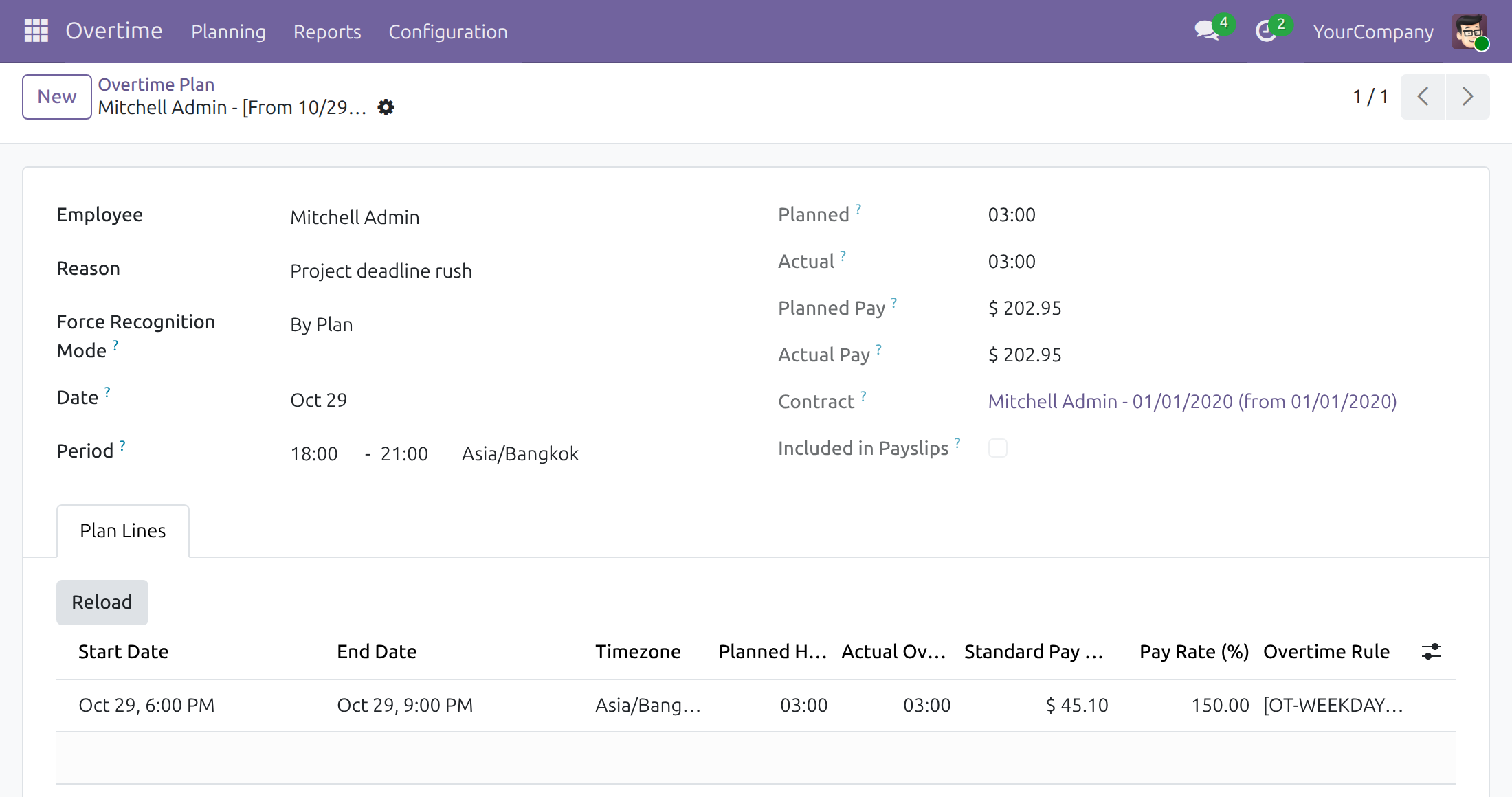
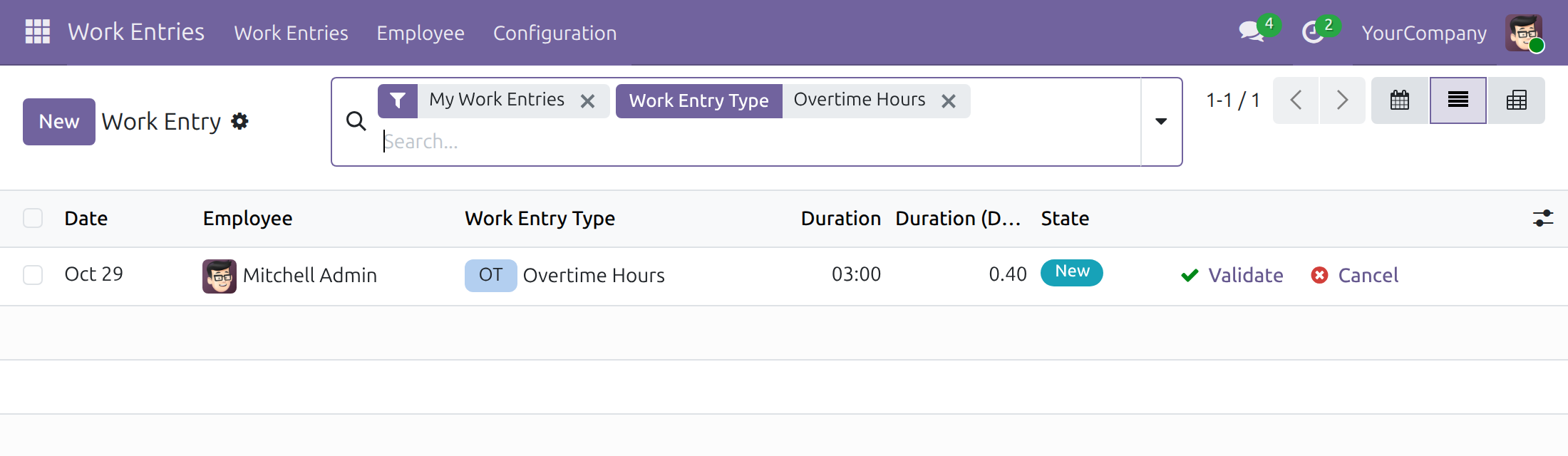
Overtime hours as work entries
Planned against actual, by employee and month
Frequently Asked Questions
Does it calculate overtime pay?
Yes. Each plan shows planned and actual pay from the hours, the matched rule, its rate and the overtime base amount set on the contract. The pay figures on a plan are visible to HR administrators only. Turning recognised hours into payslip lines is the job of Overtime Payroll.
Can overtime be approved and limited?
Overtime Approval adds approval requests, per-period hour limits and a warning that must be acknowledged when a limit is exceeded. This app on its own plans and prices overtime without an approval step.
Can actual hours come from attendance or timesheets?
Yes. Overtime Attendance matches plans against check-in and check-out logs, and Overtime Timesheet matches them against timesheets. On its own, the app recognises hours by plan.
What about a night shift across midnight?
A plan covers one day, so a shift across midnight is entered as two plans, one per day. Overlapping plans for one employee are refused.
What if a plan is already on a payslip?
With Overtime Payroll installed, a plan on a payslip that is no longer a draft is not reloaded or recognised again, so paid hours stay as they were paid.
Does it fit my country's overtime rules?
Rates and rules are plain data that an overtime administrator edits. A localization can ship ready-made ones, such as Vietnam - Overtime; otherwise you create your own from the Configuration menu.
Which Odoo version and editions are supported?
Odoo 19.0, Community and Enterprise editions.
Need help with Overtime?
Pre-Sales & Partnership
viindoo.com/contactusTechnical Support
viindoo.com/ticketTechnical Requirement
- Odoo version: 19.0
- Editions: Odoo Community, Odoo Enterprise
- Required modules: Viindoo Base, HR Contracts (Viindoo), Work Entry - Contract
- License: OPL-1
Extend it further
Add approval, clock or timesheet evidence, payroll and a country setup when the process needs them.
OmniApproval™ - Overtime Approvals
Send overtime plans through approval requests, with hour limits and a warning to acknowledge when a limit is exceeded.
Overtime Attendance
Recognise actual overtime by matching each plan against check-in and check-out logs.
Overtime Timesheet
Recognise actual overtime by matching each plan against timesheets.
Overtime Payroll
Carry recognised overtime into payroll for the overtime calculation on payslips.
Overtime - Compensatory Time Off
Convert overtime hours into compensatory time off.
Vietnam - Overtime
Vietnamese overtime codes, legal pay rates and rules as editable dated data, for companies in Vietnam.
This guide is written for overtime administrators, HR officers and team leads: the people who set up overtime rates and rules, plan overtime for employees and follow it up.
Installation
- Navigate to Apps;
- Search with keyword viin_hr_overtime;
- Press Install.
Instruction
Instruction video: Overtime
1. Initial configuration
An overtime administrator sets up the overtime application once, in this order:
- Step 1: Configure the overtime recognition mode. Navigate to Overtime ‣ Configuration ‣ Settings and look at Overtime Recognition Mode. This module supports only By Plan: the actual overtime of a plan is its planned overtime. Bridging modules add recognition from attendance or timesheets, for example Overtime Attendance (viin_hr_overtime_attendance) or Overtime Timesheet (viin_hr_overtime_timesheet).
- Step 2: Configure the overtime codes, their rates and the overtime rules, as described below.
- Step 3: Configure the overtime reasons: the reasons for which your employees work overtime. Navigate to Overtime ‣ Configuration ‣ Overtime Reasons. A reason named General is provided; a reason can also force a recognition mode for the plans that use it.
When the approval of overtime plans is enabled (Overtime Plan Approval in the same Settings page, provided by viin_hr_overtime_approval), the Settings page also holds Overtime Hours Limit: the maximum overtime hours per workday, holiday, week, month and year (0 ignores a limit). See the documentation of that module for the approval of overtime plans.
Overtime codes and dated rates
Navigate to Overtime ‣ Configuration ‣ Overtime Codes. An overtime code names one kind of overtime, for example weekday evening or public holiday. It is linked to a Work Entry Type, which types the work entries of the overtime, and it can be limited to a Country. The Rates tab lists the pay rates of the code as dated lines:
- Pay Rate (%): the overtime pay in percent of the standard hour pay, for example 150;
- Date Start and Date End: the period in which the rate applies; leave a date empty for an open period.
To change a rate from a given day, end the older line the day before and add a new line starting on that day. Two lines of the same code and company cannot cover the same days. A plan keeps the rate that was in force when its lines were generated, so a rate that starts in the future does not change plans already made; Reload on a plan prices it again.
A rate line can belong to one company; a company rate wins over a shared rate (no company) of the same code in force on the same date. A company rate lower than a shared rate of the same code is saved, not blocked, and is flagged Below Reference Rate. To review all rate lines, or only the flagged ones, navigate to Overtime ‣ Configuration ‣ Overtime Rates and use the filter Below Reference Rate.
Overtime rules
Navigate to Overtime ‣ Configuration ‣ Overtime Rules. A rule says which overtime code applies to the hours of a day of the week: Day of Week, Hours (from - to), Holiday, Rule Code and, optionally, Date Start and Date End. Rules of the same company cannot cover the same hours of the same day in the same period.
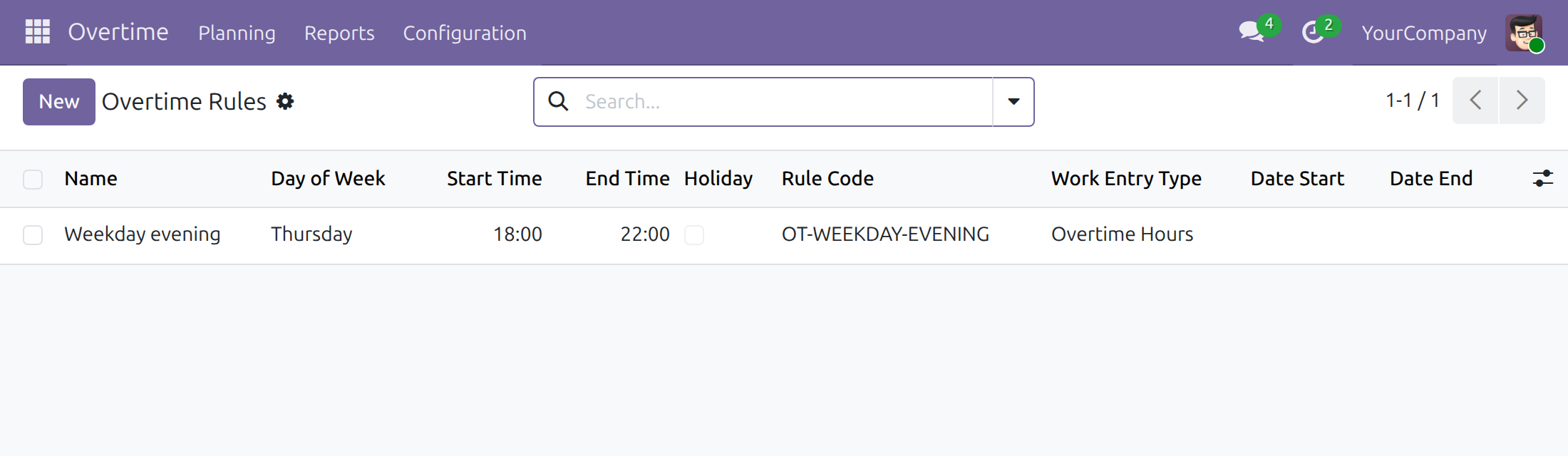
A company starts with no overtime rules, unless a localization installed for the country of the company provides them. A localization ships rule templates for its country (visible in developer mode in Overtime ‣ Configuration ‣ Overtime Rule Templates); a company created in that country gets one rule per template. Until rules exist, a plan shows a warning and has no line to pay:
2. Make overtime plans
- Navigate to Overtime ‣ Planning ‣ Planning to plan overtime for an employee, or Overtime ‣ Planning ‣ Mass Schedule to plan overtime for several employees, a department or the whole company. Team leads plan for their subordinates; overtime officers plan for any employee of their companies.
- In the overtime plan, you can see the information below:
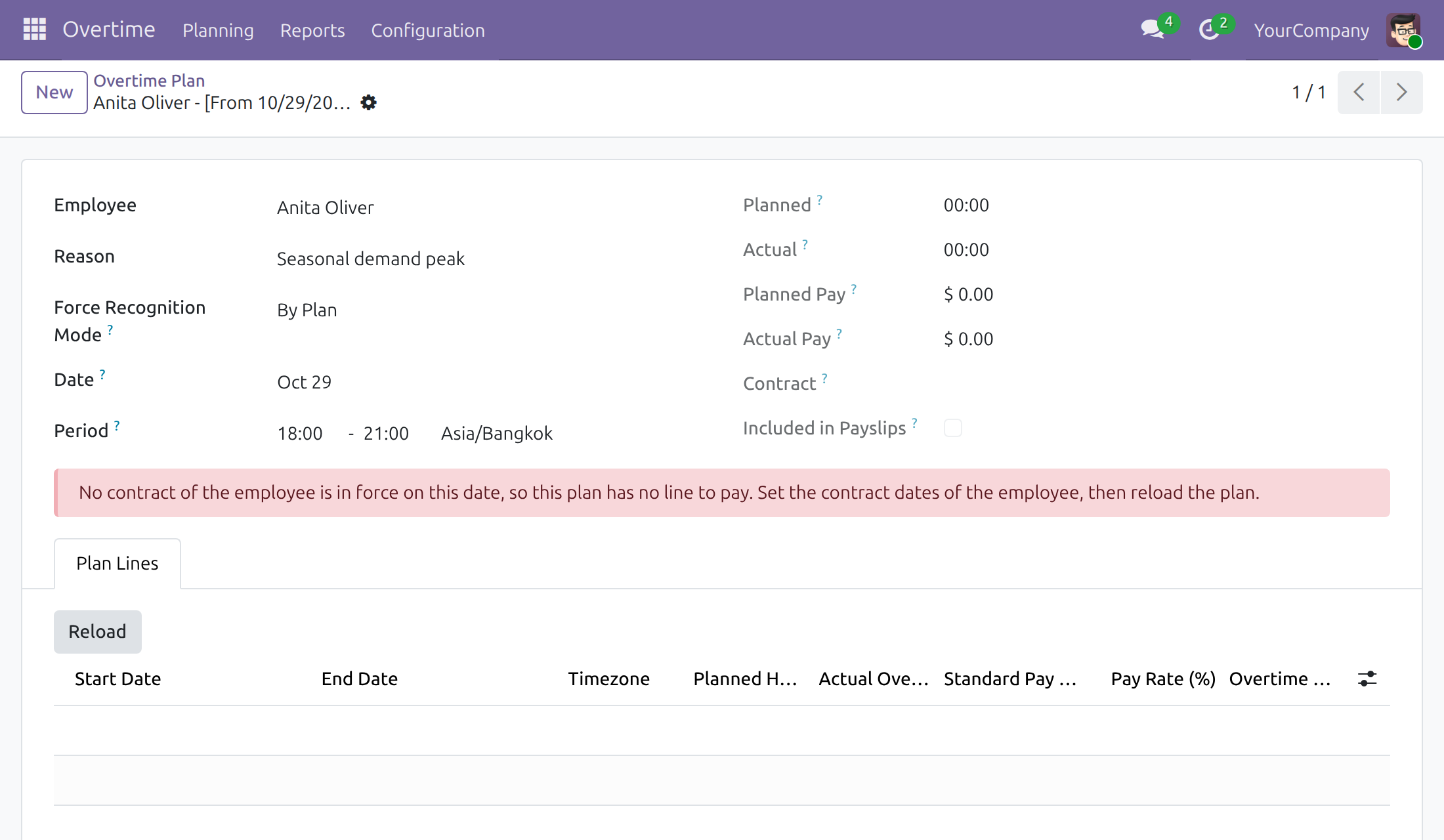
- Date and Period: the day and the hours of the overtime, read in the time zone of the working schedule of the employee. A plan covers one day: a night shift across midnight is planned as two plans, for example 22:00 to 24:00 on the first day and 00:00 to 02:00 on the next day. Plans of the same employee cannot overlap;
- Contract: the contract of the employee in force on the date of the plan. The plan is priced on that contract, and only when the contract covers the date;
- Planned: The hours of overtime in the overtime plan;
- Actual: The actual overtime. With this module, the actual is equal to the planned. This number can be calculated automatically based on the check-in/check-out or timesheet data if you install more modules Overtime Attendance (viin_hr_overtime_attendance) or Overtime Timesheet (viin_hr_overtime_timesheet);
- Planned Pay and Actual Pay: The overtime pay is planned, and the actual overtime pay is based on the actual overtime hours. HR administrators see these amounts;
- Included in Payslips: ticked when a payslip that is no longer a draft includes the plan.
- The Plan Lines tab shows one line for each overtime rule that matches the hours of the plan, with its standard pay per hour and the pay rate in force. Reload finds the contract in force on the date of the plan again and replaces the lines; it is hidden once the plan is included in a payslip that is no longer a draft.
- A plan warns you when the employee has no contract in force on its date, when the company has no overtime rule in force on that date, and, for overtime officers, when no pay rate of a code is in force on that date (those hours are paid at 0%).
Contract changes and contract mismatch
A plan follows the contract in force on its date. A contract adjustment (addendum) is another version of the same contract, edited from the employee form. When an adjustment is confirmed or the start or end date of a contract changes, the plans dated in the period that no longer match their contract are flagged. Some are priced again automatically, for example when a contract starts or is cancelled; the others wait for an overtime officer:
- the Settings tab of the employee form shows the message Some overtime plans of this employee no longer match this contract's period with the link Review them;
- the list of overtime plans has the filter Contract Mismatch.
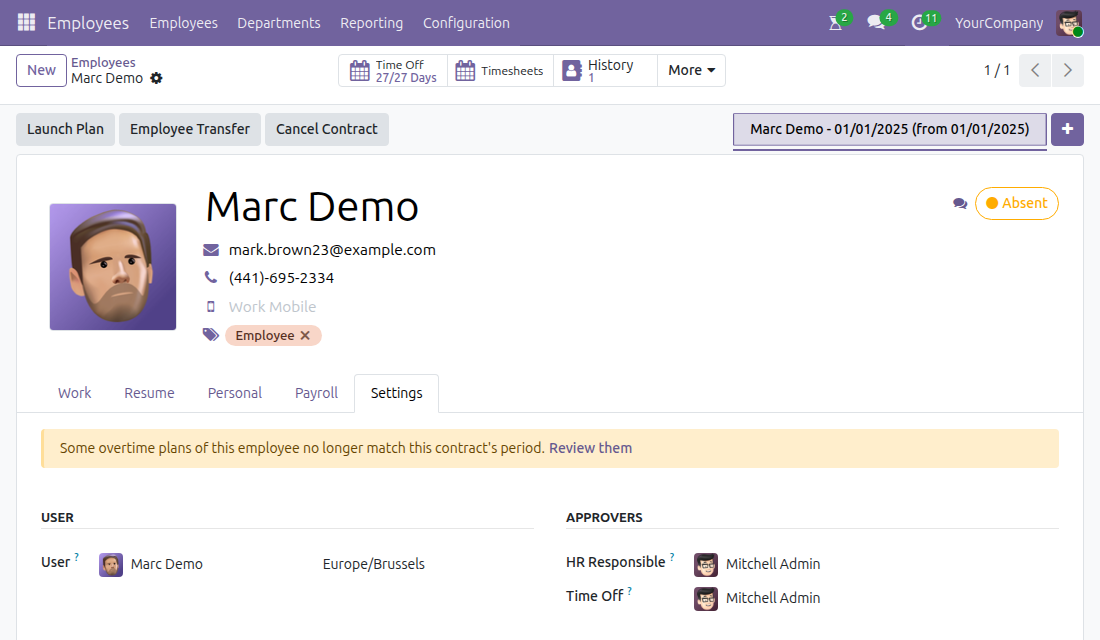
An overtime officer settles them: select the plans, then press Actions ‣ Resolve Contract Mismatch. Each plan is attached to the contract in force on its date and its lines are generated again.
When the employee has no contract in force on the date, the plan keeps no line and shows the warning No contract of the employee is in force on this date. Set the contract dates of the employee, then reload the plan.
Overtime work entries
Each line of a plan creates an overtime work entry dated on the day of the line and typed by the Work Entry Type of the rule code. Navigate to Work Entries ‣ Work Entries ‣ Work Entries and filter on the work entry type to see them. An overtime entry adds hours on top of the regular entries of the day: validating the regular entry of the day does not put it in conflict.
The entry mirrors the plan line that pays it, so it cannot be cancelled, archived or deleted on its own. Change or delete the overtime plan instead: its work entries follow.
3. Overtime analysis report
- Navigate to Overtime ‣ Reports ‣ Overtime Analysis:
This software and associated files (the "Software") may only be used (executed, modified, executed after modifications) if you have purchased a valid license from the authors, typically via Odoo Apps, or if you have received a written agreement from the authors of the Software (see the COPYRIGHT file).
You may develop Odoo modules that use the Software as a library (typically by depending on it, importing it and using its resources), but without copying any source code or material from the Software. You may distribute those modules under the license of your choice, provided that this license is compatible with the terms of the Odoo Proprietary License (For example: LGPL, MIT, or proprietary licenses similar to this one).
It is forbidden to publish, distribute, sublicense, or sell copies of the Software or modified copies of the Software.
The above copyright notice and this permission notice must be included in all copies or substantial portions of the Software.
THE SOFTWARE IS PROVIDED "AS IS", WITHOUT WARRANTY OF ANY KIND, EXPRESS OR IMPLIED, INCLUDING BUT NOT LIMITED TO THE WARRANTIES OF MERCHANTABILITY, FITNESS FOR A PARTICULAR PURPOSE AND NONINFRINGEMENT. IN NO EVENT SHALL THE AUTHORS OR COPYRIGHT HOLDERS BE LIABLE FOR ANY CLAIM, DAMAGES OR OTHER LIABILITY, WHETHER IN AN ACTION OF CONTRACT, TORT OR OTHERWISE, ARISING FROM, OUT OF OR IN CONNECTION WITH THE SOFTWARE OR THE USE OR OTHER DEALINGS IN THE SOFTWARE.