
HR Contracts Suspension
by Viindoo
| Lines of Code | 367 |
| Technical name | viin_hr_contract_suspension |
| License | OPL-1 |
| Website | https://viindoo.com/apps/modules/19.0/viin_hr_contract_suspension |
| Read description for | v 17.0 v 18.0 |
| Required Apps | Time Off (hr_holidays) Discuss (mail) Calendar (calendar) Employees (hr) |
| Included Dependencies | Viindoo Base HR Contracts (Viindoo) Viin Time-Off Base Addendum Viindoo Holiday & WorkDay Manager Safe IR Metadata Proxies |
| Extensions | Work Entry & Contract Suspension |
Put a labor contract on hold without losing track of it
For HR teams and time off managers
Manage contract suspensions through time off requests, with follow-up handled for you.
Is this you?
A contract is suspended by e-mail or on paper, and nobody can list which ones are on hold today.
Equipment is not collected when an employee leaves for months, or not handed back on return.
Employees come back and nobody was reminded; managers find out on the first morning.
Accrued leave keeps growing during a period when the contract is on hold.
What changes
Nobody can list the suspended contracts.
→ Filter the contract list on Suspending and see every contract on hold right now.
Equipment and hand-over steps are forgotten.
→ A checklist is scheduled for the manager the moment the suspension is approved.
Returns come as a surprise.
→ A second checklist and a reminder to the employee go out just before the suspension ends.
Leave accrues during the suspension.
→ The suspended days stop earning accrued time off.
How it works
Prepare once
The Time Off Administrator reviews the Contract Suspension type and its two checklists.
Request
The employee asks for a Contract Suspension from My Time Off.
Approve
The Time Off Officer approves; the start checklist goes to the manager.
Follow
The HR Manager filters Suspending contracts; the end checklist and reminder run before the return.
Key Features
Suspension through time off
A suspension is a time off request with its own approval, so it follows the process you already know.
Suspending flag on contracts
See at a glance which contracts are on hold, with a ready-made filter and column, from the Employees > Contracts menu that HR officers get without the payroll app.
Checklist at the start
Activities such as retrieving work equipment are scheduled for the employee's manager on approval.
Checklist and reminder at the end
Hand-back activities are scheduled and the employee is reminded to return, a configurable number of days before.
Your own plans
Choose the checklists and the reminder lead time per type; create more than one kind of suspension.
Accrual kept in check
Time off that grows over time does not keep growing during the suspension.
Who it is for
HR Manager
Needs to know which contracts are on hold, without keeping a spreadsheet.
Time Off Officer
Approves suspensions in the same screen as other time off.
Line manager
Gets the start and end checklists as ready-made activities.
Employee
Asks for a suspension in a few clicks and is reminded before returning.
Best for: companies that suspend labor contracts and want accurate records and less manual follow-up.
Set up the Contract Suspension type
Request a contract suspension
Approve the request
See the suspension on the employee
List the contracts that are on hold
Frequently Asked Questions
Does the module decide how long a suspension may last?
No. Conditions come from your labor regulations and company policy; the approver checks them when deciding.
Can the checklists be changed?
Yes. The checklists are ordinary activity plans that your administrator edits for your procedure.
Who sees the Suspending flag?
HR officers and managers, with no time off access right needed.
Can I run several kinds of suspension?
Yes. Mark any time off type as a contract suspension and give it its own plans.
Need help with HR Contracts Suspension?
Pre-Sales & Partnership
https://viindoo.com/contactusTechnical Support
https://viindoo.com/ticketTechnical Requirement
- Odoo version: 19.0
- Editions: Odoo Community
- Required modules: HR Contracts (Viindoo), Viin Time-Off
- License: OPL-1
HR Contracts Suspension
Note
Who this guide is for: the people who manage time off and labor contracts in a company - the Time Off Administrator who sets the feature up, the employees who ask for a suspension, the Time Off Officers who approve it, and the HR Managers who follow which contracts are currently suspended.
Overview
A labor contract can be put on hold for a while, for example during an unpaid personal leave or a long sabbatical. HR Contracts Suspension handles this through the Time Off app: a suspension is a time off request of the type Contract Suspension, approved like any other request. Once it is approved, the application takes care of the follow-up on its own.
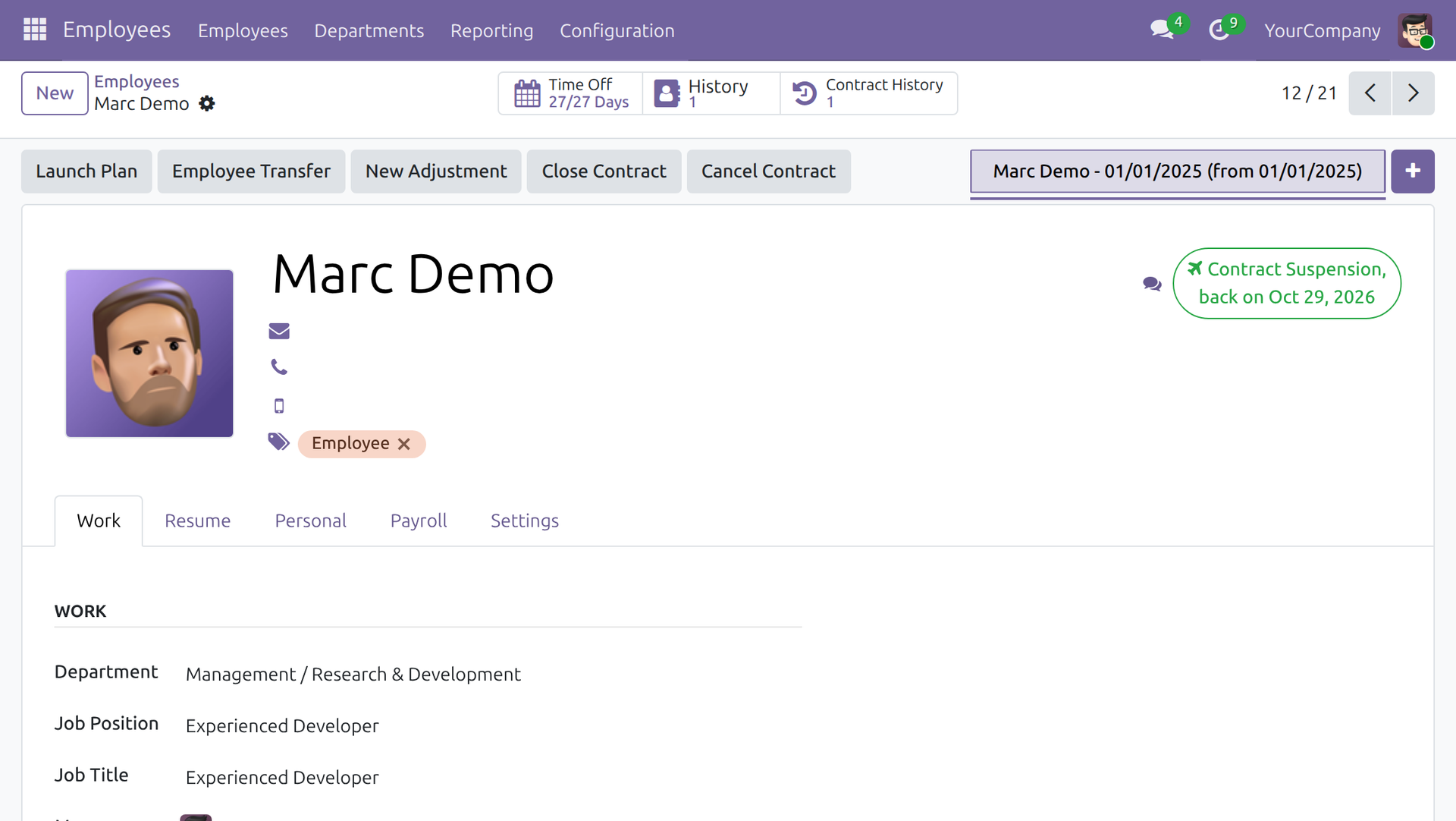
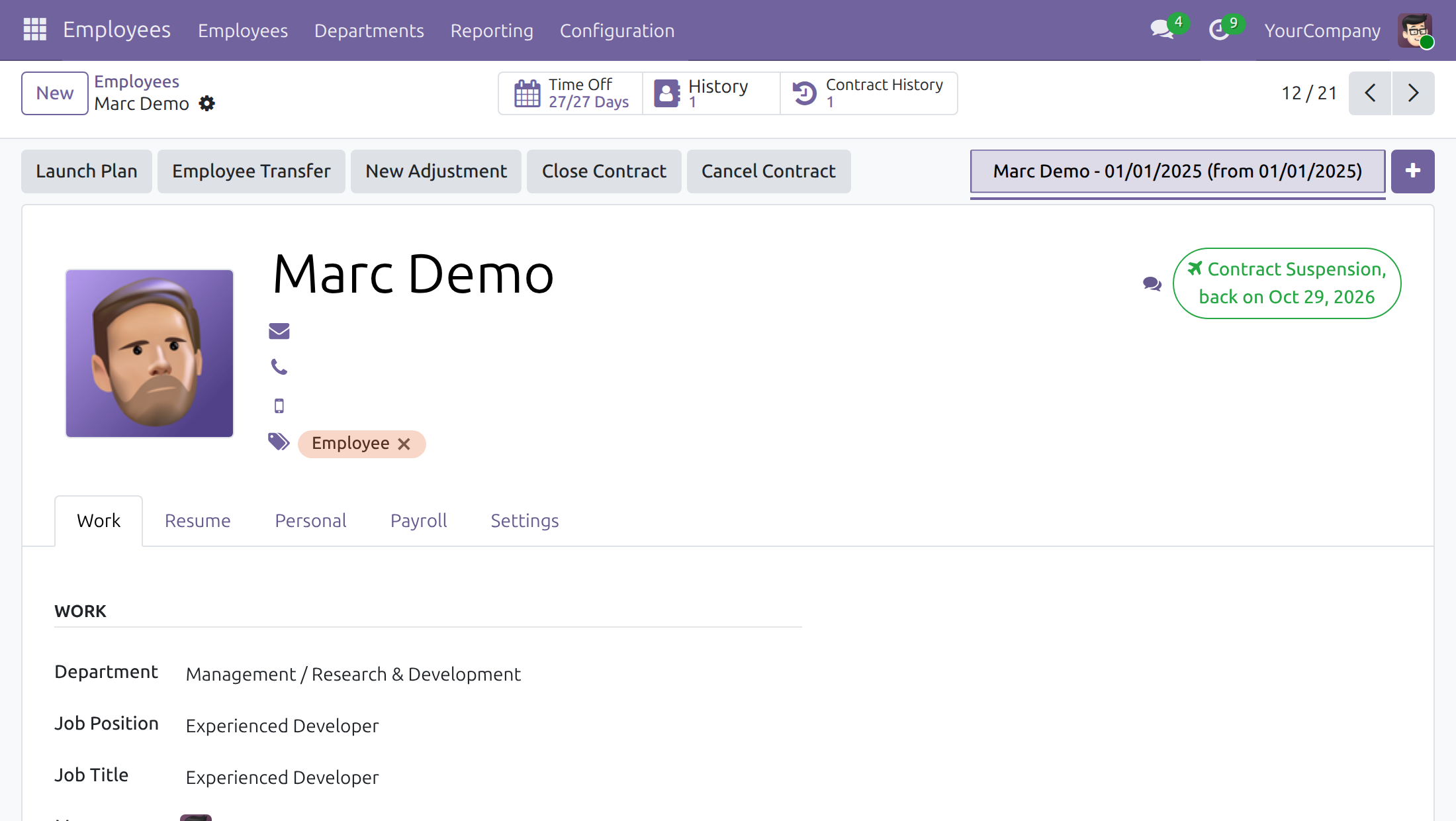
- The employee's contract is flagged as Suspending for as long as the suspension runs, so HR can list every contract currently on hold.
- A checklist of activities (the plan for the start) is scheduled for the employee's manager when the suspension is approved, for example "Retrieval of work equipment from employees".
- A second checklist (the plan for the end) is scheduled shortly before the suspension ends, for example "Assignment of work equipment to employees", and the employee receives a reminder to return to work.
- While the suspension runs, the employee's time off that grows over time (accrual-based allocations) does not keep growing.
The process, from request to follow-up:
- The Time Off Administrator prepares the Contract Suspension time off type once.
- The employee submits a Contract Suspension request.
- The Time Off Officer approves it.
- The manager works through the start activities; the HR Manager follows the Suspending contracts; shortly before the end the end activities and the reminder are triggered.
| Role | What they do | Access right to assign |
|---|---|---|
| Employee | Requests a contract suspension. | Internal user |
| Time Off Officer | Approves or refuses suspension requests. | Time Off / Officer: Manage all requests |
| HR Manager | Finds the contracts currently suspended. | Employees / Administrator |
| Time Off Administrator | Configures the Contract Suspension time off type and its activity plans. | Time Off / Administrator |
Setup (for the Administrator)
Installation
- Open Apps, search for HR Contracts Suspension and click Install. The Time Off, Employees and the Viindoo HR contract applications it relies on are installed with it.
- Give each person the access right of their role (table above) in Settings > Users & Companies > Users.
Check the Contract Suspension time off type
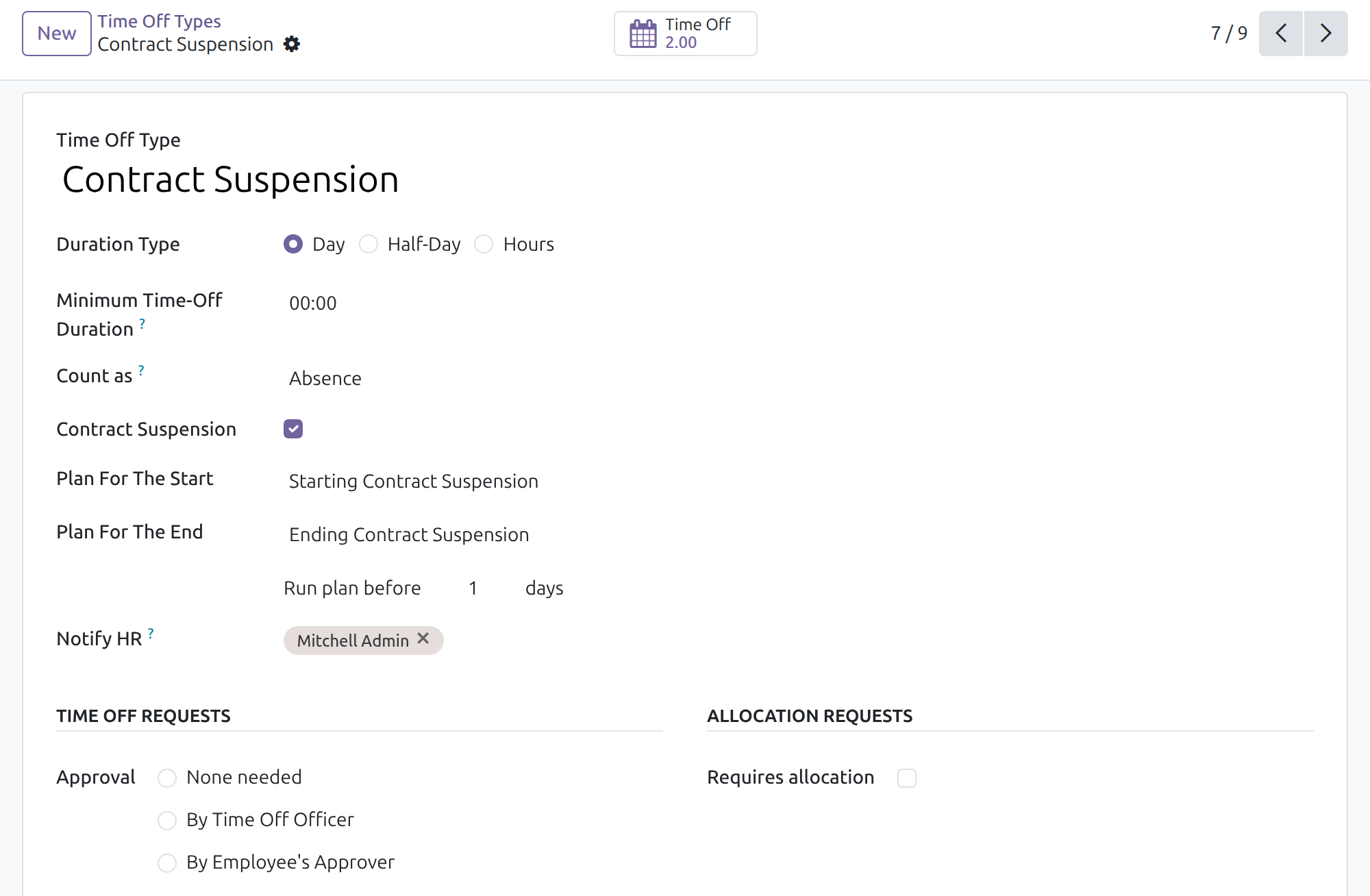
The module comes with a ready-to-use time off type named Contract Suspension. To review or adapt it, open Time Off > Configuration > Time Off Types and select Contract Suspension.
- Keep Contract Suspension ticked: it is what marks a time off type as a contract suspension.
- Plan For The Start - the activity plan scheduled when a request is approved.
- Plan For The End - the activity plan scheduled before the suspension ends.
- Run plan before ... days - how many days before the last day of the suspension the end plan and the reminder are triggered (default 1; zero or more).
- Under Time Off Requests, the Approval line tells who approves. The delivered type asks for the employee's approver and then a Time Off Officer; a Time Off Administrator can approve in one step.
The plans themselves are ordinary activity plans (for example "Starting Contract Suspension" and "Ending Contract Suspension"). Their content - which checklist items exist and who is responsible - is yours to adjust to your company's procedure.
Note
Both plans are required once Contract Suspension is ticked. The conditions that apply to a suspension (duration, reasons, notice) come from your labor regulations and company policy: the application does not enforce them, so the approver checks them when deciding on a request.
Employee: ask for a contract suspension
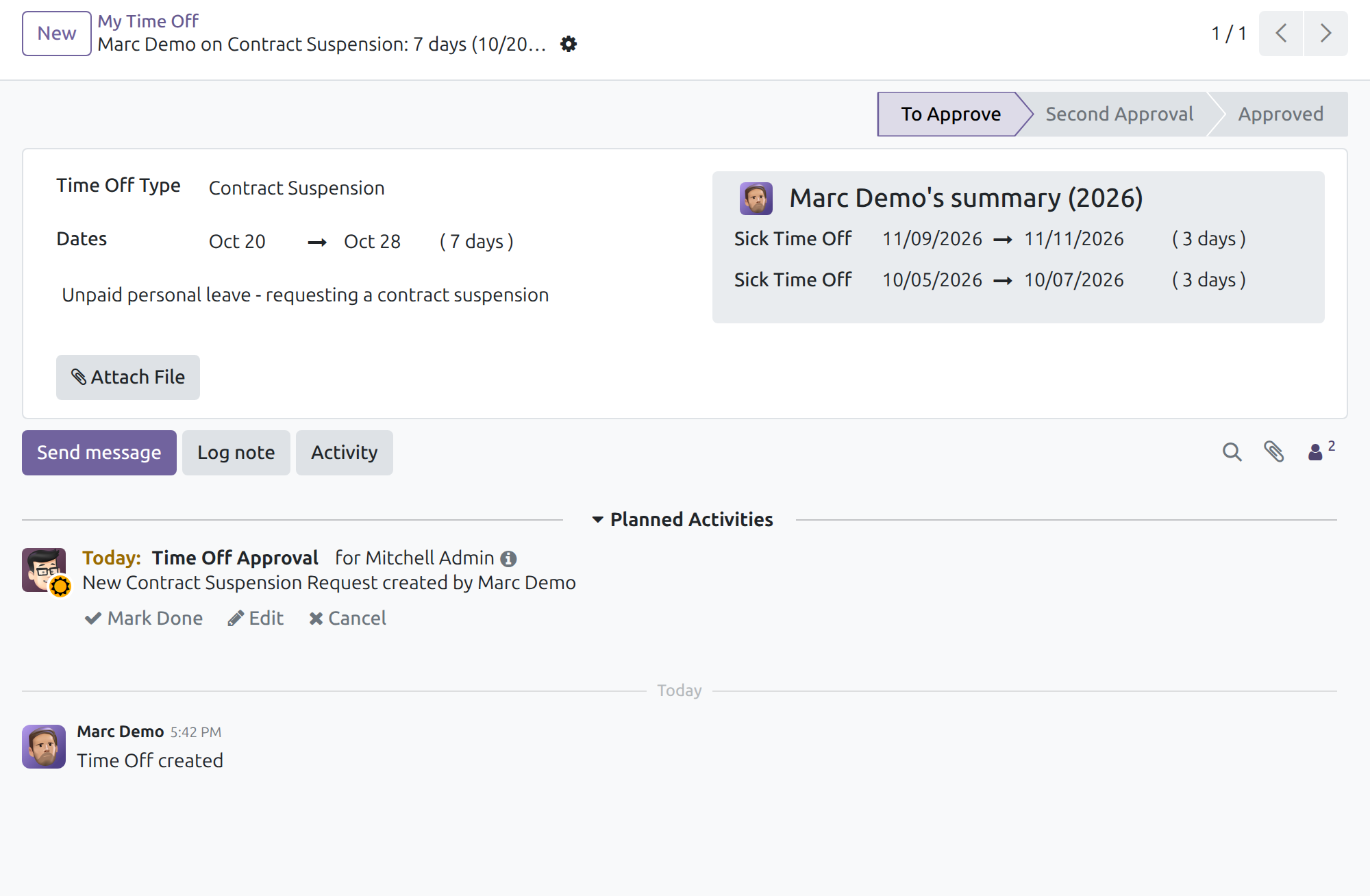
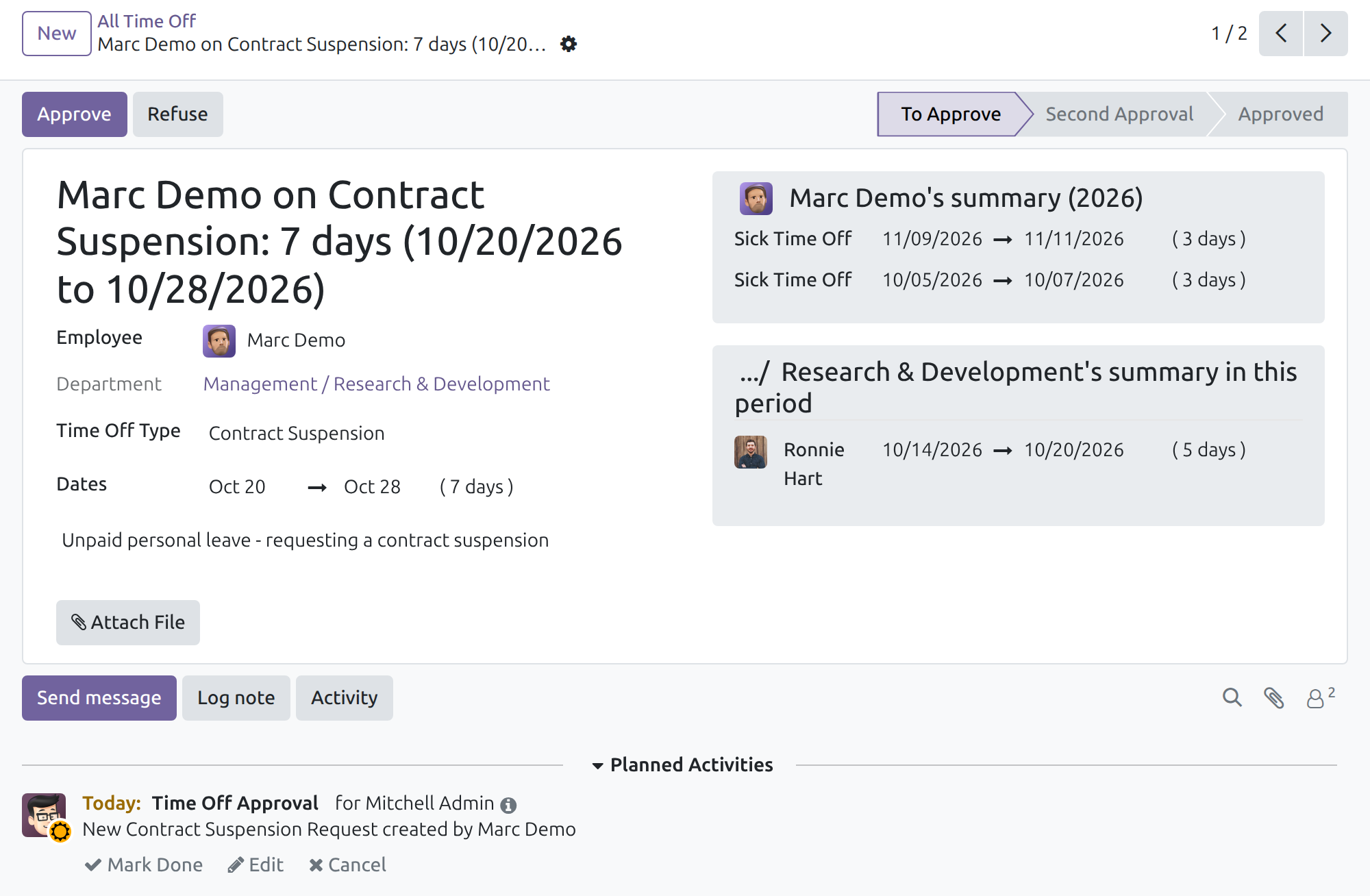
- Open Time Off > My Time > My Time Off and click New.
- In Time Off Type, choose Contract Suspension.
- In Dates, enter the first and the last day of the suspension.
- Add a short explanation in the description and save.
The request is in the status To Approve. The approver receives an activity "Time Off Approval" for it, visible on the request.
Note
Time off cannot be requested on a company mandatory day, and a request cannot overlap time off you already booked. In both cases the form tells you so when you save.
Time Off Officer: approve the suspension
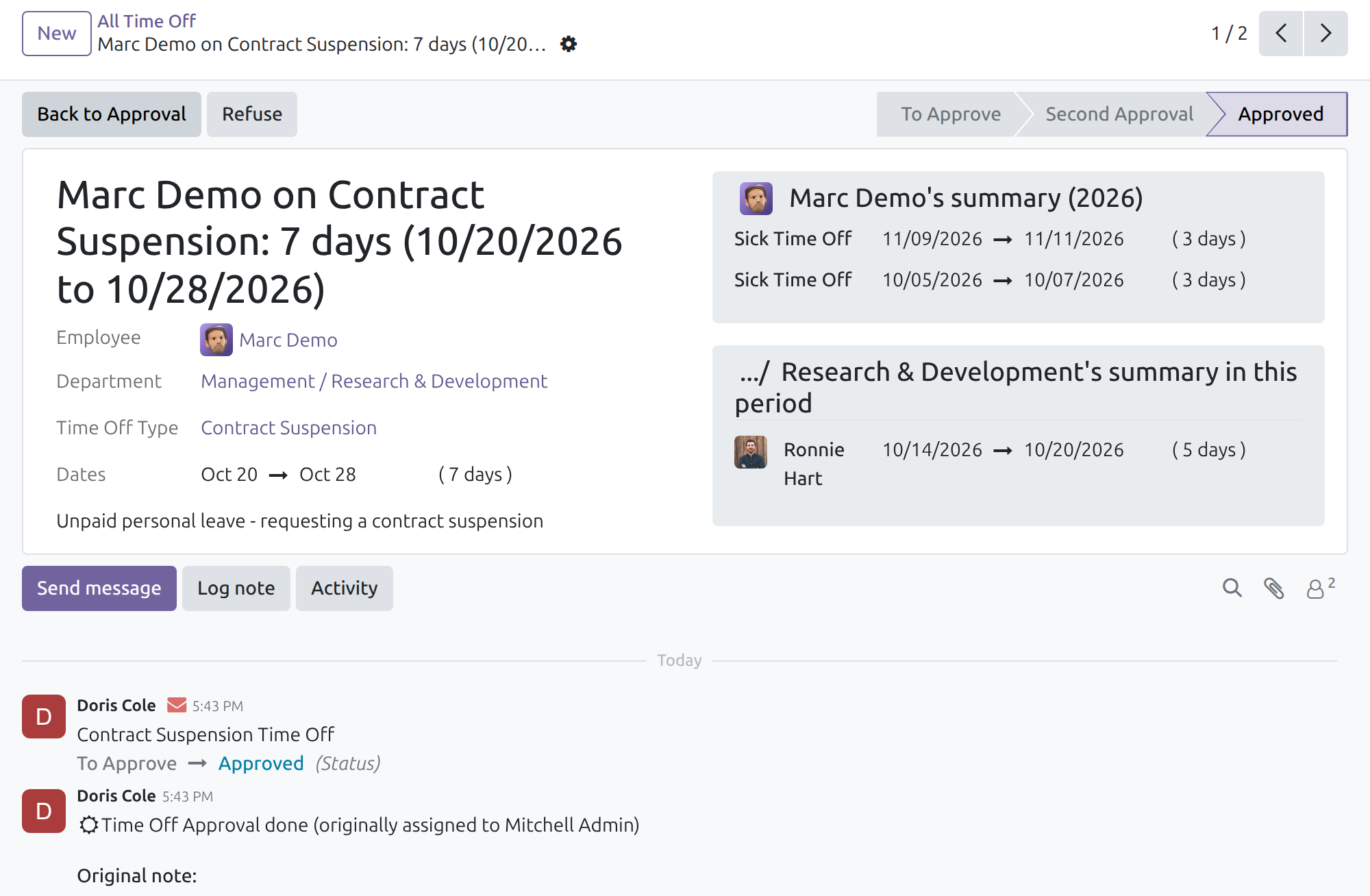
- Open Time Off > Management > Time Off. The filter Waiting For Me lists the requests that need your decision.
- Open the Contract Suspension request and read the dates and description.
- Click Approve, or Refuse to decline.
After the final approval the status becomes Approved.
What happens next, without anyone doing anything:
- The activities of the plan for the start are scheduled for the employee's manager. They are due the day before the suspension begins, or today when the suspension starts right away.
- The employee's accrual-based time off allocations are adjusted so that the suspended days do not earn extra time off.
- A scheduled action runs every day. As the end approaches (by default one day before the last day), it schedules the activities of the plan for the end and sends the employee a reminder to return to work. The reminder goes to the employee's private email, or to the work email when no private email is recorded.
Manager: follow the start and end activities
The employee's manager finds the activities on the employee's record (Employees, then the employee) in the chatter, under Planned Activities. Mark each one done once the step is complete.
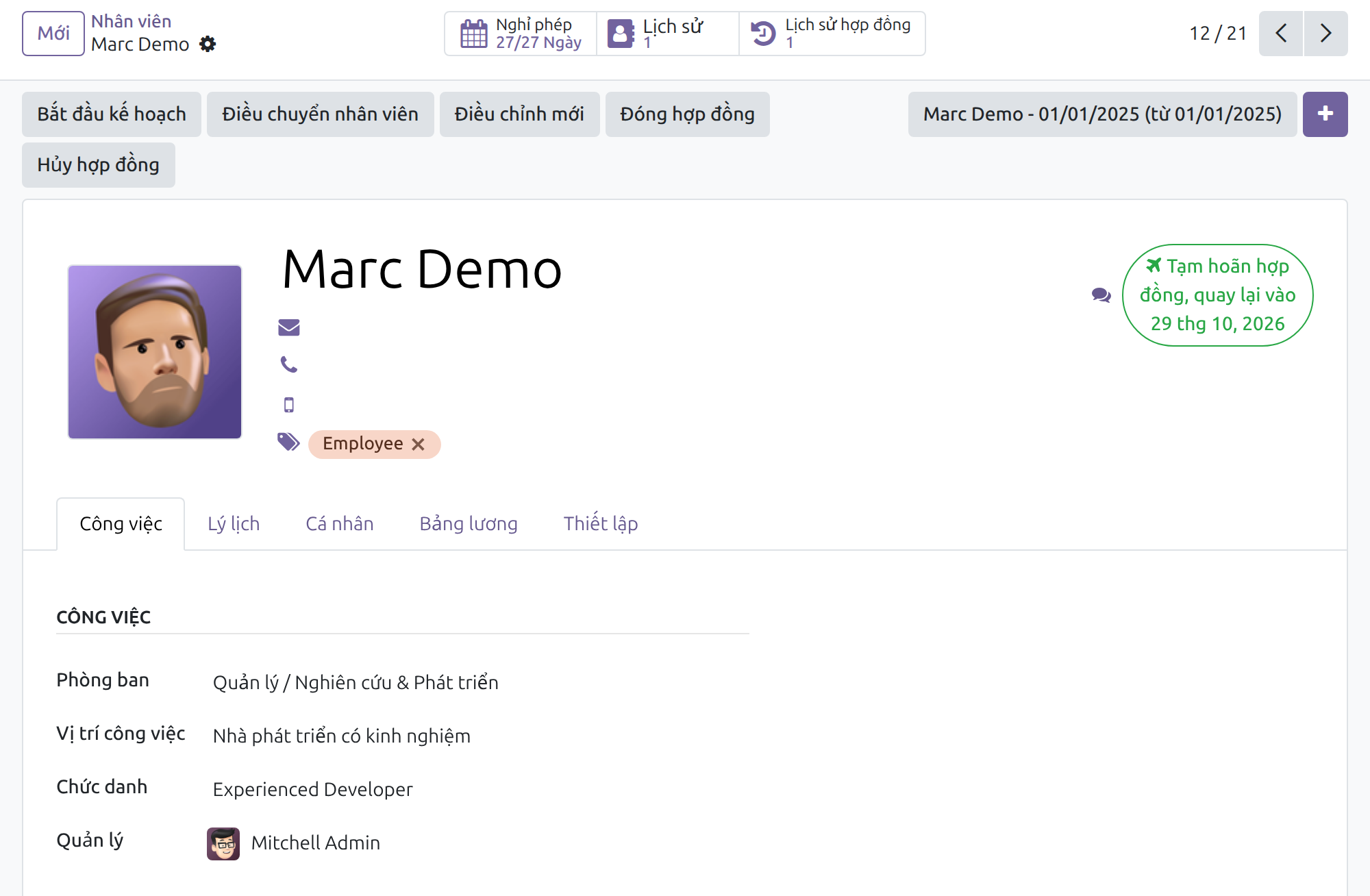
The employee record also shows, at the top right, that the contract is on hold and the date the employee is back.
HR Manager: see which contracts are suspended
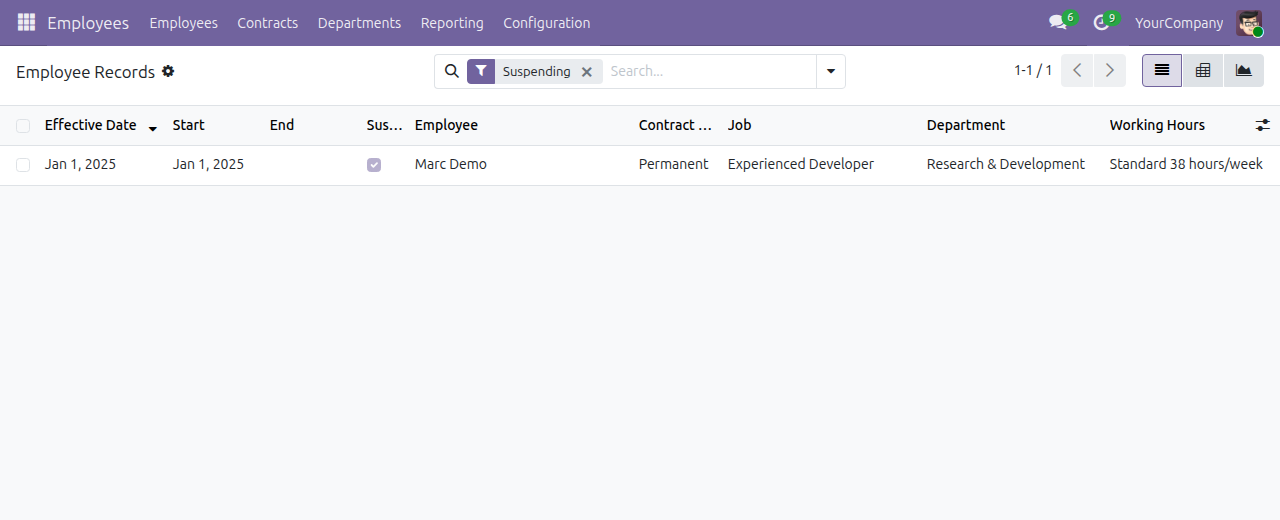
- Open Employees > Contracts. The menu is available to HR officers and does not require the payroll application.
- Open the filter menu of the search bar and choose Suspending.
- To keep the information in front of you, show the optional Suspending column from the column selector at the right of the list header.
A contract appears as Suspending from the first day of an approved suspension to its last day. A suspension that has not started yet, or has ended, does not flag the contract. The HR Manager does not need any time off access right to see the flag.
Troubleshooting
- I cannot find Contract Suspension in the time off types.
- The type is available to every company and country. Ask the Time Off Administrator to check that it has not been archived.
- The start activities were not created.
- They are created at the final approval only, for the employee's manager. Check that the employee has a manager and that the Plan For The Start of the type contains activities.
- The employee did not get the reminder.
- The reminder needs a private email or, failing that, a work email on the employee record. It is sent the day the end plan starts (by default one day before the last day).
- The contract is not flagged Suspending.
- The suspension must be Approved, and today must be inside it and inside the contract period.
- I cannot change the Contract Suspension type.
- Editing time off types needs the Time Off / Administrator access right.
FAQ
- Can I have several kinds of suspension?
- Yes. Tick Contract Suspension on any time off type and give it its own plans.
- Does a suspension use up an employee's time off balance?
- The delivered type does not require an allocation and is unpaid.
- Where do I get help?
- Support: https://viindoo.com/ticket - to buy or ask pre-sales questions: https://viindoo.com/contactus
This software and associated files (the "Software") may only be used (executed, modified, executed after modifications) if you have purchased a valid license from the authors, typically via Odoo Apps, or if you have received a written agreement from the authors of the Software (see the COPYRIGHT file).
You may develop Odoo modules that use the Software as a library (typically by depending on it, importing it and using its resources), but without copying any source code or material from the Software. You may distribute those modules under the license of your choice, provided that this license is compatible with the terms of the Odoo Proprietary License (For example: LGPL, MIT, or proprietary licenses similar to this one).
It is forbidden to publish, distribute, sublicense, or sell copies of the Software or modified copies of the Software.
The above copyright notice and this permission notice must be included in all copies or substantial portions of the Software.
THE SOFTWARE IS PROVIDED "AS IS", WITHOUT WARRANTY OF ANY KIND, EXPRESS OR IMPLIED, INCLUDING BUT NOT LIMITED TO THE WARRANTIES OF MERCHANTABILITY, FITNESS FOR A PARTICULAR PURPOSE AND NONINFRINGEMENT. IN NO EVENT SHALL THE AUTHORS OR COPYRIGHT HOLDERS BE LIABLE FOR ANY CLAIM, DAMAGES OR OTHER LIABILITY, WHETHER IN AN ACTION OF CONTRACT, TORT OR OTHERWISE, ARISING FROM, OUT OF OR IN CONNECTION WITH THE SOFTWARE OR THE USE OR OTHER DEALINGS IN THE SOFTWARE.