
Advanced Password Policy Portal
by Viindoo
| Lines of Code | 333 |
| Technical name | viin_auth_password_policy_portal |
| License | OPL-1 |
| Website | https://viindoo.com/apps/modules/19.0/viin_auth_password_policy_portal |
| Read description for | v 15.0 v 16.0 v 17.0 v 18.0 |
| Required Apps | Discuss (mail) |
| Included Dependencies | Advanced Password Policy |

Customers keep portal passwords as strong as your staff's
For companies whose customers and partners sign in to the Odoo portal
Apply the password character rules on the portal security page, with a strength bar that checks them as customers type
Odoo 19.0 · Community and Enterprise editions · OPL-1
Extends Advanced Password Policy, where the password rules are chosen once for the whole database.
What changes for your team
Customers see your rules while they type
On the portal, the strength bar judges length and guessability only, so it can rate a password strong that your policy then refuses.
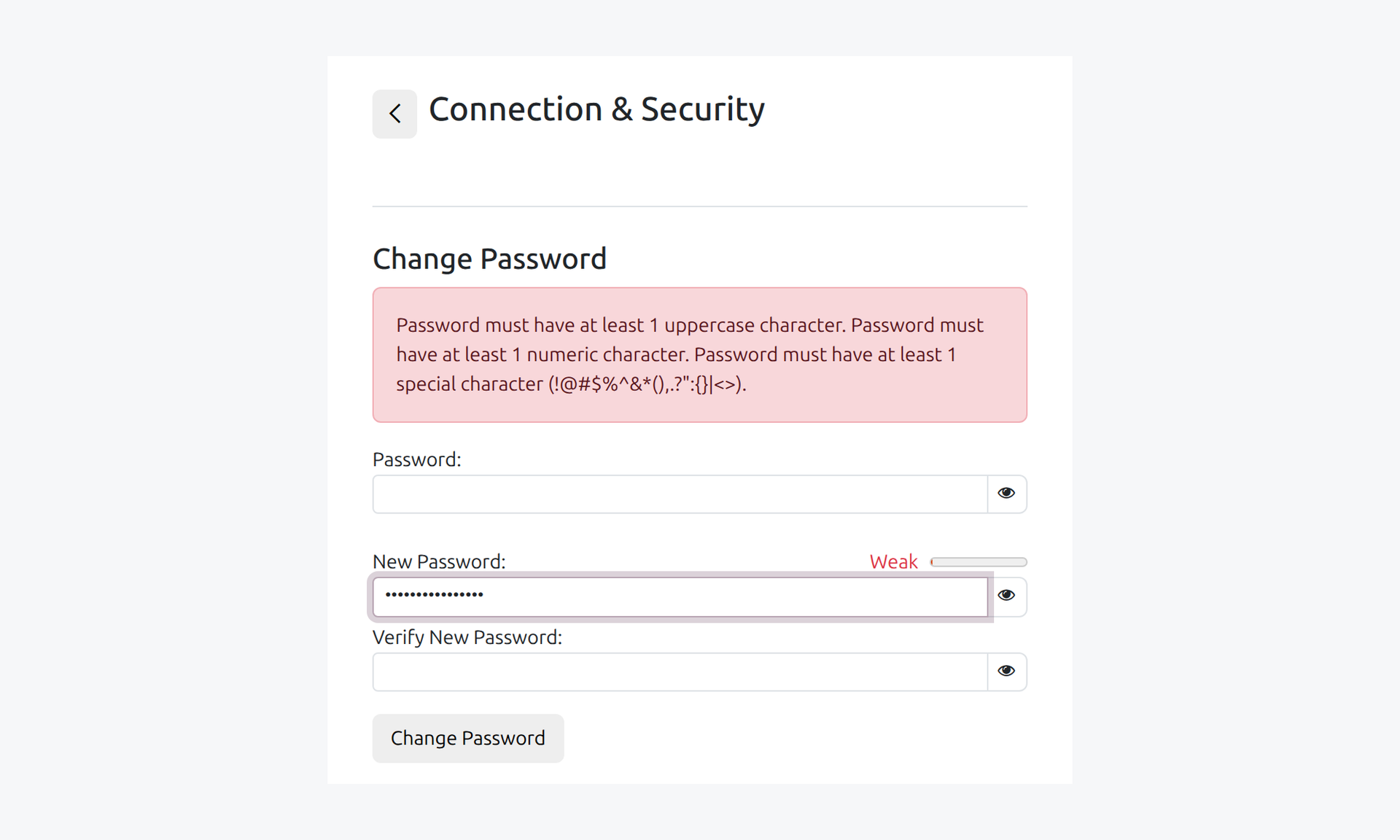
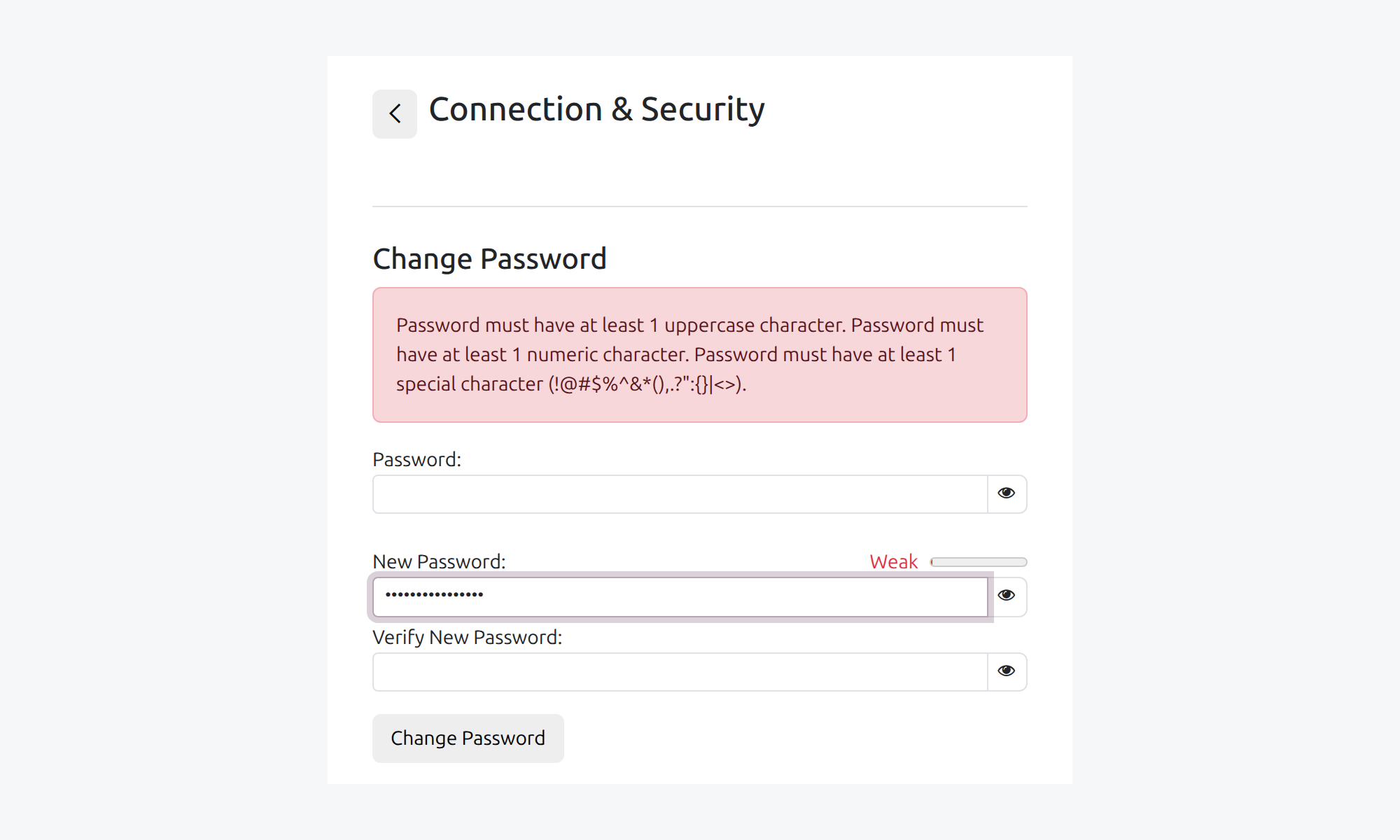
→ On the Connection & Security page the bar stays weak while a required character type is missing, however long the password is, and hovering it lists the rules that apply.

One policy for staff and customers
A password standard that covers internal users but not the portal leaves the weakest passwords with the people outside your company.
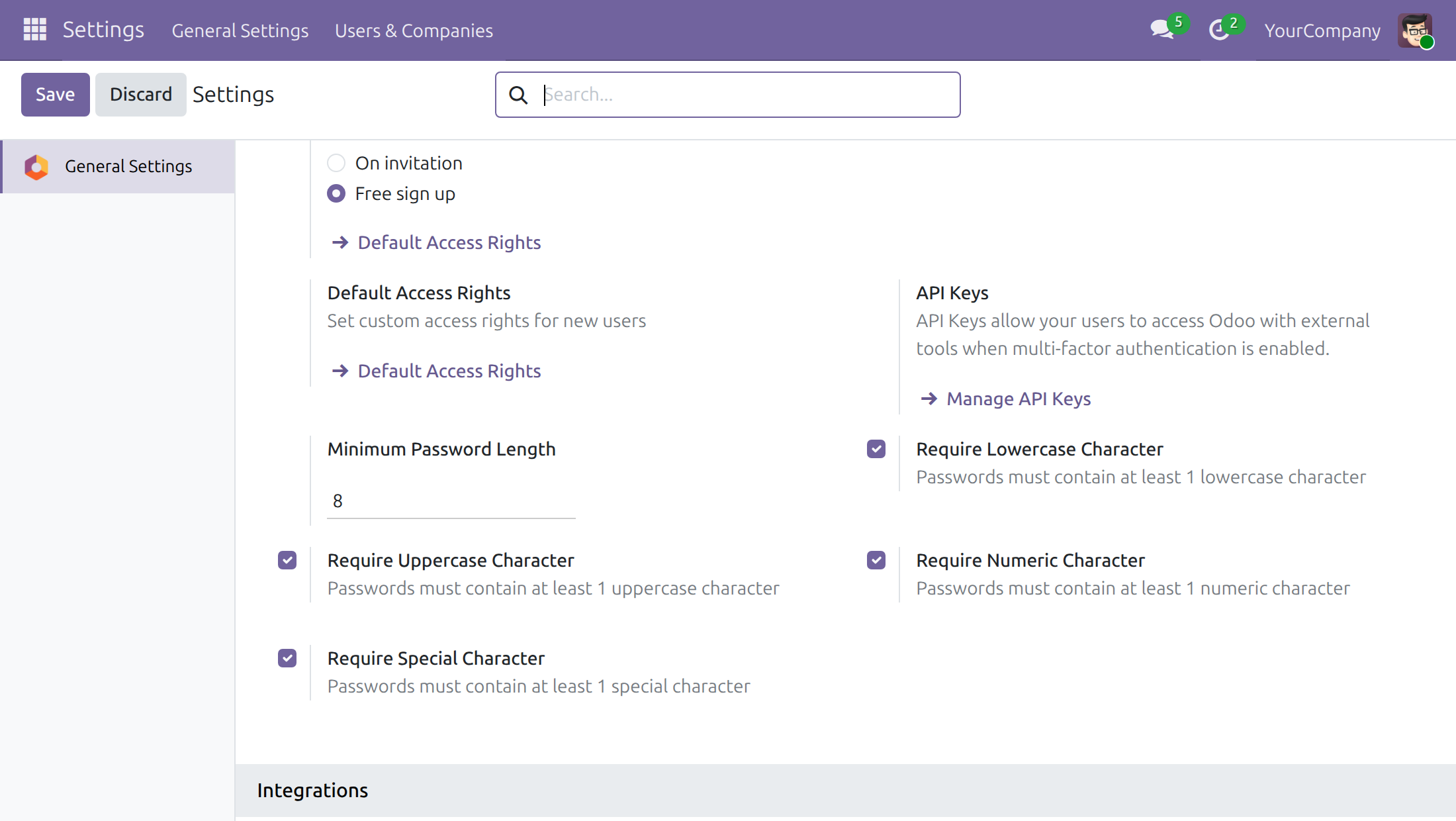
→ The rules ticked in the general settings apply on the portal as well. There is nothing to configure twice and nothing to keep in sync.
One refusal, every missing rule
A customer who learns about the rules one failed attempt at a time gives up, or asks your team to change the password for them.
→ A password that breaks a rule is not saved. One message names every rule it misses, and the current password keeps working.

Ready on day one
Installs by itself
It is added automatically once Advanced Password Policy and Odoo's portal password policy are both installed. No data to import.
Follows the rules you already set
The portal reads the same switches as the rest of Odoo. A rule left off is not asked for, and existing passwords keep working until their owner changes them.
What you configure first
An administrator ticks the required rules in the general settings and grants portal access to the customers who need it.
What is included
The rule-aware strength bar and the policy check on the portal page where signed-in customers and partners change their own password.
Before you decide
Does it cover sign-up and forgotten-password pages?
No. This module covers the password change of a signed-in portal user. The sign-up, invitation and reset pages are covered by Advanced Password Policy Signup.
What happens to a customer's current password after a refusal?
It stays valid. The customer reads the missing rules, types the passwords again and tries once more.
Which languages do customers see?
Refusal messages follow the customer’s language. English and Vietnamese translations ship with Advanced Password Policy.
Can each company have its own rules?
No. The rules apply to the whole database, so every company shares one password policy.
Does it send passwords anywhere?
No. Passwords are checked by your own Odoo server and stored the way Odoo always stores them. The module calls no outside service.
Try it, then ask us
Open the Live Preview to try it on a working database, and read the Documentation tab for the setup and the portal page.
Pre-sales & partnership
viindoo.com/contactusTechnical support
viindoo.com/ticketTechnical requirements
- Odoo version: 19.0
- Editions: Community, Enterprise
- Required modules: Advanced Password Policy, Odoo's portal password policy (listed in Apps as Password Policy support for Signup)
- License: OPL-1
- Languages: English, Vietnamese
Advanced Password Policy Portal
For: system administrators who set the password rules, and for portal users (customers and partners) who change their own password.
Note
Extends Advanced Password Policy - see its documentation for the four password rules and for how they apply inside the application.
Overview
A password that is long enough can still be easy to guess. Advanced Password Policy lets the administrator require lowercase letters, uppercase letters, digits and special characters. This module carries the same rules onto the customer portal: the Connection & Security page, where a portal user changes the password.
On that page the password strength bar takes the rules into account, and a password that breaks a rule is refused with one message that lists every broken rule at once. The module installs by itself when Advanced Password Policy and the standard portal password policy are both installed.
The process, from the administrator's choice to the new password:
- System Administrator - turns on the rules that apply. The choice is saved once and applies everywhere.
- Portal user - types a new password on the portal, sees the strength bar, and is either accepted or told which rules are missing.
| Role | What they do | Access right to assign |
|---|---|---|
| System Administrator | Chooses the password rules and grants portal access to customers | Role: Administrator |
| Portal user | Changes their own password on the portal | Portal (granted from the contact with Action ‣ Grant portal access) |
Setup (for the System Administrator)
Installation
Open Apps, remove the default filter, search for Advanced Password Policy and click Install if it is not installed yet. This module is added automatically as soon as Advanced Password Policy and the standard portal password policy are installed.
Choose the rules
- Open Settings ‣ General Settings and go to the Permissions section.
- Tick the rules to require: Require Lowercase Character, Require Uppercase Character, Require Numeric Character, Require Special Character.
- Click Save.
The Minimum Password Length next to them still applies. A special character is one of !@#$%^&*(),.?":{}|<>. Rules left unticked are not required and are not listed on the portal. Passwords that already exist keep working until their owner changes them.
Portal user: change your password
Open the portal, click your name at the top right and choose My Account, then open Connection & Security.
- In Password, type your current password.
- In New Password, type the new password. The strength bar above the field changes as you type. It stays Weak while a required kind of character is missing, however long the password is; point at the bar to read the list of required rules.
- In Verify New Password, type the same password again.
- Click Change Password.
When the password breaks a rule, it is not saved and your current password stays valid. The page shows one message that lists every rule that is not met, and the three fields are emptied. Choose a new password and try again.
When the password follows every rule, the bar fills and reads Strong. Click Change Password and the page confirms that the password is updated.

A visitor who is not signed in cannot open the page: the portal sends them to the login page first.
Troubleshooting
- The strength bar does not mention a rule the administrator just turned on.
- The page reads the rules when it loads. Reload the page; the check made when the password is saved always uses the current rules.
- A password with a symbol is refused as having no special character.
- Only the characters listed in the Setup section count. Add one of them, for example ! or #.
- Everyone's password is accepted whatever its content.
- All four rules are off by default. Turn them on in Settings ‣ General Settings.
This software and associated files (the "Software") may only be used (executed, modified, executed after modifications) if you have purchased a valid license from the authors, typically via Odoo Apps, or if you have received a written agreement from the authors of the Software (see the COPYRIGHT file).
You may develop Odoo modules that use the Software as a library (typically by depending on it, importing it and using its resources), but without copying any source code or material from the Software. You may distribute those modules under the license of your choice, provided that this license is compatible with the terms of the Odoo Proprietary License (For example: LGPL, MIT, or proprietary licenses similar to this one).
It is forbidden to publish, distribute, sublicense, or sell copies of the Software or modified copies of the Software.
The above copyright notice and this permission notice must be included in all copies or substantial portions of the Software.
THE SOFTWARE IS PROVIDED "AS IS", WITHOUT WARRANTY OF ANY KIND, EXPRESS OR IMPLIED, INCLUDING BUT NOT LIMITED TO THE WARRANTIES OF MERCHANTABILITY, FITNESS FOR A PARTICULAR PURPOSE AND NONINFRINGEMENT. IN NO EVENT SHALL THE AUTHORS OR COPYRIGHT HOLDERS BE LIABLE FOR ANY CLAIM, DAMAGES OR OTHER LIABILITY, WHETHER IN AN ACTION OF CONTRACT, TORT OR OTHERWISE, ARISING FROM, OUT OF OR IN CONNECTION WITH THE SOFTWARE OR THE USE OR OTHER DEALINGS IN THE SOFTWARE.