
Advanced Password Policy
by Viindoo
| Lines of Code | 540 |
| Technical name | viin_auth_password_policy |
| License | OPL-1 |
| Website | https://viindoo.com/apps/modules/19.0/viin_auth_password_policy |
| Read description for | v 15.0 v 16.0 v 17.0 v 18.0 |
| Extensions | Advanced Password Policy Signup Advanced Password Policy Portal |

Every new password meets the rules your security policy sets
For administrators and IT leads who are accountable for how Odoo accounts are protected
Require lowercase, uppercase, numeric and special characters in passwords, on top of Odoo's minimum length
Odoo 19.0 · Community and Enterprise editions · OPL-1
What changes for your team
Your password standard becomes a setting, not a memo
Odoo checks only password length. “Mix cases, add a digit and a symbol” stays in a memo nobody enforces.
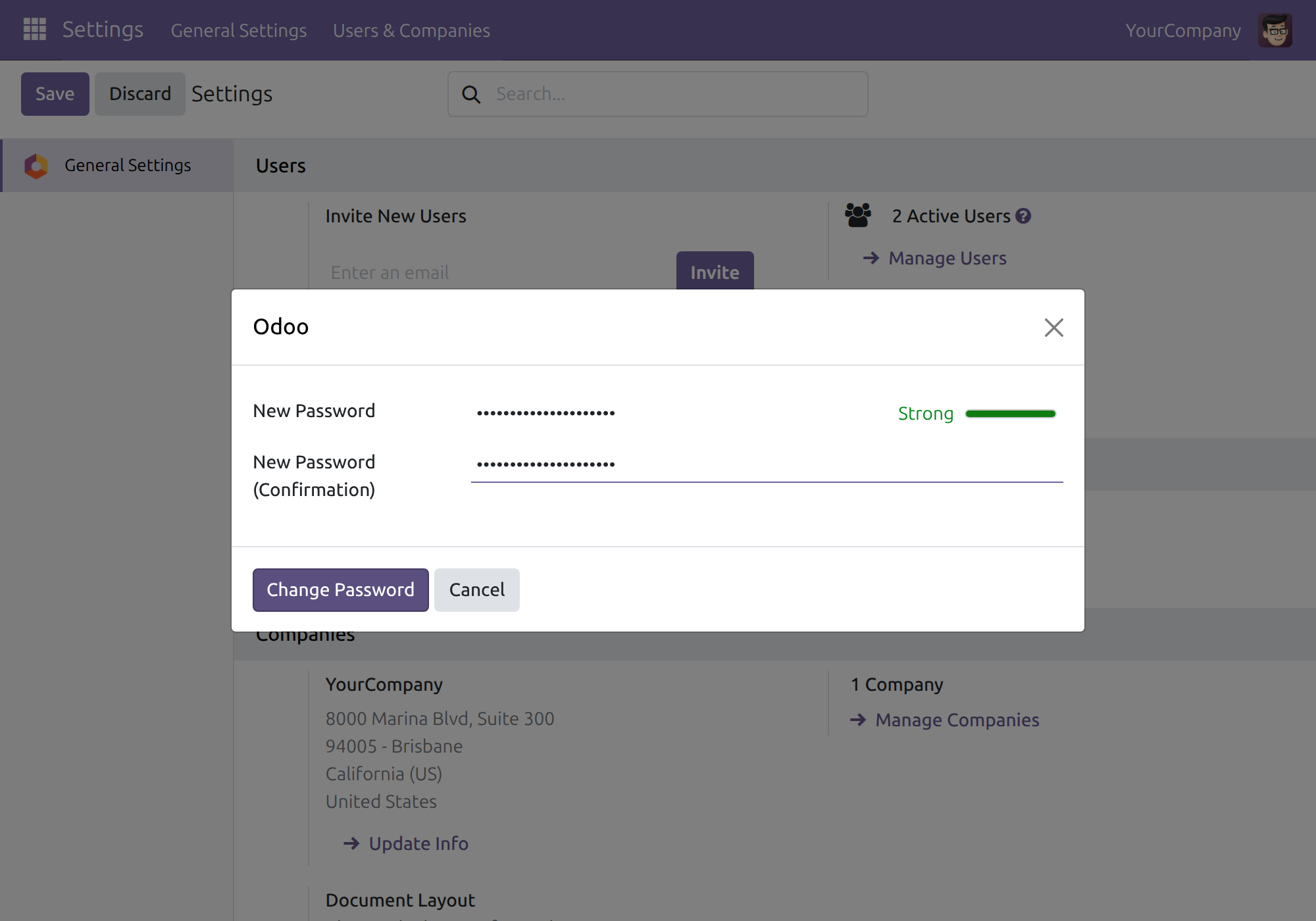
→ Four rules sit next to the minimum length in the general settings: lowercase, uppercase, digit, special character. Tick the ones you need; every new password must meet them.
People fix a refused password in one attempt
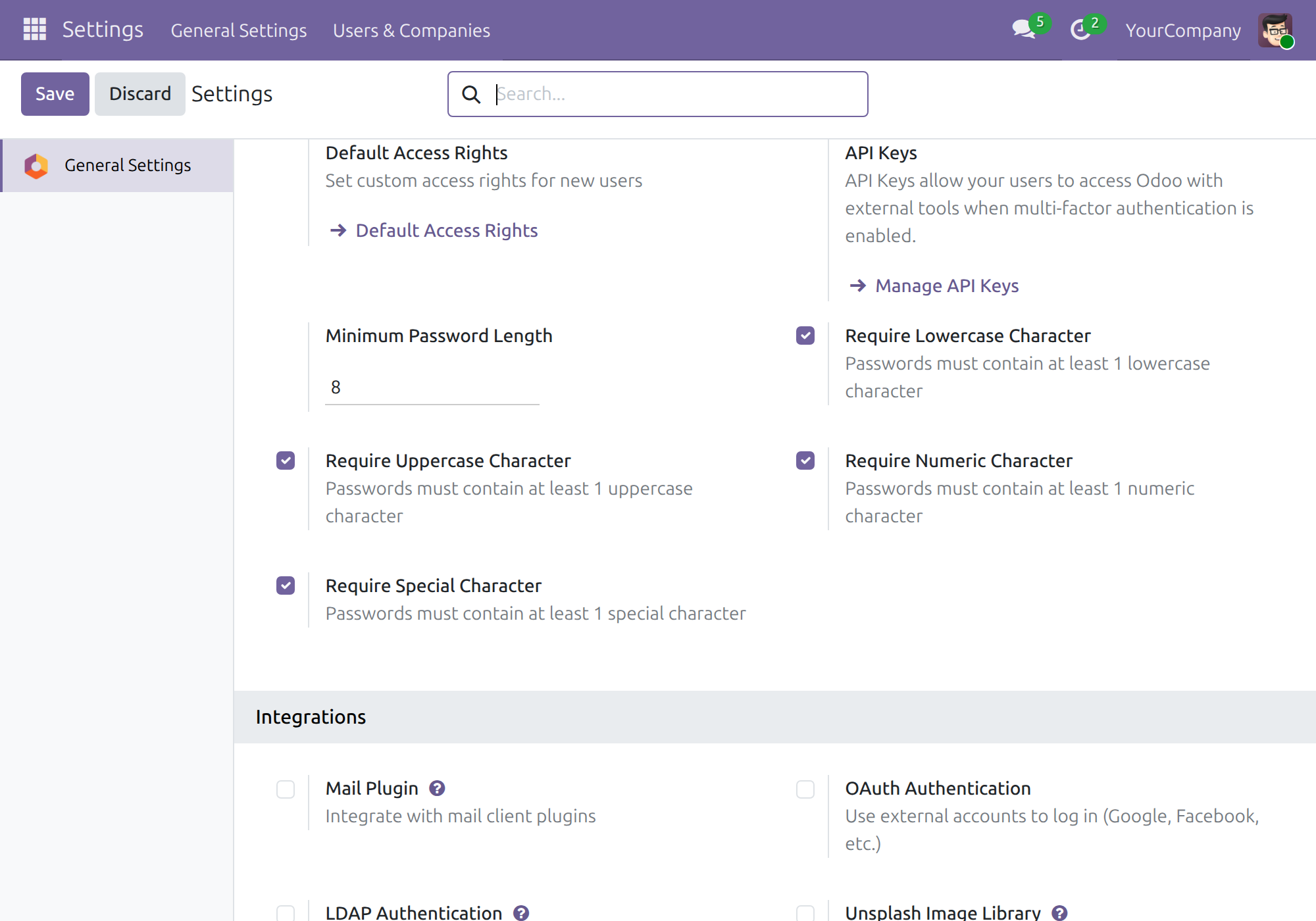
Refusing one reason at a time means rounds of trial and error, and calls to the help desk.
→ One message lists every broken rule, minimum length included, and names the accepted special characters. The current password stays valid meanwhile.
The strength bar tells the truth while people type
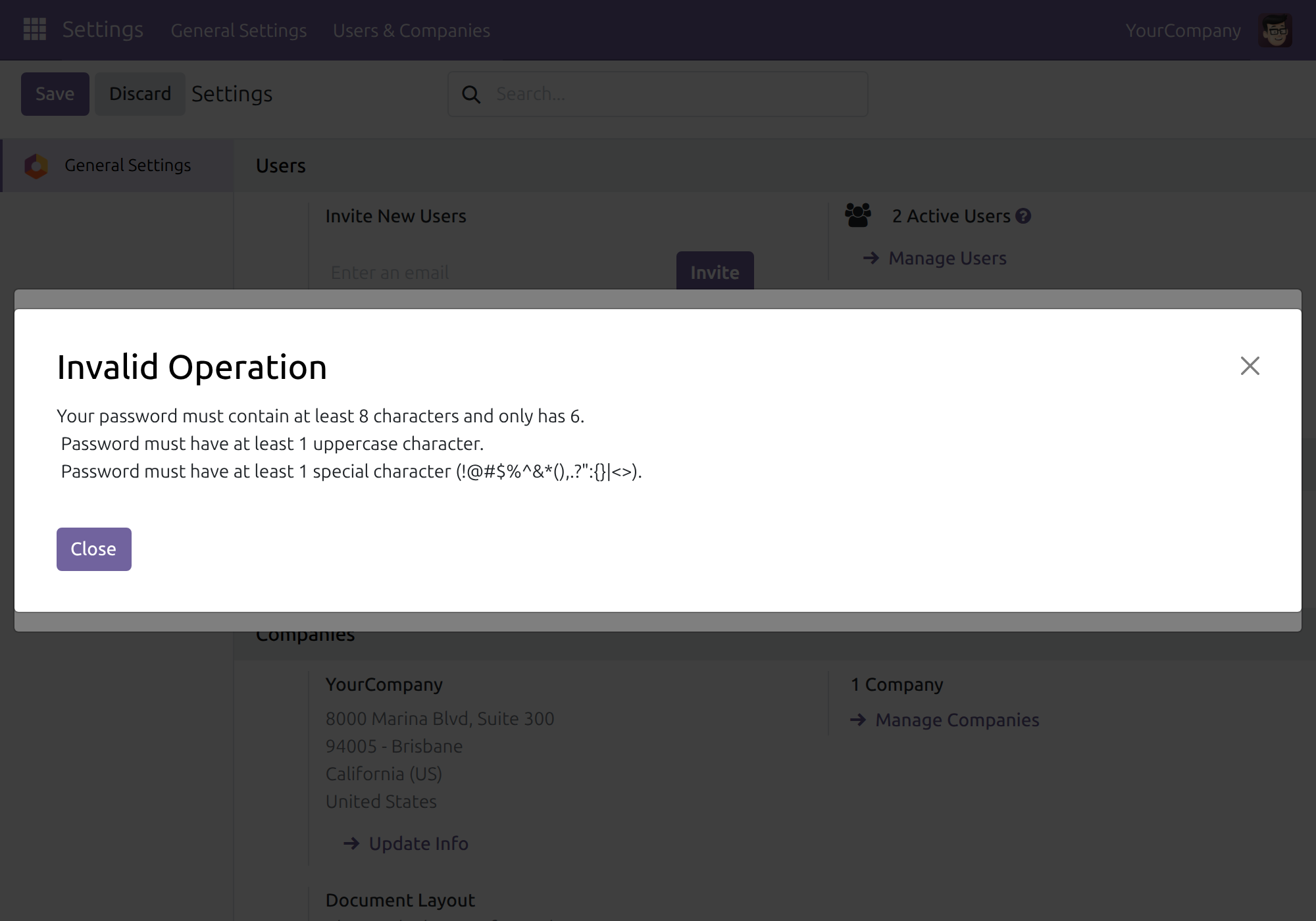
A long password can look strong even when it lacks the character types your policy asks for.
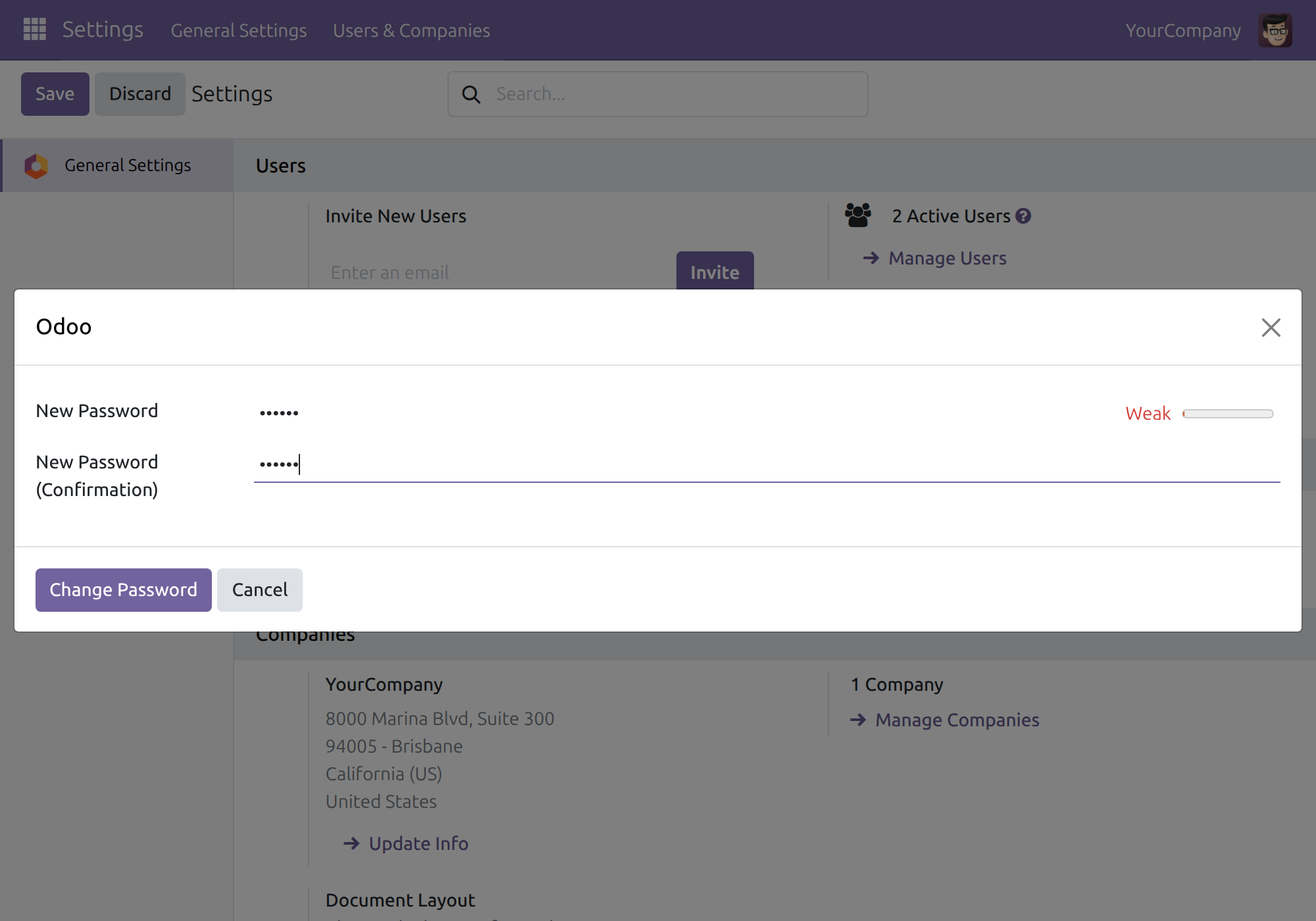
→ The bar stays weak while a required character type is missing; hovering it shows the rules.
Ready on day one
Installs with Odoo's password policy
It installs automatically with Odoo's Password Policy module. Nothing to import or migrate.
Every rule starts switched off
Nothing changes for users until you decide.
What you configure first
An administrator ticks the rules and sets the minimum length. That is the whole setup.
What is included
The rules apply when users change their own password and when an administrator sets one for them.
Optional extensions
Advanced Password Policy Portal
The same rules and strength bar on the portal's security page.
Advanced Password Policy Signup
The same rules on the sign-up, invitation and reset-password pages.
Before you decide
Will existing passwords stop working when I turn a rule on?
No. A password is checked when it is set. Existing passwords keep working until their owner changes them.
Which characters count as special?
! @ # $ % ^ & * ( ) , . ? " : { } | < > only. A space, a hyphen or any other symbol does not count.
Do accented letters count as lowercase or uppercase?
No. Those rules count only a-z and A-Z.
Who can change the rules, and can each company have its own?
Administrators only. The rules cover the whole database, so all its companies share one policy.
Does it send passwords anywhere?
No. Your own Odoo server checks them and stores them as Odoo always does; no outside service is called.
Try it, then ask us
Try the rules in the Live Preview; the Documentation tab covers setup and daily use.
Pre-sales & partnership
viindoo.com/contactusTechnical support
viindoo.com/ticketTechnical requirements
- Odoo version: 19.0
- Editions: Community, Enterprise
- Required modules: Password Policy (Odoo)
- License: OPL-1
- Languages: English, Vietnamese
Advanced Password Policy
Audience: system administrators who define the password rules, and every user who sets or changes a password.
Advanced Password Policy adds four rules to the minimum password length that Odoo already enforces: a password can be required to contain a lowercase letter, an uppercase letter, a digit and a special character. Each rule is a switch in the general settings and is off by default, so the module changes nothing until an administrator turns a rule on.
Overview
A password is checked each time it is created or changed: from the user's preferences, from the user form in Settings ‣ Users & Companies ‣ Users, and, when the matching add-on modules are installed, from the customer portal, the sign-up page and the reset-password page. When a password breaks one or more of the enabled rules, it is refused with one message that lists every broken rule at once, so the user corrects the password in a single attempt.
The special characters accepted by the rule are:
! @ # $ % ^ & * ( ) , . ? " : { } | < >
Any other character, including a space, a hyphen, an underscore, +, =, ~, brackets, ;, ', / and \, does not count as a special character.
| Role | What they do | Access right to assign |
|---|---|---|
| System Administrator | Turns the four rules on or off and sets the minimum length. | Role: Administrator |
| Employee | Chooses a new password that follows the enabled rules. | Role: User |
Note
The same rules apply on the customer portal and on the sign-up and reset-password pages when the add-on modules viin_auth_password_policy_portal and viin_auth_password_policy_signup are installed. See their documentation for those pages.
Setup (for the System Administrator)
Installation
The module installs automatically with the password policy of Odoo, and no further setup is needed to install it.
Turning the rules on
- Open Settings ‣ General Settings and go to the Permissions block.
- Next to Minimum Password Length, tick the rules you want:
- Require Lowercase Character
- Require Uppercase Character
- Require Numeric Character
- Require Special Character
- Click Save.
The rules apply to every password set from then on. Passwords that already exist are not checked again and keep working until their owner changes them. To stop requiring a rule, untick it and save.
Employee: choose a password that follows the rules
Change your password
- Click your avatar at the top right and choose My Preferences.
- Open the Security tab and click Change password.
- If asked, confirm your current password.
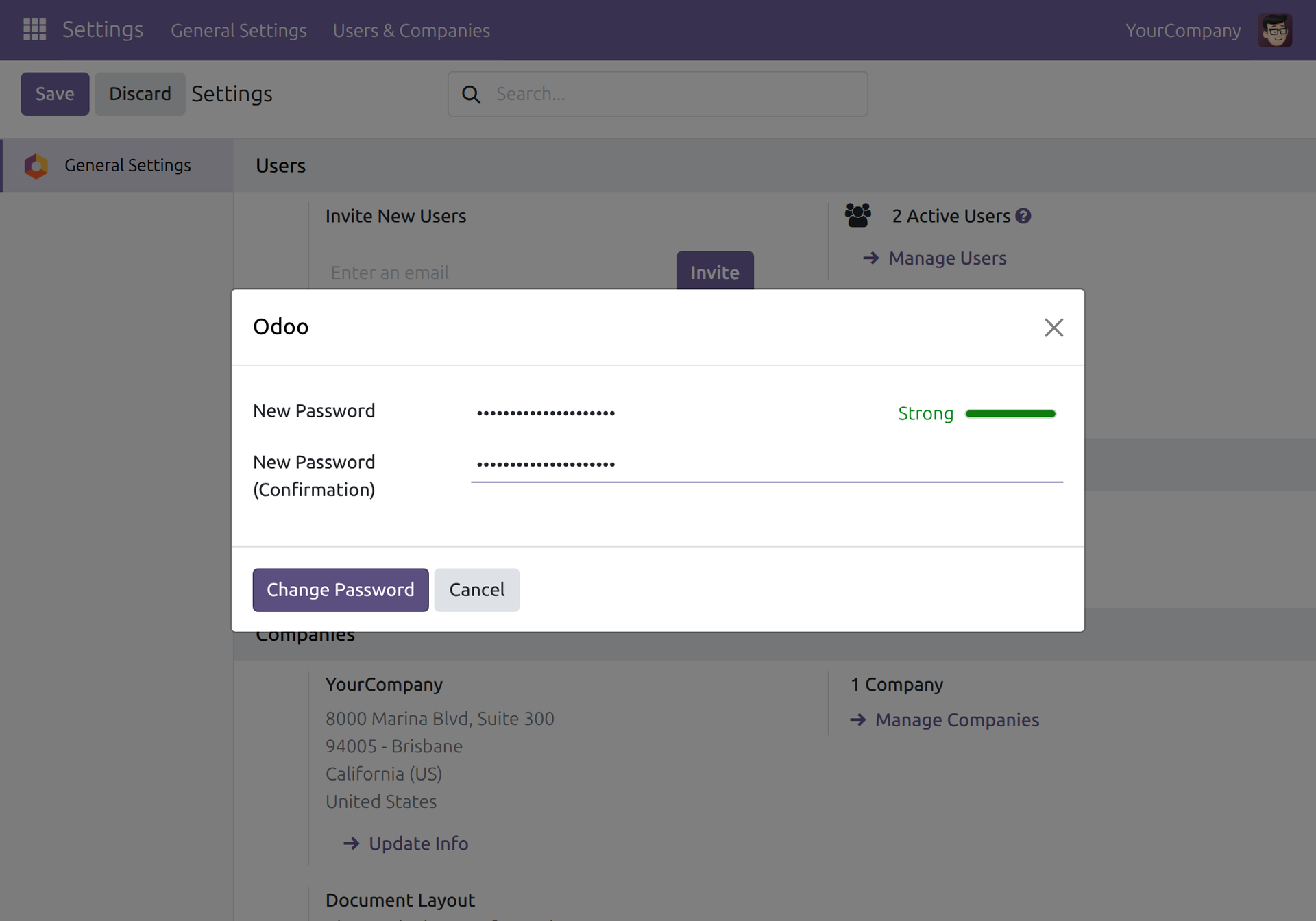
- Type the new password in New Password and again in New Password (Confirmation).
While you type, the strength bar next to New Password shows how strong the password is. A password that lacks a required character type stays in the weak range even when it is long. Hover the strength bar to read the rules that apply: the minimum length, each enabled rule and, for the special-character rule, the accepted characters.
- Click Change Password.
If the password follows every rule, it is saved. Otherwise a message lists every rule the password breaks, including the minimum length, and the current password stays valid. Correct the password and try again.
The same check applies when an administrator sets a password for a user from Settings ‣ Users & Companies ‣ Users.
Troubleshooting
- A password with a symbol is refused as having no special character.
- Only the characters listed in the Overview count. Add one of them, for example ! or #.
- The strength bar does not mention a rule an administrator just turned on.
- The page reads the rules when it loads. Reload the page to see the current rules; the check made when the password is saved always uses the current rules.
- Everyone's password is accepted whatever its content.
- All four rules are off by default. Turn them on in Settings ‣ General Settings.
This software and associated files (the "Software") may only be used (executed, modified, executed after modifications) if you have purchased a valid license from the authors, typically via Odoo Apps, or if you have received a written agreement from the authors of the Software (see the COPYRIGHT file).
You may develop Odoo modules that use the Software as a library (typically by depending on it, importing it and using its resources), but without copying any source code or material from the Software. You may distribute those modules under the license of your choice, provided that this license is compatible with the terms of the Odoo Proprietary License (For example: LGPL, MIT, or proprietary licenses similar to this one).
It is forbidden to publish, distribute, sublicense, or sell copies of the Software or modified copies of the Software.
The above copyright notice and this permission notice must be included in all copies or substantial portions of the Software.
THE SOFTWARE IS PROVIDED "AS IS", WITHOUT WARRANTY OF ANY KIND, EXPRESS OR IMPLIED, INCLUDING BUT NOT LIMITED TO THE WARRANTIES OF MERCHANTABILITY, FITNESS FOR A PARTICULAR PURPOSE AND NONINFRINGEMENT. IN NO EVENT SHALL THE AUTHORS OR COPYRIGHT HOLDERS BE LIABLE FOR ANY CLAIM, DAMAGES OR OTHER LIABILITY, WHETHER IN AN ACTION OF CONTRACT, TORT OR OTHERWISE, ARISING FROM, OUT OF OR IN CONNECTION WITH THE SOFTWARE OR THE USE OR OTHER DEALINGS IN THE SOFTWARE.