
Affiliate Management
| Lines of Code | 7950 |
| Technical name | viin_affiliate |
| License | OPL-1 |
| Website | https://viindoo.com/apps/modules/19.0/viin_affiliate |
| Read description for | v 10.0 v 11.0 v 12.0 v 13.0 v 14.0 v 15.0 v 16.0 v 17.0 v 18.0 |
| Required Apps | Invoicing (account) Discuss (mail) |
| Included Dependencies | Viindoo Base Accounting Foundation |
| Extensions | Sales with Affiliates Affiliate Loyalty Management Multi-Level Affiliate POS & Affiliate Management Affiliate CRM Integration |

Pay people to send you customers, and know what you owe
Manage Affiliates, Commission Rules and Payouts with a Minimum Amount
Small balances wait until they are worth paying, affiliates request their payout from the portal, and finance pays a draft vendor bill or purchase receipt.
For businesses that pay affiliates and referrers a commission on the customers they bring.
At a Glance
The facts of Affiliate Management in one place. Published by Viindoo.
How It Works
From the terms you agree with an affiliate to a vendor document finance pays, in four steps.
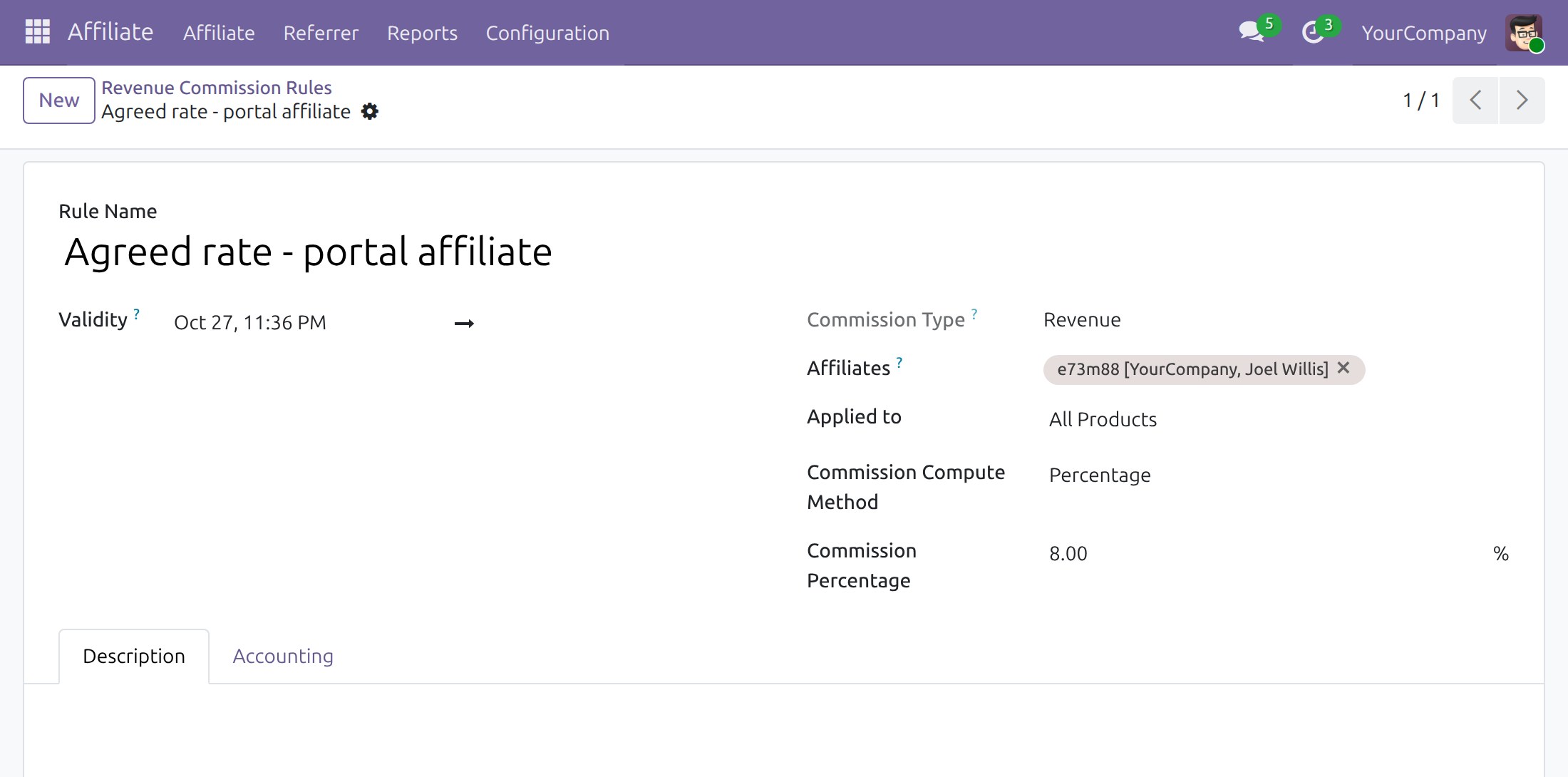
Agree the terms
The affiliate programme administrator sets a rate per product, per category or for everything, and gives chosen affiliates their own rates. At the same level of detail, the rule of the chosen affiliates wins over the general rule.
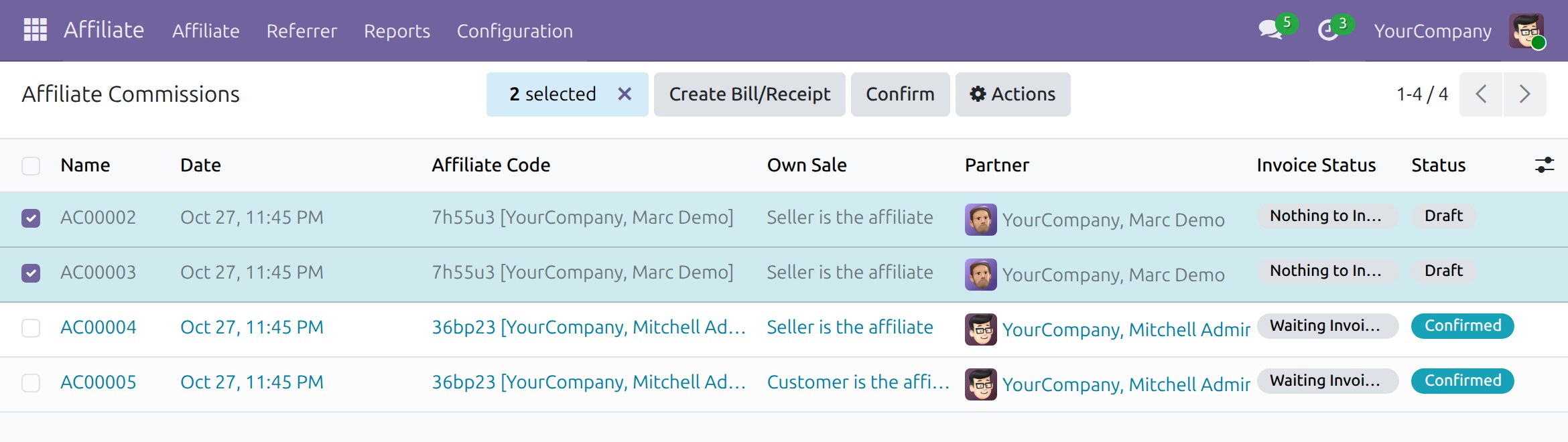
Review the held commissions
Commissions are confirmed automatically. When the seller of an order is its affiliate, your policy decides: pay it, hold it in Draft for review, or do not pay it. The affiliate team confirms the held commissions in bulk from the list.
The affiliate asks for the payout
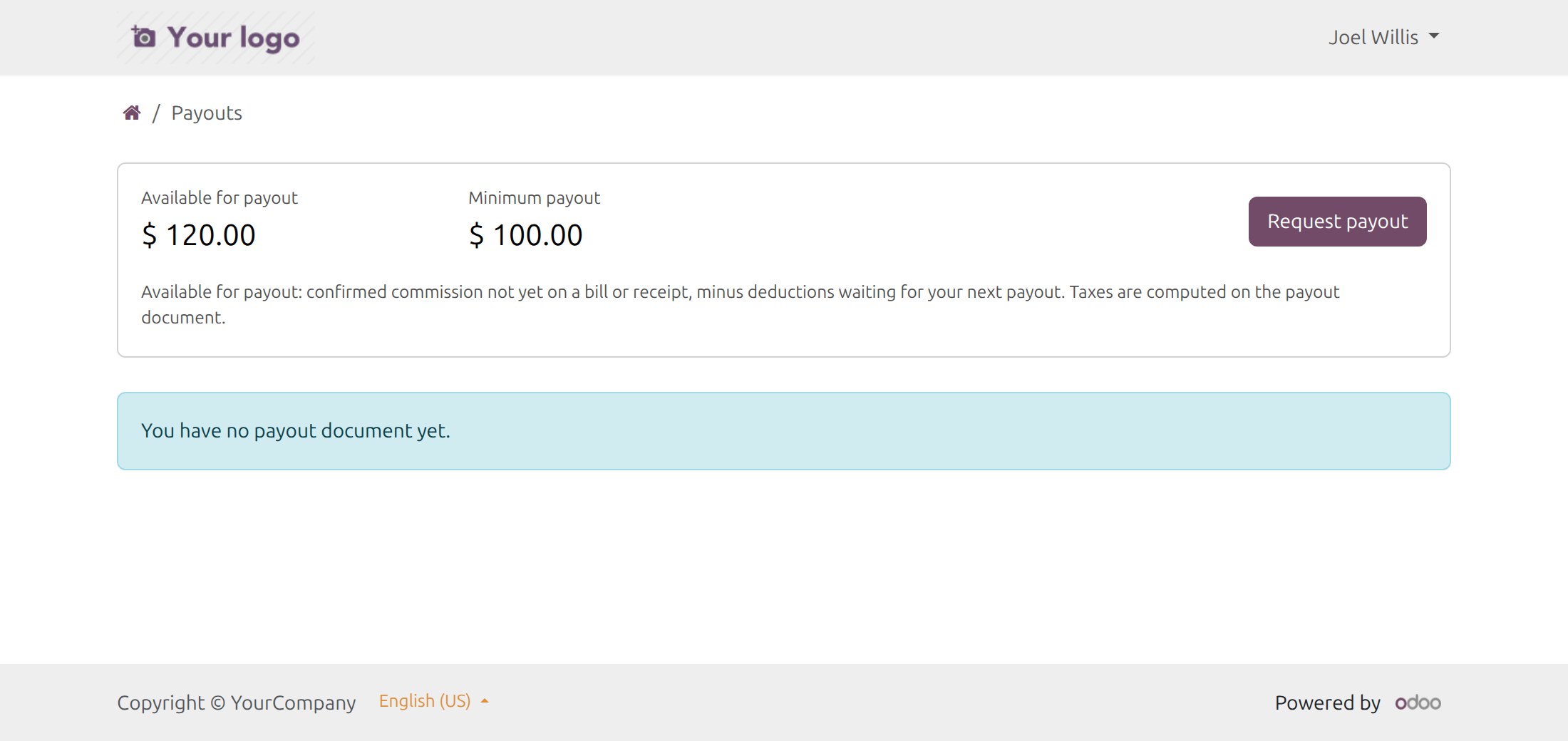
The affiliate's Payouts page in the portal shows the balance available, the minimum and what is missing to reach it. Once the balance reaches the minimum, Request payout creates a draft vendor bill (an affiliate that is a company) or purchase receipt (an individual).
Finance validates and pays
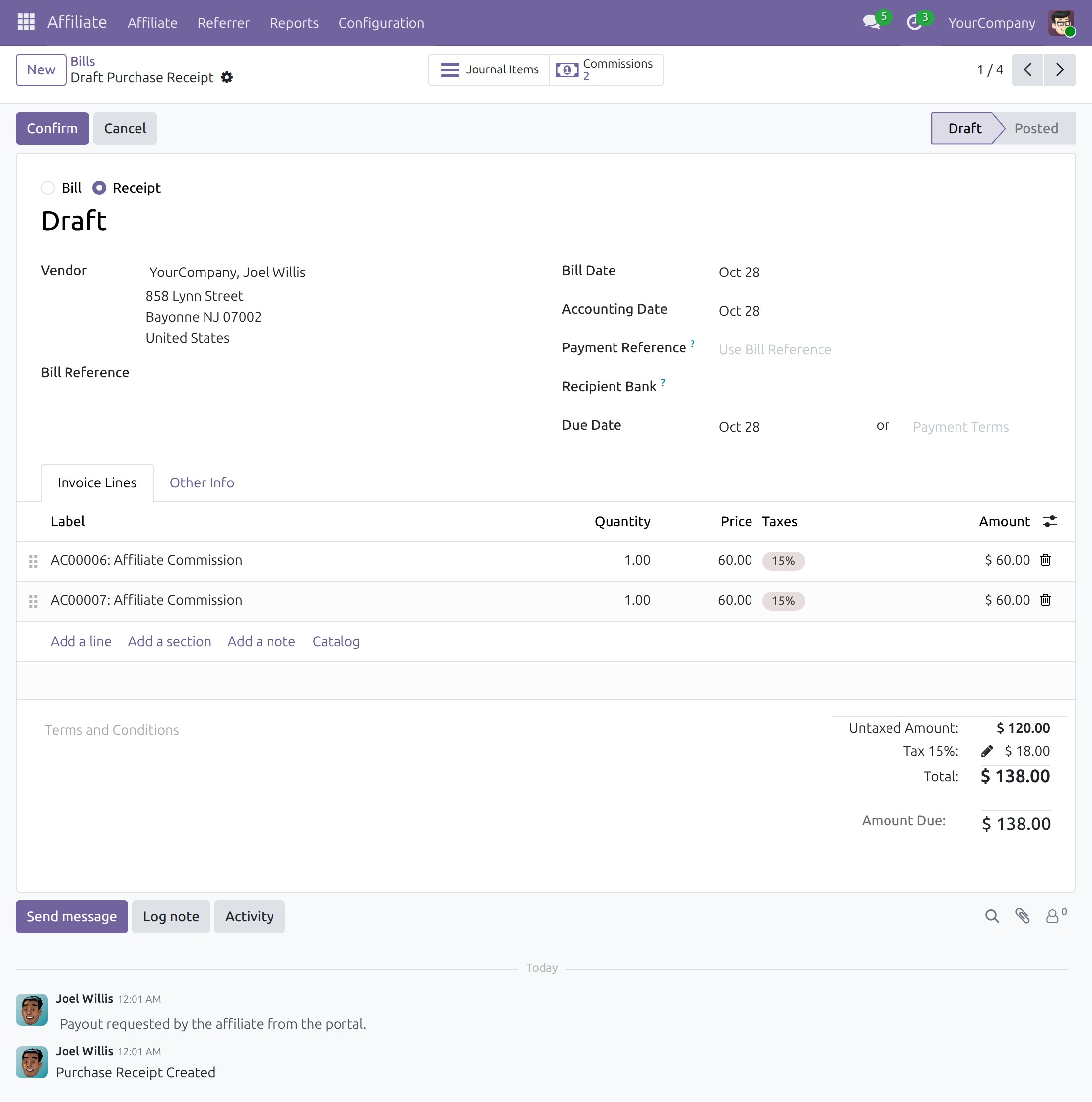
The draft sits with the other vendor documents. Finance checks the lines and the taxes, confirms it and registers the payment with the usual Odoo accounting tools. The minimum never blocks finance from creating a bill or receipt for confirmed commissions.
What You Get
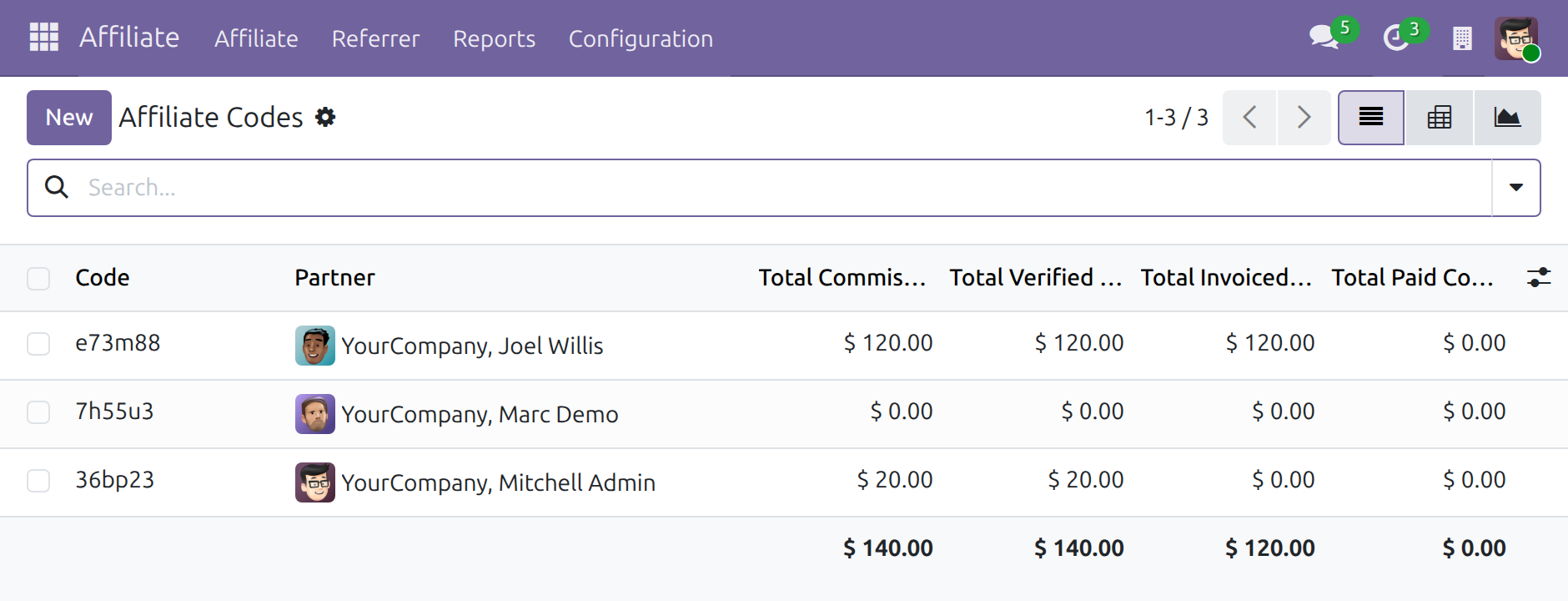
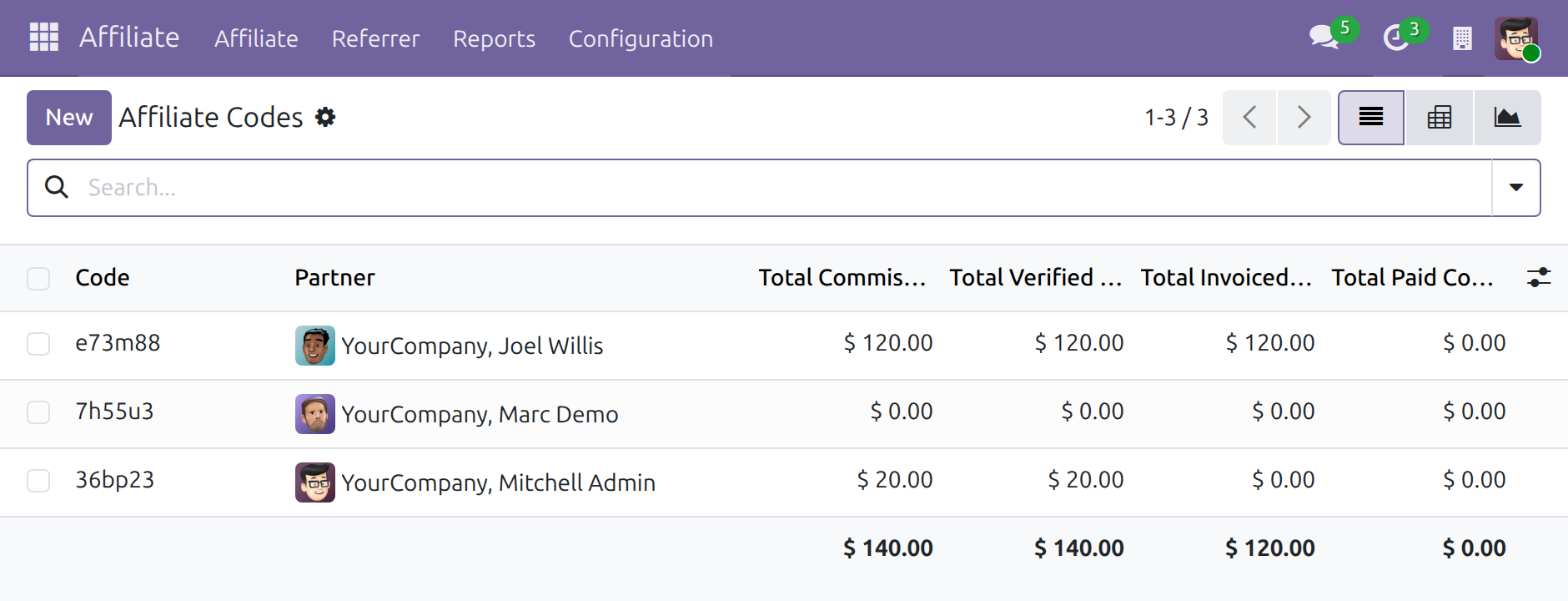
Affiliates and their referral codes. One code per affiliate, with the commissions earned under it in one place.
Commission rules with special rates for chosen affiliates. Rates per product, per category or for everything. Restrict a rule to the affiliates it is meant for and it wins over the general rule at the same level of detail, on sales, point-of-sale and referral commissions.
A minimum payout, per company and per affiliate. A balance below the minimum is neither billed by the periodic billing nor open to a payout request: it rolls over to the next payout. Set the minimum once in the commission policy and override it on the code of an affiliate with other terms.
Periodic payout. Switch on automatic billing and choose a daily, weekly or monthly period: each affiliate's commission of the previous period lands on a draft vendor bill or purchase receipt for finance to check. A balance below the minimum waits for the next period; a recovery of commission is billed whatever the minimum.
Payouts in the affiliate portal. Affiliates see the balance available for payout, the minimum and what is missing, then press Request payout. The request becomes a draft vendor bill or purchase receipt, and the Payouts page lists their documents with their status.
Paid through Odoo accounting. Finance validates and pays the draft documents like any vendor document. Taxes come from the vendor taxes of the commission product and the fiscal position of the affiliate.
A policy for sellers who are affiliates. When the salesperson or cashier who makes a sale is the affiliate on the order, choose what happens to the commission: Pay, Hold for review or Do not pay. It applies with Sales with Affiliates and POS & Affiliate Management.
Reporting on programme performance. Analyse how effective the affiliates and the programme are.
More Screens
Every screen below comes from Odoo 19.0 with demo data.
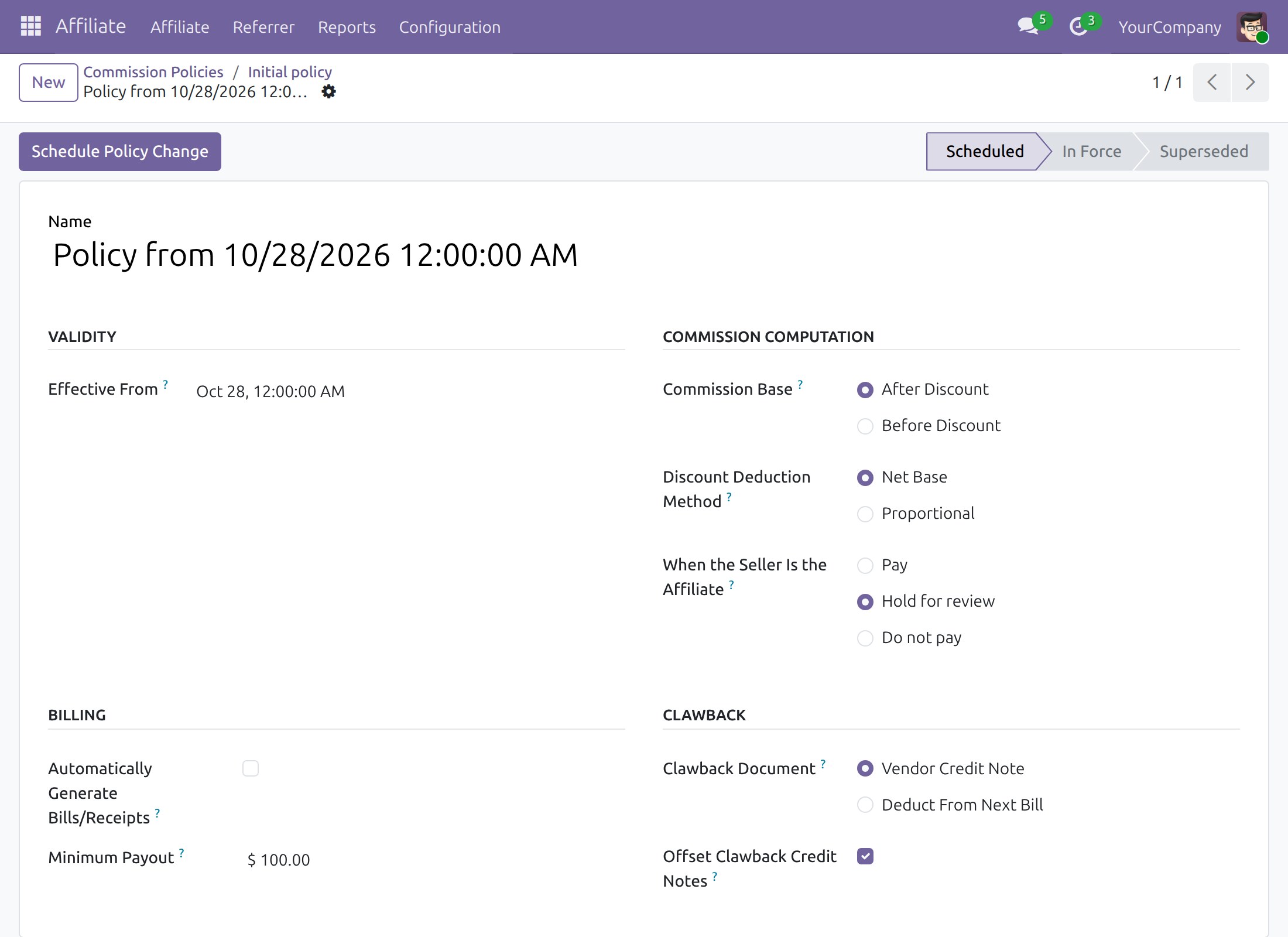
The commission policy: minimum payout and seller rule
A minimum for one affiliate, traced in the chatter
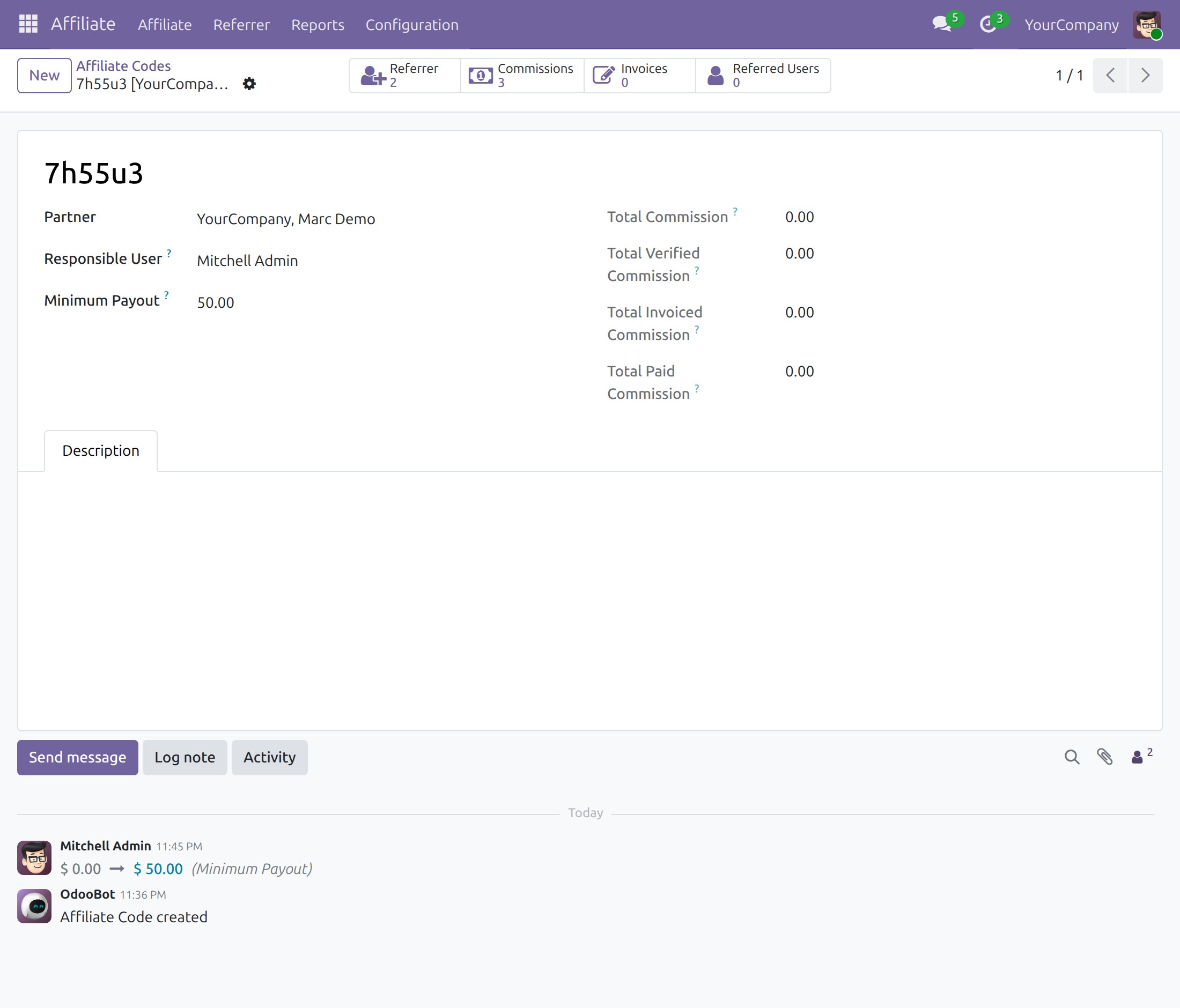
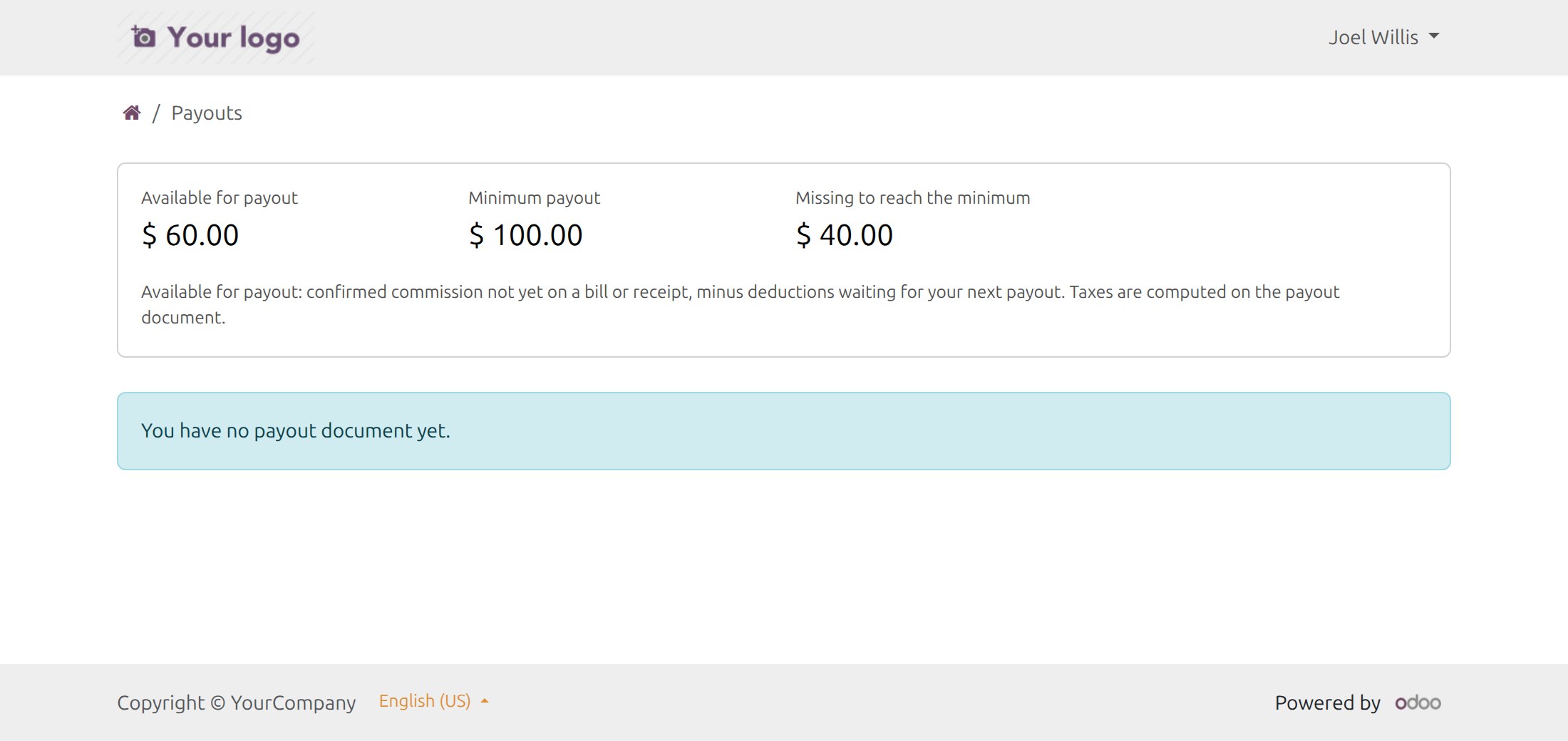
Below the minimum, the affiliate sees what is missing
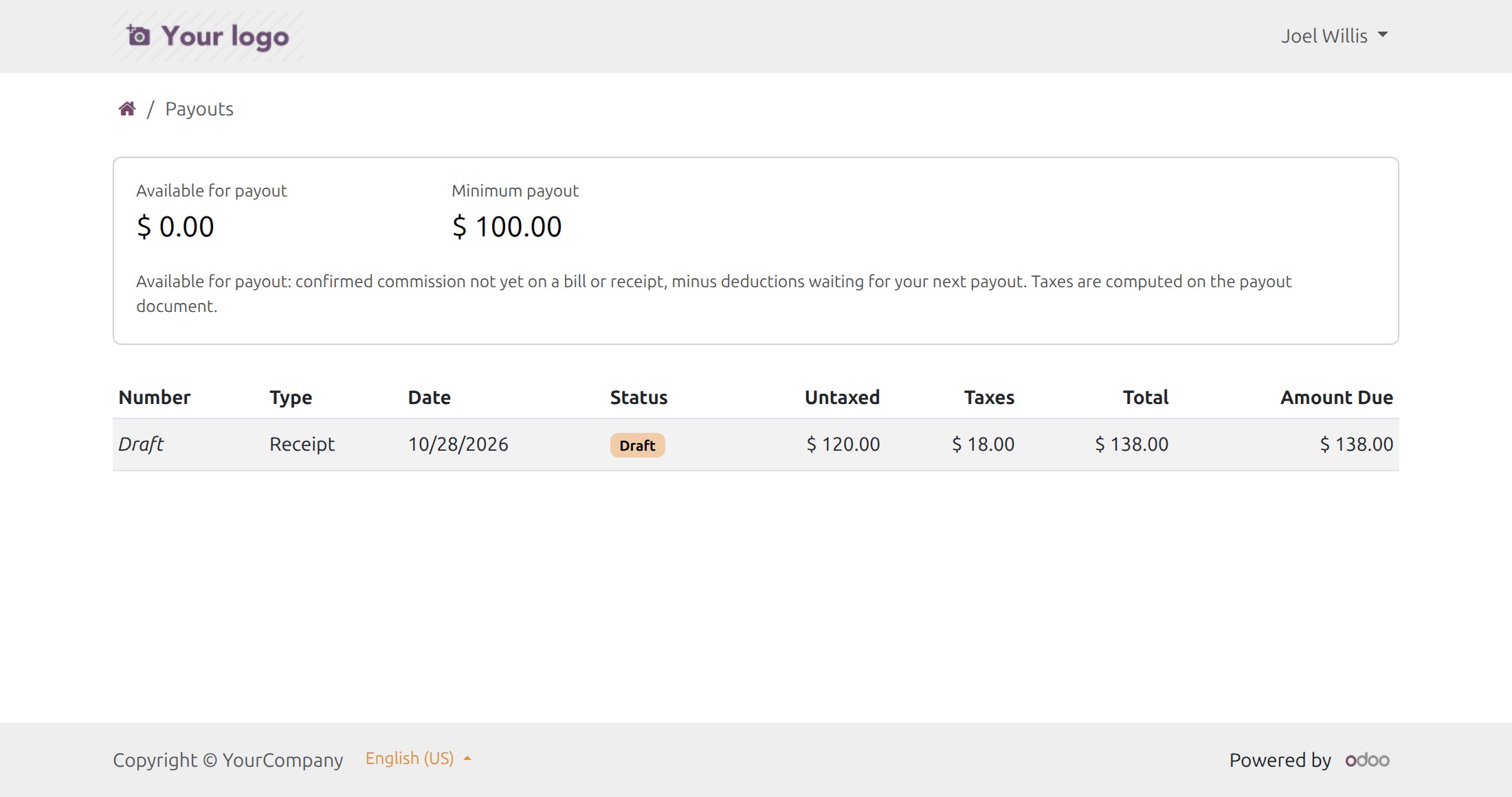
The payout documents of the affiliate
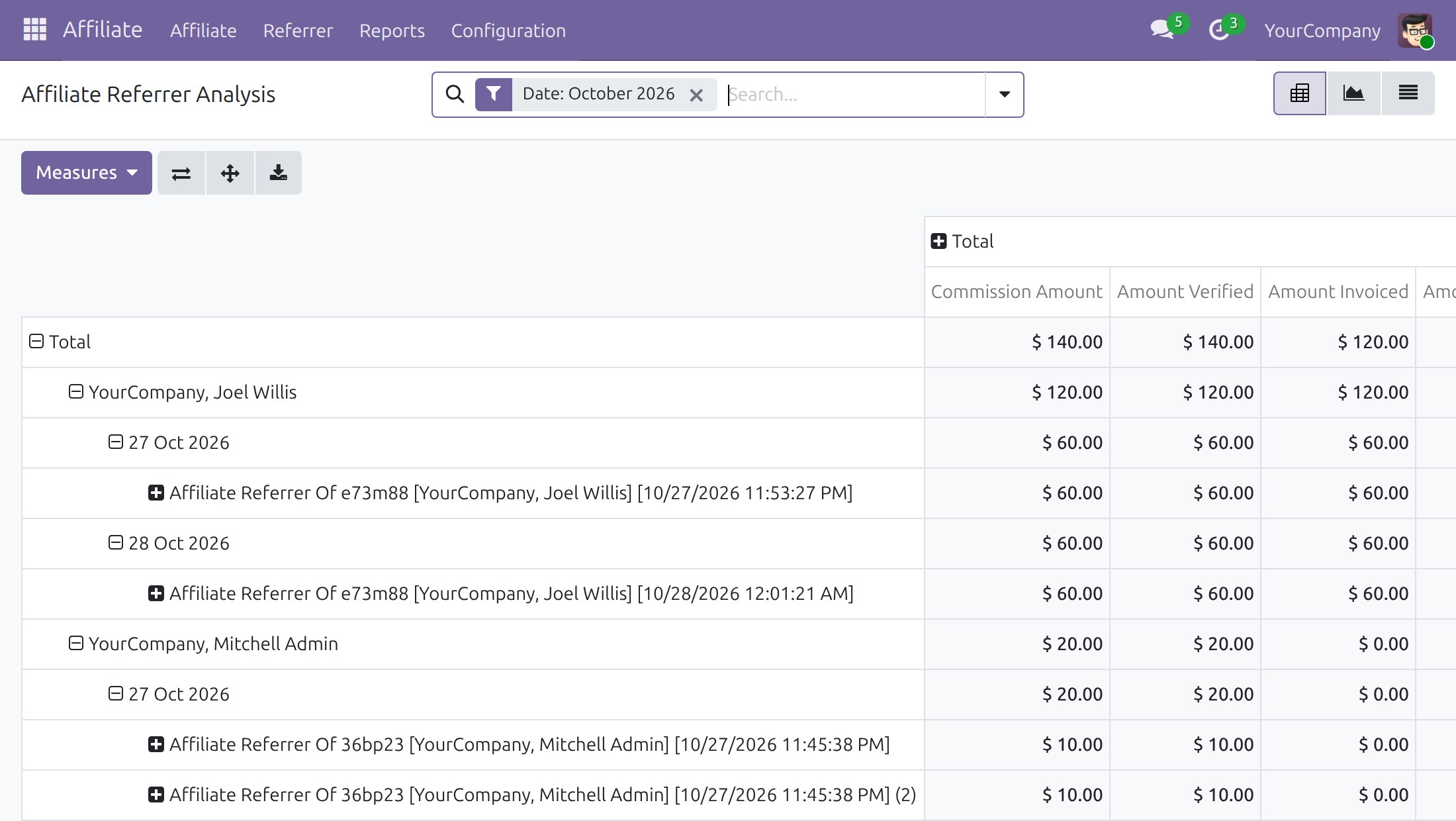
Commission by affiliate and by day
What This App Does Not Do
Read this before you buy. Everything below is something the app deliberately leaves to another app or to you.
Recruiting is marketing's job.
A sale placed without the code on it, for example by a website visitor whose browser cleared its cookies, is not attributed.
Multi-level structures need the multi-level module.
The app prepares a draft vendor bill or purchase receipt for each payout. Your finance team validates it and registers the payment with the usual Odoo accounting tools.
Works Well With
Apps from the same stack, built to fit this one:
With Sales
Affiliate codes on sales orders. A sale made by the affiliate follows your seller policy.
Sales with AffiliatesWith Point of Sale
Commissions on point-of-sale orders. A cashier who is the affiliate follows your seller policy.
POS & Affiliate ManagementWho Should Use Affiliate Management?
Affiliate programme administrator
Sets the minimum payout, the seller policy and special rates for chosen affiliates in one place.
Affiliate manager
Sees what each affiliate brought in.
Affiliate
Follows their commissions and the balance available for payout in the portal, and requests a payout once it is worth one.
Finance
Pays against a draft vendor bill or purchase receipt, not a spreadsheet.
Marketing
Compares the programme against paid channels.
Frequently Asked Questions
What does Affiliate Management do?
It keeps your affiliates, their referral codes and their commission rules in Odoo, records what each affiliate has earned, and prepares the payout as a draft vendor bill or purchase receipt that finance validates and pays.
What does Affiliate Management not do?
It does not find affiliates for you: recruiting is marketing's job. Attribution follows the affiliate code: a sale placed without the code on it is not attributed. It does not run a network: multi-level structures need the multi-level module. It does not make the payment for you: it prepares a draft vendor bill or purchase receipt, and finance validates and pays it.
Can small balances wait until they are worth paying?
Yes. Set a minimum payout in the commission policy for the company, and a different one on the code of an affiliate. A balance below the minimum is neither billed by the periodic billing nor open to a payout request, and rolls over to the next payout. Finance is never blocked by the minimum: it can still create a bill or receipt for confirmed commissions at any time.
How does an affiliate get paid?
In the portal, the affiliate opens Payouts, sees the balance available, the minimum and what is missing, and presses Request payout once the balance reaches the minimum. Odoo creates a draft vendor bill (an affiliate that is a company) or purchase receipt (an individual), or completes the draft already prepared for the affiliate. Finance validates and pays it. You can also switch on periodic billing, daily, weekly or monthly, so the drafts are prepared for you.
Can I give one affiliate a special rate?
Yes. Fill the Affiliates field of a commission rule to restrict it to the affiliates it is meant for; a rule left without affiliates applies to everyone. At the same level of detail the rule of the chosen affiliates wins over the general rule, and a more specific general rule (a product over a category over all products) still wins over a less specific rule of the affiliate.
What if a salesperson or cashier is also the affiliate?
Choose in the commission policy: Pay, Hold for review or Do not pay. Hold for review keeps the commission in Draft with a note until your affiliate team confirms or cancels it. Do not pay records it as Cancelled, and Set to Draft then Confirm pays it. The policy applies with Sales with Affiliates and POS & Affiliate Management, which know who the seller is.
Who is Affiliate Management for?
Affiliate programme administrator: Sets the minimum payout, the seller policy and special rates for chosen affiliates in one place. Affiliate manager: Sees what each affiliate brought in. Affiliate: Follows their commissions and the balance available for payout in the portal, and requests a payout once it is worth one. Finance: Pays against a draft vendor bill or purchase receipt, not a spreadsheet. Marketing: Compares the programme against paid channels.
Which Odoo version and editions does it support?
Odoo 19.0 - Odoo Community, Odoo Enterprise, Viindoo Cloud. Upgrades to a newer Odoo series are a separate purchase for that series.
What does it depend on?
It installs on top of: to_base, viin_account. Odoo installs them with it.
How do I set it up?
Open Affiliate > Configuration > Commission Policies to set the minimum payout and the seller rule (a new policy applies from the date and time you choose), create the commission rules, then create an affiliate code for each affiliate. The user guide in the Documentation tab walks through each step.
What works well with it?
With Sales (viin_affiliate_sale): Affiliate codes on sales orders. With Point of Sale (viin_affiliate_pos): Commissions on point-of-sale orders. Multi-level (viin_affiliate_multi_level): Commission down a referral tree. With Loyalty (viin_affiliate_loyalty): Coupons tied to an affiliate.
Can I try it before buying?
Yes - the Live Preview button at the top of this page opens the module's own screen on a working database.
How do I get support?
Open a ticket at viindoo.com/ticket with your Odoo version and the technical name viin_affiliate; pre-sales questions go to viindoo.com/contactus.
See Affiliate Management in Action
Live demo: v19demo-int.viindoo.com/web#action=viin_affiliate.action_affiliate_code
Need help with Affiliate Management?
For questions, implementation support or a custom feature, contact Viindoo.
Pre-Sales & Partnership
viindoo.com/contactusTechnical Support
viindoo.com/ticketUpgrades to a newer Odoo series are a separate purchase for that series.
All Viindoo apps: Viindoo Apps
Technical Requirement
Changes log
3.1.7 - Latest on the 19.0 line
- Minimum payout: a company minimum in the commission policy and an own minimum on each affiliate code. A balance below the minimum rolls over to the next payout; the periodic billing leaves it for the next period.
- Payouts page in the affiliate portal, with Request payout creating a draft vendor bill or purchase receipt for finance to validate and pay.
- Commission rules can be restricted to chosen affiliates.
- A commission policy for orders sold by the affiliate: Pay, Hold for review or Do not pay.
- Referral commissions keep the amount they were created with.
3.1.6
- Available for Odoo 19.0.
- Commission policies per company, scheduled from an exact date and time: commission base before or after discount, discount deduction method and automatic billing. Each commission keeps the policy in force when it was created.
- Discounts reduce progressive (tiered) commissions tier by tier.
- Affiliate settings list every affiliate add-on with an install toggle or a link to get it.
- The validity of a commission rule is entered as one date range.
Overview
This guide is for the people who run an affiliate programme with Affiliate Management: the affiliate programme administrator, the affiliate coordinators and managers, the accountants who pay affiliates, and the affiliates themselves, who follow their commissions and payouts from the portal.
An affiliate earns a commission on the orders and referrals attributed to their affiliate code. Commissions are confirmed automatically when they are created; the affiliate team confirms only the commissions that the commission policy holds for review. Finance bills them on a vendor bill (an affiliate that is a company) or on a purchase receipt (an individual), validates the document and pays it. An affiliate can also ask for a payout from the portal. A minimum payout keeps small balances from costing a payment: a balance below the minimum waits and adds to the next payout.
| Role | What they do | Access right to assign |
|---|---|---|
| Affiliate programme administrator | Sets the commission policy (minimum payout, what happens when the seller is the affiliate), the commission rules and the minimum payout of each affiliate. Reads the reports. | Affiliate / Administrator. To open Affiliate ‣ Configuration ‣ Settings the user also needs Role / Administrator. |
| Affiliate manager | Follows the commissions of all affiliates and decides on the commissions held for review. | Affiliate / User: All affiliates |
| Affiliate coordinator | Does the same for the affiliates they are responsible for. | Affiliate / User: Own affiliates |
| Accountant (finance) | Bills the confirmed commissions, validates and pays the vendor bills and purchase receipts of the affiliates. | Accounting / Invoicing |
| Affiliate | Follows the balance available for payout and requests a payout. | A portal user whose contact holds an affiliate code |
Installation
- Navigate to Apps.
- Search with keyword viin_affiliate.
- Press Install.
Instruction
Instruction video: Affiliate Management
1. Affiliate management app configuration.
For the affiliate programme administrator.
- Go to the Affiliate ‣ Configuration ‣ Settings to fulfill basic configurations for the affiliate programs. The page also shows the commission policy in force: how commissions are computed and billed, the minimum payout and what happens when the seller is the affiliate.
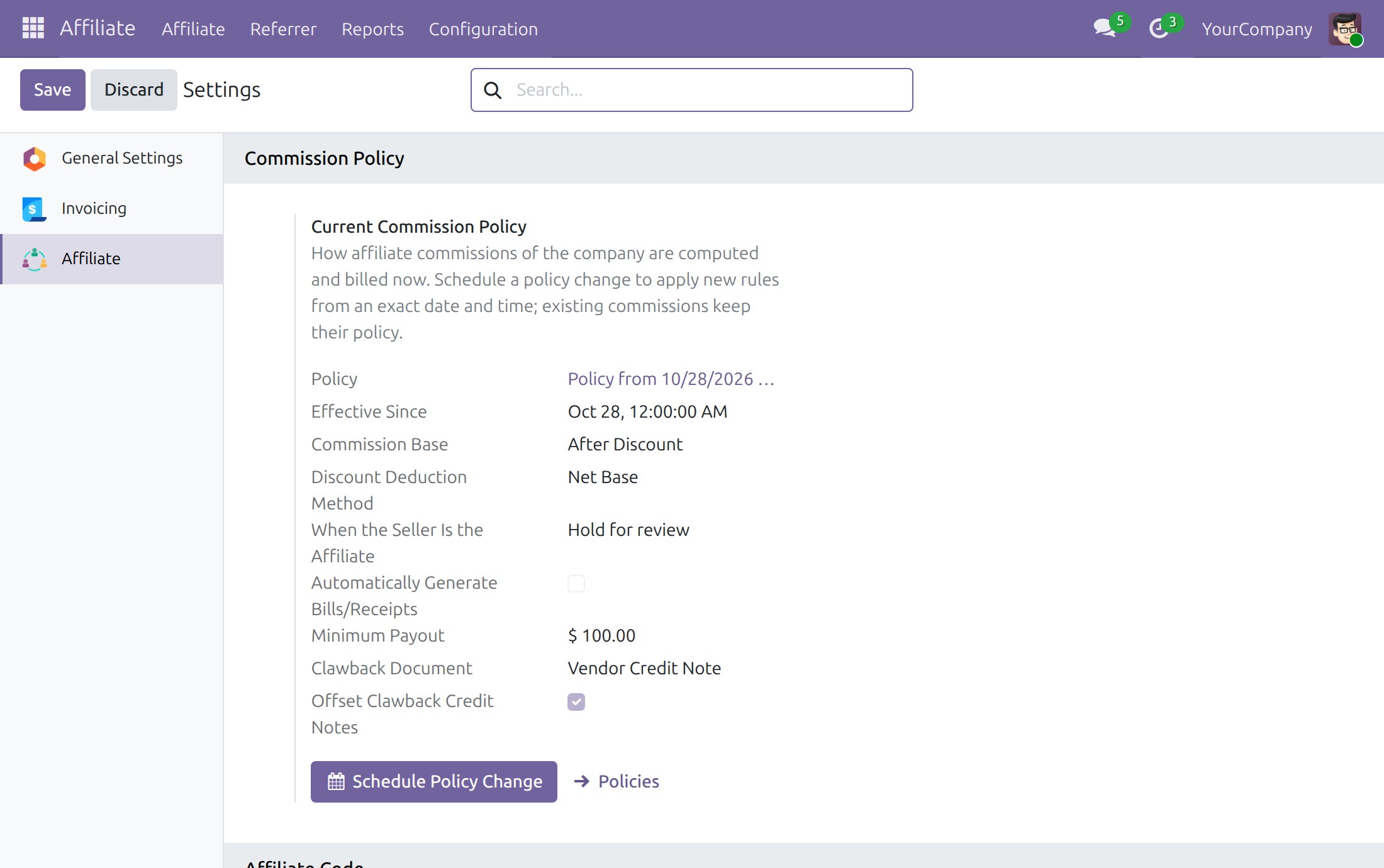
- Go to Affiliate ‣ Configuration ‣ Commission Policies to set the minimum payout and the rule for sellers who are affiliates. A policy that commissions already use is locked, so a change is a new policy that applies from its own date and time, and the commissions created earlier keep the policy they were created with.
- Open the policy in force and press Schedule Policy Change. A new policy opens with the values of the current one.
- Keep the proposed Effective From or choose another date and time.
- In Billing, enter the Minimum Payout of the company. A positive balance below this amount is not billed by the periodic billing and cannot be requested from the portal: it rolls over and is added to the next payout. Finance can still bill it by hand. A recovery, which is a balance of zero or less after the deductions, is billed whatever the minimum. Enter 0 for no minimum.
- In Commission Computation, choose When the Seller Is the Affiliate. It applies when the salesperson of a sales order, or the cashier of a point-of-sale order, is the affiliate of the code on the order:
- Pay: the commission is paid like any other.
- Hold for review: the commission is created in Draft with a note, and an affiliate user confirms or cancels it.
- Do not pay: the commission is recorded as Cancelled with a note. An affiliate user can set it to Draft and confirm it to pay it.
- Save the policy. It is Scheduled until its effective date, then In Force.
- Go to Affiliate ‣ Configuration ‣ Commission Rules ‣ Revenue Commission Rules (a rate on sales) or Referral Commission Rules (an amount per referral) and press New to create the commission rules that match your agreements with the affiliates.
- To agree special terms with chosen affiliates, fill the Affiliates field of the rule. A rule left without affiliates applies to every affiliate, and only affiliate codes of the company of the rule can be chosen. When several rules fit, the most specific one wins: a rule for a product, then for a product tag, then for a product category, then for all products. At the same level, the rule restricted to the affiliate wins over the general rule, while a more specific general rule still wins over a less specific rule of the affiliate. This holds for the commissions on sales orders, on point-of-sale orders and for the referral commissions.
- A referral commission keeps the amount of its rule at the time it was created. Editing a rule changes only the commissions created afterwards.
2. Create Affiliate codes.
For the affiliate programme administrator and the affiliate coordinators.
To manage affiliates on your system, you go to Affiliate ‣ Affiliate ‣ Affiliate Codes ‣ New. Each affiliate will be managed with a separate code.
The Minimum Payout of the code is the amount this affiliate has to reach before a payout. Only affiliate administrators change it. Leave it at 0 to use the minimum of the commission policy. Every change is recorded in the chatter. The other users see the value but cannot change it.
3. Manage commissions and commission payments.
Combine with the viin_affiliate_sale and viin_affiliate_website apps, you can manage your commissions and commission payment status.
- Manage affiliate commissions. For the affiliate managers and coordinators. Go to Affiliate ‣ Affiliate ‣ Commission. A commission is Draft, Confirmed, Done or Cancelled. The Own Sale column marks the commissions of an order whose seller is the affiliate (Seller is the affiliate) or whose customer is the affiliate (Customer is the affiliate).
- Review the commissions held because the seller is the affiliate (Hold for review in the policy):
- In the search bar of the commission list, open the filter menu and choose Own sales.
- Tick the Draft commissions you confirm.
- Press Confirm in the header of the list. Only Draft commissions are confirmed, the others stay as they are.
To refuse a held commission, open it and press Cancel. To pay a commission recorded as not paid (Do not pay), open it, press Set to Draft, then Confirm. When the customer of a sales order is the affiliate, the option Commission On Own Sales Orders of the sales module applies and a note on the order gives the reason; a commission that is paid is marked Customer is the affiliate. A Point of Sale order whose customer is the affiliate always loses its affiliate code and earns no commission; a note on the order gives the reason.
- Bill the commissions. For the accountants. Tick the confirmed commissions in the list and press Create Bill/Receipt, or open a confirmed commission and press Create Bill or Create Receipt. The document is a draft vendor bill for an affiliate that is a company and a draft purchase receipt for an individual. The minimum payout never blocks this action, whatever the balance. When the affiliate already has a draft commission document of the company dated on or before today, the new lines are added to it. When Automatically Generate Bills/Receipts is on in the policy, the draft documents of the previous period are created for you and a balance below the minimum waits for the next period.
- Taxes of the document: the lines take the vendor taxes of the commission product, a branch company using those of its parent company too, and the fiscal position of the affiliate maps them. Taxes are not part of the balance compared with the minimum payout. They are computed on the document.
- Validate and pay. Go to Invoicing ‣ Vendors ‣ Bills, open the draft document, check the lines and the taxes, press Confirm, then register the payment as for any vendor document. The commissions are Done once the document is paid. When an affiliate requested the payout, the chatter of the document says so.
4. Follow the balance and request a payout.
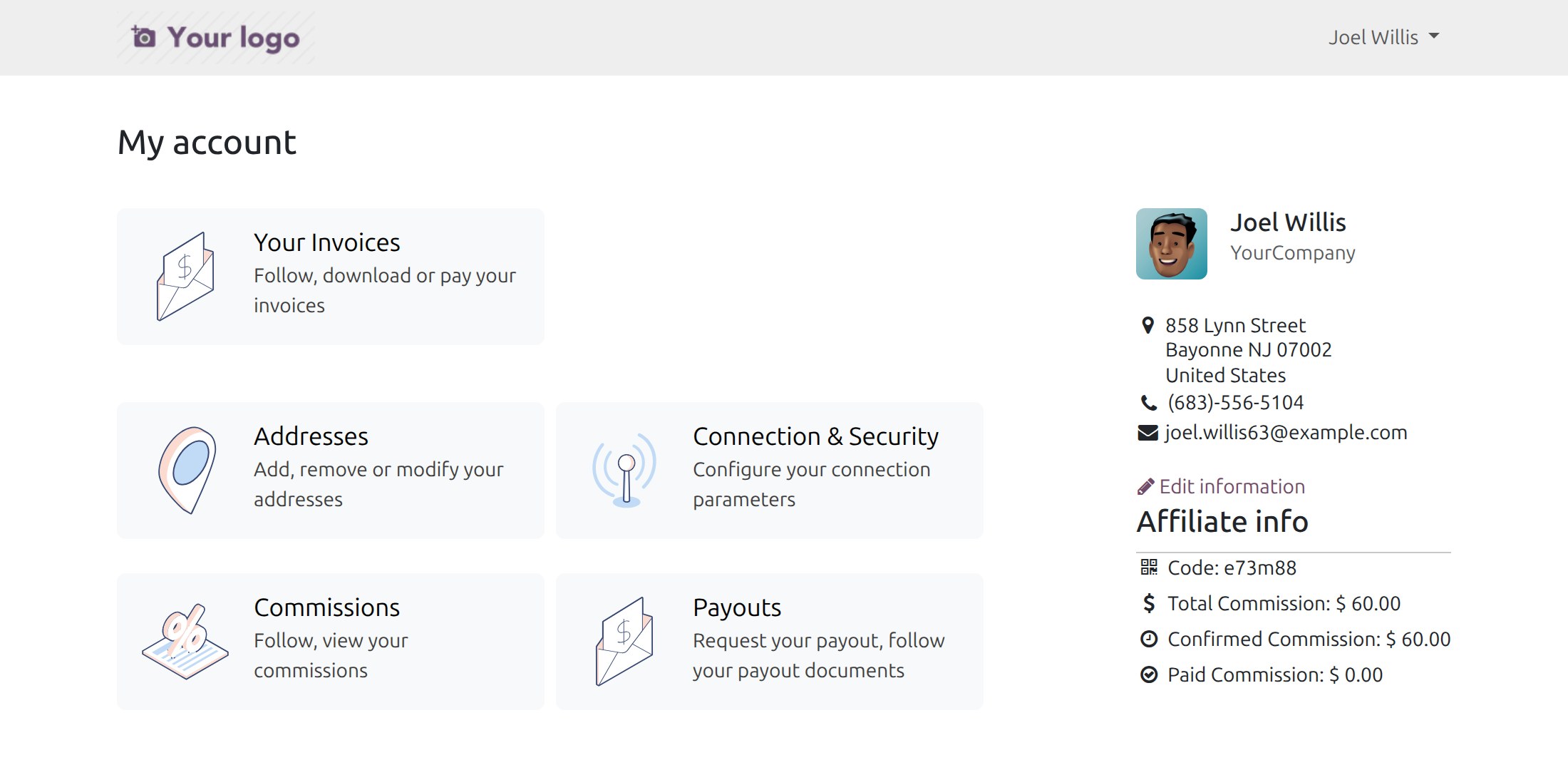
For the affiliates. The affiliate signs in to the portal and finds the Payouts card on the portal home.
The Payouts page opens with a summary:
- Available for payout: the confirmed commissions not yet on a bill or receipt, minus the deductions waiting for the next payout, before taxes. A commission on a sales order counts for the part the customer has paid: until then it is confirmed but not available.
- Minimum payout: the minimum that applies to the affiliate, which is their own minimum when it is set and the minimum of the commission policy otherwise.
- Missing to reach the minimum: the amount still needed, shown while the balance is below the minimum.
Once the balance reaches the minimum, press Request payout. A draft vendor bill (affiliate that is a company) or purchase receipt (individual) is created for the balance, or the draft already prepared for the affiliate in the same company is completed. Finance validates and pays it as any vendor document.
The table below the summary lists the payout documents of the affiliate in the current company: number, type (Bill, Receipt or Credit Note), date, status, amounts and amount due. The status is Draft, Waiting for Payment, Paid, Reversed (a bill offset by a credit note) or Cancelled; a cancelled document shows no amount due, and its commissions are available again for a new request.
5. View analysis report.
Affiliate management software provides reports according to flexible criteria for many management purposes such as analyzing the effectiveness of collaborators and affiliate marketing programs with real-time updates.
This software and associated files (the "Software") may only be used (executed, modified, executed after modifications) if you have purchased a valid license from the authors, typically via Odoo Apps, or if you have received a written agreement from the authors of the Software (see the COPYRIGHT file).
You may develop Odoo modules that use the Software as a library (typically by depending on it, importing it and using its resources), but without copying any source code or material from the Software. You may distribute those modules under the license of your choice, provided that this license is compatible with the terms of the Odoo Proprietary License (For example: LGPL, MIT, or proprietary licenses similar to this one).
It is forbidden to publish, distribute, sublicense, or sell copies of the Software or modified copies of the Software.
The above copyright notice and this permission notice must be included in all copies or substantial portions of the Software.
THE SOFTWARE IS PROVIDED "AS IS", WITHOUT WARRANTY OF ANY KIND, EXPRESS OR IMPLIED, INCLUDING BUT NOT LIMITED TO THE WARRANTIES OF MERCHANTABILITY, FITNESS FOR A PARTICULAR PURPOSE AND NONINFRINGEMENT. IN NO EVENT SHALL THE AUTHORS OR COPYRIGHT HOLDERS BE LIABLE FOR ANY CLAIM, DAMAGES OR OTHER LIABILITY, WHETHER IN AN ACTION OF CONTRACT, TORT OR OTHERWISE, ARISING FROM, OUT OF OR IN CONNECTION WITH THE SOFTWARE OR THE USE OR OTHER DEALINGS IN THE SOFTWARE.