
Administrative Region Management
by Viindoo
| Lines of Code | 339 |
| Technical name | viin_administrative_region |
| License | OPL-1 |
| Website | https://viindoo.com/apps/modules/19.0/viin_administrative_region |
| Read description for | v 13.0 v 14.0 v 15.0 v 16.0 v 17.0 v 18.0 |
| Required Apps | Discuss (mail) |
| Extensions | Payroll By Administrative Regions |
Keep every country's administrative regions in one place
For HR, payroll and finance teams working across countries with their own administrative regions
Manage country's administrative regions, which may differ from its geographic regions.
Is this you?
Your regions live in spreadsheets, and every file has a slightly different list.
The same region is spelled three ways in three places.
Nobody can say who renamed a region, or when.
Your country's regions do not match its states or provinces, so there is nowhere to put them.
What You Get
One list of regions per country, right on the country record.
One spelling, translatable into every language you use.
Every change to a name or country is tracked.
Regions independent of states and provinces, as your country defines them.
How It Works
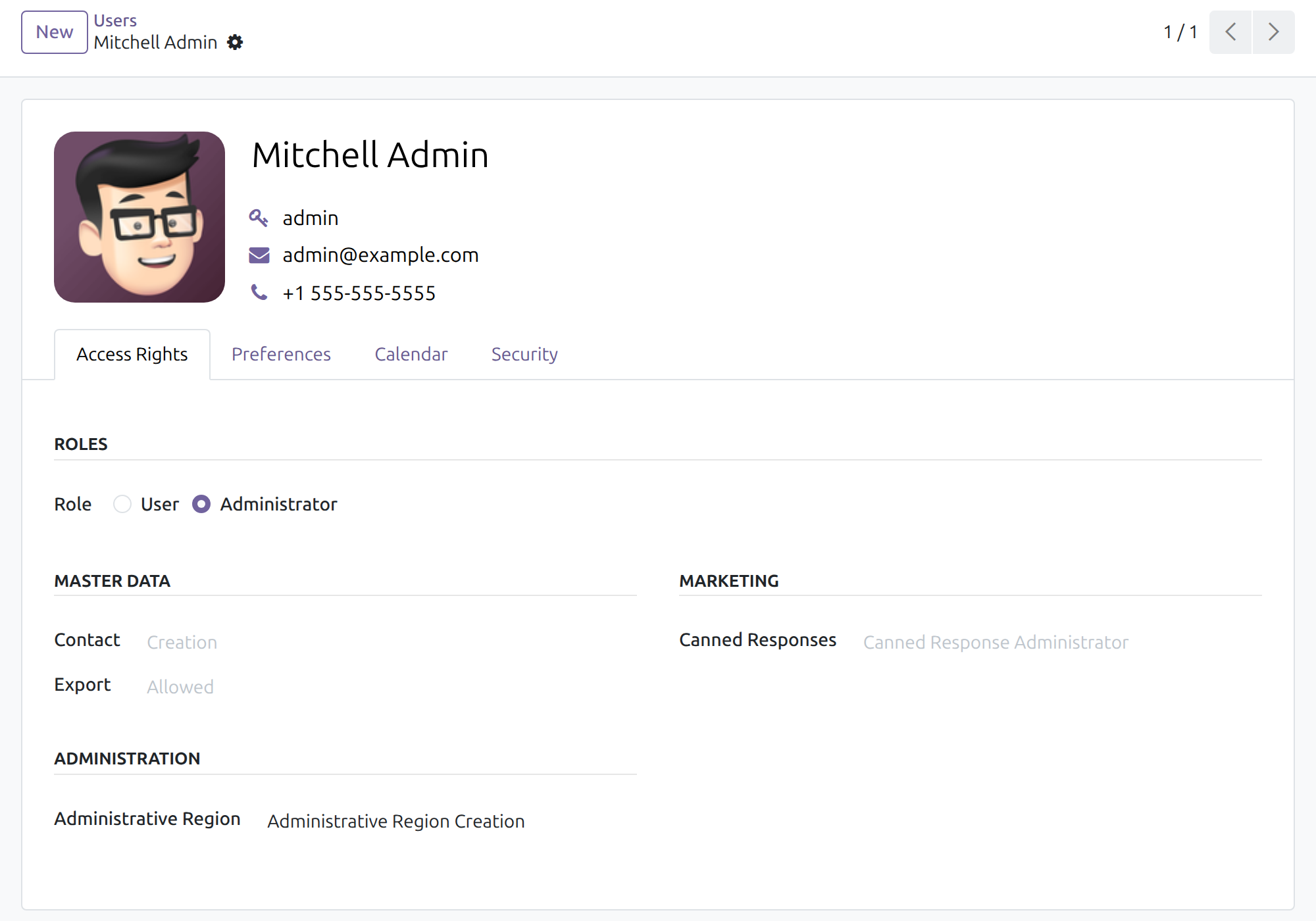
1. Give the right to a user
The Settings Administrator sets the Administrative Region access right on the people who maintain regions.
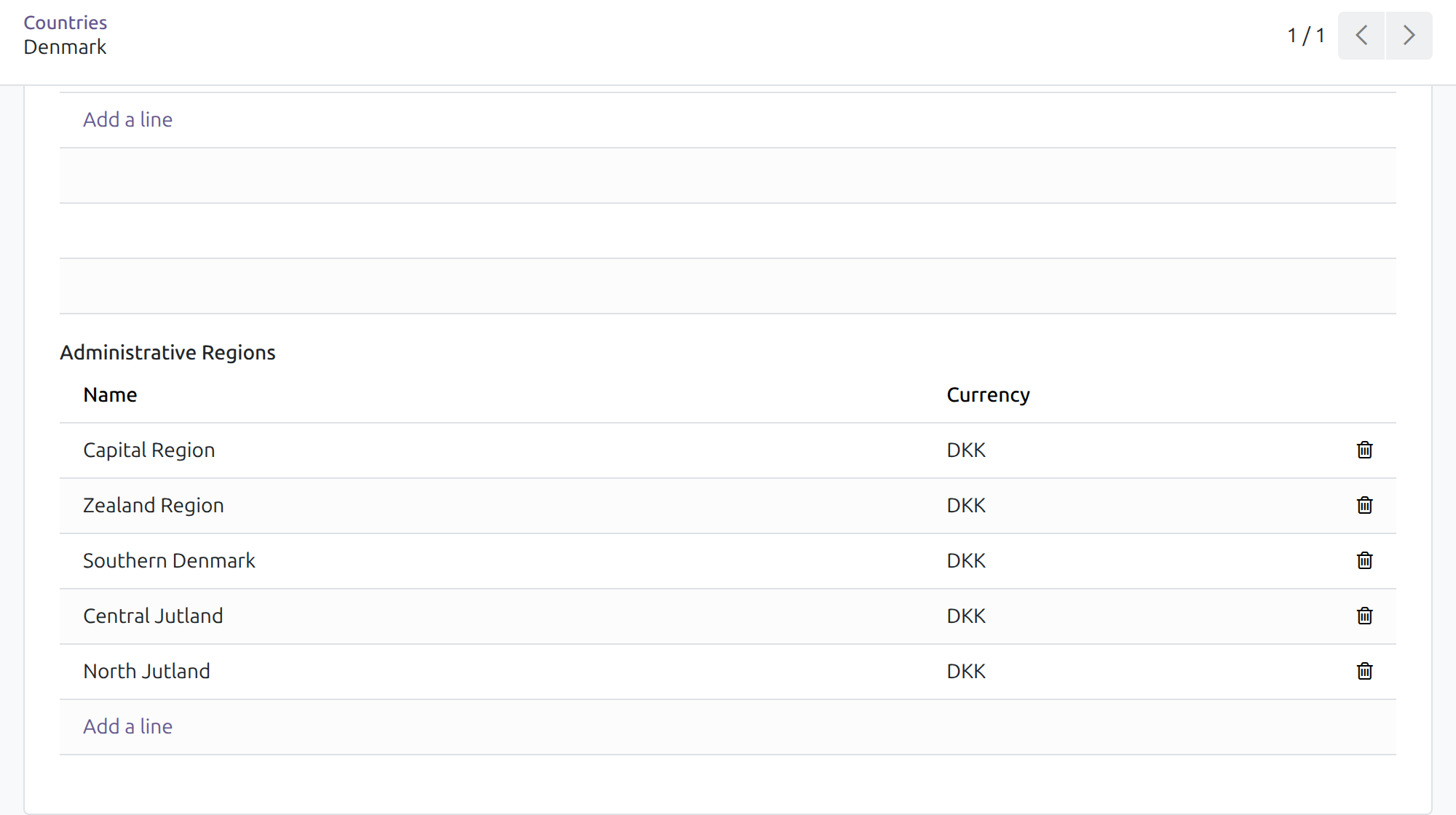
2. See the regions on the country
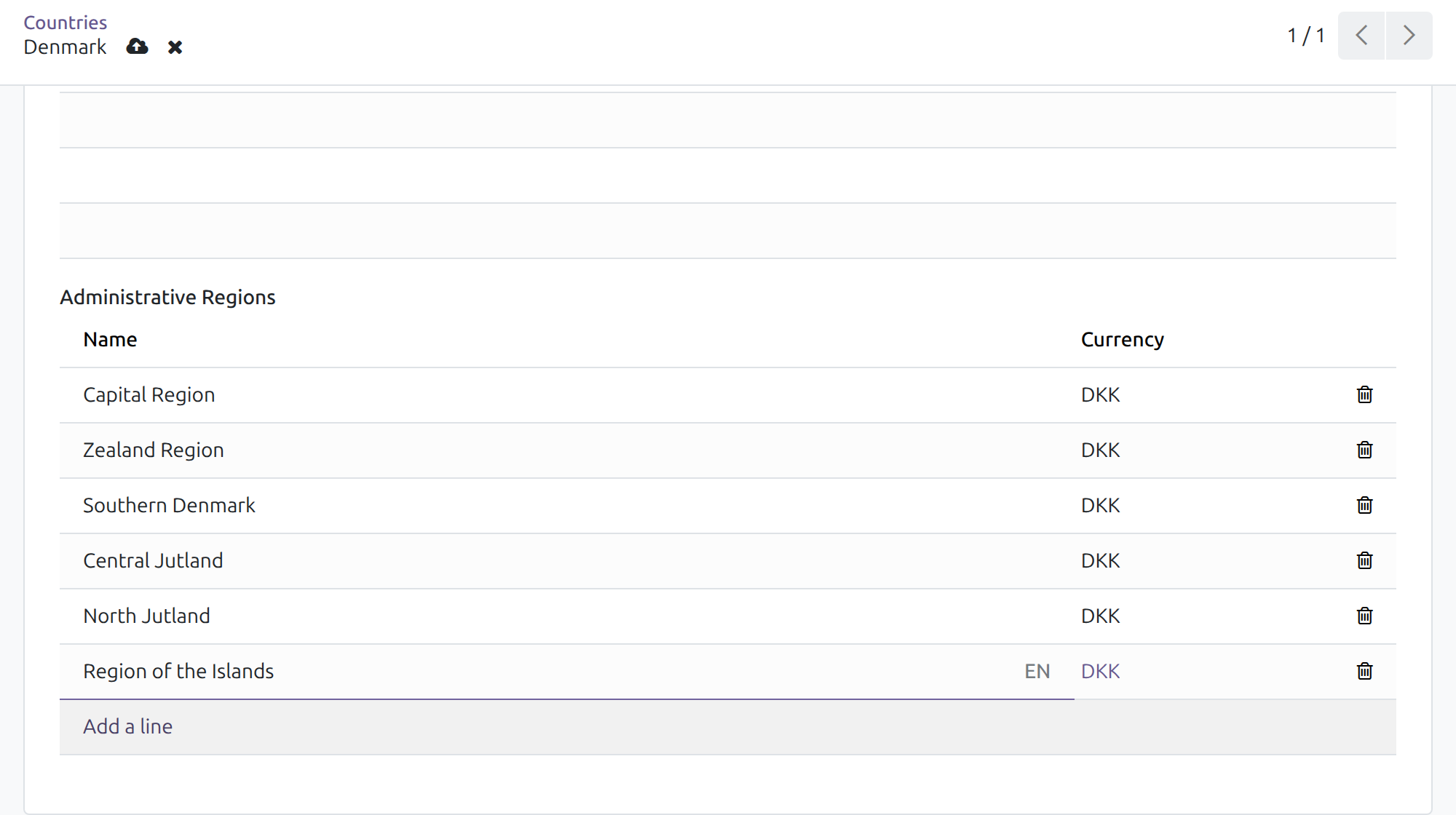
Open a country and its Administrative Regions sit on the form, with the country's currency.
3. Add a region in one line
Select Add a line, type the name and save the country.
Key Features
Regions per country
Each country carries its own list, on the country form.
Translatable names
Give a region a name in every active language.
Tracked changes
Changes to name and country are recorded.
Clear access right
Only users given Administrative Region Creation maintain regions.
Your data, your law
No regions are imposed: enter yours or load them from your country's localization module.
Independent of states
A region is tied to a country only, never to a state or province.
Who Should Use Administrative Region Management?
HR and payroll managers
One reliable list of regions for the rules that depend on them.
Finance and operations leads
One spelling of every region across reports.
Settings Administrators
A single access right to hand to the people who maintain regions.
Best for: HR; Payroll
See the regions on the country
Open a country and its Administrative Regions sit on the form, with the country's currency.
Add a region in one line
Select Add a line, type the name and save the country.
See it in action
Live demo: v19demo-int.viindoo.com
Need help with Administrative Region Management?
For questions, implementation support or a custom feature, contact Viindoo.
Technical Support
Pre-Sales
Requirements
Odoo 19.0, Community or Enterprise. Requires the Discuss (mail) app. Countries are opened from the Contacts app, under Configuration.
Frequently Asked Questions
Does it come with regions?
No. It ships none. Enter your country's regions by hand, or install the localization module of the country if it provides them.
Are regions linked to states or provinces?
No. A region belongs to a country only.
Does it hold minimum wages or other amounts?
No. Statutory values belong to the app that uses the regions; update them there when the law changes.
Who can change regions?
Users with the Administrative Region Creation right under Administration; every internal user can see them.
Which Odoo versions and editions?
Odoo 19.0, Community or Enterprise.
Administrative Region Management
Who this guide is for: the Settings Administrator who installs the app and decides who may maintain regions, and the person (for example in HR or Payroll) who keeps the list of administrative regions of each country up to date.
Overview
Some countries split their territory into administrative regions that do not match the geographic regions or the states and provinces already held in the software. Rules such as statutory minimums or contribution caps often depend on these regions.
This app gives every country its own list of administrative regions, kept directly on the country record. Each region has a name and a country, and shows the currency of that country. Changes to the name and the country are tracked.
The app ships no administrative regions. Regions of a country are entered by hand, or are preloaded by the localization module of that country.
| Role | What they do | Access right to assign |
|---|---|---|
| Settings Administrator | Installs the app, opens the countries list and assigns the access rights below. | Role: Administrator |
| Region maintainer | Adds, renames and deletes the administrative regions of a country. | Administration > Administrative Region: Administrative Region Creation |
| Any internal user | Sees the regions wherever a region is offered, without changing them. | Role: User |
Only users with the Administrative Region Creation right add, change and delete regions. Where the Payroll app is installed, the Payroll > Administrator access right includes this right.
Setup (for the Settings Administrator)
Installation
- Navigate to Apps.
- Search for Administrative Region Management.
- Press Install.
Giving a user the right to maintain regions
- Navigate to Settings > Users & Companies > Users and open the user.
- Open the Access Rights tab.
- In the Administration section, set Administrative Region to Administrative Region Creation.
- Save.
Region maintainer: keep the regions of a country up to date
Regions are managed on the country record. Opening the countries list requires the Contacts app and the Settings Administrator role; the maintainer works there with the right above.
Review the regions of a country
- Navigate to Contacts > Configuration > Localization > Countries.
- Open the country.
- Scroll to Administrative Regions. Each line shows the region name and the currency of the country.
Add a region
- On the country form, in Administrative Regions, select Add a line.
- Type the Name of the region. The currency comes from the country.
- Save the country.
To rename a region, select its name and edit it. To remove a region, select the trash icon at the end of its line. Save the country afterwards.
Note
The name of a region can be translated: edit it while the user interface is in another language to give it a name in that language.
Note
Amounts or limits that depend on a region (for example minimum wages) are not held here. Keep them where the app that uses them stores them, and update them there when the law changes.
Frequently asked questions
- Why is the Administrative Regions list empty?
- The app ships no regions. Add them as described above, or install the localization module of the country if it provides them.
- Are regions linked to states or provinces?
- No. A region belongs to a country only.
- Why can I not find the countries list?
- It is part of the Contacts app, under Configuration, and is shown to Settings Administrators.
This software and associated files (the "Software") may only be used (executed, modified, executed after modifications) if you have purchased a valid license from the authors, typically via Odoo Apps, or if you have received a written agreement from the authors of the Software (see the COPYRIGHT file).
You may develop Odoo modules that use the Software as a library (typically by depending on it, importing it and using its resources), but without copying any source code or material from the Software. You may distribute those modules under the license of your choice, provided that this license is compatible with the terms of the Odoo Proprietary License (For example: LGPL, MIT, or proprietary licenses similar to this one).
It is forbidden to publish, distribute, sublicense, or sell copies of the Software or modified copies of the Software.
The above copyright notice and this permission notice must be included in all copies or substantial portions of the Software.
THE SOFTWARE IS PROVIDED "AS IS", WITHOUT WARRANTY OF ANY KIND, EXPRESS OR IMPLIED, INCLUDING BUT NOT LIMITED TO THE WARRANTIES OF MERCHANTABILITY, FITNESS FOR A PARTICULAR PURPOSE AND NONINFRINGEMENT. IN NO EVENT SHALL THE AUTHORS OR COPYRIGHT HOLDERS BE LIABLE FOR ANY CLAIM, DAMAGES OR OTHER LIABILITY, WHETHER IN AN ACTION OF CONTRACT, TORT OR OTHERWISE, ARISING FROM, OUT OF OR IN CONNECTION WITH THE SOFTWARE OR THE USE OR OTHER DEALINGS IN THE SOFTWARE.