
Payroll Attendance
| Lines of Code | 584 |
| Technical name | to_hr_payroll_attendance |
| License | OPL-1 |
| Website | https://viindoo.com/apps/modules/19.0/to_hr_payroll_attendance |
| Read description for | v 10.0 v 11.0 v 12.0 v 13.0 v 14.0 v 15.0 v 16.0 v 17.0 v 18.0 |
| Required Apps | Attendances (hr_attendance) Time Off (hr_holidays) Discuss (mail) Calendar (calendar) Employees (hr) |
| Included Dependencies | Payroll Employee Relatives Viindoo Base Advanced HR Management HR Contracts (Viindoo) Work Entry Attendance Data Validation (HR) Viin Time-Off Work Entry - Contract Base Addendum Viin - Holiday Work Entry Work Entry - Attendance Viindoo Holiday & WorkDay Manager Safe IR Metadata Proxies |
Pay for the month as it was actually worked
For payroll, HR and line managers of companies that track attendance
The payslip that knows how the month was actually worked
Total and valid hours, late arrivals, early leaves and missing check-outs appear on every payslip and payslip batch, straight from the attendance records. No copying between two applications, no arguing over a figure nobody can trace.
- Built on Payroll — payslips, batches and salary rules
- Built on Attendance Validation — valid check-in and check-out against the working schedule
- Built on Work Entries from Attendances — contracts that take their work entries from attendances
Is this you?
Payroll copies hours from the attendance application into the payroll by hand, every month.
An employee disputes a payslip and nobody can show which clock records were counted.
Late arrivals and forgotten check-outs are an impression, not a number per period.
Rules such as "deduct for every missing check-out" live in a spreadsheet next to the payroll.
What changes
Hours copied by hand
→ Load the attendance figures into every payslip automatically.
Disputed payslips
→ Open the exact attendance records behind a payslip with one click.
Lateness as an impression
→ Read late and early hours and counts per payslip and per batch.
Rules in a spreadsheet
→ Write salary rules that use the same figures to add or deduct money, with amounts you set.
How it works
Clock in and out
Employee checks in and out from the top bar; the record goes to the Attendance Officer.
Review the records
Attendance Officer closes forgotten check-outs and recomputes valid hours; the month is ready for payroll.
Generate payslips
Payroll Officer creates a batch; every payslip carries its Attendance Summary.
Turn figures into pay
Payroll Administrator writes salary rules that use the figures; team leaders and employees read the result.
Key Features
Attendance Summary on every payslip
Total, valid, late-coming and early-leave hours, plus the number of late comings, early leaves and missing check-outs.
The records behind the number
One click from a payslip or a batch opens the attendance records that were counted, as a list, pivot or graph, grouped by employee when you need it.
Whole-run view on the batch
The batch counts the attendance entries of all its payslips, to spot a badly clocked month fast.
Figures for salary rules
Attendance figures are available to salary rules, so lateness or valid hours can add or deduct pay under your own policy.
Printed for the employee
The summary is printed on the payslip PDF in an Attendance Report table.
Right people, right view
Payroll Officers read all attendance records; Team Leaders read their team's; employees read their own payslips.
Who it is for
Payroll Officer
Runs the batch and sees which payslips rest on incomplete attendance.
Payroll Administrator
Writes the salary rules that turn lateness and valid hours into pay, with amounts the company decides.
Team Leader
Checks a team member's month before the payslip is confirmed.
Employee
Receives a payslip whose hours can be reconciled with his or her own record.
Payroll officers, HR managers, team leaders and employees of companies that already use Payroll and Attendances.
Screenshots
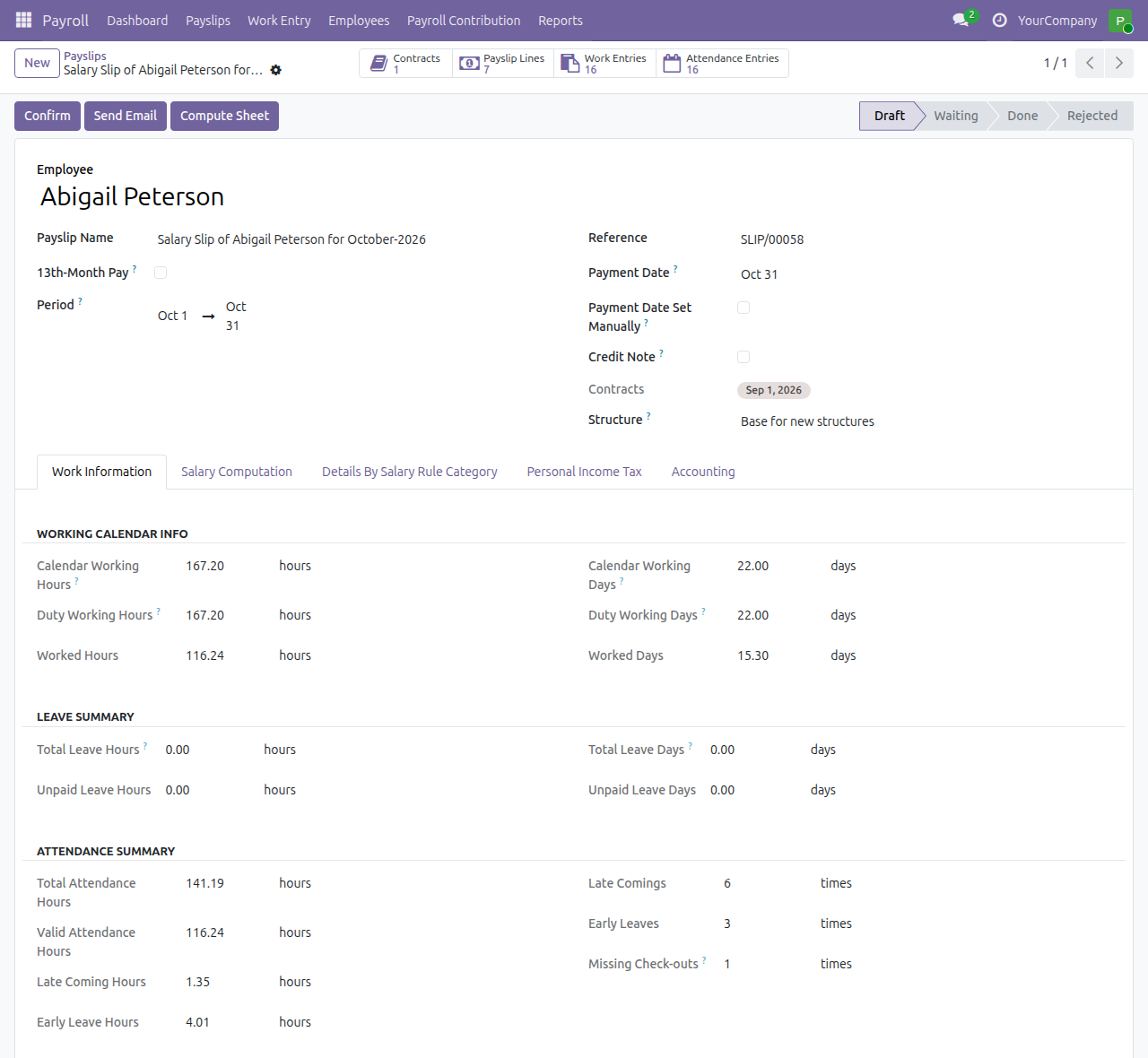
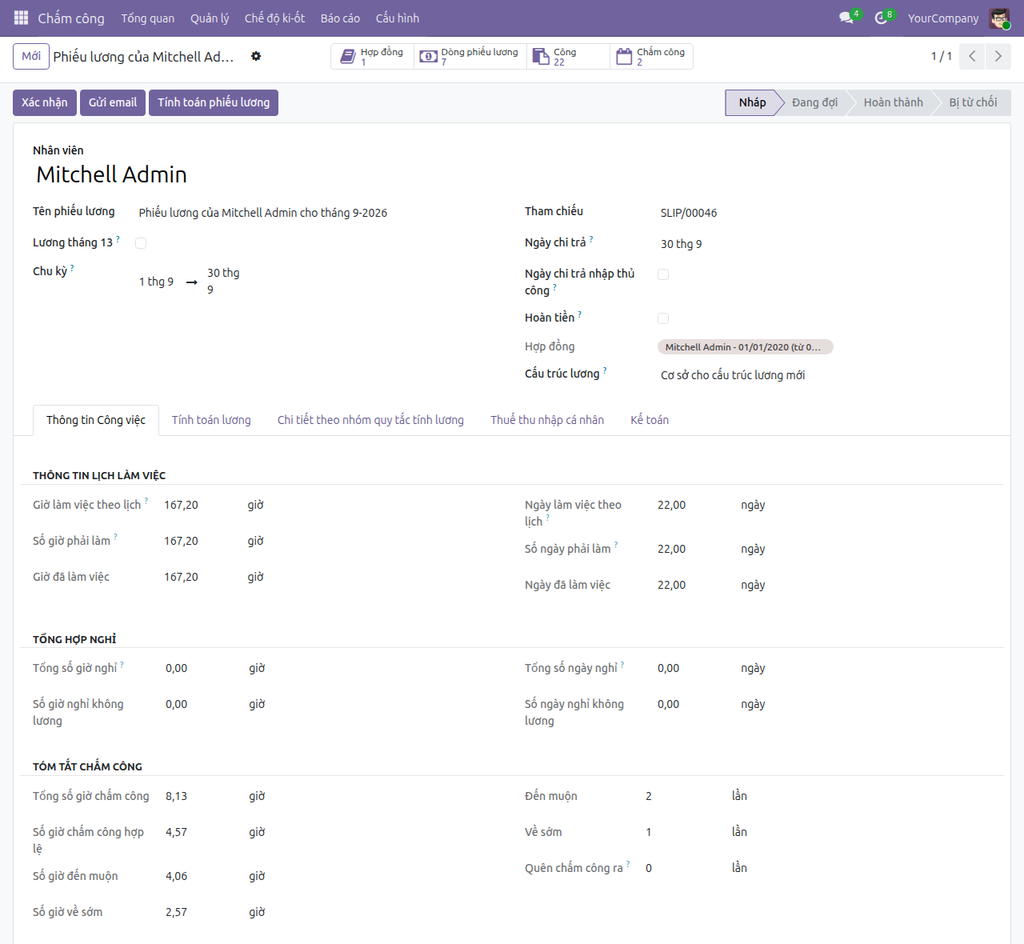
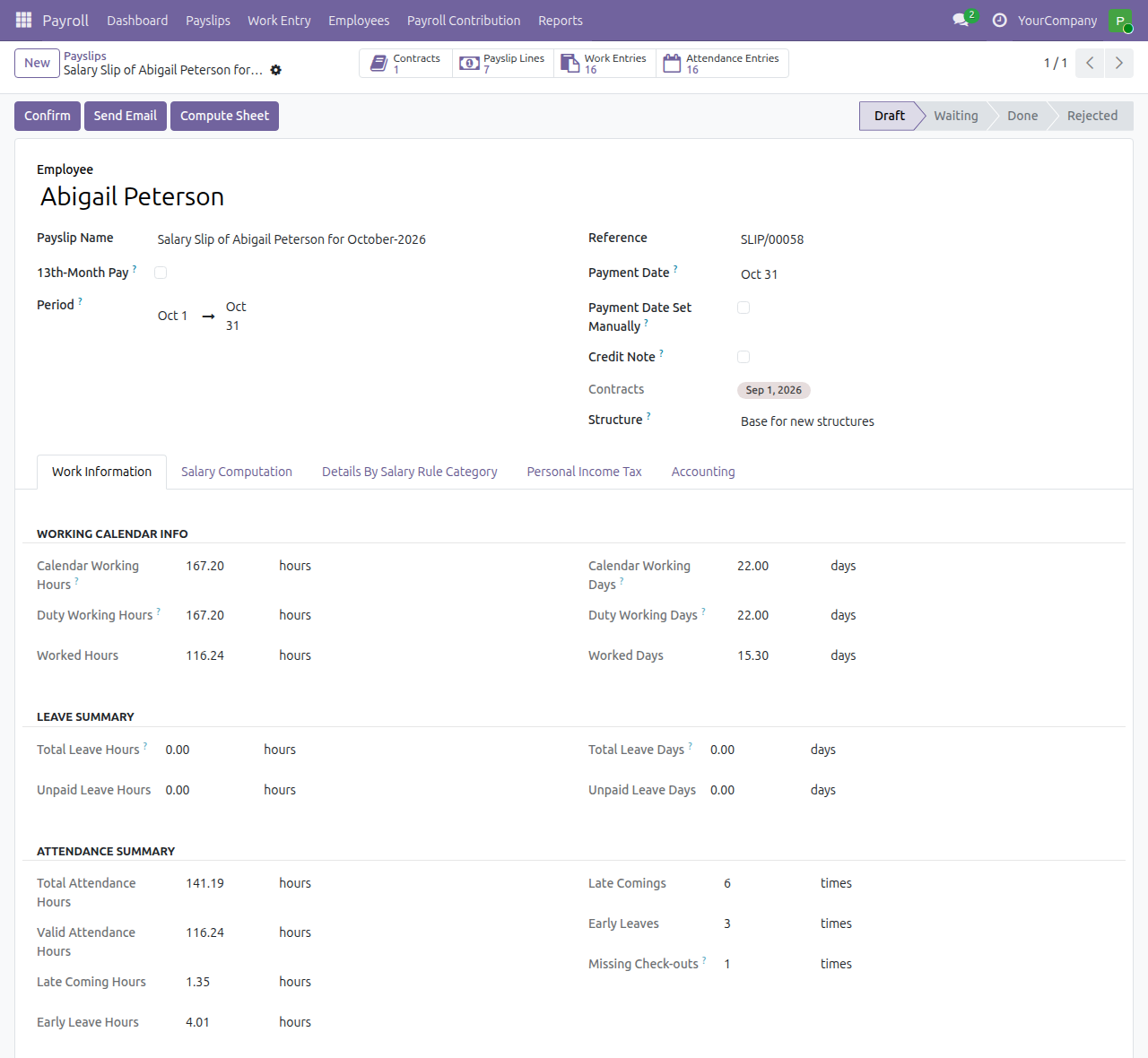
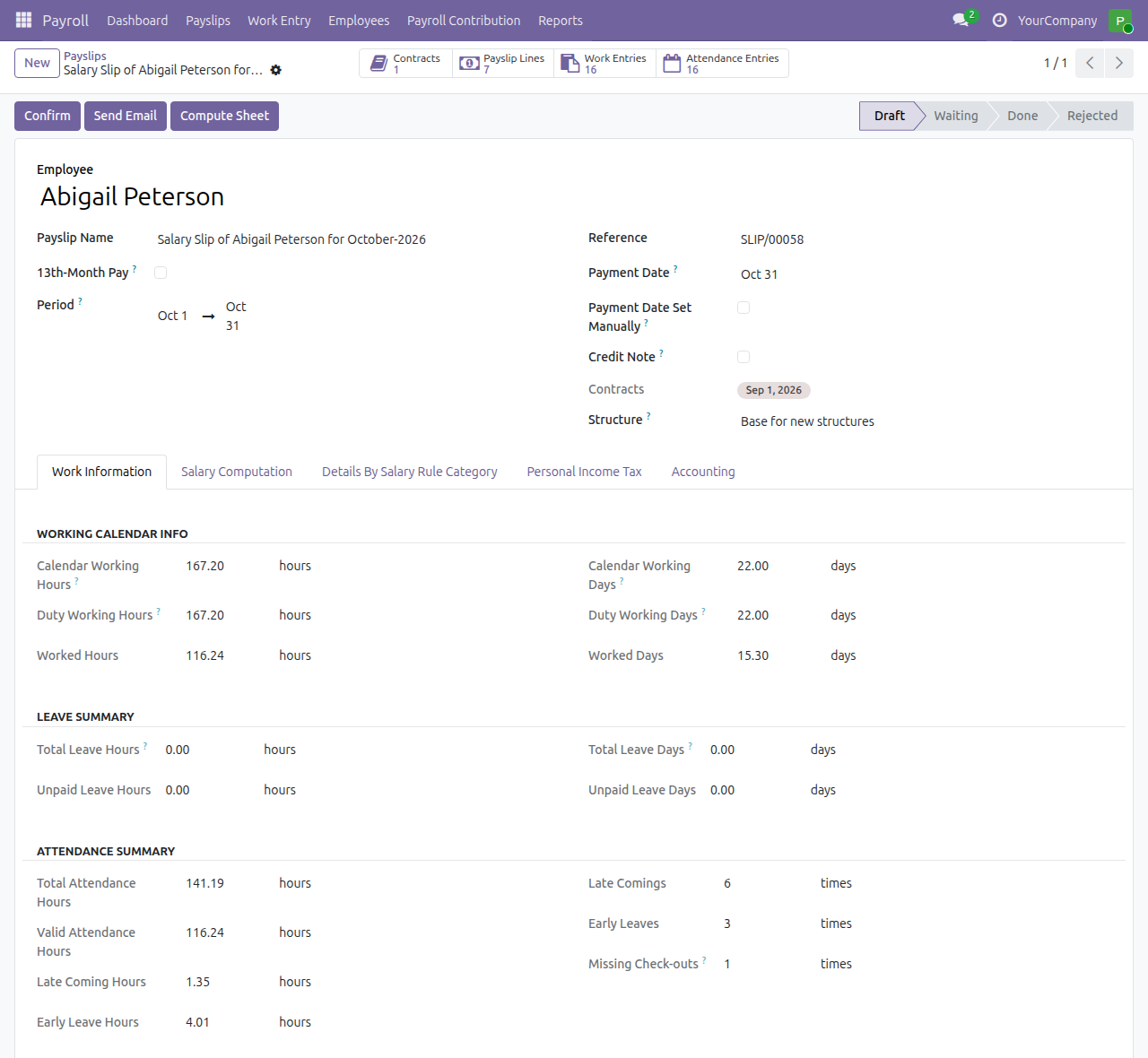
A payslip with its Attendance Summary
Every payslip shows total and valid hours, late and early hours and counts, and missing check-outs.
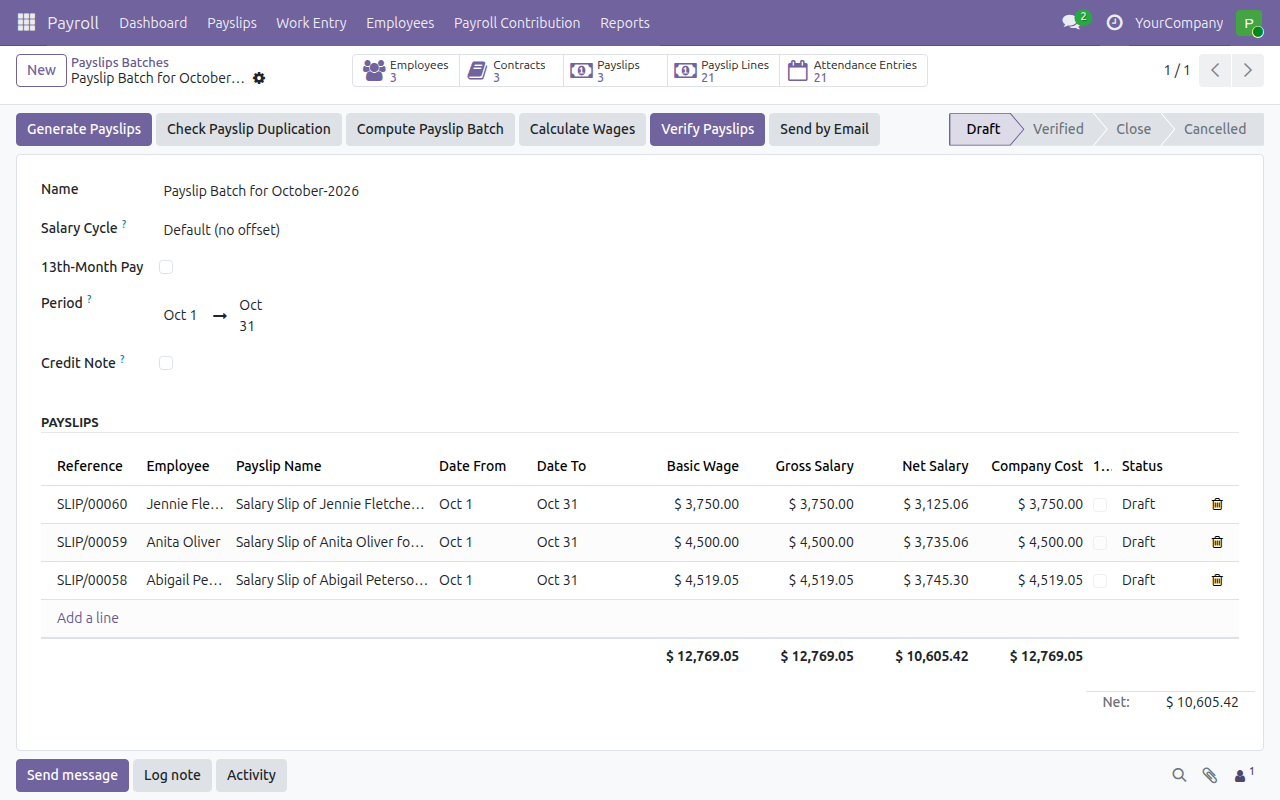
A payslip batch
The batch rolls up the attendance entries of all its payslips.
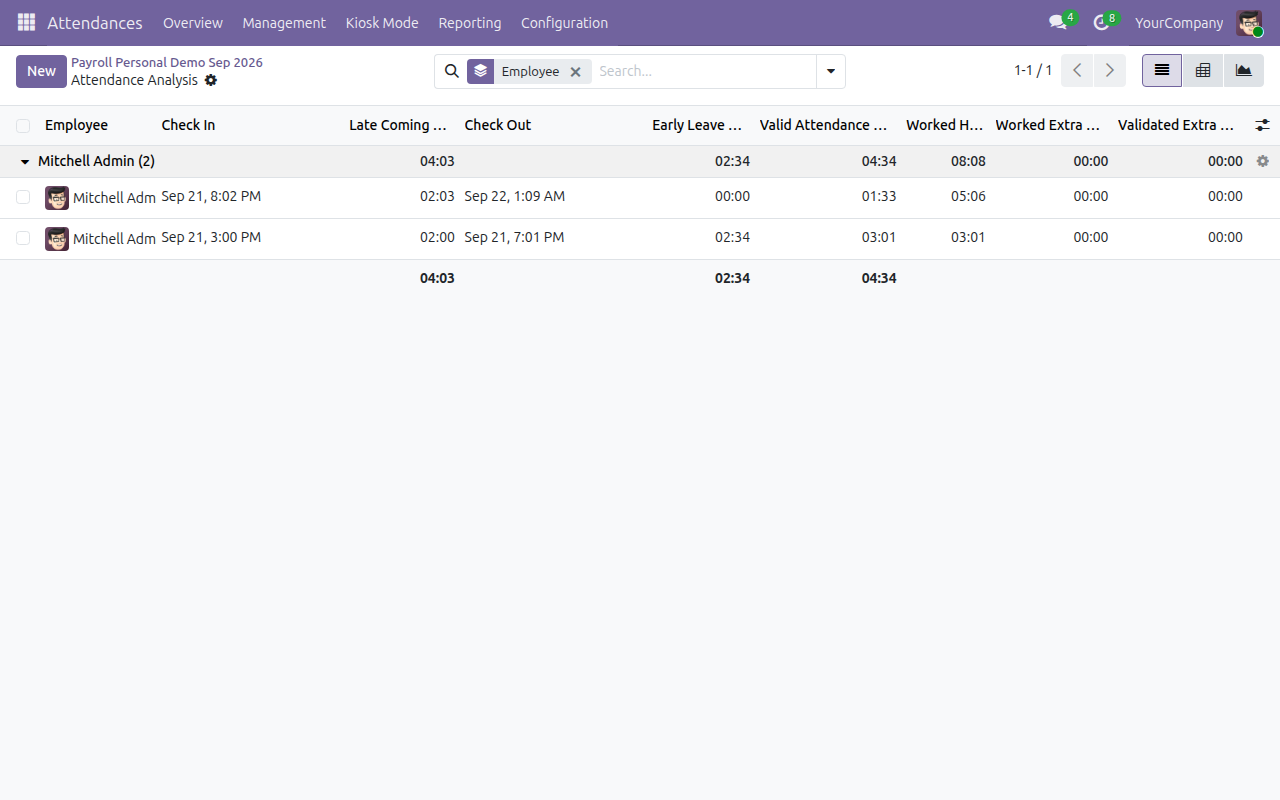
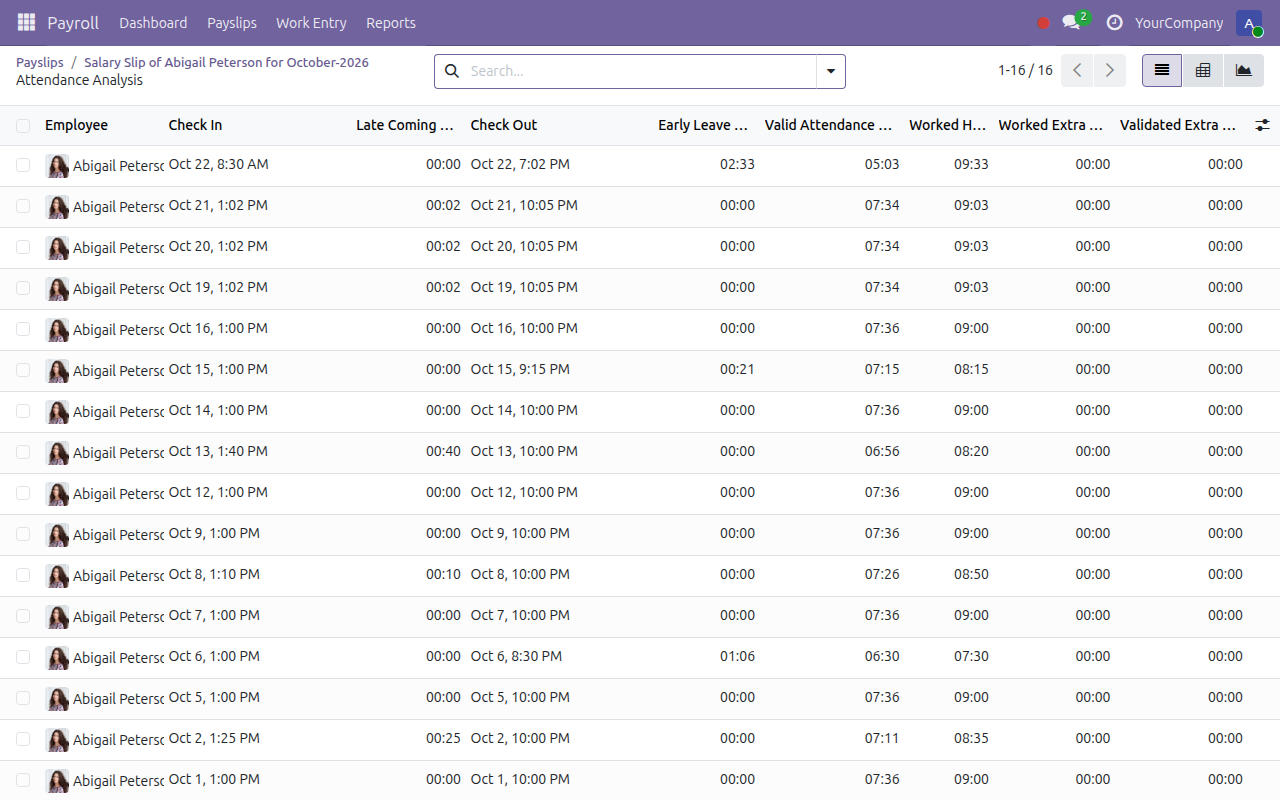
Attendance analysis
The records behind the figures, as a list, pivot or graph, grouped by employee when you need it.
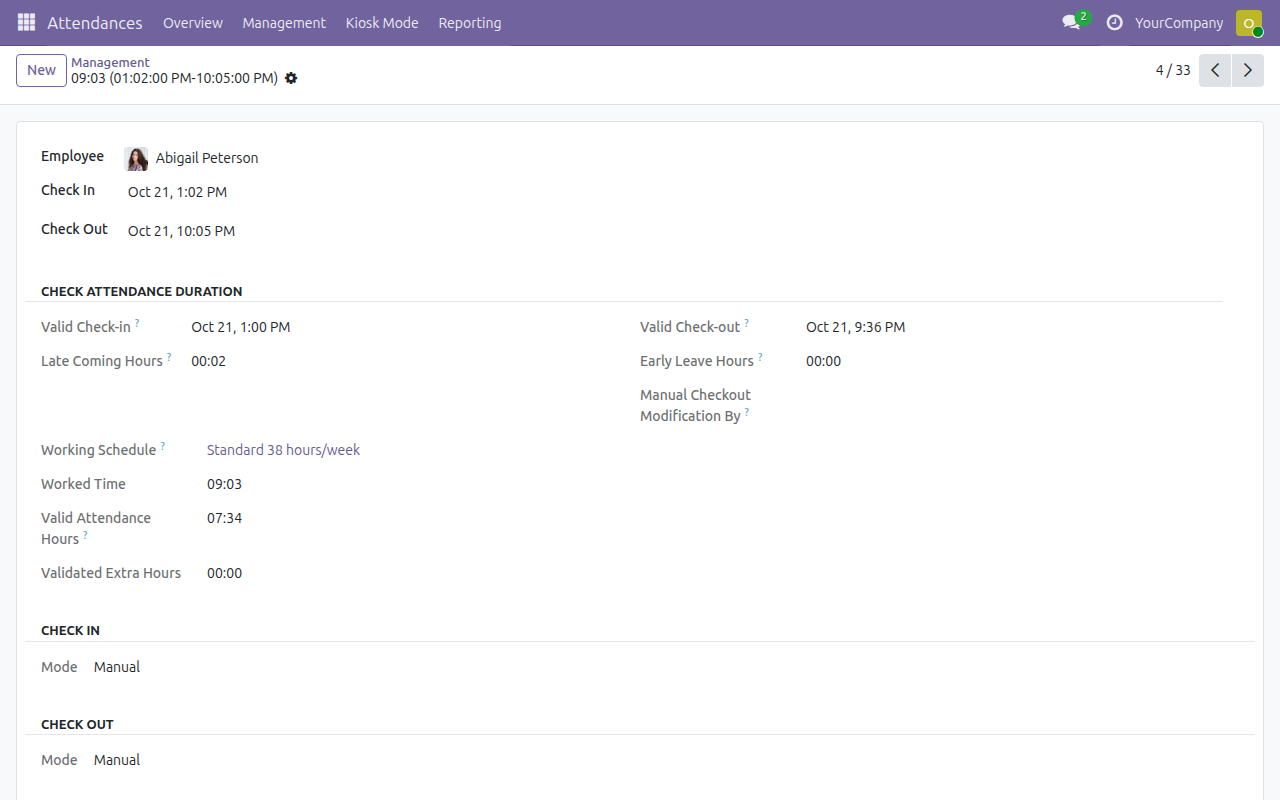
Valid hours of one day
Valid check-in and check-out, late and early hours of a single record.
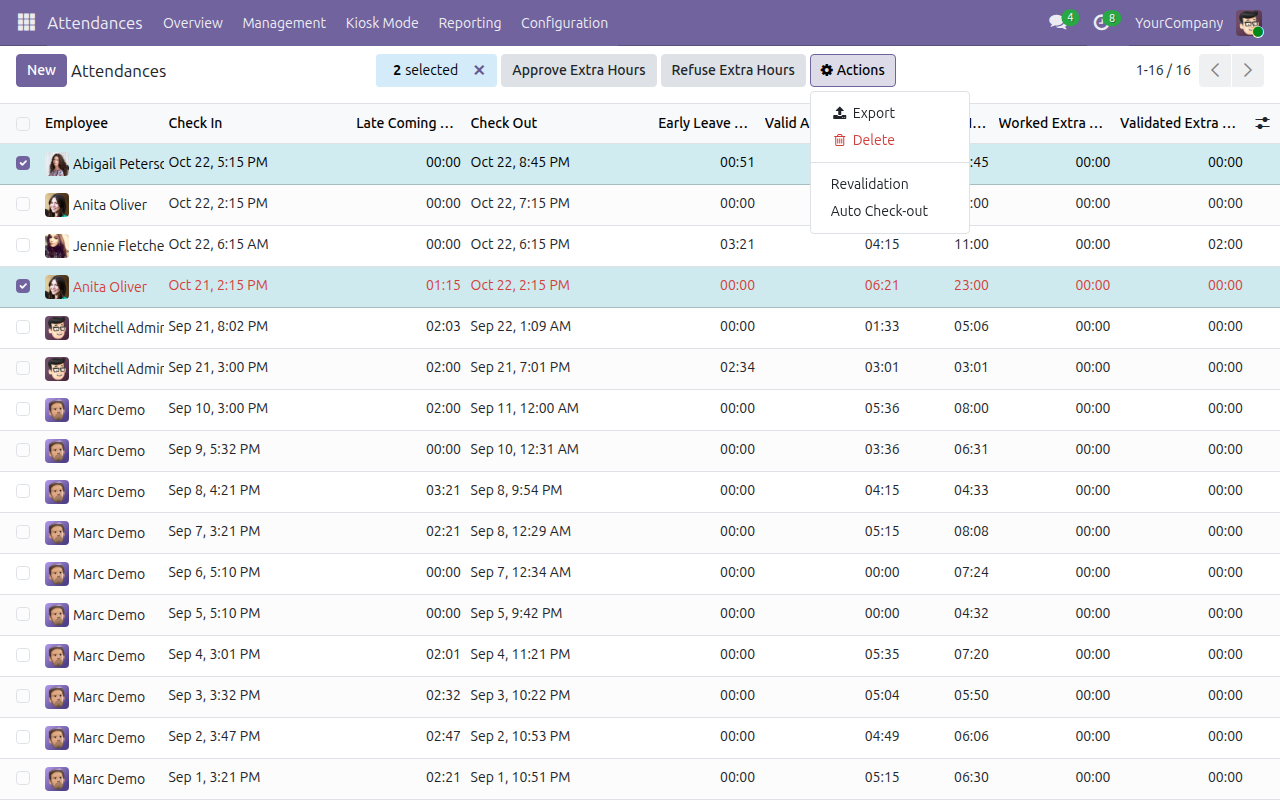
Close and recompute
Auto Check-out and Revalidation, available to Attendance Officers and Managers.
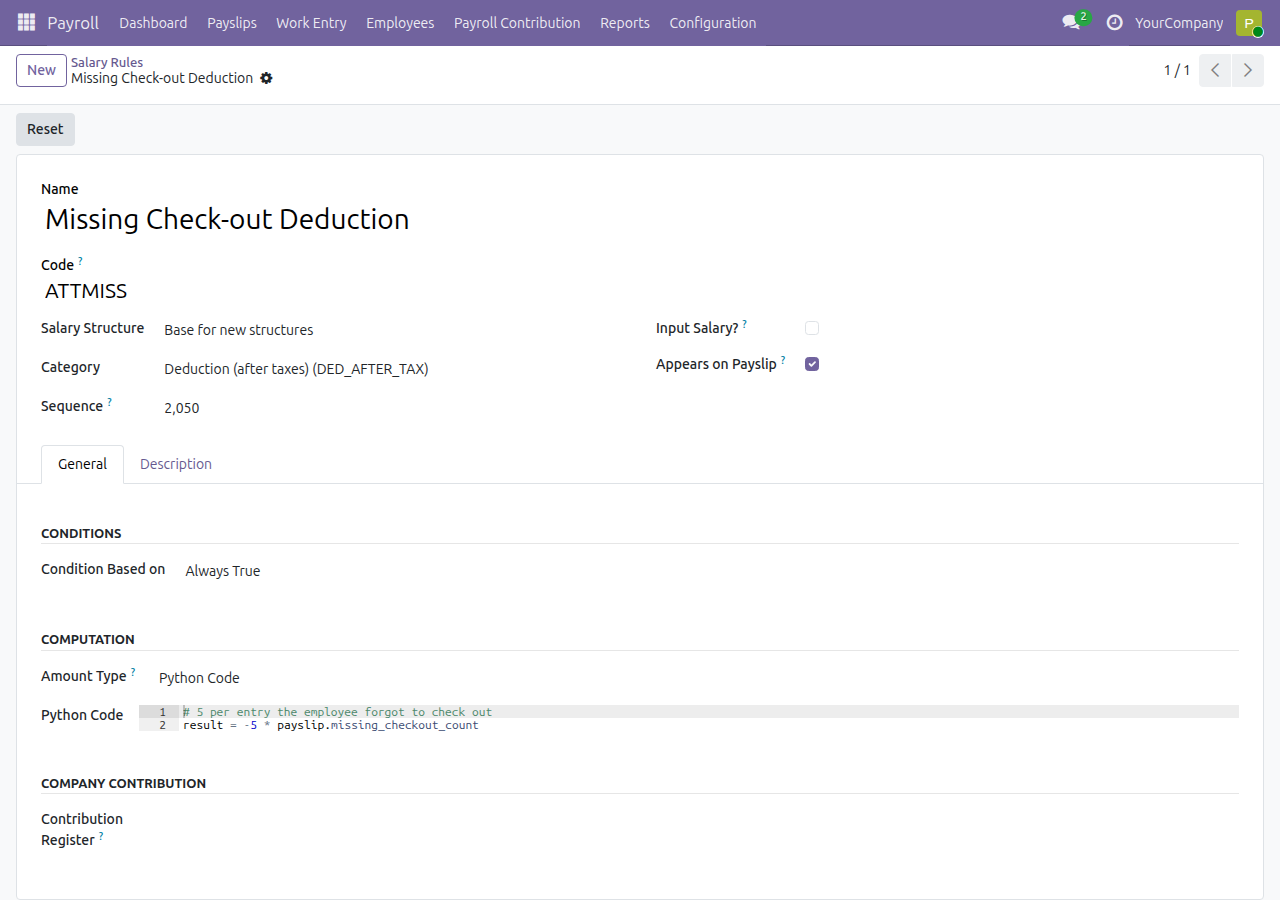
A salary rule using attendance
A deduction for every missing check-out; the amount is yours to set.
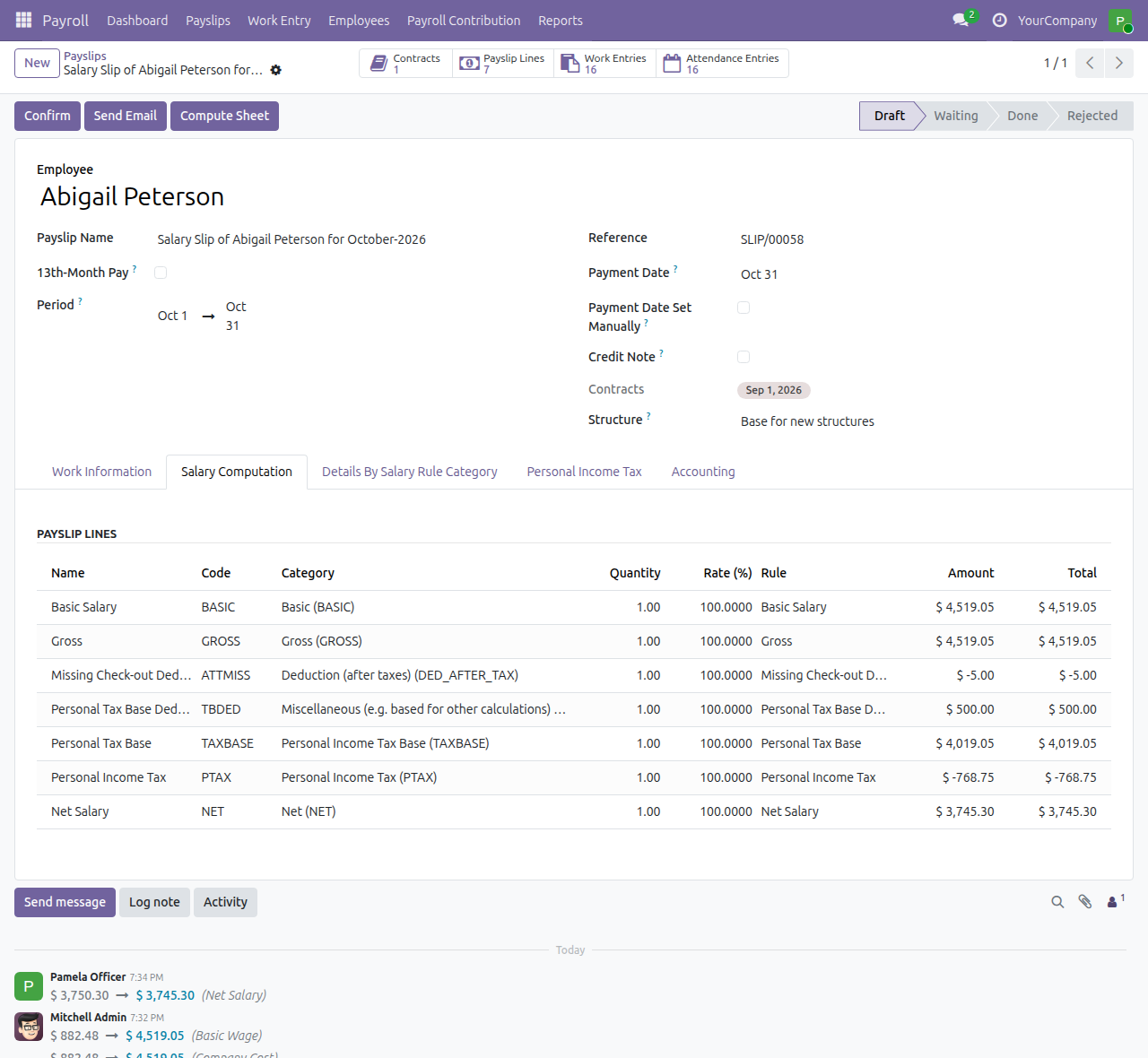
The result on the payslip
The rule appears as a payslip line.
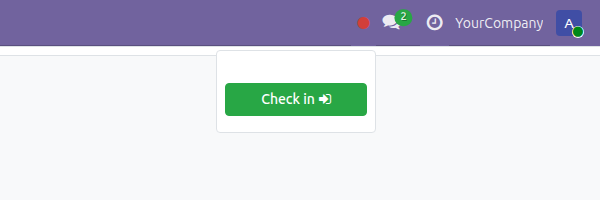
Check in from the top bar
The employee checks in and out in one click.
See Payroll Attendance in Action
Live demo: Open the live demo
Frequently Asked Questions
What does Payroll Attendance do?
It computes attendance hours, late arrivals, early leaves, missing check-outs and valid hours on the payslip from the clock records behind it.
Does it pay or deduct by itself?
No. Late hours are a figure on the payslip. Turning them into money is a salary rule you write, with amounts and thresholds you set and change.
Which attendances does a payslip count?
For a contract whose work entries come from attendances, the attendance behind the validated work entries of the period. For a contract that follows the working schedule, the records whose check-in falls in the period.
Who can see what?
Payroll Officers read all attendance records, read only; Team Leaders read their team's; employees see their own payslips with the same summary.
What does it need?
The Payroll and Attendances applications and the attendance validation module; Odoo installs them with it.
Can I try it before buying?
Yes, use the live demo on the Demo tab.
Need help with Payroll Attendance?
For questions, implementation support or a custom feature, contact Viindoo.
Pre-Sales & Partnership
Contact the sales teamTechnical Support
Open a support ticketAll Viindoo apps: Viindoo
Technical Requirement
Payroll Attendance - User Guide
Who this guide is for: the people who clock in and out (employees), the Attendance Officers who review the clock records, the team leaders who follow their team's payslips, the Payroll Officers who run the payslips and batches, and the Payroll Administrators who write the salary rules. Each chapter is written for one of these roles.
Note
Extends Payroll - see its documentation for payslips, batches, salary rules and contracts.
Note
Extends Attendance Validation - see its documentation for working schedules, valid check-in and check-out, and automatic check-out.
Note
Extends Work Entries from Attendances - see its documentation for contracts that take their work entries from attendances.
Overview
A payslip is only as fair as the hours behind it. Payroll Attendance puts the way the month was actually worked on every payslip and every payslip batch: how many hours were attended, how many of them fall inside the contracted working schedule, how often the employee arrived late, left early or forgot to check out. The payroll team reads the figures from one place instead of copying them between two applications, and salary rules can use the same figures to add or deduct money.
How the work moves through the company:
- Employees check in and out, from the top bar or at the kiosk of the Attendances application.
- Attendance Officers review the records, correct a check-out or close a forgotten one, and recompute the valid hours.
- Payroll Officers generate the payslips of a period. Each payslip shows an Attendance Summary and a button that opens the exact records counted.
- Payroll Administrators write salary rules that turn the summary into allowances or deductions.
- Team Leaders and employees read the payslips they are entitled to, with the same summary.
| Role | What they do | Access right to assign |
|---|---|---|
| Employee | Clocks in and out, reads the own attendance records and the own payslip. | Attendances: User (Read his own attendances) |
| Attendance Officer | Reviews all attendance records, closes forgotten check-outs, recomputes valid hours. | Attendances: Officer (Manage all attendances) |
| Team Leader (Payroll) | Reads the payslips and attendance records of the people reporting to him or her. | Payroll: Team Leader |
| Payroll Officer | Generates payslips and batches, checks the attendance figures, opens the records behind them. | Payroll: Officer |
| Payroll Administrator | Everything the Payroll Officer does, plus salary rules and payroll configuration. | Payroll: Administrator |
Setup (for the Administrator)
Installation
- Open Apps, remove the Apps filter and search for Payroll Attendance.
- Click Install. The applications it connects, Payroll and Attendances, are installed with it when they are missing. When both are already installed, Payroll Attendance installs itself.
Make the payslip use attendances
The Attendance Summary appears on every payslip. What it counts depends on the employee's contract:
- Work Entry Source = Attendances (contract): the payslip counts the attendance records behind the employee's work entries for the period. Work entries are created from each attendance that has a check-out; the payslip uses the work entries that are validated. Validate them in Payroll > Work Entry > Work Entries, then compute the payslip again.
- Work Entry Source = Working Schedule (contract): the payslip counts the attendance records whose check-in falls inside the payslip period.
Every contract that is paid through a payslip also needs a Salary Structure; a payslip cannot be computed without one.
Assign the access rights
Open Settings > Users & Companies > Users, open the user and choose the access right for the role as the table in the Overview shows. A user who pays salaries and also books them keeps both a Payroll access right and an Accounting access right; Payroll users do not see accounting, and accountants do not see salaries.
Employee: check in, check out and follow the own records
Check in and check out
- Click the status dot in the top bar. It is red when you are checked out and green when you are checked in.
- Click Check in when you start work and Check out when you stop.
Forgetting to check out is counted on your payslip as a Missing Check-out.
Read your attendance records and your payslip
- Open Payroll > Payslips > Payslips and open your payslip.
- On the Work Information tab, read the Attendance Summary: the figures counted for the period. The same summary is printed on the payslip PDF in an Attendance Report table.
- Click Attendance Entries to list the records behind the figures. Read the Late Coming Hours, Early Leave Hours and Valid Attendance Hours of each day: valid hours are the hours that fall inside your working schedule.
Attendance Officer: review the records
Check a day against the working schedule
- Open Attendances > Management. The list shows, for every record, the Late Coming Hours, Early Leave Hours and Valid Attendance Hours; the Valid Check-in, Valid Check-out and Manual Checkout Modification By columns can be added from the column selector at the right of the header.
- Clear the default filter to see every record, then open a record.
- In Check Attendance Duration, compare Check In and Check Out with Valid Check-in and Valid Check-out (the edges of the working schedule), then read Late Coming Hours, Early Leave Hours and Valid Attendance Hours. Manual Checkout Modification By shows who changed a check-out by hand.
Close a forgotten check-out and recompute valid hours
- In Attendances > Management, select the records.
- Open the Actions menu and choose one of the two actions below. They are offered to Attendance
Officers and Attendance Managers only:
- Auto Check-out to close the selected open records at the end of their scheduled hours. They are counted as Missing Check-outs on the payslip.
- Revalidation to recompute the valid check-in, valid check-out and the late and early hours after a schedule or a check-in or check-out was corrected.
Do this before the payroll period is closed: the payslip reads these figures when it is computed.
Team Leader: follow the team's payslips
A Payroll Team Leader sees only the payslips of the people who report to him or her.
- Open Payroll > Payslips > Payslips and open a payslip of a team member.
- Read the Attendance Summary on the Work Information tab.
- Click Attendance Entries to read the team member's records for the period. The team leader reads them; changing a record is the Attendance Officer's job.
Payroll Officer: generate the payslips and check the attendance
Generate a payslip batch
- Open Payroll > Payslips > Payslips Batches and click New.
- Enter the Name and the Period, then click Generate Payslips.
- In the wizard, add the employees and click Generate. When a contract still has work entries waiting for validation, a warning lists the payslips; validate the work entries in Payroll > Work Entry > Work Entries, then click Compute Payslip Batch.
The Attendance Entries button of the batch counts the records of every payslip in it. It is the fastest way to spot a month that was clocked badly.
Read the Attendance Summary of a payslip
- Open a payslip of the batch.
- On the Work Information tab, read the Attendance Summary:
- Total Attendance Hours - all the time the employee attended in the period.
- Valid Attendance Hours - the part that falls inside the contracted working schedule.
- Late Coming Hours and Late Comings - hours and number of days arriving after the schedule starts.
- Early Leave Hours and Early Leaves - hours and number of days leaving before the schedule ends.
- Missing Check-outs - records that have no check-out, or that the software closed automatically.
Open the records behind the figures
Click Attendance Entries on the payslip or on the batch. The Attendance Analysis opens over exactly the records counted, as a list. Open the search options and group by Employee to read the records of each person of a batch together, or switch to the pivot or graph view to total them by employee or by day. Open a record to see its valid check-in and check-out.
Payroll Administrator: use attendance in salary rules
The summary figures are available to every salary rule, so late arrivals, forgotten check-outs or valid hours can add to or reduce the pay. Amounts and thresholds are yours to set and change as the company policy or the law changes; the software fixes none of them.
- Open Payroll > Configuration > Payroll Entry > Salary Rules.
- Open a rule or click New, choose its Salary Structure and Category.
- In the General tab, set the condition and write the Python Code of the amount with the payslip figures below.
# the attendance records counted on the payslip
attendance_entries = payslip.attendance_ids
# number of records counted
attendance_count = payslip.attendance_count
# total hours attended
total_attendance_hours = payslip.total_attendance_hours
# hours inside the contracted working schedule
valid_attendance_hours = payslip.valid_attendance_hours
# hours of late coming and early leaving
late_attendance_hours = payslip.late_attendance_hours
early_leave_hours = payslip.early_leave_hours
# number of late comings, early leaves and missing check-outs
late_attendance_count = payslip.late_attendance_count
early_leave_count = payslip.early_leave_count
missing_checkout_count = payslip.missing_checkout_count
Basic wage proportional to the valid attendance:
result = payslip.contract_ids[-1:].wage * payslip.valid_attendance_hours / payslip.calendar_working_hours
A deduction for every missing check-out (the amount per case is a company policy):
result = -5 * payslip.missing_checkout_count
After the rule is saved, compute the payslip again: the rule appears as a line of the payslip, under the Salary Computation tab.
This software and associated files (the "Software") may only be used (executed, modified, executed after modifications) if you have purchased a valid license from the authors, typically via Odoo Apps, or if you have received a written agreement from the authors of the Software (see the COPYRIGHT file).
You may develop Odoo modules that use the Software as a library (typically by depending on it, importing it and using its resources), but without copying any source code or material from the Software. You may distribute those modules under the license of your choice, provided that this license is compatible with the terms of the Odoo Proprietary License (For example: LGPL, MIT, or proprietary licenses similar to this one).
It is forbidden to publish, distribute, sublicense, or sell copies of the Software or modified copies of the Software.
The above copyright notice and this permission notice must be included in all copies or substantial portions of the Software.
THE SOFTWARE IS PROVIDED "AS IS", WITHOUT WARRANTY OF ANY KIND, EXPRESS OR IMPLIED, INCLUDING BUT NOT LIMITED TO THE WARRANTIES OF MERCHANTABILITY, FITNESS FOR A PARTICULAR PURPOSE AND NONINFRINGEMENT. IN NO EVENT SHALL THE AUTHORS OR COPYRIGHT HOLDERS BE LIABLE FOR ANY CLAIM, DAMAGES OR OTHER LIABILITY, WHETHER IN AN ACTION OF CONTRACT, TORT OR OTHERWISE, ARISING FROM, OUT OF OR IN CONNECTION WITH THE SOFTWARE OR THE USE OR OTHER DEALINGS IN THE SOFTWARE.