
Stock Quality & Multi Warehouse Access Control
by Viindoo
| Lines of Code | 410 |
| Technical name | viin_quality_stock_access_control |
| License | OPL-1 |
| Website | https://viindoo.com/apps/modules/18.0/viin_quality_stock_access_control |
| Read description for | v 16.0 v 17.0 |
| Required Apps | Invoicing (account) Discuss (mail) Inventory (stock) |
| Included Dependencies | Multi Warehouse Access Control Stock Quality Control Stock Move & Account Move Links Quality |
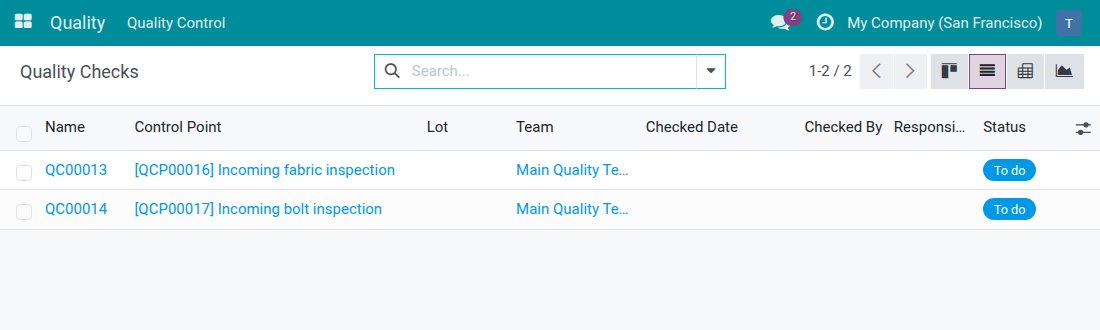
Each warehouse sees its own quality checks, not everyone else's.
Viindoo Stock Quality & Multi Warehouse Access Control joins Viindoo Stock Quality Control and Viindoo Multi Warehouse Access Control. Warehouse staff see only the quality checks and quality alerts of their own warehouse, and a receipt cannot be validated until its checks are done - while head-office Quality and Inventory managers keep seeing every warehouse.
Extends to_quality_stock - see its documentation.
Extends to_multi_warehouse_access_control - see its documentation.
Why multi-warehouse companies choose it
Their warehouse, their checks
Warehouse staff limited to their own documents see the quality checks and quality alerts of the receipts and transfers of the warehouses they work in. Checks and alerts of other warehouses, and those tied to no transfer, stay out of view.
Read the status, leave the record to Quality
From a receipt in their warehouse, staff open its Quality Checks and see which are still to do and which have failed. They read the checks; the Quality team records the results, so the quality record stays as Quality left it.
Unchecked goods still cannot move
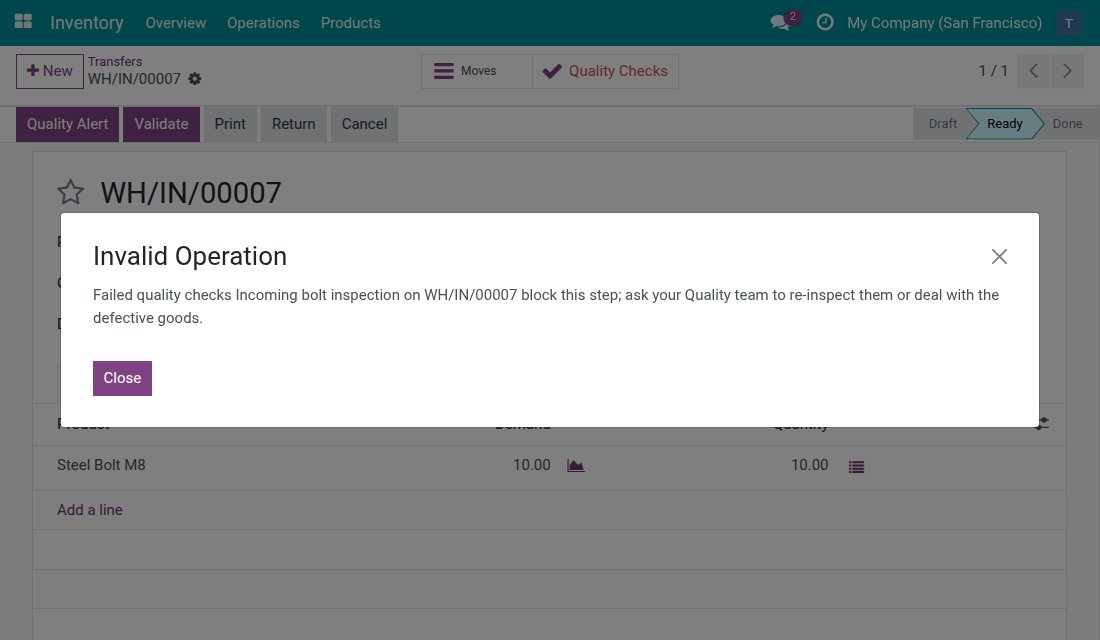
A receipt with checks still to do cannot be validated, and neither can one with a failed check of a control point set to No Proceed if Failed. The message names the checks, so the warehouse knows exactly what to ask Quality for.
What changes for each role
Set up once, in the warehouse itself
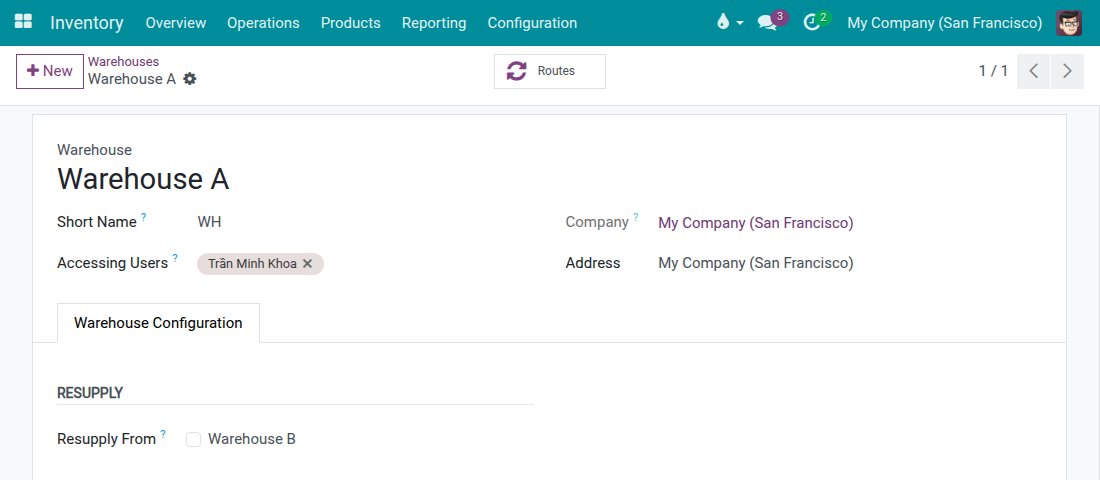
A head-office manager lists each operator under the warehouse's Accessing Users and gives them Inventory access Users: Own Documents. From then on the operator works only with their own warehouse - nothing else to configure, because the bridge installs itself when both apps are present.
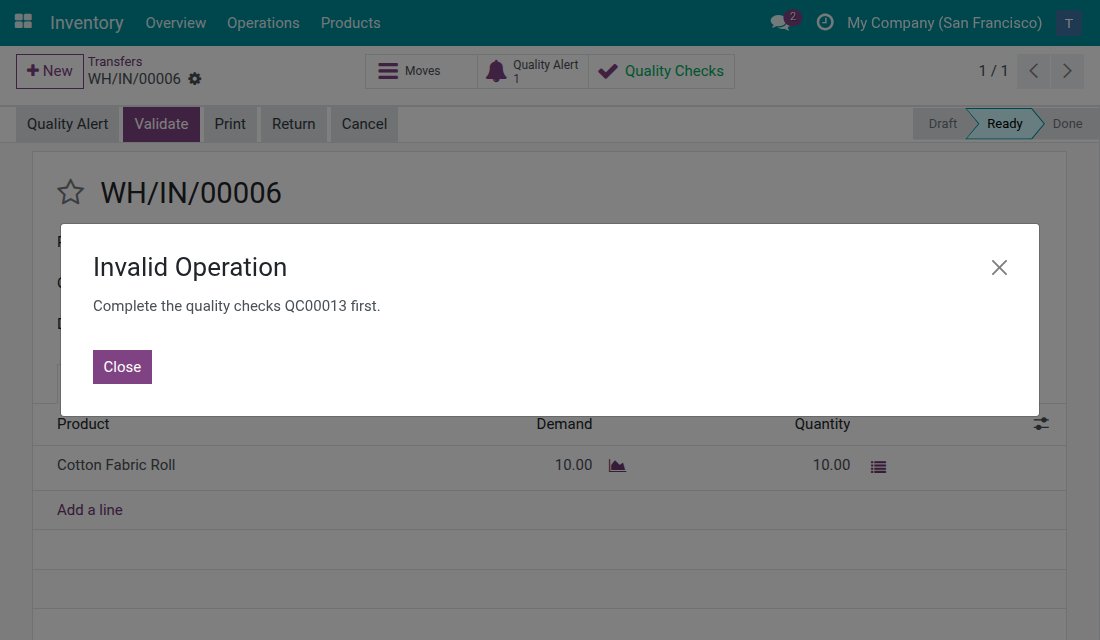
A pending check holds the receipt, and says which
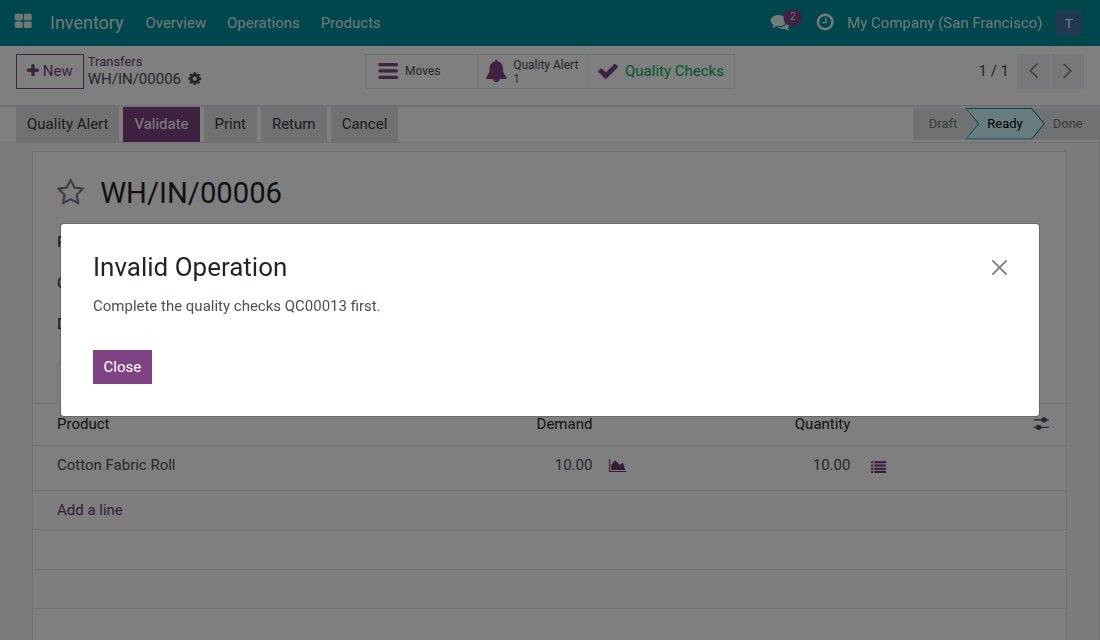
When an operator clicks Validate on a receipt with a check still to do, a message names the check and the receipt stays Ready. The operator knows to ask the Quality team to record the result instead of guessing what is missing.
A failed blocking check refuses validation
When a check of a No Proceed if Failed control point has failed, Validate is refused and the message names the failed check and the receipt. Goods only move on once the Quality team re-inspects or resolves them.
Head office sees every warehouse
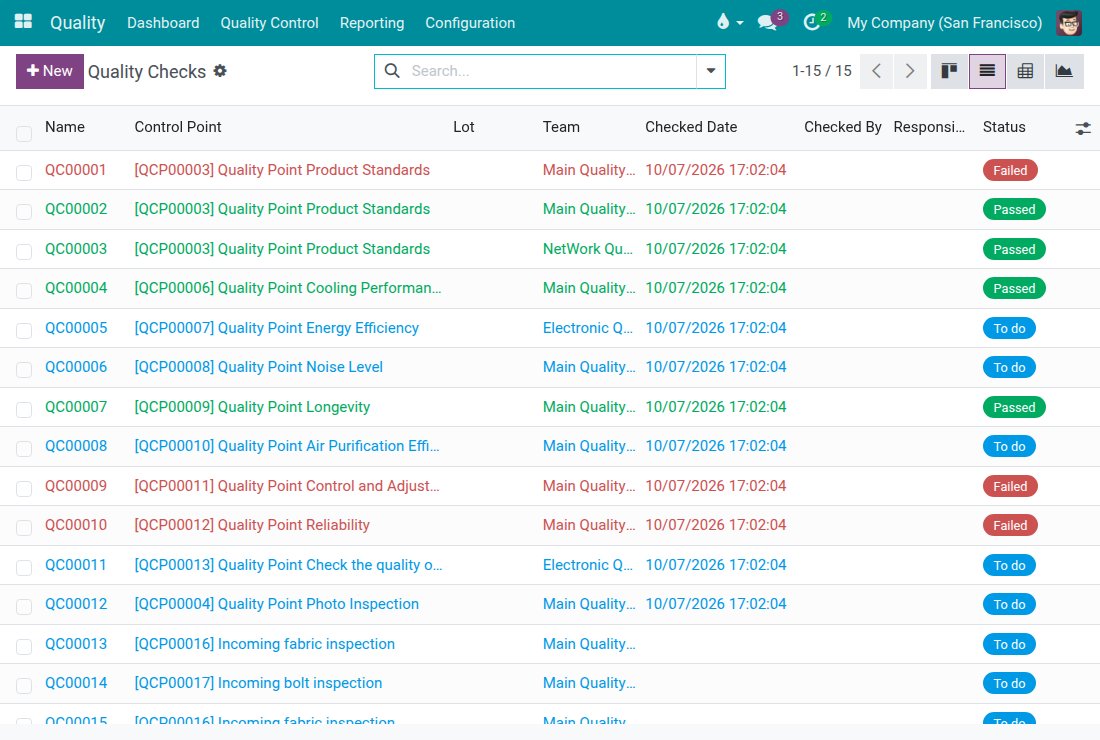
Quality and Inventory managers at head office keep the full Quality Checks list of all warehouses, record the Pass or Fail results, and see which receipts are waiting for them.
Questions buyers ask
Do I need to install this module myself?
No. It installs automatically when both Viindoo Stock Quality Control and Viindoo Multi Warehouse Access Control are installed. The module adds no menu or screen of its own.
Who does it apply to?
Users whose Inventory access is Users: Own Documents. Head-office Quality and Inventory managers keep seeing the checks and alerts of every warehouse.
Can warehouse staff record Pass or Fail?
No. They read the checks and alerts of their own warehouse; the Quality team records the results. A check with a result still to be recorded is what holds the receipt.
What if a warehouse location has no access list?
A transfer between two locations that are open to everyone stays visible, with its checks and alerts, to every operator limited to their own documents.
Can users still see checks assigned to them?
Yes. As everywhere in Viindoo Quality, users also see the checks and alerts assigned to them or that they follow.
Compatibility
Works with Odoo 18.0 Community Edition and Viindoo Cloud.
Requires Viindoo Stock Quality Control and Viindoo Multi Warehouse Access Control; installs automatically when both are installed.
Not supported on Odoo Enterprise.
Keep every warehouse focused on its own quality work.
See a warehouse operator working with only their own checks, and a receipt held until Quality has recorded the result.
Stock Quality & Multi Warehouse Access Control
Note
Extends Stock Quality Control - see its documentation.
Overview
This module connects Stock Quality Control with Multi Warehouse Access Control. A warehouse user who is limited to their own documents works only with the quality checks and quality alerts of the warehouses they are an accessing user of. Head-office Quality and Inventory managers keep seeing every warehouse.
In practice:
- The warehouse operator sees the quality checks and quality alerts of the receipts and other transfers of their own warehouse, and nothing else.
- The operator reads the checks; the Quality team records the results.
- A receipt that still has checks to do cannot be validated, and neither can a receipt with a failed check of a control point set to No Proceed if Failed. The message names the checks.
This guide is written for two readers: the head-office manager who sets up the access (see Configuration) and the warehouse operator who works with it every day (see Usage).
Installation
- Open Apps and install Stock Quality Control and Multi Warehouse Access Control, if they are not installed yet.
- Nothing else to install: this module is added automatically as soon as both apps are installed. To check, search Stock Quality & Multi Warehouse Access Control in Apps; it is listed as installed.
The module adds no menu and no screen of its own. It changes what the existing Quality and Inventory screens show to warehouse users.
Configuration
Do this once for every warehouse and every operator, signed in as a head-office manager.
Choose who works in each warehouse
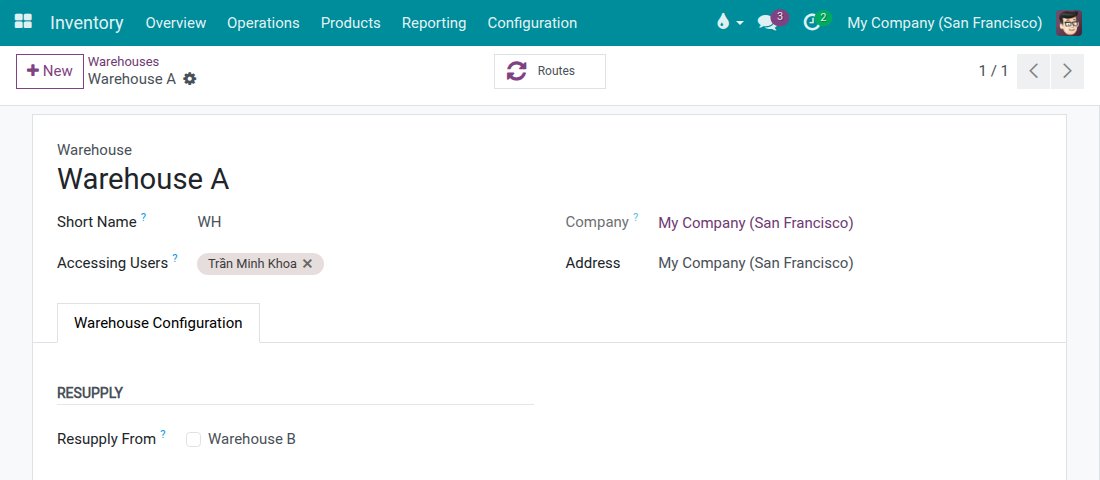
- Open Inventory ‣ Configuration ‣ Warehouse Management ‣ Warehouses and open the warehouse.
- In Accessing Users, add every operator who works in this warehouse.
- Save.
Give the operator the right Inventory access
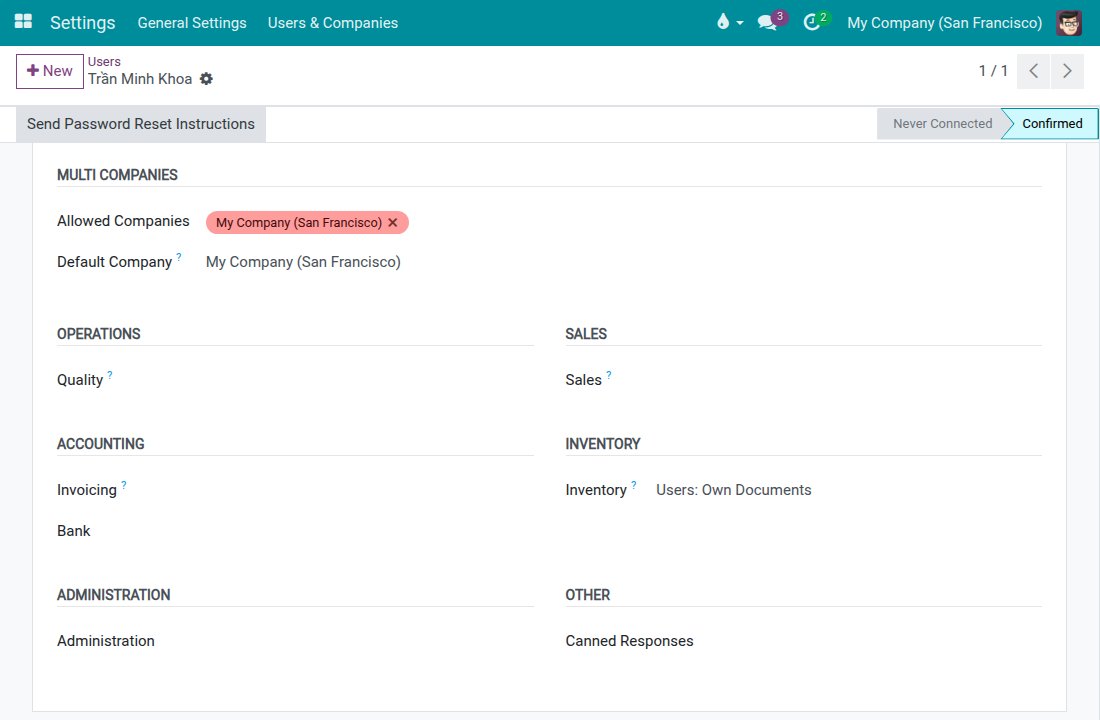
- Open Settings ‣ Users & Companies ‣ Users and open the operator.
- On the Access Rights tab, set Inventory to Users: Own Documents.
- Save.
Note
A quality check or alert is shown to the operator when the source or the destination location of its transfer belongs to a warehouse where the operator is listed under Accessing Users. It is also shown when no user is listed on either location. A check or alert that is not linked to any transfer is not shown to the operator.
Usage
See only the quality checks of your warehouse
Signed in as the warehouse operator:
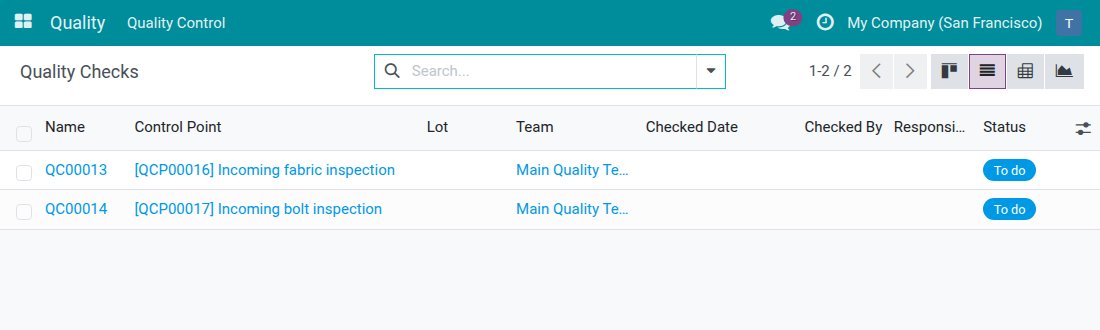
- Open Quality ‣ Quality Control ‣ Quality Controls ‣ Quality Checks.
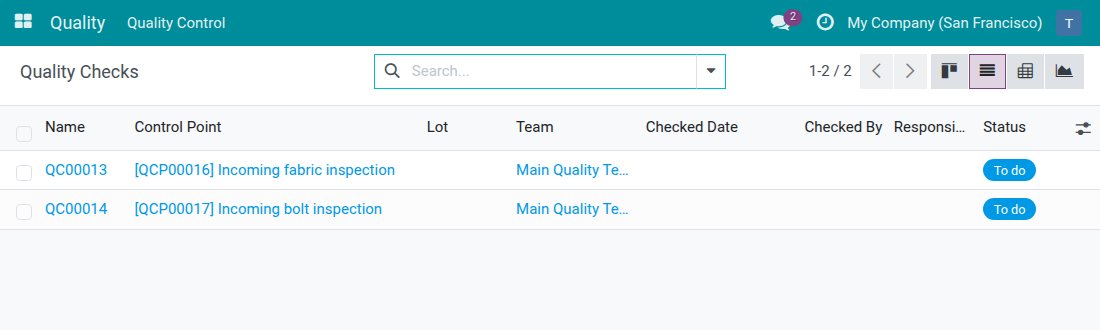
- Read the list. It holds only the checks of the transfers of your warehouse. The checks of another warehouse, and the checks that belong to no transfer, are not listed.
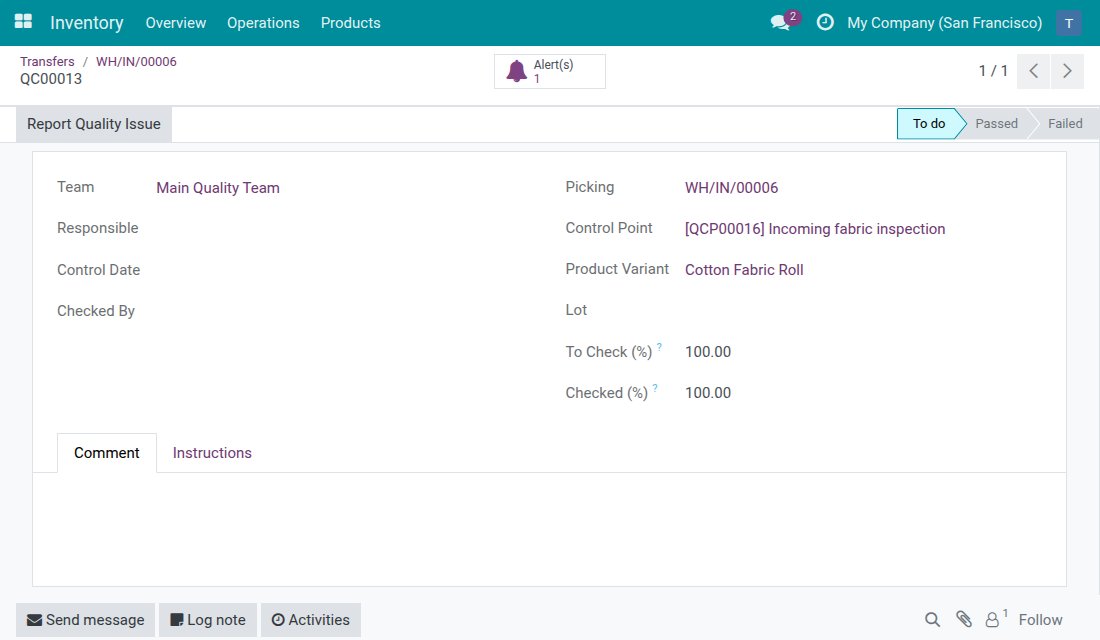
- Open a check to read it. You can see its Status, its Control Point and the receipt it belongs to, but the Pass and Fail buttons are not offered: recording a result is the job of the Quality team.
Open the quality checks from a receipt
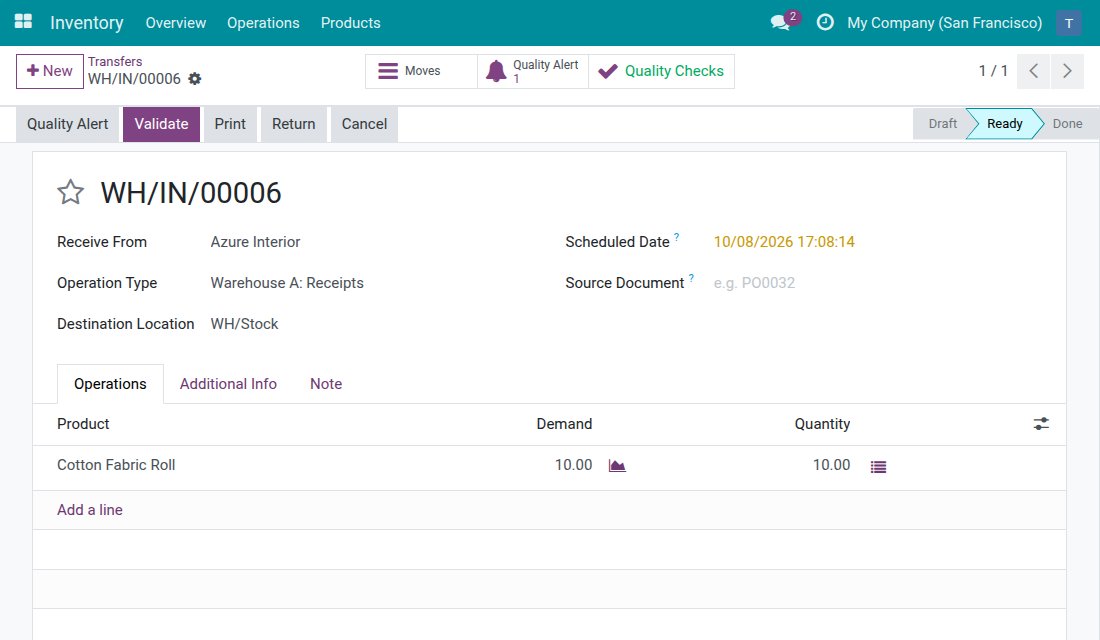
- Open Inventory ‣ Operations ‣ Transfers ‣ Receipts and open the receipt.
- Click the Quality Checks button at the top of the receipt. With one check, it opens directly; with several, you get their list.
- Read the Status of each check: To do, Passed or Failed.
The caption of the Quality Checks button turns red when one of the checks failed.
Read the quality alerts of a receipt
- Open the receipt as above.
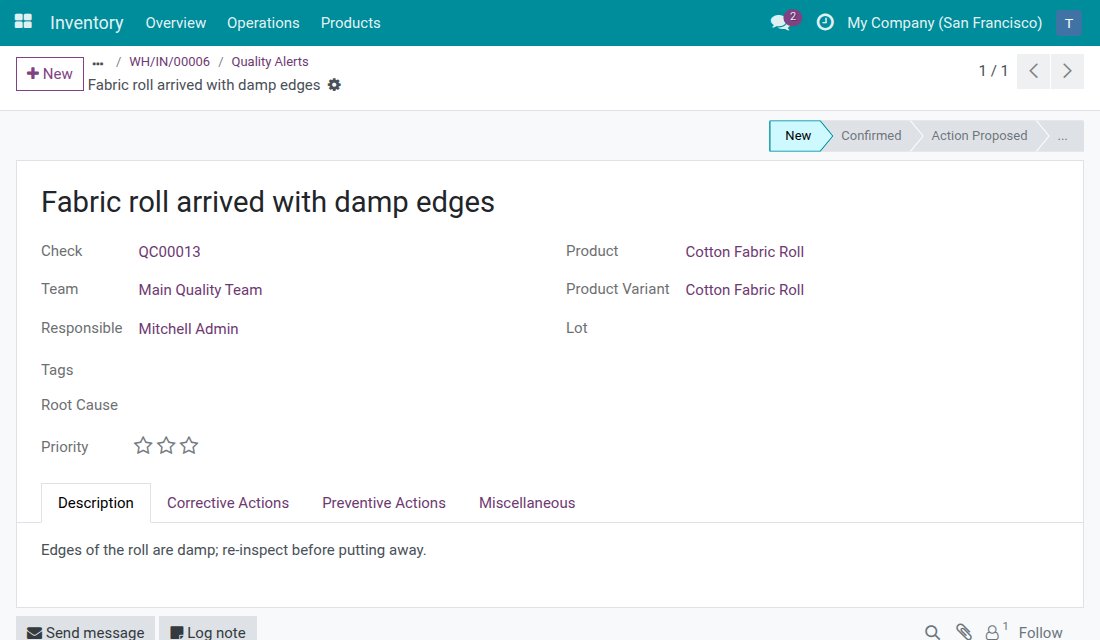
- Click the Quality Alert button; its number tells how many alerts are linked to the receipt.
- Read the alert. You can read it but not change it. The alerts of another warehouse, and alerts linked to no transfer, are not reachable.
When a receipt cannot be validated yet
- Open the receipt and click Validate.
- If a check is still To do, a message tells you to complete the quality checks and names them. The receipt stays Ready.
- Ask the Quality team to record the result of the named checks.
Record the result, then validate the receipt
First, the Quality team at head office records the result:
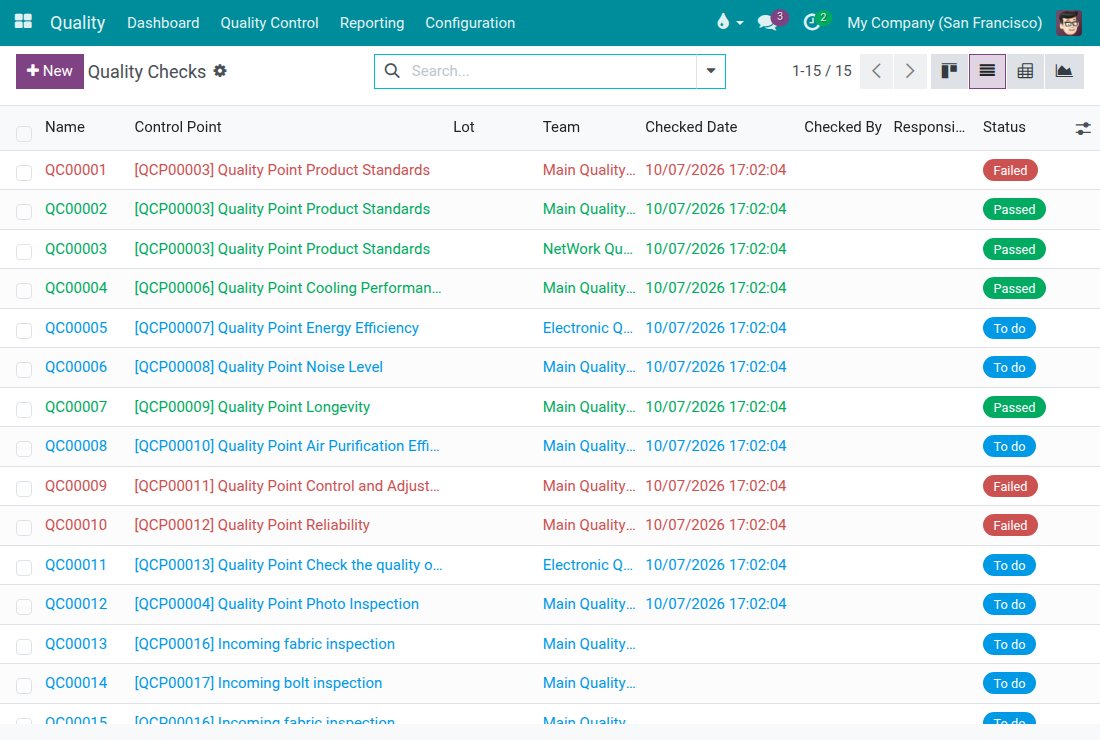
- Open Quality ‣ Quality Control ‣ Quality Controls ‣ Quality Checks. The Quality team sees the checks of every warehouse.
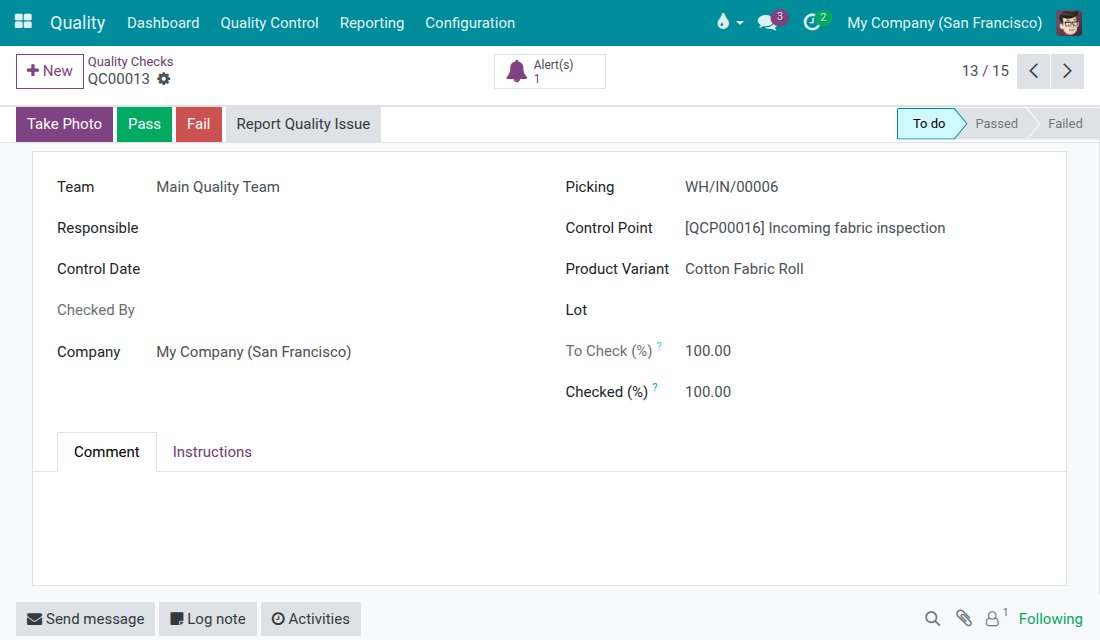
- Open the check of the receipt.
- Click Pass (or Fail).
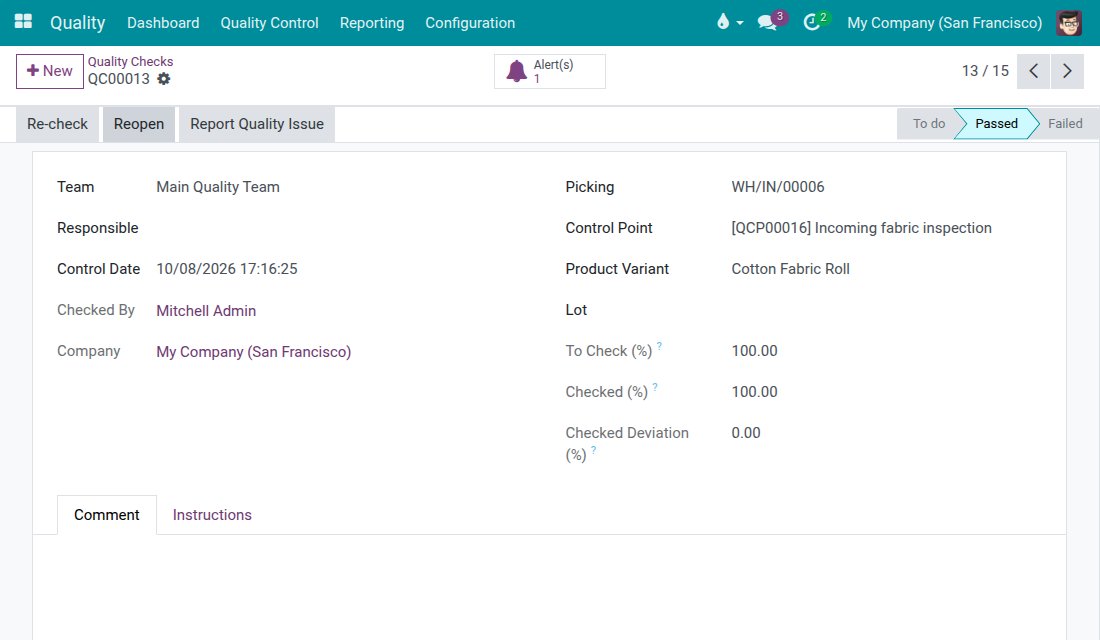
The check now shows Passed.
Tip
To see which receipts have all their checks recorded and are waiting to be validated, open Quality ‣ Quality Control ‣ Stock Operations ‣ Stock Pickings To Do. This menu is offered to Quality users.
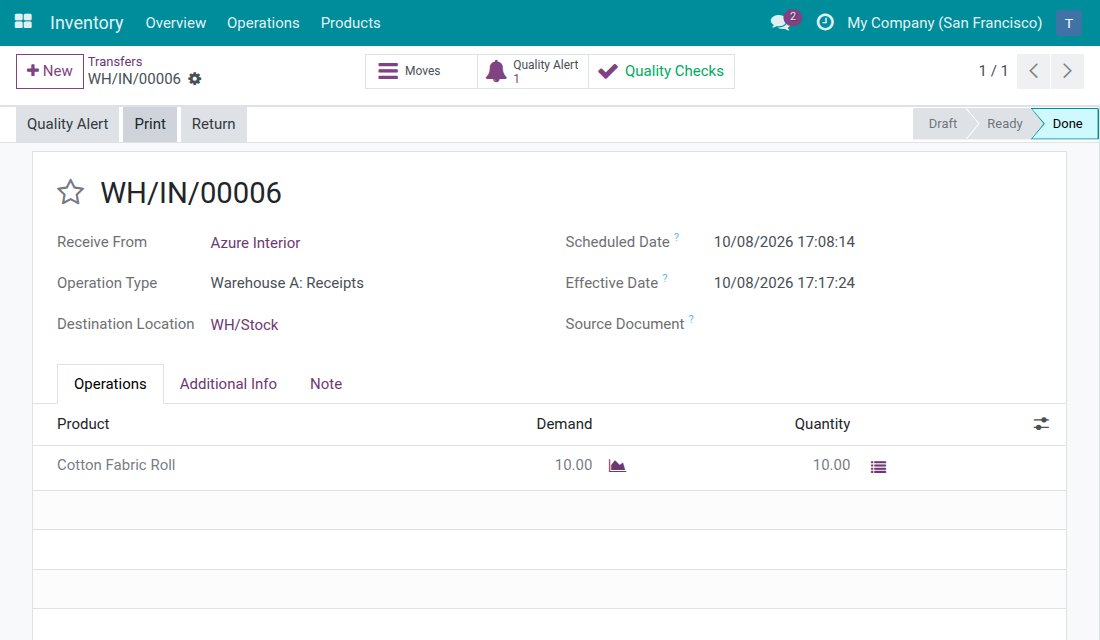
Then the warehouse operator completes the receipt:
- Open the receipt in Inventory ‣ Operations ‣ Transfers ‣ Receipts.
- Click Validate. There is no error now, and the status of the receipt becomes Done.
When a quality check has failed
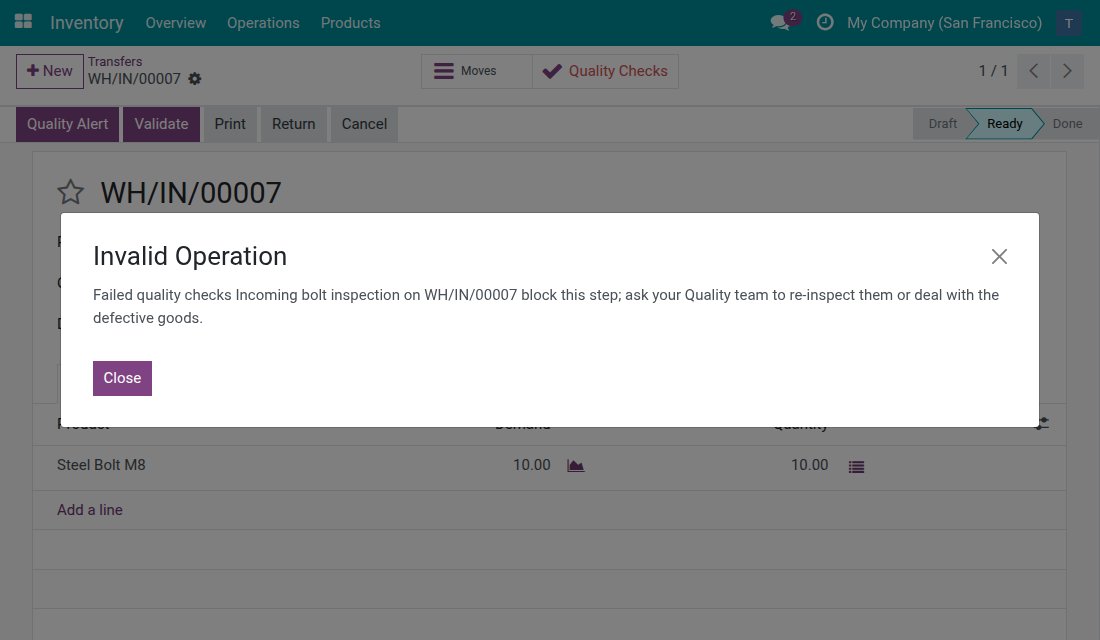
When the control point of the check is set to No Proceed if Failed and the check has Failed, Validate is refused:
- Open the receipt. The caption of the Quality Checks button is red.
- Click Validate. A message names the failed checks and the receipt. The receipt stays Ready.
- Ask the Quality team to re-inspect the check, or to deal with the defective goods. When the check is recorded again as Passed, you can validate the receipt.
Troubleshooting
- I cannot see a check or an alert that a colleague talks about.
- The check or alert probably belongs to another warehouse, or it is linked to no transfer. Both are hidden from users limited to their own documents. If it should be yours, ask a head-office manager to check that you are listed under Accessing Users of your warehouse and that your Inventory access is Users: Own Documents.
- The Quality Checks list is empty.
- No check exists yet for the transfers of your warehouse. Checks are created for the transfers that a control point applies to. If you expect some, ask the Quality team whether the control point covers the product and the operation type.
- There is no Pass or Fail button on a check.
- This is expected. Users limited to their own documents read the checks; the Quality team records the results.
- I cannot validate a receipt.
- Read the message. It names the checks that are still to do, or that failed. Ask the Quality team to record or re-inspect them, then validate again.
- The Quality Checks button is missing on a receipt.
- No quality check applies to this receipt, so there is nothing to show.
FAQ
- Can the warehouse operator record Pass or Fail?
- No. The operator reads the checks and alerts of their own warehouse. Results are recorded by the Quality team.
- Do head-office managers see all warehouses?
- Yes. Quality and Inventory managers at head office see the checks and alerts of every warehouse.
- Where does the validation message come from?
- From Stock Quality Control, and it applies to every user. This module lets the warehouse operator see the checks behind that message.
- Is a check shown when no user is listed on the locations of its transfer?
- Yes. When neither the source nor the destination location restricts the access to named users, every operator limited to their own documents can read it.
This software and associated files (the "Software") may only be used (executed, modified, executed after modifications) if you have purchased a valid license from the authors, typically via Odoo Apps, or if you have received a written agreement from the authors of the Software (see the COPYRIGHT file).
You may develop Odoo modules that use the Software as a library (typically by depending on it, importing it and using its resources), but without copying any source code or material from the Software. You may distribute those modules under the license of your choice, provided that this license is compatible with the terms of the Odoo Proprietary License (For example: LGPL, MIT, or proprietary licenses similar to this one).
It is forbidden to publish, distribute, sublicense, or sell copies of the Software or modified copies of the Software.
The above copyright notice and this permission notice must be included in all copies or substantial portions of the Software.
THE SOFTWARE IS PROVIDED "AS IS", WITHOUT WARRANTY OF ANY KIND, EXPRESS OR IMPLIED, INCLUDING BUT NOT LIMITED TO THE WARRANTIES OF MERCHANTABILITY, FITNESS FOR A PARTICULAR PURPOSE AND NONINFRINGEMENT. IN NO EVENT SHALL THE AUTHORS OR COPYRIGHT HOLDERS BE LIABLE FOR ANY CLAIM, DAMAGES OR OTHER LIABILITY, WHETHER IN AN ACTION OF CONTRACT, TORT OR OTHERWISE, ARISING FROM, OUT OF OR IN CONNECTION WITH THE SOFTWARE OR THE USE OR OTHER DEALINGS IN THE SOFTWARE.