
Sales Confirmation Backdate
| Lines of Code | 410 |
| Technical name | to_sale_backdate |
| License | OPL-1 |
| Website | https://viindoo.com/apps/modules/18.0/to_sale_backdate |
| Read description for | v 11.0 v 12.0 v 13.0 v 14.0 v 15.0 v 16.0 v 17.0 v 19.0 |
| Required Apps | Invoicing (account) Discuss (mail) Sales (sale_management) |
| Included Dependencies | Backdate Operations Access Rights |
Enter past sales orders on the dates they were agreed
For administrators and consultants bringing a company's sales history into Odoo during the initial deployment
Confirm the order on the date it was actually agreed
Odoo Community · Odoo Enterprise · OPL-1 · English, Vietnamese
Extends Backdate Operations Access Rights, which holds the access rule and the uninstall of the whole back-date cluster.
Purpose and life cycle
Back-dating is a discouraged operation. An order confirmed on a past date is not recorded when the deal was made, so routine use weakens the reliability of the sales figures.
This module serves one situation: the initial deployment, when a company enters its past sales data, for example last month's sales orders. When that work is done, the administrator uninstalls the back-date modules from Apps. They can be installed again later if the need returns.
Keep it for the data entry, not for day-to-day selling, and grant the back-date group only to the people who do that entry.
What changes for your team
Past orders keep the date they were agreed
Without it, every confirmation is stamped with the moment the button is clicked, so an order entered today is dated today.
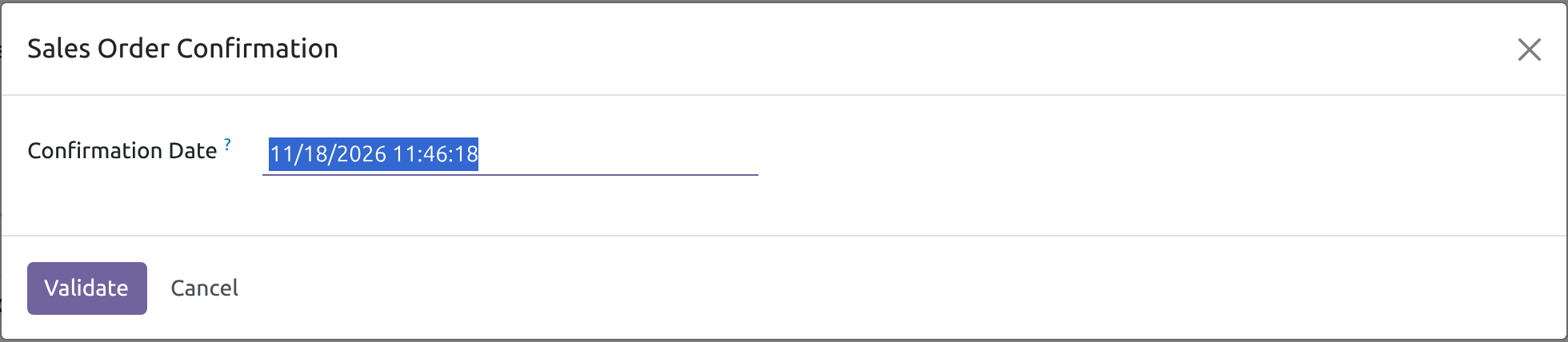
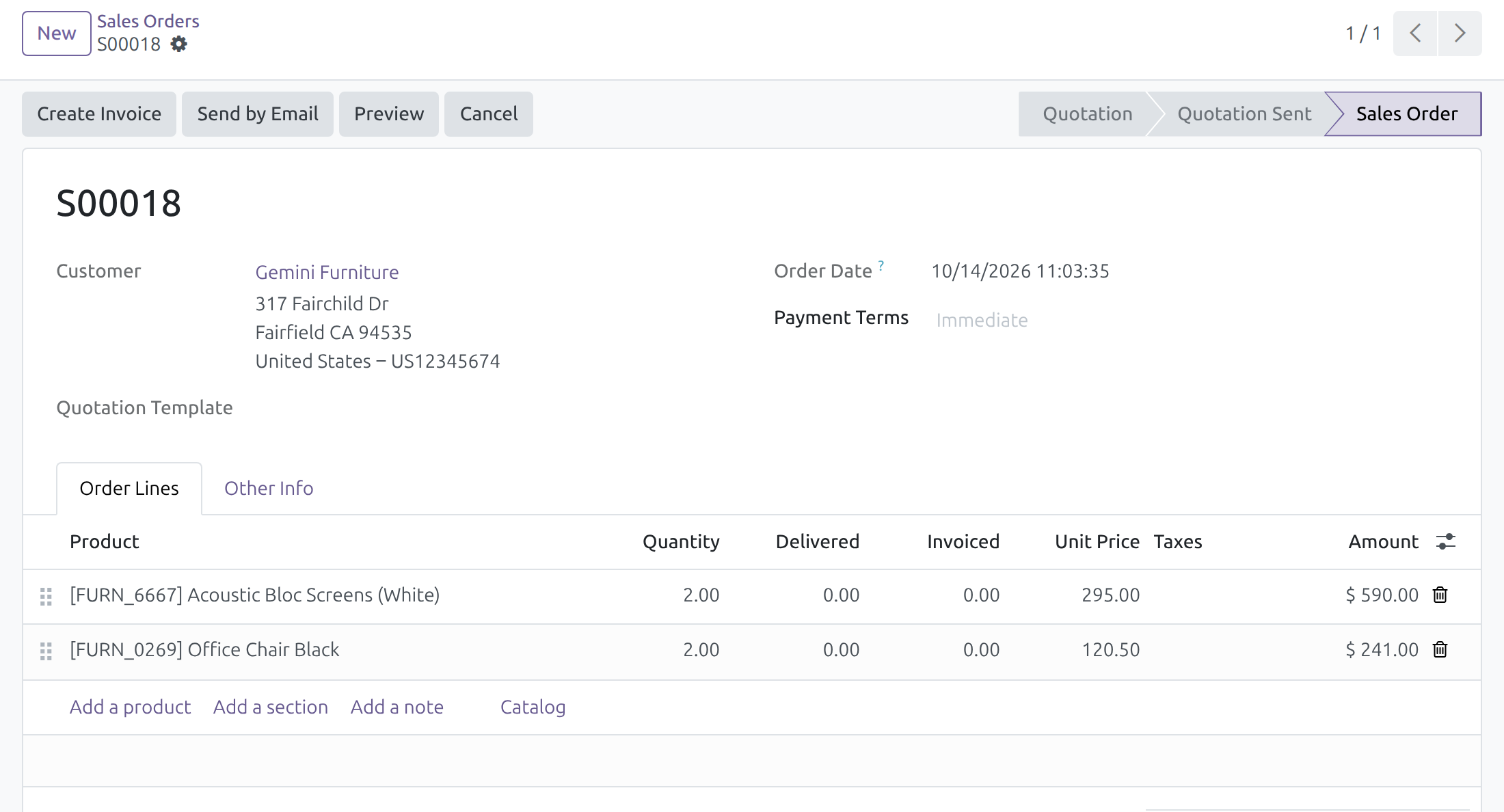
→ Confirming a quotation asks for the date and time it was really confirmed, and the order's Order Date takes that value.
You decide who may enter a past date
Without a rule, anyone who confirms orders could also choose their date.
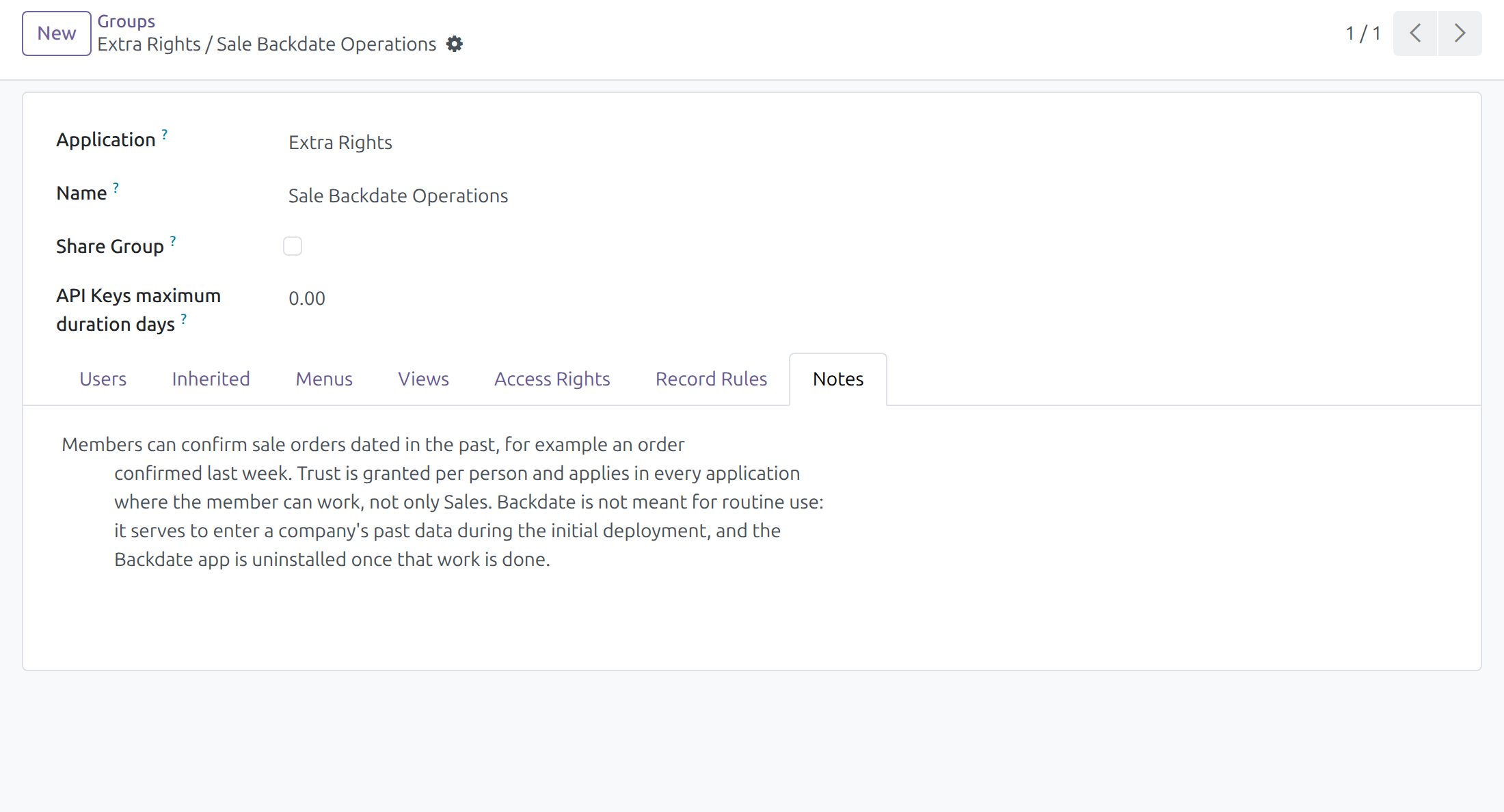
→ Only members of the sales back-date group get the date dialog. Trust is per person: a member can back-date in every application they work in, not only Sales.
Everyone else sells as usual
A tool for entering history should not slow down the people who sell today.
→ A person outside the group confirms at the current date and time, with no extra step. Inside the group, the date starts at now and a future date is refused.
Features
Recording past sales
- ✓ Quotations confirmed on a past date and time
- ✓ The date field starts at the current date and time
- ✓ A date in the future is refused
- ✓ Cancelling the dialog confirms nothing
Where the date lands
- ✓ The Order Date of the confirmed sales order
Control and exit
- ✓ One group grants the right, person by person
- ✓ People outside the group see no change
- ✓ Uninstalling keeps every sales order and its dates
Ready on day one
The date dialog
It opens on the existing Confirm button of a quotation. The module adds no menu.
First step for the administrator
Add the people who enter past sales data to the group Sale Backdate Operations, and remove them when their entry is done. The group also gives Sales user access.
Before you decide
Should we keep it installed after go-live?
No. It is meant for entering past sales data during the initial deployment. Uninstall the back-date modules when that is done; they can be installed again if the need returns.
Can I allow back-dating in Sales only?
No. Membership of a back-date group lets that person back-date in every application where they can work. Give it only to people you trust with a past date on any document.
What do we lose when we uninstall?
No sales order and none of its dates. The group, its membership and the date dialog go; afterwards every order is confirmed at the moment of confirmation. Users keep their access to Sales.
Does it change anything for the rest of the sales team?
A person outside the group confirms orders as usual, at the current date and time, without the date dialog.
Which dates are refused?
A date in the future. The current date and time, or any earlier one, is accepted.
Try it, then ask us
The Documentation tab holds the guide for administrators and data-entry staff. The live preview of this listing opens the sales orders list on a demo database.
Pre-sales & partnership
viindoo.com/contactusTechnical support
viindoo.com/ticketSales Confirmation Backdate
For administrators who set up back-dating, and for the salespeople they trust to confirm sales orders on a past date.
Sales Confirmation Backdate lets a trusted person confirm a sales order on the date it was really agreed, for example last week. Without it, the system stamps every confirmation with the moment the Confirm button is clicked, and that moment becomes the Order Date of the order.
Note
Extends Backdate Operations Access Rights - see its documentation. That guide covers the cluster as a whole, including the steps to uninstall it.
Purpose and life cycle
Back-dating is a discouraged operation. An order confirmed on a past date was not recorded when the deal was made, so routine use weakens the reliability of the sales figures.
This module exists for one situation: the initial deployment, when a company enters its past data (for example last month's sales orders) into the system. When that work is done, the administrator uninstalls the back-date modules from Apps. They can be installed again later if the need returns.
Do not keep the module installed for day-to-day selling, and do not grant the back-date group as a convenience.
What is removed by the uninstall and what stays is listed in When the data entry is done. The steps are in the guide of Backdate Operations Access Rights.
Who can back-date
Back-dating sales orders is a right granted to a person through one group:
| Group | Lets its members |
|---|---|
| Sale Backdate Operations | Confirm sales orders dated in the past |
The group also gives the Sales user access, so a member can work in the Sales application.
Important
Trust is granted per person. Being a member of a back-date group lets that person back-date in every application where they can work, not only in Sales. Give the group only to people you would trust with a past date in any document.
A person who is not a member of the group confirms a sales order as usual, at the current date and time, with no dialog.
Setup (for the Administrator)
Open Apps, search for Sales Confirmation Backdate and click Install. Backdate Operations Access Rights is installed with it.
Activate the developer mode, then open Settings > Users & Companies > Groups.
Open Extra Rights / Sale Backdate Operations. The Notes tab states what the members can do.
In the Users tab, add the people who enter the past data.
Remove them from the group when their data entry is done.
Confirm a sales order on a past date
- Open Sales > Orders > Quotations and open the quotation to confirm.
- Click Confirm. The dialog Sales Order Confirmation opens, with one field, Confirmation Date, filled with the current date and time.
- Enter the date and time at which the order was really confirmed, then click Validate.
Keep the proposed date to confirm the order at the current time. Cancel closes the dialog and confirms nothing. A date in the future is refused with the message "You may not be able to specify a date in the future!".
The order becomes a sales order, and its Order Date is the date you entered.
When the data entry is done
Uninstalling the back-date modules (see the guide of Backdate Operations Access Rights) keeps every recorded sales order with its dates. It removes the group Sale Backdate Operations, with the back-date membership of every person, and the back-date dialog: afterwards every sales order is confirmed at the moment of the confirmation. Users keep their access to the Sales application. Installing the modules again requires granting the group again.
FAQ
- A user clicks Confirm and no date dialog opens.
- The user is not a member of Sale Backdate Operations. Add the user to the group, then ask them to confirm again.
- Can the date be later than today?
- No. The dialog accepts only the current date and time or a past one.
- Can I give back-date access for Sales only?
- No. The group applies in every application where its member can work.
This software and associated files (the "Software") may only be used (executed, modified, executed after modifications) if you have purchased a valid license from the authors, typically via Odoo Apps, or if you have received a written agreement from the authors of the Software (see the COPYRIGHT file).
You may develop Odoo modules that use the Software as a library (typically by depending on it, importing it and using its resources), but without copying any source code or material from the Software. You may distribute those modules under the license of your choice, provided that this license is compatible with the terms of the Odoo Proprietary License (For example: LGPL, MIT, or proprietary licenses similar to this one).
It is forbidden to publish, distribute, sublicense, or sell copies of the Software or modified copies of the Software.
The above copyright notice and this permission notice must be included in all copies or substantial portions of the Software.
THE SOFTWARE IS PROVIDED "AS IS", WITHOUT WARRANTY OF ANY KIND, EXPRESS OR IMPLIED, INCLUDING BUT NOT LIMITED TO THE WARRANTIES OF MERCHANTABILITY, FITNESS FOR A PARTICULAR PURPOSE AND NONINFRINGEMENT. IN NO EVENT SHALL THE AUTHORS OR COPYRIGHT HOLDERS BE LIABLE FOR ANY CLAIM, DAMAGES OR OTHER LIABILITY, WHETHER IN AN ACTION OF CONTRACT, TORT OR OTHERWISE, ARISING FROM, OUT OF OR IN CONNECTION WITH THE SOFTWARE OR THE USE OR OTHER DEALINGS IN THE SOFTWARE.