
Social Marketing
by Viindoo
| Lines of Code | 5429 |
| Technical name | viin_social |
| License | OPL-1 |
| Website | https://viindoo.com/apps/modules/19.0/viin_social |
| Read description for | v 13.0 v 14.0 v 15.0 v 16.0 v 17.0 v 18.0 |
| Required Apps | Discuss (mail) |
| Included Dependencies | Viindoo Base API Request Logger |
| Extensions | Facebook Social Marketing LinkedIn Social Marketing Social Marketing - CRM |

Write a post once, have it approved, publish it on every page you manage
For marketing teams and community managers running company pages on social networks
Integration and management of social networks.
Odoo Community · OPL-1 · English, Vietnamese
Builds on API Request Logger: every call made to a network is kept for review.
What changes for your team
One article, every page
The same text is pasted page by page, and the approval happens in a chat.
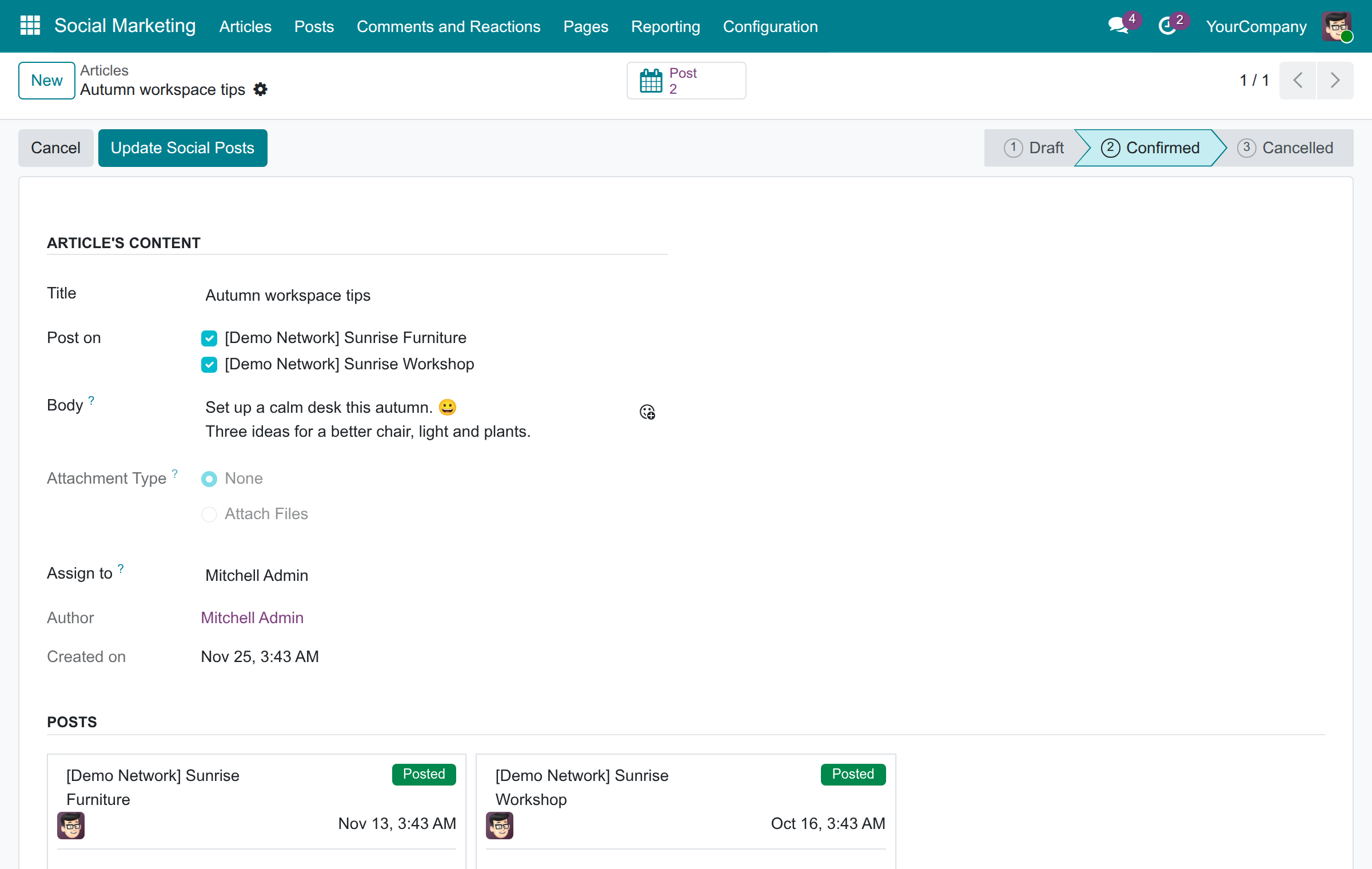
→ An editor writes one article with images, a video or a link and confirms it. An approver publishes it on every ticked page, now or on schedule.
A failed post is seen and explained
A post that did not go out is noticed late, by someone looking at the page.
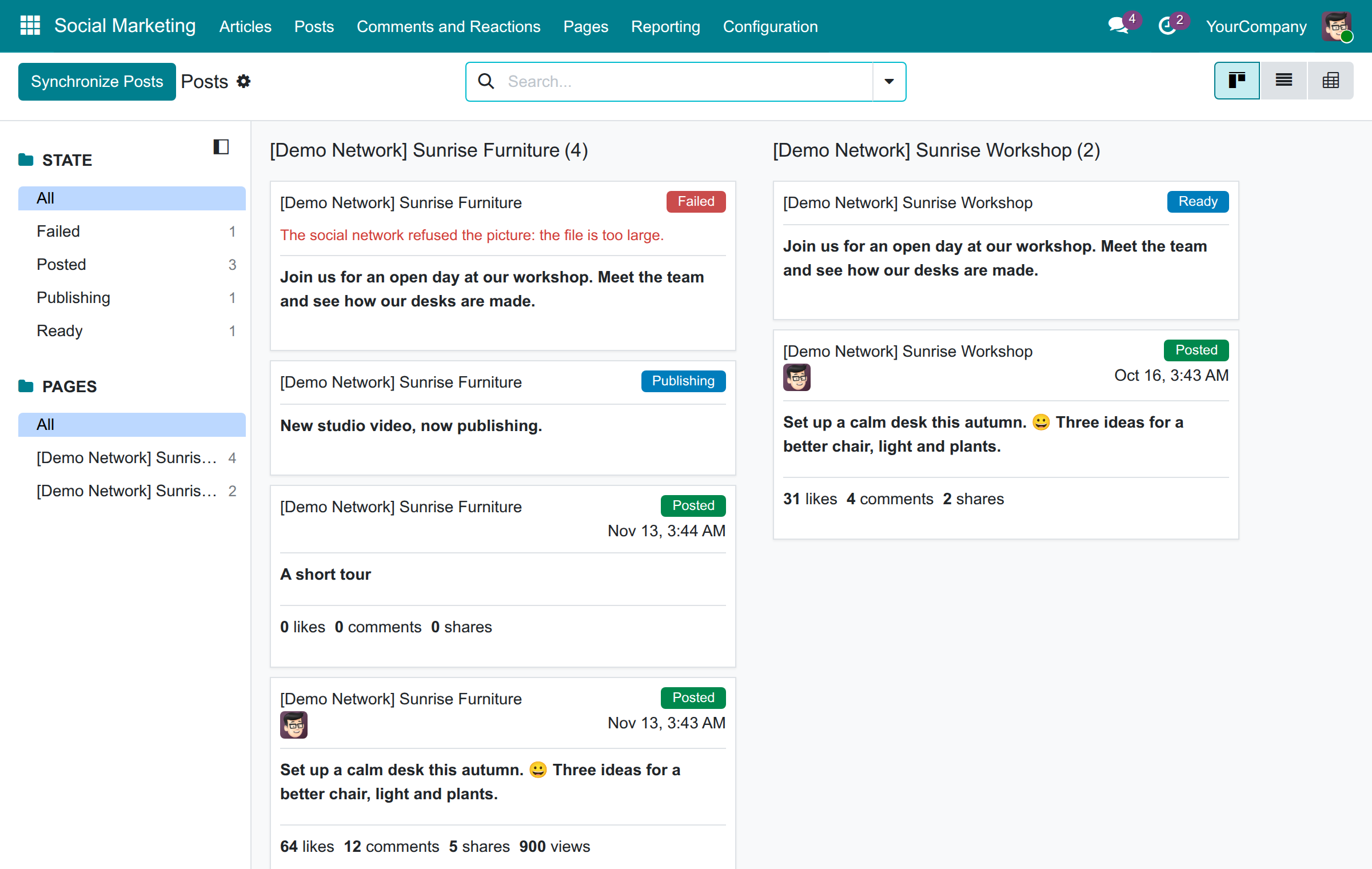
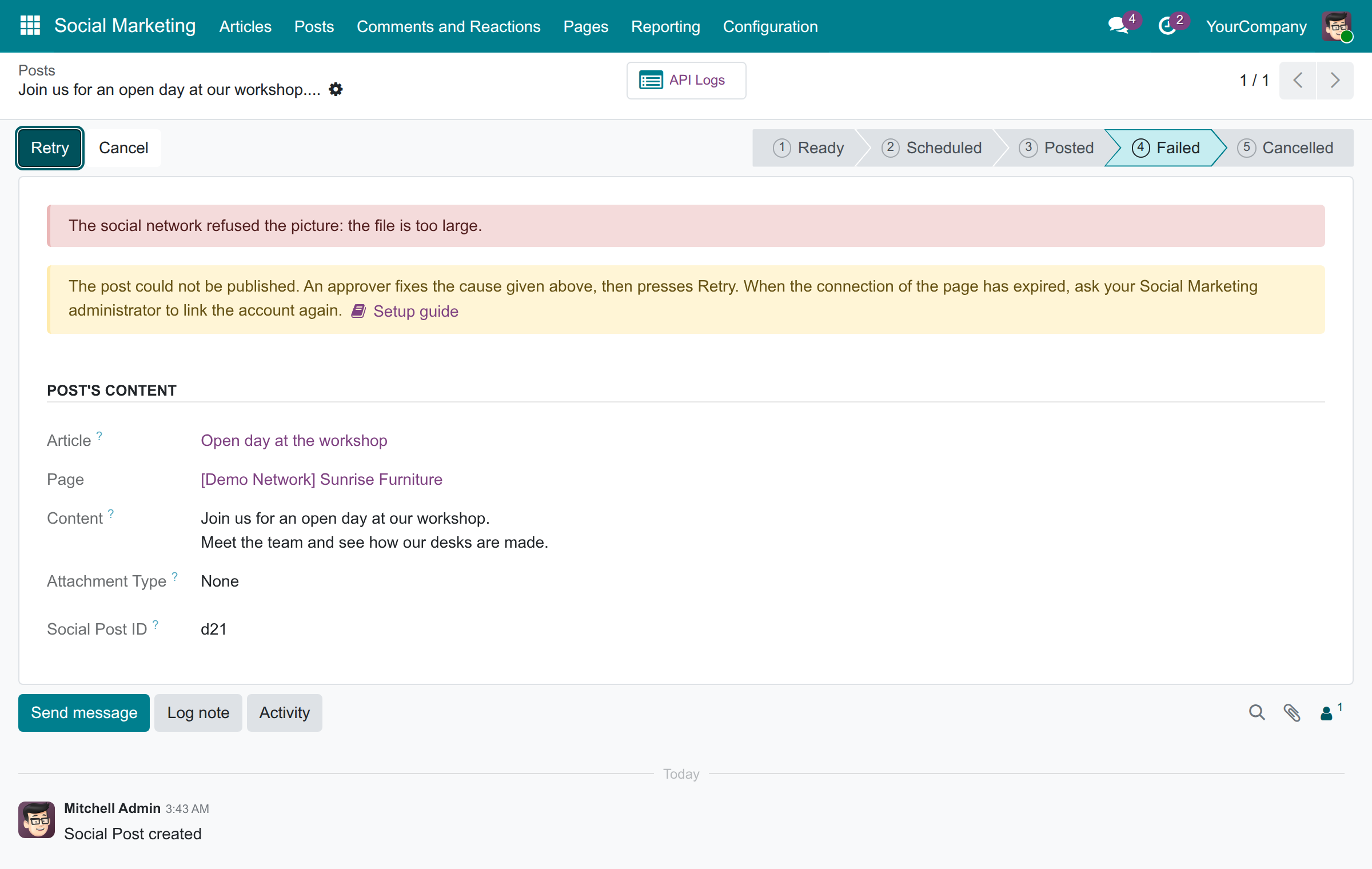
→ Every post shows its state. A failed one carries the network's reason, the people concerned are notified, and an approver retries.
Comments answered where the team works
Comments and messages are read and answered on each network separately.
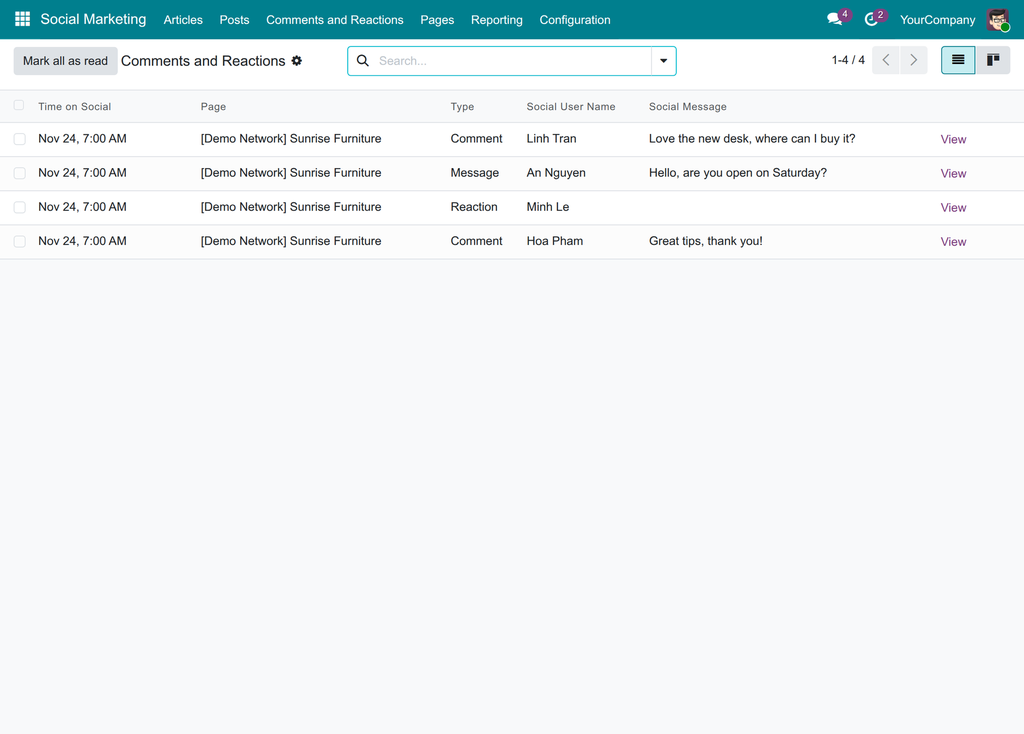
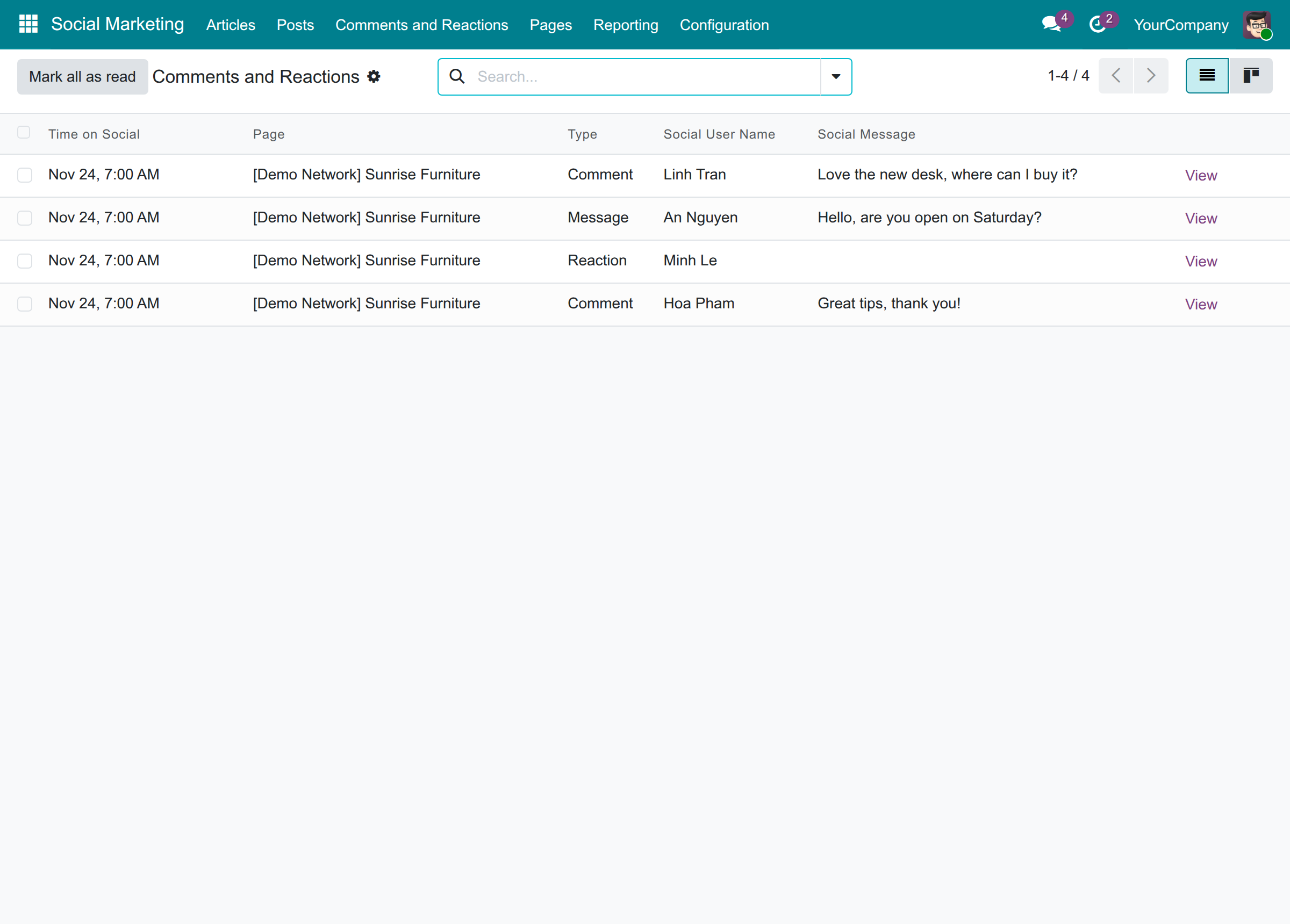
→ Comments, reactions and messages arrive in one list, messages open as conversations in Discuss, and comments are answered from the post.
What you see as a manager
Which pages get readers to act?
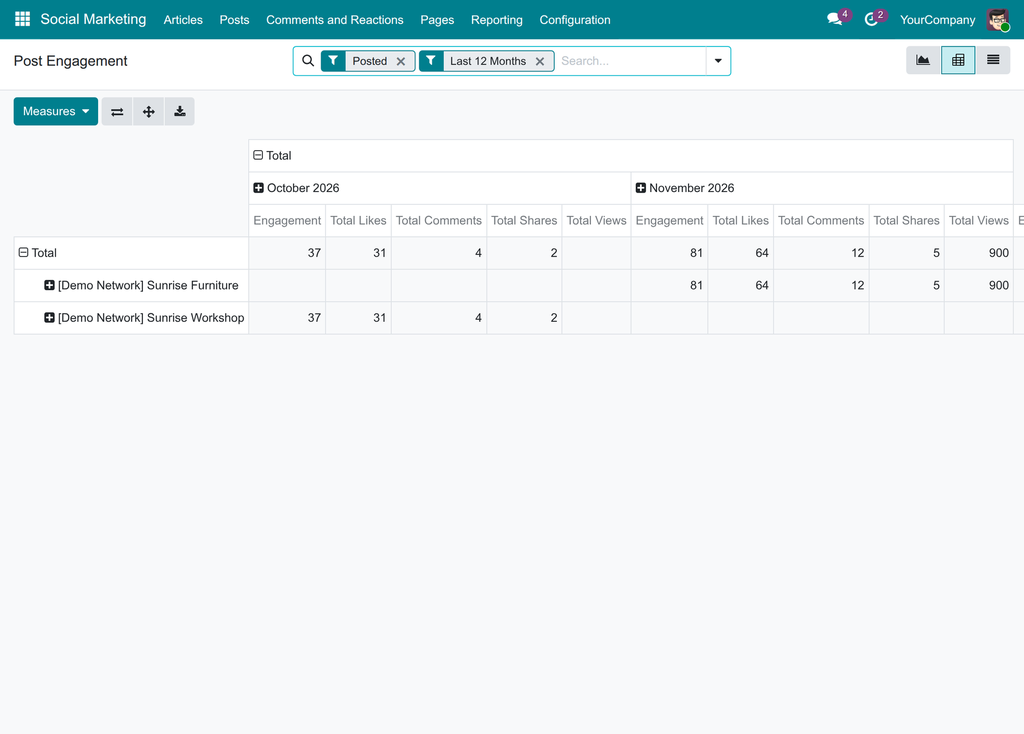
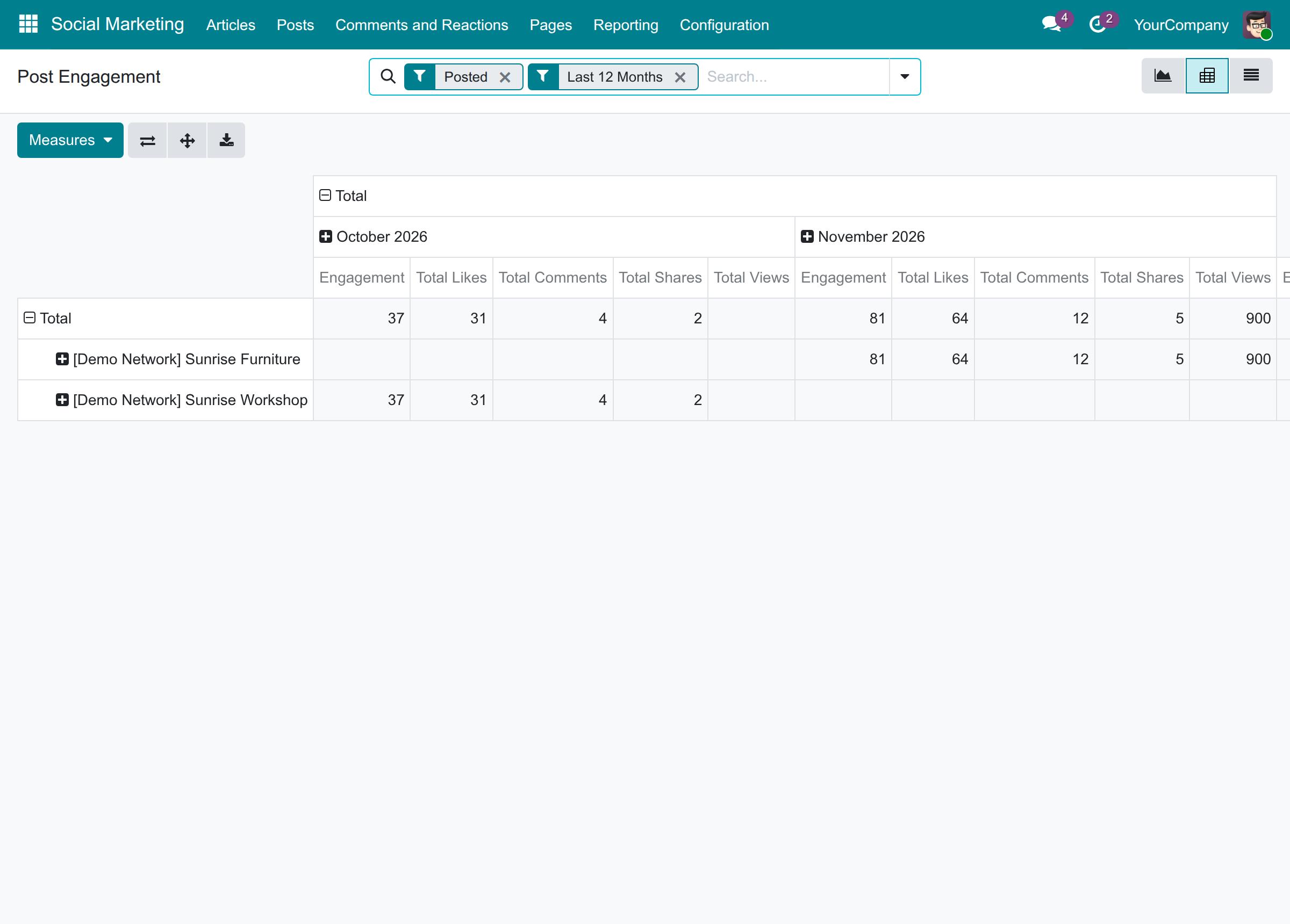
Totals the network reported at the last synchronization.
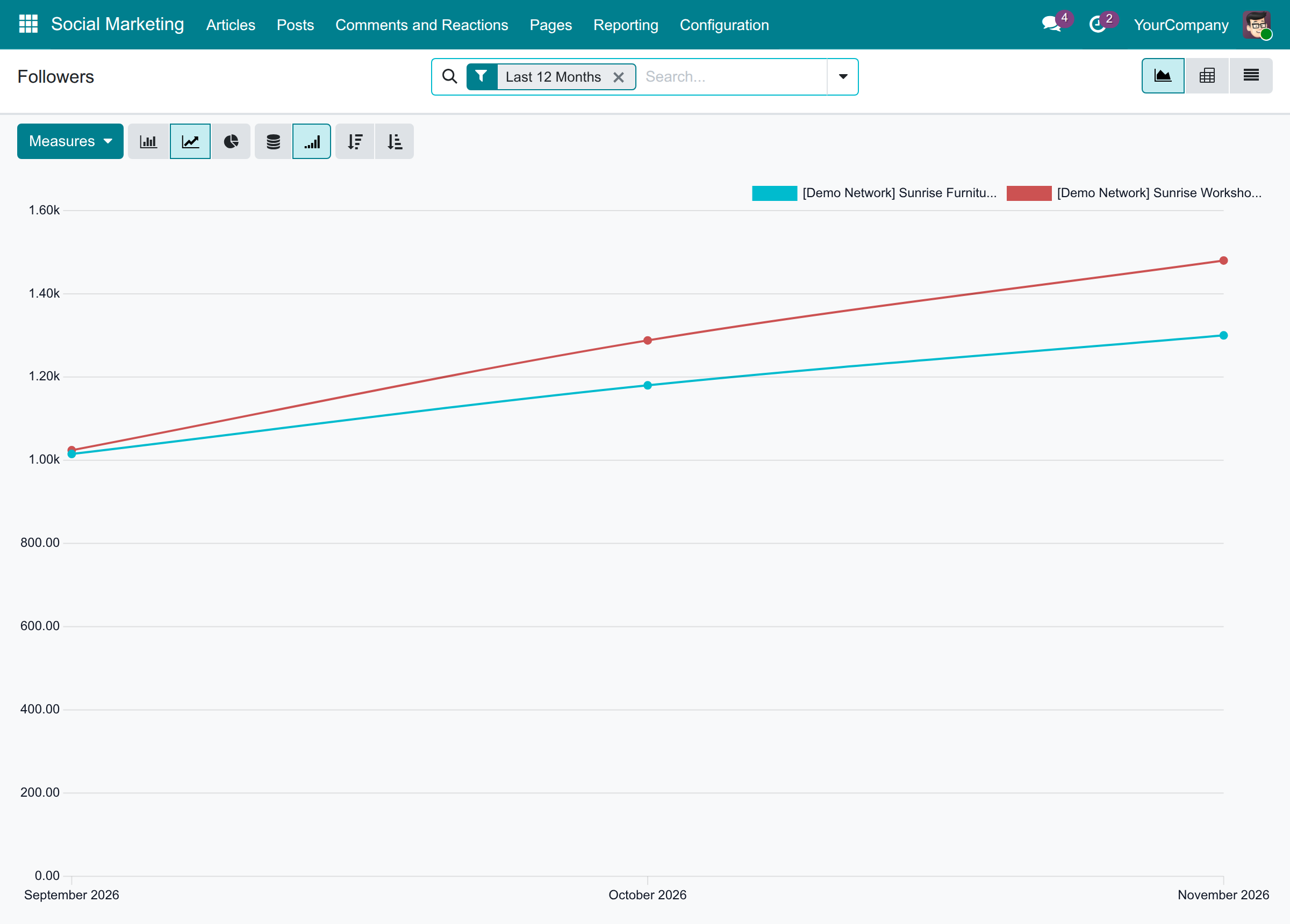
Is the audience of each page growing?
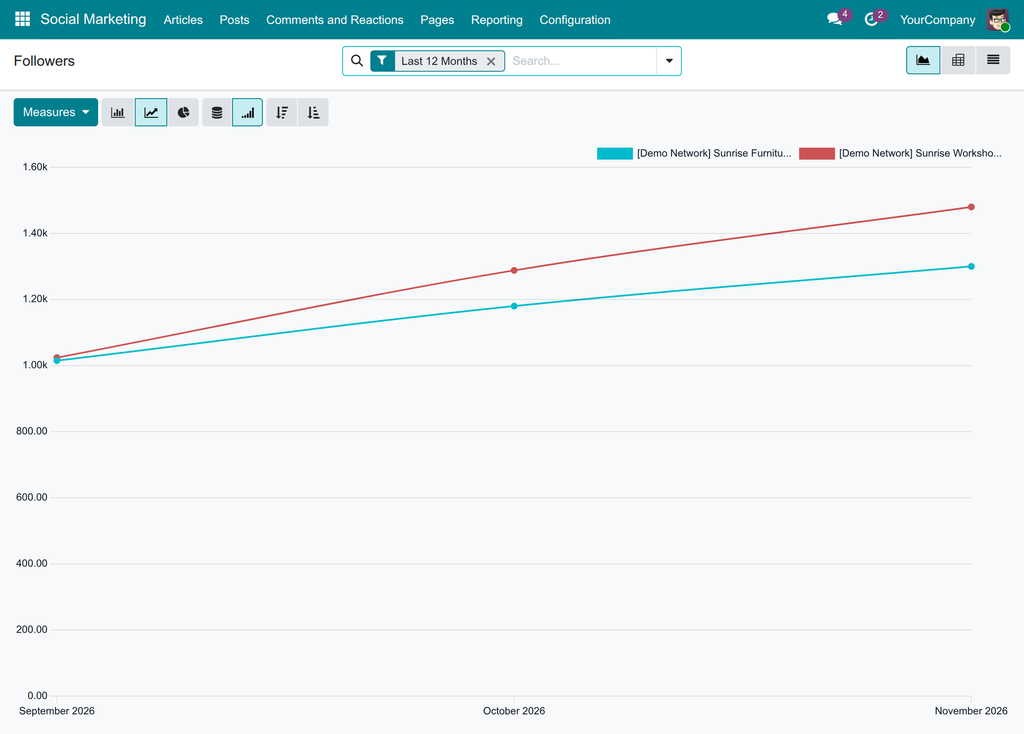
Each page's follower count, kept day by day.
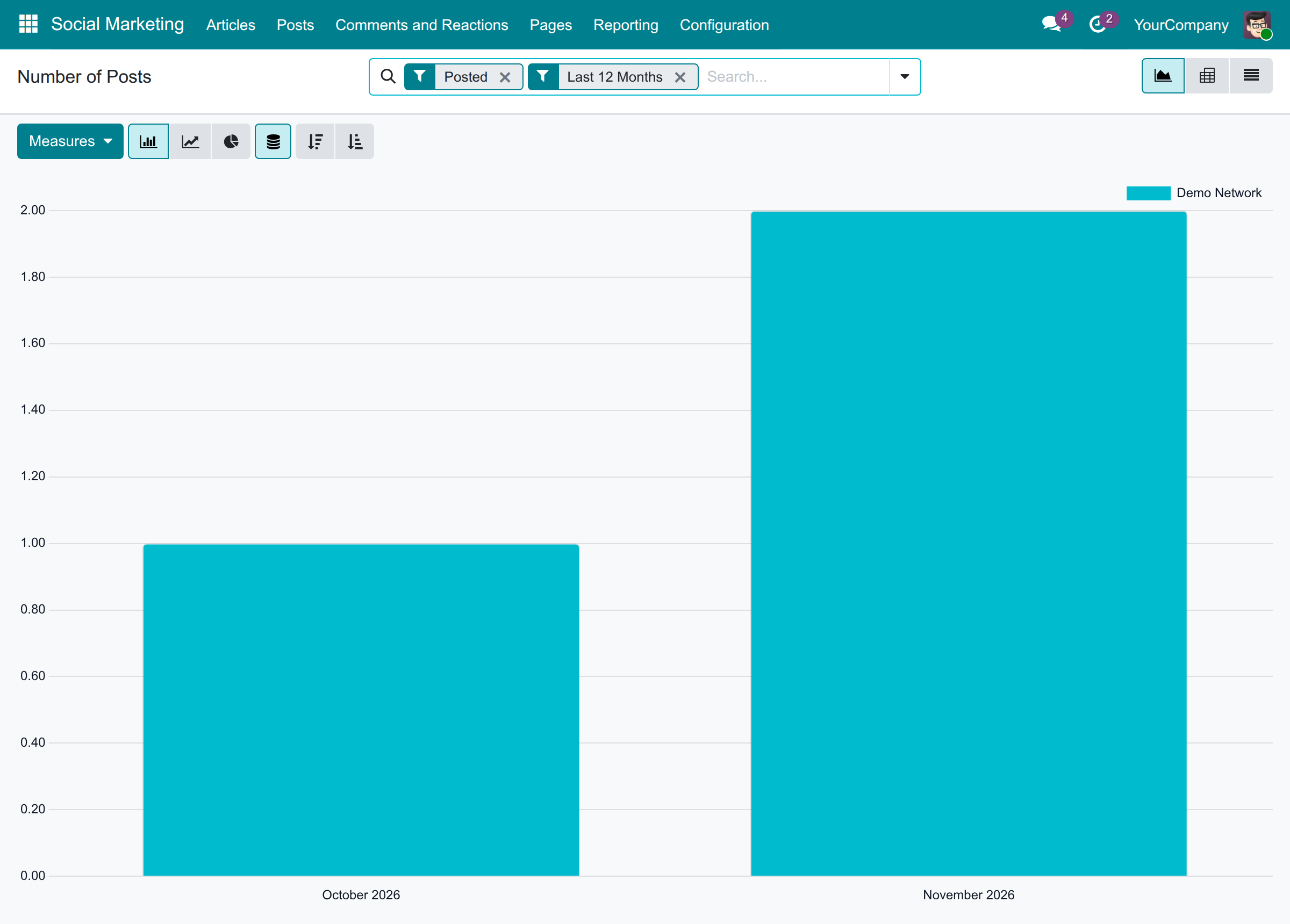
How much do we publish, and where?
The posts that went out, per month and per network.
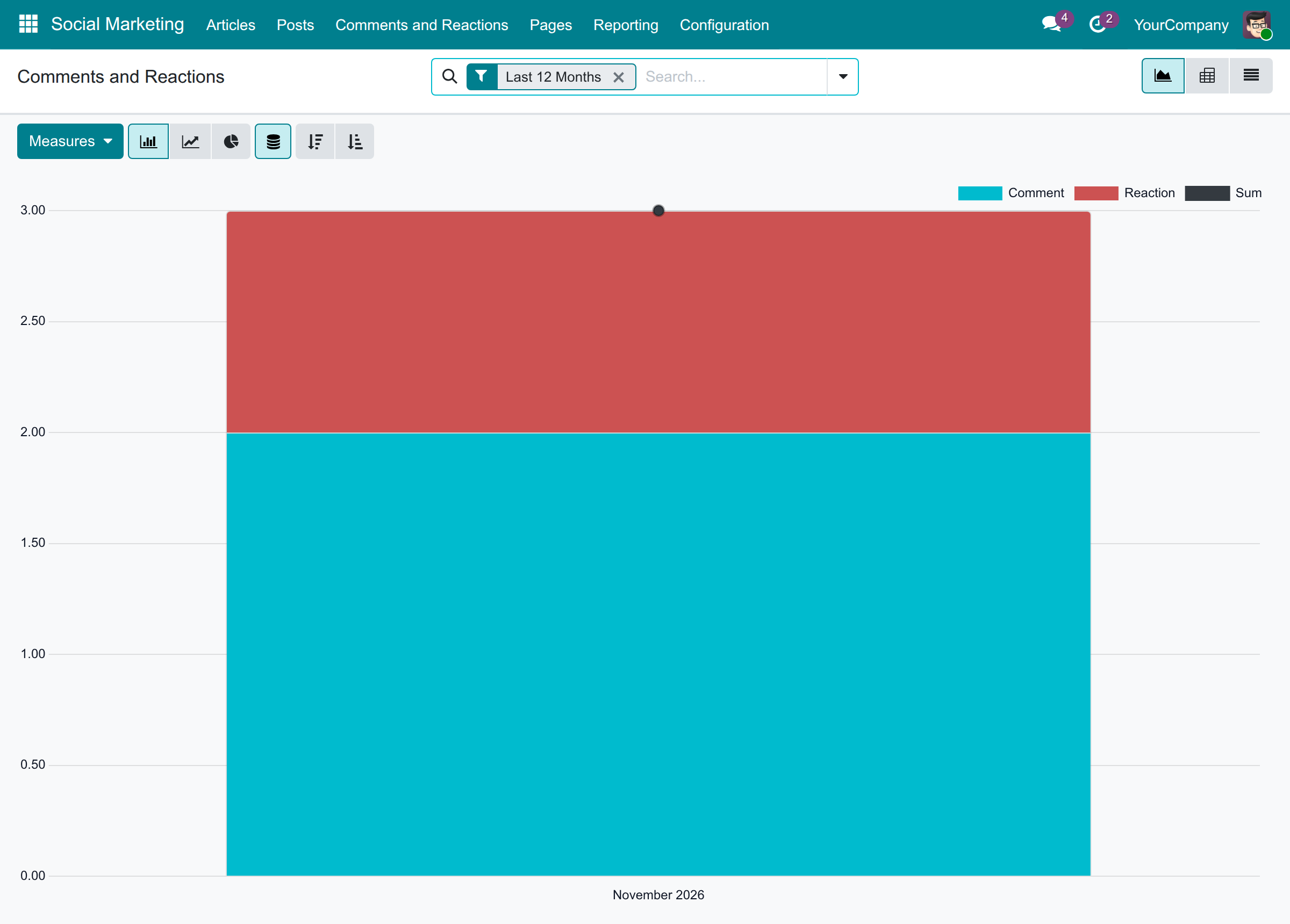
How much do people respond to our pages?
Comments and reactions as they reach Odoo from each page.
Features
Writing and approval
- ✓ One article posted on every page you tick, now or scheduled
- ✓ Images, one video, or a link with its preview card
- ✓ A preview with emoji and line breaks as typed
- ✓ Editors write; approvers publish
Publishing
- ✓ Every post shows its state
- ✓ A failed post gives the network's reason and can be retried
- ✓ Videos upload in the background while you keep working
- ✓ The text of a published post can be edited from Odoo
Conversations
- ✓ Comments, reactions and messages in one list
- ✓ Reply, like, hide or delete comments from the post
- ✓ Page messages answered in Discuss
Connections
- ✓ Connection state with a setup guide
- ✓ Network events queued, retried, and listed when they fail
- ✓ File size limits per network, set in Settings
Built for daily use
- ✓ Records kept apart per company
- ✓ Every call to a network logged, tokens masked
- ✓ When a network limits calls, scheduled work pauses, then resumes
- ✓ Video files leave storage after publishing; the networks keep them
Ready on day one
Roles
Editor, Approver and Administrator, each including the one before.
Background jobs
Pages and posts synchronize and network events are processed on schedule.
What you set up first
Install a network add-on, give the database a public HTTPS address, then link the account.
Extend it
Facebook Social Marketing
Connects your Facebook Pages, so articles publish there and their activity comes back to Odoo.
LinkedIn Social Marketing
Connects your LinkedIn organisation pages, so articles publish there and their activity comes back to Odoo.
Social Marketing - CRM
Turns conversations with your pages' visitors into leads for the sales team.
Before you decide
Does it publish to Facebook and LinkedIn by itself?
No. Each network is connected by its own add-on, listed above; this app is the common part.
Who can publish, and who sees what?
Editors write and confirm; approvers and administrators publish, retry and delete. Connection secrets are visible to system administrators only. Each company sees its own records.
Where does our data go?
Everything stays in your database. A network receives only approved posts, and returns figures, comments and messages.
What does it take to run?
A public HTTPS address and an app on each network, declaring the two addresses Odoo shows. Uninstall Odoo's own Social Marketing app before installing this one.
How are storage and network limits kept in check?
A video file leaves Odoo storage 7 days after its posts are done; attach it again to reuse it. The largest file per network is a setting.
Try it, then ask us
The Documentation tab of this listing explains every screen by role, and Live Preview opens the app on a demo database.
Pre-sales & partnership
viindoo.com/contactusTechnical support
viindoo.com/ticketOverview
Social Marketing lets a team prepare a post once, have it approved, and publish it on one or several pages of the connected networks from Odoo. The posts stay linked to their article, so the team sees in one place what was published, what is on its way and what failed.
The process is:
- An editor writes an article and chooses the pages it is for, then confirms it.
- An approver publishes the confirmed article. Each chosen page gets one post.
- The network answers. The post becomes Posted, or Failed with the reason; an approver corrects the cause and retries.
- Comments, reactions and messages sent to the page arrive in Comments and Reactions.
| Role | What they do | Access right to assign |
|---|---|---|
| Editor | Writes and confirms the articles assigned to them; reads posts, pages, comments and reactions | Social Marketing: Editor |
| Approver | Publishes articles, retries failed posts, deletes posts from the network | Social Marketing: Approver |
| Social Marketing administrator | Connects the networks, manages the pages, reads the queue of webhook events from the networks | Social Marketing: Administrator |
| System administrator | Installs the module, sets the public address of the database and reads the history of calls to the networks | Settings: Administration / Settings |
Setup (for the administrators)
Install the module
- Open Apps, search for Social Marketing and press Install.
- To publish on a network, enable its module in Social Marketing > Configuration > Settings (block Facebook or LinkedIn, setting Enable Social Facebook or Enable Social LinkedIn). Only the system administrator sees the Settings menu.
Give each person an access right
Open Settings > Users & Companies > Users, select the person and choose in the Social Marketing section one of Editor, Approver or Administrator. Each right includes the previous one: an approver can do what an editor does, an administrator what an approver does.
Choose which notifications you receive
In Social Marketing > Configuration > Settings, the Social Marketing section (shown to the Social Marketing administrators) has a block Notifications with two settings: Receive Comment Notifications and Receive Reaction Notifications (reactions to your posts).
Connect a network
Open Social Marketing > Configuration > Social Media and select the network. The card of each network tells whether it is connected. Inside the record:
- A green badge Connected, or a yellow badge Not connected: press Link Account. While the network is not connected, a Setup guide button next to the badge opens the step-by-step instructions in the documentation, in your language. A network whose access the network itself refuses shows Not connected until Link Account is pressed again.
- The Setup tab (Social Marketing administrators) holds the Redirect URL, the address your application on the network must declare before you press Link Account, and the Webhook URL, the address your application must declare to send Odoo the comments, reactions and messages of your pages. Use the copy button next to each. The Setup guide button below the two addresses explains where to paste them. The tab is hidden when the network has no address to show.
- A warning is shown above the form when the public address of the database does not start with https://: the networks accept only HTTPS addresses. The system administrator sets the system parameter web.base.url to the public HTTPS address; the Setup guide button of the warning explains how.
- Link Account (main button) starts the connection while the network is not connected. Once it is connected the same button reads Reconnect and is secondary: press it to renew the connection. Synchronize Pages reads the pages the connected account manages. Connected Until shows the date up to which the connection holds; it appears only while the network is connected and gives a date. If an administrator has not linked the connection yet, Synchronize Pages and the other buttons of the network ask them to use Link Account on its Social Media record first.
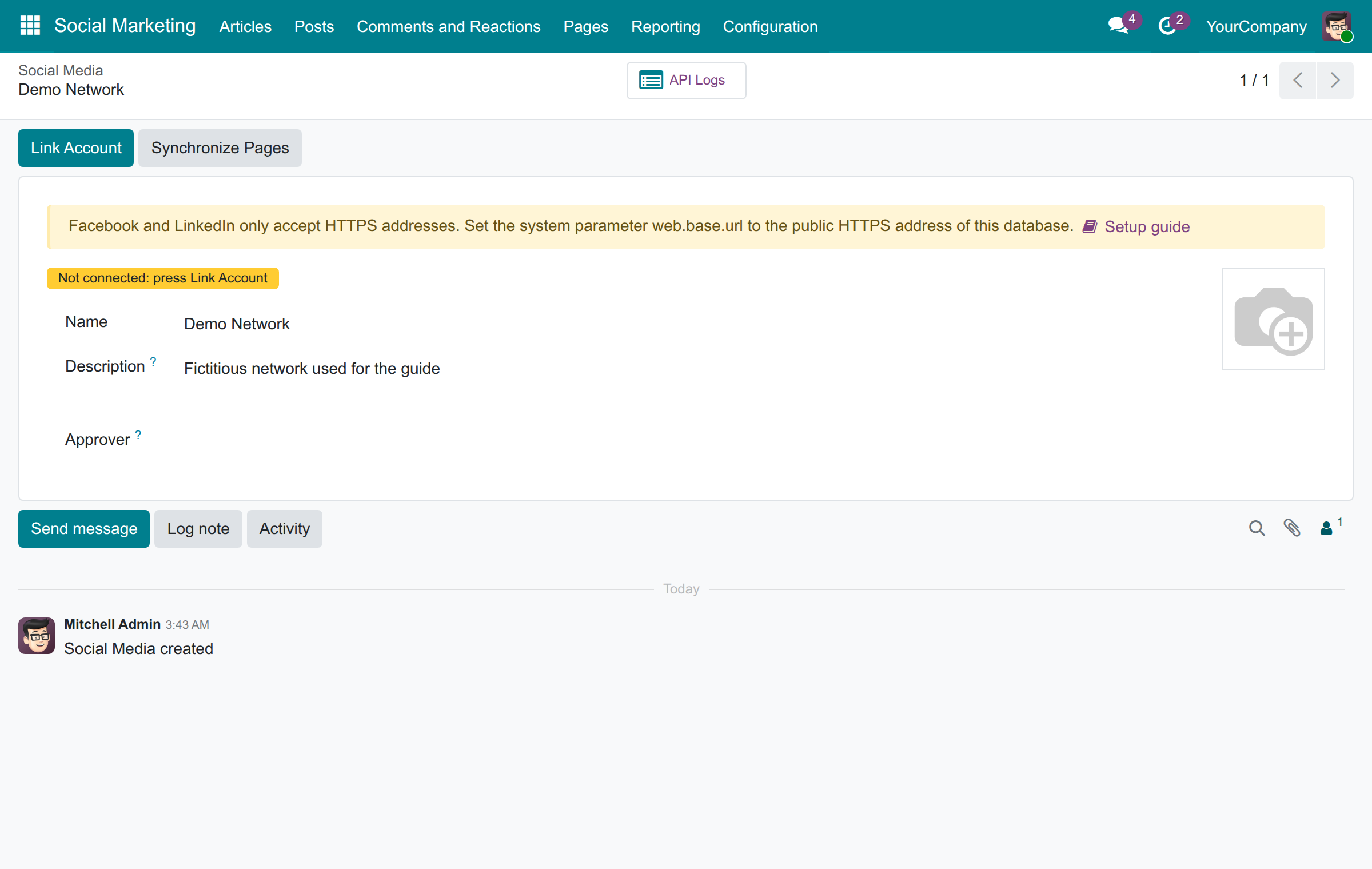
When the network limits the calls of your application (it answers that the application made too many), a yellow alert at the top of the record reads The social network limited the calls of this app. Scheduled synchronizations resume after followed by the time the pause ends and the words of the network. While the pause lasts, the scheduled synchronizations and the processing of waiting webhook events leave this connection alone; the alert disappears by itself once the time has passed. The alert and the fields Calls Paused, Calls Paused Until and Pause Reason are visible to the Social Marketing administrator only.
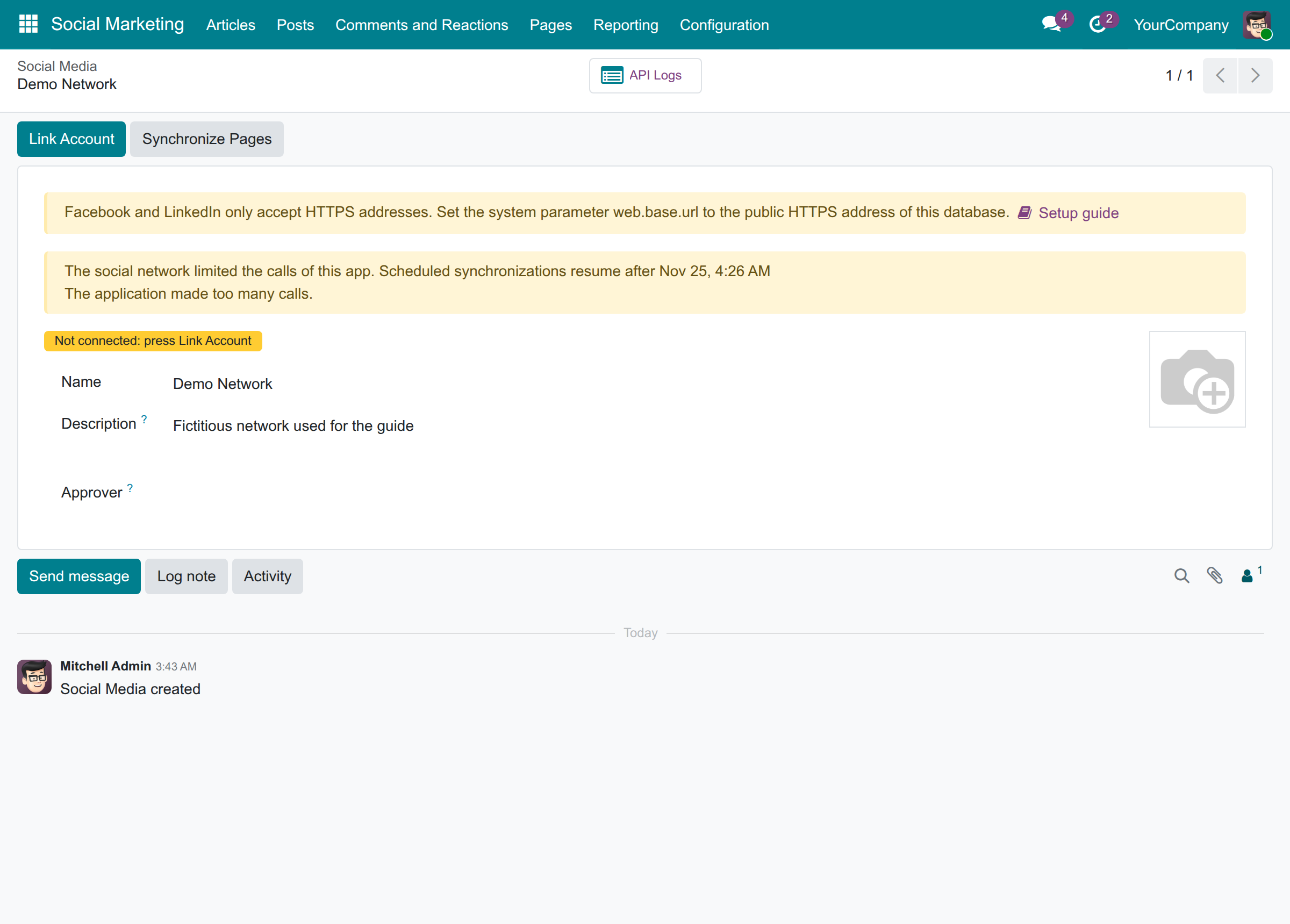
The buttons API Logs and Webhook Events at the top of the record are described in the chapters of the Social Marketing administrator and of the system administrator.
Editor: write and confirm articles
An article is the text and the files you want to publish. It is written once and can be posted on several pages.
Create an article
- Open Social Marketing > Articles and press New. The kanban cards show the state of each article (Draft, Confirmed, Cancelled); an article with a video shows a video icon, an article with images shows up to three thumbnails followed by More+.
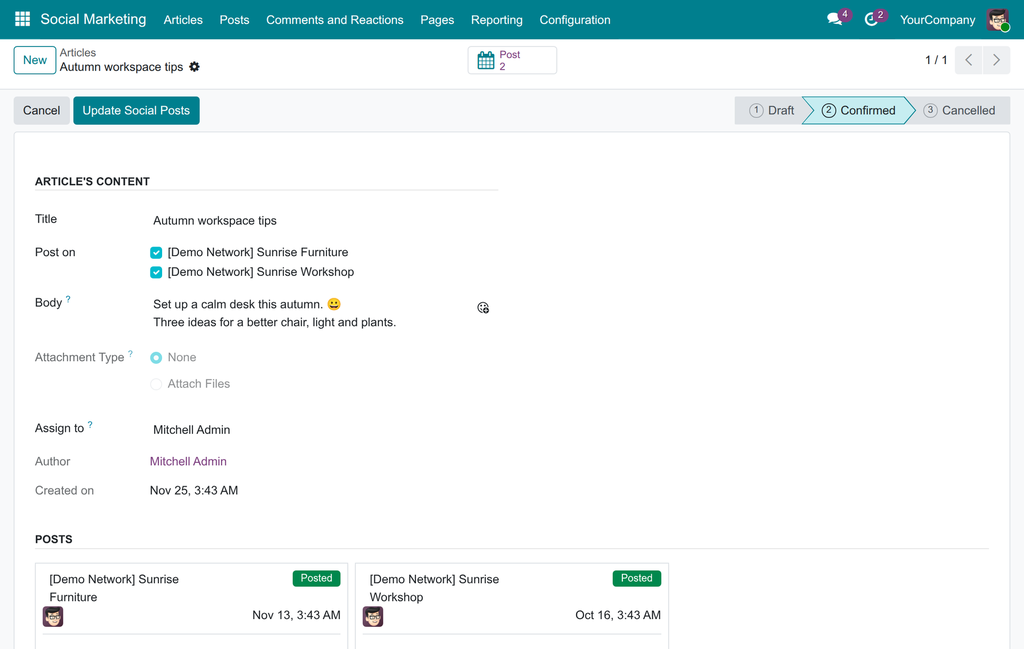
- Fill Title, Body and tick the pages in Post on. The preview shows how the post looks on the network: emoji and line breaks appear as you typed them, and text such as <b> stays plain text, never formatting.
- In Attachment Type choose Attach Files to add images or one video, or leave None and fill Attach Link to share a link. When a link is typed, its title and picture are read once and stored with the article; a link that cannot be reached simply shows no card. The link must start with http:// or https://; any other address is refused when you save, with a message asking for the full address of the page, and an address of another kind is shown as plain text, never as a link.
- Under the files, the limit line of each network of the chosen pages states the largest video and image that network can receive from this database. A larger file is refused when you attach it. The Setup guide button next to it opens the detailed rules.
- Tick Schedule later and fill Scheduled Post Date to publish at a given time. The network states the accepted range under the date.
- Press Save, then Confirm. Use Set to Draft to edit a confirmed or cancelled article again.
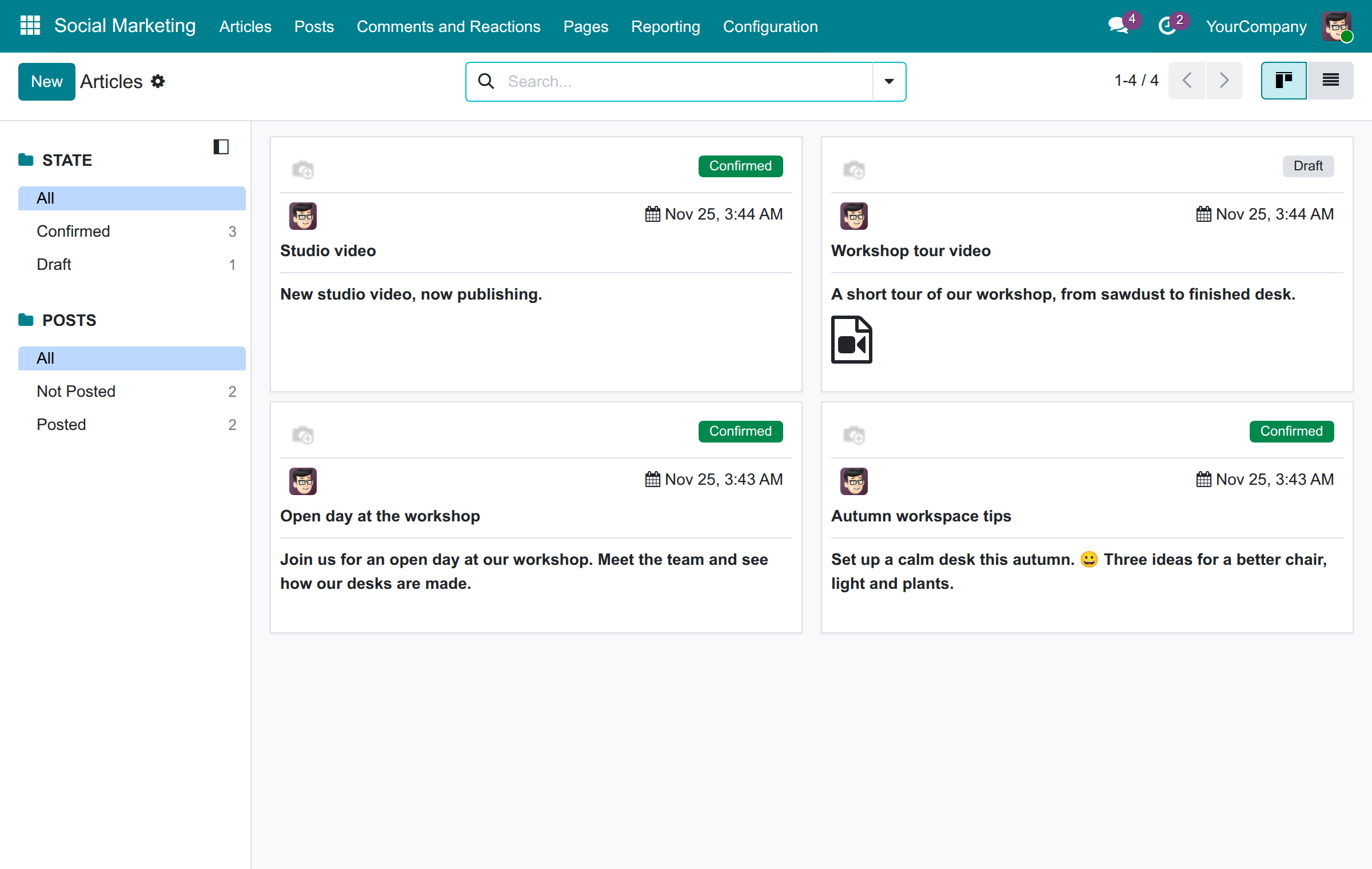
The video of a published article
The social networks keep the video of a published post. To save space, the video file leaves the Odoo storage 7 days after every post of the article reached a final state (a daily scheduled action, Social: Remove Published Videos From Storage, does it). The article, its posts, their video icon, their links and their windows stay as they are; images are never removed. On the form of such an article an alert reads The video file of this article was deleted to save storage space; the published posts keep the video on the social networks. To publish it on another page, attach the video again. and Video Removed From Storage On shows the date. The article's chatter keeps a note: The video file was deleted to save storage space; the published posts keep the video on the social networks.
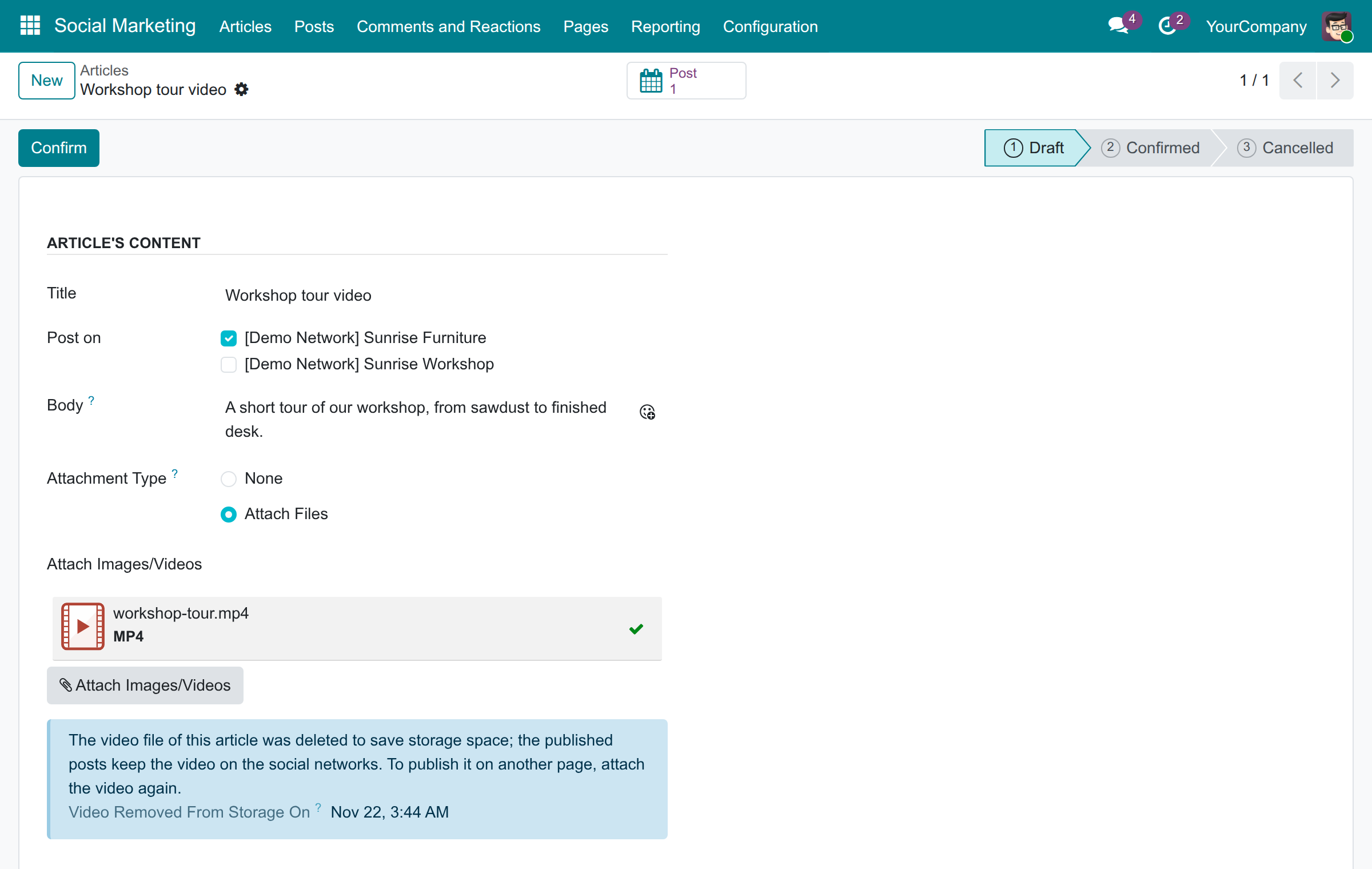
To publish the article on another page, to confirm a copy of it or to retry one of its posts, the video is needed again. Otherwise Odoo refuses with The video <name> of this article has no content. Remove it from the article, attach the video again, then publish. In the field of the files (it can be edited once the video was deleted), remove the emptied video, attach the video again, save, then publish. A new clip attached beside the emptied one does not publish: the video must be the only file of the article. A video attached again is kept for at least 7 days from the day it was attached, even when no post is made with it.
Approver: publish and follow the posts
Publish an article
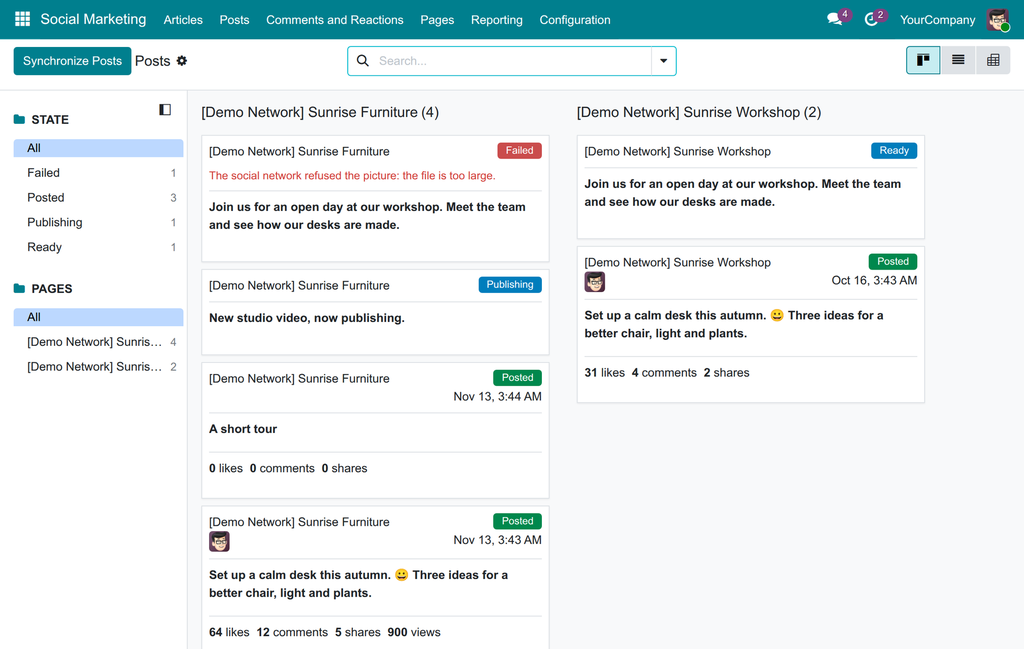
Open a confirmed article and press Post Now. Only approvers and Social Marketing administrators see this button. Each chosen page receives one post. The Post smart button of the article lists them; the Posts list at Social Marketing > Posts shows all posts, grouped by page, with the filters Ready, Posted, Failed and Cancelled.
The states of a post
| State | Meaning |
|---|---|
| Ready | The post is waiting to be published. Post Now publishes it, Cancel drops it. |
| Uploading | A video is being sent to the network in the background. You can keep working; the page does not wait. While Facebook limits the calls of the application, the upload of a Facebook video or Reel waits in this state and continues when the pause is over. |
| Publishing | The video is sent and the network is processing it. The message The post is being published. Its state changes by itself once the social network answers. is shown. |
| Scheduled | The network will publish the post at the chosen time. |
| Posted | The post is on the network. View on Social opens it, Edit Post changes its text: the new content replaces the content of the post on Odoo and on the social network. A scheduled post shows Scheduled For and Scheduled by, any other post Posted On and Posted by; View on Social appears only for a post that is on the network. |
| Failed | The post could not be published. The reason is shown at the top of the post. |
| Cancelled | The post was dropped. Set To Ready puts it back. |
Videos are published in several steps (Uploading, then Publishing, then Posted or Failed). A post that is being published cannot be cancelled, archived, edited or deleted; wait until it is Posted or Failed. A post that is already on the network cannot be cancelled either: use Delete, which removes it from the network too. If you cancel or delete a post while its video is being uploaded, the upload is dropped and nothing is published later.
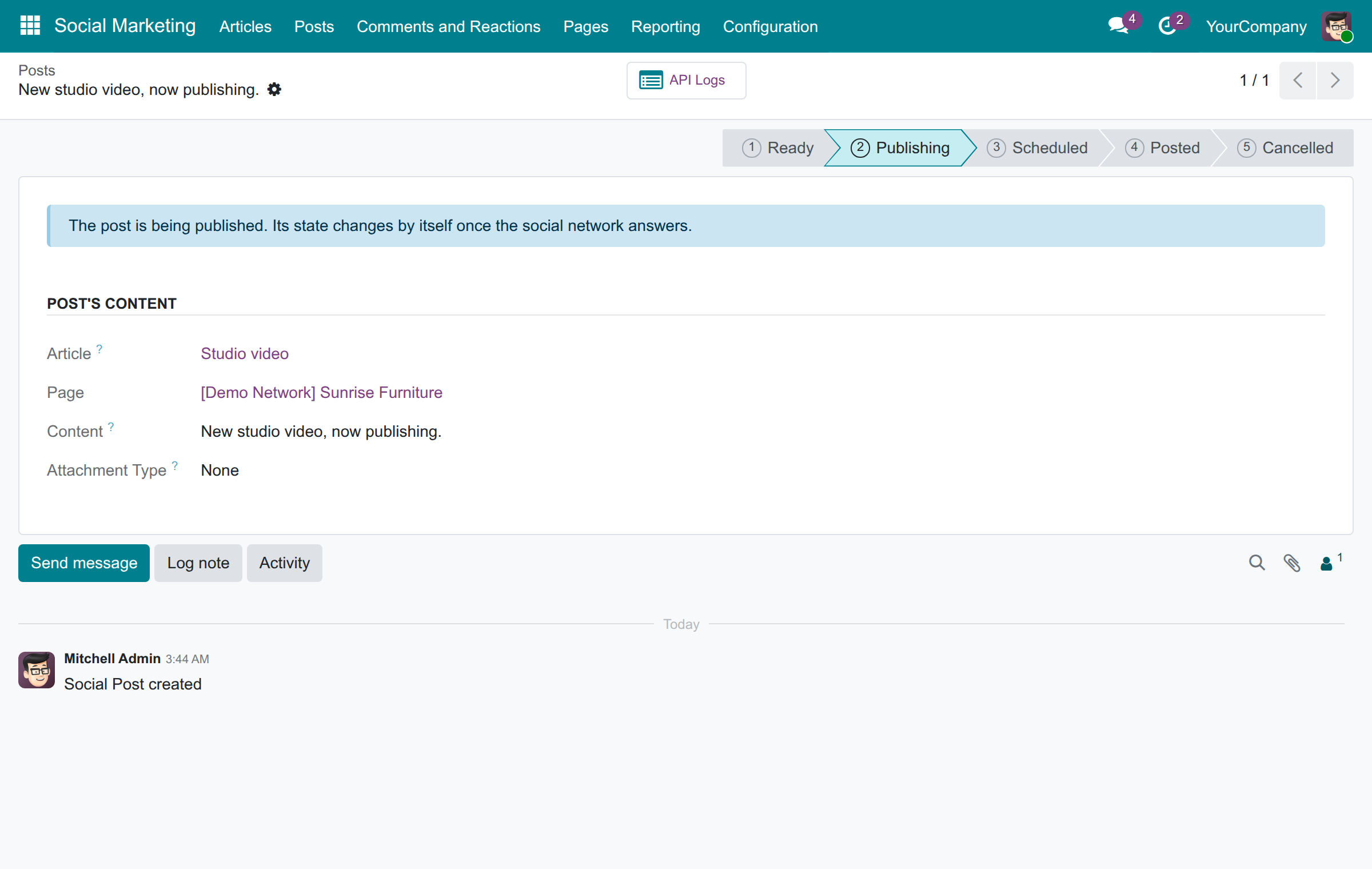
When a post fails
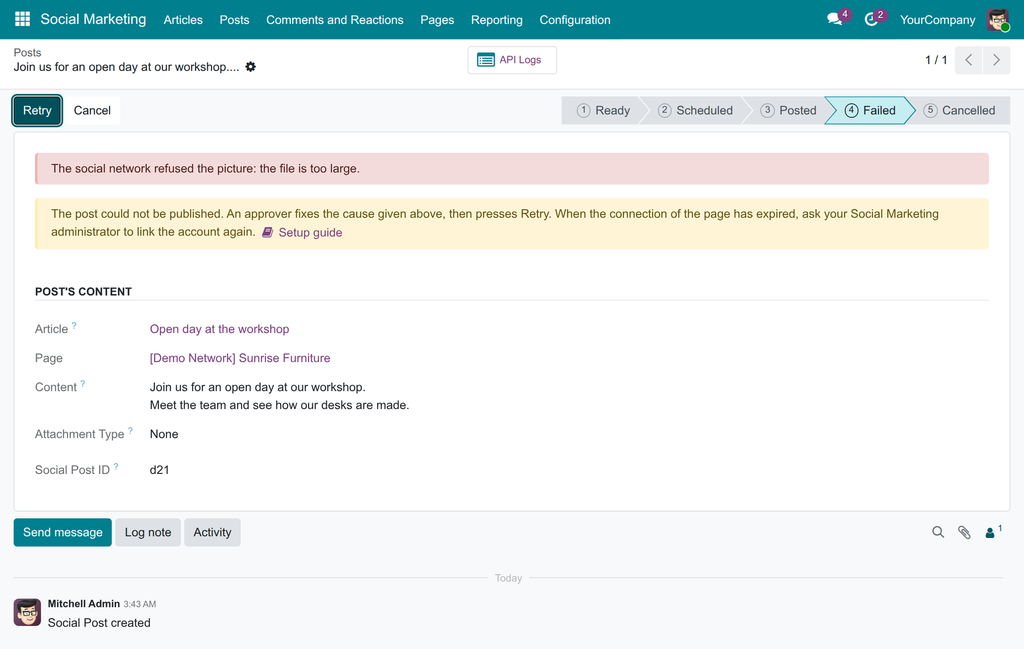
When a post fails, the author and the assignee of the article, and the person who asked to publish, are notified in the chatter of the article. A post that the network refuses when you press Post Now (for example Facebook rejects a picture) becomes Failed at once: a notification, which Update Social Posts shows too for a new post it publishes, gives the network's own message, and the same message is the Failure Reason. Each page of an article goes out on its own: when a page fails (a refusal, a limit of the calls, a network that cannot be reached), the posts the network already took stay Posted, and the warning names the page that did not go out. Pages that are already posted or scheduled are left alone, and after a limit of the calls or a refused token on a social media the other pages of that social media are not asked: they stay Ready and the warning names them. When the network could not be reached, or answered without the id of the post, it may still have published the post: check the page before trying again. Everything Odoo can check beforehand (the rights of the user, the state of the posts, the video, a connection that is not linked, a time outside the window of the network) is checked before the first page is posted: a page that fails there stops the action with an error and nothing is posted. Update Social Posts goes the same way: the posts it adds, removes from the network or updates each go through on their own, and the warning names those the network refused. A post whose update the network did not take keeps, in Odoo, the content the network holds. A post that the network holds for a later time is announced in the chatter as scheduled, with the time it goes out, not as posted. Open the post:
- Read the red message at the top: it is the Failure Reason given by the network or by Odoo.
- Fix the cause (for example reconnect the network, replace the picture, shorten or replace the video).
- Press Retry. Only approvers see this button. Press Cancel instead to give the post up.
The Setup guide button of the yellow message opens the troubleshooting section of the documentation.
Two failures of a video post come with a way out. A video file that left the storage fails with a message asking you to attach the video again to the article, then publish. A video upload that makes no progress for 60 minutes fails with a message and Retry; a common cause is a network that cannot reach the upload server of the social network. Images and videos already uploaded to LinkedIn for a post that was not created, or whose post was deleted, stay in the media library of the organization; LinkedIn has no call to delete them.
When a network limits the calls
When Facebook or LinkedIn refuse an action because the application made too many calls, you see an ordinary warning that tells how long to wait (about that many minutes, or Try again later when the network gives no duration). Nothing is lost: try the action again after the wait. In the meantime the scheduled synchronizations of that connection are paused for the same time (one hour when the network gives no duration), the connections of the other networks and companies carry on, and webhook events that arrive from the network wait without counting as a failed attempt. The Social Marketing administrator sees the pause on the record of the network (see Connect a network).
Synchronize posts
In the control panel of Posts, Synchronize Posts reads again from the networks the posts of every connected page. The screen has no New button: posts are created from articles. A notification tells how many pages were synchronized, how many new posts were found and how many posts were archived because the social network no longer has them, and the screen refreshes with the new counts. Only connected pages are synchronized. With no connected page the message No page is connected, so nothing was synchronized. Use Link Account on a Social Media first. is shown. When a page reaches a usage limit of the network, has a refused connection or cannot be reached, the notification names that page; the other pages still synchronize and nothing is paused. The Synchronize Posts button of a Facebook or LinkedIn page form does the same for that page.
The Posts list shows the columns State, Date (the day only; the full time is on the card and on the form) and Content; Content can be hidden, and Page can be turned on, from the optional columns.
Comments on a posted post
On the Posts cards, a Posted post opens in a window titled Social Post; a post in any other state opens its form. The window shows the page name, the message with its line breaks, the photos, the strip with the likes, the comments and the shares, and the comments of the post.
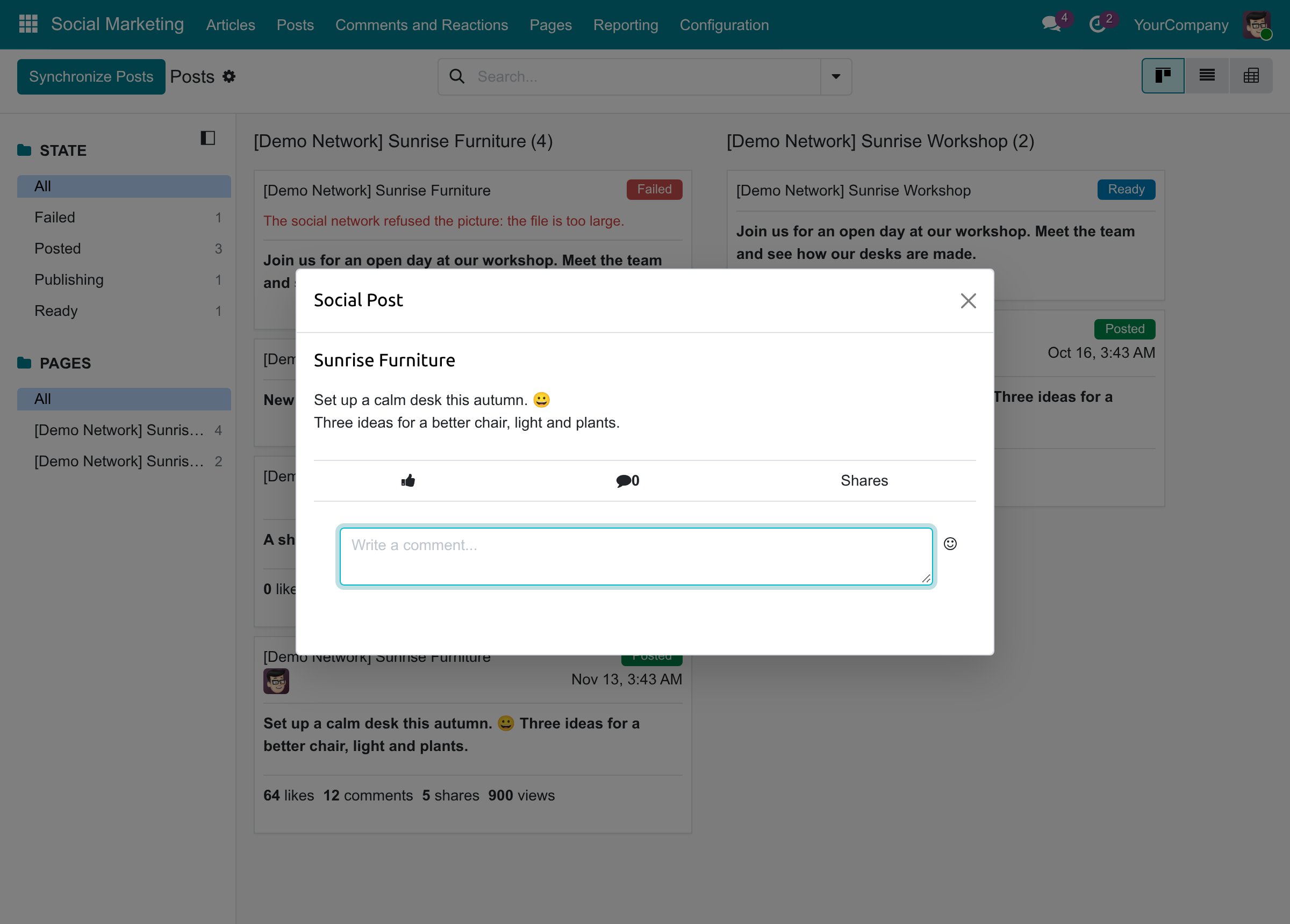
- Click a photo to open it in the file viewer; the arrows move between the photos and closing the viewer brings you back to the window. A post with three photos or more shows a +N on the second tile.
- Comments appear five at a time, in order; View more comment shows the next five and disappears once all are shown.
- To comment, type in Write a comment... and press Enter. Shift+Enter starts a new line, and an empty box sends nothing. The smiley button adds an emoji to the box you are writing in.
- On a comment, Like adds or removes your like, and Reply opens a reply box that sends with the avatar of the page. View more reply loads the replies of a comment.
- The menu of a comment offers Hide comment and Delete. A hidden comment is dimmed, loses Like, Reply and the menu, and offers Unhide. A comment written by the page itself can be deleted but not hidden. When the network refuses to hide a comment, one red notification gives its words and the comment is left as it was; press Hide comment again or leave it. Deleting a comment removes it and lowers the count, which never goes below zero.
- When the comments of a post cannot be read, a blue message gives the reason in place of the comment area; the rest of the window stays.
On a phone the window fills the screen in one column: page, message, link, photos, strip, comment box, comments.
Delete a post
On a posted, cancelled, scheduled or failed post of an article, Delete Post removes the post from Odoo and from the network after a confirmation.
Comments and Reactions
Social Marketing > Comments and Reactions lists the comments, reactions and messages members of a page receive. Filters Seen and Not Seen separate what was read, and Mark all as read marks them all and refreshes the screen in place. On a phone they open as cards, with Mark all as read in the same view. They reach Odoo after a short delay, because the events of the networks are processed in the background, and an event the network sends twice is shown once.
Conversations in Discuss
Messages that members of a page send to the page also open as conversations in Discuss. They are listed under the category Social chat of the sidebar, which is shown only while you have such conversations and is open the first time; close or open it and Odoo remembers your choice. On a phone, the Messages menu has the tab Social chat with the same conversations.
When the social network refuses a reply, a warning gives the words of the network, and your message stays in the conversation with Failed to post the message. Click to retry; the box is emptied. Click it to send the message again, once the cause (for example a message window that closed) has been dealt with.
Social Marketing administrator: pages and webhook events
Pages
Social Marketing > Pages lists the pages found by Synchronize Pages on a network. Archived pages leave every report. On a page, choose the Approver, the Members (who receive its comments and reactions and answer its comments), and press Synchronize Page to refresh it. The page shows its figures in the Insights tab.
An administrator archives or unarchives a page from the Pages screens: select the page in the list, or open it, and use Archive or Unarchive in the Actions menu. A synchronization archives a page the social network no longer lists, and never re-activates an archived page. A page that disappeared and came back waits under the Archived filter until an administrator unarchives it. Unarchiving brings back the page only; its posts return with the next synchronization of the posts.
Webhook events
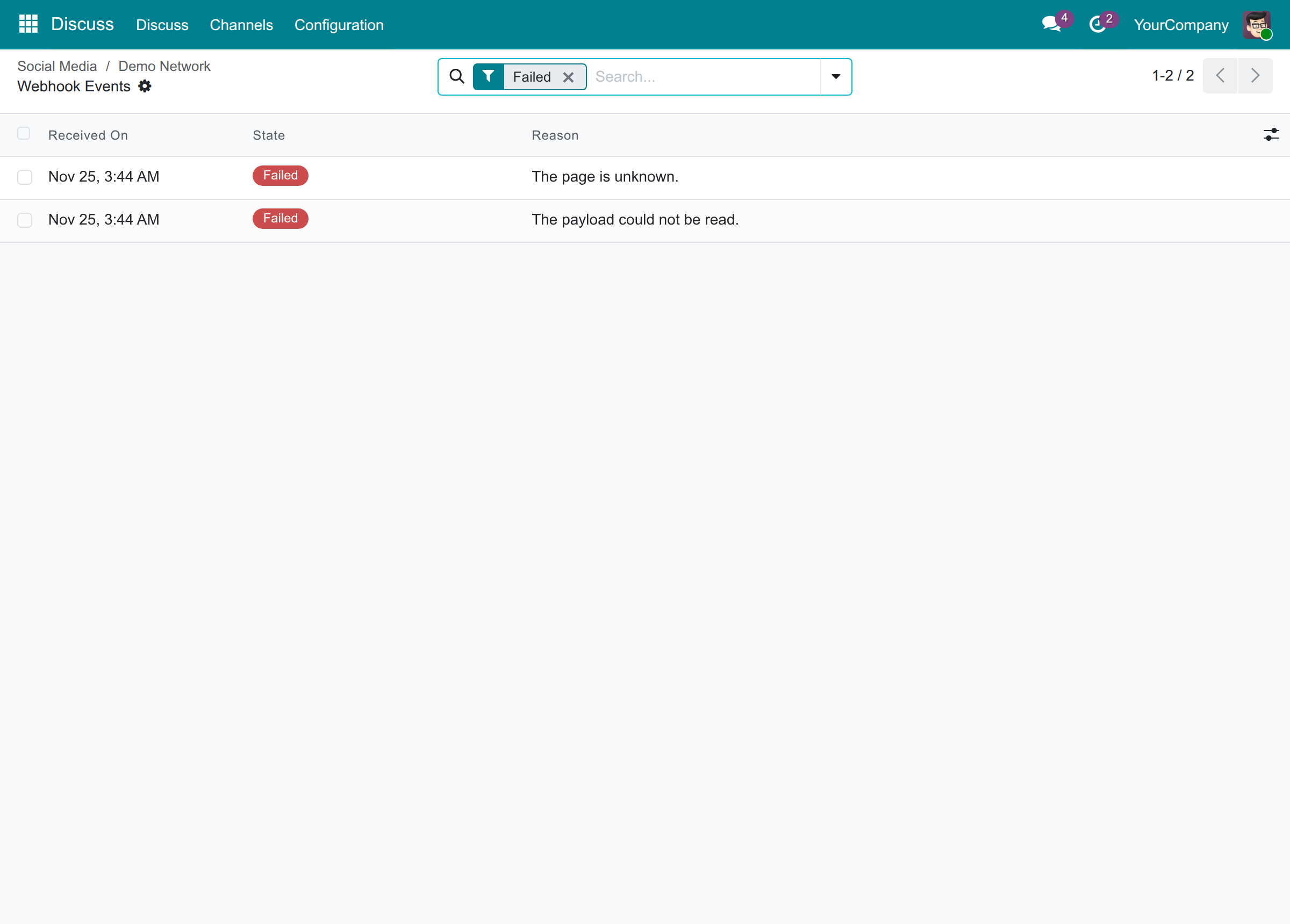
On the record of a network, the Webhook Events smart button opens the events the network sent to Odoo. The list opens on the failed ones and offers the filters Failed, Pending and Done; columns show Received On, State, Attempts and Reason.
- Pending: waiting to be processed. An event is processed again automatically; after five unsuccessful attempts it becomes Failed.
- Done: processed (the form shows Processed On and the content received).
- Failed: select it and press Retry (in the list header, or in the form) to put it back to Pending once the cause is fixed. Only a Social Marketing administrator can retry.
An empty list reads No event from the social network is waiting or has failed. and offers the Setup guide button for troubleshooting.
File limits of the networks (for the administrators)
The largest size each network accepts is set in Social Marketing > Configuration > Settings, as three settings: Largest Facebook Video, Largest Facebook Image and Largest LinkedIn Video, each with its value in MB after the field. Change them when a network changes its limits; no update of the software is needed. The limit line of the article shows the lower of the network limit and the largest file this database accepts in an upload (the help of each setting says so). That server limit is the system parameter web.max_file_upload_size, in bytes; a system administrator raises it, together with the memory limits of the workers and the request size limit of the web server in front of the database, to attach larger videos. While a file is attached, the server process holds about the size of the file in extra memory for a few seconds; the background upload to the social network reads the video in parts. In one measurement, attaching a video of about 287 MB raised the memory of the server process from about 222 MiB to about 496 MiB for a few seconds, and the upload of the same video did not raise it. Keep the memory limits of the workers above the largest file you allow plus their usual use.
Reporting
Social Marketing > Reporting holds four reports. Each opens as a graph, with a pivot table and a list one click away, and has default filters that you can change in the search bar. Archived pages leave every report.
- Number of Posts: how many posts went out, per month and per network. It opens on Posted posts of the Last 12 Months (the filter also keeps failed posts that have no posting date). The list shows each post with its page, author, type and state.
- Post Engagement: what readers did with the posts, per page and month. The list shows Engagement, Likes, Comments and Shares; Views is an optional column, because Facebook does not give views. With LinkedIn Social Marketing the report also shows Total Clicks and the average Engagement Rate; Facebook gives no post views or clicks, so those figures stay empty for Facebook pages. The figures are the totals the network reported at the last synchronization, counted in the month the post was published. Default filters: Posted, Last 12 Months.
- Followers: how the audience of each page grows. The graph is a line per page that climbs to its follower count, and one line summed over all pages when you do not group by page; the pivot shows New Followers per page and month; the list shows the follower count of single days, which are not added up as totals. Default filter: Last 12 Months. The follower history starts on the day the module was updated, one row per page and day; earlier periods stay empty.
- Comments and Reactions: how many comments and reactions the pages received, per month and per type, and per page in the pivot. Default filter: Last 12 Months. While there is no data, the screen explains that comments and reactions are counted as they arrive through the webhook of each page, that the webhook is set up in Configuration > Social Media, Setup tab, and that the comments and likes of each post are already counted in Post Engagement.
With the Social Marketing leads module, Reporting > Leads from Social Media (under Social Marketing, and under CRM > Reporting for users of CRM) shows the leads per social page source; see its own guide.
System administrator: calls to the networks
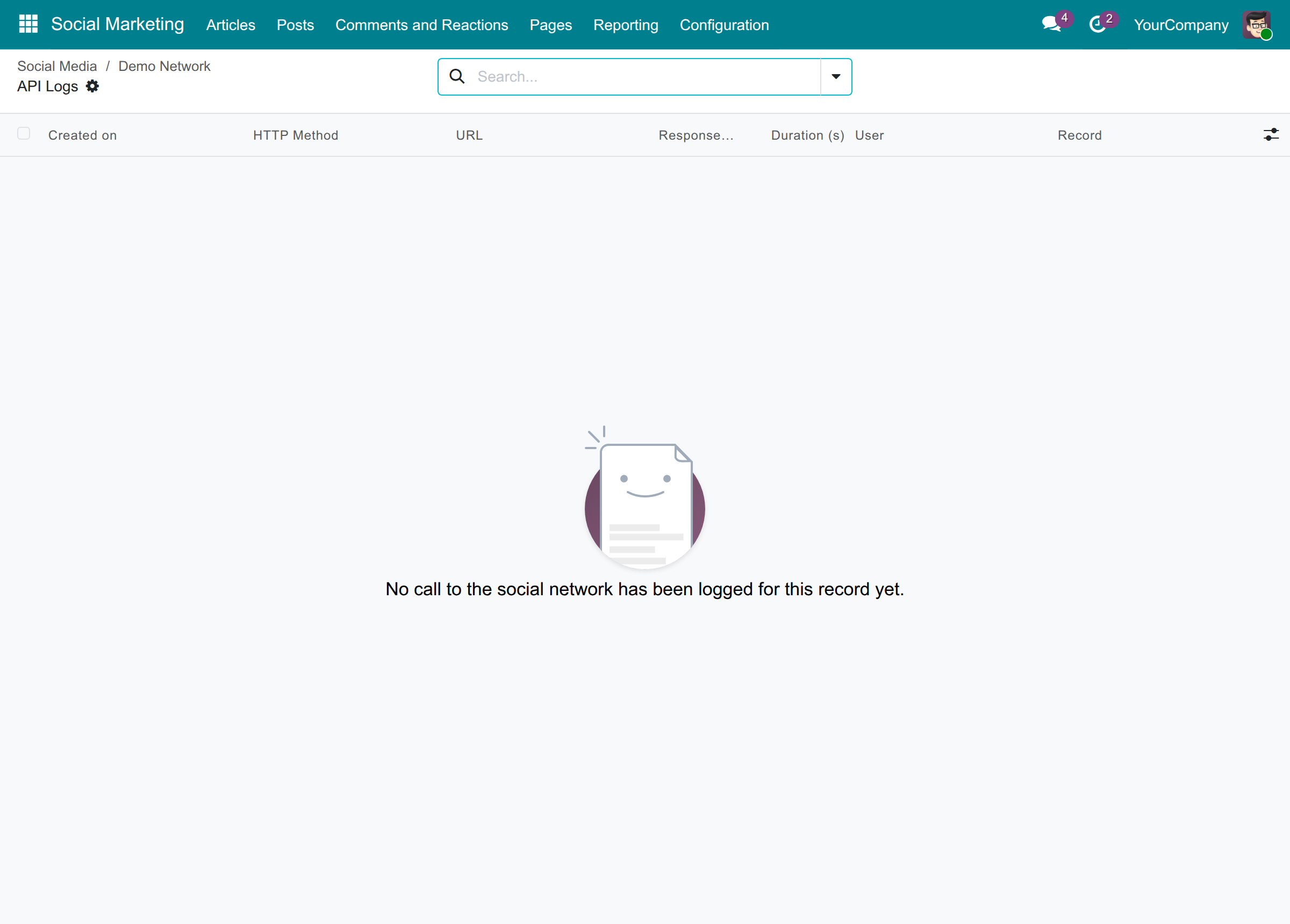
On a network, a page or a post, the API Logs smart button opens the calls Odoo made to the network for that record only. It is shown to the system administrator and to the users who may read the API logs. Each line gives the HTTP method, the response status, the error message and the duration. Tokens, secrets and codes appear masked, in the address, the request and the response alike. A call is logged even when the user's action failed and was rolled back, so a failed action leaves its trace here. A record with no call yet shows the message No call to the social network has been logged for this record yet.
The secrets of the connections (access tokens, application secrets) are visible in the settings only to the system administrator.
Troubleshooting
- The network cannot be connected: check that the database address is HTTPS and that the Redirect URL is declared exactly as shown; use the Setup guide buttons.
- No comment or message arrives: check the Webhook URL is declared, then open Webhook Events for a failed line and read its reason.
- A post stays in Publishing: the network has not answered yet; reload later. It becomes Posted or Failed by itself.
- A warning says the network limits the calls: wait the time it states, then try again. The scheduled synchronizations resume by themselves; the alert on the network record shows when.
- A Facebook video or Reel stays in Uploading: check the record of the Facebook connection; while an alert shows that the calls are paused, the upload waits for the end of the pause.
- The video of an old article is refused: it was deleted from the storage after publication; attach it again (it then stays for at least 7 days).
- A post is Failed: read its failure reason, fix it, press Retry; the API Logs of the post show what the network answered.
FAQ
Who can retry a failed post? Approvers and administrators.
Can I change the text of a post already published? Yes: use Edit Post on the posted post.
Does a posted article show its results? Yes: likes, comments and shares are shown with words on the post cards (for example 64 likes), and views when the network gives them. The Reporting menu adds them up.
This software and associated files (the "Software") may only be used (executed, modified, executed after modifications) if you have purchased a valid license from the authors, typically via Odoo Apps, or if you have received a written agreement from the authors of the Software (see the COPYRIGHT file).
You may develop Odoo modules that use the Software as a library (typically by depending on it, importing it and using its resources), but without copying any source code or material from the Software. You may distribute those modules under the license of your choice, provided that this license is compatible with the terms of the Odoo Proprietary License (For example: LGPL, MIT, or proprietary licenses similar to this one).
It is forbidden to publish, distribute, sublicense, or sell copies of the Software or modified copies of the Software.
The above copyright notice and this permission notice must be included in all copies or substantial portions of the Software.
THE SOFTWARE IS PROVIDED "AS IS", WITHOUT WARRANTY OF ANY KIND, EXPRESS OR IMPLIED, INCLUDING BUT NOT LIMITED TO THE WARRANTIES OF MERCHANTABILITY, FITNESS FOR A PARTICULAR PURPOSE AND NONINFRINGEMENT. IN NO EVENT SHALL THE AUTHORS OR COPYRIGHT HOLDERS BE LIABLE FOR ANY CLAIM, DAMAGES OR OTHER LIABILITY, WHETHER IN AN ACTION OF CONTRACT, TORT OR OTHERWISE, ARISING FROM, OUT OF OR IN CONNECTION WITH THE SOFTWARE OR THE USE OR OTHER DEALINGS IN THE SOFTWARE.
Social Marketing - user guide
Who this guide is for: the people who write and approve posts for company pages on social networks (editors and approvers), the Social Marketing administrator who connects the networks, and the system administrator who installs the module and reads the call history. It describes what each of them sees and does; it does not require any knowledge of the software's internals.
Note
Social Marketing is the common part of the social network integration. The networks themselves are provided by their own modules: Facebook Social Marketing and LinkedIn Social Marketing. The history of calls made to the networks relies on API Request Logger; see its documentation for the log screens in general.