
Logistics Shipment Sale Integration
by Viindoo
| Lines of Code | 2518 |
| Technical name | viin_logistics_sale |
| License | OPL-1 |
| Website | https://viindoo.com/apps/modules/19.0/viin_logistics_sale |
| Read description for | v 17.0 v 18.0 |
| Required Apps | Invoicing (account) Discuss (mail) Sales (sale_management) |
| Included Dependencies | Logistics Shipment Tracking Location Route Extension Viindoo Unified Routing Framework Logistics Package Type QR Code Mixin Tracking Location Logistics Sales Team Viindoo Base Accounting Foundation Logistics Routes Integration API Request Logger Logistics Accounting |
| Extensions | Freight Booking & Purchase Integration Freight Sale Incoterms on Logistics Quotations Freight Charges alongside Timesheet Billing |

Confirm the order, get the shipment
Logistics shipments generated from sales orders and kept in sync, with a profitability report over the result.
Logistics Shipment Sale Integration (technical name viin_logistics_sale) is an Odoo 19.0 app for Odoo Community and Odoo Enterprise and Viindoo Cloud, built for operations, sales, finance, management.
At a Glance
The facts of Logistics Shipment Sale Integration, version 1.0.5, in one place. Published by Viindoo.
How It Works
Three screens.
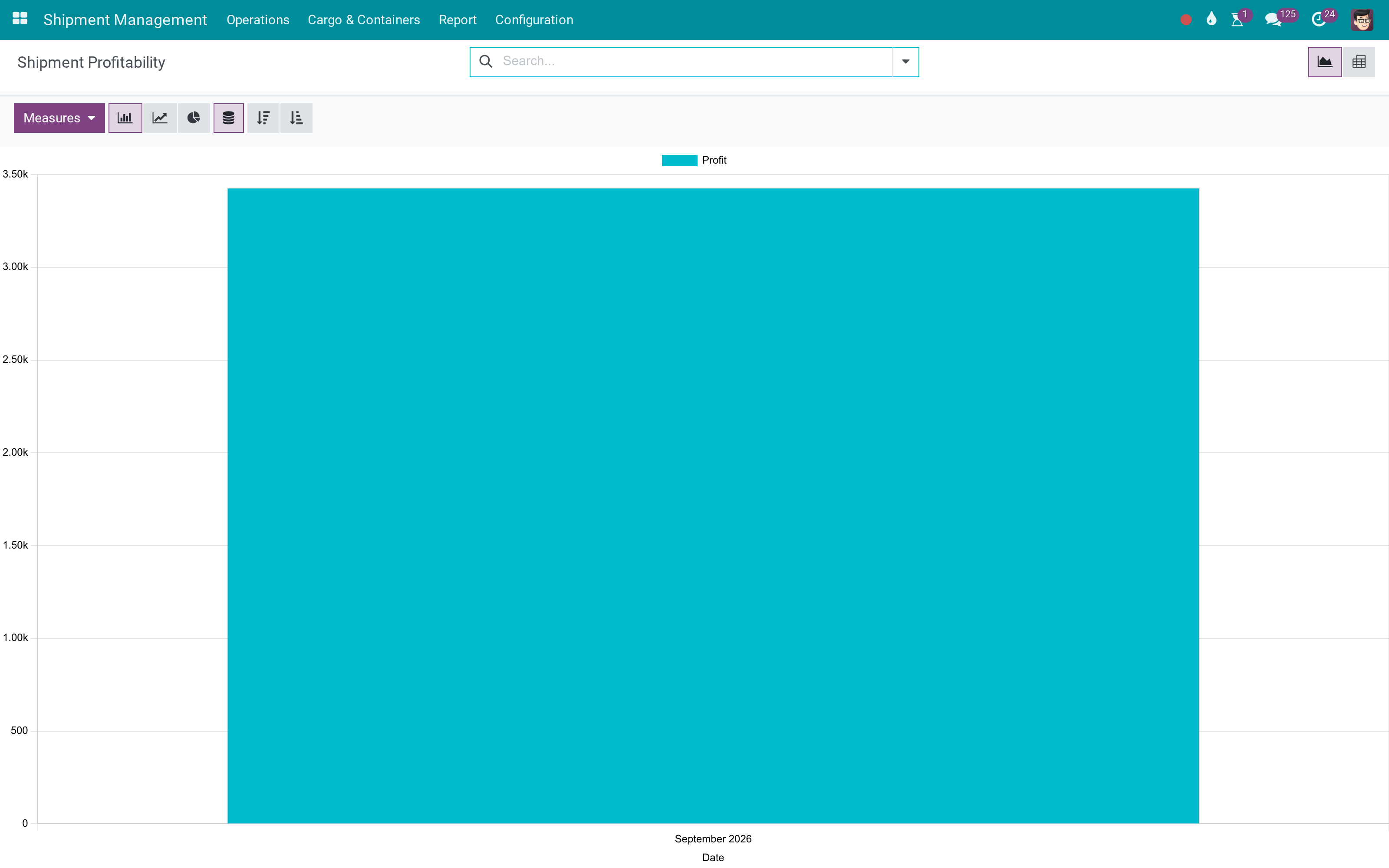
The profitability
What each movement made.
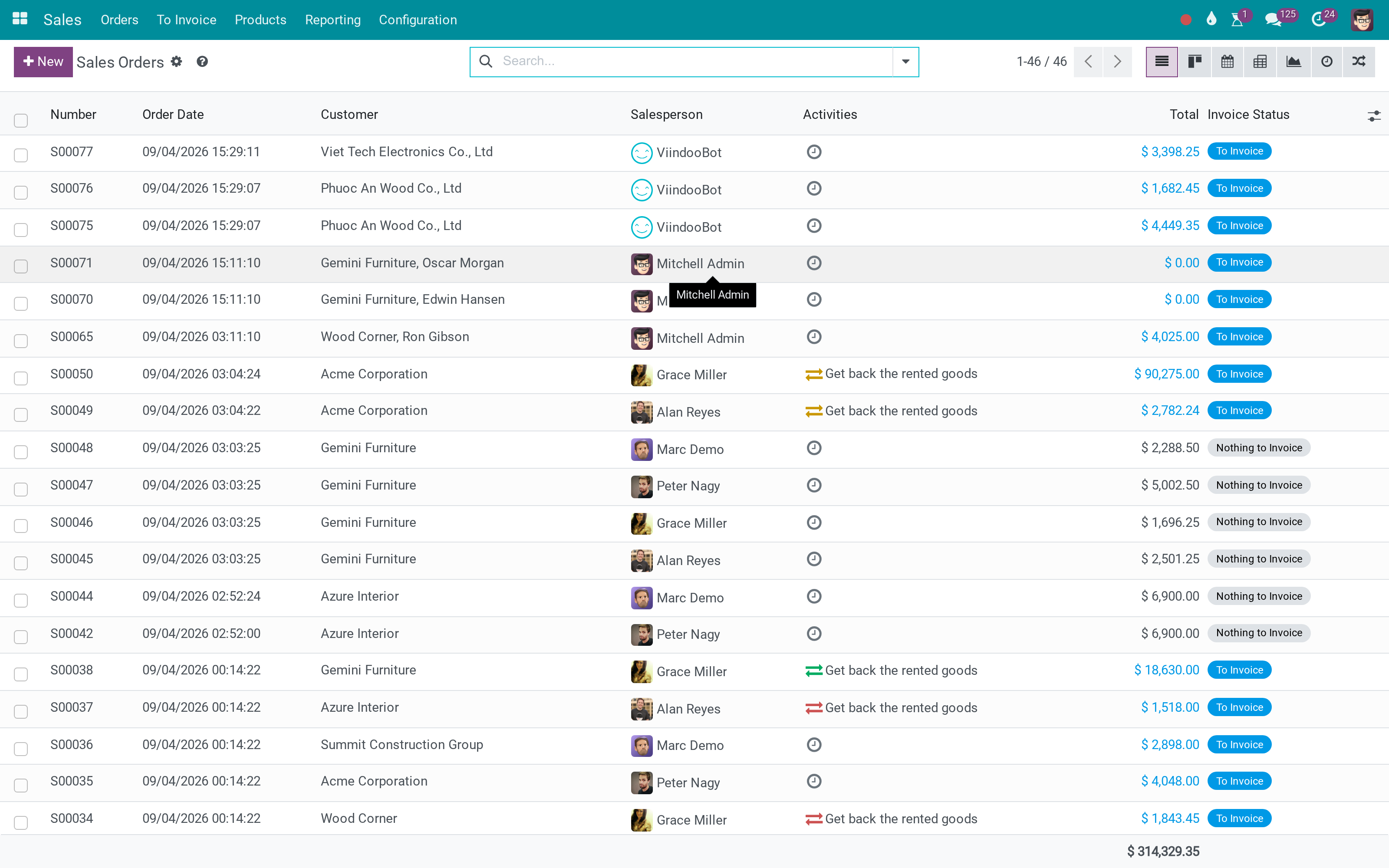
The orders
What was sold.
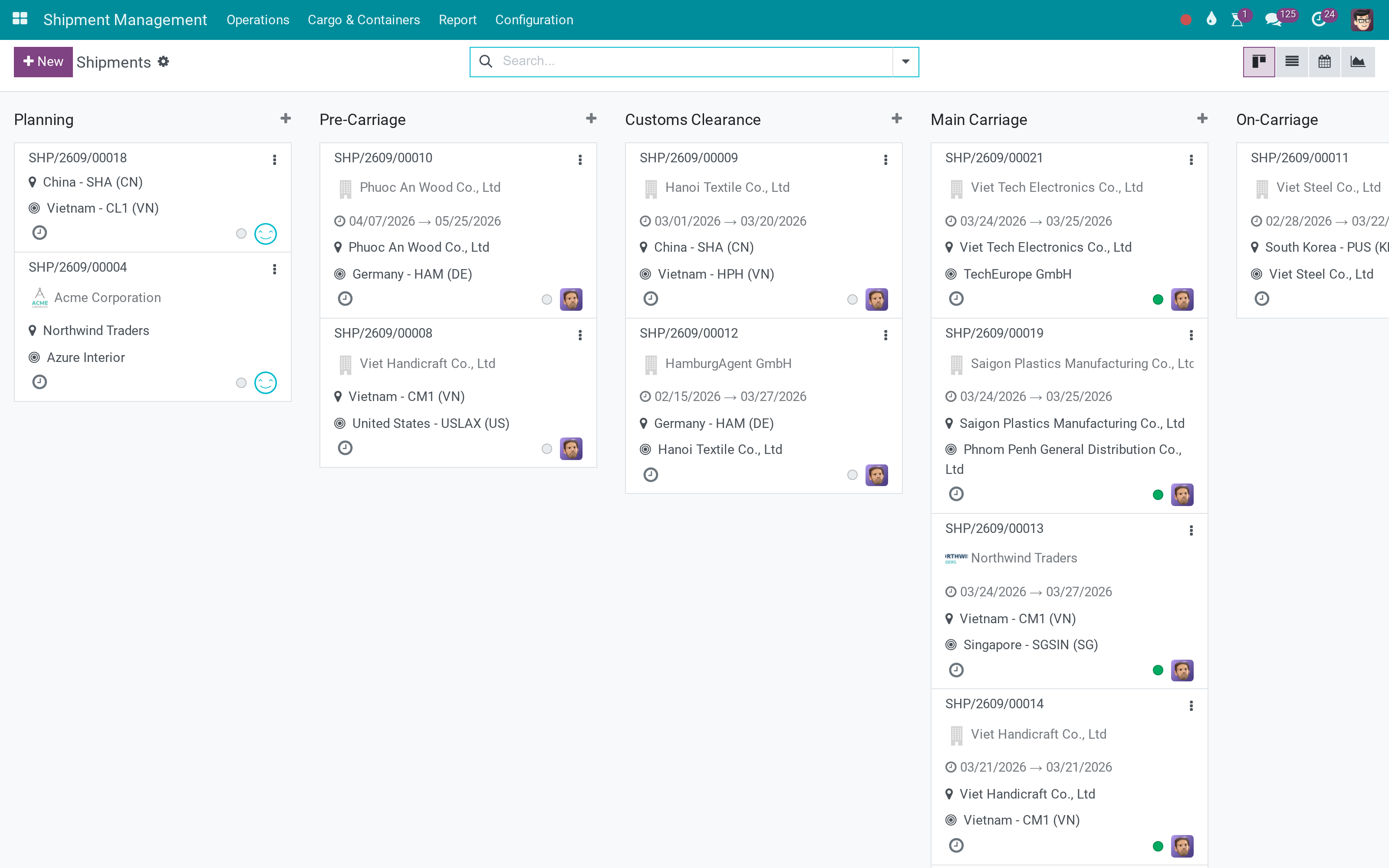
The shipments
What was moved.
What You Get
Shipments generated from confirmed sales orders
One action, no retyping
Order and shipment kept in sync
Profitability report per shipment
Revenue and operations on the same record
Installed as a bridge when both apps are present
More Screens
Everything below was taken on a database seeded with real business data, on this series - not a mock-up and not a screenshot from an older version.
Shipments
What This App Does Not Do
Read this before you buy. Everything below is something the app deliberately leaves to another app or to you.
The rules follow your product configuration.
Billing stays with the sales flow.
Operational changes stay operational.
Logistics and Sales.
Works Well With
Apps from the same stack, built to fit this one:
Who Should Use Logistics Shipment Sale Integration?
Operations
Runs the job from one record.
Sales
Sees what happened to what they sold.
Finance
Costs and bills against the movement.
Management
Reads volume and margin per lane.
Frequently Asked Questions
What does Logistics Shipment Sale Integration do?
Logistics shipments generated from sales orders and kept in sync, with a profitability report over the result.
What does Logistics Shipment Sale Integration not do?
It does not decide the shipment type. The rules follow your product configuration. It does not invoice. Billing stays with the sales flow. Sync is not a merge. Operational changes stay operational. It needs both apps. Logistics and Sales.
Who is Logistics Shipment Sale Integration for?
Operations: Runs the job from one record. Sales: Sees what happened to what they sold. Finance: Costs and bills against the movement. Management: Reads volume and margin per lane.
Which Odoo version and editions does it support?
Odoo 19.0 - Odoo Community, Odoo Enterprise, Viindoo Cloud. Upgrades to a newer Odoo series are a separate purchase for that series.
What does it depend on?
It installs on top of: viin_logistics_sales_team, sale_management, viin_logistics_route, sale_stock. Odoo installs them with it.
How do I set it up?
Three screens.
What works well with it?
Logistics Shipments (viin_logistics): The shared shipment model. Freight Management (viin_freight_management): The forwarding desk built on it.
Can I try it before buying?
Yes - the Live Preview button at the top of this page opens the module's own screen on a working database.
How do I get support?
Write to apps.support@viindoo.com with your Odoo version and the technical name viin_logistics_sale; pre-sales questions go to sales@viindoo.com.
See Logistics Shipment Sale Integration in Action
Live demo: v19demo-int.viindoo.com/web#action=viin_logistics_sale.action_shipment_profitability_report
Need help with Logistics Shipment Sale Integration?
For questions, implementation support or a custom feature, contact Viindoo.
Pre-Sales & Partnership
sales@viindoo.comUpgrades to a newer Odoo series are a separate purchase for that series.
All Viindoo apps: Viindoo Apps
Technical Requirement
Changes log
1.0.4 - Latest on the 17.0 line
- Aligned with the 17.0 logistics shipment model.
Logistics Shipment Sale Integration
Note
Extends viin_logistics - see its documentation.
This app connects the Sales workflow with the Shipment Management app. Once it is installed, confirming a sales order that sells a freight service can automatically create the matching shipment, and operations can turn an existing shipment into a quotation with one click - so the commercial side and the operational side never drift apart.
Installation
- Go to Apps.
- Make sure the Shipment Management app is already installed - it provides the shipments that this app connects to Sales (see its own documentation for how to configure routes, shipment types and freight products).
- Make sure the Sales app is installed.
- Remove the "Apps" filter, search for Logistics Shipment Sale Integration and click Install. Odoo automatically installs the small supporting components (Logistics Routes Integration and Logistics Sales Team) that this app depends on.
Configuration
No additional setup screen is required - the app works as soon as it is installed, provided the following is already in place:
- At least one freight product exists (a product whose Product Type is Freight), configured with its route and transport mode. This is set up from the Shipment Management app - see its documentation.
- Under Settings ‣ Users & Companies ‣ Users, in the
Industry: Logistics access section:
- Salespeople who should see the linked shipment on their own orders need at least User: Own Shipments access.
- Users who need to open the Shipment Profitability report need Administrator access in that same section.
- Users who generate a quotation from a shipment, or who need the Sale Orders button on a shipment, need the standard Sales app access (Salesperson).
Usage
Sell a Shipment on a Sales Order
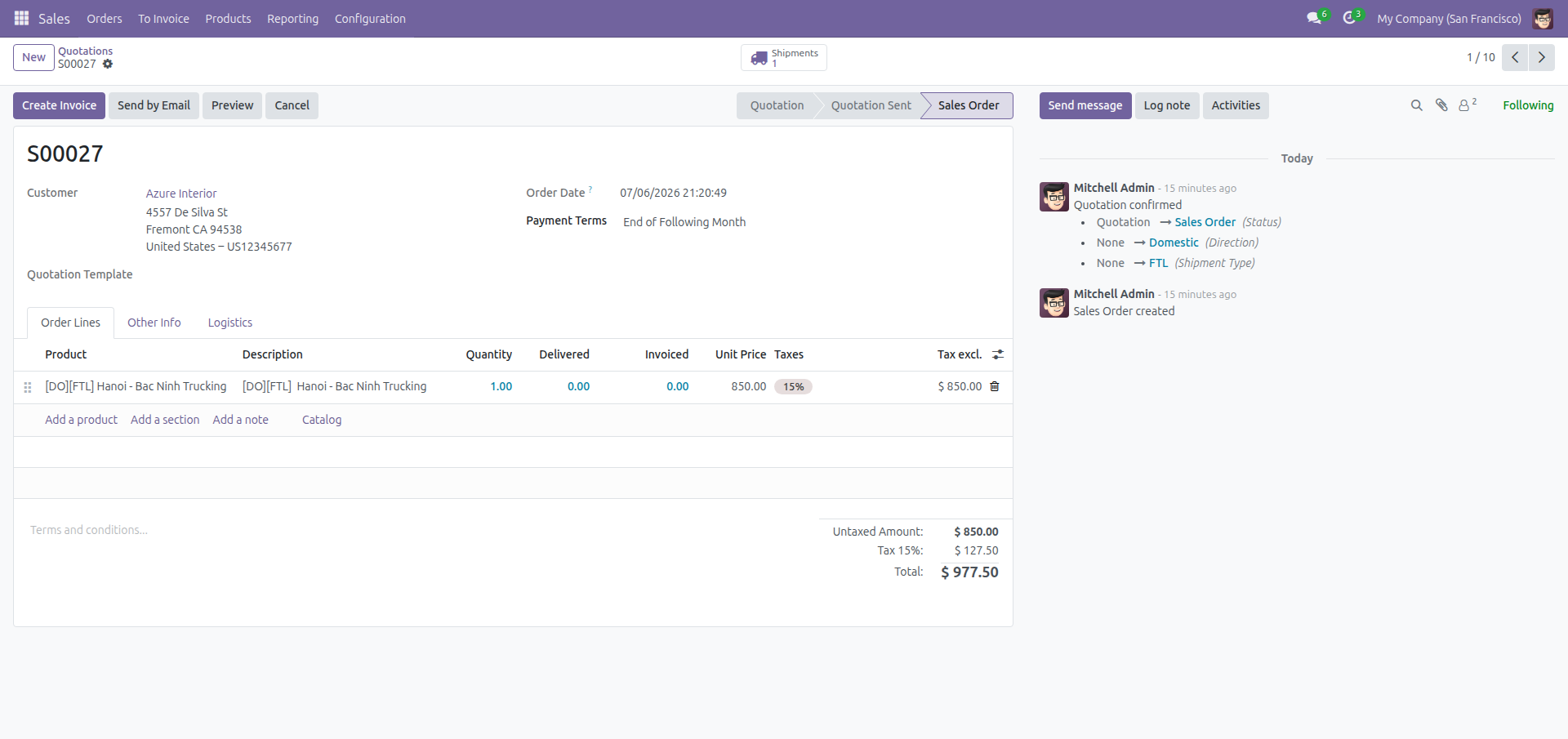
When a quotation contains a freight product and gets confirmed, the app creates the matching shipment automatically - no manual re-entry of the route or the transport legs.
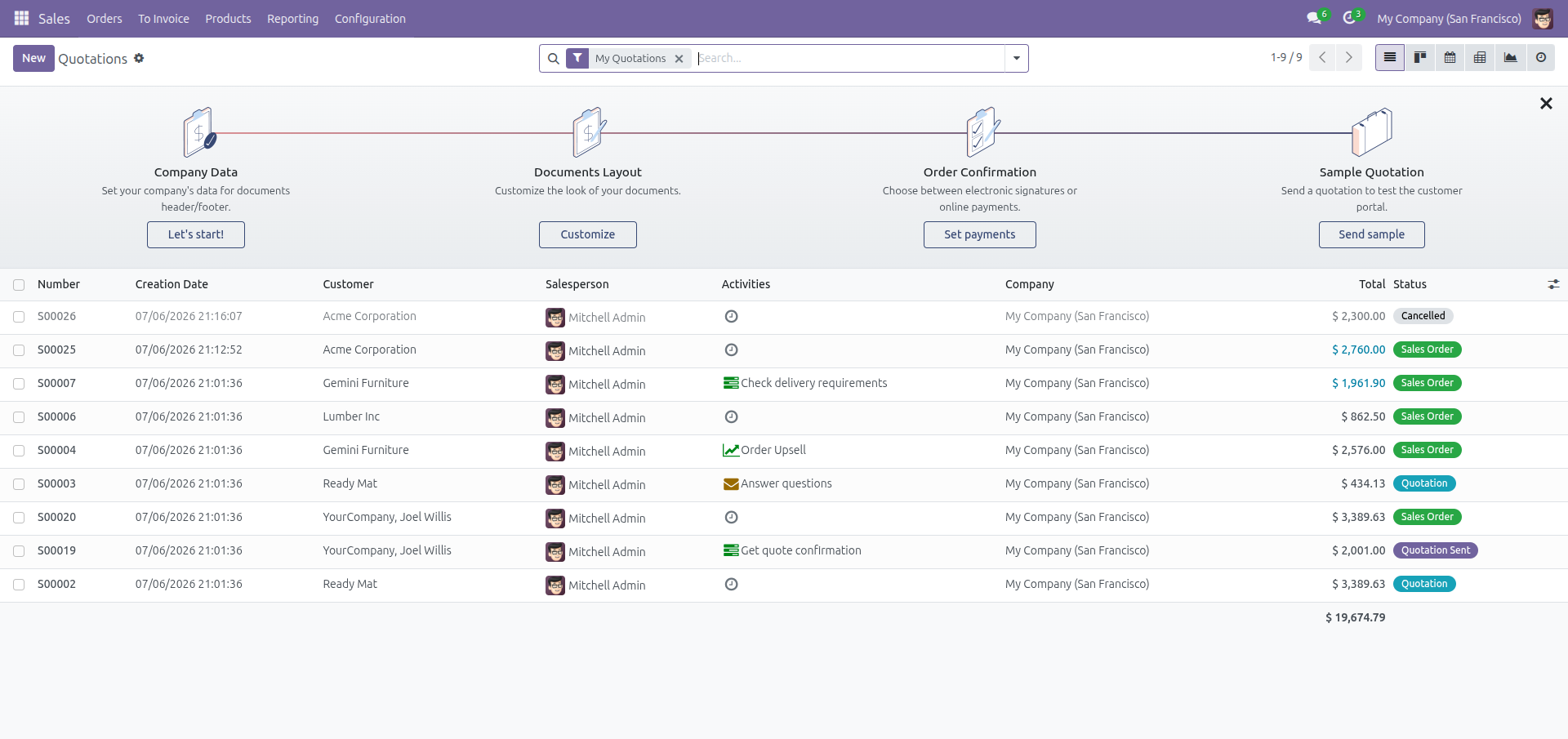
Open Sales ‣ Orders ‣ Quotations and click New.
Set the Customer, then add the freight product as an order line (for example a trucking or a sea-freight service) and set its quantity and price.
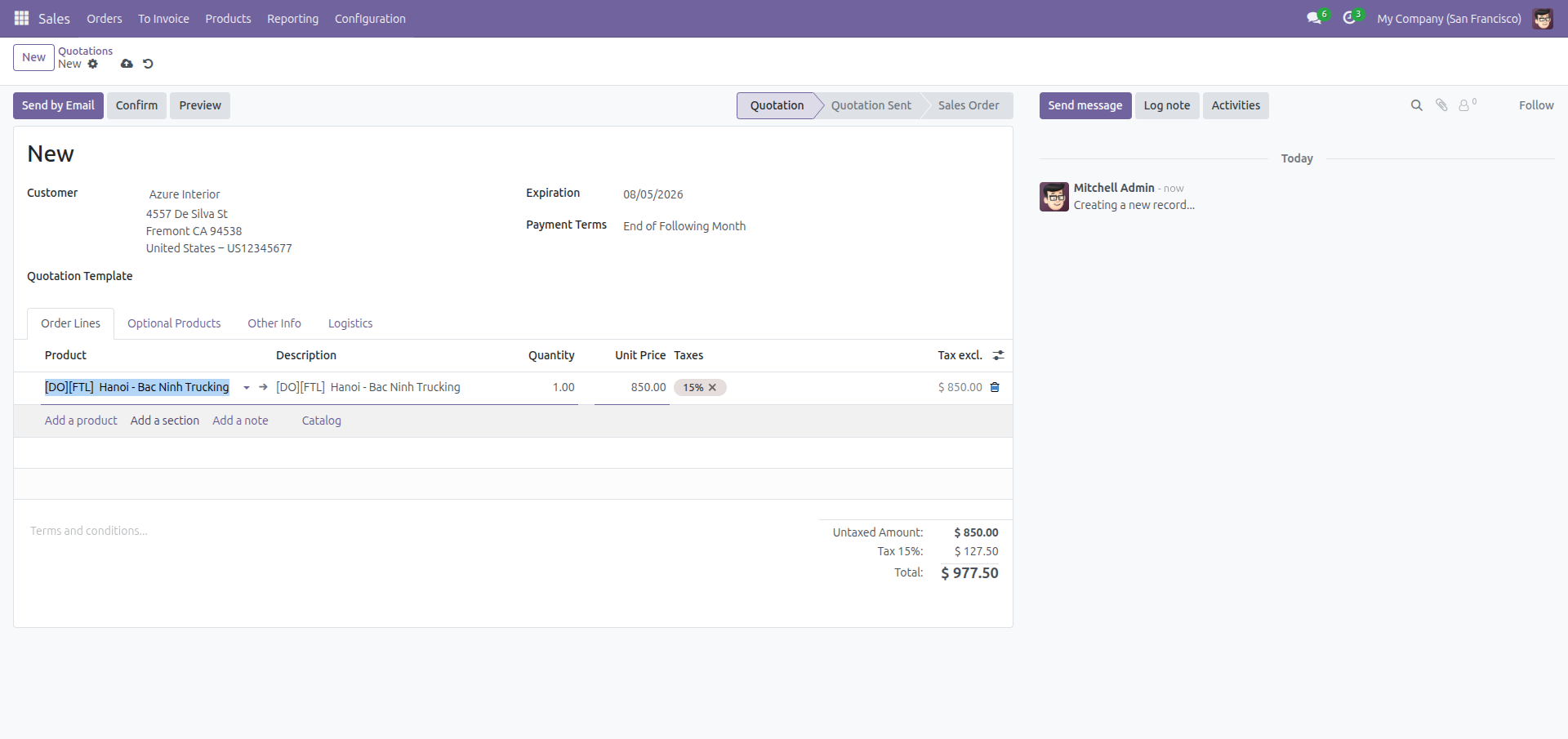
Click Confirm.
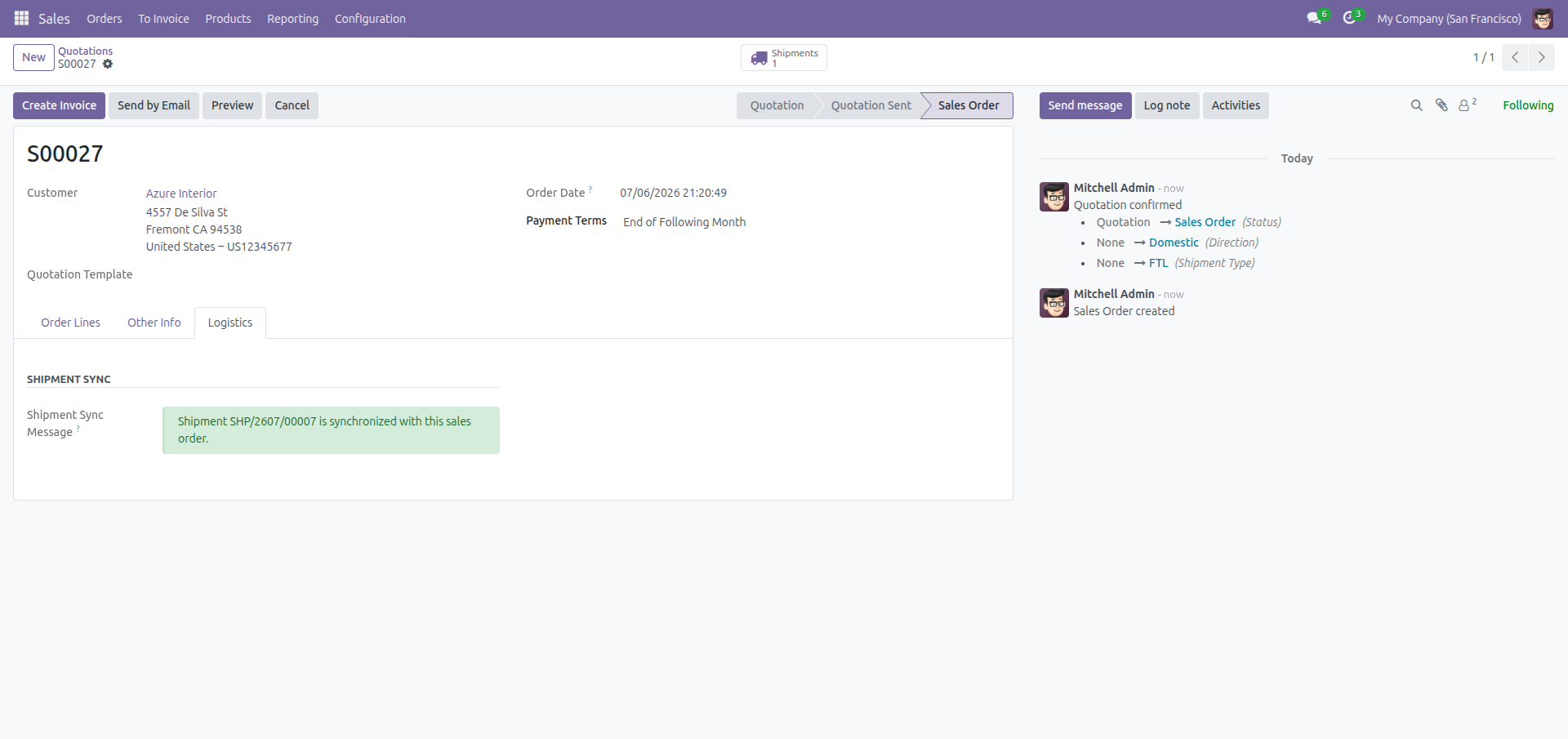
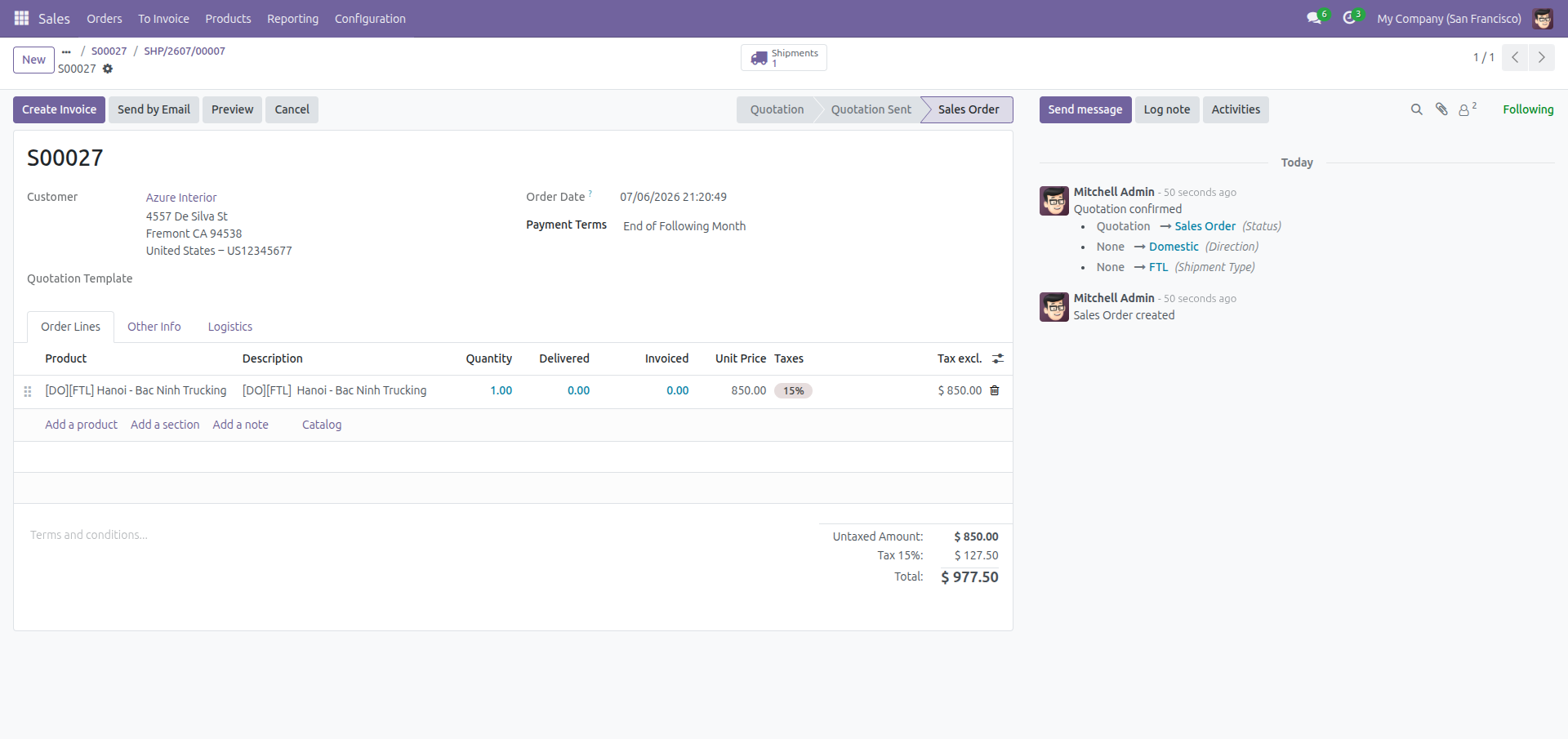
Once confirmed, a Shipments button appears in the order's button box, and a new Logistics tab shows a green Shipment Sync Message telling you the newly created shipment is synchronized with this sales order - the route, transport mode and legs were copied from the order automatically.
Generate a Quotation from an Existing Shipment
If operations already created a shipment before any quotation exists, a salesperson does not need to re-type the route and legs into a new order - generate the quotation directly from the shipment instead.
- Open the Shipment Management app and go to Operations ‣ All Shipments, then open the shipment you want to sell. The shipment must already have a customer and a shipment type, and must not be linked to any order yet. A transport leg is not required: a shipment with no leg yet can be quoted too.
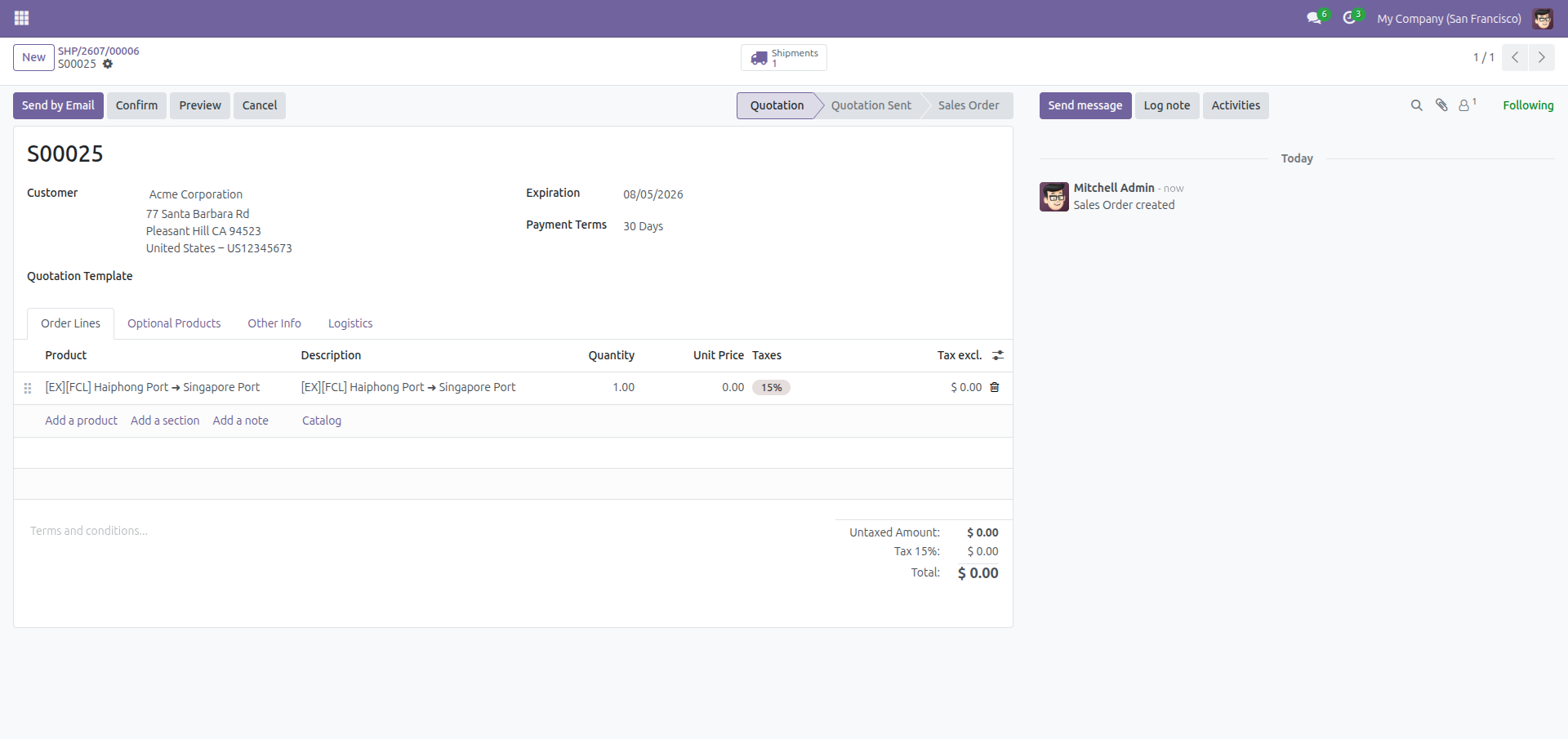
- Click Create Quotation in the header.
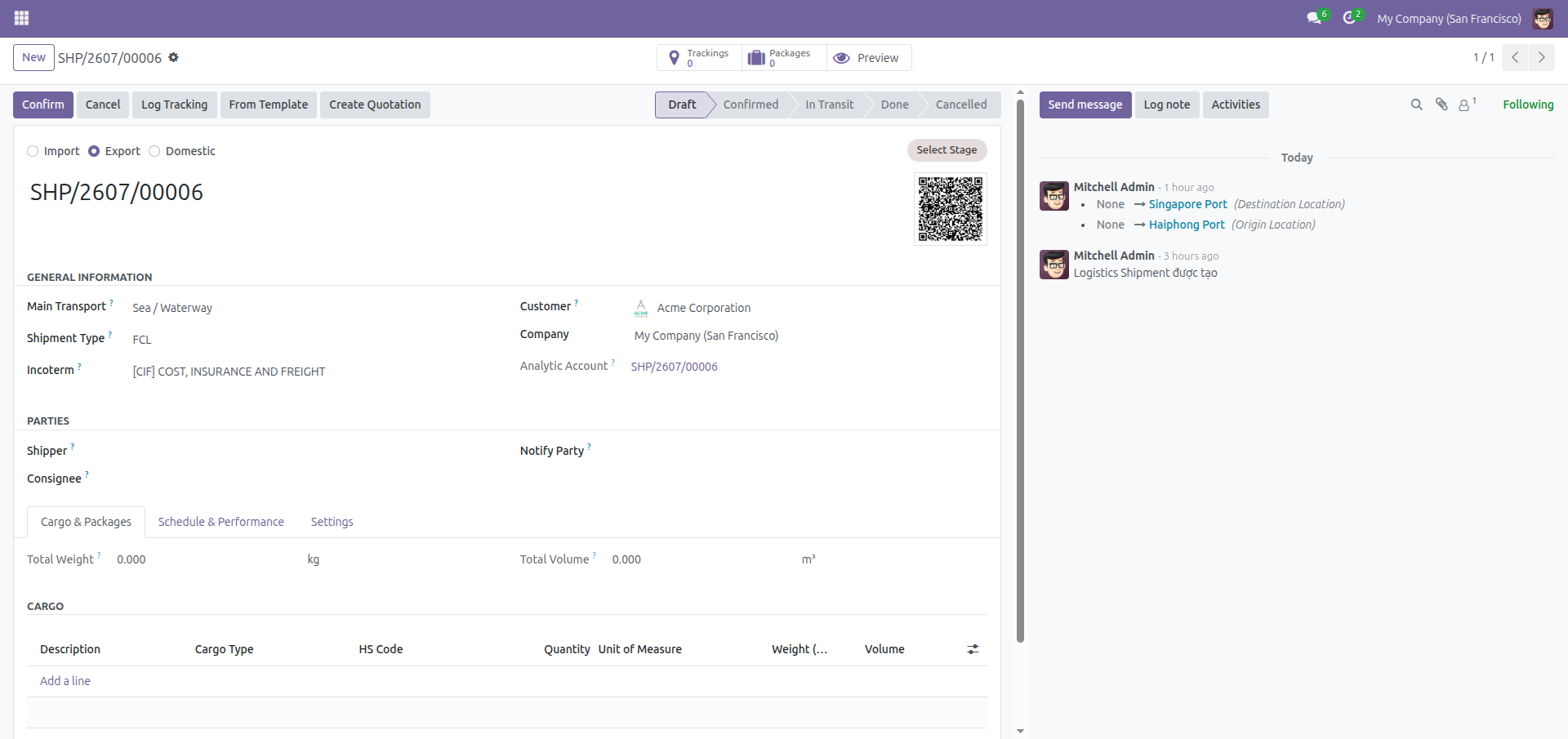
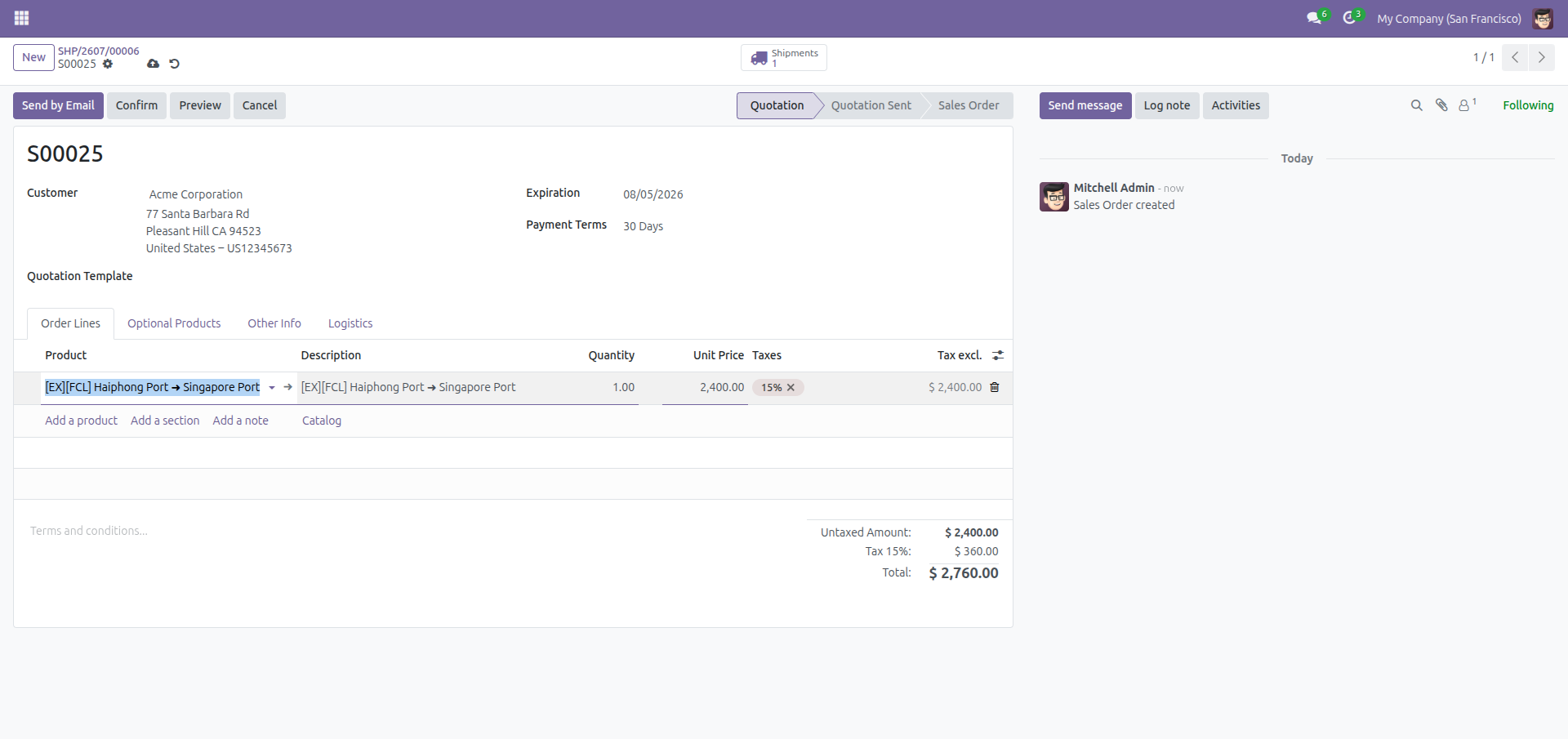
A new draft quotation for the shipment's customer opens automatically and is linked to the shipment (the shipment now shows a Sale Orders button). The app never creates catalog products on its own, so the quotation has no freight line until you add one - or until another app installed on your database fills it with the shipment's charges. Click Add a product to add the freight service you sell, set the quantity and price, then confirm the quotation as usual.
Add a Shipment's Lines to Its Existing Sales Order
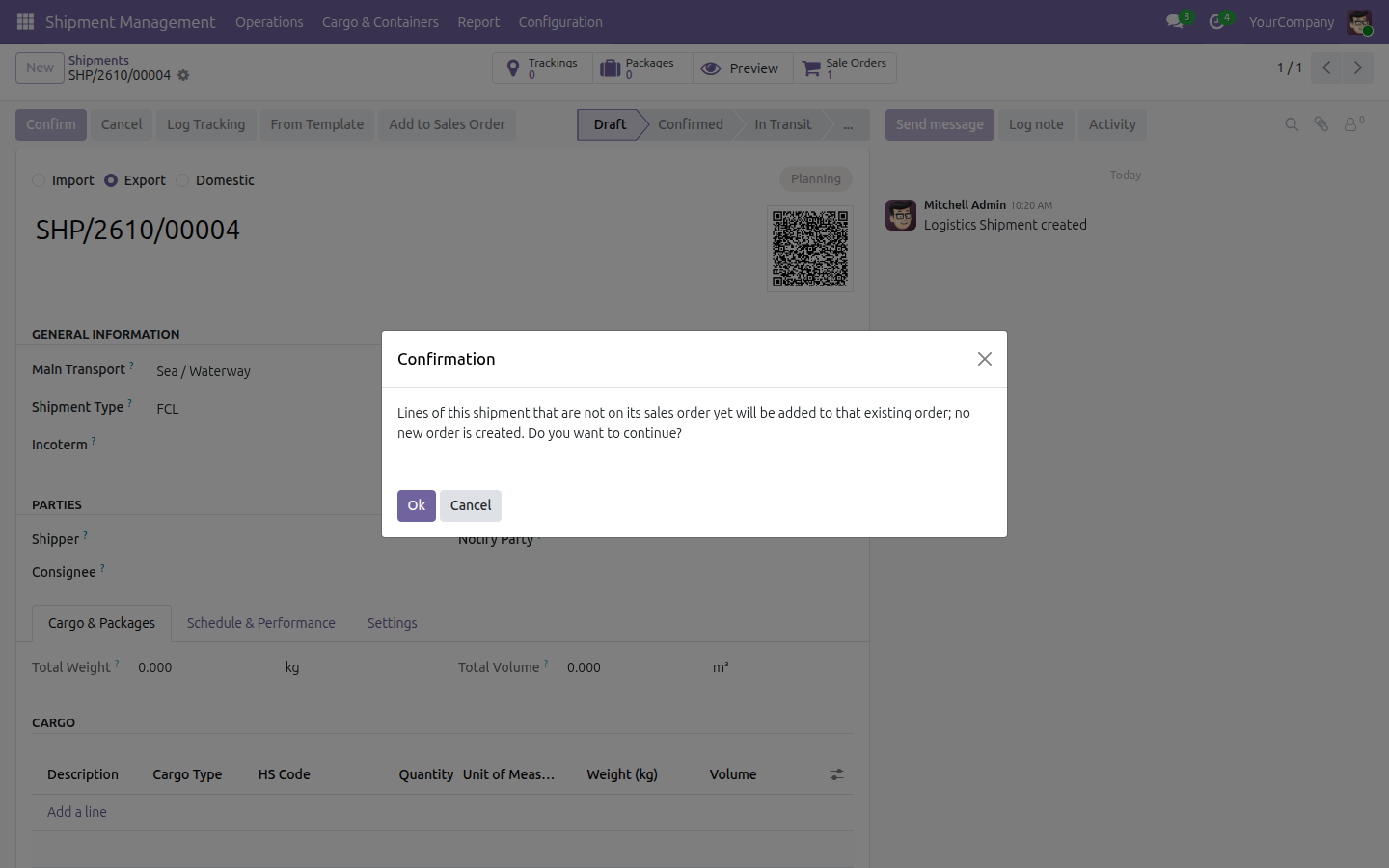
Once a shipment is linked to a sales order, the Create Quotation button is replaced by Add to Sales Order. Use it when operations has added charges to the shipment after the order exists: the lines of the shipment that are not on the order yet are added to that same order, and no second order is created.
- Open the shipment (Operations ‣ All Shipments). The customer and the shipment type must be filled in.
- Click Add to Sales Order in the header and read the confirmation message. It reminds you that no new order is created.
- Click Ok. The sales order opens with the added lines.
The button does not need a transport leg either. If the linked order is cancelled or locked, the app asks you to set it back to a quotation or unlock it first.
Navigate Between a Sales Order and Its Shipment
Once a sales order and a shipment are linked, you can jump between the commercial record and the operational record in a single click, in either direction.
From a confirmed sales order, click the Shipments button in the button box to open the linked shipment directly.
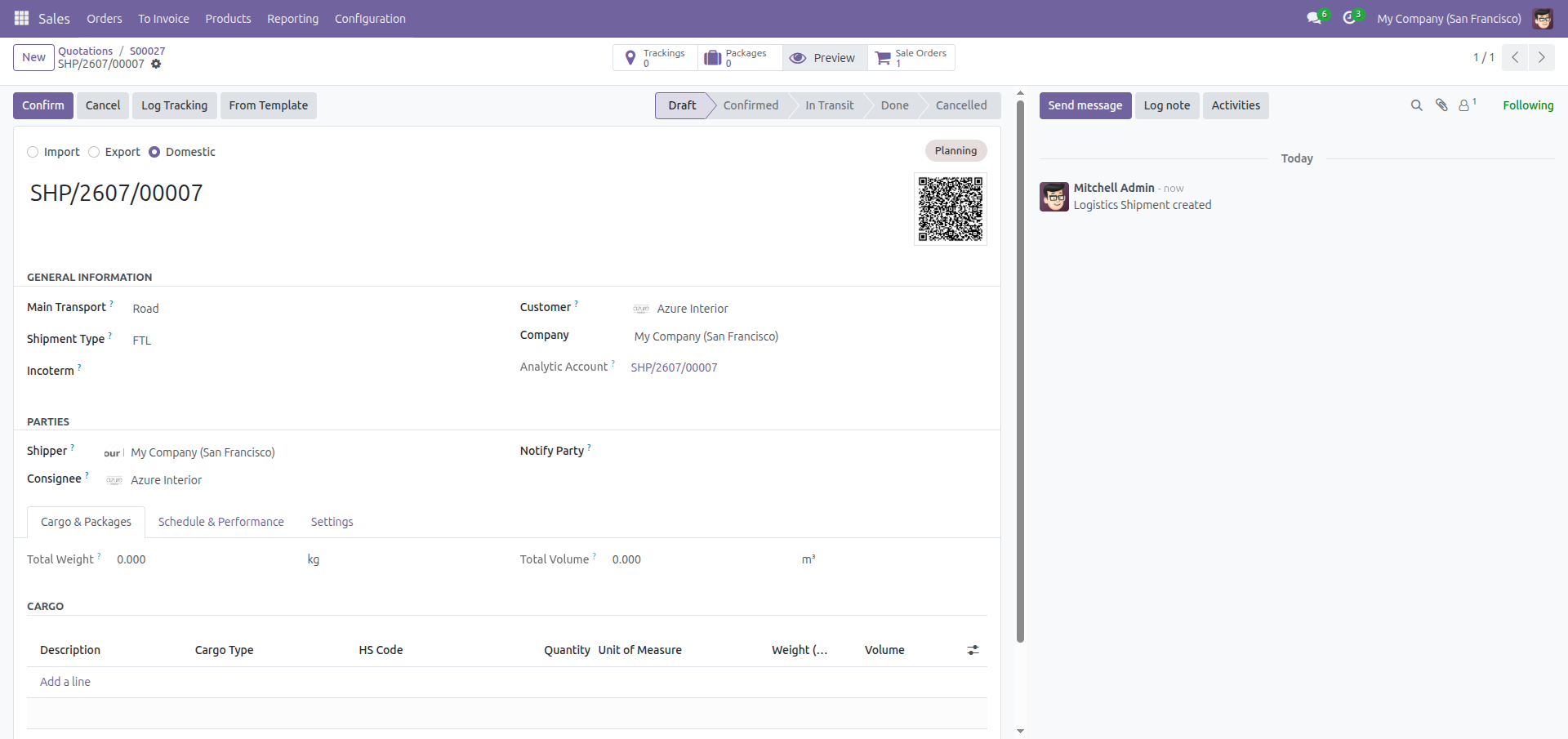
From that shipment, click the Sale Orders button to return to the sales order.
See a Shipment's Profitability on Its Panel
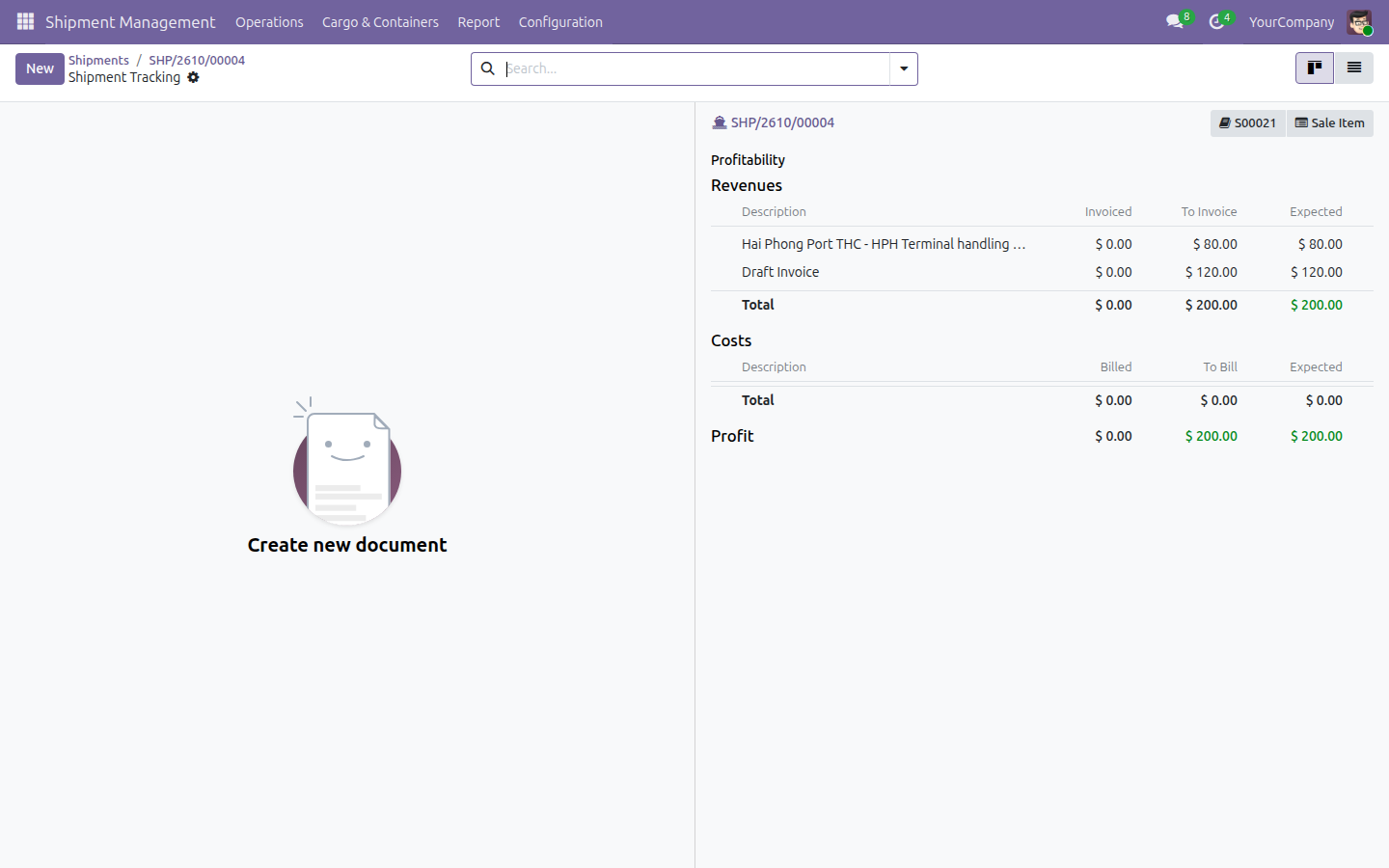
To check one shipment without leaving it, click the Trackings smart button on the shipment. The Shipment Tracking screen opens with a Profitability panel on the right: the Revenues and Costs of the shipment, each split into Invoiced, To Invoice and Expected, and the resulting Profit. The buttons at the top of the panel open the linked sales order and its sale items. A line for an order that is still a quotation is labelled (quotation not confirmed), so you can tell expected revenue from confirmed revenue.
Analyze Shipment Profitability
The Shipment Profitability report shows, per shipment, how much revenue the linked sales orders brought in versus the associated cost - so you can see which shipments and which customers are actually profitable.
Revenue comes from a single source: the sale order lines of the shipment's orders, plus the customer invoice lines of the shipment that are not already on the lines of a live (not cancelled) order. A line is therefore never counted twice, whether it was sold on an order or invoiced directly. The panel on the shipment uses the same rule.
Open the Shipment Management app and go to Report ‣ Shipment Profitability.
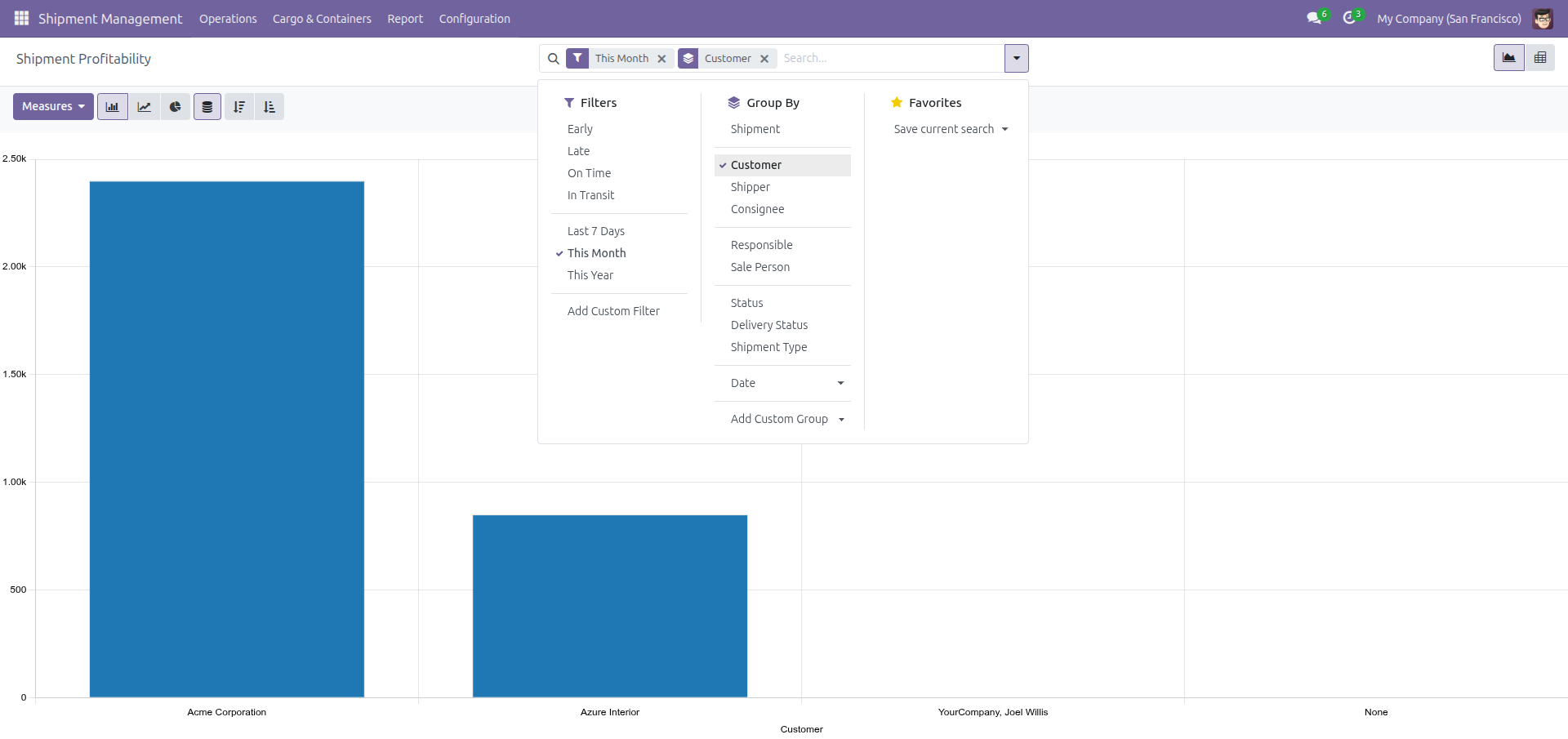
Use the search panel to filter (for example This Month) and group the results (for example by Customer, Shipper, Consignee, Responsible, Sale Person, Shipment Type or Delivery Status).
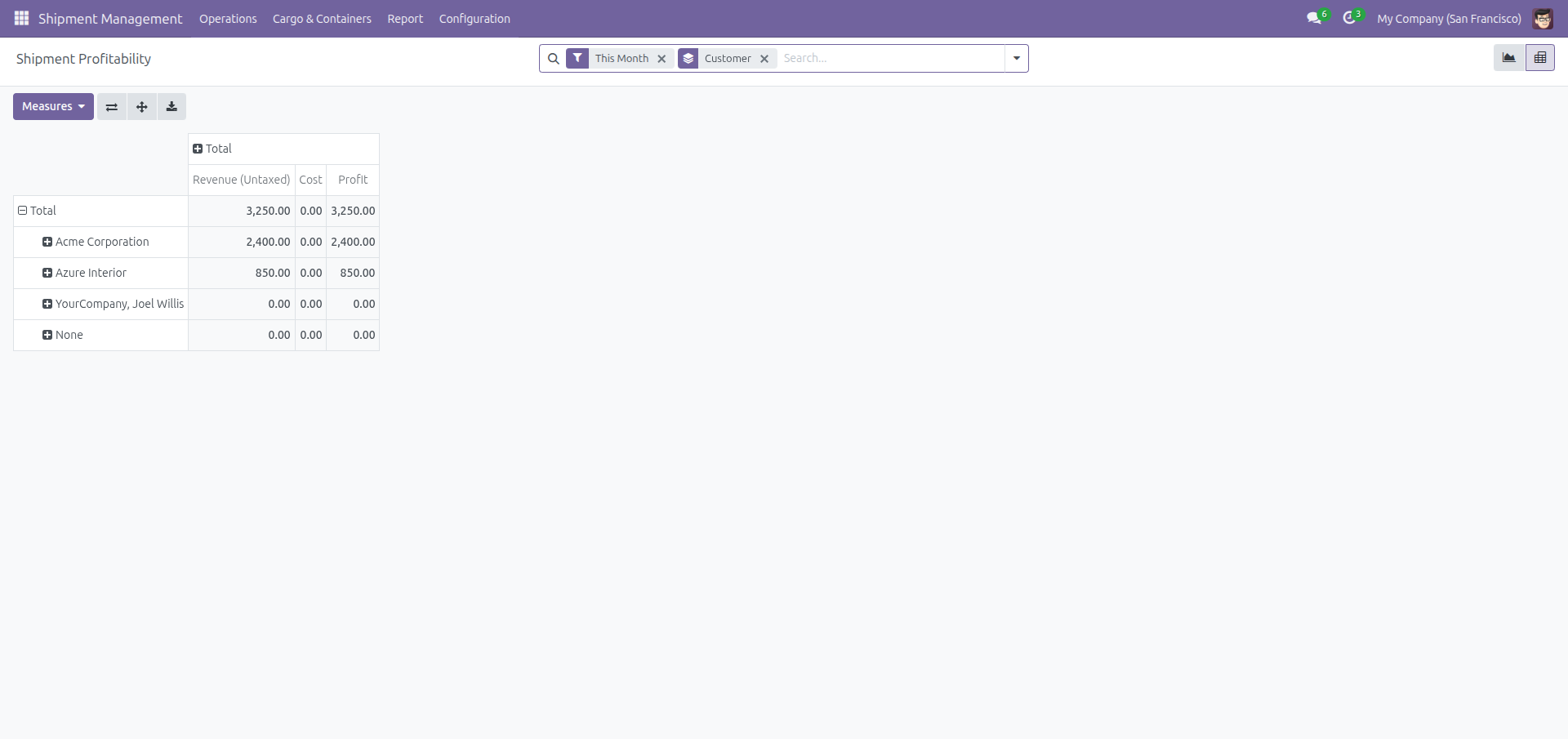
Switch to the table view (the icon next to the graph icon, top right) to see the exact Revenue (Untaxed), Cost and Profit amounts per group.
Troubleshooting
The Logistics tab does not show up on a quotation. The tab only appears once the quotation contains at least one freight product line. Add a freight line to the order first.
Can I manually pick an existing shipment on a quotation before confirming it? The Shipment field on the Logistics tab is informational - it shows which shipment is linked once one exists, but it is not a selector you can fill in yourself from the sales order screen. If you already have a draft shipment for this business, generate the quotation from that shipment instead (see Generate a Quotation from an Existing Shipment above); if you start from a fresh quotation, confirming it always creates its own new shipment.
Confirming an order raised "Each sales order can only serve one logistics shipment". A sales order can only be linked to a single shipment. If you need to ship a second, unrelated shipment for the same customer, create a separate sales order for it.
The shipment sync message shows a warning instead of a green confirmation. This means the order's freight lines no longer match the shipment's legs exactly (for example a line was added, removed or changed after the shipment was created). The message lists the missing or extra legs so you know what to reconcile.
FAQ
Does confirming a non-freight order create a shipment? No. Only order lines whose product is a freight product trigger the shipment creation and synchronization described in this guide.
Can a shipment be linked to more than one sales order? Yes, from the shipment side - the Sale Orders button shows every sales order linked to that shipment. From the sales order side, however, each order can only be linked to one shipment.
Where do I configure freight products, routes and shipment types? These are set up in the Shipment Management app - see its documentation.
This software and associated files (the "Software") may only be used (executed, modified, executed after modifications) if you have purchased a valid license from the authors, typically via Odoo Apps, or if you have received a written agreement from the authors of the Software (see the COPYRIGHT file).
You may develop Odoo modules that use the Software as a library (typically by depending on it, importing it and using its resources), but without copying any source code or material from the Software. You may distribute those modules under the license of your choice, provided that this license is compatible with the terms of the Odoo Proprietary License (For example: LGPL, MIT, or proprietary licenses similar to this one).
It is forbidden to publish, distribute, sublicense, or sell copies of the Software or modified copies of the Software.
The above copyright notice and this permission notice must be included in all copies or substantial portions of the Software.
THE SOFTWARE IS PROVIDED "AS IS", WITHOUT WARRANTY OF ANY KIND, EXPRESS OR IMPLIED, INCLUDING BUT NOT LIMITED TO THE WARRANTIES OF MERCHANTABILITY, FITNESS FOR A PARTICULAR PURPOSE AND NONINFRINGEMENT. IN NO EVENT SHALL THE AUTHORS OR COPYRIGHT HOLDERS BE LIABLE FOR ANY CLAIM, DAMAGES OR OTHER LIABILITY, WHETHER IN AN ACTION OF CONTRACT, TORT OR OTHERWISE, ARISING FROM, OUT OF OR IN CONNECTION WITH THE SOFTWARE OR THE USE OR OTHER DEALINGS IN THE SOFTWARE.