
Viin Time-Off
by Viindoo
| Lines of Code | 991 |
| Technical name | viin_hr_holidays |
| License | OPL-1 |
| Website | https://viindoo.com/apps/modules/19.0/viin_hr_holidays |
| Read description for | v 13.0 v 14.0 v 15.0 v 16.0 v 17.0 v 18.0 |
| Required Apps | Time Off (hr_holidays) Discuss (mail) Employees (hr) Calendar (calendar) |
| Included Dependencies | Viindoo Base |
| Extensions | Payroll HR Contracts Suspension |
Time off that is accounted for day by day
For HR teams and time off administrators
Day-by-day time off reports, corrections on approved leave and accruals on their own schedule.
Is this you?
A leave that crosses a month end lands in one month's report, so monthly totals are never right.
An approved leave has to be cancelled and re-entered just because the dates moved.
Staff submit one-hour requests that are not worth the approval effort.
Granting time off to a whole company or department also hits the people who should be left out.
Accruals have to start on a different date from the allocation's validity period.
What changes
Month-end totals do not add up.
→ Read every absence one calendar day at a time, split correctly between months.
Approved leave has to be recreated.
→ Move an approved day-based leave to new dates in one step, with its history kept.
Requests too short to matter.
→ Set a minimum duration per leave type and refuse shorter requests automatically.
Batch time off reaches the wrong people.
→ Leave named employees out when generating time off for a company, department or tag.
Accrual dates tied to validity.
→ Give an accrual allocation its own automatic allocation period.
Key Features
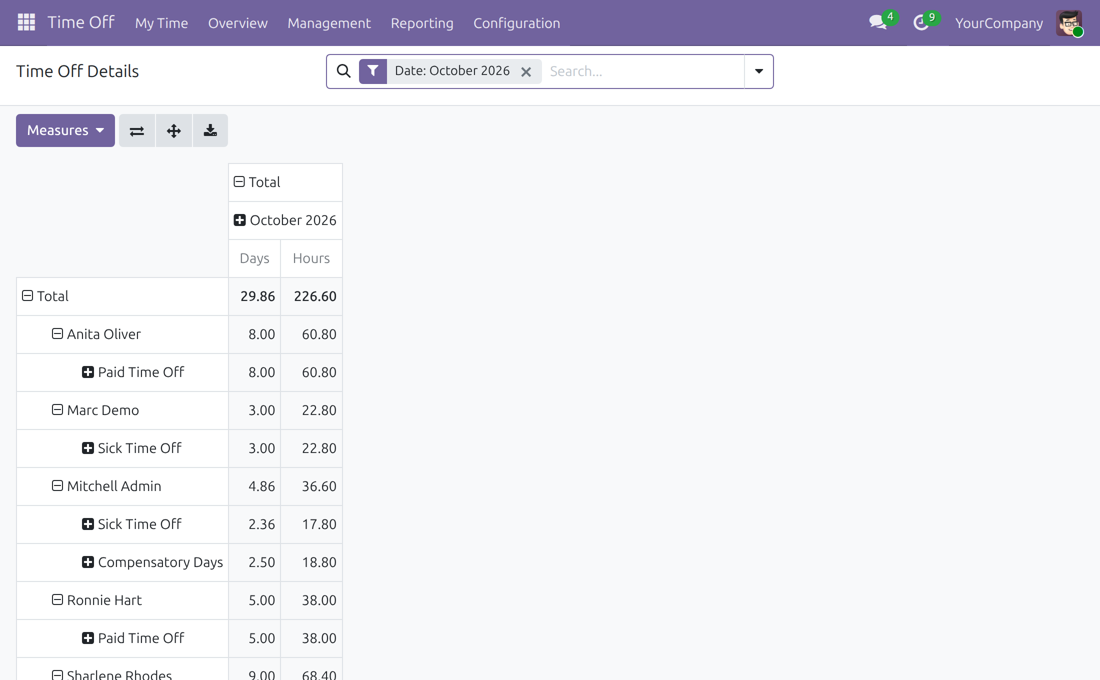
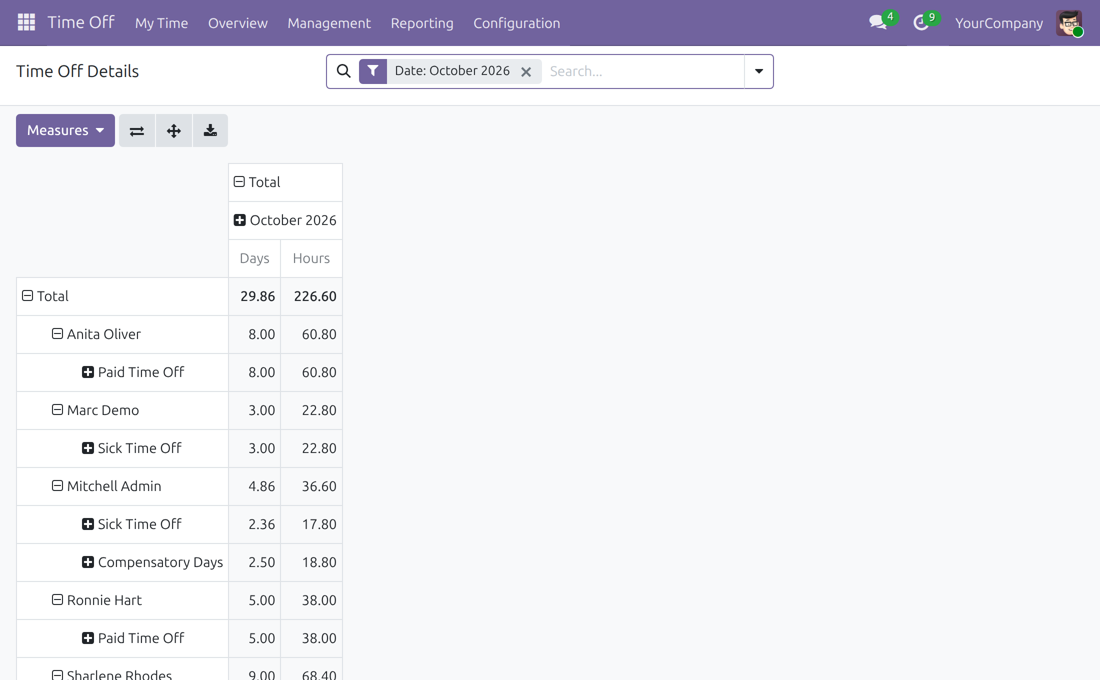
Time off report by day
Employees, departments and leave types broken down per calendar day, with days and hours that stay correct when you group.
Adjust approved leave
Re-date an approved, day-based leave without cancelling it.
Minimum time off duration
A shortest allowed duration for each leave type.
Own accrual window
An automatic allocation period separate from the validity period.
Exclude employees
Skip chosen people when time off is generated in batch.
Translatable mandatory days
Show the name of a mandatory day in each user's language.
Who Should Use Viin Time-Off?
Time Off Administrator
Re-enters leave and fights month-end totals.
→ Corrects approved leave in one step and reads a report that is right by day.
HR officer
Allocations accrue on the wrong dates.
→ Sets an automatic allocation period for each accrual allocation.
Department manager
Cannot see who is off on a given day.
→ Filters the day-by-day report by department and leave type.
Best for: Time Off Administrators, HR officers and managers
Who is off, day by day
Employees and leave types per day, with days and hours that follow your grouping.
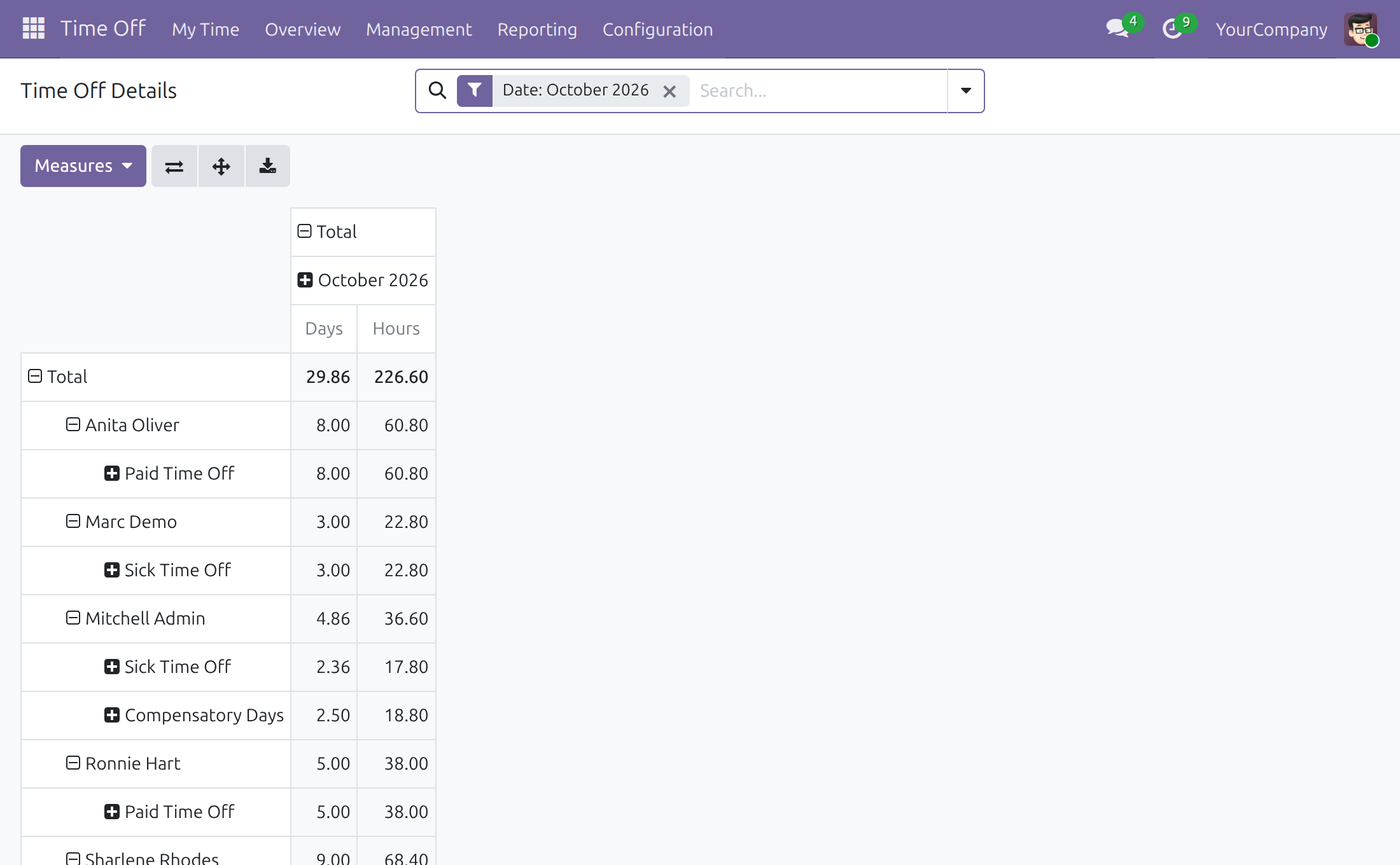
Correct an approved leave
Pick the new first and last day and confirm; the request keeps its history.
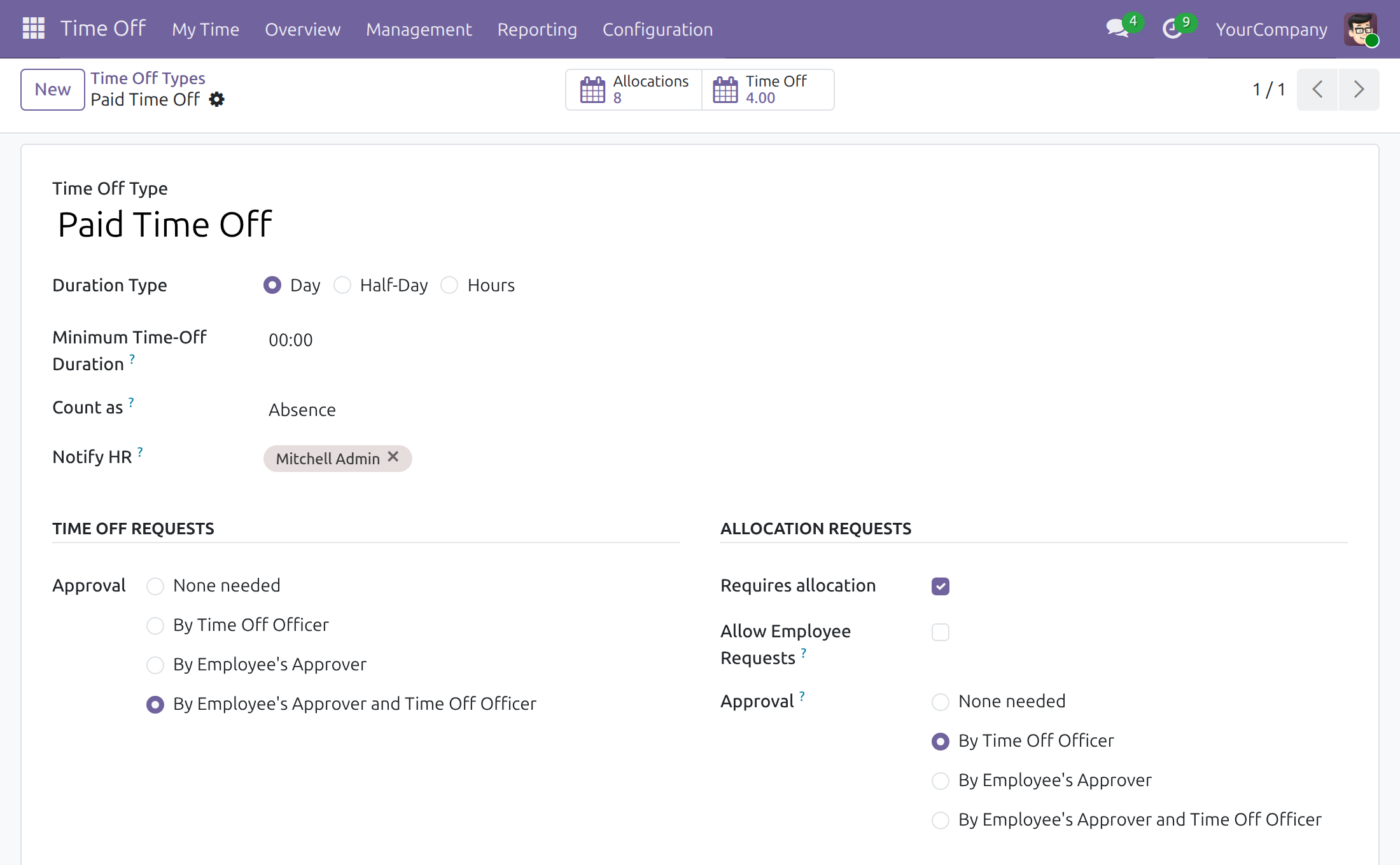
Set a minimum duration
Define the shortest request allowed for each leave type.
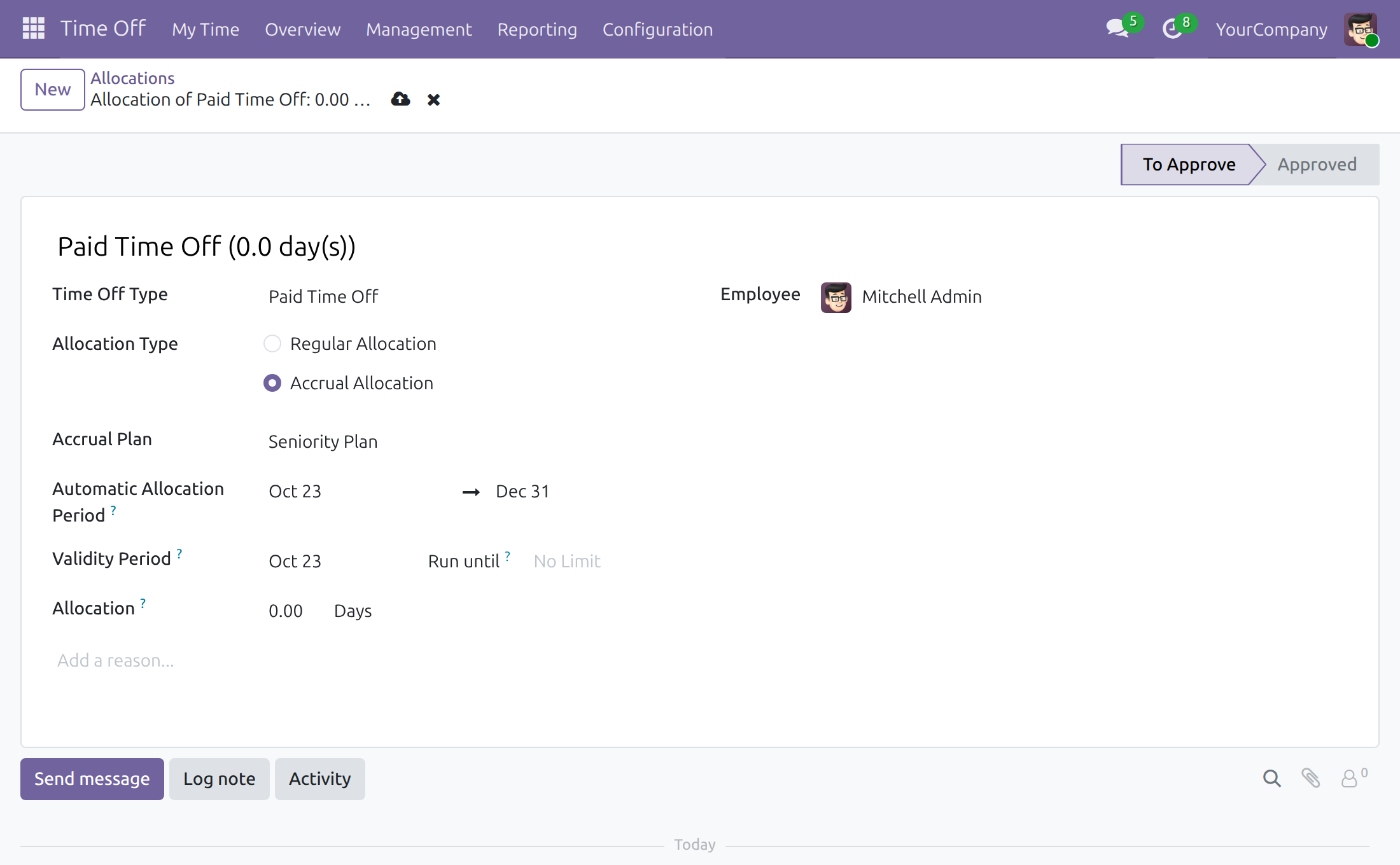
Accrue on your own dates
The automatic allocation period has its own start date, which is required to save the allocation, and an optional end date: leave it empty and accruing has no end. It is separate from the validity period.
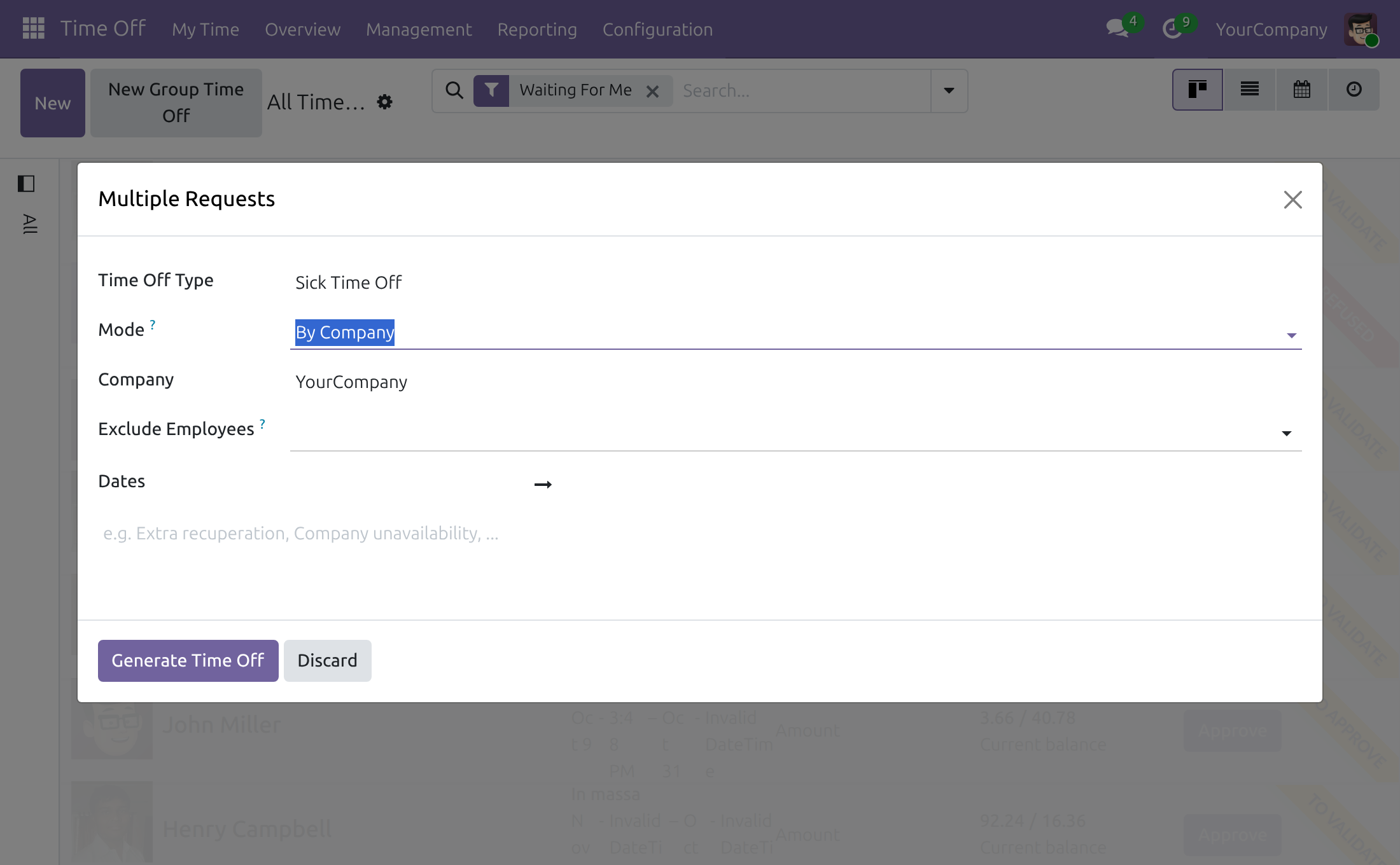
Leave people out of group time off
Choose who to exclude when generating time off for a company, department or tag.
What does Viin Time-Off do?
It adds a day-by-day time off report, an Adjust Dates action for approved leave, a minimum duration per leave type, an automatic allocation period for accruals, excluded employees for group time off and translatable mandatory-day names.
Does it replace the standard Time Off app?
No. Requests, approvals and the calendar stay as they are; this app extends them.
Who can adjust an approved leave?
Users with the Time Off Administrator access right. Only leave types counted in days can be adjusted.
Does it change how accruals are calculated?
No. Accruals still follow the accrual plan you configure; the app only lets the automatic allocation period differ from the validity period.
Does it pay leave?
No. What an absence costs is handled by payroll, not by this app.
Viin Time-Off
Note
Who this guide is for: the Time Off Administrator who sets up leave types, allocations and batch time off, and the HR officers and managers who read the day-by-day report and correct approved leave. Employees are affected by the minimum duration rule when they submit a request.
Overview
Viin Time-Off extends the standard Time Off app with day-level control:
- a report that shows every approved or pending absence one calendar day at a time, even when a leave crosses a month boundary;
- an Adjust Dates action that moves an already-approved, day-based leave to other days without cancelling it;
- a Minimum Time-Off Duration per leave type, so a request that is too short is refused;
- an Automatic Allocation Period on accrual allocations, separate from the validity period;
- an Exclude Employees list when time off is generated in batch;
- mandatory-day names that can be translated per language.
| Role | What they do | Access right to assign |
|---|---|---|
| Time Off Administrator | Configures leave types and allocations, generates batch time off, adjusts approved leave and reads the day-by-day report. | Time Off / Administrator |
| Employee | Submits time off requests; a request shorter than the minimum duration of its leave type is refused. | none beyond the standard Time Off access |
Setup (for the Administrator)
- Go to Apps, search for Viin Time-Off and press Install. The standard Time Off app is installed with it.
- Go to Settings > Users & Companies > Users, open the user and set the Time Off access right to Administrator for everyone who must adjust leave or open the report.
Time Off Administrator: configure and maintain time off
Set a minimum duration for a leave type
- Go to Time Off > Configuration > Time Off Types and open a leave type.
- Enter the shortest duration an employee may request in Minimum Time-Off Duration (hours and minutes). Leave it at 00:00 for no minimum.
- Save. A request of this type that is shorter than the minimum is refused with a message stating the required number of hours.
Give an accrual allocation its own automatic allocation period
- Go to Time Off > Management > Allocations and press New.
- Choose the Time Off Type and the Employee, then set Allocation Type to Accrual Allocation.
- Select the Accrual Plan. Under Automatic Allocation Period, the start date is required and is today by default; change it to the date from which the plan starts accruing. The end date is optional: while it is empty only the start date is shown and accruing has no end. To set an end date, click the start date, press the calendar button with a plus sign at the top right of the date picker to switch to range mode, then pick the first and the last day; the period is then shown as start date, an arrow and end date. This period is independent of the Validity Period, which only limits when the granted days can be used.
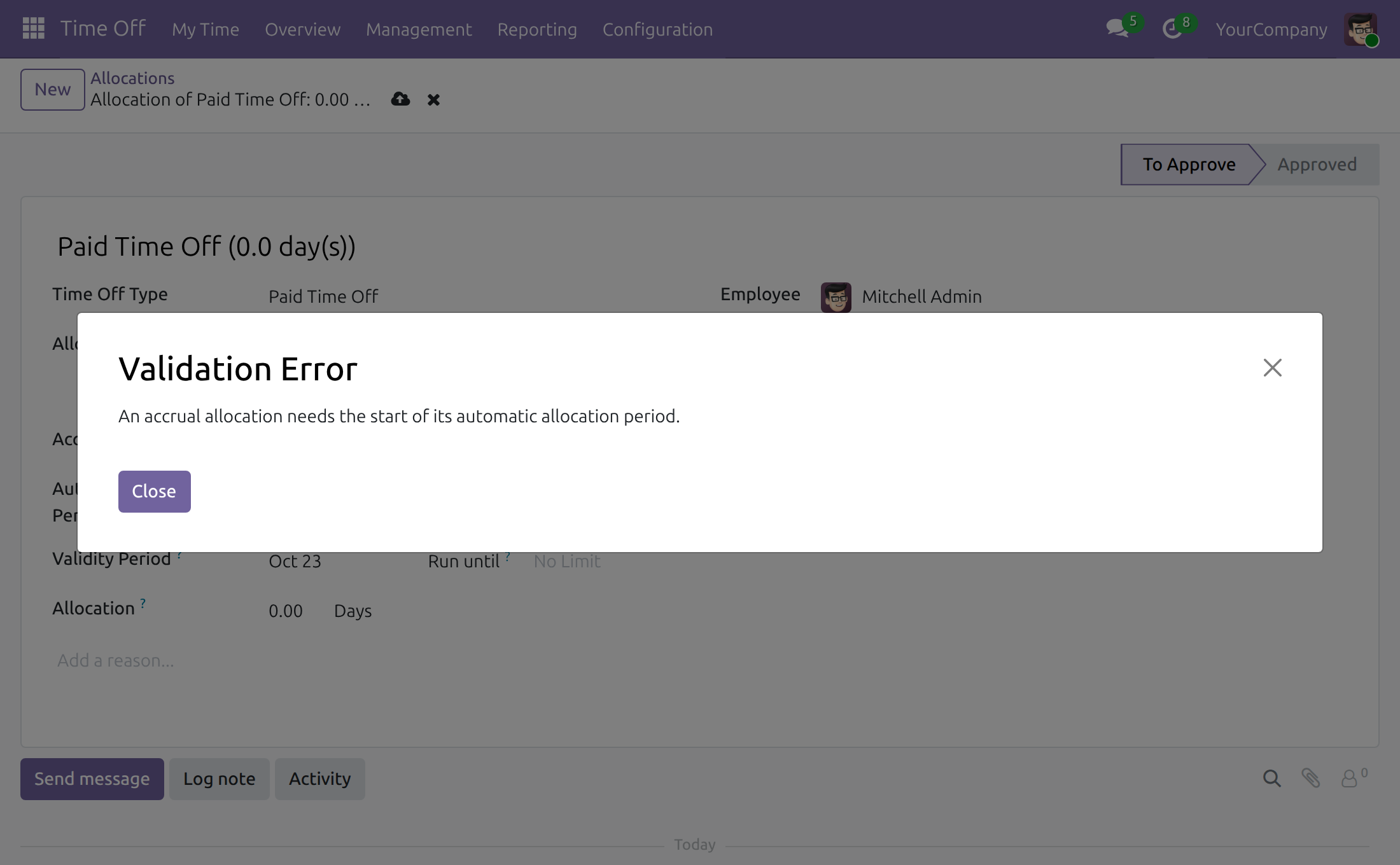
- Save the allocation. A start date is needed to save: without it the message An accrual allocation needs the start of its automatic allocation period. appears; enter the start date and save again. A start date later than the end date is refused with Accrual Date Start must be smaller than Accrual Date End; correct the dates.
The same period is available when you grant time off to a group: in Time Off > Management > Allocations, press New Group Allocation, set Allocation Type to Based on Accrual Plan and fill Automatic Allocation Period (the start date, today by default, and Run until; No Limit means no end). Every allocation generated carries that period. In the Allocations list, the optional columns Accrual Date Start and Accrual Date End show the period of each allocation.
Generate time off for a group and leave some people out
- Go to Time Off > Management > Time Off and press New Group Time Off.
- Choose the Time Off Type and set Mode to By Company, By Department or By Employee Tag.
- In Exclude Employees, pick the people who must not receive the time off. The field is hidden in the By Employee mode.
- Enter the Dates and press Generate Time Off.
Adjust an approved leave
Use this when an employee needs a different period and you do not want to cancel and recreate the request.
- Go to Time Off > Management > Time Off and open the leave.
- Press Adjust Dates. Only users with the Administrator access right see the button.
- Pick the new first and last day in Date From, then press Confirm.
The adjustment is available for leave types counted in Day; for a half-day or hourly type the system refuses it. The start and end times of day follow the working schedule of the new days.
Read the day-by-day time off report
- Go to Time Off > Reporting > Time Off Details. The report opens on the current month, with employees and leave types as rows and the days of the month as columns.
- Use the search bar to filter by employee, department or leave type, by status (To Approve, Second Approval, Validated) or by date, and group by employee, department, leave type or state.
A leave that spans two months is split between them, so the totals of each month are right. The Days and Hours totals are recalculated for the rows you group on.
Translate a mandatory day
Go to Time Off > Configuration > Mandatory Days, open a mandatory day, switch the language flag next to Name and enter the translated name.
Troubleshooting
- "Time off duration must be greater than or equal to ... hours" - the request is shorter than the Minimum Time-Off Duration of its leave type. Lengthen the request or lower the minimum.
- Adjust Dates is missing - the user lacks the Administrator access right.
- Adjustment is refused for an hourly or half-day type - only leave types counted in days can be adjusted.
- "An accrual allocation needs the start of its automatic allocation period." - the start date of the Automatic Allocation Period is empty. Enter it and save again; the end date can stay empty.
- "Accrual Date Start must be smaller than Accrual Date End" - the start date is later than the end date. Correct the Automatic Allocation Period.
This software and associated files (the "Software") may only be used (executed, modified, executed after modifications) if you have purchased a valid license from the authors, typically via Odoo Apps, or if you have received a written agreement from the authors of the Software (see the COPYRIGHT file).
You may develop Odoo modules that use the Software as a library (typically by depending on it, importing it and using its resources), but without copying any source code or material from the Software. You may distribute those modules under the license of your choice, provided that this license is compatible with the terms of the Odoo Proprietary License (For example: LGPL, MIT, or proprietary licenses similar to this one).
It is forbidden to publish, distribute, sublicense, or sell copies of the Software or modified copies of the Software.
The above copyright notice and this permission notice must be included in all copies or substantial portions of the Software.
THE SOFTWARE IS PROVIDED "AS IS", WITHOUT WARRANTY OF ANY KIND, EXPRESS OR IMPLIED, INCLUDING BUT NOT LIMITED TO THE WARRANTIES OF MERCHANTABILITY, FITNESS FOR A PARTICULAR PURPOSE AND NONINFRINGEMENT. IN NO EVENT SHALL THE AUTHORS OR COPYRIGHT HOLDERS BE LIABLE FOR ANY CLAIM, DAMAGES OR OTHER LIABILITY, WHETHER IN AN ACTION OF CONTRACT, TORT OR OTHERWISE, ARISING FROM, OUT OF OR IN CONNECTION WITH THE SOFTWARE OR THE USE OR OTHER DEALINGS IN THE SOFTWARE.