
POS & Affiliate Management
by Viindoo
| Lines of Code | 1455 |
| Technical name | viin_affiliate_pos |
| License | OPL-1 |
| Website | https://viindoo.com/apps/modules/19.0/viin_affiliate_pos |
| Read description for | v 16.0 v 17.0 v 18.0 |
| Required Apps | Invoicing (account) Discuss (mail) Inventory (stock) Point of Sale (point_of_sale) |
| Included Dependencies | Affiliate Management Viindoo Base Accounting Foundation |
| Extensions | Affiliate Loyalty POS Management PoS & Multi-level Affiliate POS Discount & Affiliate Management POS-Sale Affiliate Management POS Affiliate - Employees |

Commission on what was sold at the counter
Affiliate codes and commission in Point of Sale, so in-store referrals count like online ones.
POS & Affiliate Management (technical name viin_affiliate_pos) is an Odoo 19.0 app for Odoo Community and Odoo Enterprise and Viindoo Cloud, built for affiliate manager, affiliate, finance, marketing.
At a Glance
The facts of POS & Affiliate Management, version 0.1.0, in one place. Published by Viindoo.
How It Works
Three screens.
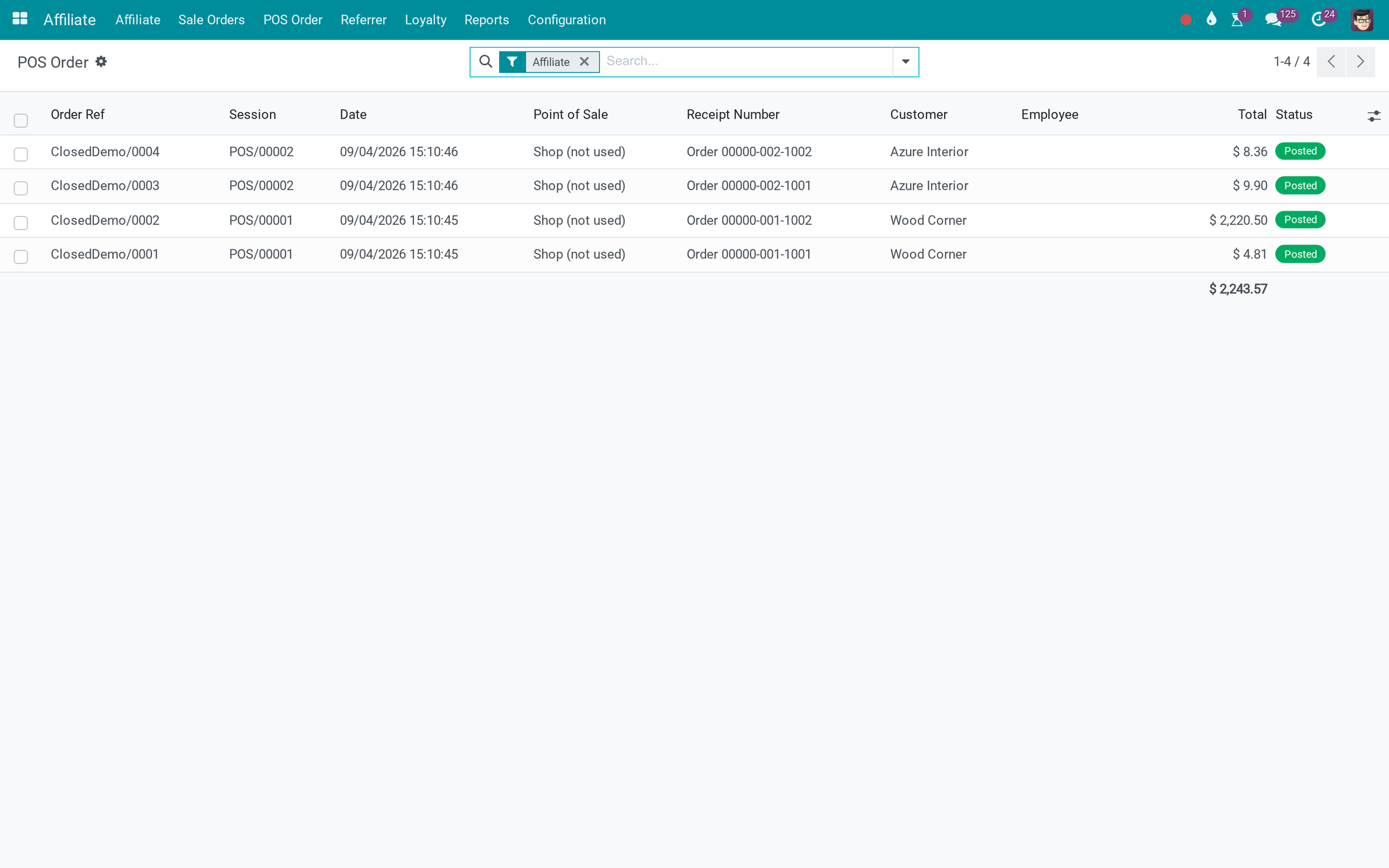
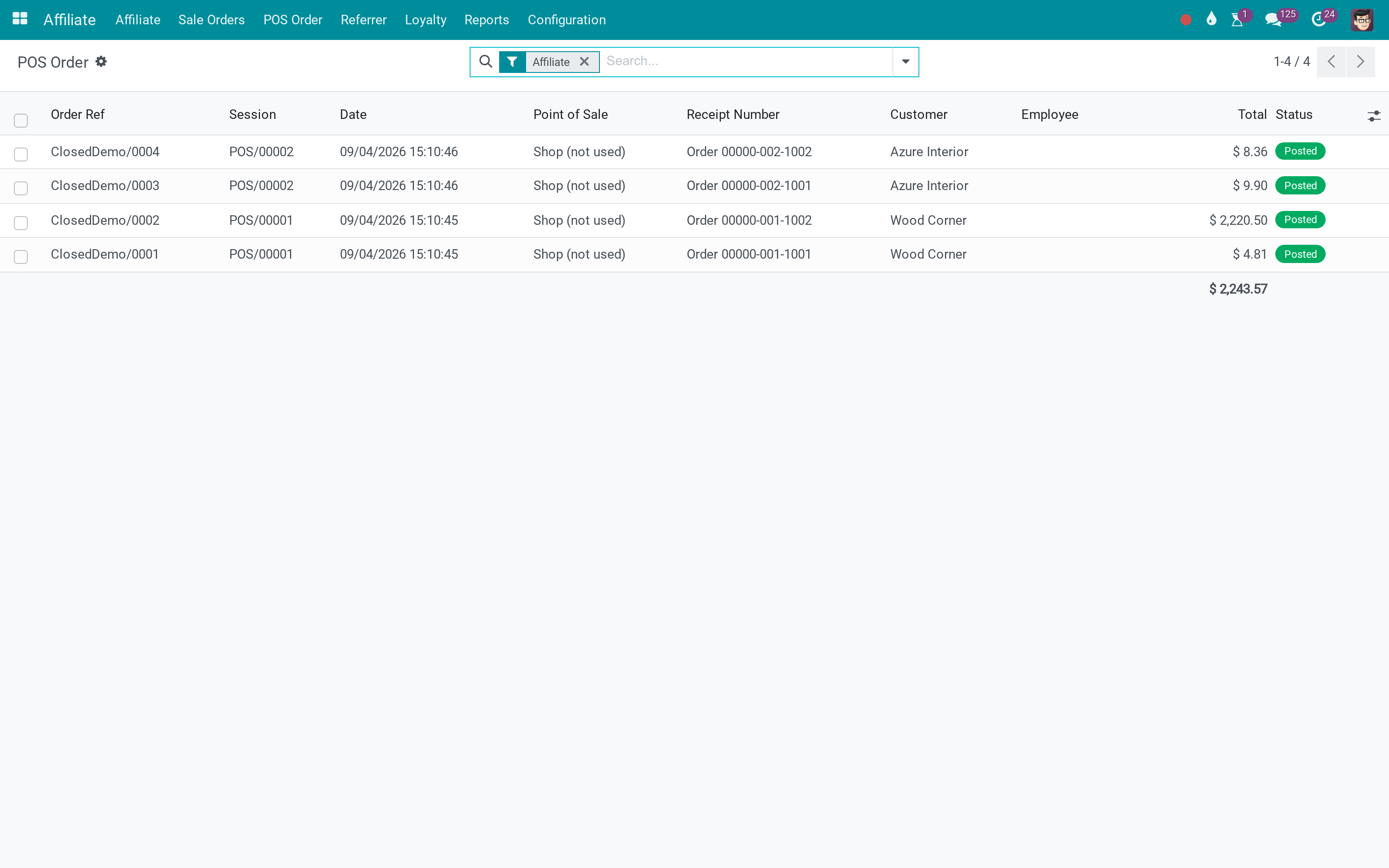
The POS orders
Counter sales carrying an affiliate code.
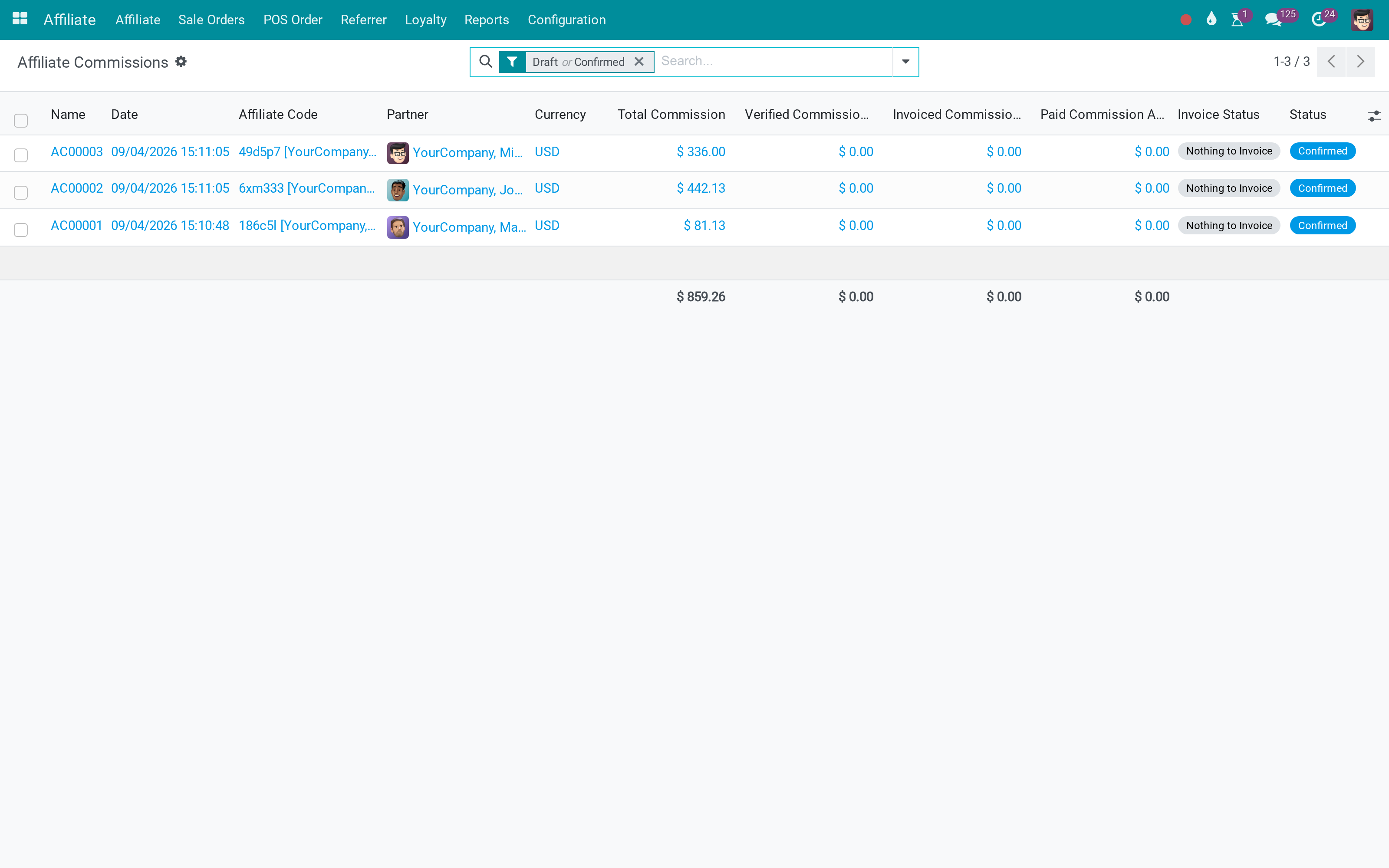
The commission
Computed on them like any other order.
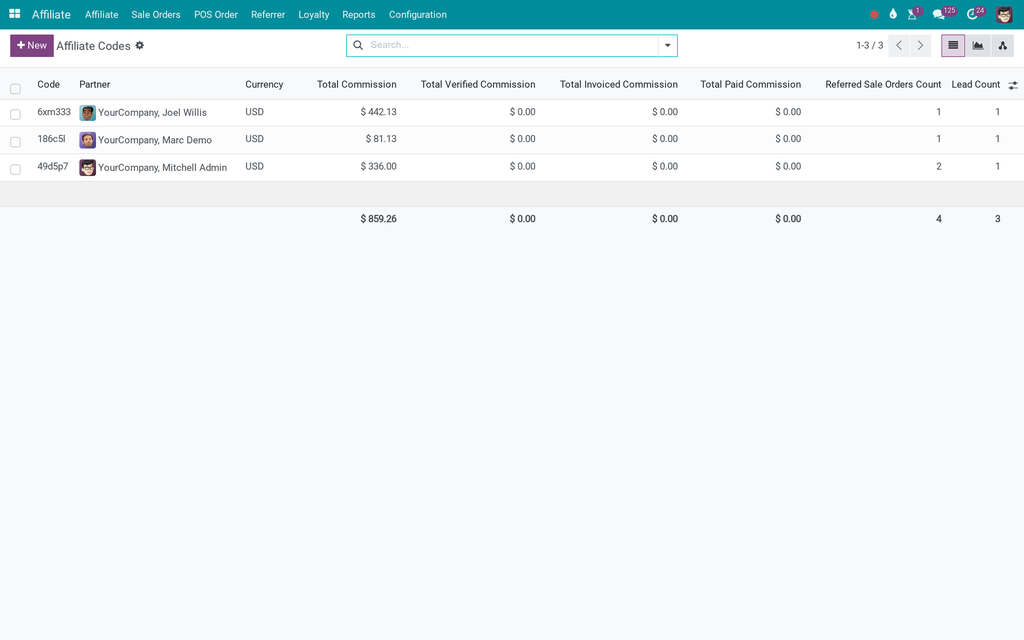
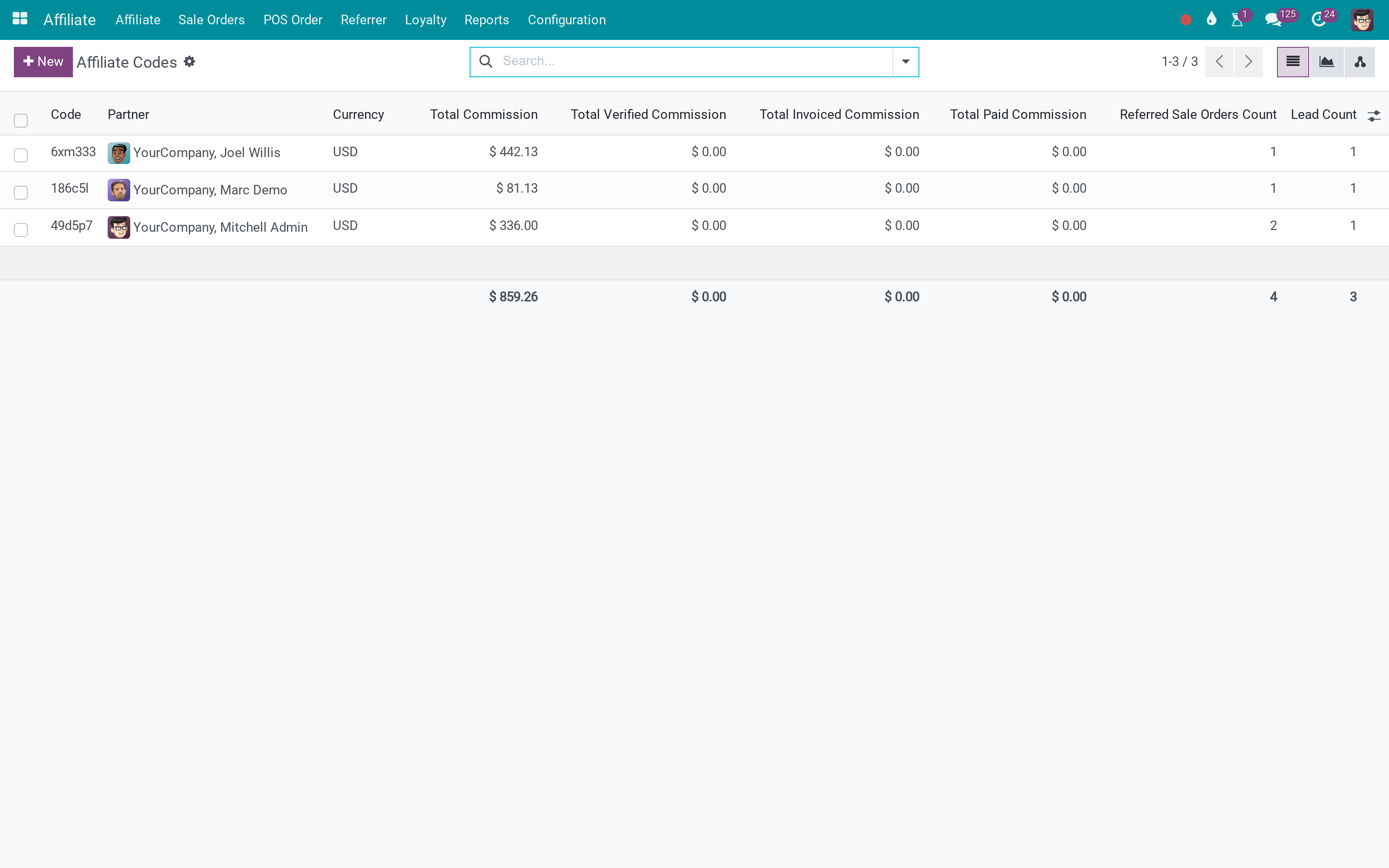
The codes
What the cashier applies.
What You Get
Affiliate codes applied to POS orders
Commission computed on counter sales
Same rules as online orders
POS orders listed per affiliate
One commission statement across channels
Installed as a bridge when both apps are present
More Screens
Everything below was taken on a database seeded with real business data, on this series - not a mock-up and not a screenshot from an older version.
Affiliate codes
What This App Does Not Do
Read this before you buy. Everything below is something the app deliberately leaves to another app or to you.
The rules live in the affiliate app.
A record created without a code has none.
Payouts stay in the affiliate app.
Alone there is nothing to bridge.
Works Well With
Apps from the same stack, built to fit this one:
Who Should Use POS & Affiliate Management?
Affiliate manager
Sees the whole programme in one place.
Affiliate
Gets paid for what they actually brought in.
Finance
Pays against records, not claims.
Marketing
Compares the channel honestly.
Frequently Asked Questions
What does POS & Affiliate Management do?
Affiliate codes and commission in Point of Sale, so in-store referrals count like online ones.
What does POS & Affiliate Management not do?
It does not compute commission by itself. The rules live in the affiliate app. It does not attribute retroactively. A record created without a code has none. It adds no payout flow. Payouts stay in the affiliate app. It needs its two apps. Alone there is nothing to bridge.
Who is POS & Affiliate Management for?
Affiliate manager: Sees the whole programme in one place. Affiliate: Gets paid for what they actually brought in. Finance: Pays against records, not claims. Marketing: Compares the channel honestly.
Which Odoo version and editions does it support?
Odoo 19.0 - Odoo Community, Odoo Enterprise, Viindoo Cloud. Upgrades to a newer Odoo series are a separate purchase for that series.
What does it depend on?
It installs on top of: point_of_sale, viin_affiliate. Odoo installs them with it.
How do I set it up?
Three screens.
What works well with it?
Affiliate Management (viin_affiliate): The programme itself. With Sales (viin_affiliate_sale): Affiliate codes on sales orders. Multi-level (viin_affiliate_multi_level): Commission down a referral tree.
Can I try it before buying?
Yes - the Live Preview button at the top of this page opens the module's own screen on a working database.
How do I get support?
Write to apps.support@viindoo.com with your Odoo version and the technical name viin_affiliate_pos; pre-sales questions go to sales@viindoo.com.
See POS & Affiliate Management in Action
Live demo: v19demo-int.viindoo.com/web#action=viin_affiliate_pos.action_affiliate_pos_orders
Need help with POS & Affiliate Management?
For questions, implementation support or a custom feature, contact Viindoo.
Pre-Sales & Partnership
sales@viindoo.comUpgrades to a newer Odoo series are a separate purchase for that series.
All Viindoo apps: Viindoo Apps
Technical Requirement
Changes log
0.1.0 - Latest on the 19.0 line
- Attribution follows the 19.0 models of both apps.
Note
Extends viin_affiliate - see its documentation for the commission policy and for confirming or cancelling commissions.
Overview
For affiliate administrators, affiliate users and the cashiers who sell at the points of sale.
A cashier can be an affiliate too: the cashier holds an affiliate code and rings up an order that carries it. The company policy When the Seller Is the Affiliate decides what happens to the commission of such an order: it is paid as usual (Pay), kept in Draft for review (Hold for review) or recorded as cancelled (Do not pay). The documentation of viin_affiliate describes that policy value. This module applies it to Point of Sale orders and lets you keep paying the sellers of chosen points of sale.
How a Point of Sale order is handled
- The seller of the order is the user logged in at the till. On a point of sale where employees log in to the till, the seller is the employee who is logged in - see POS Affiliate - Employees.
- The order is an own sale when the contact of the seller is the affiliate of the affiliate code applied to the order. Its commission shows Own Sale = Seller is the affiliate, and the commission list has the filter Own sales.
- The sale is never blocked: it is paid as usual. The commission follows the policy: confirmed under Pay, kept in Draft under Hold for review, recorded Cancelled under Do not pay. Sales at the points of sale you list in the policy are paid as usual whatever the value.
- When the commission is held or cancelled, a note on the order gives the reason. An affiliate user confirms a held commission, or cancels it. To pay a cancelled one, the affiliate user sets it to Draft, then confirms it.
- When the customer of the order is the affiliate of the code, the code is removed from the order and no commission is created; a note on the order gives the reason. The option Commission On Own Sales Orders of the sales module does not apply to Point of Sale orders.
- A refund follows the decision taken on the sale it refunds.
| Role | What they do | Access right to assign |
|---|---|---|
| Affiliate administrator | Chooses the points of sale whose sellers are still paid. | Affiliate / Administrator, and Point of Sale / User to see that list |
| Cashier | Sells at the till with the affiliate code of the order. | Point of Sale / User |
| Affiliate user | Reviews the held commissions and their refunds. | Affiliate / User: All affiliates (Affiliate / User: Own affiliates for the codes the user is responsible for); Point of Sale / User to open the orders |
Setup (for the Affiliate administrator)
Installation
The module installs automatically once Point of Sale and the Affiliate app are both installed. It needs no other configuration than the policy below.
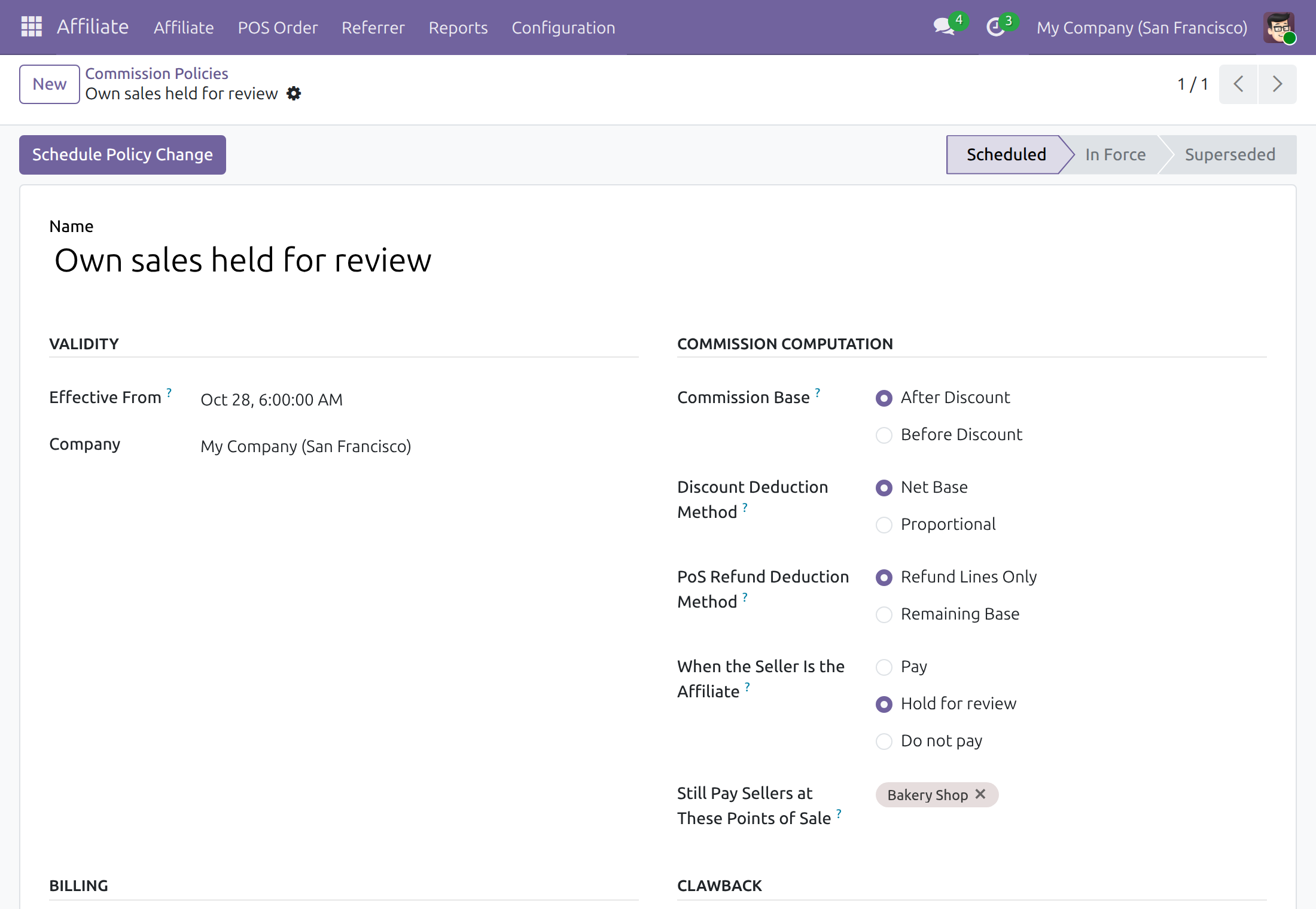
Choose the points of sale that still pay their sellers
When When the Seller Is the Affiliate is Hold for review or Do not pay, you can list the points of sale whose sellers are paid as usual.
- Go to Affiliate ‣ Configuration ‣ Commission Policies and open the policy in force.
- Click Schedule Policy Change. A policy that commissions already use is locked; the new policy starts with the same values, including the points of sale below.
- Set When the Seller Is the Affiliate to Hold for review or Do not pay.
- In Still Pay Sellers at These Points of Sale, add the points of sale whose sellers are paid as usual. The field is hidden while the value is Pay.
- Save. The policy applies from its Effective From date and time.
Note
The field is shown to users who hold Point of Sale / User, so an affiliate administrator needs that right to set it. A policy scheduled without that right keeps the points of sale of the policy it replaces.
Cashier: sell with an affiliate code
Ring up the order as usual and click Add Affiliate Code among the order buttons to apply the code, then take the payment. The order is paid as usual, whatever the policy says. When the cashier is the affiliate of that code, the commission is handled as described above.
Affiliate user: review an own sale
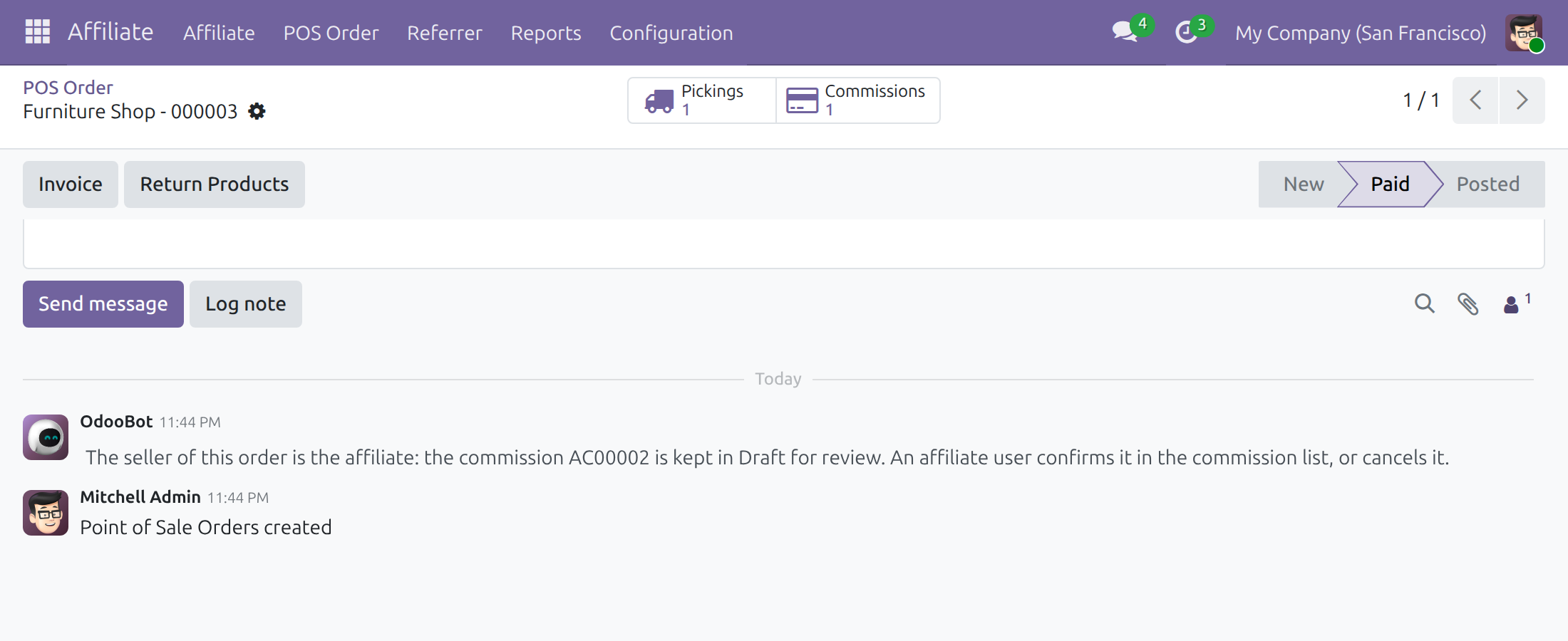
Read why the commission is held
Open Affiliate ‣ POS Order ‣ POS Order (this menu needs Point of Sale / User) and select the order. The note in its chatter says whether the commission is kept in Draft or recorded cancelled; the Commissions button opens that commission. Without that right, open the commission in Affiliate ‣ Affiliate ‣ Commission: its chatter carries the same note.
Confirm or cancel it
Go to Affiliate ‣ Affiliate ‣ Commission, use the filter Own sales, select the Draft commissions you accept and click Confirm. To refuse one, open it and click Cancel.
A refund of an own sale takes the state of the commission of the sale it refunds: Confirmed when that commission is confirmed or paid, Draft when it is held, Cancelled when it is cancelled, and Draft when the refund reverses sales decided differently. When the refund is left in Draft or Cancelled, a note on the refund order gives the reason. Confirm, Cancel and Set to Draft on the commission of a sale apply to the commissions of its refunds as well, so a sale and its refund are never decided apart.
This software and associated files (the "Software") may only be used (executed, modified, executed after modifications) if you have purchased a valid license from the authors, typically via Odoo Apps, or if you have received a written agreement from the authors of the Software (see the COPYRIGHT file).
You may develop Odoo modules that use the Software as a library (typically by depending on it, importing it and using its resources), but without copying any source code or material from the Software. You may distribute those modules under the license of your choice, provided that this license is compatible with the terms of the Odoo Proprietary License (For example: LGPL, MIT, or proprietary licenses similar to this one).
It is forbidden to publish, distribute, sublicense, or sell copies of the Software or modified copies of the Software.
The above copyright notice and this permission notice must be included in all copies or substantial portions of the Software.
THE SOFTWARE IS PROVIDED "AS IS", WITHOUT WARRANTY OF ANY KIND, EXPRESS OR IMPLIED, INCLUDING BUT NOT LIMITED TO THE WARRANTIES OF MERCHANTABILITY, FITNESS FOR A PARTICULAR PURPOSE AND NONINFRINGEMENT. IN NO EVENT SHALL THE AUTHORS OR COPYRIGHT HOLDERS BE LIABLE FOR ANY CLAIM, DAMAGES OR OTHER LIABILITY, WHETHER IN AN ACTION OF CONTRACT, TORT OR OTHERWISE, ARISING FROM, OUT OF OR IN CONNECTION WITH THE SOFTWARE OR THE USE OR OTHER DEALINGS IN THE SOFTWARE.