
Integration with Zalo OA
by Viindoo
| Lines of Code | 10857 |
| Technical name | viin_zalo |
| License | OPL-1 |
| Website | https://viindoo.com/apps/modules/19.0/viin_zalo |
| Read description for | v 17.0 v 18.0 |
| Required Apps | Discuss (mail) |
| Included Dependencies | API Request Logger |
| Extensions | Zalo OA Integration for Accounting Zalo Helpdesk Template Pack Zalo - Sell from Chat Zalo OAuth for Portal Zalo OA + CRM Website Livechat button for Zalo |
Every Zalo customer conversation, answered by the whole team
For sales and customer-service teams that serve customers through a Zalo Official Account
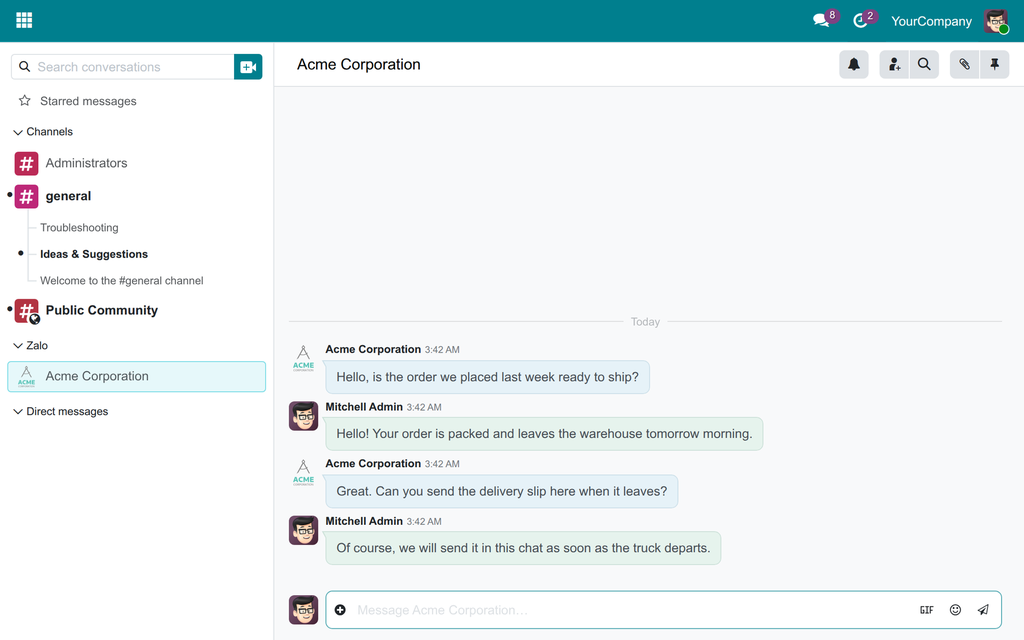
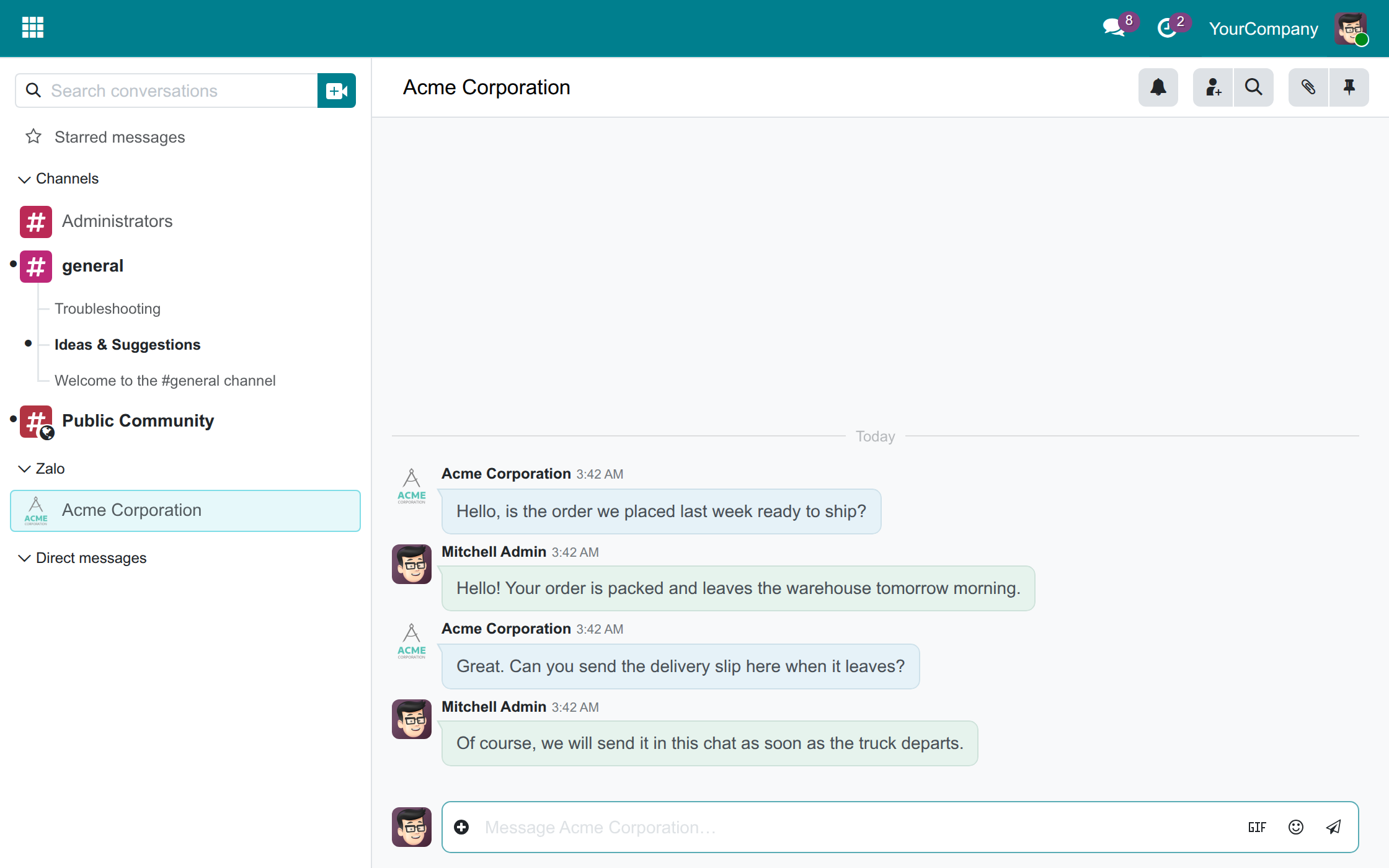
Zalo OA chat inside Discuss: configure accounts, sync followers, and message customers
Odoo Community · Odoo Enterprise · OPL-1 · English, Vietnamese
Builds on API Request Logger, which records every call made to Zalo.
What changes for your team
Reply from the record the customer asks about
Today the chat lives on one phone, and what the customer said is copied into the order or the ticket by hand.
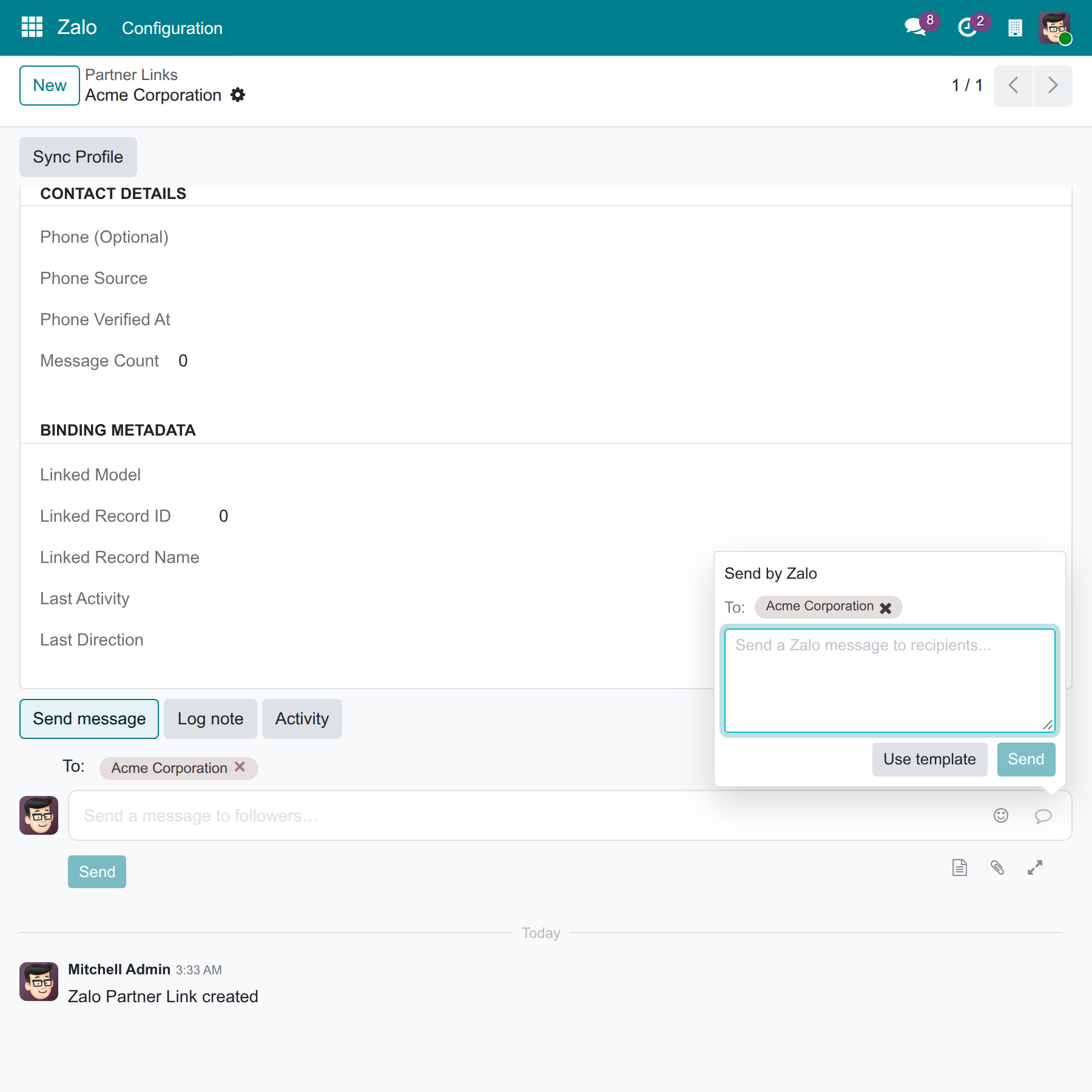
→ On a record whose contact has a Zalo link, Send by Zalo in the chatter sends the message, and the customer's reply is logged on that record.
Reach customers who have not written yet
Zalo accepts free text only from people who wrote to your Official Account first, so confirmations and reminders go out from a separate tool.
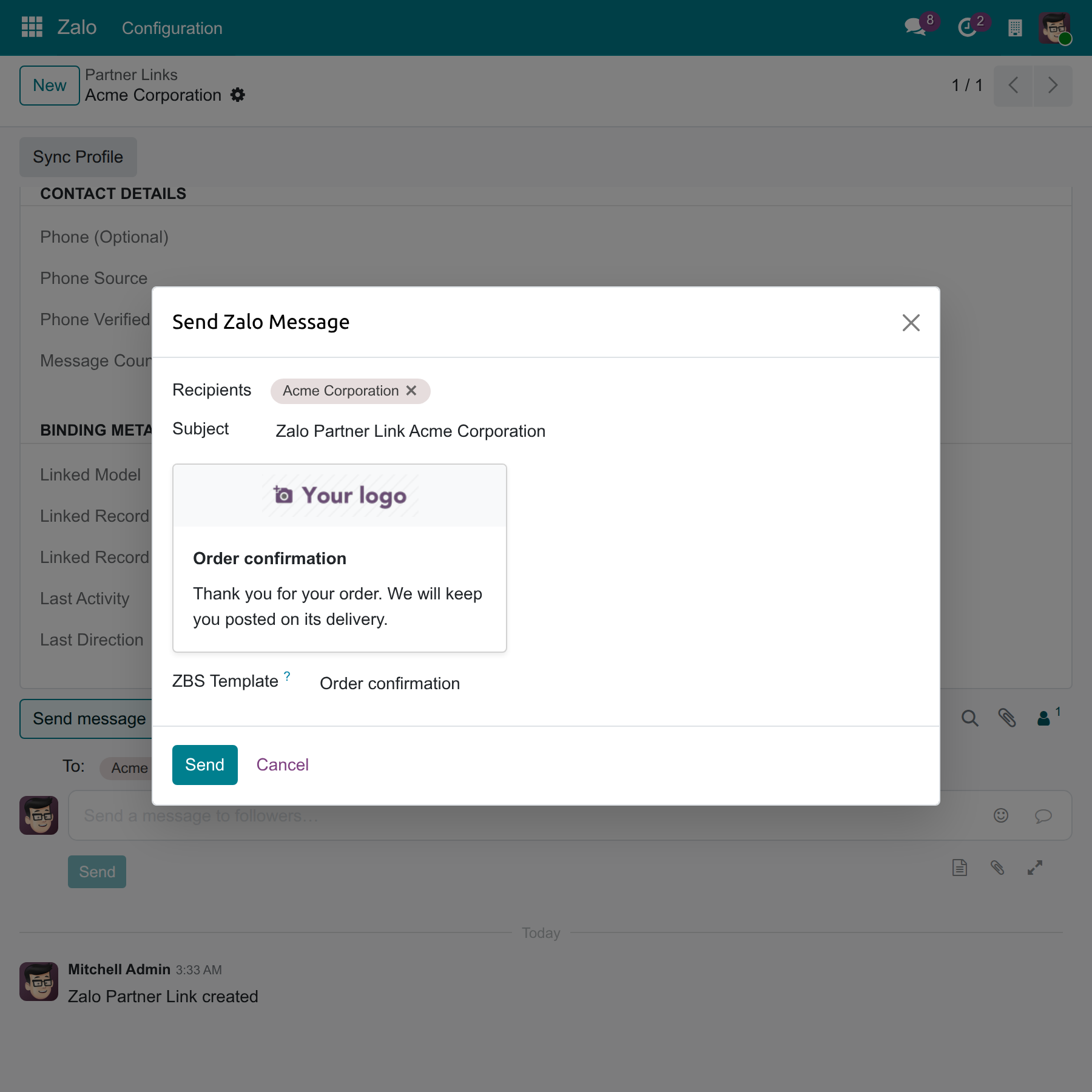
→ Prepare ZBS templates, preview them with a real record, submit them to Zalo, and send an approved one from any record with Use template.
A connection that keeps itself running
An expired token or a wrong setting stops messages silently, and nobody knows why.
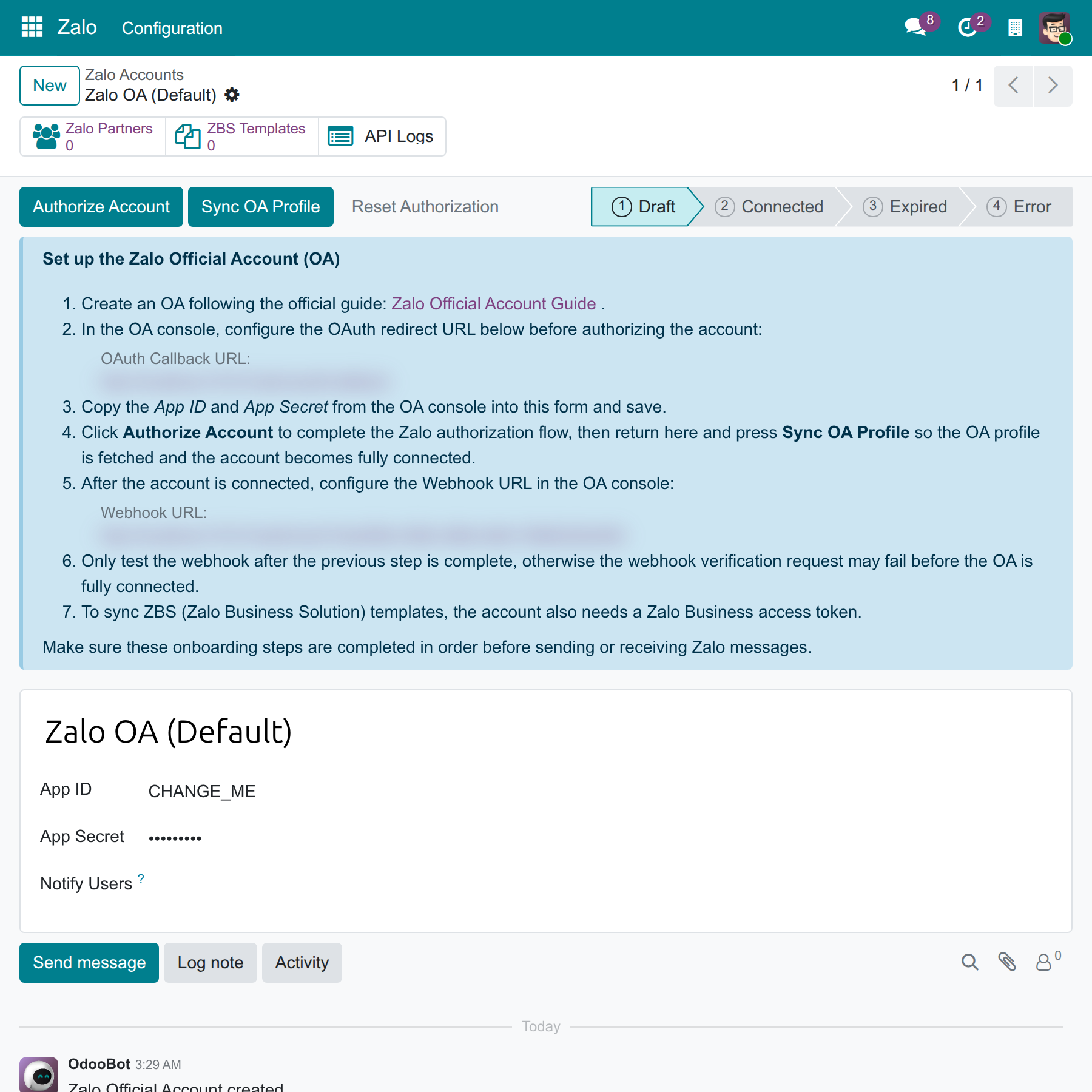
→ The administrator follows the setup steps on the account form once; tokens are renewed every hour, and a failure sets the account to Error with its reason in the account's chatter.
Features
Customer conversations
- ✓ Each customer is one conversation under Zalo in Discuss
- ✓ Receive text, images, stickers, files, audio, video and locations
- ✓ Reply with text, images and files
- ✓ Chosen users join and see every new conversation
Customers and records
- ✓ Every Zalo customer linked to a contact automatically
- ✓ Official Account followers imported when the profile is synced
- ✓ Zalo button next to a contact's phone number opens the chat
- ✓ Send by Zalo from the chatter of any record
- ✓ Messages and replies logged on the record they concern
Template messages
- ✓ Create ZBS templates and submit them to Zalo
- ✓ Preview a template filled from an example record
- ✓ Template approval status synchronised from Zalo
- ✓ Send an approved template from any record
Built for daily use
- ✓ App Secret and tokens readable by the Zalo Administrator only
- ✓ Accounts, contacts and templates kept apart per company
- ✓ Incoming events queued and processed again when a step fails
- ✓ Every call to Zalo recorded in the account's API Logs
Ready on day one
An account waiting for its keys
A Zalo account record ships with its setup steps on the form; the administrator enters the App ID and App Secret of the Official Account and authorizes it.
Background jobs in place
Token renewal, processing of incoming events and template synchronisation run on their own once the account is connected.
Then, the team
The administrator chooses the users notified of new messages and switches on the companion features the business needs.
Extend it
Zalo - Sell from Chat
Create quotations and sales orders straight from the Zalo conversation.
Zalo OA + CRM
Leads created from Zalo conversations carry the right source, so you see what Zalo brings in.
Zalo Helpdesk Template Pack
Ready-made ZBS templates that keep customers informed about their support tickets.
Zalo OA Integration for Accounting
Bring Zalo into accounting work, such as sending invoices to customers on Zalo.
Website Livechat button for Zalo
A configurable "Chat via Zalo" button on each website and portal.
Zalo OAuth for Portal
Portal visitors sign in with Zalo and stay matched to the same customer.
Before you decide
What do we need on the Zalo side?
A Zalo Official Account with an app in its console (App ID and App Secret), and a database Zalo can reach to deliver incoming messages. Sending ZBS templates also needs a Zalo Business access token. Personal Zalo accounts are not supported.
Can we message any customer?
Free text goes to people who have already written to your Official Account; this is Zalo's rule. Anyone else receives a ZBS template once Zalo has approved it.
Who sees what?
Staff chat as internal users; the users chosen on the account join every conversation. The Zalo Administrator configures accounts and templates, sees all Zalo conversations and is the only one who reads the App Secret and tokens. Each company sees its own accounts and contacts.
What happens when the connection fails?
The account moves to Error and the reason is written once in its chatter, so a repeating failure does not flood it. Reset Authorization starts the connection again, and API Logs show each call to Zalo with its answer.
Can we add sales, CRM or helpdesk later?
Yes. The Zalo settings carry a switch for each companion feature; turn one on when the team is ready, and the conversations already in Discuss stay where they are.
Try it, then ask us
The Documentation tab of this page walks the administrator and the staff through setup and daily use. A live demo database runs at v19demo-int.viindoo.com.
Pre-sales & partnership
viindoo.com/contactusTechnical support
viindoo.com/ticketIntegration with Zalo OA
Audience: administrators who connect the Zalo Official Account, and staff who chat with customers on Zalo.
Note
Extends API Request Logger - see its documentation: API Request Logger.
Overview
Customers write to your Zalo Official Account (OA); the messages arrive in the Zalo app, where your team answers them next to the contact, order or ticket the conversation is about. An administrator connects the account once; staff use it every day.
| Role | What they do | Access right to assign |
|---|---|---|
| Administrator | Connects the Official Account, manages Zalo message templates and add-on switches. | Zalo: Administrator |
| Staff (internal user) | Chats with customers on Zalo, sends Zalo messages and template messages from a record. | Internal User |
Setup (for the Administrator)
Install and assign the access right
- Open Apps, search for Integration with Zalo OA and click Install. The required apps are installed with it.
- Open Settings ‣ Users & Companies ‣ Users, open a user and set Zalo to Administrator for everyone who manages the Official Account.
Add-on switches
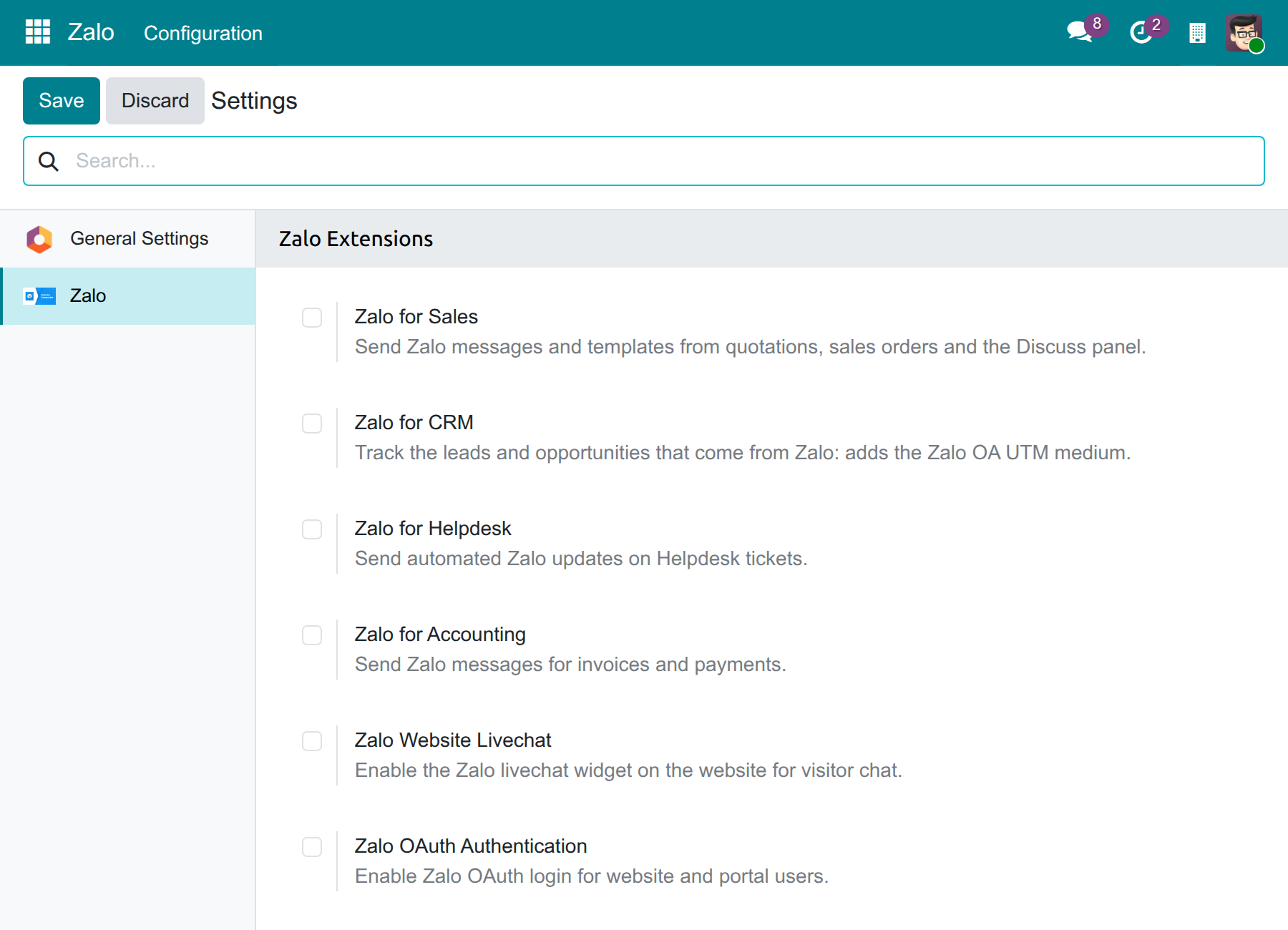
Open Zalo ‣ Configuration ‣ Settings to switch on the companion features you need: Zalo for Sales, Zalo for CRM, Zalo for Helpdesk, Zalo for Accounting, Zalo Website Livechat and Zalo OAuth Authentication.
Connect the Official Account
- Open Zalo ‣ Configuration ‣ Accounts and open the account.
- In the Zalo OA console, set the OAuth Callback URL shown on the form as the redirect URL.
- Copy the App ID and App Secret from the OA console into the form and save.
- Click Authorize Account, grant the permission on Zalo, then return and click Sync OA Profile. The status moves from Draft to Connected.
- In the OA console, set the Webhook URL shown on the form. Test the webhook only after the account is connected.
- To synchronise ZBS (Zalo Business Solution) templates, the account also needs a Zalo Business access token.
If the authorization fails, the account moves to Error and the reason is written once as a note in the account's chatter; a failure with the same reason as the latest note adds no new note. The reason is shown as plain text, also on the page Zalo returns to after the authorization. Reset Authorization returns the account to Draft so you can start again.
The Notify Users field lists the internal users who are notified when a message arrives. The buttons at the top of the form open the account's contacts, its ZBS templates and its API logs.
The Official Account itself is never turned into a contact: a message whose sender is the Official Account (for example the echo of a message you sent) creates no Zalo contact link.
Prepare ZBS message templates
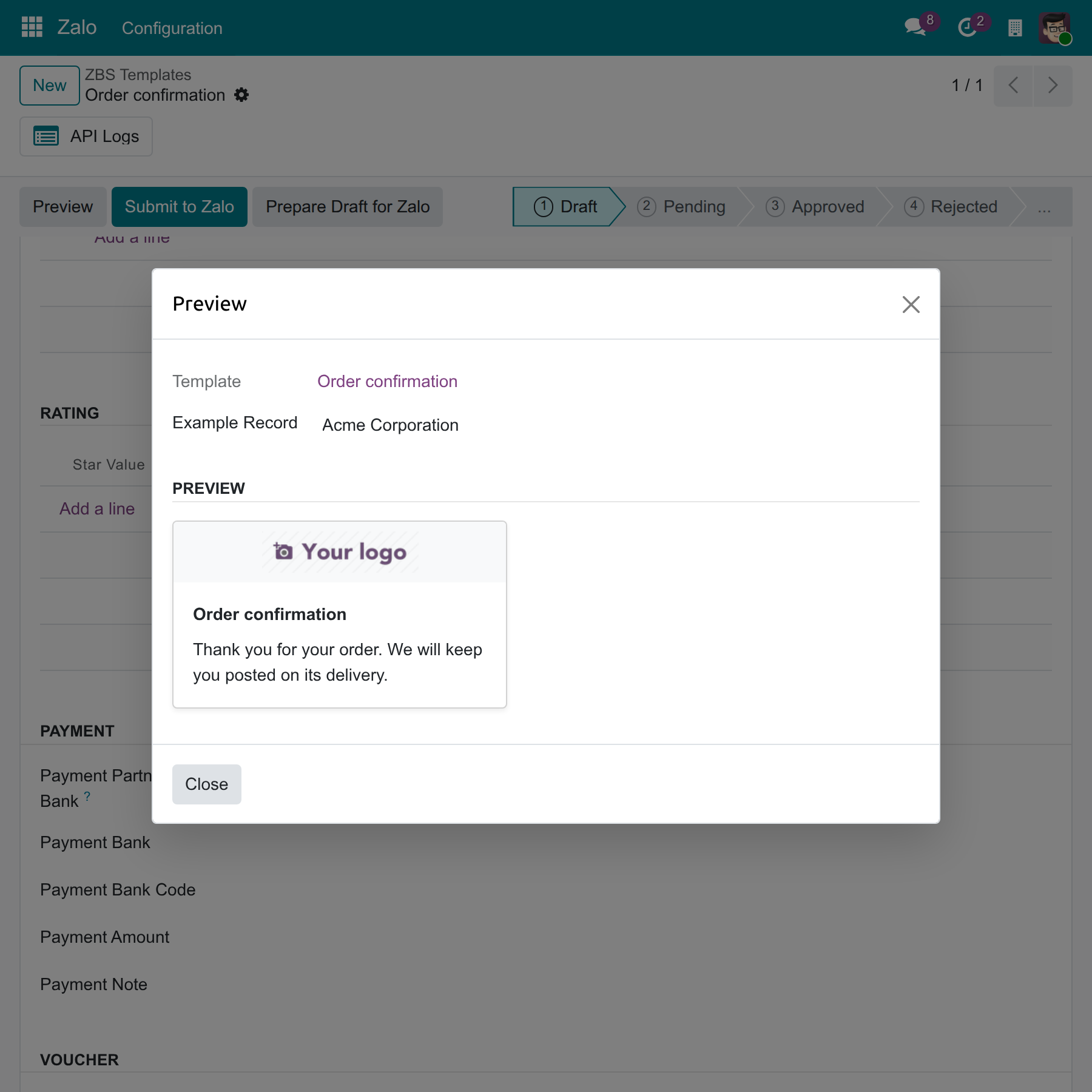
Open the account and click ZBS Templates to create, preview and submit templates. A template is submitted with Submit to Zalo and can be sent to customers once Zalo has approved it. The parameter types and the rating defaults of a template are shown in the language of the user.
- Open the template and click Preview.
- Choose an Example Record to fill the parameters with real values.
- Read the preview, then click Close. A template with several images shows its first image in the preview.
Staff: chat with customers on Zalo
Reply to a customer
- Open the Zalo app. Each customer conversation is a channel; open it and answer in the message box.
- Zalo only lets you send a free-text message to someone who has already messaged your Official Account. For anyone else, use a template message.
Send a Zalo message from a record
On a record whose contact has a Zalo link, the chatter composer offers the Send by Zalo button.
- Click Send message in the chatter, then the Send by Zalo button.
- Check the recipient in the To line. Click the cross on the recipient (Remove) to take it out.
- Type the message and click Send, or click Use template to send a template message.
Send a template message
- In the Send by Zalo popover, click Use template. The Send Zalo Message window opens.
- Check the Recipients and the Subject.
- Pick an approved template in ZBS Template. The message is previewed in the window.
- Click Send.
This software and associated files (the "Software") may only be used (executed, modified, executed after modifications) if you have purchased a valid license from the authors, typically via Odoo Apps, or if you have received a written agreement from the authors of the Software (see the COPYRIGHT file).
You may develop Odoo modules that use the Software as a library (typically by depending on it, importing it and using its resources), but without copying any source code or material from the Software. You may distribute those modules under the license of your choice, provided that this license is compatible with the terms of the Odoo Proprietary License (For example: LGPL, MIT, or proprietary licenses similar to this one).
It is forbidden to publish, distribute, sublicense, or sell copies of the Software or modified copies of the Software.
The above copyright notice and this permission notice must be included in all copies or substantial portions of the Software.
THE SOFTWARE IS PROVIDED "AS IS", WITHOUT WARRANTY OF ANY KIND, EXPRESS OR IMPLIED, INCLUDING BUT NOT LIMITED TO THE WARRANTIES OF MERCHANTABILITY, FITNESS FOR A PARTICULAR PURPOSE AND NONINFRINGEMENT. IN NO EVENT SHALL THE AUTHORS OR COPYRIGHT HOLDERS BE LIABLE FOR ANY CLAIM, DAMAGES OR OTHER LIABILITY, WHETHER IN AN ACTION OF CONTRACT, TORT OR OTHERWISE, ARISING FROM, OUT OF OR IN CONNECTION WITH THE SOFTWARE OR THE USE OR OTHER DEALINGS IN THE SOFTWARE.