
Order Cost Report
by Viindoo
| Lines of Code | 1616 |
| Technical name | viin_sale_mrp_account |
| License | OPL-1 |
| Website | https://viindoo.com/apps/modules/19.0/viin_sale_mrp_account |
| Required Apps | Manufacturing (mrp) Invoicing (account) Discuss (mail) Inventory (stock) |
| Included Dependencies | Advanced MRP Accounting Viindoo Manufacturing Viindoo Base Viin Warehouse Web Gantt Viin Warehouse Accounting Viin Warehouse Accounting - Enterprise Presentation |

Know what each customer order cost you and what it earned
For manufacturers whose accountants read profit order by order
Cost of goods delivered by production cost element, margin and profit of each sales order line.
Community Edition, Viindoo Cloud · OPL-1 · English, Vietnamese
Extends the production costing of Advanced MRP Accounting.
What changes for your team
Profit read per order, not per month
Today: the margin of one order is rebuilt in a spreadsheet from deliveries, invoices and expense bills.
→ An Order Cost button on the confirmed sales order opens its lines with revenue, cost, margin and profit.
The cost of goods, opened up
Today: the cost of goods sold is one figure, and nobody can say how much of it is material or labour.
→ Each line splits its cost into direct material, direct labour, overhead and extra costs of the manufacturing orders that made the goods.
Work in progress counts for the order
Today: what is still on the shop floor for a customer is invisible next to what was delivered.
→ In Production values the goods made or being made for the order; a manufacturing order made by hand is linked to its sales order line.
What you see as a manager
Which customers and orders bring the profit?
Revenue comes from the quantities delivered at the order's prices; cost from the values inventory valuation recorded on the deliveries, less returns.
Features
Cost of each line
- ✓ Cost of goods delivered, less returns, as valuation recorded it
- ✓ Split into material, labour, overhead and extra order costs
- ✓ Purchased goods and a difference line keep the total exact
- ✓ Traced to the manufacturing orders that made the goods
Margin and profit
- ✓ Revenue of the quantity delivered, untaxed, after discount
- ✓ Profit after costs allocated once goods had left stock
- ✓ Expenses on an order's own analytic account count against it
- ✓ Costs on accounts several orders share shown apart
Still in production
- ✓ Finished goods not delivered yet
- ✓ Semi-finished goods made for the order, not used yet
- ✓ Work in progress of its open manufacturing orders
- ✓ Manual manufacturing orders linked to a sales order line
Reading the report
- ✓ By delivery period, by customer or for chosen orders
- ✓ List, cards and pivot, grouped by customer and order
- ✓ Loss and In Production filters
- ✓ From a line: its deliveries and source manufacturing orders
Built for accounting
- ✓ Opened only by users holding an accounting right
- ✓ One company per report, among the companies the user may read
Ready on day one
The report on your existing orders
It reads the sales orders, deliveries and manufacturing orders already recorded; there is nothing to build.
What the administrator sets first
An accounting right for each reader, and an analytic account per order whose own expenses should count against it.
Before you decide
Does its revenue match the books?
Not always. It is the revenue of the quantity delivered at the order's price and rate; the books follow invoices and their dates. Drop-shipped deliveries are left out.
Why is there a Difference line?
It keeps the elements equal to the cost of goods delivered, for example the gap between actual and standard cost, or rounding.
How are customer returns handled?
A return takes its share off the delivered quantity, the revenue and every cost element of the line.
Can sales staff see our costs?
No. Only users with Accounting / Auditor - Readonly or Accounting / Invoicing & Banks see the menus and the Order Cost button.
What must be installed?
Sales, Manufacturing and Advanced MRP Accounting; it installs itself when they are present. No extra Python package or server program.
Try it, then ask us
The Documentation tab walks the accountant and the administrator through the report. Live demo: v19demo-int.viindoo.com/odoo/action-viin_sale_mrp_account.sale_order_report_cost_action
Pre-sales & partnership
viindoo.com/contactusTechnical support
viindoo.com/ticketOrder Cost Report
Note
Extends Advanced MRP Accounting - see its documentation.
Who this guide is for. Business owners, chief accountants and cost accountants who read what each customer order cost and earned, production planners who link a manufacturing order made by hand to a sales order line, and the administrator who switches the report on.
Order Cost Report answers one question for every sales order line: what did the goods delivered to the customer cost, what did they earn, and how much is still in production for the order. It works the same whether the goods were made to order, made to stock or planned by a master production schedule, and for goods that were bought and resold. The cost of the goods delivered is broken down like the Production Cost Report breaks down a manufacturing order: direct material, direct labor and manufacturing overhead, with the extra costs, the purchased part and a difference line that keeps the total equal to the cost of the goods. From the revenue it reaches the gross margin and the order profit.
The screenshots show the demo company. The customer is Azure Interior, the products are the Drawer and the Table, and the orders are S00025 to S00029. Amounts are in the currency of the company.
Overview
The report is read in three stages:
| Stage | What happens | Who acts | Hand-off |
|---|---|---|---|
| 1 | Switch the report on and give each person their access right | Administrator | The production planner and the accountants can work |
| 2 | Link a manufacturing order made by hand to the sales order line it serves. Orders made to order are already linked | Production planner | The goods in progress count for the order |
| 3 | Open the report for a period, some customers or some orders, and read the cost, the margin and the profit | Cost accountant, chief accountant, business owner |
| Role | What they do | Access right to assign |
|---|---|---|
| Administrator | Switches the report on, gives access rights | Role / Administrator and Manufacturing / Administrator |
| Production planner | Links a manufacturing order made by hand to a sales order line | Manufacturing / User and Sales / User: Own Documents Only |
| Cost accountant, chief accountant, business owner | Opens the report and reads it | Accounting / Auditor - Readonly or Accounting / Invoicing & Banks; Accounting / Bookkeeper and Accounting / Administrator include both |
Salespeople are not readers of this report: the sales order already shows them the margin of each order.
Setup (for the Administrator)
Installation
The report installs itself when the apps it builds on are installed: Sales, Manufacturing and Advanced MRP Accounting. To check it or to switch it on:
Open Manufacturing ‣ Configuration ‣ Settings.
Find Order Cost Report. If the box is not ticked, tick it and click Save.
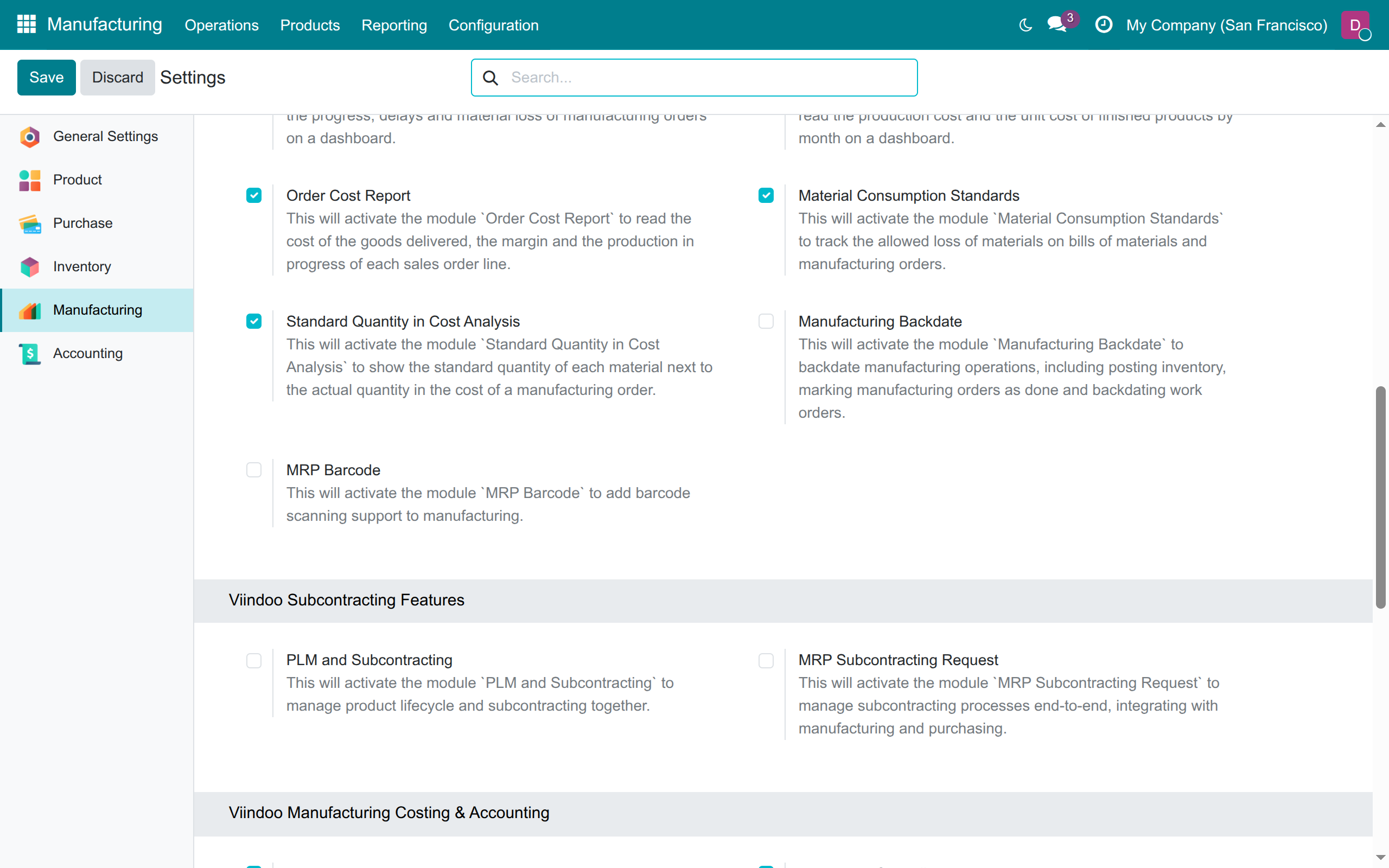
Once the report is on, it is listed under Accounting ‣ Reporting ‣ Manufacturing Reports, in the same folder as the Production Cost Report, and under Manufacturing ‣ Reporting.
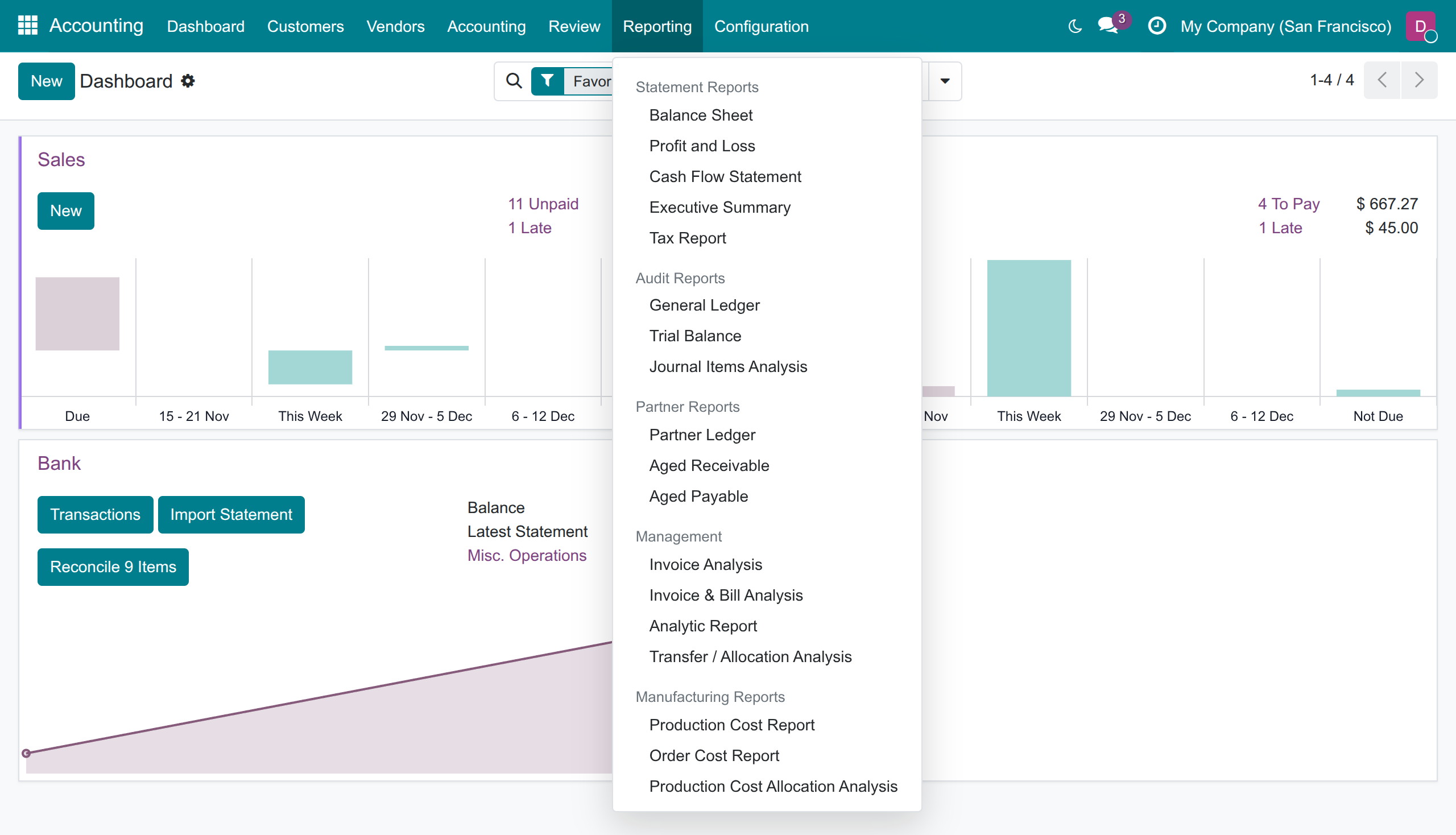
The entry under Manufacturing ‣ Reporting is shown to users who can open the Manufacturing app and hold an accounting right.
Access rights
Open Settings ‣ Users & Companies ‣ Users and give each person the access right of their role, as listed in the table of the Overview.
- The report, the Order Cost button of the sales order and the buttons of the report lines are for the users who hold Accounting / Auditor - Readonly or Accounting / Invoicing & Banks. A user without one of them does not see the menu and is refused when opening the report.
- The field Sales Order Line of the manufacturing order is for the users who hold Sales / User: Own Documents Only.
Each report belongs to the user who opened it: nobody else reads the lines of a report you computed.
Production planner: link a manufacturing order to a sales order line
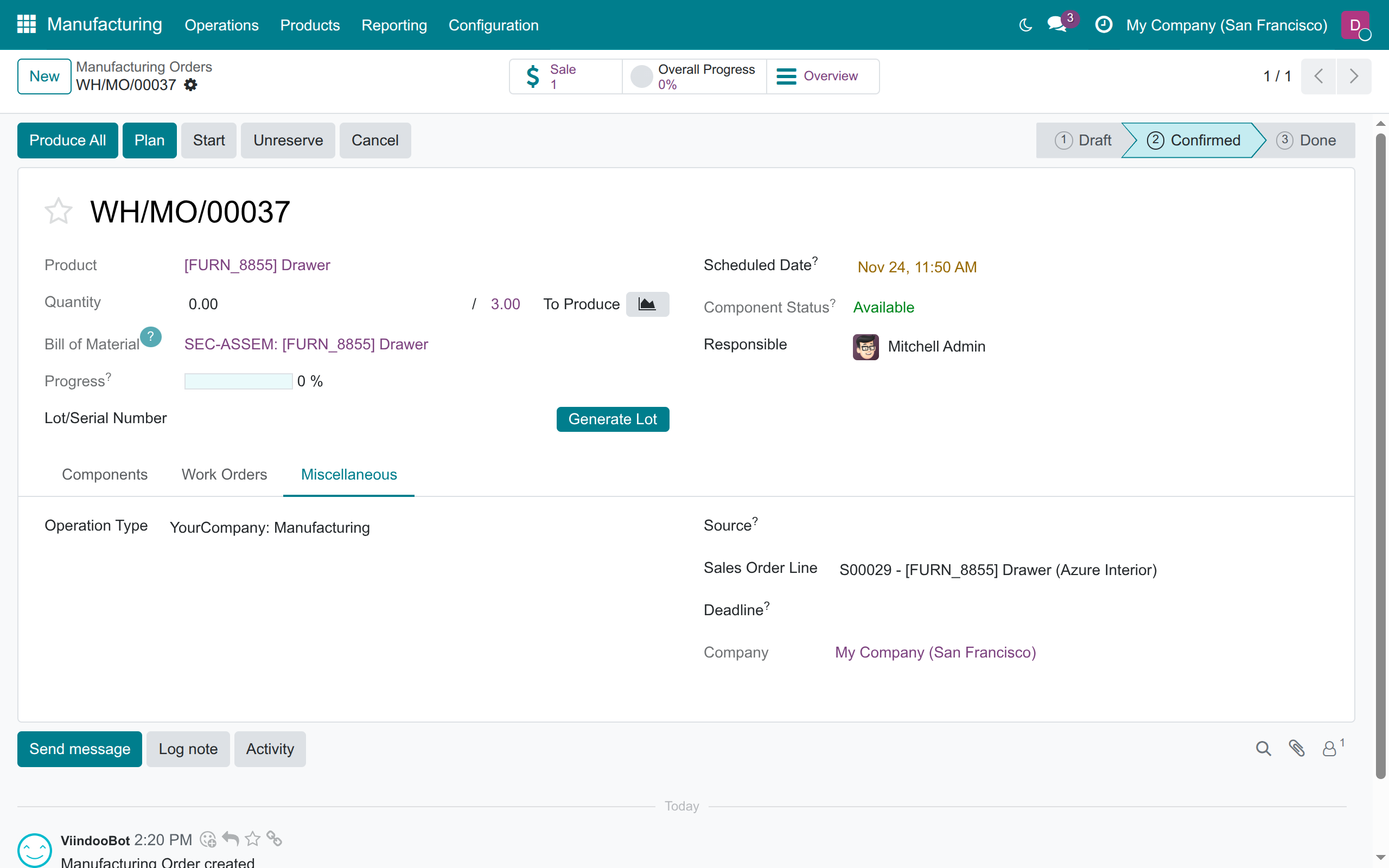
The goods in progress of an order are counted from the manufacturing orders linked to its sales order line. An order made to order is linked by the system. An order you made by hand, for example to build stock for a customer you already sold to, is linked on its form.
Link a manufacturing order made by hand
Open Manufacturing ‣ Operations ‣ Manufacturing Orders and open the order.
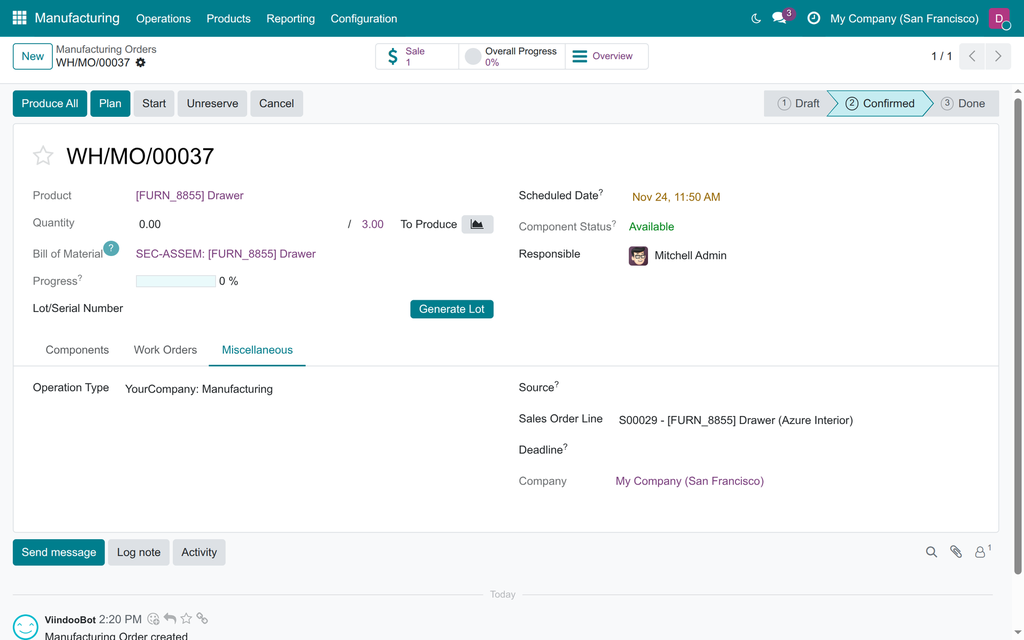
Open the tab Miscellaneous.
In Sales Order Line, pick the sales order line. The list offers the lines of confirmed sales orders of the same company for the product of the manufacturing order.
Save the order.
The field is read-only once the order is done or cancelled. Users without a sales right do not see it. In the sample, the order WH/MO/00037 is linked to the Drawer line of S00029: it is confirmed and not produced yet, so the goods it will make count as In Production for the Order for that line.
Cost accountant: read what each order cost and earned
Open the report for a period, some customers or some orders
Open Accounting ‣ Reporting ‣ Manufacturing Reports ‣ Order Cost Report.
Choose what the report covers:
- Orders Delivered in the Period: From and To, the first and the last day of the current month at first. The report holds the confirmed sales orders that had goods delivered to a customer, or returned by a customer, in the period. Deliveries to a customer by drop shipping are not counted.
- Customers: only the orders of these customers delivered in the period.
- Sales Orders: the report shows these orders whatever the dates of their deliveries. Once you choose orders, the period and the customers are hidden. Only confirmed orders of the company are offered.
- Company: shown to users who work in several companies. A report covers one company at a time and its amounts are in the currency of that company.
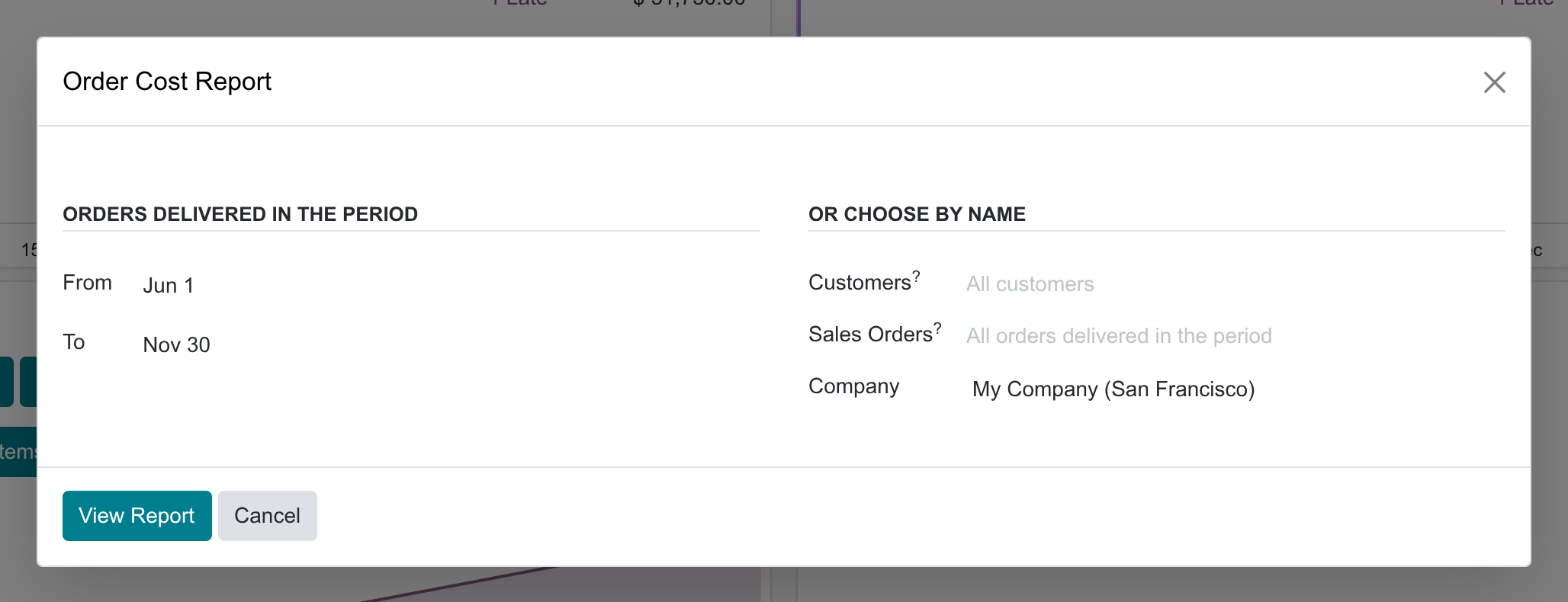
Click View Report.
The report opens as a list titled Order Cost Report followed by the period, or by the names of the orders. A period without any delivery gives an empty list with the message No delivery to report.
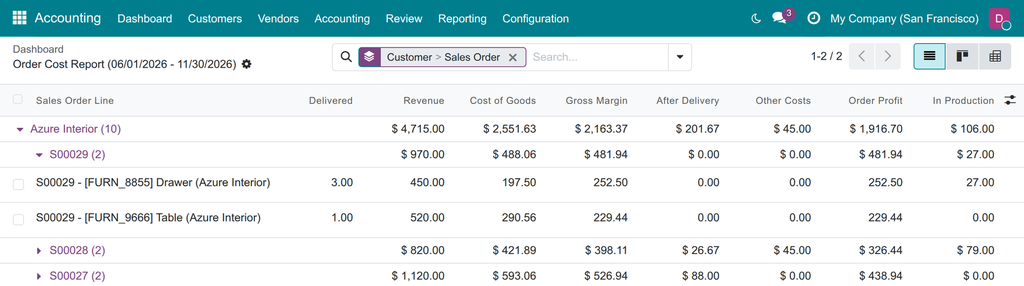
Read the lines of the report
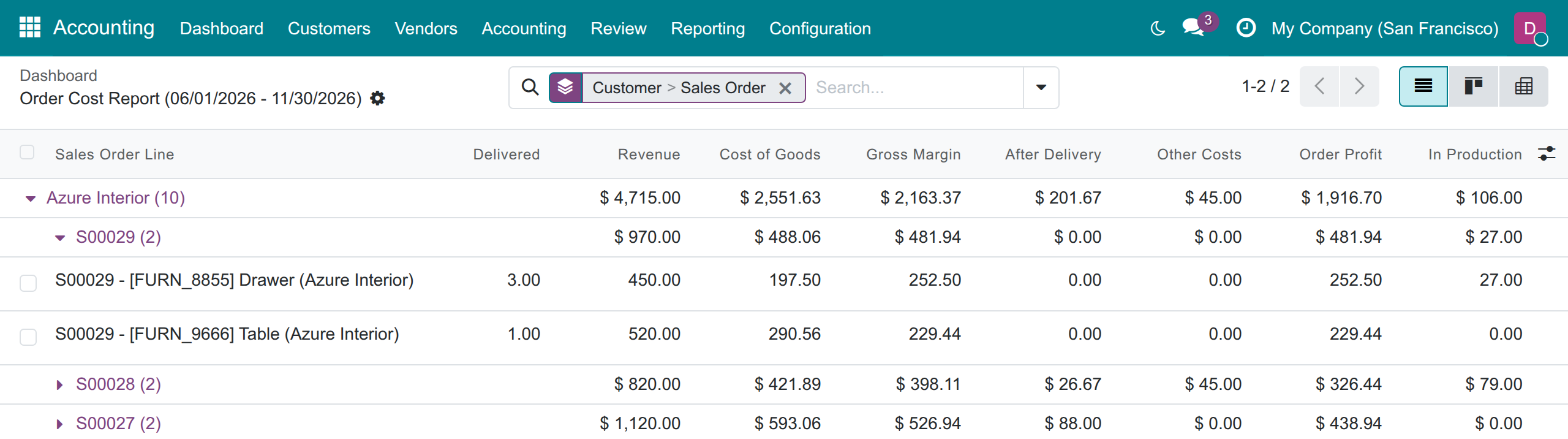
Each row is a sales order line. The list is grouped by Customer and then Sales Order: click a customer, then an order, to open it. Down payments, sections and notes are left out.
The columns read from left to right:
- Delivered is the quantity delivered to the customer less the quantity returned, in the unit of the order line. For a kit it is the number of whole kits.
- Revenue is the untaxed amount after discount of the quantity delivered, in the currency of the company at the rate of the order. A service, a fee, a discount or a reward counts as revenue with no cost of goods. A product that is not tracked in stock counts as the order invoices it.
- Cost of Goods is the value of the goods delivered less the goods returned, as inventory valuation recorded it: the valuation method of the product (FIFO, average cost, valuation by lot or standard cost) decides the value, and a delivery in one, two or three steps counts once.
- Gross Margin is the revenue less the cost of goods.
- After Delivery is the part of the costs allocated to the manufacturing orders that made the goods which was not in the value of the goods, because the goods had already left stock when the allocation was validated: delivered to a customer or used by another manufacturing order. It follows the goods to the order that received them and is not in the cost of goods.
- Other Costs are the expenses posted on an analytic account that only this order carries, for example a freight bill, other than goods tracked in stock, stock moves and manufacturing orders. An order's other costs are shared among its lines by revenue.
- Order Profit is the gross margin less the costs allocated after delivery and the other costs. A negative profit is shown in red.
- In Production is the value, at the time you open the report, of the finished goods of the manufacturing orders of the line that are not delivered yet, of the semi-finished products made for the order and not used yet, and of the work in progress of its manufacturing orders. It is a management figure of the moment, not the balance of an account.
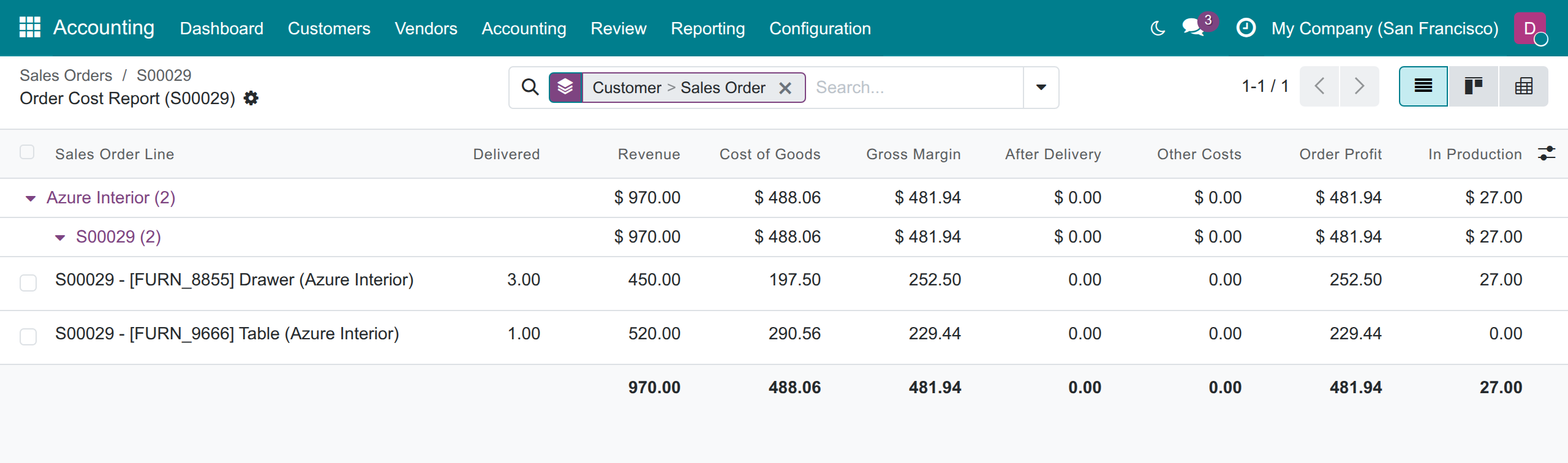
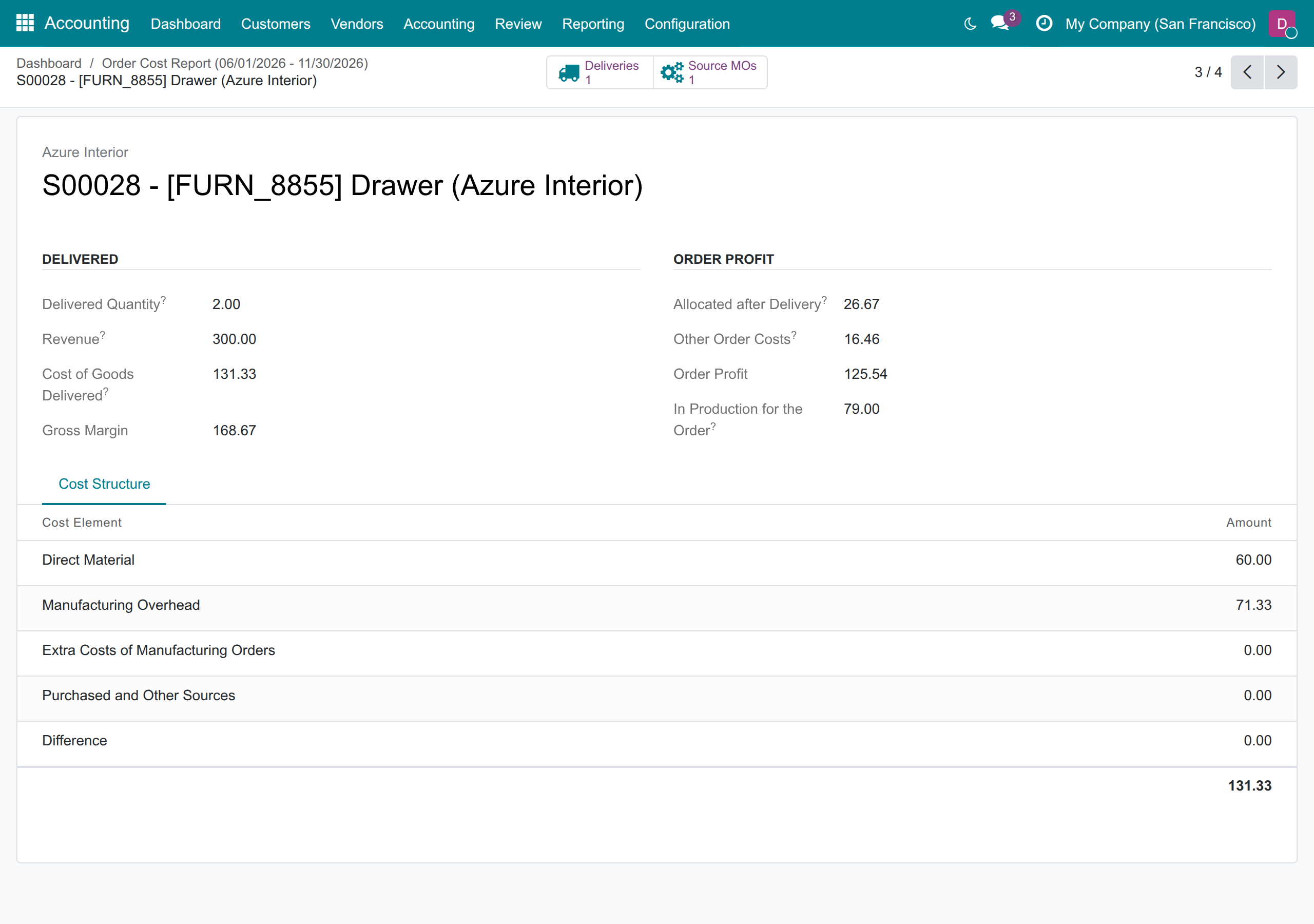
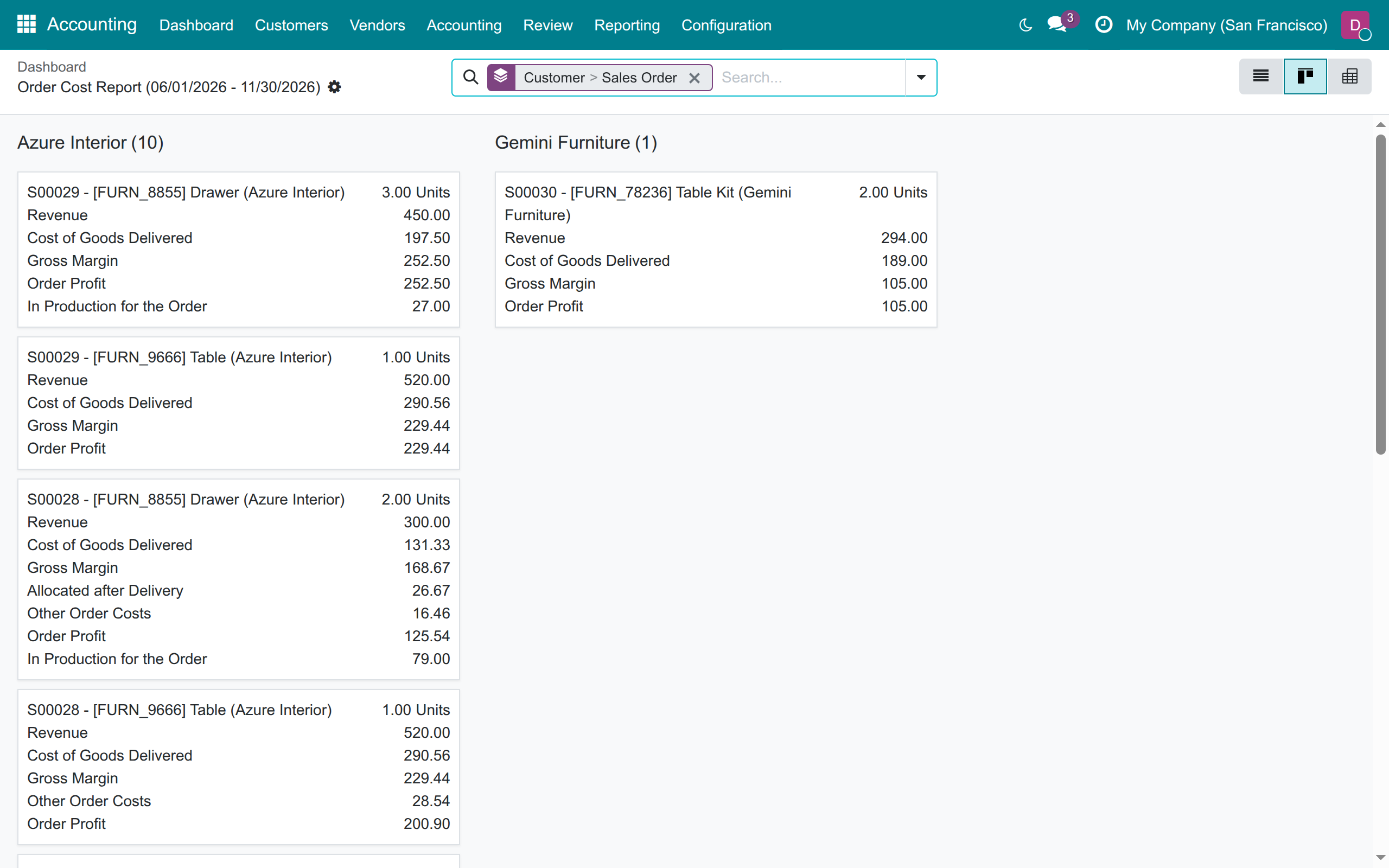
In the sample, the Drawer line of S00029 shows 3.00 delivered, a revenue of 450.00, a cost of goods of 197.50 and a gross margin of 252.50. Nothing is allocated after delivery and there is no other cost, so the order profit is 252.50, and 27.00 is still in production for the line. The Drawer line of S00028 delivered 2 of the 3 ordered: a revenue of 300.00, a cost of goods of 131.33 and a gross margin of 168.67. It carries 26.67 allocated after delivery and 16.46 of other costs, so the order profit is 125.54, and 79.00 is still in production. The other costs of S00028, 45.00, are shared between its two lines by revenue: 16.46 for the Drawer (revenue 300.00) and 28.54 for the Table (revenue 520.00).
Show more columns. Click the button at the right of the headers to show the optional columns: Customer, Sales Order, Product, and the three cost elements Direct Material, Direct Labor and Manufacturing Overhead.
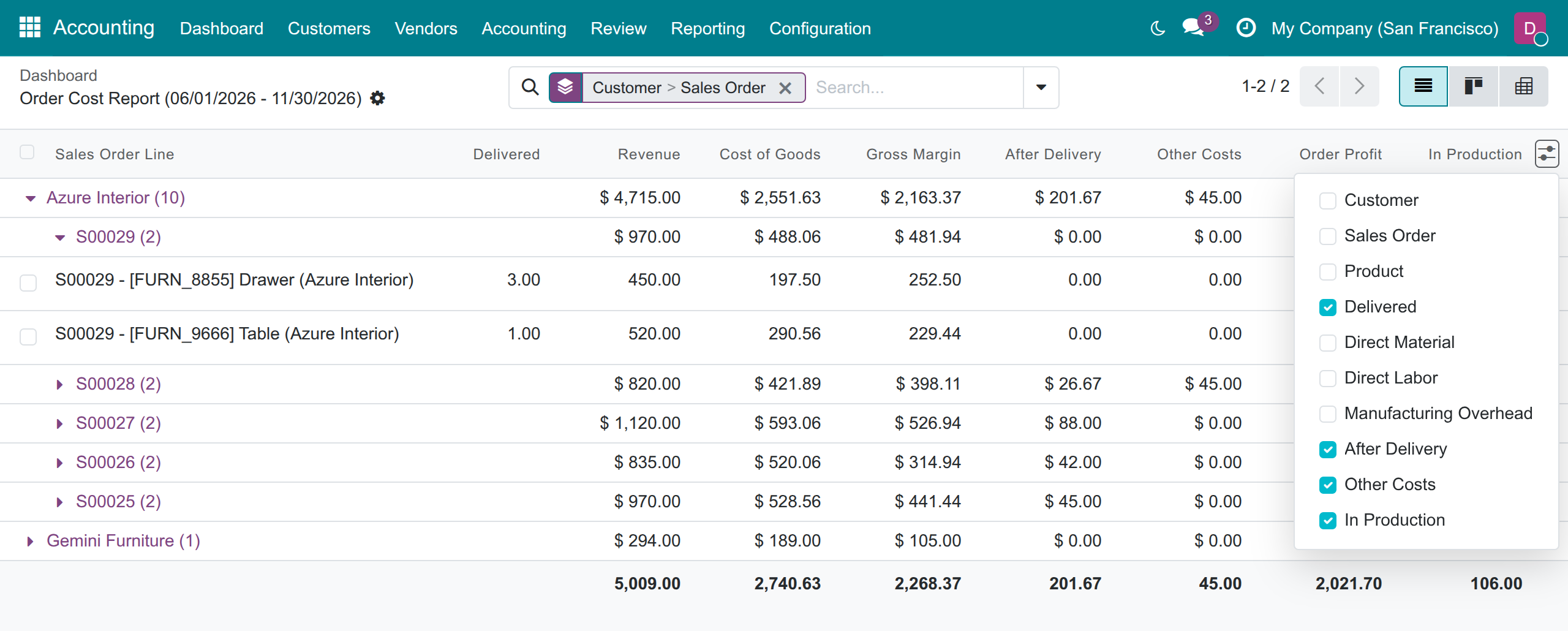
Filter and group. Open the search options.

- Loss keeps the lines whose order profit is below zero.
- In Production keeps the lines that still have something in production.
- Group By offers Customer, Sales Order and Product. The search field finds a sales order line, a sales order, a customer or a product.
Cards. The card view shows each line as a card: its name and quantity, then the revenue, the cost of goods delivered, the gross margin and the order profit. Allocated after Delivery, Other Order Costs and In Production for the Order appear on the card only when they are not zero.
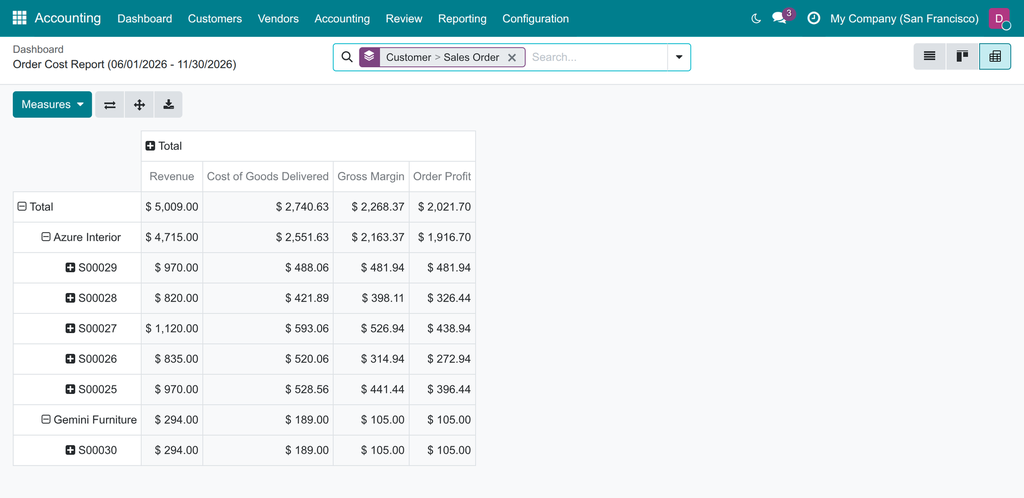
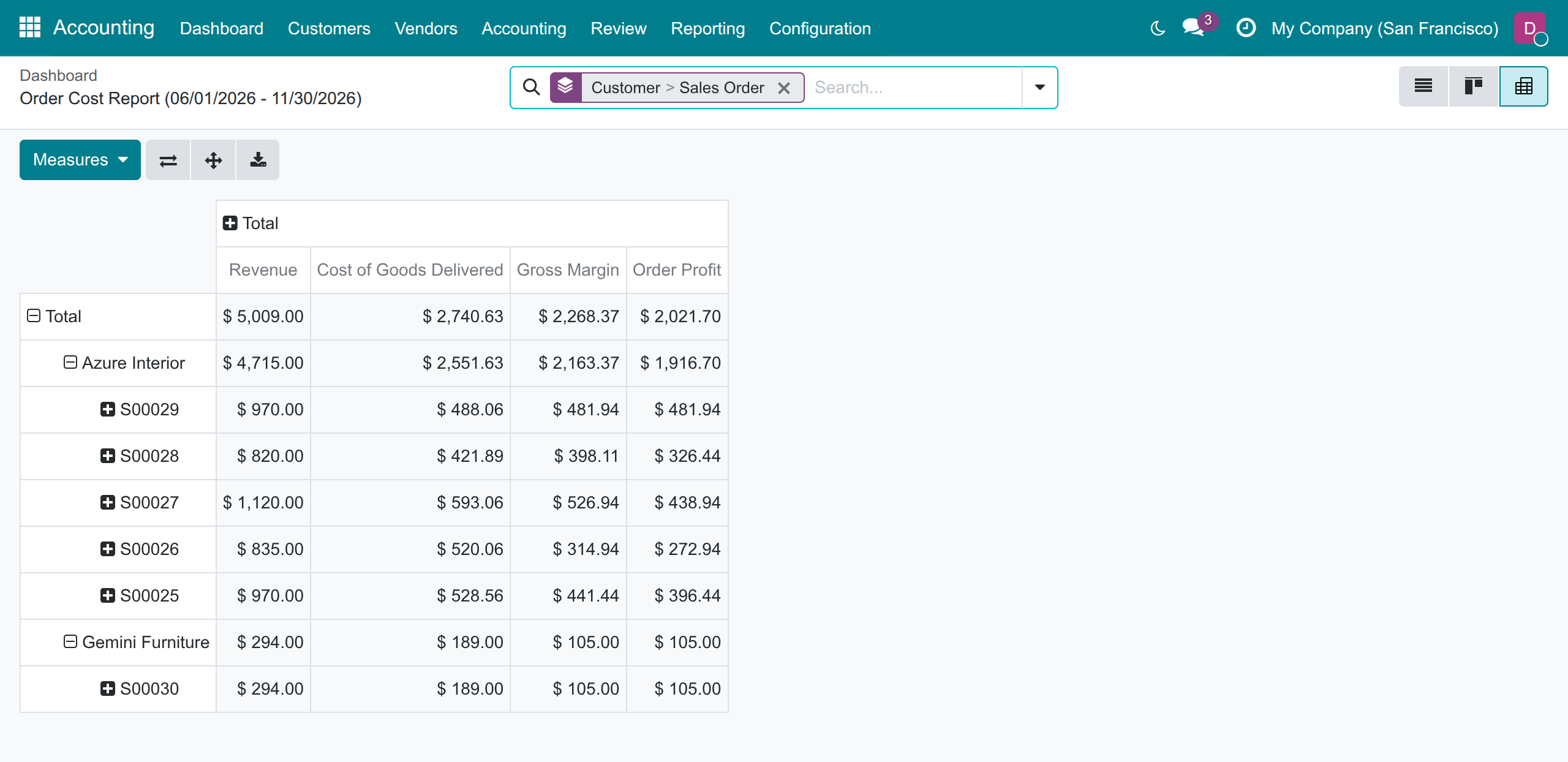
Pivot. The pivot view totals the revenue, the cost of goods delivered, the gross margin and the order profit by customer and by order, following the grouping of the search bar. Use Measures to add or remove a figure and click a header to group by another criterion.
In the sample, the customer Azure Interior has a revenue of 4,715.00 and an order profit of 1,916.70 over its five orders.
Read the cost structure of a line
In the list, click a line to open it.
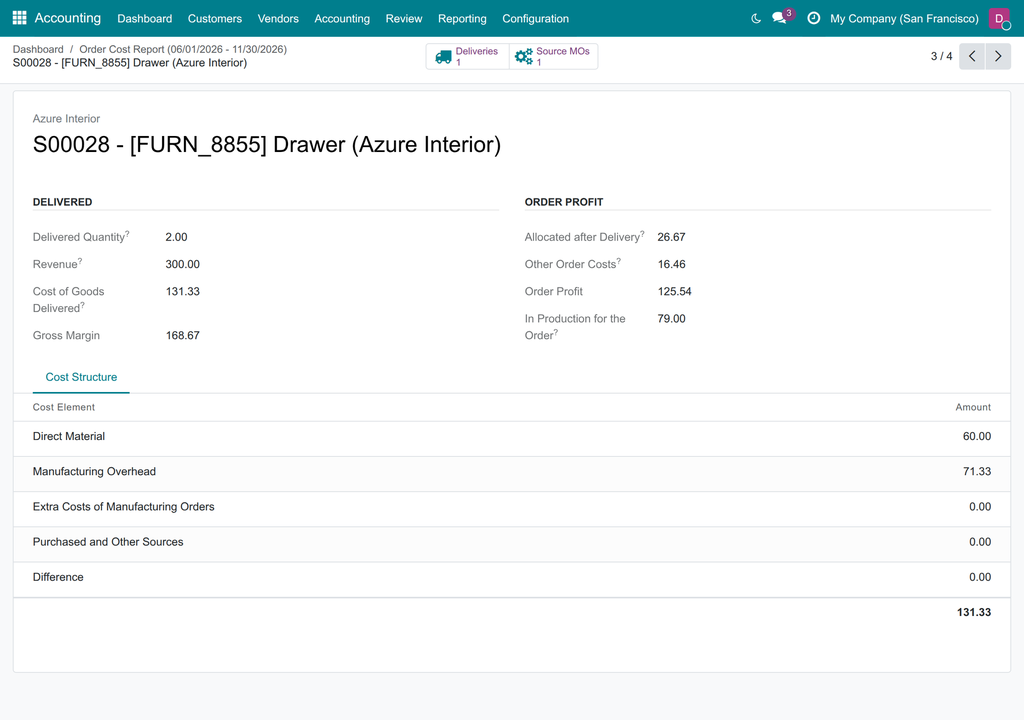
Read the sections Delivered and Order Profit: the quantity, the revenue, the cost of goods, the gross margin, the costs allocated after delivery, the other order costs, the order profit and what is in production.
Open the tab Cost Structure. It breaks the cost of goods delivered down by cost element, with the total below:
- Direct Material, Direct Labor and Manufacturing Overhead, as the Production Cost Report computes them for the manufacturing orders that made the goods. Labor and overhead are listed by manufacturing cost type, shown as "Direct Labor - cost type" when the name of the type differs from the name of the element; a cost type without an amount is not listed.
- Extra Costs of Manufacturing Orders.
- Purchased and Other Sources: the part of the goods that no manufacturing order made, at the value of the delivery.
- Difference, which keeps the total of the elements equal to the cost of goods delivered.
The manufacturing orders that made the goods are found the way inventory valuation takes the goods. A product made to order comes from the order that made it. A product tracked by lot or serial number comes from the orders that made the lot or serial number it took, when it is valued by lot or when it is at standard cost: core keeps no price layer per order for a standard cost product, and its serial number tells which order made the unit. Any other product is taken as its valuation takes it: a FIFO product from the oldest receipts not consumed before, and a product at average cost, or at standard cost without lot or serial tracking, from the same share of every order that contributed to the stock. Only the orders of the company of the report count; what another company made is counted as Purchased and Other Sources. One manufacturing order that served several orders is split by the quantities actually delivered to each of them; an order line served by several manufacturing orders takes the sum of the parts; a semi-finished product shared by several finished products is split by what each of them consumed.
In the sample, the Drawer line of S00028 costs 131.33: 60.00 of materials and 71.33 of overhead, with no labor line because no cost type of direct labor carries an amount, and a difference of 0.00. The Table is valued at its standard cost, 290.56, and tracked by serial number: each unit takes its elements from the order that made its serial number, and the difference is the variance of that order to the standard cost. Its line of S00029 has 292.98 of materials and 20.00 of overhead and a difference of -22.42; the difference is 36.10 on S00025, 36.07 on S00026, -38.02 on S00027 and -35.42 on S00028.
What the Difference holds. It is zero when the cost elements add up to the cost of goods. It collects:
- for a product at standard cost, the gap between the real cost of the manufacturing order and the standard cost;
- for a make-to-order delivery, the older price layer that stock issued first: the elements are the cost of the order made for the sales order while the cost of goods is the value stock computed;
- for a product at FIFO or valuation by lot that was both made and bought, the gap between the two price layers of a delivery taken from both sources;
- the allocation of goods that a customer returned, when the allocation was validated between the first delivery and the second delivery of those goods, on the order that received them;
- a late correction of the consumption of a manufacturing order whose goods were already delivered: the cost of the order changes in the reports while the delivery keeps its value;
- rounding.
With average cost, the split into elements follows the convention of sharing the cost evenly among the sources in stock, and the difference keeps the part the convention cannot place.
Costs on shared accounts. An analytic account is shared when two or more confirmed sales orders carry it; a quotation or a cancelled order does not make it shared. The expenses on a shared account are shown on the tab Costs on Shared Accounts, by account, on each order that carries it. They are not subtracted from the profit of any order. The tab is shown only when it has a line.
Customer returns
A return takes off the delivery it sends back: the quantity, the revenue and every cost element of the line go down by the part returned, and so do the costs allocated after delivery. The part is the share of the value of the delivery that came back, or the share of the quantity when the delivery has no value. A return that names no delivery takes the same share off every delivery of the line.
Goods that a customer returned and that are delivered again, or consumed by a manufacturing order, remain the goods of the manufacturing orders that made them: the order that receives them is costed by the elements of those manufacturing orders, not as Purchased and Other Sources. The goods that came back are stock again: they are not counted as In Production for the order that sold them.
Open the report from a sales order
Open Sales ‣ Orders ‣ Orders and open a confirmed sales order.
Click the button Order Cost at the top of the form.

The button is shown on confirmed orders to the users who hold an accounting right.
The report of that order opens.
The report counts the order as of the moment you open it. Open it again to follow later deliveries.
Follow a line to its deliveries and its manufacturing orders
On a line of the report, two buttons lead to the documents behind the figures:
- Deliveries opens the transfers of the line, the deliveries to the customer and the returns.
- Source MOs opens the Production Cost Analysis of the manufacturing orders that made the goods, with the materials, the labor and the overhead of each order. The button appears when the line has such orders.
In the sample, the Drawer line of S00029 has one delivery and one source manufacturing order.
The figures are the report of the moment it is opened. The revenue of the report is the revenue of the quantity delivered at the price and the rate of the order; it differs from the revenue in the ledger, which follows the invoices, the credit notes and the rate of the invoice date. Goods delivered directly by a supplier are outside the report: a line delivered by drop shipping has no quantity delivered and no cost of goods.
This software and associated files (the "Software") may only be used (executed, modified, executed after modifications) if you have purchased a valid license from the authors, typically via Odoo Apps, or if you have received a written agreement from the authors of the Software (see the COPYRIGHT file).
You may develop Odoo modules that use the Software as a library (typically by depending on it, importing it and using its resources), but without copying any source code or material from the Software. You may distribute those modules under the license of your choice, provided that this license is compatible with the terms of the Odoo Proprietary License (For example: LGPL, MIT, or proprietary licenses similar to this one).
It is forbidden to publish, distribute, sublicense, or sell copies of the Software or modified copies of the Software.
The above copyright notice and this permission notice must be included in all copies or substantial portions of the Software.
THE SOFTWARE IS PROVIDED "AS IS", WITHOUT WARRANTY OF ANY KIND, EXPRESS OR IMPLIED, INCLUDING BUT NOT LIMITED TO THE WARRANTIES OF MERCHANTABILITY, FITNESS FOR A PARTICULAR PURPOSE AND NONINFRINGEMENT. IN NO EVENT SHALL THE AUTHORS OR COPYRIGHT HOLDERS BE LIABLE FOR ANY CLAIM, DAMAGES OR OTHER LIABILITY, WHETHER IN AN ACTION OF CONTRACT, TORT OR OTHERWISE, ARISING FROM, OUT OF OR IN CONNECTION WITH THE SOFTWARE OR THE USE OR OTHER DEALINGS IN THE SOFTWARE.