
Master Production Schedule
| Lines of Code | 2880 |
| Technical name | viin_mrp_mps |
| License | OPL-1 |
| Website | https://viindoo.com/apps/modules/19.0/viin_mrp_mps |
| Read description for | v 10.0 v 11.0 v 12.0 v 13.0 v 14.0 v 15.0 v 16.0 v 17.0 v 18.0 |
| Required Apps | Manufacturing (mrp) Invoicing (account) Purchase (purchase) Discuss (mail) Inventory (stock) |
| Extensions | Master Production Schedule - Subcontracting |

Make and buy ahead of demand, period by period
For manufacturers who plan production and purchasing from a demand forecast
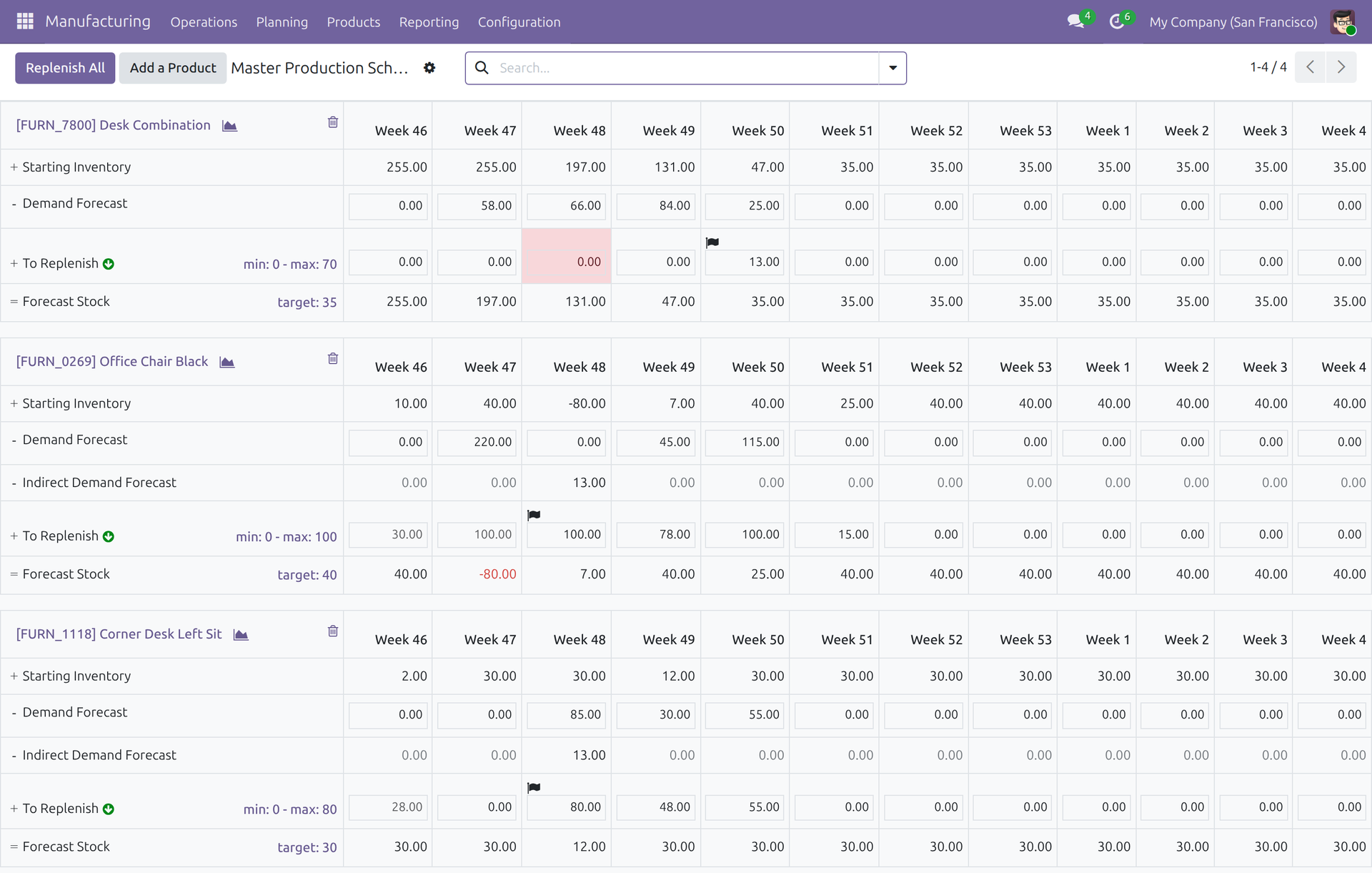
Plan manufacturing and purchasing period by period from demand forecasts, and launch the orders from one screen.
Odoo 19.0 · Odoo Community · Viindoo Cloud · OPL-1
What changes for your team
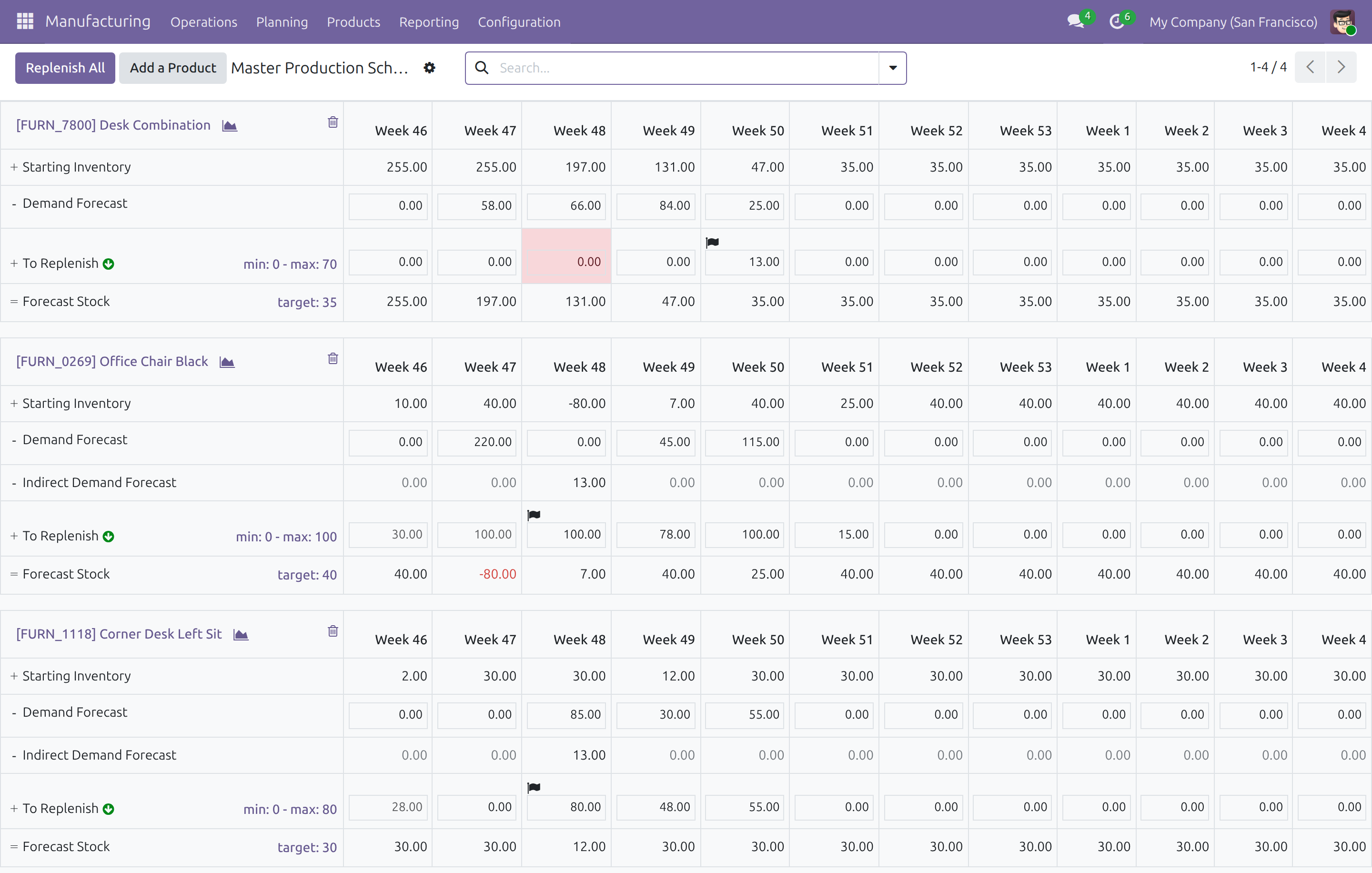
Components are planned before production starts
Today: component needs are worked out by hand from the bills of materials, and buying waits for the manufacturing order.
→ What the plan replenishes for a manufactured product becomes demand for its planned components, in the period they are needed, level after level. Components can be bought before the manufacturing order exists.
Every period shows what it still needs
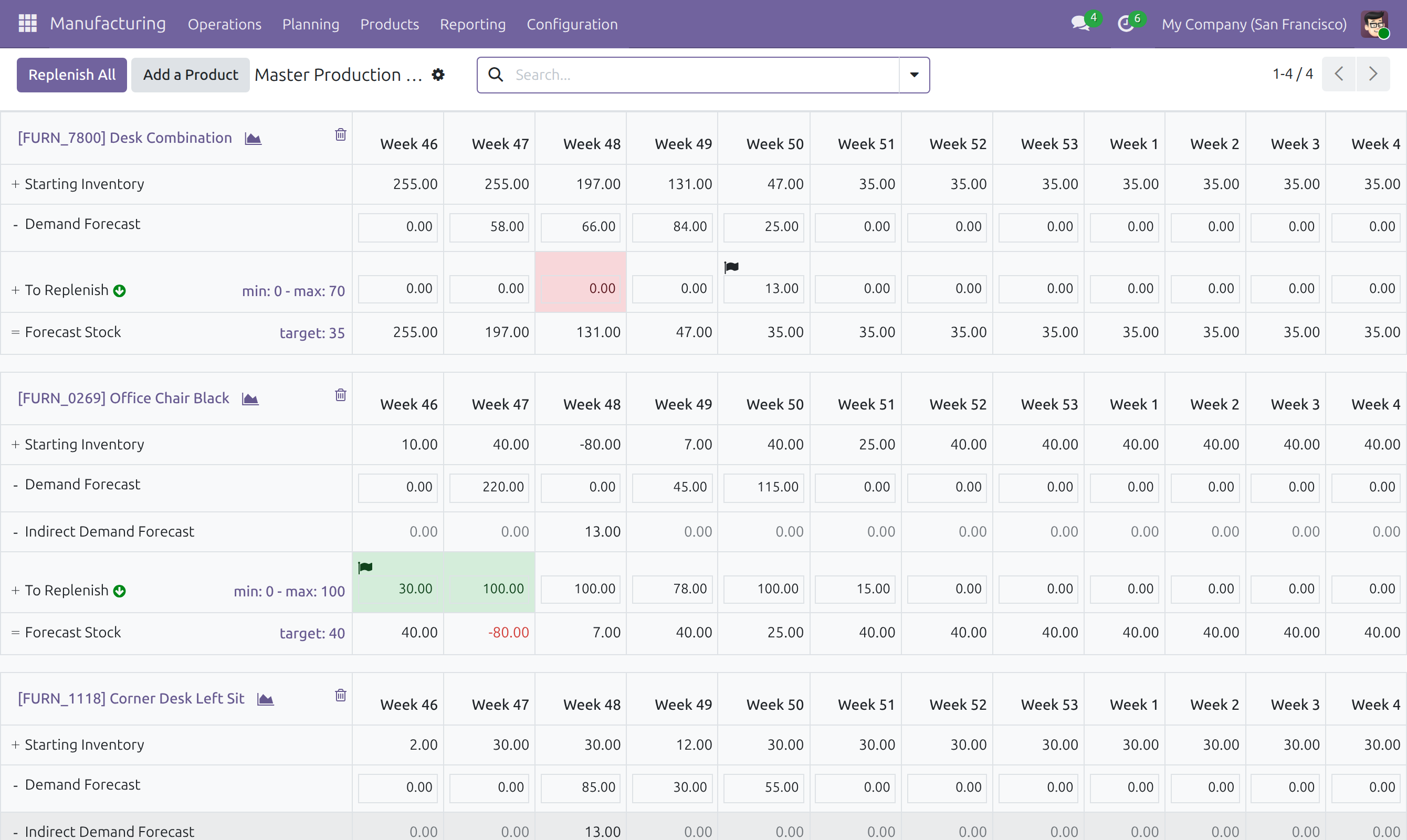
Today: knowing whether a week is already ordered means searching the open purchase and manufacturing orders.
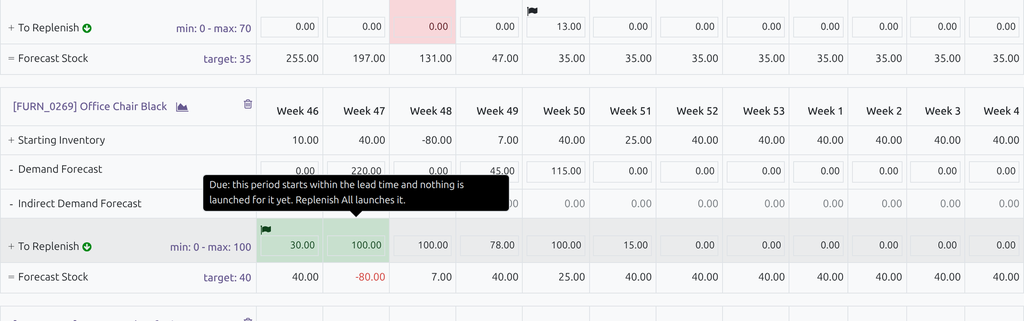
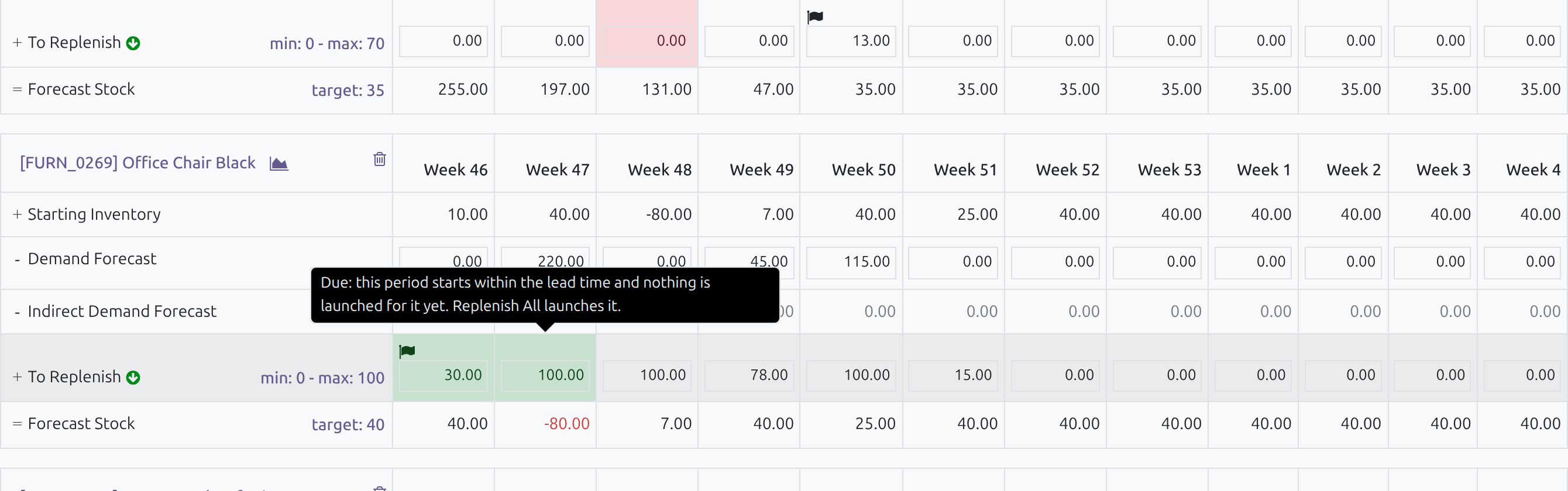
→ A period is marked Due once its lead time starts, then Launched, Launched for less than needed or More is coming than needed as orders follow; hovering a quantity explains its state. A flag marks the period Replenish Product launches next.
Orders are launched from the plan
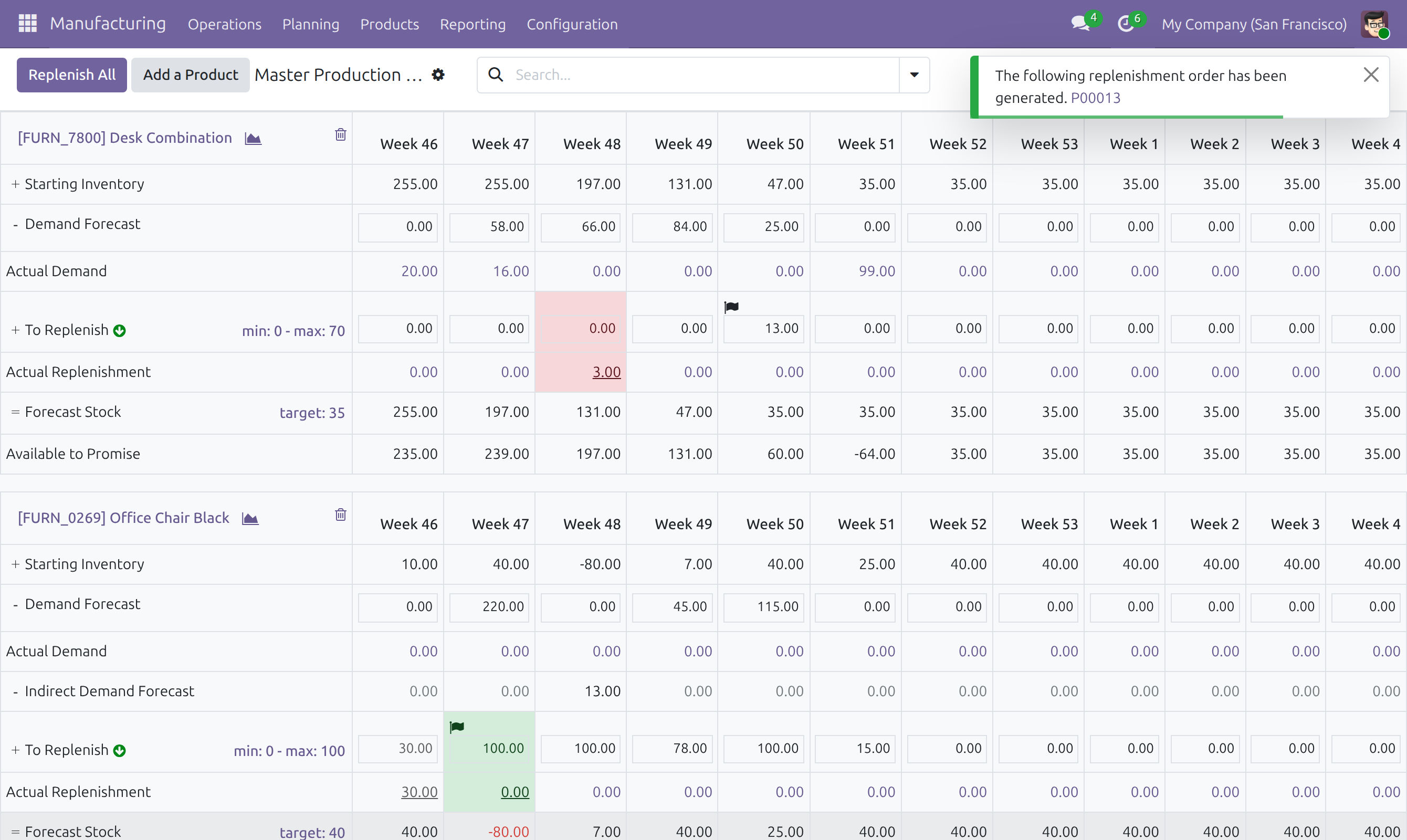
Today: the plan is typed again into requests for quotation and manufacturing orders, one by one.
→ Replenish Product launches the next period still to order of one product and names the order it created; Replenish All launches every due period on the page. Each order follows the product's replenishment rule: a manufacturing order, a request for quotation or a transfer.
Ready on day one
A forecast template
Download the spreadsheet template, fill in product, warehouse, date and demand, and import it. A file with a mistake imports nothing and names the row.
Many products at once
Select products in a product list and add them to the plan; products already planned, kits and products that are not goods are skipped.
What you set first
Give planners the Manufacturing / Administrator access right, then set each product's safety stock target and its minimum and maximum per period.
What is included
Planning per product and warehouse; demand forecasts typed in the plan or imported; component demand through multi-level bills of materials; a state for every period; replenishment by manufacturing order, request for quotation or transfer; and the orders and transfers behind each period, one click away.
Optional extensions
Master Production Schedule - Subcontracting
Plans the components your warehouse supplies to subcontractors. It installs by itself alongside Purchase and Subcontracting Management.
Before you decide
Does the plan order anything on its own?
No. Nothing is created until a planner presses Replenish Product or Replenish All. The computed quantity of a period never exceeds the maximum set for the product, and a quantity typed by hand is kept as typed.
Who sees and changes the plan?
Only users with the Manufacturing / Administrator access right open the plan, add products and launch orders. Plans and forecasts stay within each user's allowed companies, and the rows and period chosen are shared by everyone planning in the same company.
Where does the data live?
In your Odoo database; the module calls no outside service. The orders it launches are standard manufacturing orders, requests for quotation and transfers, with MPS as their source.
Which languages does it ship?
English and Vietnamese: the plan, the explanation of each state and every message.
What are the limits?
A product is planned once per warehouse. A product whose own bill of materials is a kit cannot be planned: plan its components, or the product that contains it. Forecasts are imported from a computer, not from a phone.
Try it, then ask us
The Documentation tab walks through the setup and every planner task, screen by screen.
Pre-sales & partnership
viindoo.com/contactusTechnical support
viindoo.com/ticketTechnical requirements
- Odoo version: 19.0
- Editions: Odoo Community, Viindoo Cloud
- Required modules: Purchase Stock, Manufacturing, Base import
- License: OPL-1
- Languages: English, Vietnamese
Master Production Schedule
Master Production Schedule lets a planner decide ahead of time how much of each product to manufacture or buy in every period, from the demand they expect and the stock they want to keep. For each planned product the schedule shows, period by period, the starting stock, the forecast demand, the quantity to replenish and the stock that follows. A click launches the manufacturing order or the request for quotation for a period before the customer orders arrive.
This guide is written for two kinds of reader:
- System administrators install the module, choose what a column of the schedule covers and give planners their access right. See "Setup".
- Production planners (people with the access right Manufacturing / Administrator) plan products, forecast demand and launch the replenishment. See "Tasks for production planners".
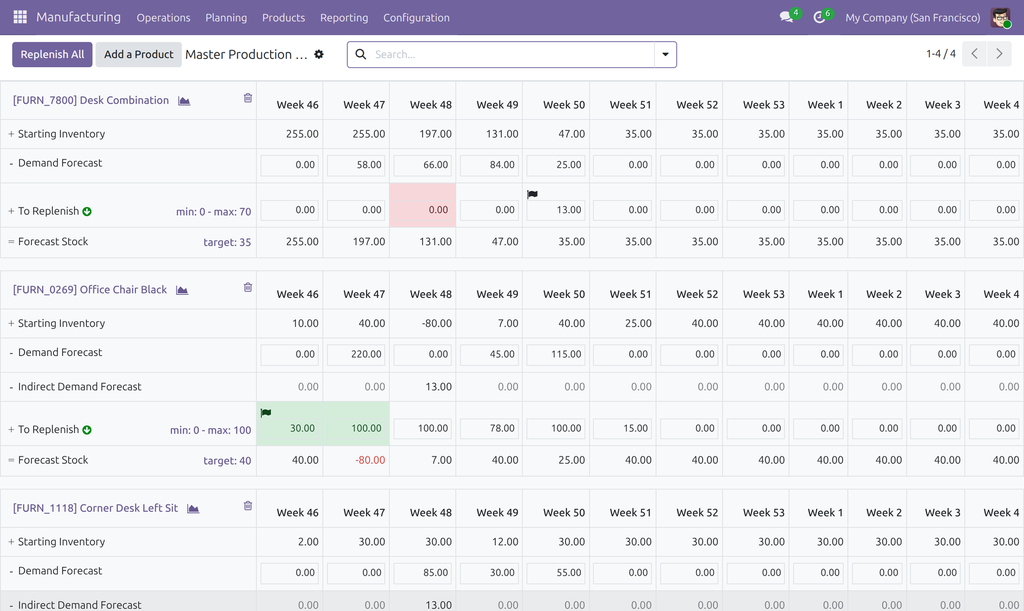
The screenshots use the demo data of a standard Odoo database: four products planned in the warehouse of My Company (San Francisco), with weekly columns.
Overview
The schedule works in four steps, all done by the production planner:
- Plan. Add the products to plan and enter, or import, the demand you expect in each period.
- Read. For each period the schedule works out the quantity to replenish. It takes the stock at the start of the period, subtracts the forecast demand and the demand of the products that use this one as a component, and brings the result back to the safety stock target, within a minimum and a maximum.
- Launch. Press Replenish Product on one product, or Replenish All for every period that is due. Odoo creates the manufacturing order, the request for quotation or the transfer that its replenishment rule gives for the product.
- Follow. The quantity being replenished appears in the schedule, the state of each period tells what remains to do, and the orders created go on to Manufacturing, Purchase or Inventory.
| Role | What they do | Access right to assign |
|---|---|---|
| System administrator | Installs the module, sets the period and the number of columns, gives each planner their access right | Role / Administrator |
| Production planner | Plans products, enters forecasts, launches the replenishment, follows what is on its way | Manufacturing / Administrator |
Setup (for the system administrator)
Installation
- Open Apps.
- Search for Master Production Schedule.
- Click Install.
The apps it needs are installed with it: Manufacturing, Purchase and Inventory. When the installation is done, Master Production Schedule appears under Manufacturing ‣ Planning.
Note
Do not use this module together with the Master Production Schedule app of the Enterprise edition: both plan the same records. On the Manufacturing tab of the settings, the line Master Production Schedule marked Enterprise belongs to that other app.
Planning period and number of columns
Each company has its own planning period and number of columns. A new company starts with weekly columns, twelve of them.
- Open Manufacturing ‣ Configuration ‣ Settings and stay on the Manufacturing tab.
- In the section Planning, find the block Master Production Schedule Periods.
- Under Planning Period, choose Monthly, Weekly or Daily. This is what one column of the schedule covers.
- In Columns, enter how many columns the schedule shows, from 1 to 1000.
- Click Save.
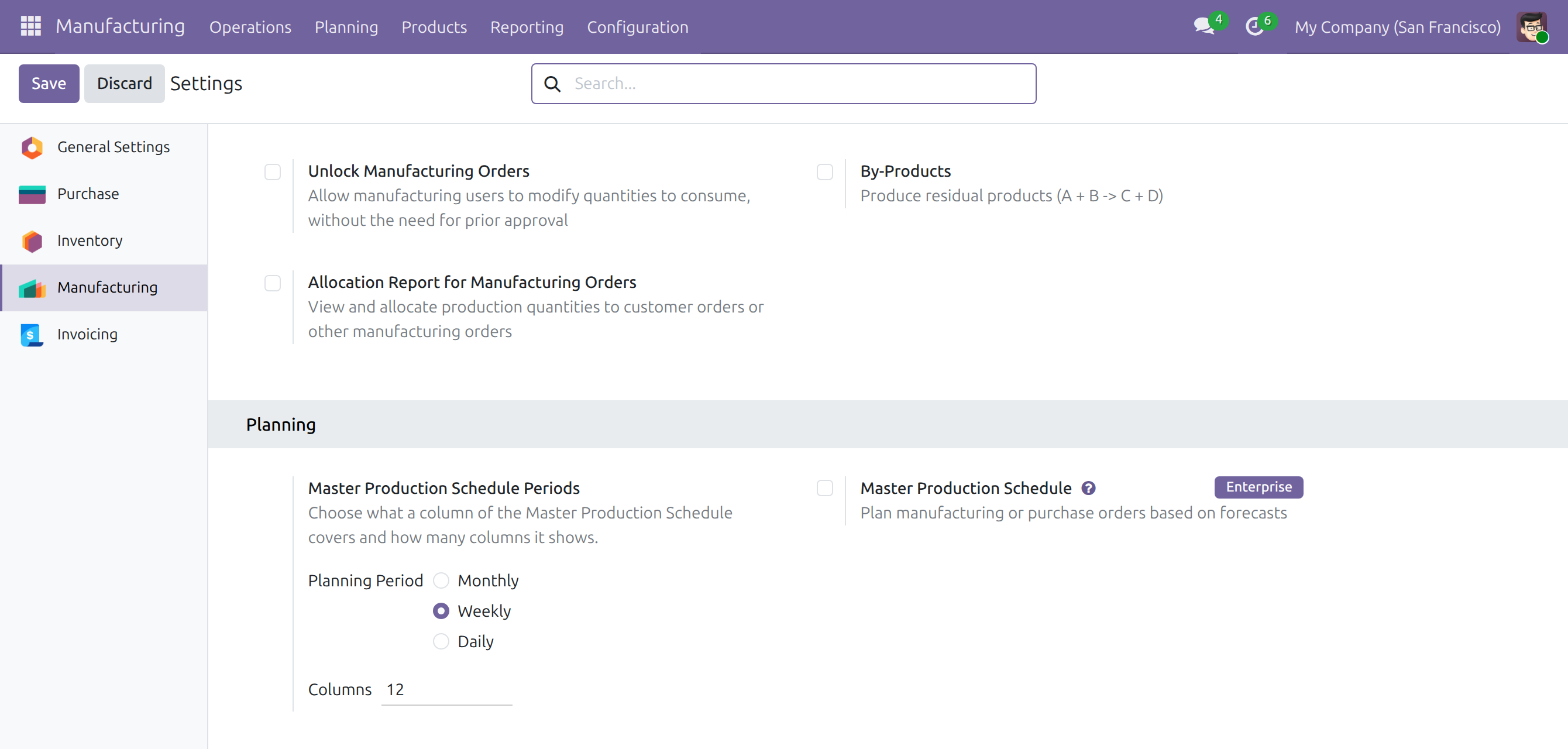
Planners can change the same two settings from the schedule itself. See "Choose the rows, the period and the columns".
Access rights
Give each production planner the access right Manufacturing / Administrator. Only people with this right see Master Production Schedule in the Planning menu, add products to it and launch a replenishment from it.
- Open Settings ‣ Users & Companies ‣ Users and open the user.
- On the tab Access Rights, in the section Supply Chain, set Manufacturing to Administrator.
- Click Save.
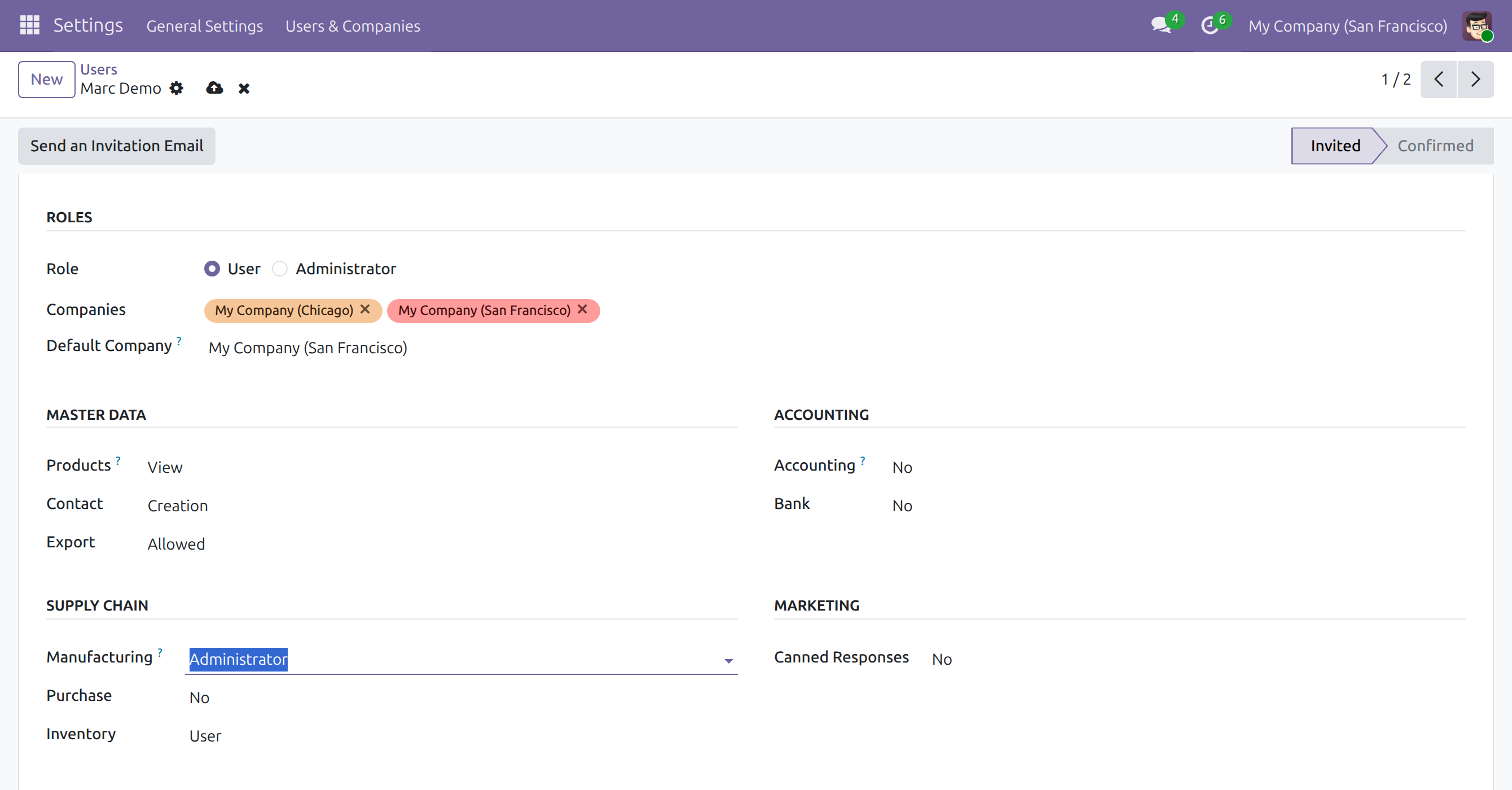
The schedule needs no other setting. Three optional items appear only where the database uses them: the field Warehouse when a company of the database has more than one warehouse, the field Company when you work with several companies, and the unit of measure next to a product when units of measure are enabled.
Tasks for production planners
Open the schedule
Open Manufacturing ‣ Planning ‣ Master Production Schedule. The schedule shows one block per planned product, 20 blocks per page. Each block has one column per period and the rows chosen for the company.
At the top of a block, the product name opens the product form, the chart icon opens the forecasted report of the product for the warehouse of the block, and the bin icon removes the product from the schedule.
The rows are:
| Row | What it shows |
|---|---|
| Starting Inventory | The quantity expected in stock at the start of the period. The first column starts from the stock of the warehouse today; each later column starts from the Forecast Stock of the column before. |
| Demand Forecast | The demand you expect in the period. You type it, or import it. |
| Actual Demand | What leaves the warehouse in the period on confirmed or done transfers. Click a number to open the transfers. Hidden by default. |
| Indirect Demand Forecast | The demand for this product as a component of the other planned products: what their replenishment needs, in the period it is needed. The row appears in a block only when the product has indirect demand. |
| To Replenish | The quantity to manufacture or buy in the period. It brings the Forecast Stock back to the safety stock target, never below the minimum and never above the maximum shown at the left of the row. |
| Actual Replenishment | What is already coming in the period: receipts, open requests for quotation and manufacturing orders. Click a number to open its details. Hidden by default. |
| Forecast Stock | The stock expected at the end of the period: starting inventory, minus forecast demand, minus indirect demand, plus the quantity to replenish. |
| Available to Promise | The quantity you can still promise at the end of the period: starting inventory plus the quantity to replenish, minus the actual demand. Hidden by default. |
A period is made of calendar days in your time zone.
For example, a product that has 10 in stock, a safety stock target of 40, a minimum of 0, a maximum of 100 and no forecast gets a To Replenish of 30: the quantity that brings the stock back to 40.
Choose the rows, the period and the columns
The rows, the period and the number of columns are kept for the company: everyone who plans in the same company sees the same schedule layout.
- Click the arrow at the right of the search box.
- In the section Rows, tick the rows to show and untick the rows to hide.
- In the section Planning Period, choose Monthly, Weekly or Daily. The column headings change to the month (for example Nov 2026), the week (Week 46) or the day (Nov 15).
- In Columns, enter a number from 1 to 1000. A number outside this range is refused.
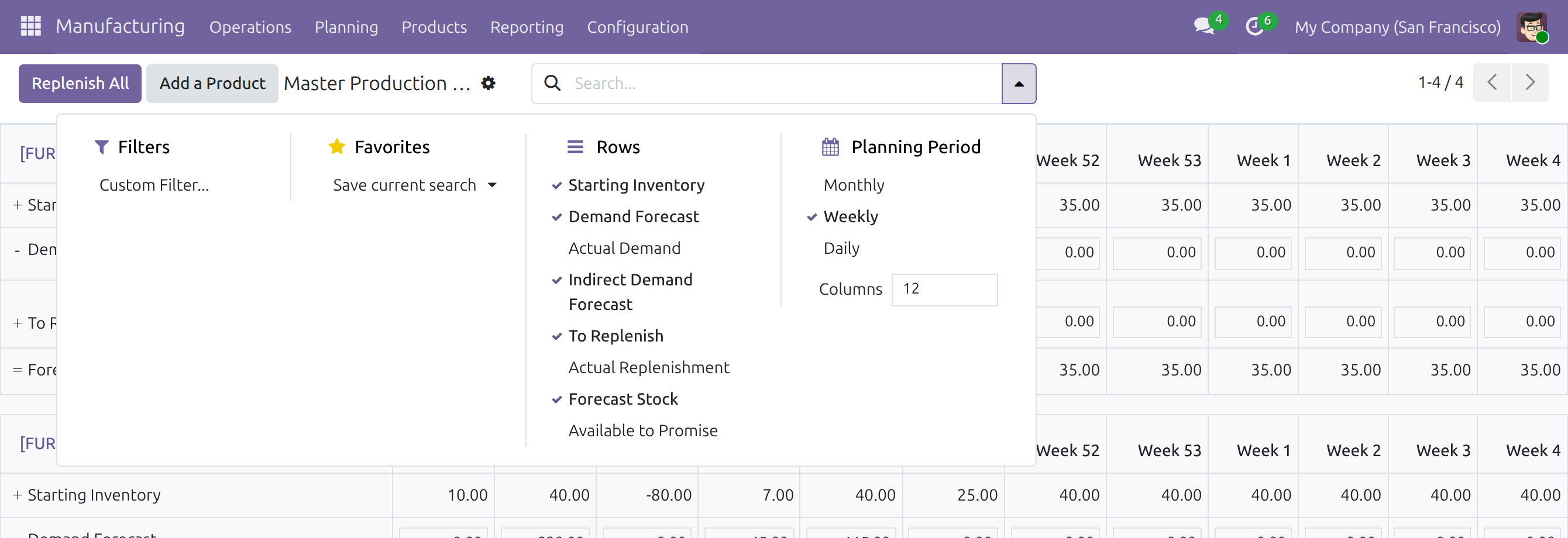
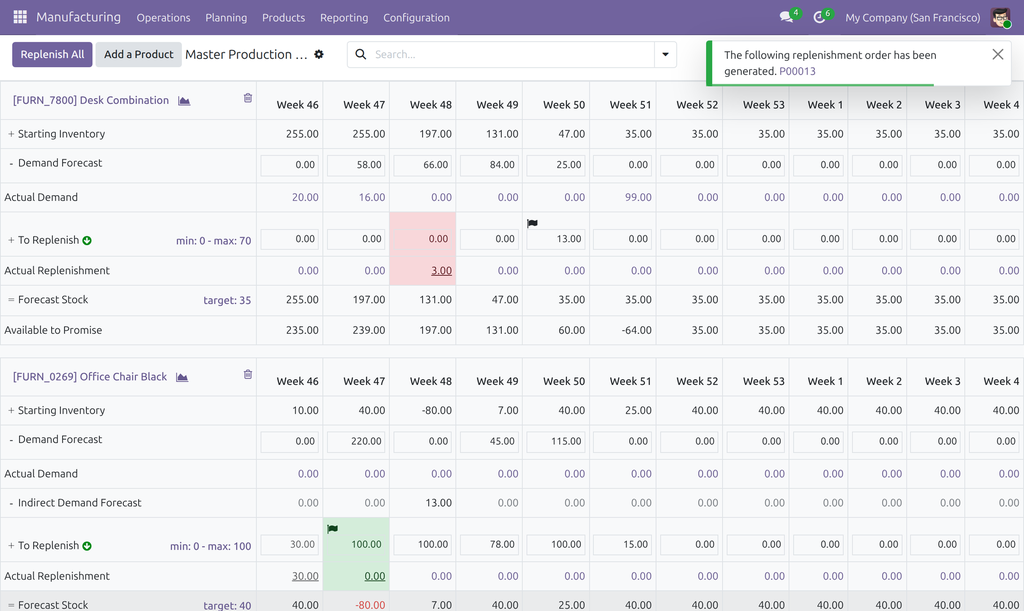
With every row shown, a block looks like this:
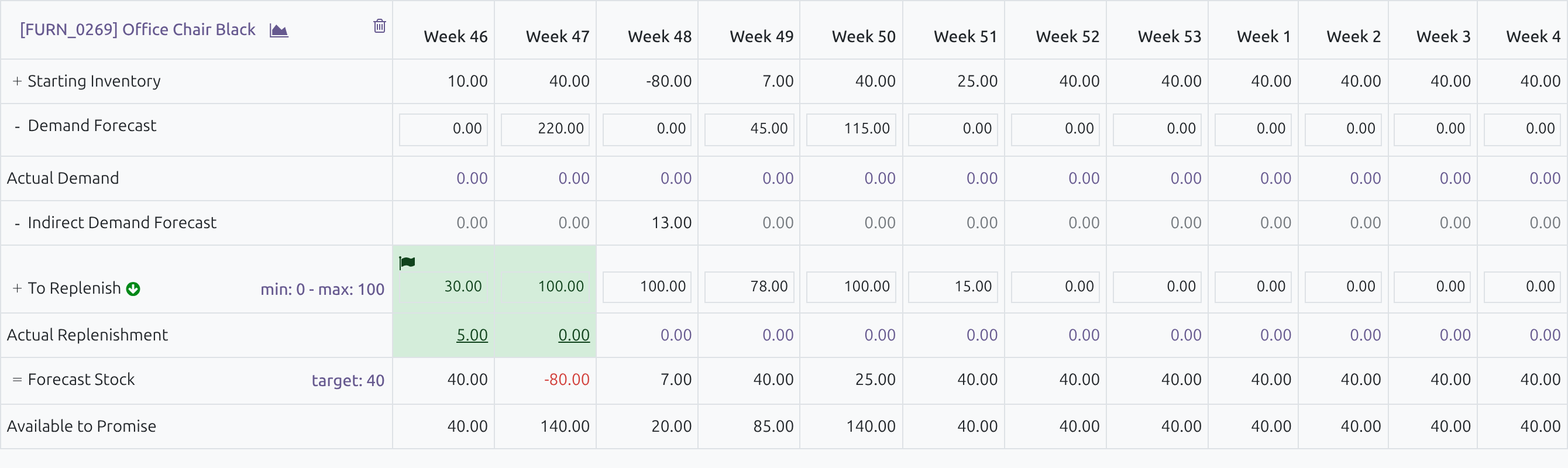
Point at a row label to read what the row holds.
Add a product
- Open Manufacturing ‣ Planning ‣ Master Production Schedule and click Add a Product.
- Choose the Product. A product is planned once per warehouse.
- For a product that Odoo manufactures in the warehouse, the field Bill of Materials appears. Leave it empty to use the first manufacturing bill of materials of the product, or choose the one the manufacturing orders of this schedule are made with. Only the manufacturing bills of materials of the product can be chosen.
- Enter the Safety Stock Target: the stock you want at the end of each period.
- Enter Minimum to Replenish and Maximum to Replenish: the least and the most to replenish in a period. The maximum is 100 until you change it.
- Click Save.
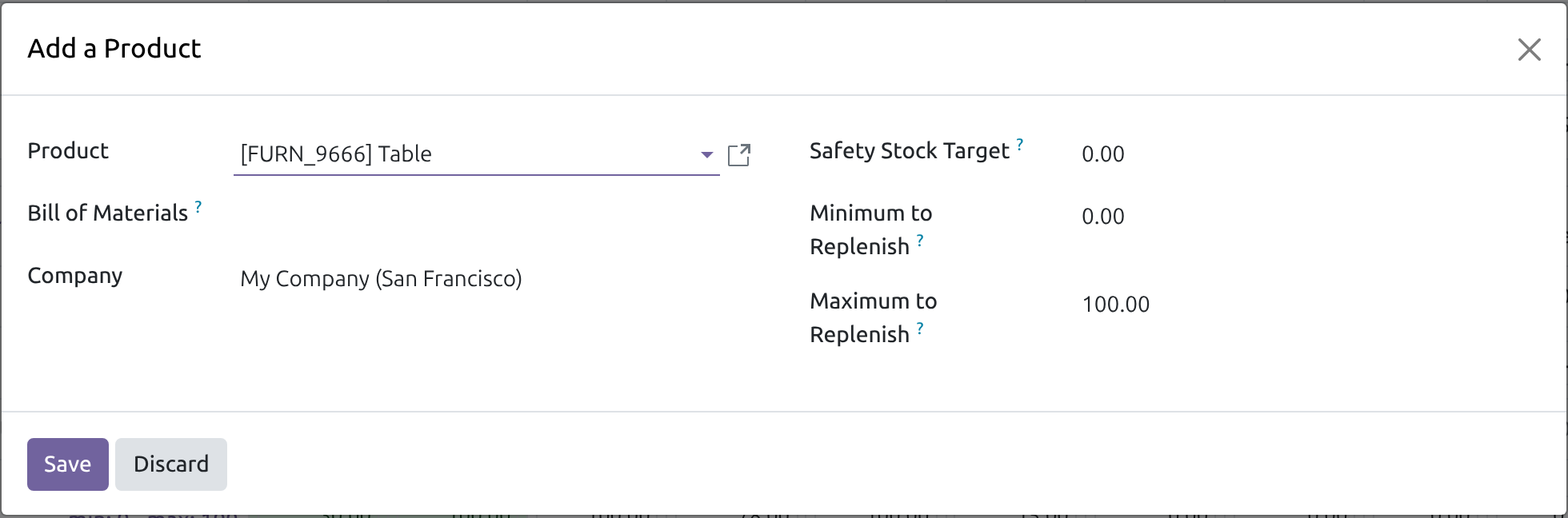
The product gets a block in the schedule. Click min: .. - max: .. or target: .. in a block to open the same form, titled Edit Production Schedule, and change the quantities or the bill of materials. The product of an existing schedule cannot be changed: remove the schedule and add the other product.
To take a product out of the schedule, click the bin icon of its block and confirm with Delete. The forecasts typed for it are lost; the orders already created stay as they are.
A schedule that has no product shows the message Add a product to plan its replenishment with the ways to add products.
Add several products at once
Open a product list, for example Manufacturing ‣ Products ‣ Products, and switch to the list view.
Tick the products to plan.
Open the Actions menu and choose Add to Master Production Schedule.

If you work with several warehouses, choose the warehouse in the window that opens and click Add. Otherwise the products go to your default warehouse.
The schedule opens with a message such as Products added: 3, skipped: 2. Products already planned in the warehouse, kits, products that are not goods and products of another company are skipped. The new schedules start with a safety stock target of 0, a minimum of 0 and a maximum of 100; adjust them as described above.
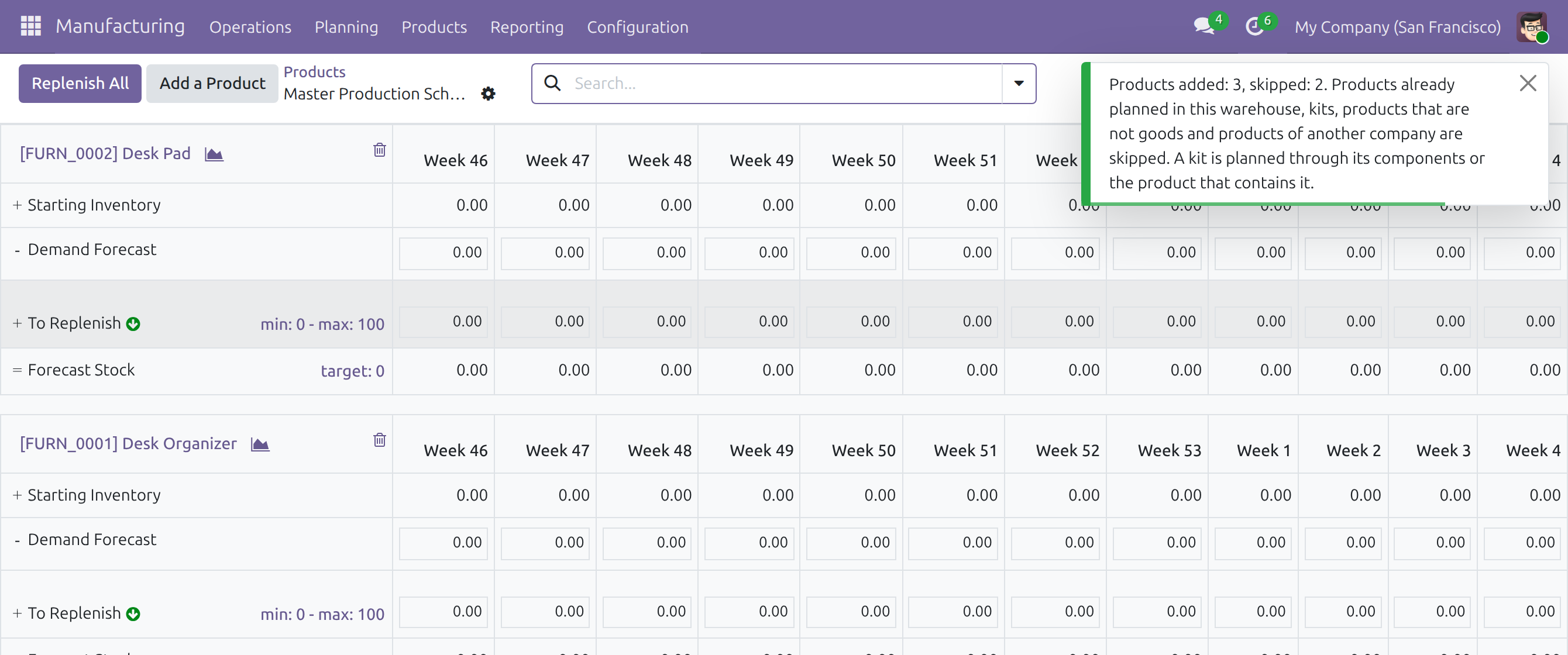
Enter the demand forecast
- In the row Demand Forecast, click the cell of a period.
- Type the quantity in the number format of your language, for example 1,234.5 in English, and press Tab or Enter.
The quantity is saved, the rows below are recalculated and the cursor moves to the same row of the next period, so you can type a series of periods one after the other. A text that is not a number is ignored and the cell keeps its value.
Import demand forecasts
Use an import to load the forecasts of many products and periods from a spreadsheet. The entry exists on a computer only.
Open the schedule, click the Actions menu (the gear icon next to the title) and choose Import Demand Forecasts.
To start from a model file, click Import Template for Demand Forecasts. It has four columns: Product, Warehouse, Date and Demand Forecast.
Click Upload Data File and choose your file. CSV and Excel files are accepted.
Click Test. Odoo reads the file and lists its problems without storing anything.
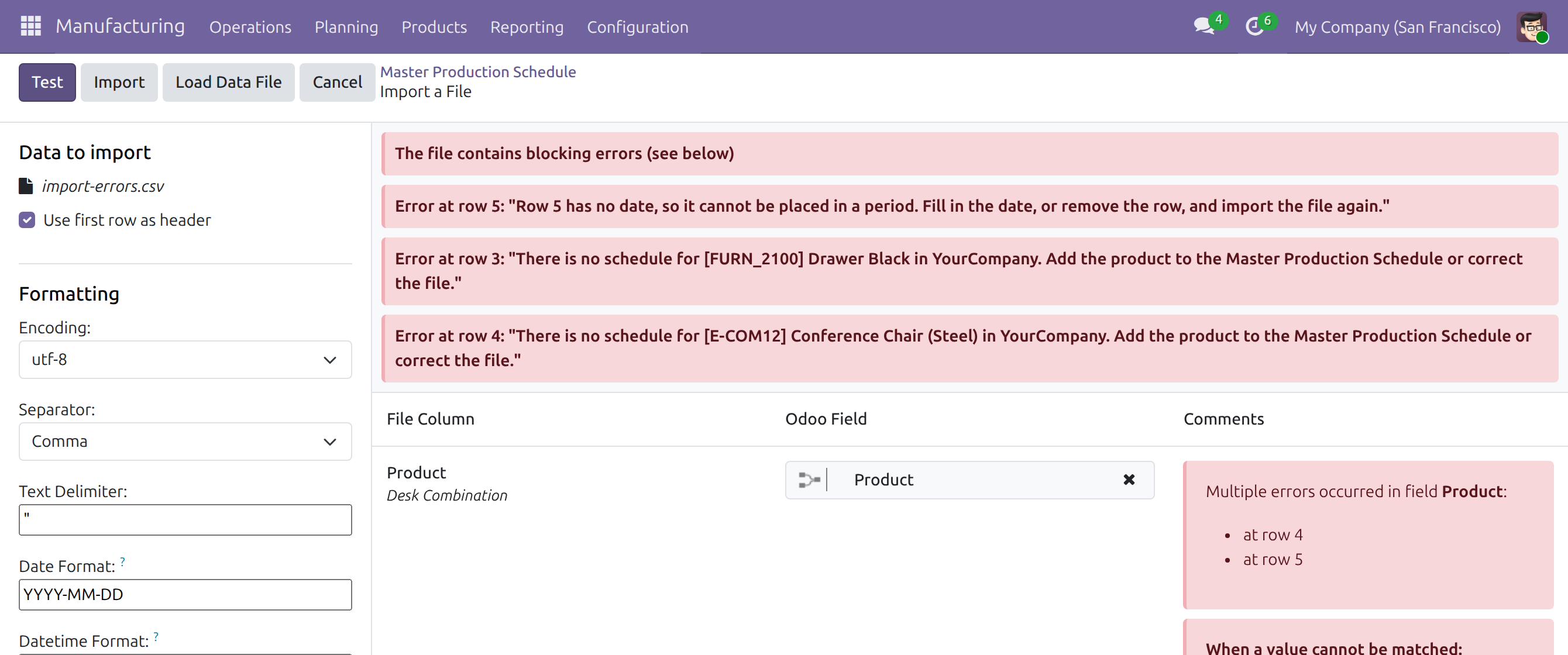
Correct the file, click Load Data File and choose it again, then Test again. When the screen reads Everything seems valid., click Import.
The rules of the import:
- Each row names its schedule by the Product and the Warehouse. Leave the Warehouse empty to use your default warehouse. A product that has no schedule in that warehouse is an error: add the product to the schedule first.
- The Date of a row can be any day of the period. The forecast is stored on the last day of the period, as typing it in the schedule does.
- Rows of the file that fall in the same period of the same product add up, and their total replaces the forecast the period already held.
- The format of the dates and of the numbers is set on the import screen, in the formatting options at the left.
- A file with an error is not imported at all.
The number after Error at row counts the data rows of the file from 0: row 0 is the first row under the header, so a row of the spreadsheet is that number plus 2.
After Import, the list Imported records shows each forecast with its Period End. The grid shows the same quantities in their periods.
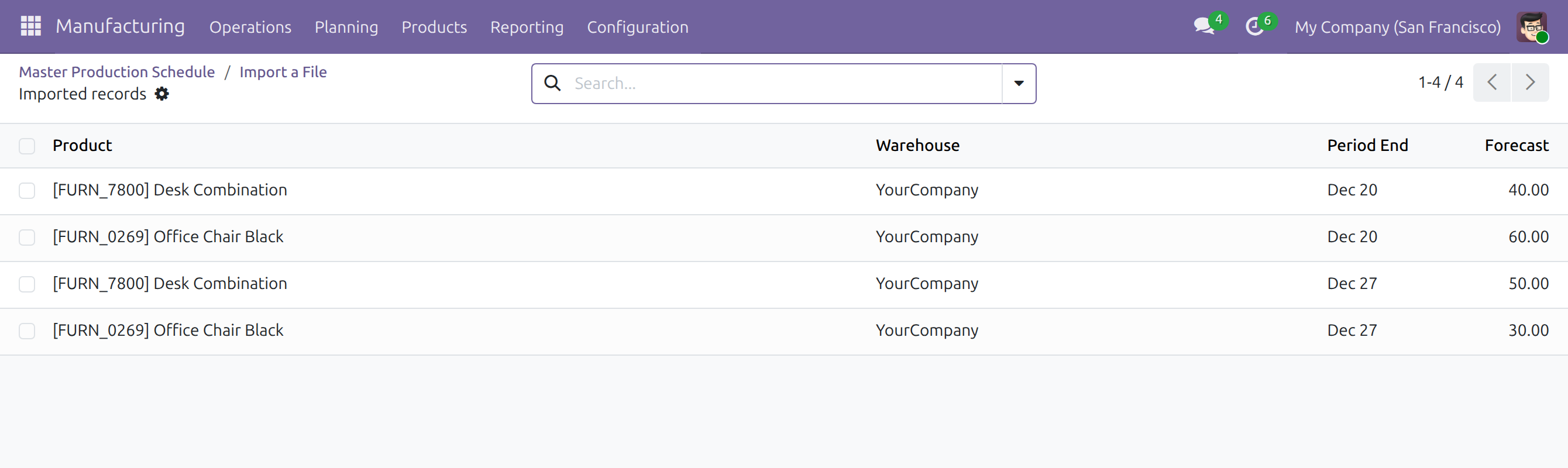
Read the row To Replenish
The cell of a period in the row To Replenish takes a state from what is due and what is already coming. A period with nothing to replenish and nothing coming has no state.
| State | Meaning and what to do |
|---|---|
| Due (green) | The period starts within the lead time of the product and nothing is launched for it yet. Replenish All launches it. |
| Launched (grey) | The quantity being replenished equals the quantity to replenish. |
| Launched for less than needed | The quantity to replenish has grown since the launch. Replenish again to order the difference. |
| More is coming than needed (red) | The quantity being replenished is above the quantity to replenish. Check the orders. |
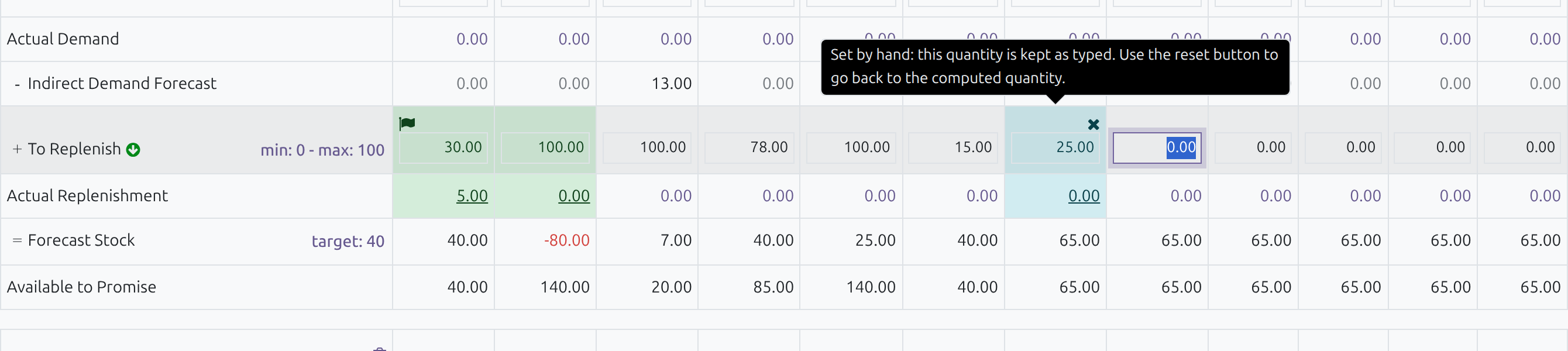
| Set by hand (blue) | The quantity is kept as typed. See "Keep a quantity as typed". |
Point at a quantity, move to it with the keyboard, or press and hold on a touch screen to read the explanation of its state.
A flag marks the period that the button Replenish Product of the row launches: the first period that still has a quantity to order.
Keep a quantity as typed
- In the row To Replenish, click the cell of a period and type the quantity.
- Press Tab or Enter. The cell turns blue and shows a cross.
The quantity stays as typed, whatever the forecast does, and the periods after it are recalculated from it. To go back to the computed quantity, click the cross of the cell (Reset to the computed quantity).
Replenish one product
- In the block of the product, click the green arrow Replenish Product next to the label To Replenish.
- Read the notification The following replenishment order has been generated and open the order from it.
The button launches the flagged period of that product, for the quantity To Replenish minus what is already coming. The period becomes Launched and the flag moves to the next period that has something to order. Click again to launch that one.
The name of the order in the notification is a link when your access rights let you open that order; otherwise it is plain text.
Replenish all
Click Replenish All at the top of the schedule. For every product on the page, it launches each period that starts within the lead time of the product and still has a quantity to order: the periods marked Due, and the periods marked Launched for less than needed for the difference. It shows no notification. Products on other pages are not launched: use the page buttons to move to them. A period that is not yet due is left for later.
What a replenishment creates
Odoo picks the replenishment rule of the product for the warehouse, the same way it does for any replenishment, and the order follows that rule:
- Manufacture: a manufacturing order for the quantity, with the source MPS. The components of its bill of materials appear as indirect demand for the components that are planned too.
- Buy: a request for quotation to the vendor of the product, with the source MPS. It is dated at 12:00, in your time zone, on the first day of the period. The quantities of one period go to the same request for quotation; the quantities of different periods go to different ones, unless the vendor receives on one fixed weekday and Odoo moves the lines to the same day.
- A transfer route: a transfer into the warehouse, when a route supplies the warehouse from another one.
The quantity ordered is the quantity To Replenish minus what is already coming for the period.
Components and indirect demand
When a planned product is manufactured in the warehouse, the schedule opens its bill of materials: each component that is planned too receives, in the row Indirect Demand Forecast, the quantity its parent replenishes. That quantity is placed in the period in which the components are needed: the start of the period of the parent, minus its lead time, and never before today.
- The bill of materials used is the one chosen on the schedule of the parent, otherwise the first manufacturing bill of materials that fits the manufacturing operation of the warehouse.
- A product that Odoo buys or supplies by transfer in that warehouse raises no indirect demand there.
- A kit inside a bill of materials is replaced by its components.
- A component can have a bill of materials of its own: the demand goes down the levels.
Check what is on its way
Show the row Actual Replenishment (see "Choose the rows, the period and the columns"). Click the number of a period to open its details.
The window lists the quantity from RFQs, from Receipts and from MOs. Click one of the buttons to open the list of the documents behind it. A document opens in its form only when your access rights allow it.

The number of the row Actual Demand opens the transfers that leave the warehouse in the period in the same way.
Troubleshooting
A kit cannot be planned. The message "A product with a kit-type bill of materials can not be planned on the Master Production Schedule" appears when you add a product that has a kit bill of materials. Odoo replaces a kit by its components when it replenishes, so the schedule would never see what it launched. Plan the components of the kit, or the product that contains the kit. The same rule refuses a new kit bill of materials for a planned product: remove the product from the schedule first. When a schedule of a kit product exists, Replenish is blocked until you delete it.

"No rule has been found to replenish ...". Odoo has no way to supply the product in the warehouse: no vendor, no manufacturing bill of materials and no route. Nothing is created and the period stays to launch. Click Edit Product, add a vendor, a bill of materials or a route on the product form, then press Replenish Product again.

"There is no matching vendor price ...". No vendor line of the product fits the quantity to order or the date. Complete the list of vendors on the product form.
"This product is already planned in this warehouse." Open the existing block of the product and change it there.
Replenish All fails for a product. For several products, Odoo reports the failure without the Edit Product button and creates nothing. Replenish the product alone to open its form from the message, correct it, then use Replenish All again.
The import reports "There is no schedule for ...". The product of that row is not planned in that warehouse. Add it to the schedule or correct the file.
I do not see Master Production Schedule in the Planning menu. Your user does not have the access right Manufacturing / Administrator. Ask your system administrator.
I do not see the settings block. Only users whose Role is Administrator open Manufacturing ‣ Configuration ‣ Settings. Planners change the period and the columns from the schedule.
FAQ
- Does the schedule create orders by itself?
- No. Nothing is created until a planner presses Replenish Product or Replenish All.
- Why does Replenish Product launch only one period?
- The button launches the flagged period, the first one that still has something to order, so that you order one period at a time. Replenish All launches every due period.
- Why is a period red?
- More is coming than the computed quantity: for example, a manufacturing order or a receipt is already planned in a period for which the forecast leaves nothing to replenish. Open the details of Actual Replenishment to see the documents.
- Where are the orders of Replenish All?
- Replenish All shows no message. Open the orders from the Purchase, Manufacturing or Inventory apps: their source is MPS.
- Can I plan the same product in two warehouses?
- Yes, when the company uses several warehouses: a product is planned once per warehouse.
- Who sees the rows and the period I choose?
- Everyone who plans in the same company: the rows, the period and the number of columns are stored for the company.
- Which vendor receives the request for quotation?
- The vendor that Odoo's replenishment rules choose for the product, with the price that fits the quantity and the date.
This software and associated files (the "Software") may only be used (executed, modified, executed after modifications) if you have purchased a valid license from the authors, typically via Odoo Apps, or if you have received a written agreement from the authors of the Software (see the COPYRIGHT file).
You may develop Odoo modules that use the Software as a library (typically by depending on it, importing it and using its resources), but without copying any source code or material from the Software. You may distribute those modules under the license of your choice, provided that this license is compatible with the terms of the Odoo Proprietary License (For example: LGPL, MIT, or proprietary licenses similar to this one).
It is forbidden to publish, distribute, sublicense, or sell copies of the Software or modified copies of the Software.
The above copyright notice and this permission notice must be included in all copies or substantial portions of the Software.
THE SOFTWARE IS PROVIDED "AS IS", WITHOUT WARRANTY OF ANY KIND, EXPRESS OR IMPLIED, INCLUDING BUT NOT LIMITED TO THE WARRANTIES OF MERCHANTABILITY, FITNESS FOR A PARTICULAR PURPOSE AND NONINFRINGEMENT. IN NO EVENT SHALL THE AUTHORS OR COPYRIGHT HOLDERS BE LIABLE FOR ANY CLAIM, DAMAGES OR OTHER LIABILITY, WHETHER IN AN ACTION OF CONTRACT, TORT OR OTHERWISE, ARISING FROM, OUT OF OR IN CONNECTION WITH THE SOFTWARE OR THE USE OR OTHER DEALINGS IN THE SOFTWARE.