
Production Cost Allocation
by Viindoo
| Lines of Code | 866 |
| Technical name | viin_mrp_landed_costs |
| License | OPL-1 |
| Website | https://viindoo.com/apps/modules/19.0/viin_mrp_landed_costs |
| Read description for | v 16.0 v 17.0 v 18.0 |
| Required Apps | Manufacturing (mrp) Invoicing (account) Purchase (purchase) Discuss (mail) Inventory (stock) |
| Included Dependencies | Advanced MRP Accounting Viindoo Manufacturing Viindoo Base Stock Landed Costs Customization Viin Warehouse Web Gantt Viin Warehouse Accounting Viin Warehouse Accounting - Enterprise Presentation |

Every product carries its share of the overhead and labour of the period
For manufacturers whose cost accountants close the product cost each period
Allocate overhead and labour costs to manufacturing orders by manufacturing cost type.
Community Edition, Viindoo Cloud · OPL-1 · English, Vietnamese
Extends the Production Cost Report of Advanced MRP Accounting.
Extends the landed costs of Stock Landed Costs Customization.
What changes for your team
Period costs reach the product cost
Today: electricity, rent and supervision stay in expense accounts, and the product cost shows materials and work orders only.
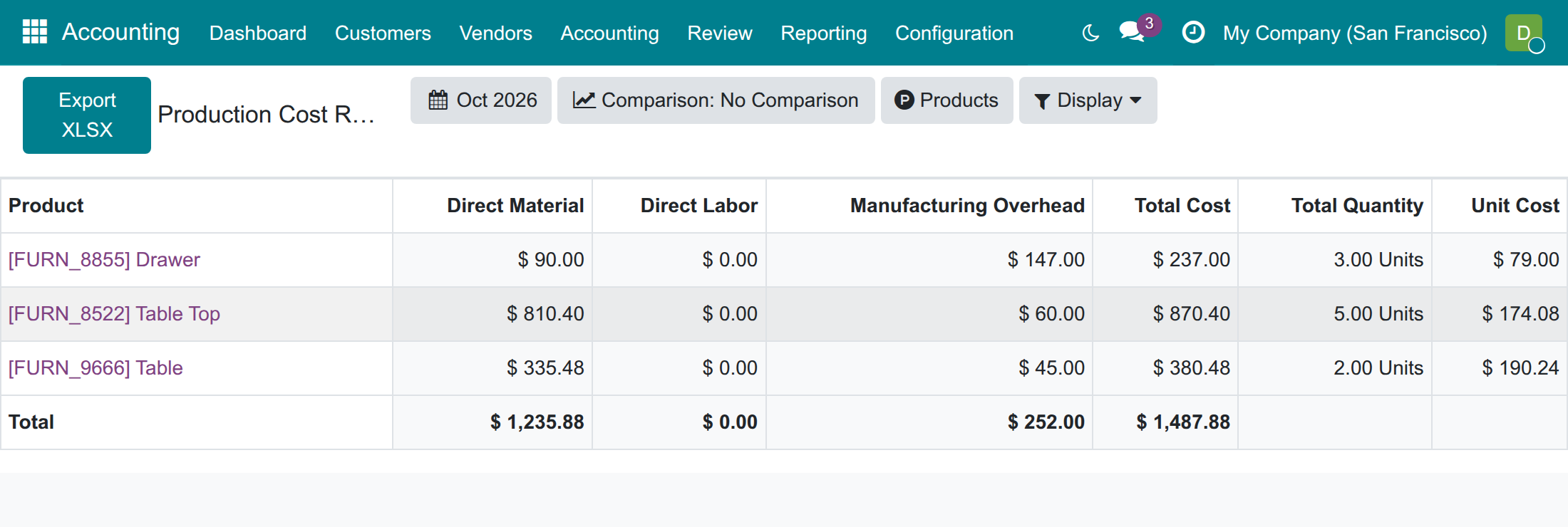
→ Allocated to the orders that made the goods, they appear in the Production Cost Report in the column of their cost type.
The same cost is not counted twice
Today: wages already recorded on work orders can be allocated again at month end, and nobody sees it.
→ Each cost line shows what the orders already carry of the same cost type from their work orders.
No surprise in the stock valuation
Today: a cost allocated to goods already delivered quietly breaks the link between the stock and its account.
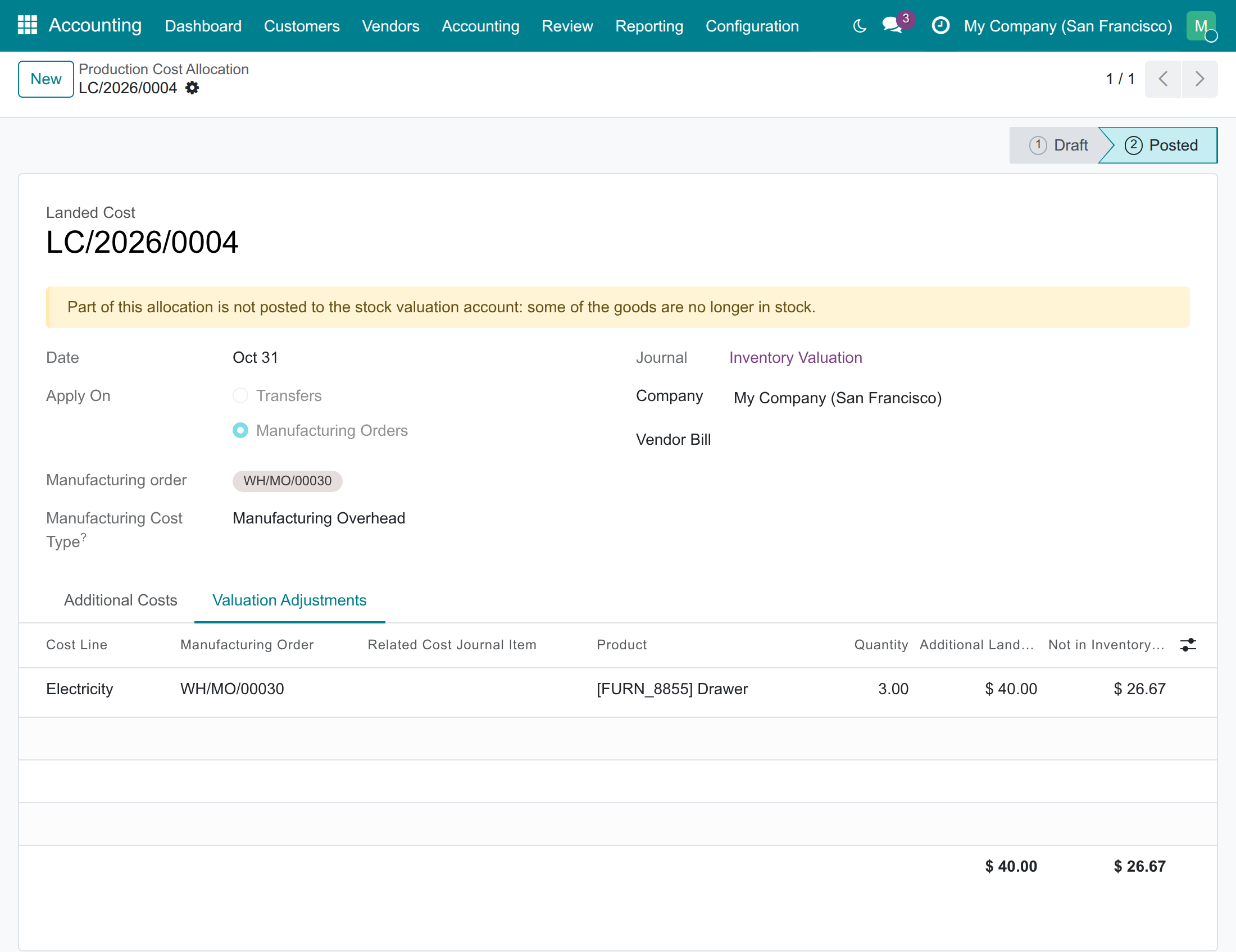
→ Before validation, each line shows the part the goods no longer in stock do not carry; that part is not posted to the stock valuation account.
What you see as a manager
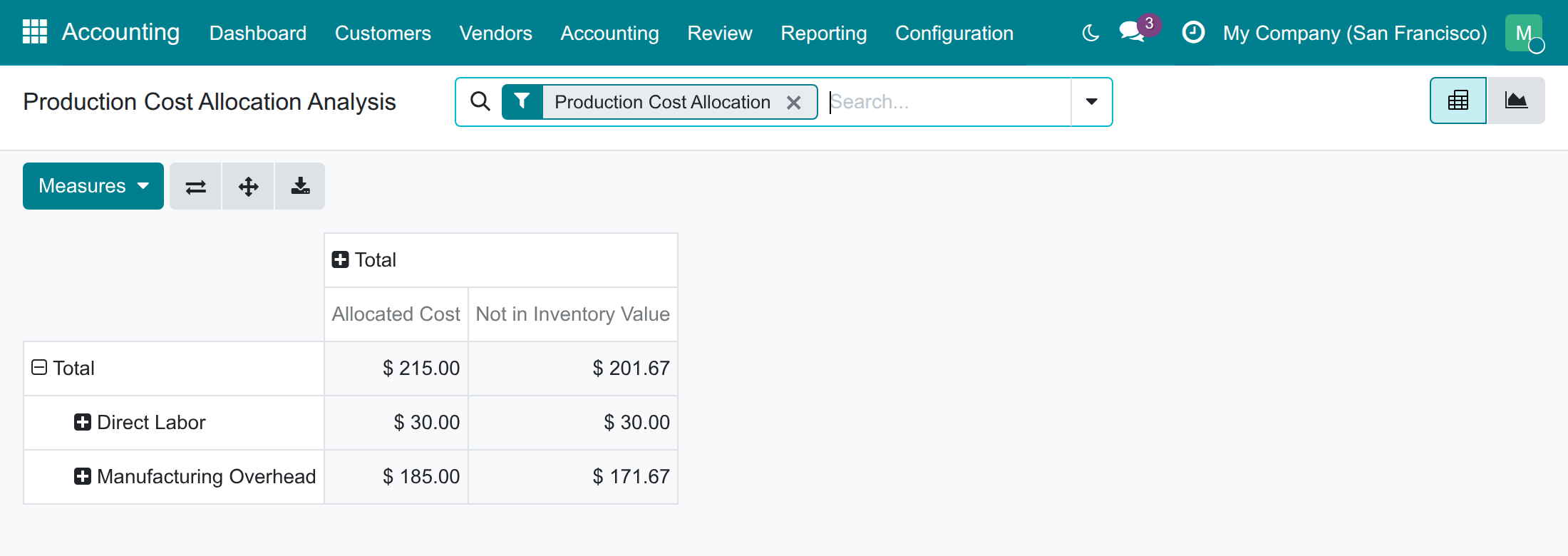
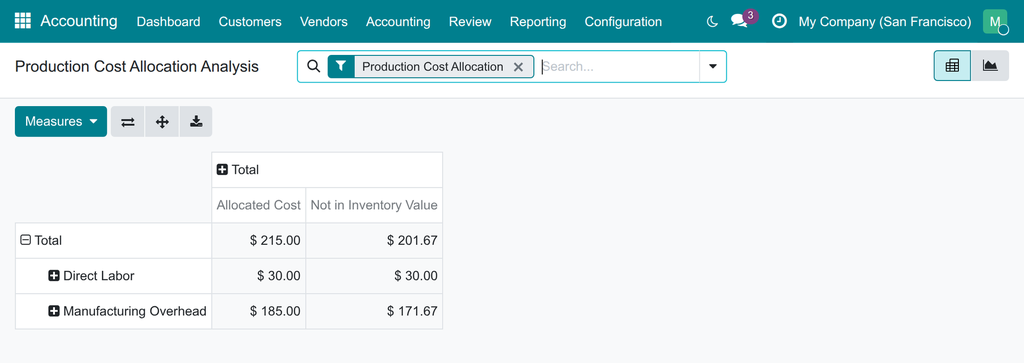
How much overhead and labour was allocated, and how much did not reach inventory value?
Built from the posted allocations. It opens as a pivot or a graph, in Accounting and in Manufacturing.
Features
Allocating the costs
- ✓ Allocate period costs to one or several manufacturing orders
- ✓ Set the manufacturing cost type once; every cost line takes it
- ✓ Cost type required whenever the allocation targets manufacturing orders
- ✓ Split each cost with the landed-cost split methods, such as by quantity
- ✓ Find an allocation by its manufacturing order
Checking before posting
- ✓ Cost of the same type already carried from work orders, per line
- ✓ Not in Inventory Value per line and on the allocation
- ✓ A warning when part of the allocation misses the stock valuation
Reading the costs
- ✓ Allocated costs in their cost-type column of the Production Cost Report
- ✓ Cost lines without a type in the extra costs column
- ✓ Semi-finished breakdown includes the allocations of the orders that made them
- ✓ Analysis by cost type, manufacturing order and cost line, as pivot or graph
- ✓ Same groupings in the Landed Costs Analysis of Inventory
Built for daily use
- ✓ Accounting readers open allocations and the analysis in read-only mode
- ✓ Cost lines limited to the user's companies
- ✓ A cost type in use cannot be deleted
Ready on day one
Two cost types, ready to use
Direct Labor and Manufacturing Overhead come with Advanced MRP Accounting; add your own under the Accounting configuration.
What the administrator sets first
The Production Cost Allocation box in the Manufacturing settings, and the Inventory Administrator and Bookkeeper rights for the cost accountant.
Before you decide
What happens to the cost of goods already delivered?
That part shows as Not in Inventory Value before validation, and the validation does not post it to the stock valuation account.
Does it stop a cost from being allocated twice?
It shows, on each line, what the work orders already carry for that cost type. It informs the decision; it does not block it.
Who can do what?
Creating and validating an allocation takes the Inventory Administrator right, with Bookkeeper or Auditor access to the Accounting menu. Accounting readers read the allocations and the analysis without changing them.
Which costs can be allocated?
Any product marked as a landed cost, spread over the manufacturing orders you pick. A line without a cost type lands in the extra costs column of the report.
What must be installed?
Advanced MRP Accounting and Stock Landed Costs Customization, installed with it. No extra Python package or server program.
Try it, then ask us
The Documentation tab walks the cost accountant, the accountant and the administrator through the app. Live demo: v19demo-int.viindoo.com/odoo/action-viin_mrp_landed_costs.action_production_cost_allocation
Pre-sales & partnership
viindoo.com/contactusTechnical support
viindoo.com/ticketProduction Cost Allocation
For cost accountants who allocate overhead and labour to manufacturing orders, for accountants who read the result, and for the administrator who sets the app up.
Note
Extends the Production Cost Report of Advanced MRP Accounting and the landed costs of Stock Landed Costs Customization - see their documentation.
Overview
The electricity, the rent, the supervision and the wages that the work orders did not record belong to the products made in the period. Production Cost Allocation allocates them to manufacturing orders the way landed costs are allocated to receipts, and shows them in the Production Cost Report under the right manufacturing cost type.
How an allocation goes:
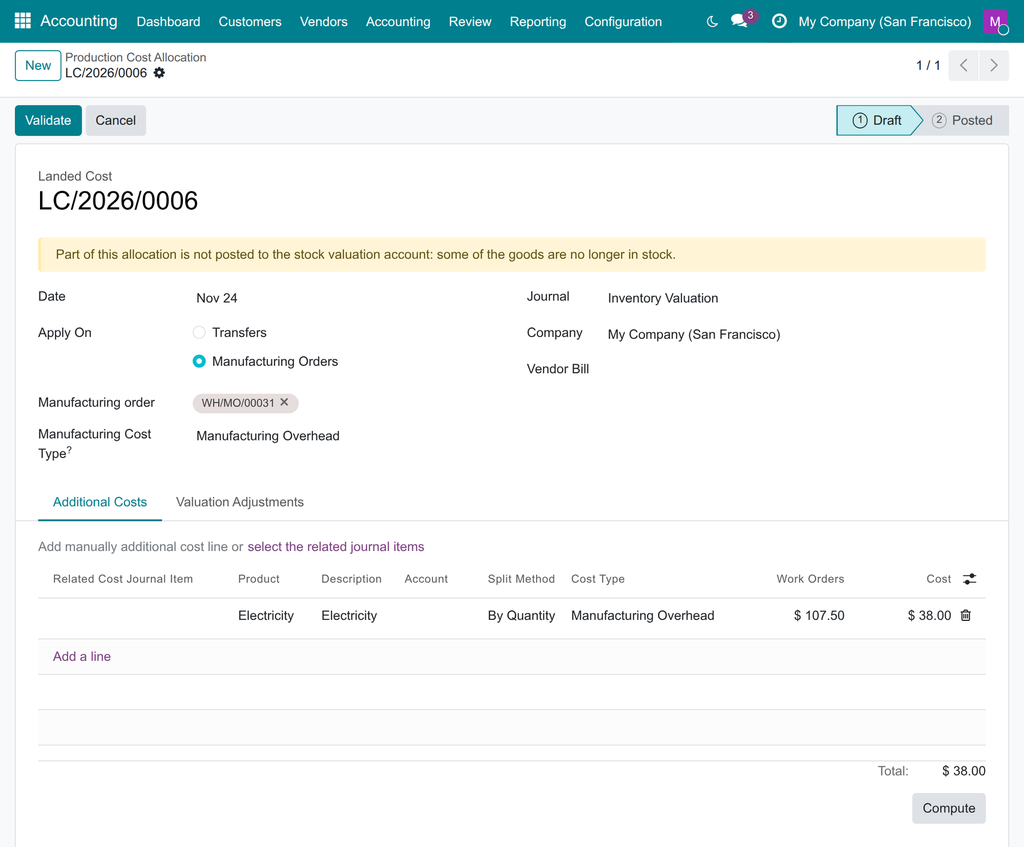
- The cost accountant creates a Production Cost Allocation, picks the manufacturing orders and the manufacturing cost type, and lists the costs. The allocation is a Draft.
- Compute shares each cost between the orders and shows, for every line, the part that is Not in Inventory Value.
- Validate posts the allocation. It is Posted, and its costs appear in the Production Cost Report and in the Production Cost Allocation Analysis.
| Role | What they do | Access right to assign |
|---|---|---|
| System Administrator | Turns the app on and gives each person their access rights. | Role / Administrator |
| Cost Accountant | Allocates overhead and labour to manufacturing orders, computes and validates the allocation. | Inventory / Administrator and Accounting / Bookkeeper |
| Chief Accountant (reader) | Reads the allocations, the analysis and the Production Cost Report. | Accounting / Auditor - Readonly or Accounting / Invoicing & Banks |
Setup (for the Administrator)
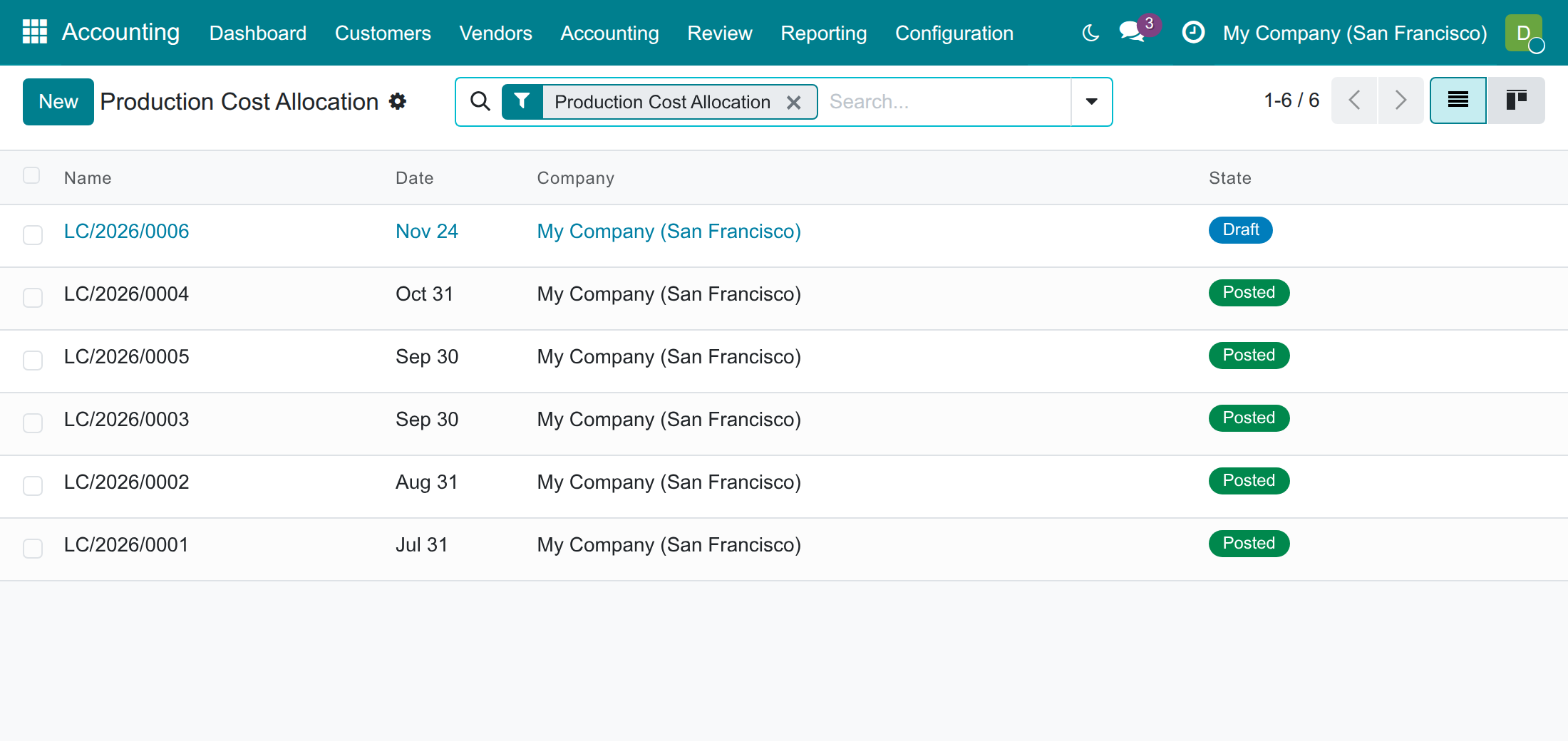
Open Manufacturing > Configuration > Settings. In the section Viindoo Manufacturing Costing & Accounting, tick Production Cost Allocation and click Save. The app and the apps it needs are installed.
Open Settings > Users & Companies > Users and give each person their access rights:
- the cost accountant: Inventory / Administrator and Accounting / Bookkeeper. Creating, editing and computing an allocation needs Inventory / Administrator; validating it posts an entry, which needs at least Accounting / Invoicing, included in Bookkeeper. The menu Production Cost Allocation is shown to the people who hold Inventory / Administrator and can open the Accounting menu Accounting: Accounting / Bookkeeper, or Accounting / Auditor - Readonly.
- the readers: Accounting / Auditor - Readonly or Accounting / Invoicing & Banks. They read the analysis, the allocations and their cost lines, and cannot change them.
A person with Inventory / Administrator and Accounting / Auditor - Readonly only can create and compute an allocation; validating is refused and the allocation stays a Draft until a person with the Invoicing right validates it.
Cost Accountant: allocating the costs of a period
Create an allocation
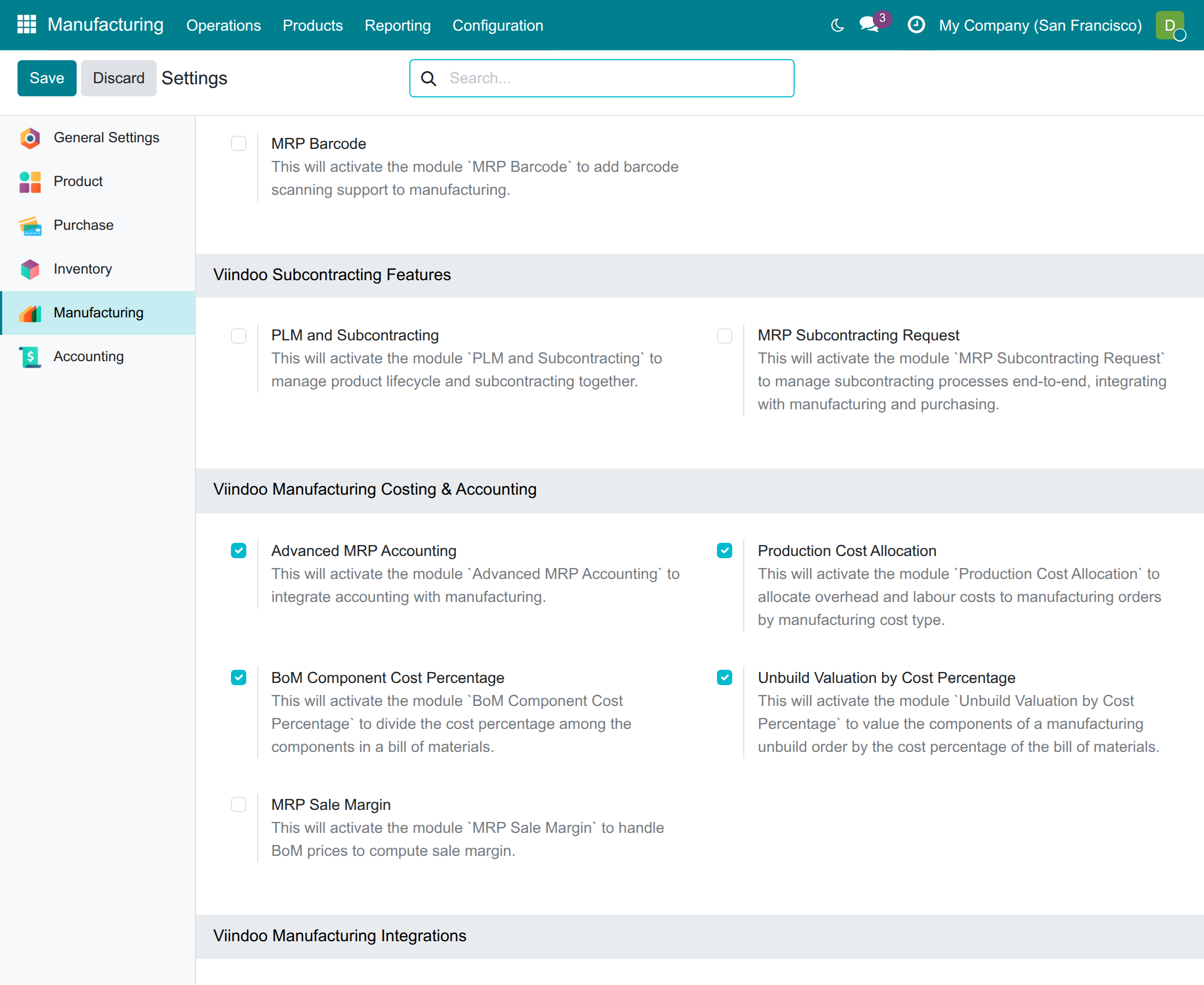
- Open Accounting > Accounting > Production Cost Allocation. The list shows the allocations that target manufacturing orders. Search by Manufacturing Order to find the allocations of an order.
- Click New. Apply On is Manufacturing Orders.
- In Manufacturing order, pick the orders that carried the costs.
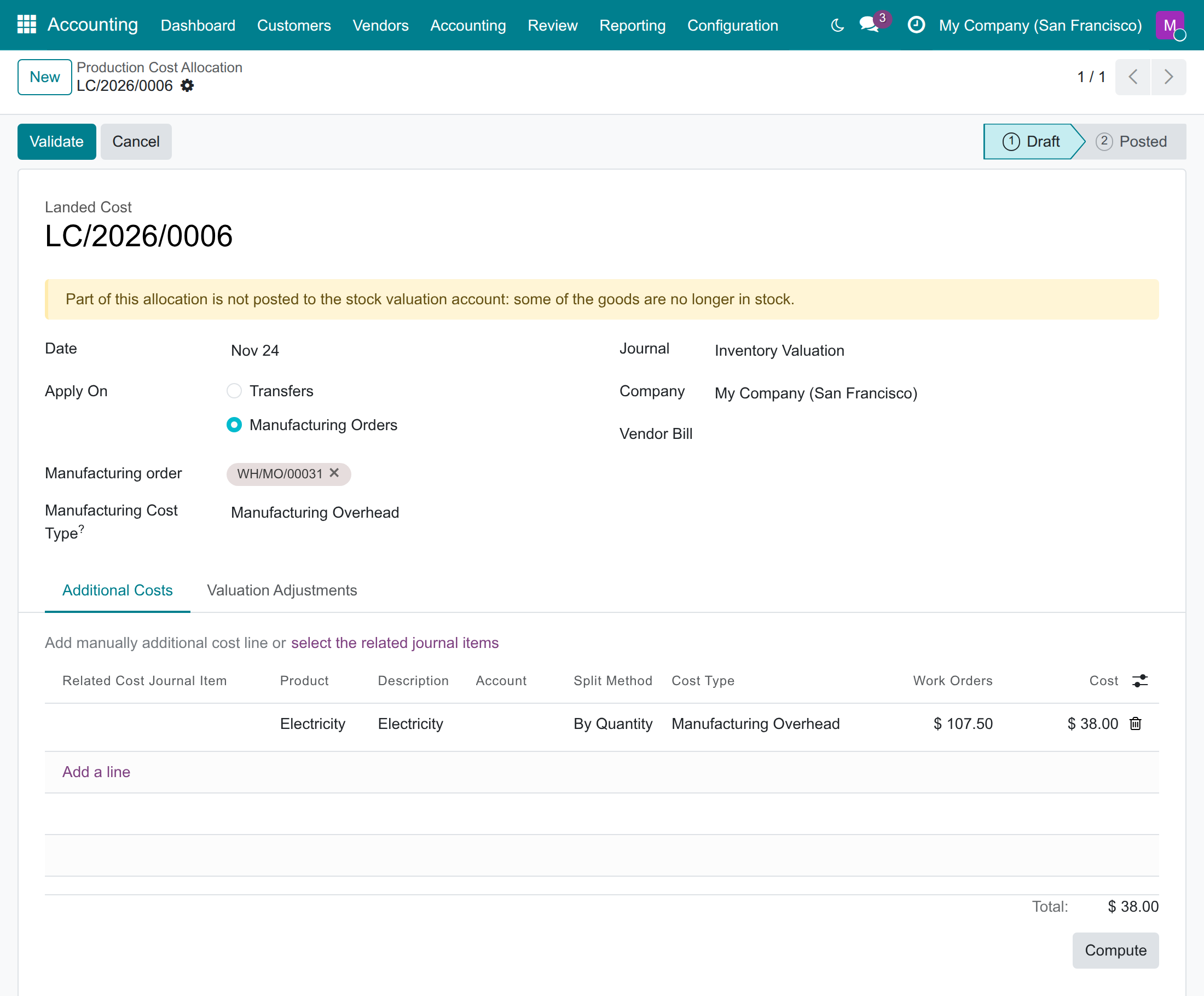
- In Manufacturing Cost Type, choose Direct Labor or Manufacturing Overhead. Every cost line takes this type; you can change it on a single line in the column Cost Type. A line with no type cannot be saved on an allocation of manufacturing orders.
- On the tab Additional Costs, click Add a line. Pick the Product of the cost (for example Electricity), the Split Method and the Cost.
Check what the work orders already carry
On each cost line, the column Work Orders shows the cost of the same cost type that the target manufacturing orders already carry from their work orders, before any allocation. Read it before allocating the same cost again: a cost that the work orders recorded is not allocated twice.
Compute and read Not in Inventory Value
- Click Compute. The tab Valuation Adjustments shows, for every manufacturing order and product, the Additional Landed Cost and the figure Not in Inventory Value.
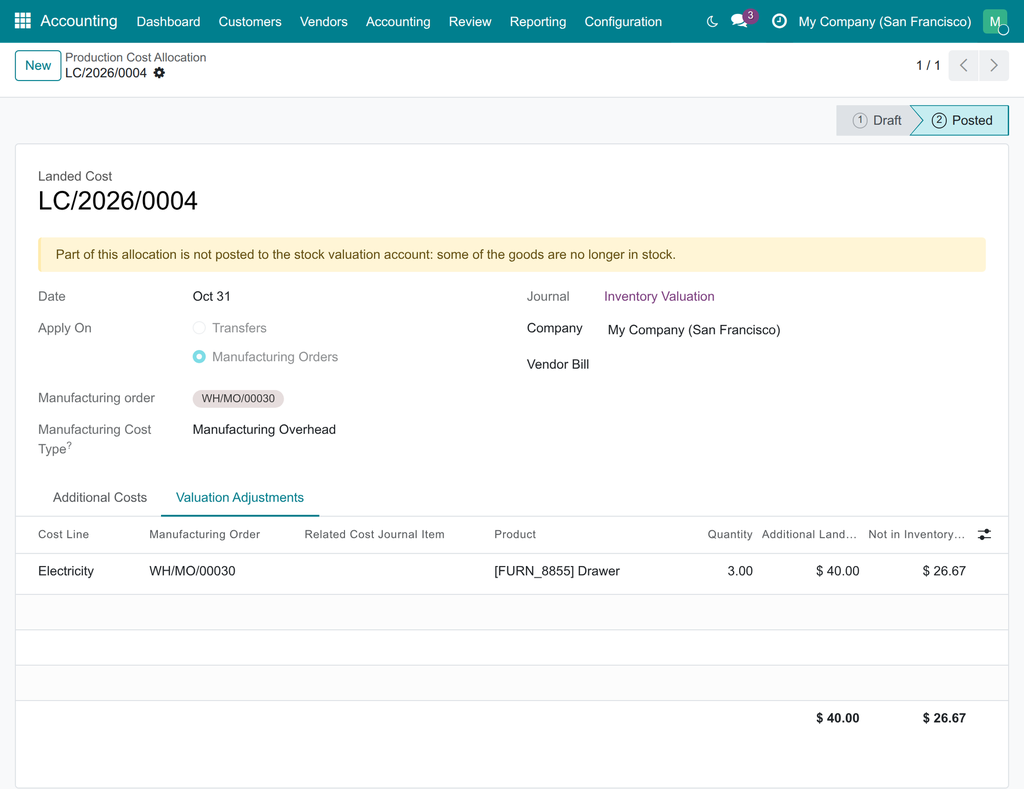
- Not in Inventory Value is the part of the cost that the goods no longer in stock do not carry. The validation does not post it to the stock valuation account: it stays on the account of the cost line, or goes to the asset the goods became.
- When any line has such a part, a warning above the form says that part of the allocation is not posted to the stock valuation account. The warning does not block the validation.
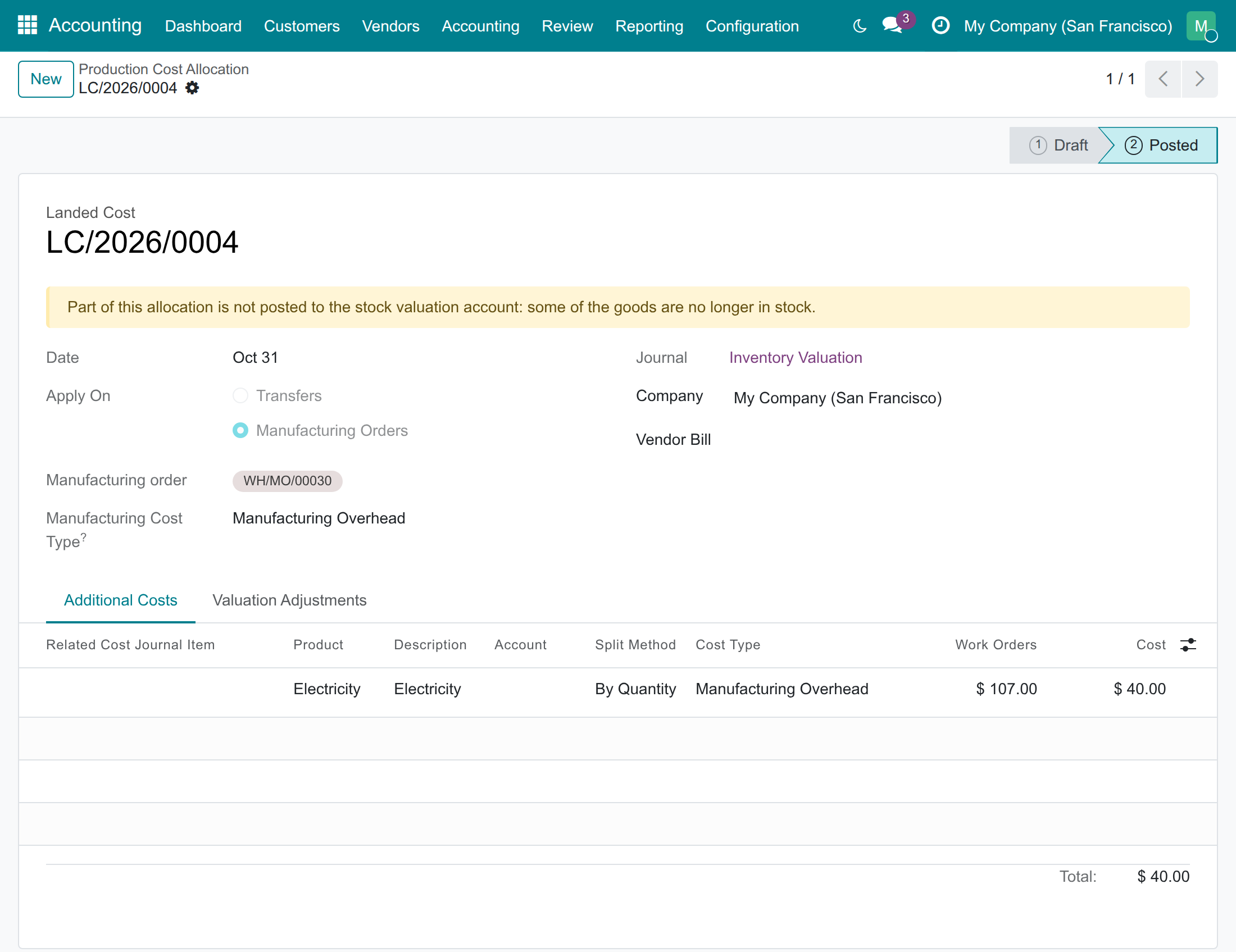
In the example, the electricity of 40.00 was allocated to an order of three drawers, of which two were already delivered when the allocation was validated. The part for the delivered drawers, 26.67, is Not in Inventory Value; the other 13.33 belongs to the drawer still in stock and is added to its value. When all the goods are delivered, the whole cost is Not in Inventory Value.
Validate
Click Validate. The allocation is Posted; its manufacturing cost type can no longer be changed. When the company values inventory automatically, the validation posts an entry for the part that goods still in stock carry.
Cost types in use
Open Accounting > Configuration > Accounting > Classification of Manufacturing Cost to see the cost types. A cost type that an allocation uses cannot be deleted; archive it instead, and it is no longer offered on new cost lines.
Accountant: reading the result
Production Cost Report
- Open Accounting > Reporting > Production Cost Report and choose the period in the period filter.
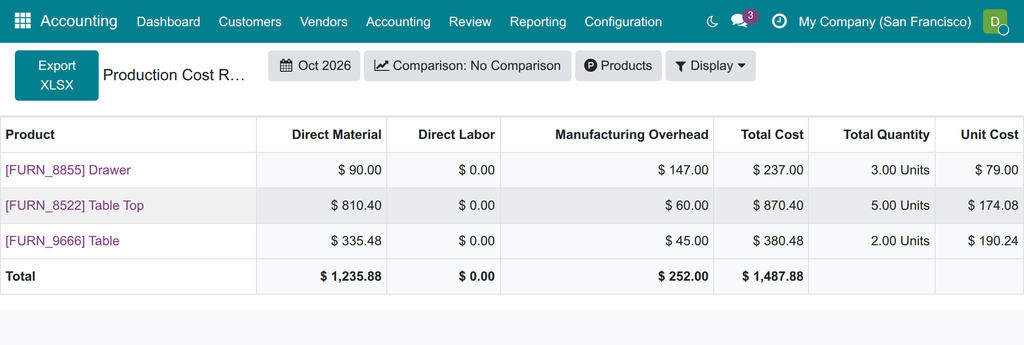
- The validated allocations appear in the column of their cost type, Direct Labor or Manufacturing Overhead. A cost line that has no cost type appears in the extra costs column. The total cost and the unit cost of the product include them.
In the example, the overhead of the drawers made last month is 147.00: 107.00 from the work orders and 40.00 from the allocation.
Production Cost Allocation Analysis
- Open Accounting > Reporting > Production Cost Allocation Analysis, or Manufacturing > Reporting > Production Cost Allocation Analysis. The analysis counts the Posted allocations.
- The pivot shows, by manufacturing cost type, the Allocated Cost and the Not in Inventory Value. Click a row to open it by manufacturing order, product, cost or date, or switch to the graph.
- The same measures and groupings are in Inventory > Reporting > Landed Costs Analysis, with the groupings Manufacturing Order and Manufacturing Cost Type.
Readers with Accounting / Auditor - Readonly or Accounting / Invoicing & Banks open the analysis, the allocations and their cost lines, and cannot create, edit or validate them.
This software and associated files (the "Software") may only be used (executed, modified, executed after modifications) if you have purchased a valid license from the authors, typically via Odoo Apps, or if you have received a written agreement from the authors of the Software (see the COPYRIGHT file).
You may develop Odoo modules that use the Software as a library (typically by depending on it, importing it and using its resources), but without copying any source code or material from the Software. You may distribute those modules under the license of your choice, provided that this license is compatible with the terms of the Odoo Proprietary License (For example: LGPL, MIT, or proprietary licenses similar to this one).
It is forbidden to publish, distribute, sublicense, or sell copies of the Software or modified copies of the Software.
The above copyright notice and this permission notice must be included in all copies or substantial portions of the Software.
THE SOFTWARE IS PROVIDED "AS IS", WITHOUT WARRANTY OF ANY KIND, EXPRESS OR IMPLIED, INCLUDING BUT NOT LIMITED TO THE WARRANTIES OF MERCHANTABILITY, FITNESS FOR A PARTICULAR PURPOSE AND NONINFRINGEMENT. IN NO EVENT SHALL THE AUTHORS OR COPYRIGHT HOLDERS BE LIABLE FOR ANY CLAIM, DAMAGES OR OTHER LIABILITY, WHETHER IN AN ACTION OF CONTRACT, TORT OR OTHERWISE, ARISING FROM, OUT OF OR IN CONNECTION WITH THE SOFTWARE OR THE USE OR OTHER DEALINGS IN THE SOFTWARE.