
HR Timesheet Timer
by Viindoo
| Lines of Code | 2032 |
| Technical name | viin_hr_timesheet_timer |
| License | OPL-1 |
| Website | https://viindoo.com/apps/modules/19.0/viin_hr_timesheet_timer |
| Read description for | v 13.0 v 14.0 v 15.0 v 16.0 v 17.0 v 18.0 |
| Required Apps | Project (project) Discuss (mail) Employees (hr) |
| Included Dependencies | Viindoo Base Countup Timer Widget |
| Extensions | OmniApproval™ - Timesheet Approvals Overtime Timesheet |

Start the clock on the task, stop it when you leave
For project teams that record time on tasks: employees, project managers and finance
A Start/Stop timer on tasks that logs your timesheet and safely settles forgotten timers.
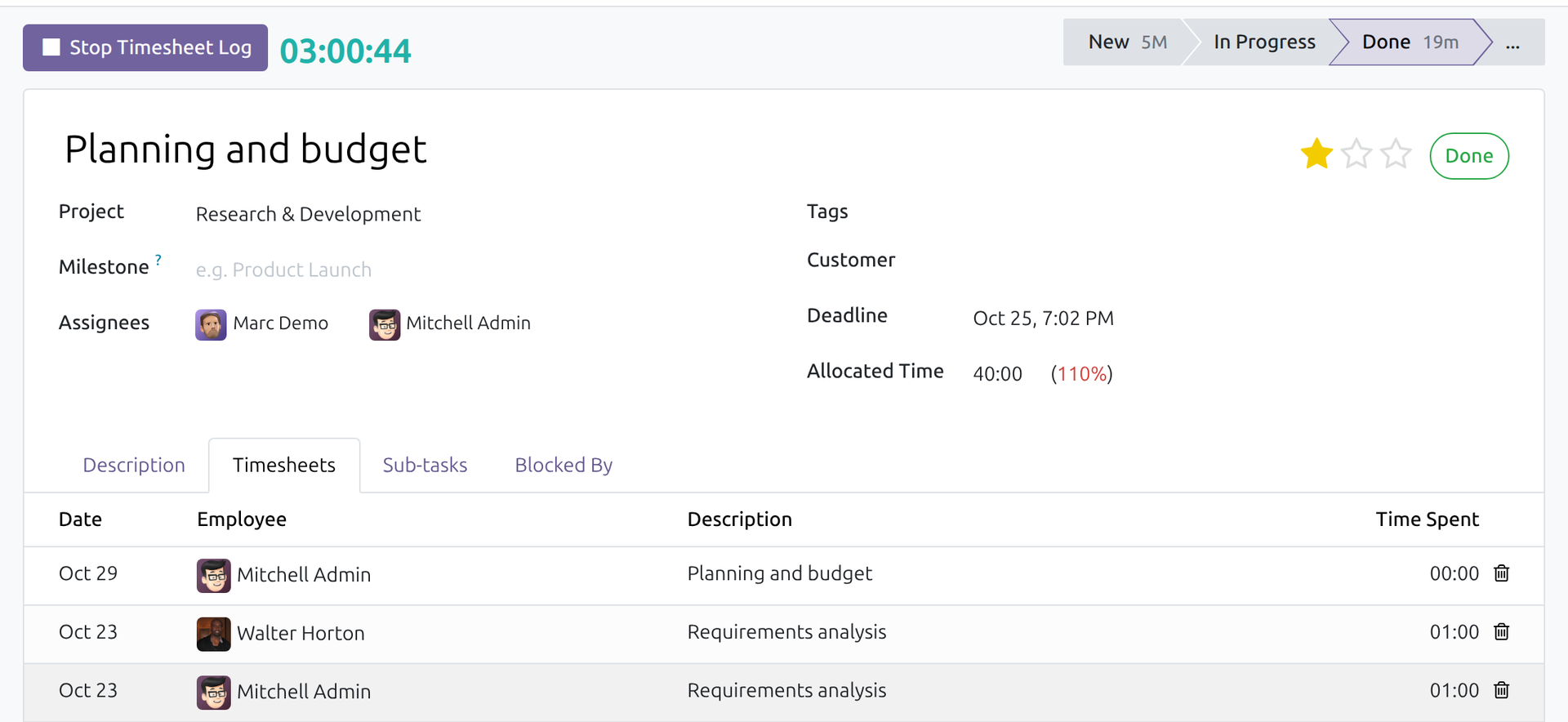
Built on Countup Timer Widget, which draws the running clock on the task.
Is this you?
Timesheets are filled in at the end of the week, from memory.
A timer left running overnight turns into an entry nobody believes.
Someone remembers only how long they worked, and there is no good way to record just that.
You cannot tell at a glance which tasks are being worked on right now.
A task is archived while someone is still timing it, and the timer is left hanging.
What changes
Timesheets are filled in at the end of the week, from memory.
→ Record time as the work happens, with one button on the task.
A timer left running overnight turns into an entry nobody believes.
→ Settle a forgotten timer in a short dialog, not in a distorted timesheet.
Someone remembers only how long they worked, and there is no good way to record just that.
→ Type the hours you worked; they are recorded as typed.
You cannot tell at a glance which tasks are being worked on right now.
→ Filter the tasks being timed, your own or anyone's.
A task is archived while someone is still timing it, and the timer is left hanging.
→ A task with a running timer stays open until the timers end.
Key Features
Start and stop on the task
Press Log Timesheet when you start and Stop Timesheet Log when you pause or finish. The elapsed time becomes a timesheet line. One timer runs per person: starting another stops the first.
A clock that tells the whole story
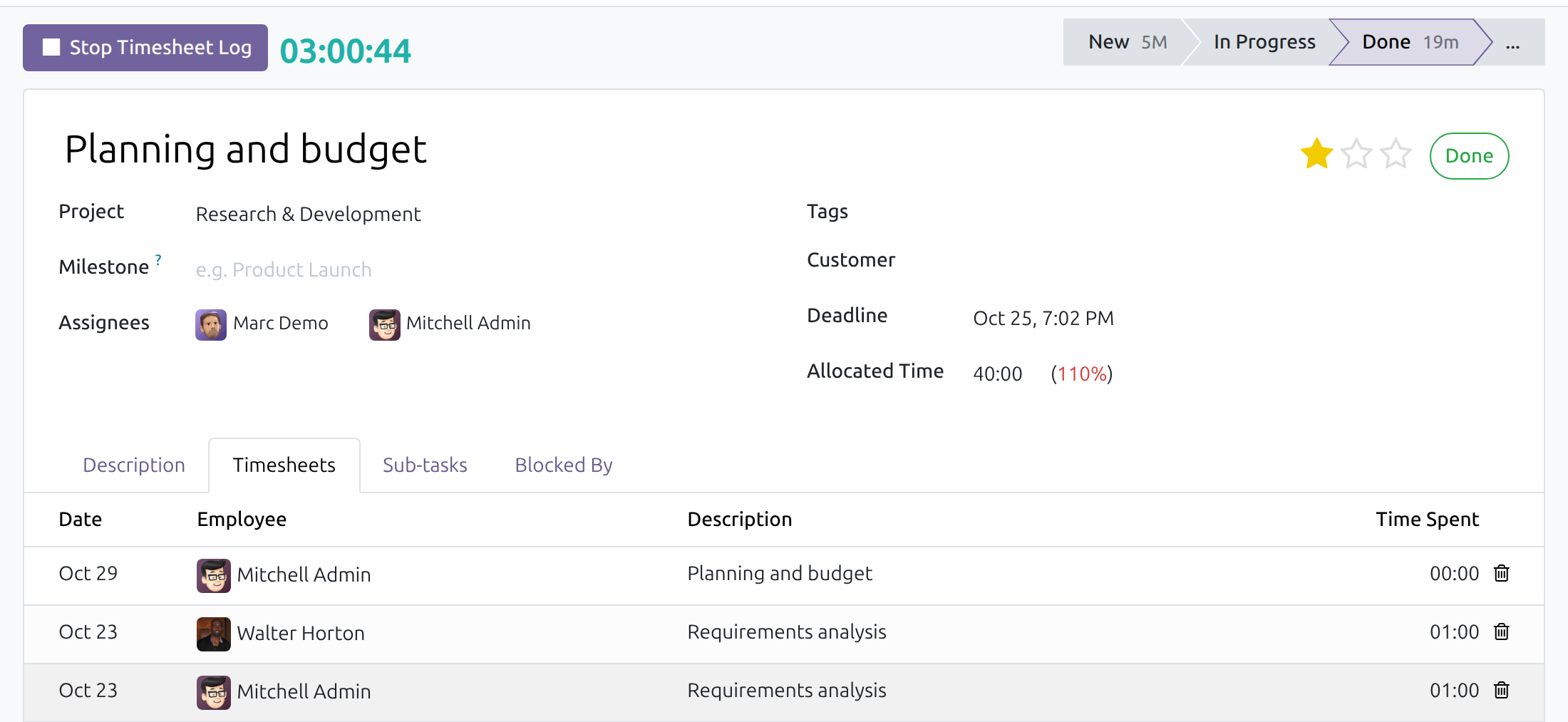
The clock counts hours, minutes and seconds (for example 00:01:30) and includes the time you already logged on the task.
Forgotten timers settled safely
A timer that started on an earlier day opens a dialog instead of being recorded as it ran. Say when you stopped, or enter only the hours you worked: they are recorded as typed.
Count the hours your way
For a timer that crossed days, record the actual elapsed time or only the hours in the employee's working schedule, one line per day.
No timer left hanging
A task cannot be archived while anyone's timer runs on it. The message asks to end all work-in-progress timesheets first.
Find the timers that are running
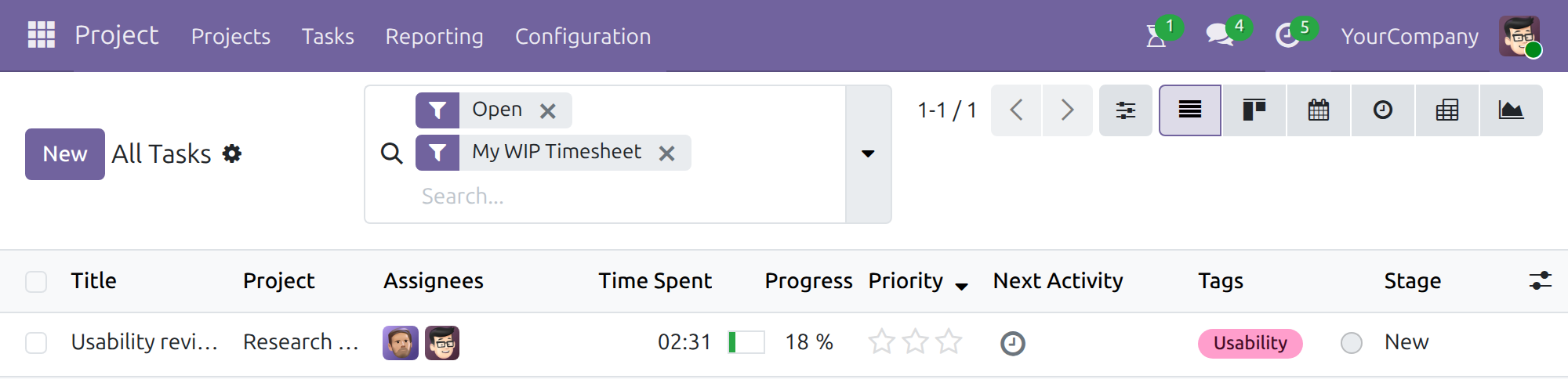
My WIP Timesheet and All WIP Timesheet filters list the tasks being timed, your own or anyone's.
Who it is for
Employees
A button replaces rebuilding the week from memory. A forgotten timer is a short dialog, not a correction request.
Project managers
See which tasks are being timed right now, and keep a task open until its timers end.
Finance and billing
Hours come from measured start and stop times, with a clear rule - actual or scheduled - when a timer crossed days.
Administrators
Installs like any app. Employees with the Timesheets access right get the Start and Stop buttons.
Best for: teams that bill or report time on project tasks, such as agencies, consultancies, IT and engineering services.
Start the timer on a task
The Log Timesheet button sits in the task header.

Watch the clock while you work
Stop Timesheet Log and the running clock, including the time already logged on the task.

Settle a forgotten timer by the hours you remember
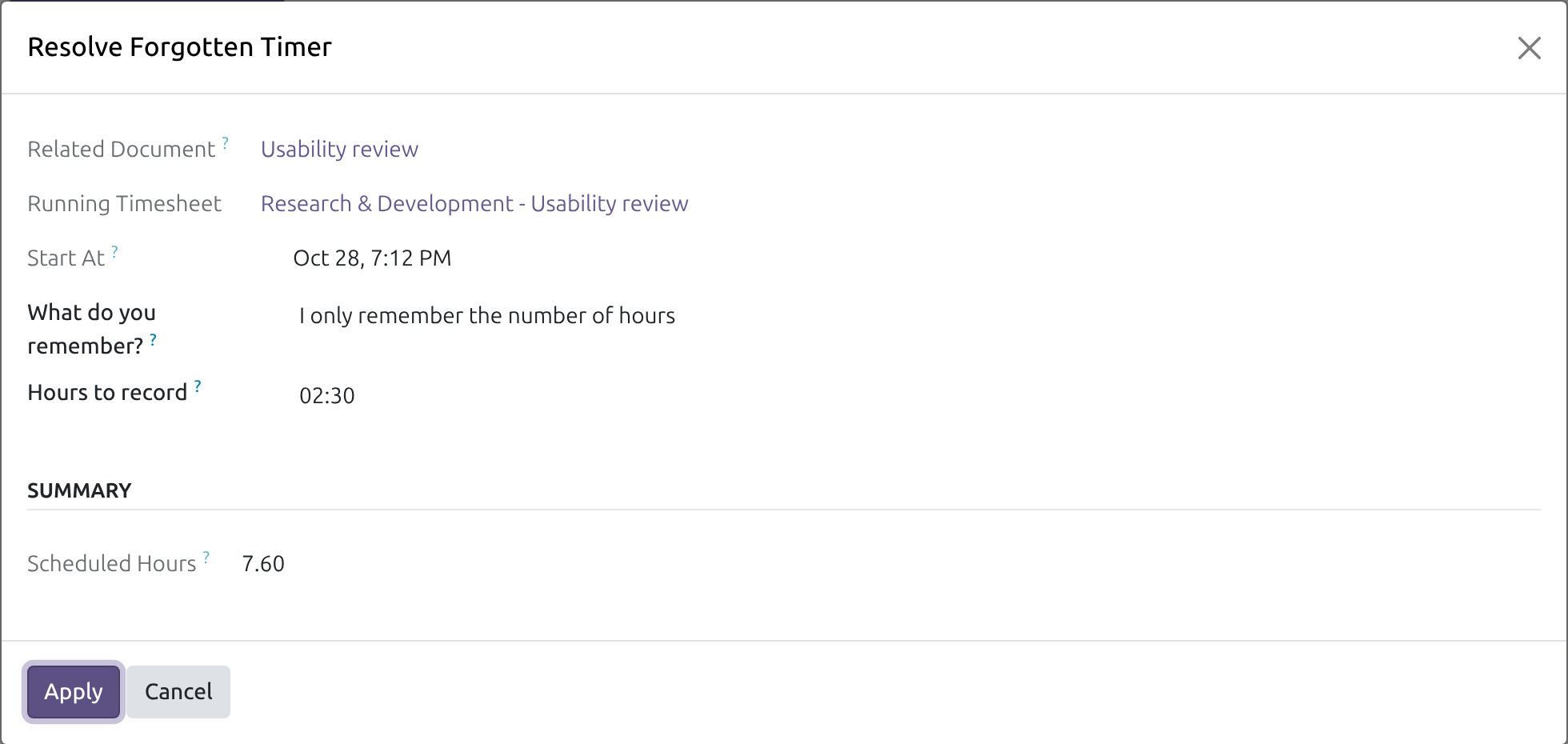
Choose I only remember the number of hours, type the hours, press Apply: the timesheet records exactly those hours.
Archiving waits until the timers stop
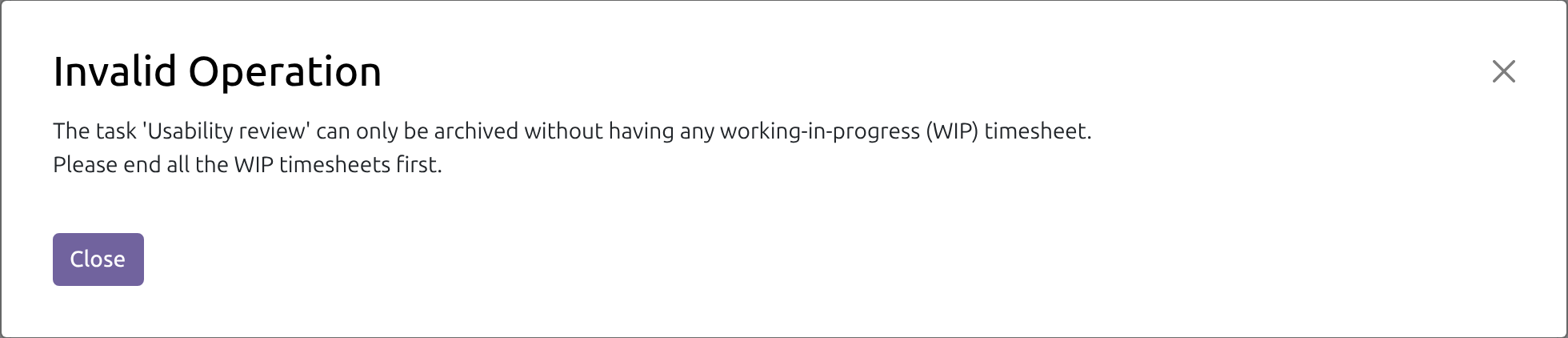
A task with a running timer cannot be archived; the message asks to end all WIP timesheets first.
Find the tasks being timed
My WIP Timesheet lists the tasks where you have a running timer; All WIP Timesheet lists anyone's.
See HR Timesheet Timer in Action
Live demo: v19demo-int.viindoo.com/web#action=project.action_view_all_task
Frequently Asked Questions
What happens when someone forgets to stop the timer?
Stopping a timer that started on an earlier day opens a dialog instead of recording an unrealistic entry. The person says what they remember: when they stopped, or only how many hours they worked. In hours-only mode the typed hours are recorded, counted from the start. A timer stopped on the same day is recorded as it ran.
Can hours follow the working schedule instead of the clock?
Yes. For a timer that crossed days, choose to count the actual elapsed time or only the hours in the employee's working schedule, one timesheet line per day.
Can one person run two timers at once?
No. Starting a timer on another task stops the one that was running.
Can a task be archived while a timer runs on it?
Not while anyone's timer runs on it. The message asks to end all work-in-progress timesheets first, and the My WIP Timesheet and All WIP Timesheet filters find the tasks concerned.
Does it approve timesheets?
No. Recorded time is approved with OmniApproval™ - Timesheet Approvals.
Does the project need timesheets enabled?
Yes. A project that does not allow timesheets offers no timer, and a timer cannot start on an archived task or on a task of an archived project.
Which Odoo version and editions does it support?
Odoo 19.0, Community and Enterprise editions.
Need help with HR Timesheet Timer?
Pre-Sales & Partnership
viindoo.com/contactusTechnical Support
viindoo.com/ticketTechnical Requirement
- Odoo version: 19.0
- Editions: Odoo Community, Odoo Enterprise
- Required modules: Task Logs, Viindoo Base, Countup Timer Widget
- License: OPL-1
Extend it further
Add the next step to the time your team already records.
Overtime Timesheet
Recognise overtime automatically from the hours people record on their timesheets.
Installation
- Navigate to Apps.
- Search with keyword viin_hr_timesheet_timer.
- Press Install.
Instruction
Instruction video: HR Timesheet Timer
1. Start and stop the timer on a task to simplify the timesheet process.
Recording the actual time spent on a task is a quick way to report work, to help managers see the details of task performance and to record work progress. Besides entering the time in the Timesheets tab, you can press Log Timesheet on the task: the system shows a clock counting the hours, minutes and seconds (for example 00:01:30) and the clock also includes the time you already logged on that task. Press Stop Timesheet Log when you finish or pause the work and the elapsed time is saved as a timesheet line.
You have at most one running timer: pressing Log Timesheet on another task stops the one that was running. A timer cannot be started on an archived task or on a task of an archived project, and a project that does not allow timesheets offers no timer.
2. Stop a timer that was left running past midnight.
When the timer you stop started on an earlier day, the system does not guess the hours. It opens the Resolve Forgotten Timer dialog, which shows the related task, the running timesheet and the time the timer started (Start At). In What do you remember? choose what you know:
- I remember when I stopped: enter the time in Stop At. By default the elapsed time is recorded (Count actual elapsed time); under Advanced options you can choose Count only working hours (schedule) to record only the hours in the employee's working schedule, one timesheet line per day. Tick Adjust recorded hours to type the hours to record yourself.
- I only remember the number of hours: type the hours worked in Hours to record, for example 02:30. The timesheet line records exactly those hours, counted from the time the timer started. The hours must be greater than zero.
The Summary section shows the Elapsed Hours and the Scheduled Hours for reference. Press Apply to save the timesheet, or Cancel to leave the timer running. When you pressed Log Timesheet on another task to reach this dialog, that task's timer starts right after you press Apply.
3. Archive a task only when no timer is running on it.
A task cannot be archived while any employee has a running timer on it. The system refuses with the message that the task can only be archived without any work-in-progress (WIP) timesheet, and asks you to end all the WIP timesheets first. Ask the people whose timers are running to press Stop Timesheet Log (the All WIP Timesheet filter below finds the tasks concerned), then archive the task.
4. Find the tasks being timed with two filters.
To quickly find the tasks that are being timed and whose timer has not been stopped, the task search offers two filters:
- All WIP Timesheet: the tasks on which anyone has a running timer.
- My WIP Timesheet: the tasks on which you have a running timer.
This software and associated files (the "Software") may only be used (executed, modified, executed after modifications) if you have purchased a valid license from the authors, typically via Odoo Apps, or if you have received a written agreement from the authors of the Software (see the COPYRIGHT file).
You may develop Odoo modules that use the Software as a library (typically by depending on it, importing it and using its resources), but without copying any source code or material from the Software. You may distribute those modules under the license of your choice, provided that this license is compatible with the terms of the Odoo Proprietary License (For example: LGPL, MIT, or proprietary licenses similar to this one).
It is forbidden to publish, distribute, sublicense, or sell copies of the Software or modified copies of the Software.
The above copyright notice and this permission notice must be included in all copies or substantial portions of the Software.
THE SOFTWARE IS PROVIDED "AS IS", WITHOUT WARRANTY OF ANY KIND, EXPRESS OR IMPLIED, INCLUDING BUT NOT LIMITED TO THE WARRANTIES OF MERCHANTABILITY, FITNESS FOR A PARTICULAR PURPOSE AND NONINFRINGEMENT. IN NO EVENT SHALL THE AUTHORS OR COPYRIGHT HOLDERS BE LIABLE FOR ANY CLAIM, DAMAGES OR OTHER LIABILITY, WHETHER IN AN ACTION OF CONTRACT, TORT OR OTHERWISE, ARISING FROM, OUT OF OR IN CONNECTION WITH THE SOFTWARE OR THE USE OR OTHER DEALINGS IN THE SOFTWARE.