
OmniApproval™ - Salary Disbursement Approval
| Lines of Code | 1484 |
| Technical name | viin_approval_hr_payroll |
| License | OPL-1 |
| Website | https://viindoo.com/apps/modules/19.0/viin_approval_hr_payroll |
| Read description for | v 18.0 |
| Required Apps | Time Off (hr_holidays) Invoicing (account) Discuss (mail) Calendar (calendar) Employees (hr) |
| Included Dependencies | Payroll HR Payroll Accounting Employee Relatives Viindoo Base OmniApproval™: One platform. Every approval. Accounting Foundation Advanced HR Management HR Contracts (Viindoo) Work Entry Work Entry - Contract HR Accounting OmniApproval™ - Accounting Approvals Viin Time-Off Base Addendum Viin - Holiday Work Entry Viindoo Holiday & WorkDay Manager OmniApproval™ - Analytic Accounting Approvals Safe IR Metadata Proxies |
Never pay salaries that nobody signed off
For finance and payroll teams of growing companies that pay salaries in batches
Gate salary disbursement runs behind an approval workflow before payments are executed.
Is this you?
A large salary payment goes out and the owner or finance director only hears about it afterwards.
Approval lives in chat messages and emails, so nobody can prove who agreed to what.
A wrong payment run is hard to undo: payments are made, reconciled, and someone has to untangle it by hand.
The payroll team cannot see at a glance which payment runs are waiting for a decision.
What changes
→ Payments leave only after sign-off
Execute stays blocked until the approvers have approved the disbursement.
→ A clear decision trail
Every request shows who approved or refused it and when.
→ A paid run stays with the payer
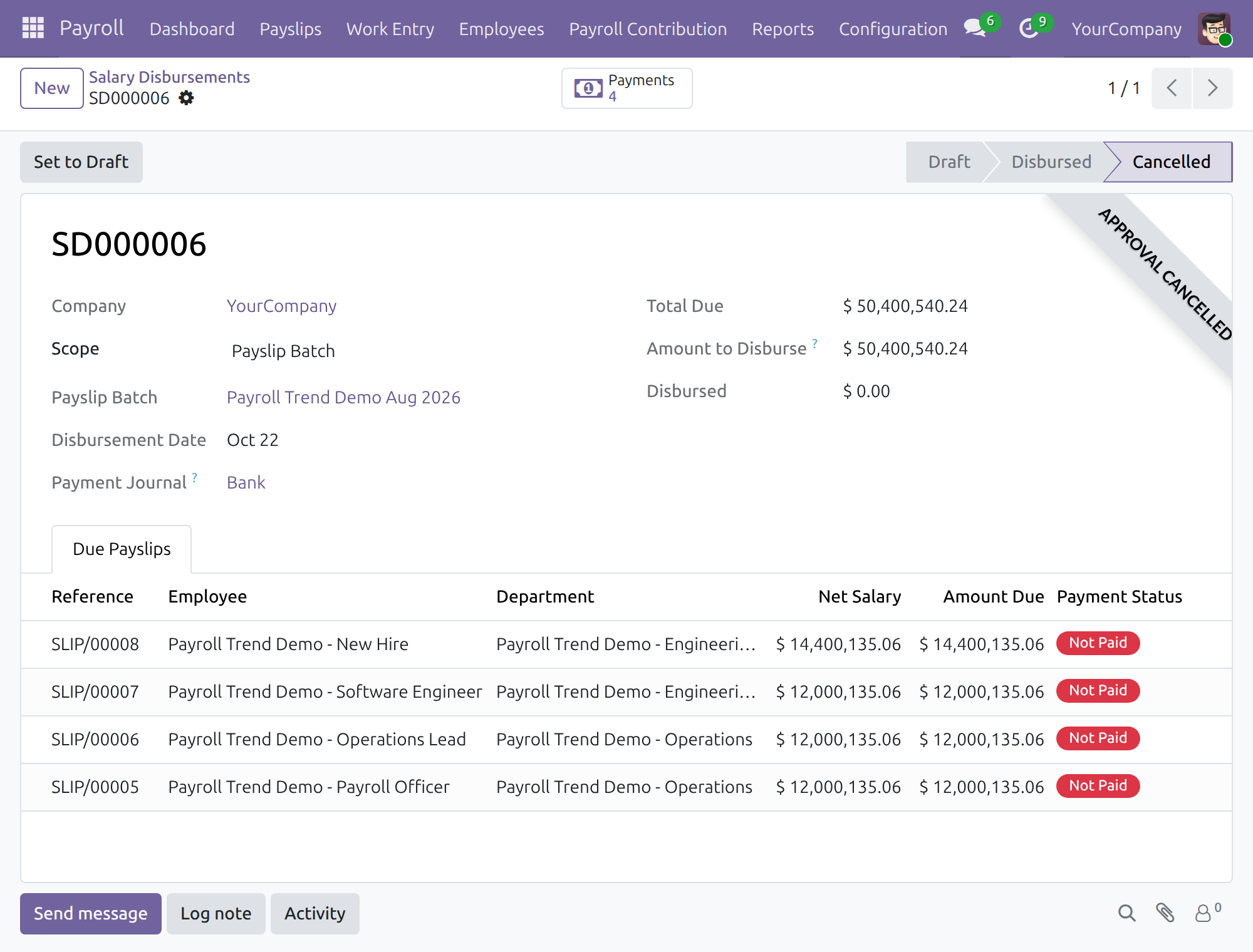
The approval of a paid run cannot be refused or cancelled until the payer cancels the run, which withdraws the payments and leaves payslip entries untouched.
→ One glance at the queue
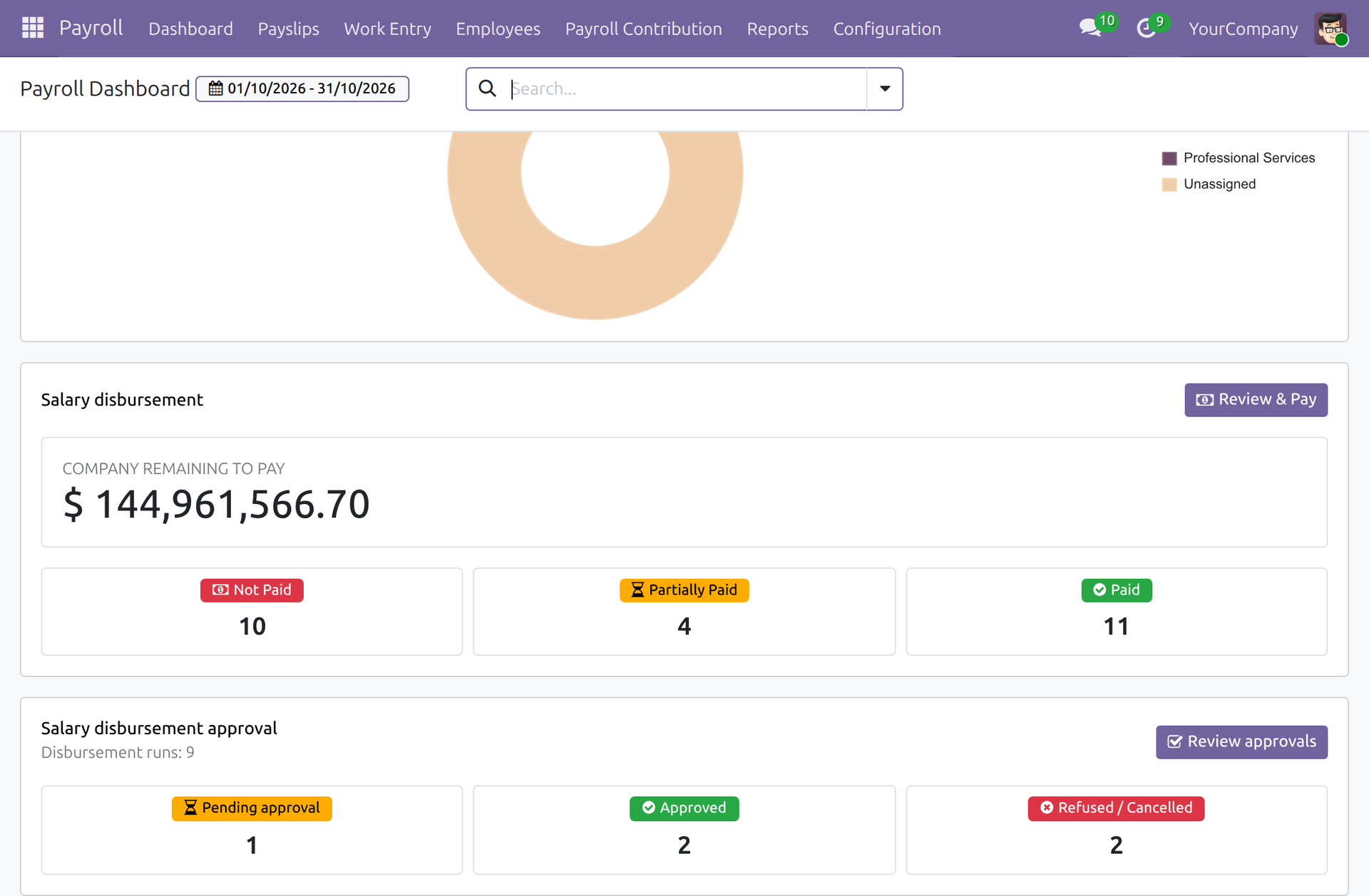
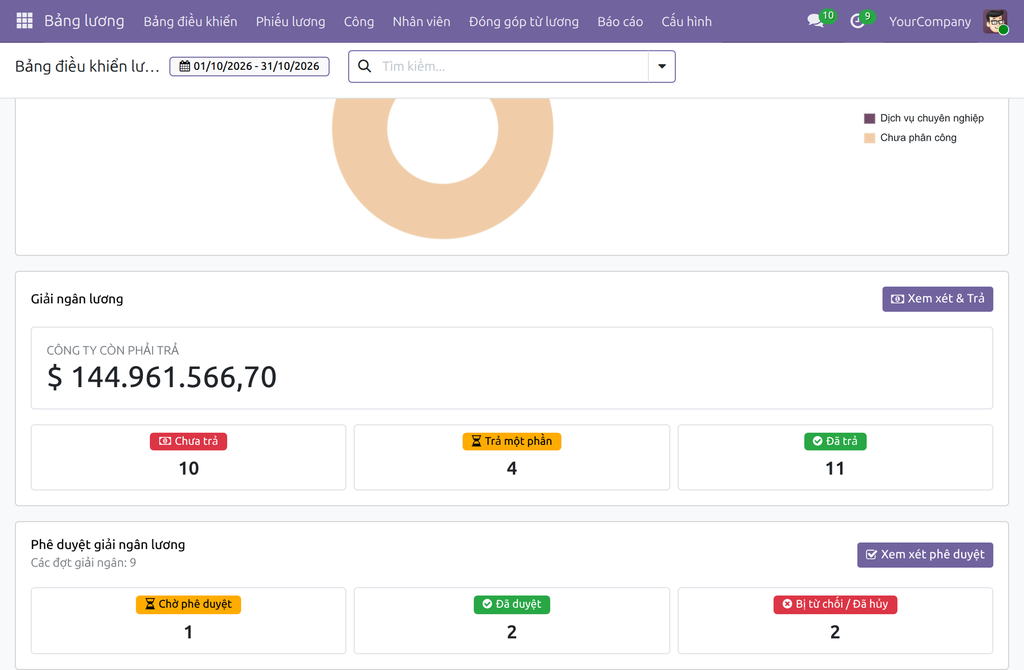
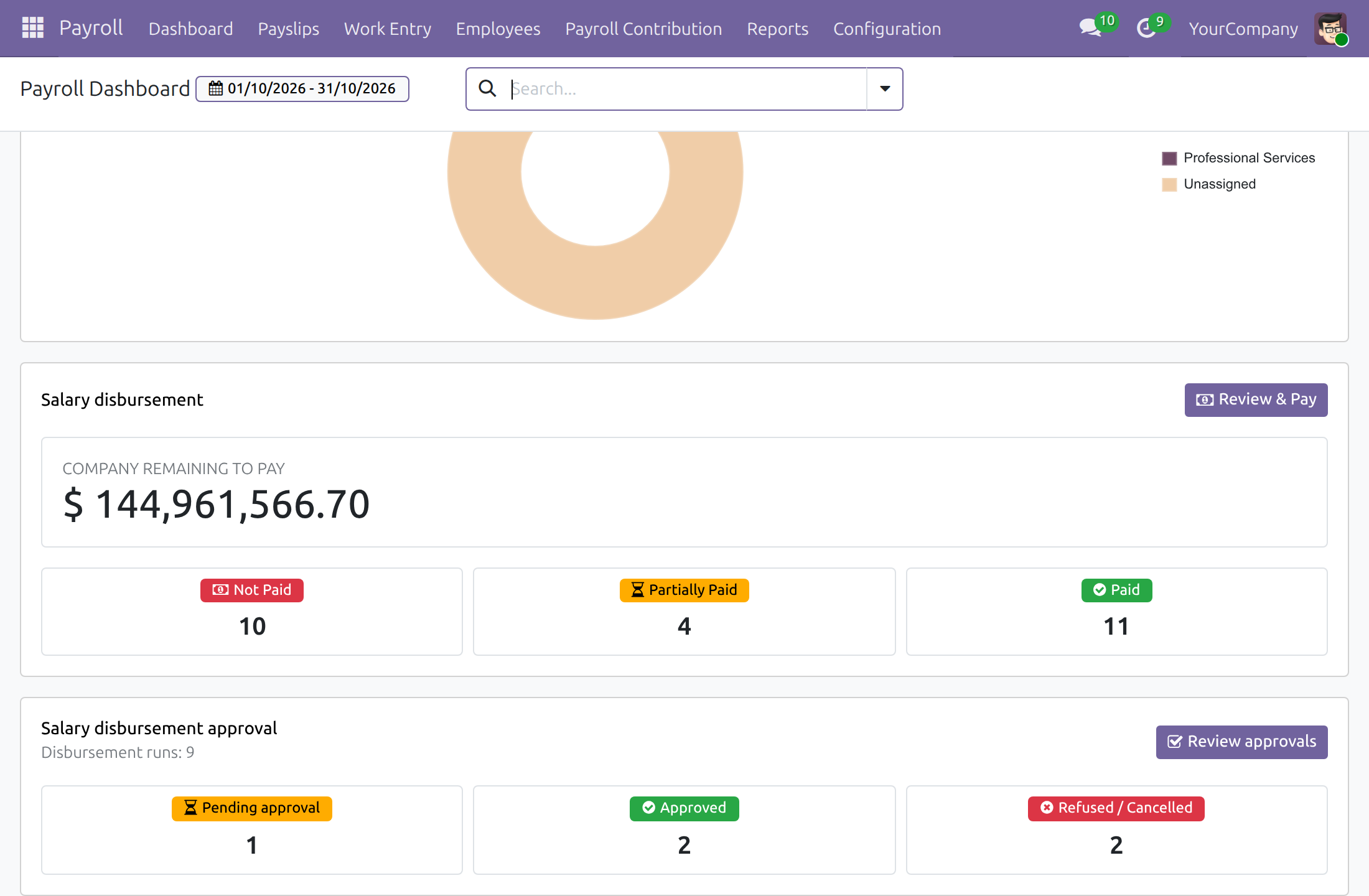
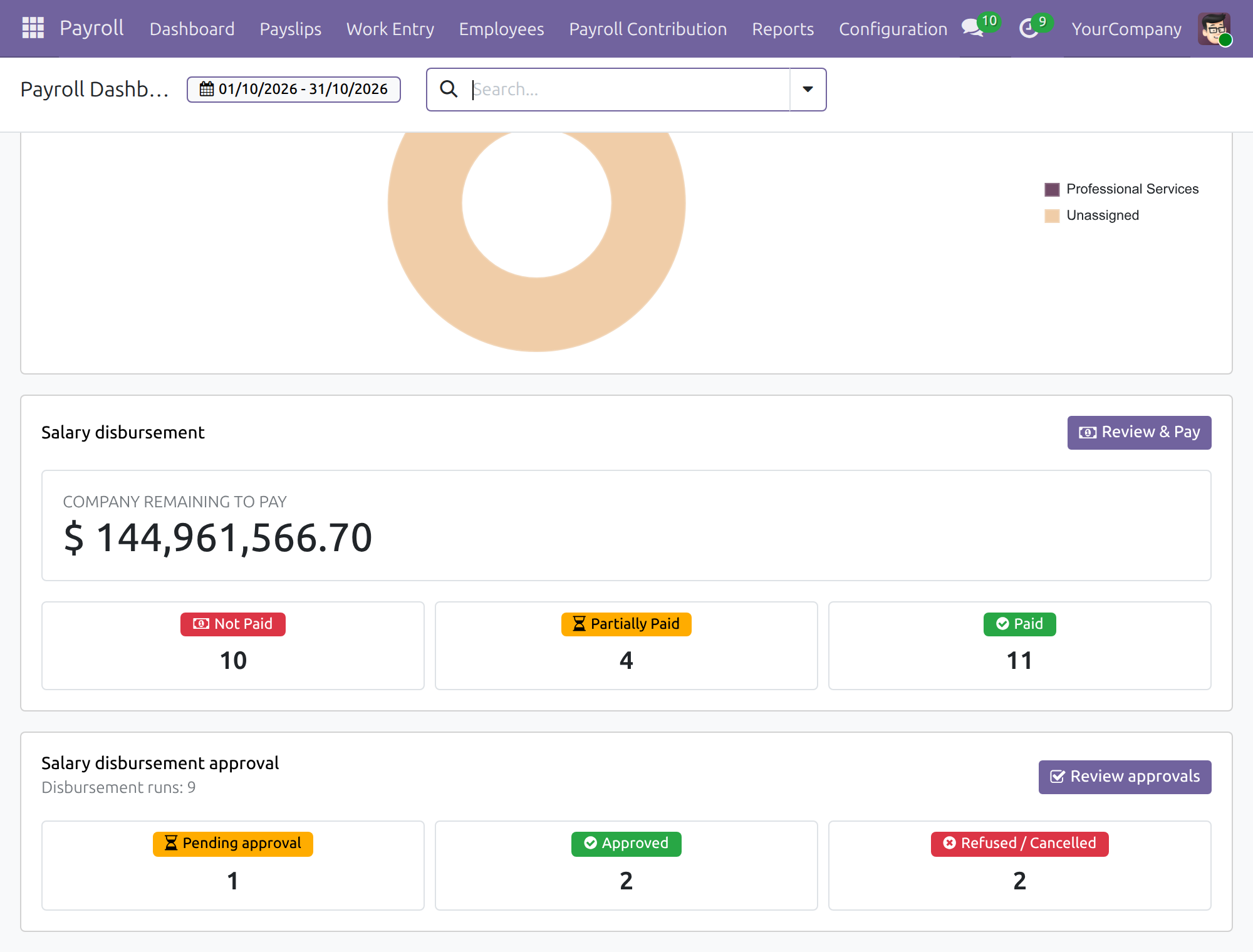
The payroll dashboard counts submitted runs waiting for a decision, approved runs, and refused or cancelled runs.
How it works
Set up
The administrator chooses which disbursements need approval and who approves them.
Request
The payroll accountant submits the disbursement for approval.
Decide
The approver reviews the amount and the payslips covered, then approves or refuses.
Pay
Once approved, the payroll accountant executes the disbursement; payroll administrators follow the queue on the dashboard.
Key Features
Approval before payment
A salary disbursement cannot be executed until its approval request is approved.
Payments change only through the payer
Only the person who pays salaries cancels a paid run; then its approval can be refused or cancelled.
You choose what needs approval
Set a rule, for example every run or only payments above an amount, and pick the approvers.
Payslip-level detail
The request lists the payslips of the run so approvers see exactly what they sign off.
Dashboard visibility
Payroll officers see submitted runs waiting for a decision, approved runs, and refused or cancelled runs on the payroll dashboard.
Separation of duties
The requester cannot approve their own request unless listed as an approver; forcing an approval is reserved to approval administrators and logged.
Who it is for
Finance director / owner
Wants to know and approve before money leaves. Gains a signed-off decision on every run.
Payroll accountant
Needs to pay on time without chasing approvals by chat. Gains one request per run and a clear status.
Payroll administrator
Needs to see what is blocked. Gains a dashboard card with the queue.
Internal control / audit
Needs evidence. Gains a logged approval, and paid runs that only the payer can withdraw, with payslips intact.
Best for: companies that pay salaries by batch, department or whole-company runs and want an approval before the money moves.
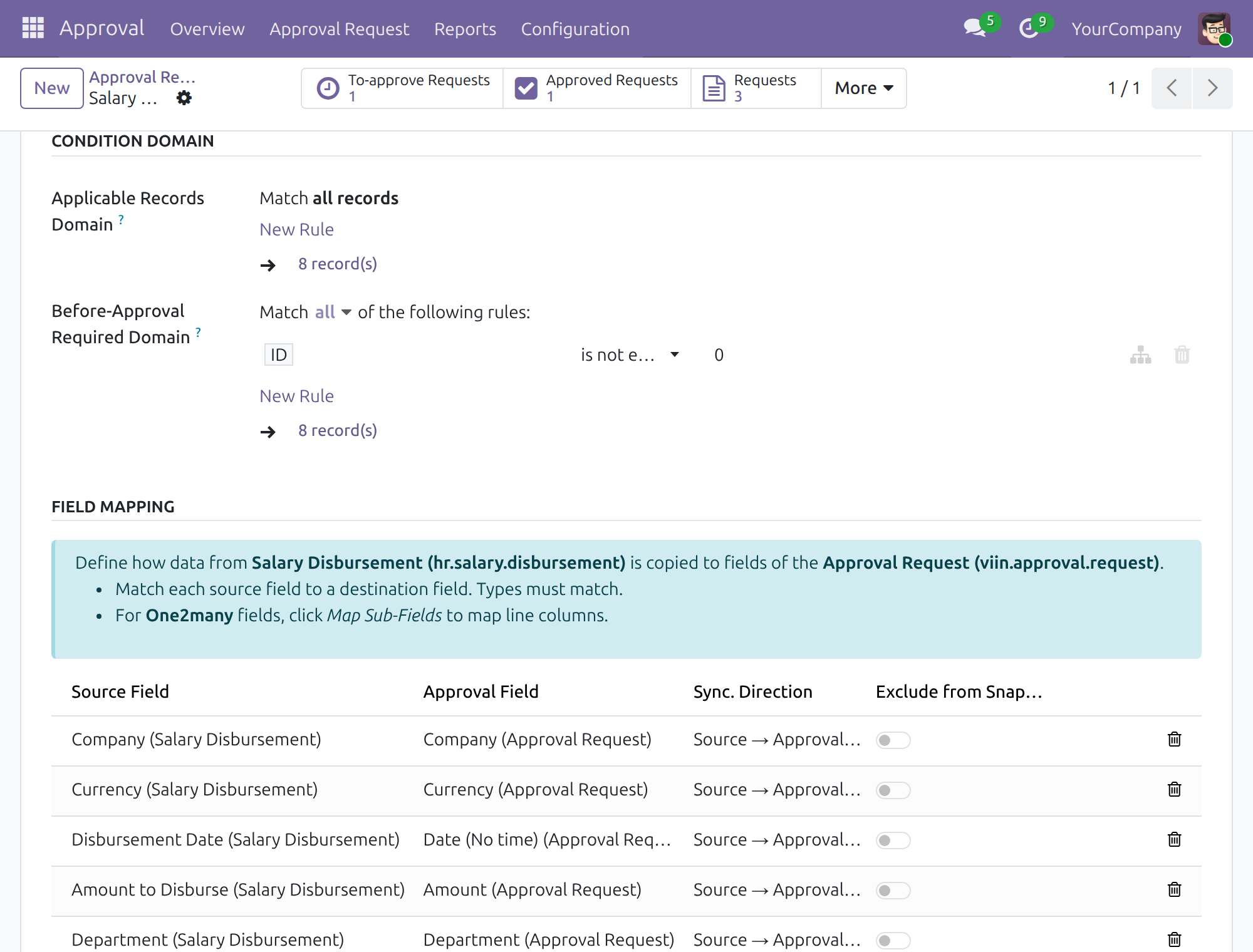
Choose which disbursements need approval
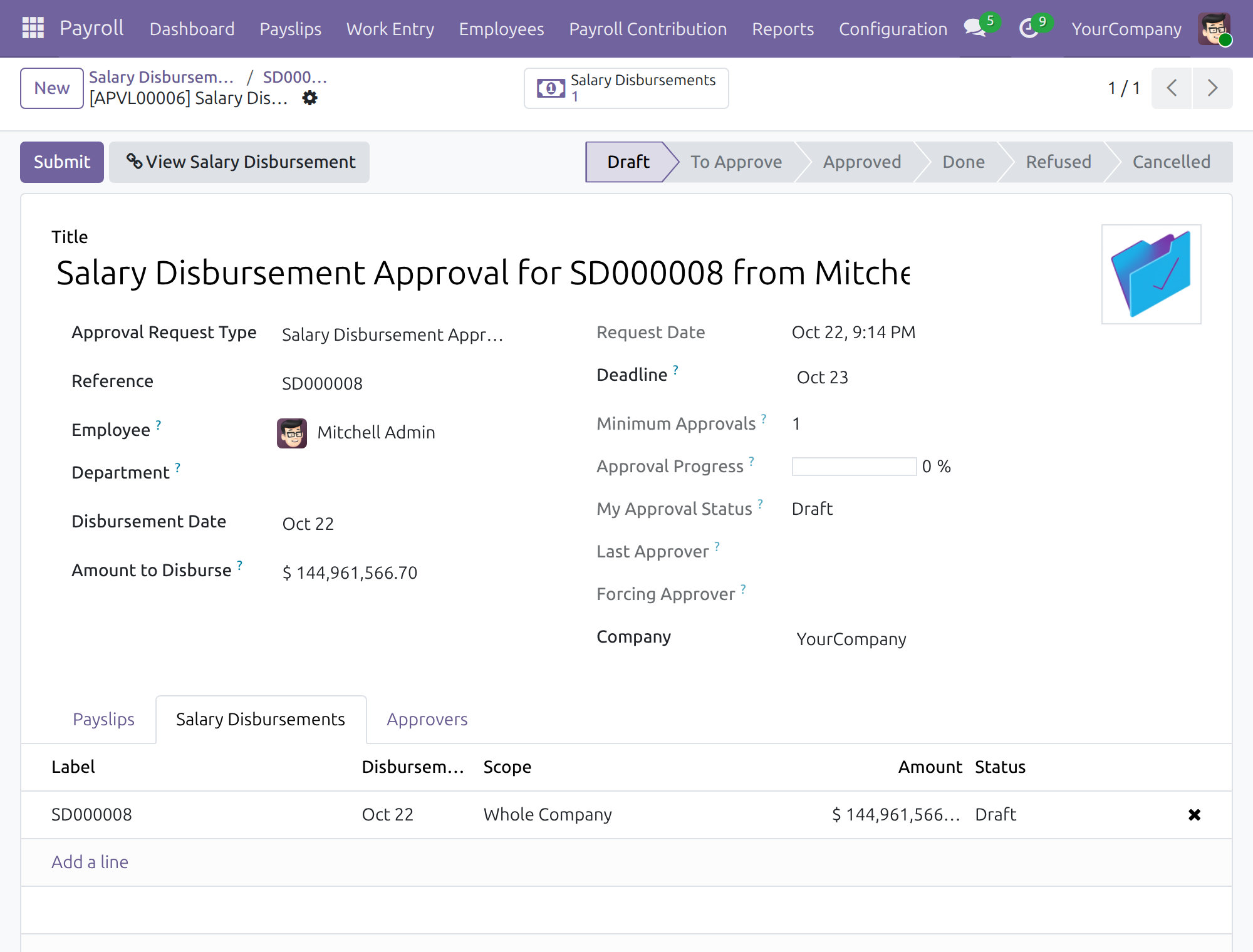
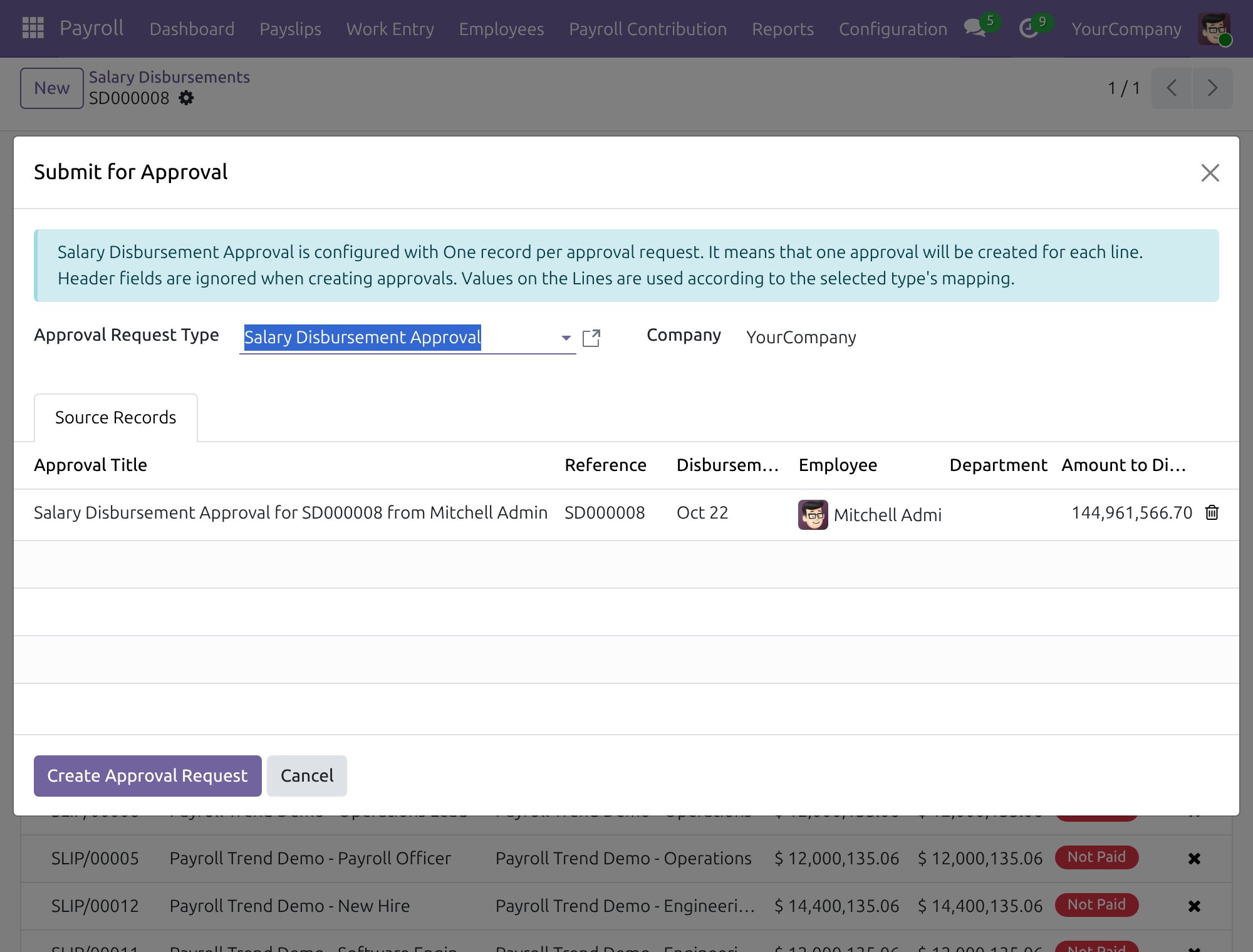
Submit a disbursement and attach it to an approval request
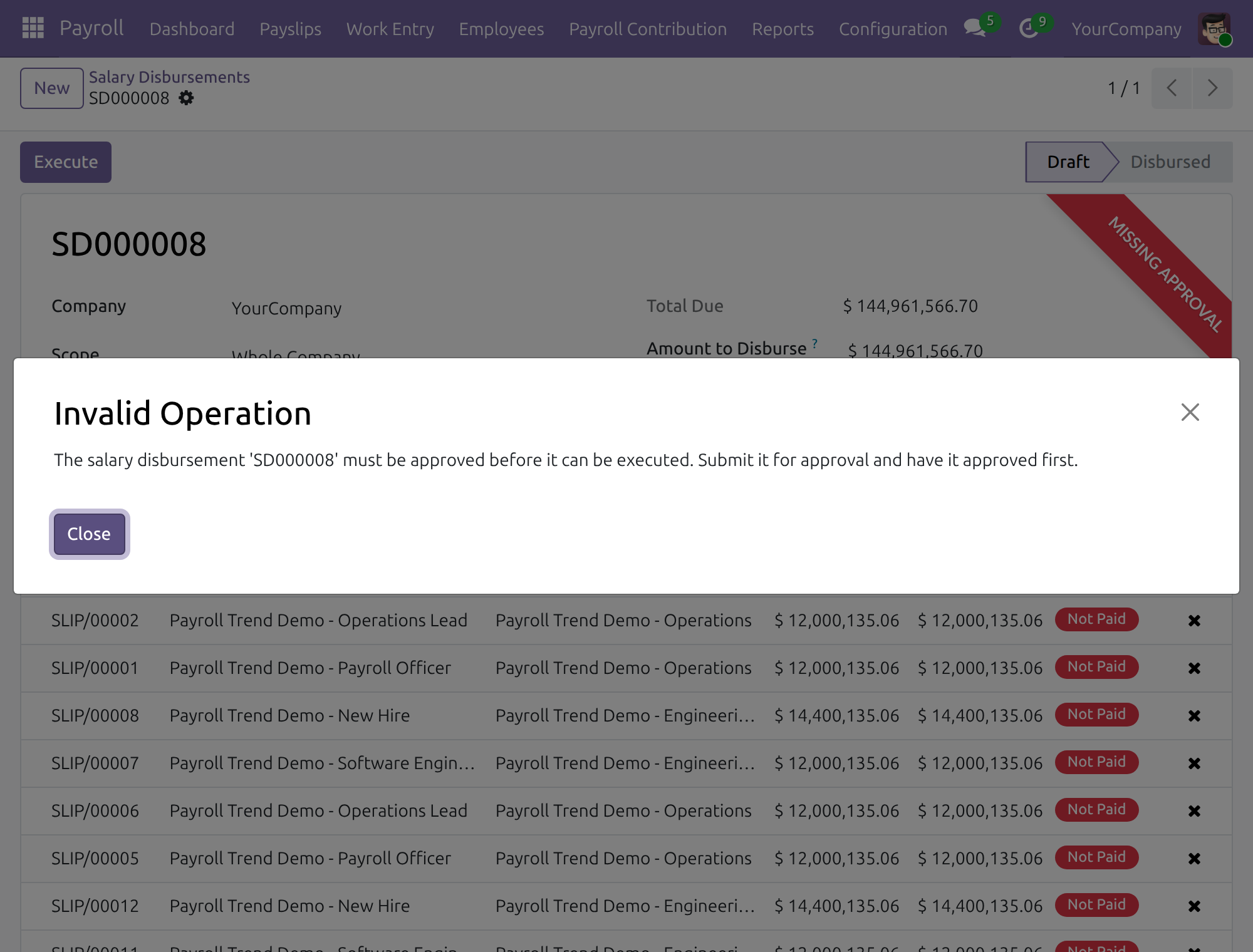
Execution is blocked until approval
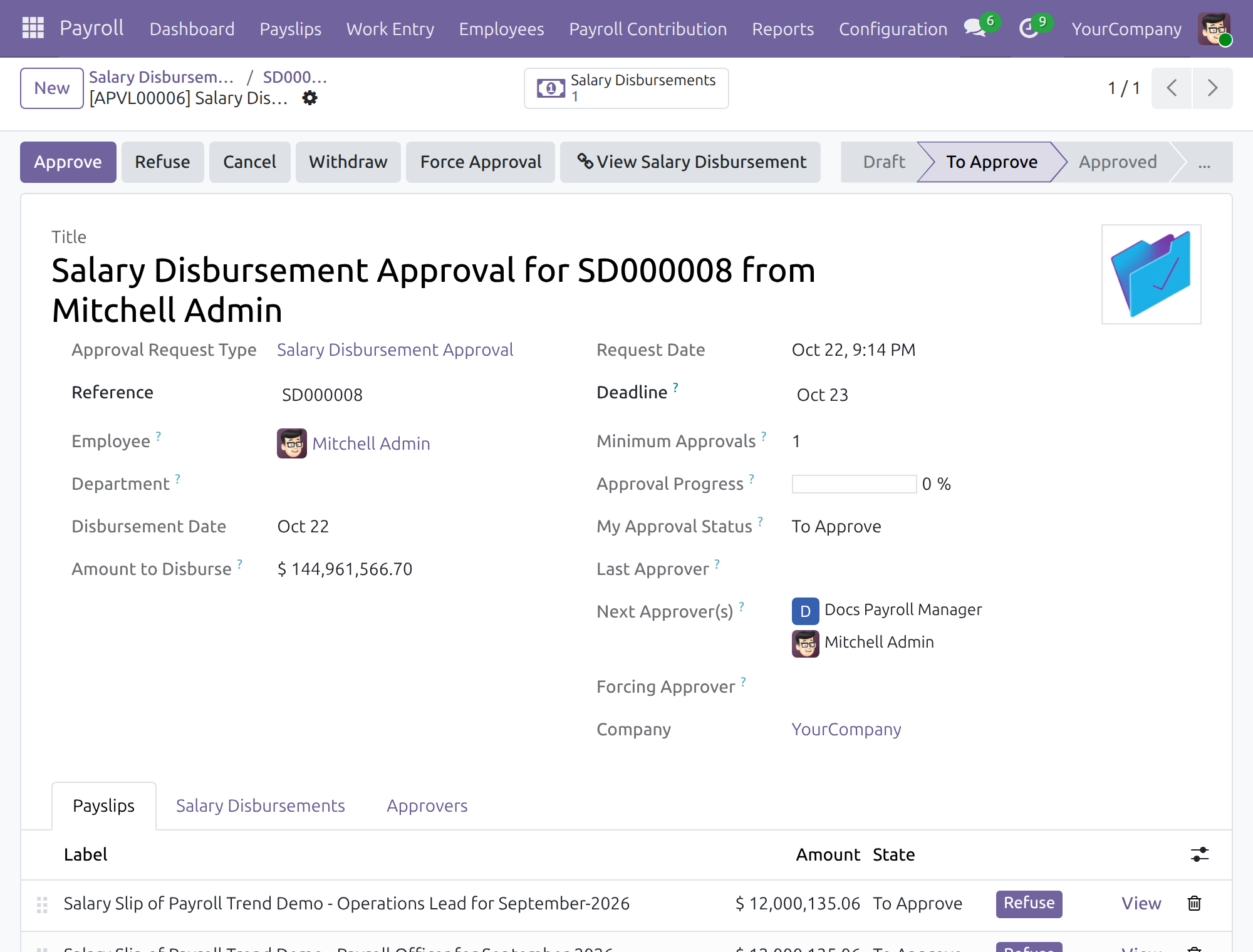
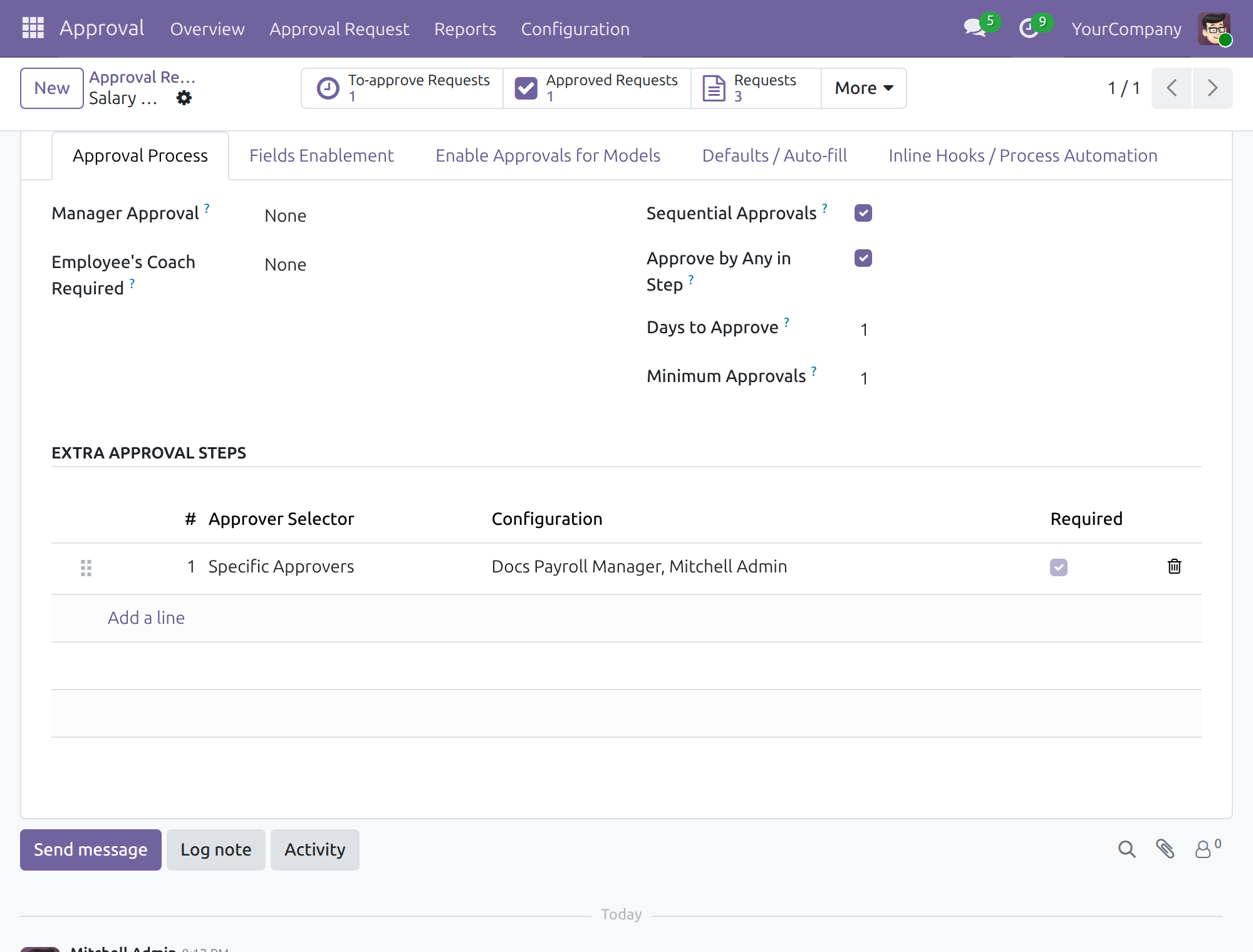
Approvers decide on the request
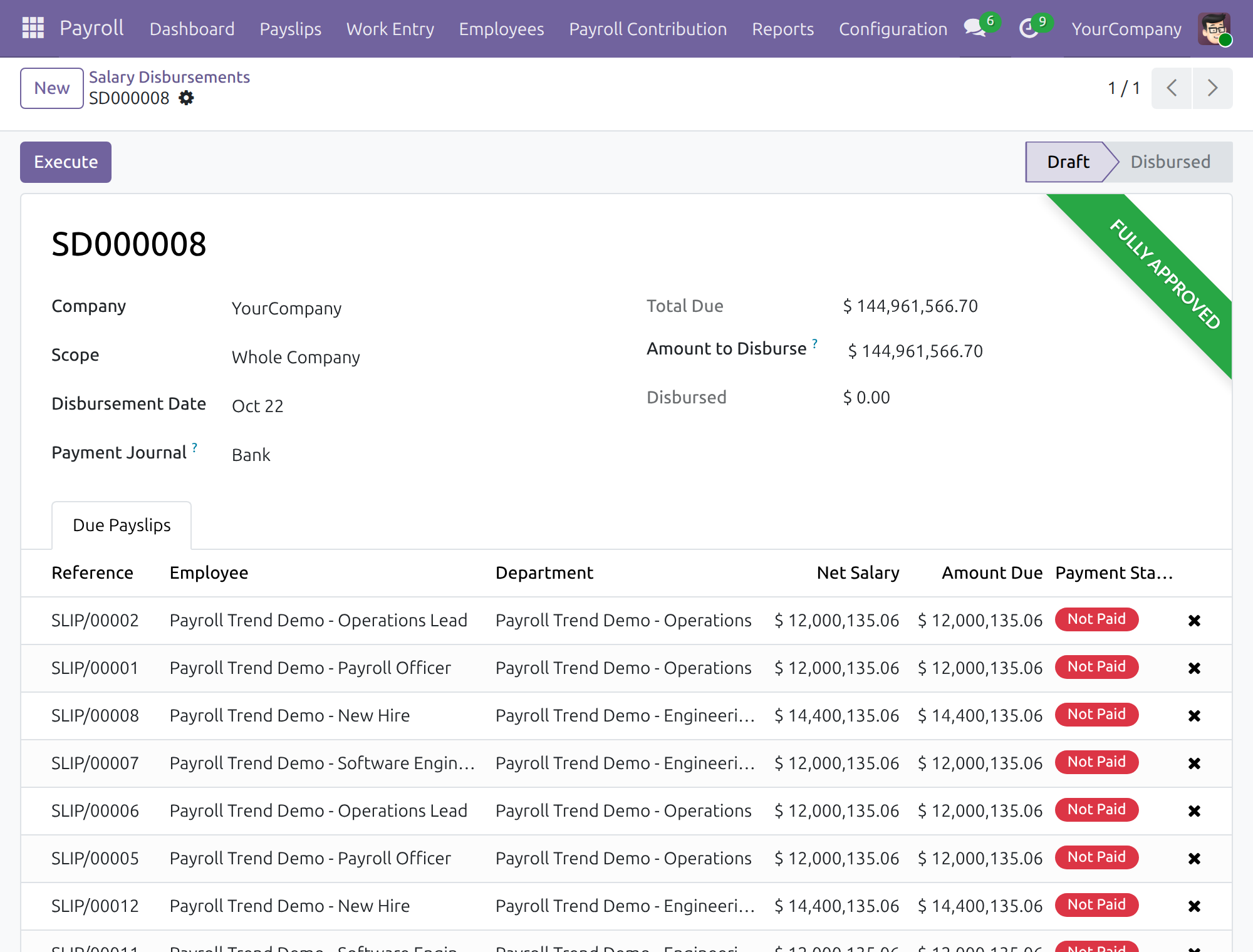
An approved disbursement is ready to execute
The payer cancels a paid run, then its approval is cancelled
Follow the queue on the payroll dashboard
Frequently Asked Questions
Does every salary disbursement need approval?
Only those that match the rule you set on the approval type. Until you set a rule, nothing is blocked.
Who approves?
The approvers listed on the approval type. By default they are the payroll administrators at install; you can change the list at any time.
What if an approval is refused after the salary was paid?
It cannot be refused any more. The person who pays salaries first cancels the run, which withdraws the payments and reopens the unpaid salary; then the approval can be refused. Payslips and their journal entries are not touched.
Can one request cover several disbursements?
No. One request approves exactly one disbursement.
Who can pay salaries?
Someone your company grants both a payroll access right and an Accounting / Invoicing access right. They also see the disbursement tab on the request and the Review approvals button on the dashboard; payroll-only and accounting-only users stay separate on purpose.
Need help with Salary Disbursement Approval?
Technical Requirement
- Odoo version: 19.0
- Editions: Community Edition, Enterprise Edition
- Required modules: HR Payroll Accounting, Approval, Approval Accounting
- License: OPL-1
OmniApproval - Salary Disbursement Approval
Note
Who this guide is for: the payroll accountant who pays salaries and asks for approval first, the approvers who sign the payment off, the Payroll Administrator who follows approvals on the payroll dashboard, and the System Administrator who switches the approval rule on.
Note
Extends HR Payroll Accounting - see its documentation for salary disbursements, payslips and payments.
Overview
Paying salaries is a decision that should not rest on one person. With Salary Disbursement Approval, a salary disbursement (the payment of a payslip batch, a department or the whole company) cannot be executed until an approval request for it has been approved. Once a disbursement is paid, its approval can no longer be refused or cancelled: only the person who pays salaries changes the books, by cancelling the disbursement first. The payslip journal entries are never touched by this.
The process, stage by stage:
- Set up (Administrator): choose which disbursements need approval and who approves them.
- Request (payroll accountant): create the salary disbursement, then submit it for approval.
- Decide (approver): review the request and approve or refuse it.
- Pay (payroll accountant): once the disbursement shows as approved, execute it.
- Follow (Payroll Administrator): watch pending, approved and refused disbursements on the payroll dashboard.
| Role | What they do | Access right to assign |
|---|---|---|
| System Administrator | Decides which disbursements need approval and who the approvers are. | Approvals / Administrator |
| Payroll accountant | Creates salary disbursements, submits them for approval and executes them once approved. | Payroll / Officer, together with Accounting / Invoicing (to pay). Link this person to an employee record. |
| Approver | Approves or refuses salary disbursement requests. | Listed as an approver on the approval type; Approvals / Officer or higher |
| Payroll Administrator | Follows the approval status of all disbursements on the payroll dashboard, and is an approver by default. | Payroll / Administrator |
Note
Salaries and accounting are kept apart on purpose. Someone who only has payroll access rights does not see the payment amounts and journal entries, so they cannot open the Salary Disbursements list, and on an approval request they do not see the Salary Disbursements tab, the Salary Disbursements button or the Select Salary Disbursement and View Salary Disbursement buttons; someone who only has accounting access rights does not see payslips. The person who pays salaries therefore needs both sets of rights, and works from the Salary Disbursements list. Only this person raises salary disbursement approval requests; anyone else who tries, for example from Approval > Overview, is told so.
The screenshots of this guide were taken on a database with demo data, a company in US dollars and the generic chart of accounts that Odoo provides.
Setup (for the Administrator)
Install the app
- Go to Apps.
- Search for OmniApproval - Salary Disbursement Approval.
- Click Install. The app needs HR Payroll Accounting and the approval apps; Odoo installs them when they are missing. A Salary Disbursement Approval type is created for each company.
Assign the access rights
- Go to Settings > Users & Companies > Users and open the user.
- Give each person the access rights listed in the table above, then save.
- Link the person who requests and pays salaries to an employee record (Employees, field Related User), so that they can follow their own requests.
Choose which disbursements need approval
Out of the box, no disbursement is blocked: approval is required only for the disbursements that match a rule you set.
- Go to Approval > Configuration > Approval Types and open Salary Disbursement Approval.
- Open the tab Enable Approvals for Models, section Condition Domain.
- In Before-Approval Required Domain, define the disbursements that must be approved before they are executed. For example, a rule ID is not equal to 0 makes every disbursement require approval; a rule on Amount to Disburse requires it only for large payments.
- Save.
Choose the approvers
- On the same approval type, open the tab Approval Process.
- In Extra Approval Steps, the line Specific Approvers lists who approves. When the app is installed, it contains the users who hold the Payroll / Administrator access right at that moment.
- Add or remove people on that line when your payroll administrators change, then save. Approvers must have at least the Approvals / Officer access right.
Payroll accountant: ask for approval, then pay
Submit a disbursement for approval
- Go to Payroll > Payslips > Salary Disbursements and open the disbursement, or create a new one.
- A disbursement that needs approval shows the red ribbon Missing Approval. When a colleague has already asked for approval, the ribbon shows the status of that request (for example Waiting for Approvals) and Get Approved is not offered; the request itself stays visible to its requester and its approvers.
- Open the Actions menu (the cog icon next to the reference) and click Get Approved.
- In Submit for Approval, check the approval type Salary Disbursement Approval, the title, reference, date, employee (optional; the person asking, by default you) and amount, then click Create Approval Request. The request is created with the disbursement attached.
- In the approval request, open the tab Salary Disbursements. Check that your disbursement is listed; if the tab is empty, click Add a line and pick it. The list offers the draft disbursements of the request's company. One request approves exactly one disbursement. The tab, the Salary Disbursements button and the Select Salary Disbursement and View Salary Disbursement buttons are shown to people who hold both a payroll and an Accounting / Invoicing access right.
- Save and click Submit. The request moves to To Approve and the approvers are asked to decide. Only a disbursement that is still in Draft can be submitted; a request for a disbursement that is already approved, paid or cancelled is refused with a message.
What happens if you execute too early
While the approval is missing or pending, clicking Execute on the disbursement is refused with the message that the disbursement must be approved first. Nothing is paid.
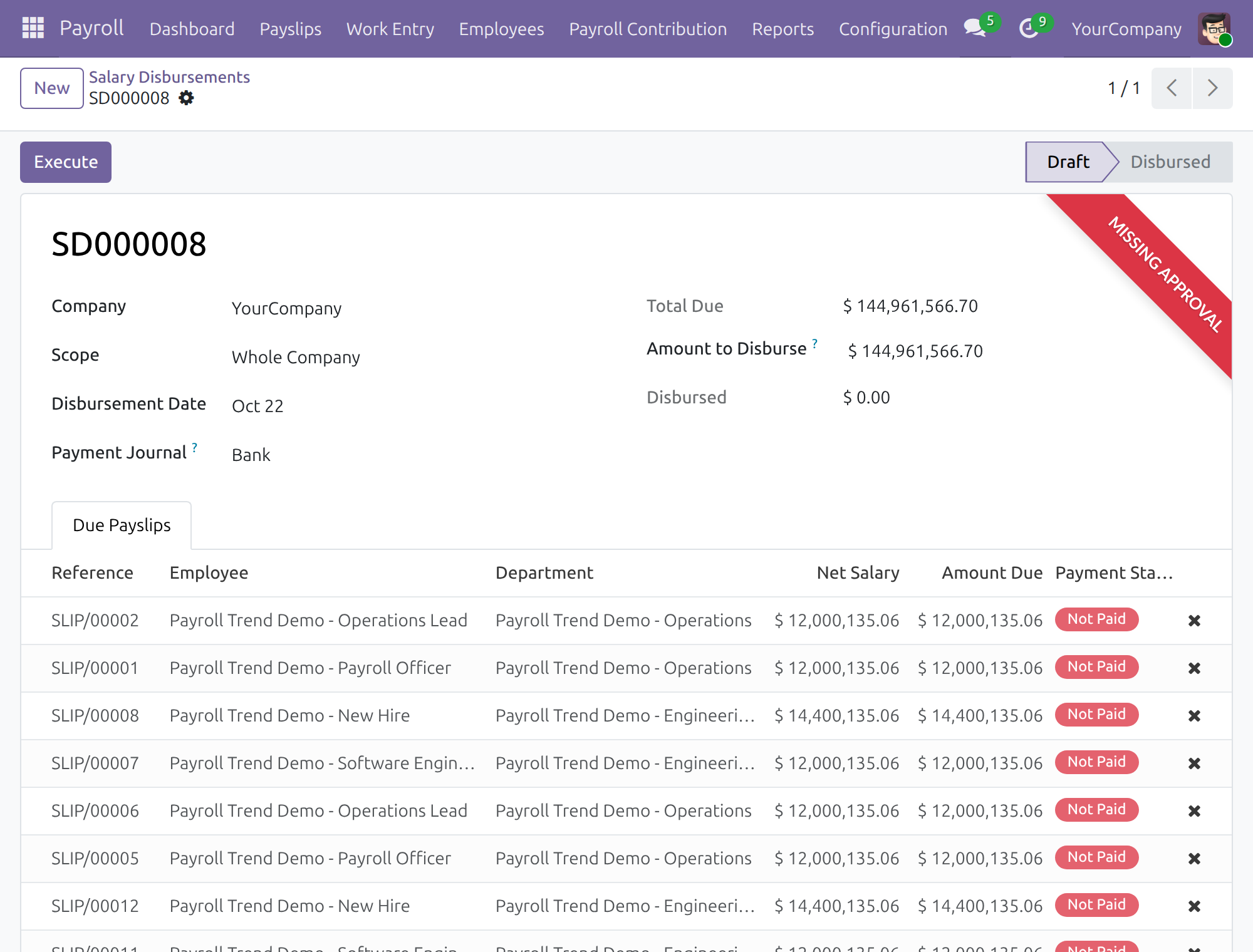
Execute an approved disbursement
- When the request is approved, the disbursement shows the ribbon Fully Approved.
- Open it and click Execute, then Ok. The salary payments are created and the payslips are reconciled, as described in the HR Payroll Accounting guide.
An approval covers the disbursement as it was submitted: its Amount to Disburse, its department and its due payslips. When one of them has changed since, Execute is refused with a message. Put the value back as it was approved, or get the new content approved (see below).
If the approval is refused or cancelled
A request whose disbursement is already paid cannot be refused or cancelled, by an approver or by an Approvals administrator: the attempt is refused with a message. The person who pays salaries (Payroll / Officer with Accounting / Invoicing) first opens the disbursement, clicks Cancel and confirms. The payments are withdrawn, the unpaid salary amounts are reopened and the disbursement becomes Cancelled; payslips and their journal entries stay as they were. The request can then be refused or cancelled.
A disbursement that was not paid stays in Draft and shows the refused or cancelled approval.
To pay a withdrawn disbursement again:
- On the Cancelled disbursement, click Set to Draft. Amount to Disburse proposes the full remaining amount due; when the approval was for part of it, enter the approved amount again.
- When the amount, the department and the payslips are those that were approved, click Execute. The approval still covers the disbursement, for example to make again a payment that the bank rejected.
- To pay something else, the approval request is cancelled first, by the person who asked for it or by an Approvals administrator (a refused request too). Then any payer uses Actions > Get Approved on the disbursement, and executes it once the new request is approved. The disbursement follows the new request; a cancelled request no longer counts.
Approver: decide on a request
Review and approve
- Go to Approval > Overview. The card Salary Disbursement Approval counts the requests waiting for you.
- Open the request. Check the amount, the date and, in the tab Payslips, the payslips it covers. Use View Salary Disbursement to see the disbursement itself; the button is shown to people who hold both a payroll and an Accounting / Invoicing access right.
- Click Approve, or Refuse to turn it down. The request moves to Approved and the payroll accountant can execute the disbursement.
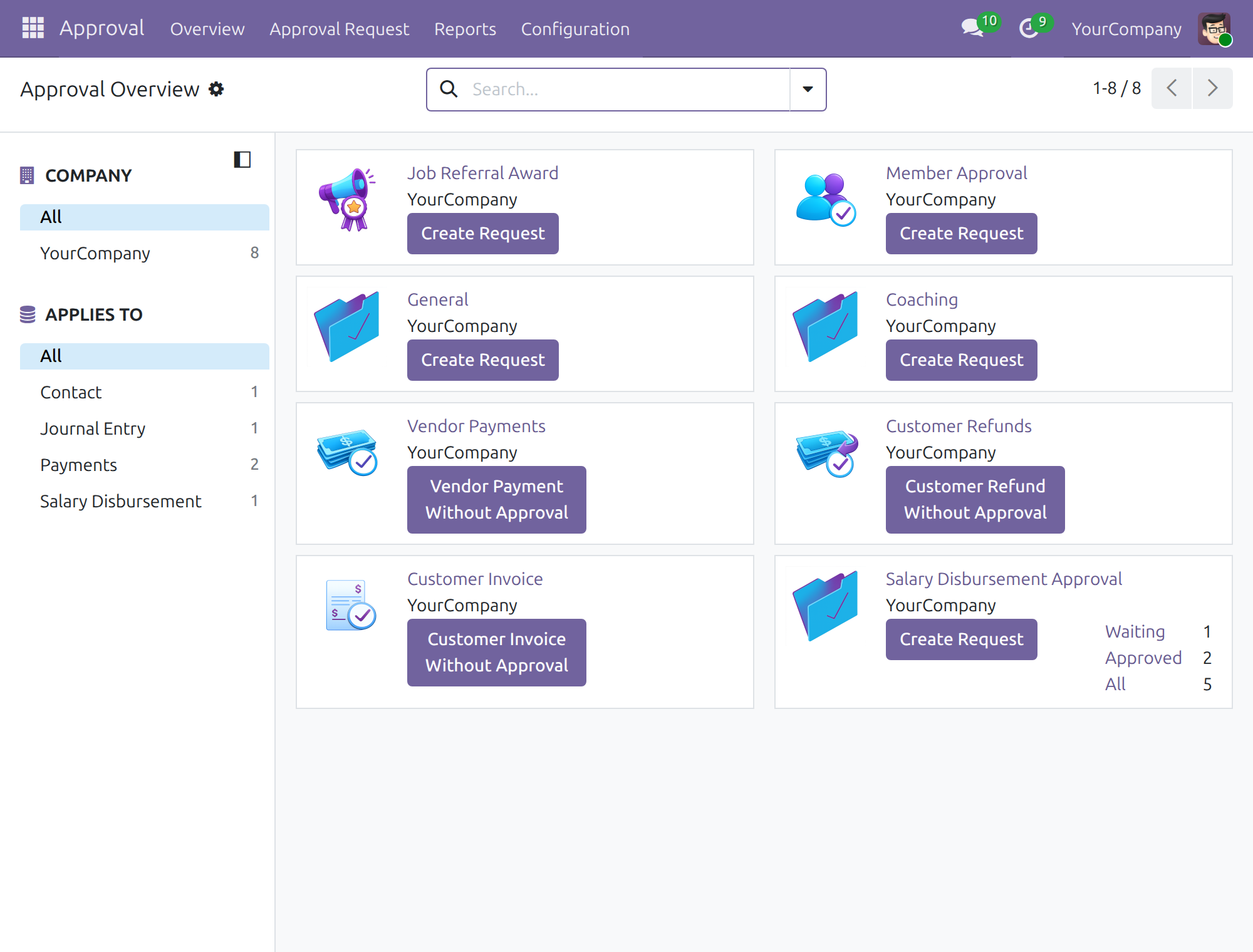
Note
The person who submitted a request cannot approve it unless they are also one of its approvers. Only an Approvals / Administrator can use Force Approval to approve without waiting for the others; the action is logged.
Payroll Administrator: follow the approvals
On the payroll dashboard
- Go to Payroll > Dashboard and scroll to the card Salary disbursement approval.
- Read the number of disbursements, and how many are Pending approval, Approved and Refused / Cancelled. Pending approval counts only the disbursements that have been submitted and are waiting for a decision; a disbursement that has not been submitted yet is not counted in any of the three.
- Click Review approvals to open the Salary Disbursements list, where you open each disbursement. The button is shown to people who hold both a payroll and an Accounting / Invoicing access right; with a payroll right alone you see the card without it.
This software and associated files (the "Software") may only be used (executed, modified, executed after modifications) if you have purchased a valid license from the authors, typically via Odoo Apps, or if you have received a written agreement from the authors of the Software (see the COPYRIGHT file).
You may develop Odoo modules that use the Software as a library (typically by depending on it, importing it and using its resources), but without copying any source code or material from the Software. You may distribute those modules under the license of your choice, provided that this license is compatible with the terms of the Odoo Proprietary License (For example: LGPL, MIT, or proprietary licenses similar to this one).
It is forbidden to publish, distribute, sublicense, or sell copies of the Software or modified copies of the Software.
The above copyright notice and this permission notice must be included in all copies or substantial portions of the Software.
THE SOFTWARE IS PROVIDED "AS IS", WITHOUT WARRANTY OF ANY KIND, EXPRESS OR IMPLIED, INCLUDING BUT NOT LIMITED TO THE WARRANTIES OF MERCHANTABILITY, FITNESS FOR A PARTICULAR PURPOSE AND NONINFRINGEMENT. IN NO EVENT SHALL THE AUTHORS OR COPYRIGHT HOLDERS BE LIABLE FOR ANY CLAIM, DAMAGES OR OTHER LIABILITY, WHETHER IN AN ACTION OF CONTRACT, TORT OR OTHERWISE, ARISING FROM, OUT OF OR IN CONNECTION WITH THE SOFTWARE OR THE USE OR OTHER DEALINGS IN THE SOFTWARE.