
Stock Equipment
| Lines of Code | 878 |
| Technical name | to_stock_equipment |
| License | OPL-1 |
| Website | https://viindoo.com/apps/modules/19.0/to_stock_equipment |
| Read description for | v 10.0 v 11.0 v 12.0 v 13.0 v 14.0 v 15.0 v 16.0 v 17.0 v 18.0 |
| Required Apps | Discuss (mail) Inventory (stock) Employees (hr) Maintenance (maintenance) |
| Extensions | Stock Equipment Bom Kit Repair Order from Maintenance Request Integrate Asset - Equipment Management and the warehouse Stock Equipment Maintenance Schedule Inventory Equipment Maintenance Tracking Equipment Warranty Partner |
The serial number you receive becomes the equipment you maintain
For warehouse and maintenance teams that buy serial-numbered machines, devices and tools
Integrate Equipment with Inventory application for equipment stock and tracing
Odoo 19.0 · Community · Enterprise · OPL-1
What changes for your team
The equipment register fills itself at the receipt
Today someone re-types each delivered unit into the Maintenance app, and a serial number gets mistyped.
→ Validating the receipt creates one equipment for each serial number; a serial that already has its equipment is not duplicated.
Each unit arrives with its owners already set
Today the category, the maintenance team, the technician and who uses each unit are filled in one record at a time.
→ Set them once on the product category, and override them on a product where it differs: every equipment created from a receipt takes the values of its product, those of the product category where the product leaves one empty, and the cost of the receipt line.
Where a machine is, and where it came from
Today finding a unit means searching the warehouse.
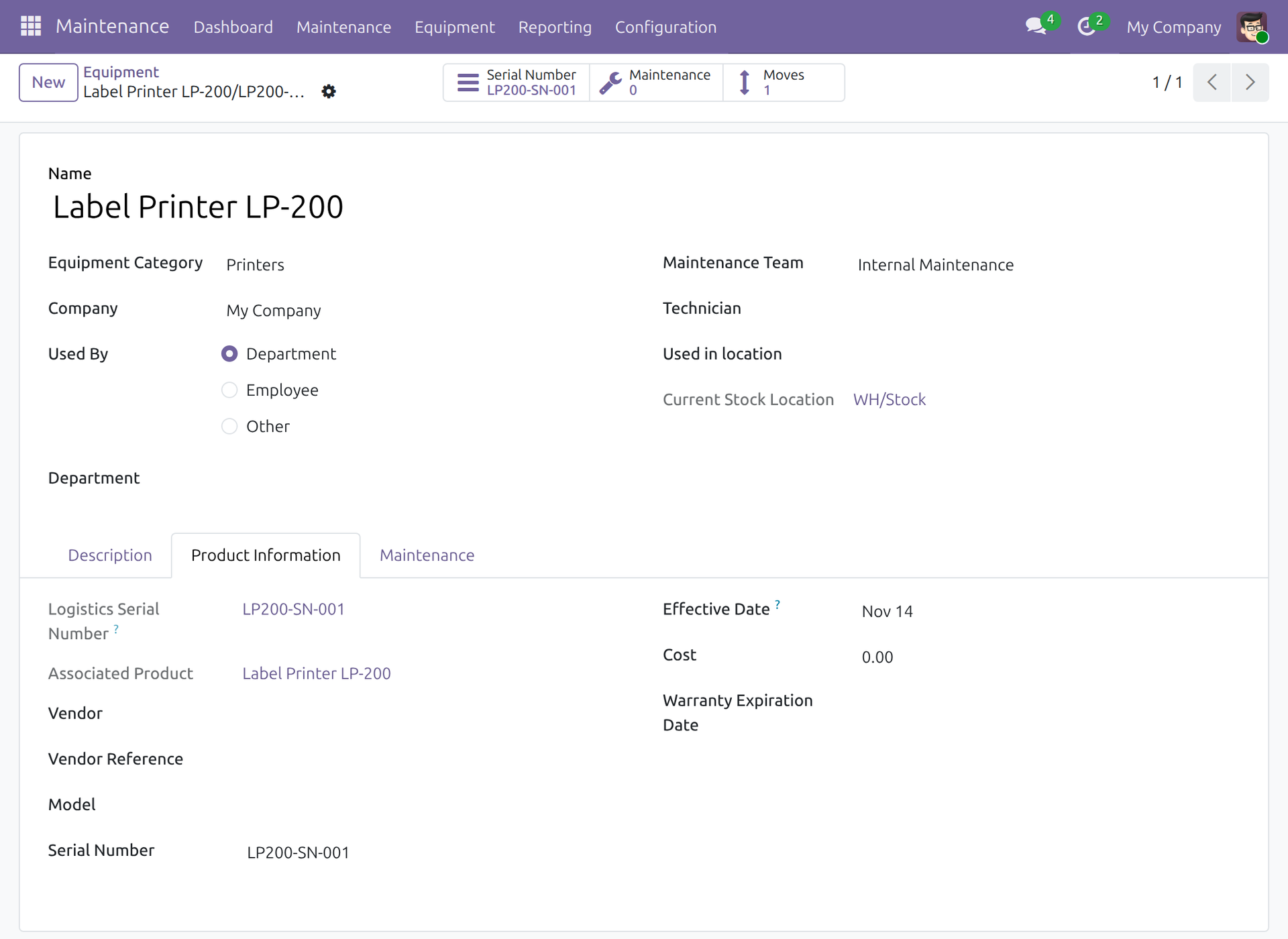
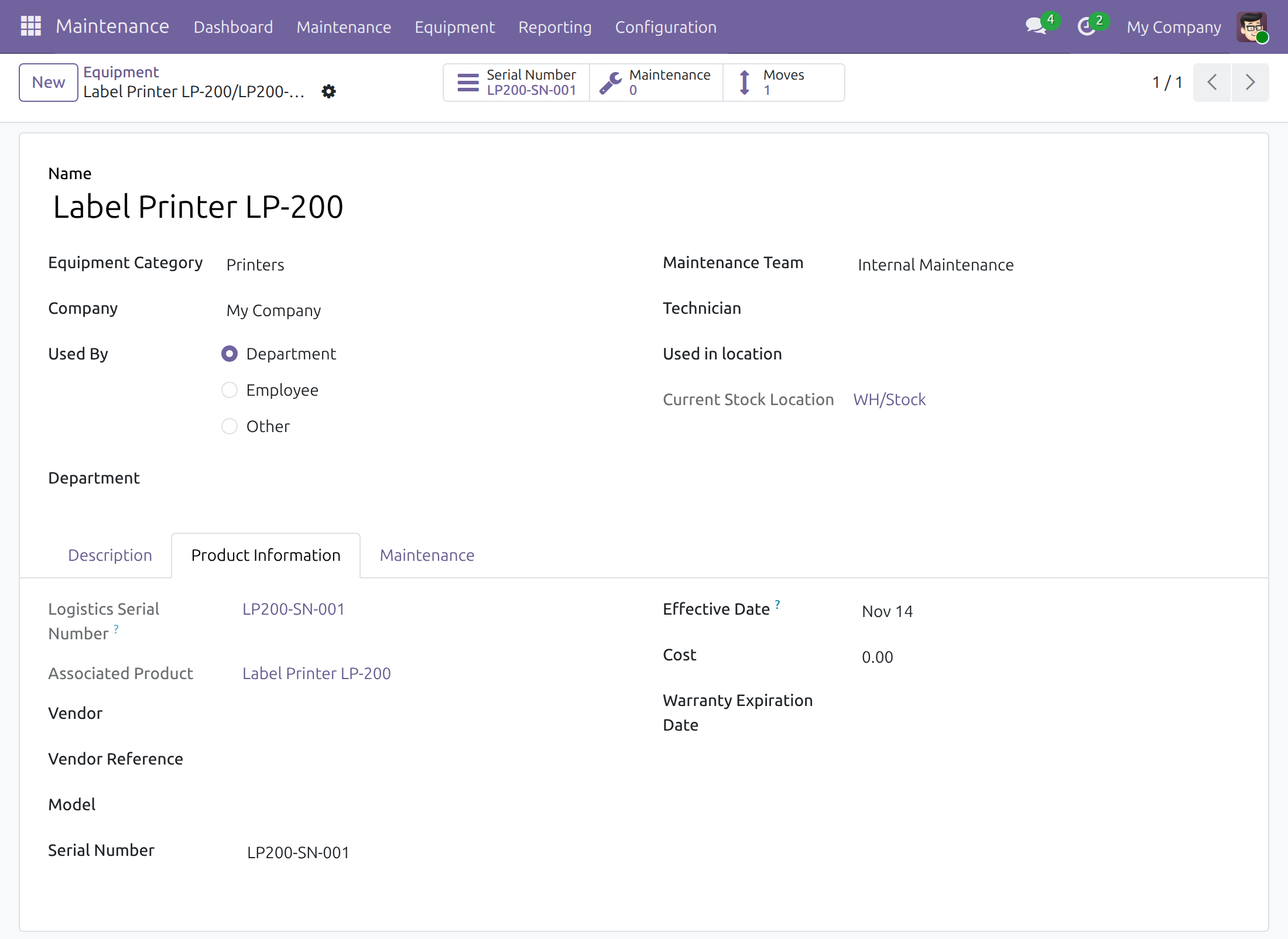
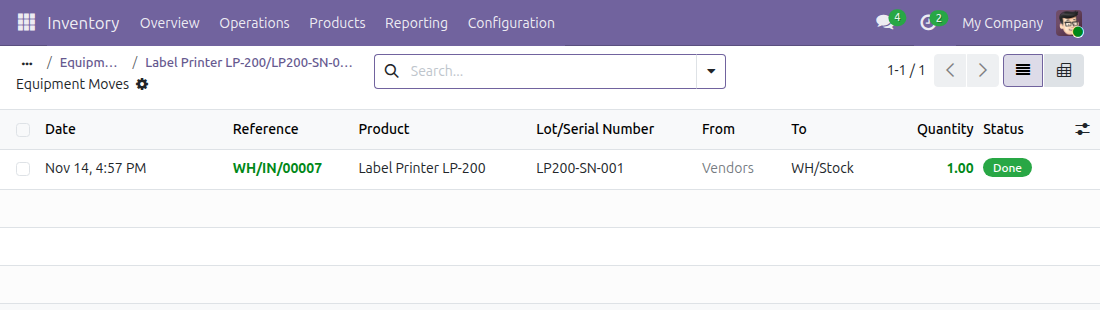
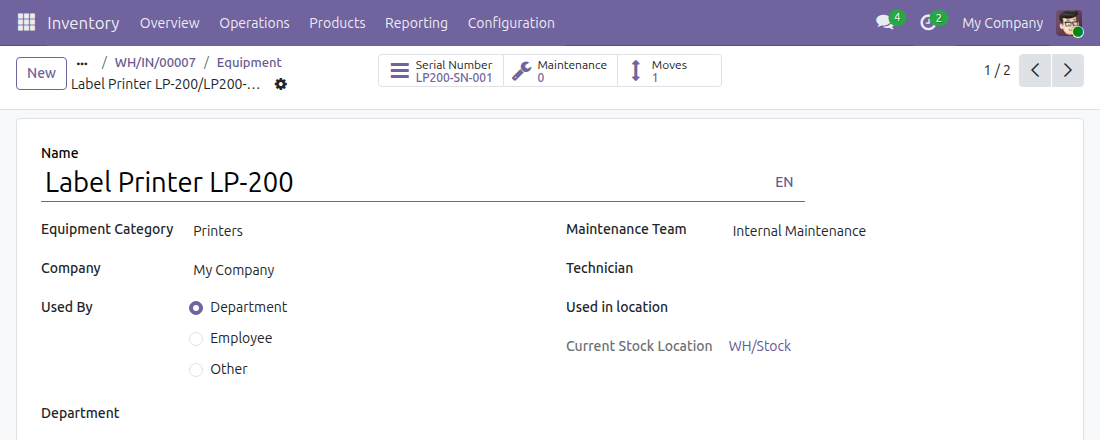
→ The equipment shows its serial number, its product, its current stock location and every stock move it went through. The receipt opens its equipment, and the serial number opens its maintenance history.
Ready on day one
Receipts that can create equipment
Installing the module turns on lots and serial numbers and allows the existing receiving operation types to create equipment.
Equipment found by origin
The equipment list filters the units generated from stock operations and groups them by current stock location.
What the administrator sets first
Mark the products that are equipment and preset their category and maintenance team. The Documentation tab walks through it.
What is included
The link between Inventory and Maintenance: equipment created from receipts, with the current stock location and moves of each unit.
Optional extensions
Stock Equipment Maintenance Schedule
Carries the maintenance schedule set on a product over to the equipment created from it.
Integrate Asset - Equipment Management and the warehouse
Manages the equipment received through the warehouse as assets as well.
Stock Equipment Bom Kit
Receive a kit and its components as equipment: one main equipment per kit, with the equipment of its components linked under it.
Before you decide
Does any data leave the database?
No. The module adds no outside connection; everything stays in your inventory and maintenance records.
Which products can become equipment?
Goods tracked by unique serial number, with Create on Receipt set to Equipment: one unit, one number, one equipment.
Does every receipt create equipment?
Only receipts of equipment products, on operation types allowed to create equipment and to create new serial numbers. The operator can untick a line that must not become equipment.
Who can do what?
Inventory users receive and validate; the equipment is created even when they have no maintenance rights. The equipment buttons and tabs are for Equipment Managers; Inventory Administrators configure the operation types.
Does it plan the maintenance?
No. Maintenance requests and plans stay in the Maintenance app.
Try it, then ask us
The Documentation tab of this listing has the step-by-step guide for each role, the Live Preview opens a demo database, and the video above shows the full flow.
Pre-sales & partnership
viindoo.com/contactusTechnical support
viindoo.com/ticketTechnical requirements
- Odoo version: 19.0
- Editions: Community, Enterprise
- Required modules: Inventory, Maintenance - HR, Stock - Maintenance
- License: OPL-1
- Languages: English, Vietnamese
Stock Equipment
Audience: warehouse operators, equipment managers, purchasers and the administrators who set the module up.
Overview
Goods that are tracked as equipment (printers, machines, tools) are received in the warehouse and then maintained in the Maintenance app. This module links the two: when a receipt of such a product is validated, one equipment record is created for each serial number received. Each equipment shows the serial number and the product it came from, the stock location it is in now, and every stock move it went through.
The process has three steps:
- The administrator allows a receiving operation type to create equipment and marks the equipment products.
- The warehouse operator receives the products with one serial number per unit and validates the receipt. The equipment is created at that moment.
- The equipment manager follows the equipment from the receipt, or from the Maintenance app.
| Role | What they do | Access right to assign |
|---|---|---|
| Administrator | Installs the module, ticks Can create equipment on receiving operation types, marks equipment products and sets the equipment defaults on products and product categories. | Inventory: Administrator (Supply Chain section) |
| Warehouse operator | Receives products, enters the serial numbers and validates the receipt. | Inventory: User (Supply Chain section) |
| Equipment manager | Opens the equipment generated by a receipt, checks its location and moves, and maintains it. | Maintenance: Equipment Manager (Supply Chain section) |
Setup (for the Administrator)
Installation
- Open Apps.
- Search for Stock Equipment.
- Click Activate.
The Inventory and Maintenance apps are installed with it. The module turns on Lots & Serial Numbers and ticks Can create equipment on the receiving operation types that already exist.
Assigning the access rights
Open Settings > Users & Companies > Users, select the user and open the Access Rights tab. In the Supply Chain section, set Inventory to User for warehouse operators (or Administrator for the people who configure operations), and set Maintenance to Equipment Manager for the people who follow the equipment. A warehouse operator without the Equipment Manager right can still validate receipts: the equipment is created normally, but the operator does not see the equipment buttons and tabs.
Allow a receiving operation type to create equipment
- Open Inventory > Configuration > Warehouse Management > Operations Types and select Receipts.
- In the Equipment section, tick Can create equipment.
- In the Lots/Serial Numbers section, keep Create New ticked: the serial numbers of the received units are typed on the receipt.
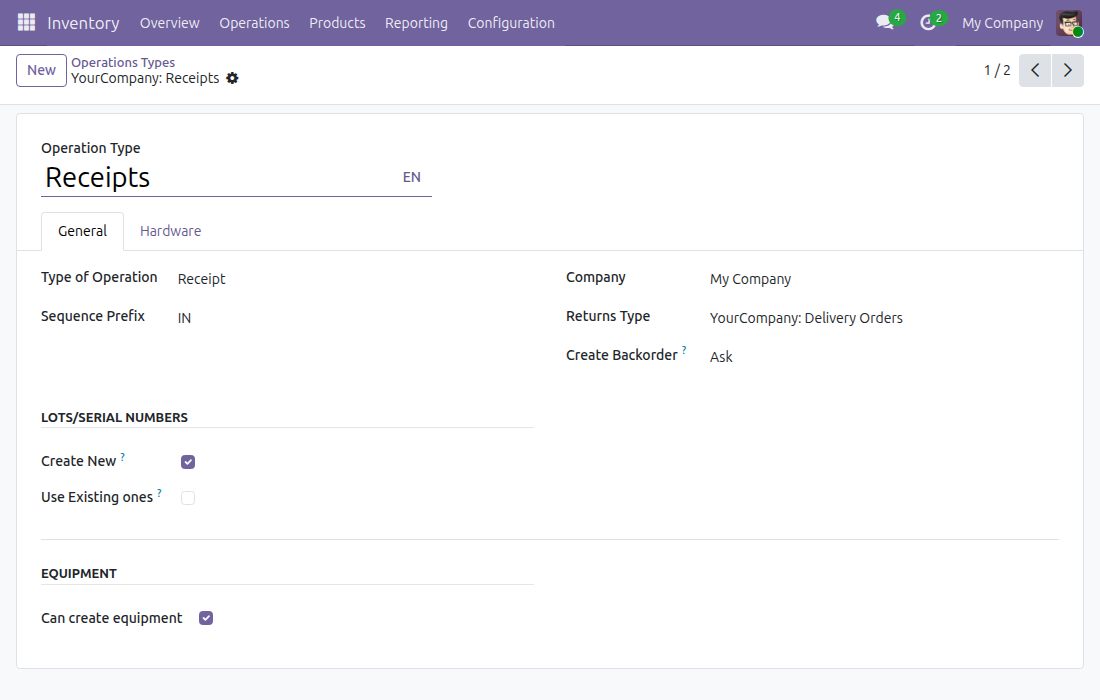
Receipt operation types that existed when the module was installed already have the box ticked. A validation is refused when a line asks for equipment on an operation type that does not allow it, or on a receiving type that cannot create new serial numbers.
Mark a product as equipment
- Open Inventory > Products > Products and create or open a product.
- Set Product Type to Goods.
- Set Create on Receipt to Equipment. Track Inventory is ticked and set to By Unique Serial Number automatically.
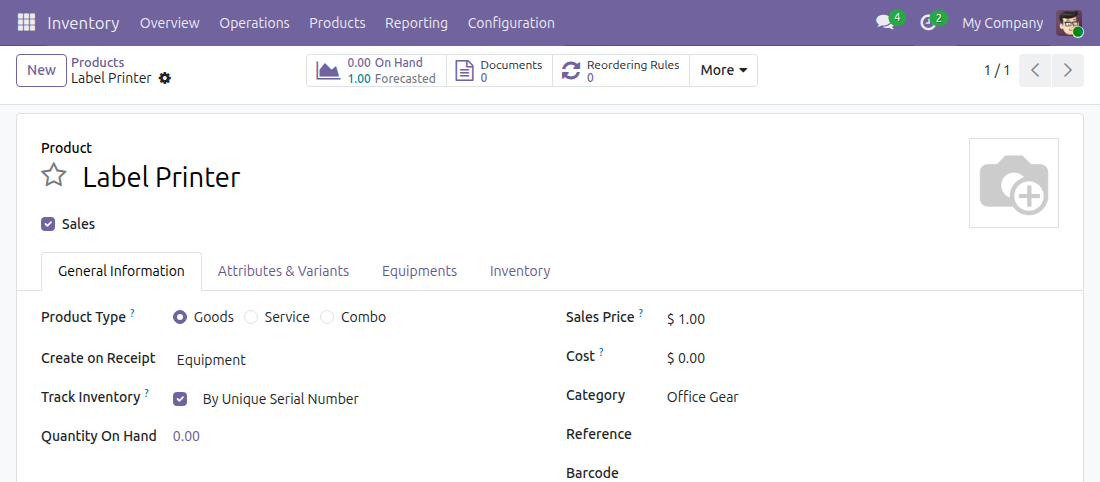
An equipment product must be Goods and must be tracked By Unique Serial Number; otherwise the product cannot be saved.
Preset the data of the new equipment
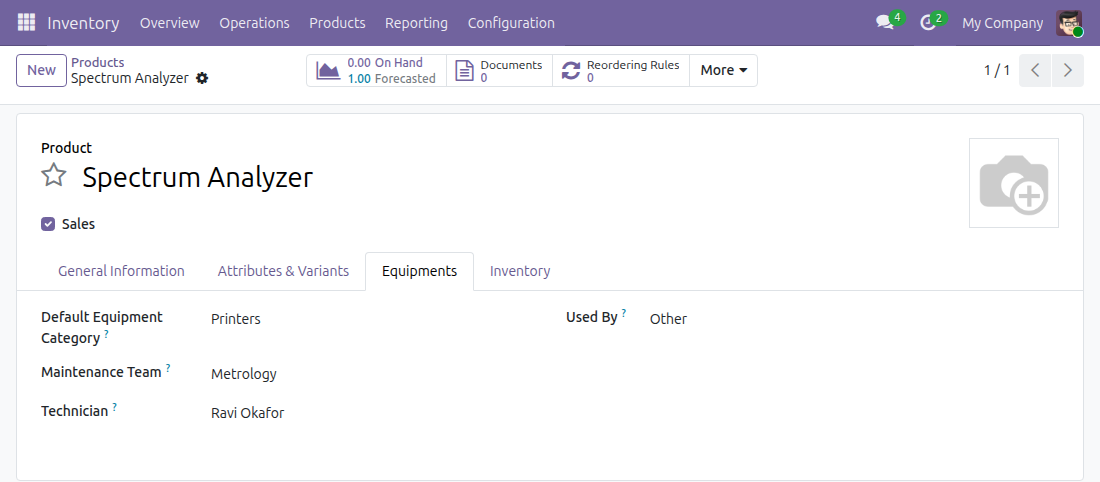
Once Create on Receipt is Equipment, the product shows an Equipments tab (for users with the Equipment Manager right) with:
- Default Equipment Category and Maintenance Team: given to each new equipment.
- Technician: the person in charge of the maintenance. When empty, the technician of the product category is used.
- Used By: Department, Employee or Other. When empty, the Used By of the product category is used, and Employee when the category leaves it empty too.
The product category form has an Equipments group with the same fields. Each value of the product is used first, and the value of the product category is used when the product leaves it empty. This applies to the equipment category, the maintenance team, the technician and Used By; Used By is Employee when neither the product nor the category sets it. A value set on the product overrides the one of the category.
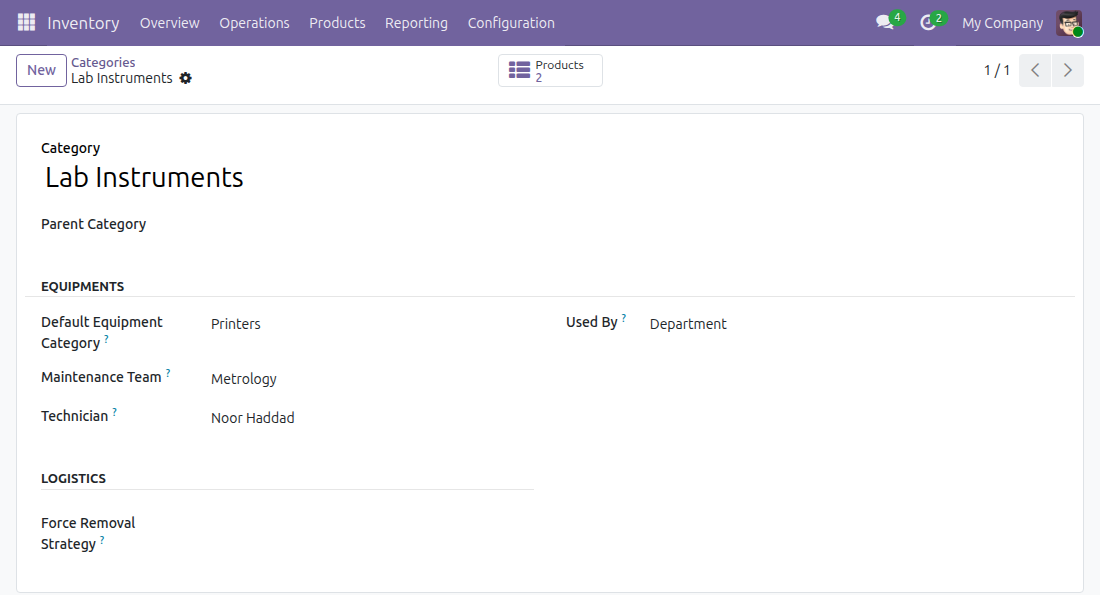
Menu path of the category form: Inventory > Configuration > Products > Categories.
Warehouse operator: receive the equipment
- Open Inventory > Operations > Transfers > Receipts and create a receipt.
- Make sure Operation Type is a receiving type that can create equipment, add the product and its quantity, and click Mark as Todo to confirm the receipt.
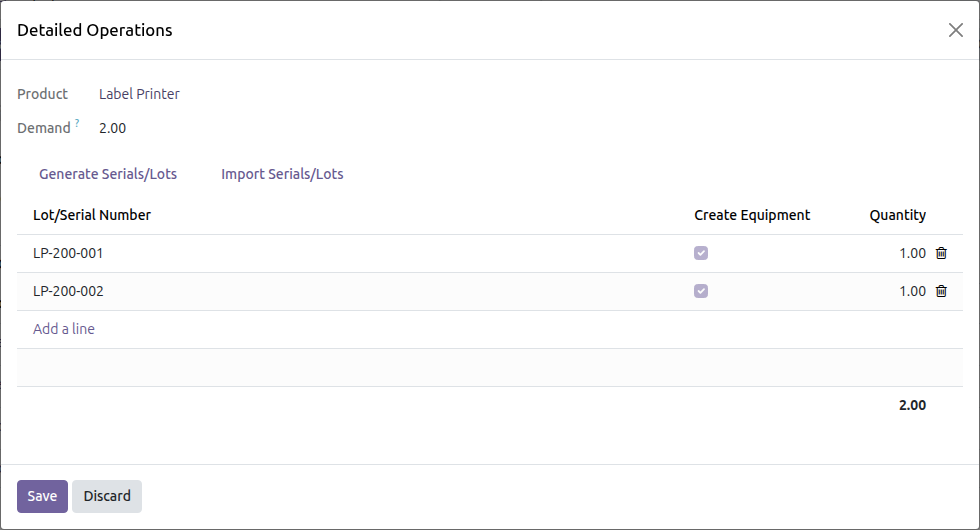
- On the product line, click the Details icon. In Detailed Operations, enter one Lot/Serial Number per line, or use Generate Serials/Lots or Import Serials/Lots.
- The Create Equipment column is ticked by default for an equipment product. Untick it on a line that must not become equipment. A serial number that already has an equipment is left unticked, and receiving it again never creates a second equipment.
- Click Save, then Validate.
After the validation, each ticked line has its equipment, named after the product, with the serial number, the category and maintenance team of the product, and the technician and Used By of the product, or of its product category when the product leaves them empty.
Equipment manager: follow the equipment
From the receipt
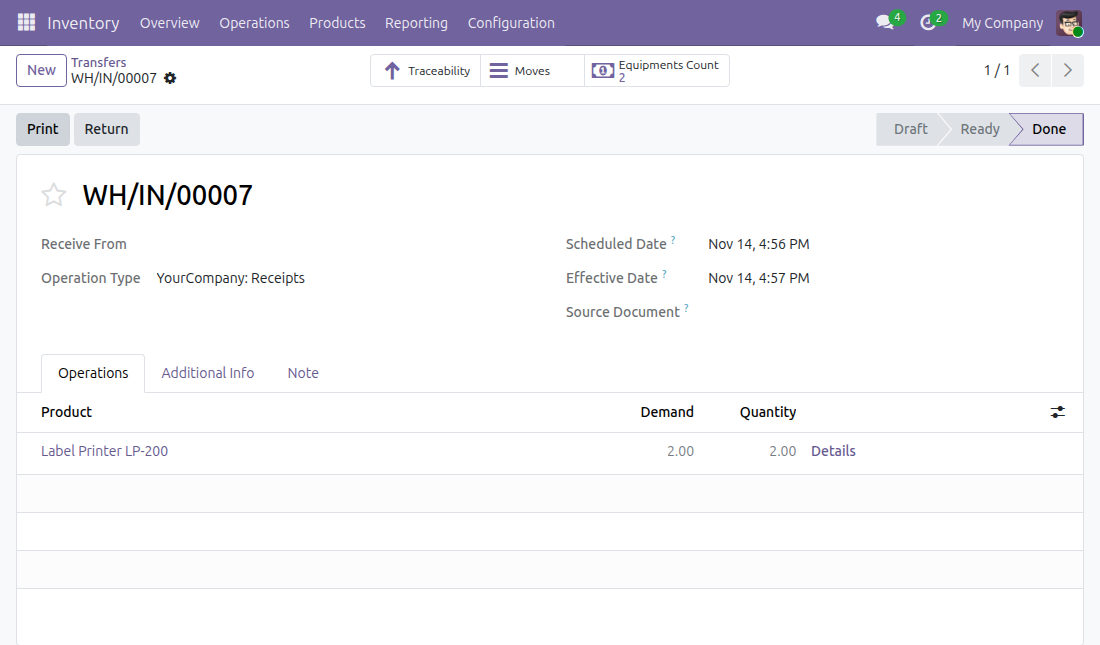
The validated receipt shows an Equipments Count button with the number of equipment it generated. Click it to open them.
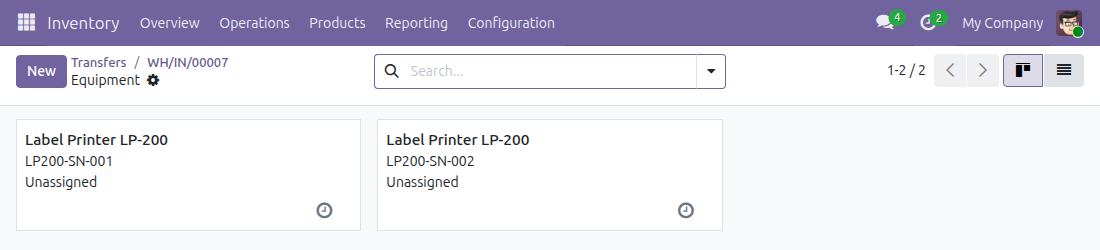
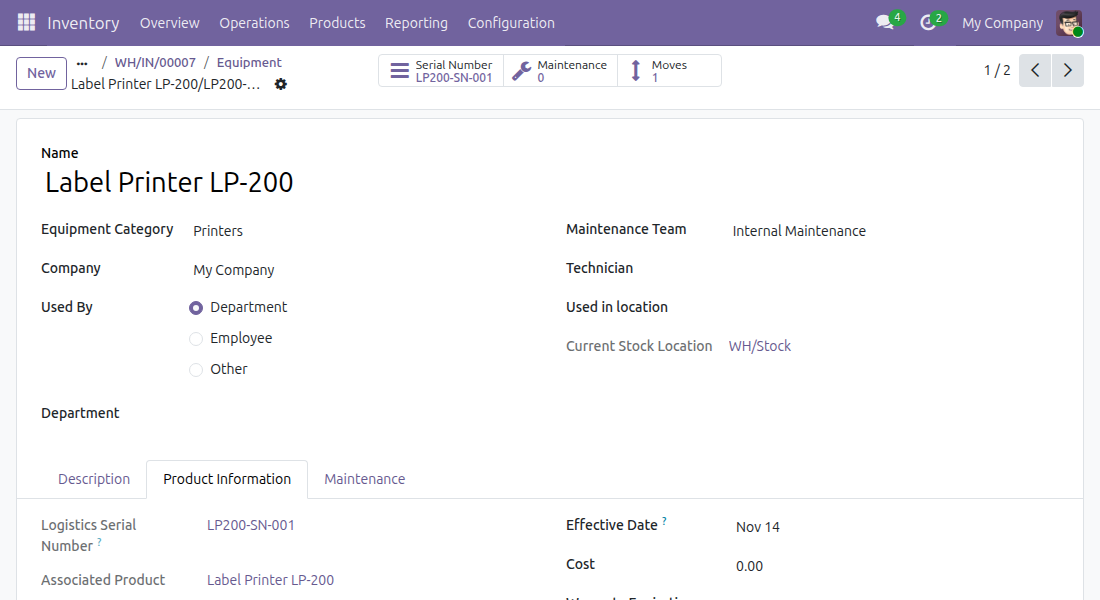
Open an equipment to see its data. On the Product Information tab, Logistics Serial Number is the serial number received and Associated Product is the product. Both are read-only on equipment generated from a receipt. Current Stock Location shows where the unit is now.
Click Moves to list the stock moves of the equipment: date, reference, from, to, quantity and status.
From the Maintenance app
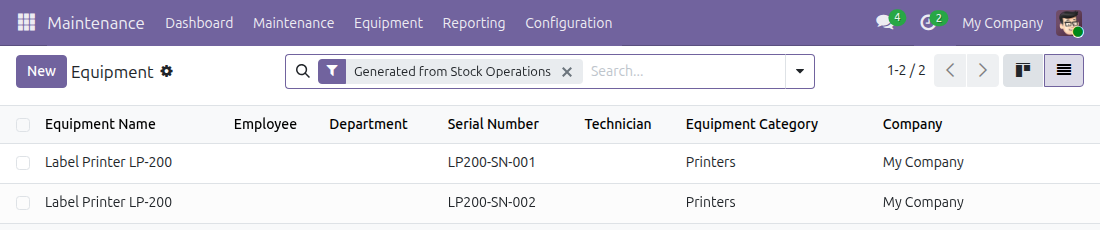
Open Maintenance > Equipment. The filter Generated from Stock Operations lists the equipment created from receipts, and grouping by Current Stock Location groups the equipment by the place where it is stored. The filter Unassigned lists the equipment that has no employee and no department and is stored in an internal location (or has no location), so a unit that left the warehouse is not listed there.
To attach an existing equipment to a serial number, open the equipment, go to the Product Information tab and choose the serial number in Logistics Serial Number. The Maintenance History button on the serial number (Inventory > Products > Lots / Serial Numbers) lists the maintenance requests of its equipment.
This software and associated files (the "Software") may only be used (executed, modified, executed after modifications) if you have purchased a valid license from the authors, typically via Odoo Apps, or if you have received a written agreement from the authors of the Software (see the COPYRIGHT file).
You may develop Odoo modules that use the Software as a library (typically by depending on it, importing it and using its resources), but without copying any source code or material from the Software. You may distribute those modules under the license of your choice, provided that this license is compatible with the terms of the Odoo Proprietary License (For example: LGPL, MIT, or proprietary licenses similar to this one).
It is forbidden to publish, distribute, sublicense, or sell copies of the Software or modified copies of the Software.
The above copyright notice and this permission notice must be included in all copies or substantial portions of the Software.
THE SOFTWARE IS PROVIDED "AS IS", WITHOUT WARRANTY OF ANY KIND, EXPRESS OR IMPLIED, INCLUDING BUT NOT LIMITED TO THE WARRANTIES OF MERCHANTABILITY, FITNESS FOR A PARTICULAR PURPOSE AND NONINFRINGEMENT. IN NO EVENT SHALL THE AUTHORS OR COPYRIGHT HOLDERS BE LIABLE FOR ANY CLAIM, DAMAGES OR OTHER LIABILITY, WHETHER IN AN ACTION OF CONTRACT, TORT OR OTHERWISE, ARISING FROM, OUT OF OR IN CONNECTION WITH THE SOFTWARE OR THE USE OR OTHER DEALINGS IN THE SOFTWARE.