
HR Meal Order & Payroll Integration
| Lines of Code | 467 |
| Technical name | to_hr_payroll_meal |
| License | OPL-1 |
| Website | https://viindoo.com/apps/modules/19.0/to_hr_payroll_meal |
| Read description for | v 13.0 v 14.0 v 15.0 v 16.0 v 17.0 v 18.0 |
| Required Apps | Time Off (hr_holidays) Discuss (mail) Employees (hr) Calendar (calendar) |
| Included Dependencies | Payroll Meal Orders Employee Relatives Viindoo Base Advanced HR Management HR Contracts (Viindoo) Work Entry Work Entry - Contract Viin Time-Off Viin - Holiday Work Entry Base Addendum Safe IR Metadata Proxies Viindoo Holiday & WorkDay Manager |
| Extensions | Vietnam - Payroll for Meal Orders with Accounting Vietnam - Payroll Meal Localization |
Staff meal contributions deducted on the payslip, without retyping
For companies that subsidise staff meals and run payroll in Odoo
Deduct the meal price from the employee payslip, automatically.
Is this you?
Payroll re-keys the meal totals of every employee each month, from spreadsheets or printed orders.
Employees dispute the meal deduction because nobody can show which meals were charged.
Some employees pay less than the full meal price, and the split between employee and company is tracked by hand.
A meal booked after the payslip was closed quietly changes what was already paid.
What changes
Payroll re-keys meal totals
→ Compute the payslip and the meal deduction is already there.
Disputes over the deduction
→ Every charged meal is listed on the payslip with its date, quantity and amount.
Split by hand
→ Set a maximum per meal on the contract; the employee and company amounts are worked out on each meal line.
Meals changing closed payslips
→ Meals cannot be booked, refused or cancelled against a payslip that is waiting or done.
How it works
Set the meal price terms
The payroll manager caps what an employee pays per meal on the contract.
Book and approve meals
The meal orderer books meals and the meal manager approves them. Each line shows the employee and company amounts.
Compute the payslip
The payroll officer computes the payslip: the meals of the period are listed and the employee amount is deducted from the net salary.
Key Features
Maximum price per employee
Cap what each employee pays for a meal on the contract. Without a cap, the amounts of the meal order apply.
Employee and company share
Every meal line shows what the employee pays and what the company pays.
Meals listed on the payslip
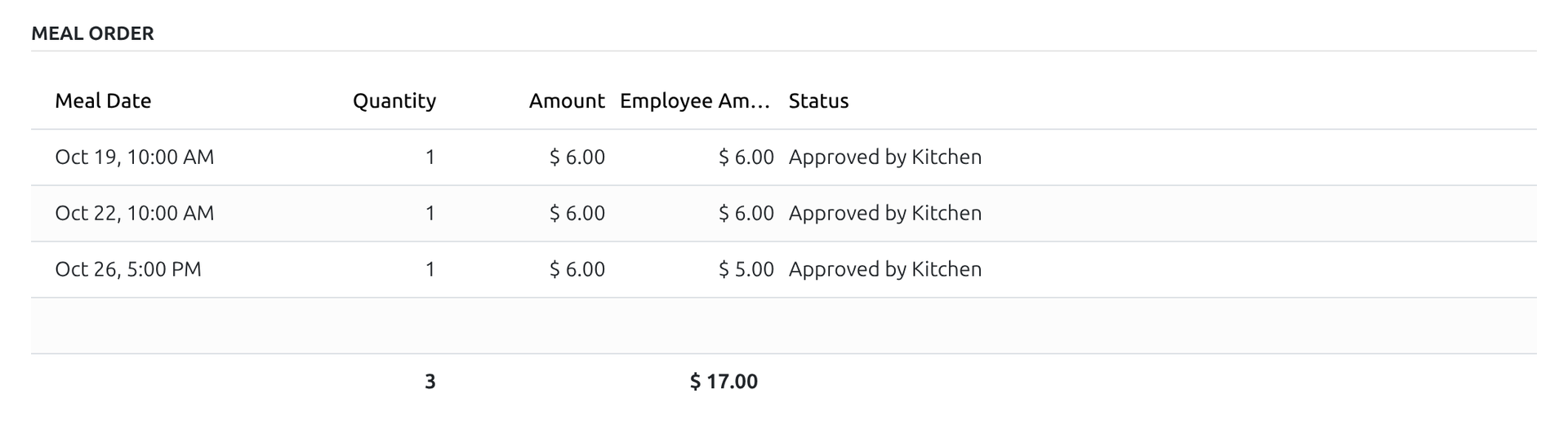
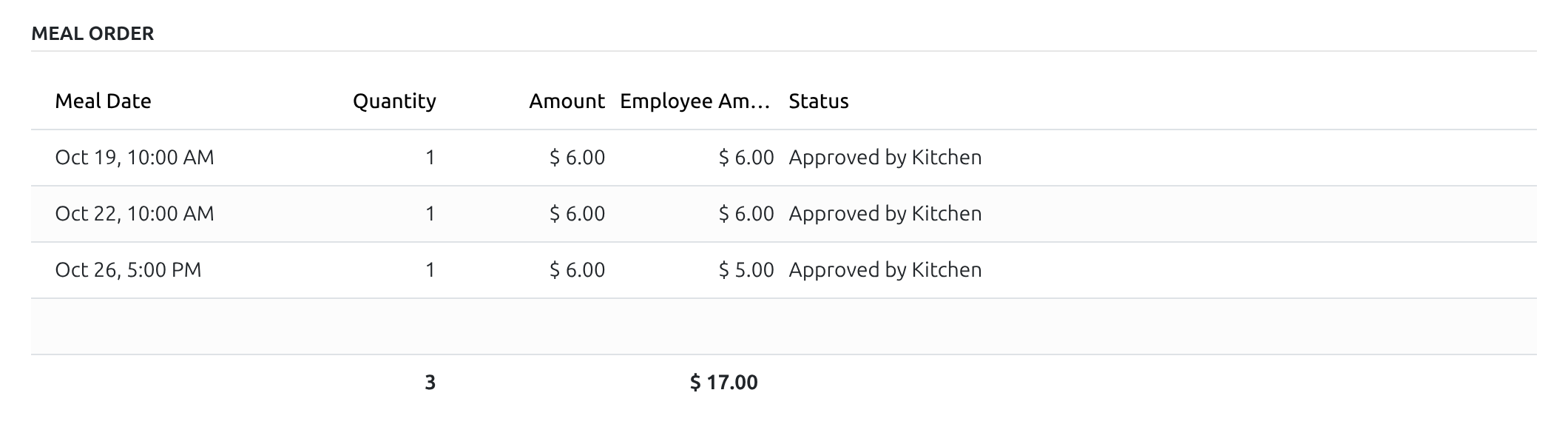
The meals of the payslip period appear on the payslip with quantity, amount and status.
Automatic net-salary deduction
A salary rule deducts the total the employee pays, so it is clear on the payslip.
Protected payslips
Meals cannot be booked, refused or cancelled against a payslip that is waiting or done.
Who it is for
Payroll manager
Wants one agreed contribution per employee, kept on the contract.
Payroll officer
Wants the meal deduction on the payslip with no manual entry.
HR and general affairs
Want employees to see exactly which meals were charged.
Finance
Wants the company share and the employee share of meals kept apart.
Best for: companies that already use Meal Orders and Payroll and want the meal contribution handled in one step.
Works well with
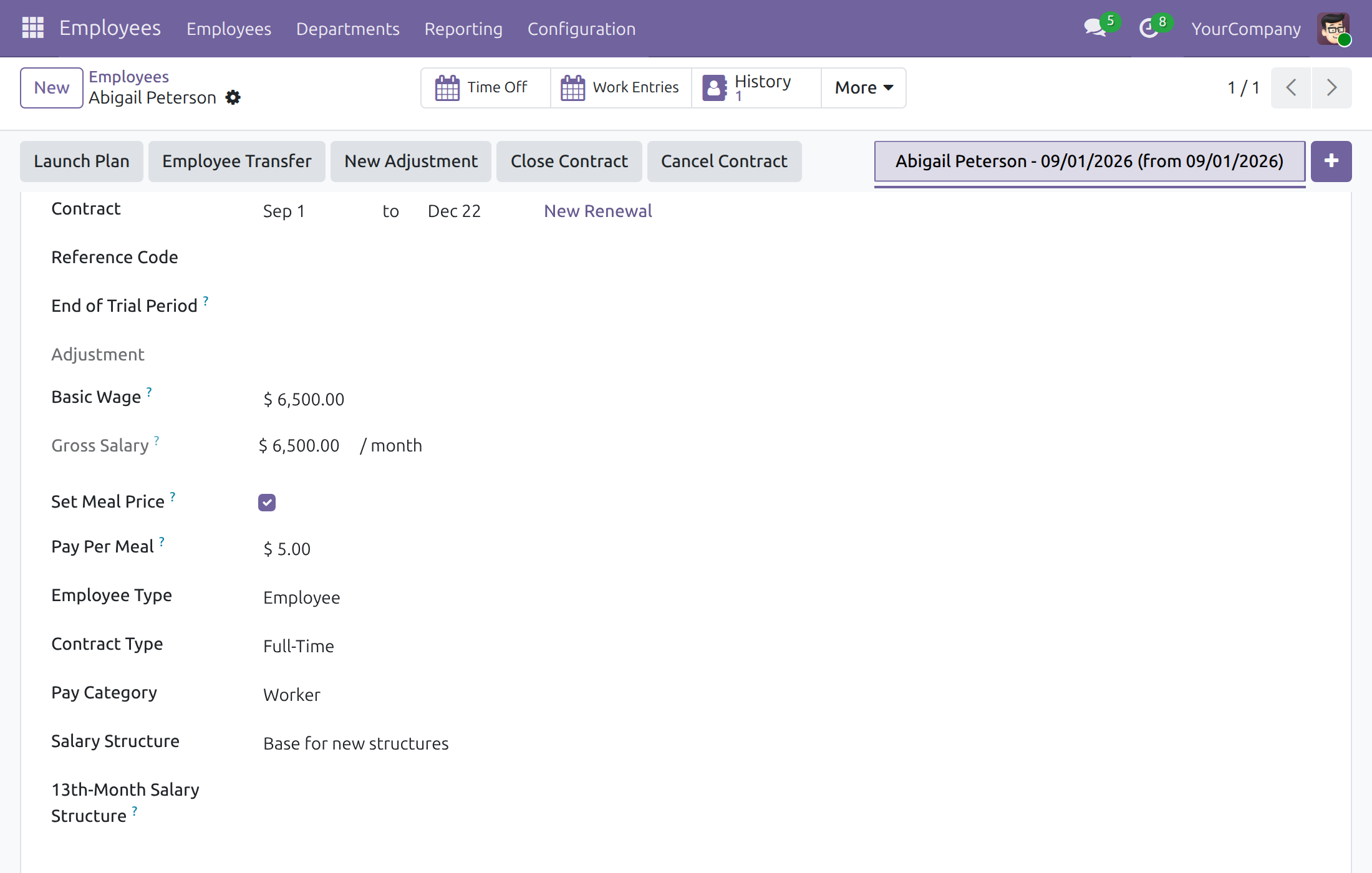
Cap what an employee pays per meal
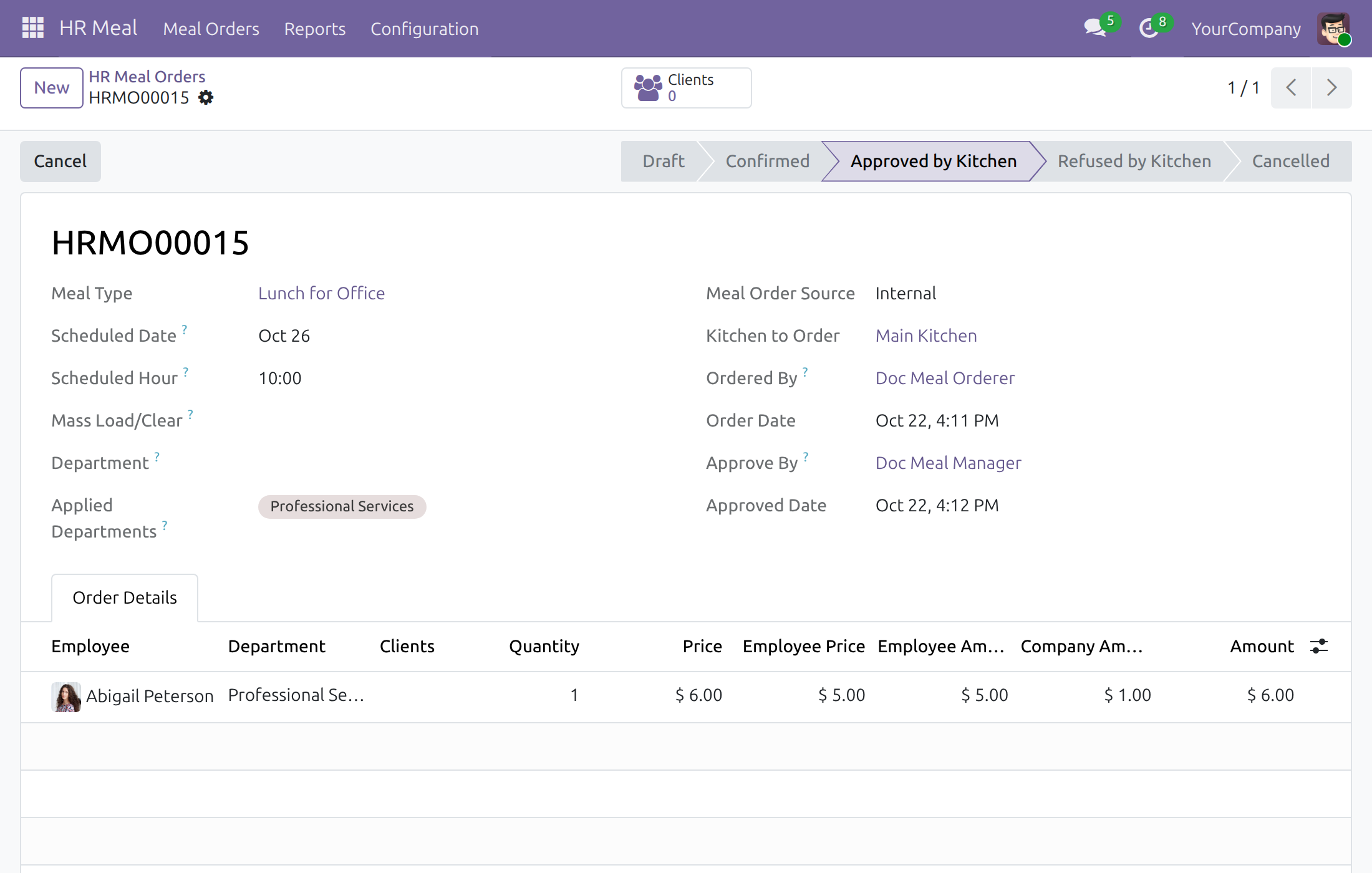
See the employee and company share of a meal
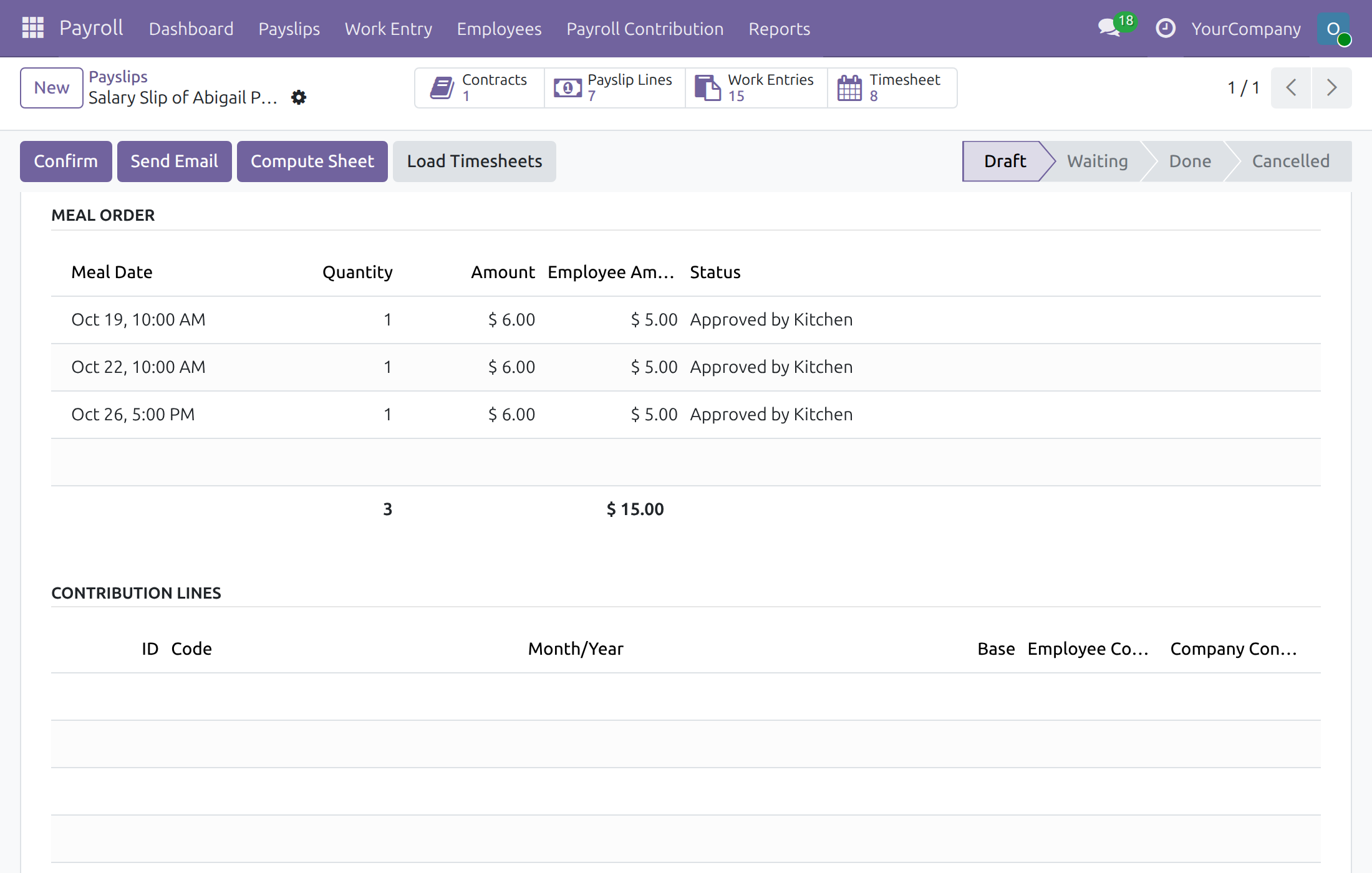
Meals listed on the payslip
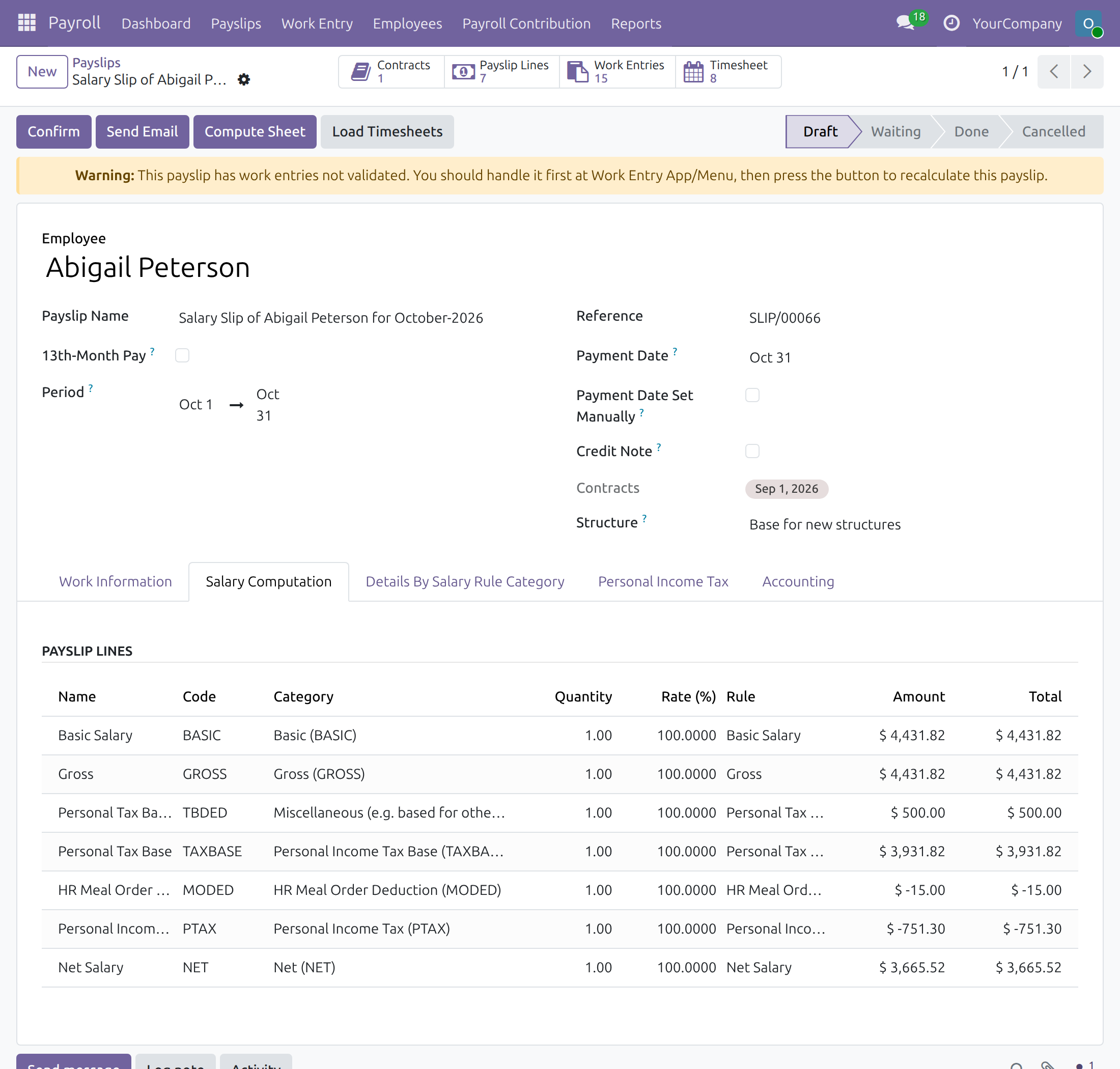
Meal deduction on the payslip
See HR Meal Order & Payroll Integration in Action
Live demo: v19demo-int.viindoo.com
Frequently Asked Questions
Which meals are deducted?
Orders that are confirmed or approved by the kitchen, for the employee, in the payslip period and company. Draft, refused and cancelled orders are not charged.
Can each employee pay a different amount?
Yes. The maximum per meal is set on each employee contract by the payroll manager and, by default, by payroll officers too (the administrator can withdraw this in Payroll settings); the employee pays the lower of that amount and the meal price.
What if a meal changes after the payslip was computed?
Compute the payslip again while it is a draft. Once it is waiting or done, a payroll officer or administrator can cancel it: the meals are released at once and can go on the corrected payslip.
What if a meal order is held by a payslip and must be cancelled?
The order cannot be cancelled while a waiting or done payslip holds it; the message names the payslips and asks you to have payroll cancel them first. A payroll officer or administrator cancels the payslip, then the meal manager cancels the order again.
Are 13th-month payslips affected?
No. They never carry meals.
Need help with HR Meal Order & Payroll Integration?
Pre-Sales & Partnership
Contact Pre-SalesTechnical Support
Open a support ticketTechnical Requirement
- Odoo version: 19.0
- Editions: Community
- Required modules: HR Meal Order (to_hr_meal), Payroll (to_hr_payroll)
- License: OPL-1
HR Meal Order & Payroll Integration
Who this guide is for: the Odoo administrator who switches the feature on, the payroll manager who sets what each employee pays per meal, and the payroll officers who compute payslips and check the meal deduction. Meal orderers and meal managers work in HR Meal as usual; this guide only shows what changes for them.
Note
Extends HR Meal - see its documentation: to_hr_meal.
Overview
Companies that subsidise lunches usually let employees pay part of each meal. This module takes that part straight from the meal orders into the payslip, so nobody retypes meal totals into payroll and the employee sees exactly which meals were charged.
How it flows
- Meal price terms - the payroll manager can cap what one employee pays per meal on the employee's contract. Without a cap, the amounts of the meal order apply.
- Meal order - the meal orderer books meals and the meal manager approves them. Each order line shows what the employee pays and what the company pays.
- Payslip - when the payroll officer presses Compute Sheet, every meal of the employee in the payslip period is listed on the payslip and the total the employee pays is deducted from the net salary.
| Role | What they do | Access right to assign |
|---|---|---|
| Administrator | Switches on the meal deduction and gives each person an access right. | Role / Administrator |
| Payroll manager | Decides the maximum an employee pays per meal on the employee's contract. | Employees / Administrator, or Contract pay fields / Edit |
| Payroll officer | Computes payslips, checks the meals and the deduction on them, and cancels a payslip that must be corrected. By default also sets the meal price, like the wage. | Payroll / Officer (comes with Contract pay fields / Edit unless the administrator withdraws it) |
| Meal orderer / meal manager | Book and approve meals, as described in the HR Meal guide. | HR Meal / User, HR Meal / Administrator |
Setup (for the Administrator)
Install the module
- Open Apps.
- Search for HR Meal Order & Payroll Integration (or tick Meal Deduction in Payroll > Configuration > Settings).
- Press Install. HR Meal and Payroll are installed with it if they are not yet there.
On installation the module adds a salary rule that deducts the meals from the net salary, and a contribution register to collect those deductions, for every company.
Give each person an access right
Open Settings > Users & Companies > Users, open a user and set the right named in the table above: Payroll Officer for payroll officers, and for the payroll manager Employees Administrator or Contract pay fields Edit. Meal orderers and meal managers need the HR Meal User or Administrator right.
Decide who may set the meal price
The meal price is a pay term of the contract, set by whoever may change the wage. The Payroll Officer right carries Contract pay fields Edit by default, so a payroll officer can set Set Meal Price and Pay Per Meal like the wage. To keep that to the payroll manager, untick Payroll officers can edit contract pay fields in Payroll > Configuration > Settings, section Access Rights; officers then still see the meal price terms but cannot change them. From then on only people holding Employees Administrator or Contract pay fields Edit can set the meal price, so give one of these rights to the payroll manager.
Set the default employee price (optional)
Open HR Meal > Configuration > Settings, tick Set Employee Price and enter the Employee Price. It is the amount an employee pays at most per meal, company wide, and it is the starting value for the per-employee price below.
Payroll manager: cap what an employee pays
This is done by the payroll manager and, by default, by every payroll officer as well.
- Open Employees, open the employee and go to the Payroll tab.
- Tick Set Meal Price.
- Enter the Pay Per Meal: the most this employee pays for one meal.
- Save.
For every meal, the employee pays the lower of the meal's price and this amount; the company pays the rest. The amount is part of the contract, so a meal is priced with the contract terms in force on the day of the meal. With Set Meal Price off, the amounts of the meal order apply.
Meal orderer and meal manager: what changes
Orders are created, confirmed and approved exactly as in HR Meal. On the Order Details tab, each line shows Price (the meal), Employee Price (the cap that applies), Employee Amount (what the employee pays, to be deducted) and Company Amount (the rest). In the example below the meal costs 6.00, the employee is capped at 5.00, so 5.00 goes to payroll and 1.00 is paid by the company.
Once a payslip of the employee covering the meal day is in the status Waiting or Done, the module protects it. A payslip in Draft or Cancelled does not block anything.
- A new meal for that employee on a day inside the payslip period cannot be booked. Ask a payroll officer or the payroll administrator to press Cancel Payslip on it first; once it is cancelled the meal can be booked.
- An order that is already on such a payslip cannot be refused, cancelled, or have its lines deleted until the payslip is cancelled.
Cancel an order that is on a payslip
When the meal manager presses Cancel on such an order, a Validation Error names the payslips that hold it and the way out. Refusing the order or deleting one of its lines is answered the same way. The message reads: You must not cancel the order HRMO00001 while it is referred by the following HR payslips: Salary Slip of Abigail Peterson for October-2026. Please ask payroll to cancel these payslips first, then cancel the order again.
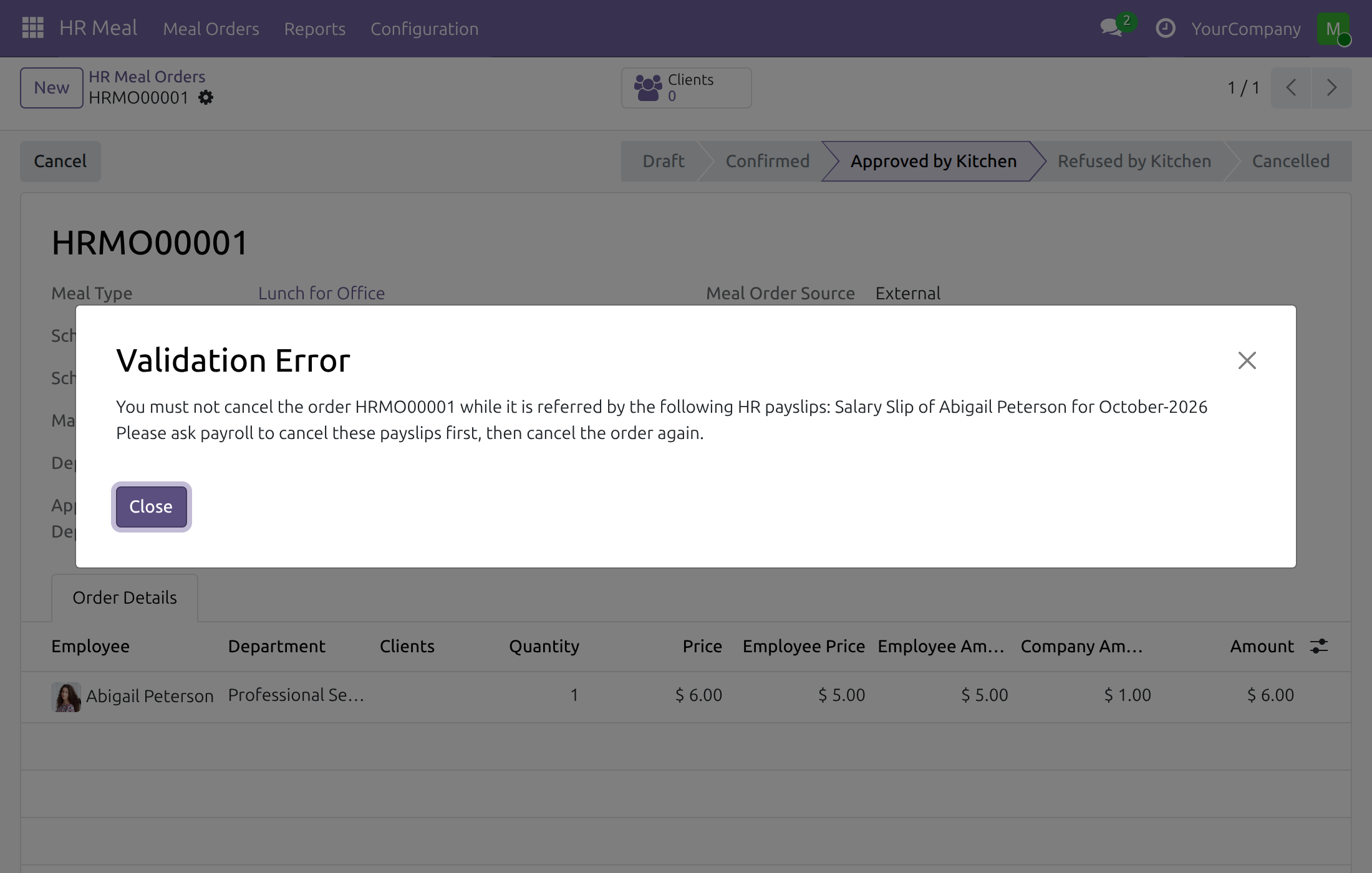
- The meal manager (HR Meal / Administrator) closes the message and sends the payslip names to payroll.
- A payroll officer or the payroll administrator opens each named payslip and presses Cancel Payslip (see Correct a confirmed payslip below). The meals of the payslip are released.
- The meal manager opens the order again and presses Cancel. The order is now in the status Cancelled.
- Payroll presses Set to Draft on the payslip and Compute Sheet again, so that the payslip carries only the meals that remain.
Payroll officer: compute the payslip
Compute the payslip and check the meals
- Open Payroll > Payslips > Payslips and open or create the employee's payslip, or generate payslips in batch.
- Press Compute Sheet.
- On the Work Information tab, the Meal Order list shows every meal of the employee dated inside the payslip period, with the quantity, the full amount and the Employee Amount, and totals the meals and the amount to deduct.
Which meals are counted:
- Orders in the status Confirmed or Approved by Kitchen. Draft, refused and cancelled orders are left out.
- Meals of the employee's own company, dated between the first and the last day of the payslip.
- A meal is charged to one payslip only. 13th-month payslips never carry meals.
Read the deduction
Open the Salary Computation tab. The line HR Meal Order Deduction Amount (code MODED) is the negative total of the Employee Amount column, here -15.00 for three meals of 6.00, each capped at 5.00. It is subtracted from the net salary and shown on the payslip.
If a meal is added, changed or cancelled while the payslip is still in Draft, press Compute Sheet again.
Correct a confirmed payslip
- Open the payslip in the status Waiting or Done and press Cancel Payslip. Payroll officers and the payroll administrator can do this.
- The meals are released at once: the Meal Order list of the cancelled payslip is empty, the meal manager can now cancel or refuse the orders and book new meals for the period, and the meals can be charged to another payslip of the same period.
- Press Set to Draft, fix what is wrong, then Compute Sheet again.
This software and associated files (the "Software") may only be used (executed, modified, executed after modifications) if you have purchased a valid license from the authors, typically via Odoo Apps, or if you have received a written agreement from the authors of the Software (see the COPYRIGHT file).
You may develop Odoo modules that use the Software as a library (typically by depending on it, importing it and using its resources), but without copying any source code or material from the Software. You may distribute those modules under the license of your choice, provided that this license is compatible with the terms of the Odoo Proprietary License (For example: LGPL, MIT, or proprietary licenses similar to this one).
It is forbidden to publish, distribute, sublicense, or sell copies of the Software or modified copies of the Software.
The above copyright notice and this permission notice must be included in all copies or substantial portions of the Software.
THE SOFTWARE IS PROVIDED "AS IS", WITHOUT WARRANTY OF ANY KIND, EXPRESS OR IMPLIED, INCLUDING BUT NOT LIMITED TO THE WARRANTIES OF MERCHANTABILITY, FITNESS FOR A PARTICULAR PURPOSE AND NONINFRINGEMENT. IN NO EVENT SHALL THE AUTHORS OR COPYRIGHT HOLDERS BE LIABLE FOR ANY CLAIM, DAMAGES OR OTHER LIABILITY, WHETHER IN AN ACTION OF CONTRACT, TORT OR OTHERWISE, ARISING FROM, OUT OF OR IN CONNECTION WITH THE SOFTWARE OR THE USE OR OTHER DEALINGS IN THE SOFTWARE.