
Advanced HR Expense Management
| Lines of Code | 1482 |
| Technical name | to_hr_expense |
| License | OPL-1 |
| Website | https://viindoo.com/apps/modules/19.0/to_hr_expense |
| Read description for | v 13.0 v 14.0 v 15.0 v 16.0 v 17.0 v 18.0 |
| Required Apps | Expenses (hr_expense) Invoicing (account) Discuss (mail) Employees (hr) |
| Included Dependencies | Viindoo Base Accounting Foundation |
| Extensions | HR Expense & Payroll Integration |

Expenses that become vendor bills, not just entries
Mark an expense "Create Invoice" with a vendor, a bill reference and a bill date: posting creates a posted vendor bill of that vendor and, when the employee paid, moves the payable from the vendor to the employee, who is then reimbursed from the expense.
Advanced HR Expense Management (technical name to_hr_expense) is an Odoo 19.0 app for Odoo Community and Odoo Enterprise and Viindoo Cloud, built for employee, accountant, manager, auditor.
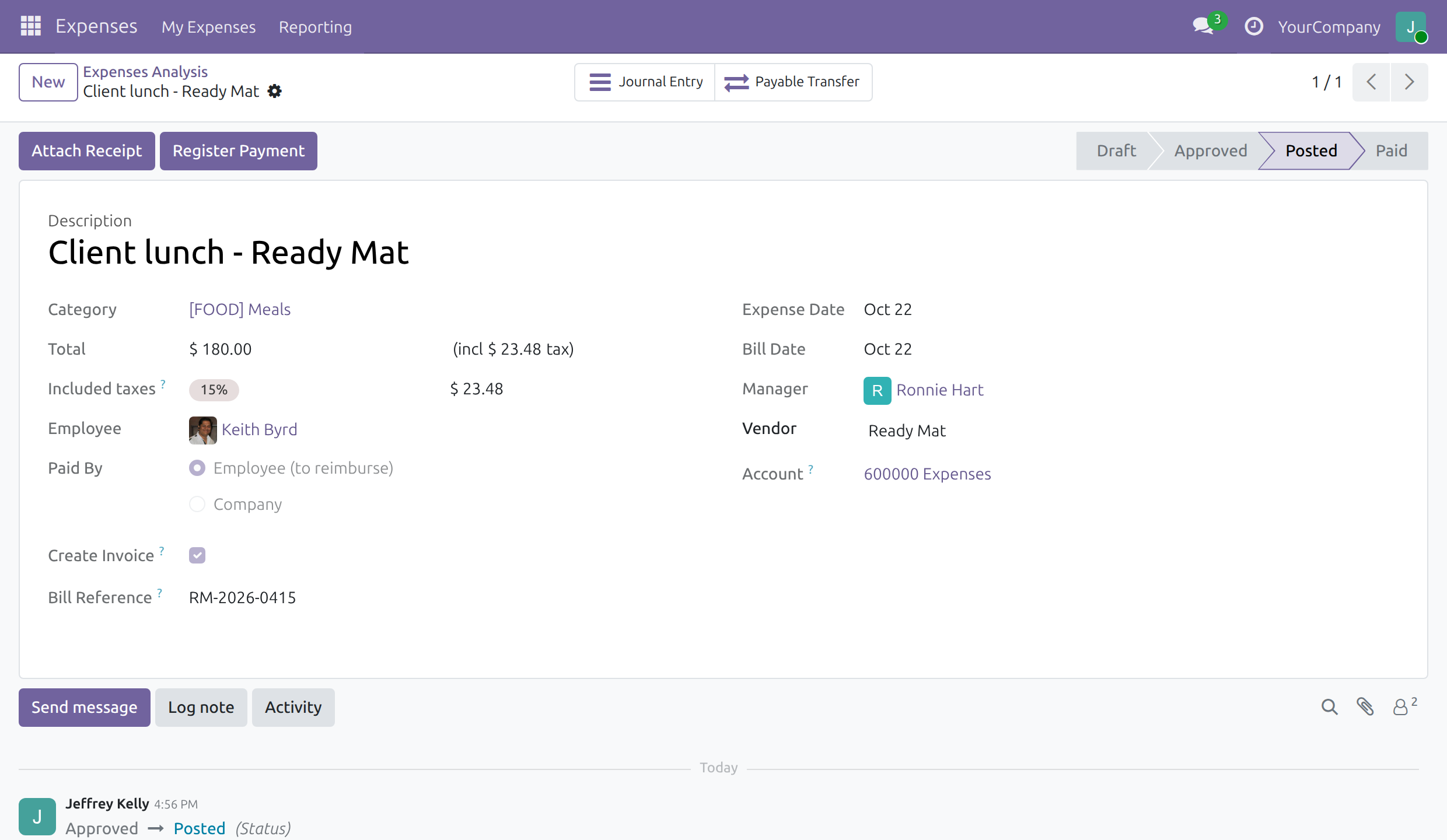
At a Glance
The facts of Advanced HR Expense Management, version 0.3.8, in one place. Published by Viindoo.
How It Works
Tick Create Invoice on the expense, fill vendor, reference and bill date; submit, approve, post.
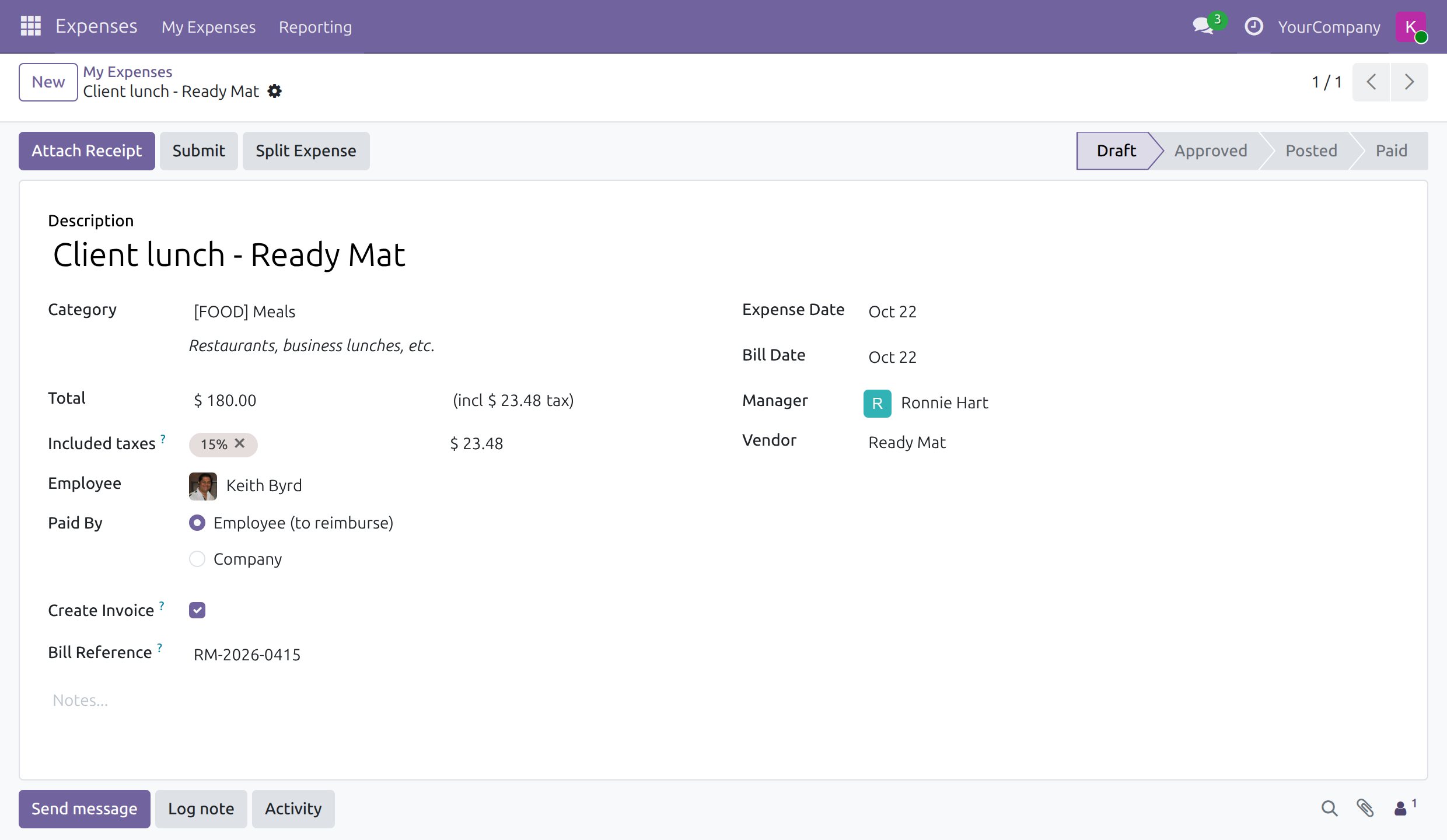
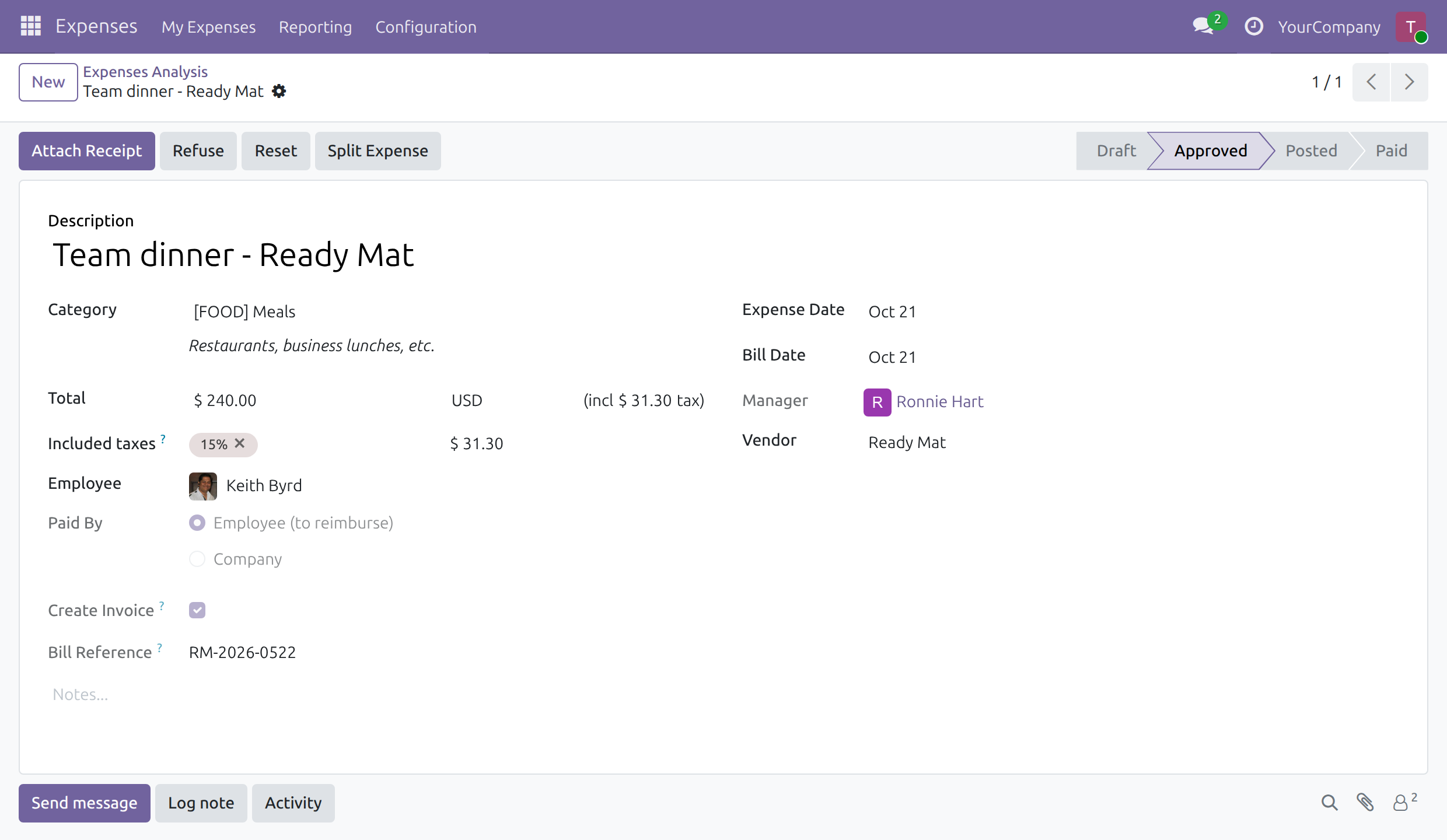
The expense
The employee ticks Create Invoice and enters the vendor, the bill reference and the bill date.
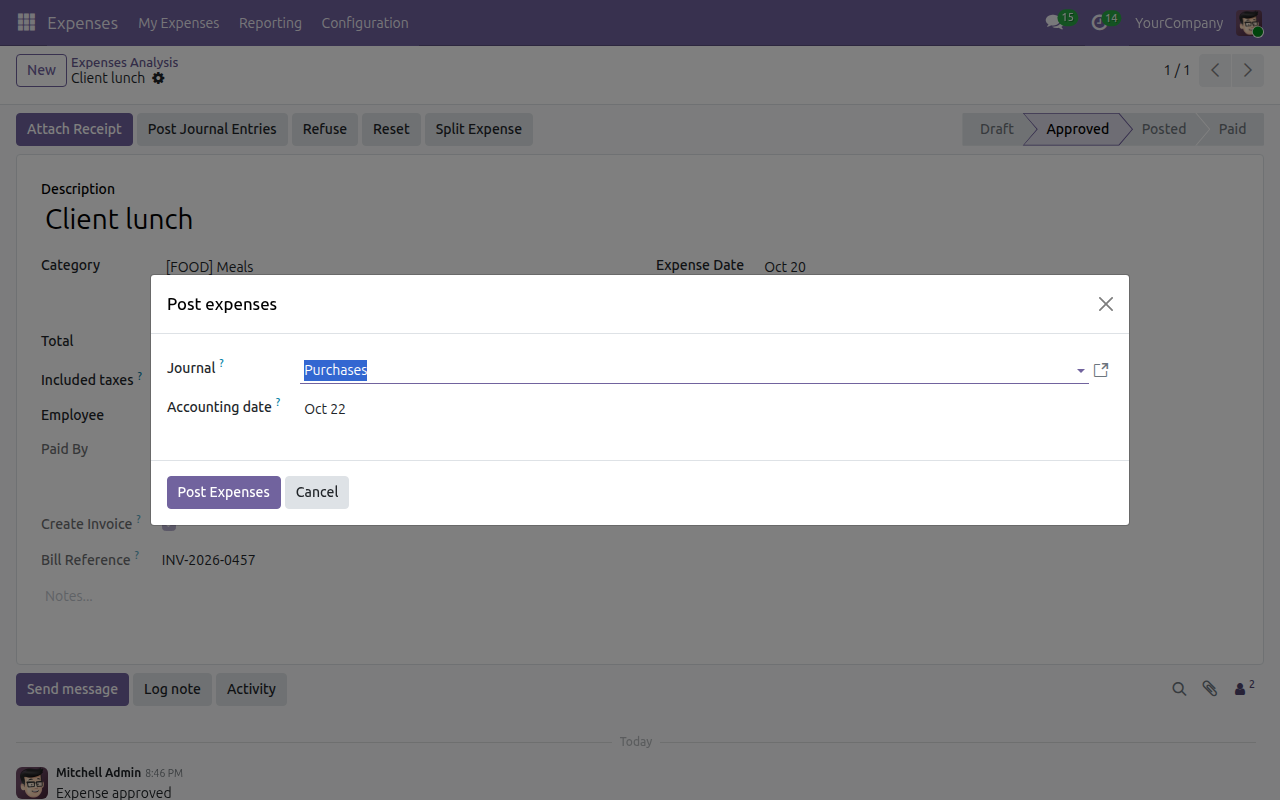
Posting
Once approved, the accountant posts the expense in one click.
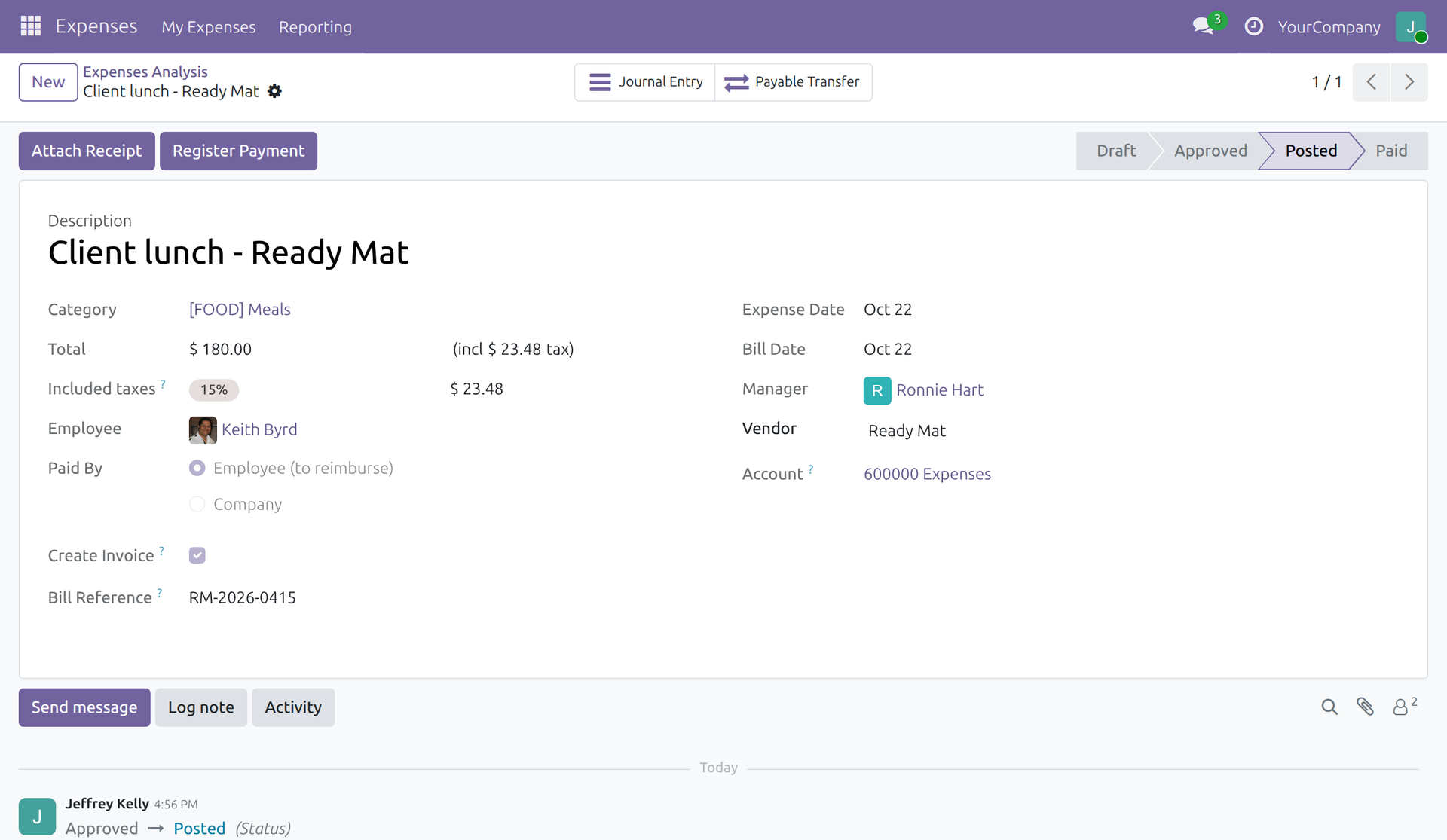
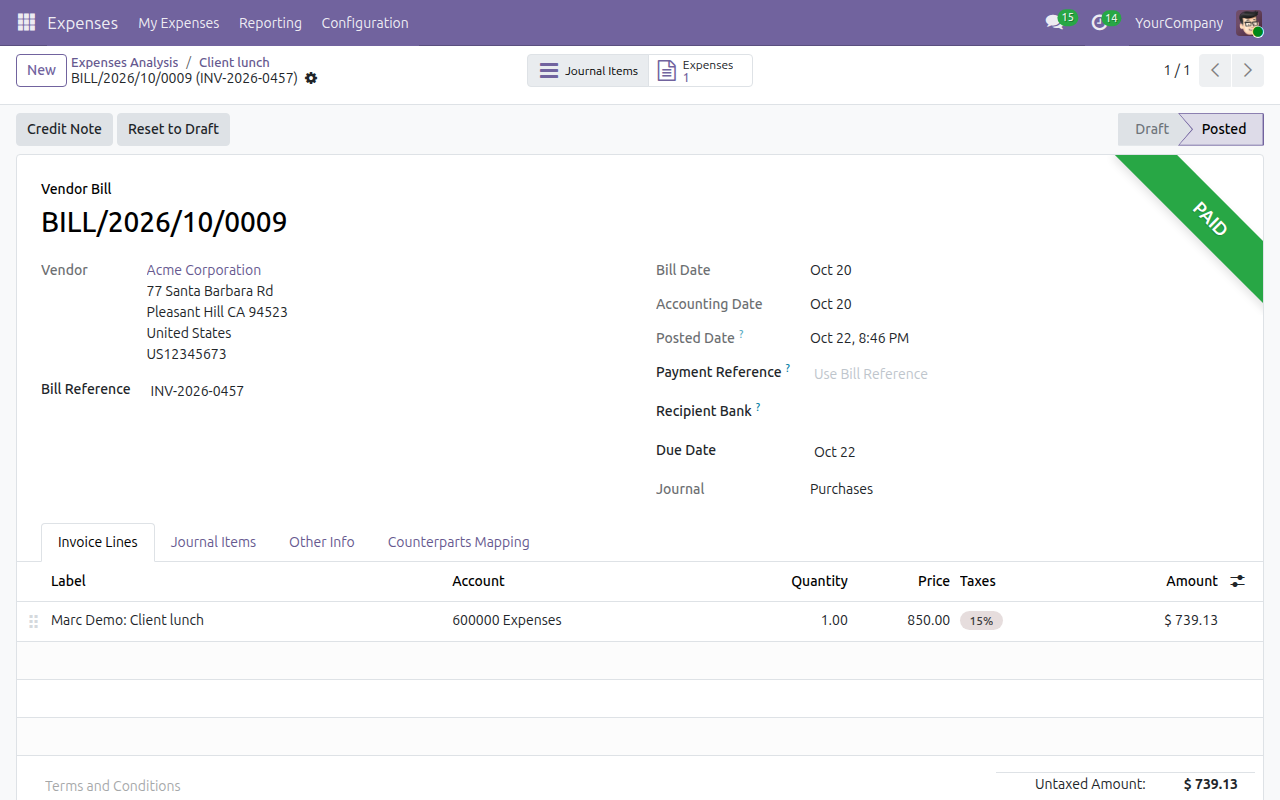
The bill
One posted bill of the vendor, with the vendor's own reference and bill date.
Payable transfer
When the employee paid, the amount owed moves from the vendor to the employee, who is reimbursed next.
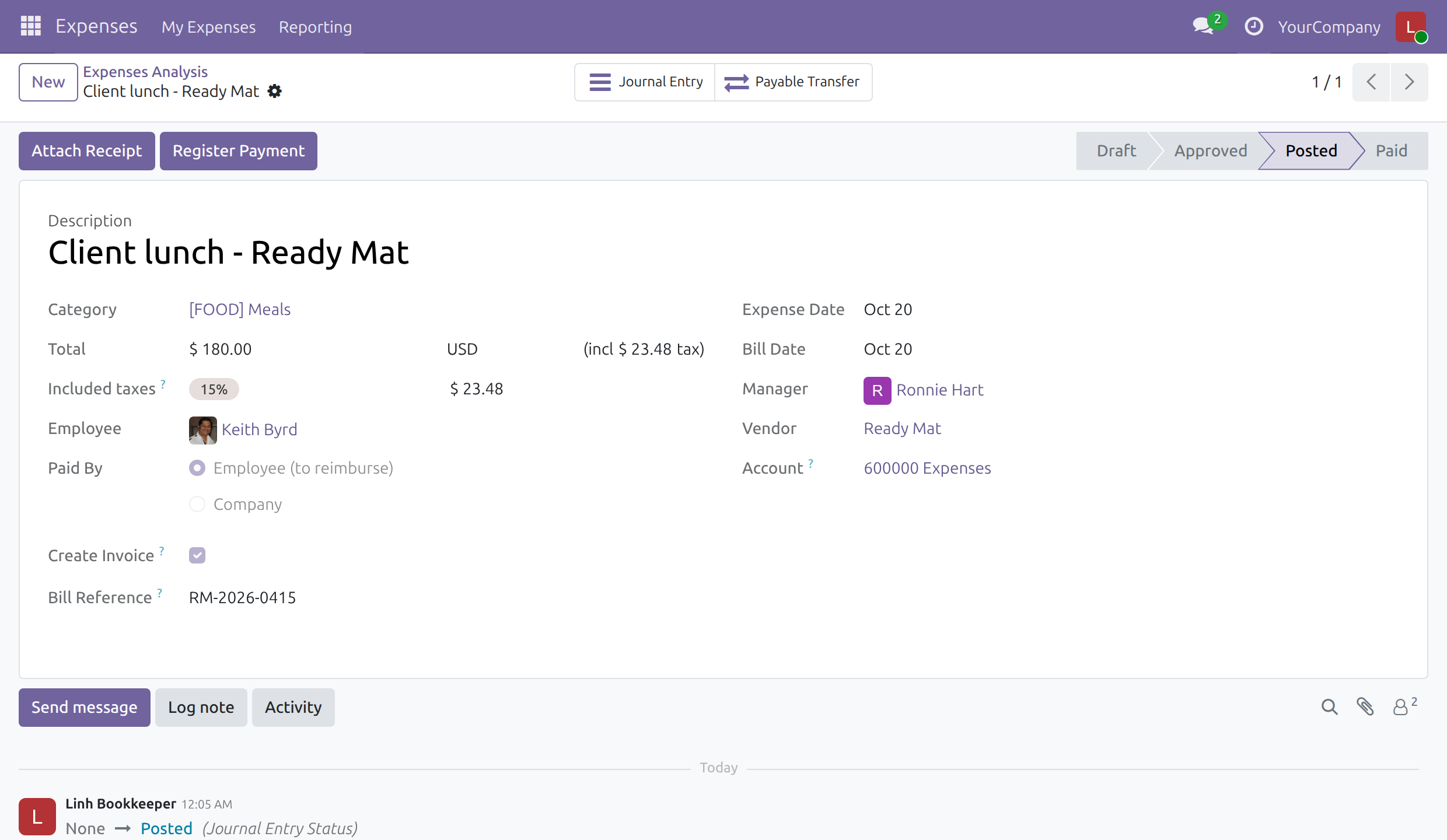
Paid
The employee is reimbursed from the expense, which turns to Paid once its journal entry is posted and paid. An accountant with Invoicing only pays the receipts of ordinary expenses.
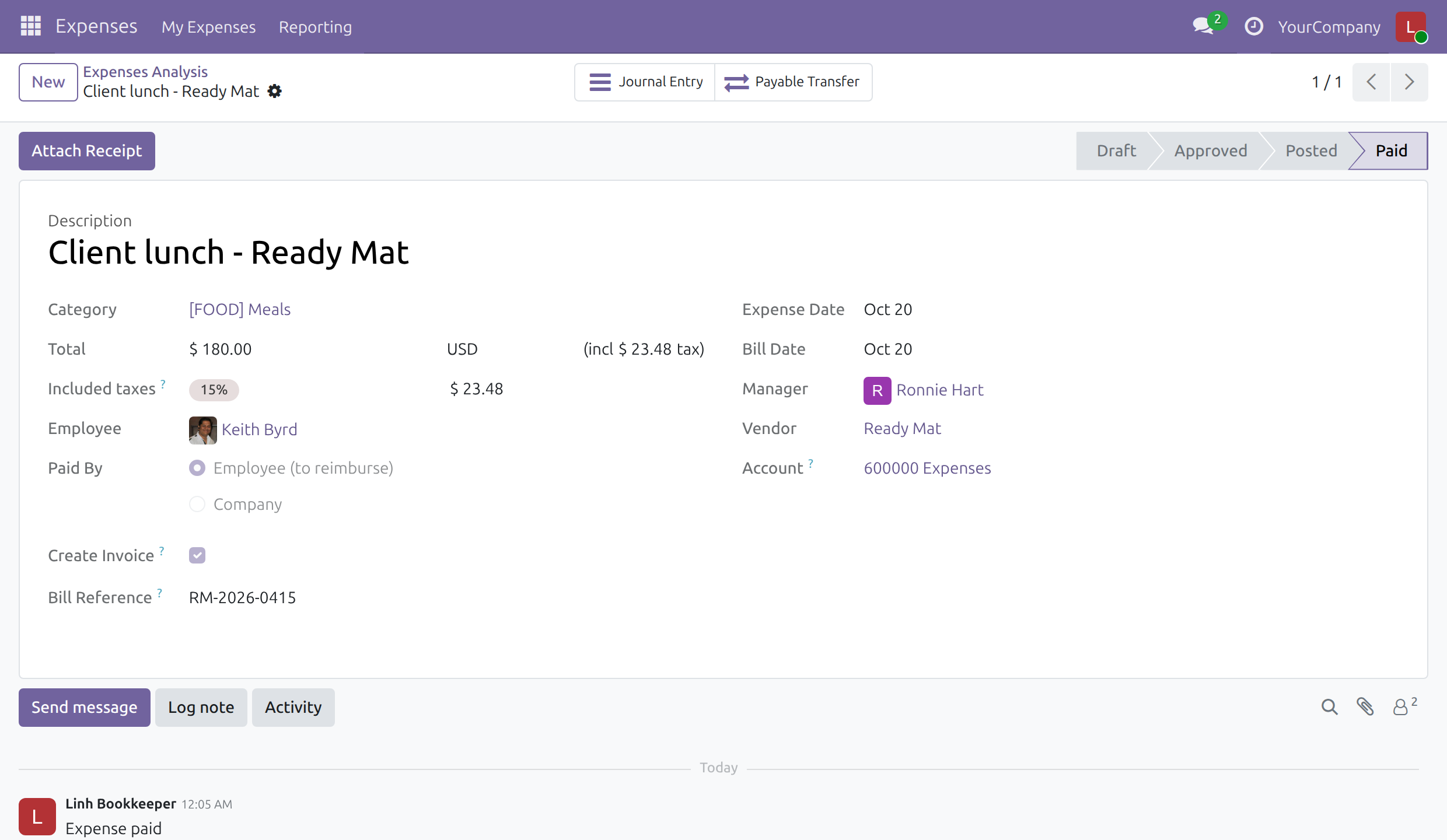
Correcting a posted expense
A posted expense locks its vendor, Create Invoice, bill reference and bill date. To correct it, the accountant cancels the journal entry, or reverses it and confirms the reversal, which releases the expense; the Expense Administrator then resets it to draft.
What You Get
Vendor, bill reference, bill date and Create Invoice per expense
Posted vendor bills grouped by employee / vendor / date / reference
Payable transferred from vendor to employee when the employee paid
Employee reimbursed from the expense
Bill date required before posting invoiced expenses
Posted expenses are locked: vendor, Create Invoice, bill reference and bill date change only after the journal entry is reversed or cancelled and the expense is reset to draft, and the message on screen names that way out
The accountant's Reset button follows the journal entry: it shows while the entry is in draft or once the entry is reversed or cancelled, never while it is posted
An accountant with Invoicing only pays, cancels or reverses a receipt, which releases the expense for the Expense Administrator to reset
An expense is reimbursed only once its journal entry is posted
More Screens
Both screens were taken on an Odoo 19.0 database with business data, not a mock-up.
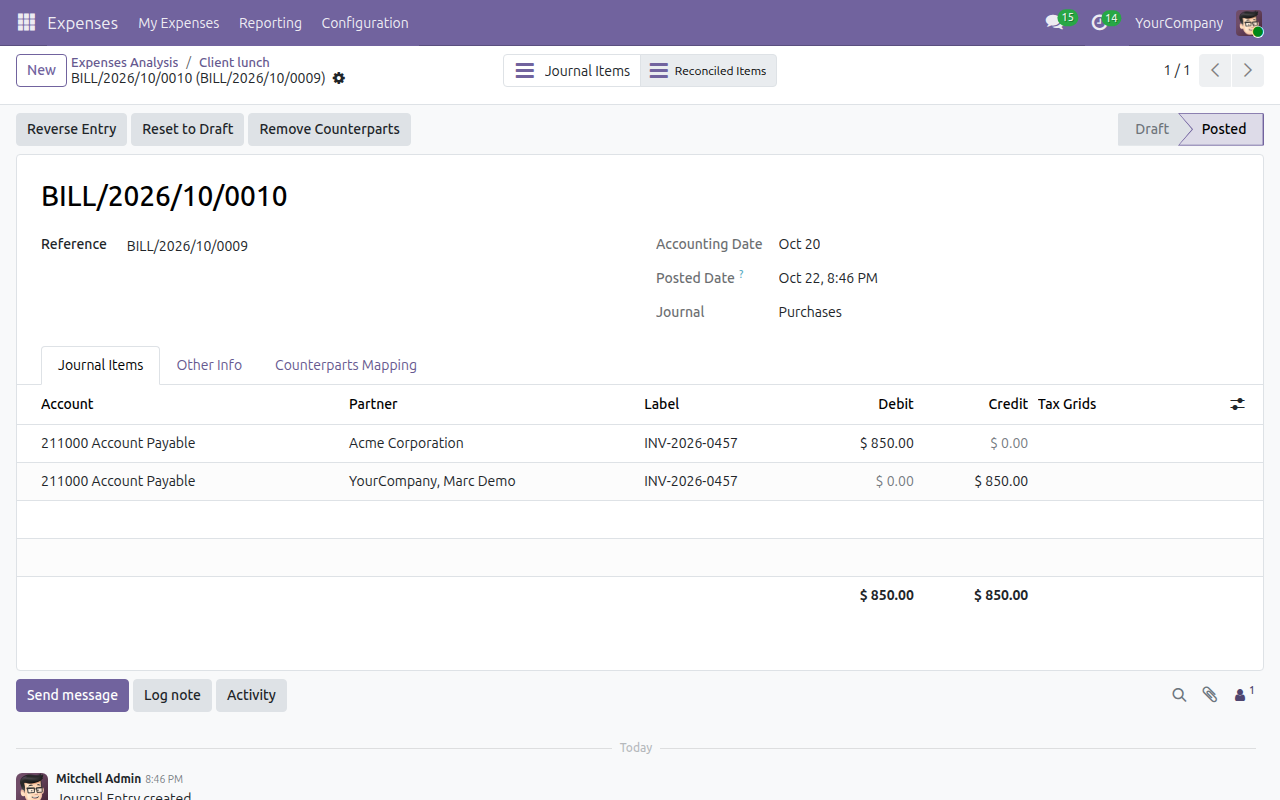
The payable transfer entry
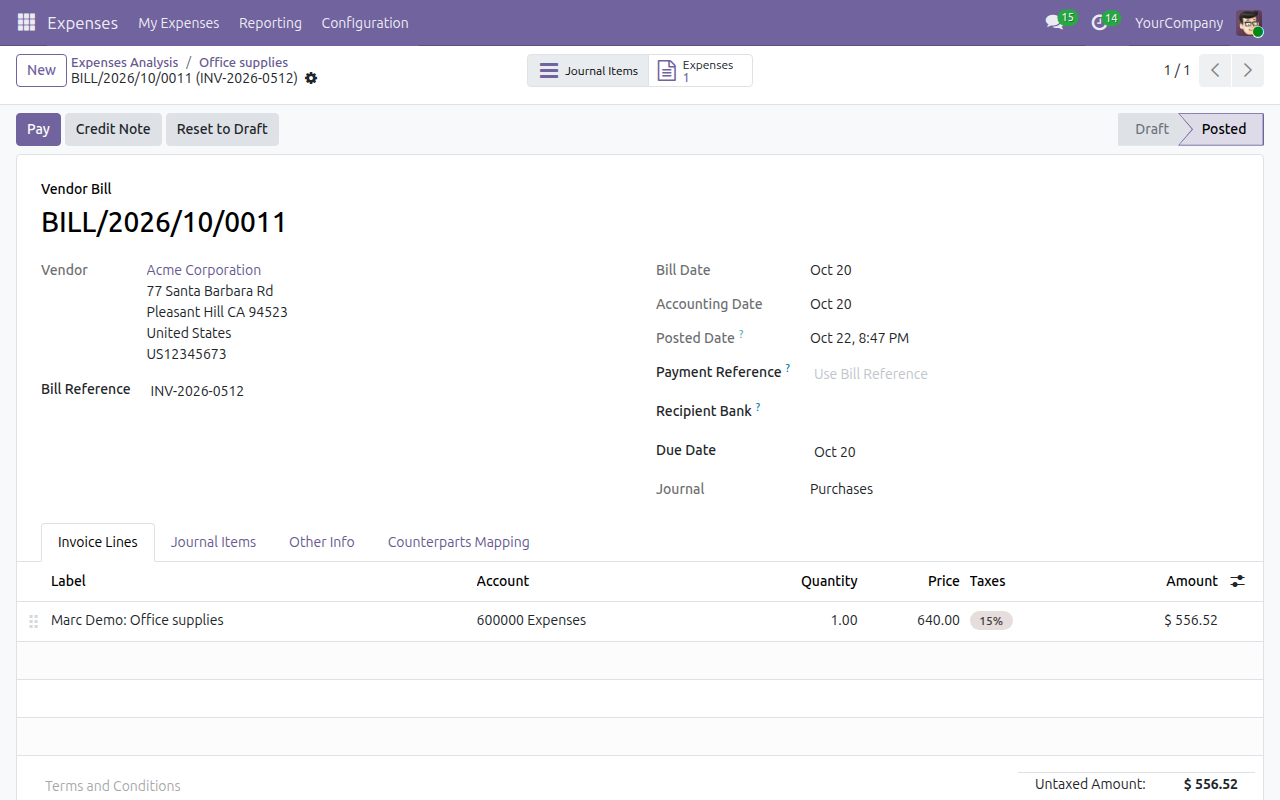
The vendor bill of a company-paid expense
What This App Does Not Do
Read this before you buy. Everything below is something the app deliberately leaves to another app or to you.
Odoo keeps one journal entry per company-paid expense.
Posting tells you which ones.
Confirming the reversal of the bill also reverses the payable transfer.
Use different references to split bills.
Reverse or cancel the journal entry, then reset the expense to draft; the vendor and bill details change after that.
Works Well With
Apps from the same stack, built to fit this one:
Who Should Use Advanced HR Expense Management?
Employee
Records the vendor, bill reference and bill date as the expense is created.
Accountant
A real bill in the purchase journal, not a generic entry. Receipts are paid and reversed with Invoicing alone.
Manager
Approves the expenses of the team as before, and resets an expense once its journal entry is undone.
Auditor
Vendor, bill reference and bill date on every invoiced expense.
Frequently Asked Questions
What does Advanced HR Expense Management do?
Mark an expense "Create Invoice" with a vendor, a bill reference and a bill date: posting creates a posted vendor bill of that vendor and, when the employee paid, moves the payable from the vendor to the employee, who is then reimbursed from the expense.
What does Advanced HR Expense Management not do?
Each company-paid invoiced expense gets its own bill. Odoo keeps one journal entry per company-paid expense. Invoiced expenses need a bill date before posting. Posting tells you which ones. One bill per employee + vendor + date + reference for employee-paid expenses. Use different references to split bills. Posted expenses are not edited in place: reverse or cancel the journal entry, then reset the expense to draft.
Who is Advanced HR Expense Management for?
Employee: Records the vendor, bill reference and bill date as the expense is created. Accountant: A real bill in the purchase journal, not a generic entry. Receipts are paid and reversed with Invoicing alone. Manager: Approves the expenses of the team as before, and resets an expense once its journal entry is undone. Auditor: Vendor, bill reference and bill date on every invoiced expense.
Which Odoo version and editions does it support?
Odoo 19.0 - Odoo Community, Odoo Enterprise, Viindoo Cloud. Upgrades to a newer Odoo series are a separate purchase for that series.
What does it depend on?
It installs on top of: hr_expense, viin_account. Odoo installs them with it.
How do I set it up?
Tick Create Invoice on the expense, fill vendor, reference and bill date; submit, approve, post.
How is a posted expense corrected?
A posted expense locks its vendor, Create Invoice, bill reference and bill date. The accountant cancels its journal entry, or reverses it and confirms the reversal (an accountant with Invoicing only can cancel or reverse a receipt, or reverse a vendor bill, from the Bills list), which releases the expense. The Expense Administrator, or the approver of the team, then presses Reset and the expense is back in draft. An expense is reimbursed only once its journal entry is posted.
What works well with it?
Expense - Employee Advance (to_hr_expense_employee_advance): Settle expenses against an advance. Expense - Payroll (to_hr_expense_payroll): Reimburse on the payslip. Business Trip - Expense (viin_business_trip_hr_expense): Expenses from business trips.
Can I try it before buying?
Yes - the Live Preview button at the top of this page opens the module's own screen on a working database.
How do I get support?
Open a support ticket at https://viindoo.com/ticket with your Odoo version and the technical name to_hr_expense.
See Advanced HR Expense Management in Action
Live demo: v19demo-int.viindoo.com/web#action=hr_expense.hr_expense_actions_all
Need help with Advanced HR Expense Management?
For questions, implementation support or a custom feature, contact Viindoo.
Pre-Sales & Partnership
https://viindoo.com/contactusUpgrades to a newer Odoo series are a separate purchase for that series.
All Viindoo apps: Viindoo Apps
Technical Requirement
Changes log
0.3.8 - Odoo 19.0
- Upgraded to Odoo 19.0.
- The employee is reimbursed with Register Payment on the expense itself.
Advanced HR Expense Management
Who this guide is for: employees who claim expenses, the managers who approve them, and the accounting team that records and reimburses them.
Note
Extends Expenses and Viindoo Accounting - see their documentation for the standard expense flow.
Overview
Some expenses are bills from a supplier: a client lunch, an office purchase, a hotel invoice. With this module an expense can be recorded as a vendor bill of its supplier, carrying the supplier's own bill reference and bill date, instead of a plain accounting entry. When the employee paid out of their own pocket, the amount the company owes moves from the supplier to the employee, who is then reimbursed from the expense itself.
How an expense travels:
- The employee creates the expense, ticks Create Invoice, fills in the vendor, bill reference and bill date, and submits it.
- The team approver or the expense administrator reviews and approves it.
- The accountant posts it. A posted vendor bill is created and, for an expense the employee paid, the amount owed is transferred to the employee.
- The accountant registers the payment that reimburses the employee (or pays the supplier for an expense paid by the company).
| Role | What they do | Access right to assign |
|---|---|---|
| Employee | Creates and submits their own expenses, including the vendor bill details. | Employee (every internal user) |
| Team approver | Approves or refuses the expenses of their team. | Expenses: Team Approver |
| Expense administrator | Approves expenses of any employee and manages all expenses. | Expenses: Administrator |
| Accountant | Posts approved expenses as vendor bills and registers the reimbursement of the employee. | Accounting: Bookkeeper (or higher), or Accounting: Invoicing together with Expenses: All Approver |
| Payer | Pays the receipts of expenses and, when a posted expense must be corrected, reverses or cancels its journal entry from Accounting. | Accounting: Invoicing |
Setup (for the Administrator)
- Open Apps, search for Advanced HR Expense Management and press Install. The required apps, Expenses and Accounting, are installed with it.
- Open Settings > Users & Companies > Users and give each person the access right of their role, as in the table above.
- Check what the posting needs:
- each employee has a Work Contact, because the amount owed to the employee is booked on that contact;
- the company has a purchase journal, in which the vendor bills are recorded; when it has several, the journal set as Employee Expense Journal in Expenses > Configuration > Settings (Accounting section) is proposed to the accountant for the payable transfer entries, and the vendor bills go to another purchase journal;
- the suppliers you will choose exist under Contacts.
Employee: record an expense as a vendor bill
- Open Expenses > My Expenses and press New.
- Fill in the Description, the Category, the Total and, in Paid By, who paid: Employee (to reimburse) or Company.
- Tick Create Invoice. Three more fields appear.
- Fill in the Vendor (required), the Bill Reference (the number on the supplier's bill) and the Bill Date. The bill date starts as the expense date.
- Press Submit.
Once the expense is submitted, Create Invoice and the bill reference are locked; the vendor and the bill date can still be corrected until the expense is posted. To change the bill reference, ask the approver to Reset the expense to draft.
Once the expense is posted (Posted, in payment or Paid), nobody can change the vendor, Create Invoice, the bill reference or the bill date any more - neither the employee, the approver, the expense administrator nor the accountant. The fields are read-only, and a change saved from a form that was opened before the posting is refused:
The vendor and the bill details of the following expenses are those of their posted journal entries. Reset the expenses to draft before changing them: <expense>
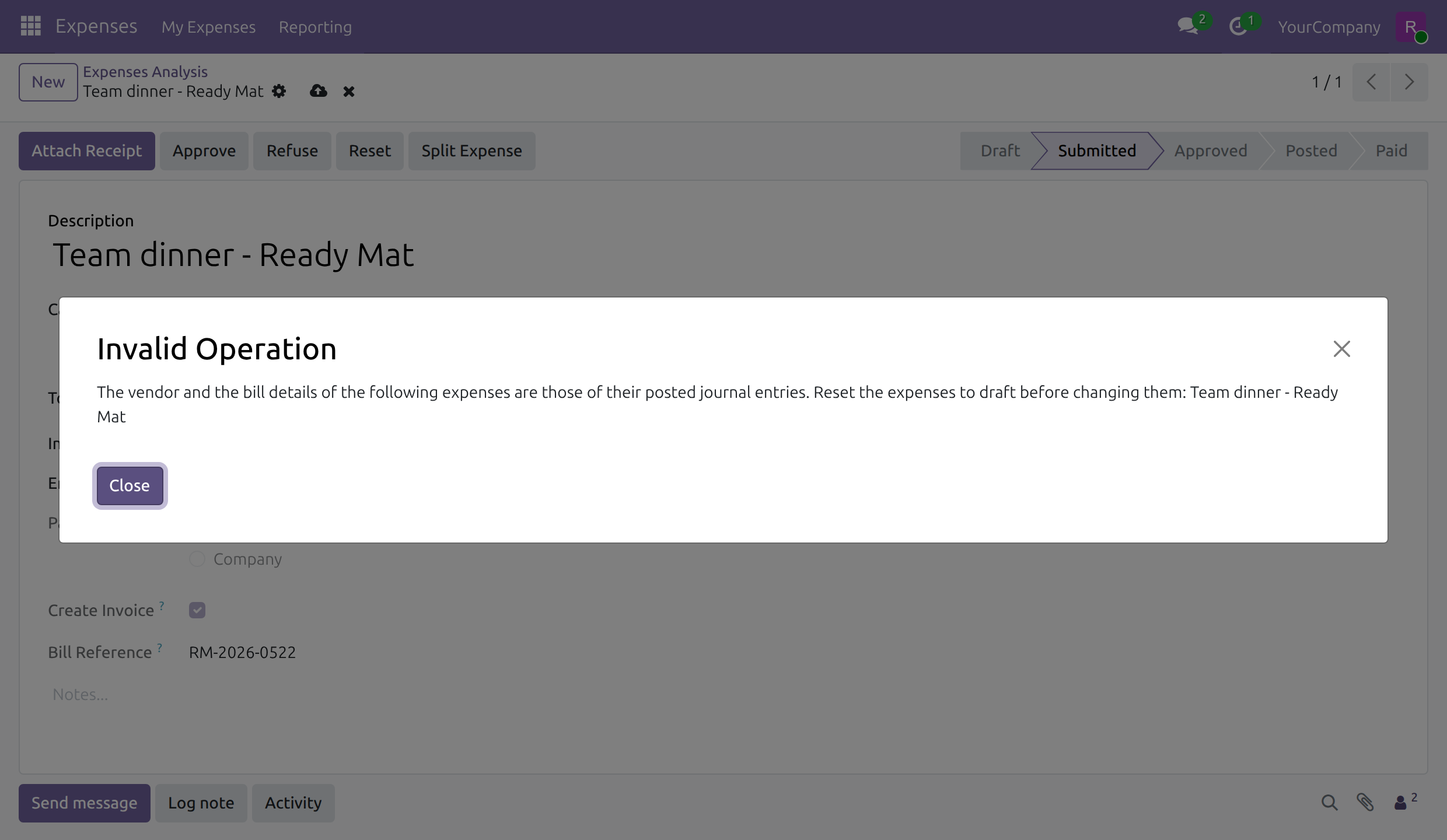
The message names the way out: the expense has to be reset to draft first. A posted expense cannot be reset while its journal entry is posted, so the entry is undone before - see Correct a posted expense.
Team approver: approve the team's expenses
Open Expenses > Reporting > Expenses Analysis and filter on Waiting Approval, then open an expense of your team. The vendor, bill reference and bill date are shown as the employee entered them. Press Approve to accept the expense or Refuse to reject it.
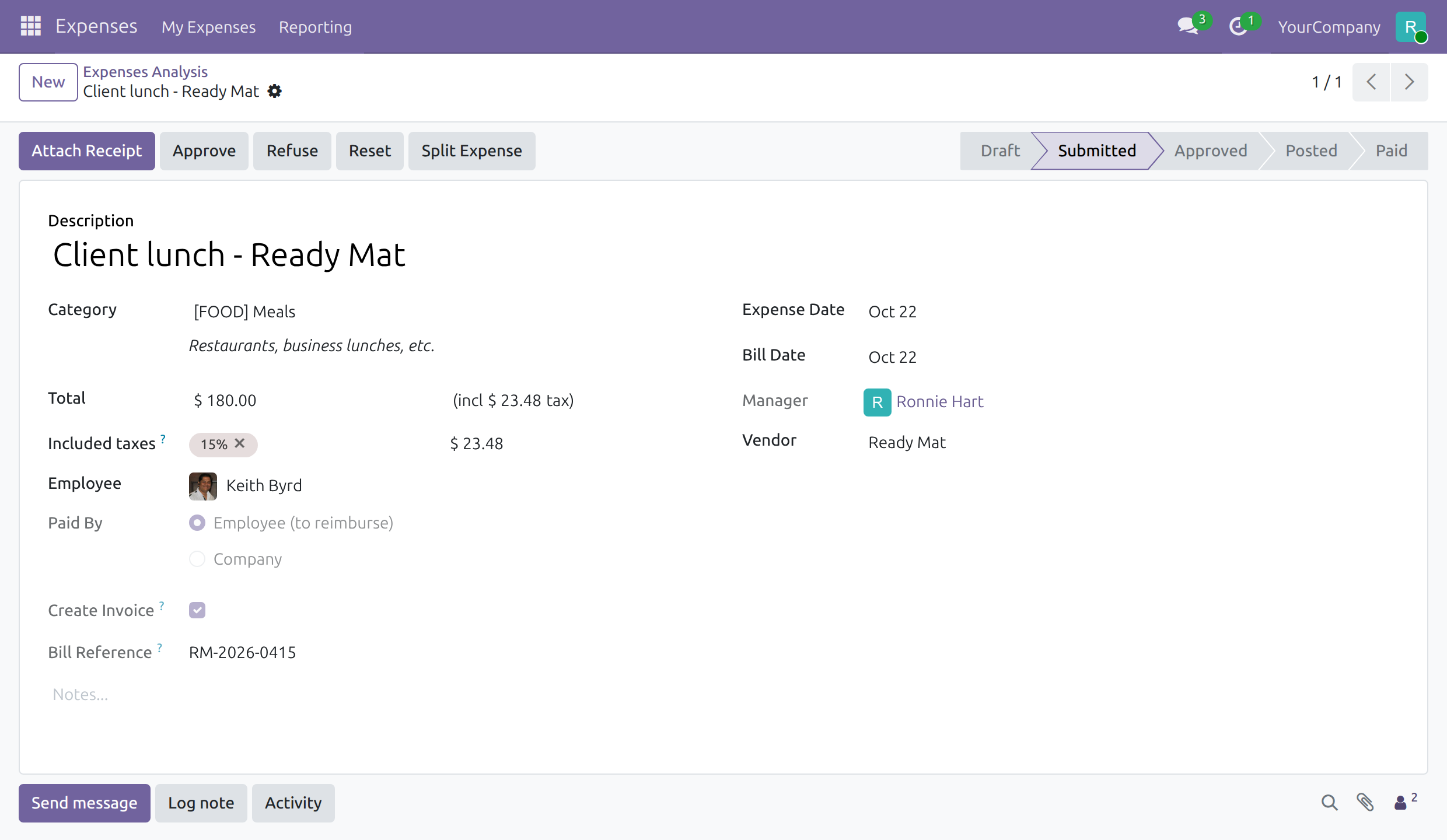
The expense administrator does the same for every employee, with the same buttons, and can also create expenses on behalf of any employee.
Accountant: post the expense
Note
Some screens below show the Account field and the Journal Items tab. Full accounting features such as these come with the optional module Accounting & Finance; install it from Apps if you want them.
- Open Expenses > Reporting > Expenses Analysis, filter on To Post and open an approved expense. The vendor, the bill reference, the bill date and the expense account are visible.
- Press Post Journal Entries.
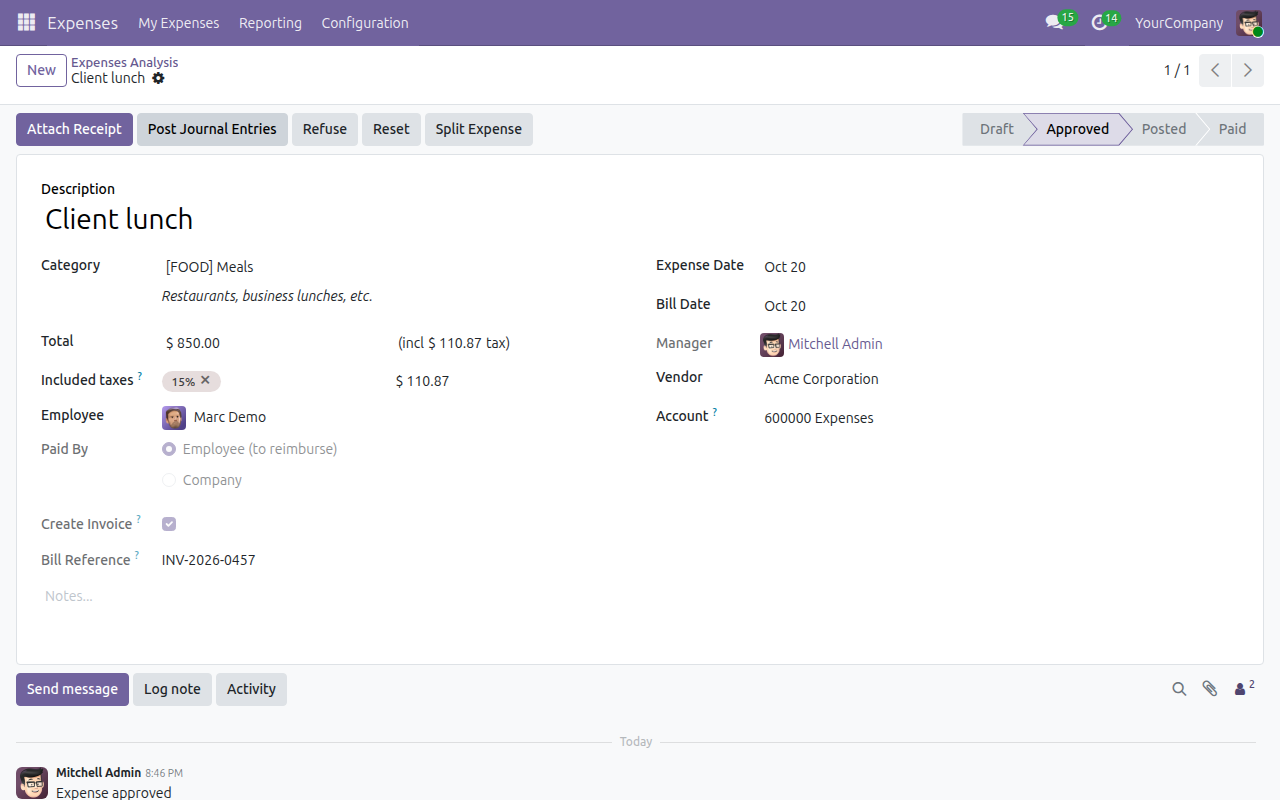
What happens next depends on Paid By:
Employee (to reimburse): a dialog asks for the Journal and the Accounting date. The journal proposed is the Employee Expense Journal of the company (Expenses > Configuration > Settings) and, while none is set, its first purchase journal. Press Post Expenses. The vendor bill is created and posted in a purchase journal of the company: when the company has several, one other than the Employee Expense Journal. The entry that transfers the amount owed to the employee is posted in the journal chosen in the dialog. Expenses of the same employee, vendor, bill date and bill reference are recorded in one bill.
The bill opens, showing the vendor, the bill reference and the bill date of the expense.
Company: no dialog appears. The expense is posted at once and each expense gets its own vendor bill, in a purchase journal chosen as above and in the currency the company paid in. Open the bill with the Journal Entry button of the expense. The bill stays open until you pay the supplier from it with Pay.
Accountant: reimburse the employee
For an expense paid by the employee, the amount owed to the supplier is moved to the employee by a payable transfer entry. The expense now shows the Payable Transfer button, which opens that entry, and the Register Payment button.
The entry lists the amount taken off the supplier and put on the employee, for the same total.
To reimburse the employee:
- On the expense, press Register Payment.
- Choose the Journal, check the Amount and the Payment Date, and press Create Payment.
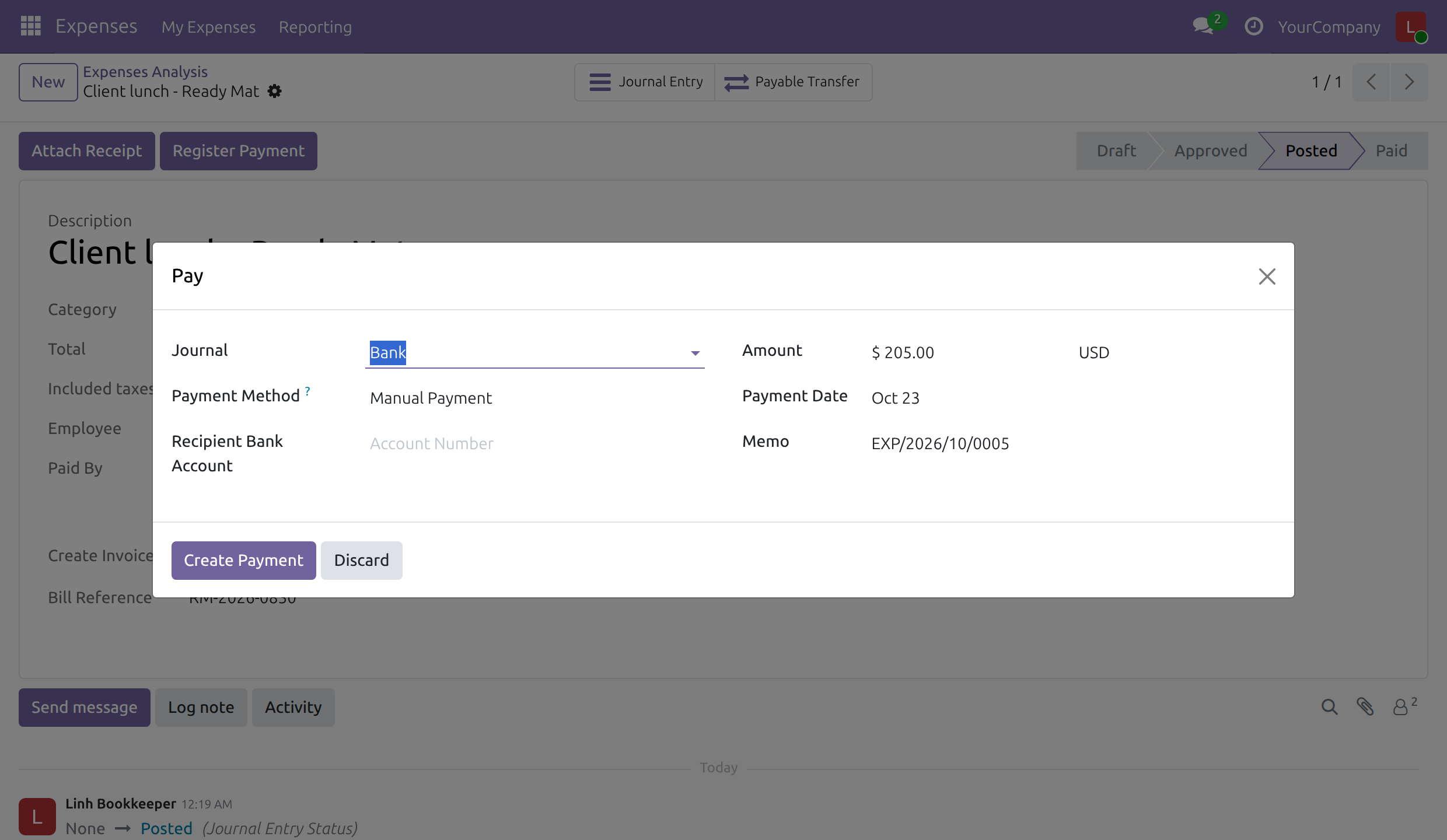
The expense moves to Paid as soon as a payment is registered for it. While part of the amount is still owed, the Register Payment button stays on the expense for the balance.
The employee is reimbursed through a posted entry only. An expense whose journal entry is back in draft stays Posted and never moves to Paid, even when a payment has been registered against it; once the entry is posted again, the expense follows its payment.
Payer: pay the receipt of an expense
An expense that does not use Create Invoice is recorded as a receipt in the name of the employee. It is reimbursed from Accounting, and the access right Accounting: Invoicing is enough to do it:
- Open Accounting > Vendors > Bills, search for the receipt (its reference is the description of the expense) and tick it.
- Press Pay, choose the Journal, check the Amount and the Payment Date, and press Create Payment.
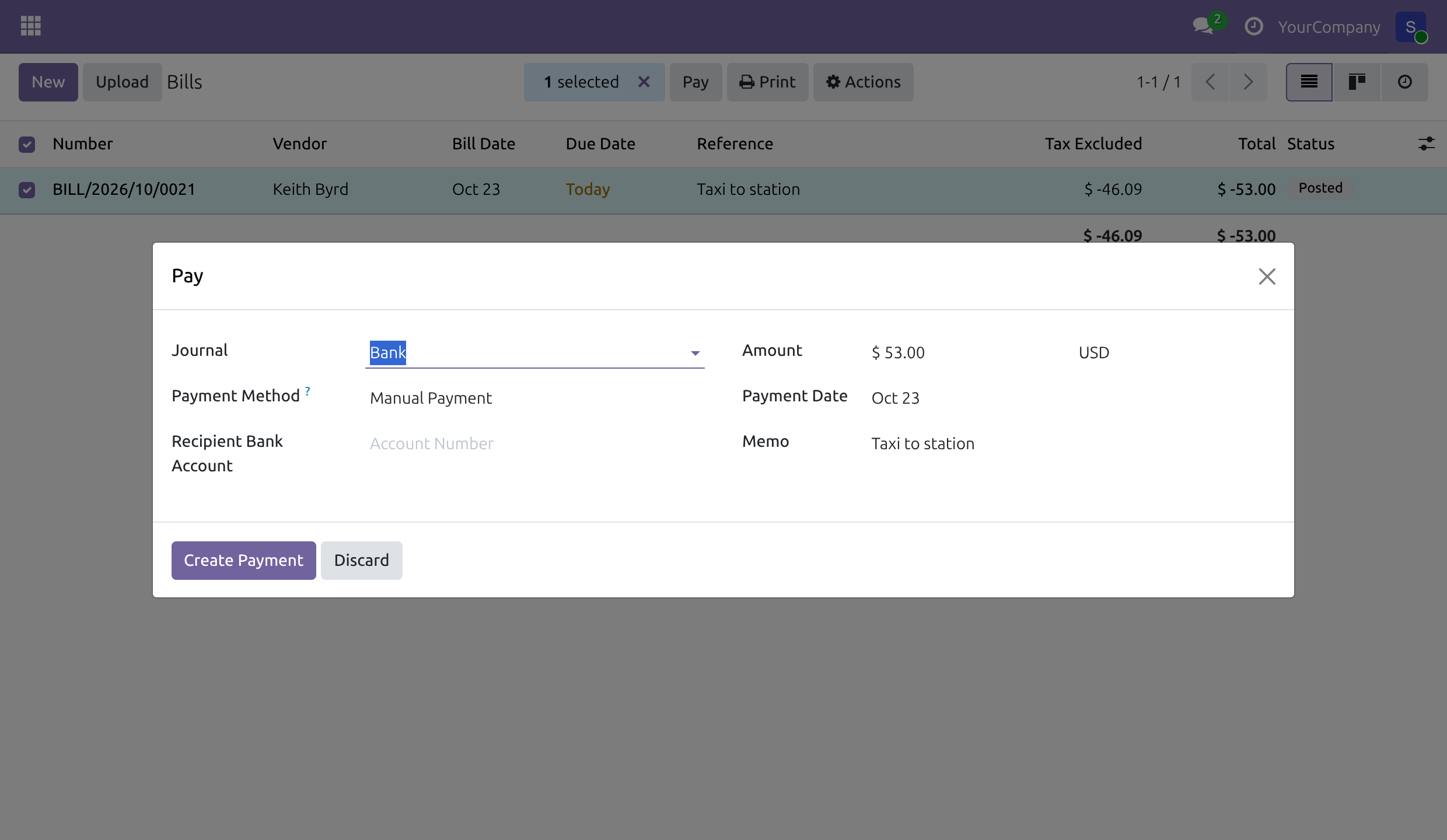
The expense moves to Paid with its payment. As for any expense, the receipt has to be posted for the employee to be reimbursed: while it is in draft the expense stays Posted. The Register Payment button of the expense serves the expenses recorded as vendor bills, and is used by the accountant of the previous section.
Correct a posted expense
A posted expense is corrected in two steps. The accounting team first undoes its journal entry; then the person who manages expenses resets the expense to draft. The vendor, Create Invoice, the bill reference and the bill date can be changed only after both steps.
While the journal entry is posted, Reset on the expense is refused, and the message names the way out:
The expense <expense> is recorded in the posted journal entry <entry>. To reset it to draft, ask an accountant to cancel that entry, or to reverse it and post the reversal.
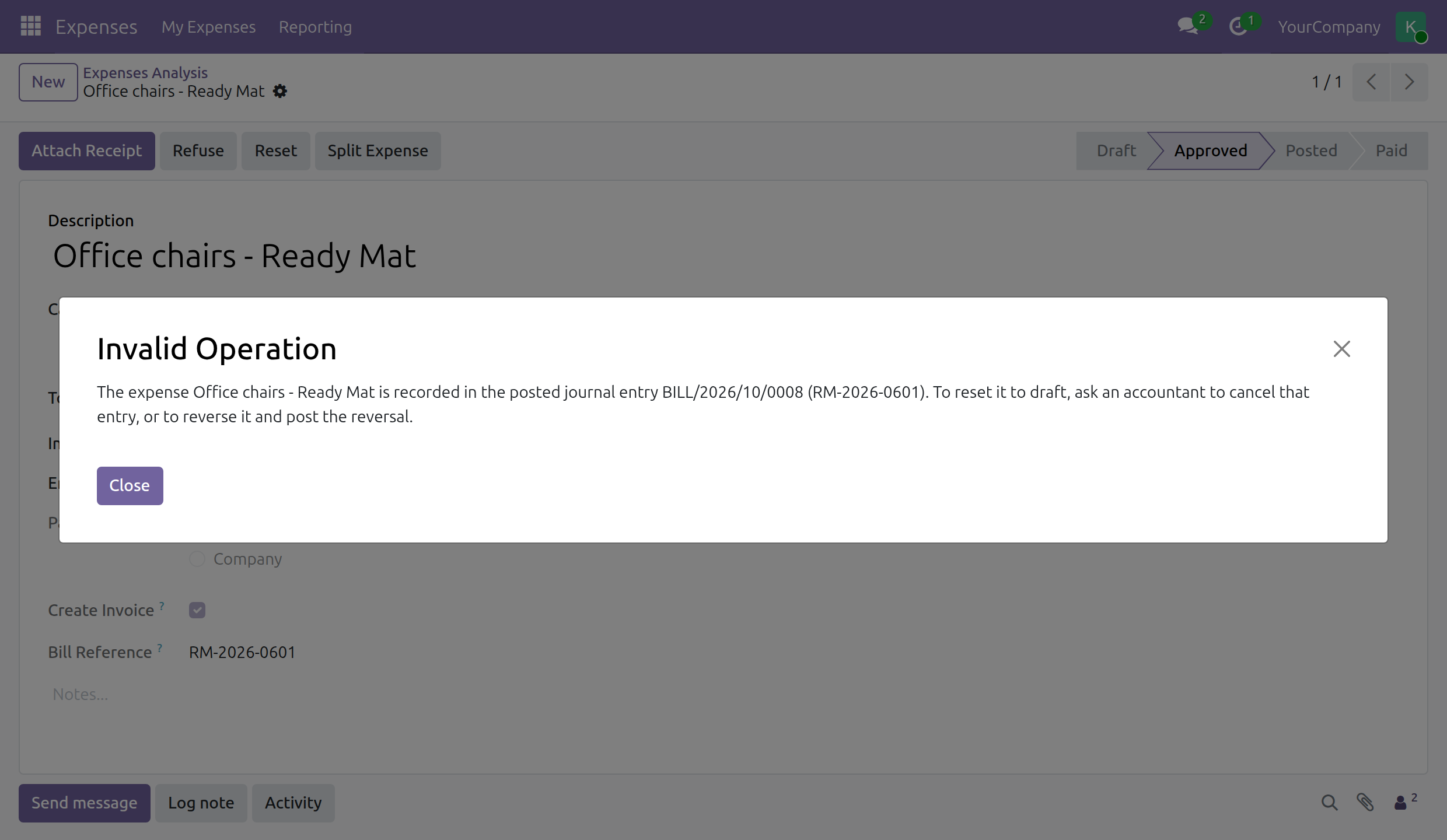
Step 1 - Undo the journal entry (Accounting: Invoicing or higher). The way depends on the entry:
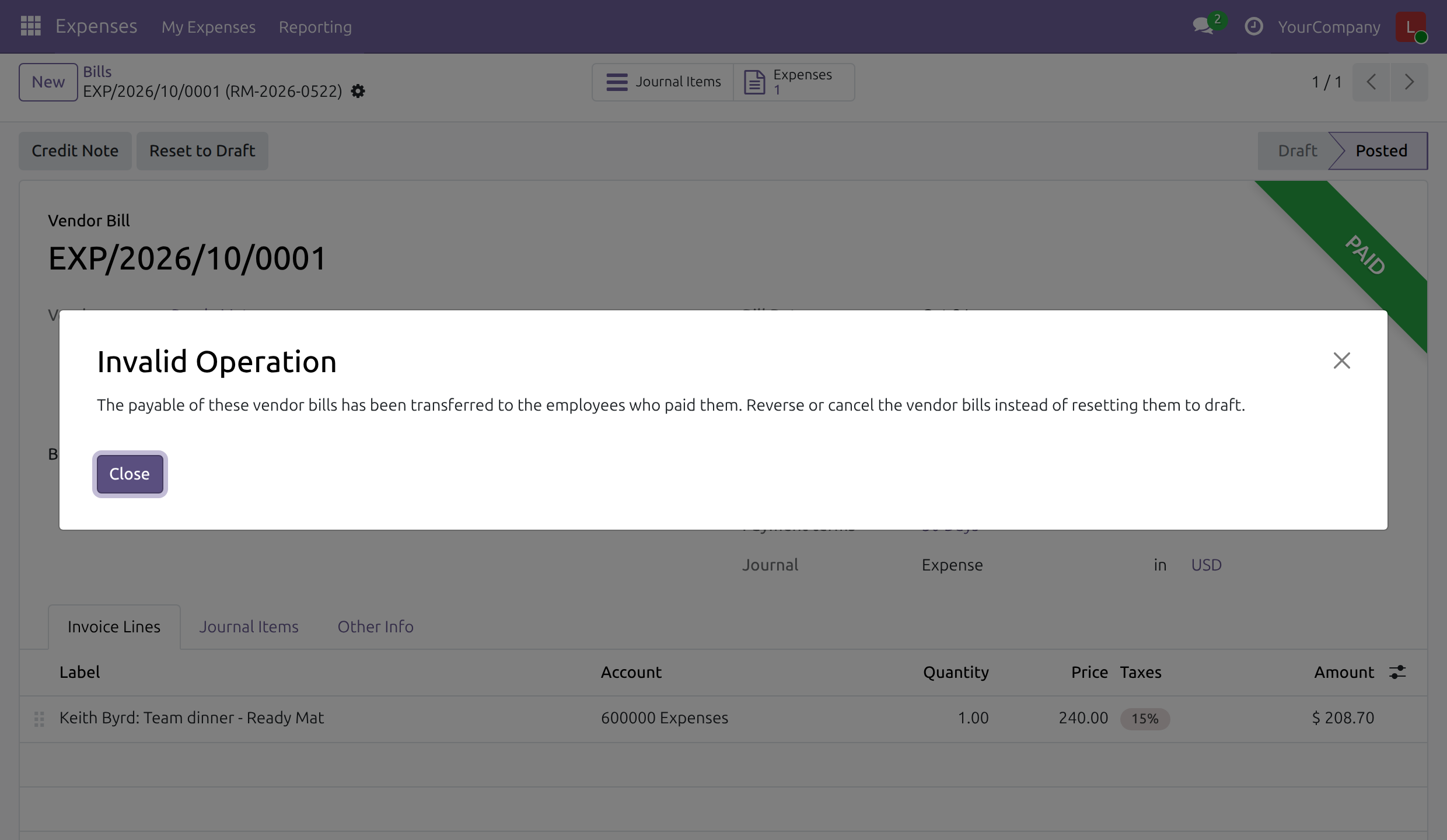
Vendor bill of an expense with Create Invoice. Open the bill with the Journal Entry button of the expense, or from Accounting > Vendors > Bills. Reset to Draft is refused, because the amount owed was transferred to the employee:
The payable of these vendor bills has been transferred to the employees who paid them. Reverse or cancel the vendor bills instead of resetting them to draft.
Press Credit Note, then Reverse: the credit note is created in draft.
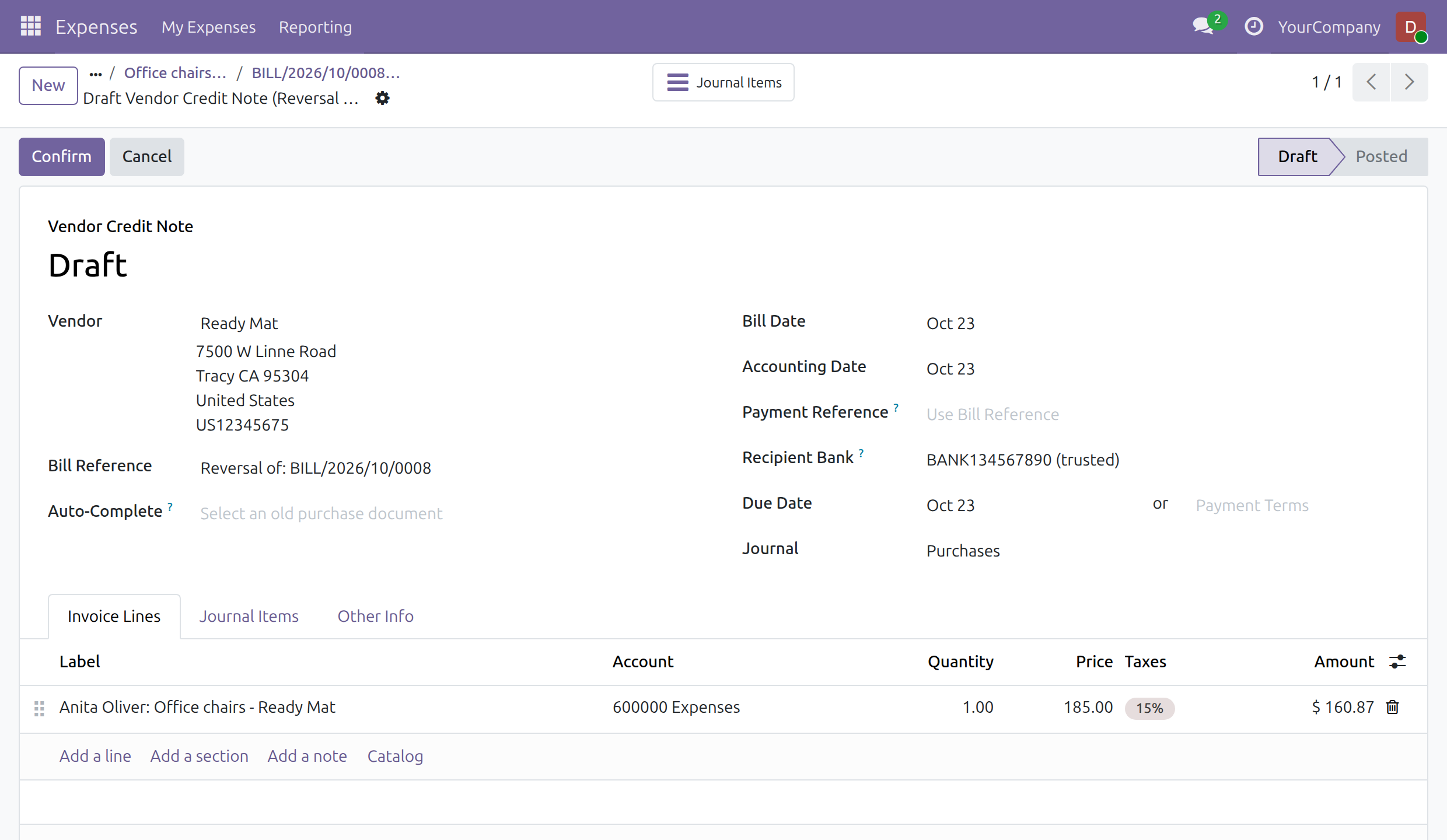
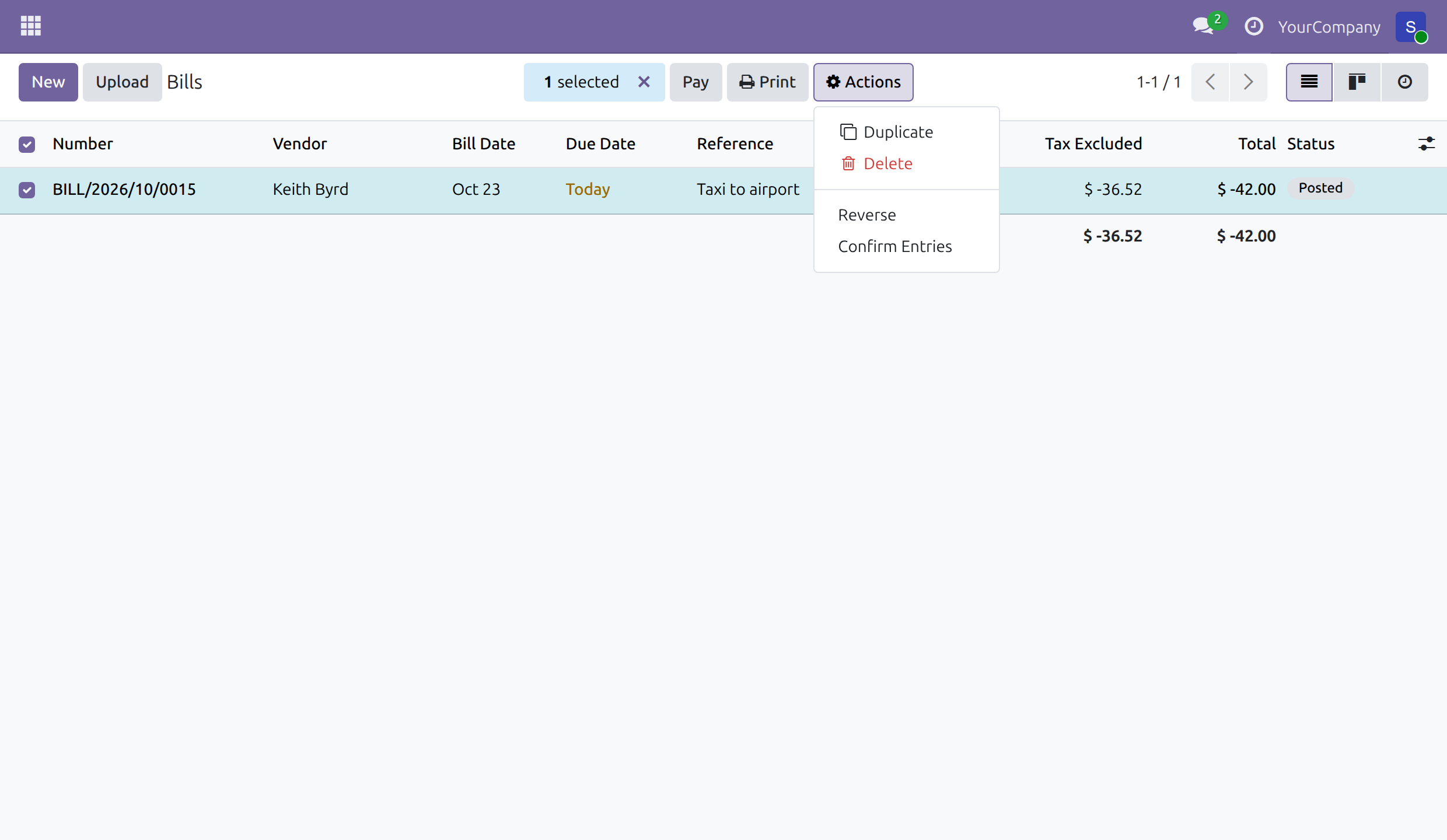
While the credit note is in draft, the expense stays Posted on its bill; deleting the draft credit note leaves the expense and its bill as they were. Press Confirm on the credit note: the bill shows Reversed, the transfer to the employee is reversed with it, and the expense is Approved again. With Accounting: Invoicing alone, do the same from Accounting > Vendors > Bills: tick the bill, choose Actions > Reverse, press Reverse, then confirm the draft credit note with Actions > Confirm Entries.
When the employee has already been reimbursed, even partly, confirming the credit note is refused:
The employees have already been reimbursed for the expenses <expense>. Cancel those reimbursements before cancelling the vendor bills.
Open the payment in Accounting > Vendors > Payments, press Reset to Draft then Cancel: the expense is Posted again; confirm the credit note again.
Receipt of an expense without Create Invoice. Open the receipt with the Journal Entry button of the expense (Accounting: Bookkeeper or higher), or from Accounting > Vendors > Bills (Accounting: Invoicing or higher), press Reset to Draft, then Cancel: the expense is released at once. The receipt can also be reversed: in Accounting > Vendors > Bills, tick the receipt and choose Actions > Reverse, then Reverse; the credit note is created in draft, the expense stays Posted until the credit note is confirmed with Actions > Confirm Entries, and is Approved again after that.
Entry back in draft. Cancel the draft entry with Cancel. An accountant who also holds the access right Expenses: Administrator can instead press Reset on the expense, which removes the draft entry at once; when the entry already has a number and is not the last one of its sequence, this is refused (You cannot delete this entry, as it has already consumed a sequence number and is not the last one in the chain. You should probably revert it instead.) and the entry is cancelled instead.
Step 2 - Reset the expense (Expenses access right). Once its entry is cancelled, or reversed with the reversal confirmed, the expense is no longer linked to it and is Approved again. The expense administrator, the holders of Expenses: All Approver and the team approver of the employee then see Reset; press it to bring the expense back to Draft, correct it, then submit, approve and post it again. The employee, and an accountant without an Expenses access right, do not see Reset: they ask the expense administrator or the approver of the team.
The Reset button of a posted expense follows the entry:
| Journal entry of the expense | Who sees Reset |
|---|---|
| Posted (also while a reversal of it is still in draft) | Nobody. A Reset requested from a form opened before the posting is refused, with the message that names the expense and the entry and asks an accountant to cancel the entry, or to reverse it and post the reversal. |
| Draft | Only an accountant who also holds an Expenses access right. |
| Reversed (reversal confirmed) or cancelled | The expense administrator, Expenses: All Approver, the team approver of the employee, and an accountant who also holds an Expenses access right. |
To find the journal items of expenses, open the Journal Items list of Accounting and use the Expense filter or group by Expense.
Troubleshooting
- "Please set the Vendor of the following expenses before posting them"
- An expense with Create Invoice ticked has no vendor. Ask the employee, or the approver, to fill it in.
- "No work contact found for the employee ..."
- The employee has no work contact. Set one on the employee form, then post again.
- "No purchase journal could be found in the company ..."
- Create a purchase journal for the company in the Accounting settings.
- "You don't have the rights to create accounting entries"
- Posting needs the access right Accounting: Bookkeeper (or higher), or Accounting: Invoicing together with Expenses: All Approver. Accounting: Invoicing alone does not give access to the expenses of other people. Expense administrators can approve any expense but cannot post it without an accounting right.
- "The employees have already been reimbursed for the expenses ..."
- The credit note of the bill cannot be confirmed because the employee has been paid, even partly. Open the payment in Accounting > Vendors > Payments, press Reset to Draft then Cancel, and confirm the credit note again.
- "The vendor and the bill details of the following expenses are those of their posted journal entries ..."
- The vendor, Create Invoice, the bill reference or the bill date of a posted expense was changed. Undo the journal entry and reset the expense to draft first: see Correct a posted expense.
- "The expense ... is recorded in the posted journal entry ... To reset it to draft, ask an accountant to cancel that entry, or to reverse it and post the reversal."
- Reset is requested while the journal entry of the expense is posted. An accountant cancels the entry, or reverses it and confirms the reversal; the expense is then Approved and can be reset: see Correct a posted expense.
- "The payable of these vendor bills has been transferred to the employees who paid them ..."
- A vendor bill of an employee-paid expense cannot be reset to draft. Reverse the bill with Credit Note instead.
FAQ
- Who can see the vendor, bill reference and bill date?
- The employee, the approvers, the expense administrators and the accountants, on the expense.
- Does an expense paid by the company show as paid at once?
- Yes: the expense is Paid once posted, but the supplier is still owed until the accountant pays the vendor bill.
- Can several expenses go into one vendor bill?
- Yes, when the same employee paid them and they share the same vendor, bill date and bill reference.
This software and associated files (the "Software") may only be used (executed, modified, executed after modifications) if you have purchased a valid license from the authors, typically via Odoo Apps, or if you have received a written agreement from the authors of the Software (see the COPYRIGHT file).
You may develop Odoo modules that use the Software as a library (typically by depending on it, importing it and using its resources), but without copying any source code or material from the Software. You may distribute those modules under the license of your choice, provided that this license is compatible with the terms of the Odoo Proprietary License (For example: LGPL, MIT, or proprietary licenses similar to this one).
It is forbidden to publish, distribute, sublicense, or sell copies of the Software or modified copies of the Software.
The above copyright notice and this permission notice must be included in all copies or substantial portions of the Software.
THE SOFTWARE IS PROVIDED "AS IS", WITHOUT WARRANTY OF ANY KIND, EXPRESS OR IMPLIED, INCLUDING BUT NOT LIMITED TO THE WARRANTIES OF MERCHANTABILITY, FITNESS FOR A PARTICULAR PURPOSE AND NONINFRINGEMENT. IN NO EVENT SHALL THE AUTHORS OR COPYRIGHT HOLDERS BE LIABLE FOR ANY CLAIM, DAMAGES OR OTHER LIABILITY, WHETHER IN AN ACTION OF CONTRACT, TORT OR OTHERWISE, ARISING FROM, OUT OF OR IN CONNECTION WITH THE SOFTWARE OR THE USE OR OTHER DEALINGS IN THE SOFTWARE.