
VNPay Payment Acquirer
| Lines of Code | 1296 |
| Technical name | payment_vnpay |
| License | OPL-1 |
| Website | https://viindoo.com/apps/modules/19.0/payment_vnpay |
| Read description for | v 12.0 v 13.0 v 14.0 v 15.0 v 16.0 v 17.0 v 18.0 |
| Required Apps | Invoicing (account) Discuss (mail) |
| Included Dependencies | Viindoo Base Accounting Foundation Payment Gateway Currency Conversion |
Get paid by QR code, ATM card or international card - and see every payment recorded in Odoo
For Vietnamese online shops and service companies collecting VND payments on orders and invoices
VNPay online payments for Vietnamese customers
Is this you?
Customers reach the payment step, can't pay the way they prefer, and leave the cart.
Your team checks bank statements to find out whether an order was paid.
A customer paid but closed the browser, and the order still looks unpaid.
Refunds are arranged on the VNPay merchant site and typed back into Odoo by hand.
You worry that a payment could be marked as paid based on data the customer's browser can change.
What changes
Customers abandon checkout
→ Customers pay by VNPay QR code, ATM card or international card on the signed VNPay payment page
Staff compare bank statements
→ Each payment is recorded automatically when VNPay confirms it
Paid but closed the browser
→ The payment is still recorded, because VNPay notifies Odoo directly
Refunds outside Odoo
→ Refund in full or in part from Odoo, with VNPay's answer shown on the refund
Doubt about forged confirmations
→ The status page shows the result VNPay confirmed
How it works
Finance Controller connects VNPay
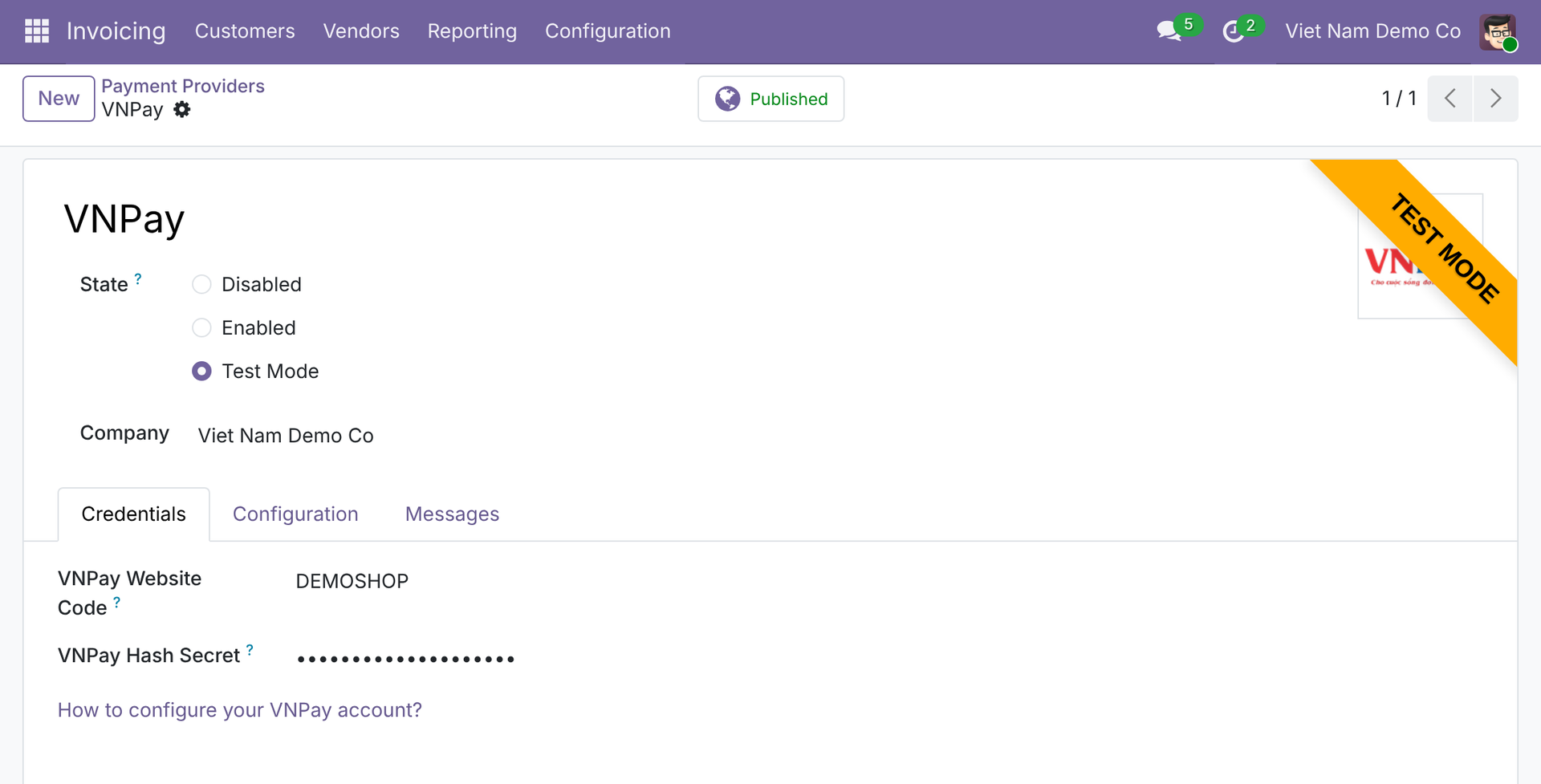
Enter the Website Code and Hash Secret VNPay gave you, and activate the VNPay payment method. It stays off until you do.
Customer pays
On the website, or from an online payment link on an order or invoice, the customer is taken to the VNPay page and has 15 minutes to pay by QR code, ATM card or international card.
VNPay confirms
Odoo records the payment when VNPay notifies it. If the customer returns first, the status page shows the result VNPay confirmed.
Finance Controller reviews
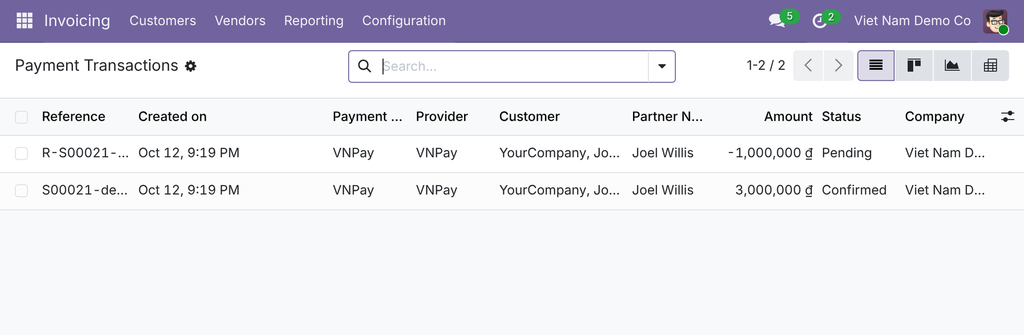
Open Payment Transactions to see each payment with its status, VNPay reference and card type.
Refund when needed
Refund in full or in part from Odoo. VNPay confirms the outcome later, and Odoo picks it up on its own.
Key Features
VNPay Provider Credentials
Connect your VNPay merchant account by entering the Website Code and Hash Secret that VNPay issued.
Pay with VNPay at Checkout
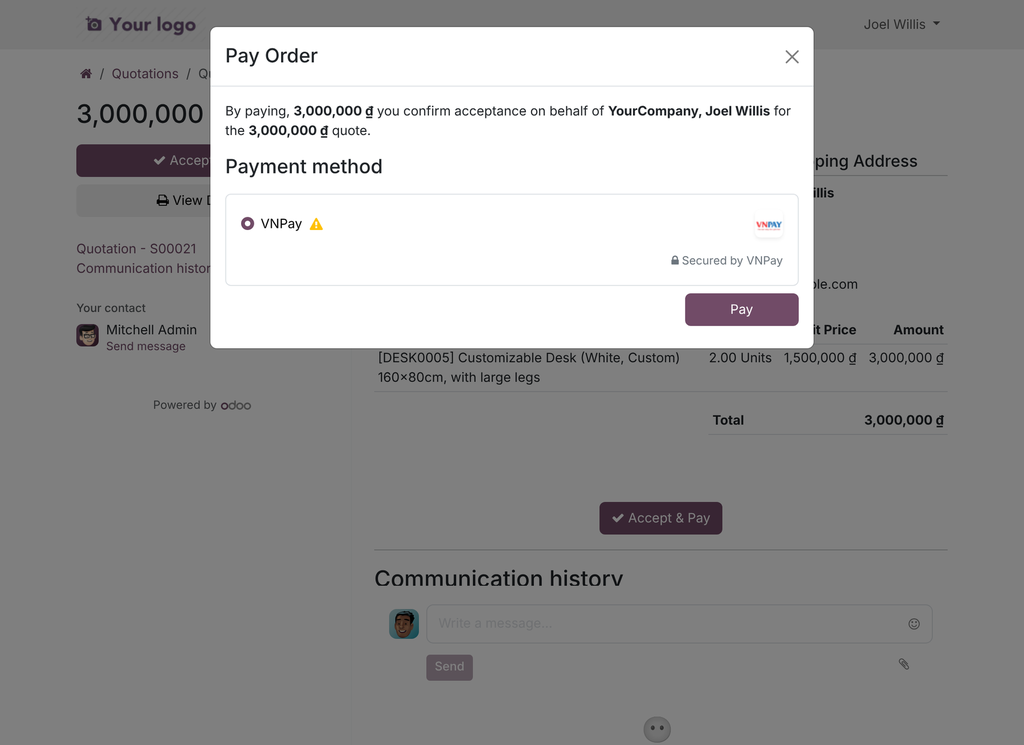
Customers pay by VNPay QR code, ATM card or international card on the signed VNPay payment page.
Automatic Payment Recording
Records the payment automatically when VNPay confirms it, even if the customer never returns to the shop.
Refund a VNPay Payment
Refund a VNPay payment in full or in part directly from Odoo; VNPay confirms the outcome later.
Refunds from Odoo
Send a full or partial refund to VNPay from Odoo and see VNPay's answer on the refund: confirmed, still processing, or rejected.
Payments and Refunds in One List
Review each VNPay payment and refund with its status, VNPay reference and card type.
Who it is for
Owner or finance director
You want more orders paid on the spot and cash flow you can read without reconciliation work. Every confirmed VNPay payment is recorded automatically.
Finance controller or accounts receivable lead
You are tired of re-keying payments and chasing refunds. Review payments and refunds in one list, with VNPay reference and card type.
Sales and finance staff
You need to know whether an order is paid. VNPay appears as a payment method and the status follows the order or invoice.
IT administrator
You want contained credentials. The Website Code and Hash Secret are visible to administrators only, and payments are never confirmed from browser data alone.
Best for: Vietnamese online shops and service companies that collect VND payments on orders and invoices and want every VNPay payment and refund tracked in Odoo.
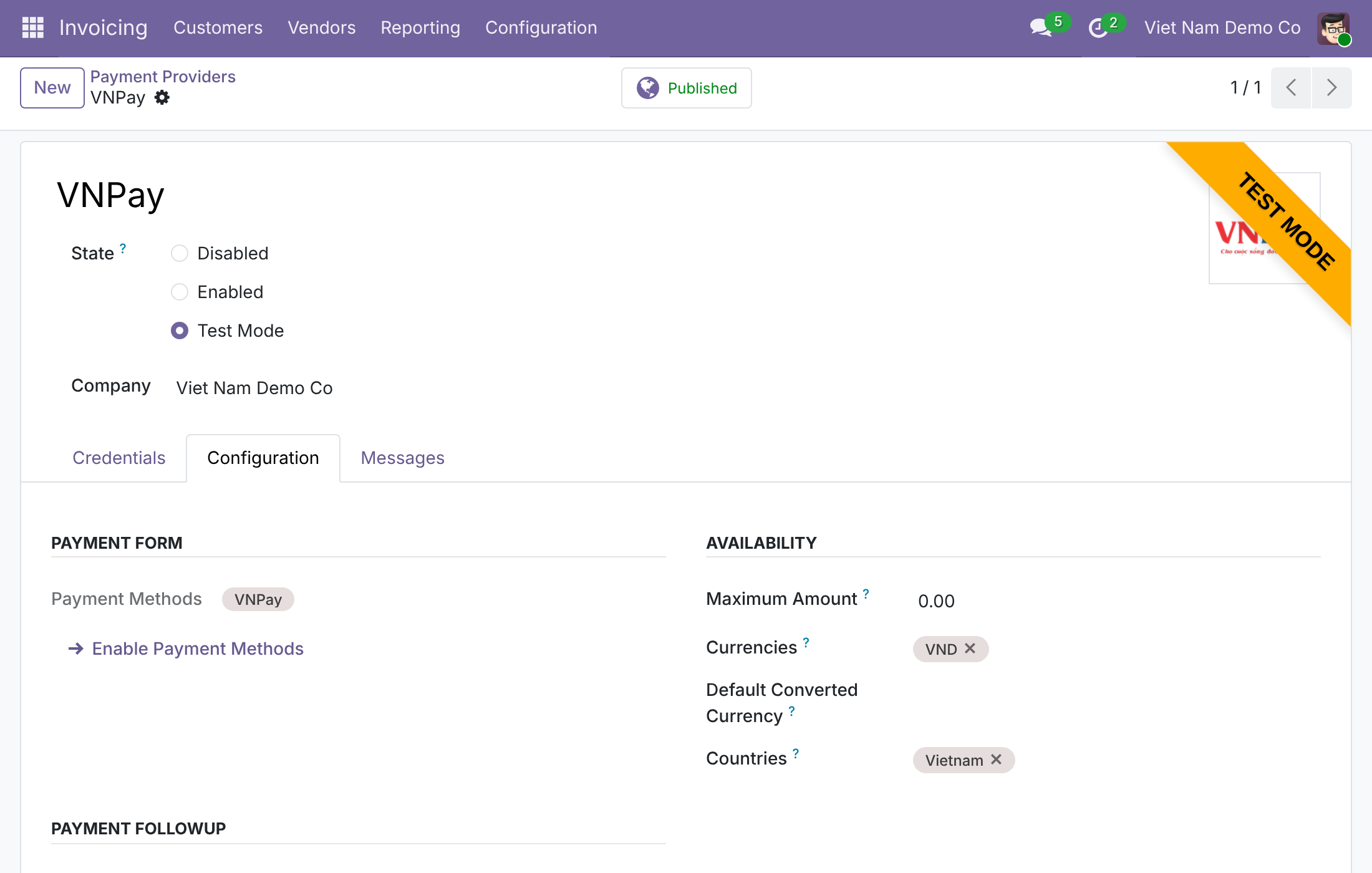
Open the VNPay provider
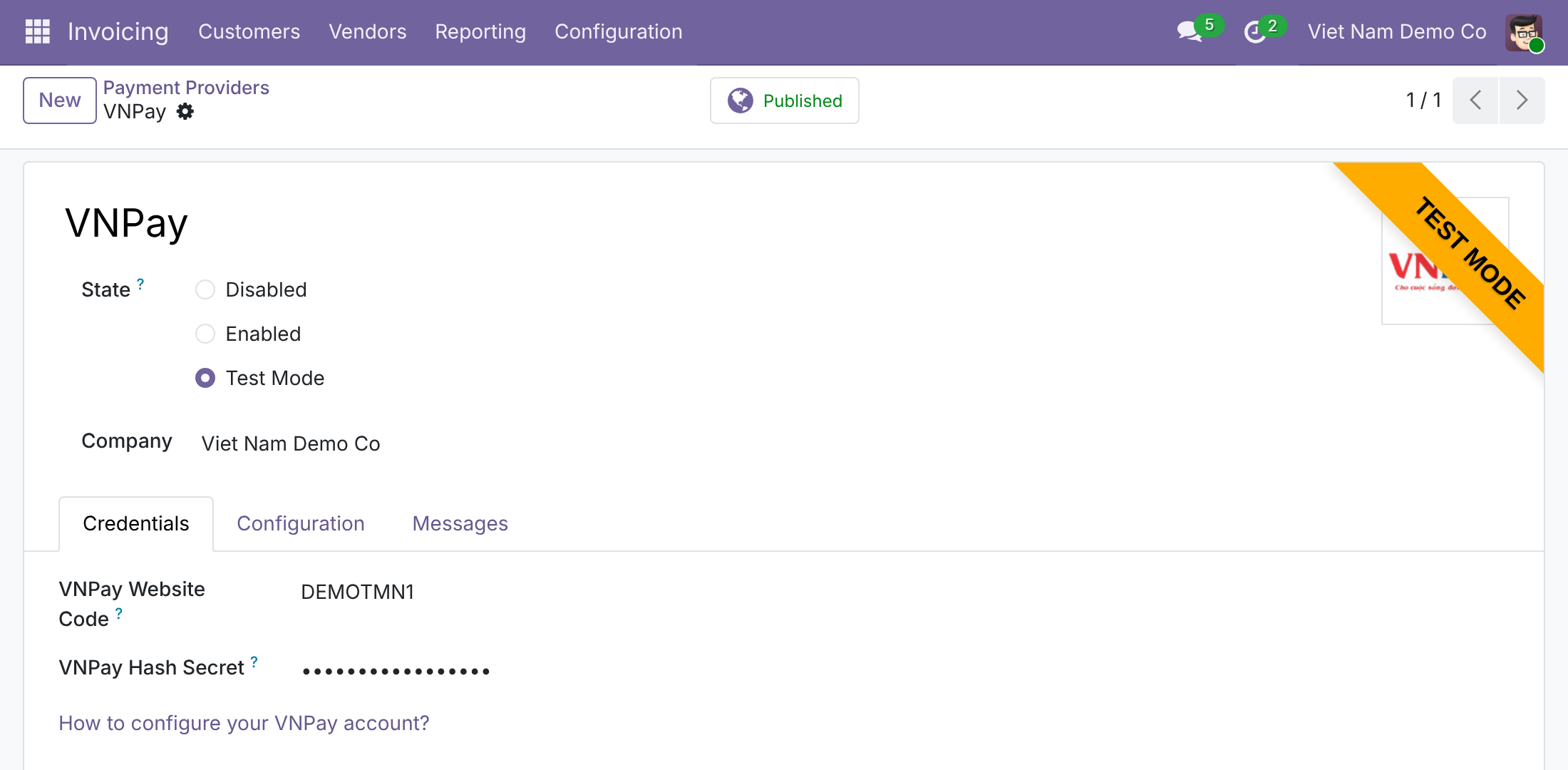
Enter your VNPay credentials
Let customers pay an order with VNPay
Review every VNPay payment
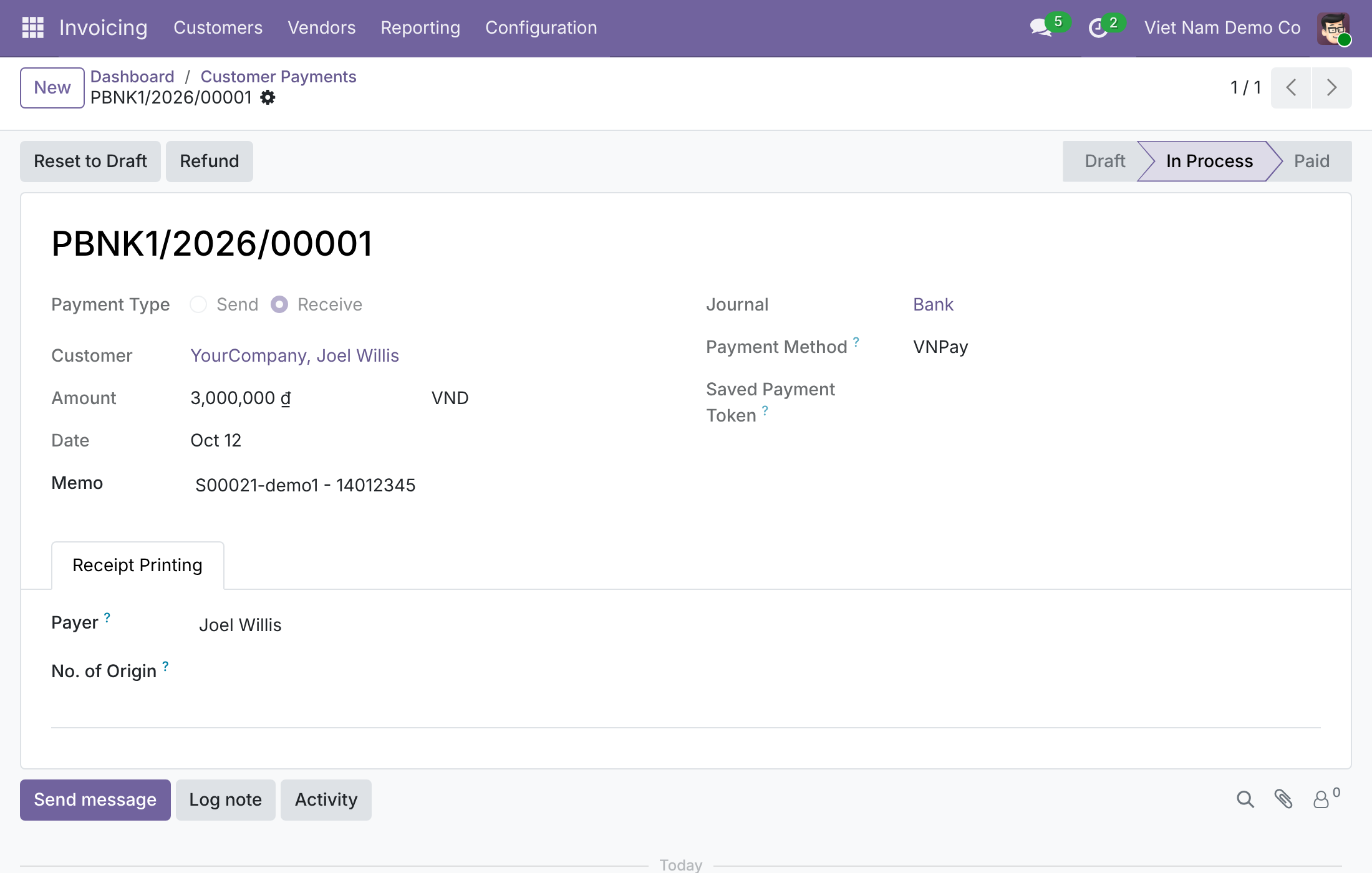
Start a refund from the payment
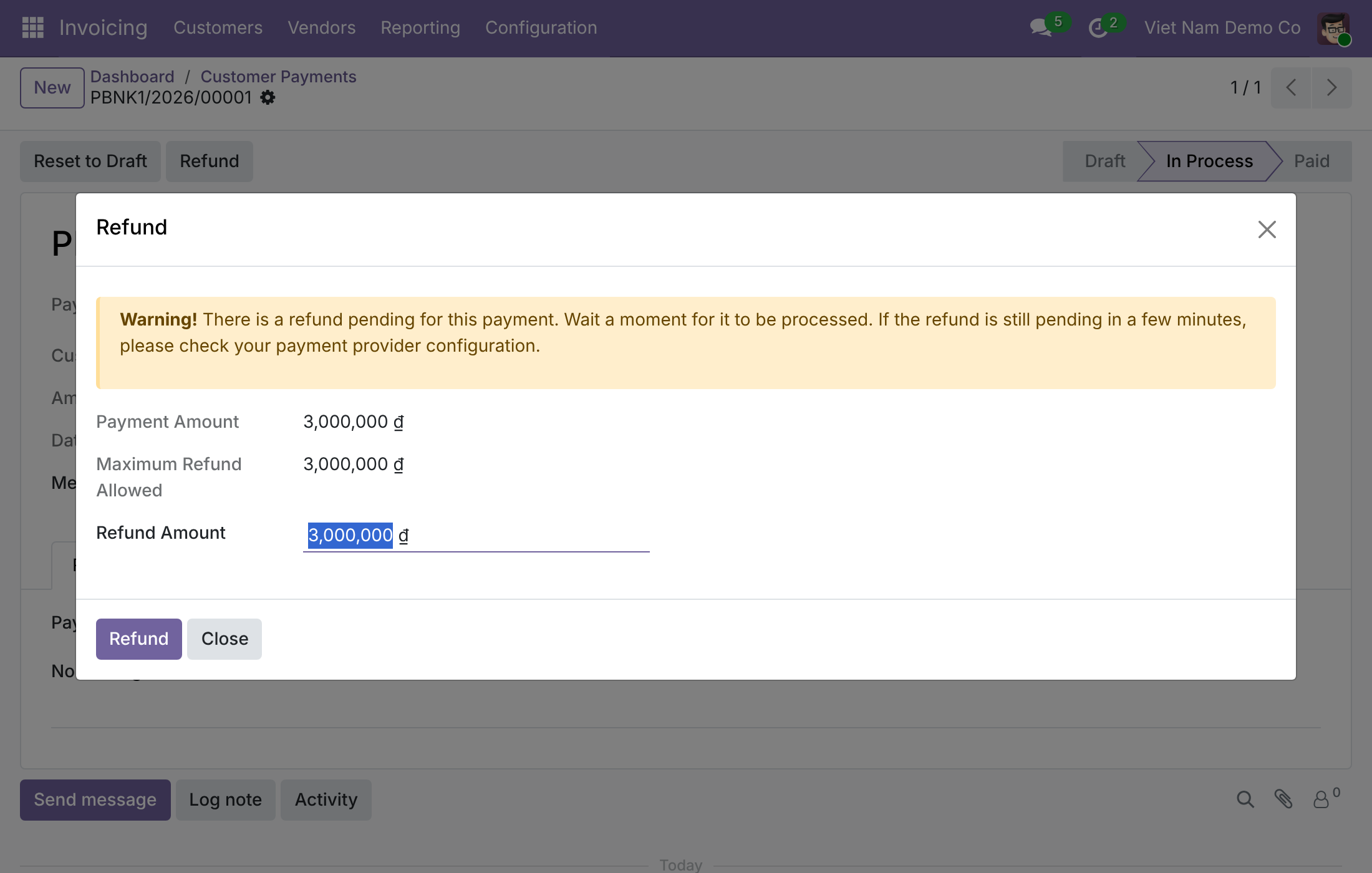
Refund in full or in part
Questions buyers ask
What if the customer pays but never returns to my shop?
Odoo records the payment when VNPay confirms it, even if the customer never comes back.
Can someone fake a payment by editing the return link?
No. The status page shows the result VNPay confirmed, not what the link says.
Can I refund from Odoo?
Yes, in full or in part. The refund shows VNPay's answer; a refund VNPay is still processing stays pending, so check its result in the VNPay merchant portal.
What if VNPay holds a payment for review?
The payment stays pending with a message that VNPay holds it as suspected fraud, until VNPay reports a result.
Which currency does it support?
VNPay charges in VND, for customers in Vietnam. For a document in another currency, your administrator can set the provider's Default Converted Currency to VND (provided by the Currency Conversion module this app requires).
Is it switched on automatically?
No. The VNPay payment method is off until you activate it, and the credentials are visible to administrators only.
Need help with VNPay Payment Acquirer?
Technical Support
apps.support@viindoo.comTechnical Requirement
- Odoo version: 19.0
- Editions: Odoo Community, Odoo Enterprise
- Required modules: Payment (payment), Payment Gateway Currency Conversion
- License: OPL-1
VNPay Payment Acquirer
Overview
Customers in Vietnam expect to pay online by QR code, ATM card or international card. This module adds VNPay as an online payment method in Odoo, so a customer can pay a quotation or an order from the portal by VNPay, and the payment is recorded in Odoo without anyone typing it in.
What the module does for your business:
- Offers VNPay to customers who have a Vietnamese address and pay in Vietnamese Dong (VND).
- Sends the customer to a secure VNPay payment page. The customer has 15 minutes to pay there.
- Records the payment automatically when VNPay reports it as paid, even if the customer never comes back to your site.
- Lets you refund a VNPay payment from Odoo, in full or in part, and follows the refund until VNPay confirms it.
- Keeps the Website Code and the Hash Secret visible to administrators only.
The business process
- Customer pays. The customer opens the quotation or order and pays by VNPay. The payment starts as Draft and then waits as Pending until VNPay reports the result. Sales or finance staff send the request, the customer does the paying.
- VNPay confirms. VNPay tells Odoo the result. A paid payment becomes Confirmed. A payment the customer cancelled or let expire becomes Canceled. A payment VNPay rejected becomes Error.
- Finance reviews and refunds. The Finance Controller reviews the payments in Payment Transactions and, when needed, refunds a confirmed payment. The refund stays Pending until VNPay reports it.
Who uses this module
The roles below are typical job titles. Your company may give the same tasks to different people.
| Role | What they do | Access right to assign |
|---|---|---|
| Finance Controller | Enters the VNPay Website Code and Hash Secret, reviews VNPay payments and refunds, and issues refunds. | Administration / Settings |
| Sales or Finance Staff Member | Sends quotations that can be paid online and sees the VNPay payment status on orders and invoices. | User types / Internal User |
The customer is not a user of your database. The customer only sees the portal and the VNPay page.
Setup (for the Administrator)
Installation
- Open Apps.
- Search for VNPay.
- Click Install on the VNPay Payment Acquirer app.
The module also installs the apps it depends on, named Payment Engine (the online payment base) and Payment Gateway Currency Conversion. You do not have to install anything else for the steps in this guide.
Before you start: collect your VNPay details
Sign in to the VNPay merchant portal and note down two values that VNPay issued to your business:
- The Website Code (VNPay calls it vnp_TmnCode).
- The Hash Secret.
VNPay issues one pair for its test (sandbox) environment and another pair for production. Keep them apart, because each one only works in its own environment.
Configure the VNPay payment provider
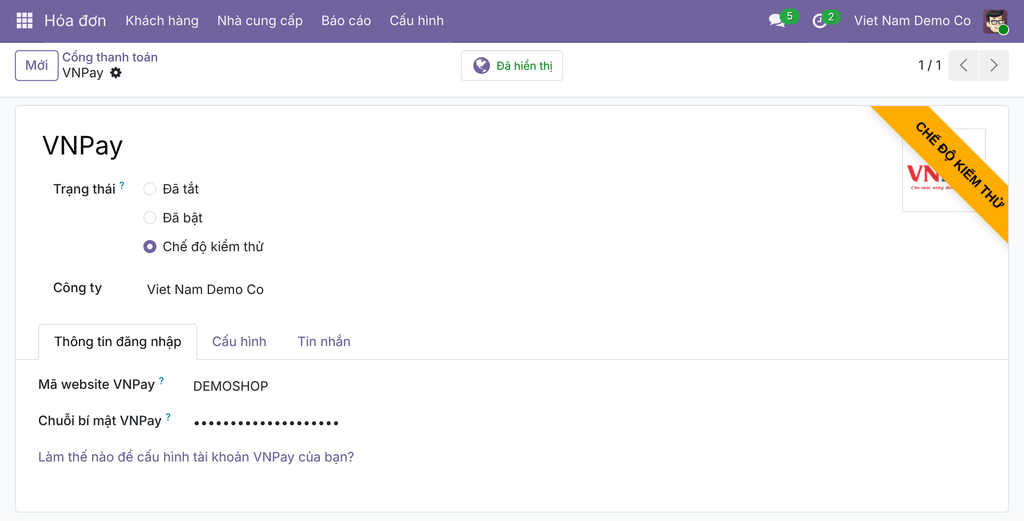
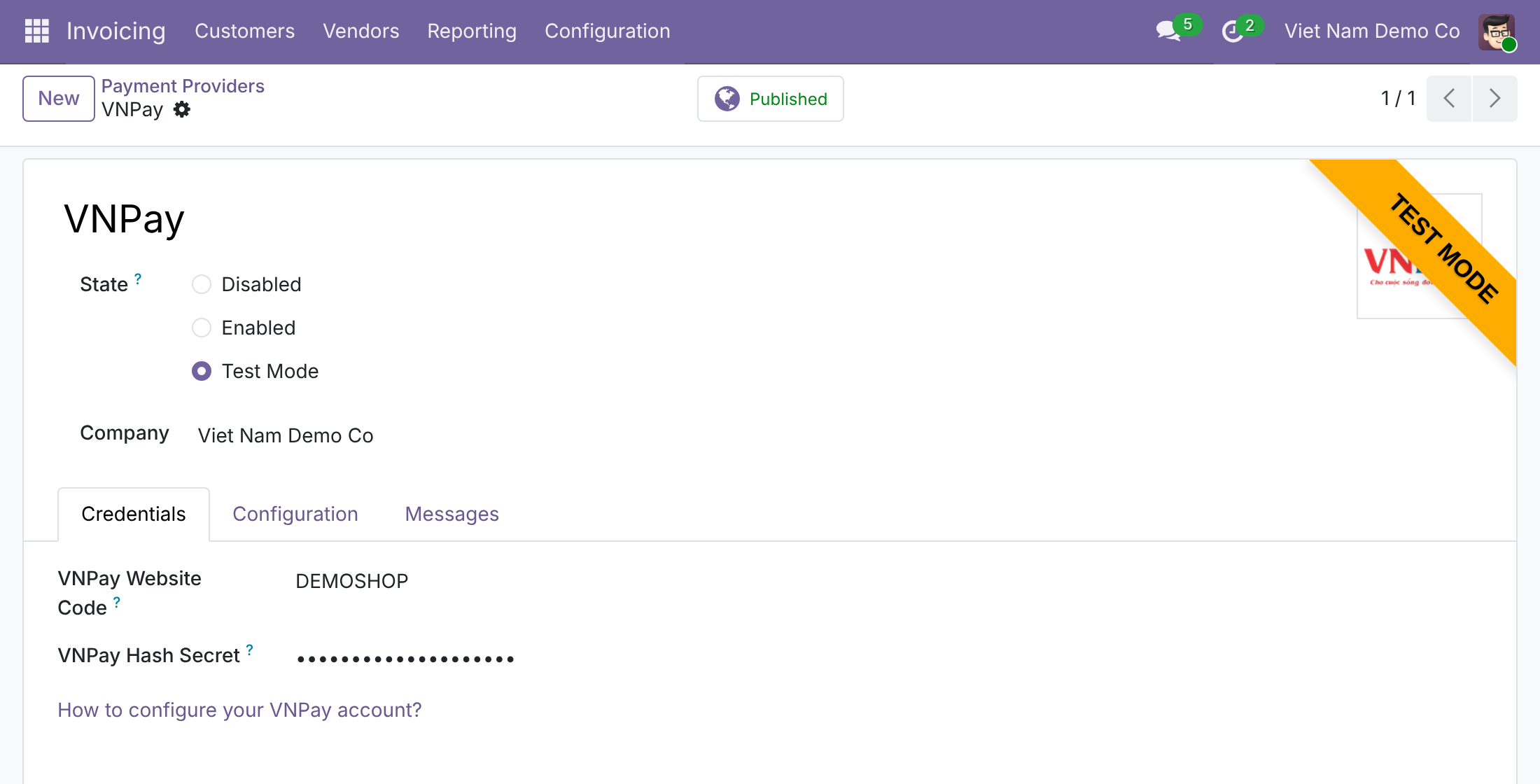
- Open Invoicing ‣ Configuration ‣ Online Payments ‣ Payment Providers and open VNPay. If you work with several companies, open the VNPay provider that belongs to the right company.
- On the Credentials tab, fill in VNPay Website Code and VNPay Hash Secret with the values from the VNPay merchant portal.
- Choose the State:
- Test Mode sends customers to the VNPay sandbox. Use it with the sandbox credentials while you are setting up. Nothing is really charged.
- Enabled sends customers to the real VNPay payment page. Use it with your production credentials once you are ready to be paid.
- Disabled switches VNPay off.
- Click the Published / Unpublished button at the top of the form so that it reads Published. Customers only see VNPay when it is published.
Open the Configuration tab to check who can use VNPay:
- Payment Methods lists VNPay. Switching the provider on activates the VNPay payment method for you.
- Currencies is Vietnamese Dong. VNPay only handles VND.
- Countries is Vietnam. A customer whose address is in another country does not see VNPay.
Note
Only administrators can read or change the Website Code and the Hash Secret. Other users never see these two fields. The Hash Secret is hidden as dots, like a password.
Register the notification address with VNPay
VNPay tells Odoo about every payment by calling an address on your site. This call is the instant payment notification, or IPN. It is the way a payment becomes Confirmed, so you must register it.
- In the VNPay merchant portal, find the setting for the IPN URL of your Website Code.
- Enter your public address followed by /payment/vnpay/notify, for example https://your-company.example.com/payment/vnpay/notify.
- Save it, once for the sandbox and once for production.
Your site must be reachable from the internet at this address. VNPay cannot reach a database that only runs on a private network or on a laptop. You do not have to register the return address: Odoo sends it to VNPay with every payment.
Assign the access rights
- Open Settings ‣ Users & Companies ‣ Users.
- Open the Finance Controller and make sure the user has the Settings access right under Administration, because that is what opens the credentials and the transactions.
- Open each sales or finance staff member and check that the user type is Internal User.
Pay in a currency other than VND (optional)
VNPay only charges in VND, but you can still let customers pay a quotation or invoice written in another currency. On the Configuration tab of the VNPay provider, set Default Converted Currency to Vietnamese Dong. Odoo then converts the amount to VND and the customer pays the converted amount.
Odoo refuses to save this choice until your company has the accounts it needs to book the conversion: the gain and loss accounts under Payment gateway currency conversion and the exchange difference journal and accounts under Default Accounts in the Invoicing settings. If a setting is missing, the error message names it.
Sales or Finance Staff Member: send a payment request
The customer pays by VNPay from the portal page of a quotation or an invoice. This chapter shows what you send and what the customer sees.
Prepare the quotation
- Check that the customer's contact has an address in Vietnam. VNPay is hidden for any other country.
- Create the quotation as usual, in Vietnamese Dong.
- On the Other Info tab, make sure Online payment is ticked so that the customer is asked to pay when accepting.
- Click Send to email the quotation to the customer.
The customer pays on VNPay
- The customer opens the link in the email and sees the quotation.
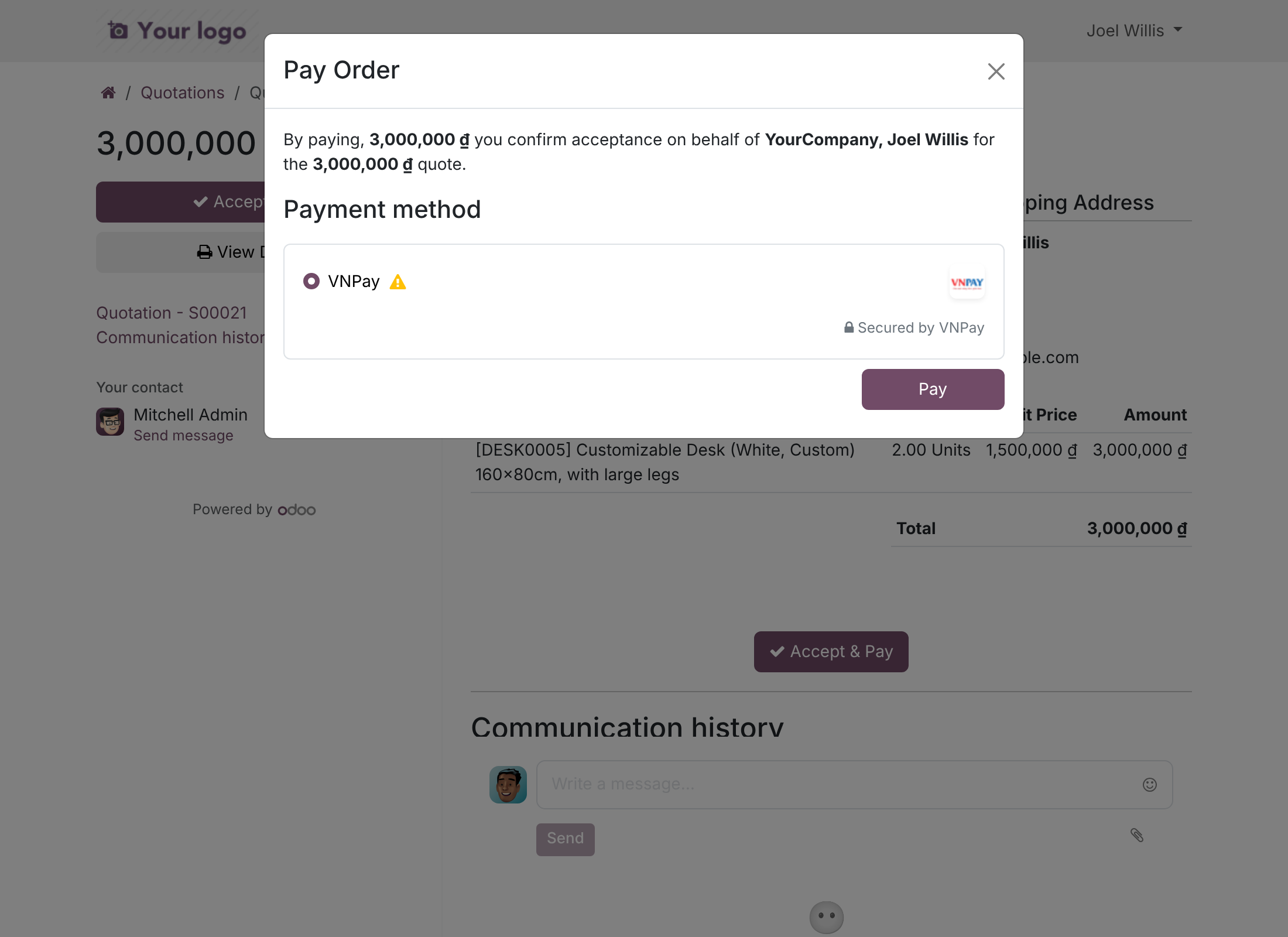
- The customer clicks Accept & Pay, or Sign & Pay when an online signature is required.
- In the Pay Order window the customer selects VNPay and clicks Pay. A warning sign next to VNPay means the provider is in Test Mode.
- The customer is sent to the VNPay payment page and chooses to pay with a QR code, an ATM card or an international card.
The customer has 15 minutes to finish on the VNPay page. If the time runs out, VNPay closes the payment, and the customer has to start a new payment from the quotation. The VNPay page is shown in Vietnamese when the customer's language is Vietnamese and in English otherwise.
When the customer comes back
After paying or cancelling, VNPay sends the customer back to a status page on your site. This page does not trust what the browser says. Odoo asks VNPay what happened and shows that answer. If VNPay's notification already reached Odoo, the page simply shows the result Odoo has recorded.
Watch the status
The payment status shows on the quotation or the invoice and in Payment Transactions (see the next chapter). A payment can stay Pending for a short time after the customer pays, until VNPay's notification arrives. You do not have to do anything.
Finance Controller: review payments and refund
How a payment is confirmed
A payment is confirmed only when VNPay reports it as paid. The customer reaching the return page is never enough. Odoo uses VNPay's answer as follows:
| What VNPay reports | Status in Odoo | What it means for you |
|---|---|---|
| Paid (response code 00 with a successful transaction) | Confirmed | The money is collected. The payment is recorded and the document is updated. |
| Waiting, the customer has not finished (transaction not completed) | Pending | Nothing to do yet. Odoo keeps waiting for VNPay. |
| Suspected fraud (code 07) | Pending | VNPay debited the customer but holds the payment for review. The reason is shown on the payment. Contact VNPay to release or reject it. |
| The customer cancelled (code 24) | Canceled | The customer gave up on the VNPay page. The customer can start a new payment. |
| The payment expired (code 11) | Canceled | The customer did not pay within 15 minutes. |
| Failed or rejected by the bank | Error | The message on the payment shows the VNPay response code. |
| Reversed by VNPay | Error | The customer may have been debited by the bank. Check the payment with VNPay. |
Odoo answers VNPay's notification so that VNPay stops repeating it. A notification with an invalid signature, or for a payment Odoo does not know, is refused and changes nothing. A notification whose amount differs from the amount of a payment still waiting for its result puts that payment in Error, and Odoo answers VNPay that the amount is invalid.
Note
If VNPay reports as paid a payment that is already Canceled in Odoo, Odoo does not record it. A message appears on the linked quotation or invoice. Refund the customer from the VNPay merchant portal, or record the payment manually.
Review the payments
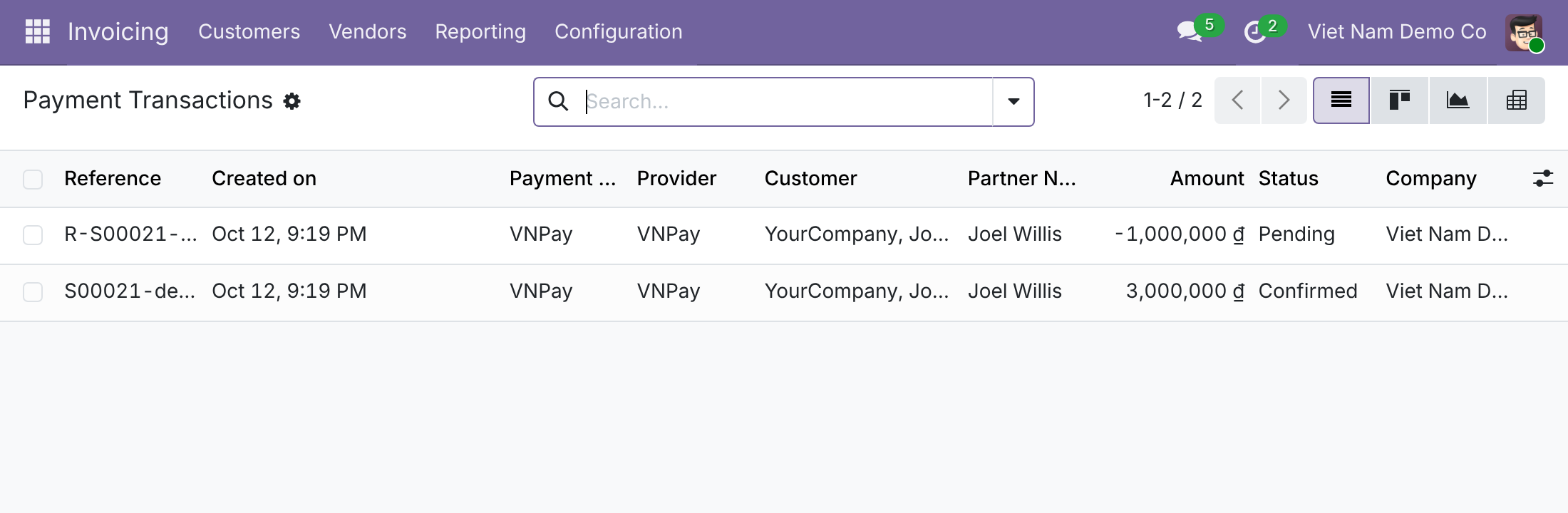
- Open Invoicing ‣ Configuration ‣ Online Payments ‣ Payment Transactions. This menu is only visible in developer mode: activate developer mode first (add ?debug=1 to the address of your Odoo page, or use the developer mode link in Settings).
- Find the payment by its Reference, the customer, or the Status. VNPay payments show VNPay as the provider.
- Open a payment to see its amount, the VNPay reference number in Provider Reference and its status.
The reference of each payment contains the quotation or invoice number and the date and time, and uses only letters, digits, dots, hyphens and underscores, which are the characters VNPay accepts.
Odoo also keeps the type of card or account the customer paid with, in the VNPay Card Type field of the payment transaction. The transaction form shows it below the VNPay reference once VNPay has reported it.
Refund a payment
Refunds are done in Odoo, not in the VNPay merchant portal.
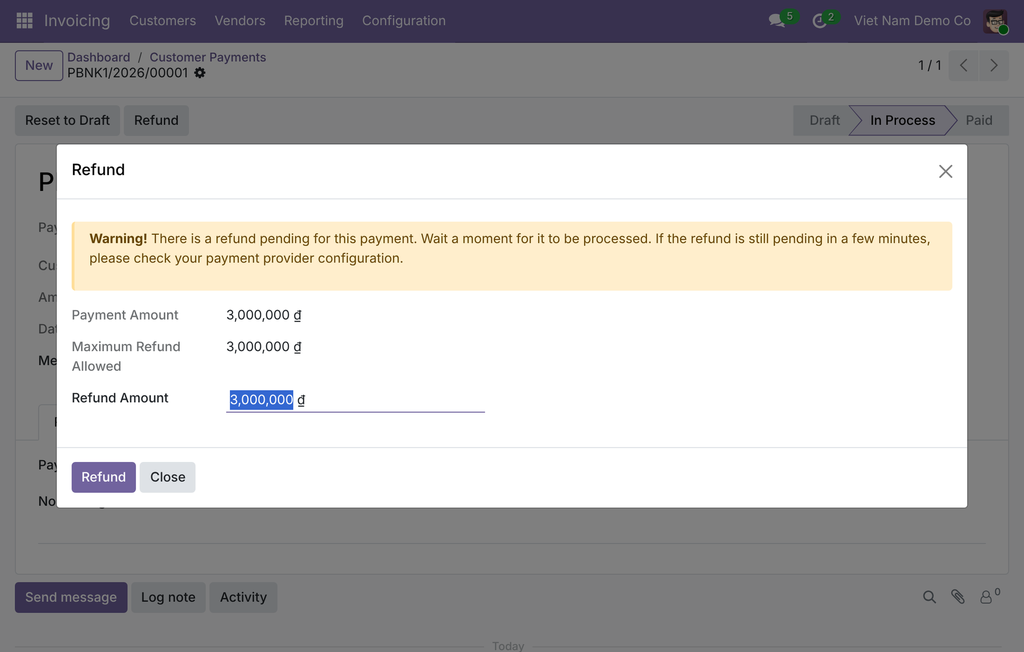
Open Invoicing ‣ Customers ‣ Payments and open the payment made by VNPay.
Click Refund.
In the Refund window, check Payment Amount and Maximum Refund Allowed. Leave Refund Amount as it is for a full refund, or type a smaller amount for a partial refund. You can refund the same payment several times, up to the amount still available.
Click Refund.
The refund takes the result VNPay gives when it receives the request:
- When VNPay confirms the refund, it becomes Confirmed and the refund payment is recorded.
- When VNPay rejects it, it becomes Error and the message says that VNPay rejected the refund.
- When VNPay is still processing it, it stays Pending in Payment Transactions. VNPay does not notify Odoo about refunds, so Odoo does not update it afterwards: check its result in the VNPay merchant portal.
While a refund is pending, the Refund window shows a warning. Wait for the result before refunding again. A payment can only be refunded when Odoo knows when it was sent to VNPay, which is the case for every payment made through this module.
Troubleshooting
VNPay does not appear when the customer pays
Check, on the VNPay provider, that the State is not Disabled, that the provider is Published, that the customer's address is in Vietnam, and that the amount is in VND (or a Default Converted Currency is set). Also check that the payment method is listed on the Configuration tab.
The customer paid but the payment stays Pending
Odoo waits for VNPay's notification. Check that the address /payment/vnpay/notify is registered for the right Website Code and that your site is reachable from the internet. VNPay repeats a notification until Odoo acknowledges it, so the payment is confirmed as soon as the address works.
Nothing changes after paying in Test Mode
Make sure the sandbox Website Code and Hash Secret are entered while the State is Test Mode, and that the production values are used only in Enabled. A Website Code from one environment is refused by the other.
The payment is in Error with a response code
Open the payment and read the message. It gives the response code that VNPay returned. Look the code up in the VNPay documentation or ask VNPay support, then ask the customer to pay again from the quotation.
A notification is refused
Odoo only accepts a notification signed with your Hash Secret. If you recently changed the Hash Secret, or copied the sandbox value into production, correct it on the Credentials tab.
A refund stays Pending for a long time
VNPay answered that it was still processing the refund, and VNPay does not notify Odoo about refunds. Check the refund in the VNPay merchant portal.
FAQ
- Which currencies and countries are supported?
- VNPay payments are in Vietnamese Dong and are offered to customers in Vietnam. For other currencies see "Pay in a currency other than VND" in the setup chapter.
- How long does the customer have to pay?
- 15 minutes from the moment the customer is sent to the VNPay page.
- Does the customer have to come back to the site for the payment to be recorded?
- No. VNPay's notification records the payment even if the customer closes the browser.
- Can I refund only part of a payment?
- Yes. Type a smaller Refund Amount in the Refund window.
- Who can see the Website Code and the Hash Secret?
- Only administrators.
This software and associated files (the "Software") may only be used (executed, modified, executed after modifications) if you have purchased a valid license from the authors, typically via Odoo Apps, or if you have received a written agreement from the authors of the Software (see the COPYRIGHT file).
You may develop Odoo modules that use the Software as a library (typically by depending on it, importing it and using its resources), but without copying any source code or material from the Software. You may distribute those modules under the license of your choice, provided that this license is compatible with the terms of the Odoo Proprietary License (For example: LGPL, MIT, or proprietary licenses similar to this one).
It is forbidden to publish, distribute, sublicense, or sell copies of the Software or modified copies of the Software.
The above copyright notice and this permission notice must be included in all copies or substantial portions of the Software.
THE SOFTWARE IS PROVIDED "AS IS", WITHOUT WARRANTY OF ANY KIND, EXPRESS OR IMPLIED, INCLUDING BUT NOT LIMITED TO THE WARRANTIES OF MERCHANTABILITY, FITNESS FOR A PARTICULAR PURPOSE AND NONINFRINGEMENT. IN NO EVENT SHALL THE AUTHORS OR COPYRIGHT HOLDERS BE LIABLE FOR ANY CLAIM, DAMAGES OR OTHER LIABILITY, WHETHER IN AN ACTION OF CONTRACT, TORT OR OTHERWISE, ARISING FROM, OUT OF OR IN CONNECTION WITH THE SOFTWARE OR THE USE OR OTHER DEALINGS IN THE SOFTWARE.