

Workflow Automation
by Viindoo
| Lines of Code | 13907 |
| Technical name | viin_workflow_automation |
| License | OPL-1 |
| Website | https://viindoo.com/apps/modules/18.0/viin_workflow_automation |
| Read description for | v 17.0 |
| Required Apps | Discuss (mail) |
| Included Dependencies | Safe IR Metadata Proxies |
| Extensions | Marketing Automation to Sale Workflow Seed Workflow Automation HR |

Draw the process in BPMN, publish it, and let Odoo run it
Pools, swimlanes, tasks and gateways on a real BPMN canvas - versioned, published, and executed against your own records, with a log of every node each instance went through.
Workflow Automation (technical name viin_workflow_automation) is an Odoo 18.0 app for Odoo Community and Viindoo Cloud, built for process owner, participant, manager, implementer.
At a Glance
The facts of Workflow Automation, version 0.3.1, in one place. Published by Viindoo.
Key Features
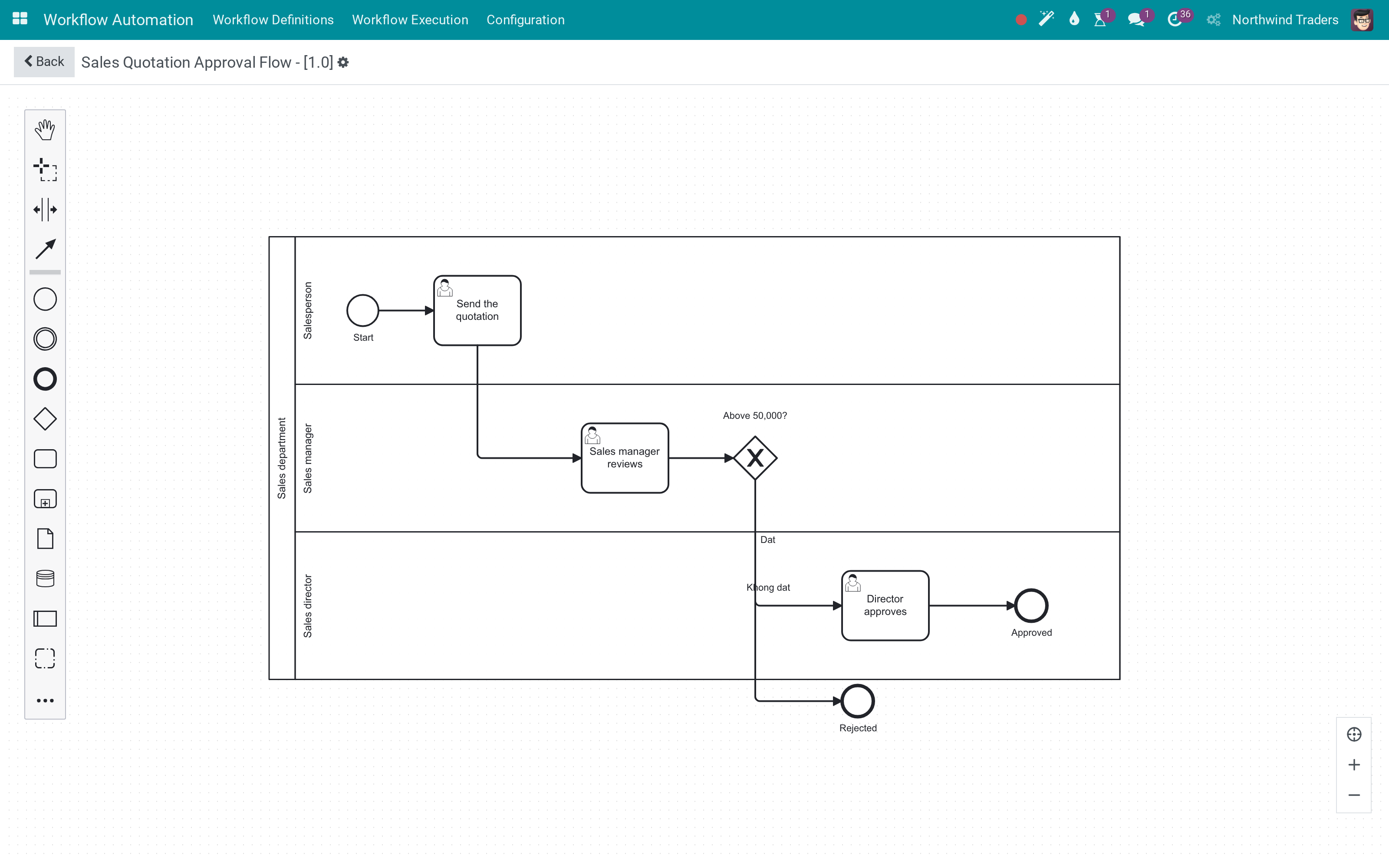
This is a BPMN engine inside Odoo, not a list of automated actions. You draw the process the way the business already describes it - a pool for the department, a lane per role, tasks, exclusive gateways and end events - then attach it to a model with a domain, publish a version, and the engine creates an instance per record and walks it through the diagram. Because versions are published rather than edited in place, the process a record started under is the process it finishes under, and the instance log shows which node it sat in and for how long.
Versions, not edits
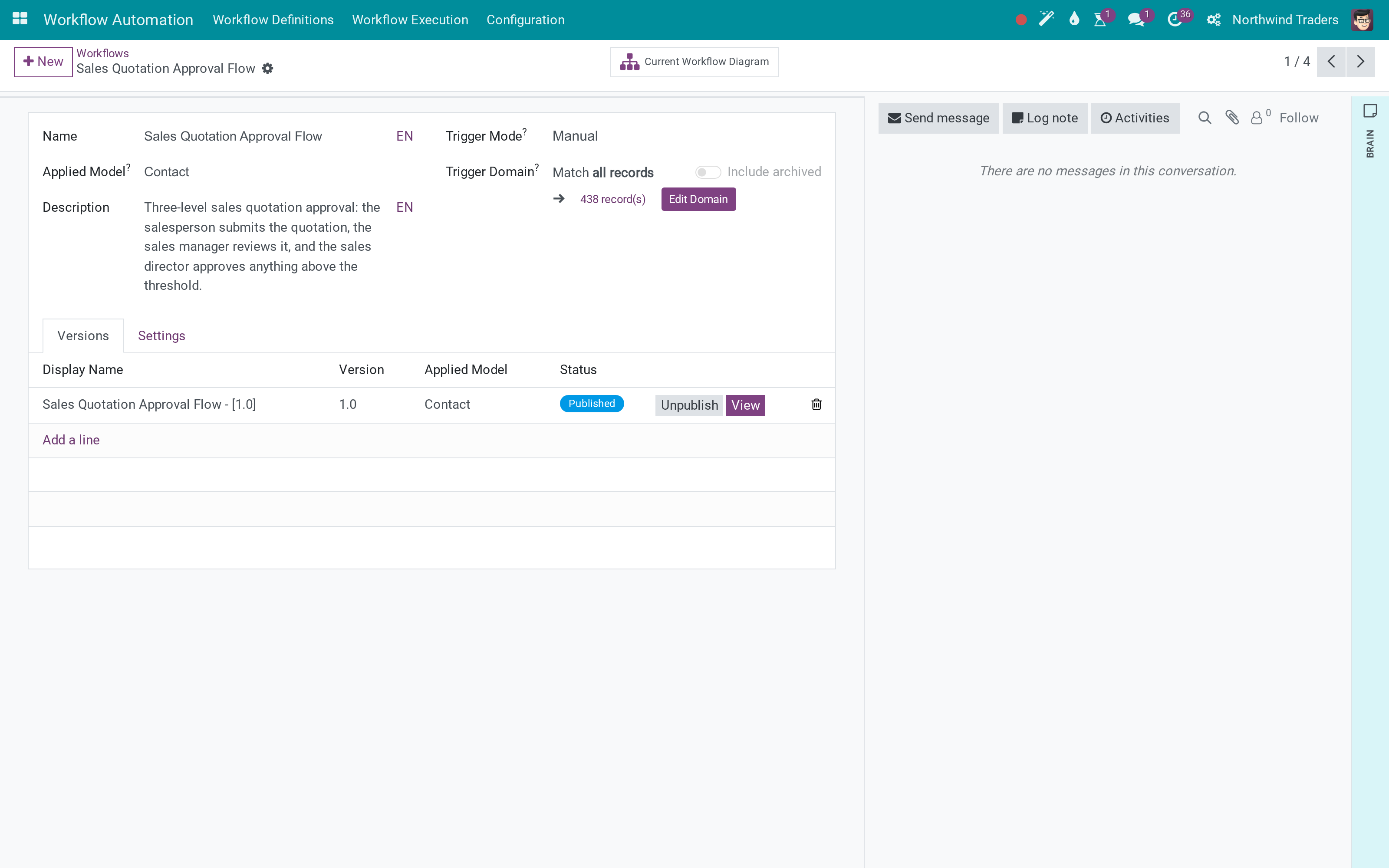
A published version is frozen. Draw version 2 while version 1 is still running, and publish it when it is ready.
The node log
Every entry and exit, timestamped. This is what turns a diagram into a measurement of where work waits.
Lanes are roles
Responsibility is drawn, not configured in a rule nobody can find later.
Flows with conditions
Each outgoing flow of a gateway carries its own label and condition - Yes and No are records, not annotations.
How It Works
Three steps from a whiteboard drawing to a process the system runs.
Draw it
The canvas is BPMN, with the palette on the left: events, tasks, gateways, data objects, sub-processes. Lanes carry the roles - salesperson, sales manager, sales director - so the drawing already says who does what.
Point it at your records and publish
Choose the model, write the domain, and the form tells you how many records match right now. Publishing the version is what makes it live; unpublishing stops new instances without touching the ones in flight.
Watch the instances, not the guesswork
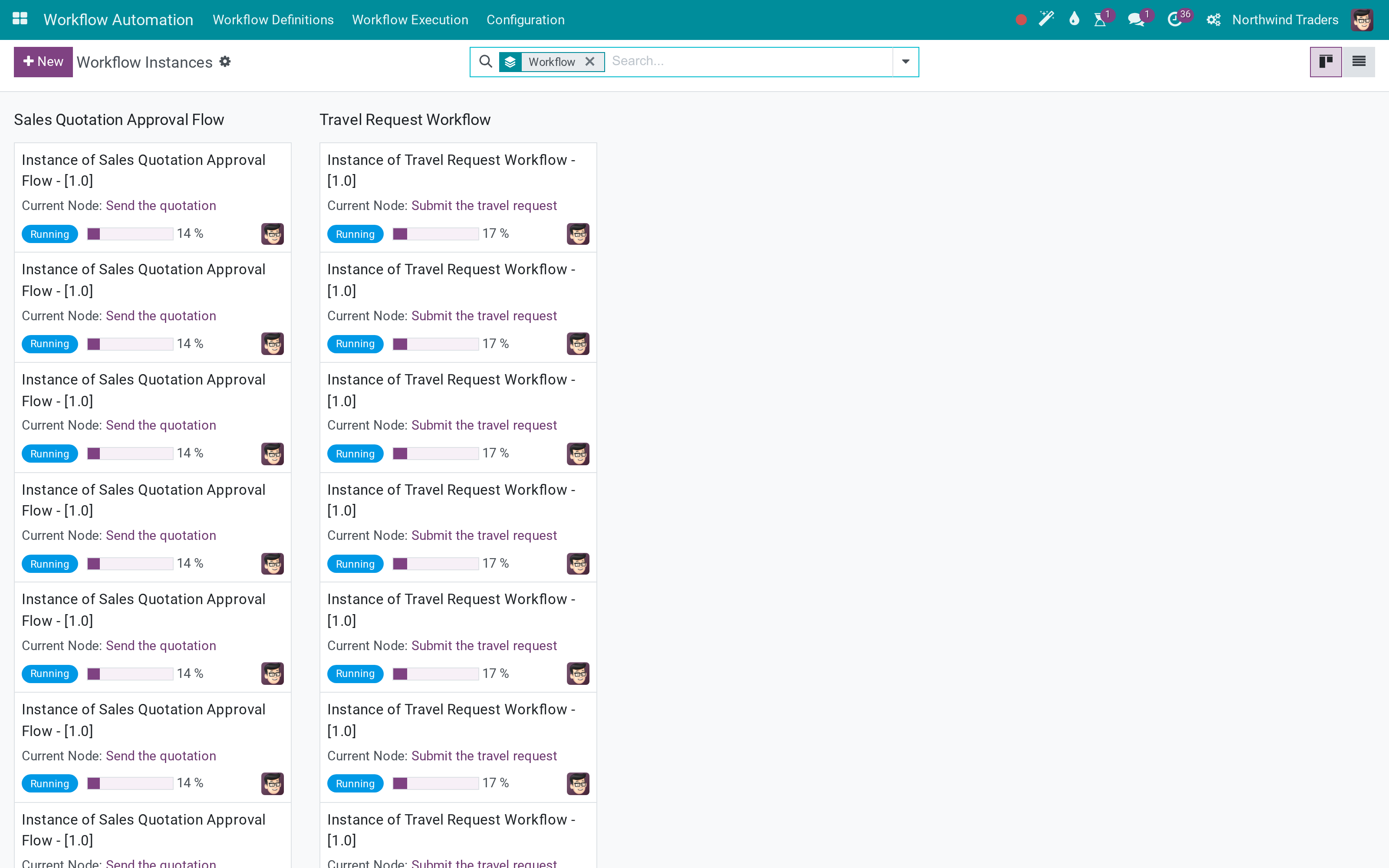
Each record that matches gets an instance. The instance shows the current node, and the node log records every transition with a timestamp - which is the difference between a process you can improve and one you can only complain about.
What You Get
A BPMN canvas with pools, swimlanes, start and end events, user tasks, exclusive gateways, data objects and sub-processes
Versions with a state: draft, published, unpublished - so improving a process does not rewrite history for records already running
Attached to any model with a trigger domain, and the form shows how many records currently match before you publish
Manual or automatic triggering, and recurrence for processes that start on a schedule
An instance per record, with a node-by-node log: when it entered, who acted, when it left
Roles come from the lanes, so who does what is part of the drawing rather than buried in a rule
More Screens
Everything below was taken on a database seeded with real business data, on this series - not a mock-up and not a screenshot from an older version.
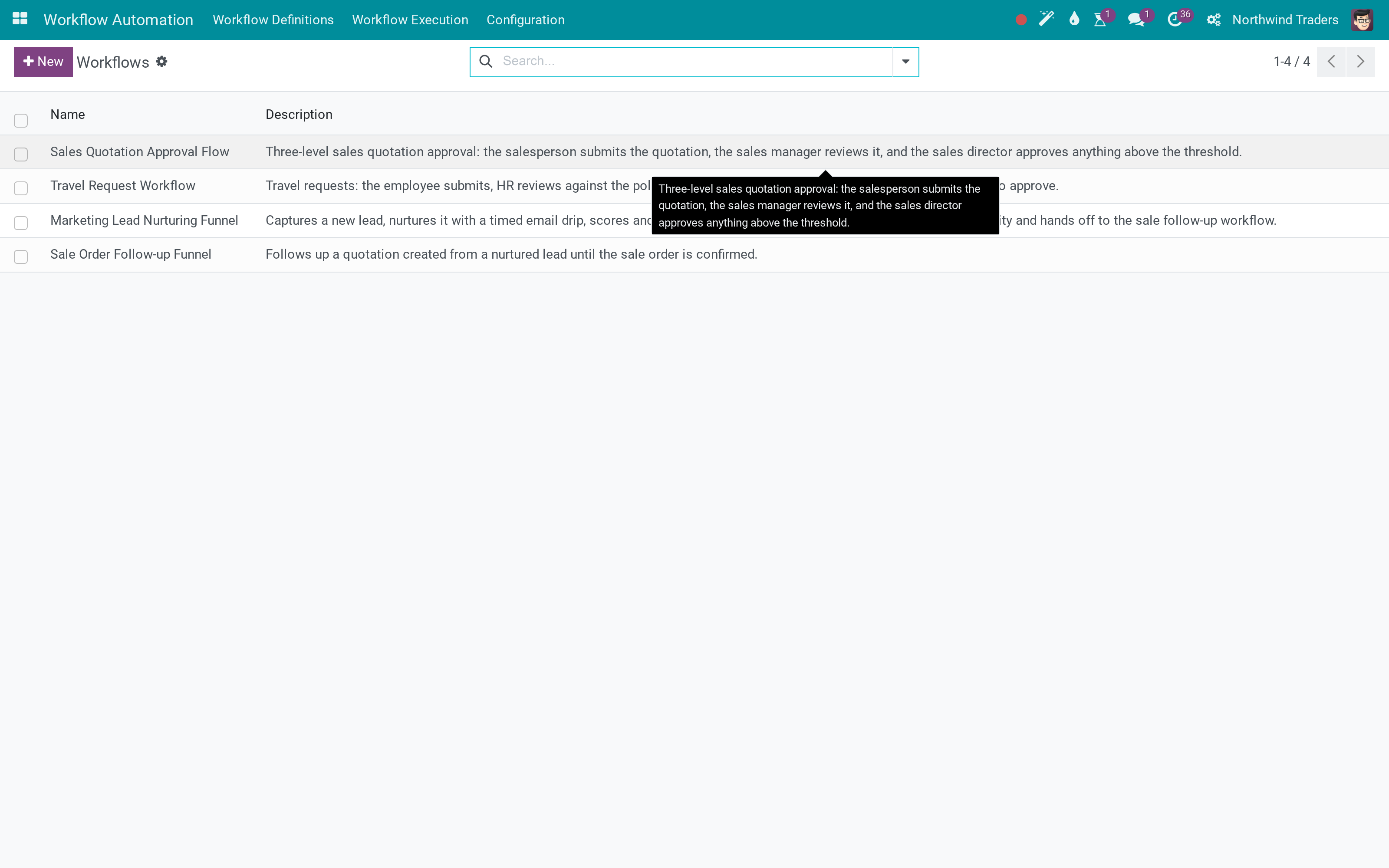
The workflows defined in the database
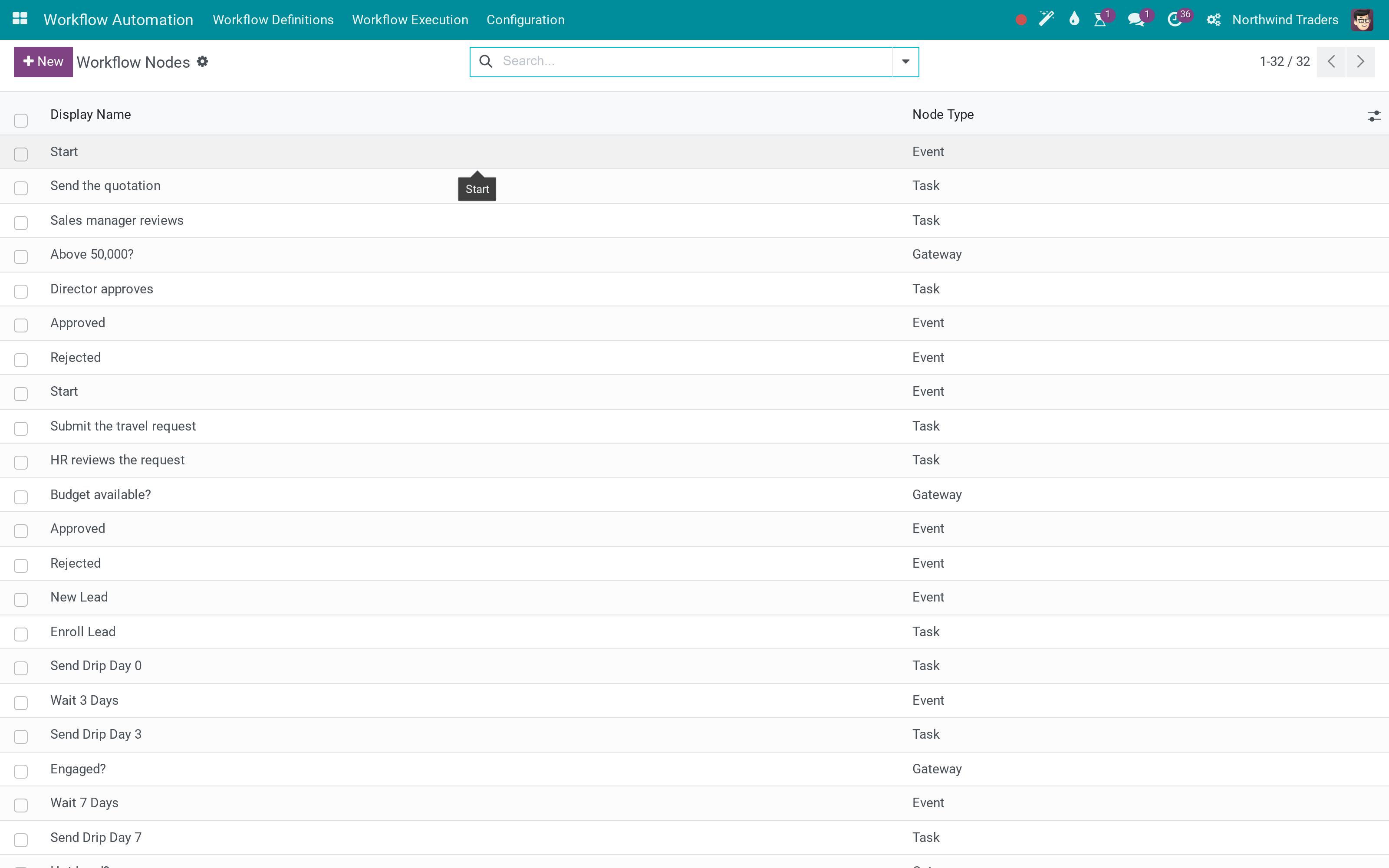
Nodes across all workflows, with their type
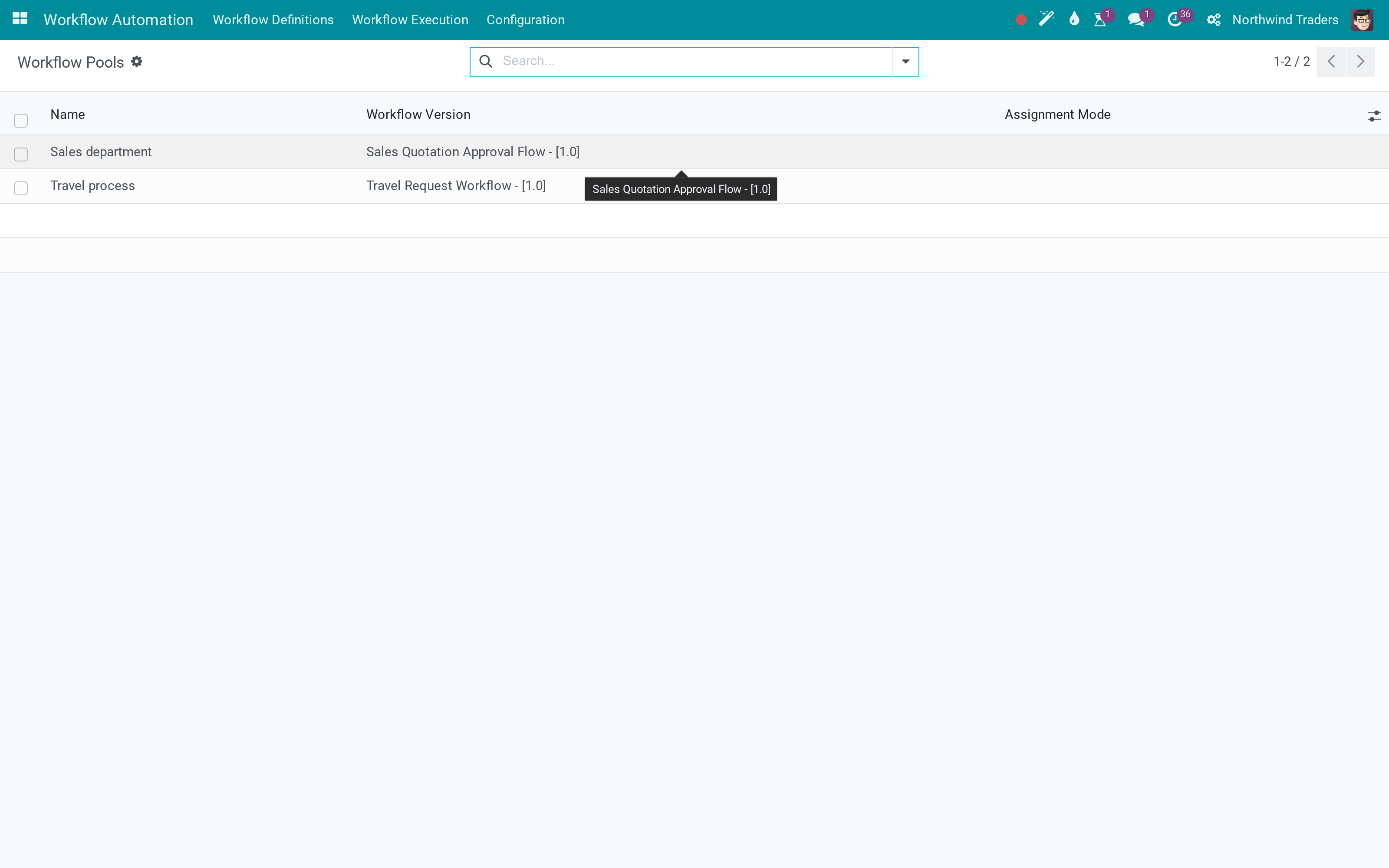
Pools - one per organisation or department in the process
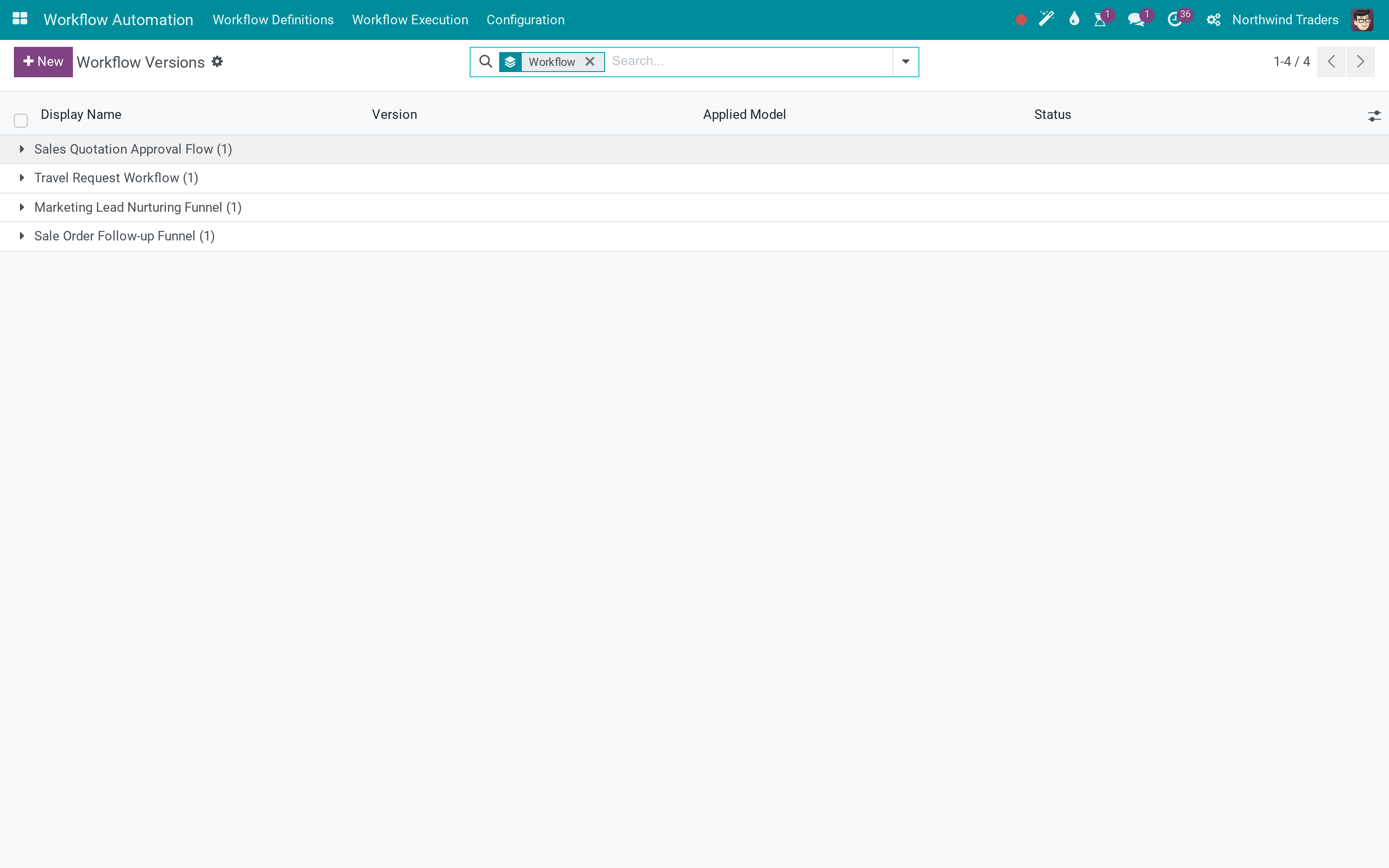
A version with its publish state
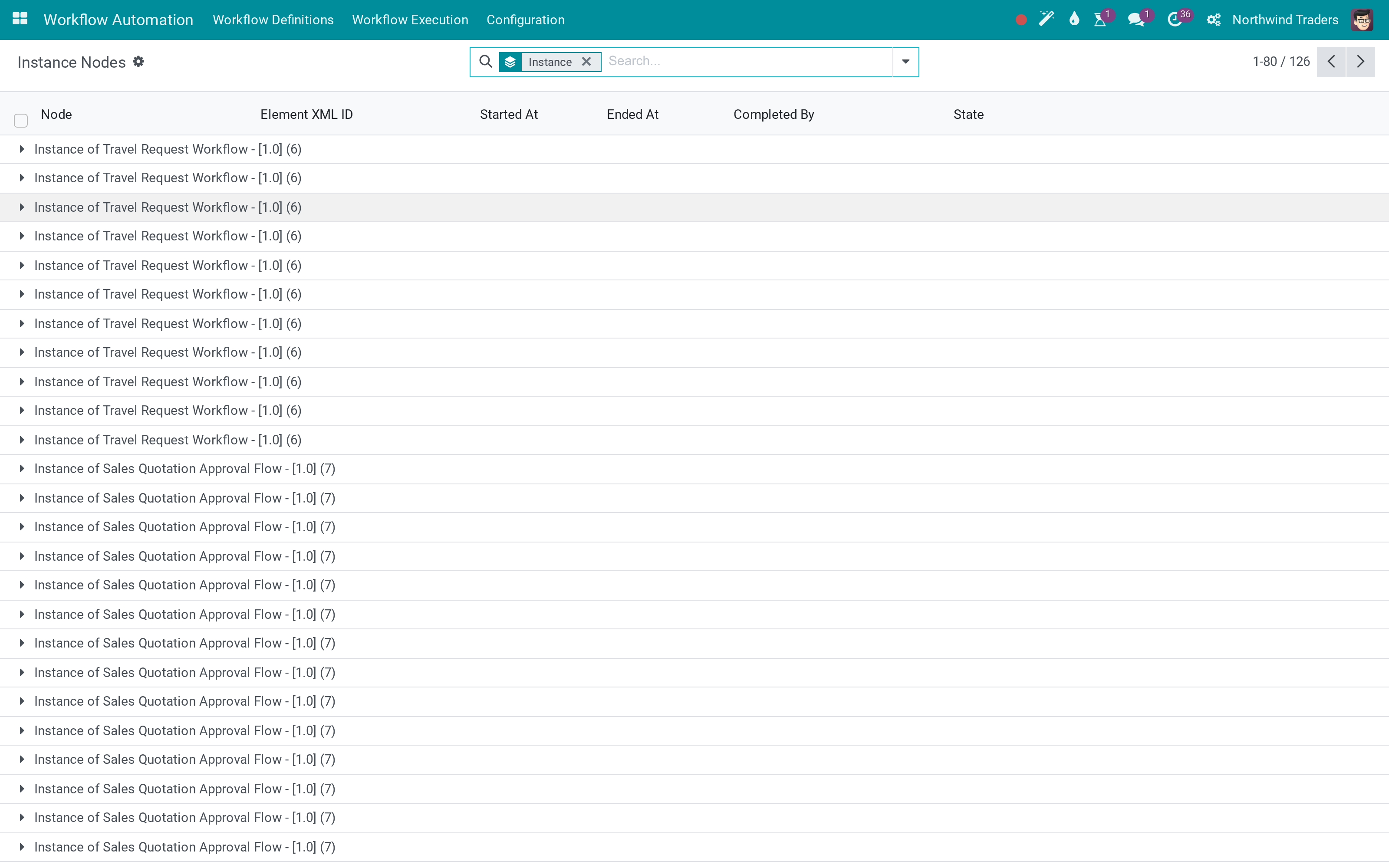
The nodes an instance has passed through
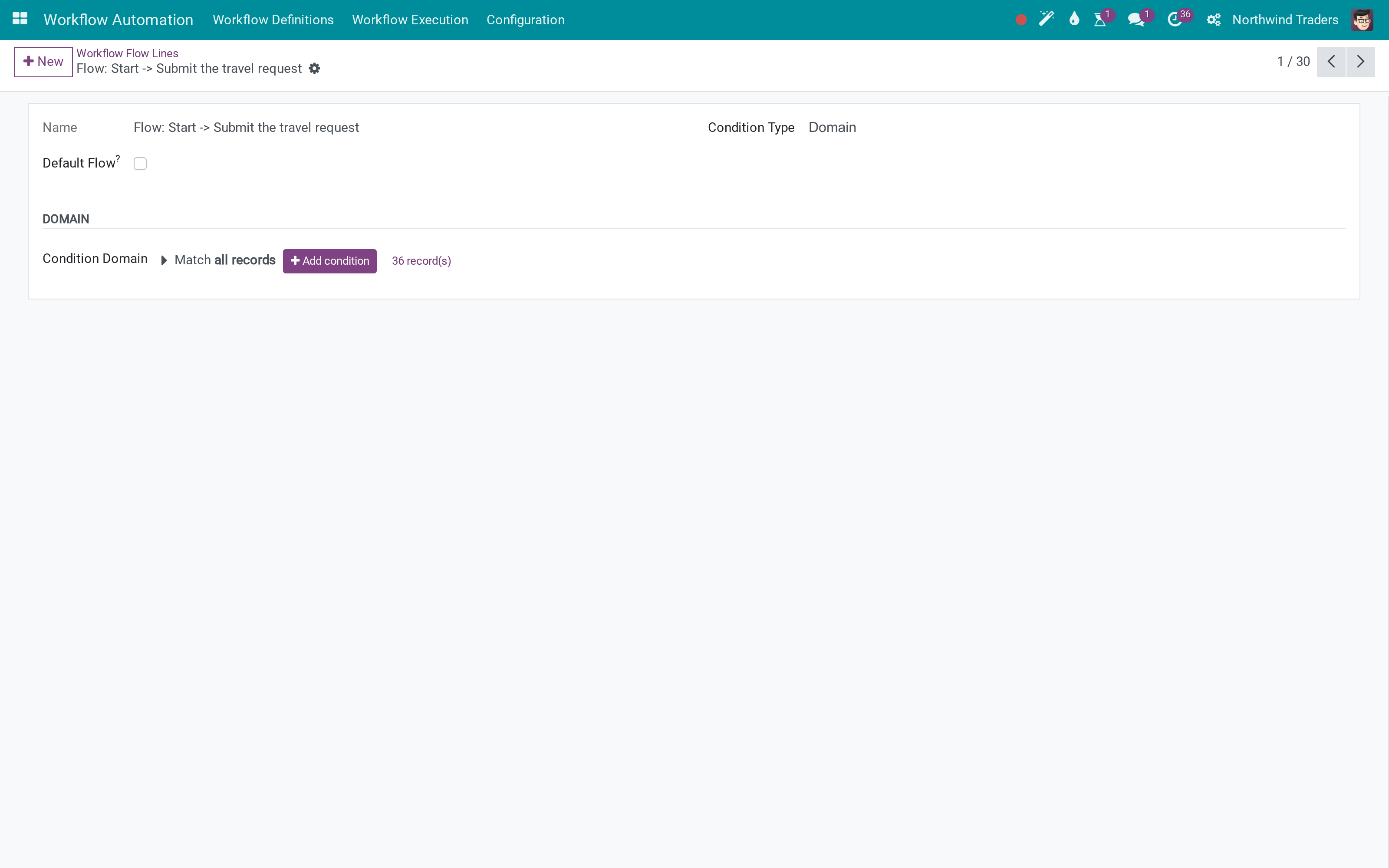
A flow with its source, target and condition
What This App Does Not Do
Read this before you buy. Everything below is something the app deliberately leaves to another app or to you.
It runs processes over existing models; it does not create fields, views or models for you.
The engine covers the common path - sequence, exclusive gateway, sub-process. Full BPMN 2.0 semantics, including parallel joins and boundary events, are not all implemented.
For a decision that is simply 'these people must approve this record', OmniApproval is lighter and faster to set up. Use this when the process itself is the product.
Participants act on the record and on their task, not on a portal drawn from the process.
Works Well With
Apps from the same stack, built to fit this one:
OmniApproval
For the approvals inside a process, or instead of one when the process is only an approval.
OmniApproval™: One platform. Every approval.Documents
File the document a process produces, automatically, at the node that produces it.
Documents ManagementWho Should Use Workflow Automation?
Process owner
Draws the process, publishes a version, and changes it later without disturbing what is already running.
Participant
Gets the task that belongs to their lane, and only that.
Manager
Opens an instance and sees exactly which node it is stuck in.
Implementer
Replaces a folder of automated actions and server actions with one diagram a client can read.
Frequently Asked Questions
What does Workflow Automation do?
Pools, swimlanes, tasks and gateways on a real BPMN canvas - versioned, published, and executed against your own records, with a log of every node each instance went through.
What does Workflow Automation not do?
It is not Odoo Studio. It runs processes over existing models; it does not create fields, views or models for you. Parallel gateways and event sub-processes are limited. The engine covers the common path - sequence, exclusive gateway, sub-process. Full BPMN 2.0 semantics, including parallel joins and boundary events, are not all implemented. It does not replace the approval app. For a decision that is simply 'these people must approve this record', OmniApproval is lighter and faster to set up. Use this when the process itself is the product. The diagram does not generate a user interface. Participants act on the record and on their task, not on a portal drawn from the process.
Who is Workflow Automation for?
Process owner: Draws the process, publishes a version, and changes it later without disturbing what is already running. Participant: Gets the task that belongs to their lane, and only that. Manager: Opens an instance and sees exactly which node it is stuck in. Implementer: Replaces a folder of automated actions and server actions with one diagram a client can read.
Which Odoo version and editions does it support?
Odoo 18.0 - Odoo Community, Viindoo Cloud. Upgrades to a newer Odoo series are a separate purchase for that series.
What does it depend on?
It installs on top of: base, web, mail, base_automation, web_editor, viin_safe_ir_metadata_proxy. Odoo installs them with it.
How do I set it up?
Three steps from a whiteboard drawing to a process the system runs.
What works well with it?
OmniApproval (viin_approval): For the approvals inside a process, or instead of one when the process is only an approval. Documents (viin_document): File the document a process produces, automatically, at the node that produces it.
Can I try it before buying?
Yes - the Live Preview button at the top of this page opens the module's own screen on a working database.
How do I get support?
Write to apps.support@viindoo.com with your Odoo version and the technical name viin_workflow_automation; pre-sales questions go to sales@viindoo.com.
See Workflow Automation in Action
or use the Live Preview button at the top of this page
Need help with Workflow Automation?
For questions, implementation support or a custom feature, contact Viindoo.
Pre-Sales & Partnership
sales@viindoo.comUpgrades to a newer Odoo series are a separate purchase for that series.
All Viindoo apps: Viindoo Apps
Technical Requirement
Changes log
0.3.1 - Latest on the 18.0 line
- Stop leaking the workflow bus listener.
- Recurrences over several workflows crashed the cron.
- Stop the form-controller suite from unregistering bus_service.
- Use the 18.0 API for two calls that now warn.
- Read the activity through props in the inherited template.
Workflow Automation - User Guide
Who this guide is for: process owners who create workflows, people who are given a step to complete, and the workflow administrator who keeps everything running.
Overview
A business process rarely lives in one person's hands: a new customer is checked by one team, welcomed by the salesperson in charge, and followed up by another. Without a shared flow, each hand-off depends on somebody remembering to ask. Workflow Automation lets you describe the process once as a diagram, put it in use, and have every step reach the right person automatically, with a clear record of where each document stands.
Note
Need one person or one level of approval to agree? Use the Approvals app. Need several steps across several departments in a set order? Use Workflows. The Start page repeats this advice in one sentence.
How a workflow goes from idea to finished work:
- A process owner creates the workflow from a ready-made template, or draws one when no template fits. A workflow approver puts the workflow in use: the workflow a designer makes stays a draft until an approver does, and an approver who makes one from a template with every role filled gets it in use at once.
- Each step reaches its assignee. The person sees the step as an activity on the document, opens the run and completes the step.
- The workflow administrator handles exceptions. When a step fails, the person in charge is informed, or every workflow approver when the workflow has nobody in charge. The person in charge or an approver retries the step, an approver skips the failed step, or the run is cancelled.
| Role | What they do | Access right to assign |
|---|---|---|
| Process owner | Creates workflows from templates or draws them, and starts a workflow on a document. A workflow made from a template stays a draft until a workflow approver puts it in use. | Workflow / Designer |
| Workflow approver | Puts a workflow in use (Publish), the drafts made from templates included, and resolves failed steps. Gets a workflow made from a template in use at once when every role has people. | Workflow / Approver |
| Task assignee | Completes the steps given to them, from the document. | Any internal user |
| Workflow administrator | Handles failed steps, maintains the templates and, with the Settings access right of Odoo, sets the retry rule. | Workflow / Administrator |
An Approver also has everything a Designer has, and an Administrator has everything an Approver has.
Setup (for the Administrator)
Installation
- Open Apps, remove the default filter, search for Workflow Automation and click Install. The apps it needs are installed with it.
- Open the Workflow Automation app from the main menu to check that it opens.
Give each person their access right
- Open Settings ‣ Users & Companies ‣ Users and open the person's record.
- In the Access Rights tab, find the Workflow line and choose Designer, Approver or Administrator.
- Save. People who only complete steps need no workflow access right: any internal user can.
Next, read "Workflow administrator: keep runs healthy" below to review the templates people will start from and to choose the retry rule.
Process owner: create and organise workflows
Use this chapter when you own a business process and want it to run through the system: you choose the steps, who does them, and which documents it applies to. You need the access right Workflow / Designer.
Create a workflow from a template
When to use it: a ready-made workflow already looks like your process. It is the fastest way: three steps and the workflow is ready for a workflow approver to put in use.
Open Workflow Automation ‣ Start. Templates are grouped by the type of document they apply to; each card says when to use it.
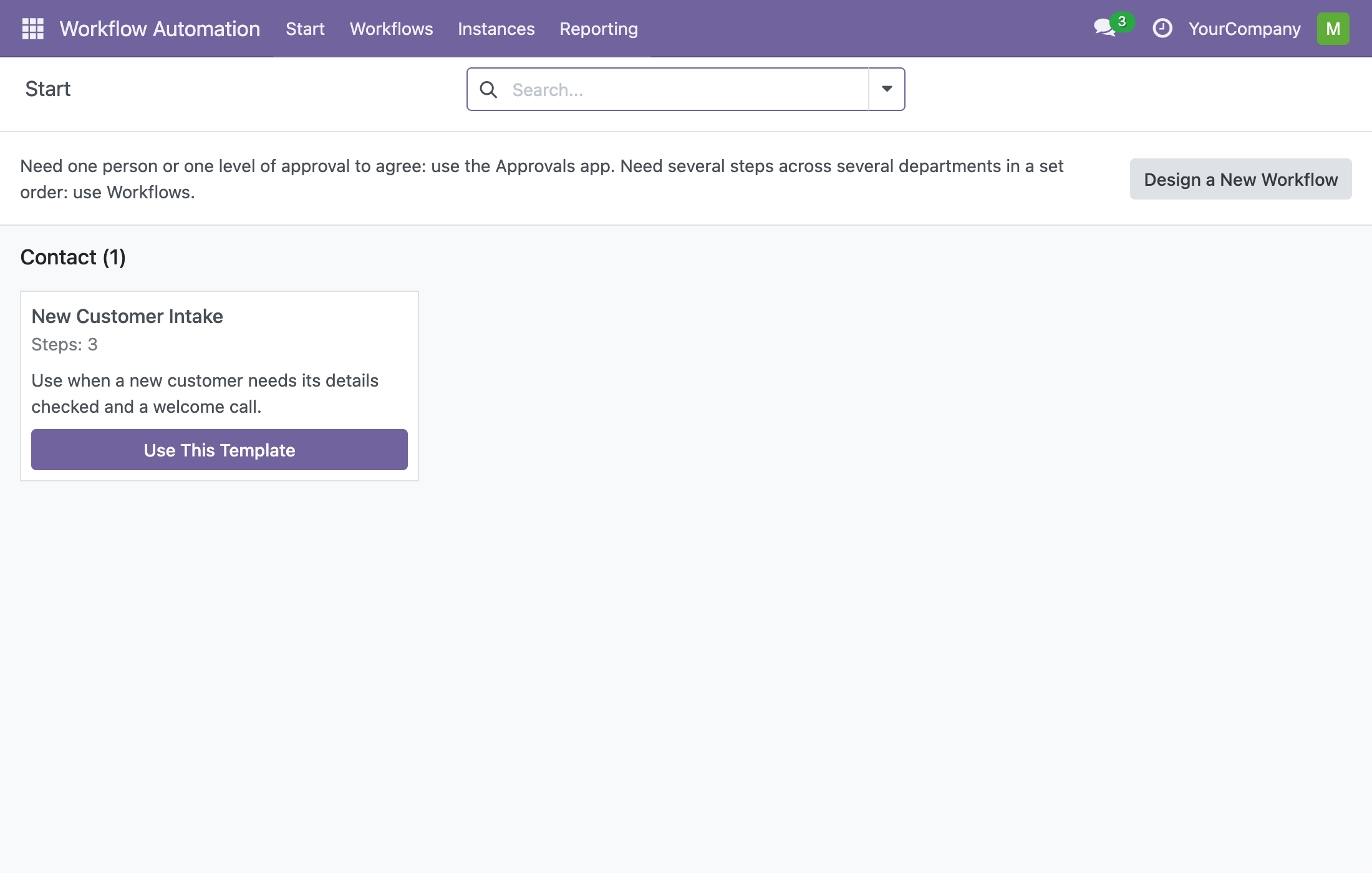
Click Use This Template on the card that fits.
In the window New Workflow From a Template, adjust the Workflow Name if you wish. For each role, choose in Assigned To who does it:
- Specific people: pick them in People.
- A group of people: pick the group in Groups.
- The person named on the document: the field of the document that names the person, for example the salesperson of a contact.
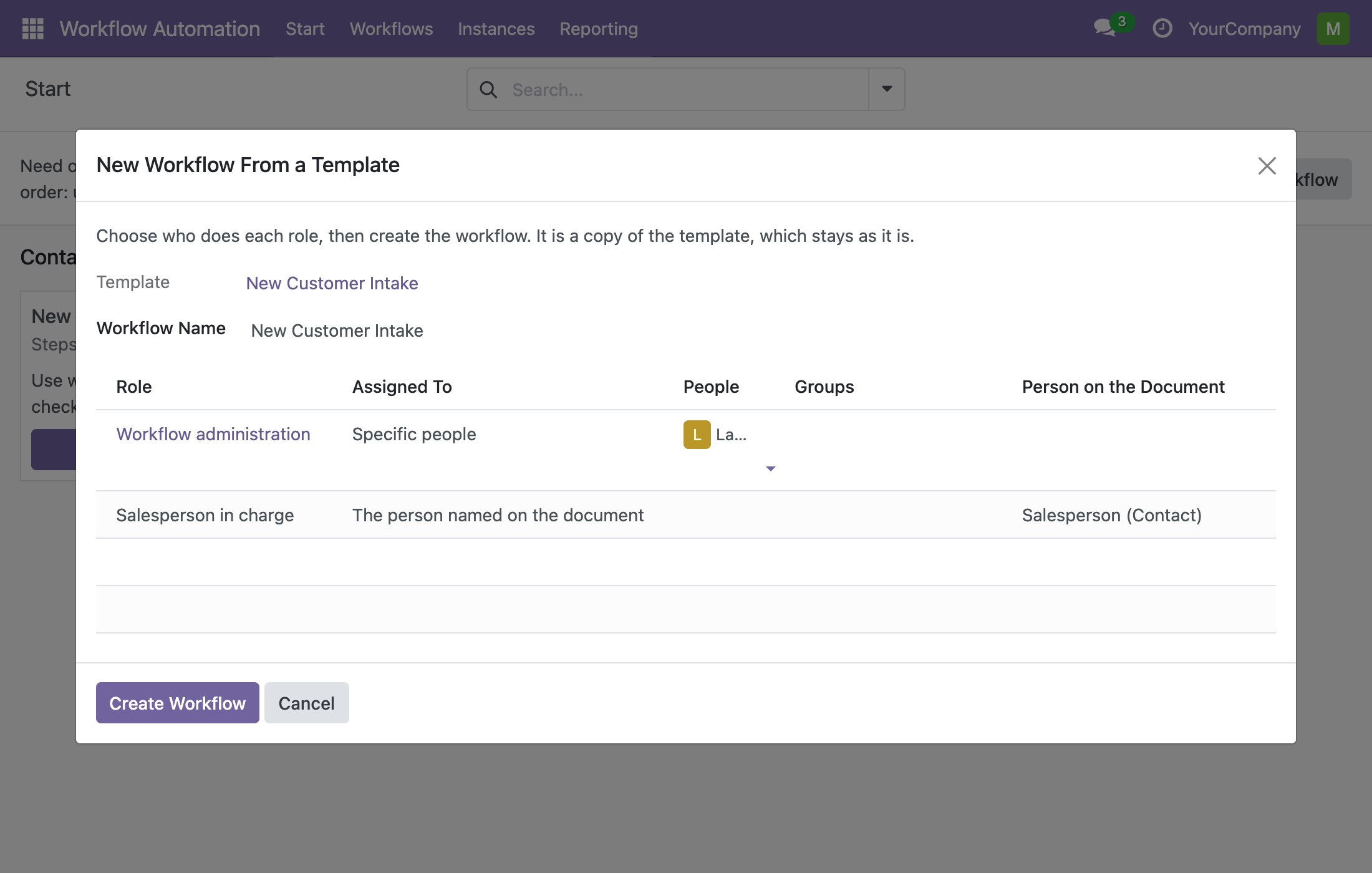
Click Create Workflow. The workflow is a copy of the template; the template stays as it is, ready for the next person.
When every role has people, the window says before you click what happens next. As a designer you get a Draft, which a workflow approver reviews and puts in use from the Versions tab with Publish. As a workflow approver you get the workflow In Use straight away.
When a role has nobody yet
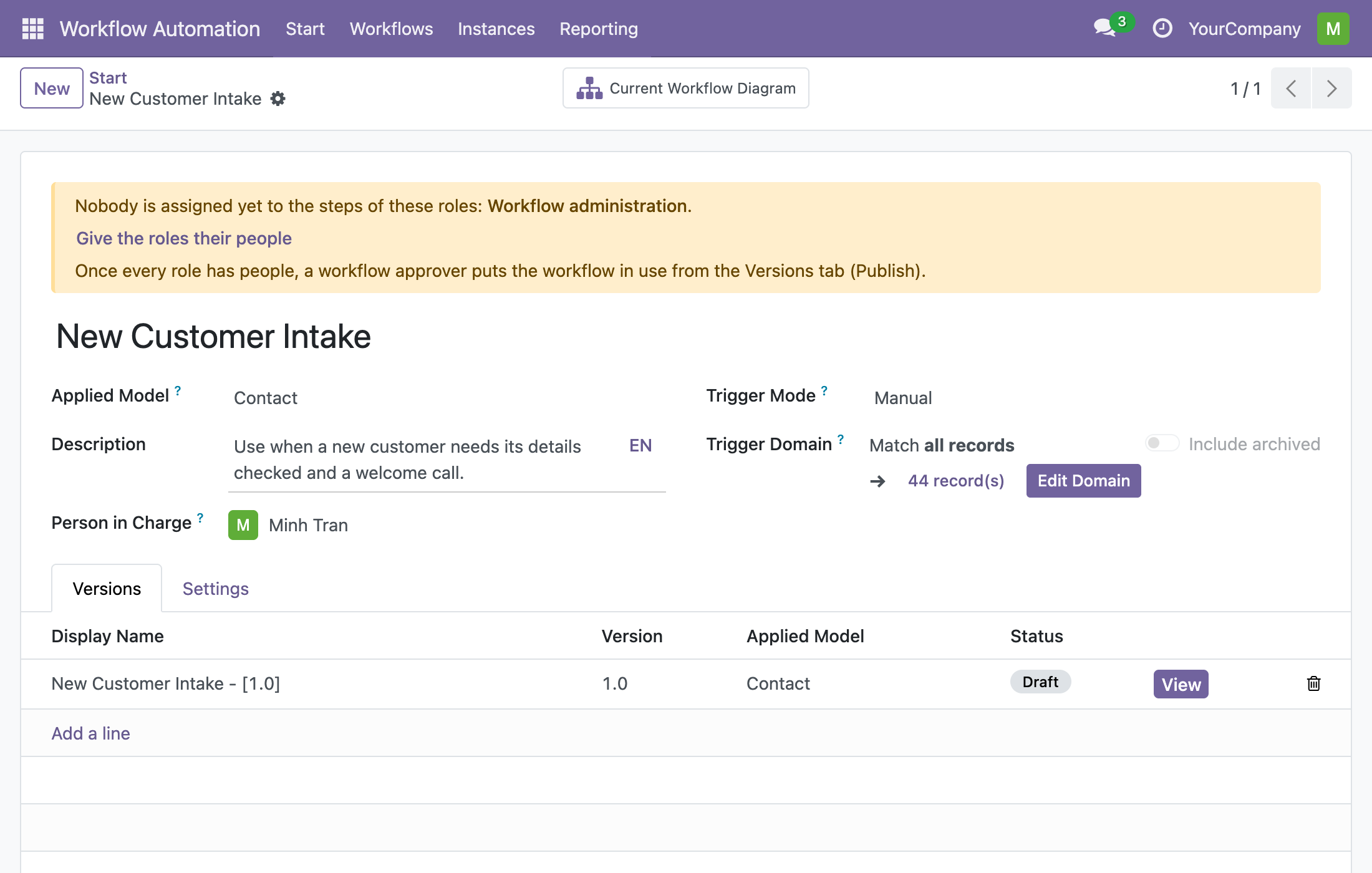
A role left without people does not block you. The window lists the roles that still have nobody, and the workflow is created as a Draft. Its form shows a message that a workflow approver puts it in use from the Versions tab with Publish, once every role has people.
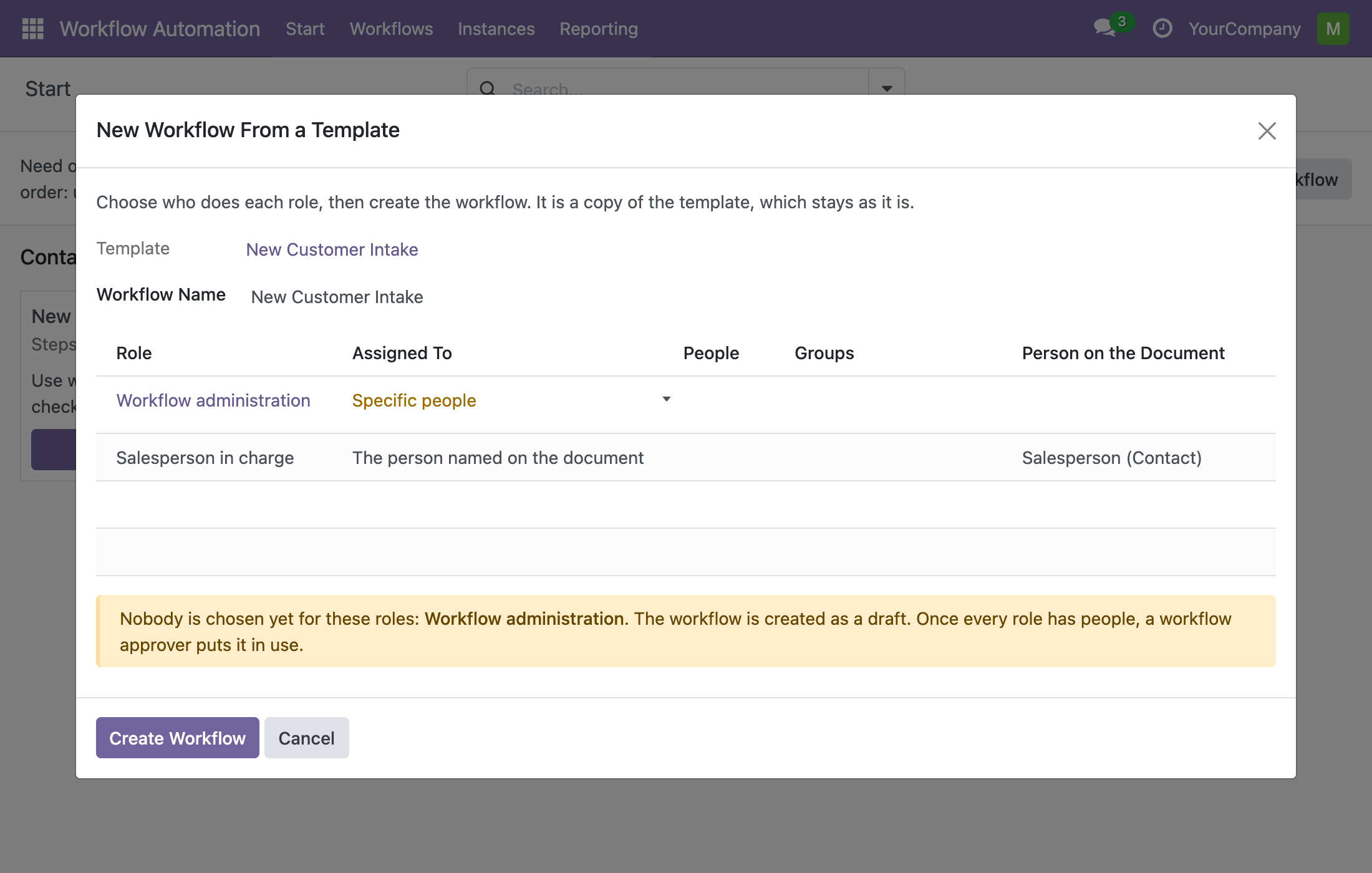
After you click Create Workflow, the form of the draft opens with a yellow message that names the roles still without people.
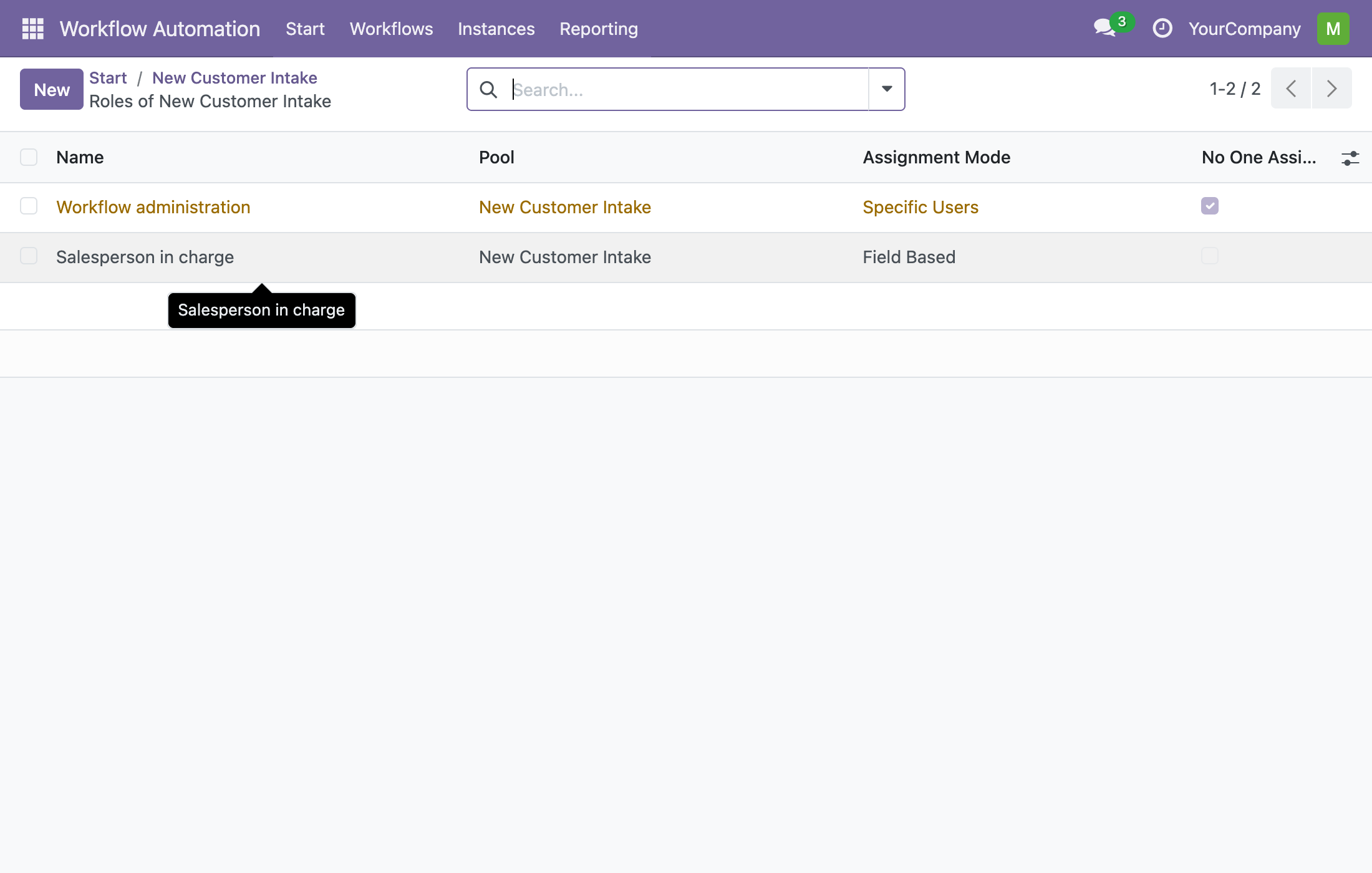
To give those roles their people:
Click Give the roles their people in the message. The list Roles of your workflow opens; a ticked No One Assigned marks a role that still needs people.
Open the role, set Assignment Mode (Specific Users, User Groups or Field Based), fill in the people who do its steps (Assigned Users for Specific Users), then save.
Ask a workflow approver to Publish the version from the Versions tab.
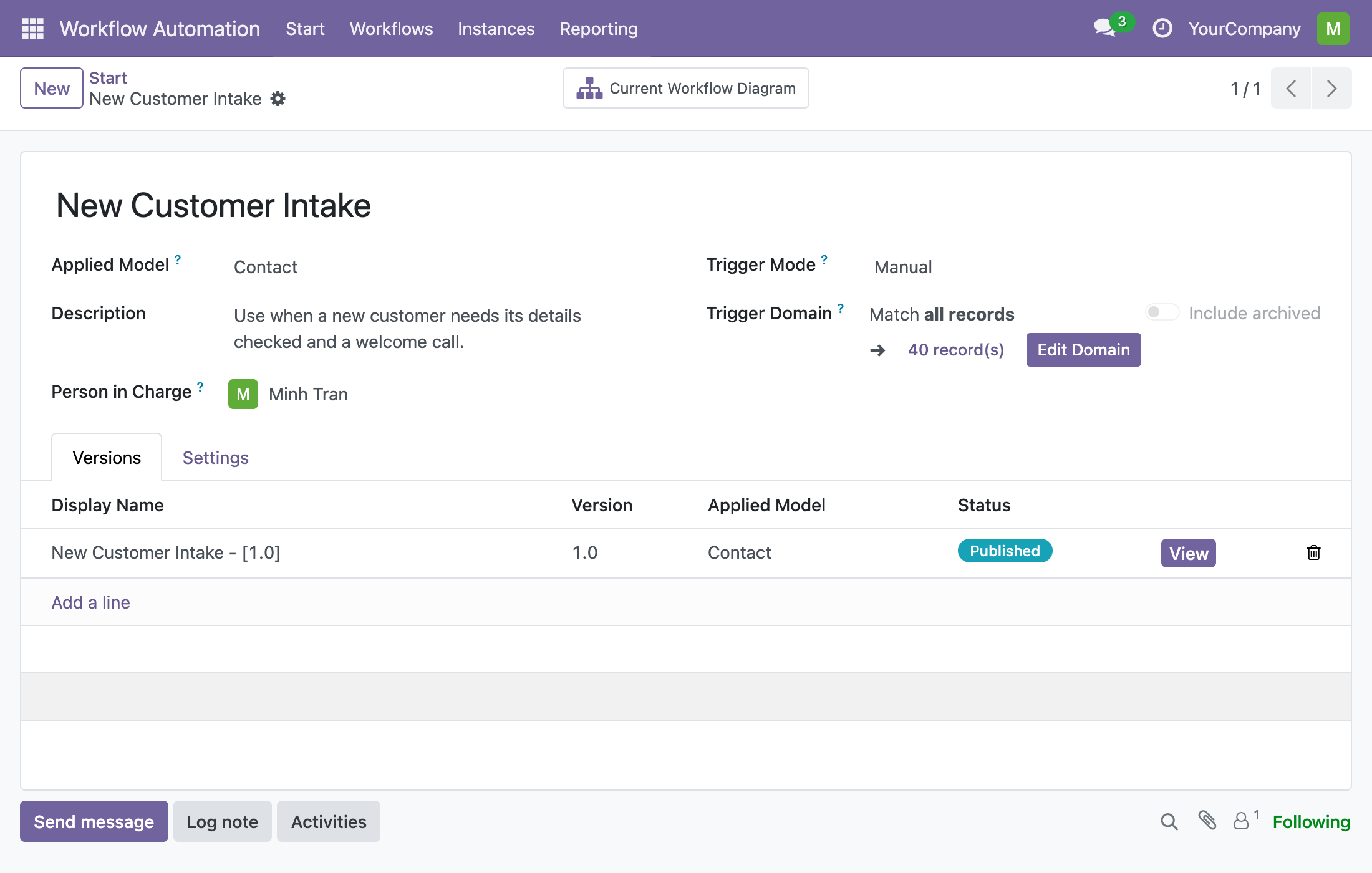
When every role has people, the list of roles without people disappears from the message; the workflow stays a draft until an approver publishes it. When an approver makes the workflow and all roles have people from the start, the form of the workflow opens with its description, the person in charge and its Versions tab, and the version is published.
Draw a workflow when no template fits
When to use it: your process is specific to you, or no template matches the document it applies to.
Open Workflow Automation ‣ Start and click Design a New Workflow.
Fill in the name, the Applied Model (the type of document, for example Contact), a Description and the Person in Charge: the person who receives the to-do when a step of this workflow fails. Save the form.
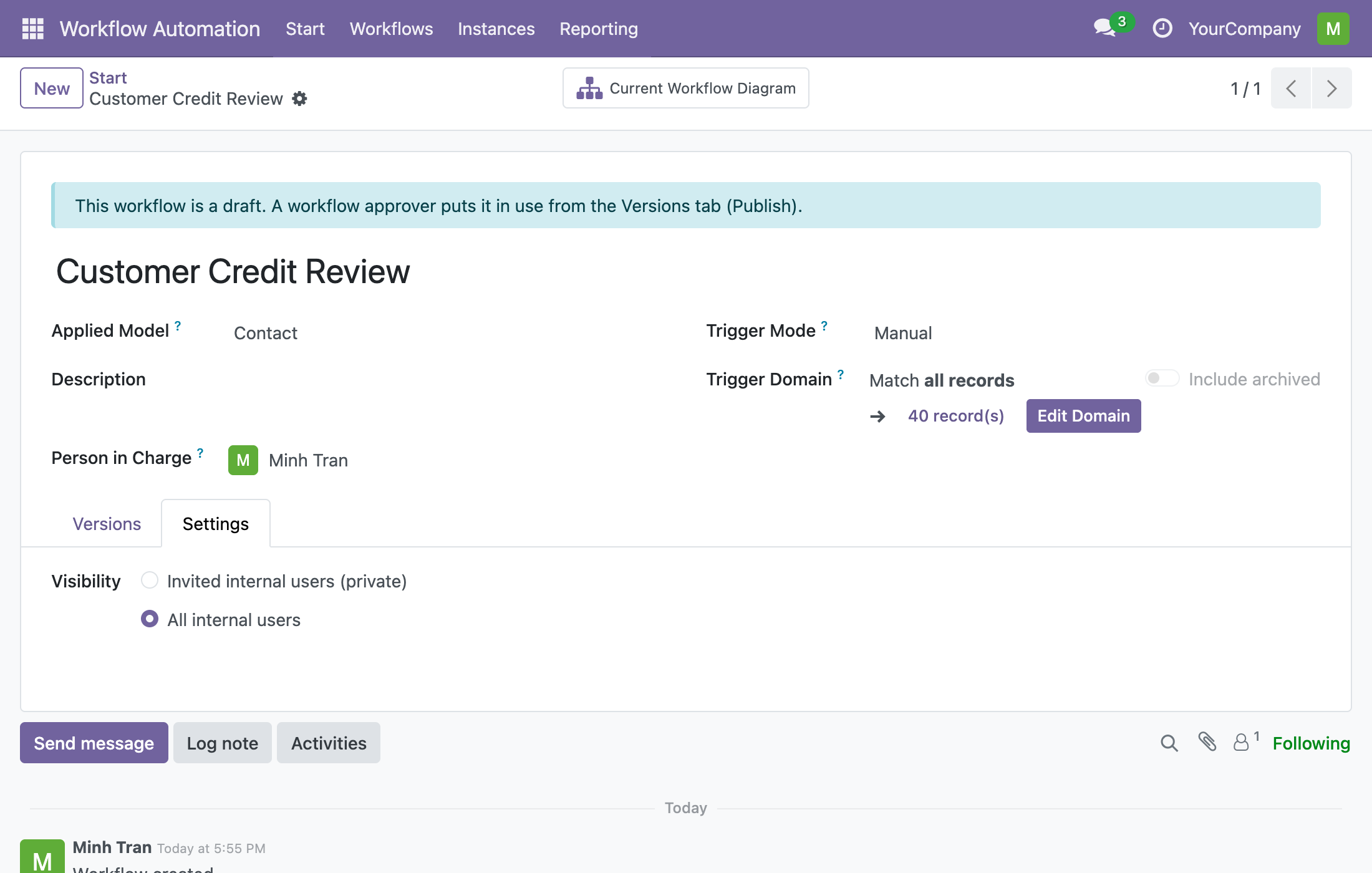
Click Current Workflow Diagram. The diagram editor opens with the start of your process. Drag shapes from the palette on the left onto the sheet and connect them with arrows.
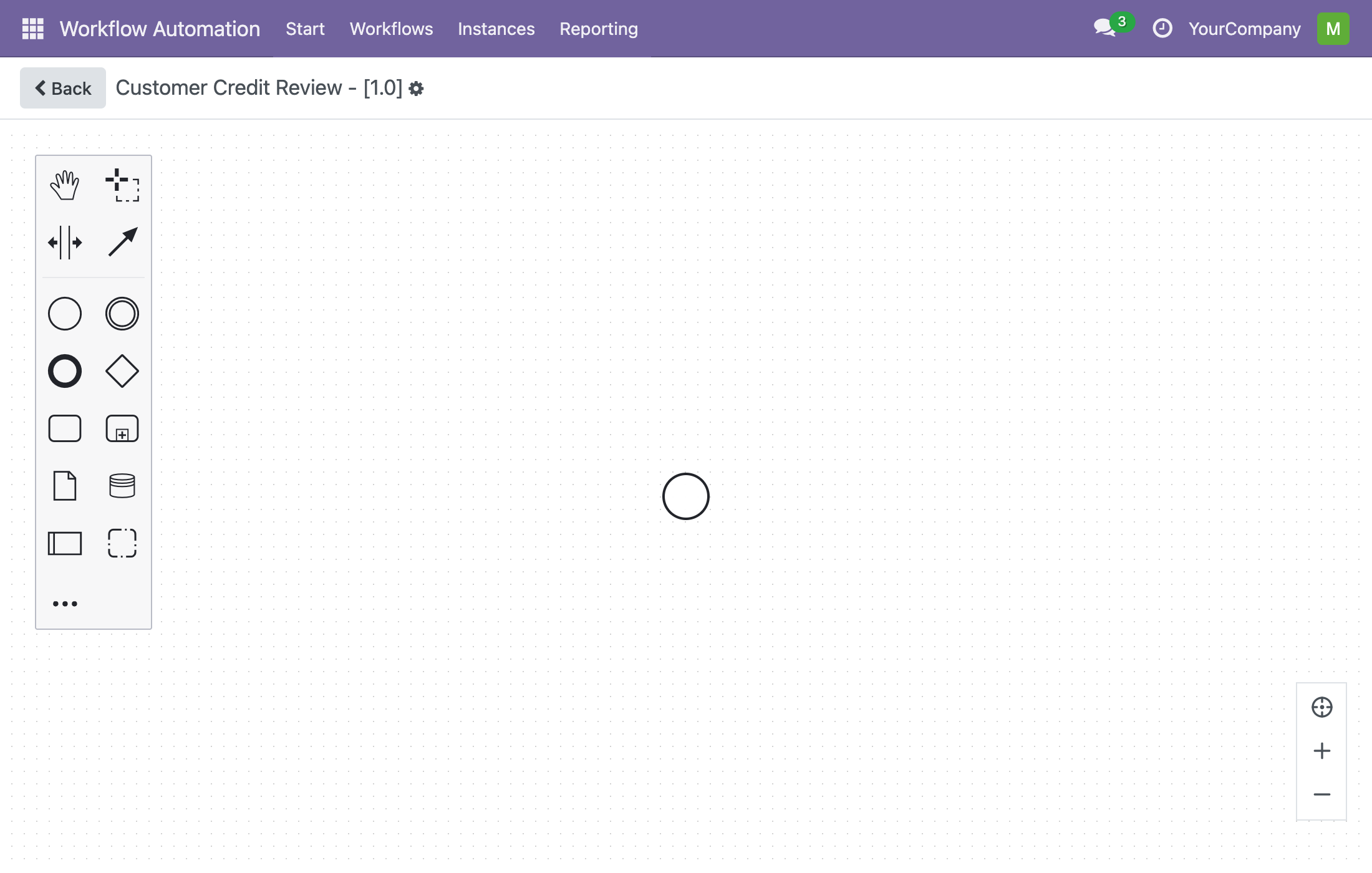
When you change the diagram, a Save icon appears next to the title. Click it; the message "Diagram saved successfully" confirms. Use Back to return to the workflow.
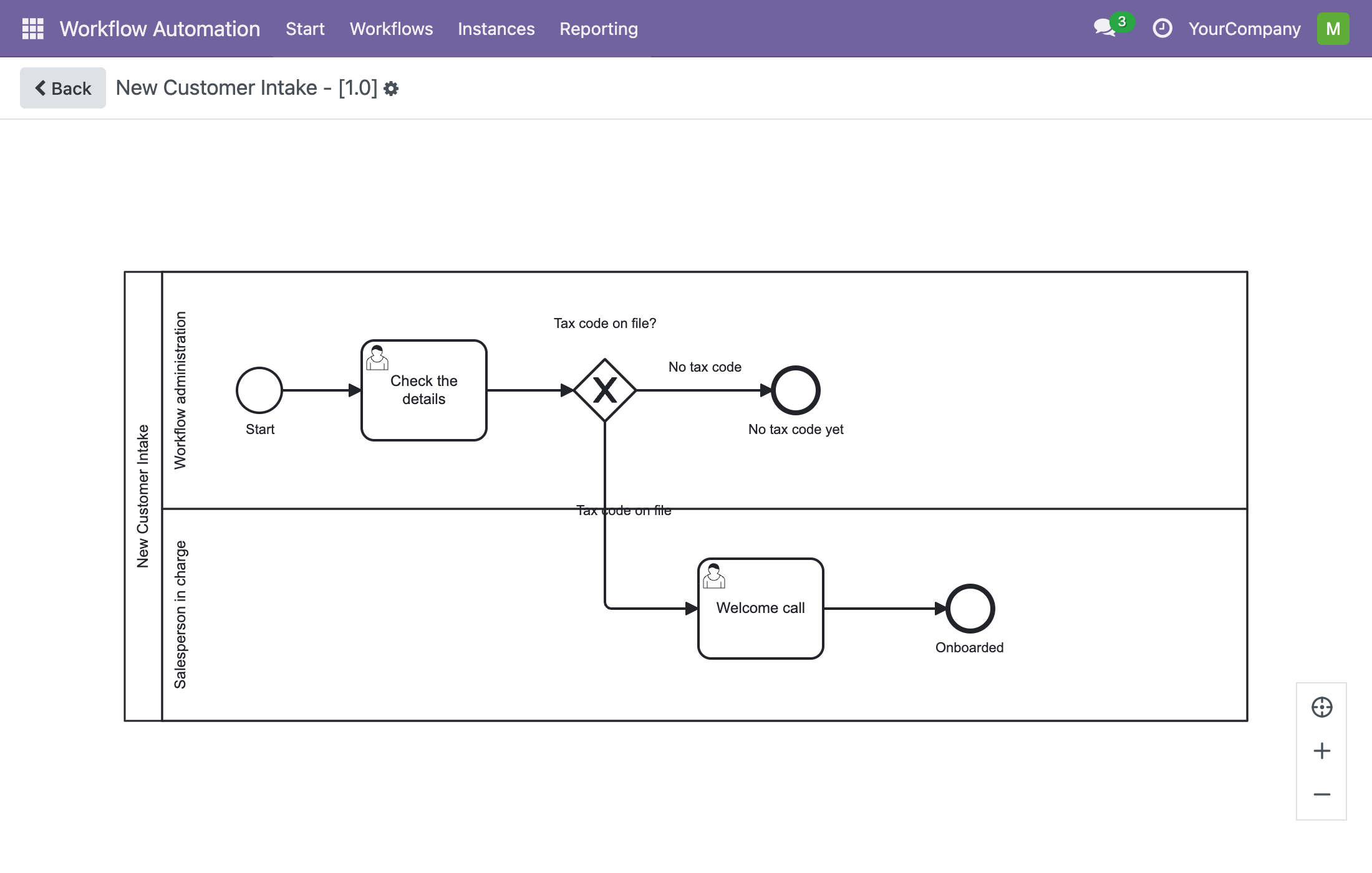
A workflow approver opens the Versions tab and clicks Publish to put the workflow in use. Until then it stays a draft and no run can start.
A workflow in use shows its diagram read-only: open it with Current Workflow Diagram.
Follow your workflows in the list
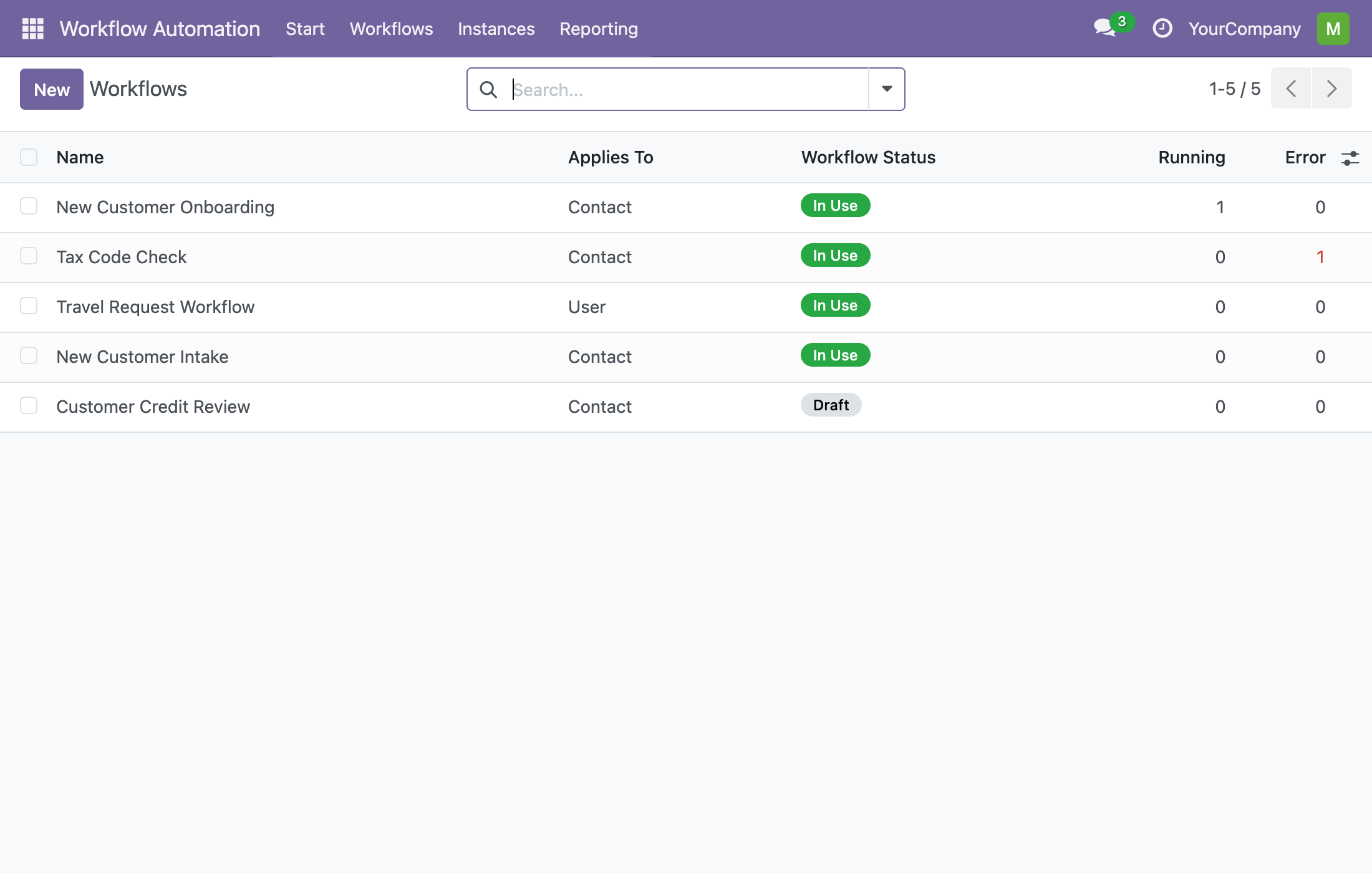
When to use it: to see at a glance which workflows are in use and whether any run has failed.
- Open Workflow Automation ‣ Workflows.
- Read the columns: Applies To (the document type), Workflow Status (Draft, In Use or Stopped), Running and Error (the number of runs in each state).
- Open the column selector at the right of the header and tick Roles Without People to see which roles of a draft still need someone.
Start a workflow by hand on a document
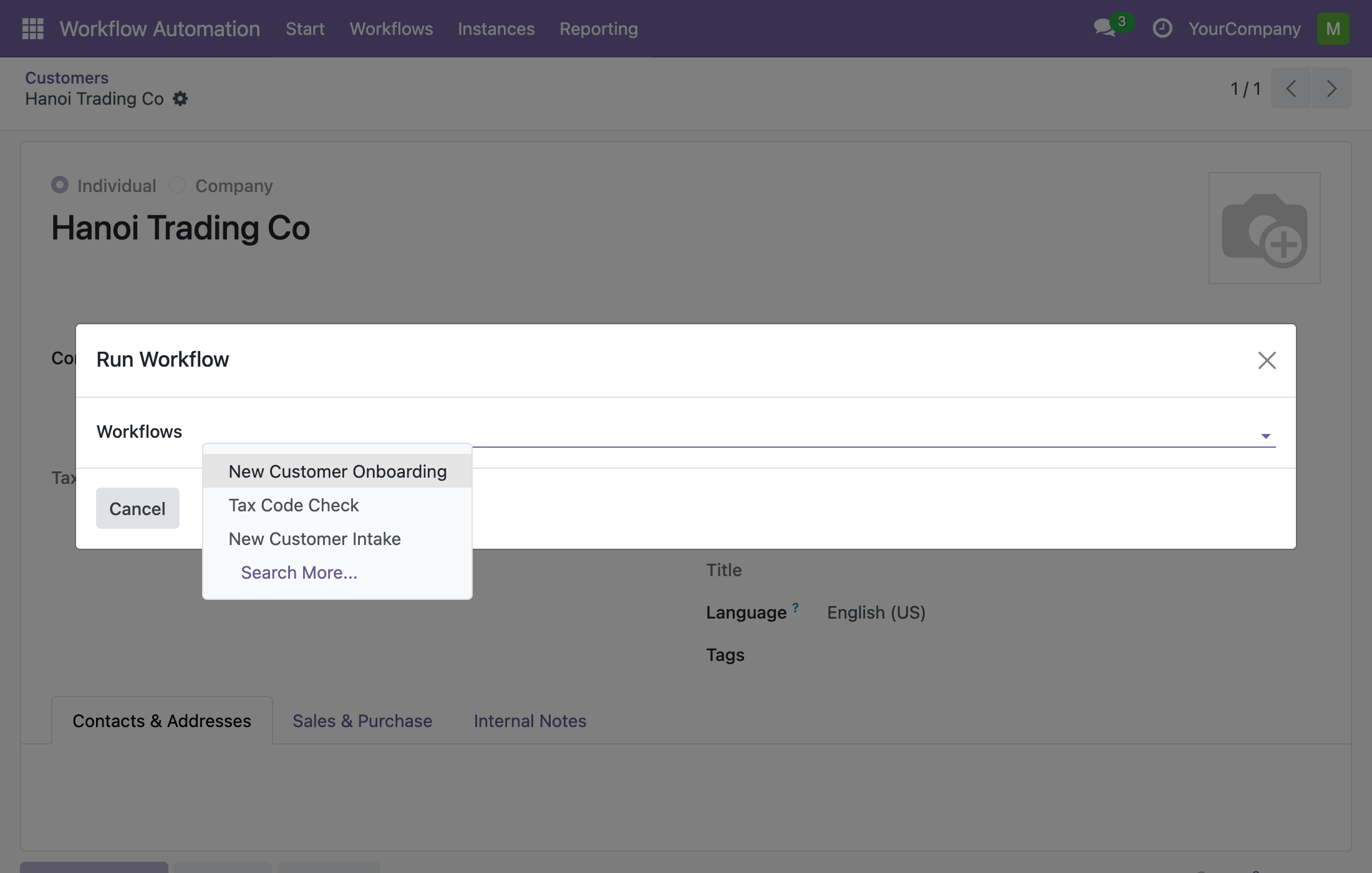
When to use it: a workflow whose trigger is Manual must be started on the document it concerns.
- Open the document, for example a contact.
- Click the cog icon next to its name and choose Run Workflow.
- Choose the workflow and click Run.
The run starts and its first step reaches its assignee. A Workflow button with the number of running runs now appears at the top of the document.
Task assignee: complete your step
Use this chapter when a workflow gives you a step to do. You need no special access right.
Open and complete your step
When to use it: you received an activity such as "Complete the workflow task: Check the details" on a document, or you see the Workflow button with a running run on the document.
Open the document. The Workflow button at the top shows how many runs are running (and, when there are any, how many are in error). Your step also appears under the planned activities of the document.
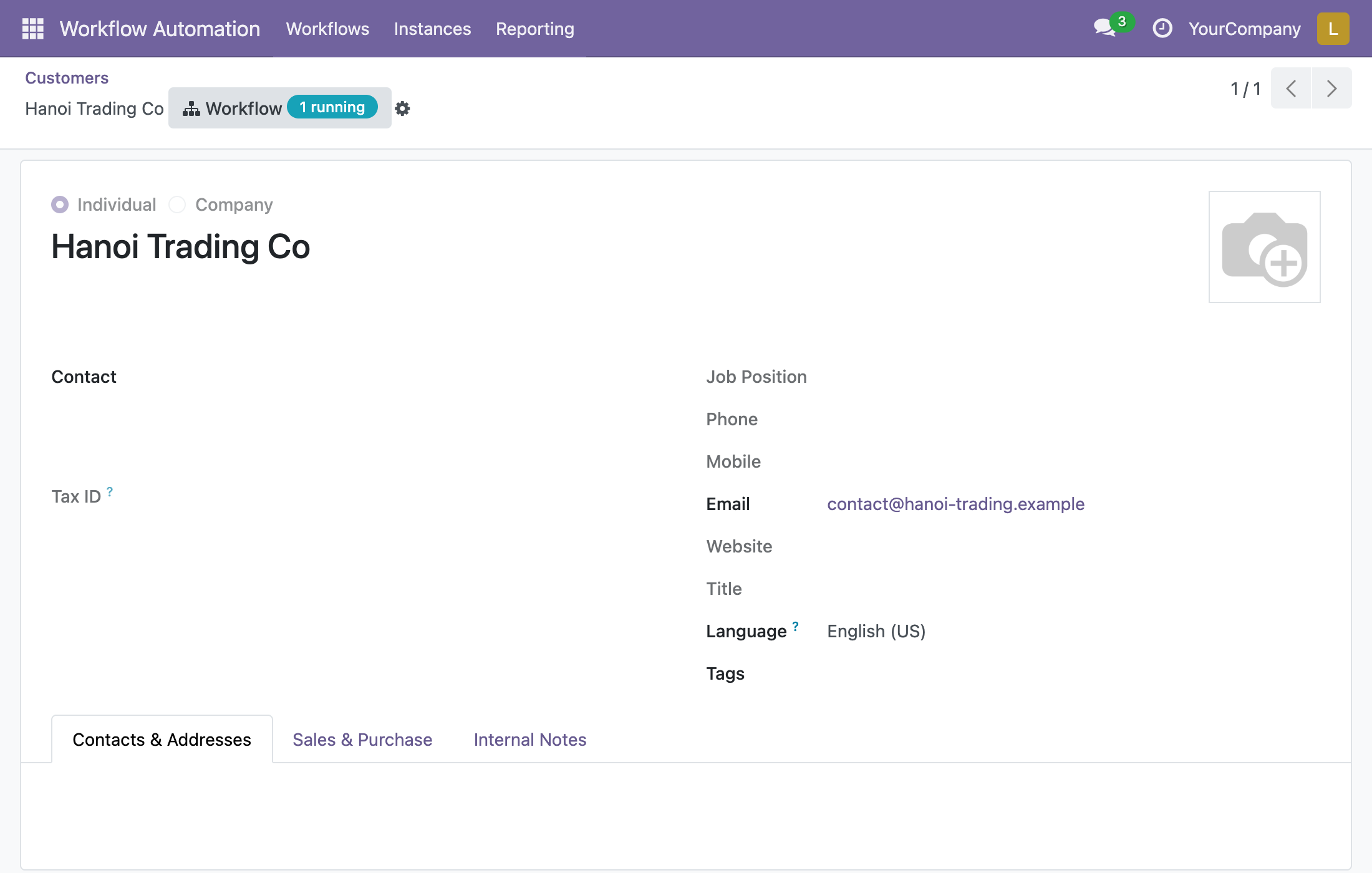
Click the Workflow button, or open Workflow Automation ‣ Instances and the run. The field My Step names the step waiting for you, and the button Complete My Step is the main button.
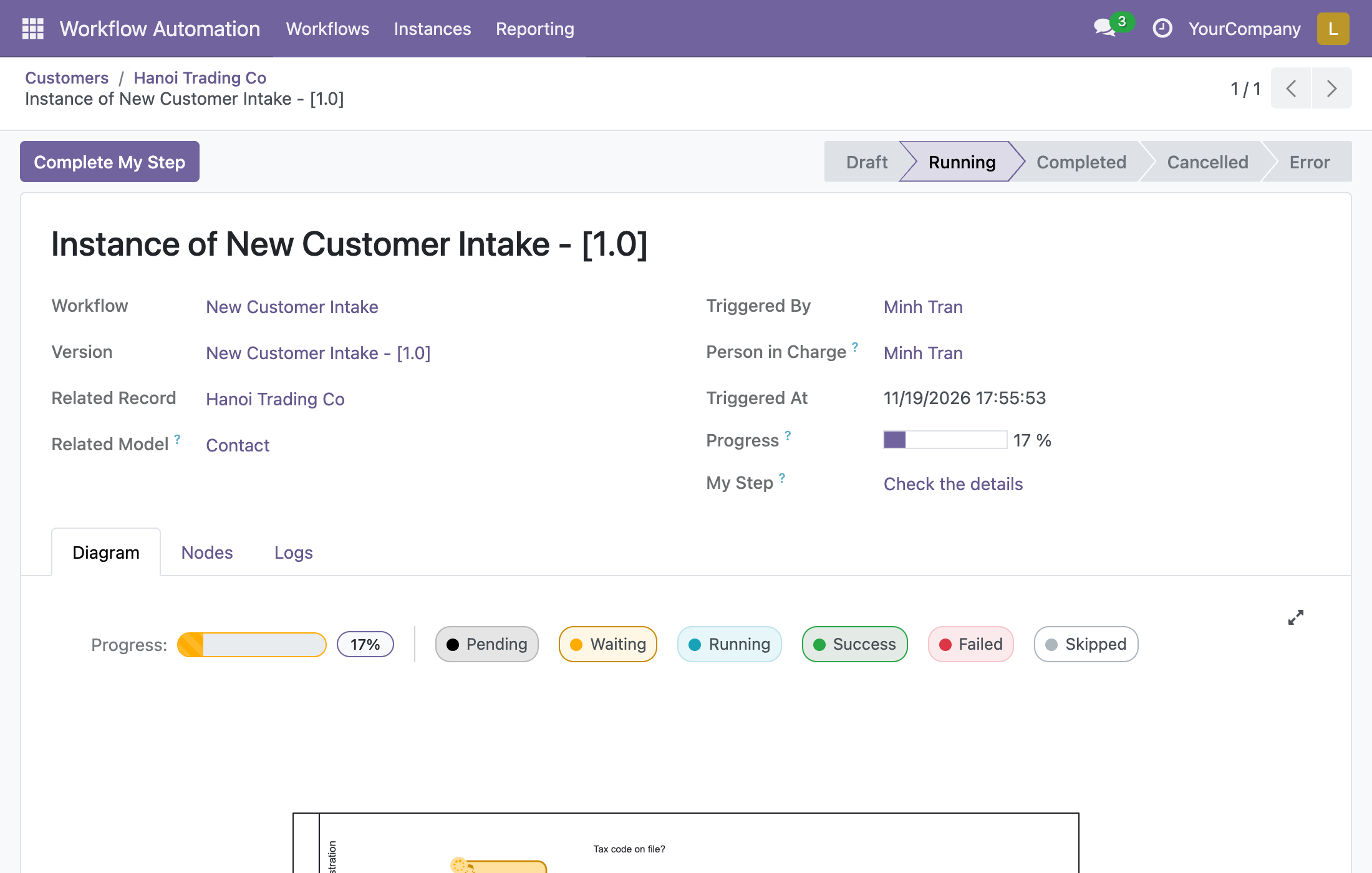
Do the work the step describes, then click Complete My Step.
The run moves on. Depending on the workflow, the next person receives their step, or the run reaches Completed.
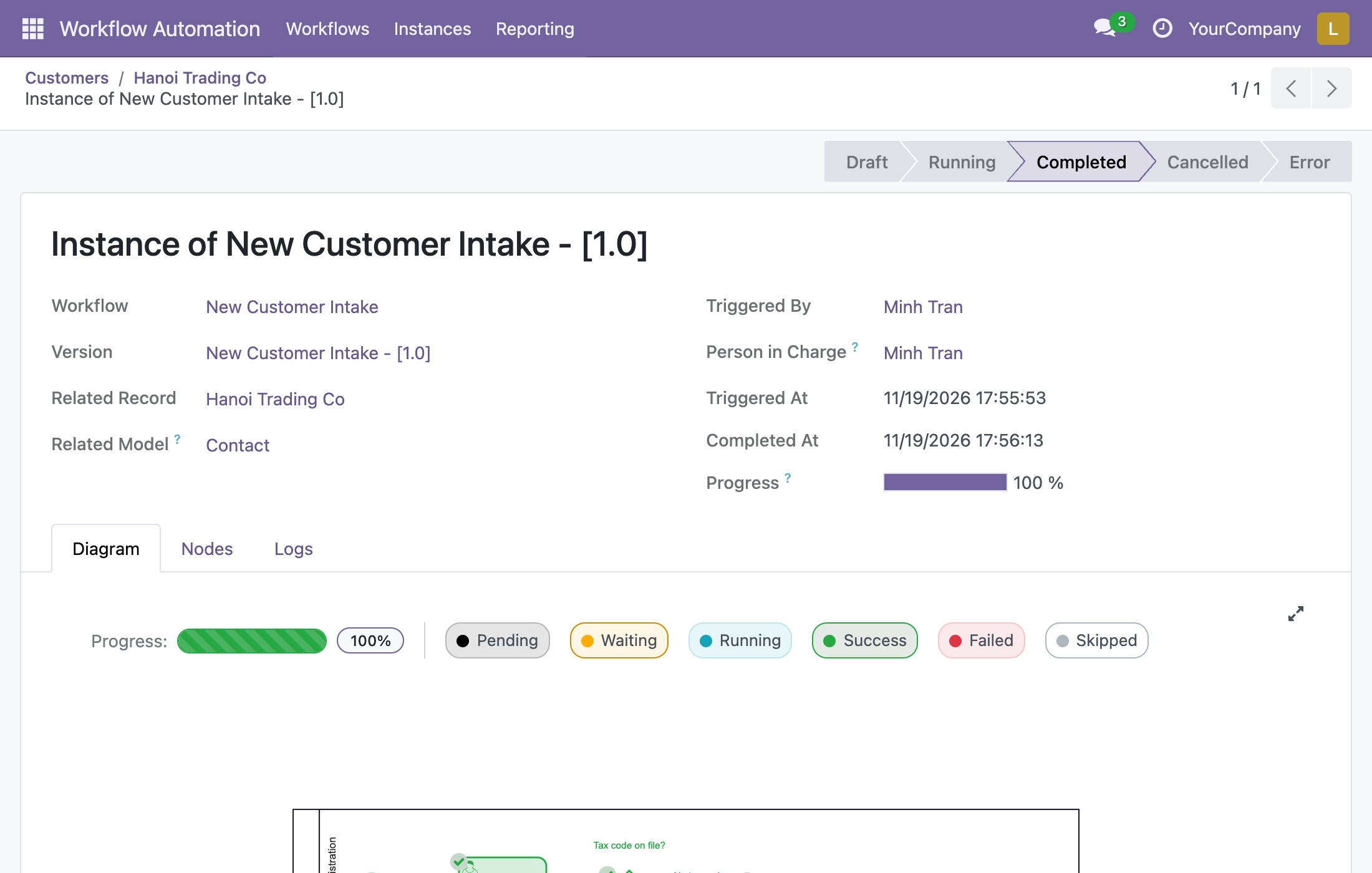
Only the person a step is assigned to sees Complete My Step; anyone else who opens the same run sees no main button.
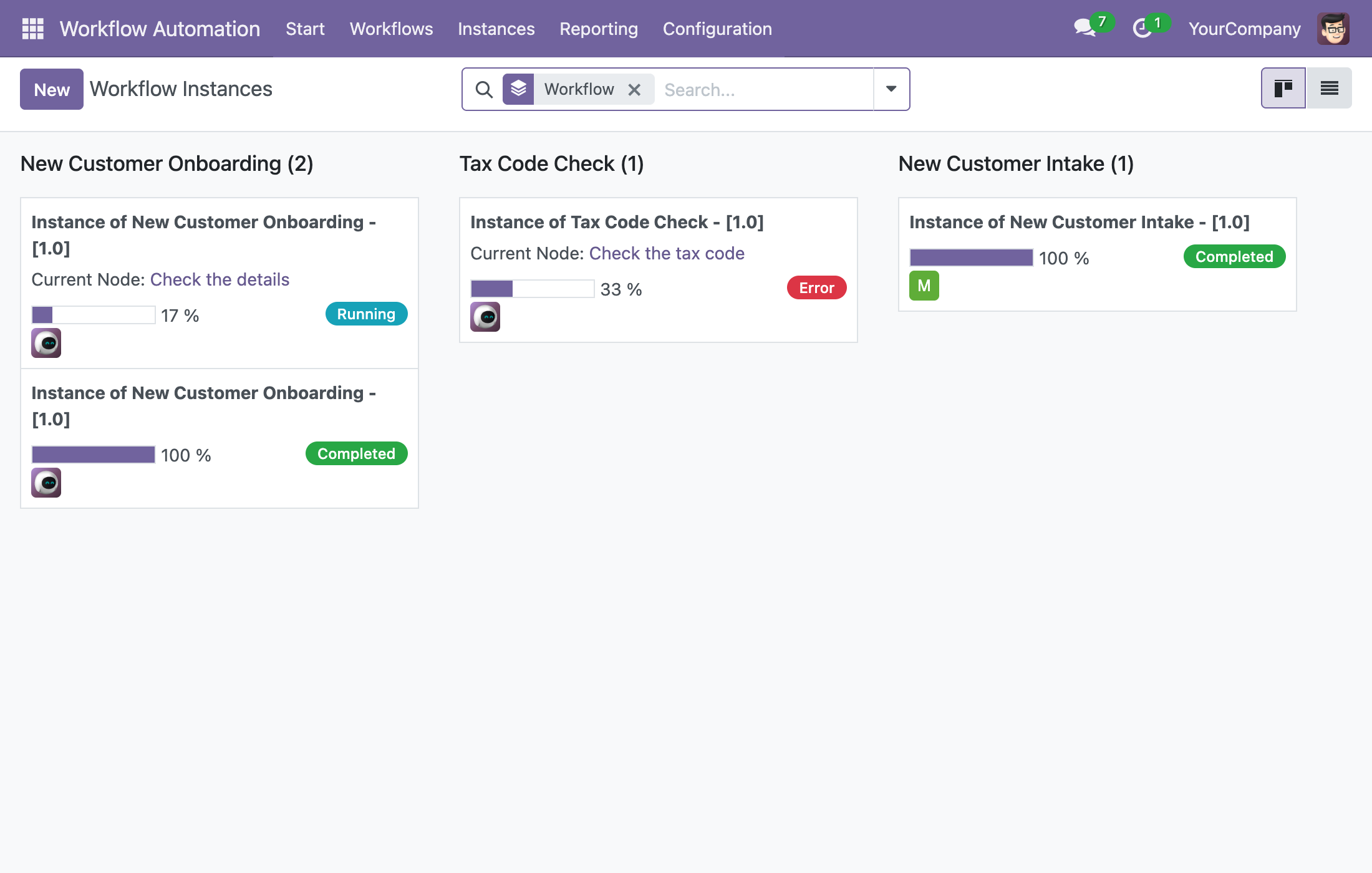
Follow all runs
Open Workflow Automation ‣ Instances to see the runs grouped by workflow. Each card shows the current step, the progress and the status.
Workflow administrator: keep runs healthy
Use this chapter to resolve a run that stopped, to set the rules of retrying, and to maintain the templates. You need the access right Workflow / Administrator (the failed-step buttons also belong to workflow approvers and to the person in charge of the workflow).
Handle a failed step
When to use it: a run shows Error, or you received a to-do named "Workflow ... stopped".
Open Workflow Automation ‣ Instances, then the run in Error; or follow the link in your to-do.
Read the red message at the top: it names the step that could not run, the reason, and who was informed.
Fix the cause on the related document if you can (here, the contact is missing its tax code), then click:
- Retry to run the step again. The number of manual retries is limited (see Settings); when none is left, the message says that a workflow approver can skip the step.
- Skip Failed Step to go on without that step; the run continues with the next one. Only workflow approvers have it.
- Cancel to stop the run for good.
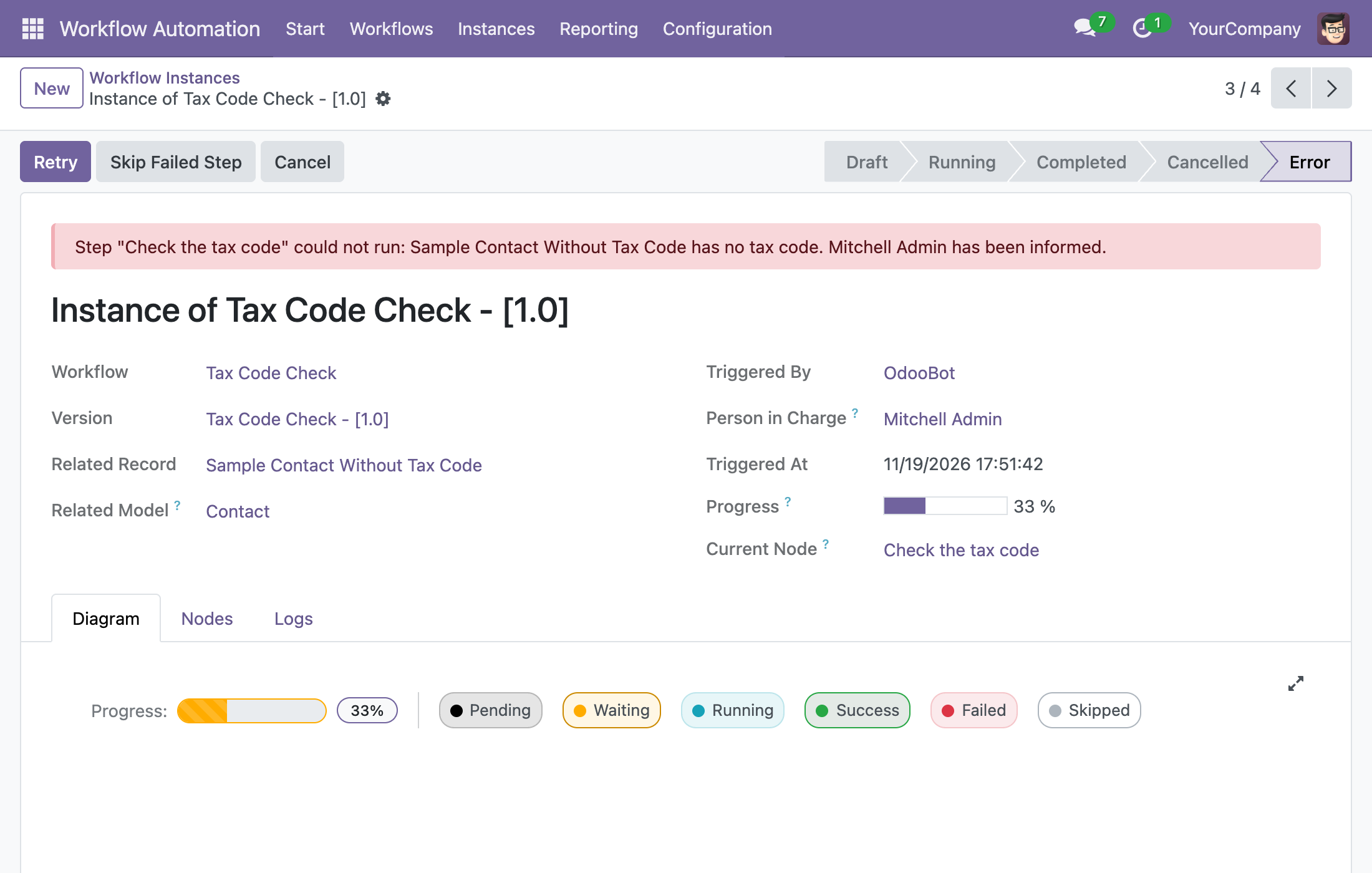
Retry is for the workflow's person in charge and for workflow approvers; Skip is for workflow approvers. Cancel is also available to the person who started the run.
Complete a step for someone who is away
When to use it: a step waits for a person who is absent and the process cannot wait. You need the access right Workflow / Approver or Administrator.
Open Workflow Automation ‣ Instances and the run concerned.
Open the Nodes tab. The step waiting for the person shows the status Waiting and the button Complete on behalf.
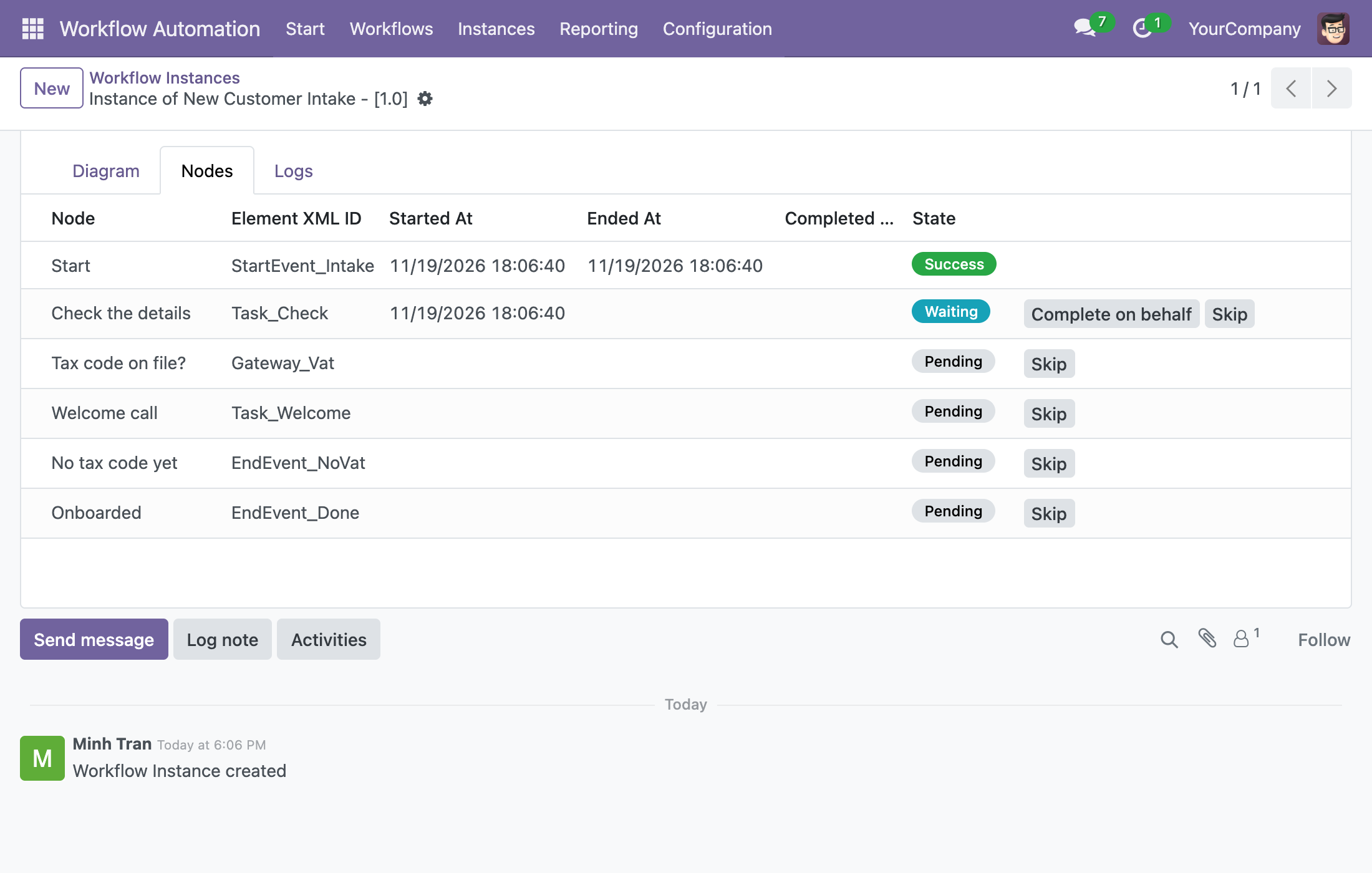
Click Complete on behalf. The step is completed and the run moves on. The run records who did it, for example: "Mitchell Admin completed the task "Check the details" on behalf of Lan Pham."
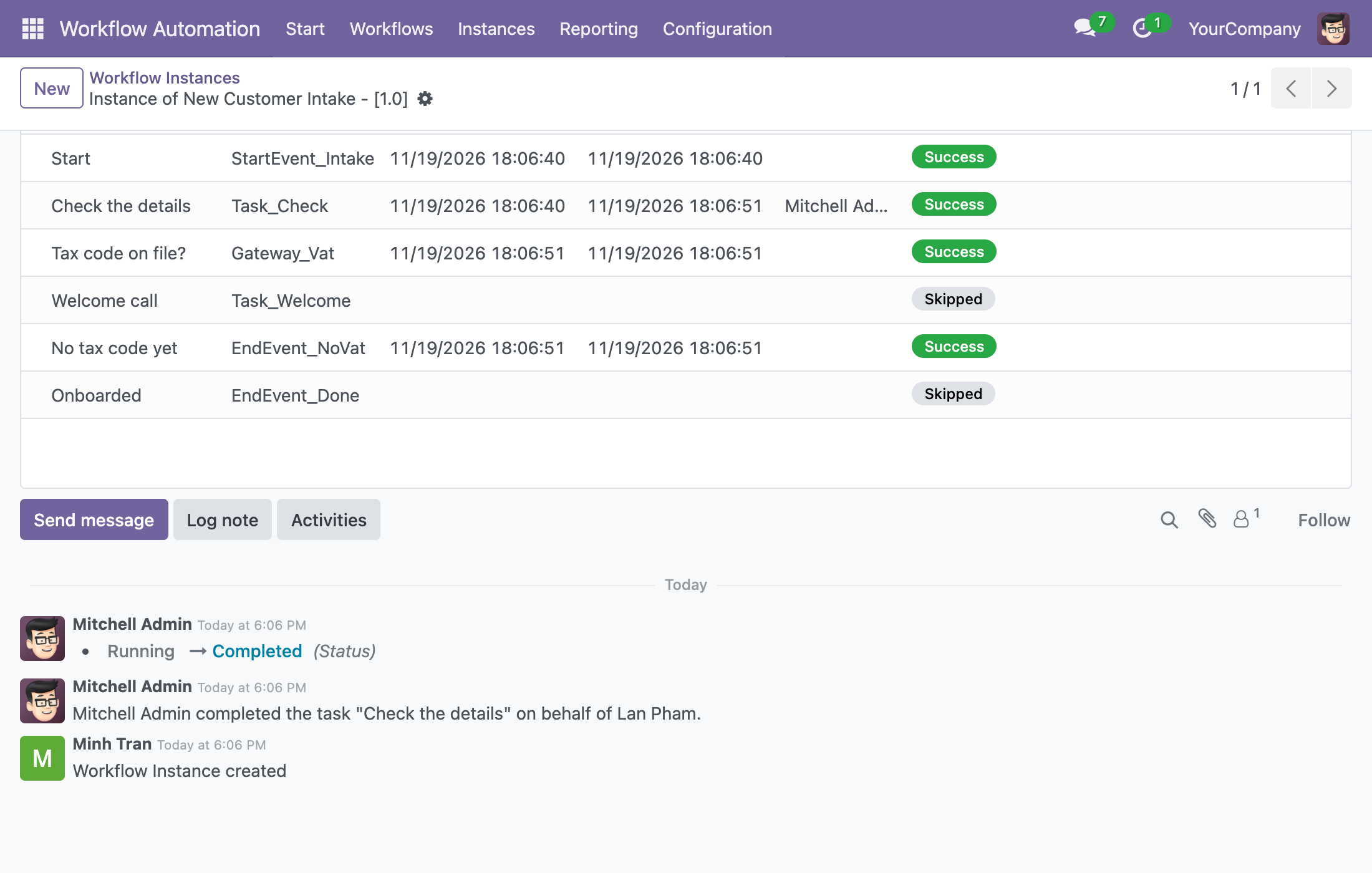
The assignee keeps the usual route (Complete My Step); Complete on behalf is for the supervisor only. Skip next to it passes over a step without doing it.
Set the retry rule and the log retention
You need the access right Workflow / Administrator and the Settings access right of Odoo.
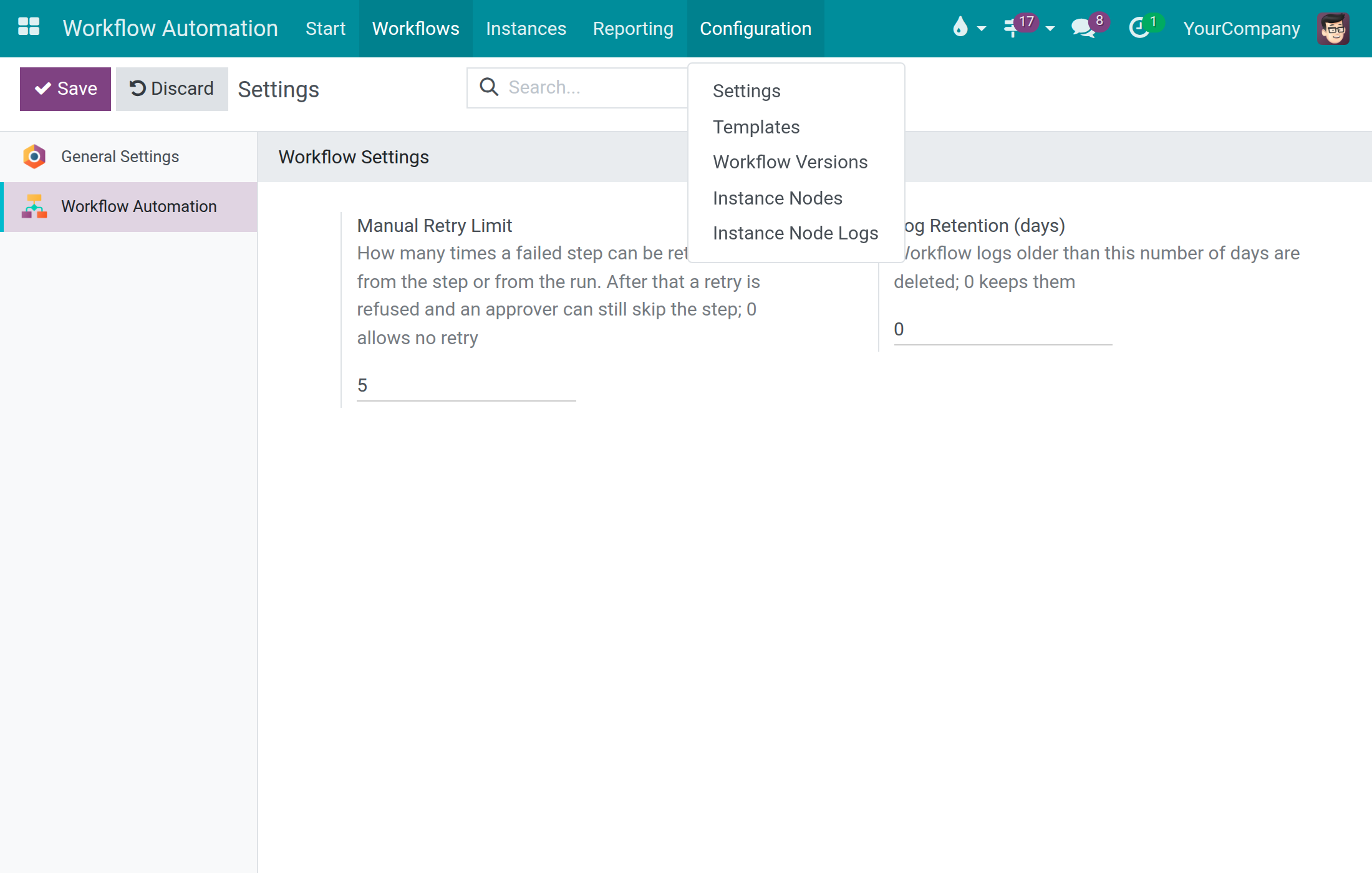
- Open Workflow Automation ‣ Configuration ‣ Settings. The Odoo Settings open on the Workflow Automation block.
- Manual Retry Limit: how many times a failed step can be retried by hand. After that only a workflow approver can skip it; 0 allows no retry.
- Log Retention (days): workflow logs older than this number of days are deleted; 0 keeps them.
- Save.
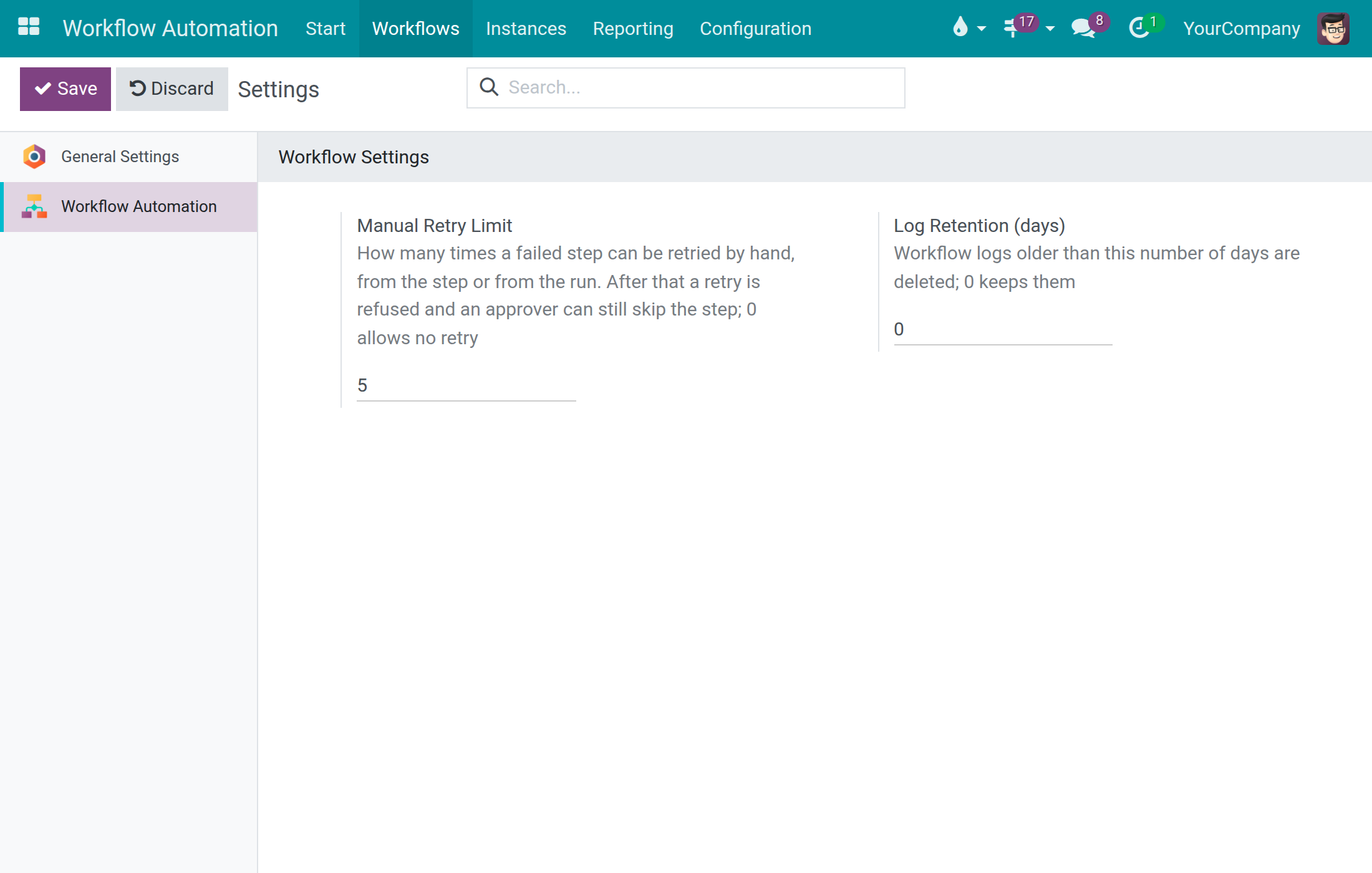
Find your way in the Configuration menu
The Configuration menu is visible to administrators only. Everyday lists stay in the main menu; the rest is gathered here:
- Settings: the retry rule and the log retention above, for those who have the Settings access right of Odoo.
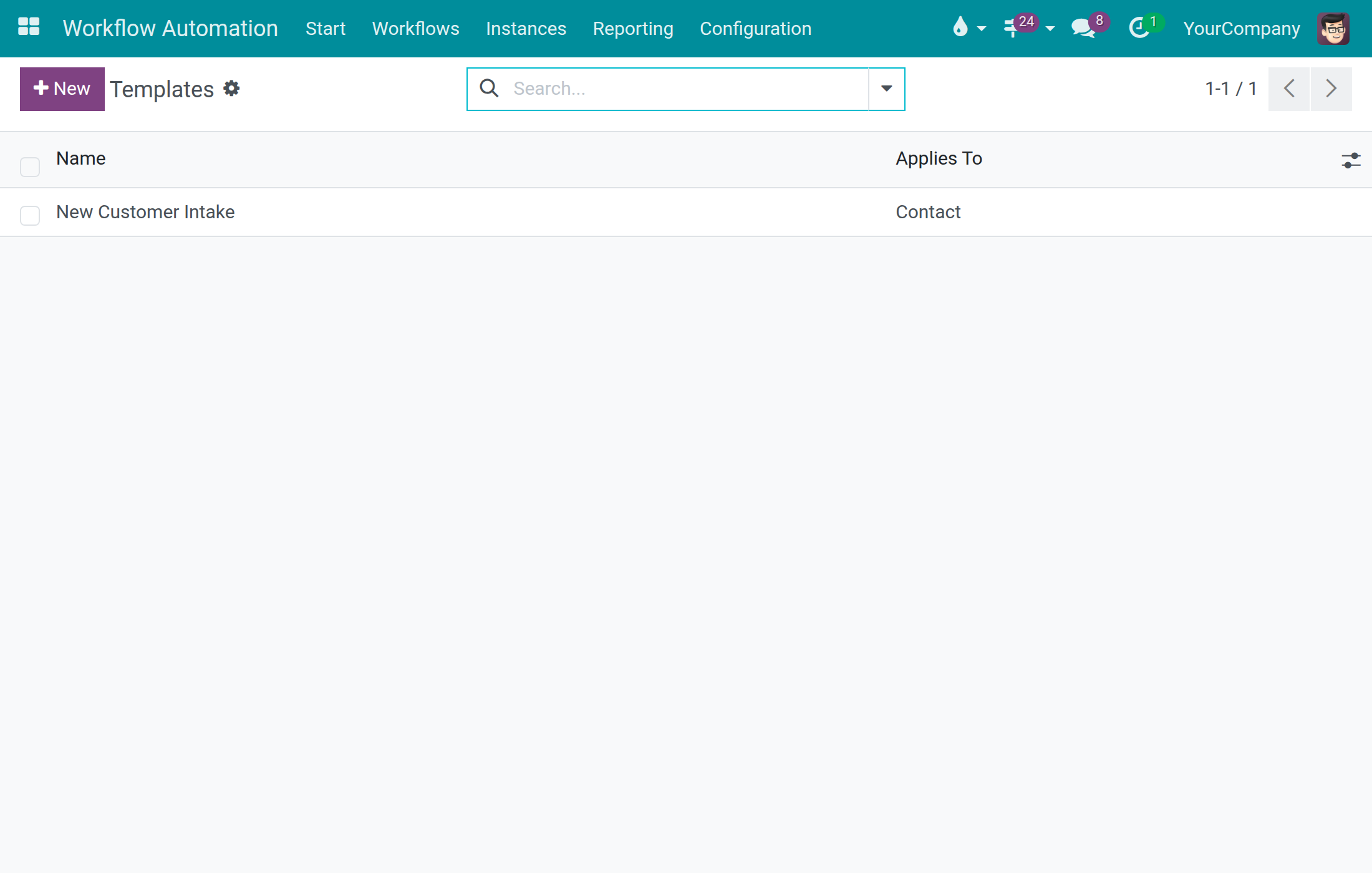
- Templates: the ready-made workflows offered on the Start page.
- Workflow Versions, Instance Nodes and Instance Node Logs: technical lists of versions, steps of runs and what each step did, for investigating a problem.
For a quick count of runs by workflow and status, open Workflow Automation ‣ Reporting ‣ Overview.
Maintain the templates
When to use it: you want people to start from a ready-made workflow for a recurring situation. Only administrators create or change templates; designers use them.
Open Workflow Automation ‣ Configuration ‣ Templates. The list shows each template and the document type it applies to. A template is never put in use: designers copy it into a workflow of their own.
Open a template. The form carries a Template ribbon. In its Settings tab, the Template box marks a workflow as a template. The description you write is the sentence shown on its card on the Start page, so say when to use it.
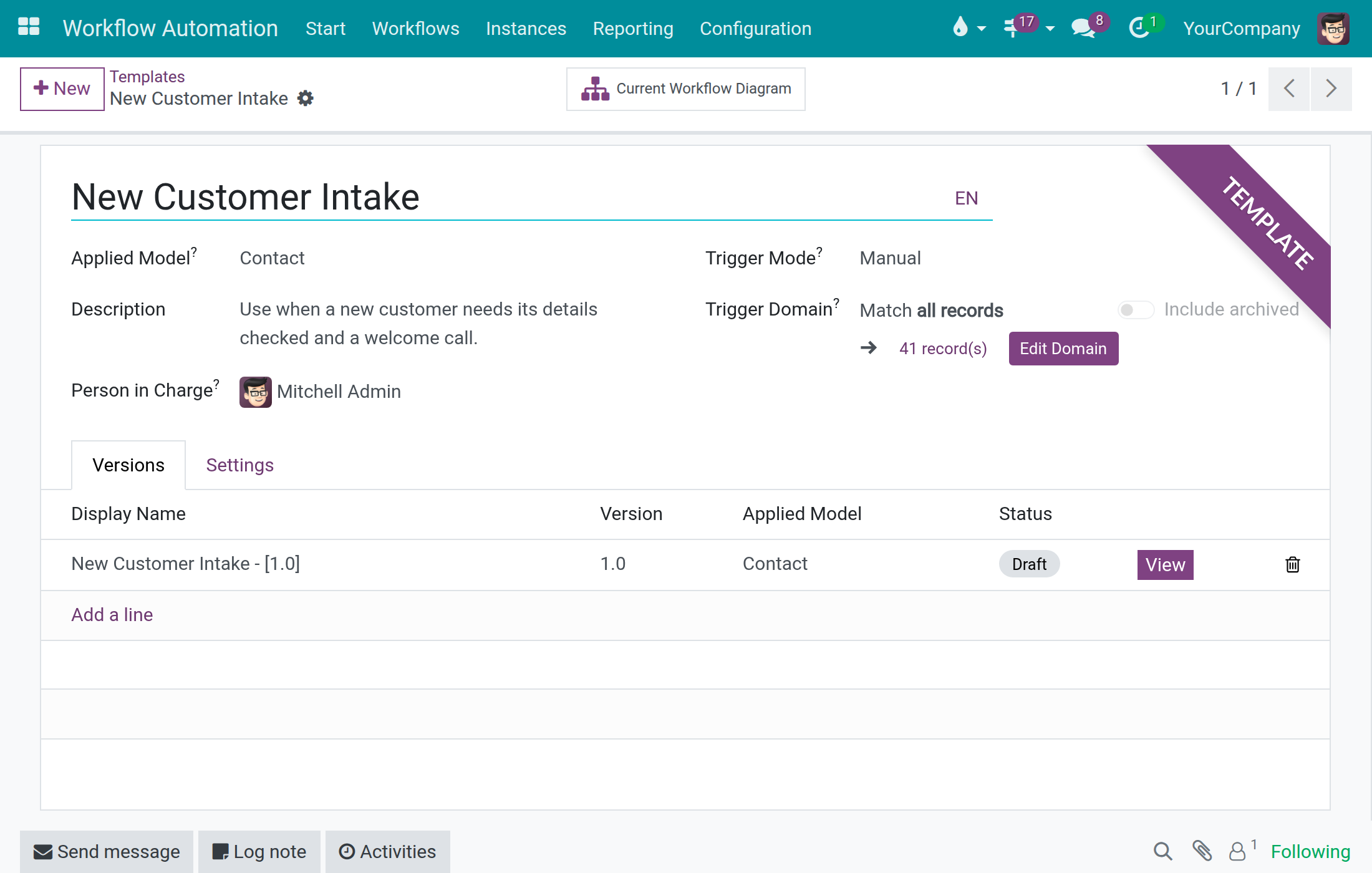
A workflow in use, or one that already has runs, cannot become a template. Stop its version and finish its runs first, or make a copy of it and mark the copy.
Troubleshooting
I do not see Start in the menu. Start is for process owners. Ask your administrator for the access right Workflow / Designer.
My new workflow is a Draft. At least one role had nobody chosen. Choose the people for every role, then ask a workflow approver to Publish the version from the Versions tab.
I opened a run and there is no button. The step is not assigned to you, or the run is not waiting for anyone. Check My Step: it is empty when nothing waits for you.
Retry no longer works. The manual retry limit is reached. Ask a workflow approver to use Skip Failed Step, or ask whoever has the Settings access right of Odoo to raise the limit in Configuration ‣ Settings.
The failure message does not say what to fix. The technical details of a step are in Configuration ‣ Instance Node Logs; ask the administrator to look there.
FAQ
Does using a template change the template? No. You always get a copy.
Can a workflow start on its own? Yes: a workflow can also be triggered by an event on a document or on a schedule. Choose the Trigger Mode on the workflow form.
Who is told when a step fails? The workflow's person in charge; when it has none, every workflow approver.
Where do I see everything that happened on a run? In the Nodes and Logs tabs of the run, and in the chatter of the document.
This software and associated files (the "Software") may only be used (executed, modified, executed after modifications) if you have purchased a valid license from the authors, typically via Odoo Apps, or if you have received a written agreement from the authors of the Software (see the COPYRIGHT file).
You may develop Odoo modules that use the Software as a library (typically by depending on it, importing it and using its resources), but without copying any source code or material from the Software. You may distribute those modules under the license of your choice, provided that this license is compatible with the terms of the Odoo Proprietary License (For example: LGPL, MIT, or proprietary licenses similar to this one).
It is forbidden to publish, distribute, sublicense, or sell copies of the Software or modified copies of the Software.
The above copyright notice and this permission notice must be included in all copies or substantial portions of the Software.
THE SOFTWARE IS PROVIDED "AS IS", WITHOUT WARRANTY OF ANY KIND, EXPRESS OR IMPLIED, INCLUDING BUT NOT LIMITED TO THE WARRANTIES OF MERCHANTABILITY, FITNESS FOR A PARTICULAR PURPOSE AND NONINFRINGEMENT. IN NO EVENT SHALL THE AUTHORS OR COPYRIGHT HOLDERS BE LIABLE FOR ANY CLAIM, DAMAGES OR OTHER LIABILITY, WHETHER IN AN ACTION OF CONTRACT, TORT OR OTHERWISE, ARISING FROM, OUT OF OR IN CONNECTION WITH THE SOFTWARE OR THE USE OR OTHER DEALINGS IN THE SOFTWARE.