
OmniApproval™ - ECO Approvals
by Viindoo
| Lines of Code | 817 |
| Technical name | viin_mrp_plm_approval |
| License | OPL-1 |
| Website | https://viindoo.com/apps/modules/18.0/viin_mrp_plm_approval |
| Read description for | v 15.0 v 16.0 v 17.0 v 19.0 |
| Required Apps | Manufacturing (mrp) Discuss (mail) Employees (hr) Inventory (stock) |
| Included Dependencies | Product Lifecycle Viindoo Base OmniApproval™: One platform. Every approval. Advanced HR Management OmniApproval™ - Stock Approvals Safe IR Metadata Proxies OmniApproval™ - MRP Approvals |
| Extensions | Test Product Lifecycle |

An engineering change that waits for a signature
An Engineering Change Order request type for OmniApproval: ECOs get an approval state, a request is created from the ECO, and the Done step of the request applies the BoM change unless it was already applied by hand.
OmniApproval™ - ECO Approvals (technical name viin_mrp_plm_approval) is an Odoo 18.0 app for Odoo Community and Viindoo Cloud, built for engineer, engineering manager, production, auditor.
At a Glance
The facts of OmniApproval™ - ECO Approvals, version 0.1.2, in one place. Published by Viindoo.
How It Works
Draft the ECO; create the approval; apply from the Done step or by hand.
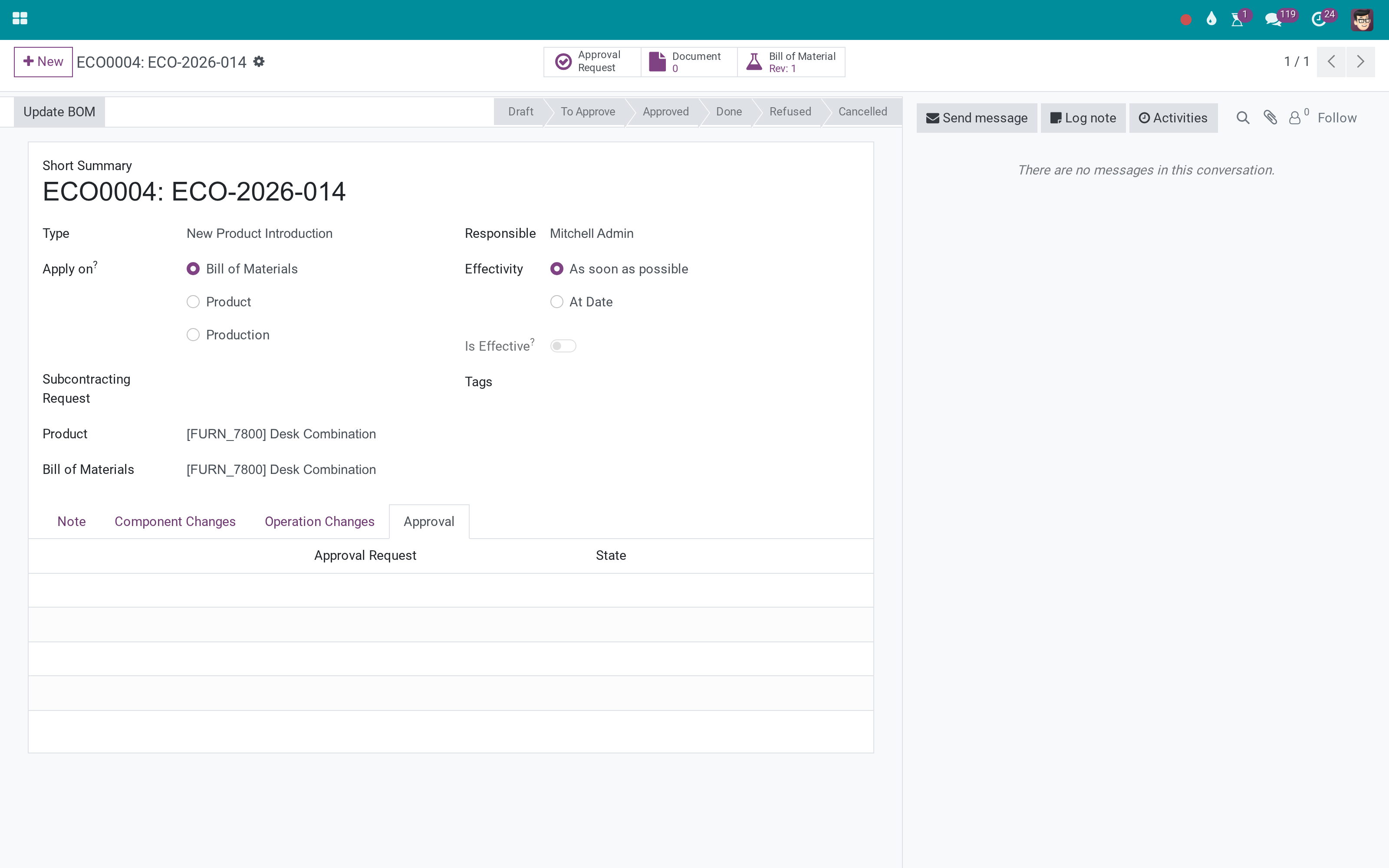
The ECO
Approval state and the request that governs it.
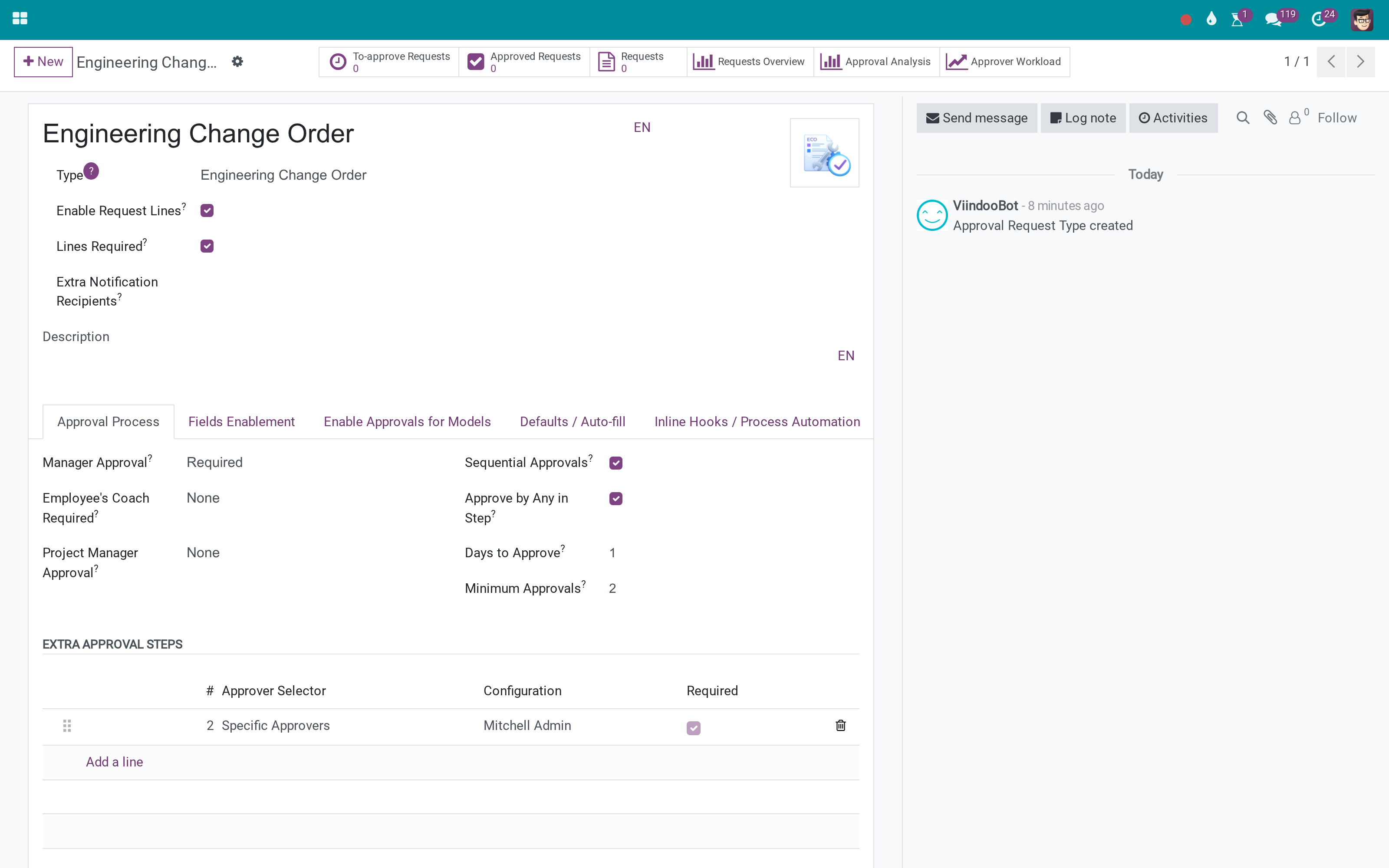
The type
Approvers, ECO fields on request and lines.
The types
One per company.
What You Get
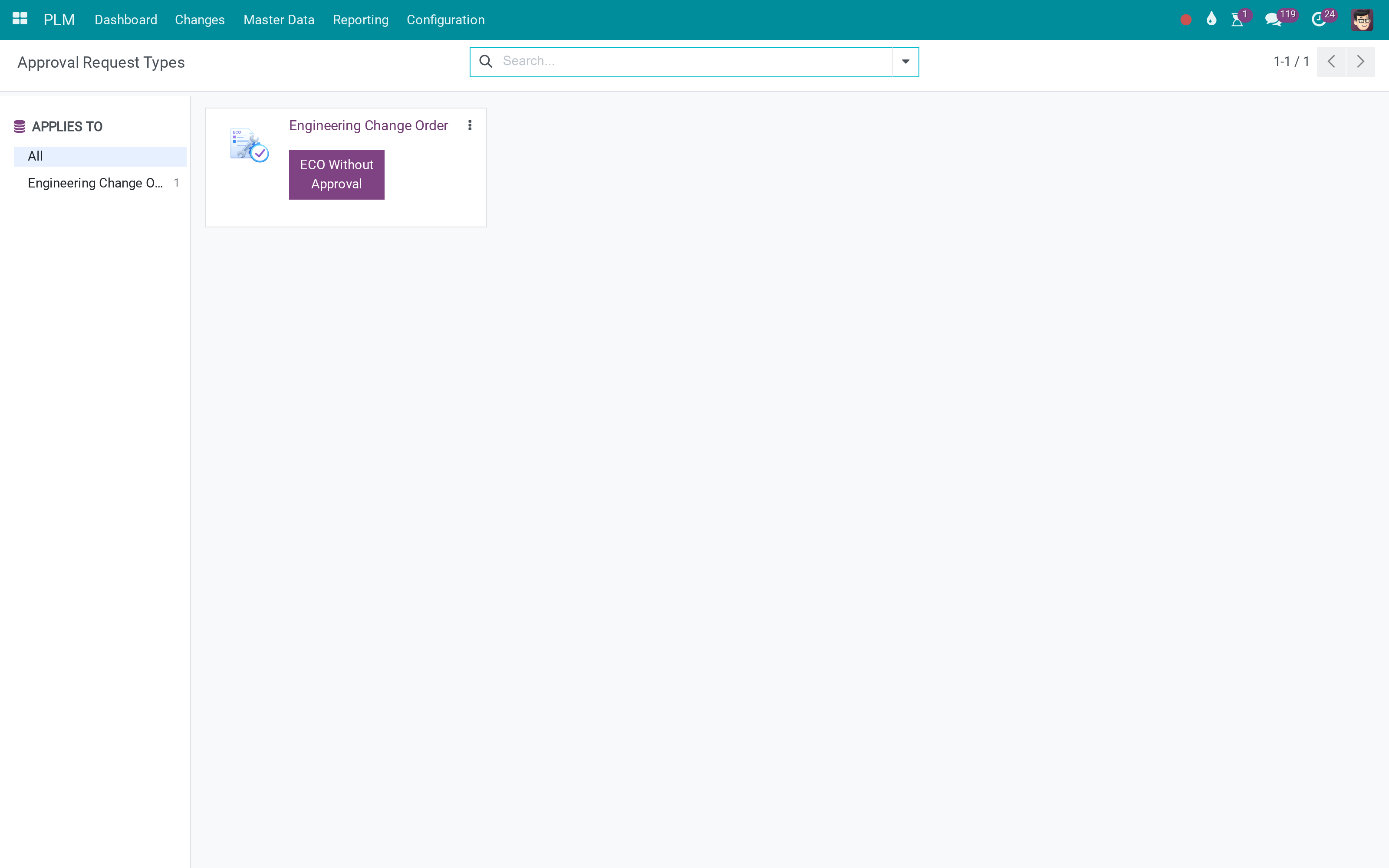
Seeded Engineering Change Order approval type per company
Approval state and Approval tab on the ECO
Create the request from the ECO; ECO on the request line
Done applies the BoM change; an ECO applied by hand is left as it is
Refuse or cancel returns the ECO
ECO field shown on request or lines, configurable with labels
More Screens
Everything below was taken on a database seeded with real business data, on this series - not a mock-up and not a screenshot from an older version.
Approval request types
What This App Does Not Do
Read this before you buy. Everything below is something the app deliberately leaves to another app or to you.
Start from an existing ECO, or map the ECO type on the approval type first.
Cancel to resubmit.
Install it and the behaviour is there.
Depends on viin_approval_mrp.
Works Well With
Apps from the same stack, built to fit this one:
Who Should Use OmniApproval™ - ECO Approvals?
Engineer
Submits the change for sign-off.
Engineering manager
Approves in the Approvals app.
Production
Sees on the ECO which approval covers a revision.
Auditor
Reads who approved which change.
Frequently Asked Questions
What does OmniApproval™ - ECO Approvals do?
An Engineering Change Order request type for OmniApproval: ECOs get an approval state, a request is created from the ECO, and the Done step of the request applies the BoM change unless it was already applied by hand.
What does OmniApproval™ - ECO Approvals not do?
Generating an ECO from a request needs its field mapping configured. Start from an existing ECO, or map the ECO type on the approval type first. One open request per ECO. Cancel to resubmit. Nothing to configure. Install it and the behaviour is there. Needs OmniApproval for MRP. Depends on viin_approval_mrp.
Who is OmniApproval™ - ECO Approvals for?
Engineer: Submits the change for sign-off. Engineering manager: Approves in the Approvals app. Production: Sees on the ECO which approval covers a revision. Auditor: Reads who approved which change.
Which Odoo version and editions does it support?
Odoo 18.0 - Odoo Community, Viindoo Cloud. Upgrades to a newer Odoo series are a separate purchase for that series.
What does it depend on?
It installs on top of: to_mrp_plm, viin_approval, viin_approval_mrp. Odoo installs them with it.
How do I set it up?
Draft the ECO; create the approval; apply from the Done step or by hand.
What works well with it?
Product Lifecycle (to_mrp_plm): The ECOs. OmniApproval (viin_approval): The engine. Flexible Approval Flow (viin_approval_flexible_flow): Add a reviewer mid-flight.
Can I try it before buying?
Yes - the Live Preview button at the top of this page opens the module's own screen on a working database.
How do I get support?
Write to apps.support@viindoo.com with your Odoo version and the technical name viin_mrp_plm_approval; pre-sales questions go to sales@viindoo.com.
See OmniApproval™ - ECO Approvals in Action
or use the Live Preview button at the top of this page
Need help with OmniApproval™ - ECO Approvals?
For questions, implementation support or a custom feature, contact Viindoo.
Pre-Sales & Partnership
sales@viindoo.comUpgrades to a newer Odoo series are a separate purchase for that series.
All Viindoo apps: Viindoo Apps
Technical Requirement
Changes log
0.1.2 - Latest on the 18.0 line
- Fix some error.
- Add request type icons.
- Add support for display_type in line.
- Delete required attribute for new approval request type fields.
- Improve migration logic for OmniApproval.
ECO Approvals
For engineers, approvers and administrators of the Approval and PLM apps.
Note
Extends PLM - see its documentation: to_mrp_plm.
Note
Extends Approval - see its documentation: viin_approval.
Overview
ECO Approvals lets a business have an engineering change order reviewed and signed off before it is applied. The engineer submits the ECO from its own form, the approver reviews it on an approval request, and marking the request as done applies the ECO.
The process runs in three stages:
- Submit - the engineer chooses Get Approved on the ECO and submits the request that is created.
- Review - the approver opens the request, checks it and approves or refuses it.
- Apply - when the approved request is marked as done, the ECO is applied.
| Role | What they do | Access right to assign |
|---|---|---|
| Engineer | Prepares the ECO, submits it for approval and follows the request. | PLM: User |
| Approver | Reviews the request and approves or refuses it. | Approval: Team Approver or Officer |
| Approval administrator | Maintains the Engineering Change Order approval type and approves when no manager can. | Approval: Administrator |
Setup (for the Administrator)
Installation
- Open Apps, search for ECO Approvals and click Install. The PLM and Approval apps are installed with it.
- An approval type named Engineering Change Order is created for each company. Open Approval ‣ Configuration ‣ Approval Types to review it. The request goes first to the manager of the employee who submits it.
Assigning access rights
- Open Settings ‣ Users & Companies ‣ Users and select a user.
- Give engineers the User right of PLM, and approvers the Team Approver or Officer right of Approval.
- Give everyone who marks a request as done the PLM User right as well: the ECO is applied on behalf of the person who marks the request as done, so that person must be allowed to change ECOs.
Engineer: submit an ECO for approval
Request approval
Open PLM ‣ Changes ‣ Engineering Change Orders and select an ECO.
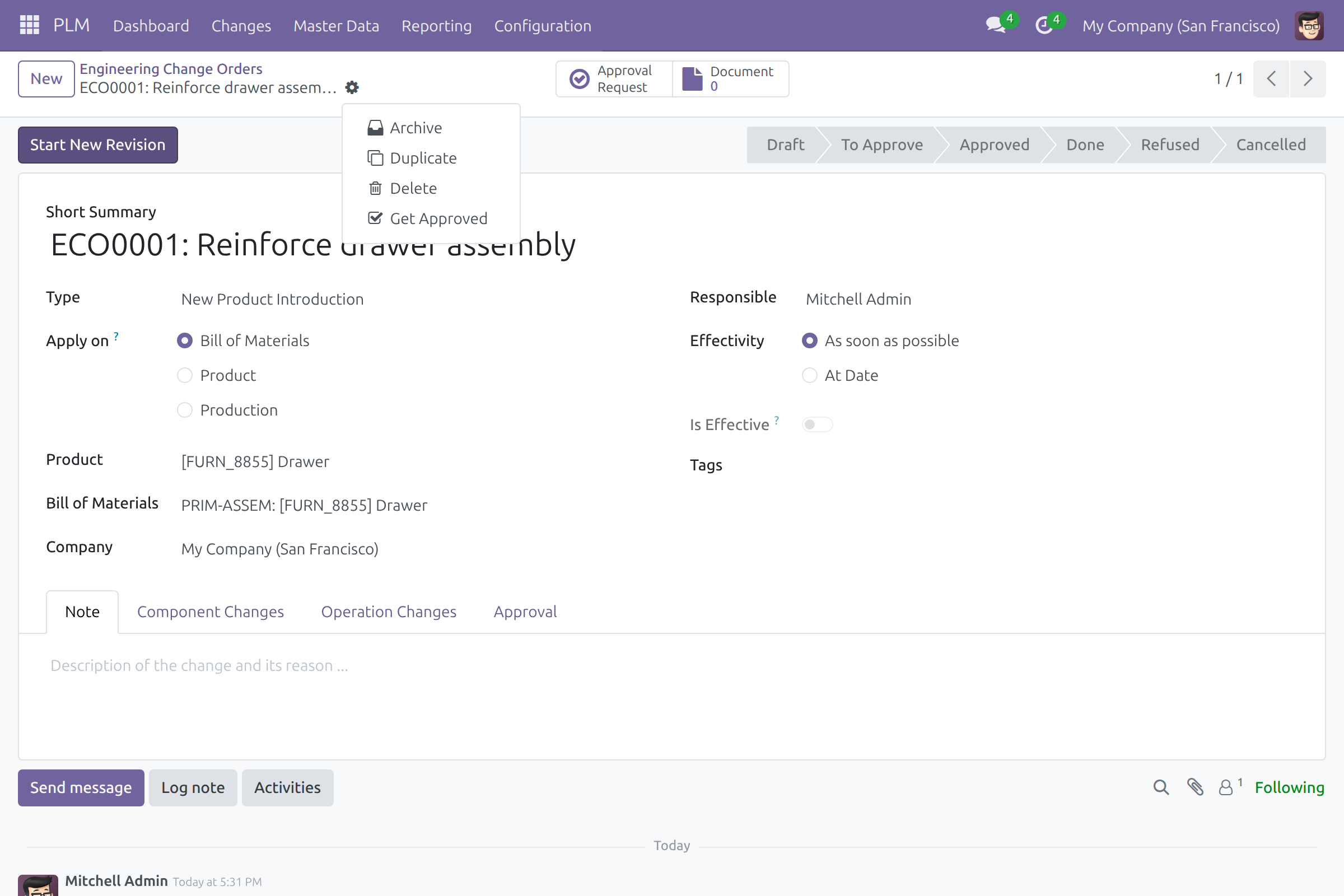
Click the gear icon next to the ECO name and choose Get Approved.
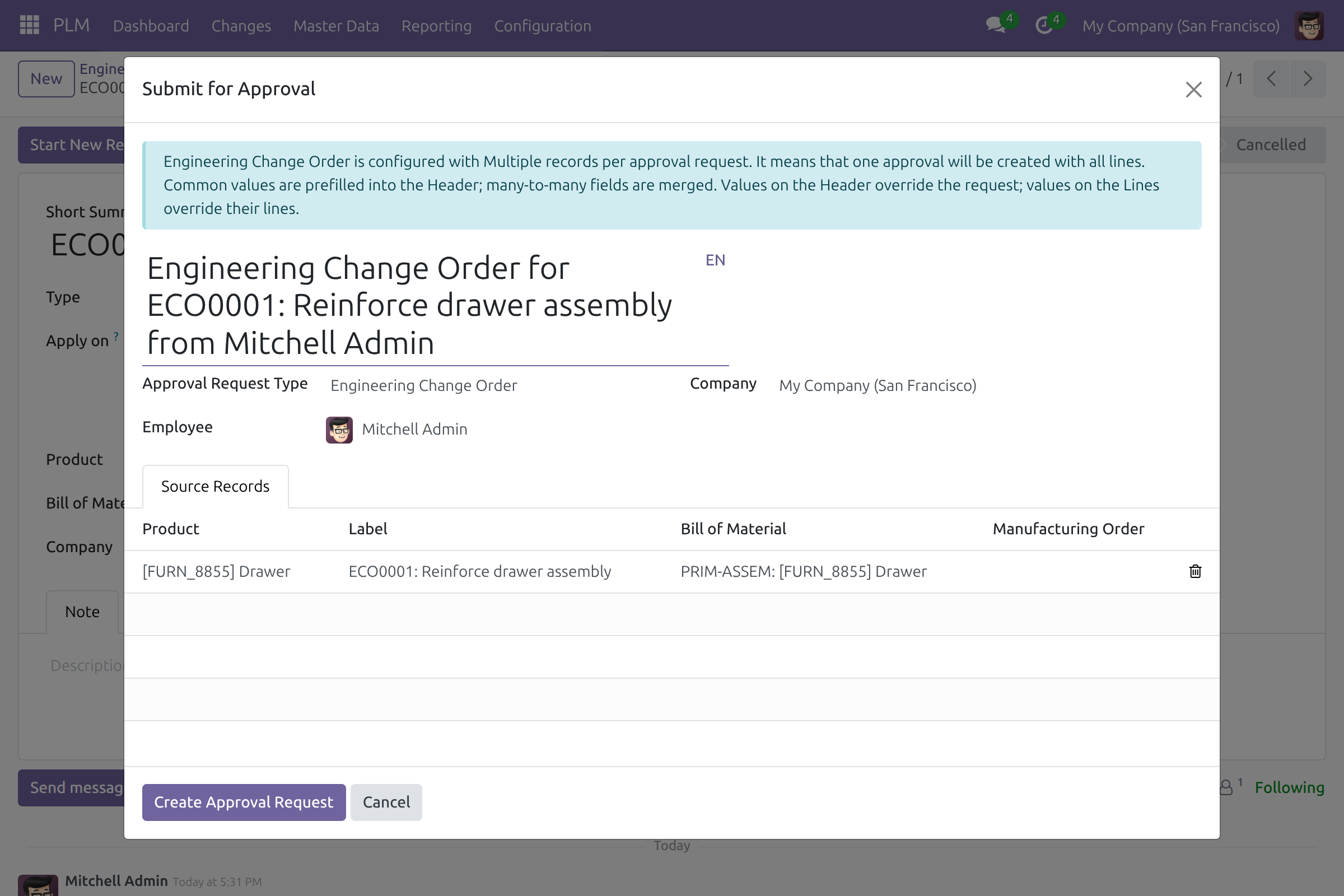
In the Submit for Approval window, keep the Engineering Change Order request type and click Create Approval Request.
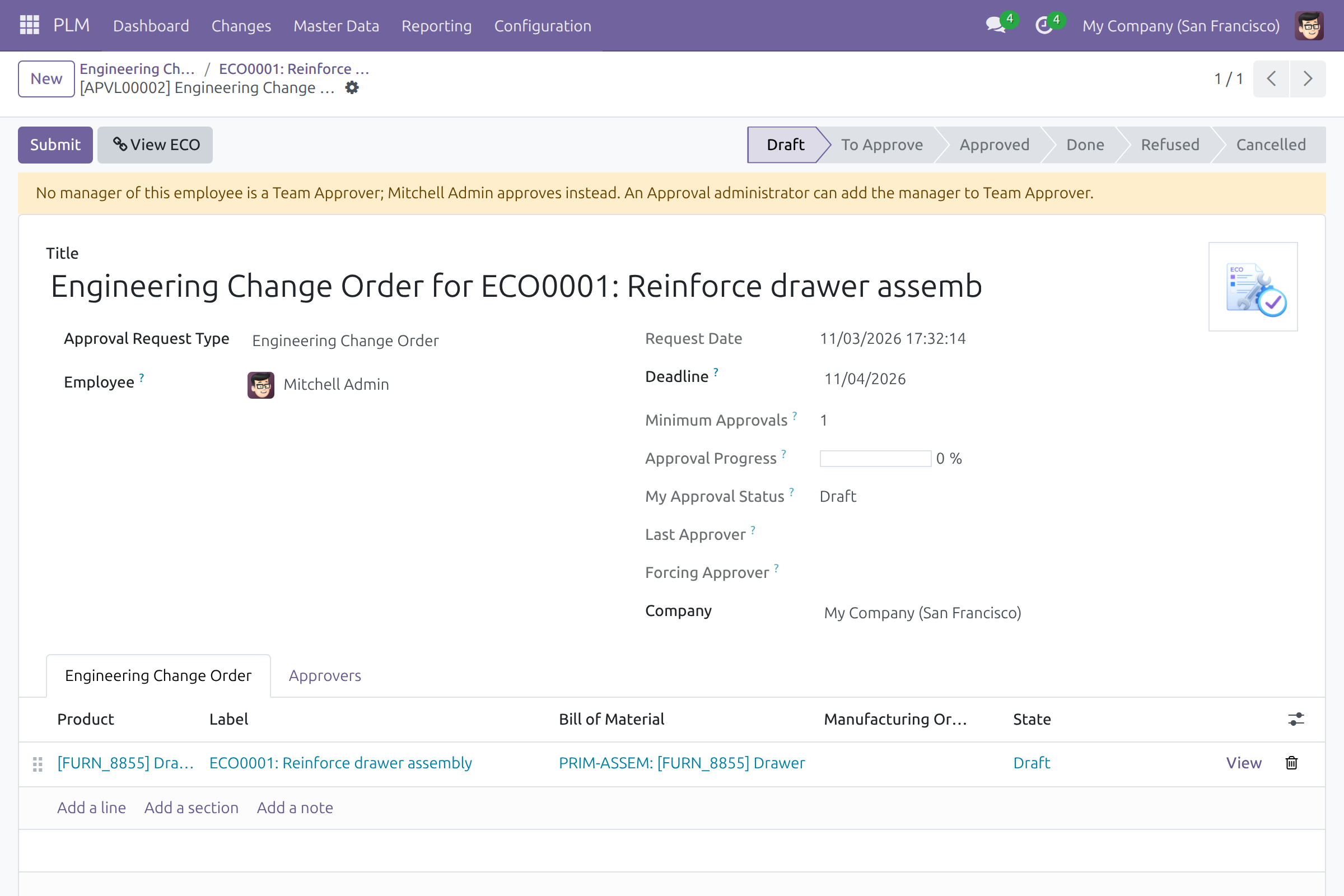
The request opens in Draft. It lists the ECO with its product, label, bill of materials and manufacturing order. The View ECO button returns to the ECO.
Submit the request
Check the ECO on the request and the approvers on the Approvers tab.
Click Submit. The request moves to To Approve and the approvers can act on it.
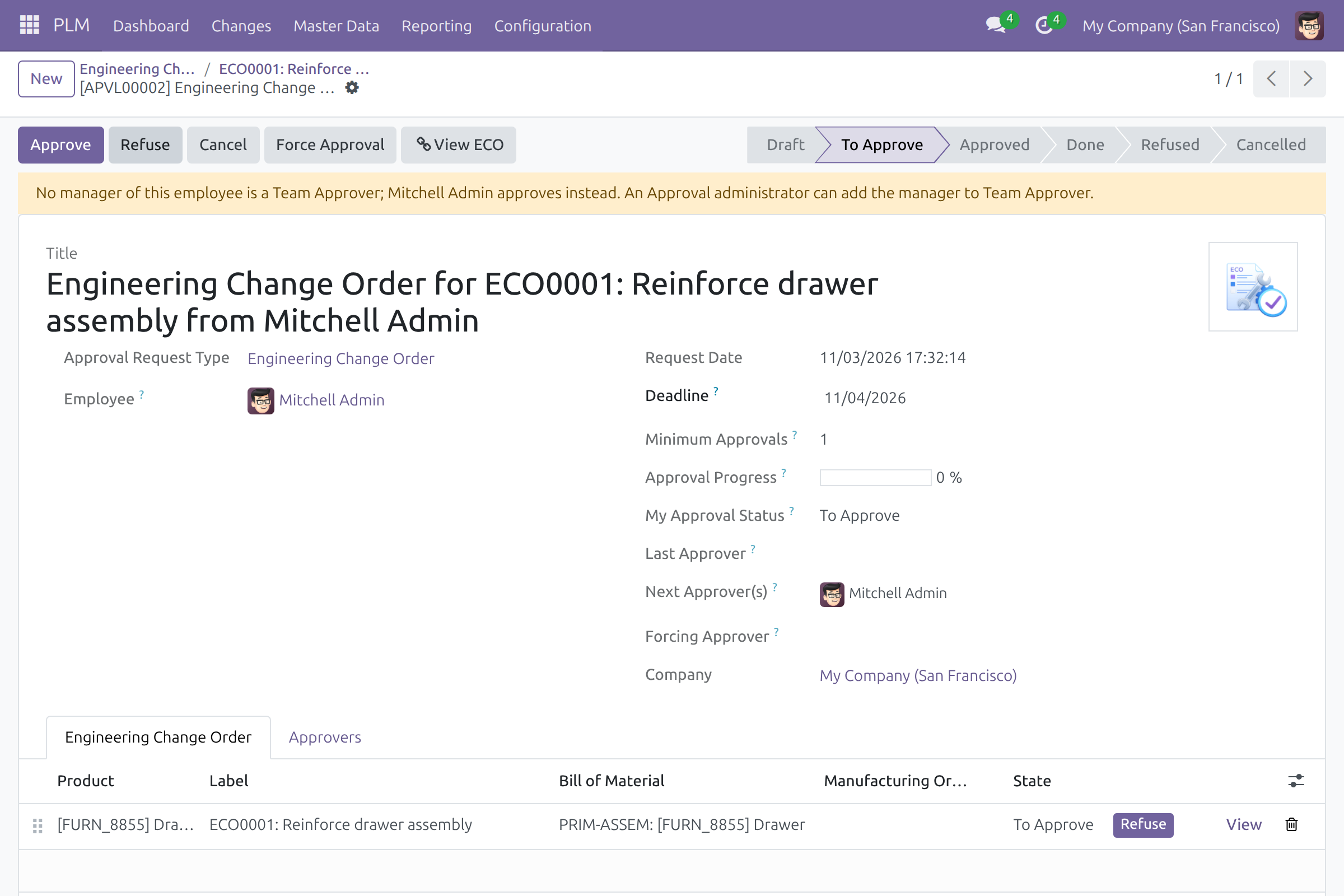
The request goes first to the manager of the employee. When that manager is not a Team Approver, the request shows a warning and an approval administrator approves instead.
Follow the outcome
The status bar of the ECO shows the state of its request, and the Approval Request button and the Approval tab open the requests of the ECO. Every decision is recorded on the request.
Approver: review and decide
Open Approval ‣ Approval Request ‣ Request and select the request in To Approve.
Review the ECO on the request.
Click Approve to sign off, or Refuse to reject the request.
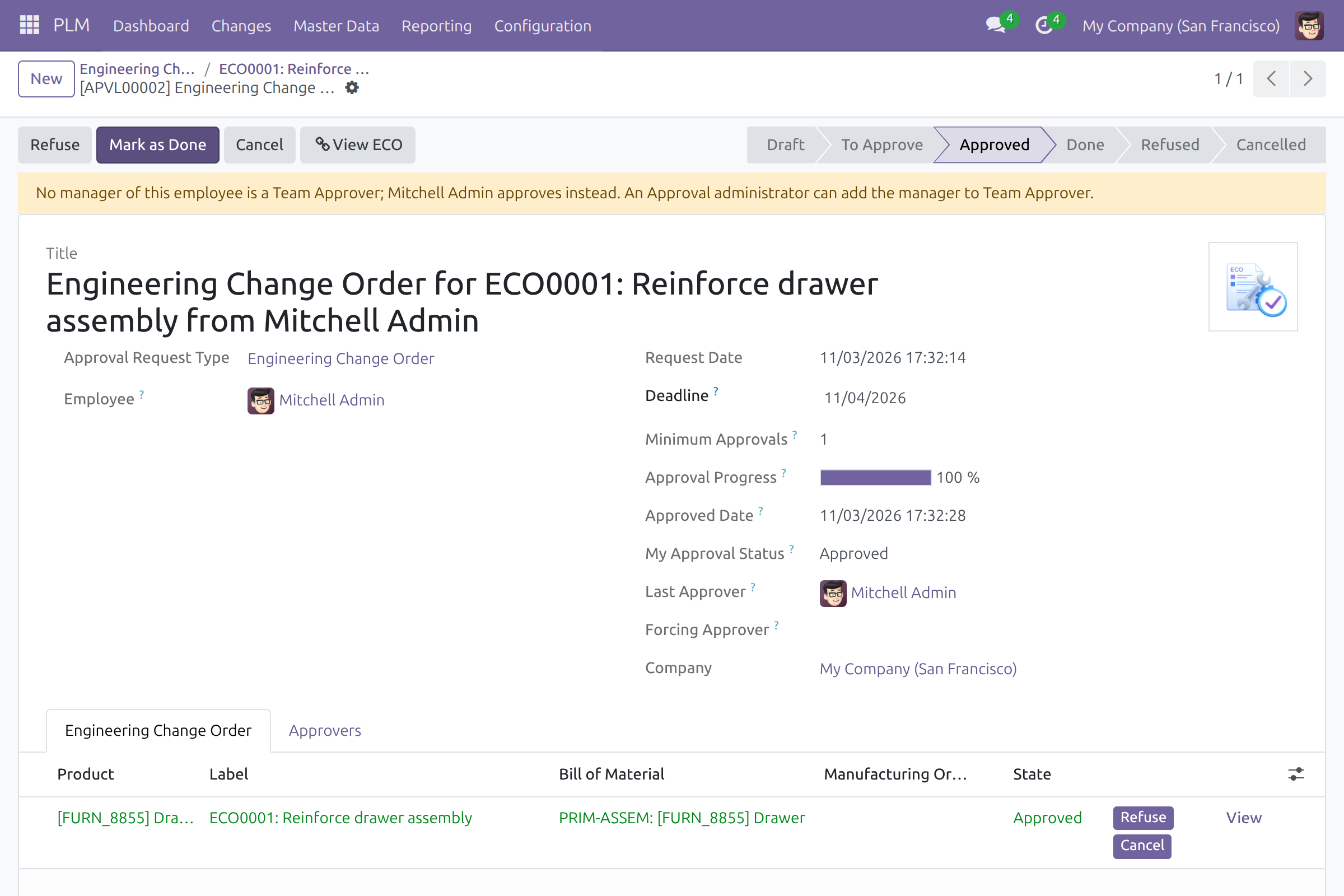
When the last required approval is given, the request moves to Approved and the ECO shows the Fully Approved ribbon. The ECO is not applied yet.
Apply the ECO
The approval administrator, the person who submitted the request, or the approving manager clicks Mark as Done on the approved request. The request moves to Done and the ECO is applied in the same step.
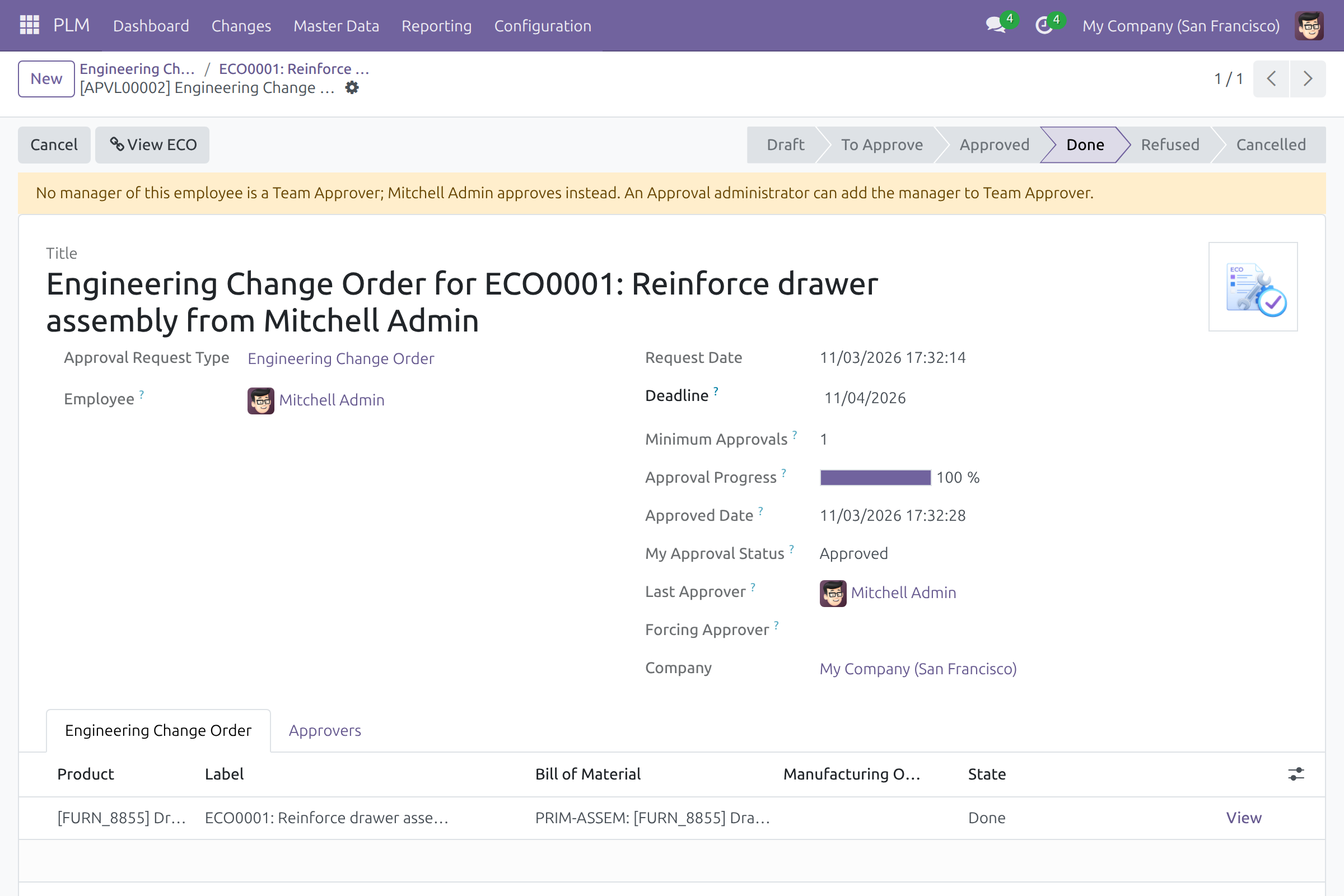
The ECO now shows Done in its status bar and is marked Is Effective. An ECO that was already applied by hand is left as it is.
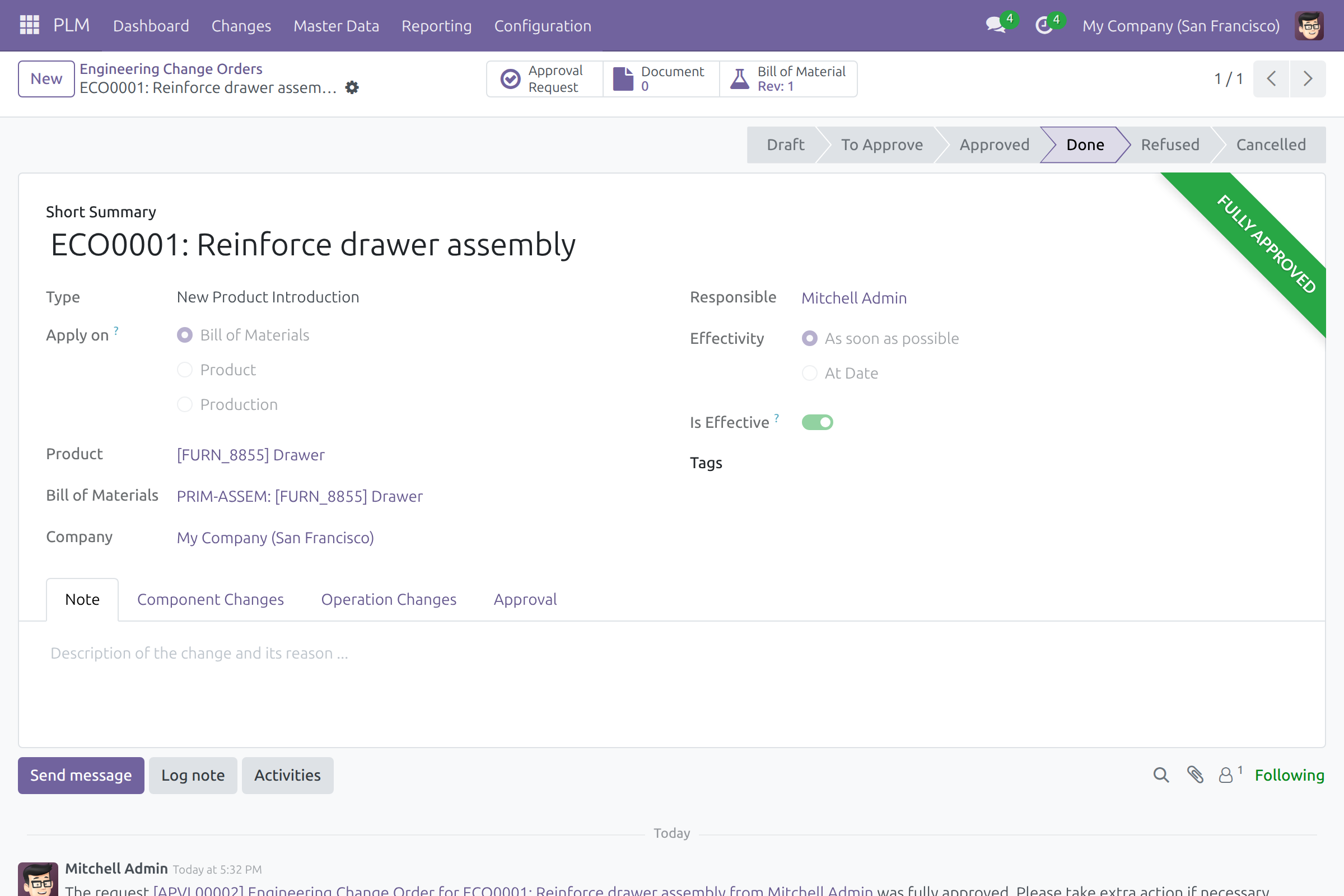
The ECO stays as it is in these cases:
- The request is refused, cancelled or set back to draft: the ECO is not changed and can still be applied by hand.
- The request is approved but not yet done: the ECO is not applied.
Working on the ECO while a request exists
The Start New Revision and Apply Changes buttons of the ECO stay available whatever the state of its request, so engineers can prepare the revision while the request is pending or approved.
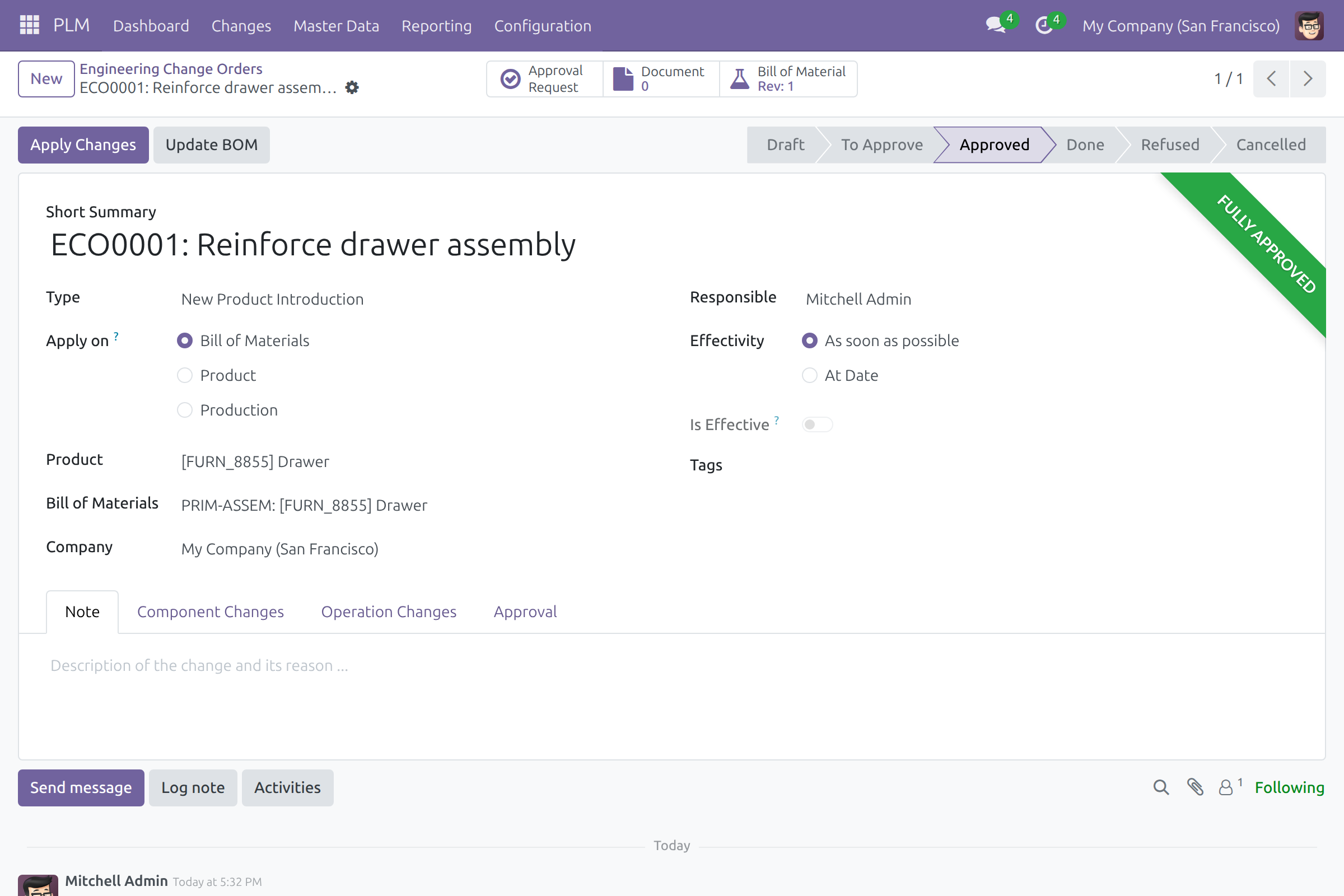
When someone applies the ECO by hand while its request is still pending, a note is added to the request so the reviewers see it.
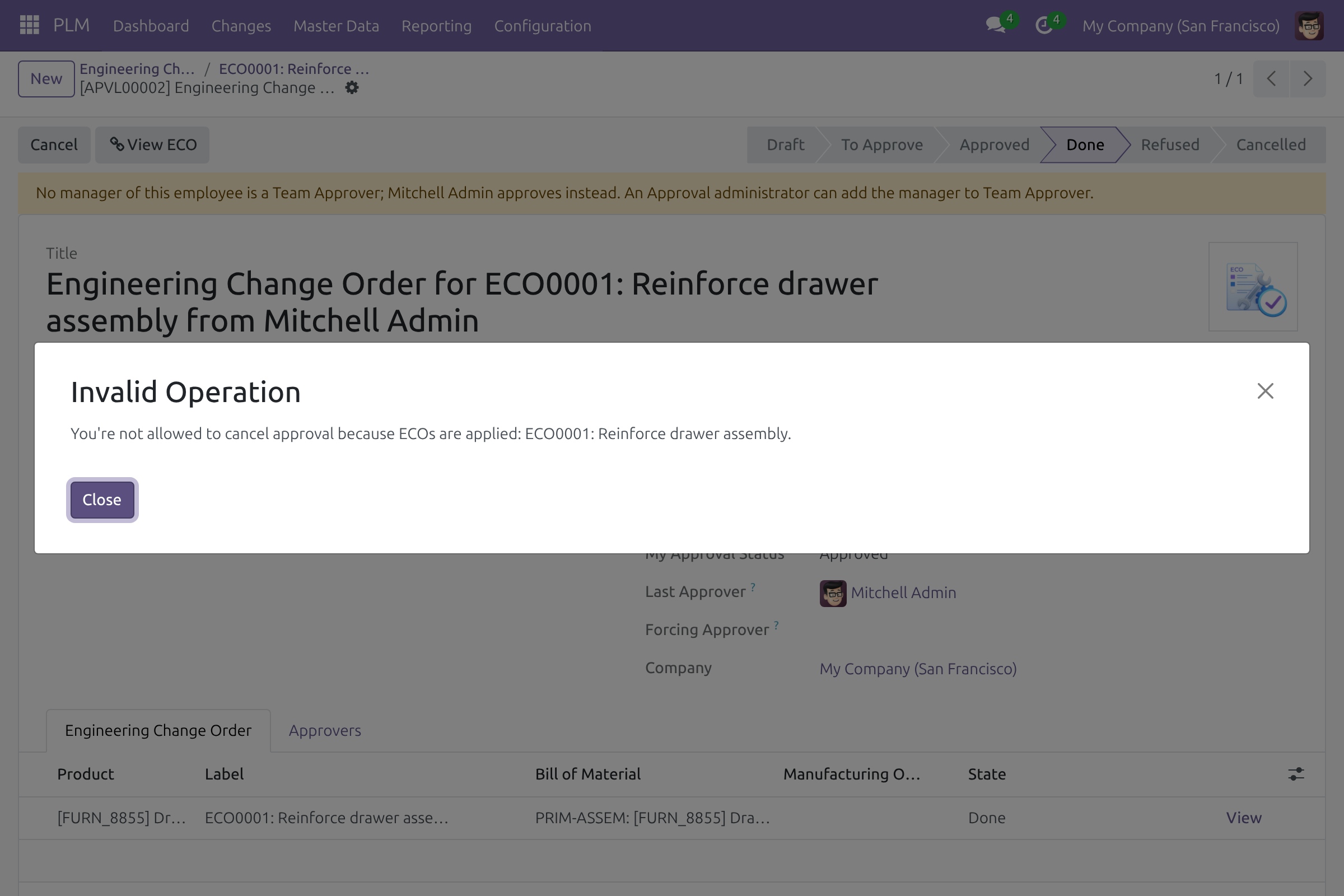
Once the ECO is applied, its request cannot be cancelled: the Cancel button of the request shows a message that names the applied ECO.
If the ECO is deleted, its approval request is kept and a note explains that the ECO no longer exists.
This software and associated files (the "Software") may only be used (executed, modified, executed after modifications) if you have purchased a valid license from the authors, typically via Odoo Apps, or if you have received a written agreement from the authors of the Software (see the COPYRIGHT file).
You may develop Odoo modules that use the Software as a library (typically by depending on it, importing it and using its resources), but without copying any source code or material from the Software. You may distribute those modules under the license of your choice, provided that this license is compatible with the terms of the Odoo Proprietary License (For example: LGPL, MIT, or proprietary licenses similar to this one).
It is forbidden to publish, distribute, sublicense, or sell copies of the Software or modified copies of the Software.
The above copyright notice and this permission notice must be included in all copies or substantial portions of the Software.
THE SOFTWARE IS PROVIDED "AS IS", WITHOUT WARRANTY OF ANY KIND, EXPRESS OR IMPLIED, INCLUDING BUT NOT LIMITED TO THE WARRANTIES OF MERCHANTABILITY, FITNESS FOR A PARTICULAR PURPOSE AND NONINFRINGEMENT. IN NO EVENT SHALL THE AUTHORS OR COPYRIGHT HOLDERS BE LIABLE FOR ANY CLAIM, DAMAGES OR OTHER LIABILITY, WHETHER IN AN ACTION OF CONTRACT, TORT OR OTHERWISE, ARISING FROM, OUT OF OR IN CONNECTION WITH THE SOFTWARE OR THE USE OR OTHER DEALINGS IN THE SOFTWARE.