
Quality Control IoT for Manufacturing
by Viindoo
| Lines of Code | 699 |
| Technical name | viin_iot_quality_mrp |
| License | OPL-1 |
| Website | https://viindoo.com/apps/modules/18.0/viin_iot_quality_mrp |
| Read description for | v 17.0 |
| Required Apps | Manufacturing (mrp) Discuss (mail) Inventory (stock) |
| Included Dependencies | Manufacturing Quality Control Stock Quality Control Quality Internet Of Things IoT Manufacturing IoT Quality |
| Extensions | IoT Shop Floor Quality |

Every work-order measurement, read from the scale at the operator's own station
For manufacturers running quality control on work orders across several work centers
Read a work-order quality check's measurement from the scale on that order's own work center.
Extends viin_iot_mrp - see its documentation.
Extends viin_iot_quality - see its documentation.
Is this you?
A quality check on a work order reads from the control point's instrument, which may be at a different station, or may not exist.
Operators have to pick the right scale from a list, and the wrong pick goes into the record.
An order moves to another work center and someone has to reconfigure its checks by hand.
The quality team sets control points once, yet cannot be sure which instrument each order really used.
What you get instead
A reading from the wrong station
→ The check reads from the scale nominated on the order's own work center
Operators choosing an instrument
→ No dropdown and no choice: the instrument at the operator's station is the only one used
Reconfiguring when an order moves
→ Move the order to another work center and its checks read from that center's scale at once
Work centers without a scale
→ The check falls back to the control point's instrument, as IoT Quality alone does
How it works
Production Manager nominates a scale on each work center, once.
Quality Inspector opens a quality check on a work order, presses Measure and then Read from instrument.
The reading comes from the scale nominated on the order's work center. The check is then recorded as Passed or Failed.
Key Features
Work-order measurement reads the work center's own scale
A measure check on a work order reads from the scale at the operator's own station, with no dropdown and no choice, so a reading never comes from a different station's instrument.
Fallback to the control point's instrument
A work center with no nominated scale, a check not on a work order, or a non-Measure check behaves exactly as IoT Quality alone, so installing the bridge never breaks existing setups.
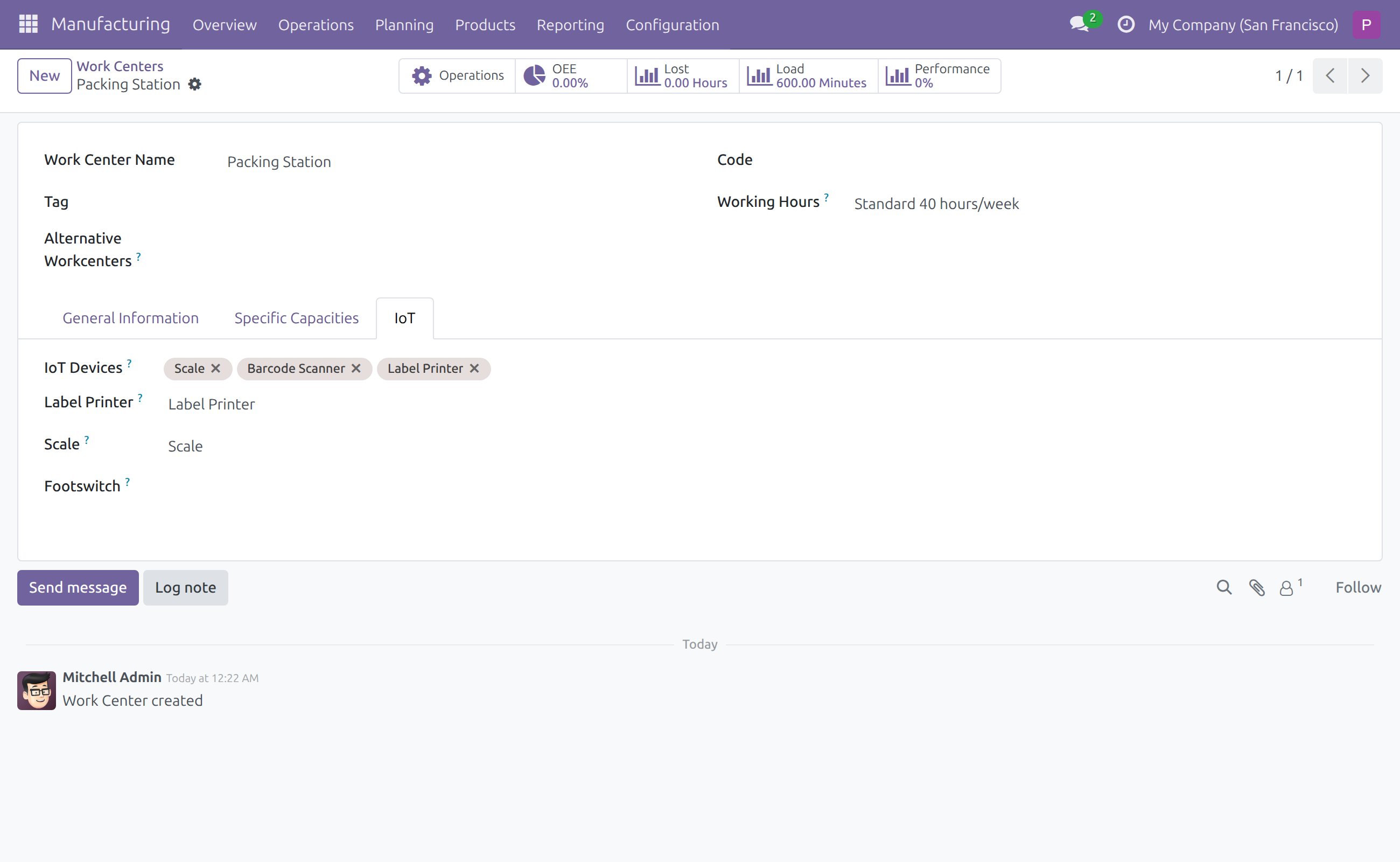
Nominate a scale on the work center
One-time setup that tells every work-order measurement at this station which scale to read. It lives on the work center form, in the IoT tab. The scale must already be connected to its box: pair the box as the chapter Setting up an IoT box of the IoT documentation describes.
Switch it on or off by hand
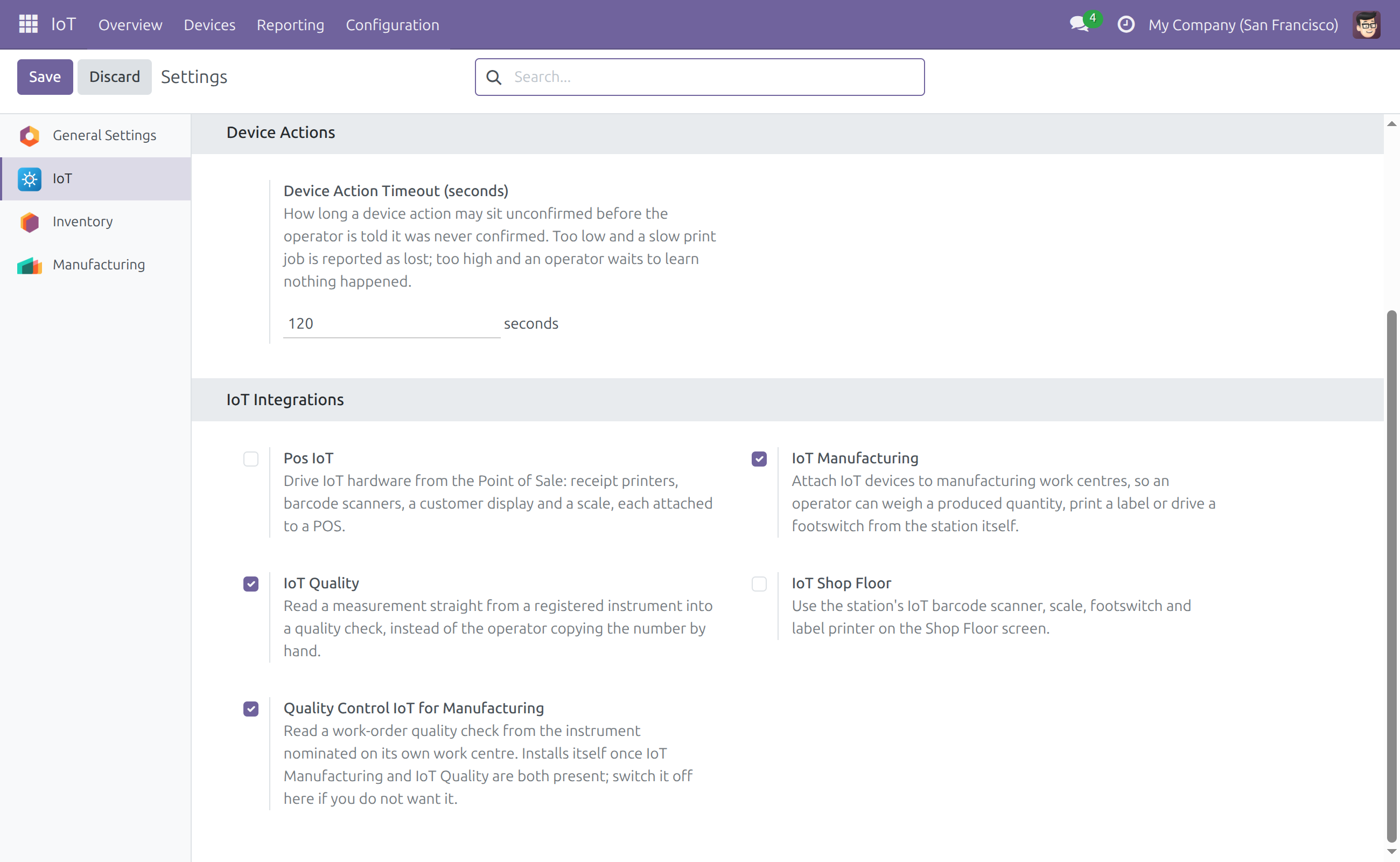
An administrator can check whether the bridge is active, and switch it on or off, under IoT > Configuration > Settings, in IoT Integrations. It also installs itself once IoT Manufacturing, IoT Quality and Manufacturing Quality Control are all present.
Who it is for
Plant or operations manager
Wants quality readings that belong to the station where the work happens, so results can be trusted.
Quality Manager
Sets a control point once, with a fallback instrument for stations without a scale, and does not chase operators about instruments.
Quality Inspector and Production Manager
The inspector presses Measure and reads from the scale at their own station; the production manager nominates that scale once per work center.
System Administrator
Installs the apps and the bridge follows by itself, with nothing more to set up.
Best for: manufacturers that run quality checks on work orders across several work centers, each with its own scale.
Nominate the scale on each work center
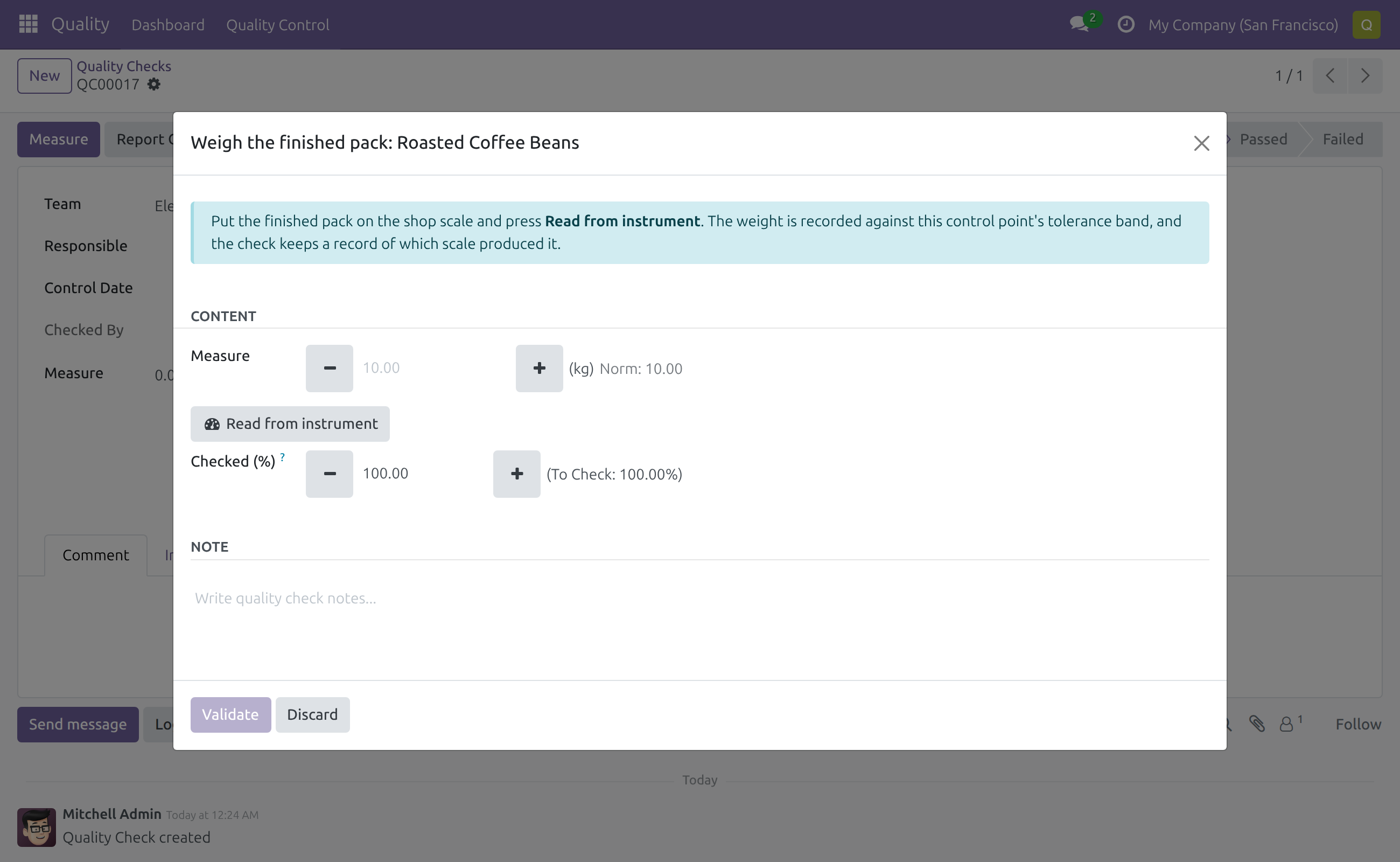
Measure on a work order, no instrument to choose
The reading arrives from the station's own scale
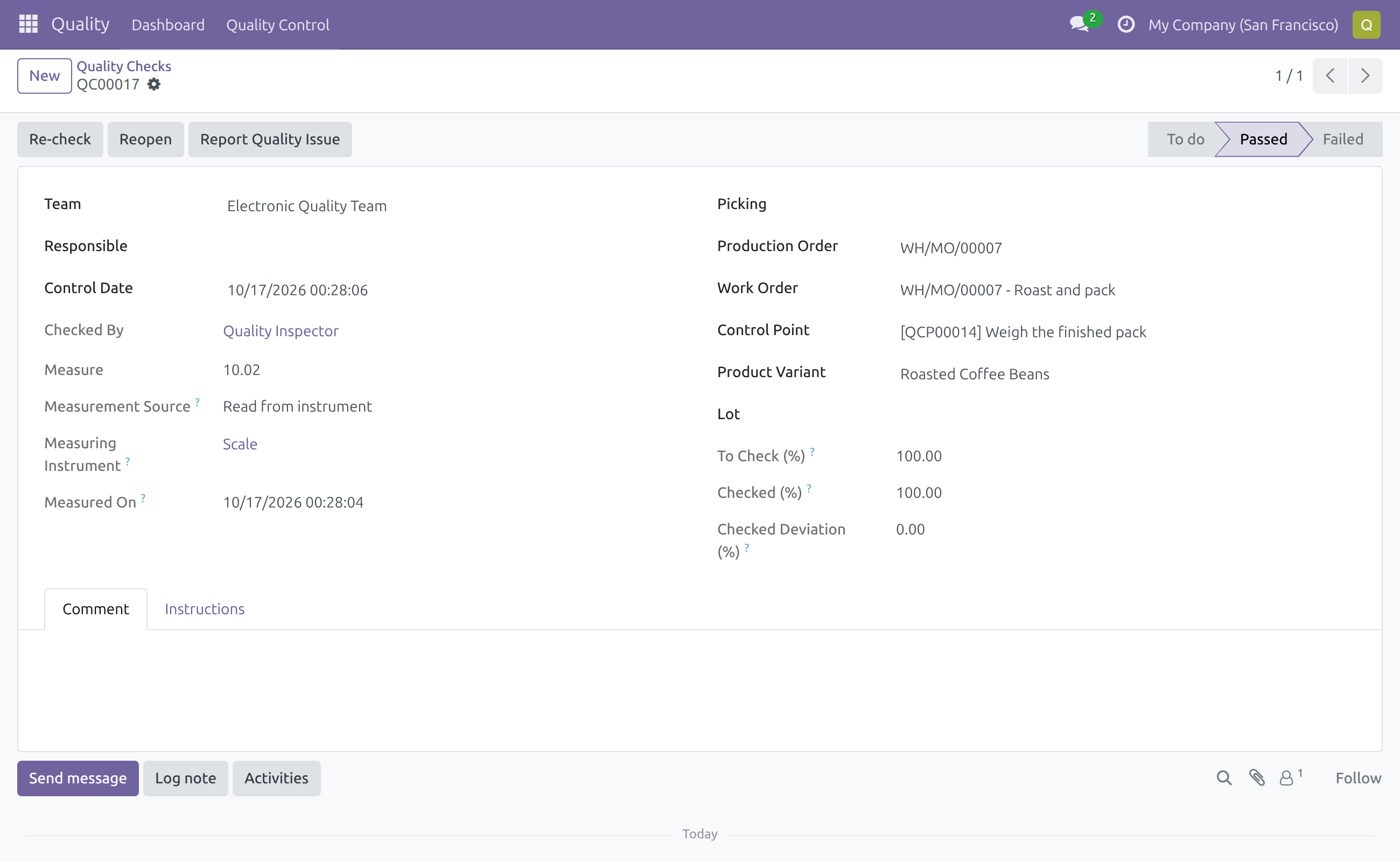
See which instrument took the measurement
Keep a fallback instrument on the control point
Switch the bridge on or off
Frequently Asked Questions
Do all our work centers need a scale?
No. A work center without a nominated scale falls back to the control point's instrument.
Does it change quality checks that are not on a work order?
No. They behave exactly as IoT Quality alone.
Is there extra setup?
Nominate the scale on each work center once. The bridge itself has no menu, view or settings of its own.
What if a reading cannot be taken?
Follow the guidance of IoT Quality: type the value by hand, and it is stamped as manual. If the scale or its box shows as disconnected, pair the box again as the chapter Setting up an IoT box of the IoT documentation describes.
Need help with Quality Control IoT for Manufacturing?
Pre-Sales & Partnership
apps.support@viindoo.comTechnical Support
apps.support@viindoo.comTechnical Requirement
- Editions: Odoo Community, Viindoo Cloud
- Required modules: viin_iot_mrp, viin_iot_quality, to_quality_mrp
- License: OPL-1
Quality Control IoT for Manufacturing
Note
Extends IoT Manufacturing - see its documentation.
Note
Extends IoT Quality - see its documentation.
A quality check that belongs to a work order is carried out at a station, but without this module it would read its measurement from the instrument named on the control point, which may stand at a completely different station. Quality Control IoT for Manufacturing makes the check read from the scale that the work center of the work order has nominated. The inspector at the station has nothing to choose: the scale next to them is the one that is read.
The module adds no menu, no screen and no setting of its own. Everything else about taking a reading - one fresh reading per click, the refusal of a zero or unstable weight, the record of who read what and when - works as described in the guide of IoT Quality and is not repeated here.
Overview
The process
- To do - the Quality Inspector opens a check of a work order, clicks Measure and then Read from instrument. The reading comes from the scale of the work order's work center. The check stays with the same person for the verdict.
- Passed / Failed - the Quality Inspector confirms. The tolerance of the control point decides whether the check is Passed or Failed.
Who uses this module
| Role | What they do | Access right to assign |
|---|---|---|
| System Administrator | Installs the IoT apps, pairs the boxes (see the chapter Setting up an IoT box of the IoT documentation) and can switch this module on or off. | Administration / Settings |
| Production Manager | Nominates the scale of each work center, so that work-order measurements read from the right station. | Manufacturing / Administrator (it brings Internet of Things (IoT) / User with it) |
| Quality Manager | Sets up the control points, including the instrument a check falls back to when its work center has no scale. | Quality / Administrator |
| Quality Inspector | Takes the measurements on the quality checks, including the checks of work orders. | Quality / User |
Setup (for the System Administrator)
Installation
The module installs itself as soon as IoT Manufacturing, IoT Quality and the quality control of the Manufacturing application are all installed. It has no menu and no app icon of its own.
- Open Apps.
- Install IoT Manufacturing, IoT Quality and Manufacturing Quality Control if they are not installed yet.
- Open IoT ‣ Configuration ‣ Settings and, under IoT Integrations, check that Quality Control IoT for Manufacturing is switched on. Switch it off to remove the module.
The module has no settings of its own.
Give each person their access right
- Open Settings ‣ Users & Companies ‣ Users and open the person.
- Under Quality, choose Quality / Administrator for a Quality Manager or Quality / User for a Quality Inspector.
- Under Manufacturing, choose Administrator for each Production Manager who nominates scales. It brings Internet of Things (IoT) / User with it; Manufacturing / User cannot change a work center.
A Quality Inspector needs no IoT access right to read from the scale of the station.
Production Manager: nominate the scale of a work center
Do this once for every station where measurements are taken.
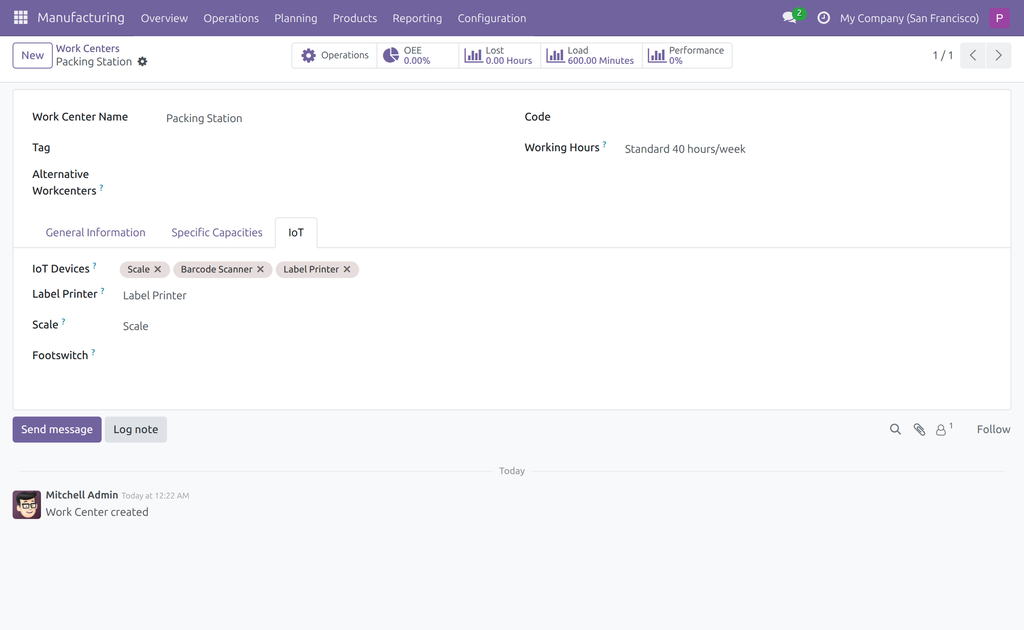
- Open Manufacturing ‣ Configuration ‣ Work Centers and open the work center.
- Go to the IoT page.
- In IoT Devices, add the scale that stands at this station. The scale must already be connected to its box: to pair a box and connect its devices, follow the chapter Setting up an IoT box of the IoT documentation.
- In Scale, choose that scale.
- Save.
From now on every Measure check of a work order that runs at this work center reads from this scale. If you choose another scale later, the next reading comes from the new one.
A work center that has devices attached but no Scale chosen does not count as having a scale: the module never guesses among several attached devices.
Quality Manager: set up the control points
Control points are set up as described in the guide of IoT Quality. Two things matter for work orders.
Name a fallback instrument
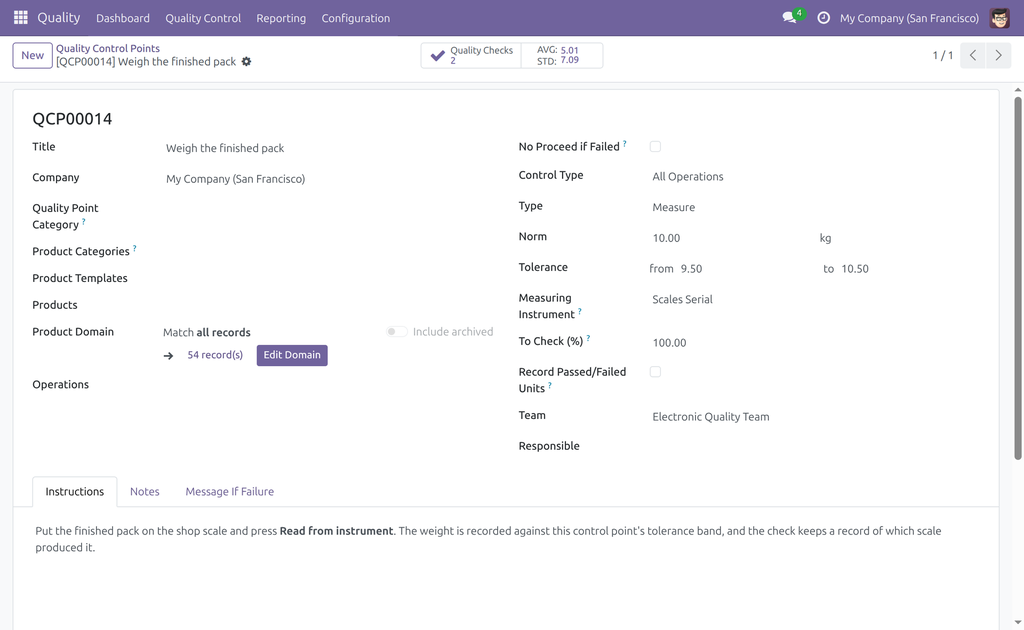
- Open Quality ‣ Quality Control ‣ Quality Controls ‣ Control Points and open the control point, or click New.
- Set Type to Measure.
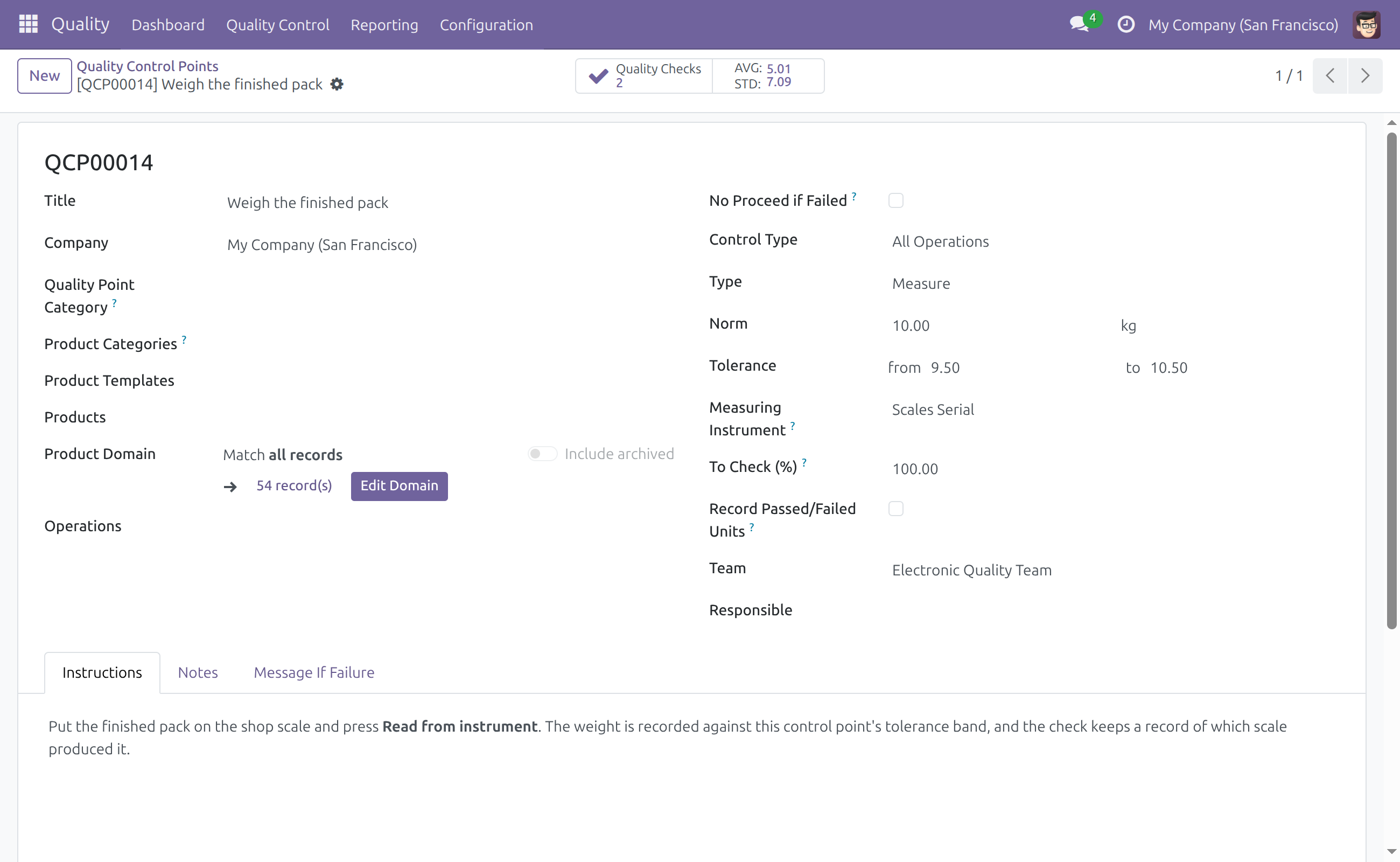
- In Measuring Instrument, pick the scale to use when the check has no work center scale to read from.
- Save.
The instrument of the control point is read only in these cases: the check is not on a work order, or the work center of the work order has no scale chosen. When both exist for a work-order check, the scale of the work center wins, even if the control point names a different one.
Control points for station operators
Leave Responsible empty for control points that are performed by station operators. The check is then open to whoever works at the station, instead of waiting for one named person.
Quality Inspector: measure on a work order
Read the weight from the station's scale
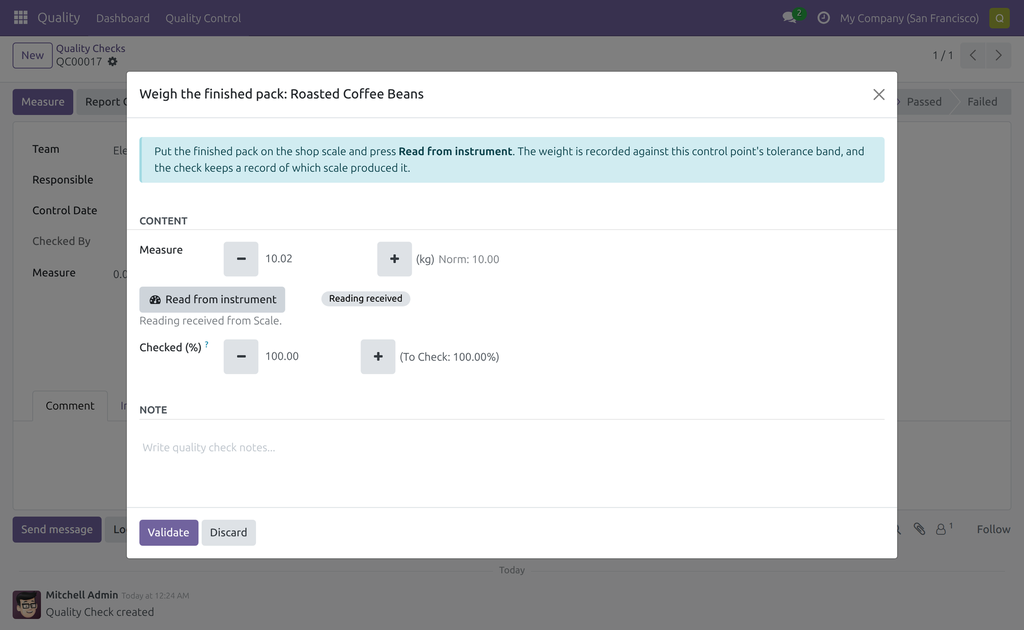
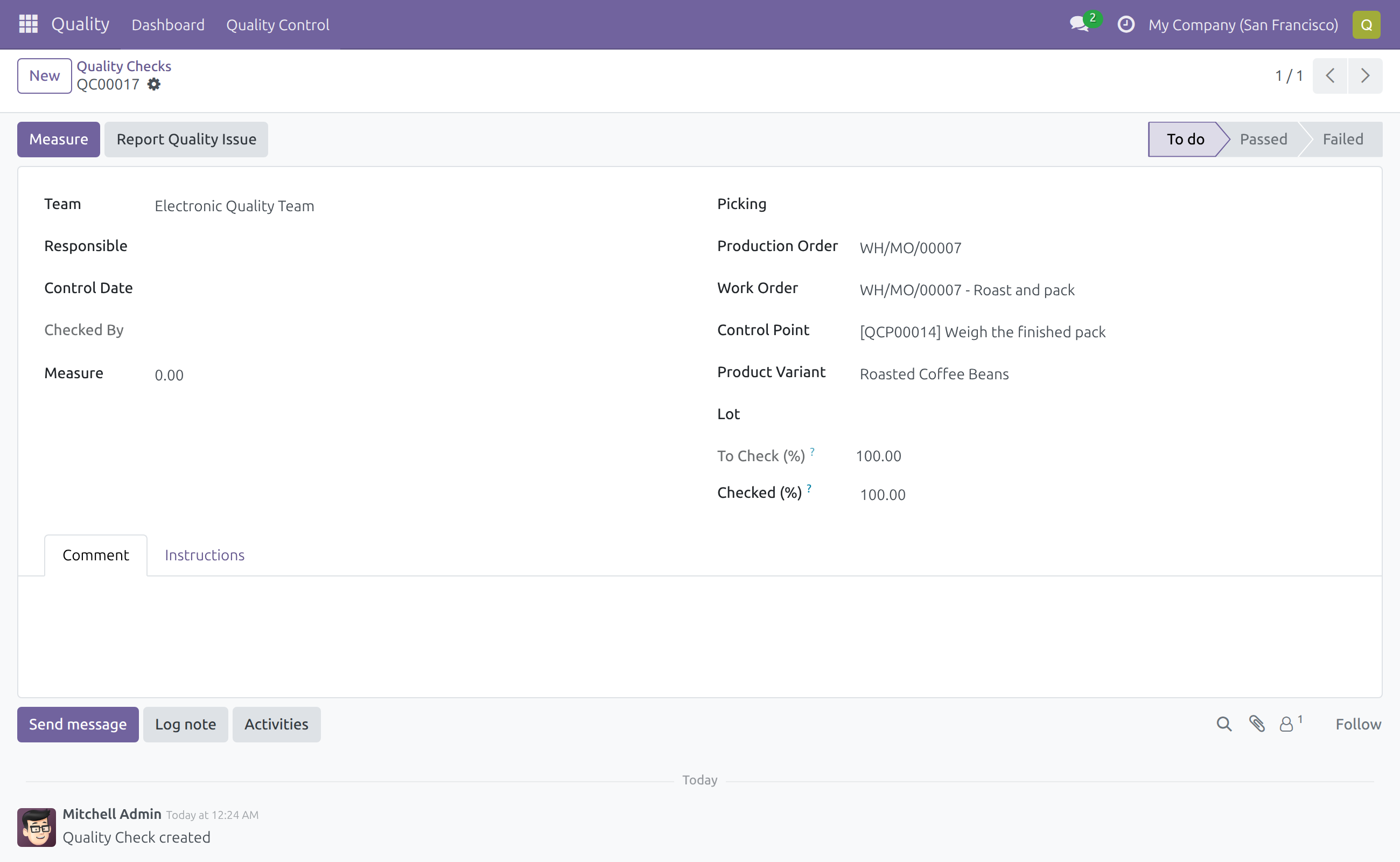
- Open Quality ‣ Quality Control ‣ Quality Controls ‣ Quality Checks and open a check of a work order whose type is Measure. The Work Order field of the check tells you which one it is.
- Click Measure.
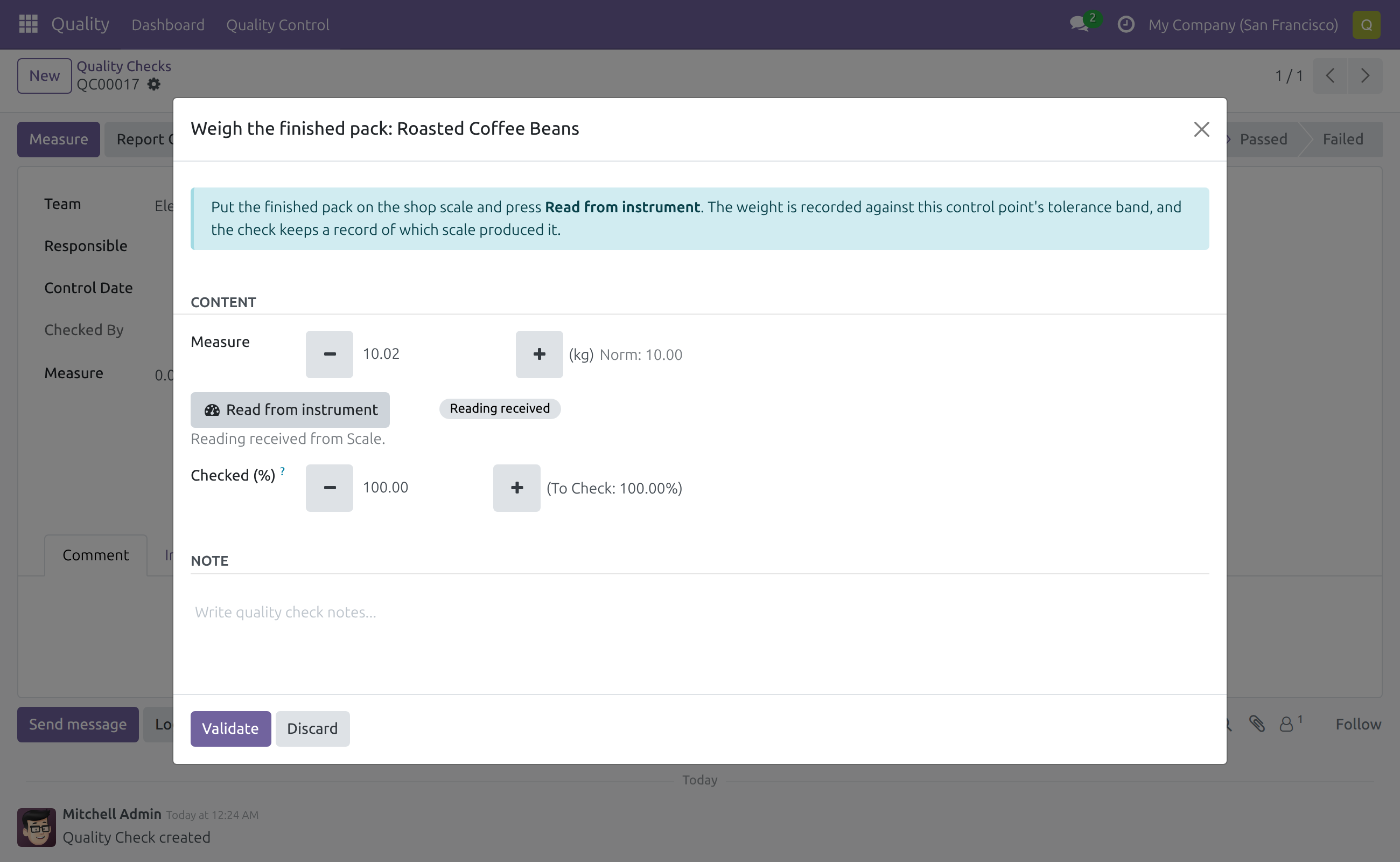
- Put the item on the scale of the station and click Read from instrument.
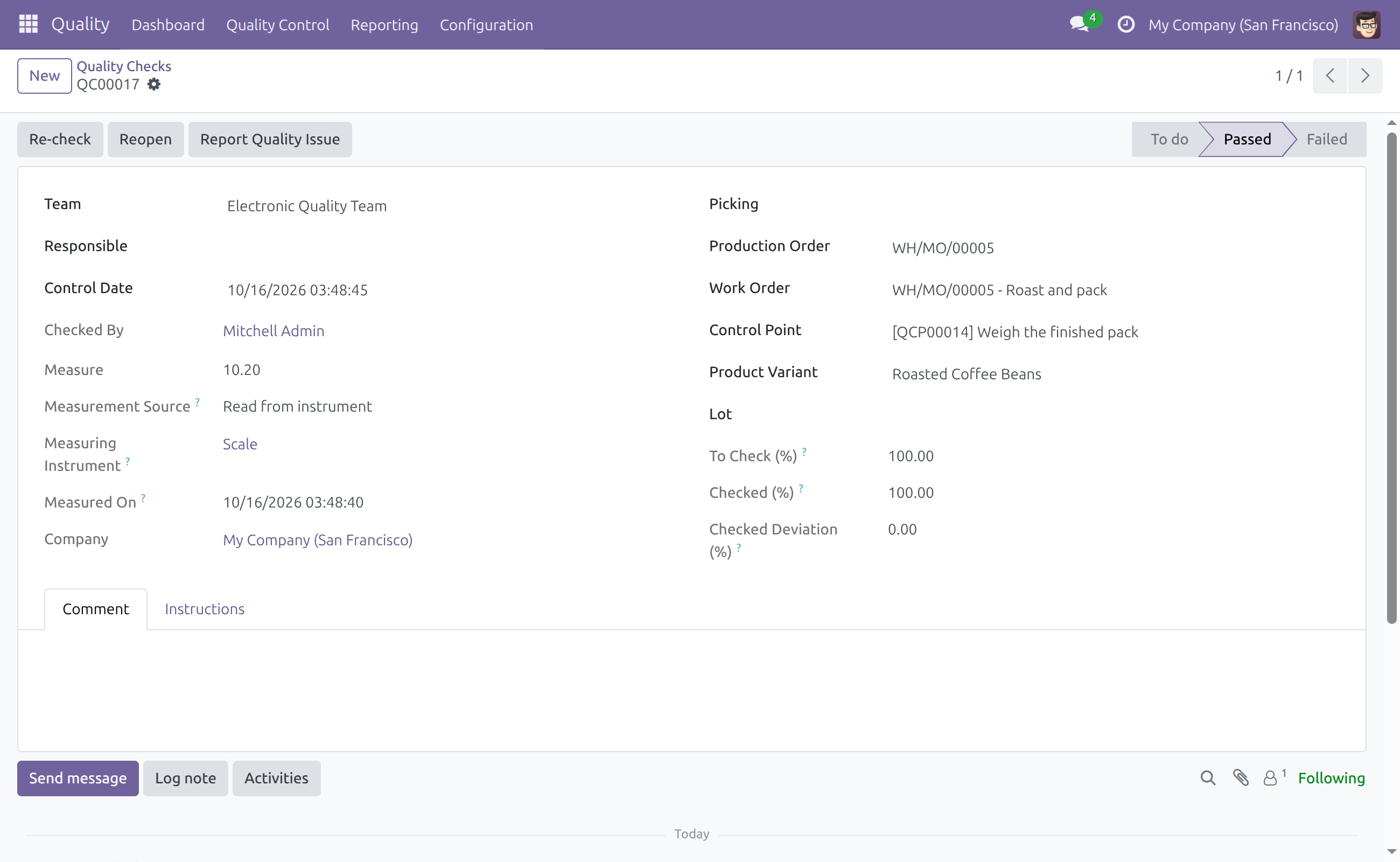
- Wait for the status Reading received. The line under the button names the scale that supplied the value, and Measure holds it.
- Click Validate. The check becomes Passed or Failed according to the tolerance band.
There is no list of instruments to choose from: the scale of the work center is the only one offered. This holds even when the control point behind the check names an instrument at another station, or none at all.
Everything about the reading itself follows IoT Quality: one click takes one fresh reading, a scale that shows zero or is not steady is refused, and a value that you type yourself is recorded as Entered manually.
See where the measurement came from
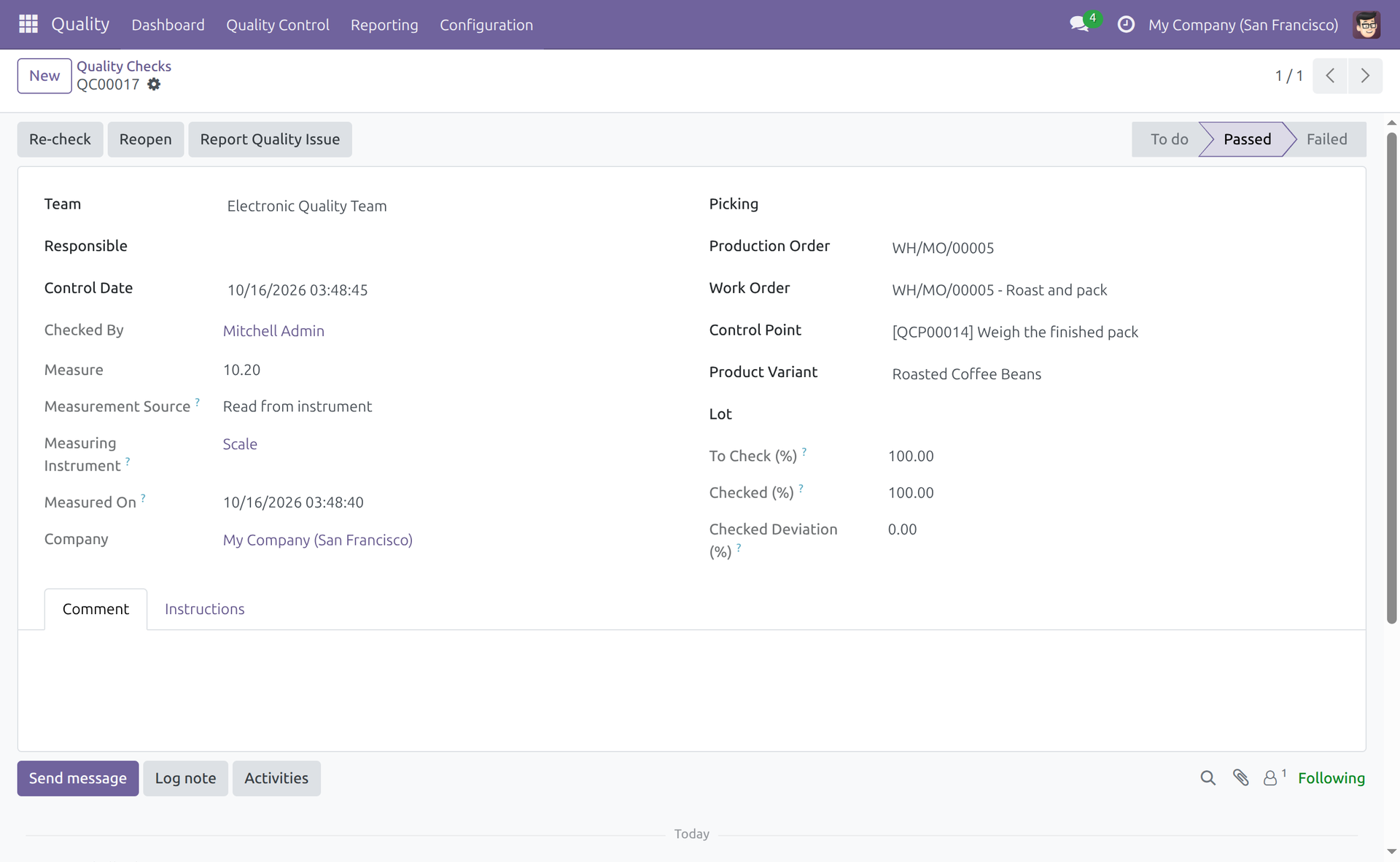
On the finished check, Measurement Source, Measuring Instrument and Measured On show that the value was read from the scale of the station, which scale it was and when. This record cannot be edited.
When the work order moves to another work center
The instrument is taken from the work center the work order sits at when you click Read from instrument. If the work order is moved to another work center, the next reading comes from the scale of that work center, with nothing to set up again. If the new work center has no scale chosen, the check falls back to the instrument of its control point.
Measure again, and finished orders
Re-check on a finished check does not offer Read from instrument. To take a new reading, click Reopen, then Measure, then Read from instrument. On a cancelled or completed manufacturing order or work order, an operator at the station is not offered Read from instrument and is refused if they try, while a person with Quality / User keeps the right to revise the check.
When the box or a device fails
Reading failures behave exactly as in IoT Quality.
- If the scale of the work center or its IoT box is not connected, Read from instrument reports it at once: the status shows No reading and the message names the scale. A box that stops reporting shows as disconnected, with its devices, within a few minutes. To pair a box again or connect its devices, follow the chapter Setting up an IoT box of the IoT documentation.
- If the request ended without a usable reading, the status shows No reading. Check the scale, then read again.
- You can always type the value into Measure yourself. The check is then recorded as Entered manually.
The module changes only which instrument is asked. The limits that apply to every reading are listed in the guide of IoT Quality.
Troubleshooting
- The check reads from the instrument of the control point, not from the work center.
- The work center has no scale chosen. Open Manufacturing ‣ Configuration ‣ Work Centers, open the work center of the work order and choose a Scale on its IoT page.
- The check reads from the scale of the wrong station.
- Check the Work Order field of the check, then the Scale of that work order's work center. If the work order was moved, the reading follows the work center it sits at now.
- Read from instrument is not shown in the dialog.
- Neither the work center nor the control point names an instrument, the check already has a result, or you may not record this check. Reopen the check if it has a result.
- The reading is refused or shows No reading.
- The scale showed zero or was not steady, or it is not connected. See the guide of IoT Quality.
- I cannot find a settings page for this module.
- There is none. Check IoT ‣ Configuration ‣ Settings under IoT Integrations for its switch.
FAQ
- Does this module add a menu, a screen or a setting?
- No. It only changes which instrument a work-order measurement reads.
- Do I need to install this module myself?
- Usually not. It installs itself once IoT Manufacturing, IoT Quality and the quality control of Manufacturing are all present. You can switch it on or off under IoT ‣ Configuration ‣ Settings, in IoT Integrations.
- Does an operator need an extra access right?
- No. The module changes no access right. Quality / User is enough to read from the scale of the station.
- Which instrument wins when both the work center and the control point name one?
- For a check of a work order, the scale of the work center.
- Does this change checks that are not on a work order?
- No. They behave exactly as described in IoT Quality.
This software and associated files (the "Software") may only be used (executed, modified, executed after modifications) if you have purchased a valid license from the authors, typically via Odoo Apps, or if you have received a written agreement from the authors of the Software (see the COPYRIGHT file).
You may develop Odoo modules that use the Software as a library (typically by depending on it, importing it and using its resources), but without copying any source code or material from the Software. You may distribute those modules under the license of your choice, provided that this license is compatible with the terms of the Odoo Proprietary License (For example: LGPL, MIT, or proprietary licenses similar to this one).
It is forbidden to publish, distribute, sublicense, or sell copies of the Software or modified copies of the Software.
The above copyright notice and this permission notice must be included in all copies or substantial portions of the Software.
THE SOFTWARE IS PROVIDED "AS IS", WITHOUT WARRANTY OF ANY KIND, EXPRESS OR IMPLIED, INCLUDING BUT NOT LIMITED TO THE WARRANTIES OF MERCHANTABILITY, FITNESS FOR A PARTICULAR PURPOSE AND NONINFRINGEMENT. IN NO EVENT SHALL THE AUTHORS OR COPYRIGHT HOLDERS BE LIABLE FOR ANY CLAIM, DAMAGES OR OTHER LIABILITY, WHETHER IN AN ACTION OF CONTRACT, TORT OR OTHERWISE, ARISING FROM, OUT OF OR IN CONNECTION WITH THE SOFTWARE OR THE USE OR OTHER DEALINGS IN THE SOFTWARE.