
OmniApproval™ - Overtime Approvals
by Viindoo
| Lines of Code | 2442 |
| Technical name | viin_hr_overtime_approval |
| License | OPL-1 |
| Website | https://viindoo.com/apps/modules/18.0/viin_hr_overtime_approval |
| Read description for | v 13.0 v 14.0 v 15.0 v 16.0 v 17.0 |
| Required Apps | Project (project) Discuss (mail) Employees (hr) Employee Contracts (hr_contract) |
| Included Dependencies | Viindoo Base OmniApproval™: One platform. Every approval. Overtime HR Contracts (Viindoo) Advanced HR Management Work Entry Work Entry - Contract Base Addendum OmniApproval™ - Analytic Accounting Approvals Viindoo Holiday & WorkDay Manager Safe IR Metadata Proxies OmniApproval™ - Project & Task Approvals |
| Extensions | Overtime Approval Payroll Overtime Timesheet Approval Overtime Approval - Compensatory Time Off |

OmniApproval™ - Overtime Approvals
Integrate applications Overtime Management and Approval for overtime approval process
This module provides a solution for managing and approving overtime plans, helping businesses improve resource management efficiency and control costs. By adding an overtime approval process, the module ensures all overtime plans are implemented transparently, comply with regulations, and meet business objectives.
At a Glance
The facts of OmniApproval™ - Overtime Approvals, version 0.1.5, in one place. Published by Viindoo.
Key Features
Built natively on Odoo/Viindoo to streamline real business operations:
Allow employees or department managers to register overtime plans for themselves or their team members through overtime request forms
Managers at various levels can view and approve overtime request forms submitted by employees or subordinate departments
Set up overtime hour limits for different time periods (day, week, month, year) and special limits for holidays/weekends
Receive warnings as soon as an overtime request exceeds the configured limits, with a breakdown of the exceeded hours for each employee and each period
Flexible approval process that allows managers to approve overtime requests that exceed limits, recording who accepted the overrun and when
Benefits
Strictly control expenses arising from overtime, minimize waste, and optimize budgeting.
Help businesses comply with labor regulations, reducing legal risks related to overtime work.
Ensure overtime is based on actual demand and aligns with current capacity, avoiding improper resource allocation.
Balance workload and employee health, maintaining sustainable productivity.
Ensure transparency in the overtime approval process, build internal trust, and reduce conflicts.
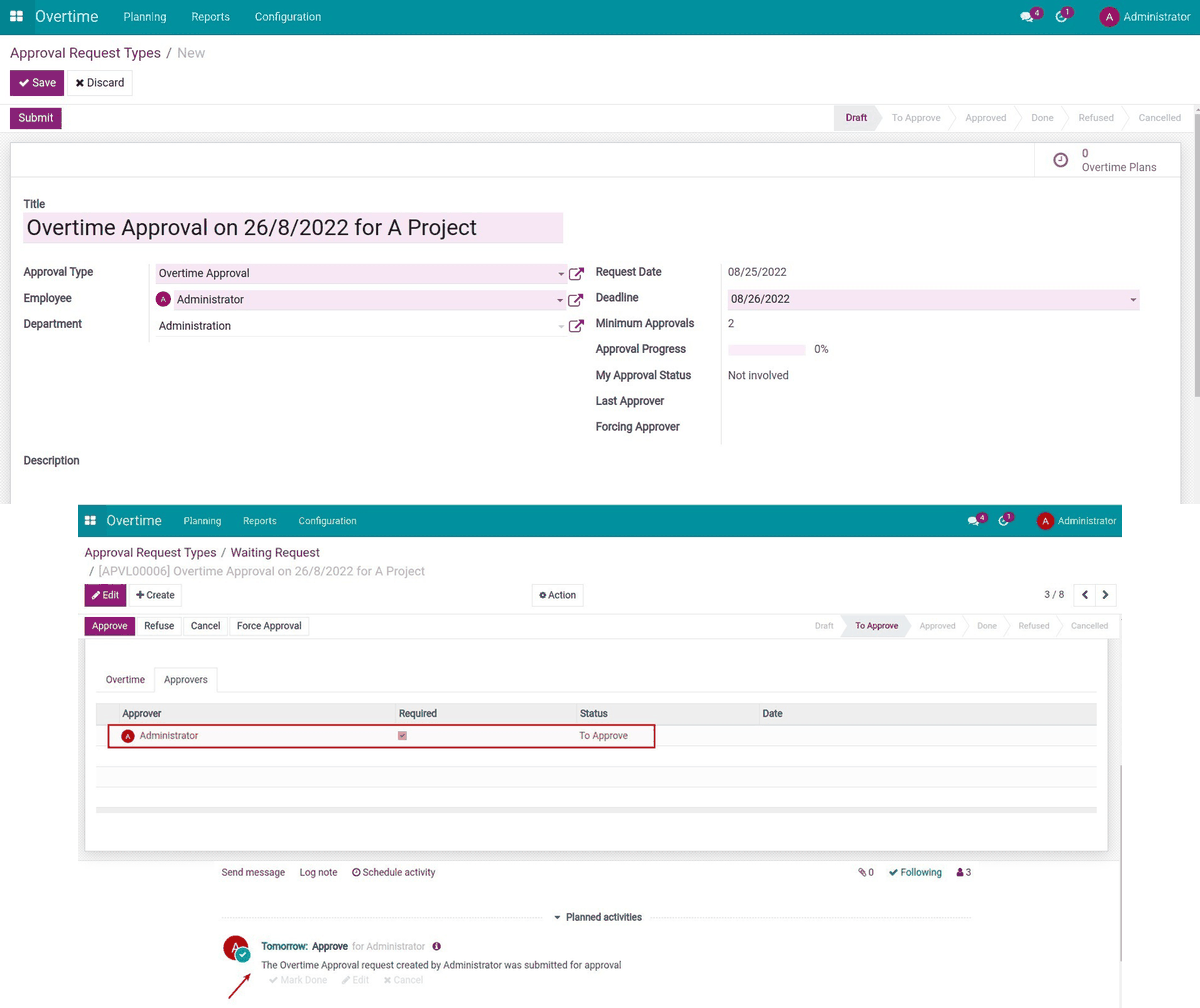
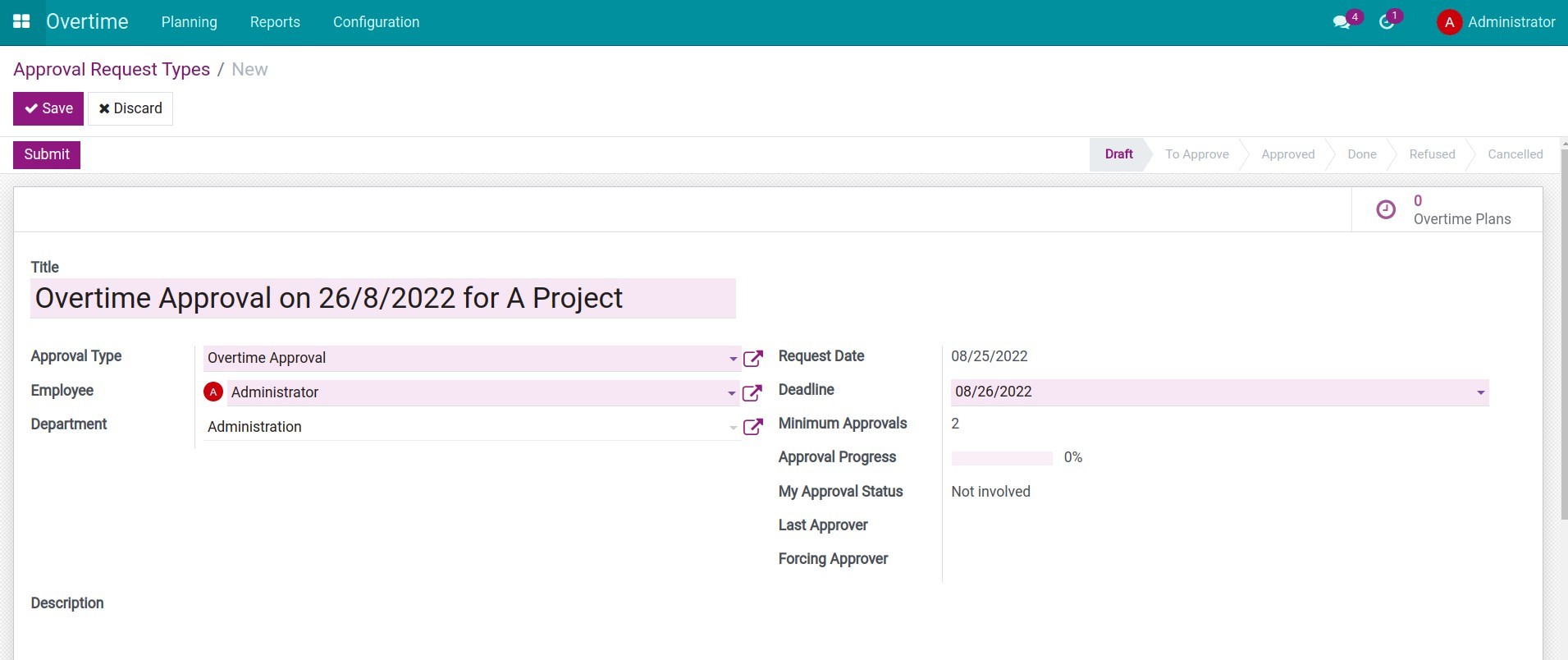
Create an overtime approval request
Approve overtime approval request
See OmniApproval™ - Overtime Approvals in Action
See how this module solves real business problems in a working Viindoo environment.
Need help with OmniApproval™ - Overtime Approvals?
For questions, implementation support, or consulting services, contact Viindoo.
Pre-Sales & Partnership
When contacting us, please include:
- Odoo/Viindoo version (CE/EE).
- Number of users and business scope.
- Other modules currently in use.
Technical Support
For faster troubleshooting, please provide:
- Order number or app reference.
- Odoo/Viindoo version & edition.
- Steps to reproduce the issue.
- Screenshots/logs if available.
Technical Requirement
Changes log
We continuously improve this module. Recent updates from the official Viindoo repository:
- 2026-02-11 Improved Add missing translations.
- 2025-12-26 Improved Add approval type icons.
- 2025-12-24 Improved Add display type.
- 2025-12-12 Improved Add original tracking mechanism & approver selector mechanism.
- 2025-06-17 Added OmniApproval eco system.
- 2025-08-09 Fixed Action confirm and approve.
Works Great With These Modules
Extend OmniApproval™ - Overtime Approvals with complementary Viindoo apps:
Overtime Approval - Compensatory Time Off
Allow the conversion of overtime hours into compensatory time off
Module viin_hr_overtime_approval_compensatory_time_offOvertime Approval Payroll
Technical module that bridges Overtime and Approval and Payroll
Module viin_hr_overtime_approval_payrollOvertime Timesheet Approval
Technical module to bridge Overtime Timesheet and Timesheet Approval modules
Module viin_hr_overtime_timesheet_approvalWho Should Use This Module?
Built for teams that need this capability fully integrated into their Odoo/Viindoo stack.
This module is suitable for businesses in manufacturing, services, or organizations with fluctuating workloads that require a transparent and strict overtime approval process.
Installation
- Navigate to Apps.
- Search with keyword viin_hr_overtime_approval.
- Press Install.
Instructions
Instruction video: Overtime Approval
Initial configuration
Access rights.
Navigate to Settings > Manage Users and grant the overtime approval rights to users.
Configure approval types.
To create different approval types, navigate to Approval > Configuration > Approval types, create a new overtime approval type.
Set the overtime hour limits.
Navigate to Overtime > Configuration > Settings and open the Overtime Hours Limit section. Fill in the maximum overtime hours one employee may work in each period: Hours / Workday, Hours / Holiday, Hours / Week, Hours / Month and Hours / Year. Leave a box at 0 to ignore that period entirely, then press Save.
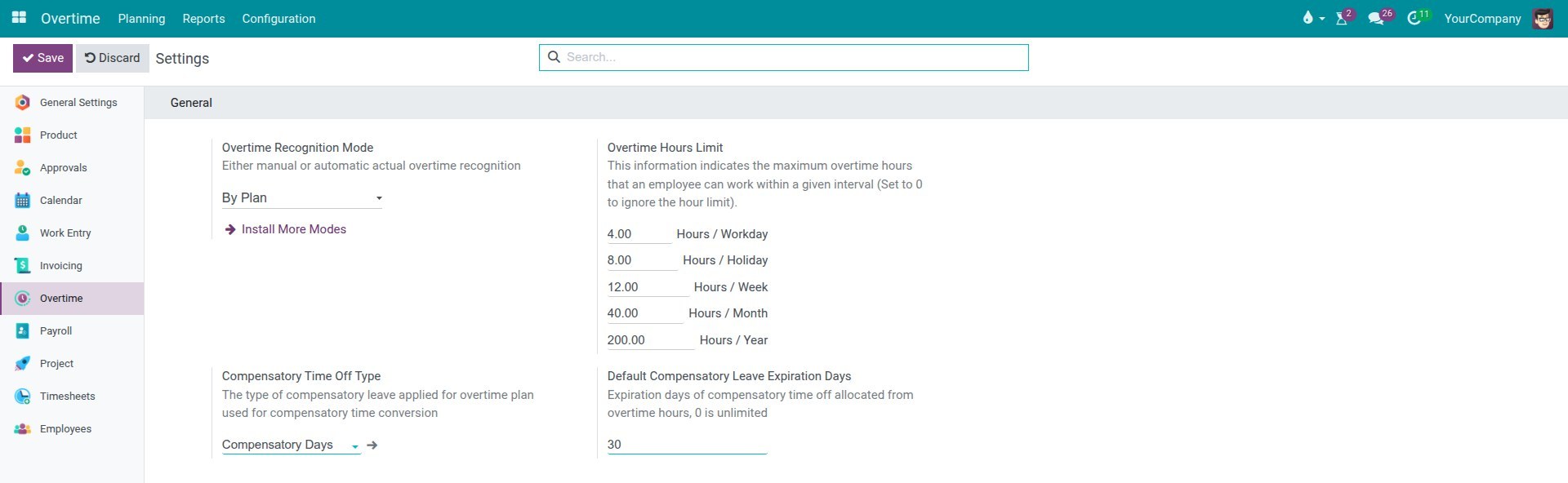
Overtime falling on a holiday or a weekend is measured against Hours / Holiday, and overtime on a normal working day against Hours / Workday, so a day is always measured against one of the two and never both.
Create an overtime approval request
You can request a personal overtime approval or create a bulk overtime request for your department or the whole company.

When a request exceeds the overtime limit
Read the warning banner.
While you prepare a request, a warning banner appears at the top of the form as soon as the hours asked for go over one of the limits you configured. It names the employee, the period that is over, and the number of overtime hours requested.
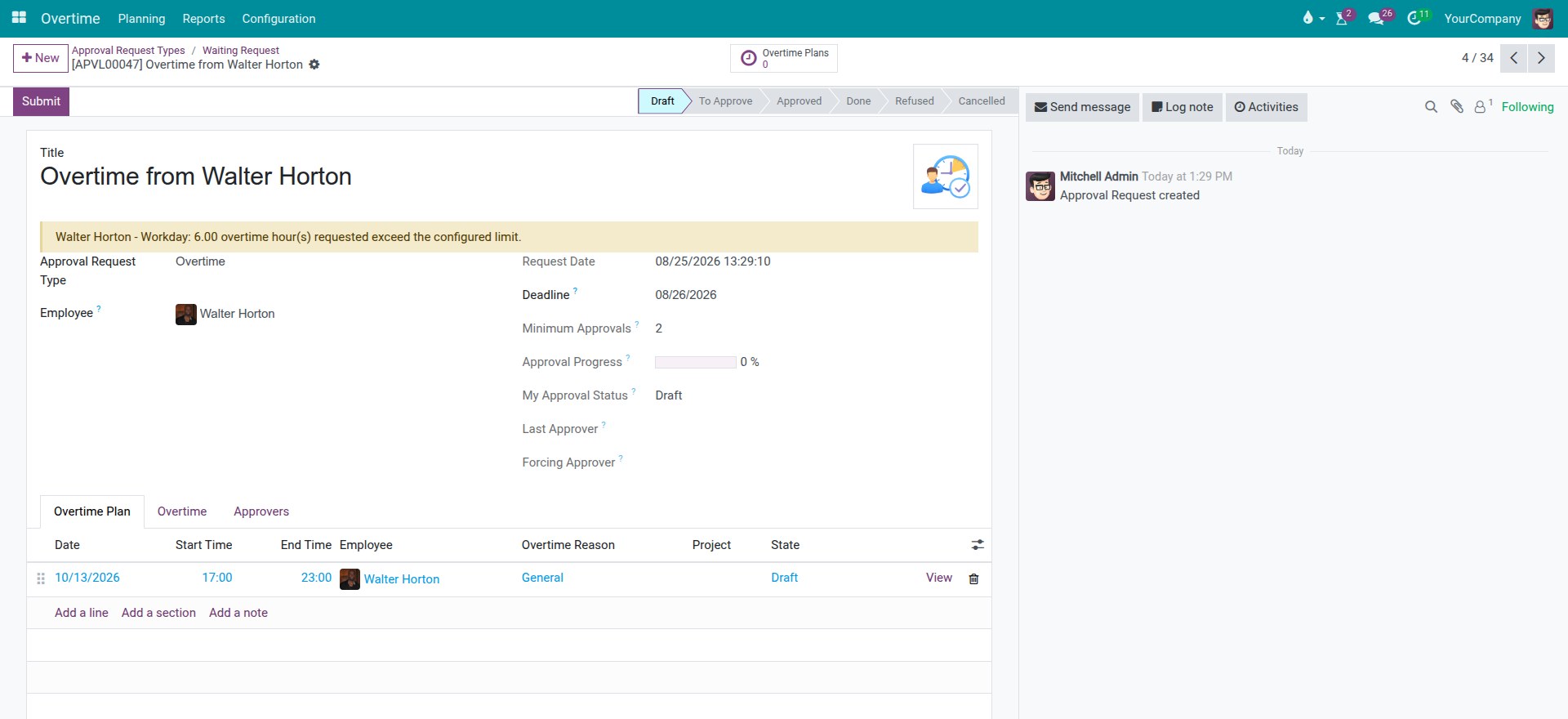
The banner follows what you enter: it disappears again as soon as you bring the request back under the limit. It also agrees with the Submit button, so a request showing the banner will be stopped when you submit it, and a request without the banner will not.
One line appears for each employee and each period concerned, so a single request can show several lines at once when the same hours go over more than one limit.
Confirm the warning.
Press Submit on a request that is over the limit and the Overtime Hours Limit Exceeded Warning window opens instead of sending the request straight on. It lists one line per overrun, showing the Employee, the Time period concerned, the Maximum allowed, the hours already Worked, the hours already Planned, the hours Requesting and the hours Exceeded.
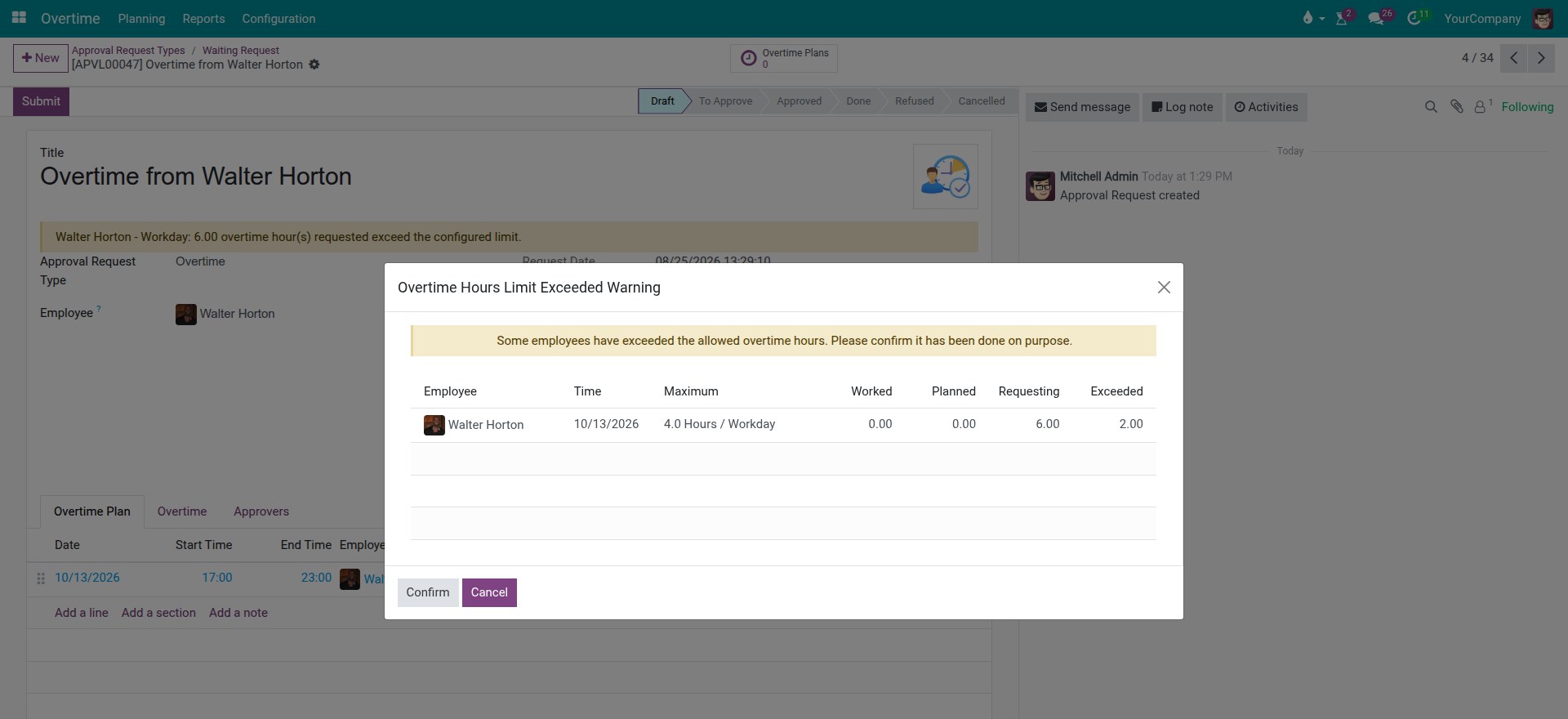
Press Cancel to go back and adjust the request, or Confirm to accept the overrun and carry on. The same window opens for approvers when they press Approve, so whoever approves the request is shown the overrun again before it goes through.
Check what the confirmation records.
Confirming the warning is kept on the request. The person who confirmed it and the date are shown just under the banner, and a message is added to the message history on the right of the request stating how many overtime hours over the limit were accepted.
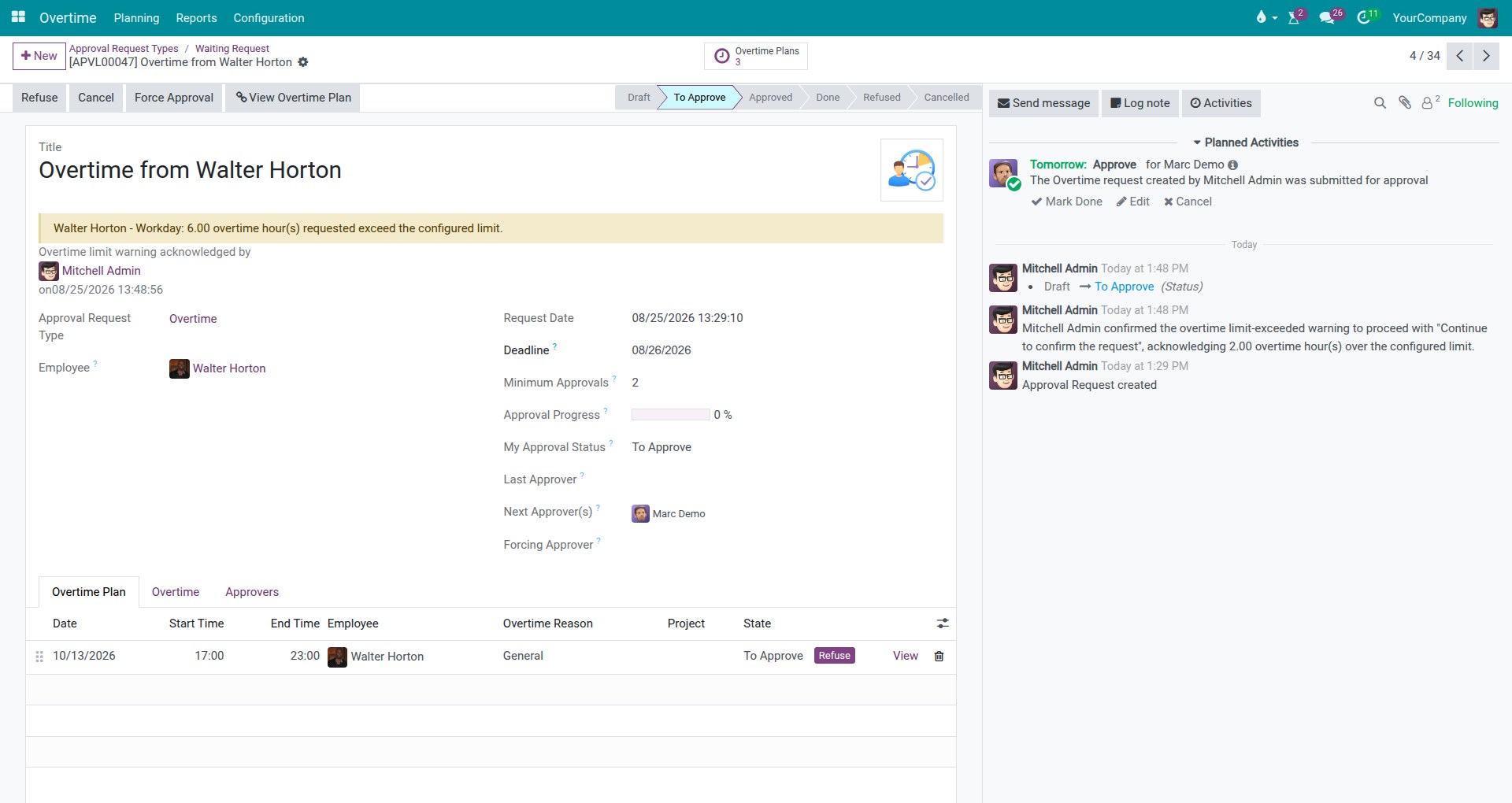
Two points are worth knowing:
- The banner stays on the form after the warning is confirmed. It reports that the request is still over the limit, not whether somebody has accepted it.
- Duplicating a request does not carry the confirmation across. The copy starts without it and is checked again on its own when you submit it.
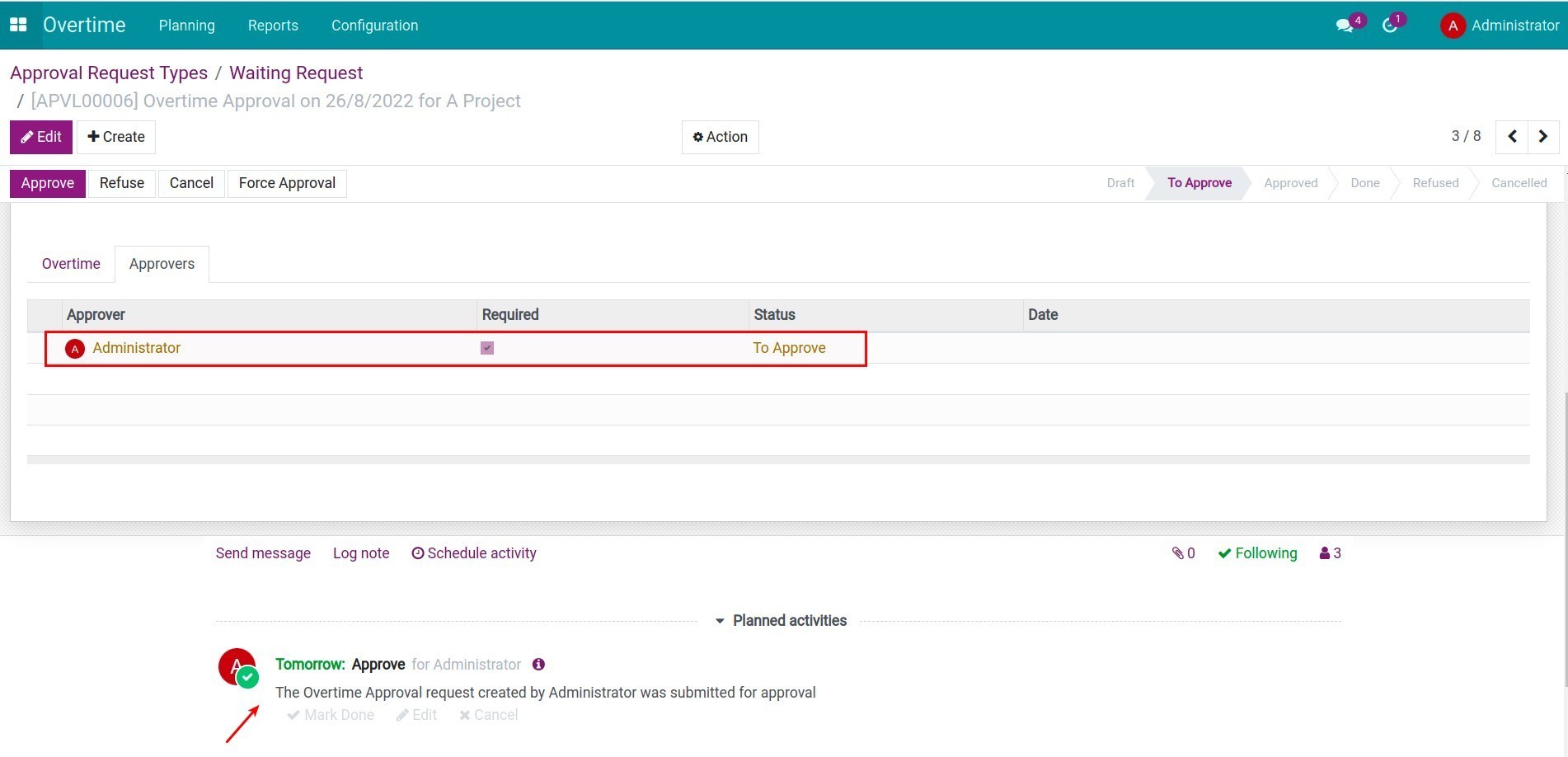
Approve an overtime approval request
Managers will receive notification and the scheduled action to approve or reject the request.

Once the approval request is approved, the overtime plan on this approval request will be used by your company not only to manage the overtime, and allocate needed resources but also used as the base to compute the payables amount to its employees.
This software and associated files (the "Software") may only be used (executed, modified, executed after modifications) if you have purchased a valid license from the authors, typically via Odoo Apps, or if you have received a written agreement from the authors of the Software (see the COPYRIGHT file).
You may develop Odoo modules that use the Software as a library (typically by depending on it, importing it and using its resources), but without copying any source code or material from the Software. You may distribute those modules under the license of your choice, provided that this license is compatible with the terms of the Odoo Proprietary License (For example: LGPL, MIT, or proprietary licenses similar to this one).
It is forbidden to publish, distribute, sublicense, or sell copies of the Software or modified copies of the Software.
The above copyright notice and this permission notice must be included in all copies or substantial portions of the Software.
THE SOFTWARE IS PROVIDED "AS IS", WITHOUT WARRANTY OF ANY KIND, EXPRESS OR IMPLIED, INCLUDING BUT NOT LIMITED TO THE WARRANTIES OF MERCHANTABILITY, FITNESS FOR A PARTICULAR PURPOSE AND NONINFRINGEMENT. IN NO EVENT SHALL THE AUTHORS OR COPYRIGHT HOLDERS BE LIABLE FOR ANY CLAIM, DAMAGES OR OTHER LIABILITY, WHETHER IN AN ACTION OF CONTRACT, TORT OR OTHERWISE, ARISING FROM, OUT OF OR IN CONNECTION WITH THE SOFTWARE OR THE USE OR OTHER DEALINGS IN THE SOFTWARE.