
Sale Delivery Schedule

Sale Delivery Schedule
Promise a delivery date on each sales order line, and see what the system forecasts alongside it.
This module helps employees conveniently implement goods coordination processes, control the delivery plan, and access the actual delivery status of sales orders right on the view of the Sales app. Therefore, problems of delayed delivery and ineffective delivery planning will be solved.
At a Glance
The facts of Sale Delivery Schedule, version 1.0.1, in one place. Published by Viindoo.
Key Features
Built natively on Odoo/Viindoo to streamline real business operations:
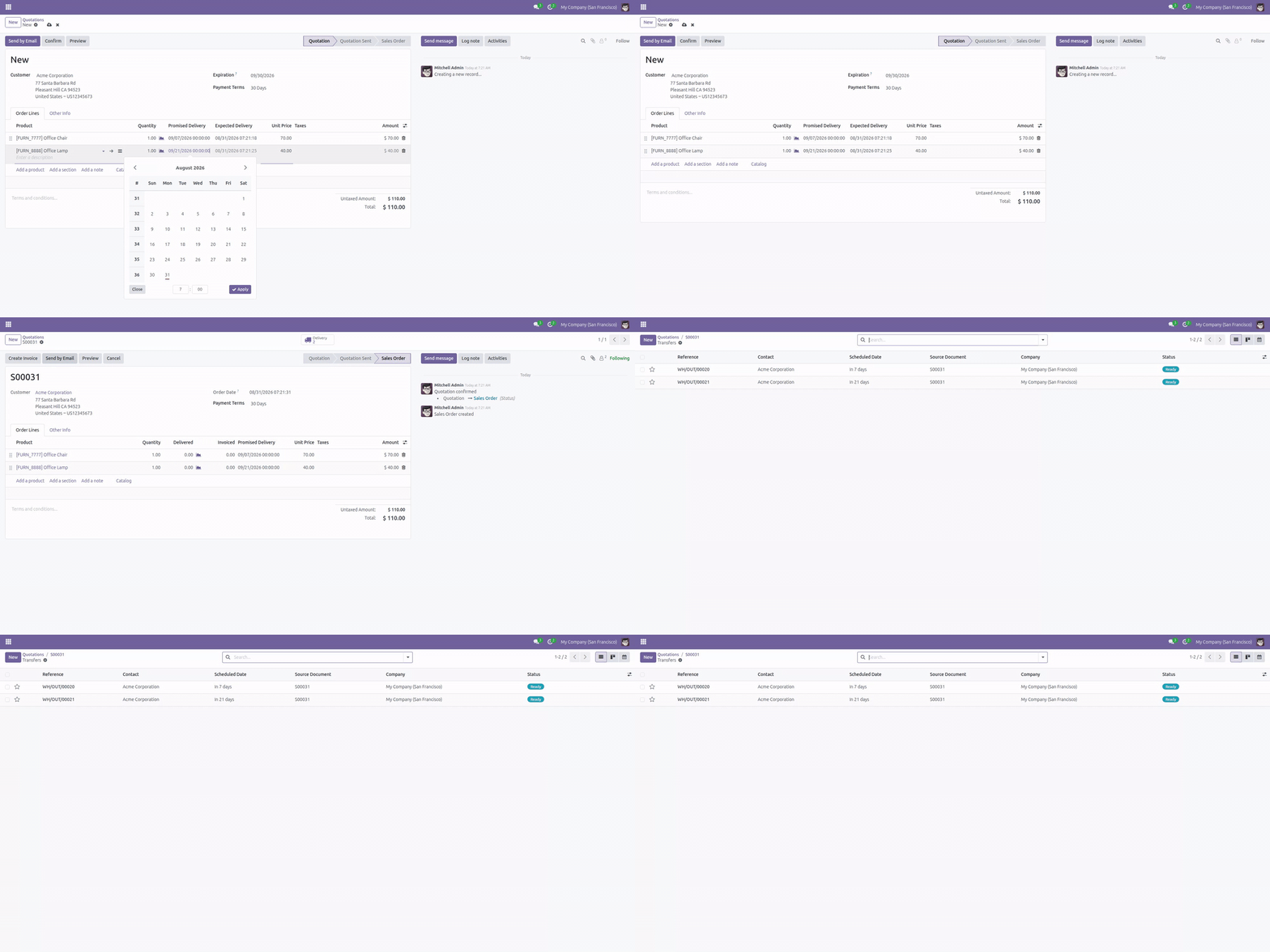
Two dates on every order line: the date you promised the customer, and the date the system forecasts
Add *Delivery Controls* menu on the Sales app, allowing to track the Date of Transfer, Delivery Results with Early/Late/On time tags, Late/Early (day) compared to plan, etc
Create a sales order for a storable product

Confirm a sales order in Viindoo
Validate the delivery to the customer
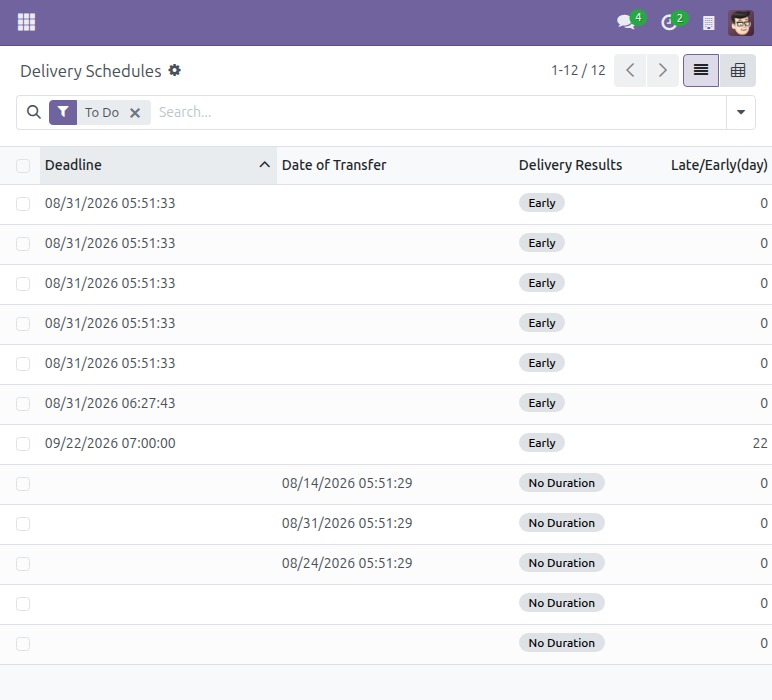
Control the delivery schedule
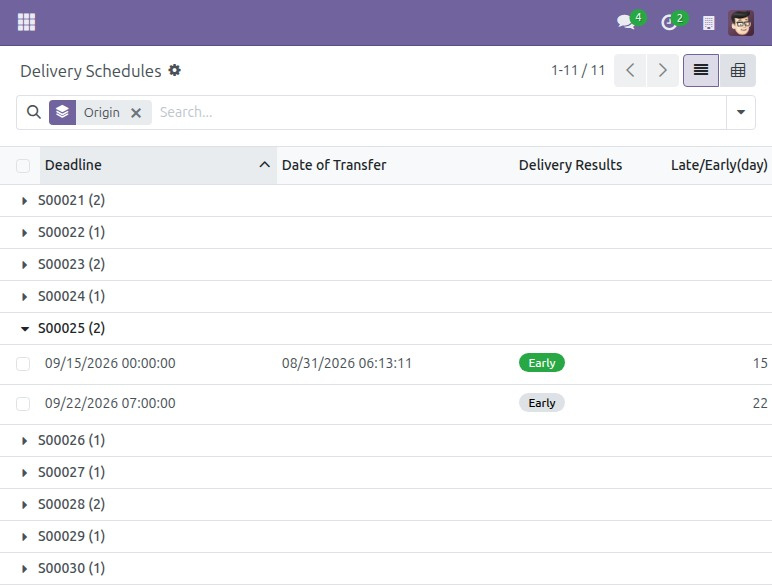
Group deliveries by the original sales order
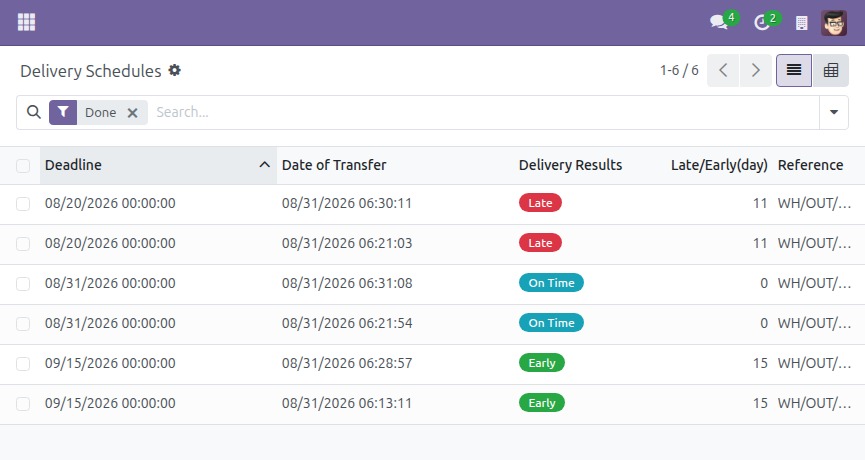
Delivery results
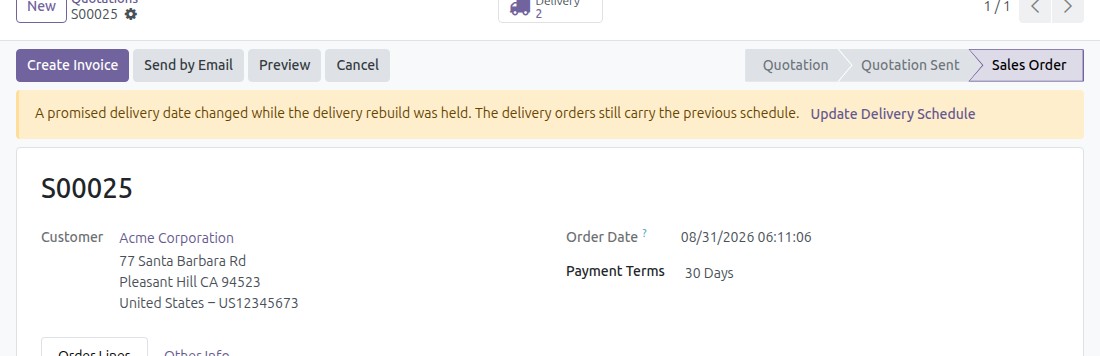
Re-plan deliveries without losing the paperwork
When a bulk update changes promised dates, the order flags that its delivery orders are out of date. One click re-dates the existing transfers – they are not cancelled and replaced, so each one keeps its own reference, its message history and its followers.
See Sale Delivery Schedule in Action
See how this module solves real business problems in a working Viindoo environment.
Need help with Sale Delivery Schedule?
For questions, implementation support, or consulting services, contact Viindoo.
Pre-Sales & Partnership
When contacting us, please include:
- Odoo/Viindoo version (CE/EE).
- Number of users and business scope.
- Other modules currently in use.
Technical Support
For faster troubleshooting, please provide:
- Order number or app reference.
- Odoo/Viindoo version & edition.
- Steps to reproduce the issue.
- Screenshots/logs if available.
Technical Requirement
Who Should Use This Module?
Built for teams that need this capability fully integrated into their Odoo/Viindoo stack.
Executives & Business Owners
Need clear visibility into operations and a stack that scales without bespoke development.
Operations / Department Leaders
Want to streamline daily workflows, remove manual handoffs, and keep data consistent across teams.
Implementers & Odoo Partners
Looking for production-ready Viindoo modules to deliver projects faster and at lower risk.
Installation
- Navigate to Apps.
- Search with keyword to_sales_stock_schedule.
- Press Install.
Instructions
Instruction video: Sale Delivery Schedule
1. Create a sales order
Navigate to Sales > Orders > Quotations, press Create to create a sales quotation for a product.

Each order line shows two delivery dates side by side, and they mean different things. Promised Delivery is what you type - the date you have actually committed to the customer. It starts out empty, and it stays exactly as you typed it: nothing on this line ever moves it for you. Expected Delivery, right next to it, is not something you fill in - it is the module's own running estimate of when the line could realistically ship if the order were confirmed right now, worked out from the product's lead time. While the quotation is still a draft, that estimate keeps shifting as the quotation ages, so a gap opening up between the two columns is your early warning that the promise you made is drifting out of reach. Leave Promised Delivery blank on a line you have not committed a date for yet - Expected Delivery still shows the realistic date either way.
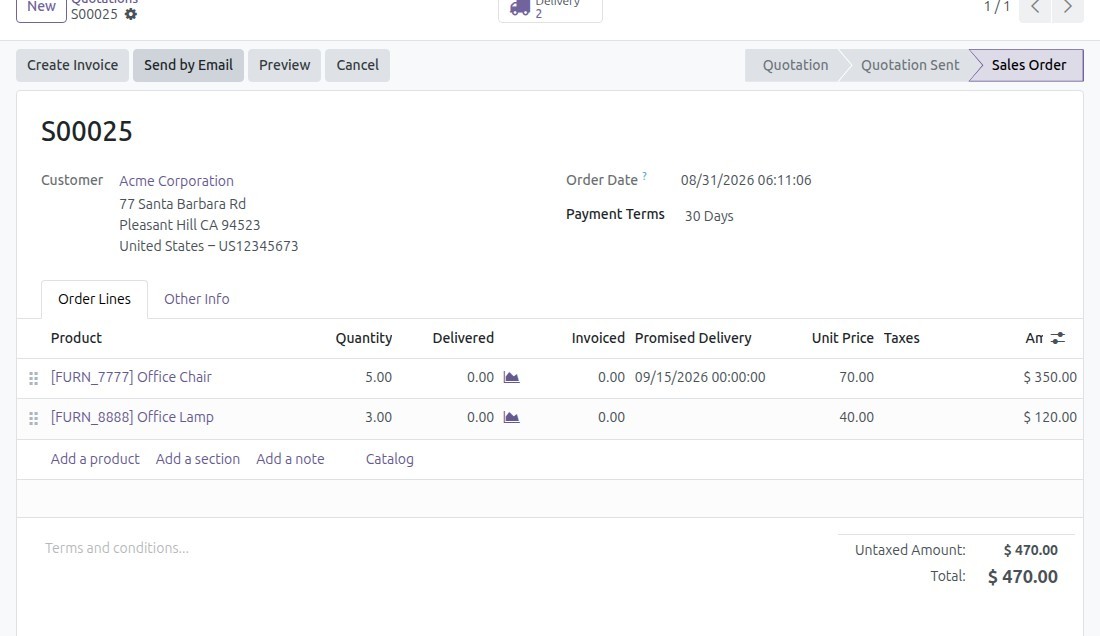
After filling in all the necessary information on the quotation, press Confirm to convert it to a sales order.
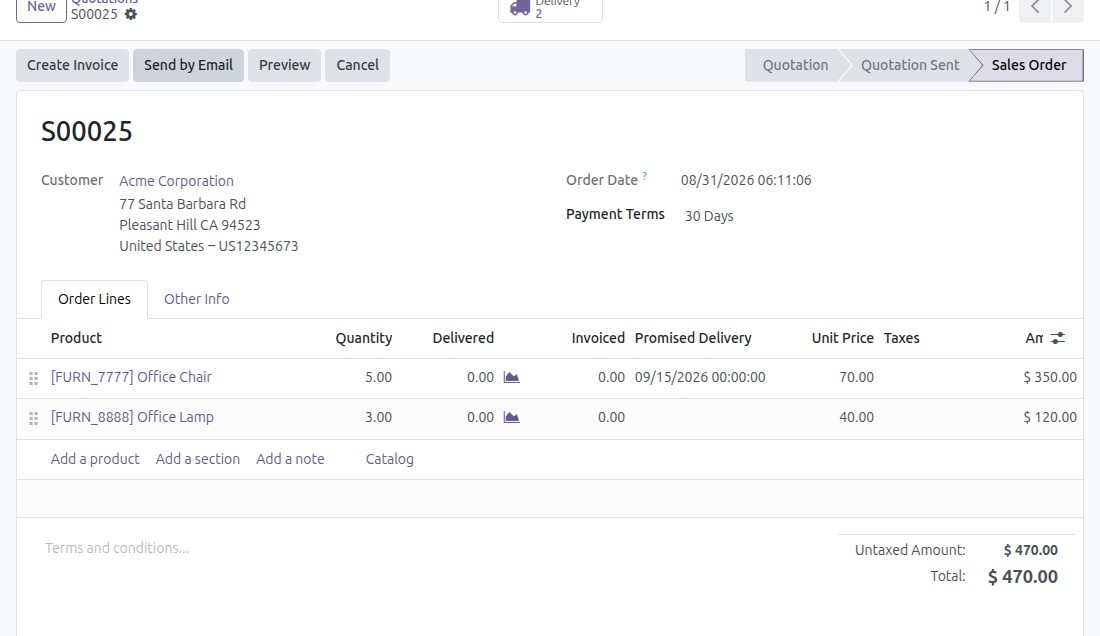
For storable products, delivery transfers are created automatically - one transfer per distinct Promised Delivery date on the order, so a customer who needs part of the order sooner and the rest later gets two separate deliveries instead of one lumped together. Once the order is confirmed, Expected Delivery disappears from the lines: the promise and the realistic delivery date are the same thing from this point on, so only Promised Delivery remains.
2. Confirm delivery receipts
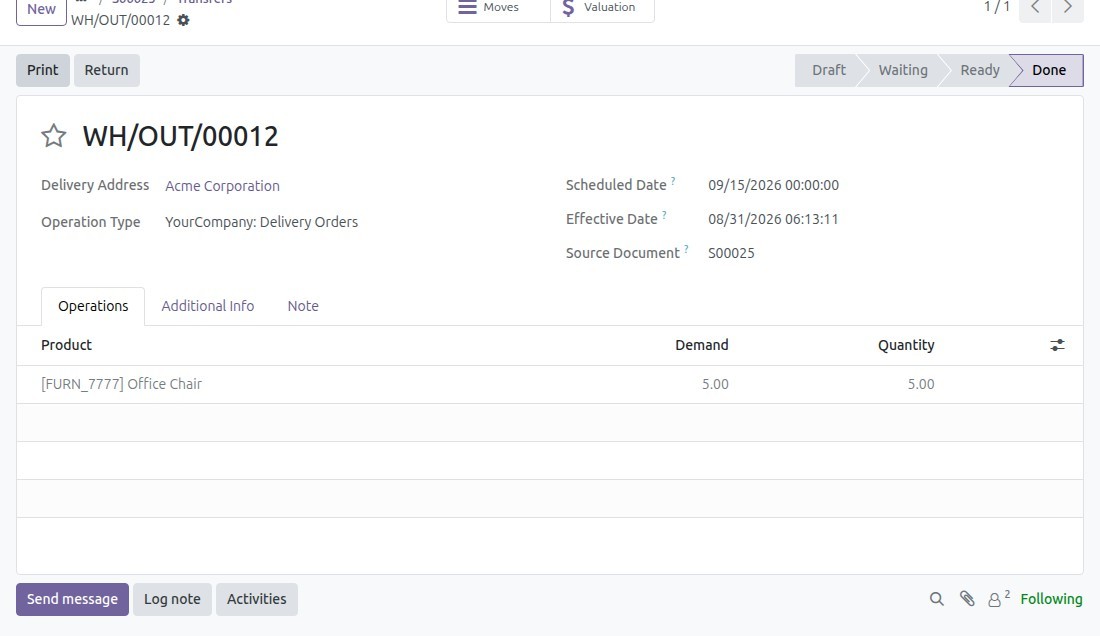
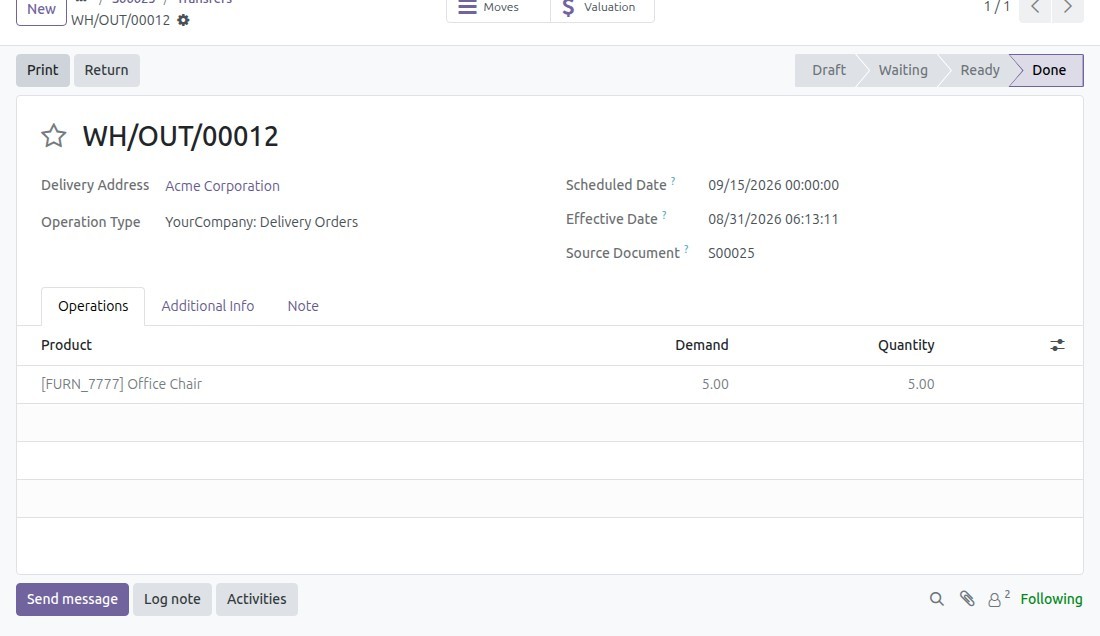
Depending on the inventory management process of each company, the Inventory software supports the delivery process in one or multiple steps. On the delivery receipt, press Validate to complete the delivery.
3. Monitoring delivery schedule
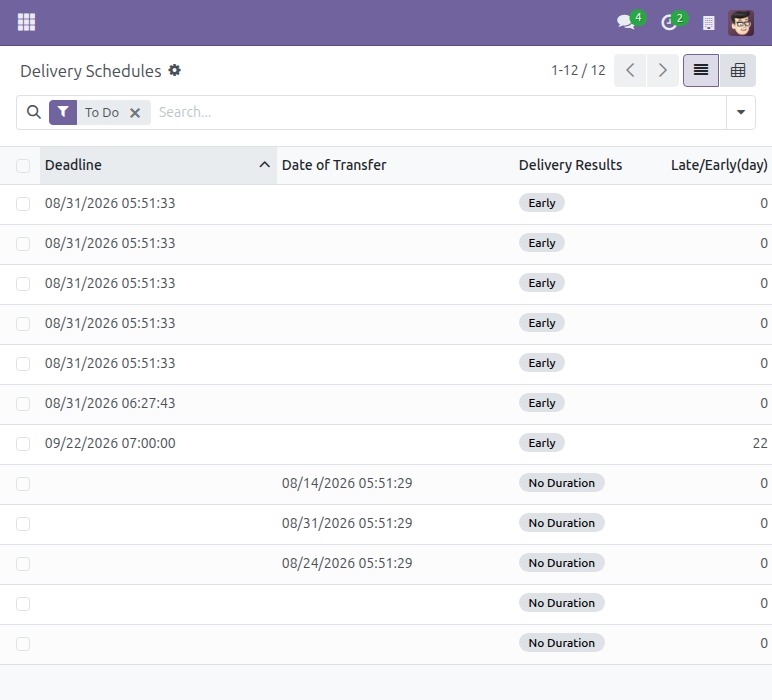
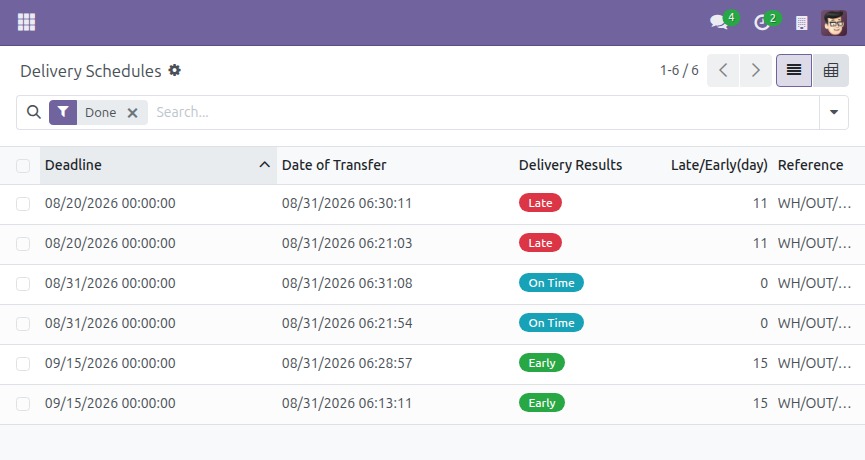
After sending out the product to your customer, navigate to Sales > Delivery Controls > Delivery Schedules. The list opens with the To Do filter applied, showing every delivery that still needs attention - confirmed, waiting, or ready to process; completed and cancelled deliveries are hidden by default.
Turn off the default filter and group by Origin to view all the deliveries by the specific sales order.
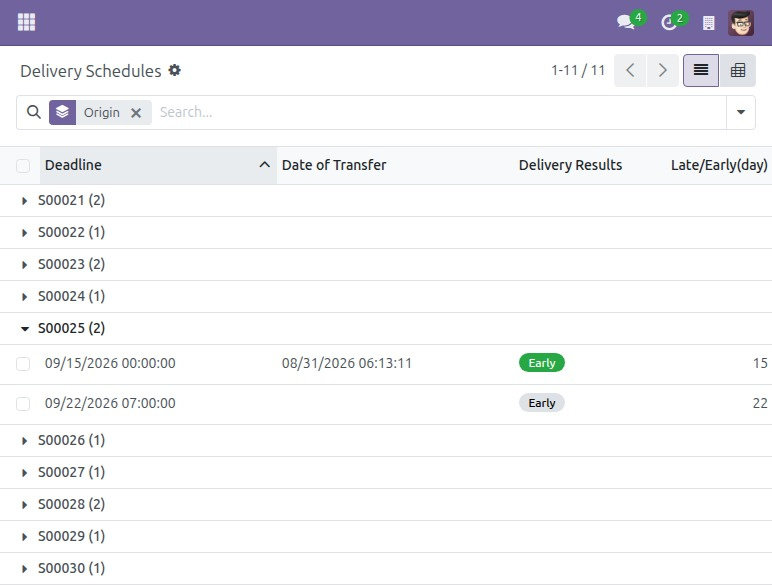
In the Delivery Results column, there are 3 tags:
- Early: Delivery was completed earlier than scheduled. For an incompleted transfer, the viewing time is earlier or equal to the scheduled date.
- On Time: Delivery was completed in accordance with the initial schedule.
- Late: Delivery was completed later than scheduled.
If the delivery schedule is marked out of date
Every so often - typically after a bulk update or a scheduled import changes several promised dates at once while asking the system to hold the recalculation until it finishes - you may open a confirmed sales order and see a warning banner: "A promised delivery date changed while the delivery rebuild was held. The delivery orders still carry the previous schedule." This is not something you bring about yourself by editing a date in the normal way; it shows up only when another process left a promise unreconciled.
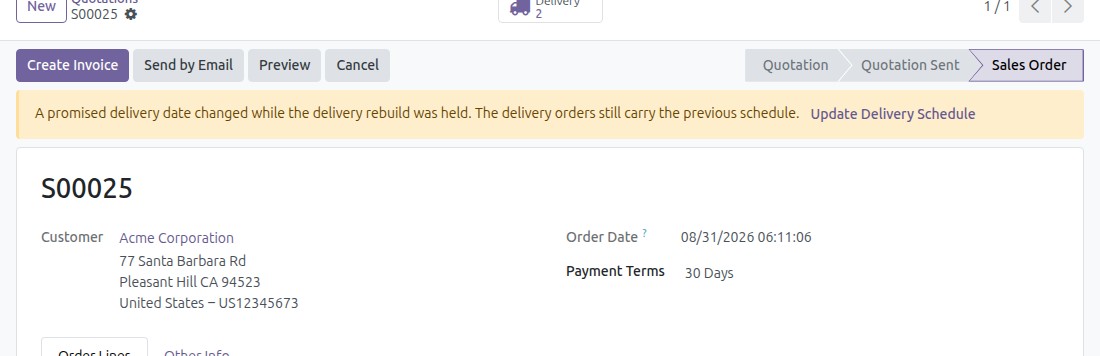
Pressing Update Delivery Schedule re-dates the existing delivery transfers to match the new promises - it does not cancel them and create new ones, so each transfer keeps its own reference, its chatter history and its followers.
This software and associated files (the "Software") may only be used (executed, modified, executed after modifications) if you have purchased a valid license from the authors, typically via Odoo Apps, or if you have received a written agreement from the authors of the Software (see the COPYRIGHT file).
You may develop Odoo modules that use the Software as a library (typically by depending on it, importing it and using its resources), but without copying any source code or material from the Software. You may distribute those modules under the license of your choice, provided that this license is compatible with the terms of the Odoo Proprietary License (For example: LGPL, MIT, or proprietary licenses similar to this one).
It is forbidden to publish, distribute, sublicense, or sell copies of the Software or modified copies of the Software.
The above copyright notice and this permission notice must be included in all copies or substantial portions of the Software.
THE SOFTWARE IS PROVIDED "AS IS", WITHOUT WARRANTY OF ANY KIND, EXPRESS OR IMPLIED, INCLUDING BUT NOT LIMITED TO THE WARRANTIES OF MERCHANTABILITY, FITNESS FOR A PARTICULAR PURPOSE AND NONINFRINGEMENT. IN NO EVENT SHALL THE AUTHORS OR COPYRIGHT HOLDERS BE LIABLE FOR ANY CLAIM, DAMAGES OR OTHER LIABILITY, WHETHER IN AN ACTION OF CONTRACT, TORT OR OTHERWISE, ARISING FROM, OUT OF OR IN CONNECTION WITH THE SOFTWARE OR THE USE OR OTHER DEALINGS IN THE SOFTWARE.