
Viindoo Brain - Digest
by Viindoo
| Lines of Code | 595 |
| Technical name | viin_brain_digest |
| License | OPL-1 |
| Website | https://viindoo.com/apps/app/17.0/viin_brain_digest |
| Required Apps | Discuss (mail) |
| Included Dependencies | Viindoo Brain Viindoo Web Editor |

See at a glance whether your company wiki is alive or going stale - in the e-mail you already read
For managers who receive the Odoo e-mail digest and want to know how their company wiki is doing
Two wiki health figures in the Odoo e-mail digest: pages edited and pages to review
Is this you?
Your digest tells you about sales, tickets and activity, but nothing about whether the company handbook is being kept up.
You find out that a procedure is out of date when a colleague follows it the wrong way.
To know whether pages are waiting for review, someone has to open the wiki and filter the list by hand.
In a group of companies, you want the figures of your own company, not a total that mixes everyone in.
What changes
Nothing in the digest tells you how the wiki is doing.
→ The digest e-mail gains two lines: how many pages were edited in the last 24 hours, 7 days and 30 days, and how many published pages need review today.
You learn about stale pages too late.
→ Pages waiting for their owners show up in the e-mail you already read, so a wiki that is going stale is noticed without opening Brain.
Checking the wiki means a trip into the app and a manual filter.
→ Each line has an Open Report link that goes straight to the matching report in Brain.
Totals mix companies together.
→ The figures are counted for the company of the digest, so the managers of a company read their own company's numbers.
Key Features
Brain group in every digest
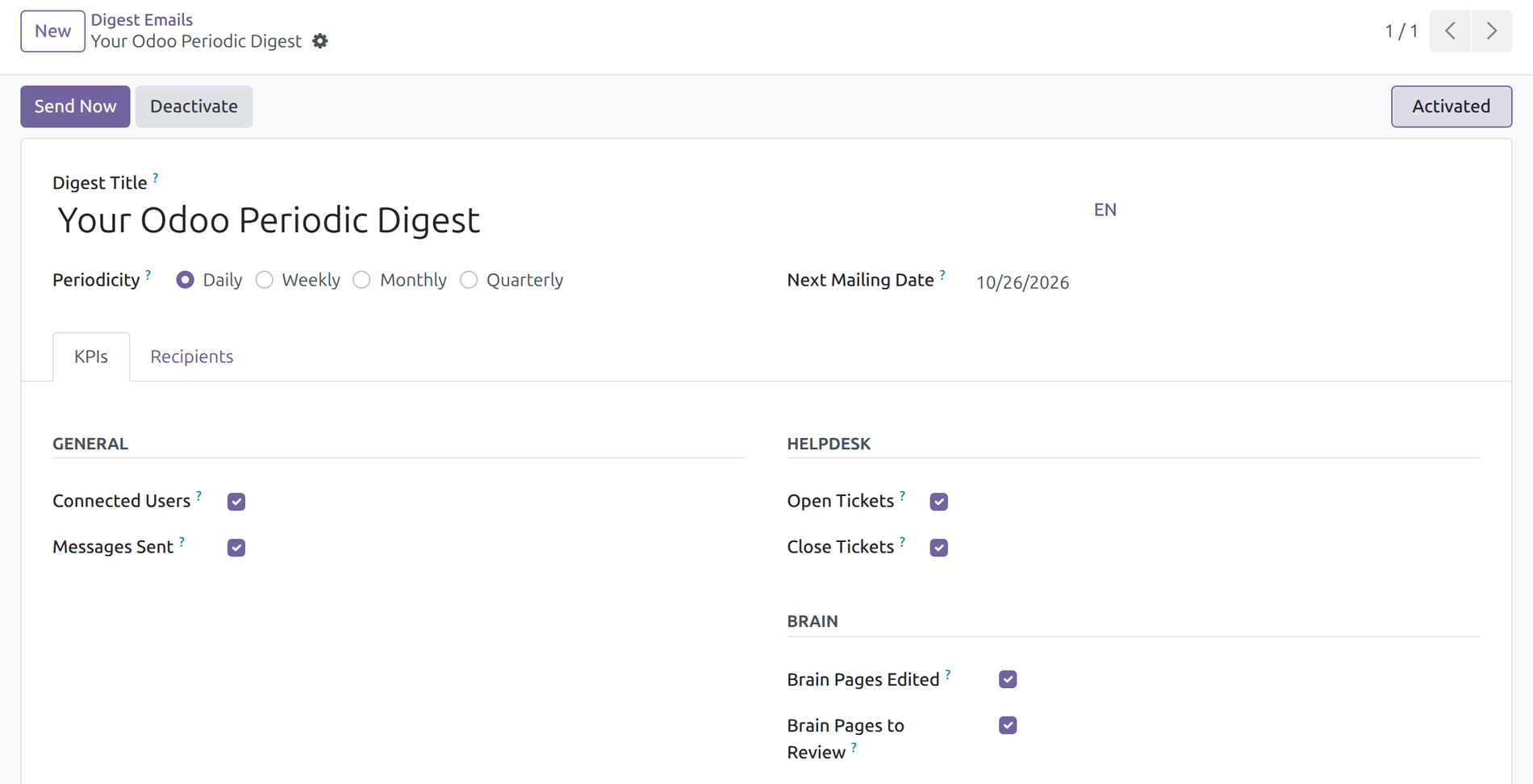
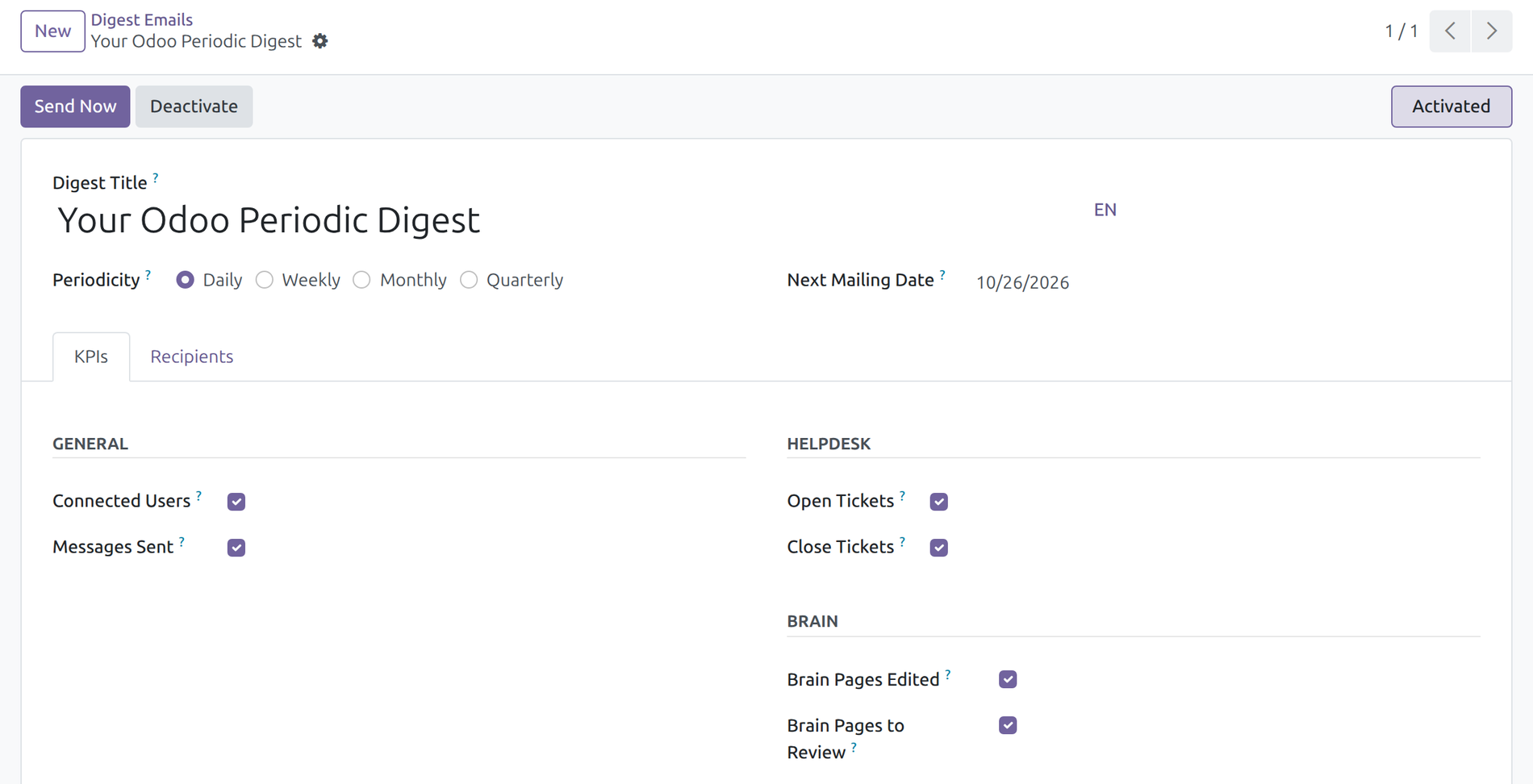
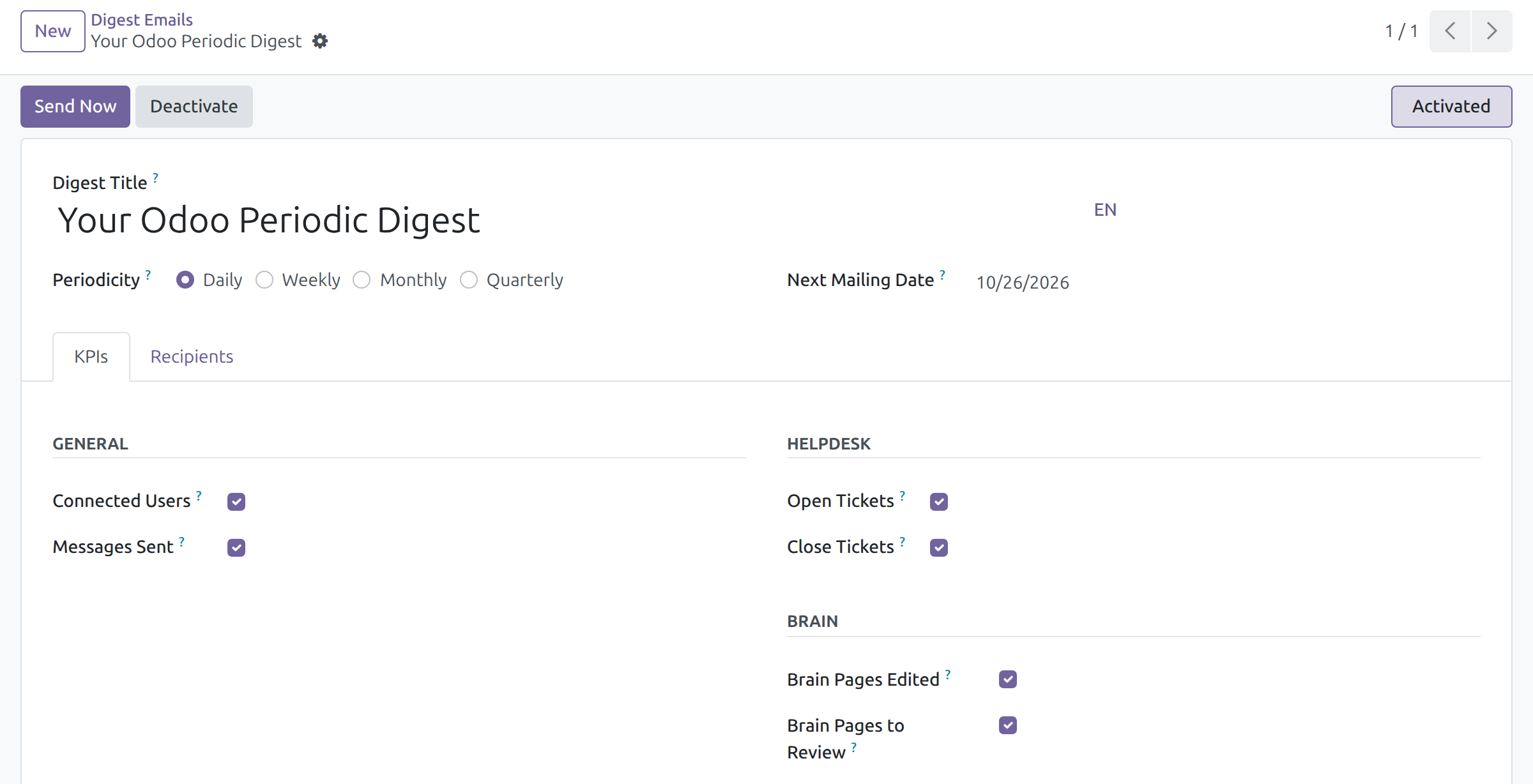
Switch the two Brain figures on or off for each digest, next to the other KPIs of that digest.
Brain Pages Edited
How many pages were edited in the last 24 hours, 7 days and 30 days - a quick read of how alive the wiki is. Open Report leads to Page Health.
Brain Pages to Review
How many published pages need review today. Archived pages, drafts and pages in Trash are left out. Open Report leads to To Review.
Counted per company
Each figure is computed for the company of the digest, like the other KPIs of the digest.
Each reader sees what they may read
Every recipient gets figures over the pages that person is allowed to read; a wiki admin sees every Space.
In each reader's language
The digest e-mail reaches every recipient in their own language.
Who it is for
Manager receiving the digest
Wants a quick sign that the wiki is used and kept current, without opening another app. Reads two lines in the e-mail already received.
Wiki admin
Looks after the company wiki. Reads the figures for every Space and opens Page Health or To Review from the e-mail.
System administrator
Switches the two figures on for a digest and chooses who receives it. No extra installation step.
Best for: companies that already send the Odoo e-mail digest to their managers and keep procedures and policies in Viindoo Brain.
Switch the Brain figures on for a digest
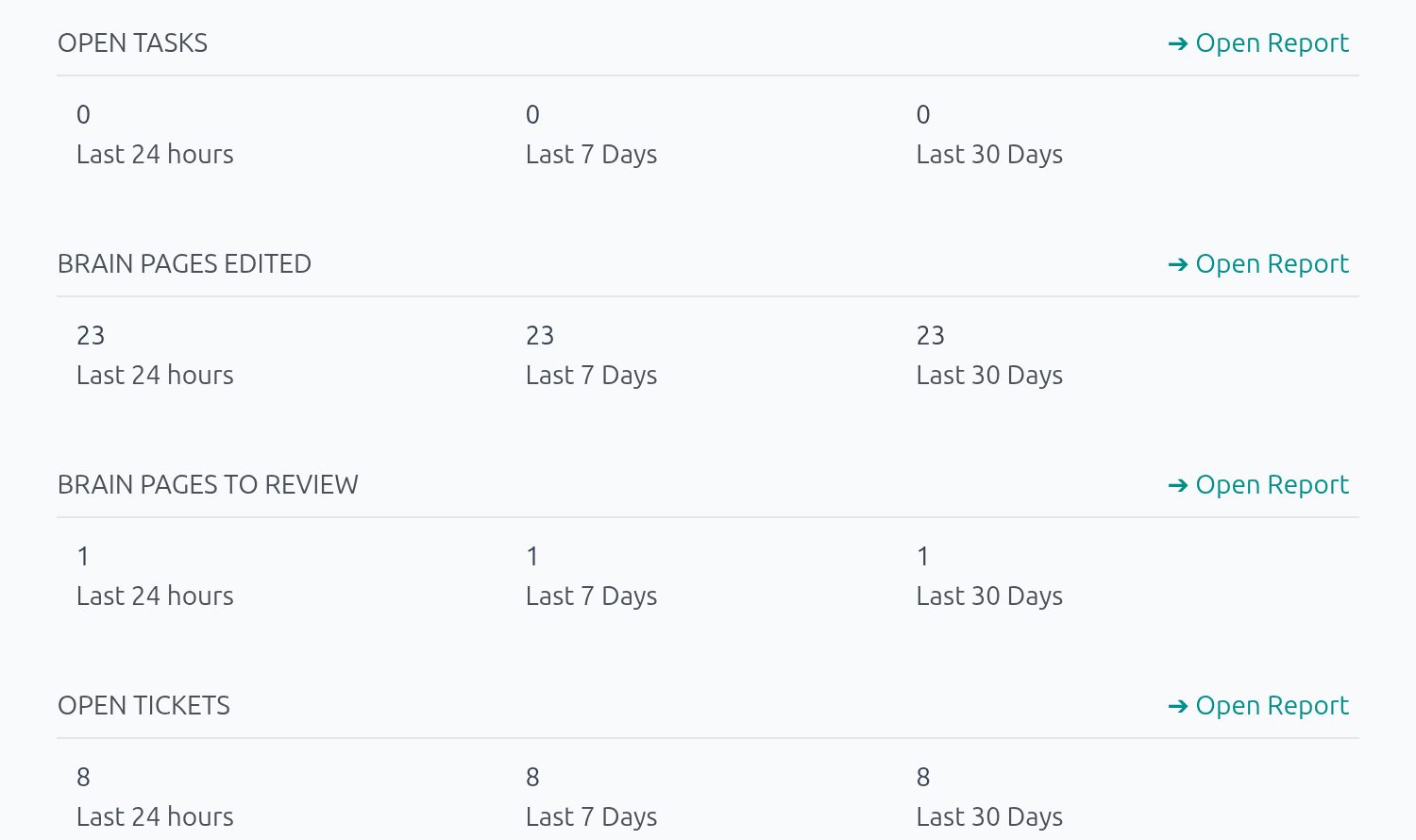
Read the wiki's health in the digest e-mail
Frequently Asked Questions
Do I have to install anything?
The module has no tile in the Apps list. It installs itself as soon as Viindoo Brain and the KPI Digests app are both installed in the database, and it needs no other step. The two figures are off until you tick them on a digest.
Where do I turn the figures on?
In developer mode, open Settings → Technical → Email → Digest Emails, open a digest, and on the KPIs tab tick Brain Pages Edited and Brain Pages to Review in the Brain group. Administration / Settings rights are needed.
Does everyone see the same numbers?
No. Each recipient's figures are counted over the pages that person may read: a wiki admin sees every Space, an employee sees the Spaces the person belongs to or may read.
What counts as a page to review?
A published page whose review date has come, or that an assistant changed since a person last verified it. Archived pages, drafts and pages in Trash are not counted.
What does the digest period mean for each figure?
Pages edited is shown for the last 24 hours, 7 days and 30 days. Pages to review is the number today, so the three columns show the same figure.
Can I try it before the next scheduled digest?
Yes. Send Now on the digest sends it to every recipient at once and leaves its periodicity unchanged.
We run several companies. Whose figures do I get?
The figures are for the company of the digest. A digest created by a user takes that user's company.
Need help with Viindoo Brain - Digest?
Pre-Sales & Partnership
viindoo.com/contactusTechnical Support
viindoo.com/ticketTechnical Requirement
- Odoo version: 17.0
- Editions: Odoo Community, Viindoo Cloud
- Required modules: Viindoo Brain and Odoo's KPI Digests app, which comes with every Odoo. The module installs automatically once both are present.
- License: OPL-1
Viindoo Brain - Digest
Who this guide is for. Managers who receive the Odoo e-mail digest, wiki admins who look after the company wiki, and the administrator who sets the digest up. It describes what you see on screen and what to click.
Note
Extends Viindoo Brain - see its documentation: Viindoo Brain.
Overview
A company wiki is only useful while its pages are current. Viindoo Brain - Digest puts the health of the wiki into the e-mail digest that managers already receive, so a wiki that is going stale is noticed without opening Brain.
The digest e-mail gains two figures:
- Brain Pages Edited - how many pages were edited in the last 24 hours, the last 7 days and the last 30 days. It shows how alive the wiki is.
- Brain Pages to Review - how many published pages need review today, either because their review date has come or because an assistant changed them since they were last verified. It shows how much of the wiki is waiting for its owners.
Each figure is counted for the company of the digest, so the managers of a company read the figures of their own company. Each recipient sees the figures over the pages that person may read: a wiki admin sees every Space, an employee sees the Spaces the person belongs to or may read.
| Role | What they do | Access right to assign |
|---|---|---|
| Administrator | Turns the two figures on for a digest and chooses who receives it. | Administration / Settings on the user. |
| Digest recipient | Reads the two figures in the digest e-mail. | None: the person is listed in the Recipients tab of the digest. |
| Wiki admin | Reads the figures for the whole wiki and opens the matching report in Brain. | Brain / Brain Admin on the user. |
Setup (for the Administrator)
Installation
Viindoo Brain - Digest has no tile in the Apps list. It installs itself as soon as both Viindoo Brain and the KPI Digests app are installed in the database, and it does not need any other step.
Turn the two figures on
Both figures are off until you switch them on, one digest at a time.
- Activate the developer mode: the Technical menu of Settings only shows in that mode.
- Open Settings ‣ Technical ‣ Email ‣ Digest Emails and open the digest you want to change.
- Open the KPIs tab. The Brain group sits next to the other KPI groups of the digest.
- Tick Brain Pages Edited and Brain Pages to Review, then save.
Choose who receives the digest
Open the Recipients tab of the digest and add the managers who should read the figures. Each recipient gets the e-mail in their own language.
Check the result
Click Send Now at the top of the digest to send the e-mail to every recipient right away and see the figures. It does not change the periodicity of the digest, so use it when the recipients expect the e-mail.
Digest recipient: reading the figures
In the digest e-mail, each Brain figure has its own block with three columns: the last 24 hours, the last 7 days and the last 30 days.
How to read them:
- Brain Pages Edited counts the pages whose last edit falls in the period. A page edited several times counts once.
- Brain Pages to Review is the number of pages waiting for review today, so it is the same in the three columns. Archived pages, drafts waiting for approval and pages in Trash are not counted.
- Click Open Report to go to the matching report in Brain.
Wiki admin: following the figures
From the digest e-mail, Open Report under Brain Pages Edited opens Page Health, and Open Report under Brain Pages to Review opens To Review. Both reports are in Brain ‣ Reporting, where the pages can be grouped by Space and by owner.
Troubleshooting
- The Brain group is not on the KPIs tab.
- Viindoo Brain - Digest installs itself only when Viindoo Brain and the KPI Digests app are both installed. Check both in the Apps list.
- A recipient does not see the Brain figures in the e-mail.
- The digest was sent before the two figures were ticked, or the figures are not ticked on that digest. Tick them and use Send Now to check.
- Two recipients see different numbers.
- This is expected: each person's figures cover the pages that person may read. A wiki admin sees every Space; an employee sees the Spaces they may read.
FAQ
- Can I show only one of the two figures?
- Yes. Each one has its own tick box in the Brain group.
- Do the figures follow the company?
- Yes. A digest belongs to one company, and the figures cover the pages of that company. Create one digest per company to give each company's managers their own figures.
- Does a page in Trash or an archived page count?
- Not in Brain Pages to Review. Pages in Trash are not counted in either figure.
This software and associated files (the "Software") may only be used (executed, modified, executed after modifications) if you have purchased a valid license from the authors, typically via Odoo Apps, or if you have received a written agreement from the authors of the Software (see the COPYRIGHT file).
You may develop Odoo modules that use the Software as a library (typically by depending on it, importing it and using its resources), but without copying any source code or material from the Software. You may distribute those modules under the license of your choice, provided that this license is compatible with the terms of the Odoo Proprietary License (For example: LGPL, MIT, or proprietary licenses similar to this one).
It is forbidden to publish, distribute, sublicense, or sell copies of the Software or modified copies of the Software.
The above copyright notice and this permission notice must be included in all copies or substantial portions of the Software.
THE SOFTWARE IS PROVIDED "AS IS", WITHOUT WARRANTY OF ANY KIND, EXPRESS OR IMPLIED, INCLUDING BUT NOT LIMITED TO THE WARRANTIES OF MERCHANTABILITY, FITNESS FOR A PARTICULAR PURPOSE AND NONINFRINGEMENT. IN NO EVENT SHALL THE AUTHORS OR COPYRIGHT HOLDERS BE LIABLE FOR ANY CLAIM, DAMAGES OR OTHER LIABILITY, WHETHER IN AN ACTION OF CONTRACT, TORT OR OTHERWISE, ARISING FROM, OUT OF OR IN CONNECTION WITH THE SOFTWARE OR THE USE OR OTHER DEALINGS IN THE SOFTWARE.