
Manufacturing Backdate
| Lines of Code | 652 |
| Technical name | to_mrp_backdate |
| License | OPL-1 |
| Website | https://viindoo.com/apps/app/17.0/to_mrp_backdate |
| Read description for | v 11.0 v 12.0 v 13.0 v 14.0 v 15.0 v 16.0 |
| Required Apps | Manufacturing (mrp) Discuss (mail) Inventory (stock) |
| Included Dependencies | Inventory Backdate Backdate Operations Access Rights |

Manufacturing Backdate
MRP backdate operations, incl. posting inventory, mark MO as done, backdate work orders
By default of Odoo, the start/completion time of Activities in a Work Order will be recorded according to the current time when the user presses the Start, and Done buttons on the work orders. From there determine the actual Duration and calculate the Production Cost of these work orders.
Key Features
Built natively on Odoo/Viindoo to streamline real business operations:
This module allows users to manage work orders that have taken place in the past
Include:
- Allow you to *Start*, *Pause*, *Block or Unblock* and Finish a work order with a pass dates.
- Allow *Mark as Done* a manufacturing order with a pass date.
- Enter the inventory entries for raw materials and finished goods and semi-finished products from work orders with past dates.
- Record stock movement for raw materials and finished goods, semi-finished products with a past date.
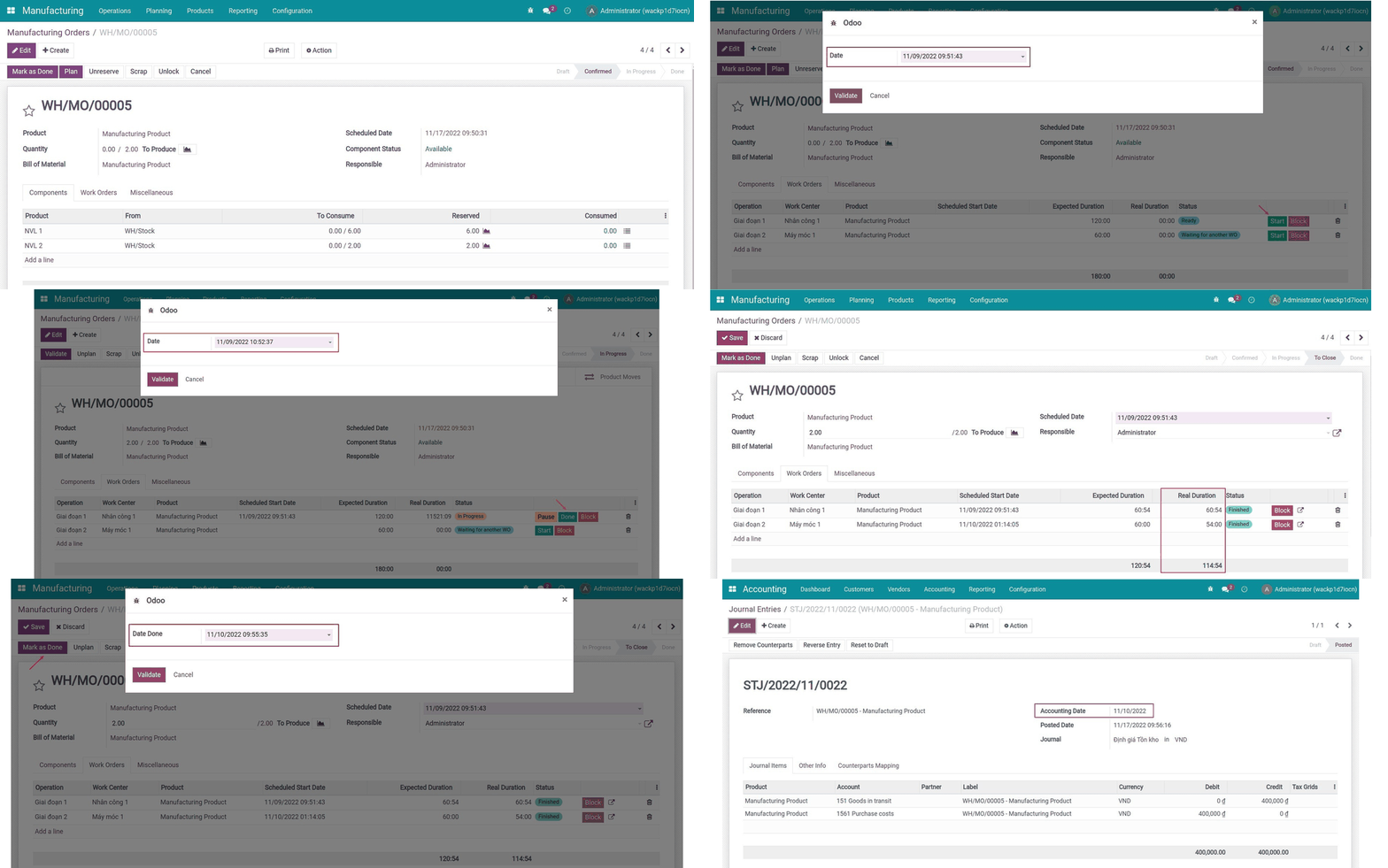
Create a manufacturing order in Viindoo
Start a work order
Pause/Done a work order
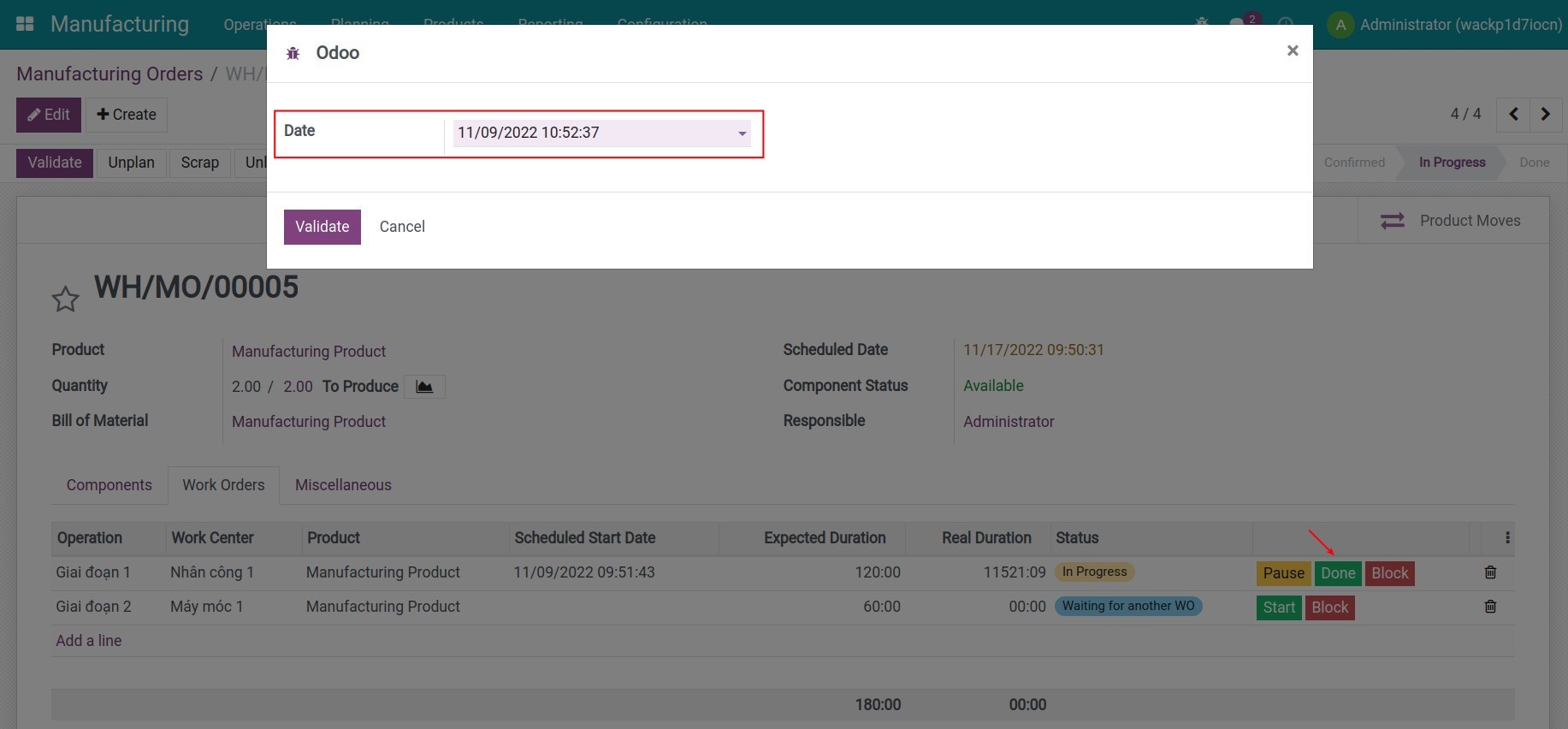
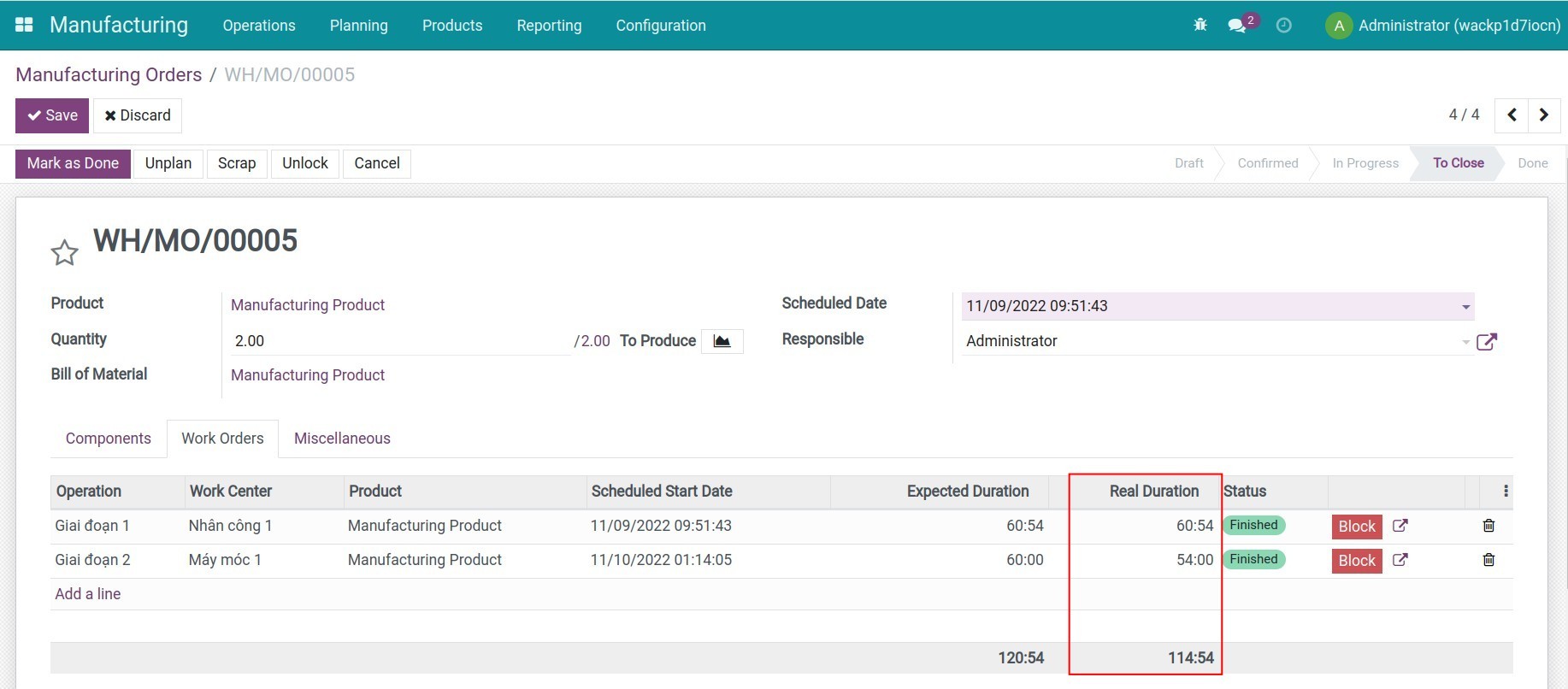
Calculate the real duration
Validate the manufacturing order
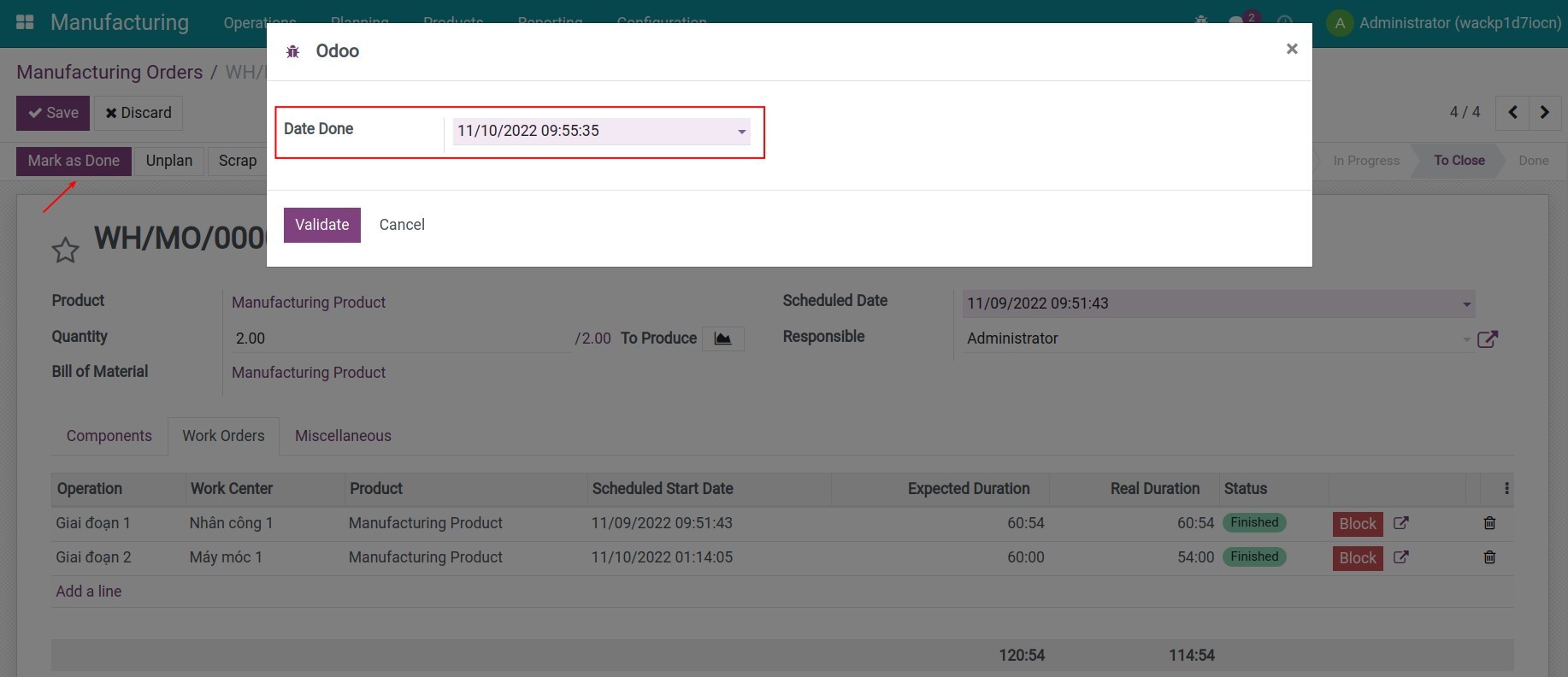
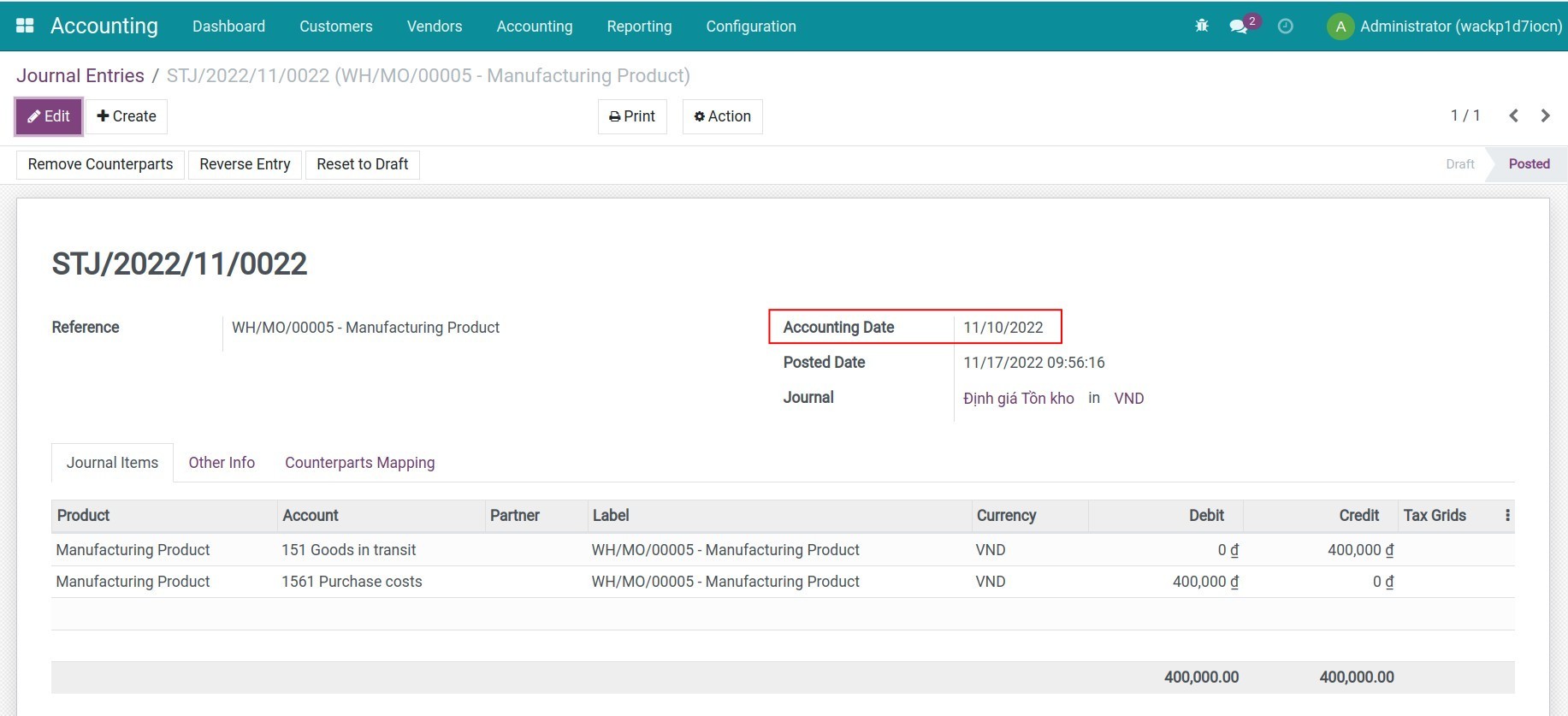
Recording entries of finished goods in inventory in the Viindoo system
See Manufacturing Backdate in Action
See how this module solves real business problems in a working Viindoo environment.
Need help with Manufacturing Backdate?
For questions, implementation support, or consulting services, contact Viindoo.
Pre-Sales & Partnership
When contacting us, please include:
- Odoo/Viindoo version (CE/EE).
- Number of users and business scope.
- Other modules currently in use.
Technical Support
For faster troubleshooting, please provide:
- Order number or app reference.
- Odoo/Viindoo version & edition.
- Steps to reproduce the issue.
- Screenshots/logs if available.
Technical Requirement
Who Should Use This Module?
Built for teams that need this capability fully integrated into their Odoo/Viindoo stack.
Executives & Business Owners
Need clear visibility into operations and a stack that scales without bespoke development.
Operations / Department Leaders
Want to streamline daily workflows, remove manual handoffs, and keep data consistent across teams.
Implementers & Odoo Partners
Looking for production-ready Viindoo modules to deliver projects faster and at lower risk.
Installation
- Navigate to Apps.
- Search with keyword to_mrp_backdate.
- Press Install.
Instruction
Instruction video: Manufacturing Backdate
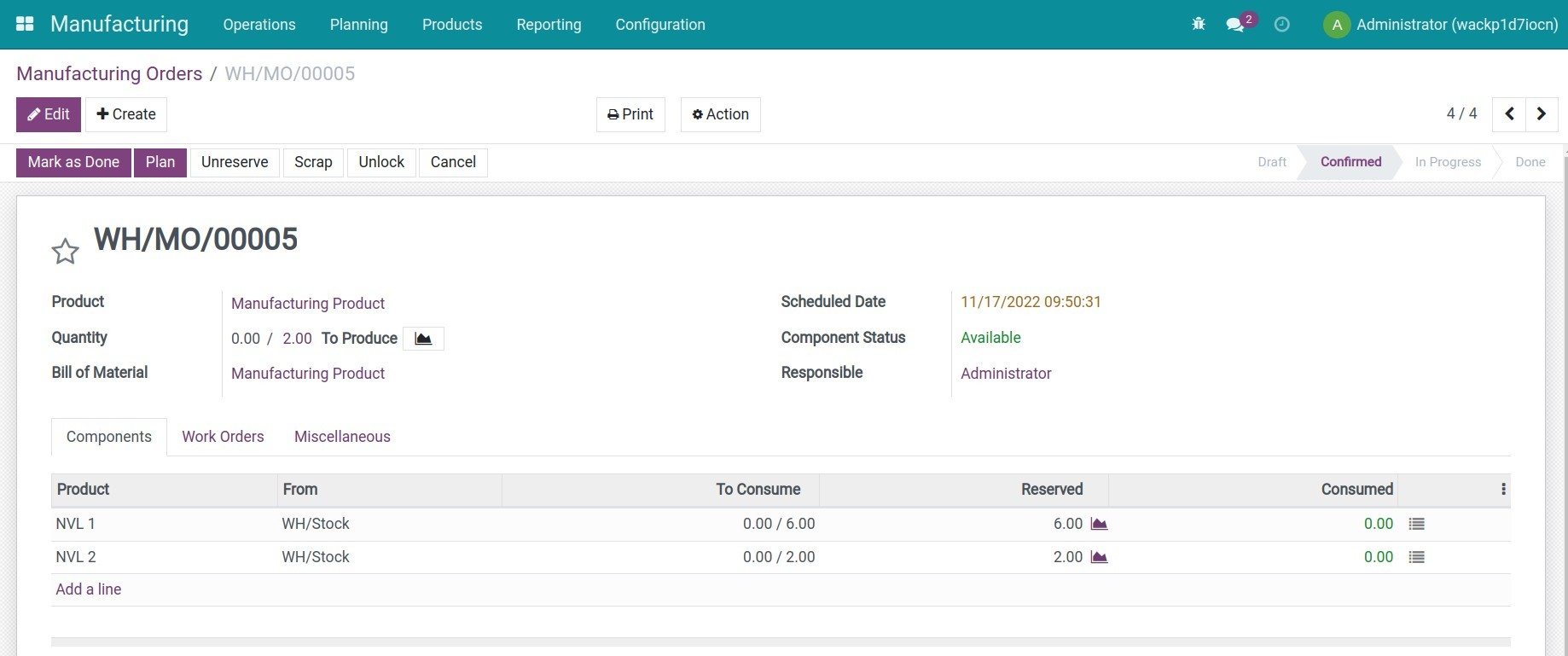
Step 1: Navigate to Manufacturing > Operations > Manufacturing Orders, press Create to create a manufacturing order. Press Confirm.
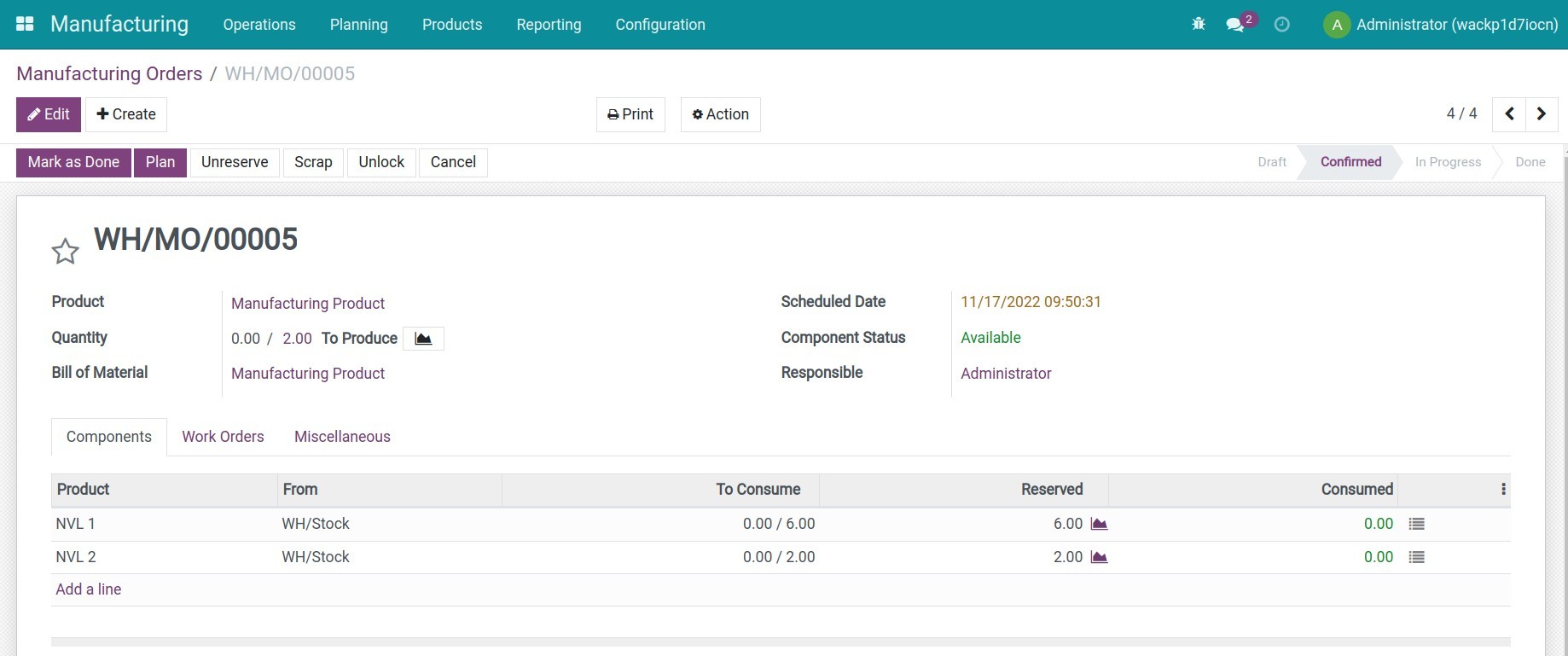
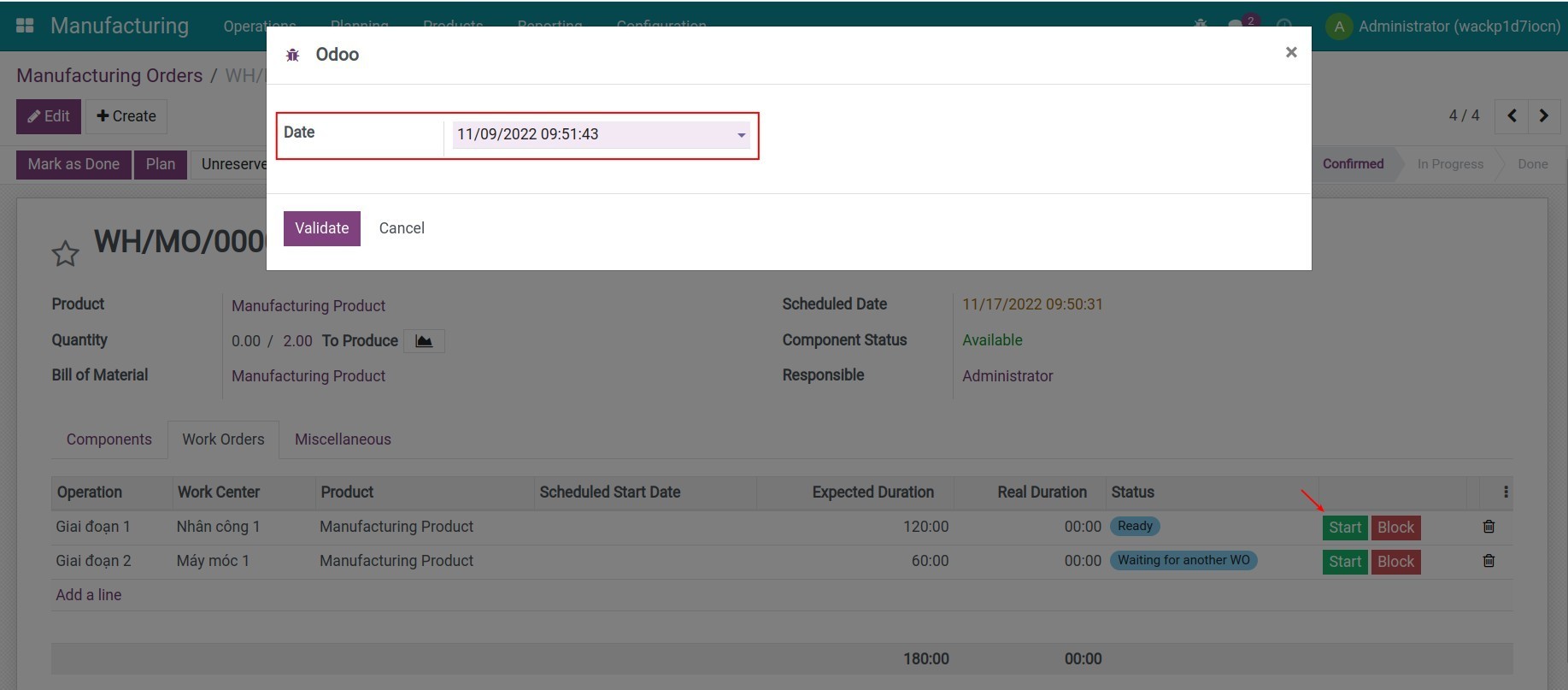
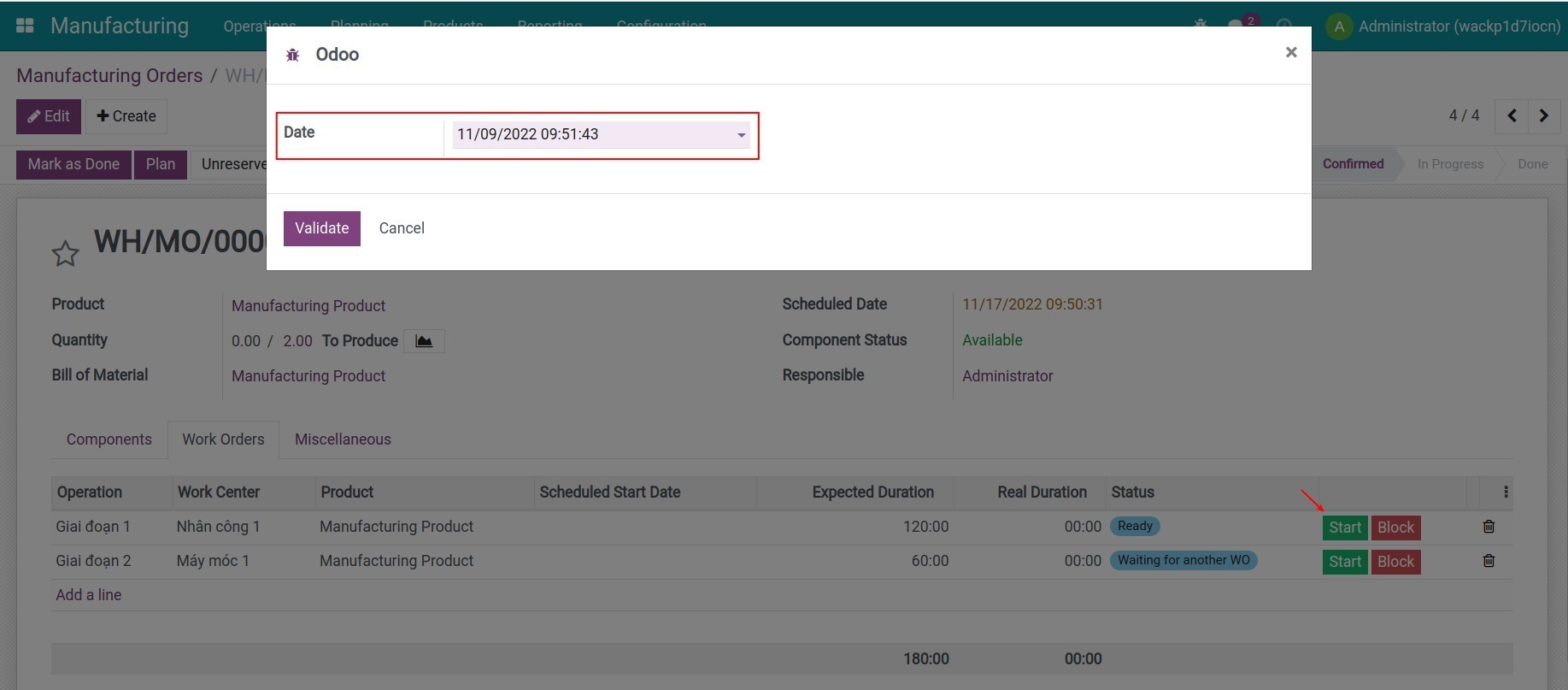
Step 2: On the manufacturing order, on the Work Orders tab, press Start to start a work order. Now, a pop-up will appear allowing you to select a day in the past.
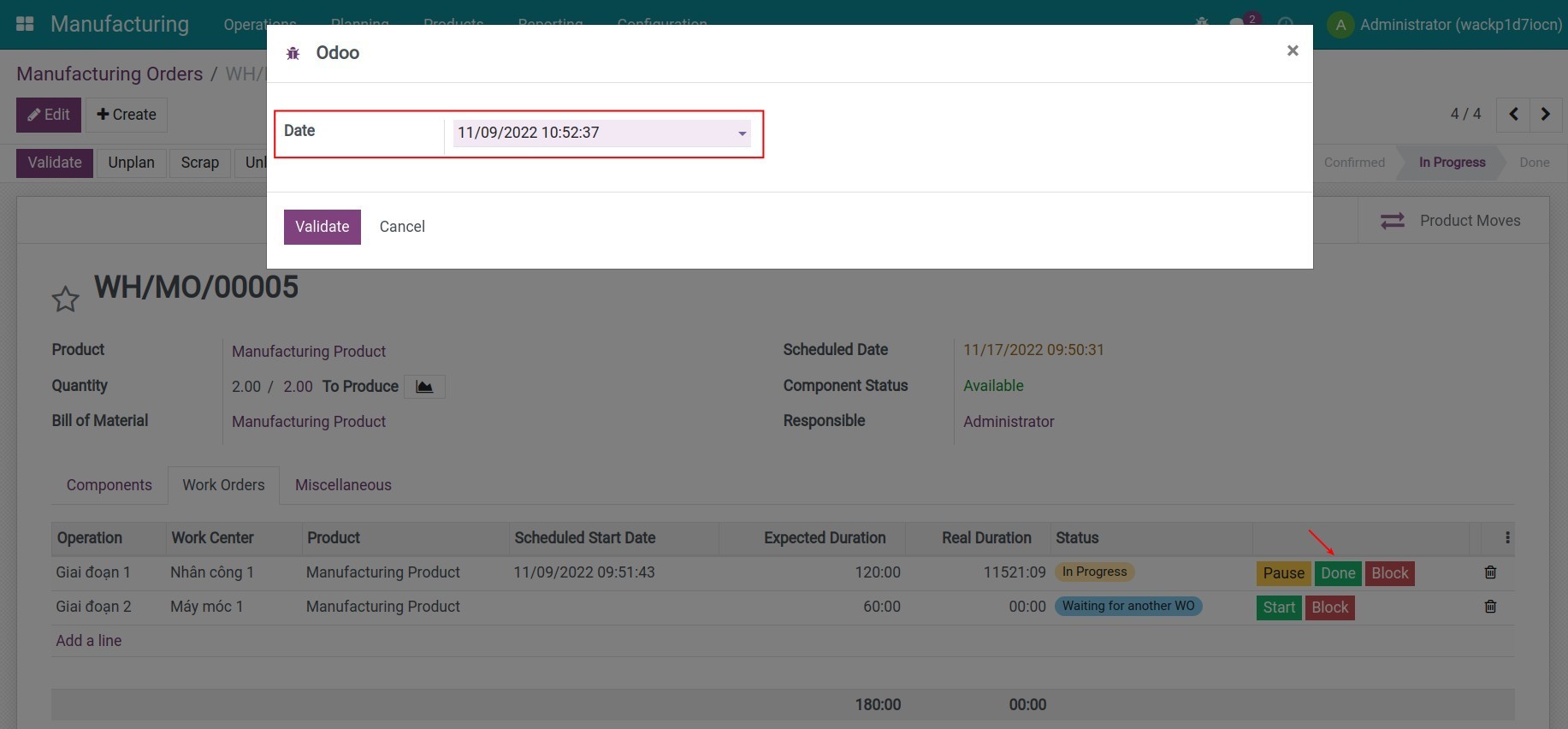
Step 3: Similarly, when you press Pause or Done, the system also allows selecting a day in the past. Then it will calculate the Real Duration base on the Start and the Pause/Done date.
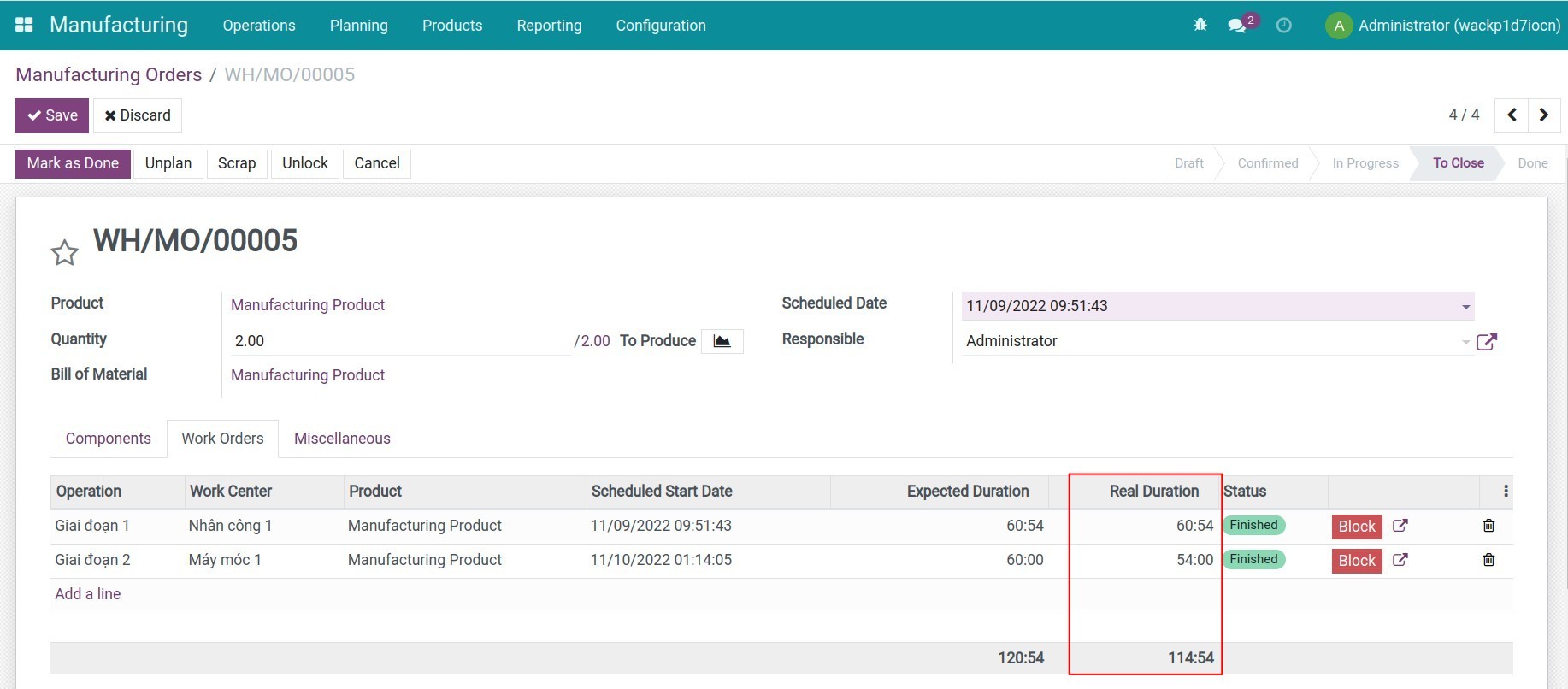
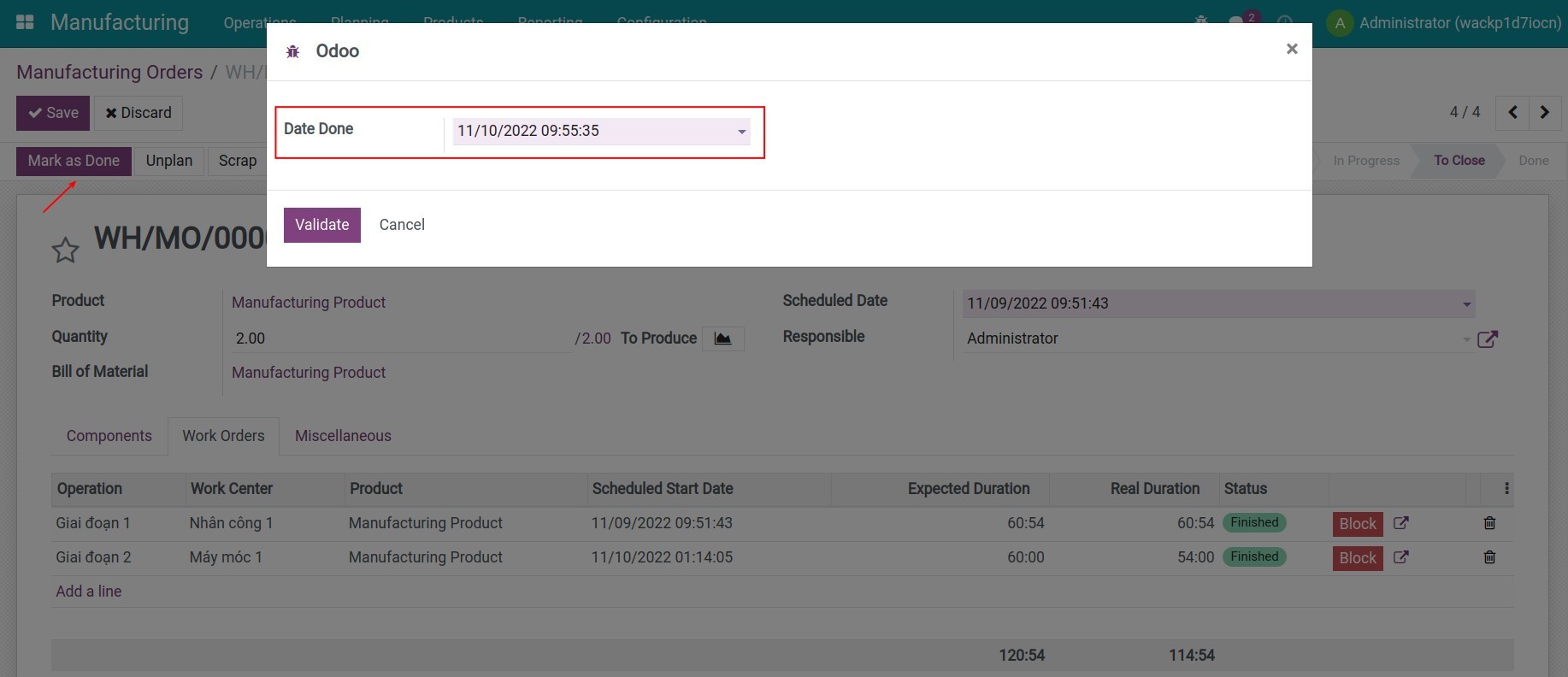
Step 4: Press Mark as Done to finish the manufacturing order. Now, the system will show a pop-up allowing the user to select a day in the past as the Date Done.
Step 5: Navigate to Inventory > Reporting > Stock Moves, delete the default filter, type the manufacturing order's Reference to the search box and select the Reference criteria. The system will show the stock moves relating to the products, and the Date Scheduled will be the date you mark the manufacturing order as done in step 4.
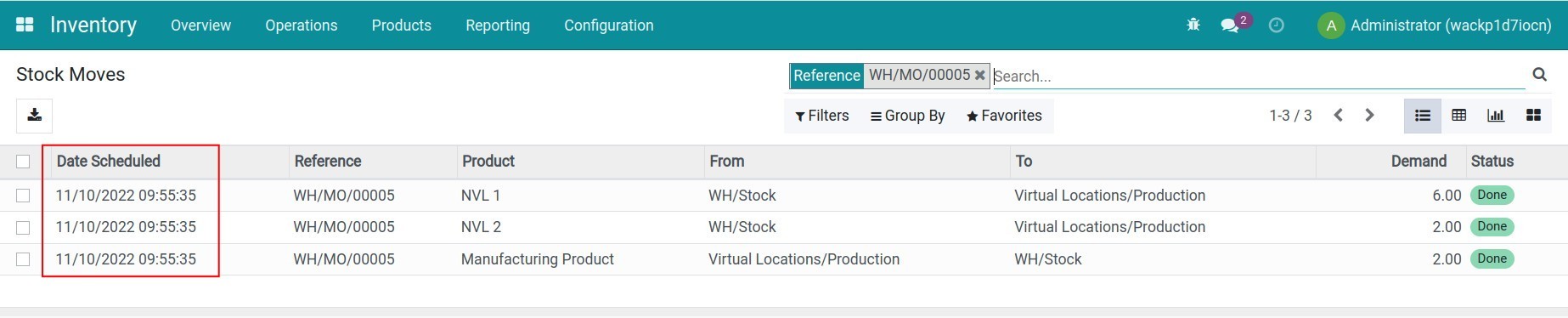
Note: You can also see the stock moves on the manufacturing order by pressing the Product Moves button (you need to activate the developer mode).

Step 6: Navigate to Accounting > Accounting > Journal Entries, delete the default filter, type the manufacturing order's Reference and select the Journal Entry for criteria. The system will show the journal entries relating to the Manufacturing order with the day in the past.
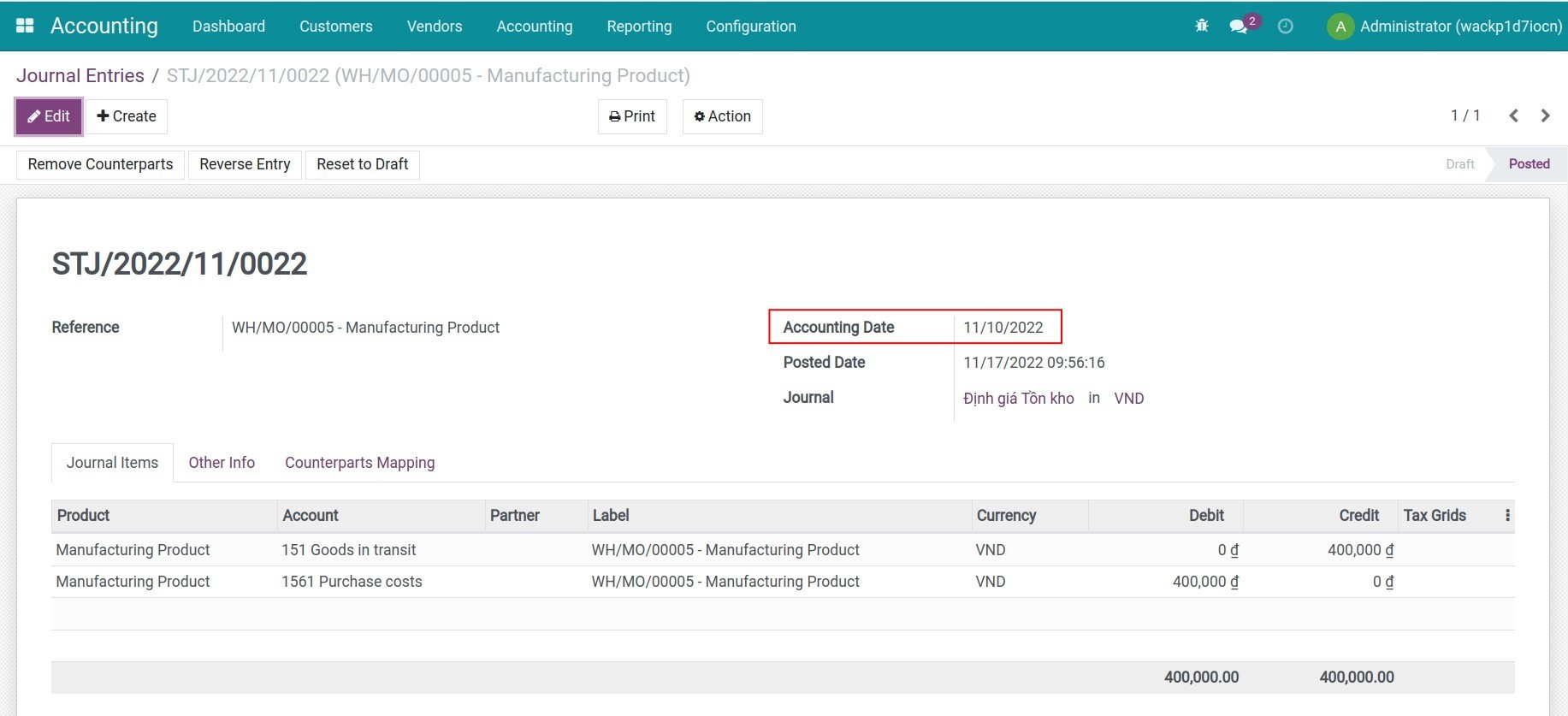
Note: The system only records the journal entries automatically when you select Inventory Valuation as Automatic. For more information, refer to the article: Inventory Valuation Accounting.
This software and associated files (the "Software") may only be used (executed, modified, executed after modifications) if you have purchased a valid license from the authors, typically via Odoo Apps, or if you have received a written agreement from the authors of the Software (see the COPYRIGHT file).
You may develop Odoo modules that use the Software as a library (typically by depending on it, importing it and using its resources), but without copying any source code or material from the Software. You may distribute those modules under the license of your choice, provided that this license is compatible with the terms of the Odoo Proprietary License (For example: LGPL, MIT, or proprietary licenses similar to this one).
It is forbidden to publish, distribute, sublicense, or sell copies of the Software or modified copies of the Software.
The above copyright notice and this permission notice must be included in all copies or substantial portions of the Software.
THE SOFTWARE IS PROVIDED "AS IS", WITHOUT WARRANTY OF ANY KIND, EXPRESS OR IMPLIED, INCLUDING BUT NOT LIMITED TO THE WARRANTIES OF MERCHANTABILITY, FITNESS FOR A PARTICULAR PURPOSE AND NONINFRINGEMENT. IN NO EVENT SHALL THE AUTHORS OR COPYRIGHT HOLDERS BE LIABLE FOR ANY CLAIM, DAMAGES OR OTHER LIABILITY, WHETHER IN AN ACTION OF CONTRACT, TORT OR OTHERWISE, ARISING FROM, OUT OF OR IN CONNECTION WITH THE SOFTWARE OR THE USE OR OTHER DEALINGS IN THE SOFTWARE.