
LinkedIn Social Marketing
by Viindoo
| Lines of Code | 2942 |
| Technical name | viin_social_linkedin |
| License | OPL-1 |
| Website | https://viindoo.com/apps/modules/19.0/viin_social_linkedin |
| Read description for | v 13.0 v 14.0 v 15.0 v 16.0 v 17.0 v 18.0 |
| Required Apps | Discuss (mail) |
| Included Dependencies | Viindoo Base Social Marketing API Request Logger |
Publish on your LinkedIn company pages and follow the results, from the place your team already works
For marketing teams and community managers who run one or several LinkedIn company pages
LinkedIn organisation pages in Social Marketing
Odoo Community · OPL-1 · English, Vietnamese
Adds LinkedIn to Social Marketing: its articles, approvals and reports reach your company pages.
What changes for your team
Results back where the post was written
Likes, comments and clicks stay inside LinkedIn, and someone copies them into a report by hand.
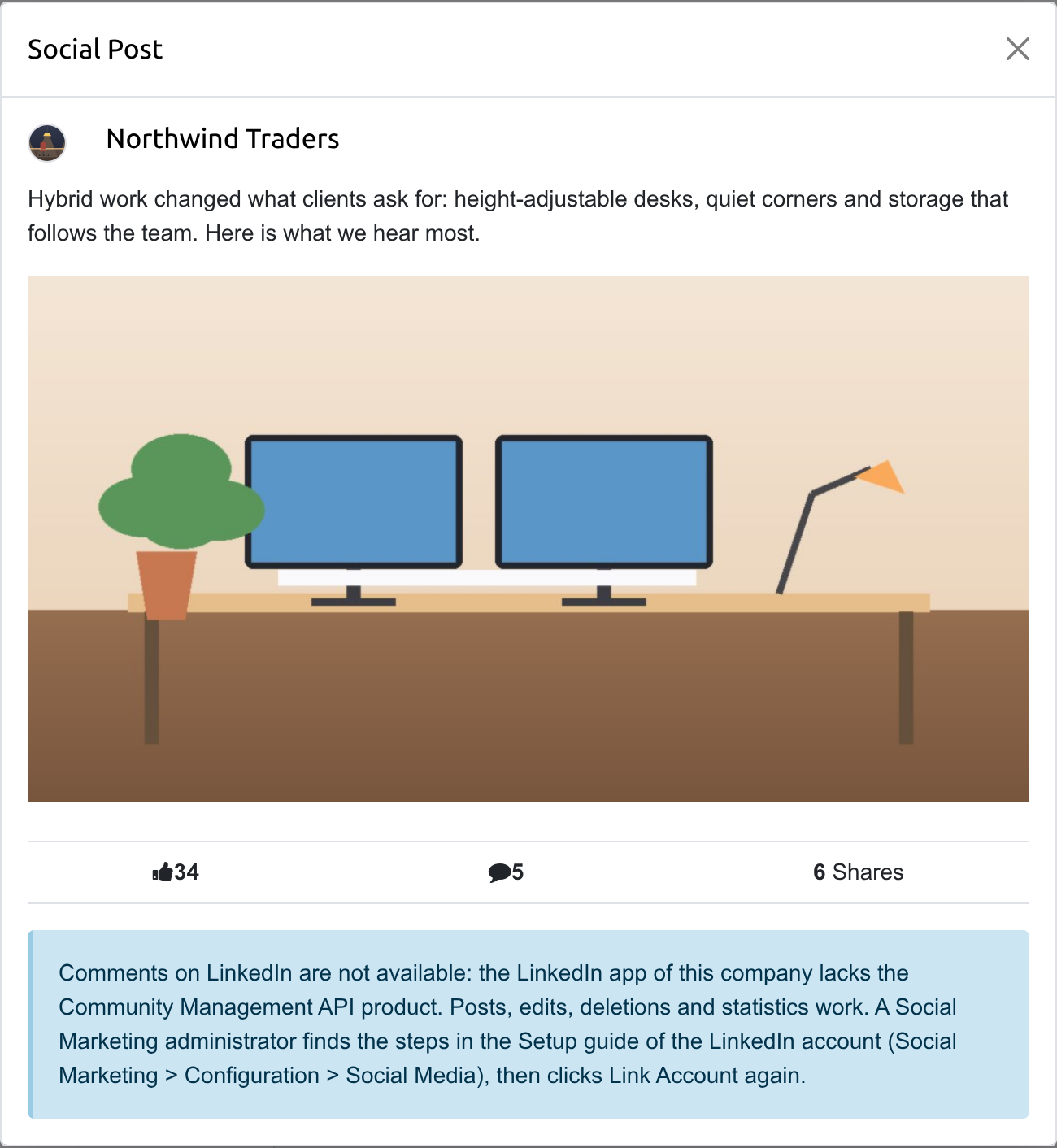
→ Each post comes back with its likes, comments, shares, views, clicks and engagement rate, refreshed whenever the page is synchronized.
A connection you can check, not assume
LinkedIn limits the calls of an app per day, and the first sign is a post that fails.
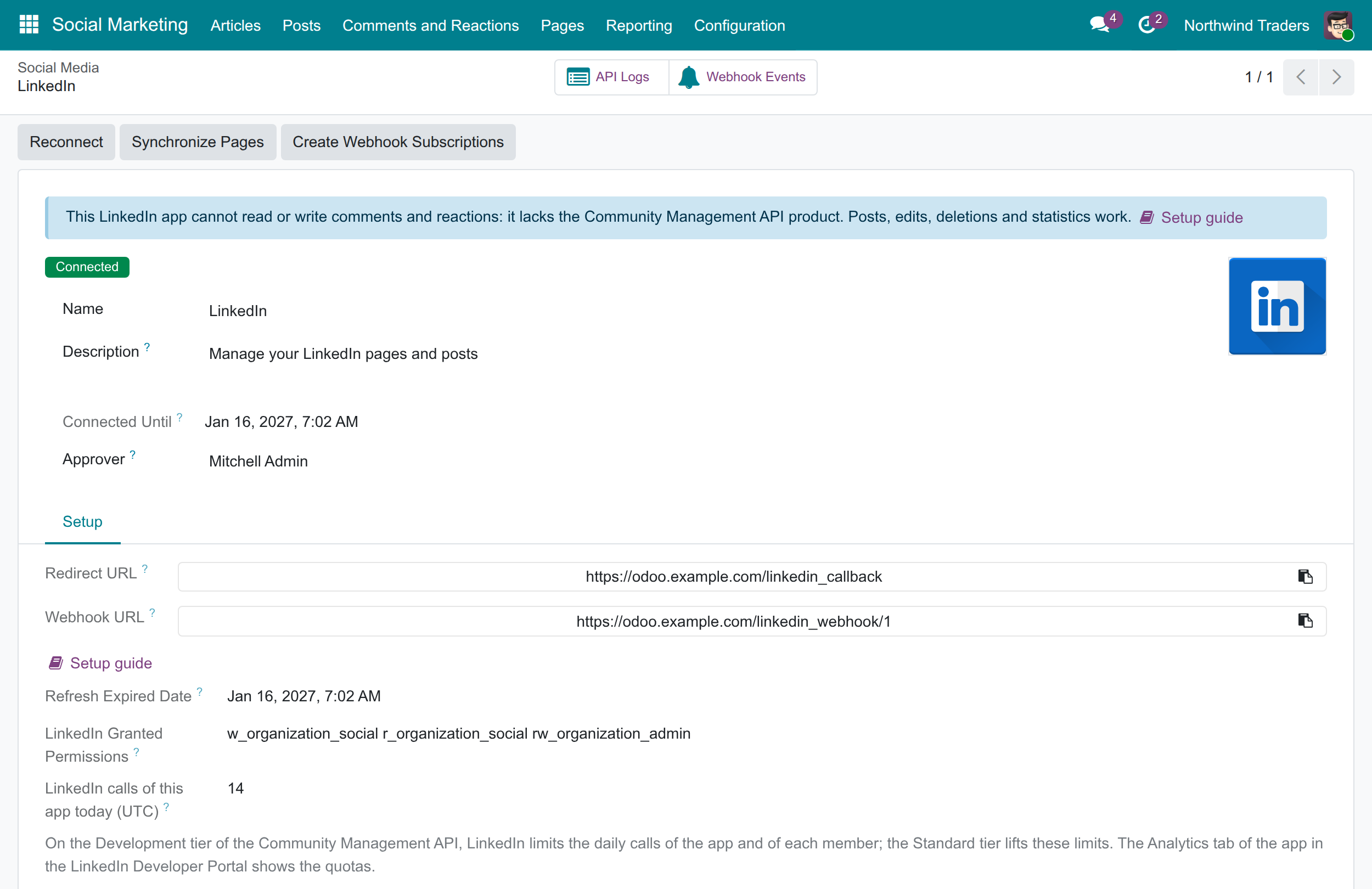
→ The LinkedIn record shows whether it is connected and until when, how many calls the app made today, and what your LinkedIn app is still missing.
Notifications you know are arriving
Nobody knows whether LinkedIn sends the comments of a page until one goes unanswered.
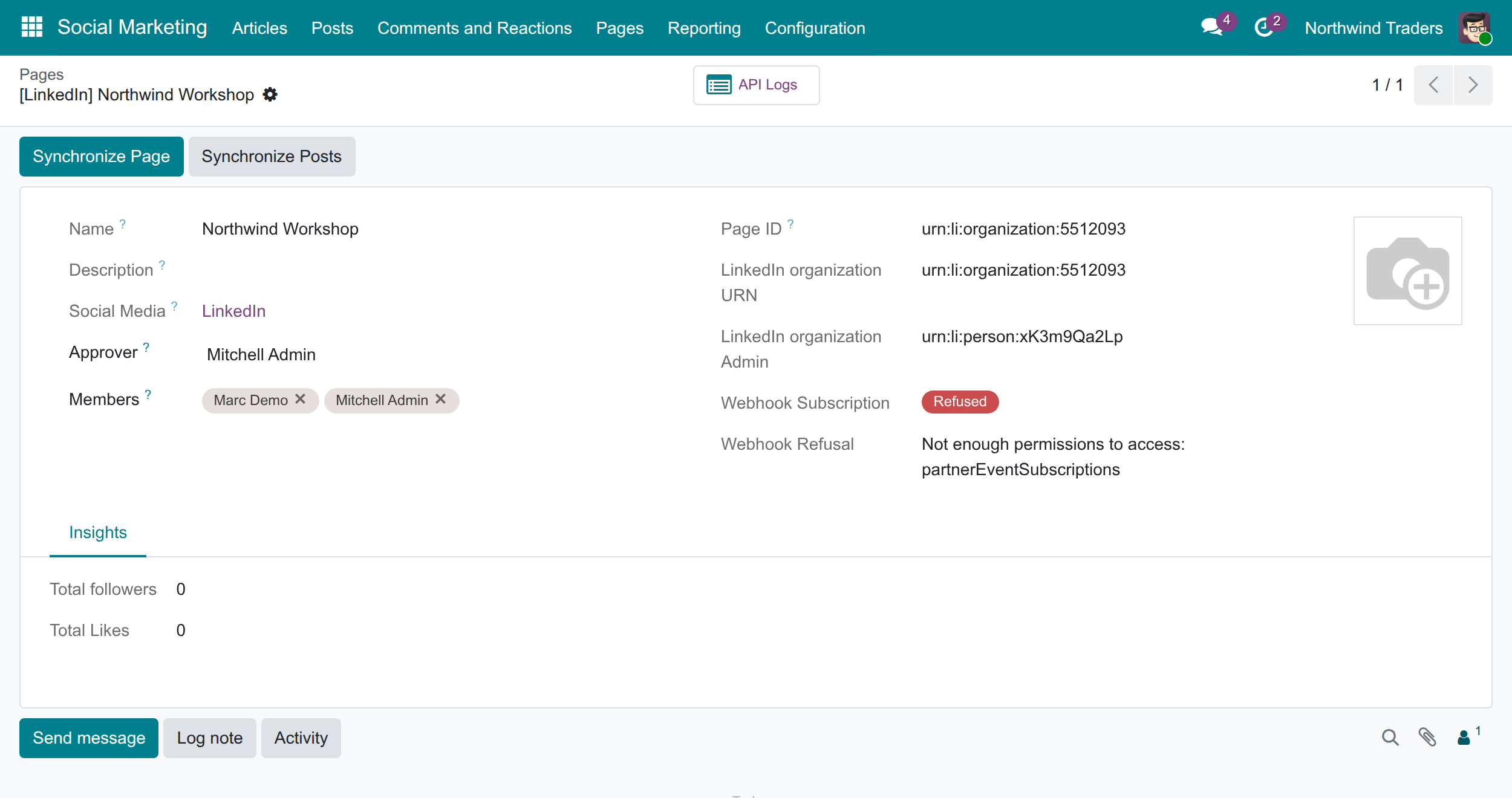
→ Each page shows whether LinkedIn sends it notifications and, when LinkedIn refuses, its own words, so the cause is fixed on the first try.
Features
Publishing
- ✓ Text, link, image or one-video posts on several company pages
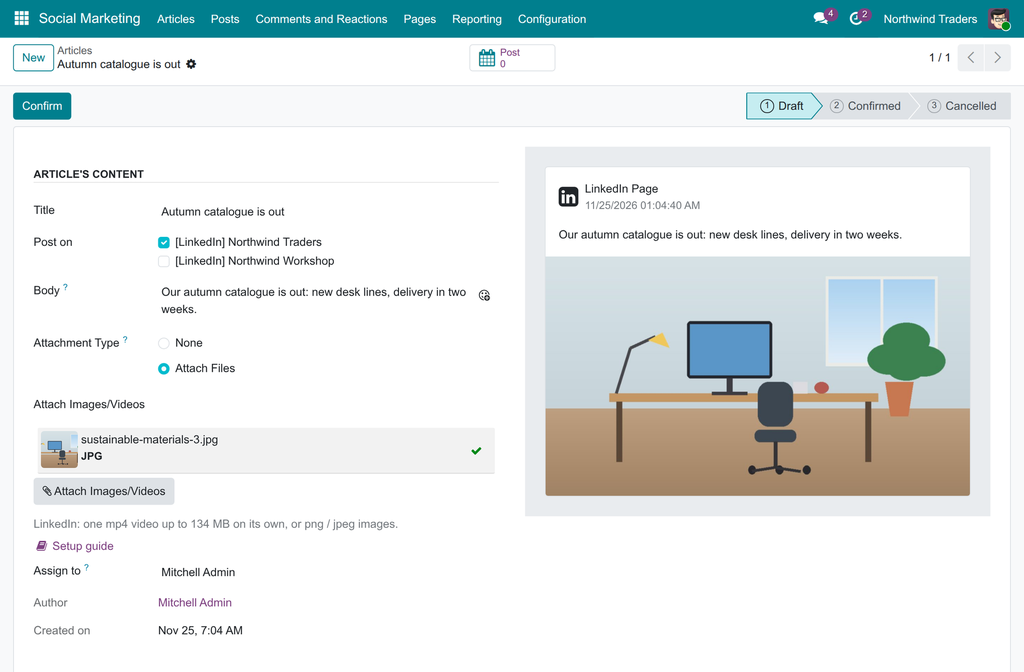
- ✓ LinkedIn preview and accepted files shown while writing
- ✓ Videos upload in the background; a failed post gives LinkedIn's reason
- ✓ Text of a published post edited from Odoo
Page activity
- ✓ Posts synchronized with likes, comments, shares, views and clicks
- ✓ Engagement rate per post and in the Post Engagement report
- ✓ Comments answered, liked or deleted from the post
- ✓ Followers of each page
Connection
- ✓ Connection state and end date on one record, renewed daily
- ✓ Calls made to LinkedIn today, next to the quota explanation
- ✓ Webhook subscription per page, with LinkedIn's refusal words
- ✓ Every call kept in API Logs, tokens masked
Built for daily use
- ✓ LinkedIn app credentials per company; the secret seen by system administrators only
- ✓ Each notification checked against your app's signature
- ✓ When LinkedIn limits calls, scheduled work waits until 00:00 UTC, then resumes
- ✓ A post is archived only when LinkedIn confirms it is gone
Ready on day one
The LinkedIn connection
A LinkedIn record with the addresses to copy into your LinkedIn app and a setup guide.
Background jobs
Video uploads continue on their own, and a daily job keeps the connection alive.
What you set up first
Your own LinkedIn app, its Client ID and Client Secret in Settings, then Link Account.
Before you decide
What do we need on the LinkedIn side?
Your own LinkedIn app with the product that grants the company page permissions, an account with the administrator role on each page, and a public HTTPS address for your database. Comments, reactions and notifications also need the Community Management API product, which LinkedIn grants only to an app that holds no other product; without it, posts, edits, deletions and statistics work.
Where does our data go?
From your server to LinkedIn, through your own LinkedIn app. Every call is kept in API Logs, with tokens, codes and secrets masked.
Who can publish, and who sees the secret?
Editors write and confirm articles; approvers publish, retry and edit posts; the Social Marketing administrator links the account and the pages. The Client Secret is visible to system administrators only.
What does LinkedIn not allow?
Scheduling a post, hiding a comment, and changing anything but the text of a published post. Personal profiles are not supported: the module publishes on company pages.
What does it take to install and run?
It installs on top of Social Marketing, and Odoo installs it together with that app. An administrator enters the LinkedIn app credentials, links the account and subscribes the pages to notifications; the Documentation tab walks through each step.
Try it, then ask us
The Documentation tab of this listing explains every screen by role, and Live Preview opens the app on a demo database.
Pre-sales & partnership
viindoo.com/contactusTechnical support
viindoo.com/ticketLinkedIn Social Marketing - user guide
Who this guide is for: the people who prepare and publish posts on a LinkedIn page from Odoo (editors and approvers), the Social Marketing administrator who connects the LinkedIn account and the pages, and the system administrator who enters the credentials of the LinkedIn app. It describes what each of them sees and does; it does not require any knowledge of the software's internals.
Note
Extends Social Marketing: the articles, posts, notices, the queue of webhook notifications and the general rules of publishing are described in the Social Marketing documentation. The call history behind the API Logs button is provided by API Request Logger. This guide covers what is specific to LinkedIn.
Overview
LinkedIn Social Marketing publishes the articles of Social Marketing on the LinkedIn pages (organizations) you administer (text, link, images or one video), keeps the posts of each page in Odoo with their likes, comments, shares and views, and lets the team answer comments from Odoo.
| Role | What they do | Access right to assign |
|---|---|---|
| System administrator | Enters the Client ID, Client Secret and Developer Application ID of the LinkedIn app; reads the history of calls to LinkedIn | Settings: Administration / Settings |
| Social Marketing administrator | Links the LinkedIn account, synchronizes the pages, creates the webhook subscriptions of the pages, reads the connection state and the calls made today | Social Marketing: Administrator |
| Editor | Writes articles for LinkedIn | Social Marketing: Editor |
| Approver | Publishes articles, follows the posts, edits their text, synchronizes the posts of a page | Social Marketing: Approver |
The process: the administrators connect LinkedIn once; an editor writes and confirms an article; an approver publishes it; LinkedIn answers (Posted or Failed); the likes, comments and shares come back to Odoo.
Setup (for the administrators)
Install the module
- Open Apps, search for LinkedIn Social Marketing and press Install. It requires Social Marketing.
- Open Social Marketing ‣ Configuration ‣ Settings. In the Social Marketing section, the LinkedIn block shows Enable Social LinkedIn; tick it to publish on LinkedIn.
What the LinkedIn app needs
Create an app in the LinkedIn Developer Portal and, on its page, add the products below. Odoo talks to LinkedIn through the version of the LinkedIn API that this module uses.
- The product that grants the organization permissions w_organization_social (publish on a page), r_organization_social (read the posts of a page) and rw_organization_admin (list the pages the account administers).
- Community Management API, to read and write comments and reactions and to receive notifications. Odoo asks for its permissions w_organization_social_feed and r_organization_social_feed first; when the app does not hold them, Odoo asks again for the organization permissions only. LinkedIn grants this product only to an app that has no other product, so an app that carries the products above cannot hold it: posts, edits, deletions and statistics then work, and comments and reactions are not available (see Comments and reactions of a post). LinkedIn removes the Community Management API access of an app that has not requested the Standard tier within 12 months of receiving the Development tier. The Setup guide buttons of the settings and of the LinkedIn record open the steps.
The account that links the pages must have the administrator role on each LinkedIn page it should manage.
Enter the credentials of the LinkedIn app (system administrator)
- Open Social Marketing ‣ Configuration ‣ Settings (the Social Marketing section).
- In the block LinkedIn App, fill Client ID and Client Secret, both found in the Auth tab of the app in the LinkedIn Developer Portal. Fill Developer Application ID only to receive notifications (comments and reactions); it is the numeric identifier of the app.
- Press Save.
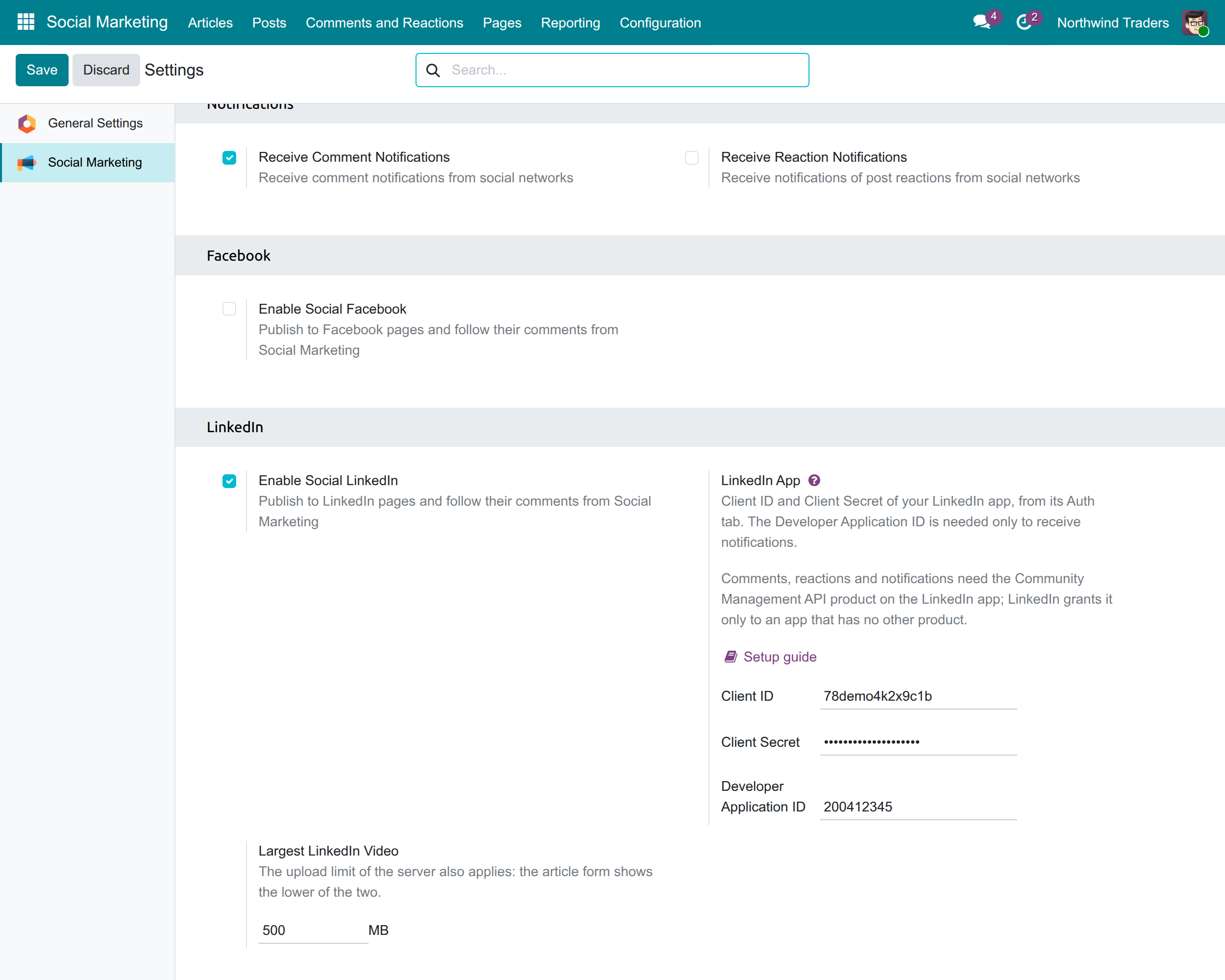
The text under the block title reminds you that comments, reactions and notifications need the Community Management API product, and the Setup guide button opens the instructions. The Client Secret is visible only to system administrators.
File size limits (system administrator)
The Settings screen has its own setting, Largest LinkedIn Video, with the value in MB after the field: the largest video LinkedIn accepts from this database. Change it when LinkedIn changes its limit; no update of the software is needed. The article form shows the result to the editors (see Editor: write articles for LinkedIn).
The help of that setting says that the upload limit of the server also applies, and the article form shows the lower of the two. That limit is the system parameter web.max_file_upload_size, in bytes. To let editors attach larger videos, a system administrator raises it together with the memory limits of the workers and the request size limit of the web server in front of the database.
While a file is being attached, the server process holds about the size of the file in extra memory for a few seconds; the background upload to LinkedIn reads the video in parts. In one measurement, attaching a 287 MB video raised the memory of the server process by about 270 MiB for a few seconds, and the upload of the same video did not raise it. Keep the memory limits of the workers above the largest file you allow plus their usual use.
Declare the addresses and link the account (Social Marketing administrator)
- Open Social Marketing ‣ Configuration ‣ Social Media and select LinkedIn.
- Press the copy button of Redirect URL and paste it in the Auth tab of the LinkedIn app, as an authorized redirect URL, before the next step. LinkedIn accepts only HTTPS addresses: when the public address of the database is not HTTPS a warning is shown at the top of the record (see the Social Marketing documentation).
- Press Link Account and accept the permissions on the LinkedIn page that opens. Odoo then reads the pages the account administers and opens the list of pages.
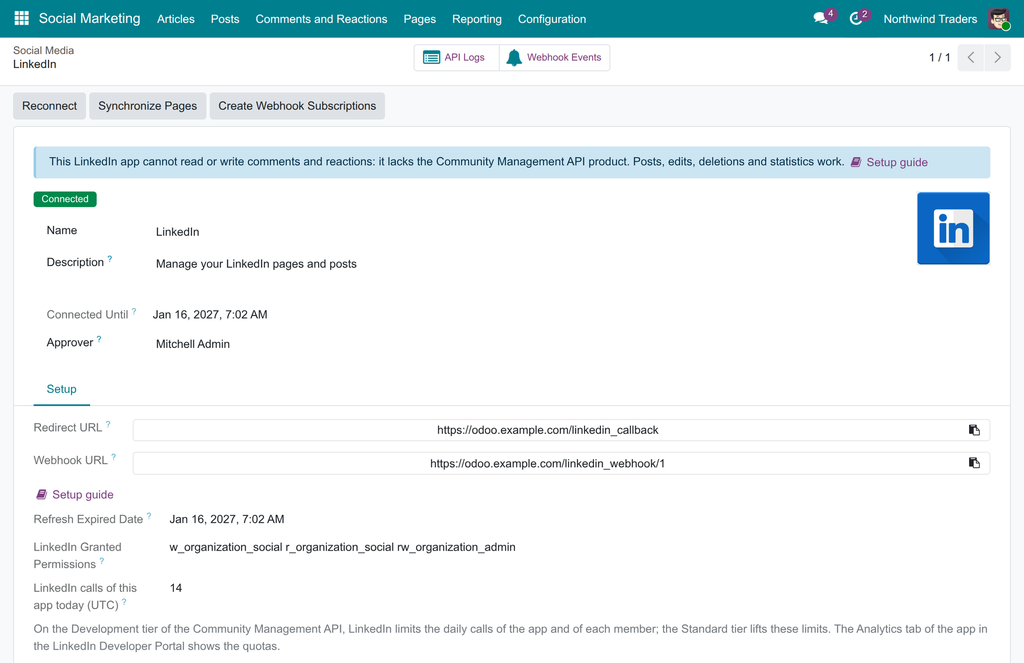
Once the account is linked, the button reads Reconnect and the record shows a green badge Connected and Connected Until, the date until which LinkedIn keeps the connection valid. Before that, the record shows a yellow badge Not connected: press Link Account. A connection whose token LinkedIn refuses also shows Not connected until Link Account is pressed again. The Setup page of the record shows, to the Social Marketing administrator:
- Refresh Expired Date: the date until which LinkedIn lets Odoo renew the connection. A daily scheduled action, Social: Keep LinkedIn connections alive, renews the connection before it expires. When LinkedIn does not allow it, the approver of the connection receives the activity Connect the LinkedIn account again: press Link Account again.
- LinkedIn calls of this app today (UTC): the number of calls this company made to LinkedIn since 00:00 UTC, counted from the API Logs. Under it, the sentence On the Development tier of the Community Management API, LinkedIn limits the daily calls of the app and of each member; the Standard tier lifts these limits. The Analytics tab of the app in the LinkedIn Developer Portal shows the quotas. tells where to read the quotas of your tier. Compare the number with them when LinkedIn refuses calls.
- A blue message This LinkedIn app cannot read or write comments and reactions: it lacks the Community Management API product. Posts, edits, deletions and statistics work. with a Setup guide button, while the connection does not hold the permissions of that product. The message disappears once the app holds the product and you press Link Account again.
When the account was linked, the pages that already receive notifications are subscribed again by Link Account, so a re-link does not interrupt them.
Calls limited by LinkedIn
LinkedIn limits the calls of an app per day. When it refuses a call for that reason, Odoo shows the warning LinkedIn refused the request because a LinkedIn usage limit is reached. Try again later. followed by what LinkedIn answered. From then until 00:00 UTC, the scheduled jobs leave the LinkedIn connection alone, and the record shows, to the Social Marketing administrator, the alert The social network limited the calls of this app. Scheduled synchronizations resume after with the time and the reason (see the Social Marketing documentation); an action you start yourself, such as Synchronize Posts, is still sent. The alert disappears when the time is over. A video that is being uploaded stays in Uploading meanwhile and goes on by itself afterwards.
The limit of the creation of posts is another one: LinkedIn refuses new posts after a few of them within a few minutes. The warning shows its words, nothing is paused, and publishing the post again a little later works.
Webhook subscriptions of the pages (Social Marketing administrator)
LinkedIn sends the notifications of a page (comments, reactions) only to a page that is subscribed. Fill Developer Application ID in the settings, then open Social Marketing ‣ Pages and select a page: the field Webhook Subscription shows the state.
- None: the page is not subscribed; LinkedIn sends nothing about it.
- Active: LinkedIn sends the notifications of the page to Odoo.
- Refused: LinkedIn refused the subscription. Webhook Refusal gives its words, for example Not enough permissions to access: partnerEventSubscriptions. Correct the cause on the LinkedIn app (for example the Community Management API product), then subscribe again.
To subscribe every page of the connection, open the LinkedIn record and press Create Webhook Subscriptions (Social Marketing administrators only). Odoo goes through the pages one after the other and reports, for example, Webhook subscriptions: 1 active, 1 refused. The reason is on each page. A page whose LinkedIn administrator is not known yet is skipped and named in the message: press Synchronize Pages, then try again. When LinkedIn limits the calls during the run, the message names the pages not processed. Synchronize Pages also reads the subscription state of each page from LinkedIn. On a connection that is not linked yet, it shows the warning This LinkedIn account is not linked. An administrator needs to use Link Account on its Social Media first.
Editor: write articles for LinkedIn
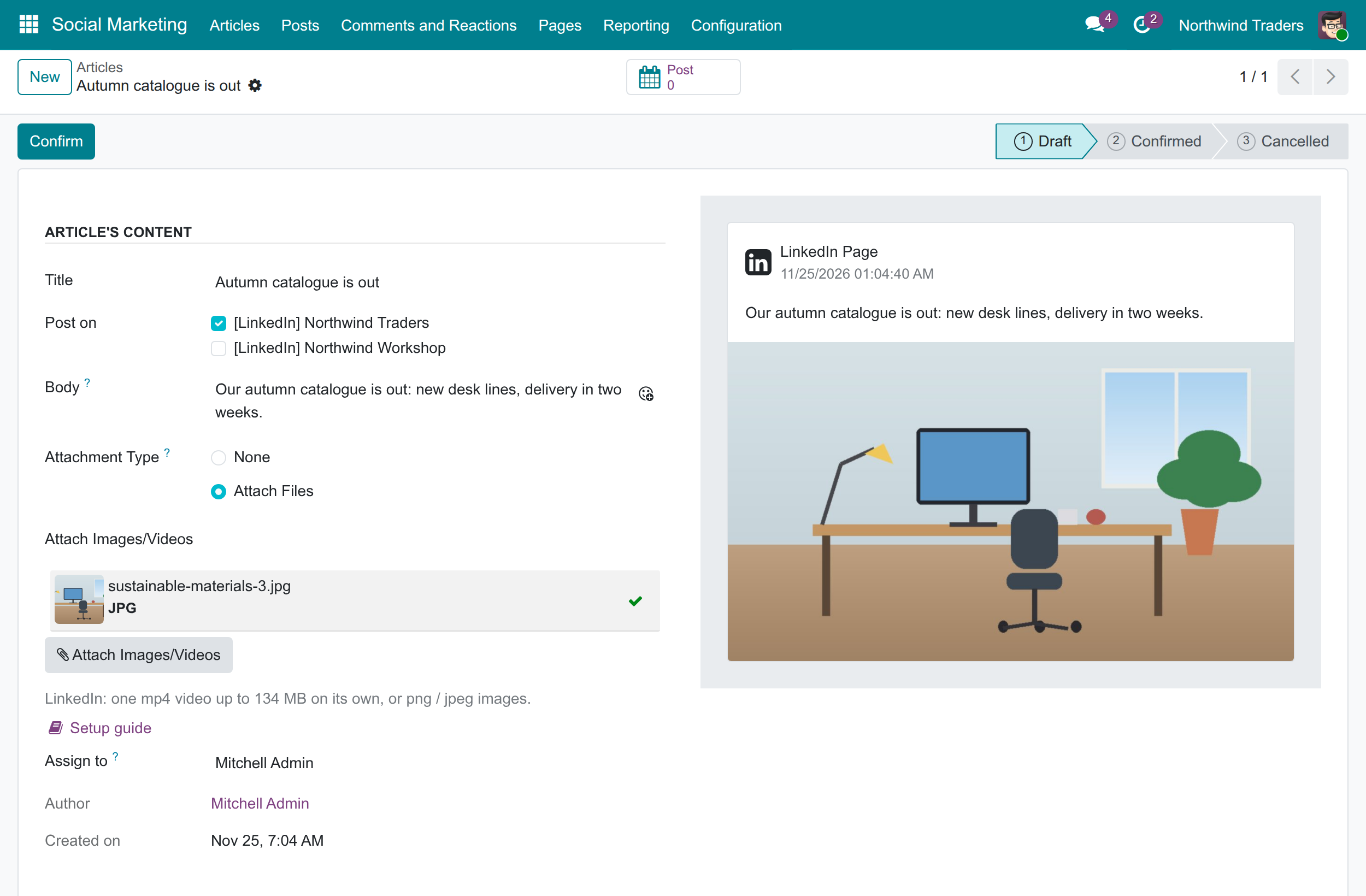
The general steps to write, confirm and publish an article are in the Social Marketing documentation. When a chosen page is a LinkedIn page, the article form adds the following.
- Under the attachments, the file limits line LinkedIn: one mp4 video up to <size> on its own, or png / jpeg images. shows the largest video LinkedIn can receive from this database. A video must be the only file of the article. Another format, a second video, photos together with a video or a video over the size shown is refused when you confirm, with a message that says why. The system administrator sets the limit (see File size limits).
- The LinkedIn preview on the right shows your text, the first images and, for a link, its card. When the card of the link has a description, LinkedIn receives that description with the link; a card that points to another address sends none.
- A link post without a title typed by you carries the title of the link card, or the link address when there is no card. The image of the card goes with the post as its thumbnail when the linked page offers a valid image; otherwise the post still goes out, without an image.
- LinkedIn does not schedule posts: Schedule later cannot be used with a LinkedIn page, and Odoo refuses it.
Attach the video again
To save space, the video of an article leaves the Odoo storage some days after it was published (see the Social Marketing documentation); the posts keep it on LinkedIn. On such an article, remove the emptied video from the files of the article, attach the video again, save, and the article can be published on another page; the posts already published stay as they are.
Approver: publish and follow the posts
Publish
Open a confirmed article and press Post Now (only approvers and Social Marketing administrators see it). Each LinkedIn page chosen gets one post. A text, link or image post is sent at once. A video is sent in the background, in several steps, so that you can keep working: the post goes through Uploading, Publishing and Posted (see the Social Marketing documentation for the states). LinkedIn refuses two identical posts on a page: Odoo then asks you to edit the text before posting again.
When a post fails
- Open the post and read the Failure Reason. Typical reasons are shown in plain sentences, for example: the connection has expired or was revoked (press Link Account again); the connection lacks a permission or the account has no role on the page (press Link Account again and check the role on LinkedIn); the LinkedIn usage limit is reached (try again later); LinkedIn could not process the video; the video made no progress for 60 minutes (a common cause is a network that cannot reach the upload server of LinkedIn); the video file left the storage (attach the video again to the article, then publish).
- When the reason says LinkedIn did not confirm the creation of the post of a video, the video may already be on the page: check the page before retrying.
- Fix the cause and press Retry, or Cancel to give up.
Images and videos uploaded to LinkedIn for a post that was not created, or whose post was deleted, stay in the media library of the organization; LinkedIn has no call to delete them.
When LinkedIn rejects the version of its API this module uses, the warning reads LinkedIn no longer accepts the API version this module uses. Ask the provider of this module for an update.
Edit a posted article
On a posted post, Edit Post changes the text of the post on LinkedIn; LinkedIn lets the text of a post be edited and nothing else. Changing the files of an article whose post is already published is refused (You can only update the message of the post on the LinkedIn page), except to attach a video that left the storage again.
Comments and reactions of a post
Open a published post from Social Marketing ‣ Posts: the window shows its likes, comments and shares and refreshes them from LinkedIn. With the Community Management API product you can read the comments, answer them, like them and delete them. LinkedIn does not allow hiding a comment.
When the app lacks that product, the window shows the figures and the sentence Comments on LinkedIn are not available: the LinkedIn app of this company lacks the Community Management API product. Posts, edits, deletions and statistics work. A Social Marketing administrator finds the steps in the Setup guide of the LinkedIn account (Social Marketing > Configuration > Social Media), then clicks Link Account again. There is no box to write a comment.
Synchronize the posts of a page
On the page (Social Marketing ‣ Pages), Synchronize Posts reads the posts of the page from LinkedIn, with their statistics (likes, comments, shares, views, clicks and the engagement rate shown on the post cards and on the post form as Engagement Rate (%)). The statistics LinkedIn returns cover the last 12 months; a post for which LinkedIn returns none keeps the counts already stored. Synchronize Posts reads only the pages that are connected; with no connected page it warns to use Link Account first. When it ends, a notification tells the pages synchronized, the new posts and the posts archived because LinkedIn no longer has them, and the screen refreshes with the new counts. A usage limit, a refused connection or an unreachable network on one page is reported in the notification with the page name; the other pages still synchronize and nothing is paused.
An archived page stays archived after Synchronize Pages: the synchronization updates the page's details and never re-activates it. How a page is archived and unarchived is described in the Social Marketing documentation.
A Posted or Scheduled post that no longer appears in the list LinkedIn returns is archived only when LinkedIn answers, when asked about that post, that it does not exist; a post LinkedIn still has stays, even when the list missed it. Odoo asks about at most 50 such posts per page in one synchronization; posts never checked come first, then the posts checked longest ago, so every missing post is checked over the following synchronizations. When LinkedIn limits the calls of the app or refuses the connection during these checks, they stop and a warning notification shows what LinkedIn answered.
Post engagement report
In Social Marketing ‣ Reporting ‣ Post Engagement, the LinkedIn posts add two figures to the likes, comments and shares of every network: Total Clicks and the average Engagement Rate. Facebook gives no post views or clicks, so those figures stay empty for Facebook pages.
Troubleshooting
- The connection to LinkedIn has expired or was revoked: LinkedIn keeps one set of permissions per LinkedIn app and member. When the same LinkedIn account links the same LinkedIn app with a different set of permissions, LinkedIn invalidates the tokens it issued before. A database that asks for another set, such as a copy on another version of the module, therefore disconnects the others, whose calls then answer The connection to LinkedIn has expired or was revoked. Use Link Account again. Give each database its own LinkedIn app, or press Link Account again on the database that must stay connected. When the daily synchronization of the tokens finds that LinkedIn refused the renewal, the users who can link the account again get the activity Connect the LinkedIn account again.
- Link Account ends on a page saying the connection could not be verified: press Link Account again from the record; the verification code is valid for one attempt only.
- Link Account says LinkedIn did not grant the connection: check that the app holds the products of What the LinkedIn app needs and that the Redirect URL of the record is declared in the app. The refusal is a page of the web interface (the company logo, the sentence in a red alert and a Back to Social Media button that returns to the record of the connection) with the sentence The Setup guide of the LinkedIn account in Social Marketing > Configuration > Social Media explains which products the LinkedIn app needs.
- Link Account says LinkedIn did not accept the Client ID and Client Secret: the page reads LinkedIn did not accept the Client ID and Client Secret of this company (<error> - <description>). A system administrator checks them in Social Marketing > Configuration > Settings > Social Media > LinkedIn App; then click Link Account again. A Social Marketing administrator who is not also a system administrator does not see the Settings: ask a system administrator to correct them, then press Link Account again.
- Link Account, or the renewal of the connection, fails while publishing still works: the administrator sees The LinkedIn connection failed. A system administrator can read the reason in API Logs. Click LINK ACCOUNT again. Some company networks block the host name www.linkedin.com (used to link the account and to renew the connection) but not api.linkedin.com (used to publish and read). Open API Logs: calls to www.linkedin.com that fail with a network error show it. Ask the network administrator to allow www.linkedin.com from the server of the database, then press Link Account again.
- The record says the social network limited the calls of this app: wait for the time shown; the scheduled jobs resume by themselves.
- A post is refused for a usage limit right after several posts: that is the limit of the creation of posts; wait a few minutes and publish again.
- No comment or notification arrives: on the page, Webhook Subscription is None or Refused; press Create Webhook Subscriptions on the LinkedIn record after correcting the cause, and check that the app holds the Community Management API product.
- The window of a post says comments are not available: the app lacks the Community Management API product; see What the LinkedIn app needs.
- A video post is Failed: read the Failure Reason, fix, press Retry.
FAQ
Which files can I publish on LinkedIn? One mp4 video on its own, or png / jpeg images. The file limits line of the article form shows the largest video.
Can I schedule a LinkedIn post? No; LinkedIn does not support it.
Can I change a post after it is published? Its text, with Edit Post.
Can I hide a comment? No; LinkedIn does not allow it. You can delete it.
Who can create the webhook subscriptions? Social Marketing administrators.
This software and associated files (the "Software") may only be used (executed, modified, executed after modifications) if you have purchased a valid license from the authors, typically via Odoo Apps, or if you have received a written agreement from the authors of the Software (see the COPYRIGHT file).
You may develop Odoo modules that use the Software as a library (typically by depending on it, importing it and using its resources), but without copying any source code or material from the Software. You may distribute those modules under the license of your choice, provided that this license is compatible with the terms of the Odoo Proprietary License (For example: LGPL, MIT, or proprietary licenses similar to this one).
It is forbidden to publish, distribute, sublicense, or sell copies of the Software or modified copies of the Software.
The above copyright notice and this permission notice must be included in all copies or substantial portions of the Software.
THE SOFTWARE IS PROVIDED "AS IS", WITHOUT WARRANTY OF ANY KIND, EXPRESS OR IMPLIED, INCLUDING BUT NOT LIMITED TO THE WARRANTIES OF MERCHANTABILITY, FITNESS FOR A PARTICULAR PURPOSE AND NONINFRINGEMENT. IN NO EVENT SHALL THE AUTHORS OR COPYRIGHT HOLDERS BE LIABLE FOR ANY CLAIM, DAMAGES OR OTHER LIABILITY, WHETHER IN AN ACTION OF CONTRACT, TORT OR OTHERWISE, ARISING FROM, OUT OF OR IN CONNECTION WITH THE SOFTWARE OR THE USE OR OTHER DEALINGS IN THE SOFTWARE.
Social Marketing administrator and system administrator: call history
When a connection, a publication or a synchronization fails, the system administrator opens the API Logs button of the LinkedIn record, of the page or of the post. It lists the calls made to LinkedIn with the HTTP method, the response status, the error message and the duration. Tokens, codes, secrets and the upload addresses of videos are masked. The LinkedIn calls of this app today (UTC) figure of the record counts the lines of this log made since 00:00 UTC.