
Subcontracting Requests
by Viindoo
| Lines of Code | 1032 |
| Technical name | viin_mrp_subcontracting_request |
| License | OPL-1 |
| Website | https://viindoo.com/apps/modules/19.0/viin_mrp_subcontracting_request |
| Read description for | v 16.0 v 17.0 v 18.0 |
| Required Apps | Manufacturing (mrp) Invoicing (account) Purchase (purchase) Discuss (mail) Inventory (stock) |
| Included Dependencies | Viindoo Manufacturing Web Gantt |
| Extensions | Subcontract Request - PLM |

Hand part of a manufacturing order to a subcontractor, and never make it twice
For manufacturers that subcontract part of a production
Subcontract part of a manufacturing order through one request: the orders are split, the subcontractor's request for quotation is ready, and nothing is made twice.
Odoo 19.0 · Odoo Community · Viindoo Cloud · OPL-1
What changes for your team
The planner decides how much goes outside
Today the share sent out is agreed in an email, and someone works out by hand what that means for every sub-assembly order.
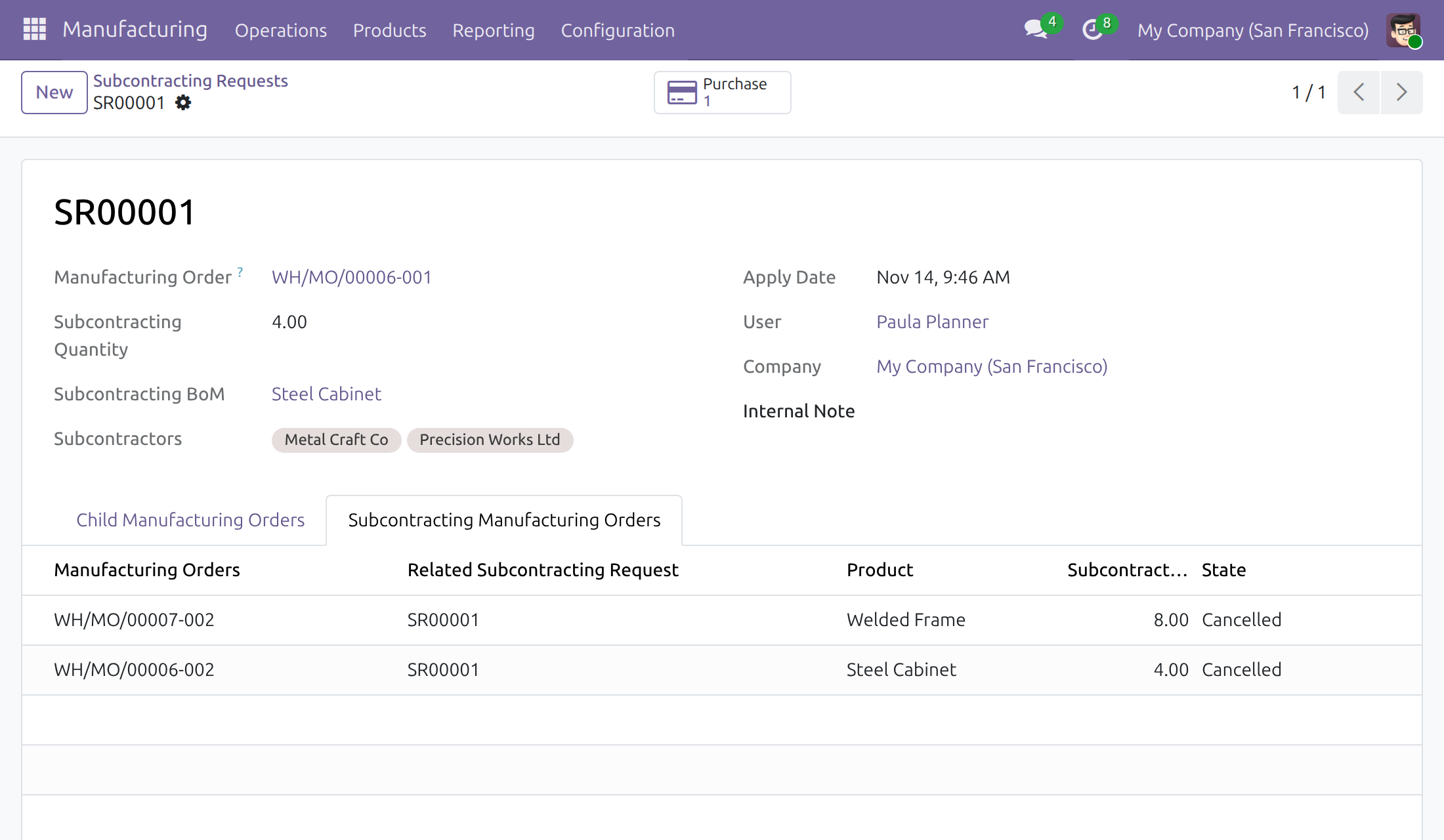
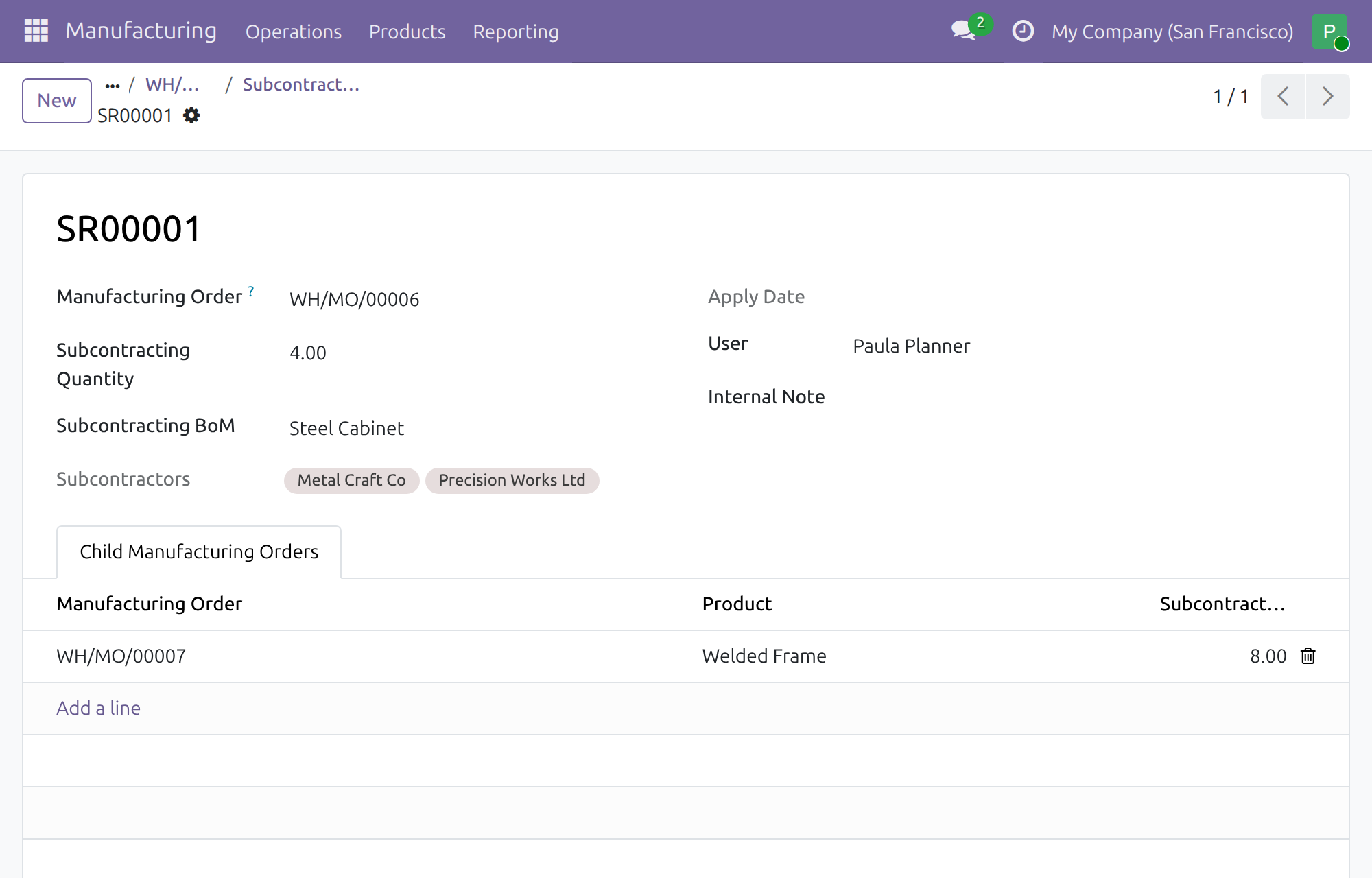
→ A request raised from the manufacturing order records the quantity, the subcontracting bill of materials and its subcontractors, and works out the matching share of each child manufacturing order.
One step splits the orders and opens the purchase
Today the orders are split by hand, then purchasing types the same quantity again into a new request for quotation.
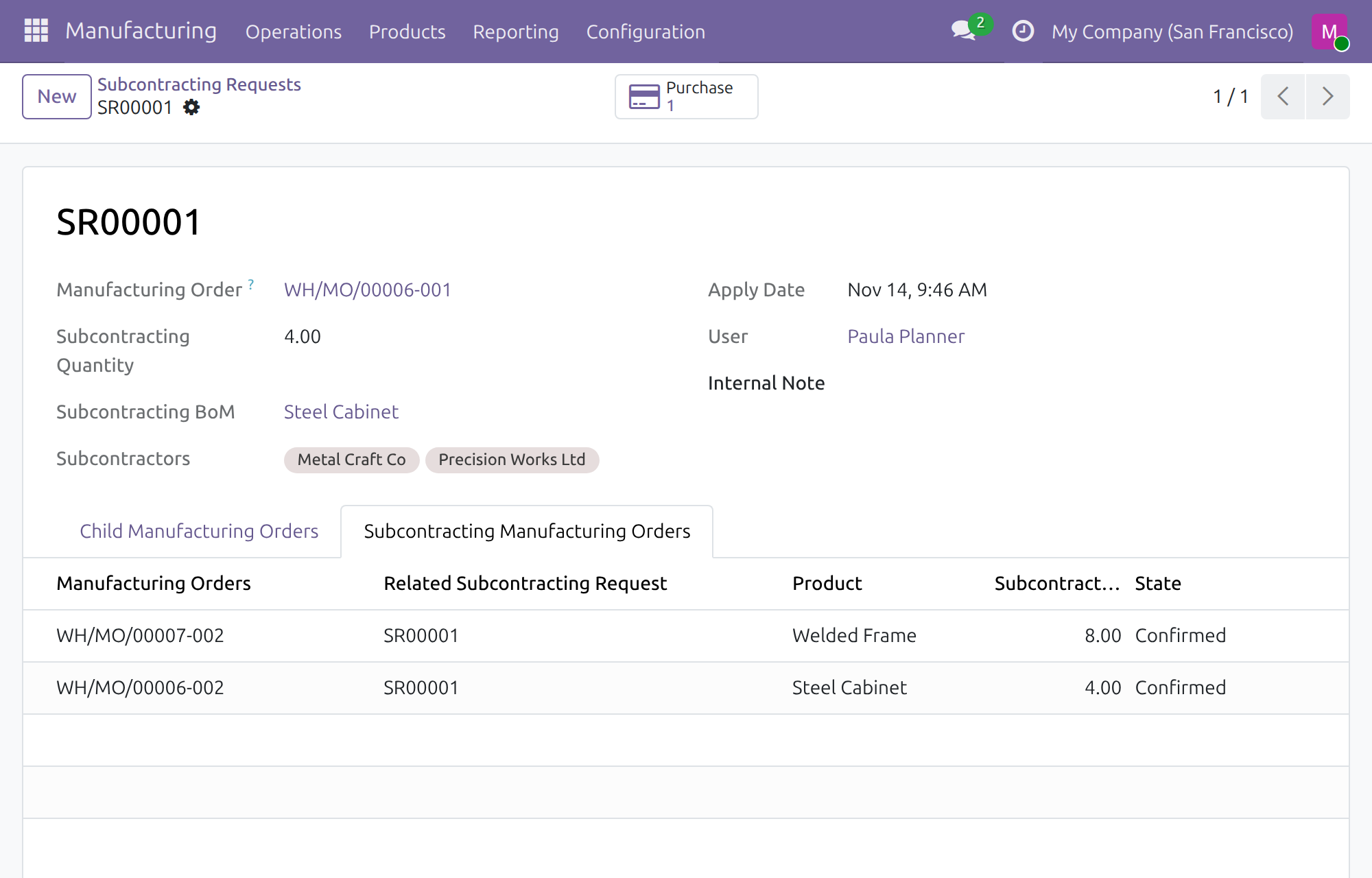
→ A manufacturing administrator applies the request: the orders are split, the original order keeps the in-house remainder, and a request for quotation to the subcontractor is created, priced from its vendor price list.
Purchasing stays within what was agreed
Today nothing stops an order going to another vendor or for another quantity, and the shop floor may still build what the subcontractor makes.
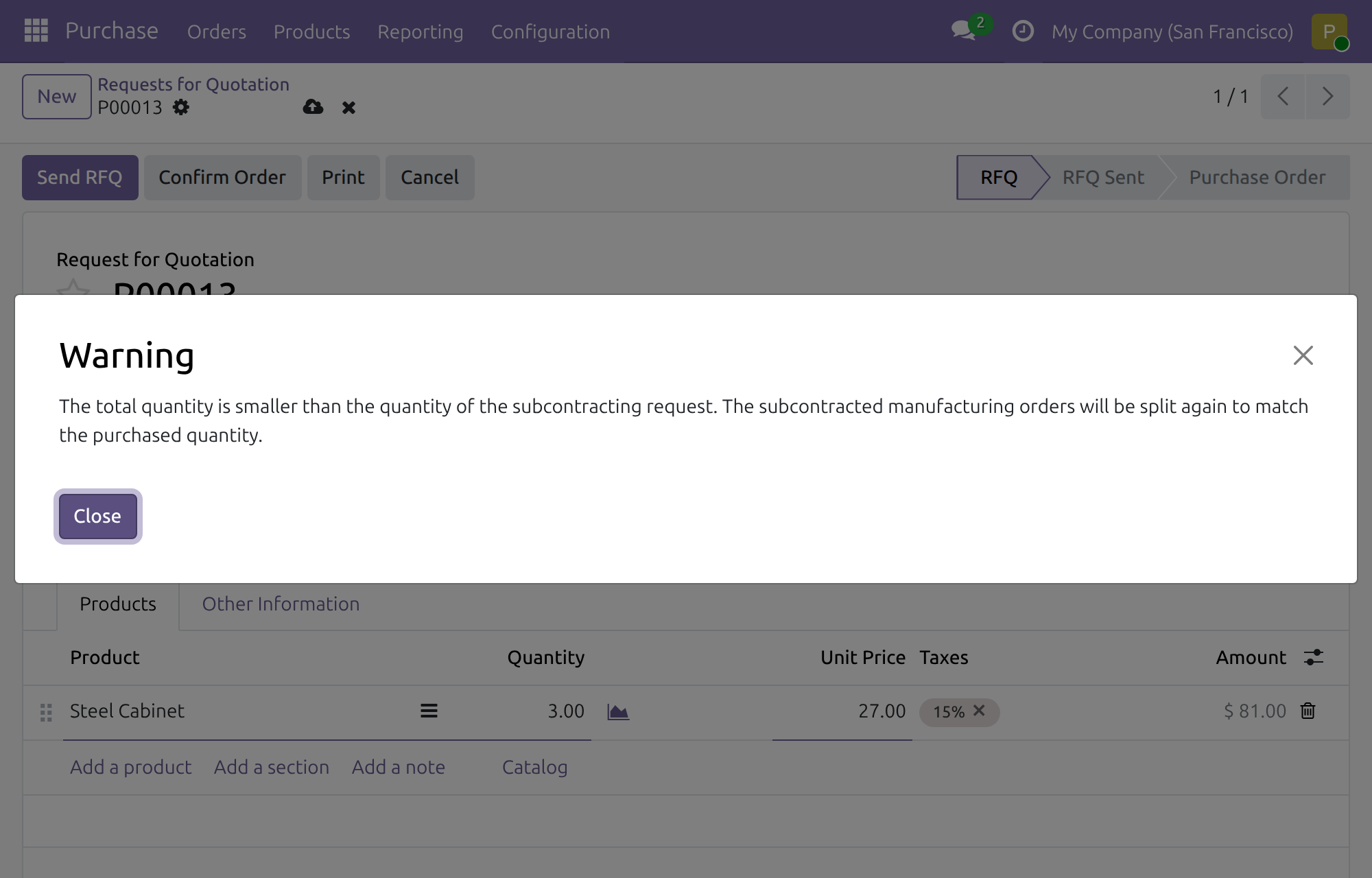
→ The vendor is limited to the request's subcontractors and their contacts, buying less warns the purchaser, and confirming the purchase cancels the orders handed over.
Ready on day one
Requests where the work starts
Raise a request from the manufacturing order itself; every request is numbered and listed for follow-up.
Links in both directions
The manufacturing order shows its requests and the purchase that took it over; purchase orders can be searched and grouped by request.
Your existing access rights
Manufacturing and Purchase rights decide who requests, applies and buys; no new group to manage.
Set up first
A subcontracting bill of materials with its subcontractors for each product, and a vendor price for each subcontractor.
What is included
The request, the split of the manufacturing orders, the request for quotation to the subcontractor and the cancellation of the orders it takes over. Manufacturing, Purchase and subcontracting install with it.
Optional extension
Subcontract Request - PLM
Records the hand-over to the subcontractor as an engineering change in PLM, tied to the request's purchase order, so no second purchase order is created.
Before you decide
Where does our data go?
Nowhere outside your database. Requests, split orders and purchases are ordinary records, and the module opens no connection to an outside service.
Who can do what?
Planners with Manufacturing / User raise requests, read all of them and change their own. Applying a request is for a Manufacturing Administrator who is also a Purchase User; the purchase counter and button show to purchase users. The purchaser confirming the order needs Purchase / User and Manufacturing / User. In a multi-company database, users see the requests of the companies they work in.
How is the purchase kept under control?
The request for quotation goes to the first subcontractor of the bill of materials, priced from its vendor price list. The purchaser can choose another subcontractor of the request or one of its contacts, never an unrelated vendor. A smaller quantity re-splits the orders to what is bought when the order is confirmed.
Which languages does it ship?
English and Vietnamese.
What are the limits?
A request cannot be applied to a done or cancelled order, for more than the order still has to make, or when the bill of materials has no subcontractor. An applied request cannot be deleted; archive it instead.
Try it, then ask us
The Documentation tab walks each role through the flow, and Live Preview opens a demo database.
Pre-sales & partnership
viindoo.com/contactusTechnical support
viindoo.com/ticketTechnical requirements
- Odoo version: 19.0
- Editions: Odoo Community, Viindoo Cloud
- Required modules: Purchase and Subcontracting Management, Viindoo Manufacturing
- License: OPL-1
- Languages: English, Vietnamese
Subcontracting Requests
Note
This guide is for production planners, manufacturing administrators and purchasers who send manufacturing work to a subcontractor, and for the administrators who set the module up.
Overview
A subcontracting request tells the purchasing side how much of a manufacturing order a subcontractor will make. It records the quantity, the subcontractor chosen through the bill of materials, and the child manufacturing orders involved. When the request is applied, the manufacturing orders are split and a request for quotation is created for the subcontractor. When the purchase order is confirmed, the manufacturing orders that the subcontractor takes over are cancelled, so the factory does not produce them twice.
The work passes through three stages:
- A production planner creates the request from a manufacturing order.
- A manufacturing administrator applies it. The manufacturing orders are split and a request for quotation is created.
- A purchaser reviews the request for quotation and confirms the order. The split manufacturing orders are cancelled.
| Role | What they do | Access right to assign |
|---|---|---|
| Administrator | Installs the module, prepares subcontracting bills of materials and vendor prices, assigns access rights | Role / Administrator |
| Production planner | Creates and follows subcontracting requests | Manufacturing / User |
| Manufacturing administrator | Applies requests; sees the purchase of a request when also a purchase user | Manufacturing / Administrator, plus Purchase / User |
| Purchaser | Reviews and confirms the request for quotation of a request | Purchase / User, plus Manufacturing / User |
Setup (for the Administrator)
Install the module
- Open Apps.
- Search for Subcontracting Requests and click Install. The Manufacturing and Purchase apps and the subcontracting features they need are installed with it.
Prepare the subcontracting bill of materials
A request needs a bill of materials of type Subcontracting for the product being made.
- Open Manufacturing ‣ Products ‣ Bills of Materials and create a bill of materials for the finished product.
- Set BoM Type to Subcontracting.
- In Subcontractors, add the companies that can make the product. The first one listed receives the request for quotation.
- On the product, record each subcontractor's price in the vendor price list so that the request for quotation is priced. Without a price the unit price of the request for quotation is 0.
Assign the access rights
- Open Settings ‣ Users & Companies ‣ Users and open the user.
- In the Access Rights tab, set the rights shown in the table of the Overview.
Every person who works with requests needs a Manufacturing right. A user with Purchase / User only cannot open requests, and cannot confirm the request for quotation of a request.
Production planner: create a subcontracting request
Start from a manufacturing order
- Open Manufacturing ‣ Operations ‣ Manufacturing Orders and open a confirmed order.
- Click the gear icon next to the order reference and choose Create Subcontracting Request.
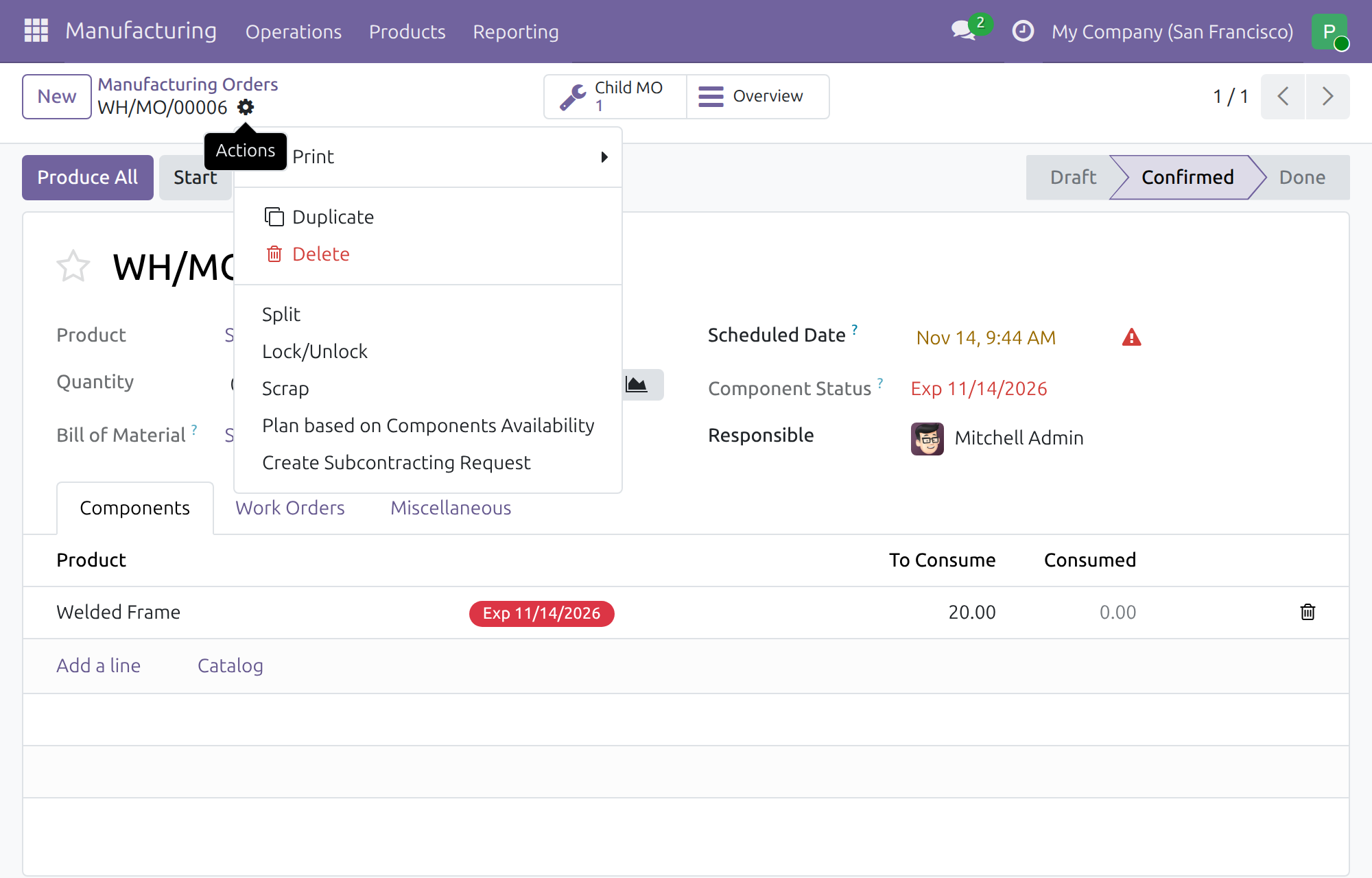
The action is offered for one order at a time, and not for orders that are draft, done or cancelled.
Fill in the request
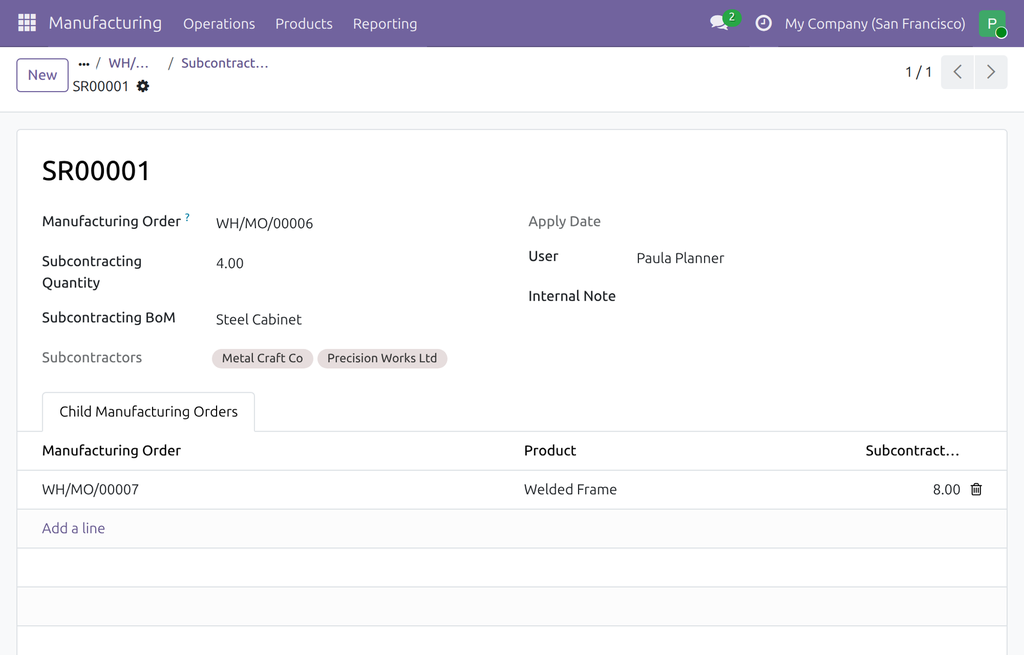
The new request opens with the manufacturing order already filled in.
- Enter the Subcontracting Quantity. It must be greater than 0 and not greater than the quantity of the manufacturing order.
- Choose the Subcontracting BoM. Only subcontracting bills of materials of the product are offered. The Subcontractors of that bill of materials are displayed.
- The tab Child Manufacturing Orders is filled for you. Each line is the share of a child manufacturing order that goes to the subcontractor: the request quantity divided by the total quantity of the order, applied to each child. For example, a request for 4 of an order of 10 gives 8 of a child order of 20. The lines are rebuilt when you change the quantity or the manufacturing order.
- Add an Internal Note if needed and save. The request gets a reference such as SR00001.
A planner cannot apply the request: the Apply button is offered to manufacturing administrators only.
Follow your requests
- Open Manufacturing ‣ Operations ‣ Subcontracting Requests. The list shows the reference, manufacturing order, product and quantity of every request.
- Use the search box to find a request by reference, manufacturing order, bill of materials or user. Group by manufacturing order or bill of materials, or use the Archived filter to see archived requests.
- Back on the manufacturing order, the Requests button opens the requests of that order.
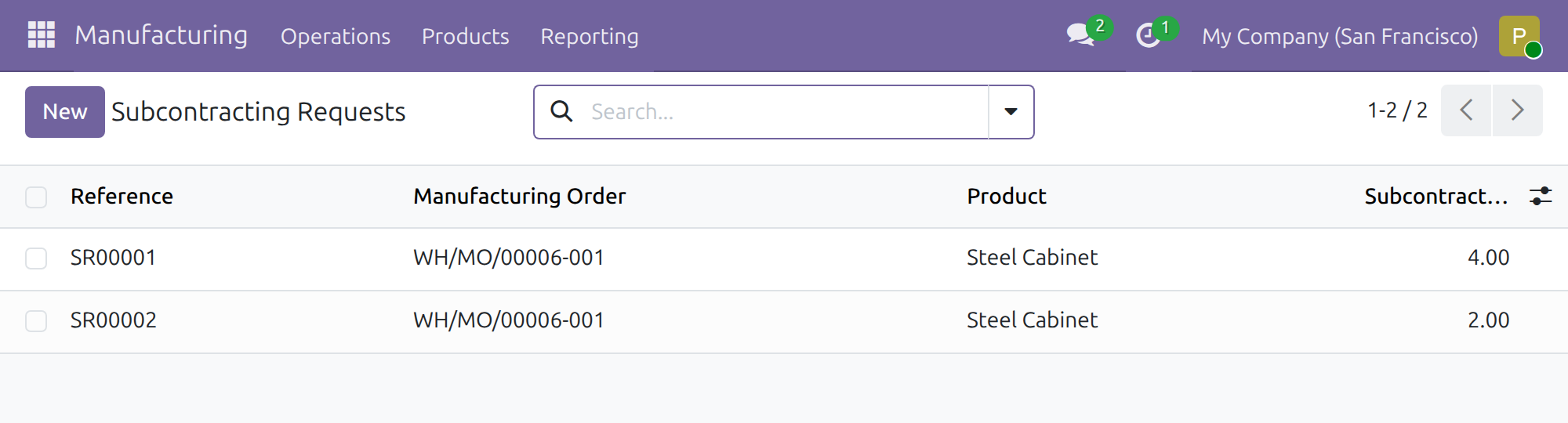
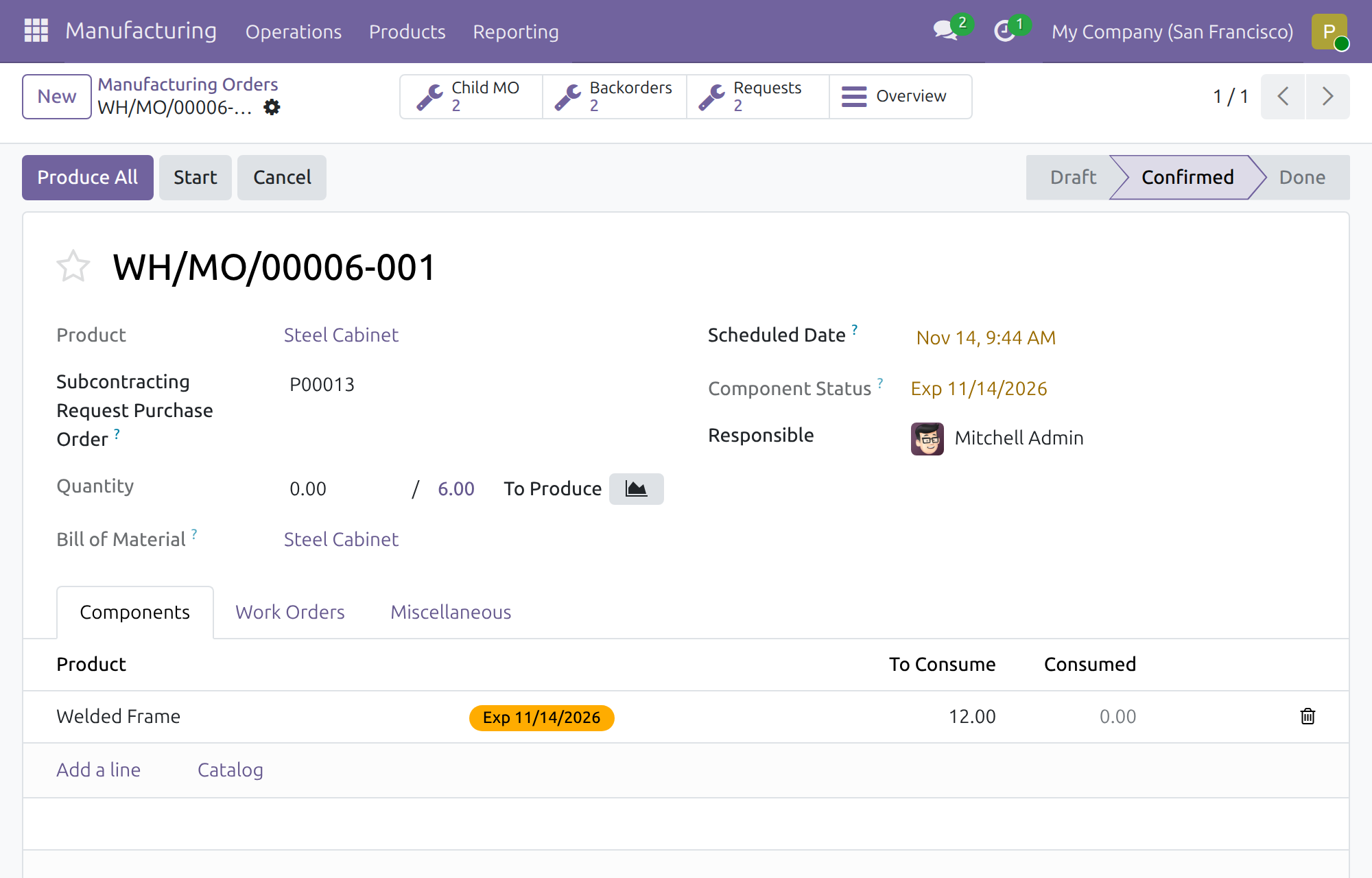
You can read every request, but you can change or archive only your own. Another person's request is edited by a manufacturing administrator. An applied request cannot be deleted. Archive a request you no longer need.
Manufacturing administrator: apply the request
- Open Manufacturing ‣ Operations ‣ Subcontracting Requests and open the request.
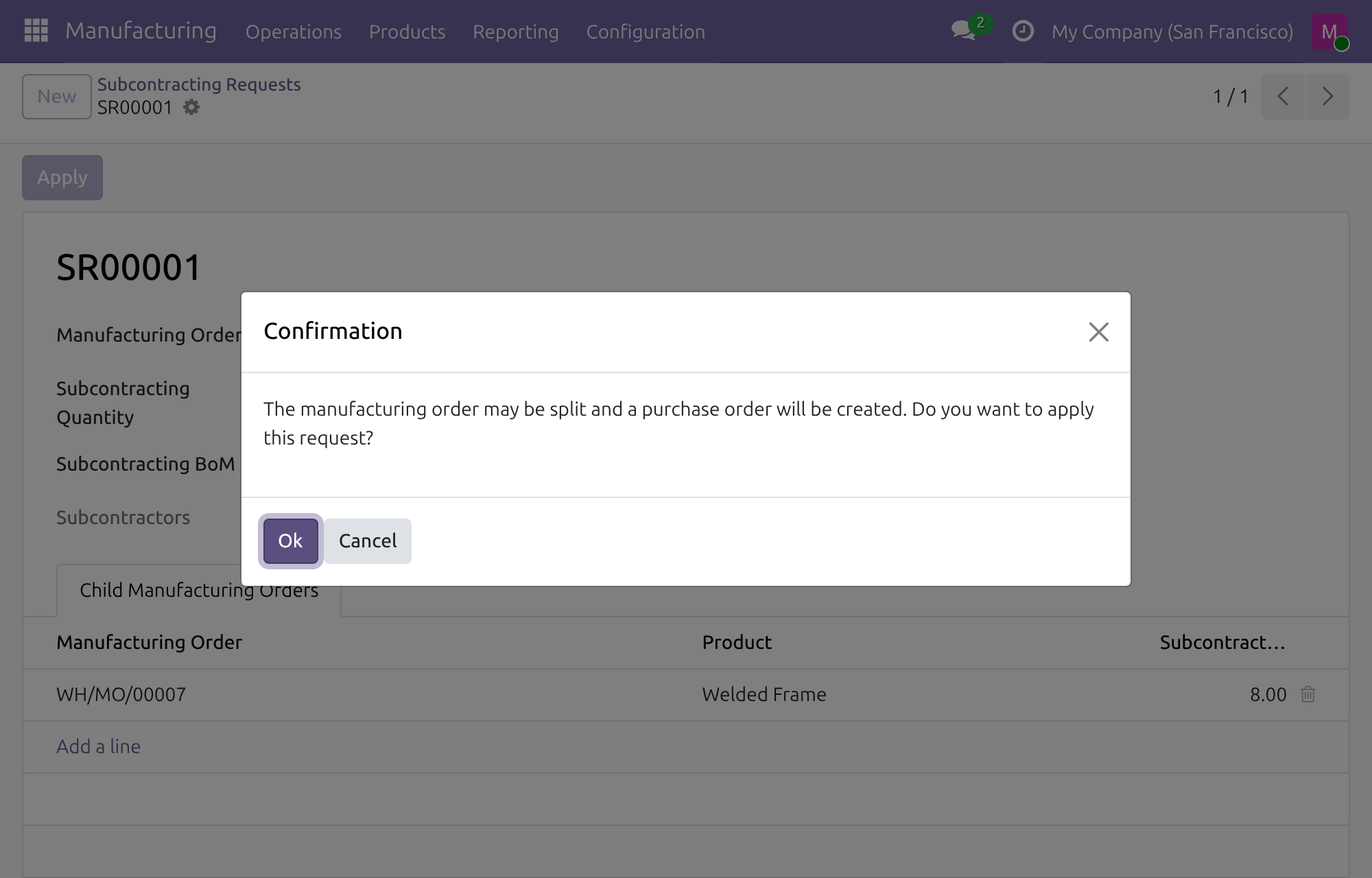
- Click Apply. A confirmation says that the manufacturing order may be split and that a purchase order will be created.
- Click OK.
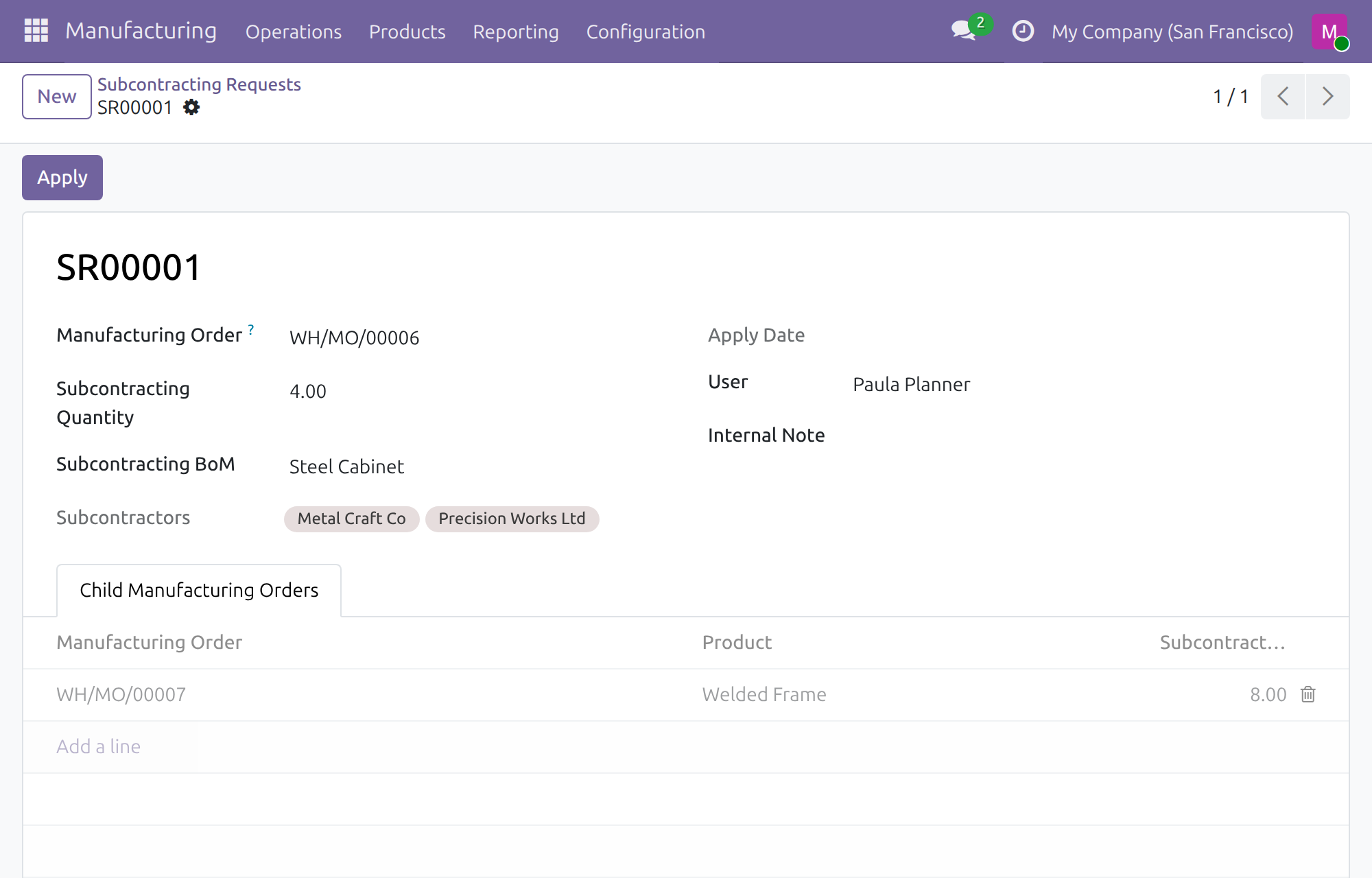
After applying:
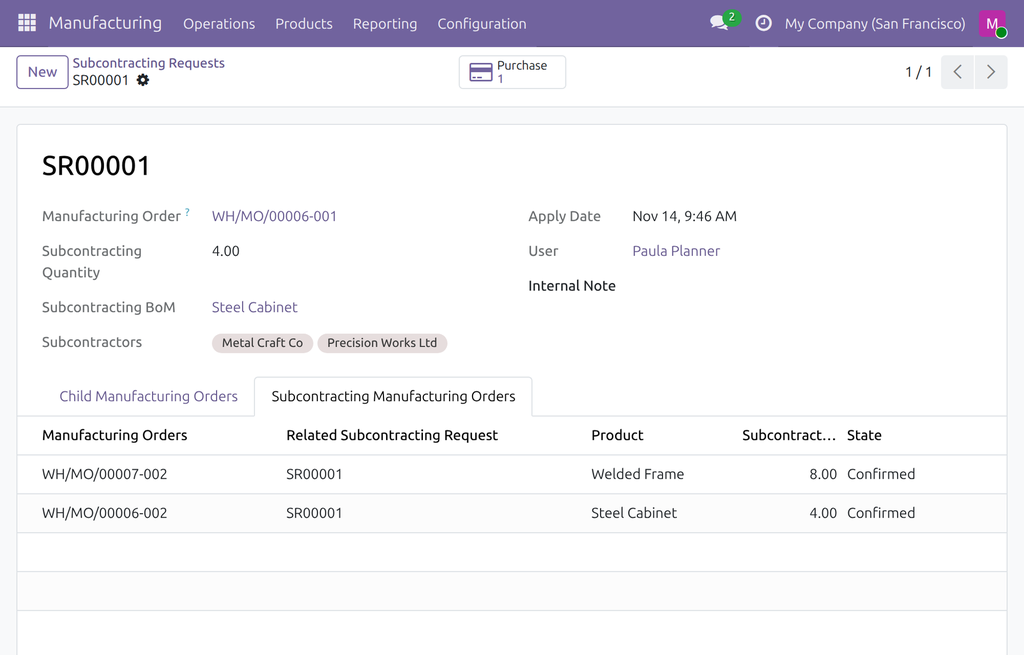
- Apply Date is filled and the quantity, manufacturing order, bill of materials and lines are locked.
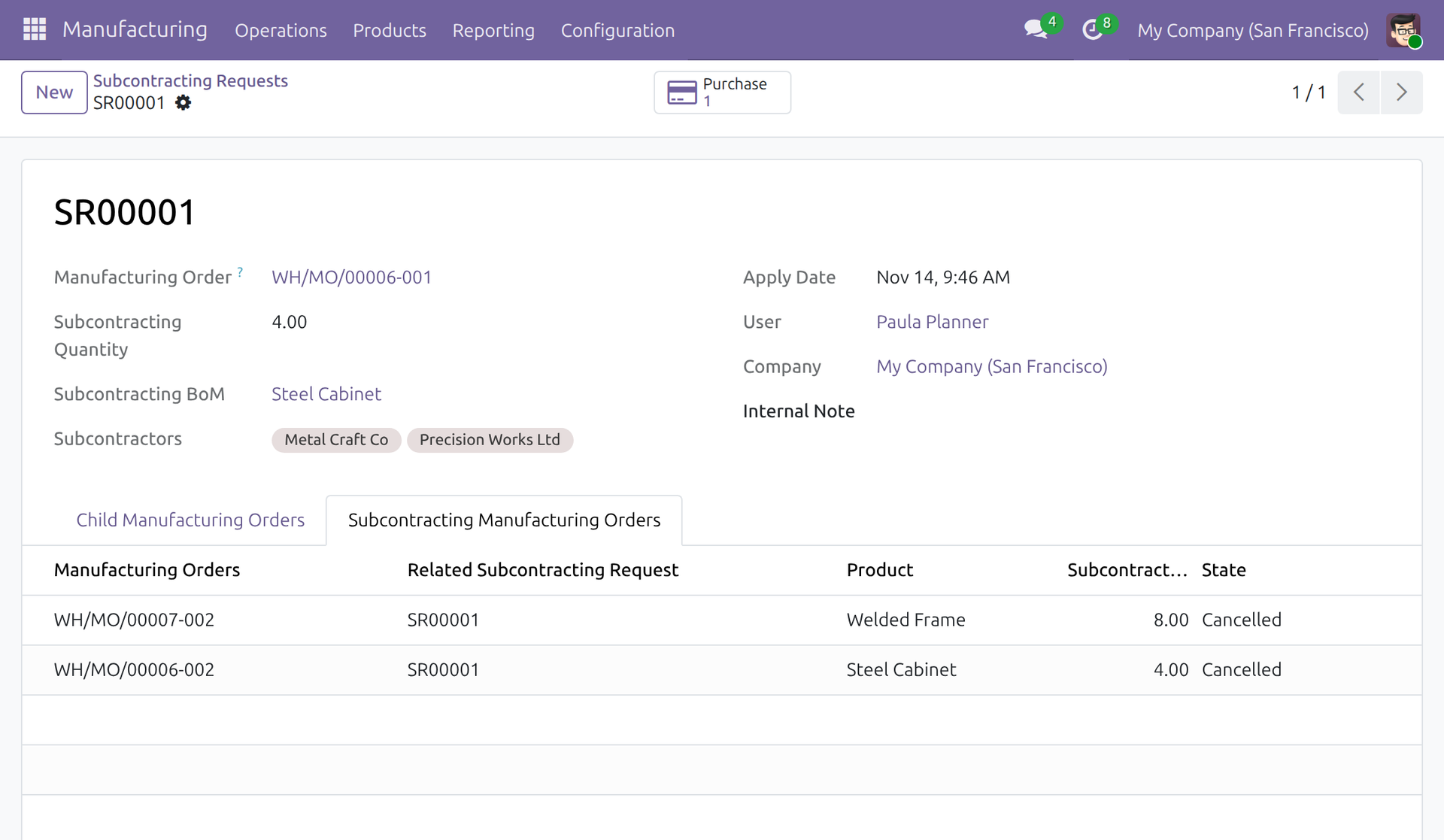
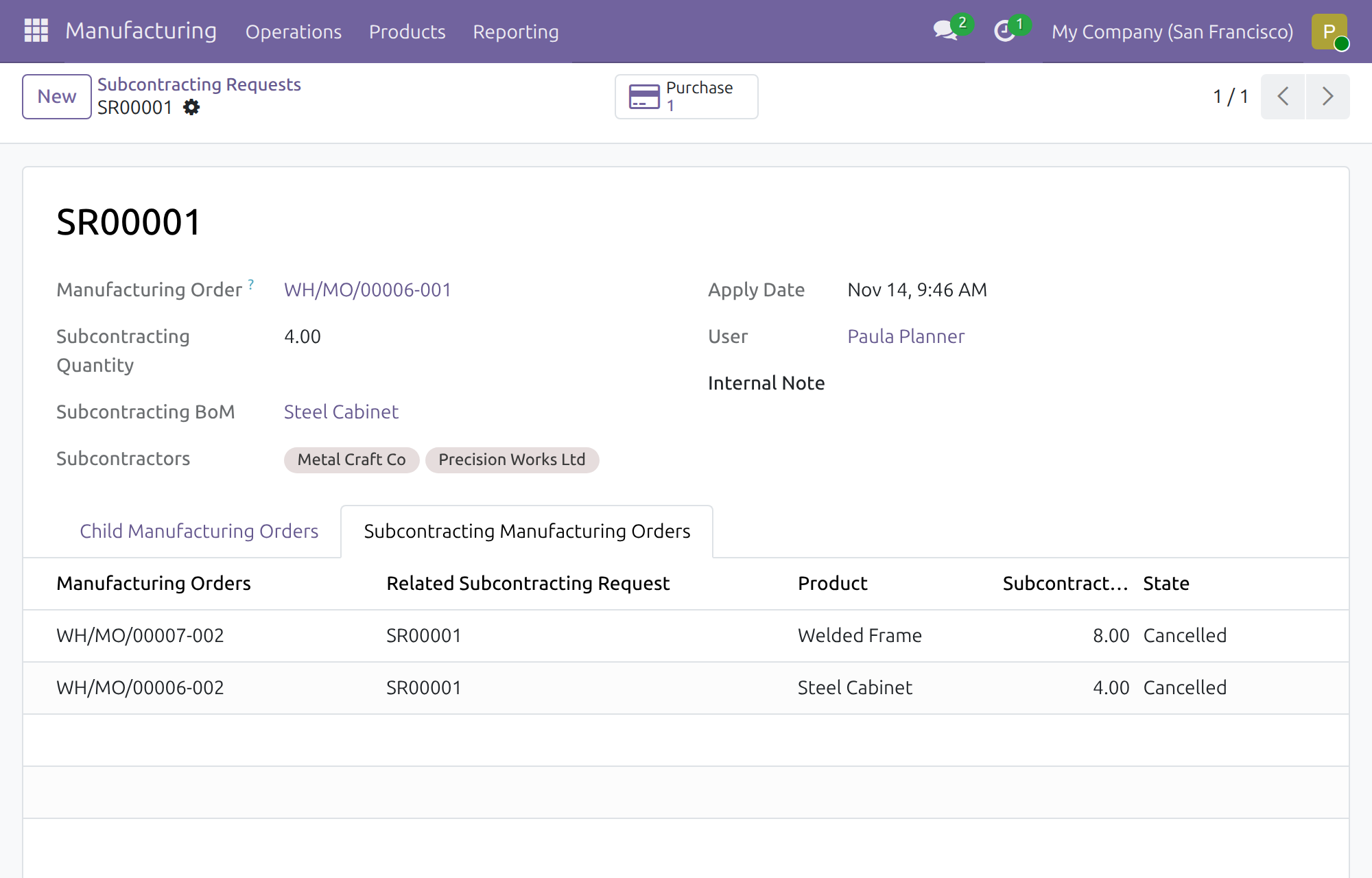
- The manufacturing order keeps the quantity that is not subcontracted. The subcontracted quantity is split into new manufacturing orders, listed in the tab Subcontracting Manufacturing Orders.
- A request for quotation is created for the first subcontractor of the bill of materials, for the quantity of the request. The Purchase button appears for users who are also Purchase / User.
The request cannot be applied when its manufacturing order is done, cancelled or to close, when the quantity is greater than what remains of the order, when the order is already entirely served by another applied request, or when the bill of materials has no subcontractor.
Purchaser: review and confirm the order
Open the request for quotation
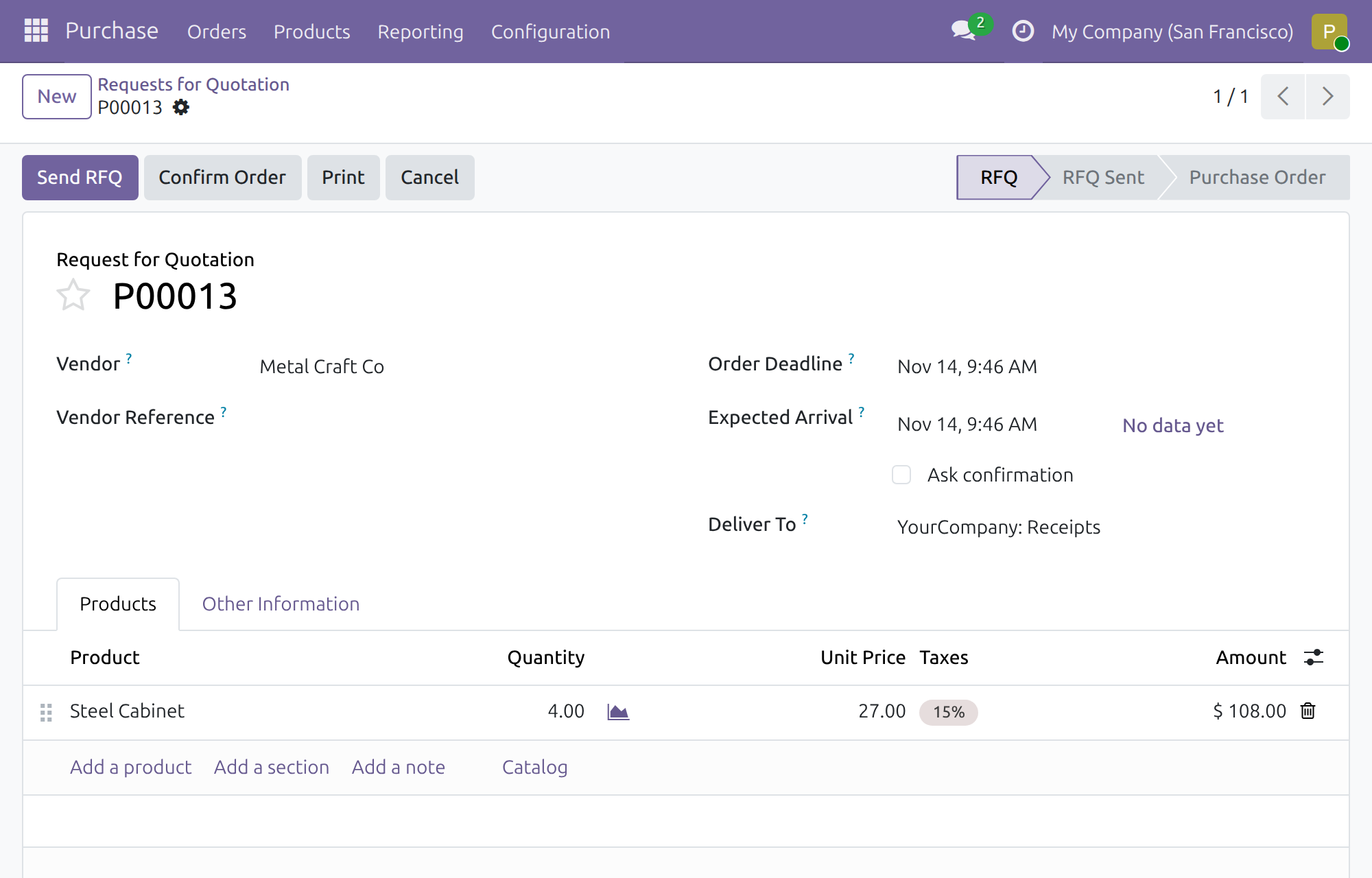
- Click Purchase on the request, or open Purchase ‣ Orders ‣ Requests for Quotation and search by subcontracting request.
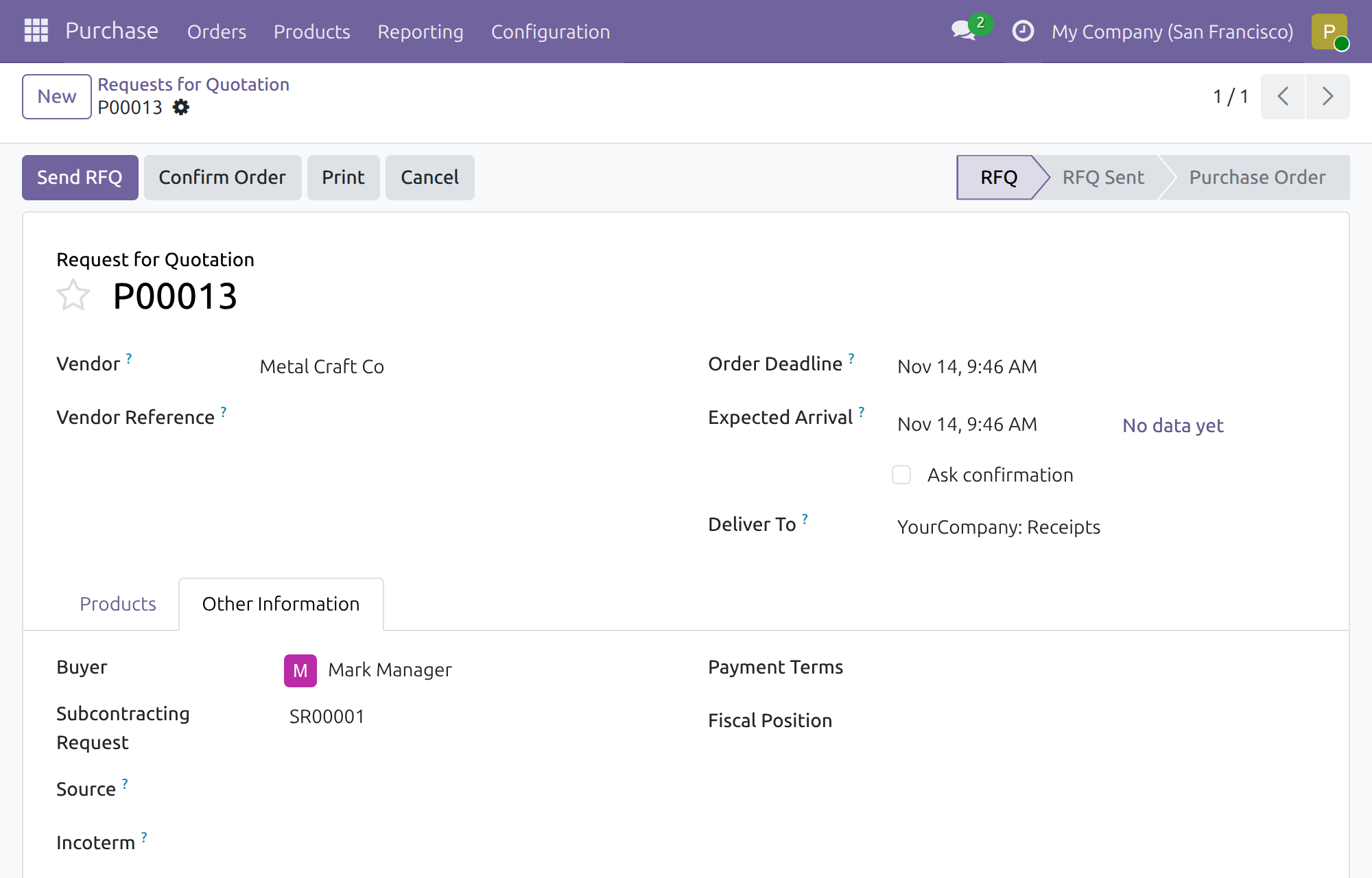
- The request for quotation lists the product and quantity of the request. The tab Other Information shows the Subcontracting Request it comes from.
Adjust the vendor and the quantity
- The Vendor must be one of the subcontractors of the request, or a contact of one of them. Any other partner is refused with the message Select one of the subcontractors of the subcontracting request as the Vendor followed by the subcontractors.
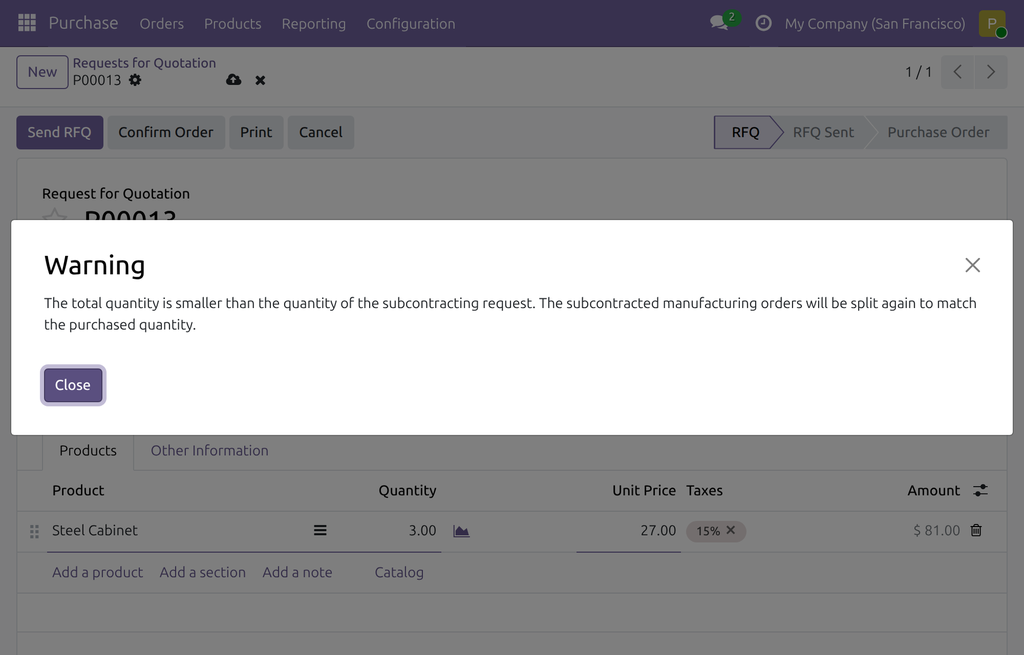
- If you lower the quantity below the quantity of the request, a warning appears: the subcontracted manufacturing orders will be split again to match the purchased quantity.
Confirm the order
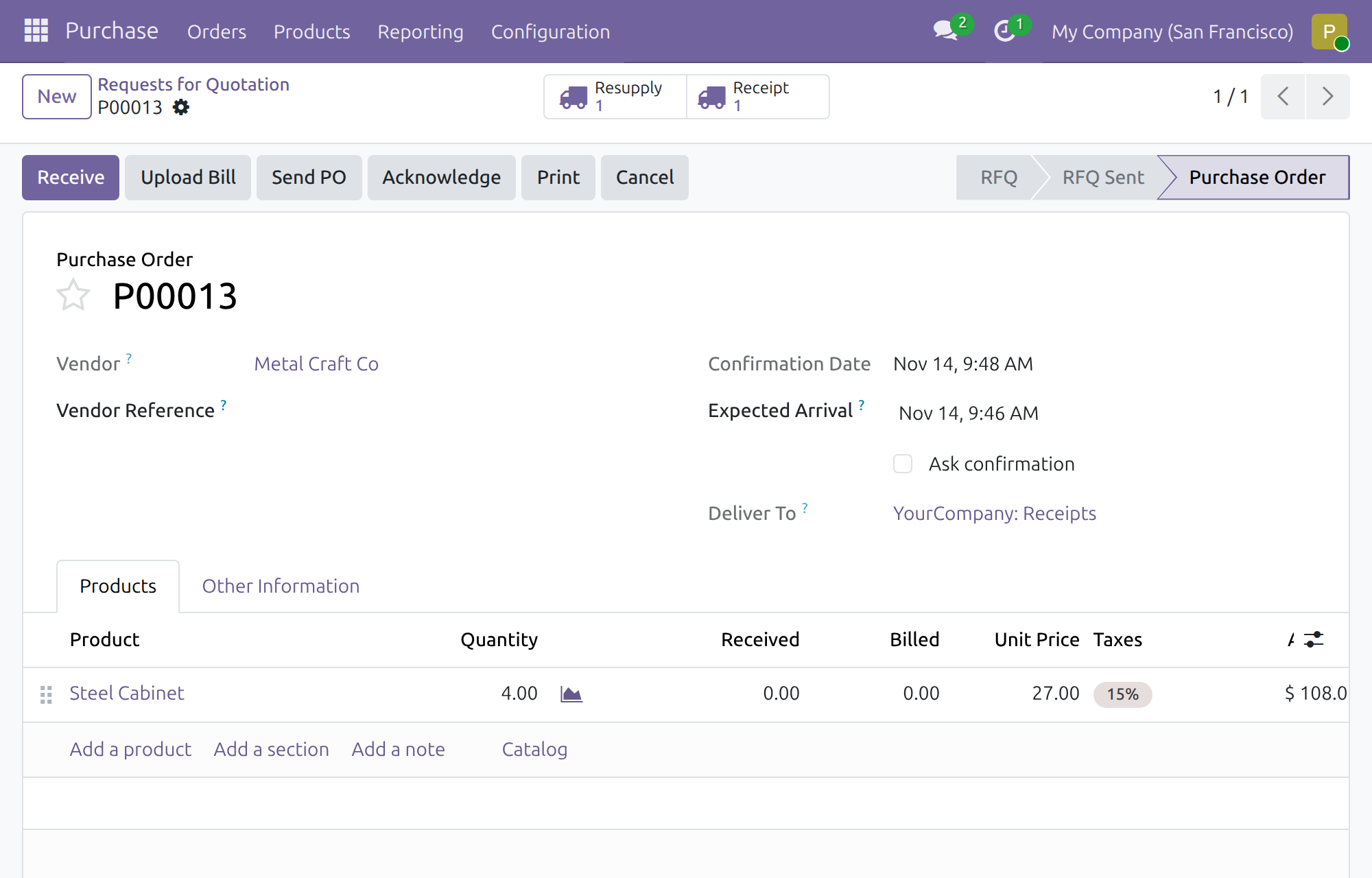
- Click Confirm Order. The order moves to Purchase Order.
- The manufacturing orders split off by the request are cancelled. If the purchased quantity is lower than the request, they are split again and only the purchased share is cancelled.
When your company requires a second approval of purchase orders, the manufacturing orders are left untouched until the order is approved.
Confirming the order is done with Purchase / User and Manufacturing / User together. With Purchase / User alone, the confirmation is refused with an access error that names Manufacturing / User.
Following the result
Open the request and the tab Subcontracting Manufacturing Orders: the split orders show the state Cancelled. On a cancelled order, Related Subcontracting Request and Subcontracting Request Purchase Order show where its work went.
This software and associated files (the "Software") may only be used (executed, modified, executed after modifications) if you have purchased a valid license from the authors, typically via Odoo Apps, or if you have received a written agreement from the authors of the Software (see the COPYRIGHT file).
You may develop Odoo modules that use the Software as a library (typically by depending on it, importing it and using its resources), but without copying any source code or material from the Software. You may distribute those modules under the license of your choice, provided that this license is compatible with the terms of the Odoo Proprietary License (For example: LGPL, MIT, or proprietary licenses similar to this one).
It is forbidden to publish, distribute, sublicense, or sell copies of the Software or modified copies of the Software.
The above copyright notice and this permission notice must be included in all copies or substantial portions of the Software.
THE SOFTWARE IS PROVIDED "AS IS", WITHOUT WARRANTY OF ANY KIND, EXPRESS OR IMPLIED, INCLUDING BUT NOT LIMITED TO THE WARRANTIES OF MERCHANTABILITY, FITNESS FOR A PARTICULAR PURPOSE AND NONINFRINGEMENT. IN NO EVENT SHALL THE AUTHORS OR COPYRIGHT HOLDERS BE LIABLE FOR ANY CLAIM, DAMAGES OR OTHER LIABILITY, WHETHER IN AN ACTION OF CONTRACT, TORT OR OTHERWISE, ARISING FROM, OUT OF OR IN CONNECTION WITH THE SOFTWARE OR THE USE OR OTHER DEALINGS IN THE SOFTWARE.