
Unique Product Code
One internal reference, one product
For teams that buy, sell and stock products by their internal code
Two products cannot share an internal reference
Odoo 19.0 · Community and Enterprise · OPL-1
What changes for your team
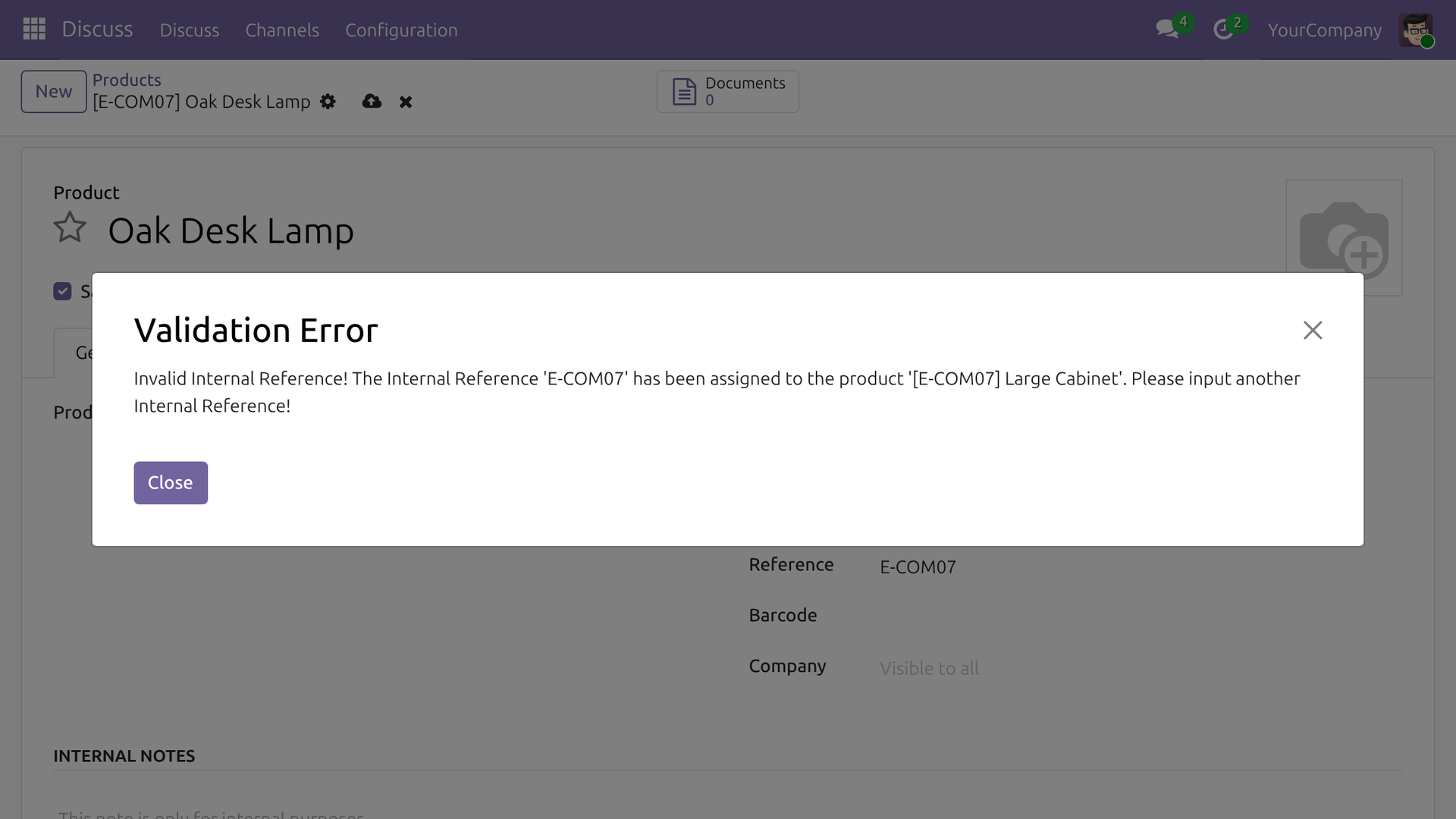
A duplicate code is stopped before it is saved
Odoo notes that a code already exists, yet the product can still be saved with it. The mix-up surfaces later, on a picking list or a quotation.
→ The save is refused, and the message names the product that already holds the code.
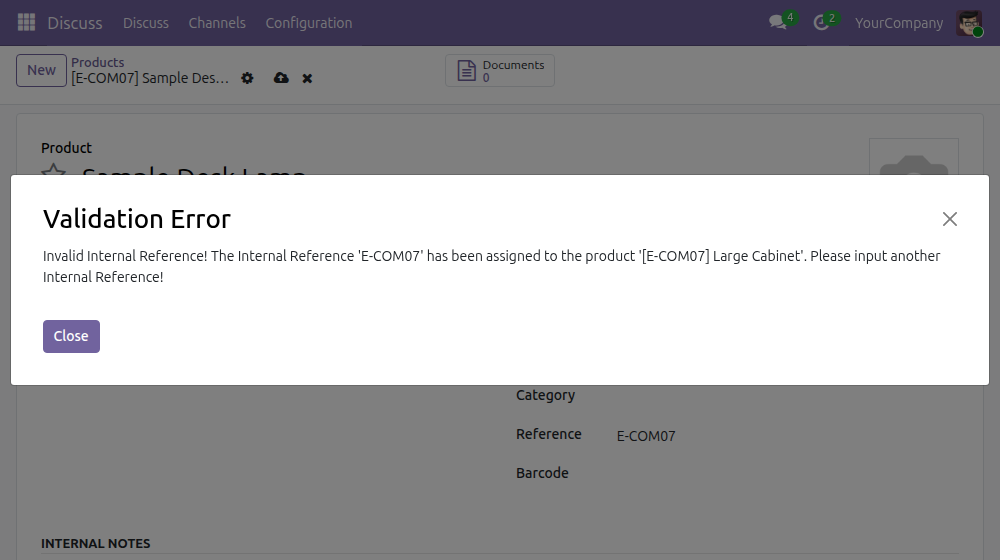
Each company keeps its own codes
In a database with several companies, a rule applied across the board would block companies that never share products.
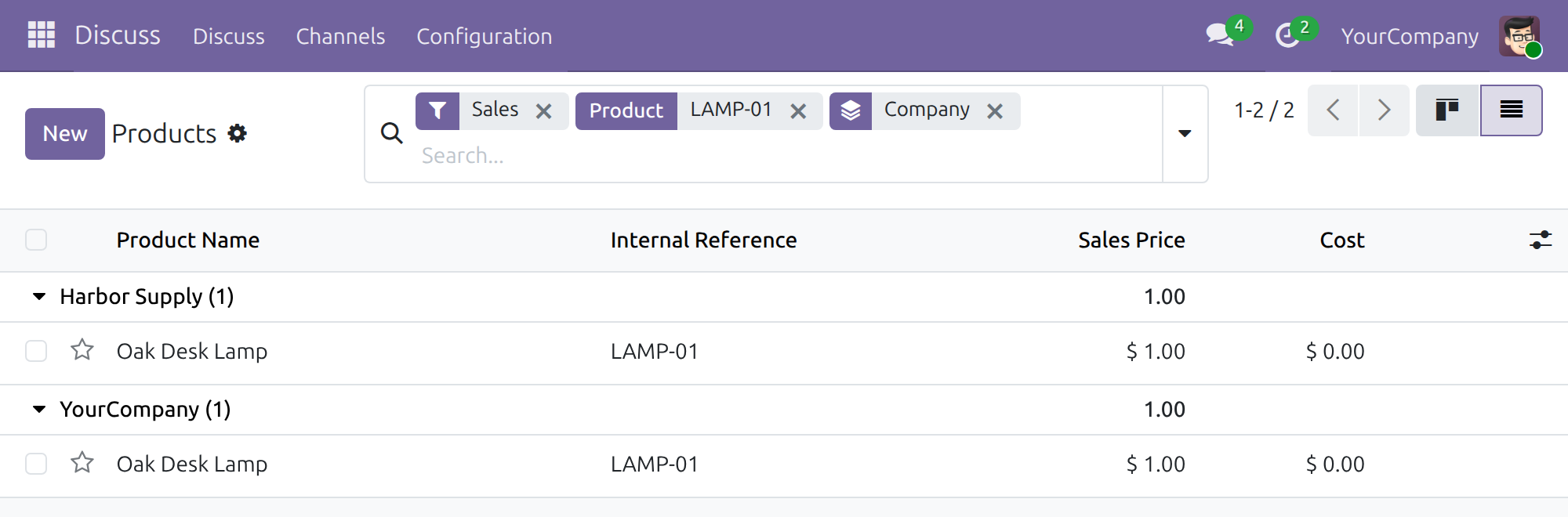
→ Codes are unique within a company. Two companies may use the same code; a product shared by all companies is compared with every product.
A restored product cannot bring a duplicate back
An item is archived, its code goes to a new product, and restoring the old item later puts two products on one code.
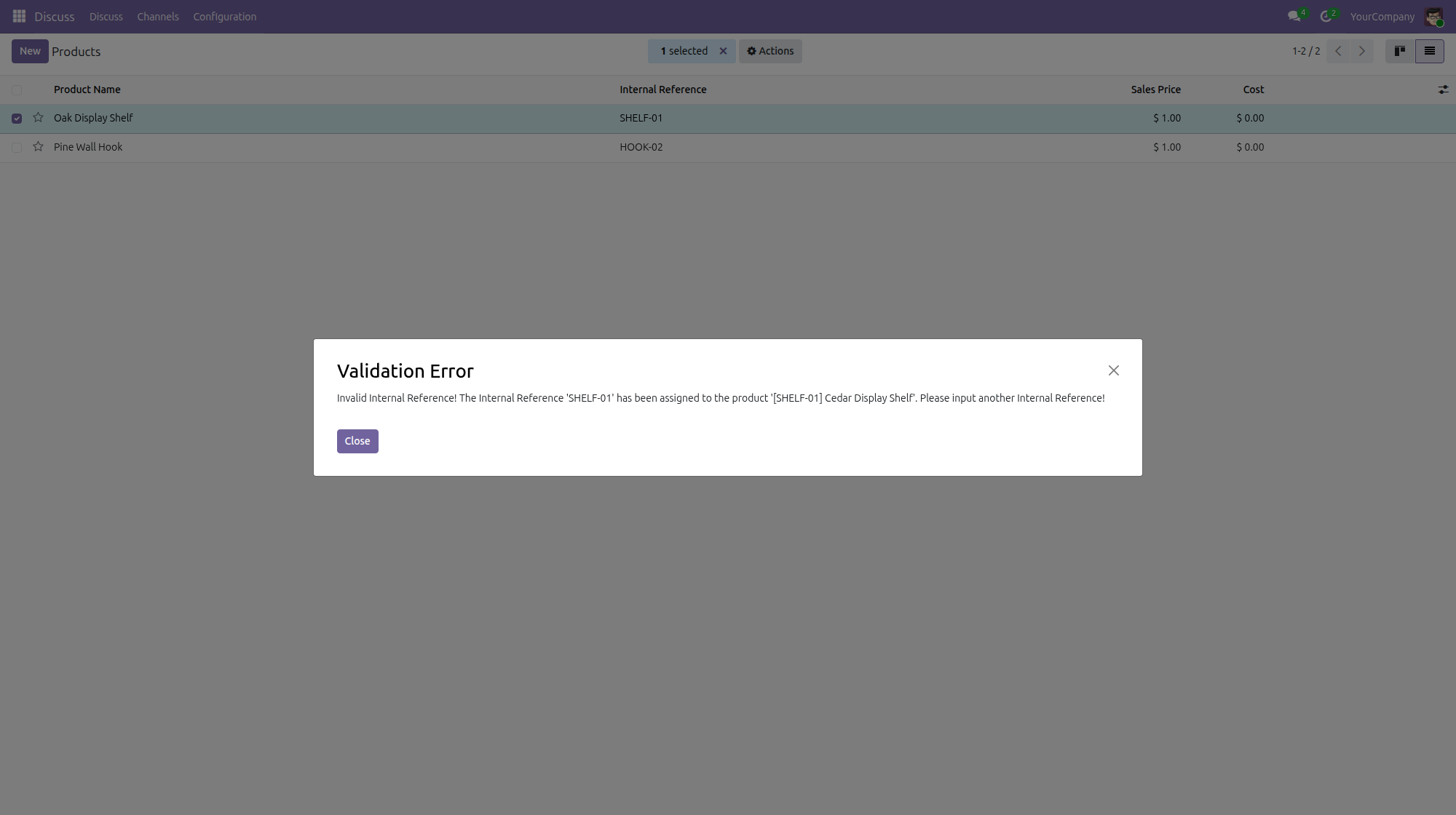
→ Unarchiving a product, from the Products or the Product Variants screen, is refused while another active product holds its code.
Ready on day one
Active on install
No setting and no data to load. The check is always on, on the product screens of Sales, Inventory and Purchase.
One access right to review
The people who create and edit products need the Create right on Products, as in standard Odoo. Nothing else to assign.
Existing data untouched
Codes already duplicated before installation stay as they are until someone edits the code of one of those products.
What is included
One rule on the internal reference of every product, applied on save, on a change of company and on restoring an archived product. No new menu or screen: your team keeps working on the product screens it knows. It needs only the Products & Pricelists module.
Before you decide
Where does the data go?
Nowhere. The check is a lookup in your own database; nothing is sent to an outside service.
Can we switch it off for some products?
No. The check is always on. Products with no internal reference are never blocked: any number of products may leave it empty.
Who sees what?
The message gives the name of the product that holds the code, even when the user cannot open that product, so they know whom to ask. Nothing else about that product is shown.
Is every way of restoring an archived product covered?
Yes. Unarchiving from the Products or the Product Variants screen is checked, and so is an import or another module that restores a product: the restore is refused while another active product holds the code. Archived products are not compared when a product is saved.
What does it take to run or extend?
Odoo 19.0 with the Products & Pricelists module, no other dependency and no configuration. The check sits on the product records themselves, so products created by an import or another module are checked the same way.
Try it, then ask us
The Documentation tab walks through each case. The Live Preview of this listing opens a demo database, and the video above shows the check.
Pre-sales & partnership
viindoo.com/contactusTechnical support
viindoo.com/ticketTechnical requirements
- Odoo version: 19.0
- Editions: Community, Enterprise
- Required modules: Products & Pricelists
- License: OPL-1
- Languages: English, Vietnamese
Unique Product Code
For: the administrator who installs the module, and the people who create and edit products (product maintainers, and salespeople or purchasers who create products).
Overview
Two products that share the same Internal Reference cause wrong picks, wrong quotes and wrong stock counts. The module makes the reference unique: when a product is saved with an Internal Reference that another product already uses, the save is refused and a message names the product that holds it.
The check is always on. There is nothing to configure and no setting to turn it off.
| Role | What they do | Access right to assign |
|---|---|---|
| Administrator | Installs the module. | Role: Administrator |
| Product maintainer | Creates and edits products and their Internal Reference, and meets the check when a reference is already in use. | Master Data > Products: Create |
Setup (for the Administrator)
Install
- Open Apps.
- Search for Unique Product Code.
- Click Activate on the module card.
The module works on the products of the database as soon as it is installed. The products screens belong to the apps you already use: Sales > Products > Products, Inventory > Products > Products or Purchase > Products > Products, depending on which of those apps are installed.
Give people the access right
- Open Settings > Users & Companies > Users and open a user.
- On the Access Rights tab, under Master Data, set Products to Create.
Users without this right can read products but cannot create or edit them, so they never meet the check.
Product maintainer: keep each reference unique
Save a product with a free reference
- Open the products screen of your app, for example Sales > Products > Products, and click New.
- Enter the product name and the Reference (the Internal Reference of the product).
- Click Save manually (the cloud icon).
A product with a reference no other product uses is saved. A product with an empty reference is always saved: the check applies only when a reference is entered.
When the reference is already in use
Enter a Reference that belongs to another product. As soon as you leave the field, a Note: window tells you that the Internal Reference already exists. It is a heads-up; you can close it and carry on.
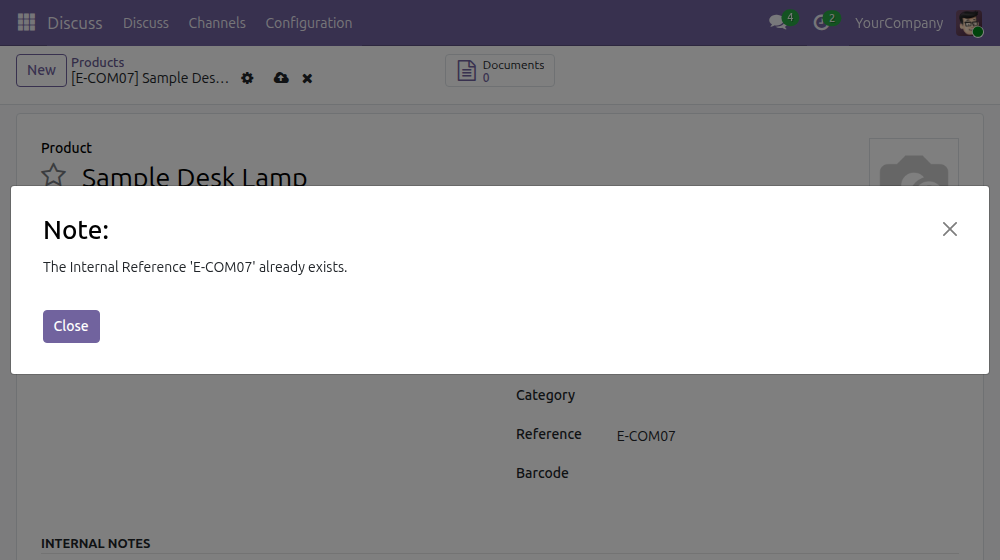
Click Close, then click Save manually.
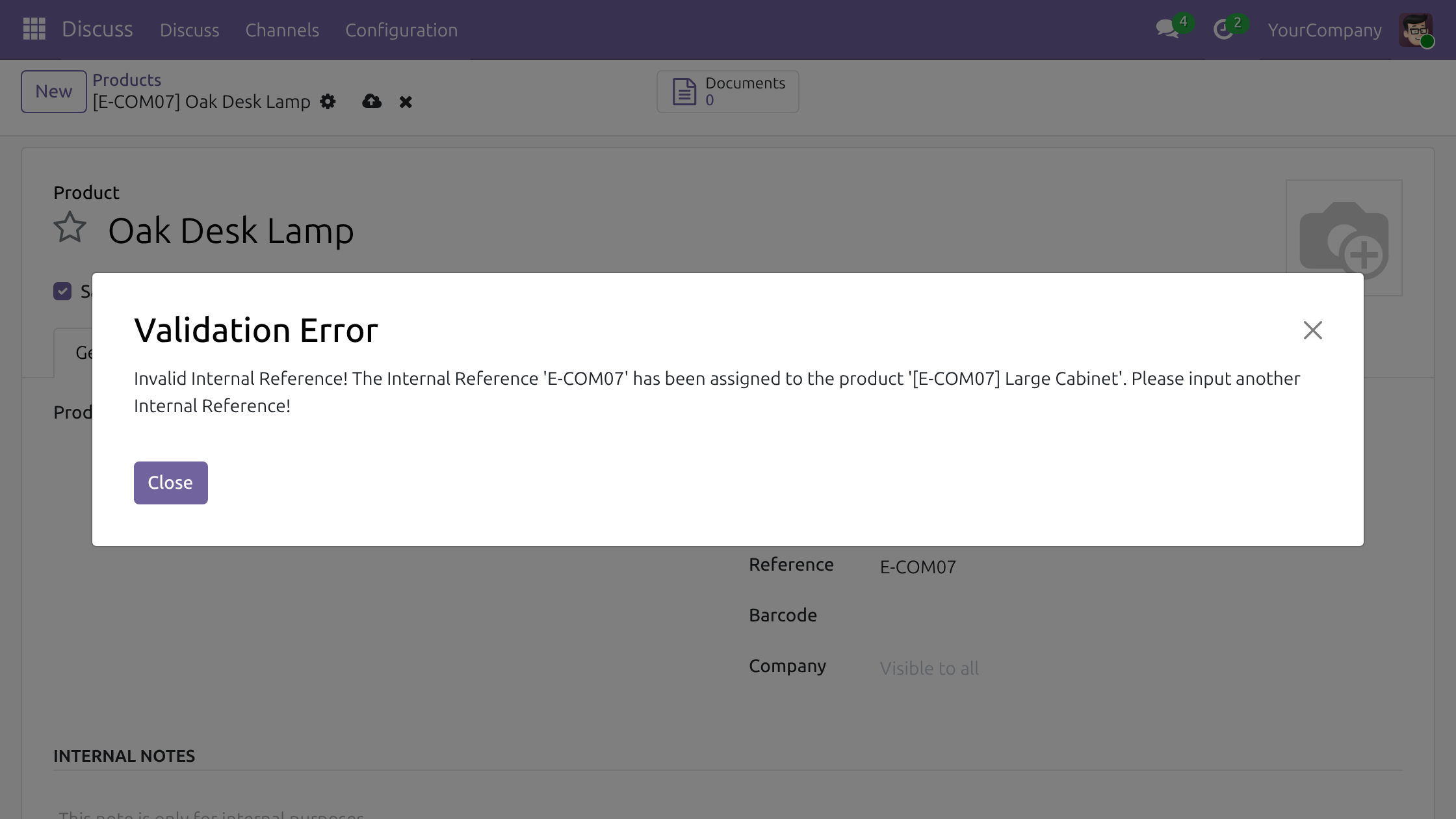
A Validation Error window refuses the save. It gives the reference and the product that already holds it, for example '[E-COM07] Large Cabinet'.
Click Close, change the Reference to a free one, and save again.
What the check compares
- The reference must match exactly the reference of another product.
- Only products that are not archived are compared when you save.
- A product that belongs to a company is compared with the products of that company and with the products that belong to no company. Products of two different companies may share a reference.
- A product that belongs to no company is compared with every product.
- When you change the Company of a product, the check runs again with the new company: a product that now overlaps another product with the same reference cannot be saved.
Restore an archived product or variant
An archived product can be restored from the Products screen, and an archived product variant from the Product Variants screen (Sales > Products > Product Variants, Purchase > Products > Product Variants; shown to users who have the Manage Product Variants feature). If another active product has taken its reference meanwhile, the restore is refused with the same Validation Error, from either screen.
On the Products screen, add the Archived filter (search options) and select the archived product.
Click Actions, then Unarchive. A Validation Error window refuses the restore and names the product that holds the reference.
On the Product Variants screen the same steps (Archived filter, Actions > Unarchive) give the same refusal.
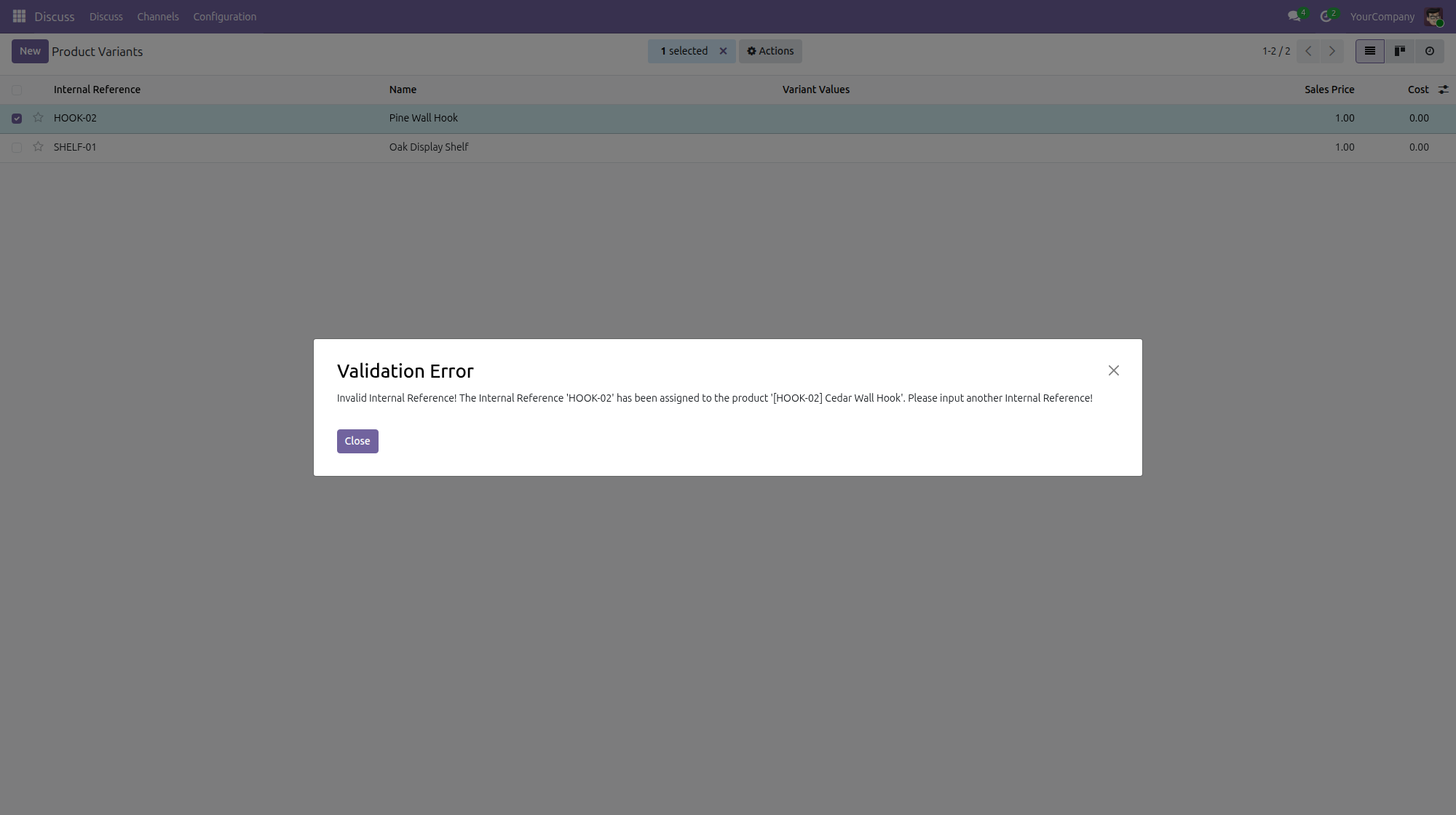
Click Close. Give one of the two products another reference, then restore the archived one.
Troubleshooting
The error names a product I cannot open. The check looks at the products of your company and the shared ones, including those you have no access to; the message only gives the name so that you can ask the person who owns it.
I need two products with the same reference. This is not possible within one company. Use a distinct reference per product, or put the products in different companies.
Two active products have the same reference although the module is installed. Products saved before the module was installed are not checked until their reference or company is changed. Restoring an archived product is checked, so a duplicate does not come back that way; correct an existing duplicate by giving one of the products another reference.
FAQ
Can I turn the check off? No. It is always on.
Does an empty reference count as a duplicate? No. Any number of products may have no reference.
Does it check archived products? Archived products are not compared when you save. They are checked when you restore them, from Products or from Product Variants.
This software and associated files (the "Software") may only be used (executed, modified, executed after modifications) if you have purchased a valid license from the authors, typically via Odoo Apps, or if you have received a written agreement from the authors of the Software (see the COPYRIGHT file).
You may develop Odoo modules that use the Software as a library (typically by depending on it, importing it and using its resources), but without copying any source code or material from the Software. You may distribute those modules under the license of your choice, provided that this license is compatible with the terms of the Odoo Proprietary License (For example: LGPL, MIT, or proprietary licenses similar to this one).
It is forbidden to publish, distribute, sublicense, or sell copies of the Software or modified copies of the Software.
The above copyright notice and this permission notice must be included in all copies or substantial portions of the Software.
THE SOFTWARE IS PROVIDED "AS IS", WITHOUT WARRANTY OF ANY KIND, EXPRESS OR IMPLIED, INCLUDING BUT NOT LIMITED TO THE WARRANTIES OF MERCHANTABILITY, FITNESS FOR A PARTICULAR PURPOSE AND NONINFRINGEMENT. IN NO EVENT SHALL THE AUTHORS OR COPYRIGHT HOLDERS BE LIABLE FOR ANY CLAIM, DAMAGES OR OTHER LIABILITY, WHETHER IN AN ACTION OF CONTRACT, TORT OR OTHERWISE, ARISING FROM, OUT OF OR IN CONNECTION WITH THE SOFTWARE OR THE USE OR OTHER DEALINGS IN THE SOFTWARE.