
Sales Lines Numbering
| Lines of Code | 400 |
| Technical name | to_sale_line_numbering |
| License | OPL-1 |
| Website | https://viindoo.com/apps/modules/19.0/to_sale_line_numbering |
| Read description for | v 10.0 v 11.0 v 12.0 v 13.0 v 14.0 v 15.0 v 16.0 v 17.0 v 18.0 |
| Required Apps | Invoicing (account) Discuss (mail) |
| Extensions | Sales Order Product Duplication Warning |

Say “line 4” and everyone looks at the same line
For sales teams whose quotations carry many similar lines
Line 4, not "the third Senior Architect line"
Odoo 19.0 · Community and Enterprise · OPL-1
What changes for your team
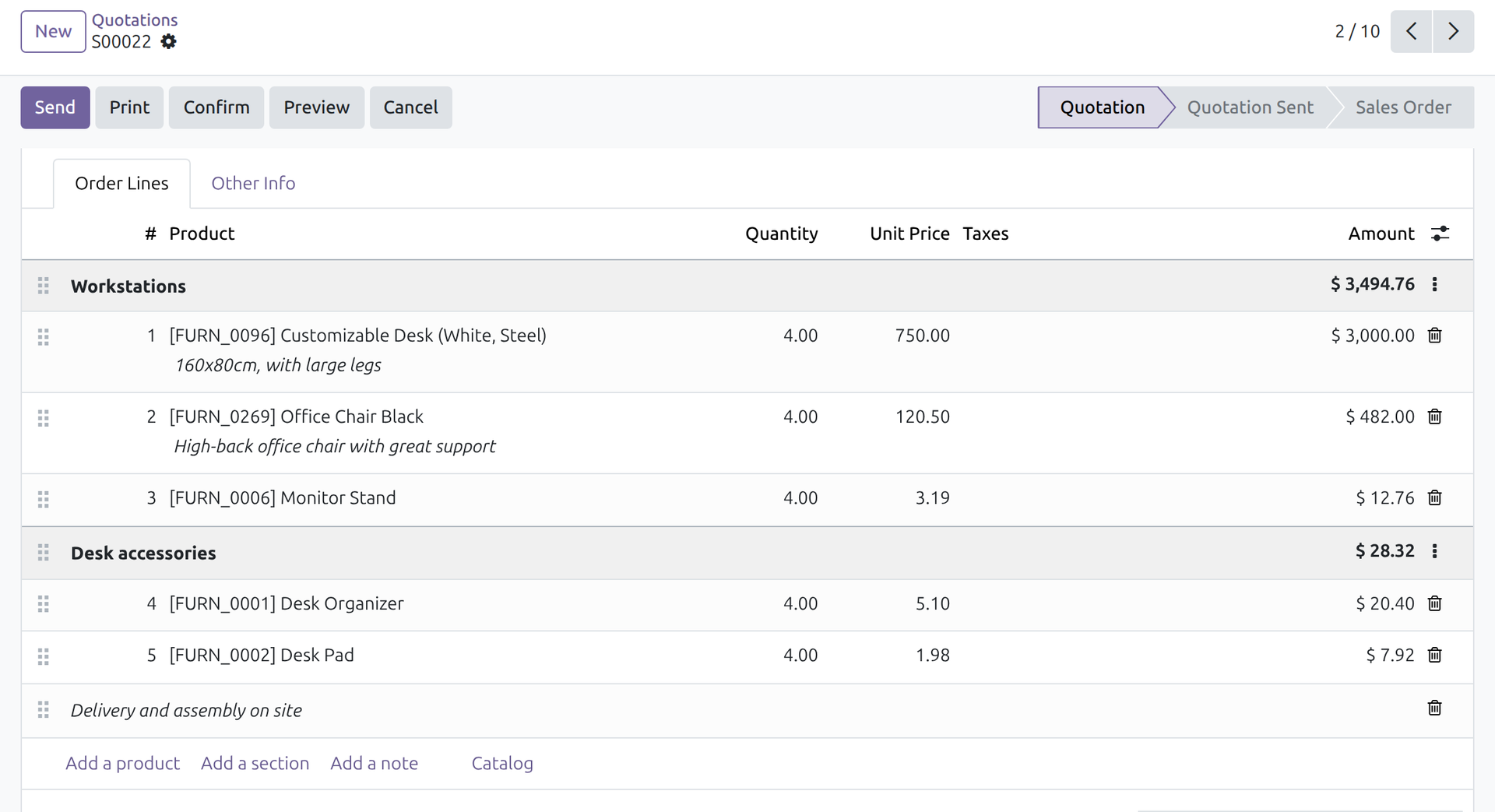
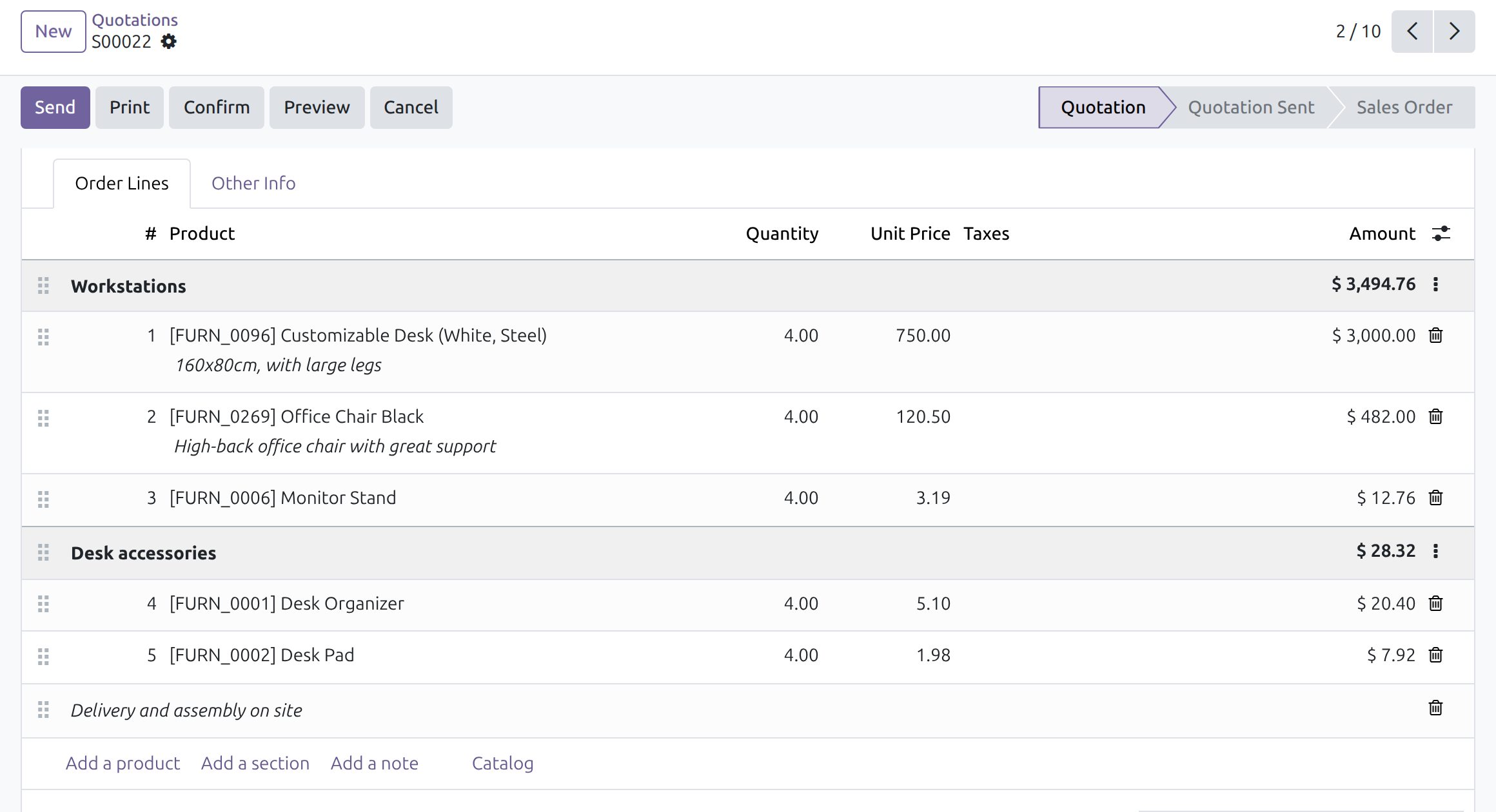
Every line has a number people can quote
On a long quotation, lines are described by product name, and “the second chair” is ambiguous when names look alike.
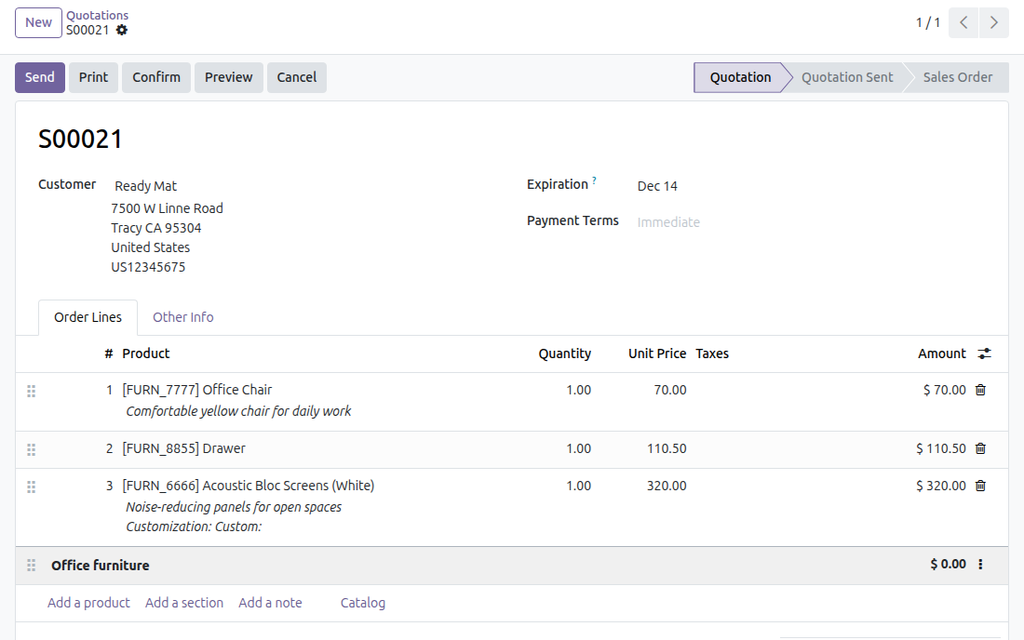
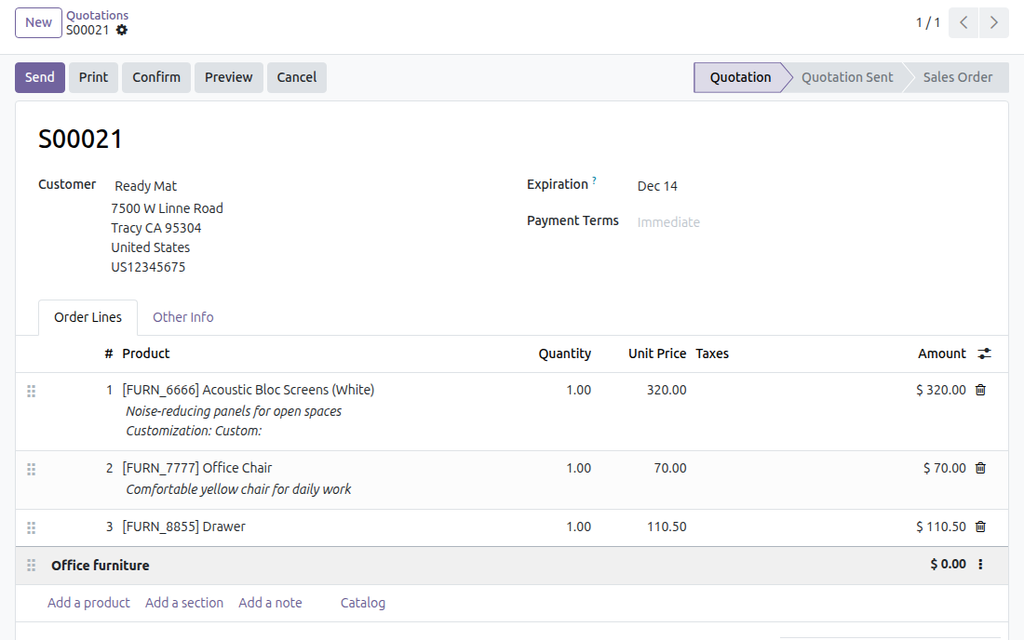
→ A # column numbers the product lines 1, 2, 3 on every quotation and sales order. Nobody types the numbers.
The numbers follow the order you arrange
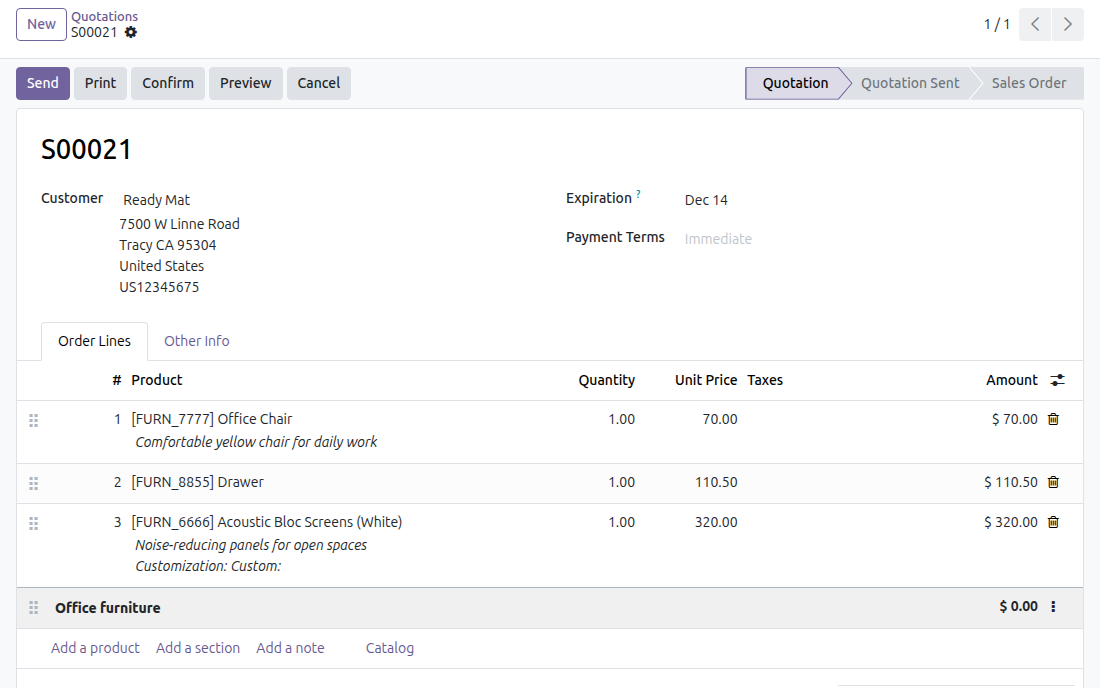
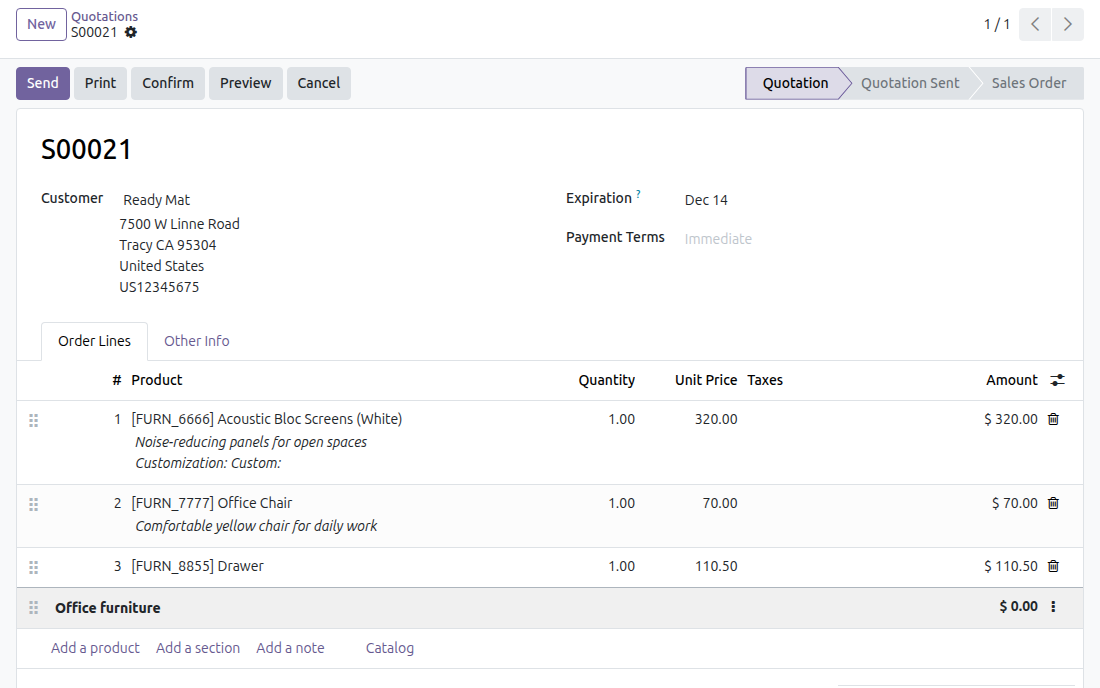
Numbers typed by hand into descriptions go wrong as soon as a line is added, moved or removed.
→ On save, the product lines are renumbered from 1 in their current order. Section and note lines are skipped.
The customer reads the same numbers
The document the customer holds has no line reference, so a call starts with “which line do you mean?”.
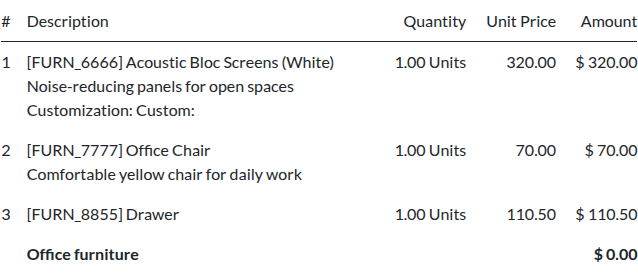
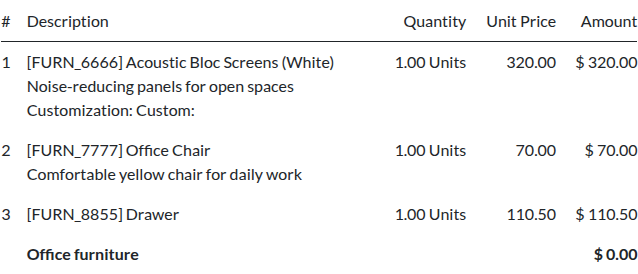
→ The printed quotation and sales order carry the same # column before the description.
Ready on day one
Numbers on screen
The # column appears on the order lines of quotations and sales orders as soon as the module is installed.
Numbers on the document
The printed quotation and sales order show the column without any change to a report template.
Nothing to configure
The administrator installs the module. It adds no setting, menu or access right.
What is included
Line numbering for quotations and sales orders, on screen and on the printed document. It needs only the Sales app.
Before you decide
Do salespeople type the numbers?
No. The column is read-only and follows the position of each line. A line just added gets its number when the order is saved.
Is a line number a permanent reference?
No, it is a position. Delete line 2, save, and line 3 becomes line 2. Quote numbers from the version of the document both sides are looking at.
What happens to orders that already exist?
Their product lines are numbered from 1 in their current order when the module is installed or upgraded. Section and note lines carry no number, and the printed document shows the same numbers.
Who sees the numbers?
Everyone who can open quotations and sales orders, and every customer who receives the printed document.
Which languages does it ship?
English and Vietnamese. The column heading is “#”, so the printed document reads the same in any customer language.
Try it, then ask us
Read the Documentation tab of this listing, open the live preview, or watch the video above.
Pre-sales & partnership
viindoo.com/contactusTechnical support
viindoo.com/ticketTechnical requirements
- Odoo version: 19.0
- Editions: Community, Enterprise
- Required modules: Sales
- License: OPL-1
- Languages: English, Vietnamese
Sales Lines Numbering
Audience: salespeople who prepare quotations and sales orders, and the administrator who installs the module.
Overview
A quotation with many lines is hard to discuss: when several products have similar names, "the third chair line" is ambiguous. This module numbers the product lines of every quotation and sales order, so that you and your customer can say "line 4". The number is shown in a # column on the order lines and on the printed quotation or order.
Section and note lines are not numbered. The numbers always run from 1 to the number of product lines, in the order the lines appear on the document.
| Role | What they do | Access right to assign |
|---|---|---|
| Administrator | Installs the module (it has no settings). | Administration / Settings |
| Salesperson | Numbers, reorders and prints the lines of quotations and orders. | Sales: User: Own Documents Only |
Setup (for the Administrator)
- Open Apps.
- Remove the default filter and search for to_sale_line_numbering.
- Click Activate on the module card.
The module extends the quotation and order lines of Sales. The Sales menu that this guide starts from (Sales > Orders > Quotations) is shown by the Sales app (technical name sale_management); install that app too if your database does not have the Sales menu yet. The module itself adds no menu, no setting and no access right: anyone who can open quotations sees the numbers.
When the module is installed or upgraded on a database that already has quotations and orders, their product lines are numbered from 1 at once; Section and Note lines stay without a number.
Salesperson: number and send a quotation
See the numbers on a quotation
- Open Sales > Orders > Quotations and create or open a quotation.
- In the Order Lines tab, click Add a product and choose each product.
- Save the quotation.
The # column, next to the drag handle of each line, shows 1, 2, 3 and so on. The numbers of added or moved lines are set when you save the quotation.
The column is read-only: you do not type the numbers, they follow the position of the line.
Move a line
- Drag the handle at the left of a line to its new position.
- Save the quotation.
The numbers are recalculated from 1 in the new order. Adding or deleting a line and saving does the same for the lines that remain. Section and note lines can be placed anywhere; they keep no number.
Print the quotation
Click Print (or Preview to show the customer's view) on the quotation or order. The document carries a # column before the description, with the same numbers as on screen. Rows that span the table, such as sections, have an empty cell in that column.
This software and associated files (the "Software") may only be used (executed, modified, executed after modifications) if you have purchased a valid license from the authors, typically via Odoo Apps, or if you have received a written agreement from the authors of the Software (see the COPYRIGHT file).
You may develop Odoo modules that use the Software as a library (typically by depending on it, importing it and using its resources), but without copying any source code or material from the Software. You may distribute those modules under the license of your choice, provided that this license is compatible with the terms of the Odoo Proprietary License (For example: LGPL, MIT, or proprietary licenses similar to this one).
It is forbidden to publish, distribute, sublicense, or sell copies of the Software or modified copies of the Software.
The above copyright notice and this permission notice must be included in all copies or substantial portions of the Software.
THE SOFTWARE IS PROVIDED "AS IS", WITHOUT WARRANTY OF ANY KIND, EXPRESS OR IMPLIED, INCLUDING BUT NOT LIMITED TO THE WARRANTIES OF MERCHANTABILITY, FITNESS FOR A PARTICULAR PURPOSE AND NONINFRINGEMENT. IN NO EVENT SHALL THE AUTHORS OR COPYRIGHT HOLDERS BE LIABLE FOR ANY CLAIM, DAMAGES OR OTHER LIABILITY, WHETHER IN AN ACTION OF CONTRACT, TORT OR OTHERWISE, ARISING FROM, OUT OF OR IN CONNECTION WITH THE SOFTWARE OR THE USE OR OTHER DEALINGS IN THE SOFTWARE.