
Product Lifecycle (PLM)
| Lines of Code | 1784 |
| Technical name | to_mrp_plm |
| License | OPL-1 |
| Website | https://viindoo.com/apps/modules/19.0/to_mrp_plm |
| Read description for | v 11.0 v 12.0 v 13.0 v 14.0 v 15.0 v 16.0 v 17.0 v 18.0 |
| Required Apps | Manufacturing (mrp) Discuss (mail) Inventory (stock) |
| Extensions | OmniApproval™ - ECO Approvals PLM and Subcontracting PLM Shop Confidentiality |

Engineering changes reach production on the date you choose
For manufacturers whose engineers change bills of materials while production keeps running
Engineering change orders (ECOs) and bill of materials versions for Odoo Manufacturing: prepare each change on a copy, review its impact, and put it in force on the date you choose.
Odoo 19.0 · Odoo Community · Viindoo Cloud · OPL-1
What changes for your team
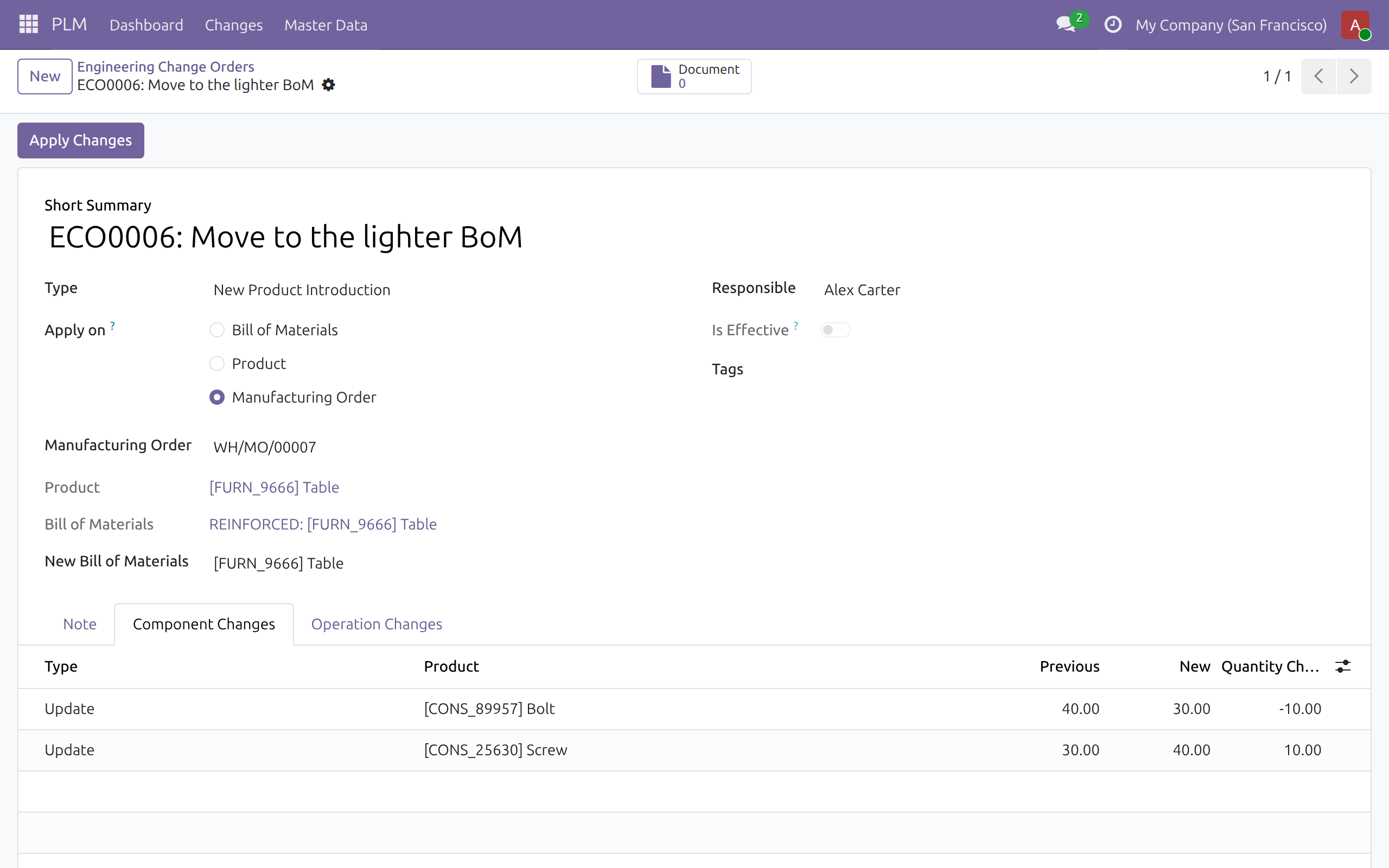
See the difference before it counts
Today: engineers edit the live bill of materials, or compare two versions line by line in a spreadsheet.
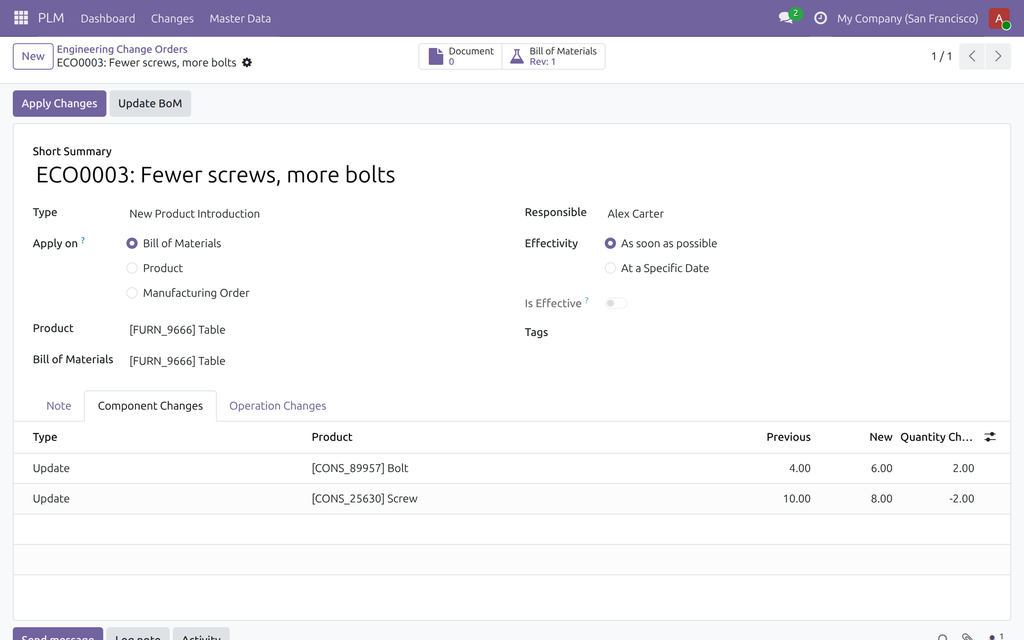
→ An engineering change order (ECO) starts the next version as an inactive copy. Its change tabs list every component added, removed or re-quantified and every operation duration that moves, while production keeps using the current version.
Put a version in force on a set date
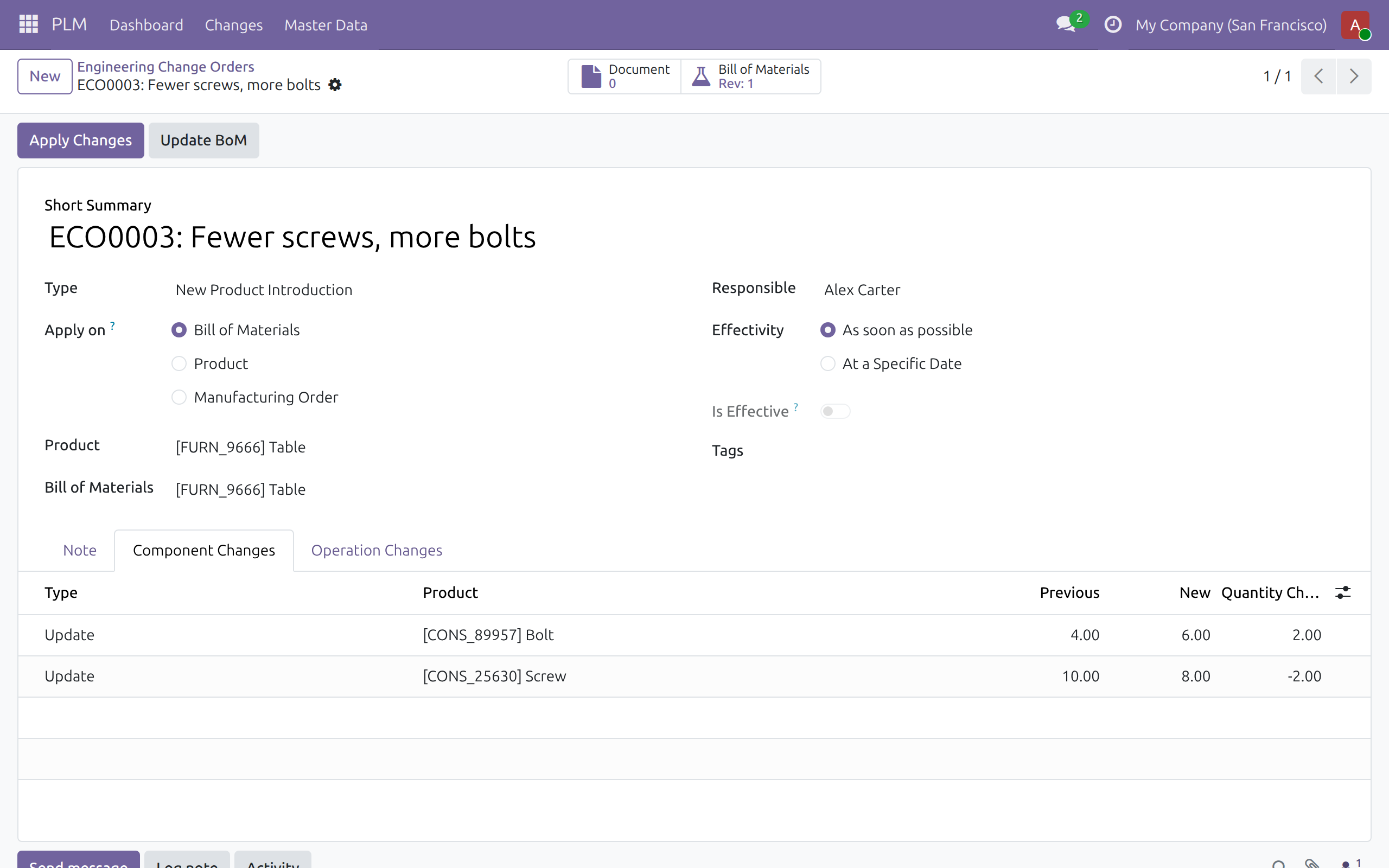
Today: someone has to remember to switch the bill of materials on the right day and archive the old one.
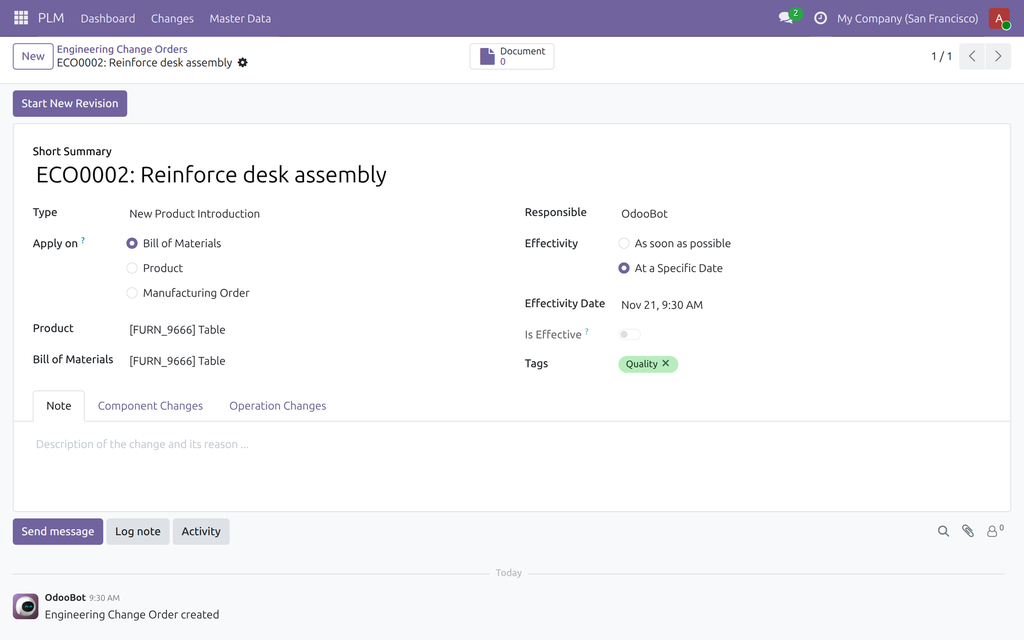
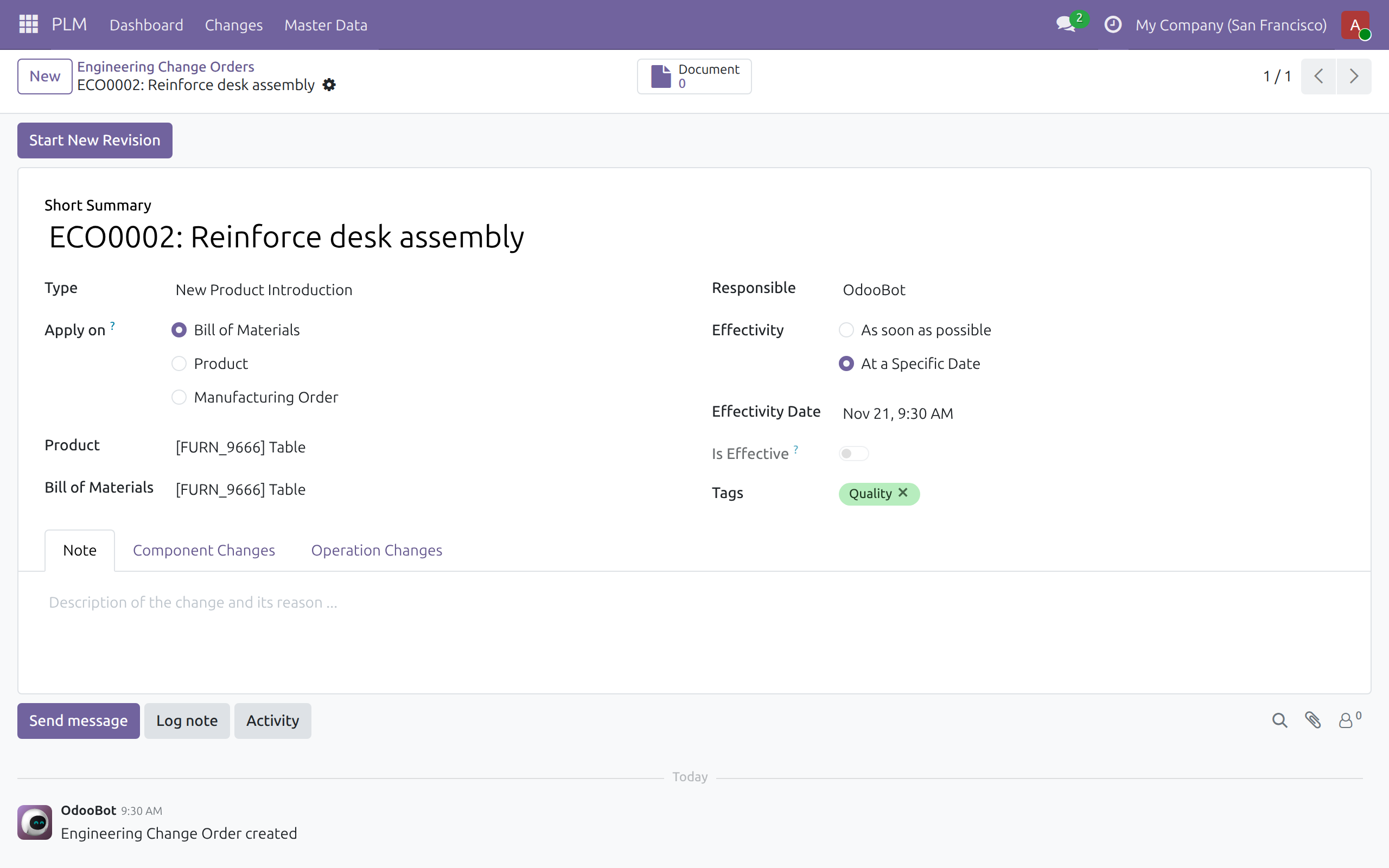
→ Each ECO takes effect as soon as possible or at a specific date. On that date an hourly scheduled action activates the new version and archives the previous one, and the ECO keeps the record of who changed what and why.
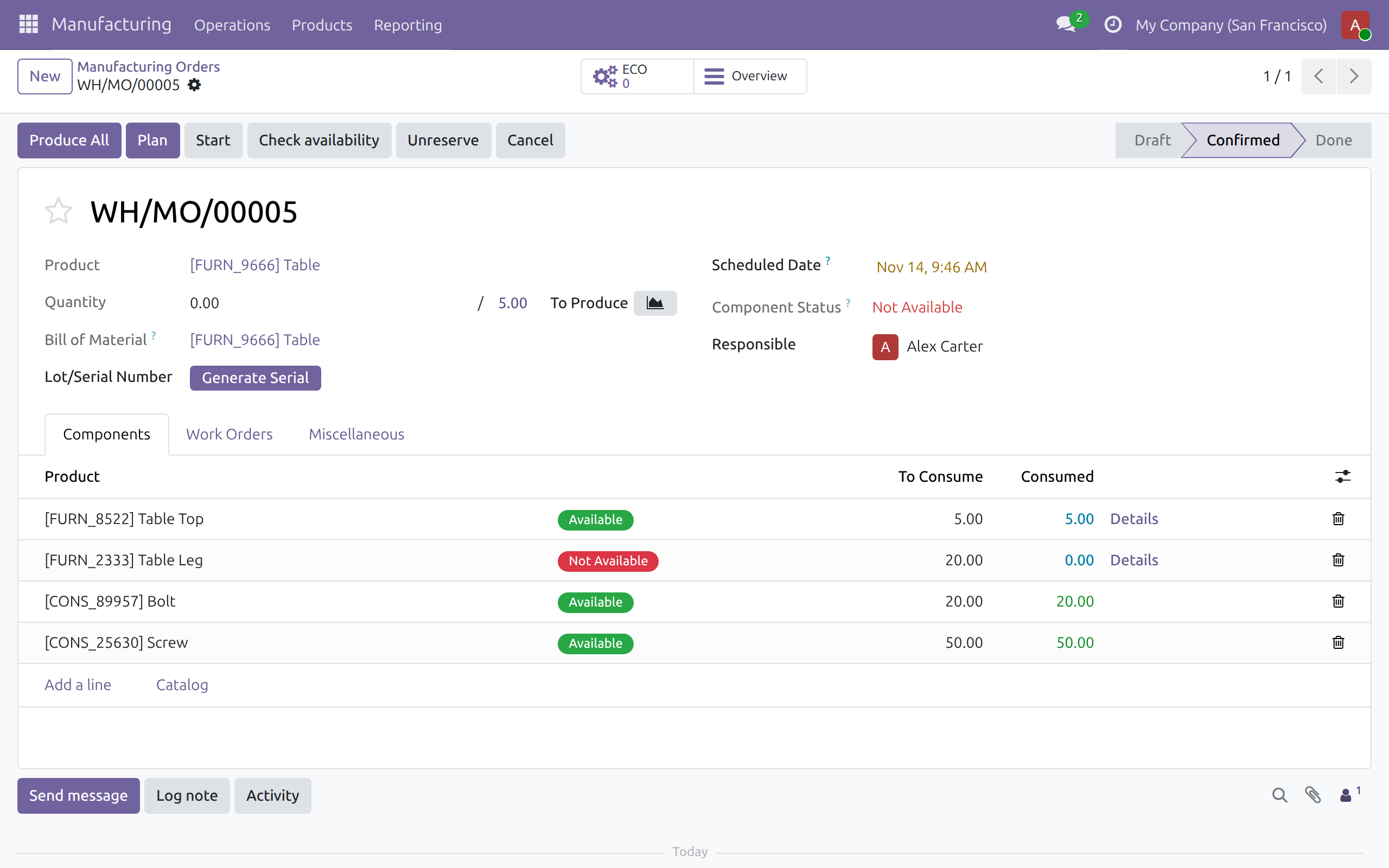
Move a confirmed order to the new version
Today: an order already confirmed keeps its components, and planners correct it by hand.
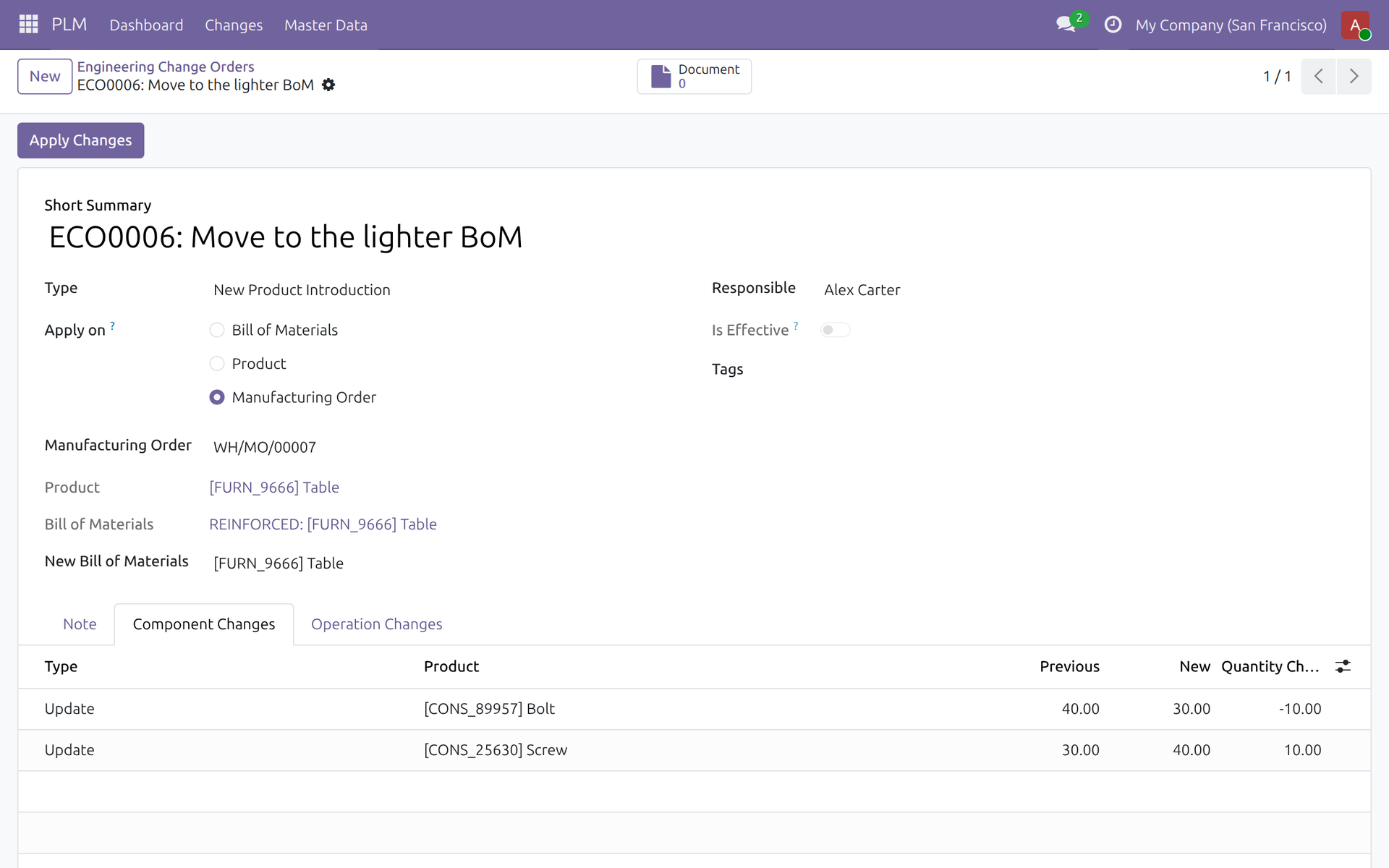
→ An ECO opened from the order previews the components and durations the new version gives for the order's quantity, then switches it. When components are already consumed or an operation has started, the switch is refused with the reason.
Ready on day one
A first ECO type
New Product Introduction is ready, and every ECO gets its own reference number.
Dated changes run themselves
The hourly scheduled action that puts dated ECOs in force is active from installation.
Operations compared
Installation switches on Work Orders, so operation durations can be compared from the start.
What you set first
Give each engineer the PLM access level that fits; add ECO types and tags, and an email address per type if mail should open ECOs.
What is included
ECOs on bills of materials, products and manufacturing orders; bill-of-materials versions with their history; component and operation comparison; dated application; documents kept on each ECO; confidential engineering files; a dashboard by ECO type and an ECO report.
Optional extensions
OmniApproval™ - ECO Approvals
Engineers ask for approval from the ECO itself and every sign-off stays on record; by default approval blocks nothing. Marking the approved request as done applies the ECO.
PLM and Subcontracting
Subcontract the new bill-of-materials version straight from the ECO.
PLM Shop Confidentiality
A product document marked PLM Confidential can never be published on the website.
Before you decide
Who sees what?
Two levels. PLM User sees the PLM menu, works on ECOs and versions and keeps documents; PLM Administrator also manages ECO types, tags and the report. People without a PLM level see no ECO information on bills of materials.
How are engineering files protected?
A product document attached from a bill-of-materials component is marked PLM Confidential by default, and only PLM users can find, open, change or delete it. Files attached to an ECO itself are ordinary attachments of that ECO.
What happens to orders already confirmed?
Applying a bill-of-materials ECO changes the active version; a confirmed order changes only through an ECO on that order. Draft, finished or cancelled orders cannot take one.
Where does the data live, and does it connect to CAD?
Everything stays in your Odoo database; the module calls no outside service. It has no CAD connection: drawings and specifications are attached as files.
Try it, then ask us
The Live Preview button opens the ECOs on a demo database; the Documentation tab walks through each role.
Pre-sales & partnership
viindoo.com/contactusTechnical support
viindoo.com/ticketTechnical requirements
- Odoo version: 19.0
- Editions: Odoo Community, Viindoo Cloud
- Required modules: Discuss, Manufacturing, Products
- License: OPL-1
- Languages: English, Vietnamese
Product Lifecycle (PLM)
This guide is for product engineers, PLM administrators and production planners who work with engineering changes, and for the system administrator who installs the module and assigns access rights.
Overview
Product Lifecycle gives a manufacturing company one controlled way to change a product. An engineering change order (ECO) records what changes, why, who is responsible and when the change takes effect. A change to a bill of materials (BoM) is made on a new version of that BoM: the current version stays in use until the ECO is applied. Before applying, the ECO lists every component and every operation duration that the change adds, removes or updates, so the effect is known before production starts. An ECO can also move a manufacturing order that is already in progress to another BoM.
An ECO is applied on one of three things, chosen in the field Apply on:
- Bill of Materials: the BoM of a product is changed through a new version.
- Product: a change to the product specification is recorded and followed like any other ECO; no BoM version is involved.
- Manufacturing Order: a manufacturing order in progress is moved to another BoM, with a preview of what the order gets.
A change to a BoM goes through four stages, all handled by the product engineer:
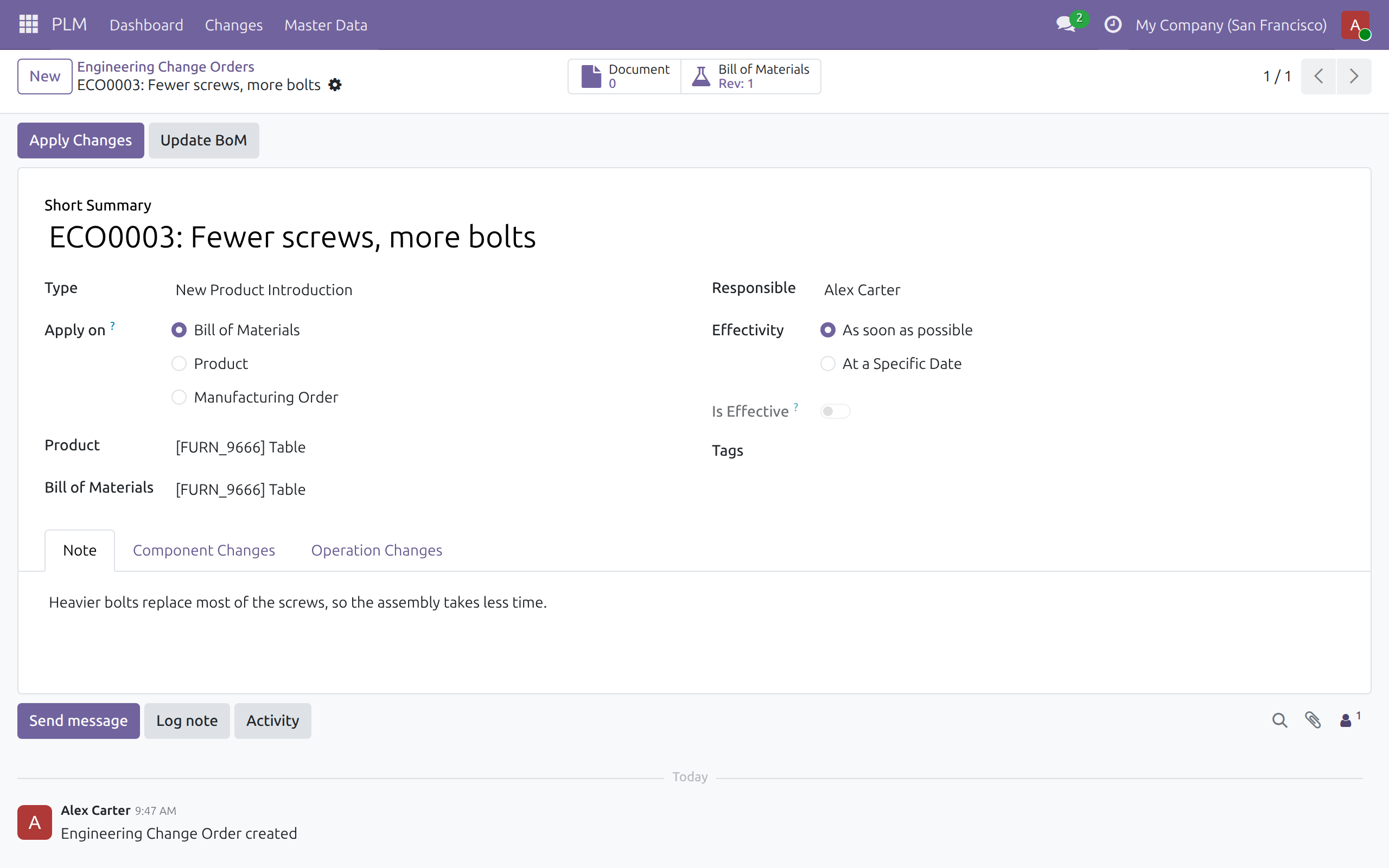
- Draw up the ECO. Choose the product and its BoM, say when the change should take effect and save. The ECO gets a reference such as ECO0003.
- Start a new revision. The button Start New Revision copies the BoM into a new version that is not yet in use.
- Edit and review. Edit the new version, then read the tabs Component Changes and Operation Changes, which compare the new version with the current one.
- Apply. The button Apply Changes puts the new version in force at once, or on the chosen date. The previous version is archived.
| Role | What they do | Access right to assign |
|---|---|---|
| Product engineer | Creates ECOs, starts and edits BoM versions, reviews and applies changes, changes manufacturing orders, keeps engineering documents, marks documents as PLM confidential. | PLM / User |
| PLM administrator | Does everything the product engineer does, and also sets up ECO types and ECO tags and reads the ECO reports. | PLM / Administrator |
| Production planner and other manufacturing users | Work with manufacturing orders and BoMs as usual. They see no PLM menu, no ECO counter and no ECO button, and cannot open the ECO list. | Manufacturing / User, without any PLM right |
| System administrator | Installs the module and gives each person their PLM access right. | Administration / Settings |
Note
PLM / User includes Manufacturing / User and the product right Create. A product engineer can therefore also create, edit and delete products, and edit any bill of materials, but cannot delete a bill of materials. Changes to a BoM made directly, outside an ECO, are not blocked.
Setup (for the System Administrator)
Install the module
- Open Apps, search for Product Lifecycle and click Install. The Manufacturing application is installed with it when it is missing.
- The installation turns on Work Orders in the Manufacturing settings, so that work centers and operations are available to the changes.
Give people their access right
- Open Settings ‣ Users & Companies ‣ Users and open the user.
- On the tab Access Rights, find the section PLM. Set the line PLM to User for a product engineer or to Administrator for a PLM administrator. This line is separate from the line Role at the top of the tab.
- Save. The person sees the application PLM in the menu.
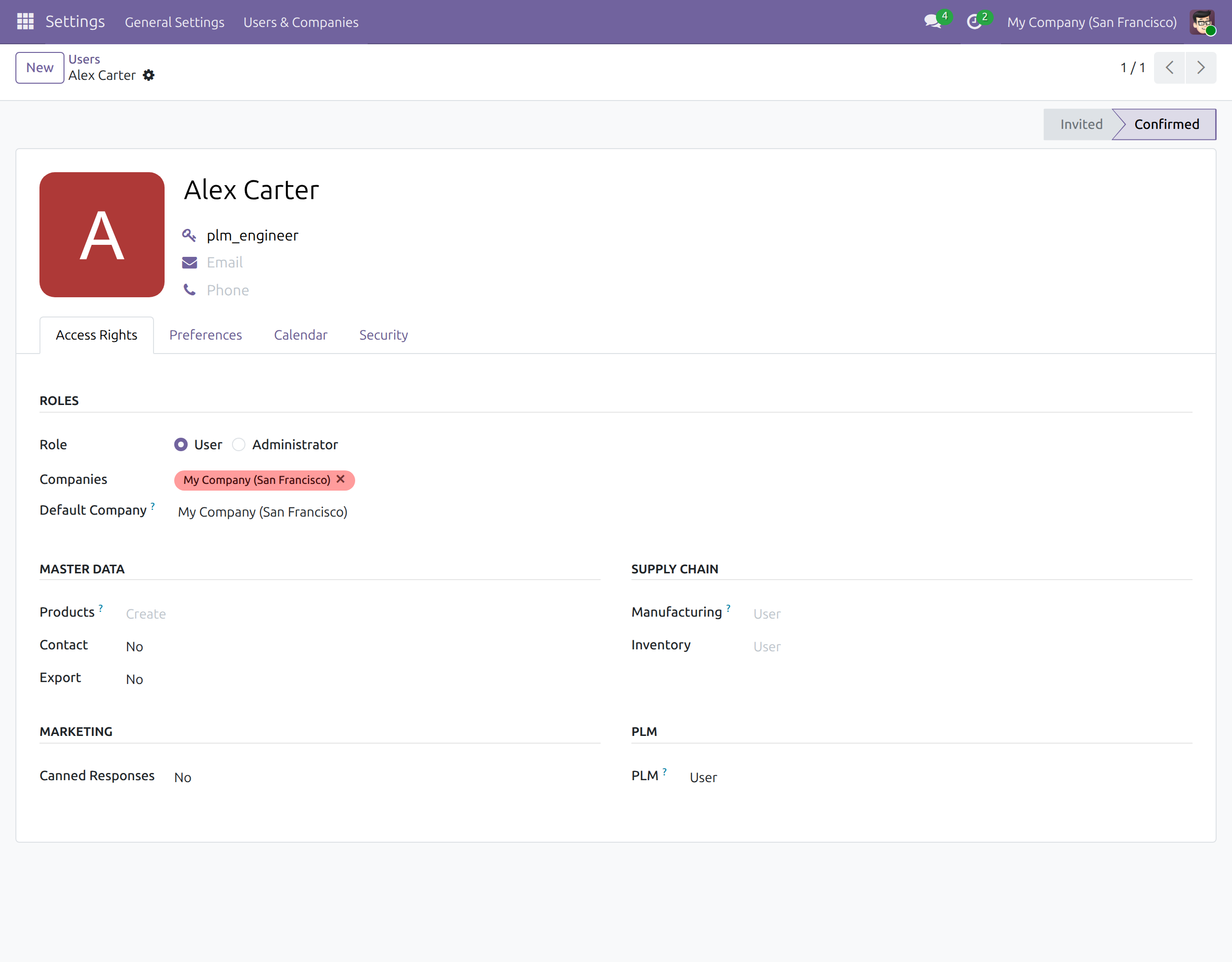
ECO types and ECO tags are set up by the PLM administrator; see the chapter for that role below.
Product engineer: change products and bills of materials
This chapter is for people holding PLM / User. A PLM administrator does the same tasks.
Open the dashboard and find an ECO
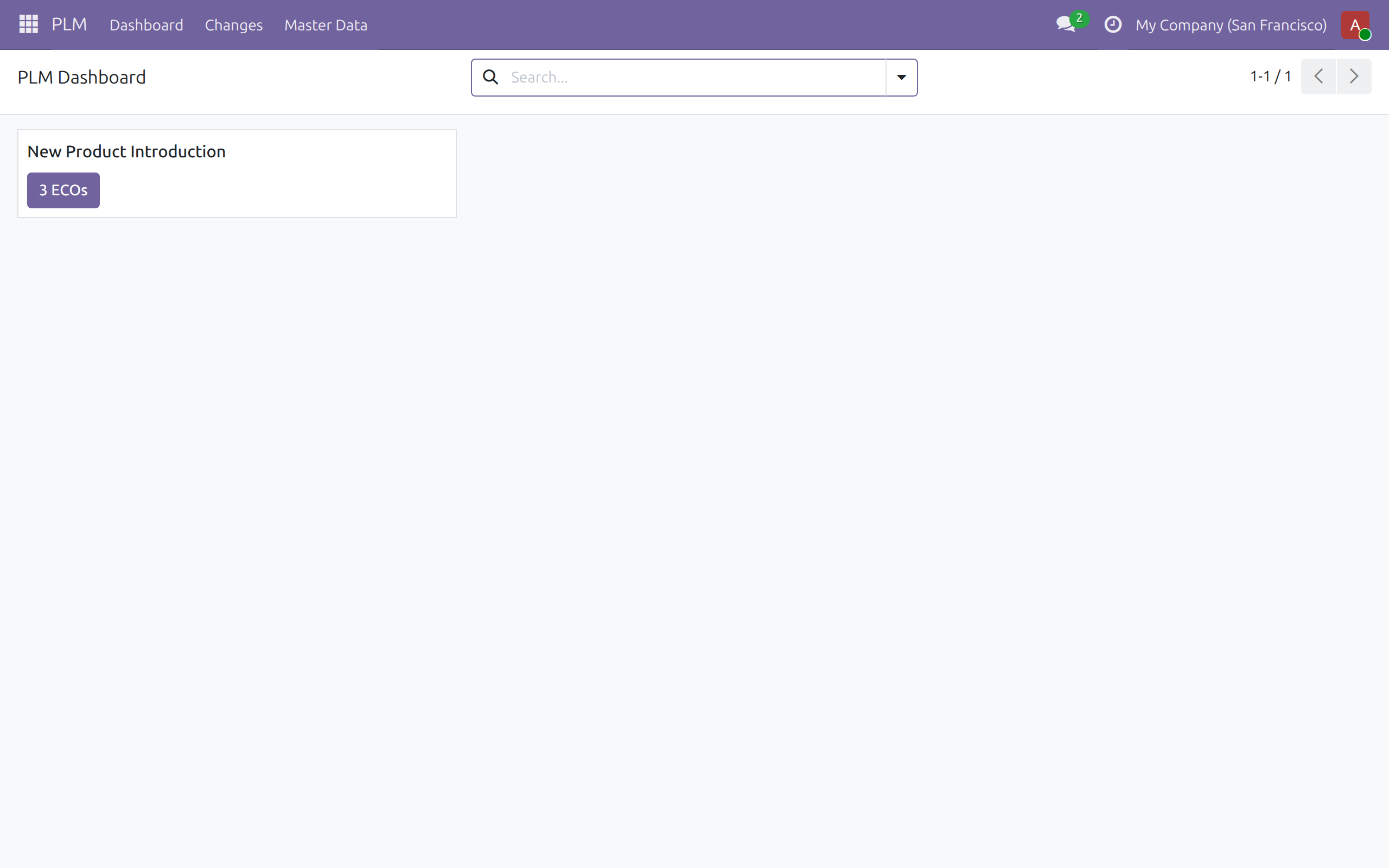
- Open PLM ‣ Dashboard. Each card is an ECO type and its button shows how many ECOs the type holds. Click the button to open those ECOs.
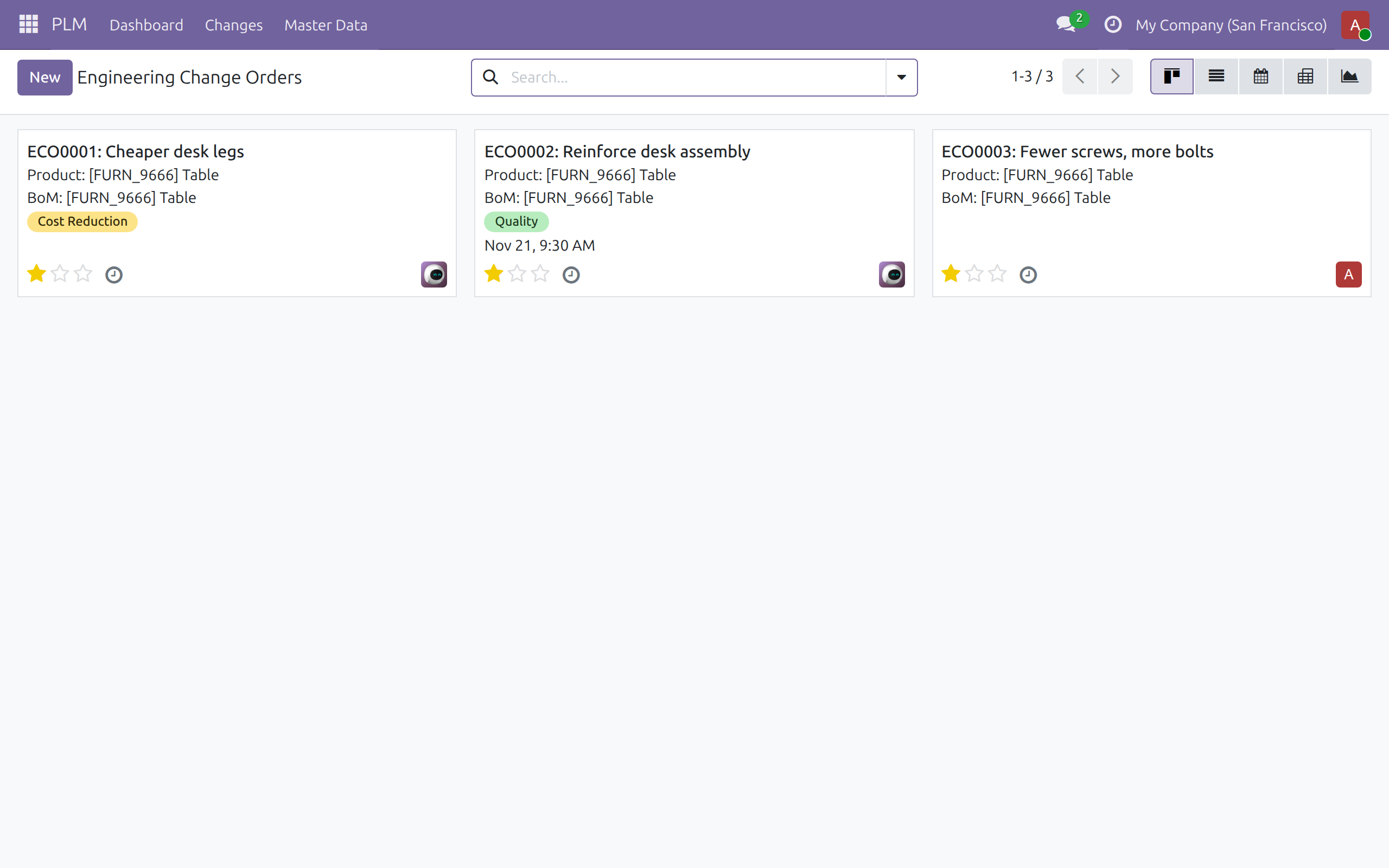
- Open PLM ‣ Changes ‣ Engineering Change Orders to see every ECO. Each card shows the reference, the product, the BoM or manufacturing order, the tags, the effectivity date (in red once it is past), the priority stars (Low Priority, High Priority, Urgent), the planned activities and the person responsible.
- Use the buttons at the top right to switch between kanban, list, calendar, pivot and graph. The calendar shows each ECO from its creation date to its effectivity date.
- Use the search filters My Change Orders, BoM and Manufacturing Order, or group by Product or Manufacturing Order (and Company when you work in several companies).
Create an ECO for a bill of materials
- Open PLM ‣ Changes ‣ Engineering Change Orders and click New.
- Type a Short Summary. When you save, the reference (for example ECO0003) is added in front of it.
- Choose the Type, keep Apply on on Bill of Materials, and choose the Product. The Bill of Materials of the product fills in; choose another one when the product has several.
- Check the Responsible person (you by default), add Tags and describe the change and its reason on the tab Note.
- Save.
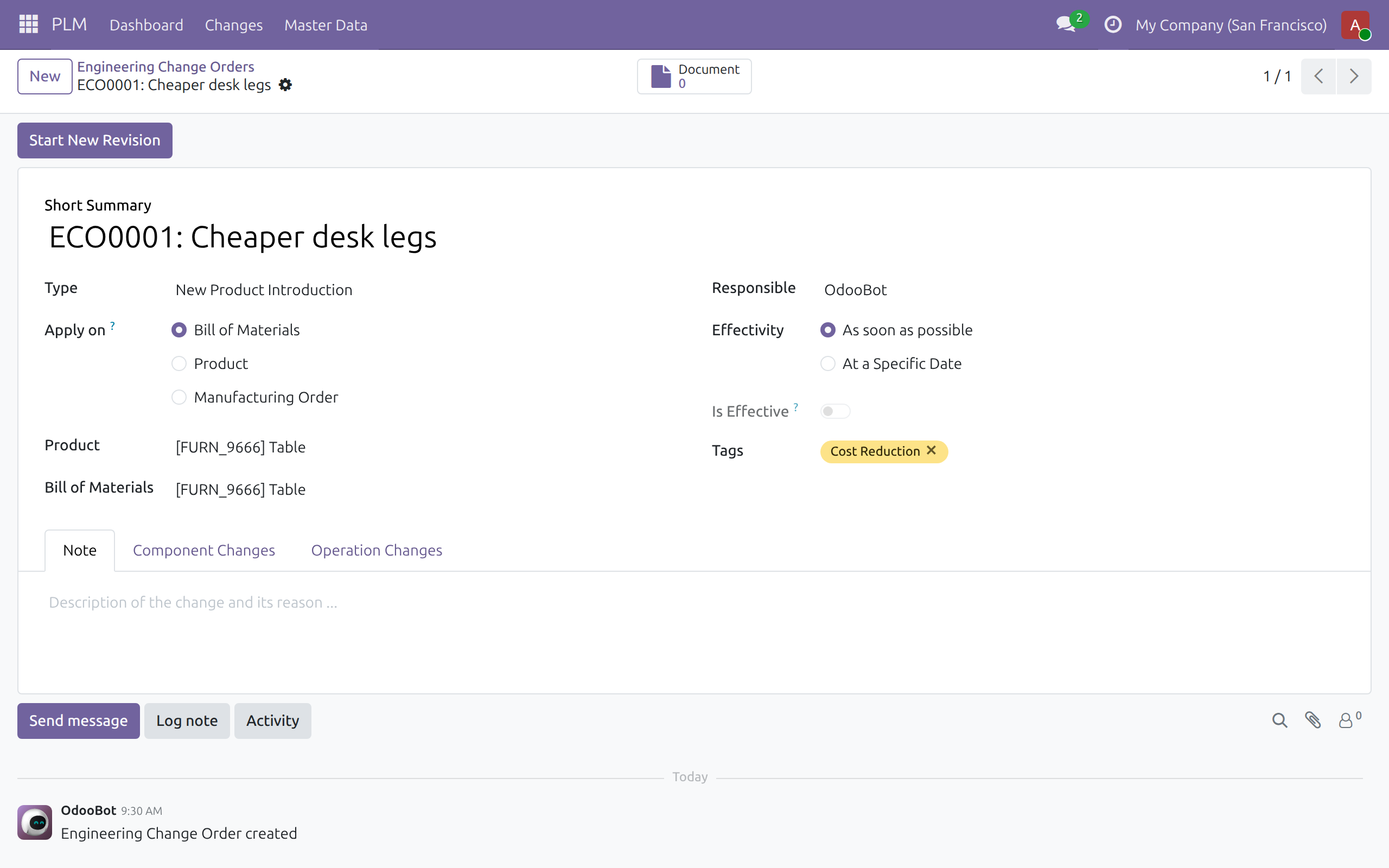
When the ECO records a change to the product specification and needs no BoM version, choose Apply on Product. The tabs of component and operation changes are then hidden and Apply Changes marks the ECO as applied.
Choose when the change takes effect
The field Effectivity offers two choices.
- As soon as possible: the change takes effect the moment you click Apply Changes.
- At a Specific Date: choose the Effectivity Date. Clicking Apply Changes applies the ECO, and the new BoM replaces the old one on that date, without anyone clicking again. A scheduled action called ECO: Apply changes checks every hour, so the switch happens at the first check after that date. A date that has already passed counts as As soon as possible.
The toggle Is Effective is on once the new BoM is in force.
Start a new revision and edit the BoM
- On the ECO, click Start New Revision. The BoM is copied into a new version whose number is one higher. The new version is not in use yet.
- The button at the top of the ECO shows Bill of Materials with the revision number (Rev: 1), and the buttons Apply Changes and Update BoM appear.
- Click Update BoM. The new version opens with a green ribbon New Version. Change the quantities of the components, add or remove components, and change the operations; then save.
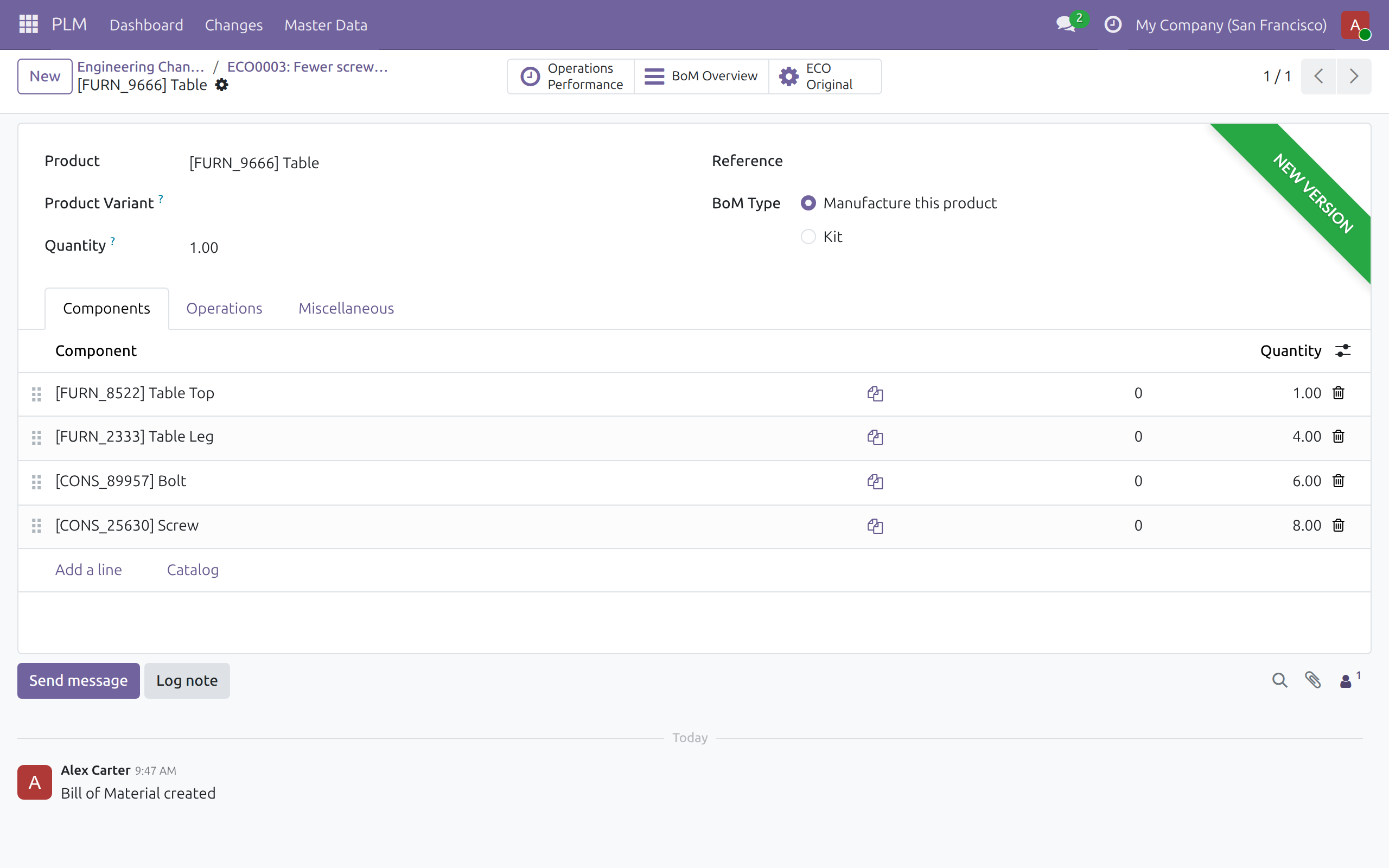
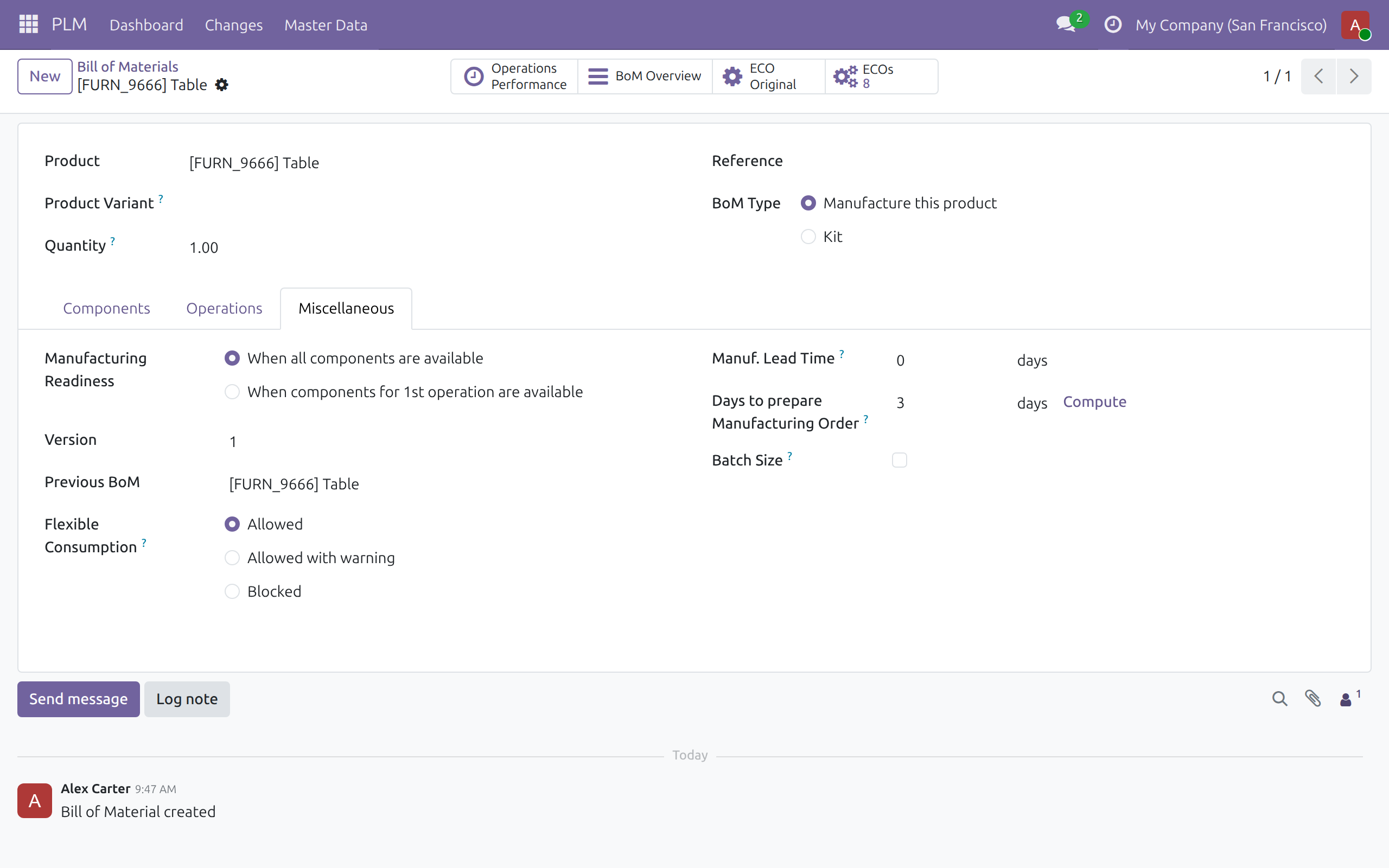
The tab Miscellaneous of a BoM shows its Version and its Previous BoM, so the history of a product's BoM can be followed from one version to the one before.
Review what changes
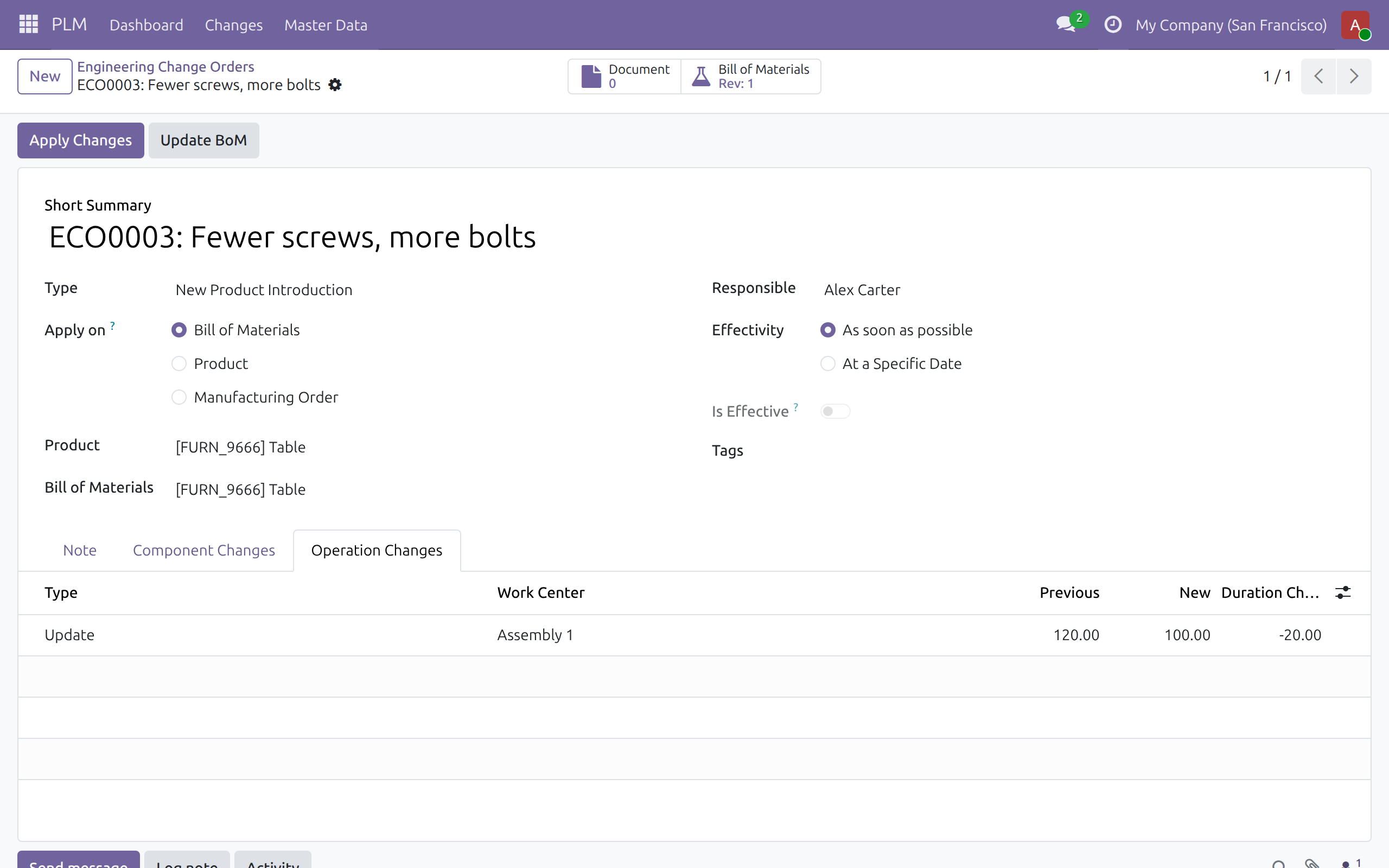
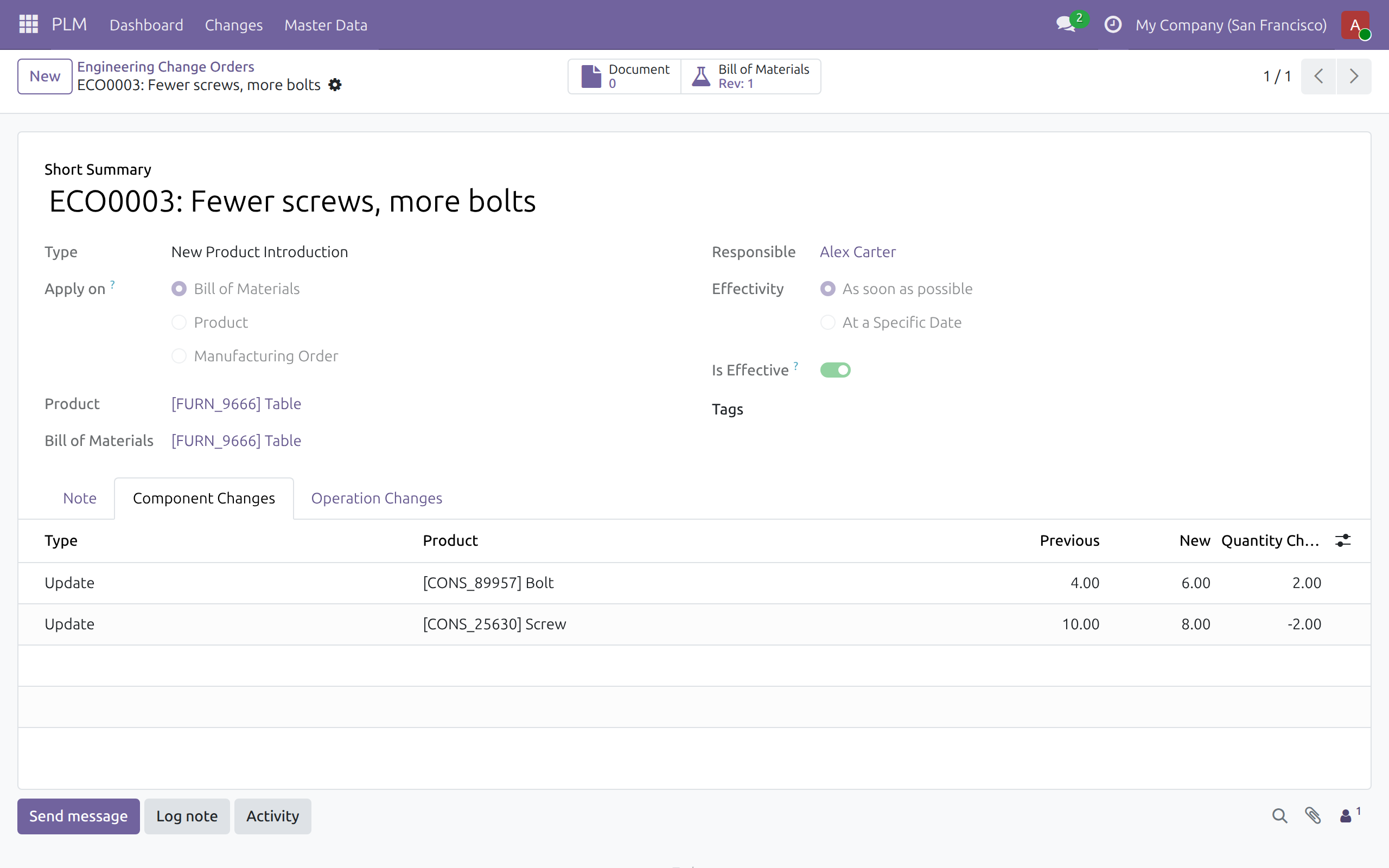
- Open the tab Component Changes of the ECO. Each line is a component that is added (blue), removed (red) or updated, with its Previous and New quantity and the Quantity Change.
- Open the tab Operation Changes. Each line is a work center with its Previous and New duration in minutes and the Duration Change. For a BoM ECO the durations are the manual durations of the operations.
The two tables follow your edits of the new version until the ECO is applied. After that they keep what they showed when the ECO was applied.
Apply the change
- Click Apply Changes.
- With As soon as possible, the new BoM becomes the active one, the previous version is archived and Is Effective turns on. With At a Specific Date in the future, the ECO is applied and the new BoM becomes active on that date.
- Once the ECO is applied, the buttons Apply Changes and Update BoM disappear and the fields become read-only.
Change the BoM of a manufacturing order
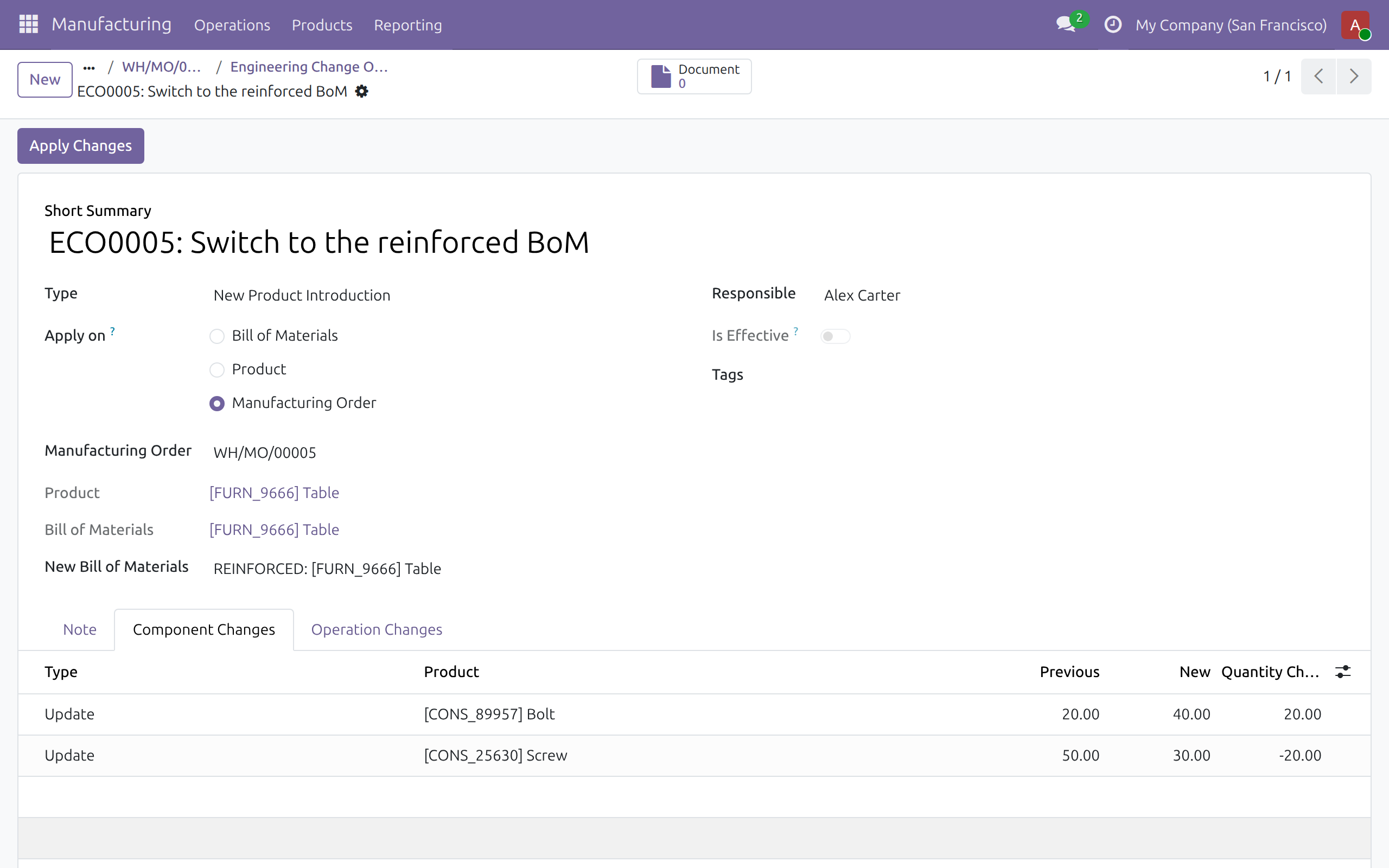
An ECO of type Manufacturing Order moves one manufacturing order to another BoM of its product. Use it when an order is already confirmed or in progress and must follow a new BoM.
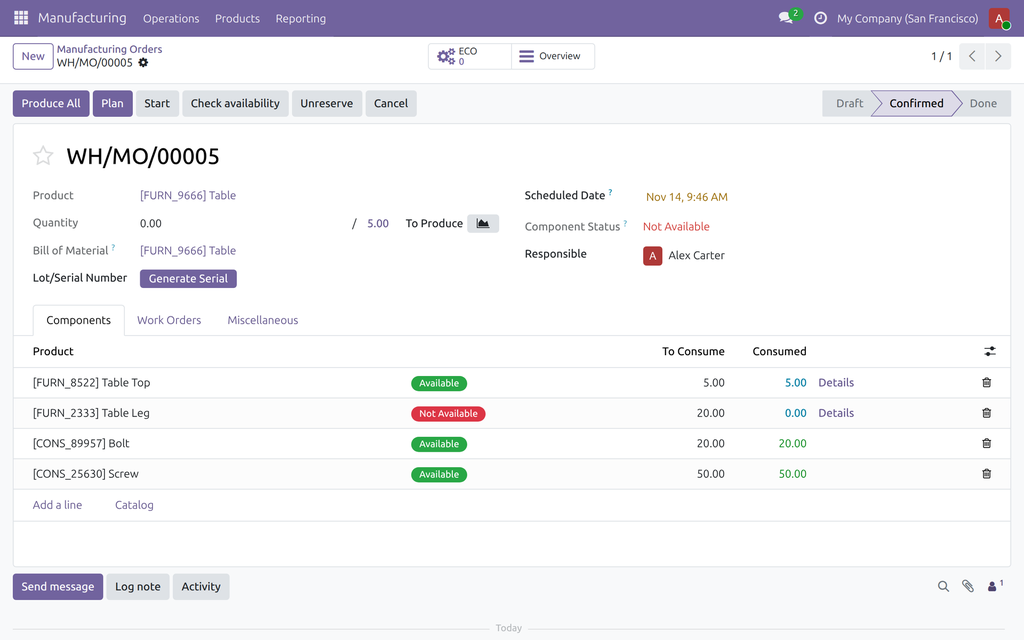
- Open the order in Manufacturing ‣ Operations ‣ Manufacturing Orders. The button ECO shows how many ECOs the order has; it is not offered while the order is a draft.
- Click ECO, then New. Apply on is already Manufacturing Order, and the product and BoM of the order are filled in.
- Type a Short Summary and choose the New Bill of Materials. It must be a BoM of the product that manufactures it (not a kit). Save.
- Read the tab Component Changes: Previous is what the order is set to consume and New is what it will consume on the new BoM, for the quantity of the order. The tab Operation Changes compares the expected durations of the order's work orders with the operations of the new BoM.
- Click Apply Changes. The order is moved to the new BoM at once; the effectivity is not asked for this type.
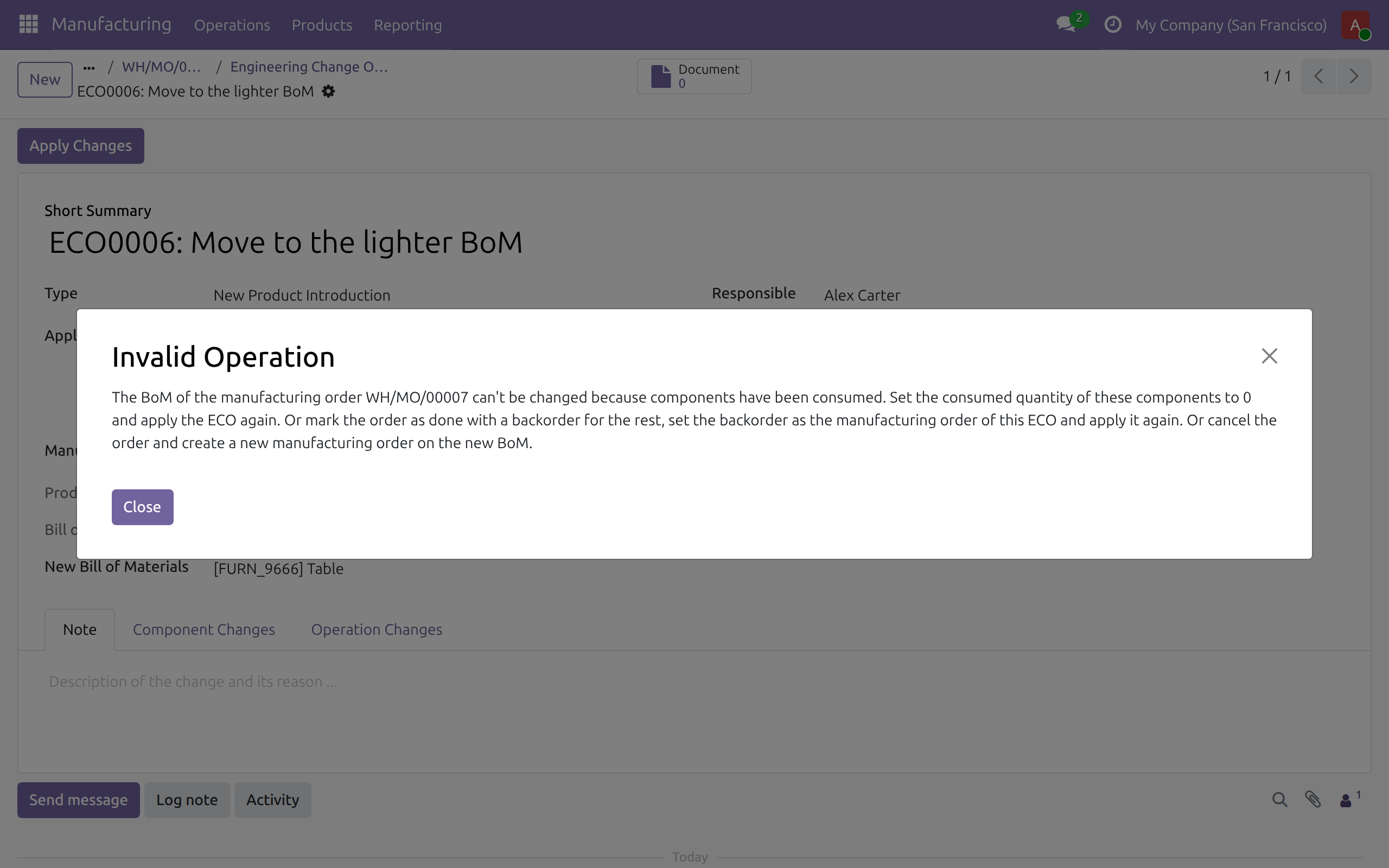
The ECO is refused, with a message that names the way out, when:
- the order is a draft: confirm it and apply the ECO again;
- the order is done or cancelled: create a new order on the new BoM;
- an operation has started, or a quantity is being produced: record what has been done, mark the order as done with a backorder for the rest, set the backorder as the manufacturing order of the ECO and apply again, or cancel the order and create a new one on the new BoM;
- components have been consumed: set the consumed quantity of the components to 0 and apply again, or follow the same ways out as above;
- the new BoM is not of the type that manufactures the product: choose another BoM.
Attach drawings and specifications to an ECO
- On the ECO, click the button Document. It shows how many files the ECO holds.
- Click New, upload the file and save.
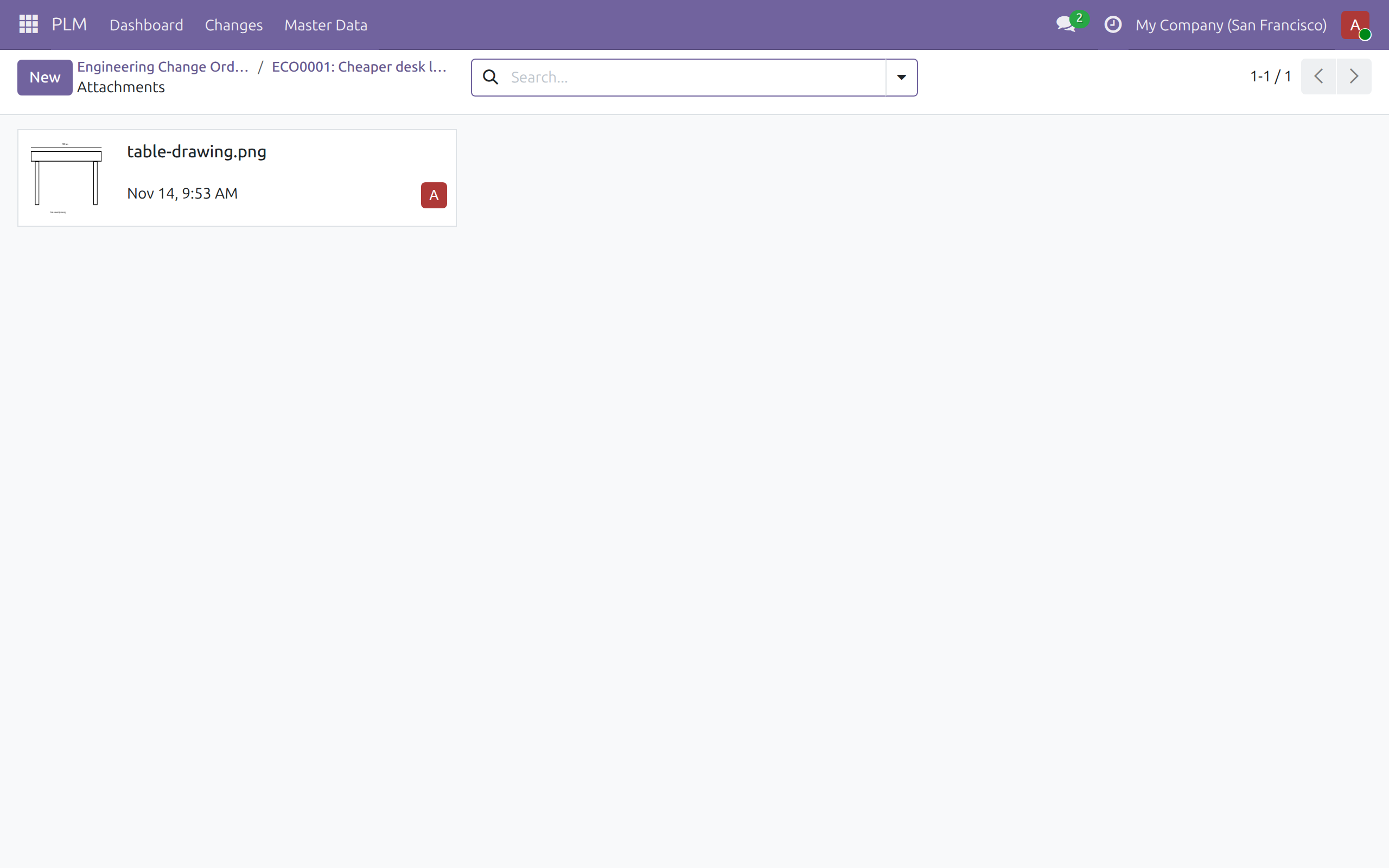
Files attached to an ECO are visible to the people who can open the ECO.
Keep engineering documents confidential
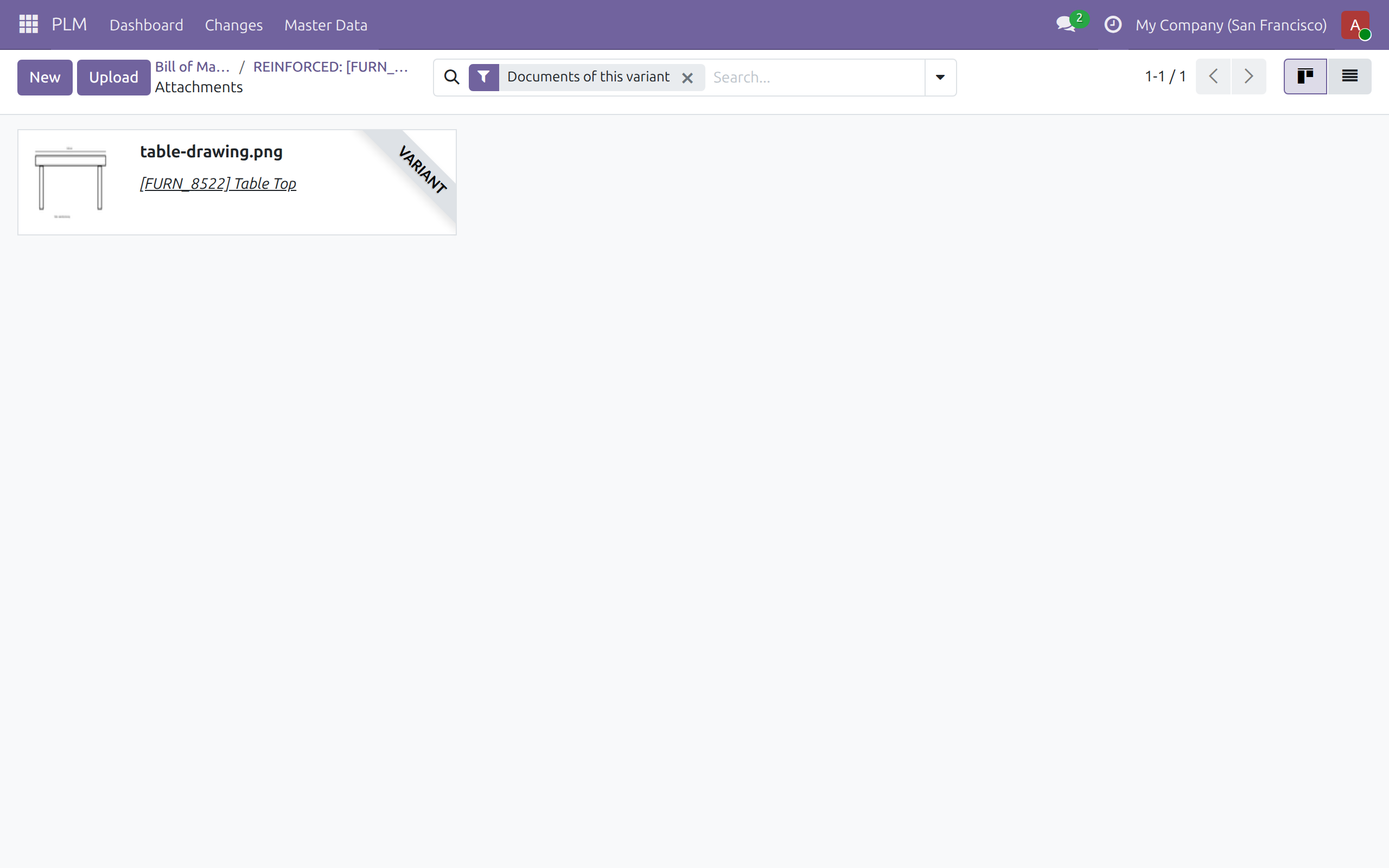
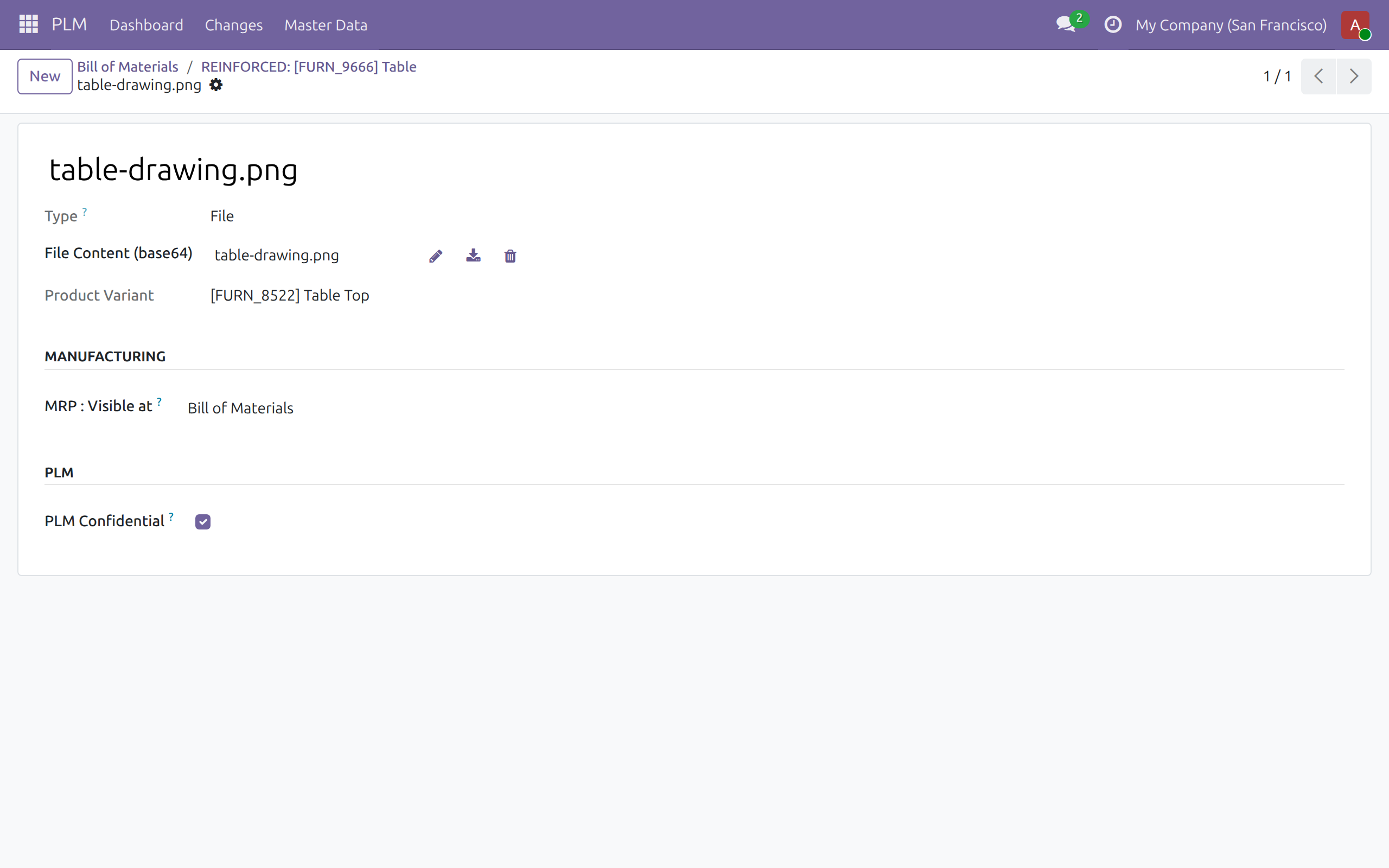
A product document marked PLM Confidential can be found, opened, downloaded, changed and deleted only by members of the PLM team (PLM / User and PLM / Administrator). Other users do not see it.
- Open a BoM and click the paperclip at the end of a component line (Product Attachments).
- Click Upload and choose the file. A document added here is marked PLM Confidential automatically.
- To check or change it, open the menu of the document card, choose Edit and look at the section PLM: untick PLM Confidential to share the document.
Note
A document added from the button Documents of the product form is not confidential unless you tick PLM Confidential yourself. Files attached through the chatter of a BoM or of an ECO are ordinary attachments and are not marked confidential. The field MRP : Visible at, which decides where a document appears on a BoM, neither grants nor removes access.
Follow the ECOs from a BoM or a product
- On a BoM, the button ECOs counts the ECOs of its product and opens them. The button ECO Original opens the ECO that created this version; it is meant for versions created by Start New Revision.
- On a product that has a BoM, the button ECOs opens the ECOs of the product.
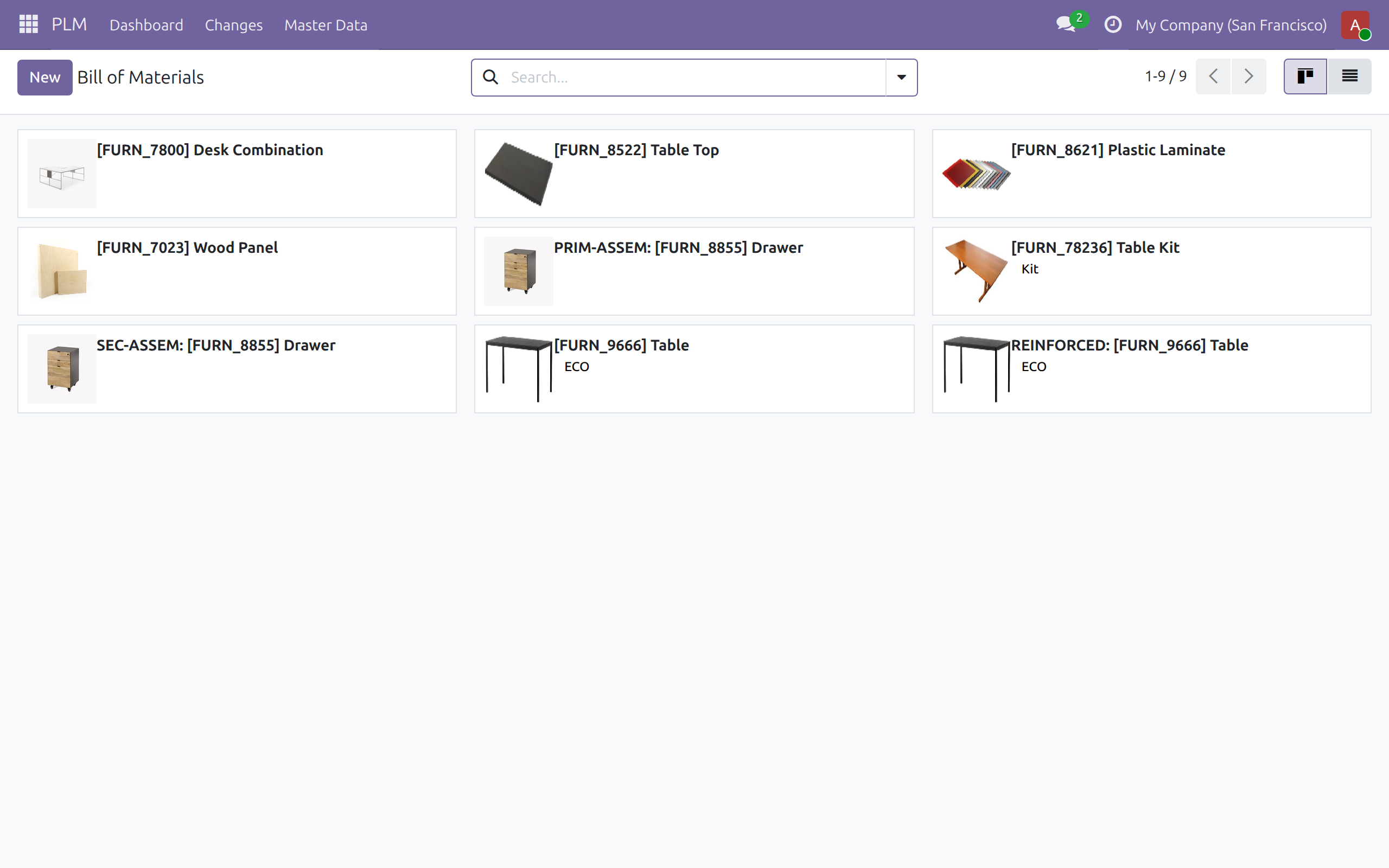
- In PLM ‣ Master Data ‣ Bill of Materials, a card shows the badge ECO when the product has ECOs.
- The menu Master Data also gives access to Products and Work Centers.
PLM administrator: types, tags and reports
This chapter is for people holding PLM / Administrator. It covers only what they add to the product engineer's tasks; the menus Reporting and Configuration are theirs.
ECO types
- Open PLM ‣ Configuration ‣ ECO Types and click New, or open an existing type.
- Type the Type Name and save. Each type is a card on the dashboard and a choice in the field Type of an ECO.
- When an email domain is configured for your database, the tab Emails offers an Email Alias and the field Accept Emails From. A message sent to the alias creates an ECO of that type.

On the dashboard, the menu of a card gives access to New ECO, Edit, Delete and the colour of the card.
ECO tags
- Open PLM ‣ Configuration ‣ ECO Tags.
- Add a line, type the Tag Name and pick its colour. A tag name can be used once.

Follow the changes in a report
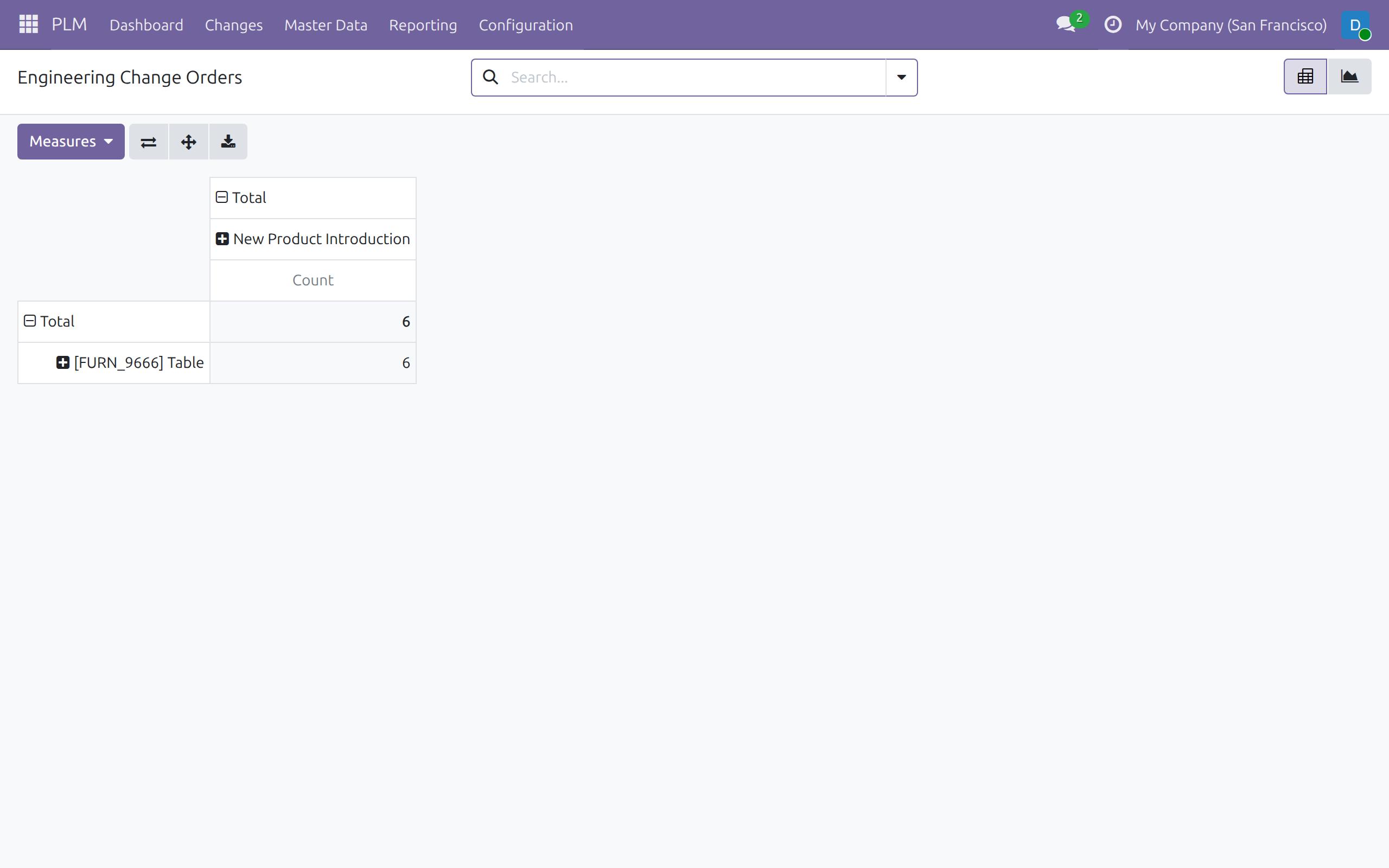
Open PLM ‣ Reporting ‣ ECOs to analyse the ECOs as a pivot table or a graph, for example the number of ECOs by product and by type.
This software and associated files (the "Software") may only be used (executed, modified, executed after modifications) if you have purchased a valid license from the authors, typically via Odoo Apps, or if you have received a written agreement from the authors of the Software (see the COPYRIGHT file).
You may develop Odoo modules that use the Software as a library (typically by depending on it, importing it and using its resources), but without copying any source code or material from the Software. You may distribute those modules under the license of your choice, provided that this license is compatible with the terms of the Odoo Proprietary License (For example: LGPL, MIT, or proprietary licenses similar to this one).
It is forbidden to publish, distribute, sublicense, or sell copies of the Software or modified copies of the Software.
The above copyright notice and this permission notice must be included in all copies or substantial portions of the Software.
THE SOFTWARE IS PROVIDED "AS IS", WITHOUT WARRANTY OF ANY KIND, EXPRESS OR IMPLIED, INCLUDING BUT NOT LIMITED TO THE WARRANTIES OF MERCHANTABILITY, FITNESS FOR A PARTICULAR PURPOSE AND NONINFRINGEMENT. IN NO EVENT SHALL THE AUTHORS OR COPYRIGHT HOLDERS BE LIABLE FOR ANY CLAIM, DAMAGES OR OTHER LIABILITY, WHETHER IN AN ACTION OF CONTRACT, TORT OR OTHERWISE, ARISING FROM, OUT OF OR IN CONNECTION WITH THE SOFTWARE OR THE USE OR OTHER DEALINGS IN THE SOFTWARE.